Dashboards aren’t scary!
In this video, let’s make a starter dashboard in Microsoft Excel.
You’ll learn how to make four quick visuals:
- Sparklines
- Data bars
- Symbol fonts
- Color scales
I use these visuals over and over in my real-life consulting projects.
Watch the Tutorial
Sparklines
Sparklines are helpful for visualizing patterns over time, like daily, weekly, monthly, quarterly, or annual data.
To create sparklines:
- Highlight the first row of your table.
- Go to the Insert tab.
- Go to the Sparklines section.
- Click on the first one (a Line sparkline).
- Choose where we want to put the sparklines (off to the right of the table).
- Click insert and enjoy the sparklines!
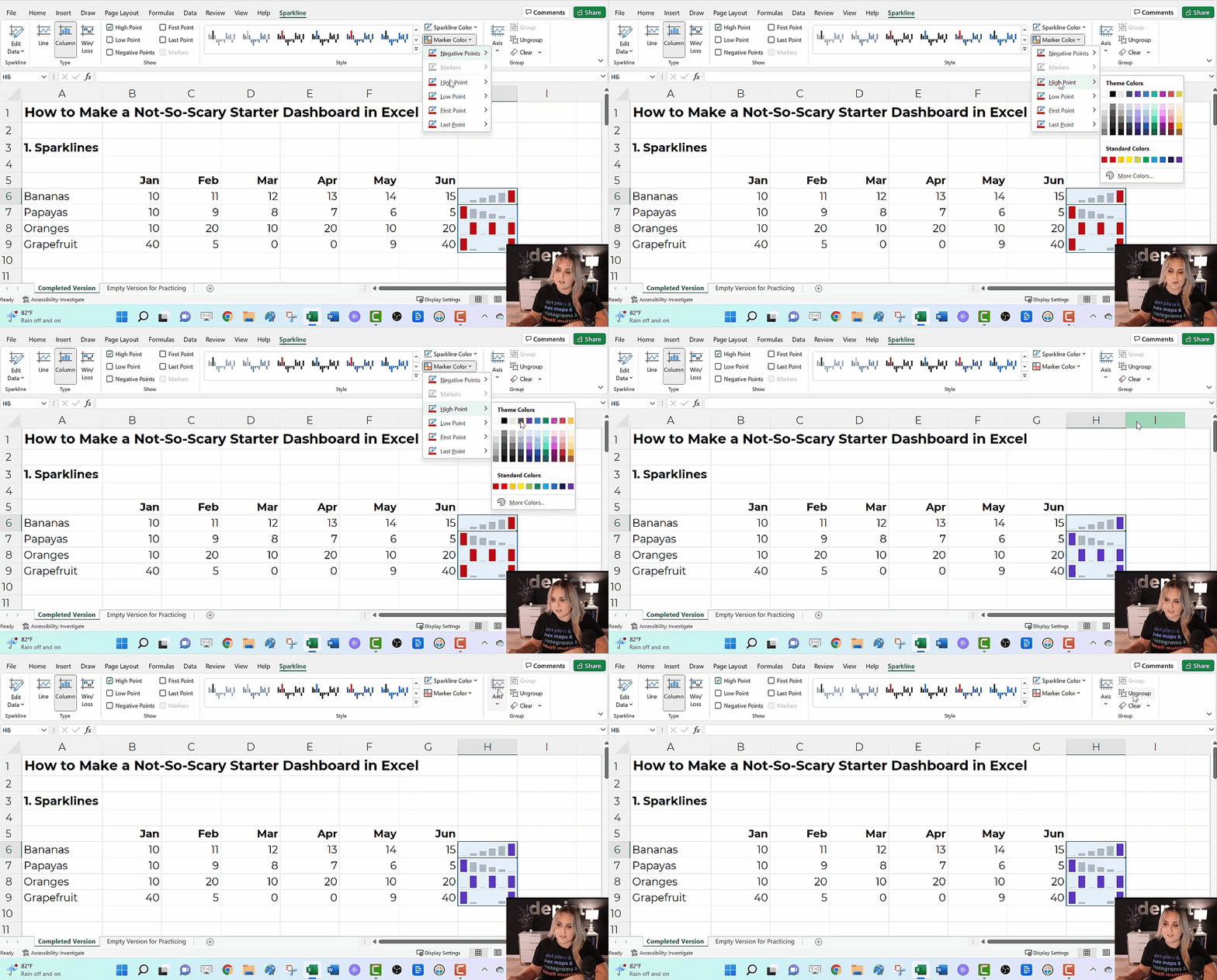
We can also edit our sparklines!
We might adjust the data source, type (from line to column), or color. I typically gray everything out and highlight a high point or low point in a dark brand color.
We can also group and ungroup our sparklines (e.g., if we want each category in our dashboard to have its own color).
And if we change our mind, we can clear them out.
Data Bars
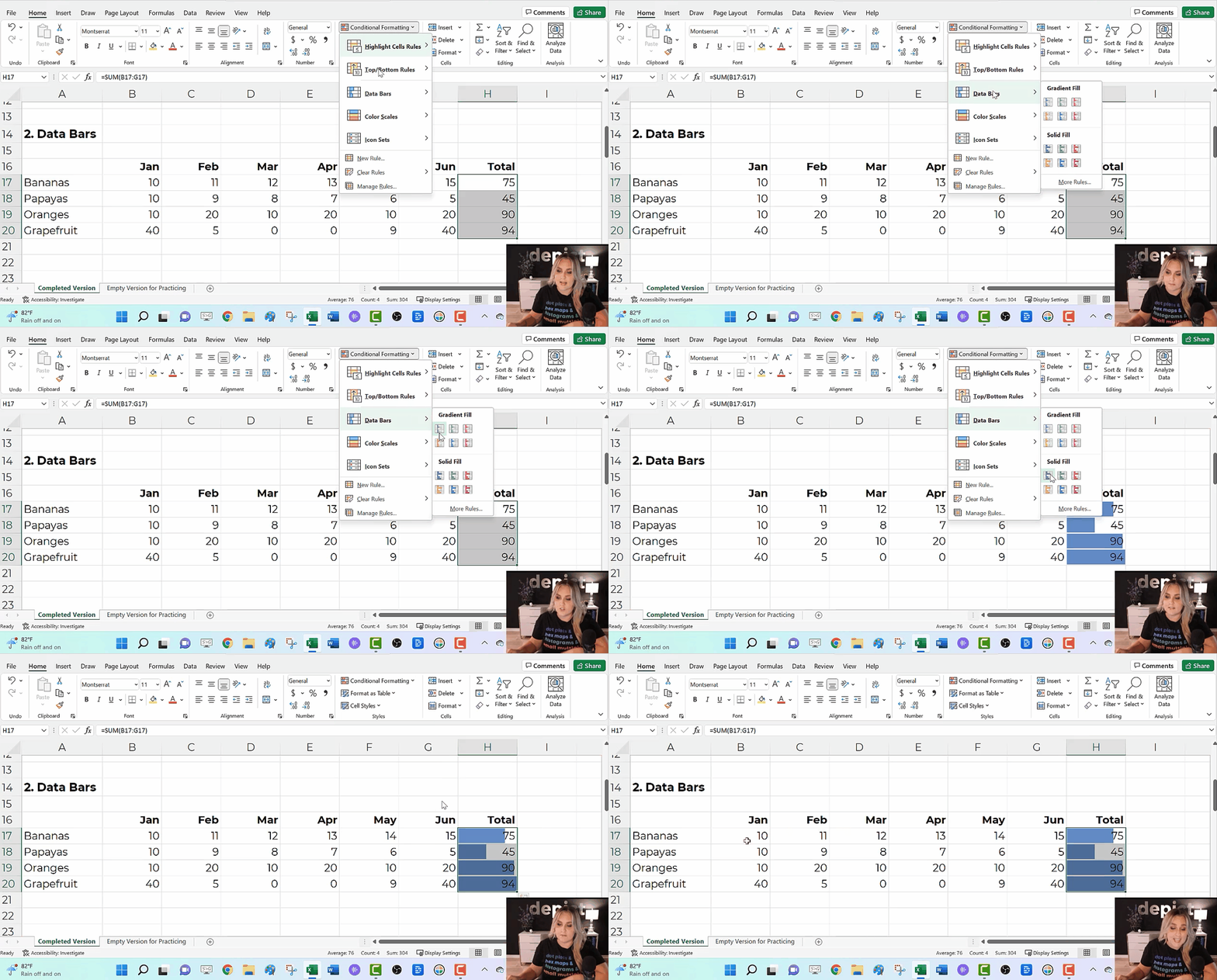
Data Bars give us horizontal bars (as opposed to sparklines’ vertical columns).
They’re helpful for visualizing summary statistics like totals or averages.
To create data bars:
- Highlight the cells you want to visualize (e.g., the total column).
- Go to the Home tab.
- Click on the Conditional Formatting button.
- Select solid-filled data bars.
Symbol Fonts
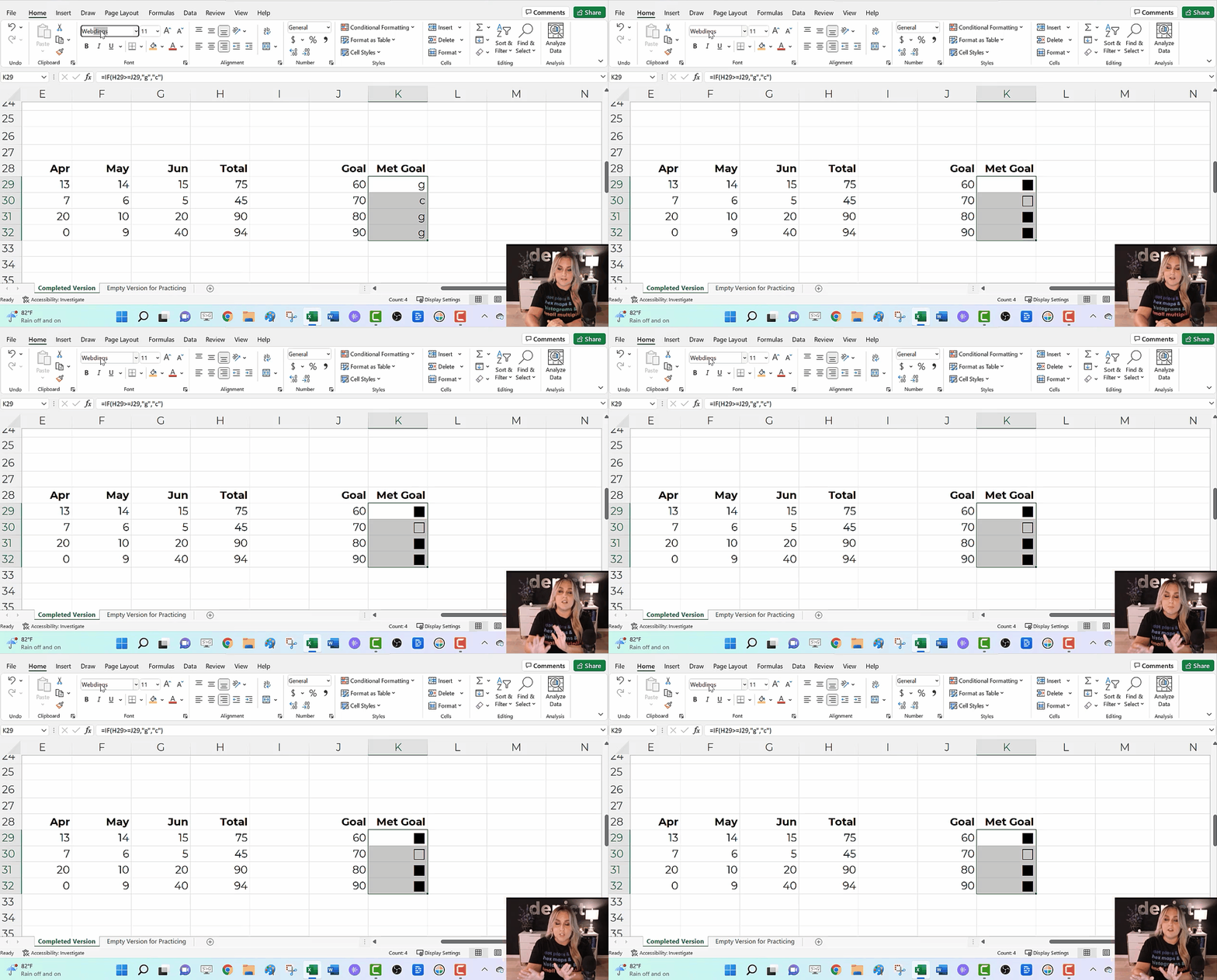
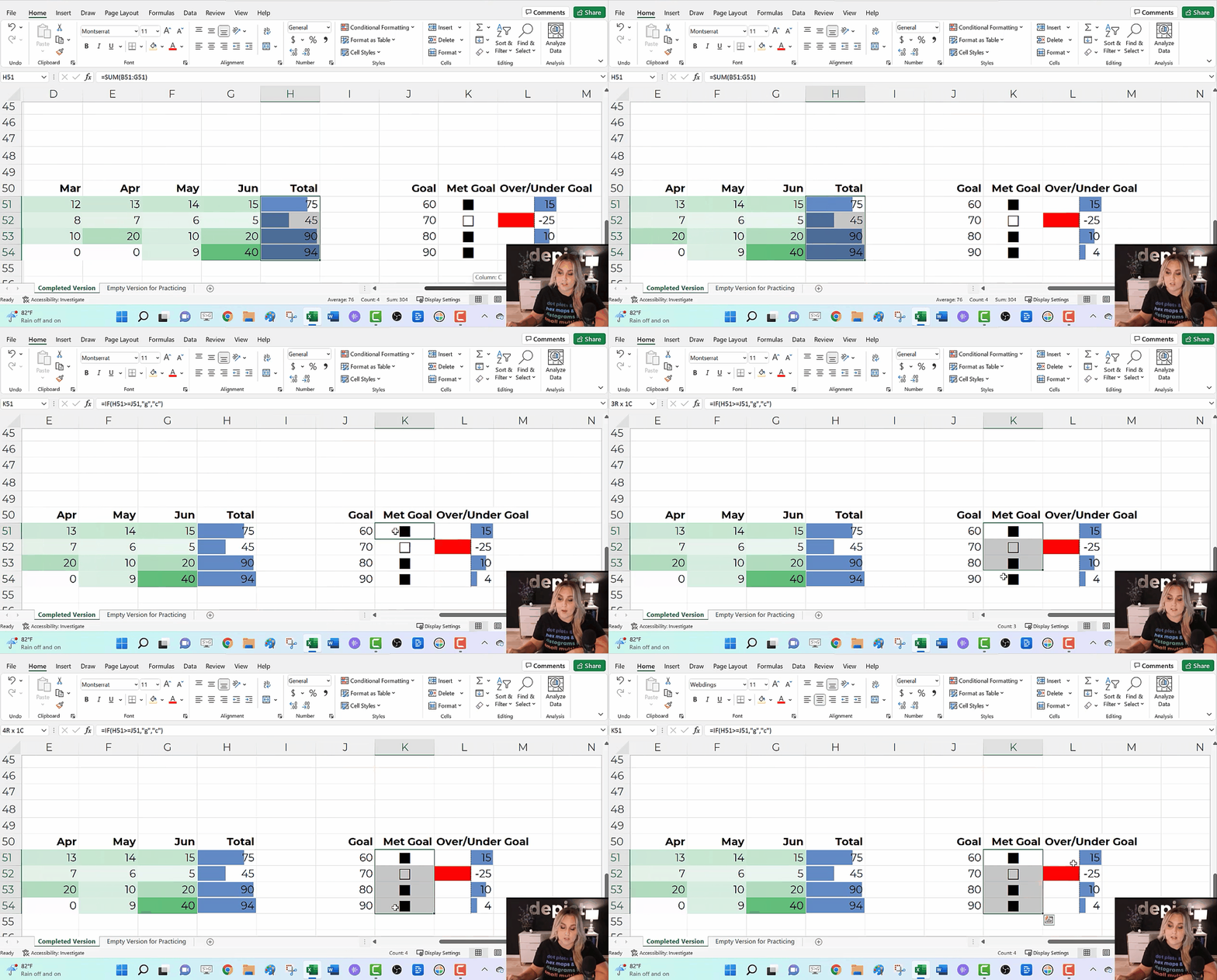
I use checkboxes to visualize whether I met a goal or target.
We can get quick checkboxes through symbol fonts!
In the video, you’ll see me write an =if() statement to transform g’s and c’s into Webdings checkboxes.
Audiences love the checkboxes. They’re intuitive, colorblind-friendly, and grayscale printing-friendly.
Color Scales
a.k.a. heat maps or heat tables.
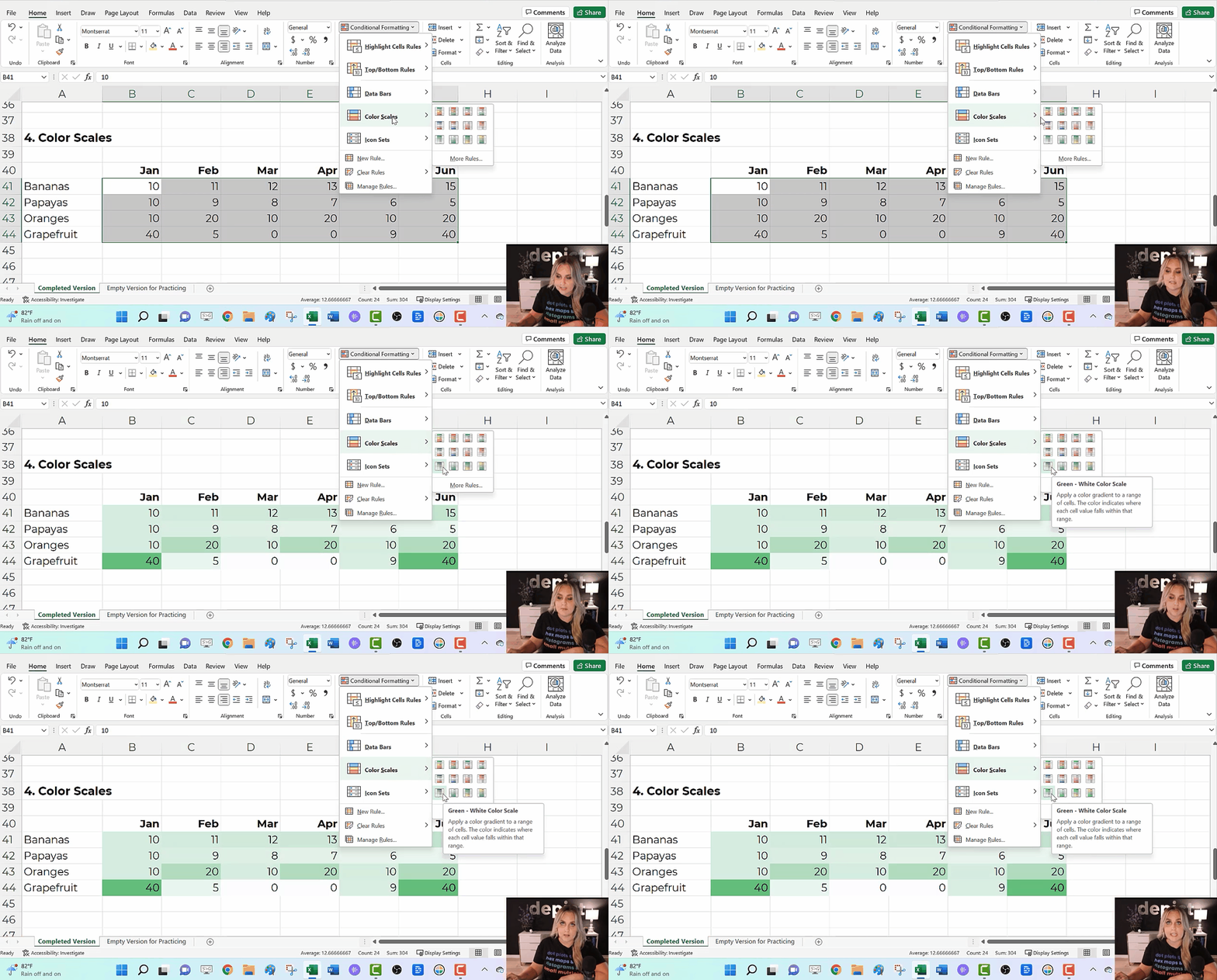
I love color scales for visualizing the interior of my table—when I want to compare lots of rows and columns to each other.
To create color scales:
- Highlight the cells you want to visualize (i.e., the interior of the table).
- Go to the Home tab.
- Click on the Conditional Formatting button.
- Select Color Scales. Most of the time, we’ll use a Green-White Color Scale. That’ll make the big numbers dark (and the small numbers will be light).
Combos
In real life, we might combine several of these techniques.
We might add color scales to the interior of the table…
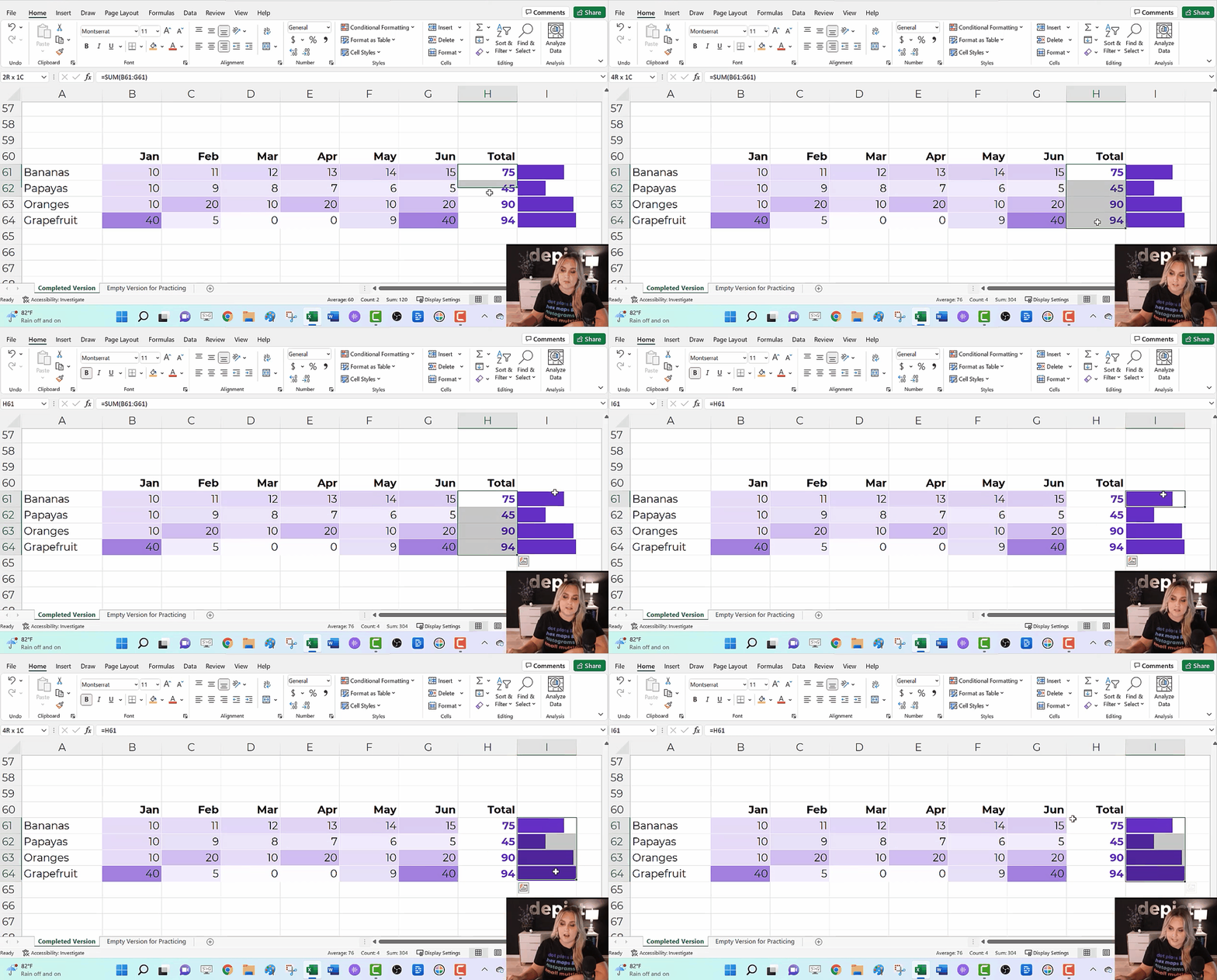
We might compare the totals with data bars…
We might add Webdings checkboxes to see whether we met a goal…
And we might add more data bars to see how far we were over or under our goal.
Formatting
In real life, we’d edit these quick visuals.
I suggest:
- Using brand colors and brand fonts.
- Outlining the color scales in white (so the cells can be differentiated against each other).
- Placing the data bars in a separate column than their numeric labels.
- Coloring the checkboxes (rather than boring black).
- Adjusting the colors in the over/under bars (to avoid scary red).
- Moving the labels to the over/under bars to their own column (via an =if() statement to save time).
Download this Spreadsheet
Try it yourself!
Explore the completed version with the =if() statements.
Use the empty version to practice alongside me as you replay the video.
Get in Touch
If you get stuck, reach out on LinkedIn.
 English
 Afrikaans
 Shqip
Shqip አማርኛ
አማርኛ العربية
 Հայերեն
 Azərbaycan dili
 Euskara
 Беларуская мова
 বাংলা
বাংলা Bosanski
 Български
 Català
 Cebuano
 Chichewa
 简体中文
简体中文 繁體中文
繁體中文 Corsu
Corsu Hrvatski
 Čeština
 Dansk
Dansk Nederlands
 Esperanto
 Eesti
Eesti Filipino
 Suomi
Suomi Français
 Frysk
Frysk Galego
 ქართული
 Deutsch
 Ελληνικά
 ગુજરાતી
 Kreyol ayisyen
 Harshen Hausa
 Ōlelo Hawaiʻi
 עִבְרִית
 हिन्दी
 Hmong
Hmong Magyar
 Íslenska
 Igbo
Igbo Bahasa Indonesia
 Gaeilge
 Italiano
 日本語
日本語 Basa Jawa
 ಕನ್ನಡ
ಕನ್ನಡ Қазақ тілі
 ភាសាខ្មែរ
 한국어
한국어 كوردی
كوردی Кыргызча
 ພາສາລາວ
 Latin
Latin Latviešu valoda
 Lietuvių kalba
 Lëtzebuergesch
 Македонски јазик
 Malagasy
 Bahasa Melayu
 മലയാളം
 Maltese
 Te Reo Māori
 मराठी
मराठी Монгол
 ဗမာစာ
ဗမာစာ नेपाली
 Norsk bokmål
 پښتو
پښتو فارسی
فارسی Polski
 Português
 ਪੰਜਾਬੀ
 Română
 Русский
 Samoan
 Gàidhlig
 Српски језик
 Sesotho
 Shona
Shona سنڌي
سنڌي සිංහල
සිංහල Slovenčina
 Slovenščina
 Afsoomaali
 Español
 Basa Sunda
 Kiswahili
 Svenska
 Тоҷикӣ
 தமிழ்
தமிழ் తెలుగు
 ไทย
ไทย Türkçe
 Українська
 اردو
اردو O‘zbekcha
 Tiếng Việt
 Cymraeg
 isiXhosa
 יידיש
יידיש Yorùbá
 Zulu
Zulu