I was working with a state’s public health agency to visualize their data.
We’ll call them the Statelandia Public Health Department.
Before
Here’s what their “before” version looked like.
The information on how many adults overall had been diagnosed with high blood pressure was tucked inside the title, while the graph focused on the breakdown by age group.
All the important details are there, hooray! But we all wanted more cohesion between the title and the graph.

Two Options for Visualizing “Overall” Data or Averages on Bar Charts
There are two primary ways to visualize our “overall” data or averages when we’re making bar or column charts.
The two options include:
- Add a column. We can add intentional gaps between the “overall” data and the subgroups. In technical terms, the space is a preattentive attribute. Preattentive attributes help our audience recognize instantly that the overall vs. subgroups are a bit different.
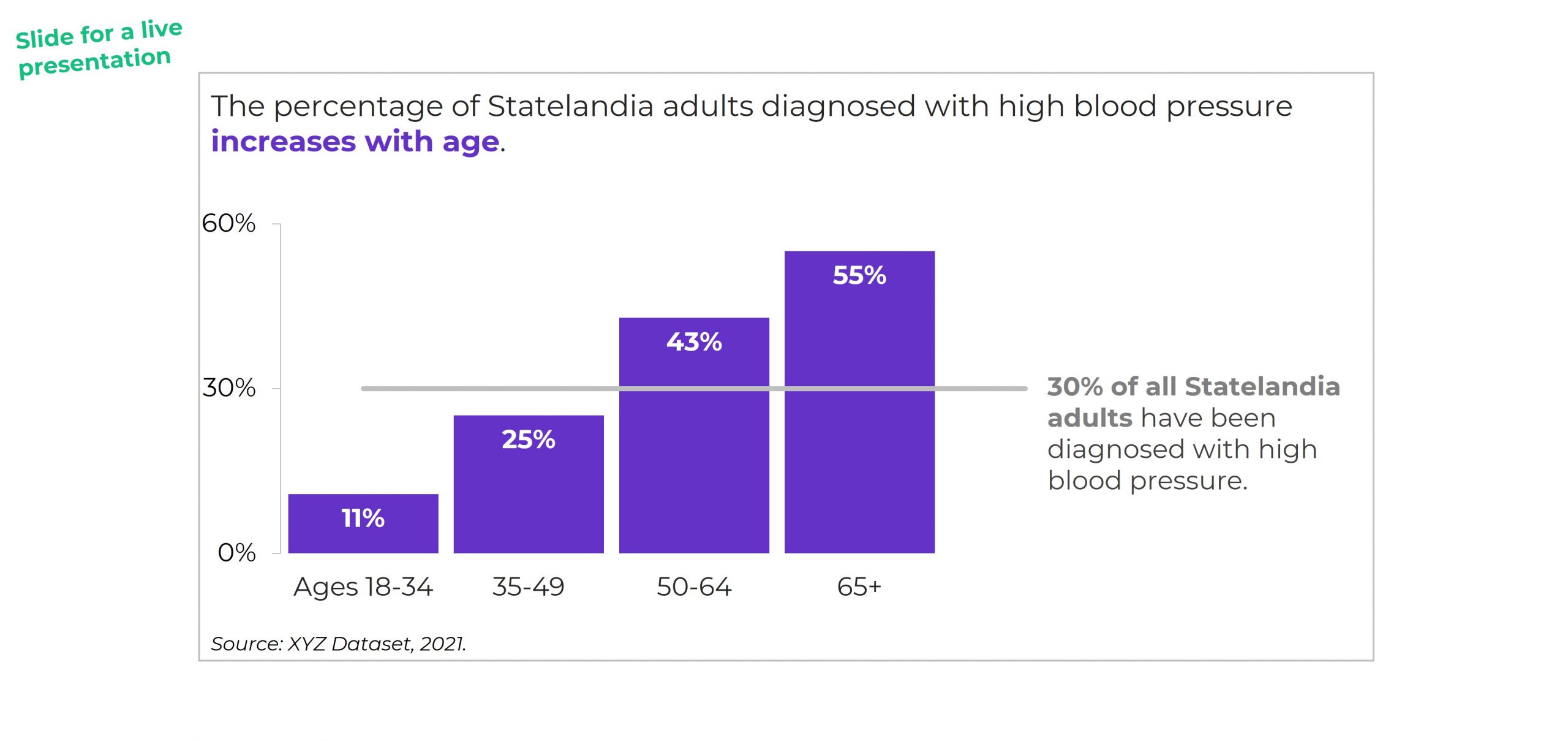
- Add a line. Another option is adding a line on top of the bars or columns. I’ve seen people add literal lines in Excel (Insert – Shape – Line). That works, but the fancier option is to use a Combo Chart in Excel. (If you’re not familiar with Combo Charts, you can download my template below.)

Let’s apply these two options to the blood pressure example.
Option 1: Visualize “Overall” Data by Adding a Column
I *think* this is my preferred approach. I’m still on the fence. Hmm…
A Few Quick Wins
I always start with Quick Wins. These edits can be tackled within minutes.
Quick Wins give us momentum so that we have mental energy to tackle the Not-So-Quick Wins.
Here’s what we edited:
- We changed the horizontal bar chart into a vertical column chart. Age groups are ordinal, and I generally try to arrange ordinal data from left to right. You can read more about my bar vs. column logic here, and you can learn how to make this quick rotation in Excel here.
- We rounded the decimal places to the nearest whole number. You can learn more about lowering the numeracy level of our graphs here.
- We moved the percentage labels inside the columns (so they don’t accidentally make the columns look taller than they really are).
- We decluttered the graph (removing gridlines, showing fewer increments on the y-axis, tucking the labels inside the columns, etc.).

Add an “Overall” Column with an Intentional Gap
Next, we added the “overall” data to the graph as its own column.
We also spaced the overall column apart from the others. These are separate types of data (an overall number is qualitatively different from a breakout by subgroups). They need to be arranged separately on the slide.
If you’re using Excel, simply add an empty row to the table that feeds into your graph.
You can learn more about adding intentional gaps in this blog post.

Adjust the Text Placement
Next, we moved around the text boxes.
All the important text was there — but in a single full-width text box.
We simply placed “like with like” — the overall text with the overall column, and the subgroup text with the subgroup columns.
We also moved the “year” data to the source at the bottom of the slide.

Bold the Key Words & Color-Code by Category
For extra skimmability, we bolded a few key words.
Then, we adjusted the colors. Separate colors for separate categories of information.
Color-coding by category is one of my all-time favorite dataviz techniques! You can see color-coding applied to one-pagers, recurring monthly reports, technical reports, and slideshows in these linked examples.
The final version would look like this:

Option 2: Visualizing “Overall” Data by Adding a Line
I love adding lines to visualize targets and goals.
We can add lines to visualize “overall” or “average” data, too.
BUT make sure to gray out something. Otherwise, the line chart gets messy.
You might gray out the columns, like this:

Or, you might gray out the line, like this:
Visualizing “Overall” Data on Line Charts
It’s easy to apply these techniques to line charts.
Just add another line!
Your Turn
Which approach is your favorite?
Adding a column?
Or adding a line?
And why?
For this case study, I prefer adding a column because it was easier to arrange the takeaway text in the right places (the takeaway text is simply above the columns). For the line charts, the takeaway text didn’t feel as seamless.
Comment below and share your own insights.
Bonus: Download My Spreadsheet
Not familiar with the intentional spacing in the bar chart?
Not familiar with the combo chart design in the line chart?
 English
 Afrikaans
 Shqip
Shqip አማርኛ
አማርኛ العربية
 Հայերեն
 Azərbaycan dili
 Euskara
 Беларуская мова
 বাংলা
বাংলা Bosanski
 Български
 Català
 Cebuano
 Chichewa
 简体中文
简体中文 繁體中文
繁體中文 Corsu
Corsu Hrvatski
 Čeština
 Dansk
Dansk Nederlands
 Esperanto
 Eesti
Eesti Filipino
 Suomi
Suomi Français
 Frysk
Frysk Galego
 ქართული
 Deutsch
 Ελληνικά
 ગુજરાતી
 Kreyol ayisyen
 Harshen Hausa
 Ōlelo Hawaiʻi
 עִבְרִית
 हिन्दी
 Hmong
Hmong Magyar
 Íslenska
 Igbo
Igbo Bahasa Indonesia
 Gaeilge
 Italiano
 日本語
日本語 Basa Jawa
 ಕನ್ನಡ
ಕನ್ನಡ Қазақ тілі
 ភាសាខ្មែរ
 한국어
한국어 كوردی
كوردی Кыргызча
 ພາສາລາວ
 Latin
Latin Latviešu valoda
 Lietuvių kalba
 Lëtzebuergesch
 Македонски јазик
 Malagasy
 Bahasa Melayu
 മലയാളം
 Maltese
 Te Reo Māori
 मराठी
मराठी Монгол
 ဗမာစာ
ဗမာစာ नेपाली
 Norsk bokmål
 پښتو
پښتو فارسی
فارسی Polski
 Português
 ਪੰਜਾਬੀ
 Română
 Русский
 Samoan
 Gàidhlig
 Српски језик
 Sesotho
 Shona
Shona سنڌي
سنڌي සිංහල
සිංහල Slovenčina
 Slovenščina
 Afsoomaali
 Español
 Basa Sunda
 Kiswahili
 Svenska
 Тоҷикӣ
 தமிழ்
தமிழ் తెలుగు
 ไทย
ไทย Türkçe
 Українська
 اردو
اردو O‘zbekcha
 Tiếng Việt
 Cymraeg
 isiXhosa
 יידיש
יידיש Yorùbá
 Zulu
Zulu