I recently worked with a healthcare system to visualize their multi-year patterns.
Are you lucky enough to have historical data at your fingertips?! Woohoo! What a treat.
Let’s weigh the pros and cons of a few different viz options.
The Table
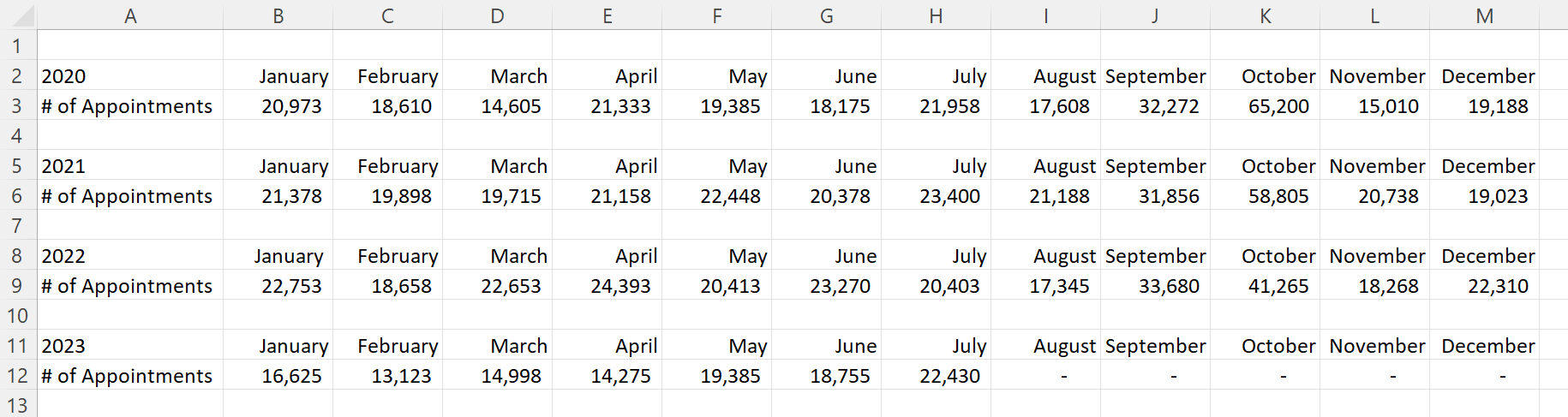
Here’s what their tabulated data looked like, sort of.
Let’s pretend we’re looking at the number of doctor’s appointments that took place within their healthcare system.
That’s not the real variable, and these aren’t their real numbers, but you get the idea: They wanted to visualize patterns over the past four years.
Before: 1 Graph per Year
And here’s what their initial visualization looked like: a separate graph for each year.

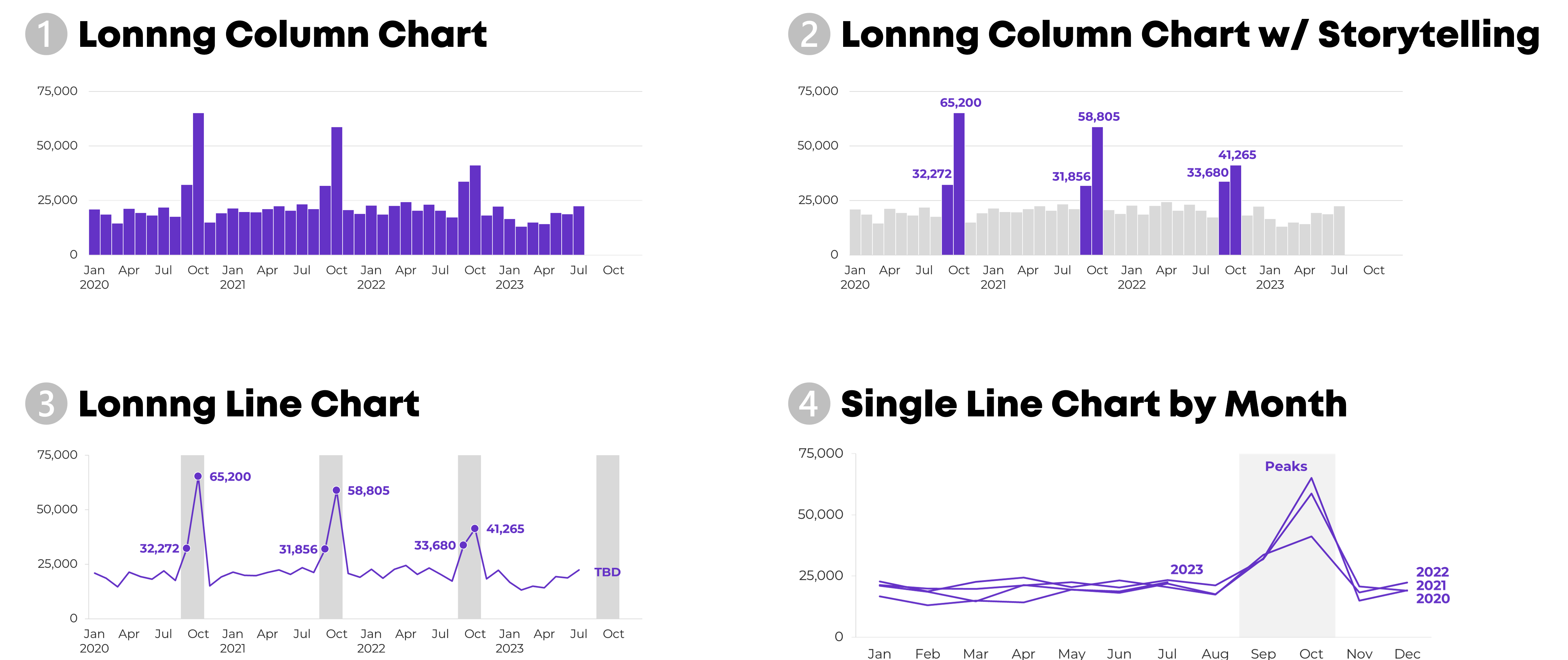
Idea 1: Lonnng Column Chart with Bare-Minimum Edits
First, let’s tackle the Quick Wins, a.k.a. the Bare Minimum edits for branding and “Big A” Accessibility:
- Brand colors and fonts
- Darker font for better color contrast
- Sized for a slide (size 18-point font, 13 inches wide, 5 inches tall)
- Arranged left to right, rather than a grid
- “Grouped” all the graphs together for easier copying and pasting into a slide
- Horizontal text only
- Consistent scales to make comparisons across graphs easier
- Fewer demarcations on the y-axis (one label every 25,000 units)
- Changed the y-axis to a “number” format so that a zero appears at the bottom, not just a dash
- Then, only showing the left-most y-axis
- Wider columns, a.k.a. a smaller gap width
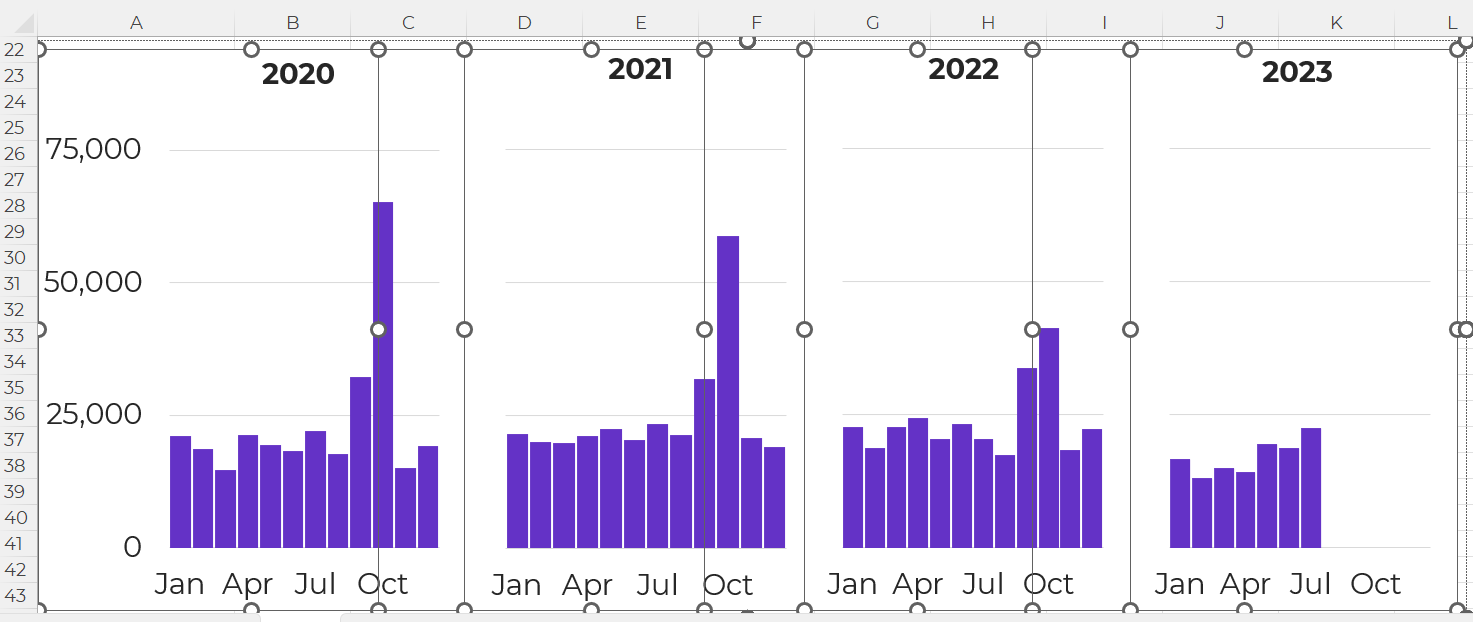
It felt inefficient to keep four separate graphs — too much extra work to align everything and then group everything — so I turned this into a single column chart.
Yep, I had to rearrange the four tables into one table in order to transform the four graphs into one graph. At the bottom of this blog post, you’ll see a link to download my Excel file so you can explore the behind-the-scenes tables and graphs for yourself.

Idea 2: Lonnng Column Chart with Data Storytelling
I’ve written about spoken about traditional vs. storytelling graphs a lot over the past decade. If these terms are new, then you can watch the most recent public-facing conference talk here.
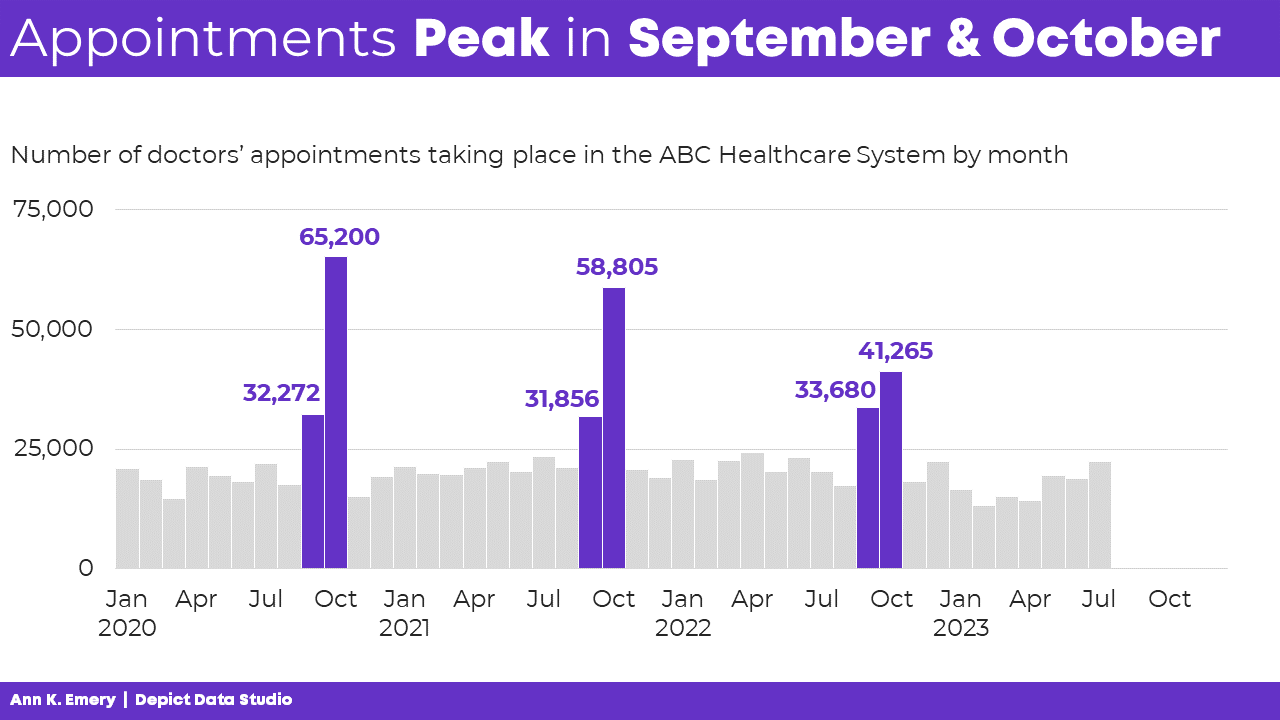
In this version, I intentionally used data storytelling. This data was intended for a busy upper-management office, and leaders often prefer when we cut to the chase, instead of burying them in graphs that don’t say anything.
The presentation slide might look something like this:
- A takeaway slide title
- The topical graph title underneath
- Dark-light contrast
- Labels only one the columns of interest – for September and October
And no, I don’t love how the September labels are right-aligned while the October labels are centered, but this probably isn’t the winning approach, so who cares.
Idea 3: Lonnng Line Chart with Data Storytelling
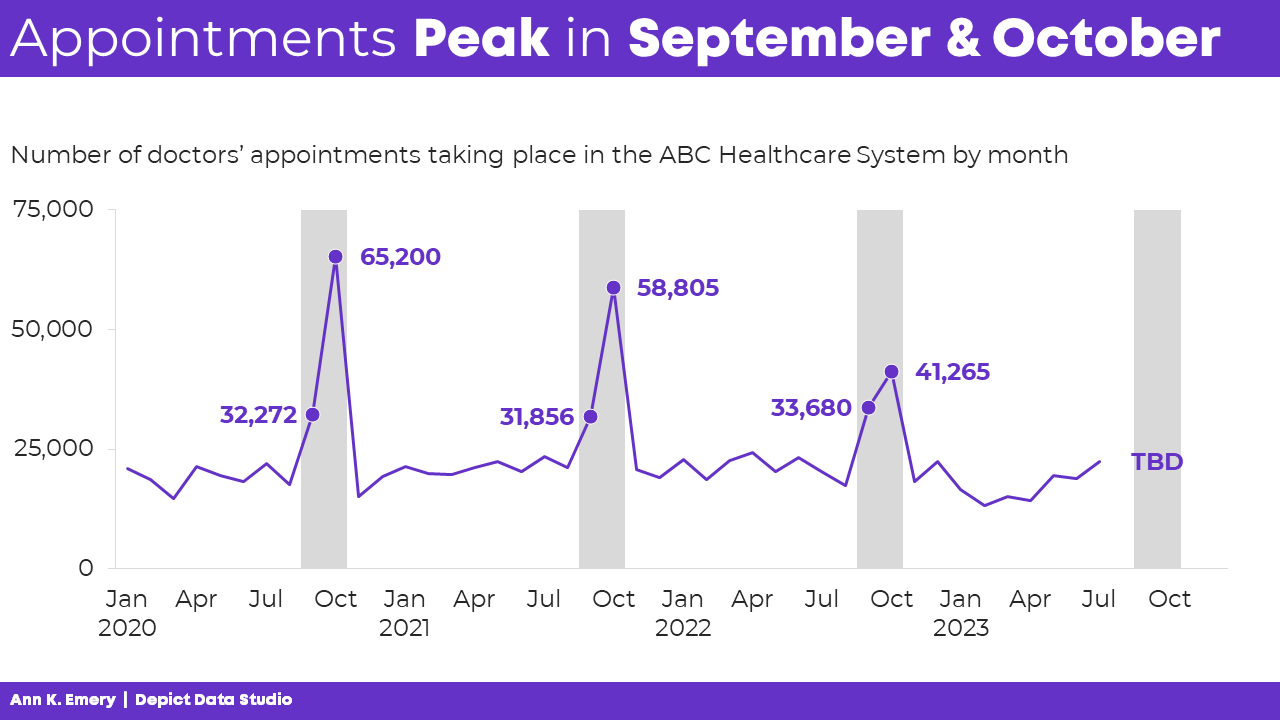
Another option is a line chart with gray shading for the peaks.
Yes, this is a combo chart in Excel.
The presentation slide would look like this:
Idea 4: Single Line Chart with Data Storytelling
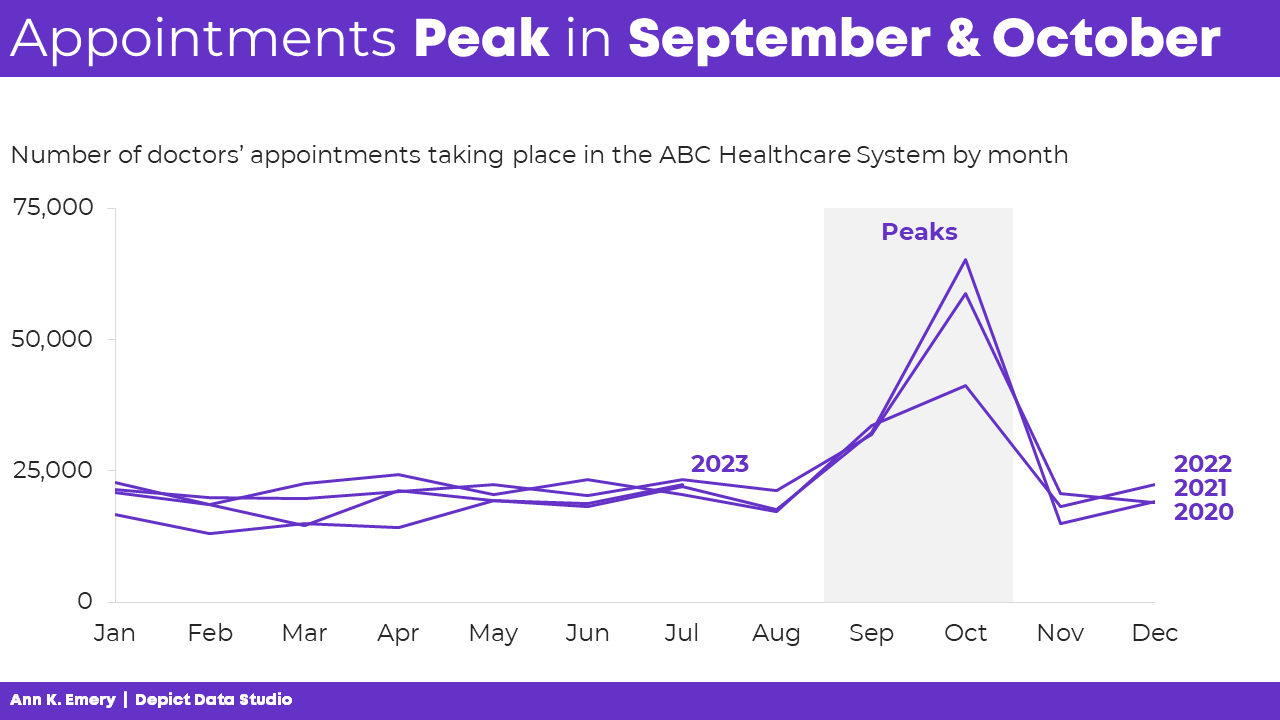
A final option is a single line chart that stretches from January to December, with each year’s data “stacked.”
Comparing All 4 Ideas
My favorite is Idea 4 because we can easily see the seasonal peaks.
Which one is your favorite, and why? Comment below.
This isn’t an exhaustive list.
Can you think of additional options? Comment below.
Giving a Powerful Presentation
Idea 4 is a sort-of dense graph — and it’s definitely a spaghetti line graph, so we’ve gotta continue adjusting it.
We’ll want to present it piecemeal to match our speaking points.
Otherwise, our audience will die of boredom.
Our bosses will wonder why they hired us.
And nobody will be able to make data-driven decisions based on the data… because while we’re explaining one piece, they’re looking at something else (the very definition of Death by PowerPoint).
The meeting might sound something like this:
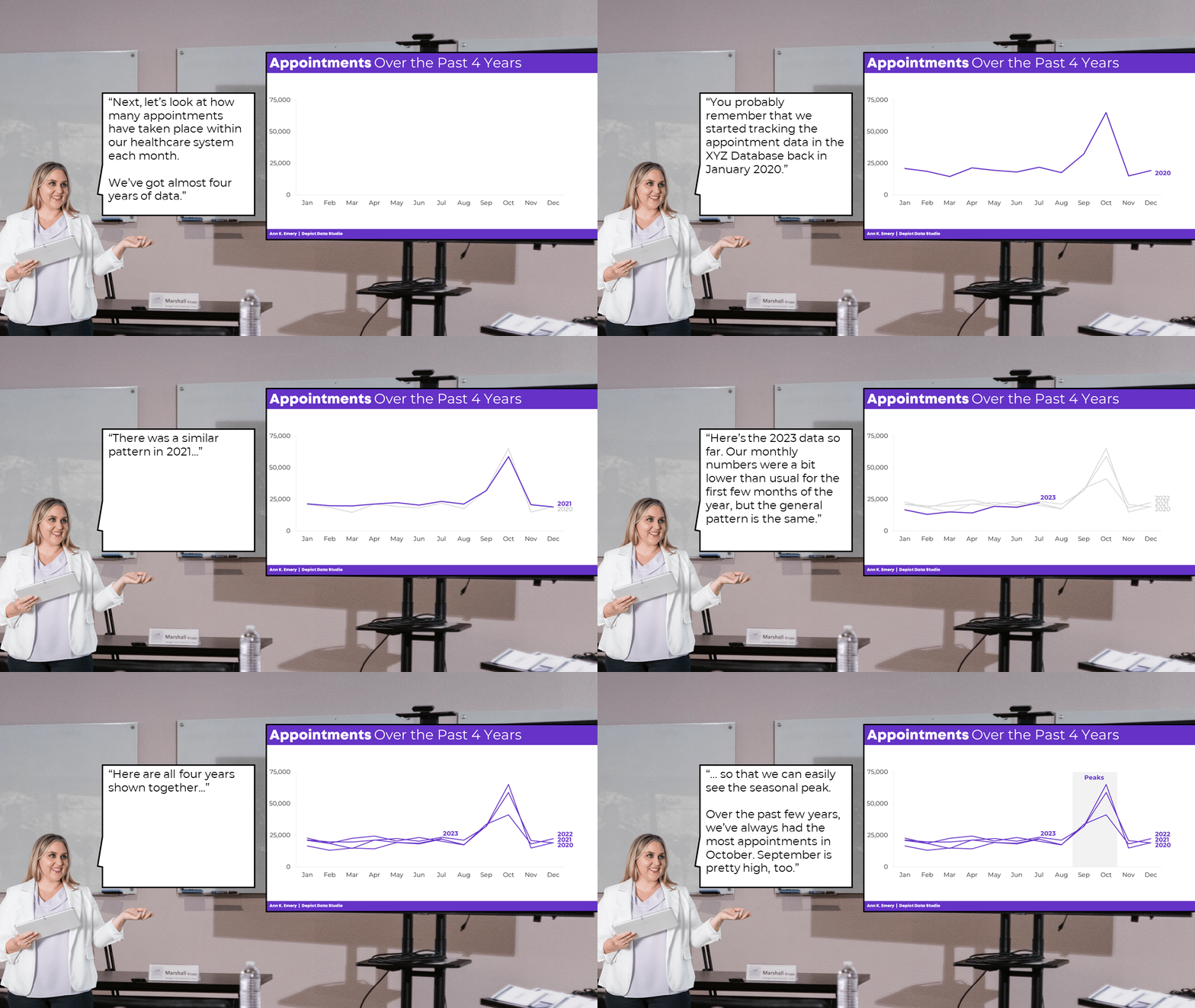
I hope you enjoy my kindergarten photoshopping skills. 
PowerPoint’s animation works fine for bullet points.
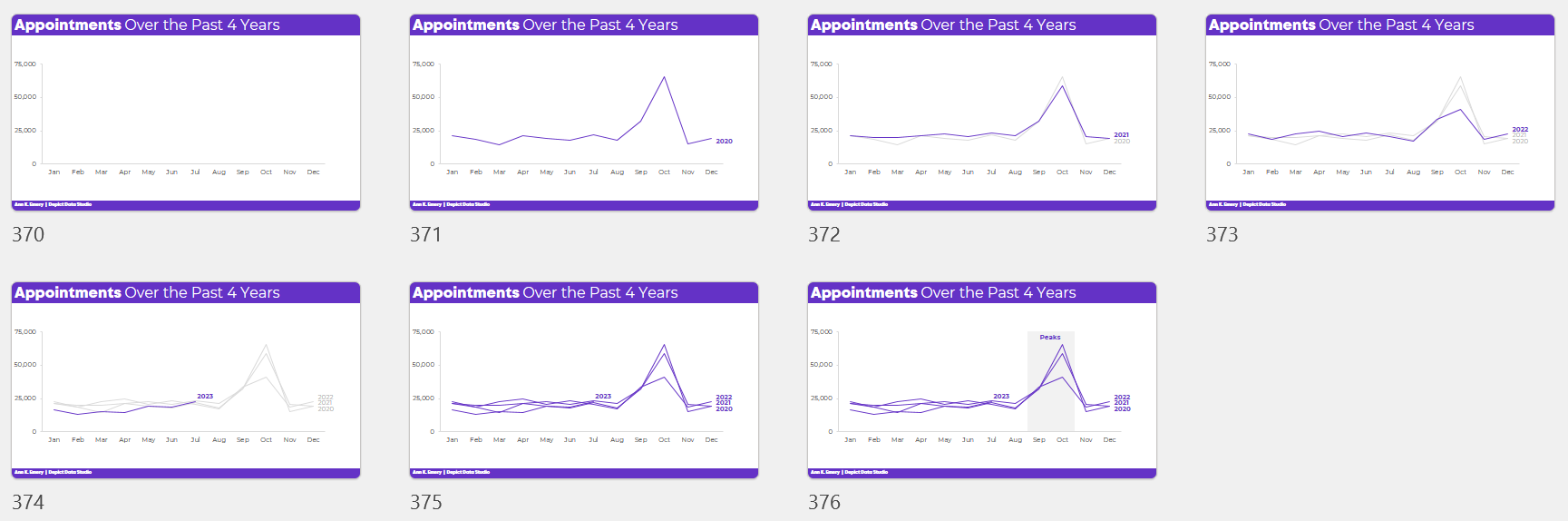
But, to “animate” graphs to match our voice, it’s usually easiest to create a bunch of different slides.
Download My Excel File
Want to explore how I made each graph?
You can download my spreadsheet here.
 English
 Afrikaans
 Shqip
Shqip አማርኛ
አማርኛ العربية
 Հայերեն
 Azərbaycan dili
 Euskara
 Беларуская мова
 বাংলা
বাংলা Bosanski
 Български
 Català
 Cebuano
 Chichewa
 简体中文
简体中文 繁體中文
繁體中文 Corsu
Corsu Hrvatski
 Čeština
 Dansk
Dansk Nederlands
 Esperanto
 Eesti
Eesti Filipino
 Suomi
Suomi Français
 Frysk
Frysk Galego
 ქართული
 Deutsch
 Ελληνικά
 ગુજરાતી
 Kreyol ayisyen
 Harshen Hausa
 Ōlelo Hawaiʻi
 עִבְרִית
 हिन्दी
 Hmong
Hmong Magyar
 Íslenska
 Igbo
Igbo Bahasa Indonesia
 Gaeilge
 Italiano
 日本語
日本語 Basa Jawa
 ಕನ್ನಡ
ಕನ್ನಡ Қазақ тілі
 ភាសាខ្មែរ
 한국어
한국어 كوردی
كوردی Кыргызча
 ພາສາລາວ
 Latin
Latin Latviešu valoda
 Lietuvių kalba
 Lëtzebuergesch
 Македонски јазик
 Malagasy
 Bahasa Melayu
 മലയാളം
 Maltese
 Te Reo Māori
 मराठी
मराठी Монгол
 ဗမာစာ
ဗမာစာ नेपाली
 Norsk bokmål
 پښتو
پښتو فارسی
فارسی Polski
 Português
 ਪੰਜਾਬੀ
 Română
 Русский
 Samoan
 Gàidhlig
 Српски језик
 Sesotho
 Shona
Shona سنڌي
سنڌي සිංහල
සිංහල Slovenčina
 Slovenščina
 Afsoomaali
 Español
 Basa Sunda
 Kiswahili
 Svenska
 Тоҷикӣ
 தமிழ்
தமிழ் తెలుగు
 ไทย
ไทย Türkçe
 Українська
 اردو
اردو O‘zbekcha
 Tiếng Việt
 Cymraeg
 isiXhosa
 יידיש
יידיש Yorùbá
 Zulu
Zulu