As schools begin to reopen, I’ve heard from educators of so many different configurations for what school is going to look like: some totally virtual, some in person, some in a hybrid model…
That’s a lot to keep track of!
It’s hard enough to make sure that no child falls through the cracks when school is operating as usual — now that task seems herculean.
So how can we be sure that we know where each student stands, even if we don’t see them every day?
How can we know that we’re doing our best to meet their needs (and that we even know what those needs are)?
That, my friends, is where some simple data tracking strategies come in.
Here is one trick to help you assess, at a glance, which students or families need a little more support: conditional formatting.
Conditional formatting allows you to set criteria to automatically color-code or highlight values that you need to take action on.
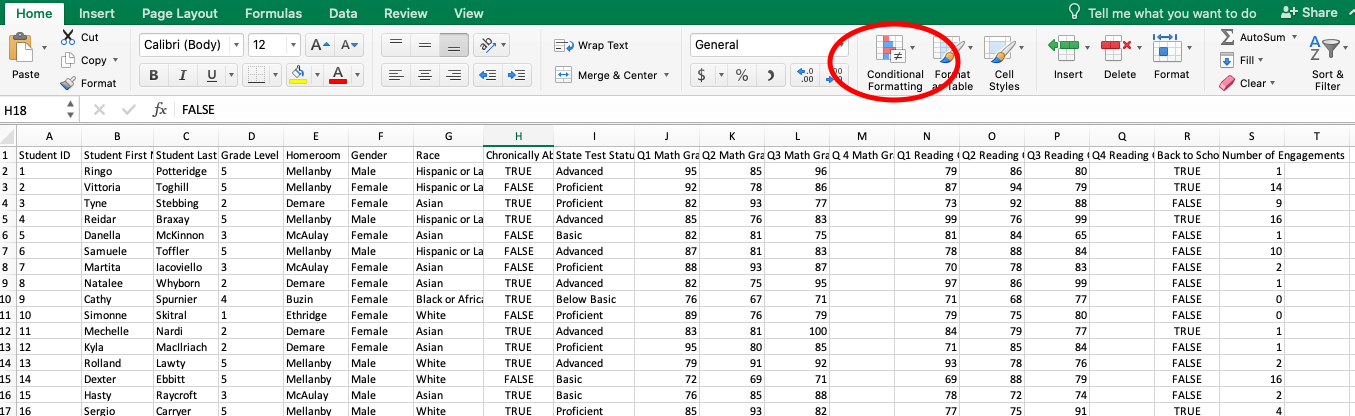
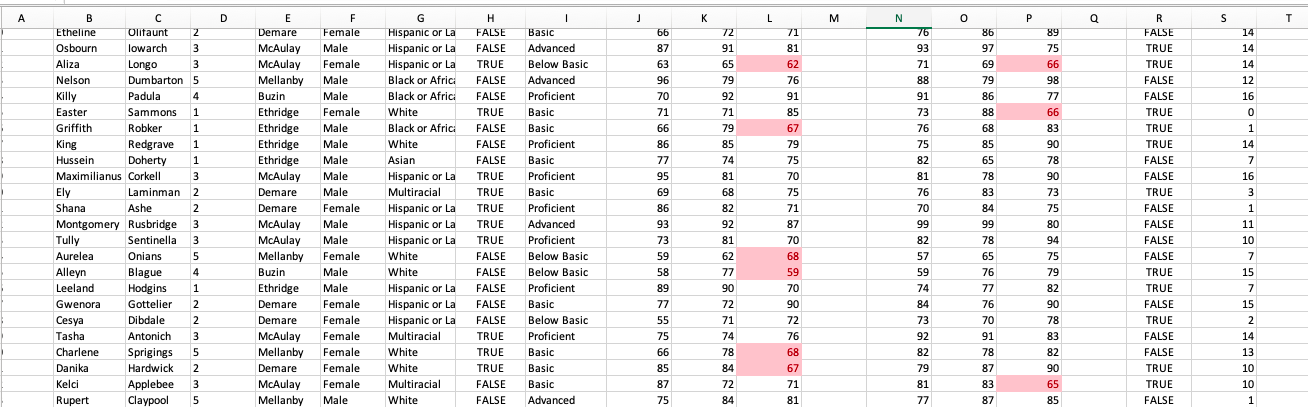
You’ll see that my (totally fictitious) dataset below is just a typical spreadsheet — nothing stands out at a glance, and it’s hard to see which of these students really needs the most attention.
We can use conditional formatting to visually highlight some of the students who need some support. We can find it by clicking selecting the text we want to format, and then clicking on the circled icon below.
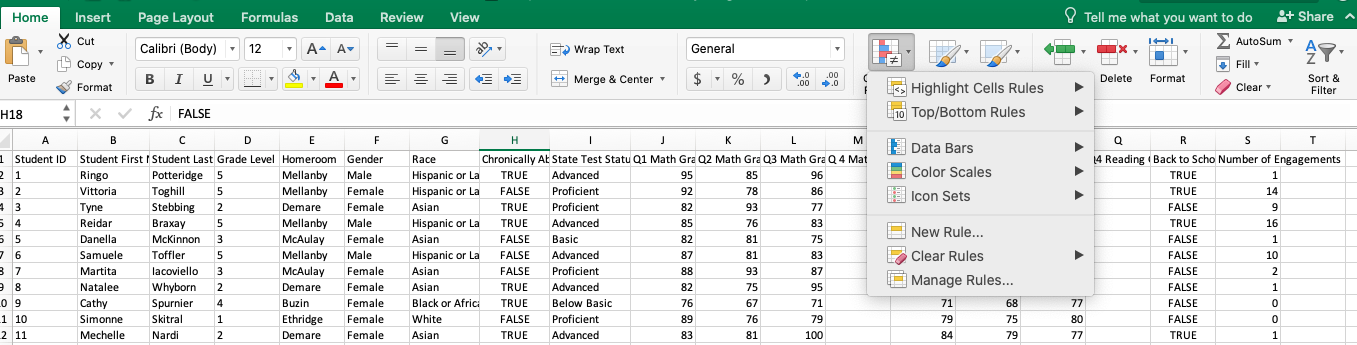
This is where things get fun.
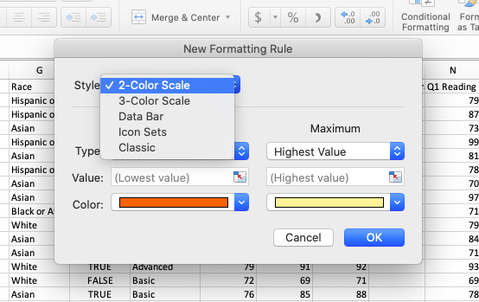
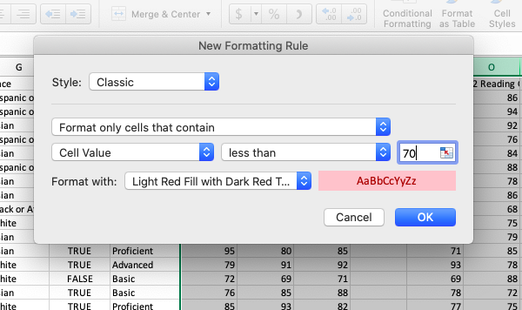
I could also create other rules for my high-performing students or those ones that fell in the middle of the class.
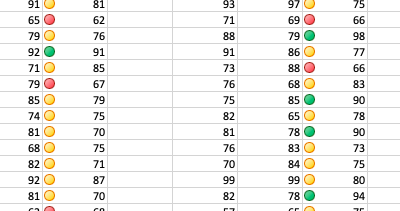
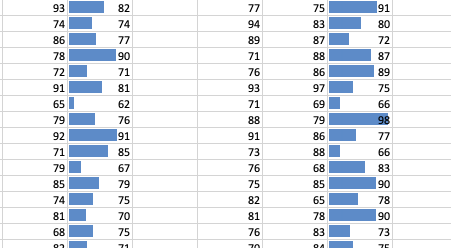
On the left, you’ll see that instead of the Classic mode, I used an Icon Set to do a little traffic light system for the student grades. On the right, I used Data Bars to help me see students’ grades on a scale from the lowest to highest score.
|
|
This is just one strategy of many that can help you quickly and easily to make sure no students are falling through the cracks.
Want to learn more?
- Schedule an Excel workshop (or three!) for your organization – check out the descriptions from my three-part series here.
- Sign up here for the free Evidence for Engagement mini-course! It will walk you through how to become an evidence-based organization.
- Pencil this into your calendar: Evidence for Engagement is going live! On September 16 at 3:00 EST, Tamara Hamai and I will be leading a workshop on how to use data to ensure that you’re still making an impact, even if your services have gone virtual. More information coming soon!
None of these work for you? Schedule a free 30-minute consultation with me so we can figure out how to best get your data tracking system started!
 English
 Afrikaans
 Shqip
Shqip አማርኛ
አማርኛ العربية
 Հայերեն
 Azərbaycan dili
 Euskara
 Беларуская мова
 বাংলা
বাংলা Bosanski
 Български
 Català
 Cebuano
 Chichewa
 简体中文
简体中文 繁體中文
繁體中文 Corsu
Corsu Hrvatski
 Čeština
 Dansk
Dansk Nederlands
 Esperanto
 Eesti
Eesti Filipino
 Suomi
Suomi Français
 Frysk
Frysk Galego
 ქართული
 Deutsch
 Ελληνικά
 ગુજરાતી
 Kreyol ayisyen
 Harshen Hausa
 Ōlelo Hawaiʻi
 עִבְרִית
 हिन्दी
 Hmong
Hmong Magyar
 Íslenska
 Igbo
Igbo Bahasa Indonesia
 Gaeilge
 Italiano
 日本語
日本語 Basa Jawa
 ಕನ್ನಡ
ಕನ್ನಡ Қазақ тілі
 ភាសាខ្មែរ
 한국어
한국어 كوردی
كوردی Кыргызча
 ພາສາລາວ
 Latin
Latin Latviešu valoda
 Lietuvių kalba
 Lëtzebuergesch
 Македонски јазик
 Malagasy
 Bahasa Melayu
 മലയാളം
 Maltese
 Te Reo Māori
 मराठी
मराठी Монгол
 ဗမာစာ
ဗမာစာ नेपाली
 Norsk bokmål
 پښتو
پښتو فارسی
فارسی Polski
 Português
 ਪੰਜਾਬੀ
 Română
 Русский
 Samoan
 Gàidhlig
 Српски језик
 Sesotho
 Shona
Shona سنڌي
سنڌي සිංහල
සිංහල Slovenčina
 Slovenščina
 Afsoomaali
 Español
 Basa Sunda
 Kiswahili
 Svenska
 Тоҷикӣ
 தமிழ்
தமிழ் తెలుగు
 ไทย
ไทย Türkçe
 Українська
 اردو
اردو O‘zbekcha
 Tiếng Việt
 Cymraeg
 isiXhosa
 יידיש
יידיש Yorùbá
 Zulu
Zulu