Ever get annoyed with formatting after you create a chart in Excel?
It’s pretty easy to create a chart in Excel. A couple of button clicks and poof, there you go, chart created. But if you want to create a chart that actually looks good, you often have to do a bit more work. For example…line graphs…scatter plots.
But sometimes, formatting in Excel just makes you want to…uh, how do I put this?
Throw your computer out the window.
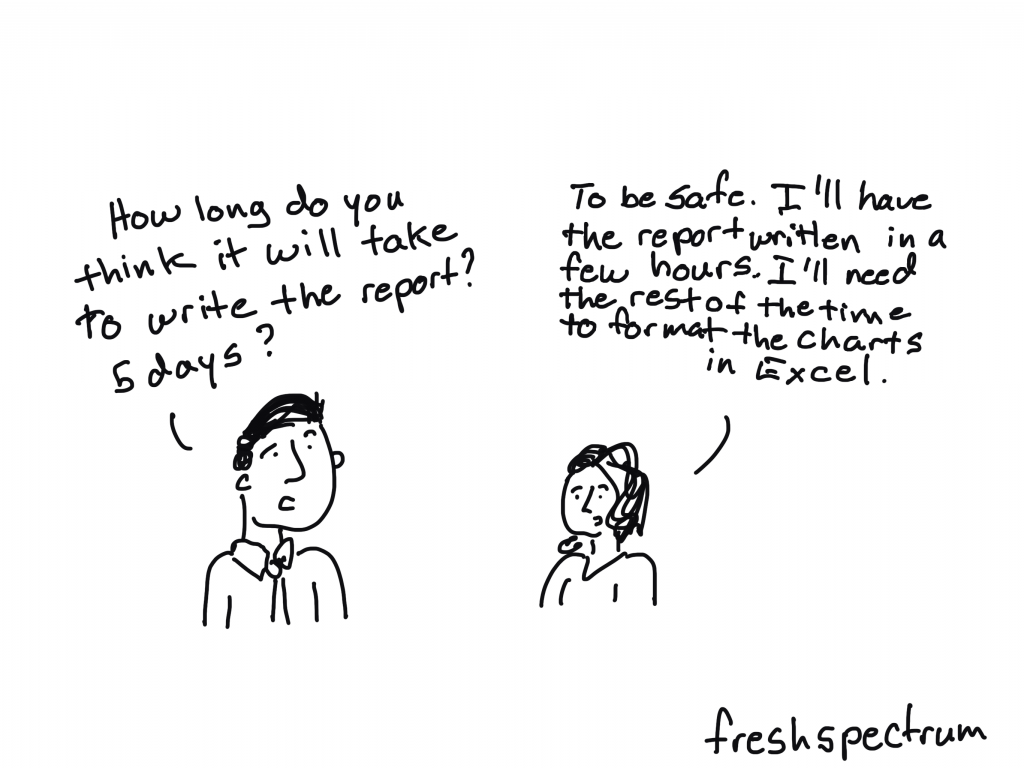
Lucky for us though, just because we created our chart in Excel, doesn’t mean we have to stay there to format the thing.
Believe it or not, Excel is a vector design tool. And even though it’s hard to take advantage of that while using Excel (stupid textboxes won’t go where I want them to go!!!!!) we can take control by sending our chart outside of Microsoft.
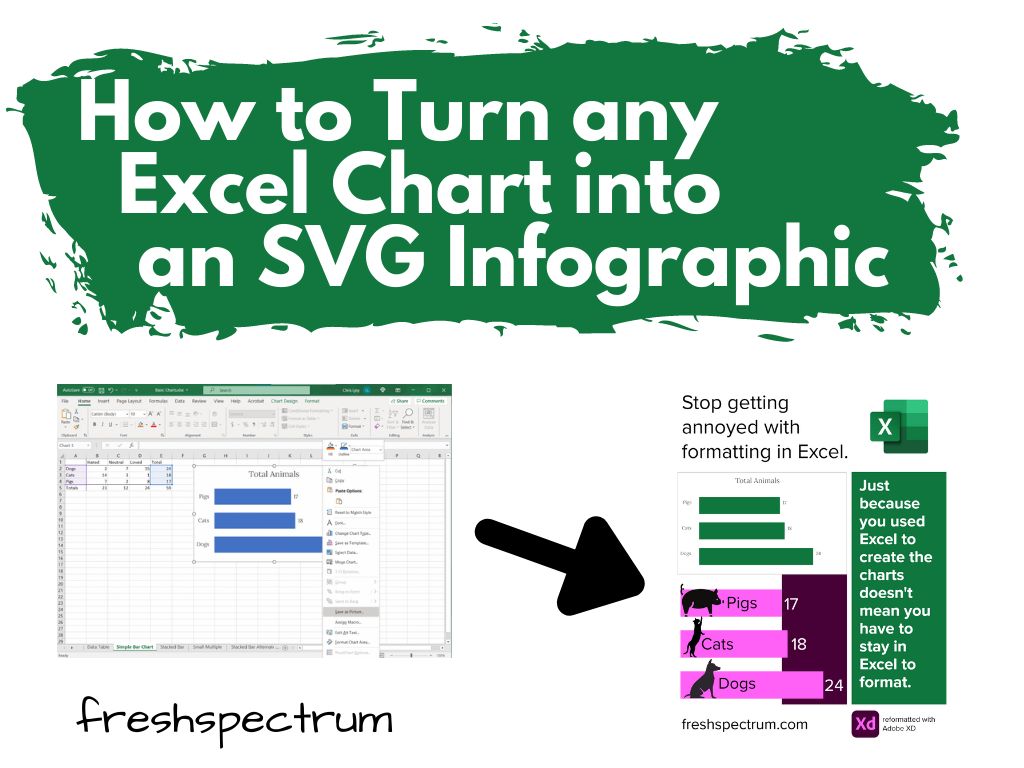
Start with a Chart in Excel
So let’s start with a chart in Excel.
Just right click on the chart you want to format and click on “Save as Picture…”
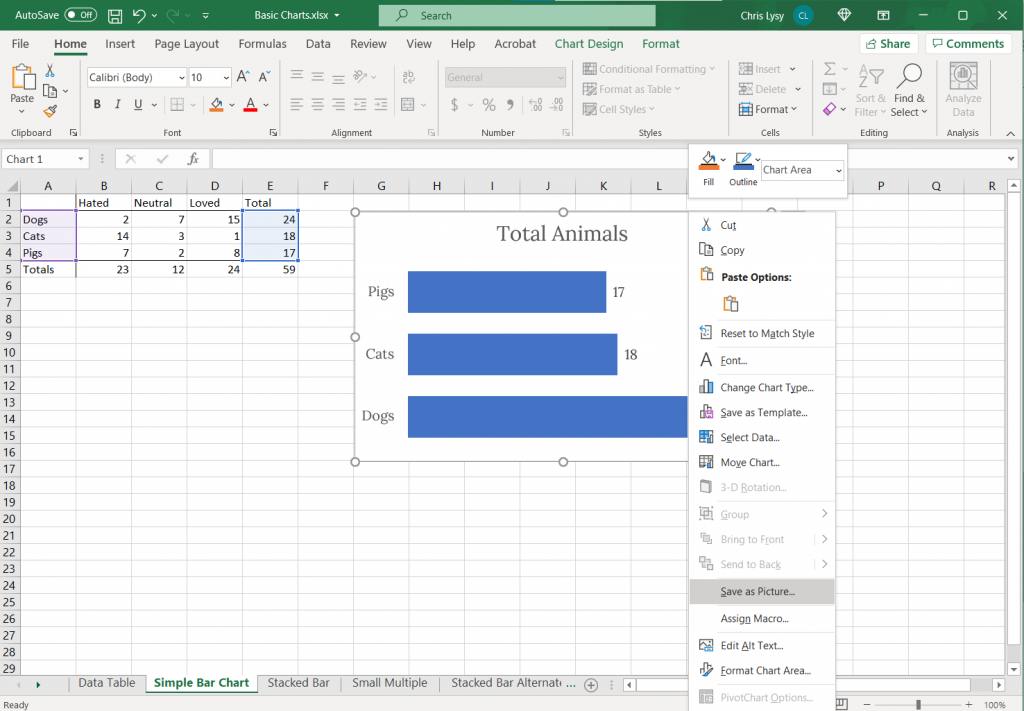
Export as Scalable Vector Graphics (A.K.A. an SVG)
Now when we save it we want to save it as a vector format (or else this won’t work). With my PC Office 365 version of Excel I’m given 6 options.
Of the 6, five are pixel based (aka raster)…PNG, JPG, GIF, TIF, BMP.
But number 6 is the trusty Scalable Vector Graphics format…SVG. This is our vector file format.
Open your SVG in a graphics program.
Now that we’ve saved our SVG somewhere on our computer (or somewhere else) we need a program that works with SVGs.
Luckily there are bunch that fit the bill. Here are three big ones.
- Adobe Illustrator (ye olde graphic design industry standard that requires a pro creative cloud account)
- Figma (new fangled UI design tool that is both a pro tool and FREE to use)
- Adobe XD (also a new fangled UI design tool that is both a pro tool and FREE to use by the same people who brought you ye olde graphic design industry standard Adobe Illustrator)
Any of these three will let you pick apart and redesign this chart. If you are not an Adobe CC person already, I would suggest starting with either Figma or Adobe XD.
Here is what the Excel Chart looks like in Adobe Illustrator
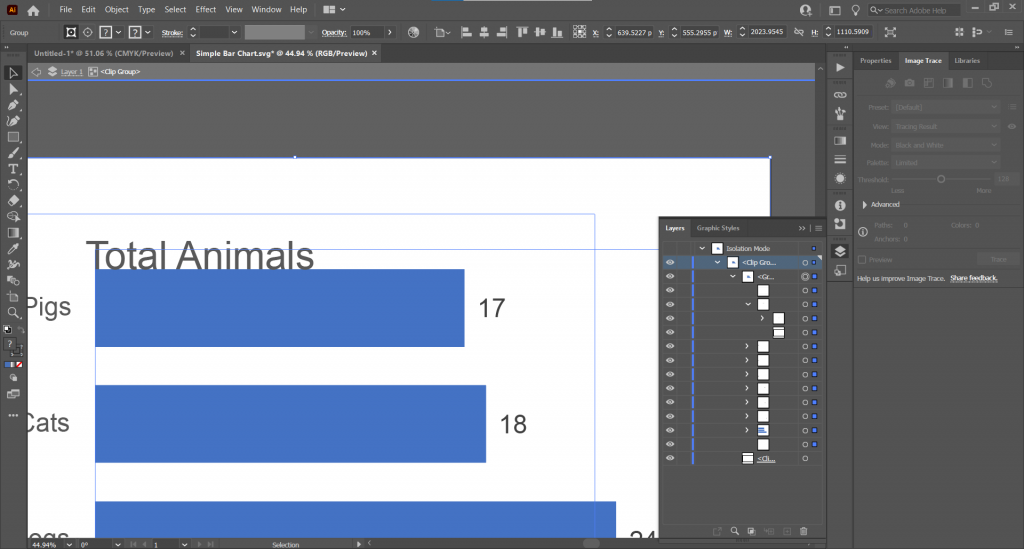
See that over there on the right side? That’s a layers panel.
Every single element in an Excel chart can be isolated and changed through the SVG. You’re also going to find a bunch of empty rectangles that can be deleted away if they get in your way.
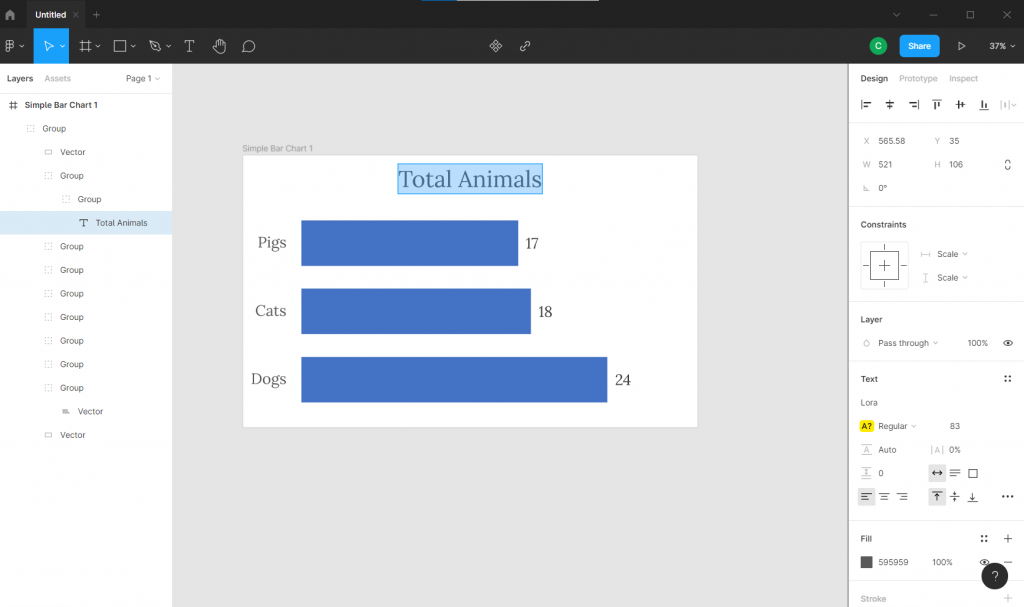
Here is what the Excel Chart looks like in Figma
Here we are in Figma with the layers on the left.
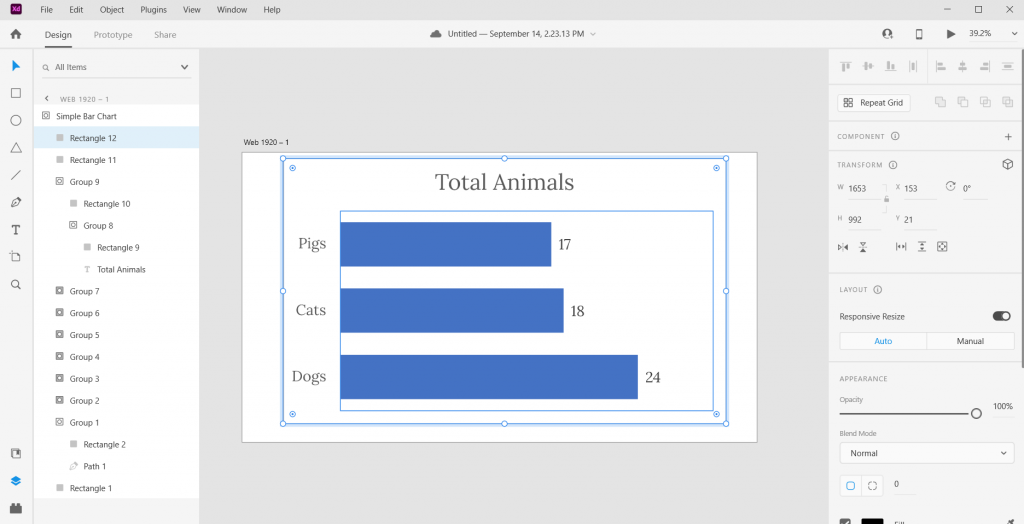
Here is what the Excel Chart looks like in Adobe XD
And here we are in Adobe XD. Looks pretty similar to Figma, doesn’t it?
(See also sketchapp).
Pick it apart and rearrange to your heart’s content.
Ultimately the bar graph is just a single vector path buried within one of the groups. We can stretch it or recolor. As long as you keep the main chart pieces together, the graph will remain in the right proportion.
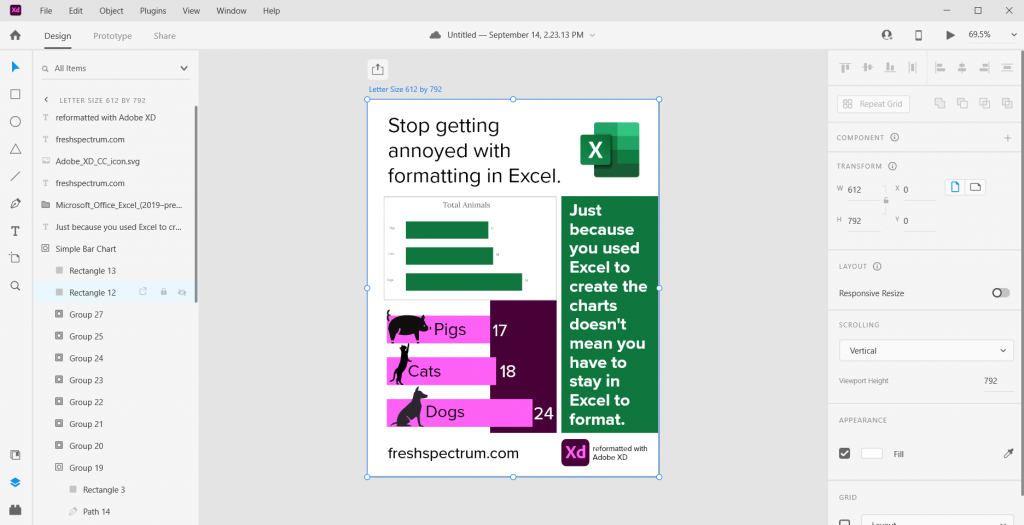
The best part about using a tool like this? We have total control over what goes where. And we can shift elements pixel by pixel.

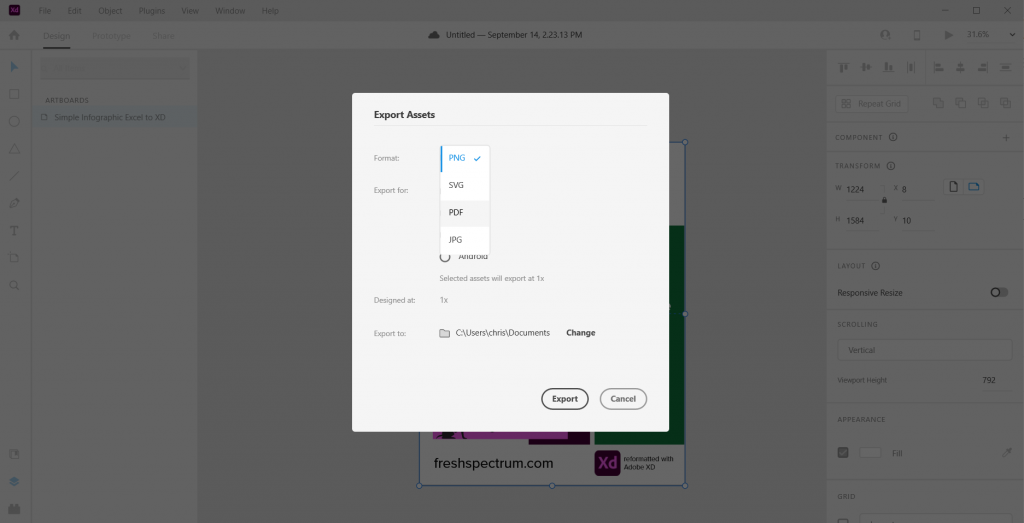
Bonus. Want to save your new infographic as a PDF?
No problem.
 English
 Afrikaans
 Shqip
Shqip አማርኛ
አማርኛ العربية
 Հայերեն
 Azərbaycan dili
 Euskara
 Беларуская мова
 বাংলা
বাংলা Bosanski
 Български
 Català
 Cebuano
 Chichewa
 简体中文
简体中文 繁體中文
繁體中文 Corsu
Corsu Hrvatski
 Čeština
 Dansk
Dansk Nederlands
 Esperanto
 Eesti
Eesti Filipino
 Suomi
Suomi Français
 Frysk
Frysk Galego
 ქართული
 Deutsch
 Ελληνικά
 ગુજરાતી
 Kreyol ayisyen
 Harshen Hausa
 Ōlelo Hawaiʻi
 עִבְרִית
 हिन्दी
 Hmong
Hmong Magyar
 Íslenska
 Igbo
Igbo Bahasa Indonesia
 Gaeilge
 Italiano
 日本語
日本語 Basa Jawa
 ಕನ್ನಡ
ಕನ್ನಡ Қазақ тілі
 ភាសាខ្មែរ
 한국어
한국어 كوردی
كوردی Кыргызча
 ພາສາລາວ
 Latin
Latin Latviešu valoda
 Lietuvių kalba
 Lëtzebuergesch
 Македонски јазик
 Malagasy
 Bahasa Melayu
 മലയാളം
 Maltese
 Te Reo Māori
 मराठी
मराठी Монгол
 ဗမာစာ
ဗမာစာ नेपाली
 Norsk bokmål
 پښتو
پښتو فارسی
فارسی Polski
 Português
 ਪੰਜਾਬੀ
 Română
 Русский
 Samoan
 Gàidhlig
 Српски језик
 Sesotho
 Shona
Shona سنڌي
سنڌي සිංහල
සිංහල Slovenčina
 Slovenščina
 Afsoomaali
 Español
 Basa Sunda
 Kiswahili
 Svenska
 Тоҷикӣ
 தமிழ்
தமிழ் తెలుగు
 ไทย
ไทย Türkçe
 Українська
 اردو
اردو O‘zbekcha
 Tiếng Việt
 Cymraeg
 isiXhosa
 יידיש
יידיש Yorùbá
 Zulu
Zulu