In this video I’ll show you step by step how to create a simple spotlight graphic. This can be a really easy way to illustrate interviews in qualitative reports. This particular graphic was created using Canva.
This is part of the DiY Data Design recipes series.
Full Transcript
Hey data designer!
If you ever write reports with qualitative data, you probably end up with this challenge. Qualitative data can be overwhelmingly text heavy.
To make these reports easier to read, you need to do two things. The first is just to follow the rules of good graphic design. The second is to find appropriate ways to add pictures to your reports.
Today’s recipe is on a simple method you can use to spotlight an individual inside of a
team photo. This can be a really easy way to illustrate interviews with individual group members. You
just need a group photo of some type. You just repeat the following steps for each person you want to spotlight.
To start we’re going to open Canva and create a standard blank 16 by 9 presentation. Since this is just a tutorial, I’m going to start with a random team photo inside of Canva’s
stock image library.
One step I usually take when editing photos or creating infographics is to make duplicates
of the page anytime I want back up copy.
When you click on a photo inside of a canva design you get an image effects menu.
For this recipe I’m going to use Canva’s background remover.
Just a note, this is a Canva pro feature, which I have. There are also other photo
background removers on the web that are free, including Adobe Express (just google it).
While it’s never perfect, I’m always pretty impressed by the job of the Canva background
remover. This used to be a bit of an annoying process, now it’s just a button click.
Let’s go away from the background removed image and make another copy of the first
team photo image. This time we’ll click on the photo and use one of the Canva black and white photo filters.
After that, what I do is actually copy and paste the background removed image overtop of
the black and white image. Then I’ll reduce the size of that image so it spotlights a specific individual.
At this point, if you’re not picky, this might be enough for you. But let’s take it a step
further. After you do a background removal, you can click on the button again to pull up a
configuration window.
From here, we can actually manually erase parts of the photo.
So that’s what I did. I manually erased space around the person I want to spotlight.
You don’t have to erase the whole rest of the photo, because you can also crop things out.
You just want to get rid of the elements right around the person you want to spotlight.
There, now I have one person spotlighted.
She didn’t stand out enough for me. So I clicked on the background black and white
picture and turned down the transparency.
This will help the spotlight pop a bit more.
Now that I have a person spotlighted, let’s add a space for a quote.
You can find rectangles in the elements menu by looking for shapes.
Or you can use a shortcut and just click the R button.
Sometimes with a photo background I’ll also add a little transparency to the background
box to pull the image through. This is all just preference.
Next I’ll add some text using the shortcut t in canva, or by clicking in the text menu.
There are a lot of ways to edit text. With the text selected you can find different options in the menu at the top of the page. There are also text effects if you want to test some of those out.
After I put in the text, the background picture was coming through a little too much, so I
brought the transparency back up just a little.
Then it’s all about tweaking until I am pretty happy with the image.
After I’m done, I want to go ahead and download the image. Most of the time, I’ll download
the image as a PNG.
One thing to note, is that because I kept making duplicate copies of the page I was working
on, I ended up with a multi-page document. Instead of deleting all my backups I usually just use the select pages option in the menu to select the current page.
And that’s it. Here is our final visual.
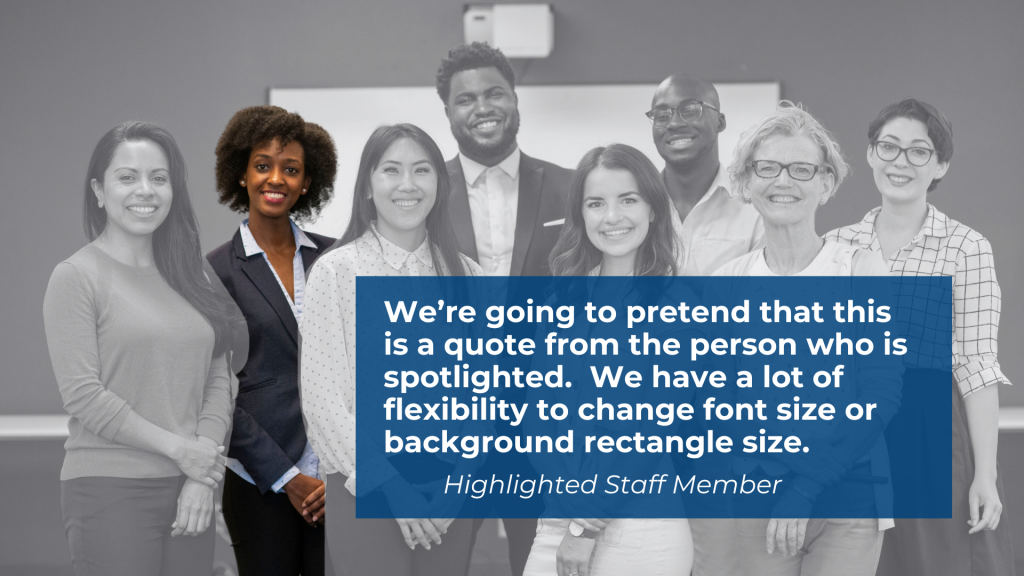
The good thing about this technique, is that if you only have one picture that includes
multiple people, you can use that same picture over and over again. Because each time it will have a different person spotlighted, it won’t feel monotonous and will help your reader stay connected to each person being interviewed.
If you enjoyed this video, please go ahead and like, subscribe, and leave a comment. It
means a lot and I will always read every comment. And if you’re interested in free resources like eBooks and courses, visit my resource library at freshspectrum.com/library
Now… Get out of your head and go create some stuff.
 English
 Afrikaans
 Shqip
Shqip አማርኛ
አማርኛ العربية
 Հայերեն
 Azərbaycan dili
 Euskara
 Беларуская мова
 বাংলা
বাংলা Bosanski
 Български
 Català
 Cebuano
 Chichewa
 简体中文
简体中文 繁體中文
繁體中文 Corsu
Corsu Hrvatski
 Čeština
 Dansk
Dansk Nederlands
 Esperanto
 Eesti
Eesti Filipino
 Suomi
Suomi Français
 Frysk
Frysk Galego
 ქართული
 Deutsch
 Ελληνικά
 ગુજરાતી
 Kreyol ayisyen
 Harshen Hausa
 Ōlelo Hawaiʻi
 עִבְרִית
 हिन्दी
 Hmong
Hmong Magyar
 Íslenska
 Igbo
Igbo Bahasa Indonesia
 Gaeilge
 Italiano
 日本語
日本語 Basa Jawa
 ಕನ್ನಡ
ಕನ್ನಡ Қазақ тілі
 ភាសាខ្មែរ
 한국어
한국어 كوردی
كوردی Кыргызча
 ພາສາລາວ
 Latin
Latin Latviešu valoda
 Lietuvių kalba
 Lëtzebuergesch
 Македонски јазик
 Malagasy
 Bahasa Melayu
 മലയാളം
 Maltese
 Te Reo Māori
 मराठी
मराठी Монгол
 ဗမာစာ
ဗမာစာ नेपाली
 Norsk bokmål
 پښتو
پښتو فارسی
فارسی Polski
 Português
 ਪੰਜਾਬੀ
 Română
 Русский
 Samoan
 Gàidhlig
 Српски језик
 Sesotho
 Shona
Shona سنڌي
سنڌي සිංහල
සිංහල Slovenčina
 Slovenščina
 Afsoomaali
 Español
 Basa Sunda
 Kiswahili
 Svenska
 Тоҷикӣ
 தமிழ்
தமிழ் తెలుగు
 ไทย
ไทย Türkçe
 Українська
 اردو
اردو O‘zbekcha
 Tiếng Việt
 Cymraeg
 isiXhosa
 יידיש
יידיש Yorùbá
 Zulu
Zulu