• Skip to main content
  • Skip to footer
  • Home

The May 13 Group

the next day for evaluation

  • Get Involved
  • Our Work
  • About Us
You are here: Home / Archives for allblogs

allblogs

Dec 13 2022

Eval Academy’s Top 10 Posts of 2022

To celebrate the end of the year, we thought we’d highlight Eval Academy’s top ten posts from 2022.

What posts or resources would you like to see in 2023? Comment below, tweet us @EvalAcademy or connect with us on LinkedIn!

10. Differences between Theory of Change, Log Frames, Results Frameworks and Logic Models – what are they and when to use them

 Noticed how there seem to be lots of evaluation tools doing very similar things? This article selects a few of our favourite tools to compare and contrast.


9. Finding the Right Sample Size (the Hard Way)

For quantitative data collection, this article helps you to calculate sample sizes by hand and understand the math behind sample size calculations.

8. How to “Quantify” Qualitative Data

This framework for quantifying qualitative data is one you’ll want to bookmark!


7. Evaluation Question Examples by Type of Evaluation

This article looks at how using different evaluation strategies or frameworks like Formative Evaluation and Developmental Evaluation can help you to craft those perfect evaluation questions.


6. Reflexivity in Evaluation

We’ve all heard of reflective evaluation practice, but what is reflexive evaluation practice? This article breaks it down for you and outlines tools and ideas for reflexion.


5. Everything You Need to Know about Likert Scales

The Likert Scale is one of the more commonly used rating scales in surveys. As evaluators, we should know a thing or two about it, and how to navigate some of the decisions involved in using a Likert Scale, and this article does exactly that!


4. But really, how do I use the RE-AIM Framework?

Ever heard of the RE-AIM Framework? This article provides an account of what it is and how to use the framework in your evaluation planning, implementation, and reporting.


3. Evaluation Questions Examples

At number 10 last year and moving up through the ranks, this article provides you with some examples of evaluation questions to inspire your own.


2. How to Write Good Evaluation Questions

Last year’s top post has moved into second place! This article outlines what an evaluation question is and points to consider when drafting your evaluation question. An ongoing top contender!

1. Interpreting themes from qualitative data: thematic analysis

Our top post for 2022 supports evaluators who are new to qualitative data analysis. We start by defining thematic analysis, then give you a 5-step process to complete your own analysis. We end the article by highlighting some common challenges with thematic analysis. It’s not one to miss!

Written by cplysy · Categorized: evalacademy

Dec 12 2022

How I Took 3 Months Off Work

“Are you going to write a blog post about taking 3 months off??” a colleague asked me.

“I wasn’t planning on it. I wanted to take off the summer to be with my kids, so I did. I didn’t do anything profound.”

“But that’s exactly what’s profound about it – that you don’t even think it’s a big deal.”

—

Here’s how it worked.

When kindergarten ended and the kids went on summer break, so did I.

First, we enjoyed an Orlando staycation week.

We sang our favorite Encanto songs around Disney.

We slipped ‘n’ slid in the backyard.

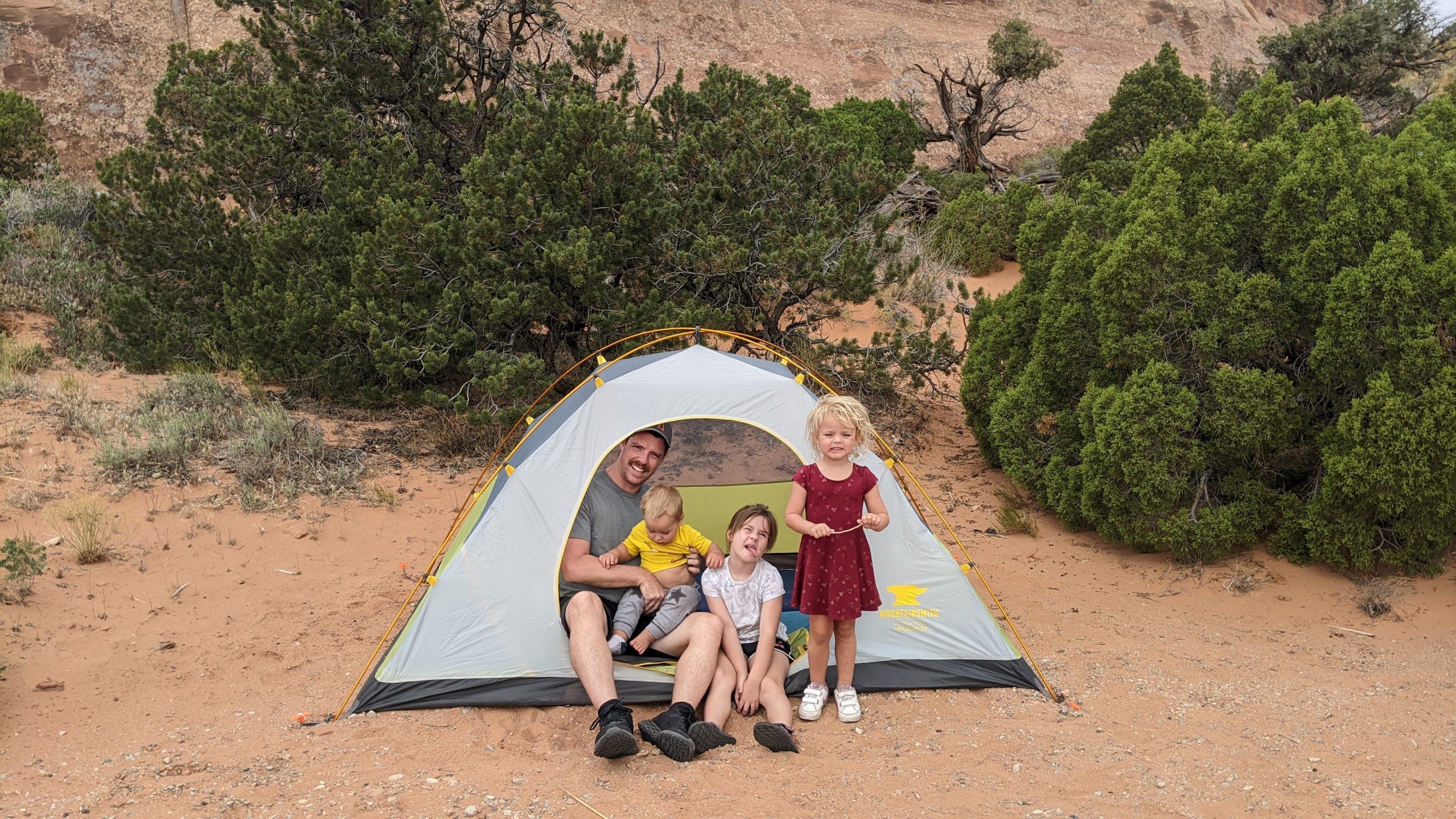
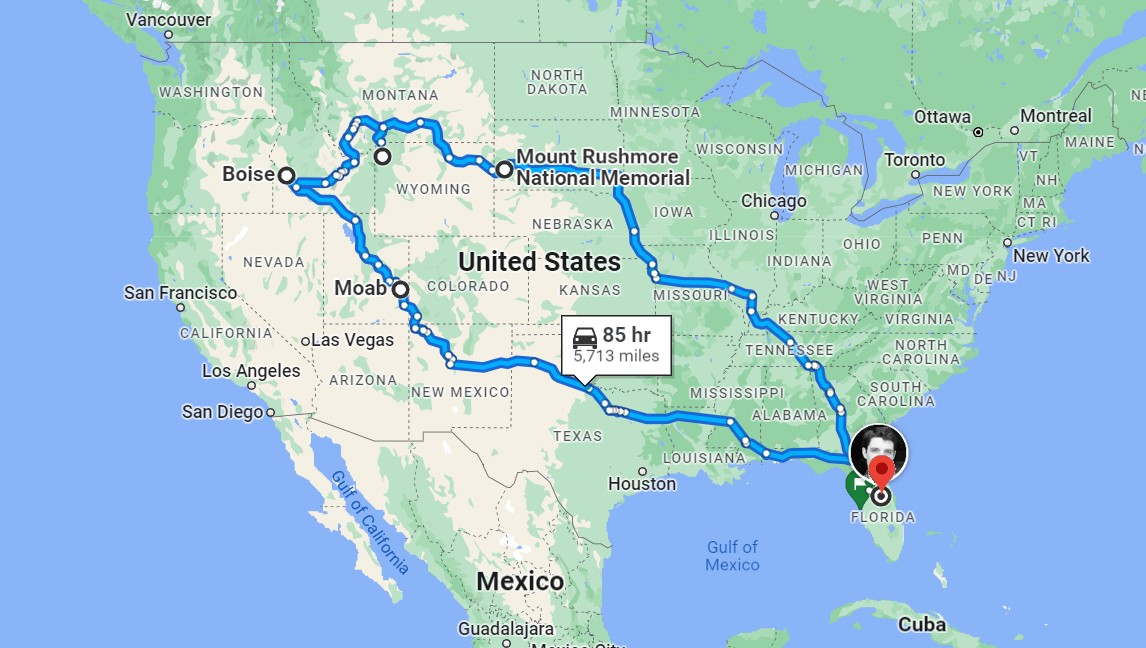
Then, we packed our camping gear and headed west.

We spraypainted cars at Cadillac Ranch.

We rented bikes in New Mexico.

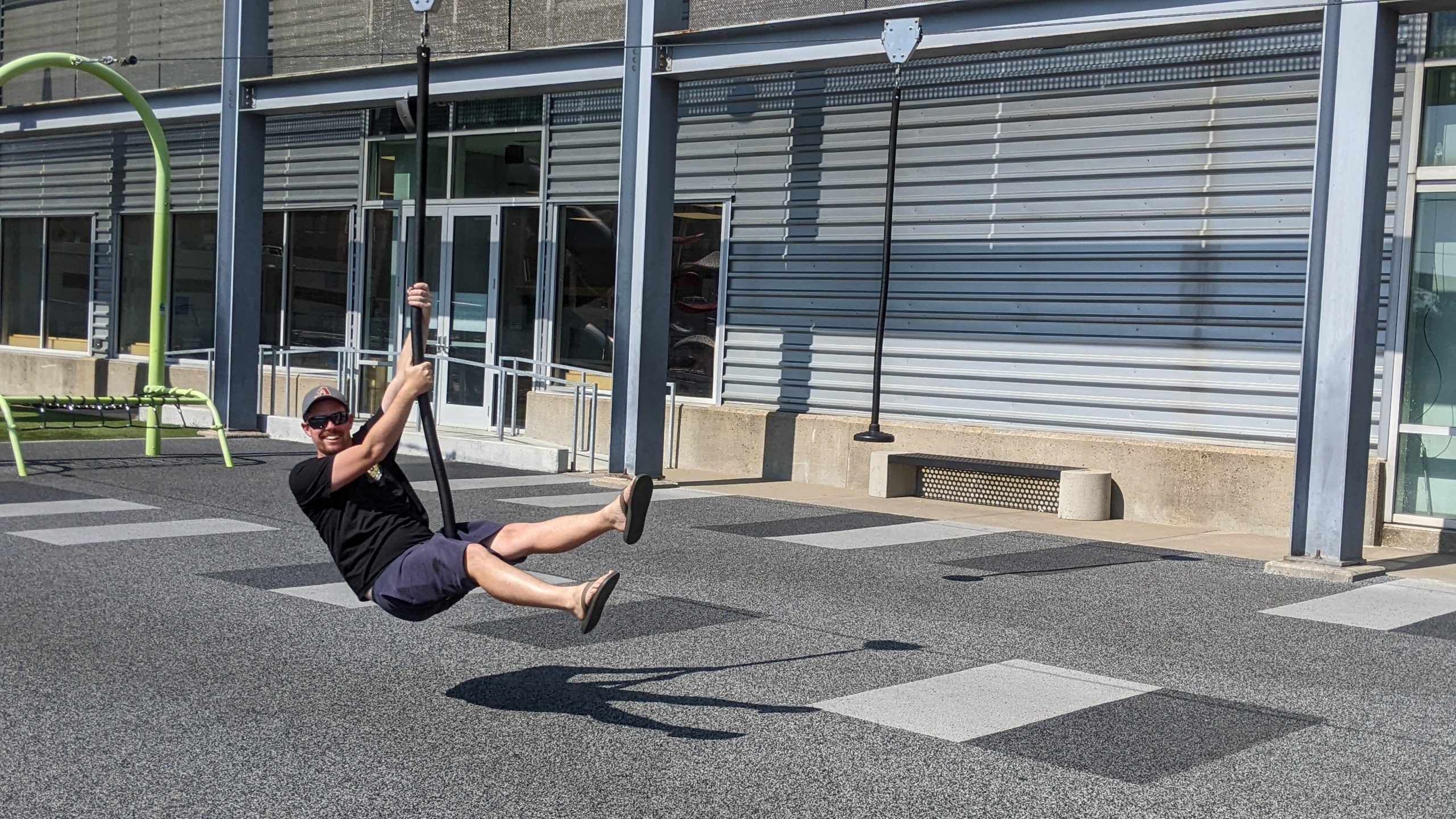
We jeeped through southwestern Utah’s trails on 100-degree days.

And then cooled off at the local rec centers.

We ate glamorous dinners while BLM-camping.

We collected treasures and mosquito bites along the Colorado River.

We cub-wrestled and cuddled in the tent every morning.

We ate peanut butter and jelly sandwiches along creeks.

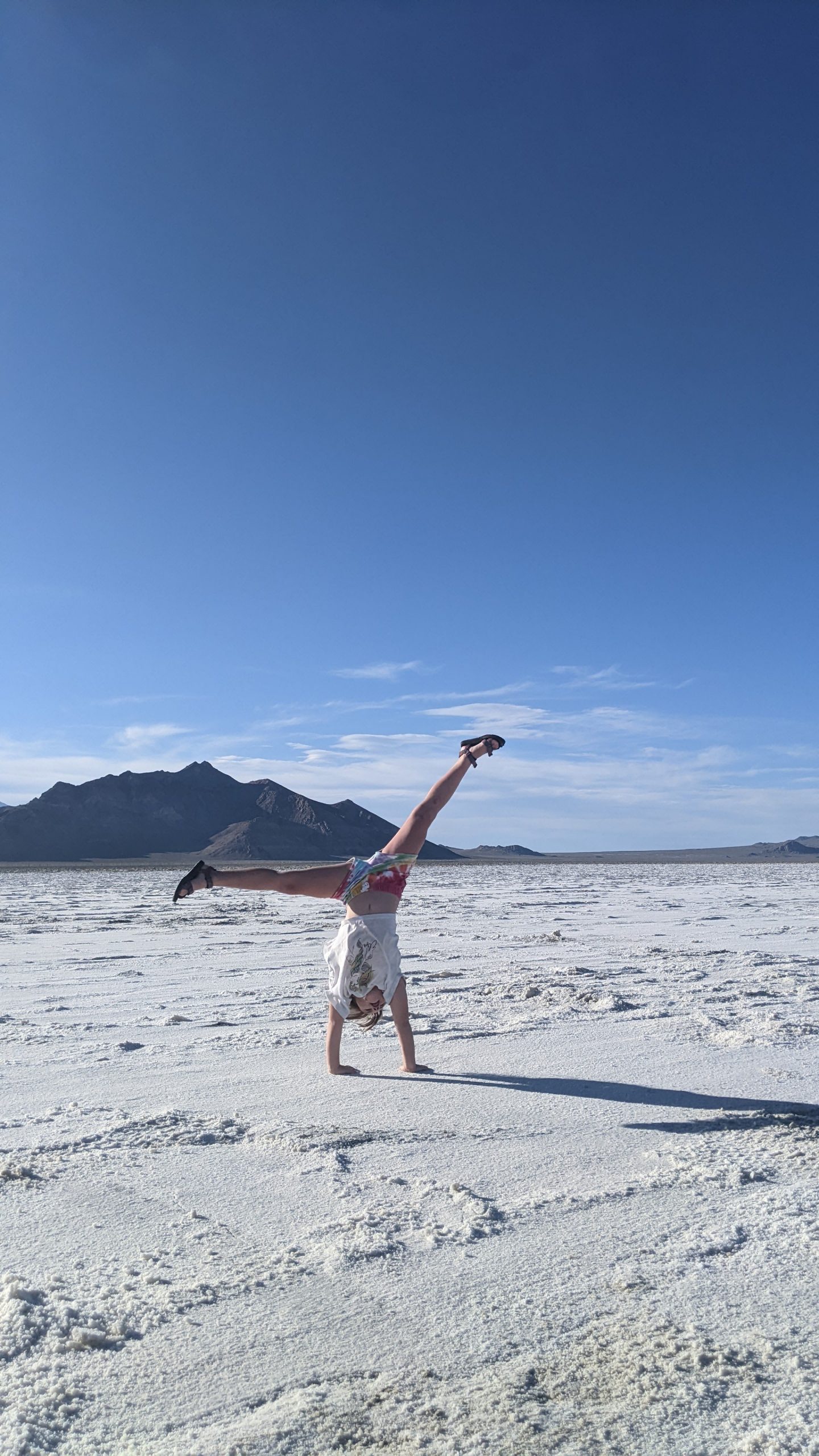
We cartwheeled through the Salt Flats.

We tagged along to mommy’s work conference in Boise. The girls still talk about the closing party, which was luau-themed.

We earned Junior Ranger Badges from lava rocks.

We hiked around Jenny Lake with my 30-pound “backpack.”

We watched the geysers from Old Faithful Inn.

We cub-wrestled and cuddled some more.

We collected wood for campfires.

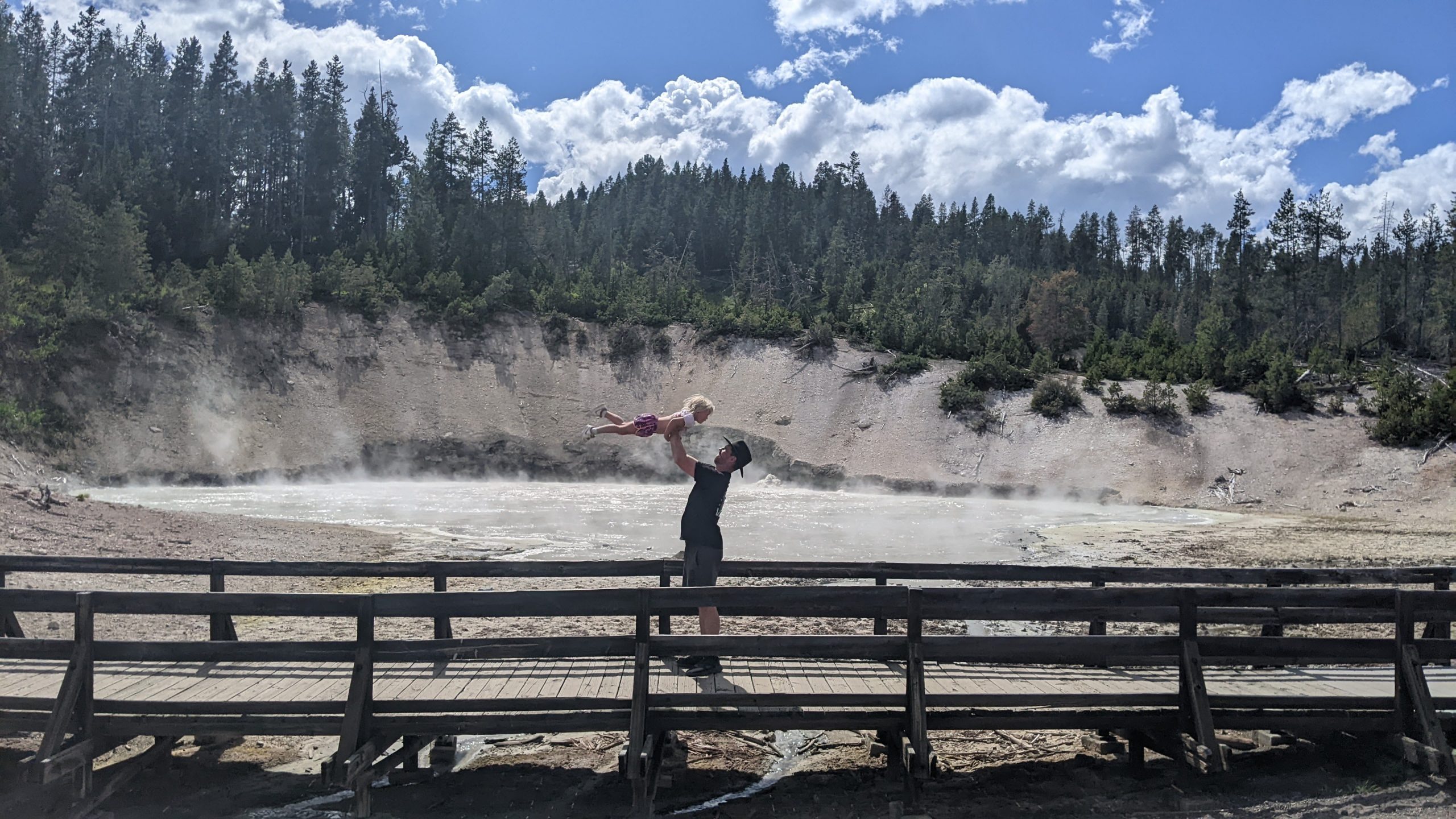
We held our noses around the stinky mud pots.

We had snowball fights in July.

We rodeo’d in Wyoming, and stayed afterwards to get the clowns’ autographs.

We meditated among fallen trees in Wyoming, my 6-year-old’s “happy place.” Mine too, girl. Mine too.

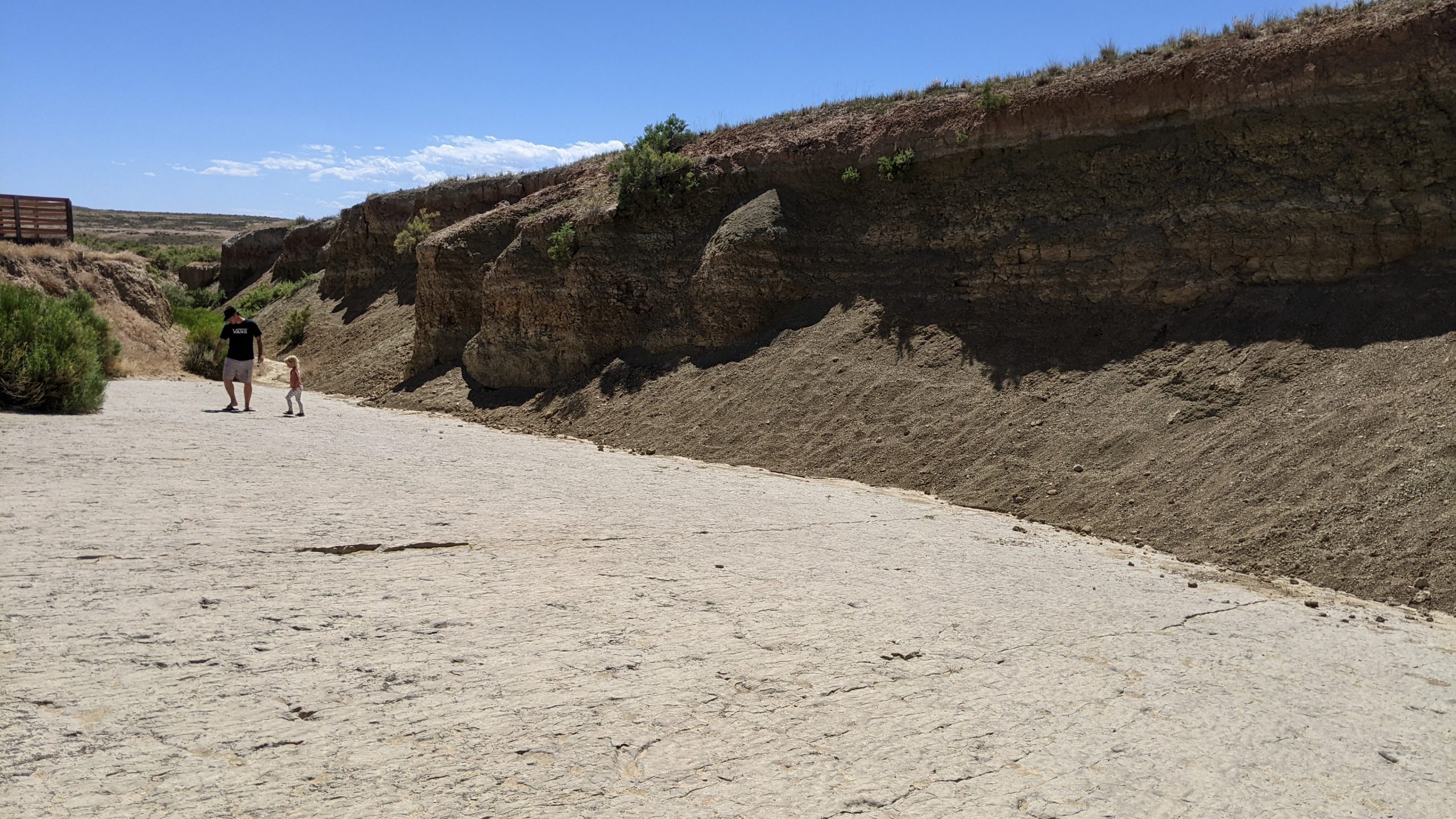
We walked along dinosaur tracks.

We earned more Junior Ranger Badges.

We motorcycled through Sturgis.

We panned for gold, explored mines, and rode horses through the Black Hills.

We kayaked in Custer State Park.

We napped whenever we wanted to.

We smiled nicely for the camera.

We drank 5-cent coffee among the jackalopes.

We met up with grandpa and made him buy us all the toys.

We splashed in fountains in Omaha.

We stopped at public parks to get the wiggles out.

We celebrated our wedding anniversary from a children’s museum.

We forgot to make reservations and couldn’t actually go to the top of the arch. ☹

We zoo’d and baseball’d in St. Louis.

We Varisty’d in Atlanta.

After 7 weeks, 20 states, and 7,412 miles, we were home.

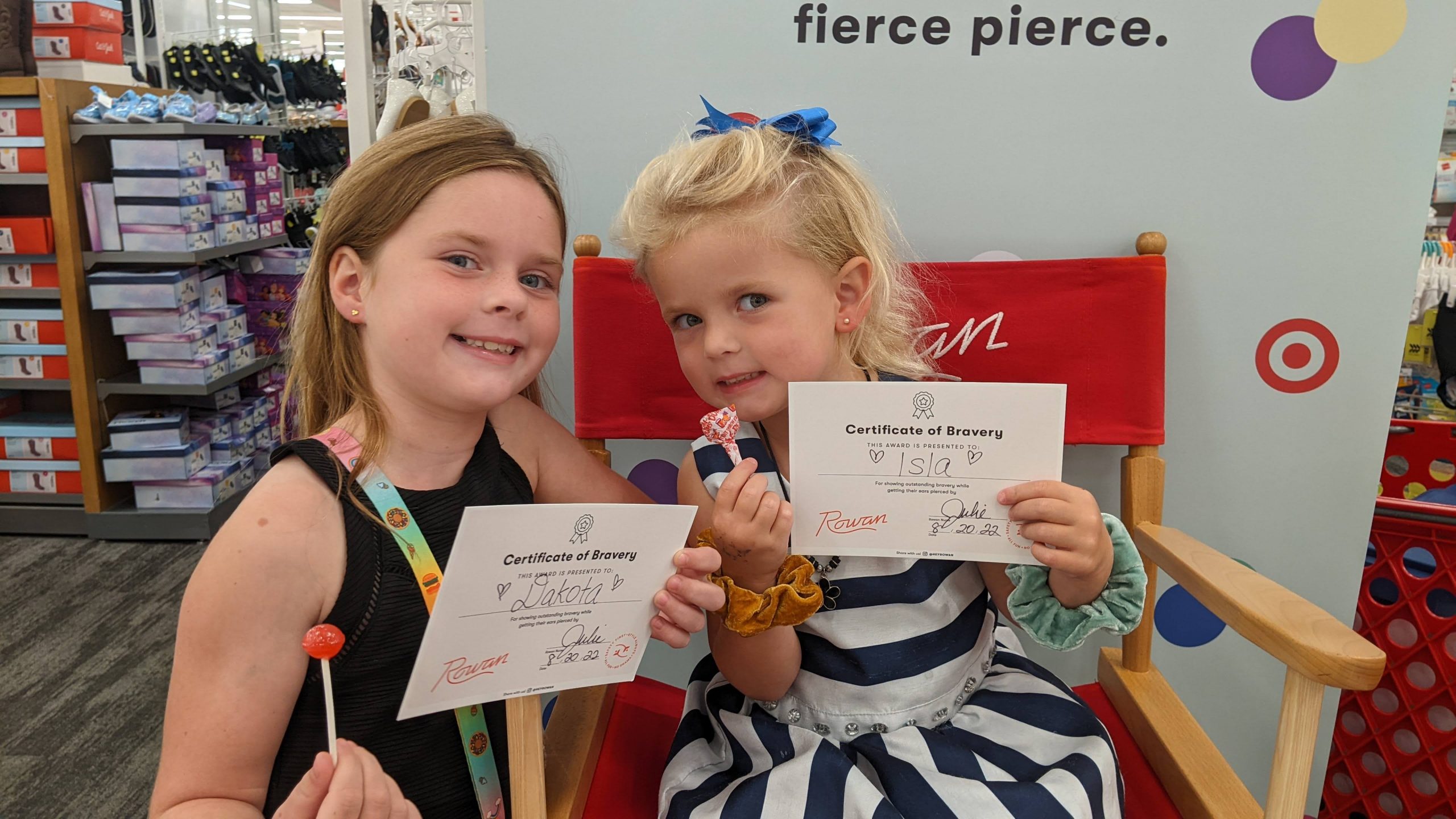
We went back-to-school shopping and got our ears pierced.

Our 18-month-old FINALLY started walking. No more 30-pound “backpack” for mommy to carry!!! 😊

We staycationed in Orlando some more.

A couple weeks later, it was time for first grade for the big kid, “Daddy School” for the little kids, and work for mom.

From 5 Weeks Off in 2021…

Last year, in the summer of 2021, my husband and I loaded our 3 kids into our Jeep for a 5-week road trip throughout the southwestern U.S.

In our 1998 Jeep with 275,00 miles.

With our 4-month-old son.

That seemed… normal… for us.

After all, we’d spent 2019 and early 2020 traveling throughout South America, Africa, and Southeast Asia. Surely we could handle tent-camping for 5 weeks.

My only regret: that it wasn’t longer.

… to 3 Months Off in 2022

I started planning my 2022 summer vacation an entire year in advance:

  • scheduling all my client workshops and consulting projects for non-summer months;
  • spacing out my online courses to allow for a long summer break; and
  • politely declining all volunteer work (podcast interviews, guest lecturing, opportunities to review books and manuscripts, and serving on committees).

And then I took 3 months off.

And nobody minded.

I would say to prospective clients, “I’m not available over the summer, how about a fall training?” It was simple.

There were zero business repercussions.

Quite the opposite.

2022 has been the highest net revenue year yet for Depict Data Studio, despite working the least. Likely because I worked the least, and was the most focused.

It Took Years to Fine-Tune My Own Schedule

My 3-month vacation didn’t happen overnight.

It was 8 years in the making.

My first day of self-employment was September 8, 2014.

Ten days later, my husband turned 30, and he decided he was ready to have kids. This threw me off; we’d been married nearly a decade already (high-school sweethearts) and we’d firmly decided we were on the no-kids track.

After some convincing, I changed my mind, and our first daughter was born in 2015.

In 2015, practically overnight, I transformed from a typical DC-area workaholic into taking several months off for maternity leave. With lots of long-term contracts on my plate, this was no small feat. There was lots of planning. Subcontractors, adjusting timelines, submitting deliverables. During my very first year of self-employment, I was already working part-time. By necessity, not by choice.

In 2016 and 2017, I chose to take off Fridays to be with baby 1. We called them “Field Trip Fridays” and we visited every museum, zoo, and state park within a 2-hour drive of our apartment.

In 2018, baby 2 was born, and despite Field Trip Fridays with my two kiddos, my frequent work travel was taking a toll. I couldn’t stand to be away from my kids. There were lots of homesick flights to/from conferences and client workshops.

In 2019, we sold nearly everything to travel the world with our two kids. This felt logical at the time: Just bring the kids along as I taught dataviz in Guatemala, Zambia, Canada, Taiwan, Thailand, Vietnam, Japan, Korea… It was a grand adventure and my only regret is not taking the leap sooner.

In 2020, we hunkered down in Florida during the pandemic, fell in love with purple sunsets and palm trees, bought a house, and decided to try for baby 3. I knew I’d be working virtually for a while. It’s rough to be pregnant on planes, so I figured it’d be easier to be pregnant on my own couch during quarantine.

Despite years of Field Trip Fridays and frequent time off, 2021 demanded even more flexibility. Baby 3 arrived early. There were multiple hospital stays. I was grateful that I’d carefully crafted this part-time schedule, one percent at a time, over the past few years. It was another year of working part-time by necessity, not by choice, with the exception of a 5-week not-long-enough camping trip in the middle.

By 2022, it was time to go for it: The full 3-month vacation dream.

What’s In Store for 2023

I’ll continue working the K12 school calendar. When my kids are home from school, the Depict Data Studio office is closed.

I’ve already had to decline speaking at a few summer 2023 conferences. Most of these organizations also host virtual training throughout the year, so it’s simply a “let’s work together in the spring or fall” scenario.

I’ll try to find time for volunteer projects again.

It’s a tough balancing act: Spend a few extra hours on a blog post that a hundred thousand people will skim or speak in a graduate course to just 15 people, which is an intimate setting where we can really connect?

Both volunteering options help the next generation of datavizzers. I’ll probably focus on blogging as my primary volunteering outlet because it has the most efficient “one to many” structure.

Answering Your Questions

Want to work up to regular 3-month vacations and part-time work? What sorts of logistical questions do you have? Ask me anything.

Written by cplysy · Categorized: depictdatastudio

Dec 07 2022

Alt Text in Canva – finding a workaround

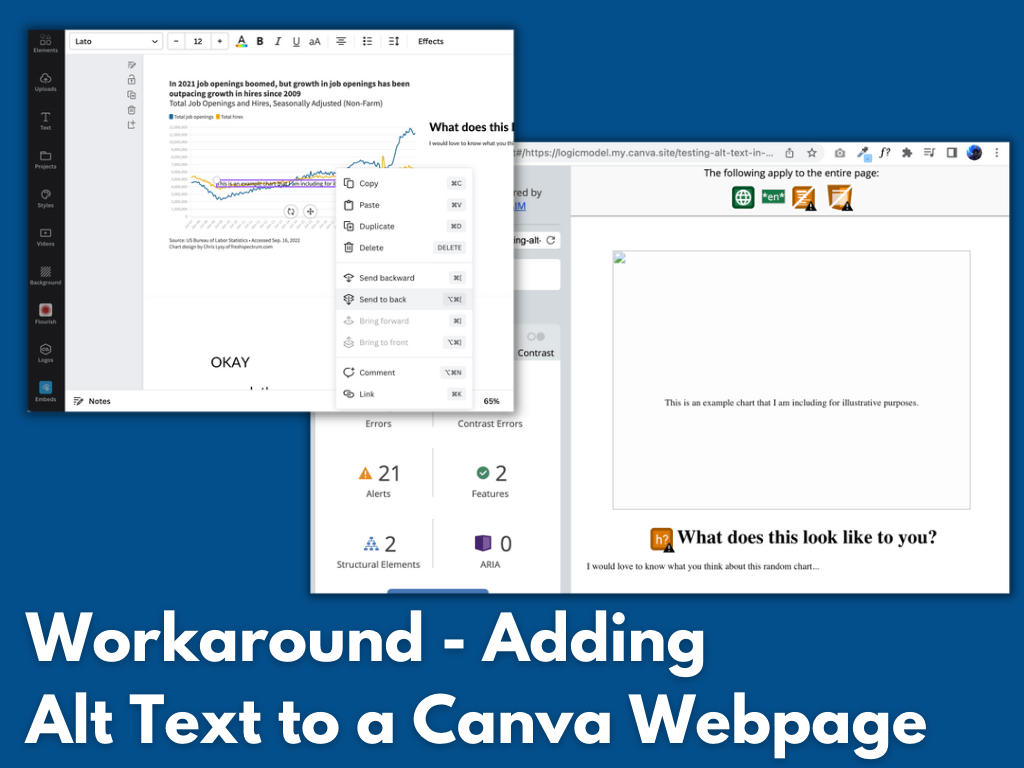
How do you add alt text in Canva? Short answer, you don’t (Canva doesn’t have that feature). Long answer, read on for a workaround.

Featured Image - Workaround - Adding Alt Text to a Canva Webpage

As much as I love Canva for creating infographics and micrographics, as a website publishing tool (and a PDF creator) it is a failure. It’s missing some key features required to share accessible interactive digital designs.

I decided to see if I could find a workaround to the Canva alt text issue. I think I found one and while it’s not perfect, it is a whole lot better than the nothing Canva gives us now. So that’s what you’ll find in today’s post, 4 potential workarounds I tested and the 1 workaround that actually seemed to work.

Quick PSA – Hey Canva, Stick an Alt Text Feature Here!

So I get that reading order might be a bit harder to implement, but at the very least alt text should be easy. You can already isolate images and edit them with filters why not add in a button for alt text?

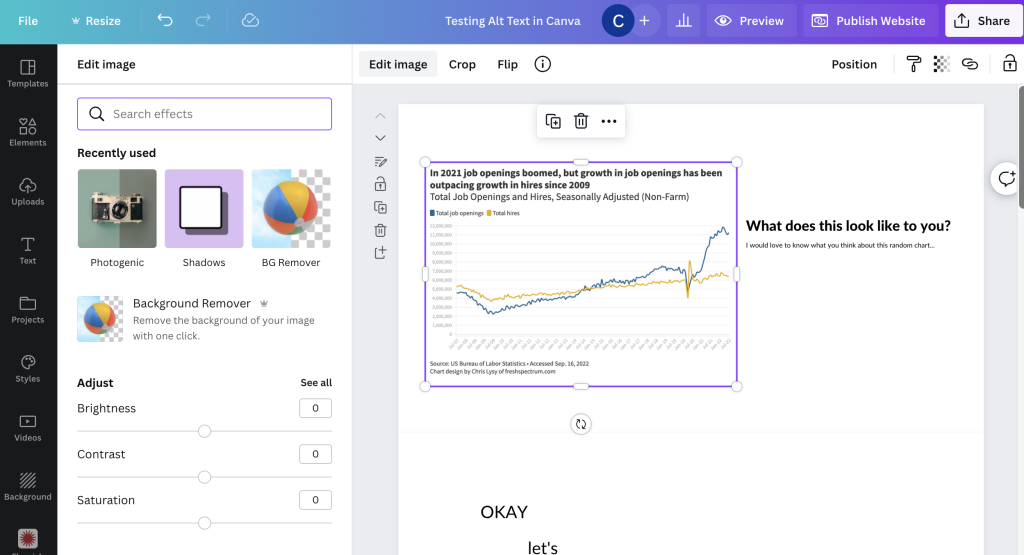
Screenshot of a Canva web page being built from scratch.

Four potential workarounds

Until such time that Canva gets their accessibility act together, let’s test a few possible work arounds.

  1. Hiding text behind an image in a spot that only a screen reader could see.
  2. Embedding an imaged hosted elsewhere that already has associated alt text.
  3. Using a native integration with a tool that allows for alt text.
  4. Just incorporating images from Canva’s own stock image library.

How I tested the workarounds

To start, I created a couple of very basic sample Canva webpages for testing purposes. For the first I just published a Canva website template and tested it as is. For the second I created a basic website from scratch adding the elements I wanted to test.

  • I used a couple of screen readers for my test. A chrome browser based screen reader and my Macbook’s VoiceOver (built in screen reader).
  • I also used WAVE (Website Accessibility Evaluation Tool) by WebAIM.

What did NOT work.

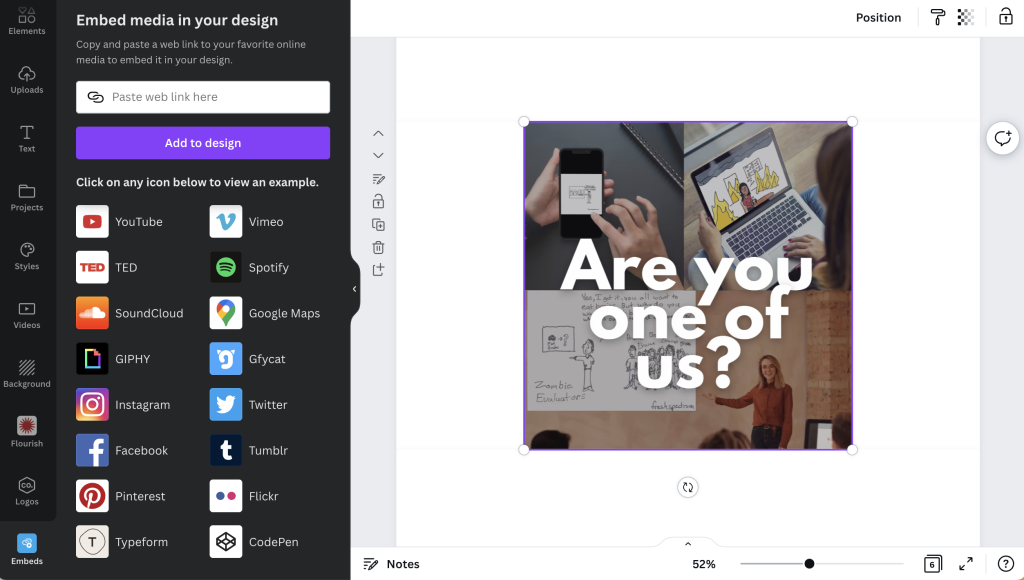
I uploaded an image to my own personal website, gave the image alternative text, and then used the Embed tool inside Canva to insert the image. I thought this would work…but it definitely did not.

At its best I could get a screenreader to read the filename (but it never read the alt text).

Screenshot of an image being embedded into Canva

My guess is that if I played with enough embed tools there probably would be a successful workaround, but it’s just a guess.

What kind of worked.

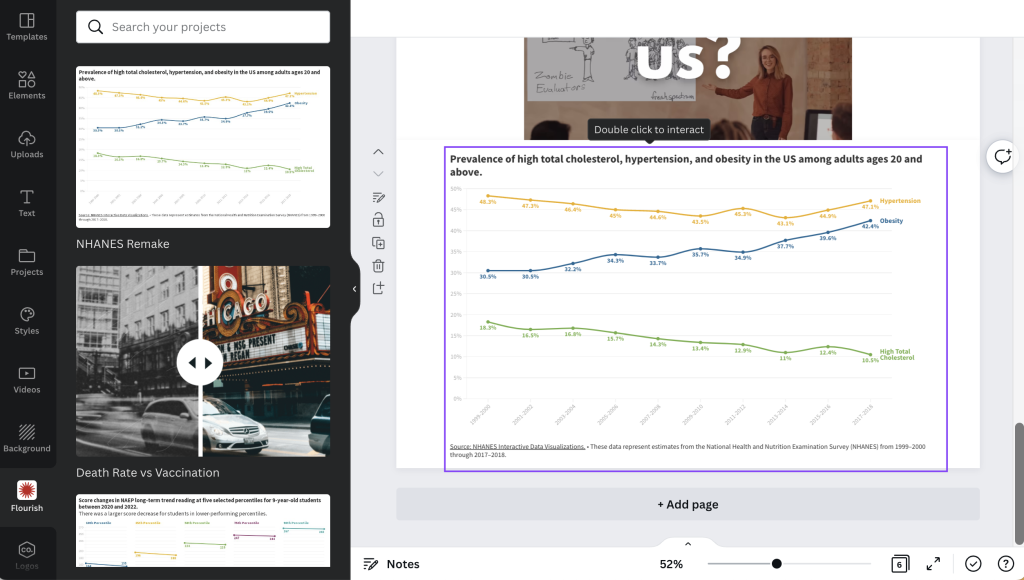
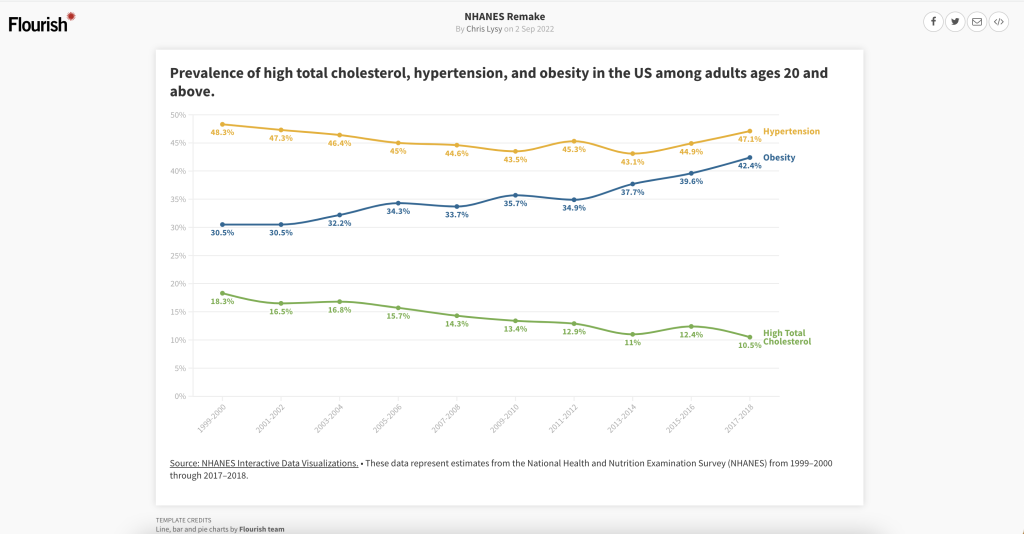
The Flourish embed sort of worked. It was not straightforward, but I could technically get a screenreader to read the alternative text I put in to describe the chart.

Screenshot of the Flourish tool inside of Canva.

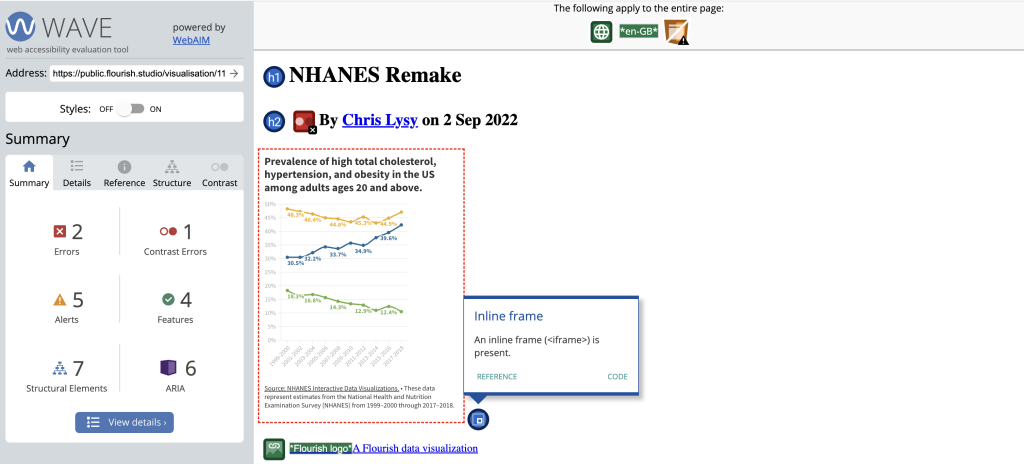
What I found interesting, is that even the chart shared on Flourish’s public site comes through inside an <iframe> which basically means that even on the share page for your Flourish visual, the image is embedded onto the page. This probably doesn’t mean much to most of you.

Screenshot of a WAVE assessment of a Flourish chart page.

In simpler terms, I was having the same screenreader quirky challenges on the published Flourish page that I was having inside the Canva embed.

Screenshot of a Flourish public chart page.

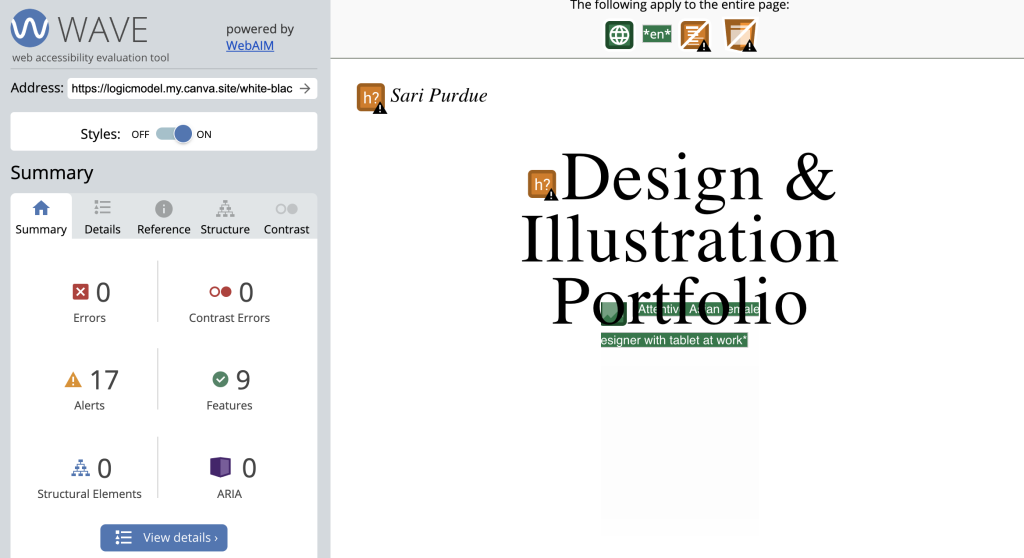
The stock photos used in Canva’s templates DO include standard alt text. There is no way to change the text, but it technically exists.

This does not include images you upload to Canva.

Canva design portfolio web template.

According to the Canva system, the photo above is “Asian Female Designer with tablet at work.”

Screenshot of WAVE assessment of a Canva webpage.

So while both of these options technically did give me alt text, you don’t really have enough control for this to be a great workaround.

What worked.

Okay, so here it is. The workaround to use if you have no other choice than to create a website using Canva (which I’m skeptical about but I don’t know your situation).

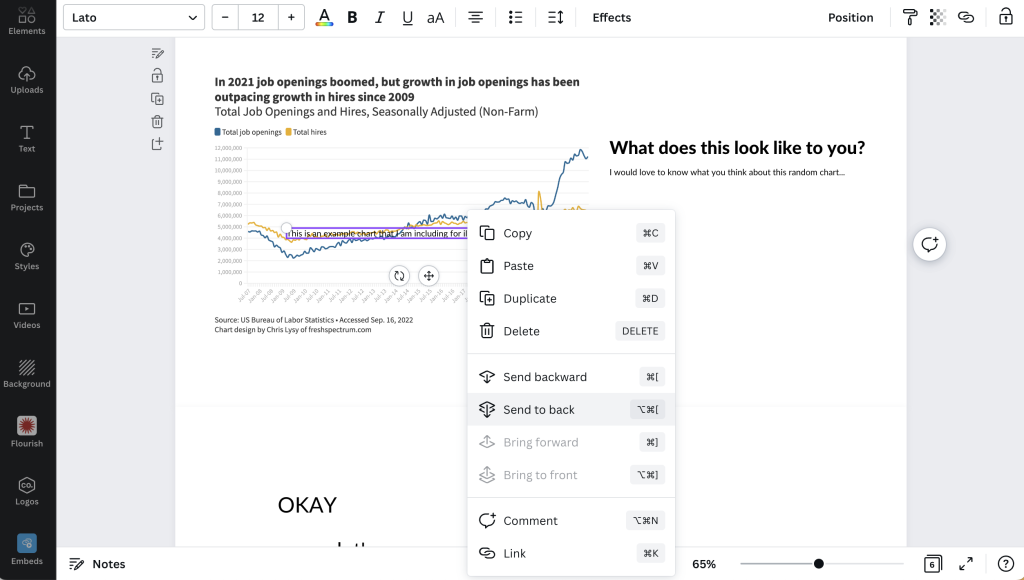
Step 1. Put a text box over the top of the image you inserted into your Canva design. Use this text box to describe the image. Then once you are done, click “send to back” to hide it behind the visual.

Screenshot of text box being sent to back of a Canva webpage.

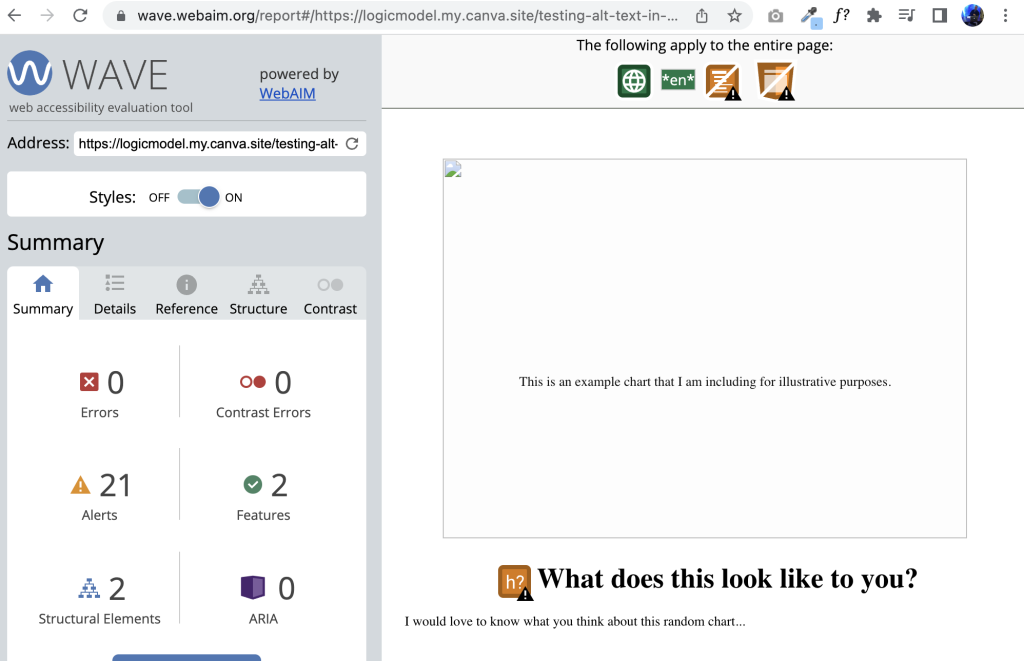
Here is what it looks like on a website. If the image does not load, the descriptive text box will show. This was also successfully read by both my screen readers in the proper order on the page.

Screenshot showing how a canvasite looks to a WebAIM's WAVE tool.

My final conclusion: don’t use Canva for websites until they fix their accessibility issues.

Okay, so technically I found a workaround for one of Canva’s accessibility issues. But that doesn’t solve everything.

Canva should really fix the following if it wants to seriously pitch itself as a web design tool (not just for image production).

  • Alt text (what we’ve been addressing in this post)
  • Document tagging (being able to tag individual text boxes as headings or paragraphs is essential)
  • Reading order (you should be able to guide a screenreader through a page in the proper order)

Want to read more about Canva accessibility? Check out my other post:
Canva Accessibility is bad, here is how you fix your design.

Written by cplysy · Categorized: freshspectrum

Dec 05 2022

How to Use Gray Dashes Instead of Zeros in Tables

Ready to fine-tune your tables?

Here’s one of my favorite table decluttering tips: Change the black zeros into gray dashes—with formulas and conditional formatting.

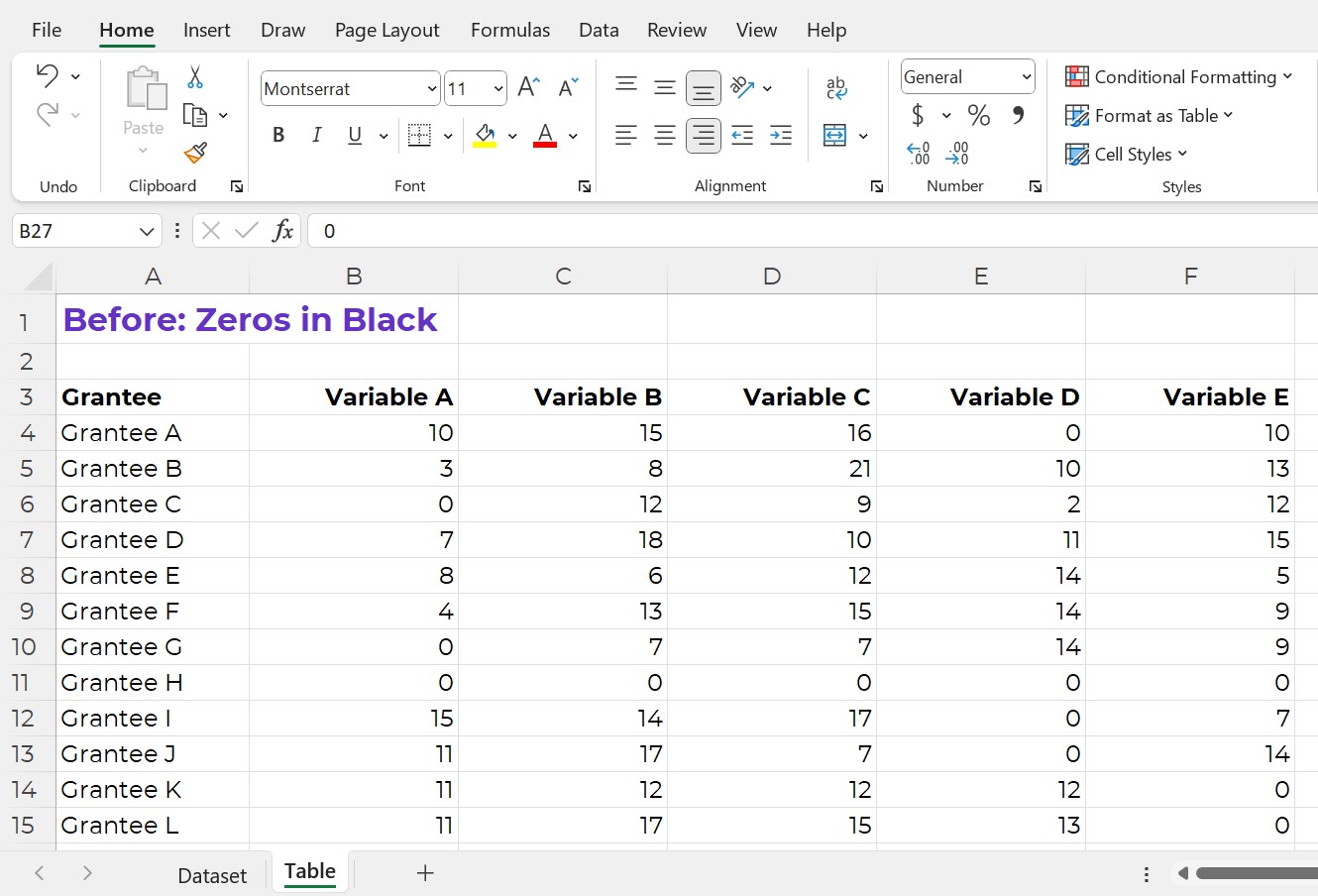
Before: Zeros in Black

Does your table have lots of zeros?

Sometimes my tables have huge values—numbers, percentages, or currency into the thousands, millions, or even billions.

Other times, my tables have small values—lots of single digit and double digit numbers, and even some zeros, like this one.

I recently worked on a dashboard project with a foundation where our n was just 11 grantees. It was the smallest n I’d worked with in a while!

This table is fictional, but you get the idea.

Here’s the old way to show zeros: In black text.

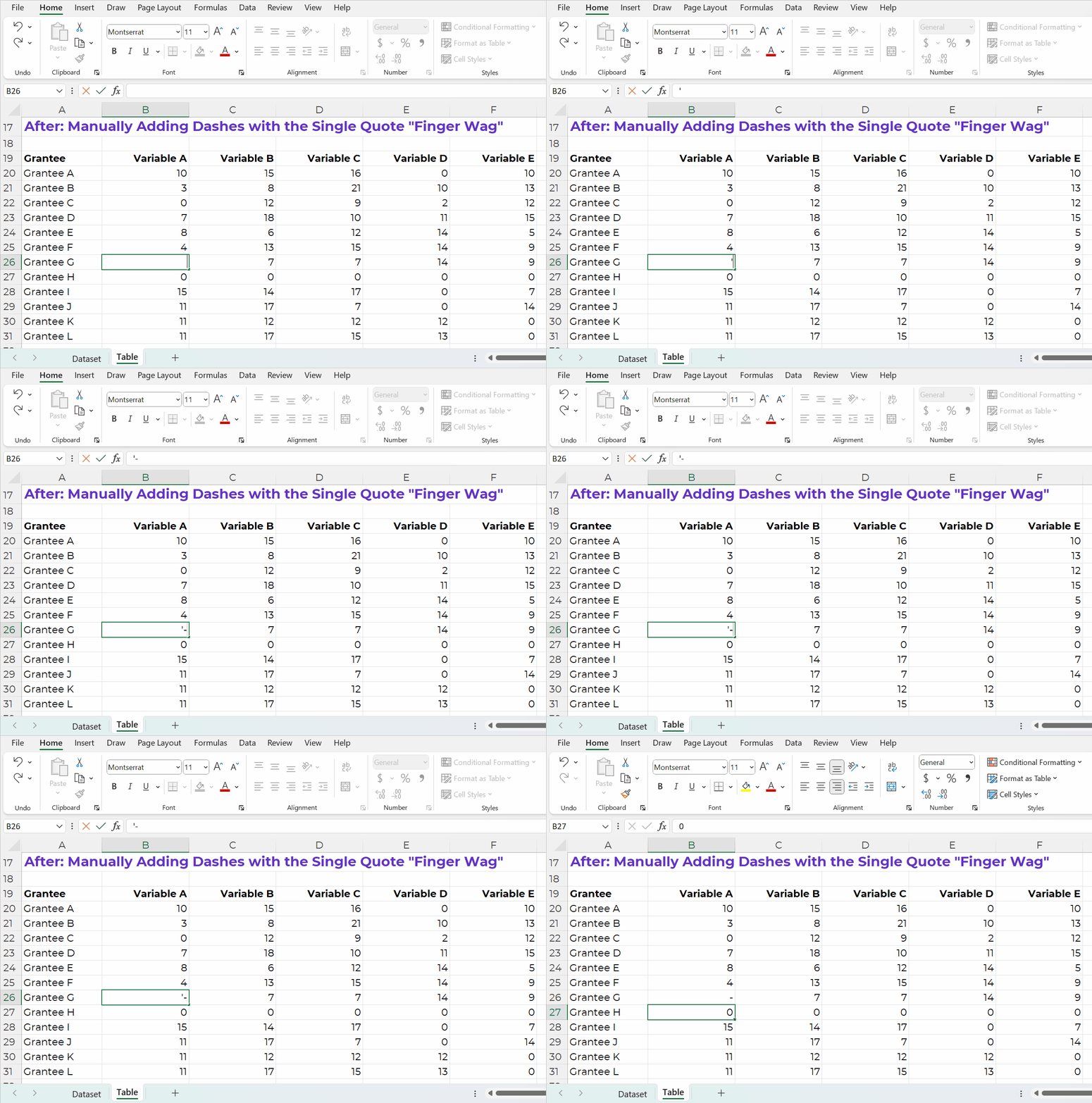
After: Manually Adding Dashes with the Single Quote “Finger Wag”

Let’s replace the 0s with dashes.

In Excel, here’s how:

  • If you type a dash, Excel will get confused. Excel thinks we’re creating a subtraction formula.
  • Instead, start with a single quote, a.k.a. the Finger Wag. We’re scolding Excel. The single quote means, “Don’t change my format! Leave whatever I type after the single quote alone! This isn’t supposed to be a subtraction formula! It’s just a dash!”
A GIF showing how to type a single quote and a dash into a cell.

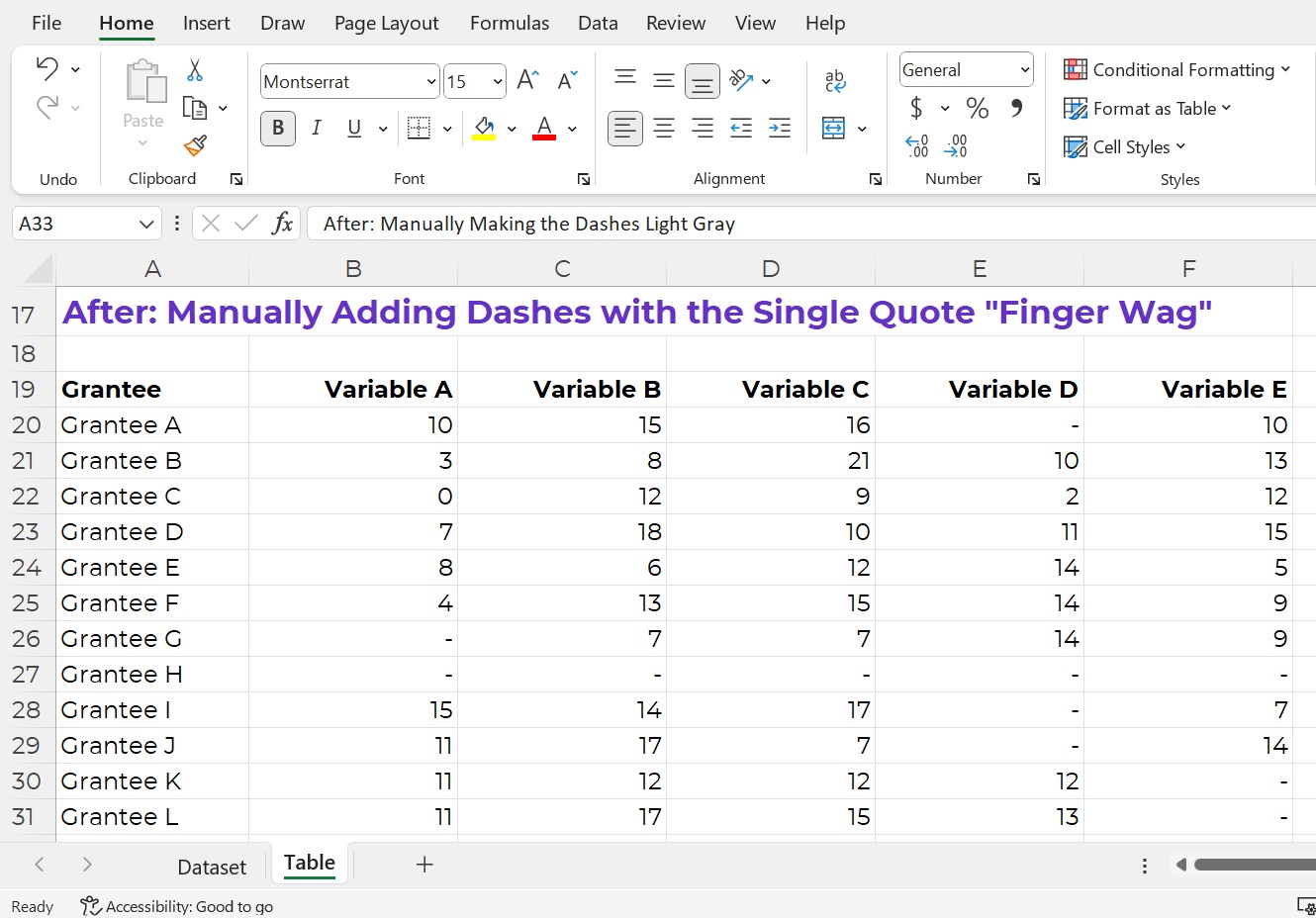
The finished product would look like this (below).

Now, we can actually see the zeros better!

It’s easier to see that Grantee H had an entire row of zeros. Variables D and E also had more zeros than the other variables.

A screenshot from Excel showing all the zeros turned into dashes.

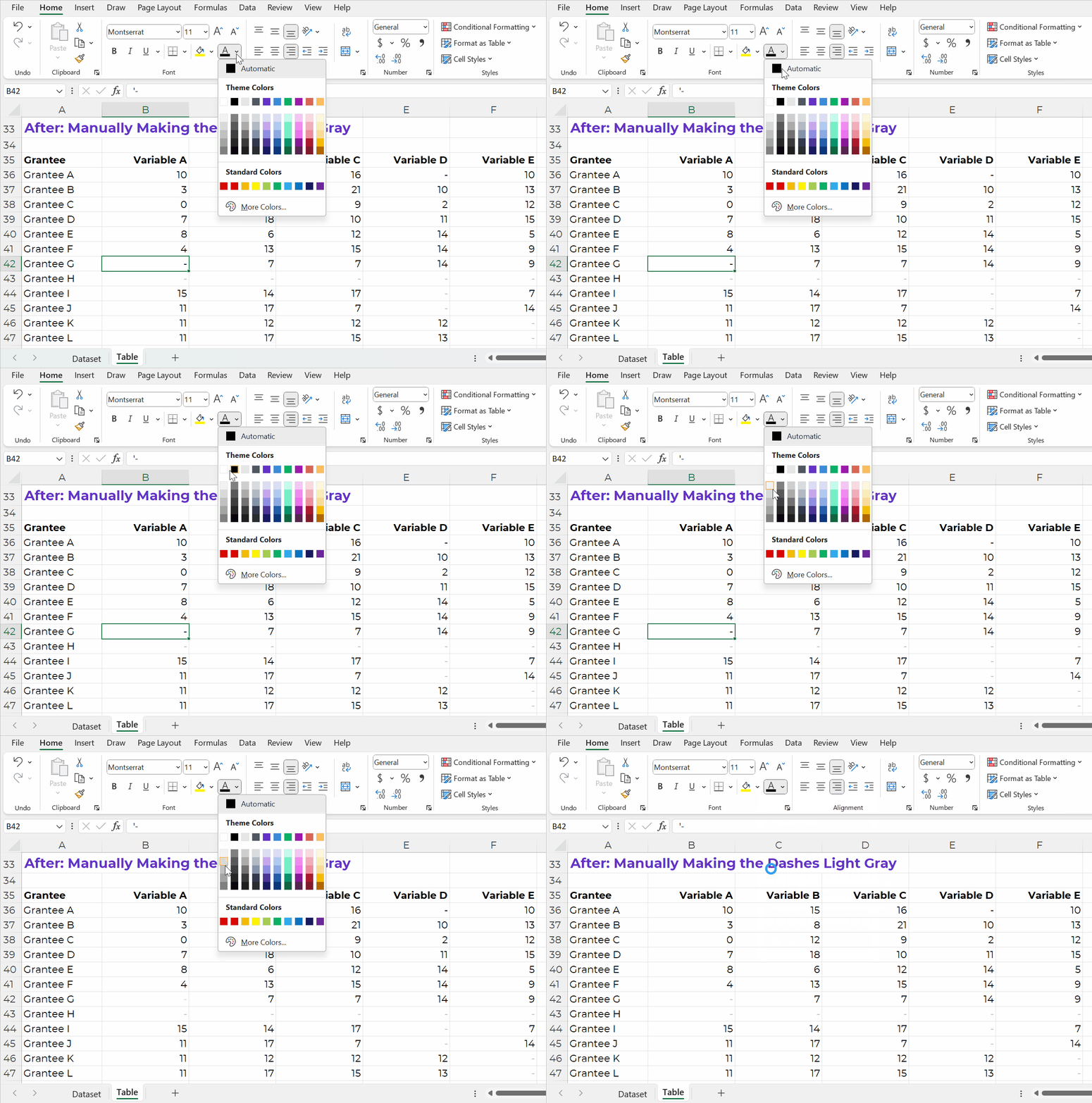
After: Manually Making the Dashes Light Gray

Let’s keep going.

I usually make the dashes gray (so they disappear even more).

You can simply change the font color.

A GIF showing how to change the font color from black to gray in Excel.

After: Automatically Adding Dashes with an IF Statement

But what if your tables values come from another source? (So there are formulas living behind the scenes?) In that case, we can’t simply type a dash by hand. It would remove the formula.

In this example, I’m pretending we’ve got a separate dataset on its own sheet.

The table is a sum of all those entries.

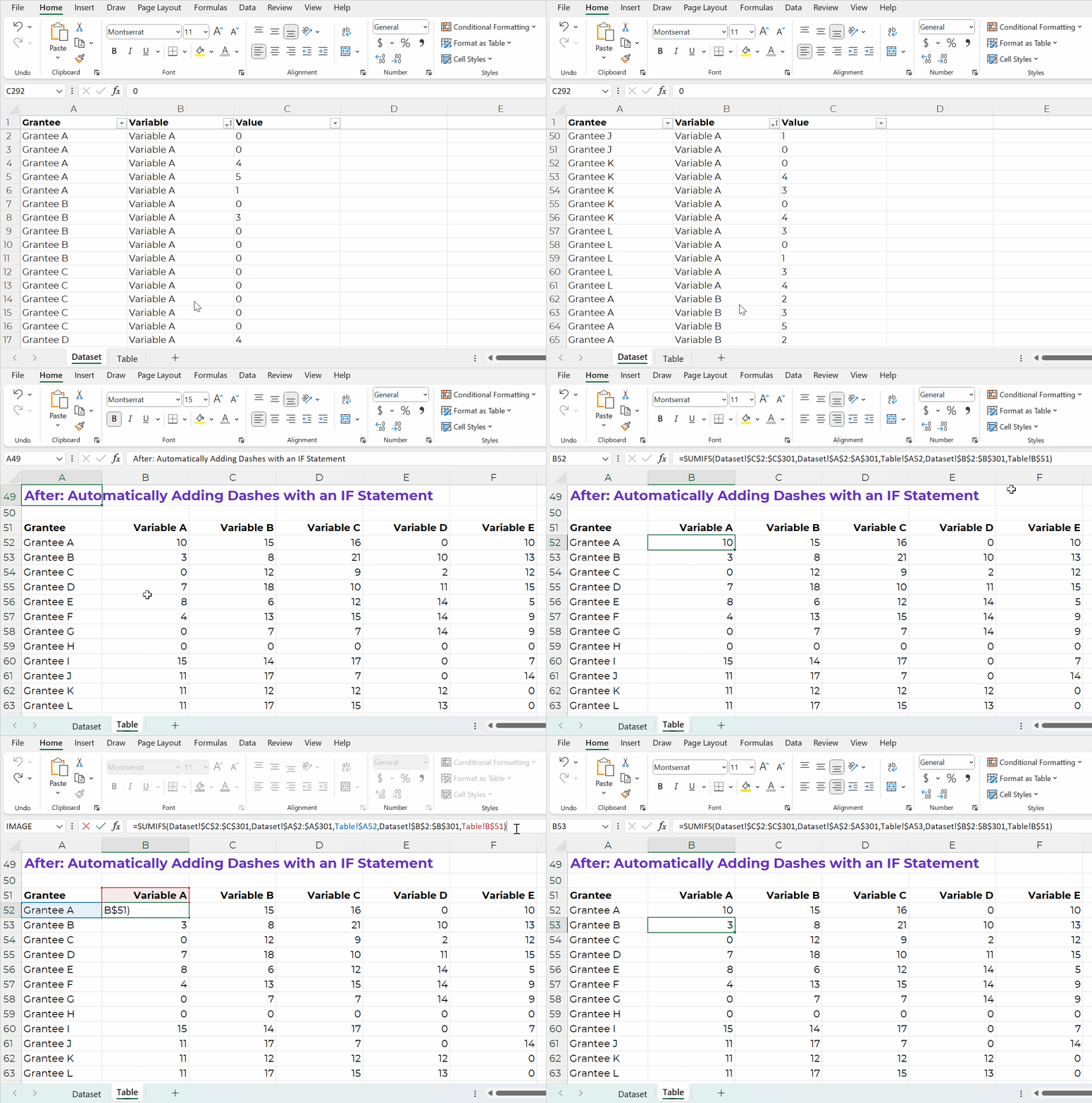
My tables often have sumifs, countifs, xlookups, and more living behind the scenes, like this:

A GIF showing that there are sumif formulas inside the Excel spreadsheet.

We can adjust our existing formulas just a tad.

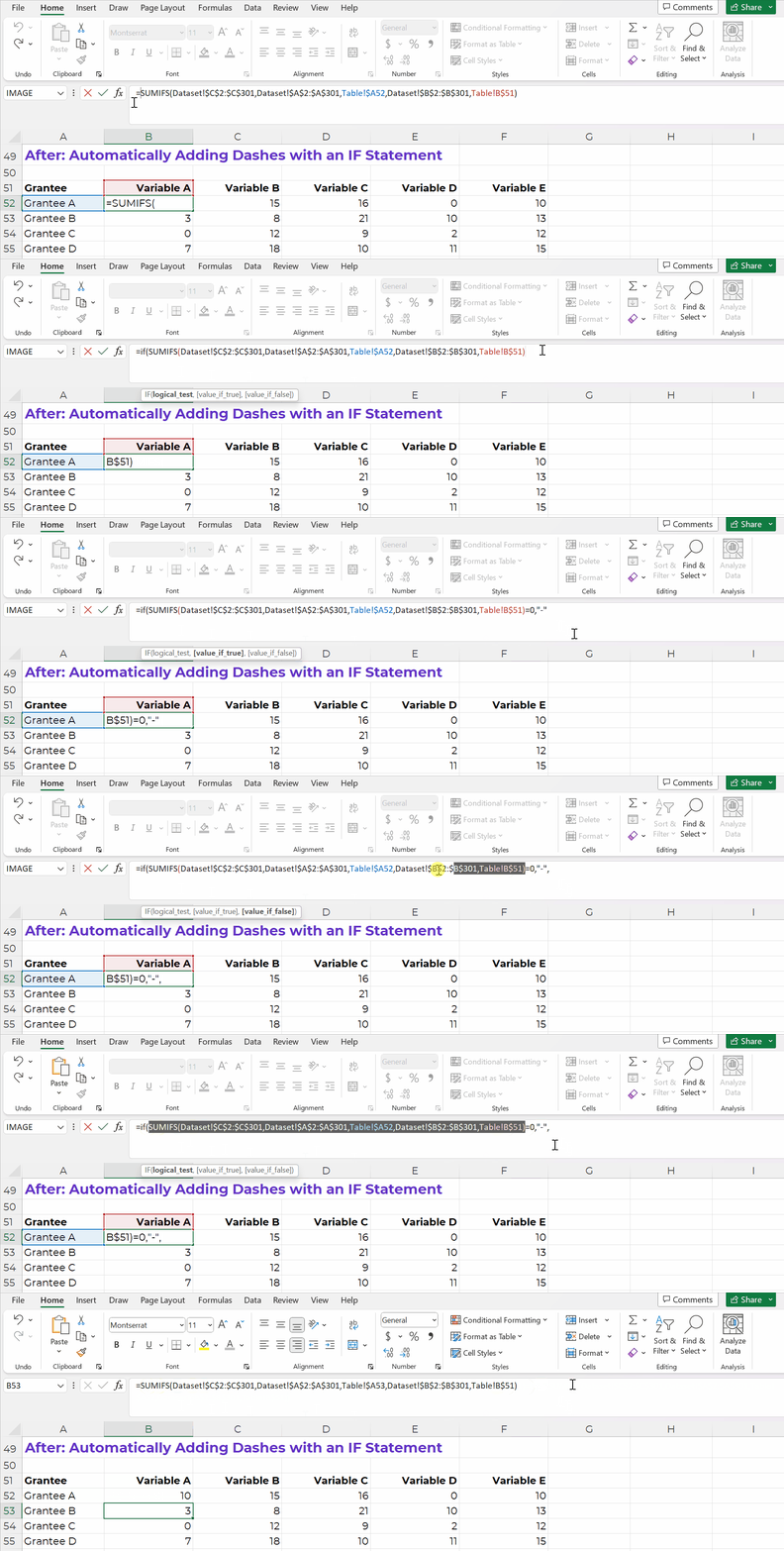
I add IF statements so that if my formula results in a zero, then it shows a dash:

A GIF showing how to create an IF statement such that zeros are automatically shown as dashes.

After: Automatically Making Dashes Gray with Conditional Formatting

Finally, let’s add another time-saver.

Let’s use Conditional Formatting to automatically turn the dashes gray.

The fewer manual changes, the better!

Formulas and Conditional Formatting save our future selves a lot of time. If we add new entries to our dataset, then the formulas will automatically update.

Formulas and Conditional Formatting also reduce typos. We won’t accidentally forget about one of the zeros.

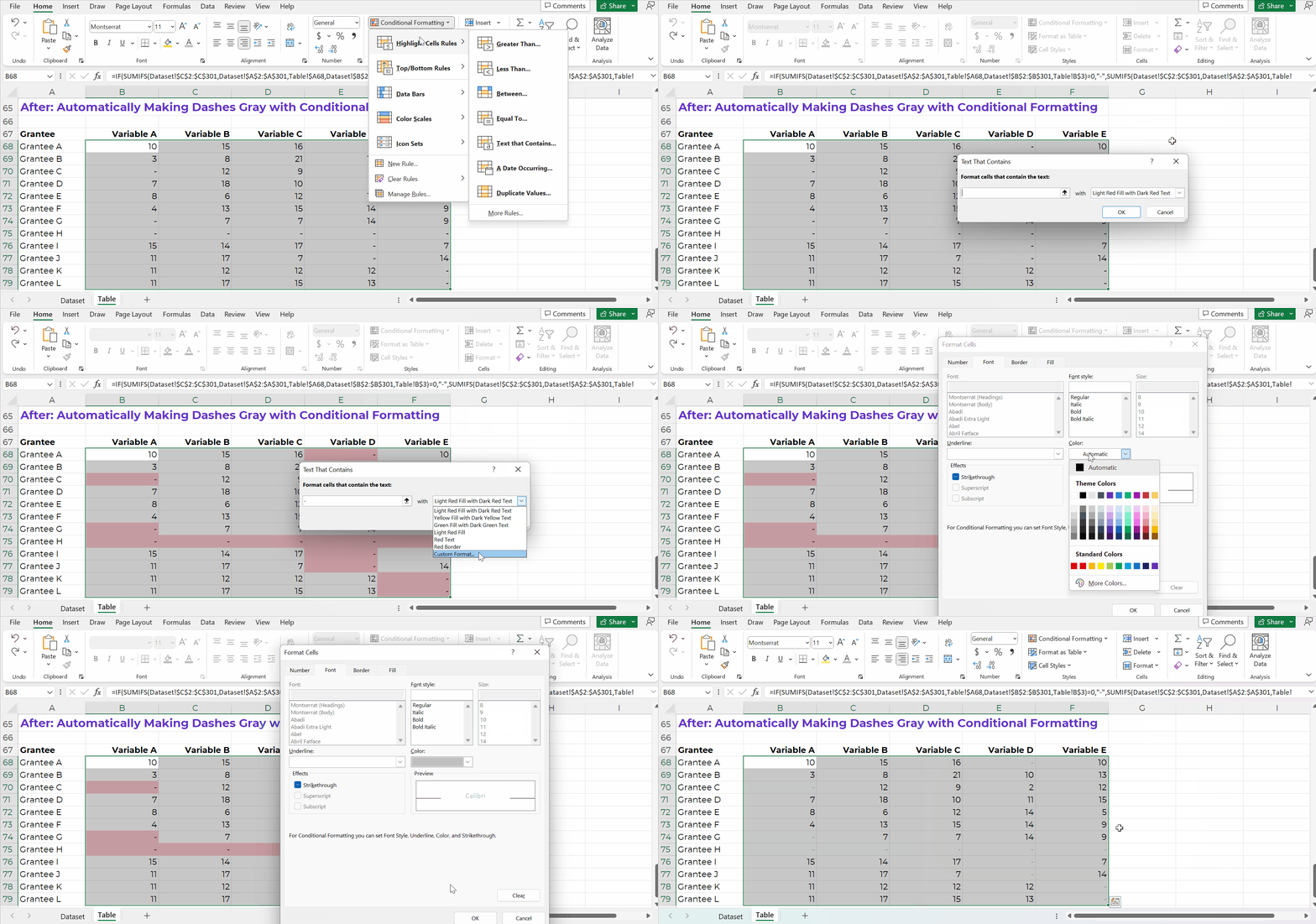
Here’s how:

  1. Highlight the table.
  2. Go to the Home tab.
  3. Click on the Conditional Formatting button.
  4. Choose Highlight Cells Rules.
  5. Choose Text That Contains.
  6. In the pop-up window, type a dash.
  7. Instead of “Light Red Fill with Dark Red Text,” go to the bottom of the drop-down list, and choose Custom Format.
  8. On the next pop-up window, change the font color to gray.

That sounds like a lot of steps, but it’s fast, I promise!

Once you get familiar with Conditional Formatting, it only takes this long:

A GIF showing how to apply Conditional Formatting in Excel.

Yes, You Can Transfer Formatted Tables from Excel into PowerPoint or Word

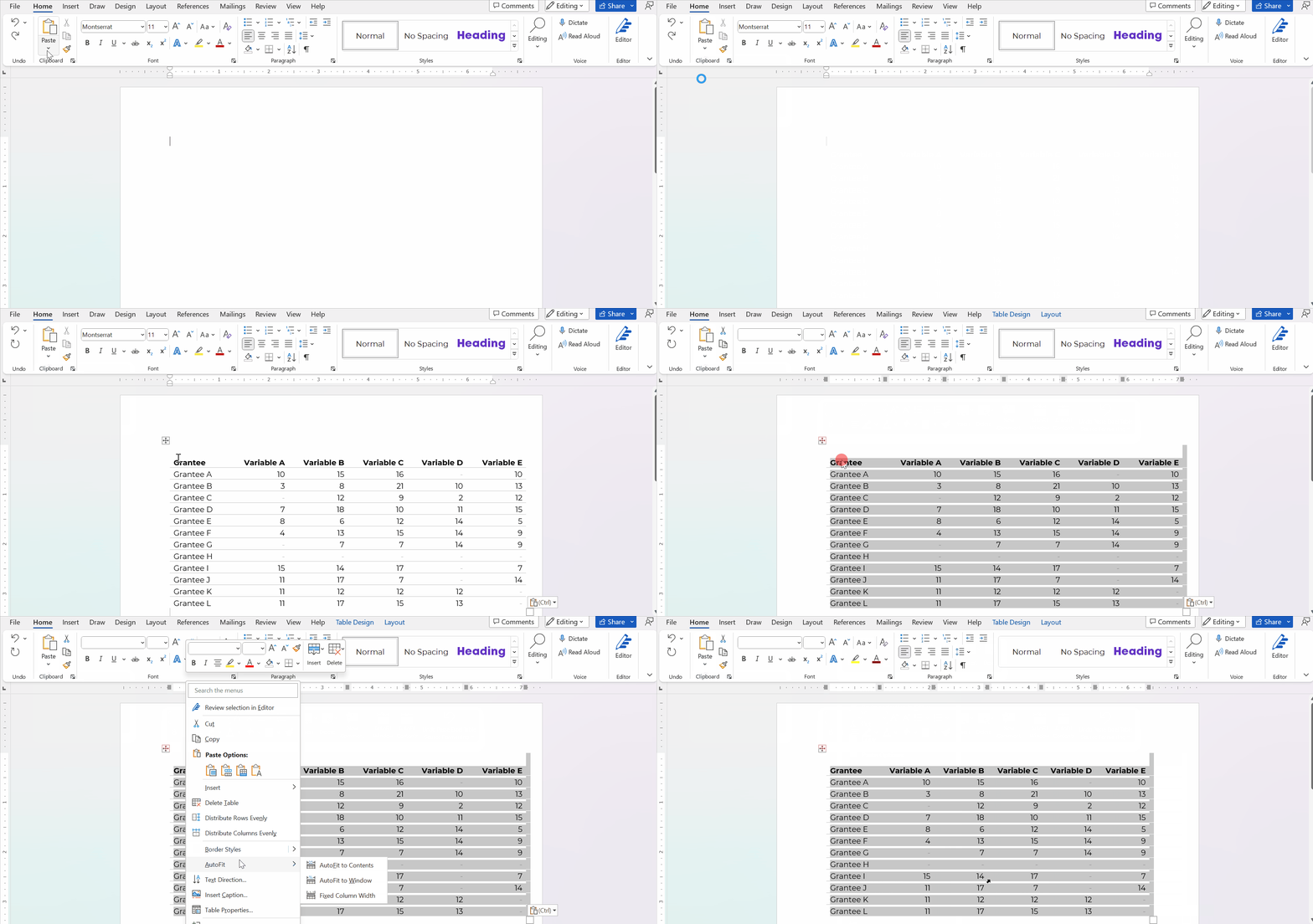
Here’s how you’ll transfer your table into Word:

  1. In Excel, finish formatting the table. I added gray lines between the rows and I “hid” the grid lines from the cells (View tab –> uncheck the Gridlines box. Sure, you can adjust the borders later in Word, but table formatting is generally a pain in Word. I try to do 99.9% of the formatting in Excel.
  2. In Excel, I highlighted and copied the table with good ol’ CTRL + C.
  3. In Word, I went to Paste –> the down-arrow–> Keep Source Formatting.
  4. Then, in Word, I re-sized the table to fit the page.

It looks like this:

A GIF showing how Paste Special the table from Excel into Word.

Here’s how you’ll transfer your table into PowerPoint:

  1. In Excel, finish formatting the table. I added gray lines between the rows; I “hid” the grid lines from the cells (View tab –> uncheck the Gridlines box); and I re-sized the columns (wider) and rows (taller). Sure, you can adjust these things in PowerPoint later… but it’s such a pain. I prefer formatting in Excel first, and then transferring to PowerPoint.
  2. In Excel, I highlighted and copied the table with good ol’ CTRL + C.
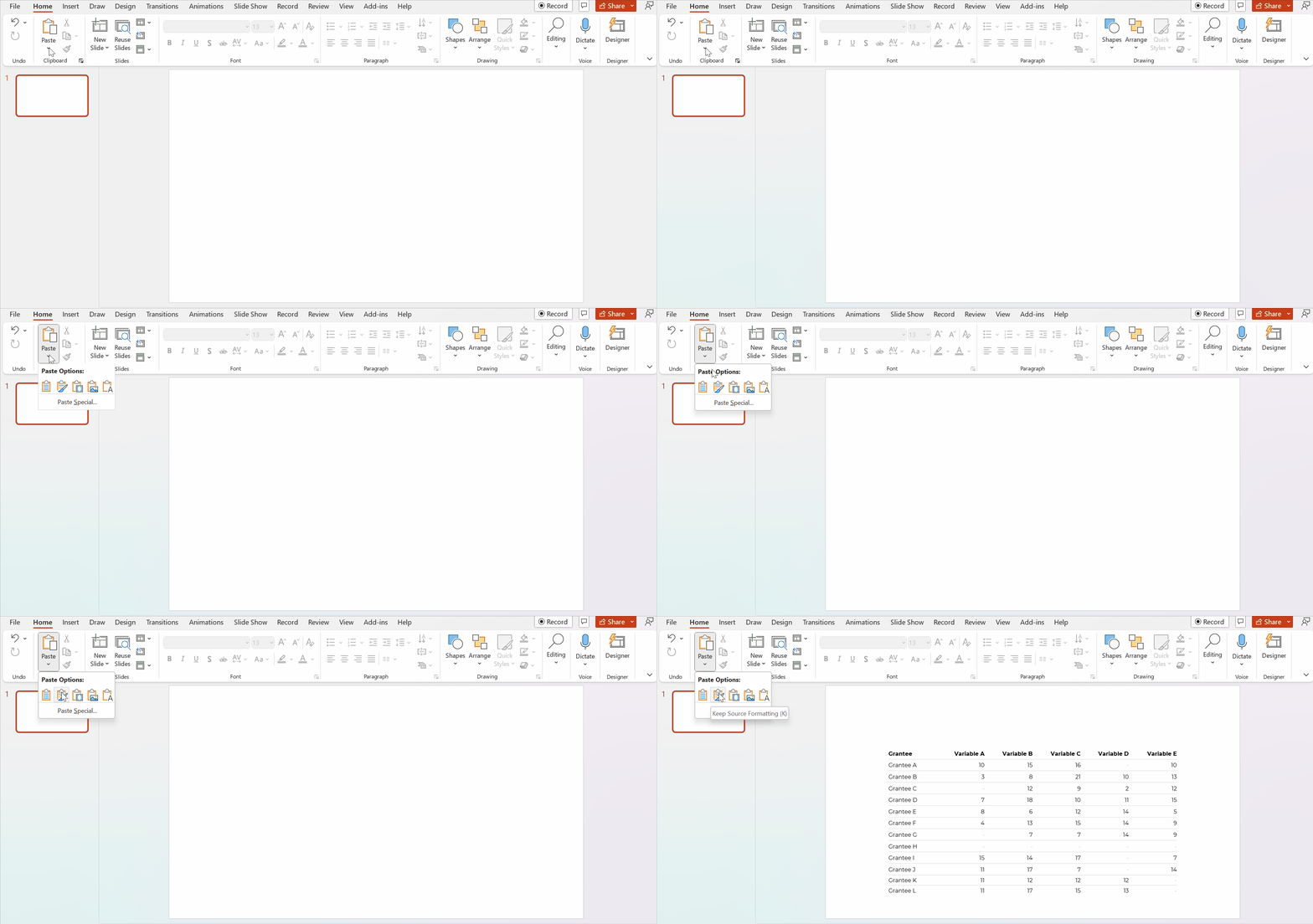
  3. In PowerPoint, I went to Paste –> the down-arrow –> Keep Source Formatting.
  4. Then, in PowerPoint, increase the font size. I recommend 18+ for presentations.

Please don’t take screenshots from Excel and paste them into other programs. Your table will get blurry.

Please don’t transfer tables and graphs as images. They’ll get blurry.

A GIF showing how Paste Special the table from Excel into PowerPoint.

Please don’t take screenshots from Excel and paste them into other programs. They’ll be blurry.

Please don’t transfer tables and graphs as images. They’ll be blurry.

Download the Spreadsheet

If you’re familiar with sumifs, if, and Conditional Formatting, then this will be fast and easy for you!

If you’re new to sumifs, if, and Conditional Formatting, then download my spreadsheet. You can click through the formulas yourself to see how everything is set up: https://depictdatastudio.gumroad.com/l/UseGrayDashesInsteadOfZeros

Written by cplysy · Categorized: depictdatastudio

Nov 30 2022

Agile for One

How do you manage all the stuff you need to do each day? In today’s post I’m going to walk through my indie consultant project management process, which I call Agile for One.

I am a creative with an ADHD brain.

If you have followed me for awhile that sentence will not be a surprise. My mind likes to jump around to different topics and I like doing all sorts of different things. And while it would be fantastic to just be able to lean into that craziness, running a business requires a bit more consistency.

Person 1 holding a duck carving - "I didn't know you were a wood carver."
Person 2 sitting in a chair carving wood, "Oh, I'm not. I had a lot to do this week but then I saw this YouTube Video of a guy carving ducks and thought, "I could do that."

For instance. Here is stuff I do every week.

  • Write a blog post.
  • Draw a set of cartoons.
  • Host a live design workshop.
  • Write an email for my blog followers.
  • Write a special email for my workshop participants.
  • Share stuff on social media.
  • Serve my clients.
  • Take care of business admin stuff.
  • Family support stuff.

That doesn’t even include the stuff I do on an every once and awhile or the random projects I seem to fall into on a whim. So how do I get everything done consistently when there is only so much time in the day?

What is Agile?

If you want a complete answer to this question I would suggest you Google it. There are people who make careers out of implementing Agile and lots of software companies who serve organizations that are committed to the project management philosophy. So you’ll find a lot of articles.

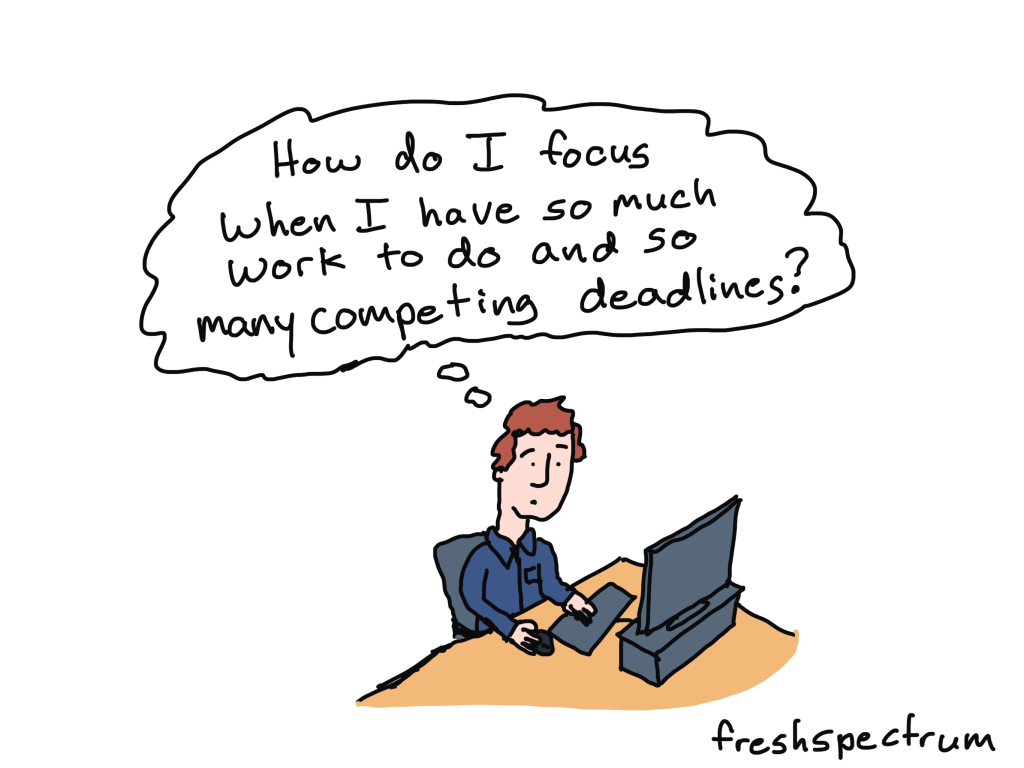
Guy at desk thinking, "How do I focus when I have so much work to do and so many competing deadlines."

But basically, in layman terms, it’s just a different way to approach getting stuff done. An approach used by lots of software development teams who are developing new things quickly and need to get a lot of tasks done together as a team.

I don’t use it that way. For one, I don’t have a team, just myself. But as an indie, an Agile approach really helps me keep track of tasks so I don’t forget anything.

My basic Scrum board.

Okay, so if you do google Agile, you’ll hear people talking about Scrum. It’s basically just a more specific method of Agile. But that doesn’t really matter, because all I care about is the board.

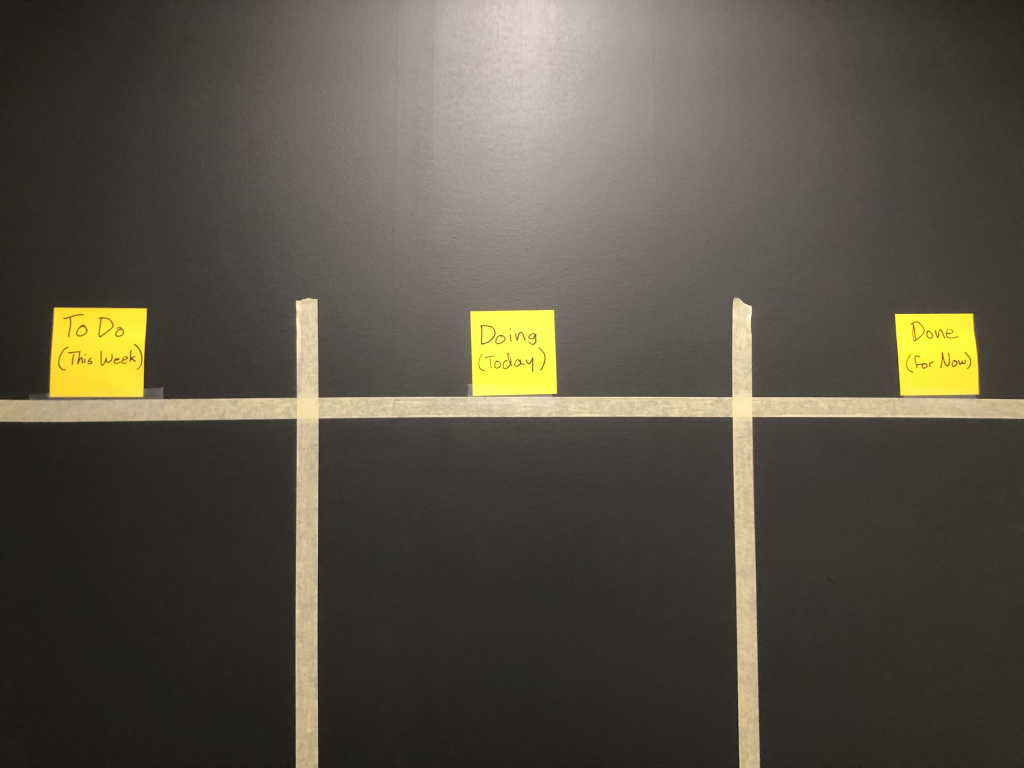
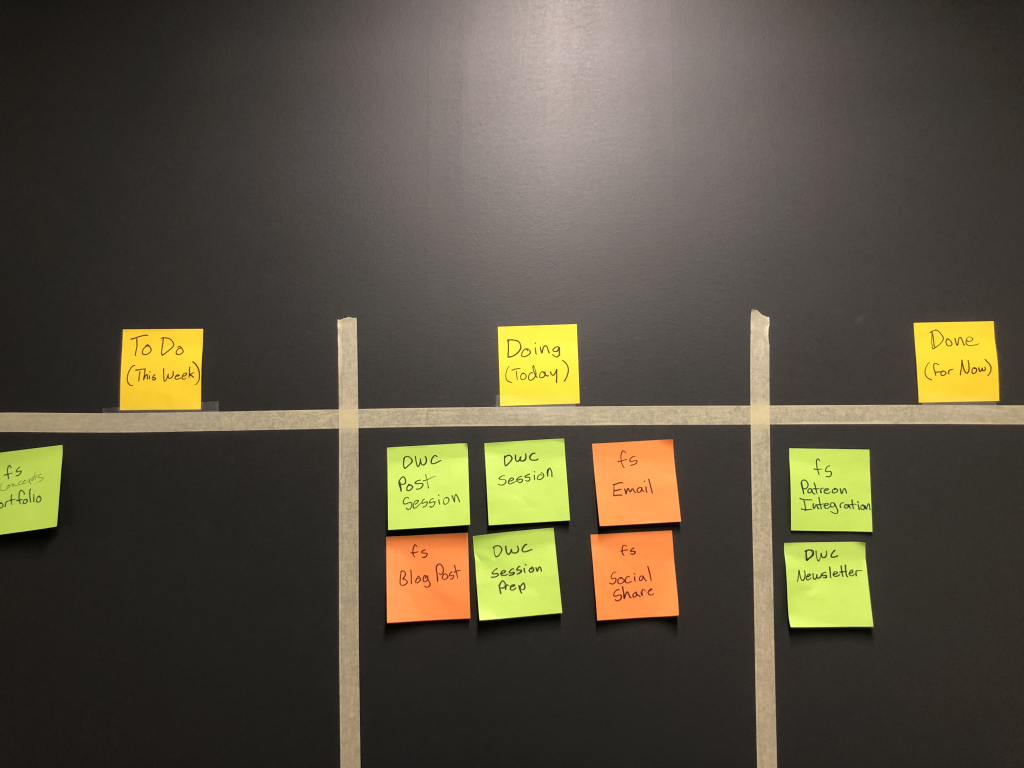
Photo of my Scrum Board wall with masking tape, to do, doing, and done sticky notes.
This is what my wall looks like. Nothing fancy, just masking tape and post it notes.

On my office wall I used masking tape to create three columns.

  • Column 1. To Do (This Week)
  • Column 2. Doing (Today)
  • Column 3. Done (For Now)

I put tasks that need to get done on Sticky notes. Then I put each one in its proper column. As I complete tasks I move them to the Done column.

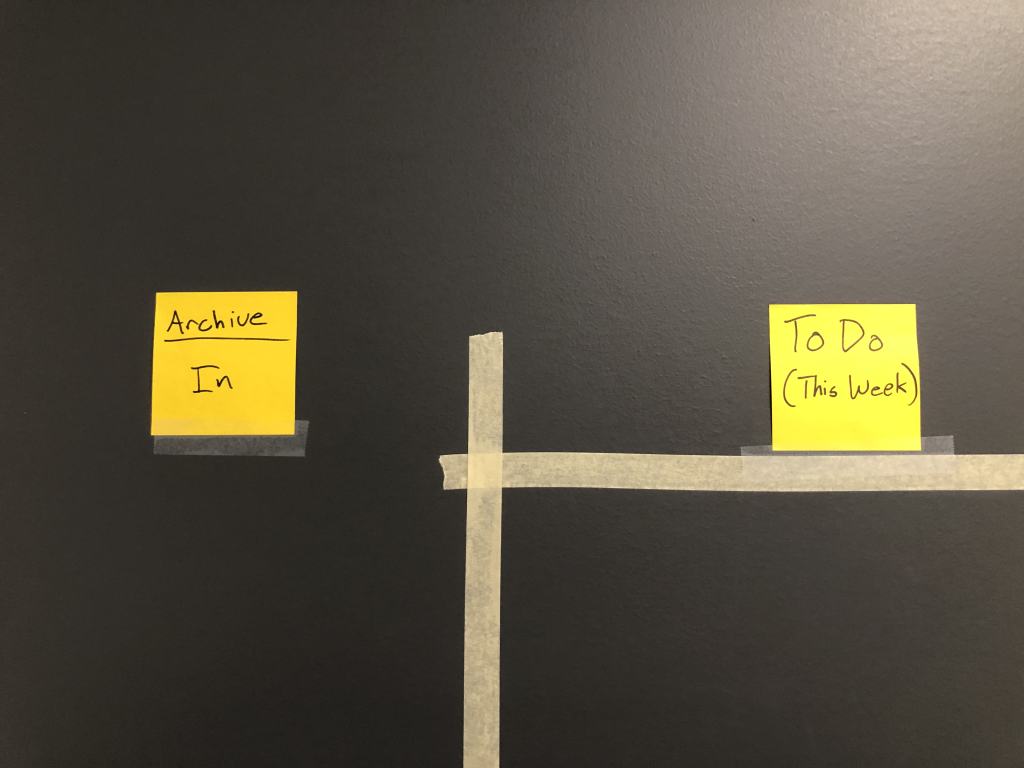
Photo showing my archive column.
My Archive lives outside the columns of my Agile for One Scrum Board

I also have two more columns that are just spaces to hold tasks not currently on the list this week.

  • Archive. In (Left Side)
  • Archive. Out (Right Side)

In the Archive in space I put tasks that will likely need to be done again in the coming weeks. In the Archive out space, I put tasks that are fully complete and not likely to be completed again.

Your Weekly Plan

Photo showing my wall scrum board with post it notes.
Scrum board with Post its.

Your weekly plan is simple.

  • On Monday morning (or Friday afternoon) reset your board.
  • Each morning move tasks that need to be done that day to the doing column.
  • As you complete tasks move them to the Done column. then add more from your To Do (this week) column to the Doing (today) column.

Your goal each week is to move all the tasks from the left column of your board to the right column.

Go Digital with Trello

I like the tangible feeling of a Post-It note. I like being able to physically move the notes from column to column. But it’s not necessary to have a physical board. I’ve only been able to do this since I moved into my new office this fall.

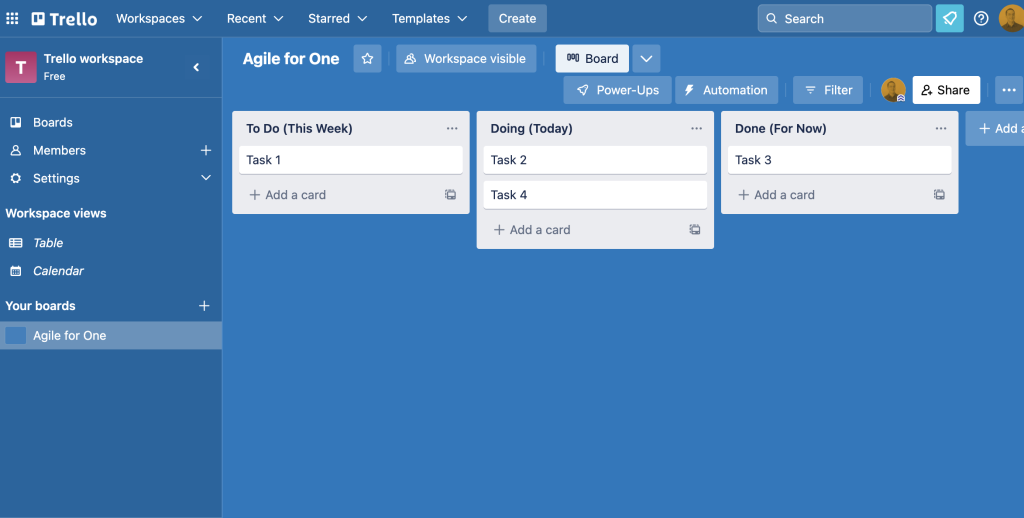
If you don’t have physical wall space, or if you live your life as a digital nomad, a tool like Trello makes creating boards like this one easy. There are also bunches of other tools out there if you don’t want to use Trello (ex. Monday, Asana, and Microsoft Planner all have similar features).

Trello board example.
An example simple Scrum Board setup in Trello

How about you?

So that’s how I do it. What tricks have you developed to keep track of all the things you need to get done?

Written by cplysy · Categorized: freshspectrum

  • « Go to Previous Page
  • Go to page 1
  • Interim pages omitted …
  • Go to page 108
  • Go to page 109
  • Go to page 110
  • Go to page 111
  • Go to page 112
  • Interim pages omitted …
  • Go to page 310
  • Go to Next Page »

Footer

Follow our Work

The easiest way to stay connected to our work is to join our newsletter. You’ll get updates on projects, learn about new events, and hear stories from those evaluators whom the field continues to actively exclude and erase.

Get Updates

Want to take further action or join a pod? Click here to learn more.

Copyright © 2026 · The May 13 Group · Log in

en English
af Afrikaanssq Shqipam አማርኛar العربيةhy Հայերենaz Azərbaycan dilieu Euskarabe Беларуская моваbn বাংলাbs Bosanskibg Българскиca Catalàceb Cebuanony Chichewazh-CN 简体中文zh-TW 繁體中文co Corsuhr Hrvatskics Čeština‎da Dansknl Nederlandsen Englisheo Esperantoet Eestitl Filipinofi Suomifr Françaisfy Fryskgl Galegoka ქართულიde Deutschel Ελληνικάgu ગુજરાતીht Kreyol ayisyenha Harshen Hausahaw Ōlelo Hawaiʻiiw עִבְרִיתhi हिन्दीhmn Hmonghu Magyaris Íslenskaig Igboid Bahasa Indonesiaga Gaeilgeit Italianoja 日本語jw Basa Jawakn ಕನ್ನಡkk Қазақ тіліkm ភាសាខ្មែរko 한국어ku كوردی‎ky Кыргызчаlo ພາສາລາວla Latinlv Latviešu valodalt Lietuvių kalbalb Lëtzebuergeschmk Македонски јазикmg Malagasyms Bahasa Melayuml മലയാളംmt Maltesemi Te Reo Māorimr मराठीmn Монголmy ဗမာစာne नेपालीno Norsk bokmålps پښتوfa فارسیpl Polskipt Portuguêspa ਪੰਜਾਬੀro Românăru Русскийsm Samoangd Gàidhligsr Српски језикst Sesothosn Shonasd سنڌيsi සිංහලsk Slovenčinasl Slovenščinaso Afsoomaalies Españolsu Basa Sundasw Kiswahilisv Svenskatg Тоҷикӣta தமிழ்te తెలుగుth ไทยtr Türkçeuk Українськаur اردوuz O‘zbekchavi Tiếng Việtcy Cymraegxh isiXhosayi יידישyo Yorùbázu Zulu