• Skip to main content
  • Skip to footer
  • Home

The May 13 Group

the next day for evaluation

  • Get Involved
  • Our Work
  • About Us
You are here: Home / Archives for cplysy

cplysy

Jun 10 2022

What program managers need to share with their new evaluators

Evaluators – this one’s not for you, but maybe you can share it with some clients! 

As a program manager or project lead, you may find yourself needing an evaluator. How do you get that evaluator oriented to the project? What information do they need? Let’s walk through it. 

Hopefully your new evaluator has a few questions to kick things off. Usually things like “What is the purpose for needing an evaluation? How will the information be used? What do you need answers to?” You might even sit down for an engagement meeting to answer most of those questions. This is my job. I do this on repeat. And yet no matter how I try to harvest all the important information from the key stakeholder group, I still find that I’m often missing core pieces of information when I set out to develop my evaluation plan. Key information tends to trickle out in bits and pieces over the initial weeks or even months. So, I thought it might be helpful to compile a list of what makes the new evaluator orientation and planning process as efficient and effective as possible. 

Here’s a checklist of things every program manager should share with (or tell) their evaluator:


  1. Describe the program.

    This sounds obvious, but you’d be surprised how often the people that hire me don’t start with a clear overview of what the program is! Be prepared to describe, from start to finish, what it is you do or what service you offer and who you serve. 

    TIP: Share any documentation you have, including project proposals, grant applications, or work plans. Include a description of who’s who in the zoo: what are the key roles.

  2. Has the program been evaluated before?

    If yes, share previous: 

    • Evaluation plans 

    • Evaluation reports 

    • Data (if you want year-to-year comparison, for example) 

    • Logic models or Theories of Change 

    TIP: It can be helpful to share what you liked or didn’t like about your previous evaluations and reports – what missed the mark? What was really helpful? What do you want this new evaluator to do differently or the same?

  3. A description of current data collection processes.

    Ideally this would be documented but I’ve yet to find a program that has this (and have found myself creating process maps myself for the complicated programs). In the very least, be prepared to share a verbal description of how things work. For example: 

    “When a participant expresses interest in our program, they sign a consent form (here’s a copy) and fill out a baseline survey (here it is). Then they attend a weekly workshop for 2 months. We keep an attendance list (like this). Then there is a post workshop session survey (here it is).” 

    Note that sharing the current data collection tools is critical. 

    TIP: It can be helpful to share what’s working or not working about data collection. For example: “We really struggle to get a decent response rate on our post workshop survey.” Or “We collect those attendance sheets, but we have no use for them, they just get recycled!” Even detailed insights can help “On our survey, the age ranges we offer aren’t a great reflection of our clients.” or high-level reflections “We have no ability to match data between two very important data sets”. 

  4. Funder and reporting requirements and timelines.

    Do you have mandatory reports due? Even if you don’t intend to have the evaluator write them for you, be clear about who is contributing to what and what the timelines are. Often the evaluator can time data collection to be ready for your annual, quarterly or interim reports. They can certainly help you out by ensuring that key metrics or key success factors are captured and ready for you. So even if writing the report(s) is beyond the scope of the role you want the evaluator to play, it can be helpful to share these anyway. 

    TIP: Documenting who is responsible for what in mandatory reporting is very helpful. You could ask your evaluator to contribute to certain sections, contribute data, or plan to use the evaluation report as an appendix to the required reporting template.

  5. Who are the decision-makers?

    Is there a program steering committee or advisory group? Perhaps there is even an evaluation advisory committee that is disbanded or defunct? Share these details with your evaluator so (a) they can ensure their reporting is prepared for the appropriate audience(s) and (b) they know who to go to for important decisions – like signing off on the evaluation plan.

    TIP: I’ve found it to be effective when a program has a core group of no more than 5 people who provide input into an evaluation. Five seems to be able capture enough diverse perspectives, but with more than this it gets hard to convene for key discussions (and timelines get pushed out).

BONUS TIP: Be prepared to answer key evaluator questions. 

I get that it can be difficult to come up with great insights on-the-spot – so don’t! If you have an evaluation meeting coming up, try to carve out even 15 – 30 minutes in your schedule to prepare for it.

Be prepared to describe why you want this evaluation, what questions you have about your program and how you plan to use the information.

Consider reviewing your program material – work plans, proposals, previous evaluation reports, even meeting minutes.  Were there key questions posed by program stakeholders or partners? Take a few minutes to reflect: If I could know anything, what would I want to know about this program? It could be about the way it’s run, about the impact it has, or about the effectiveness or efficiency of it. 


Evaluators want to provide you with information that is valuable, relevant, and actionable! Setting them up with the right information makes it more likely that you will find value in the role. 

Do you need help with an evaluation? Reach out to one of our Evaluation Coaches to get started. Or perhaps you’re looking to commission an evaluation. We’ve got some great tools to help you there, too! Take a look at our recommendations for what to include in your Evaluation RFP and a checklist to make sure you’ve got it all covered. 


Sign up for our newsletter

We’ll let you know about our new content, and curate the best new evaluation resources from around the web!


We respect your privacy.

Thank you!
 

Written by cplysy · Categorized: evalacademy

Jun 09 2022

How to create a timeline infographic using Canva.

Looking for an infographic that is easy to write and design? This post will you through the process of creating a timeline infographic from scratch using Canva. I’ll also include the final templates at the end of this post.

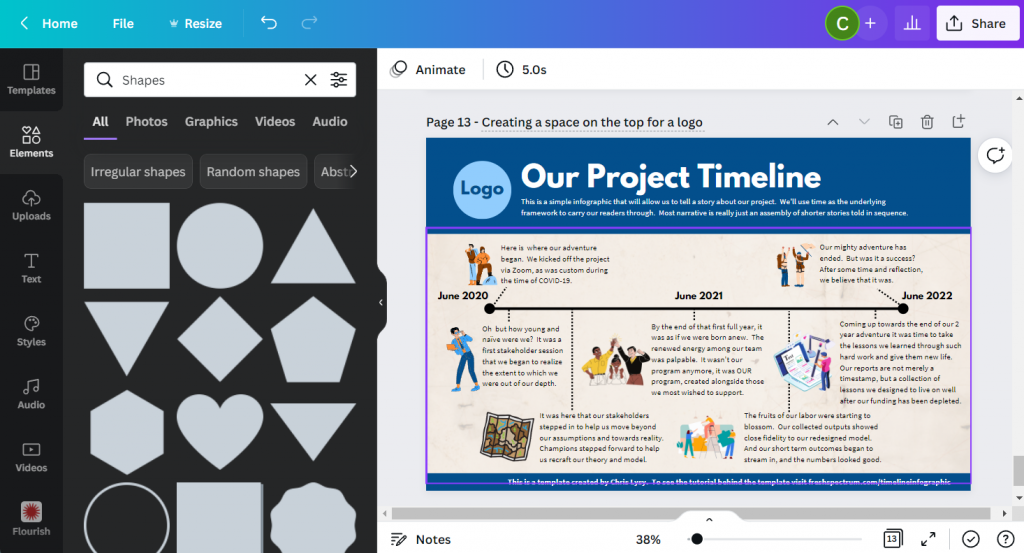
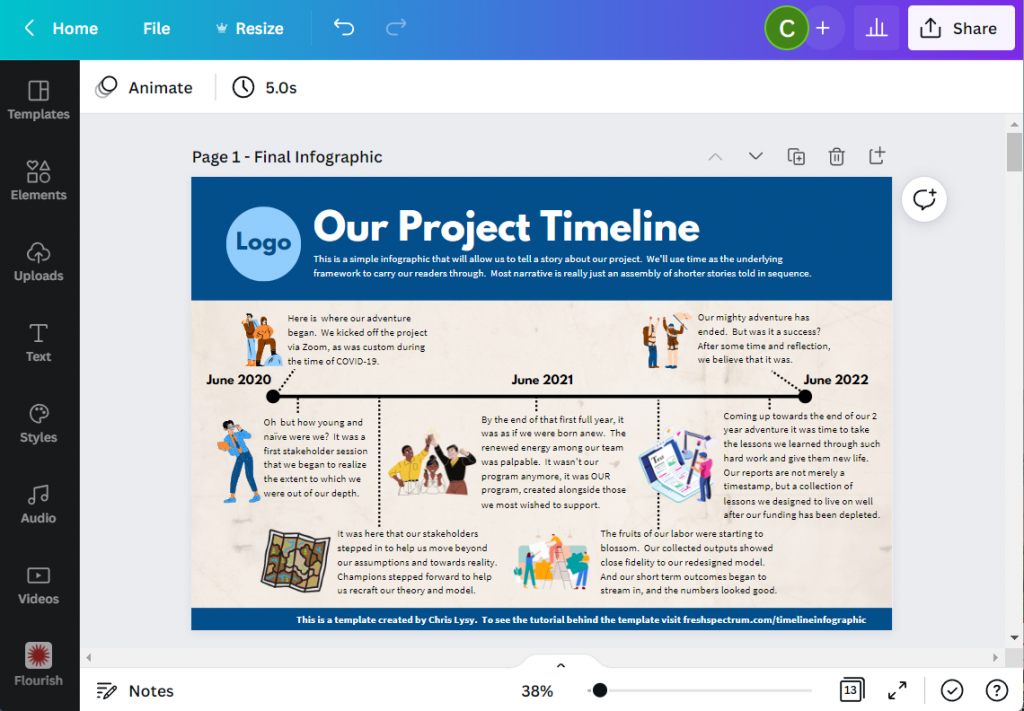
Here is what I will design – “Our Project Timeline”

This is just a simple timeline, nothing too fancy with only so many text blocks. The text blocks are fairly large (at 18pt font). So if you wanted a busier timeline with more blocks, there is certainly room if you drop the text size a bit.

Timeline Infographic Concept created in Canva - Screenshot

Step 1. Choose your base size.

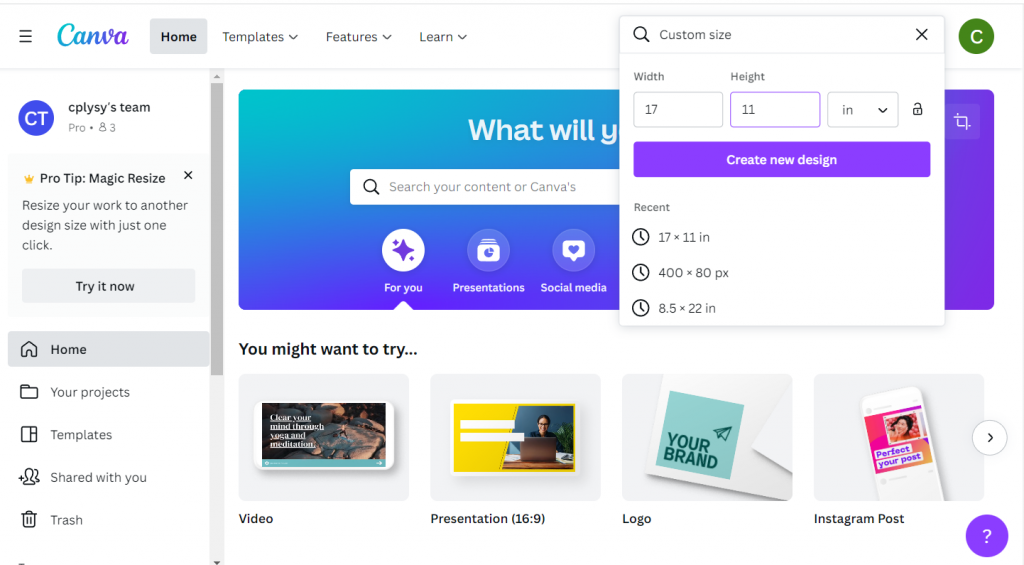
Canva’s infographic templates are all based on a size of 800 by 2000 px. That’s a fine size if you are only sharing on the web and want a portrait style infographic.

If you plan to print your infographic, I would suggest creating with a standard paper size. Most professional office printers can easily print up to 11 inches by 17 inches (or A3 if you are going with international sizes).

This tabloid format is kind of cool because it’s like having two letter size pages side by side. You can easily fold it in half and put the infographic into a folder.

Screenshot of creating a custom size infographic in Canva

Step 2. Build your grid.

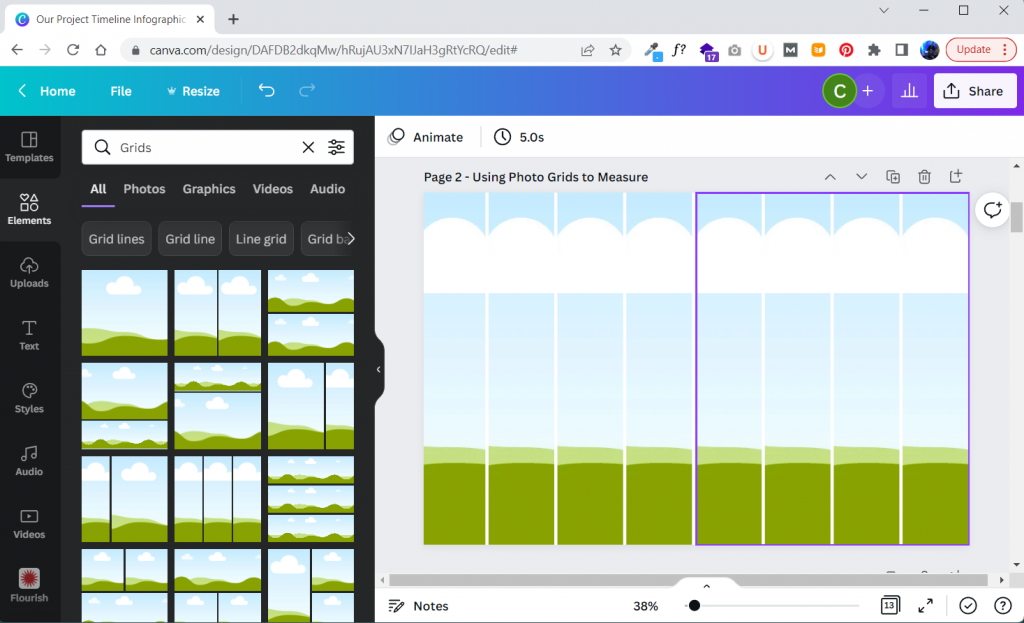
I like having a basic grid when I start designing. It really helps me arrange things.

In Canva I’ll create that grid by clicking on Elements and searching for “Grids”. These are technically photo grids, but I’m just going to keep them in the back and use them as measuring tools. Later on, after I put in content, I’ll delete the grids.

Screenshot of setting up grids within Canva

Step 3. Add in your timeline.

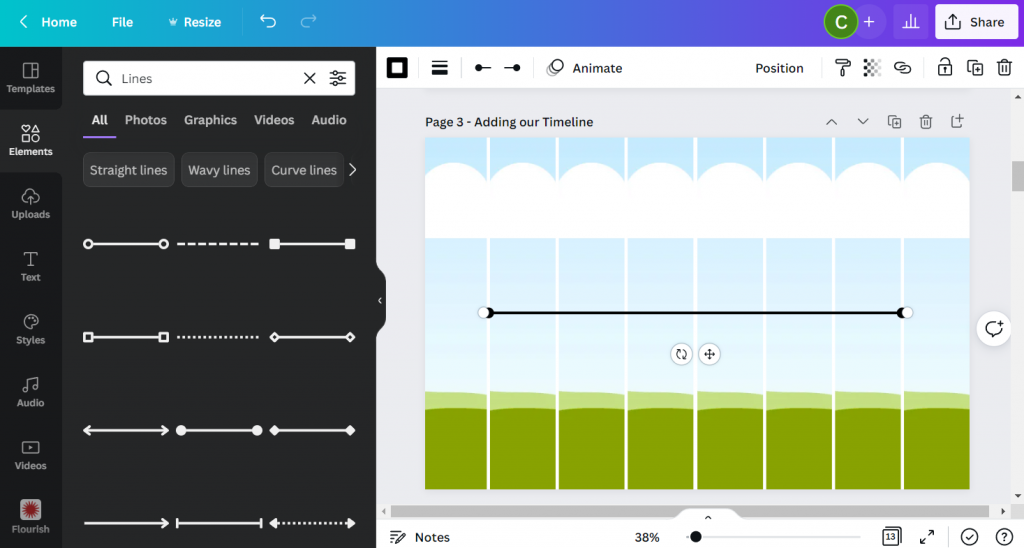
For my line I’ll simply search for “Lines”.

Choose the line style first, then you’ll be able to change the line weight, color, and end points. I usually place my line in the middle of the page.

Screenshot of adding a line in Canva

Step 4. Putting a Title on the Page.

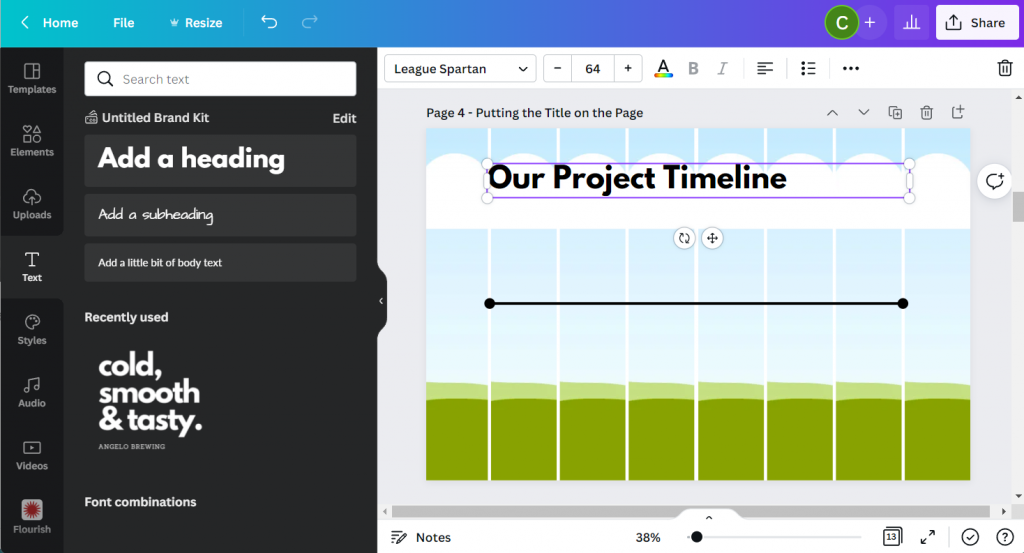
Next we’ll add a Title. For this we will use the Text menu and Add a heading. Even though I am designing this infographic for print, I still think it will likely be reviewed via a screen most of the time. So I’ll use a pretty large font size (64 pt).

Screenshot of adding a header in Canva

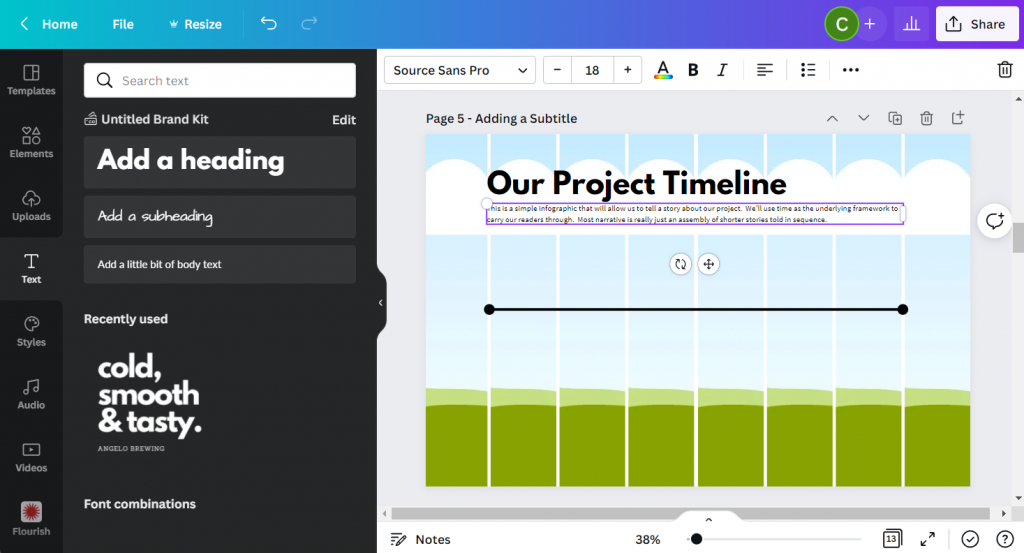
Step 5. Adding a Subtitle.

A sub heading is a great way to keep you from writing too much in your main heading. Use the subheading to setup your infographic for your reader. I’m using a fairly large font size (18pt) for a print piece because, again, I do want it to be readable on a screen.

Screenshot of adding a subheader in Canva

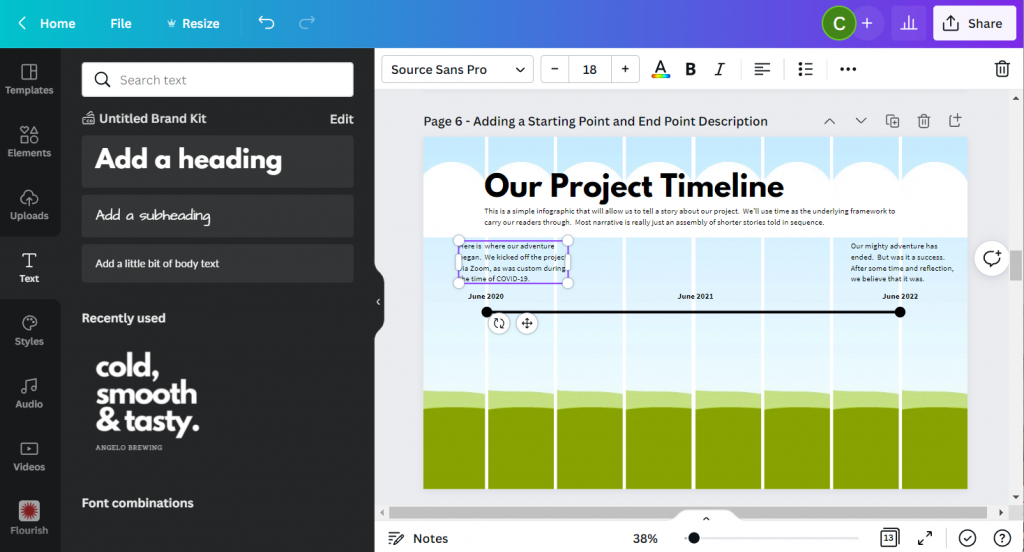
Step 6. Adding your starting and end points.

Now we can start adding blocks of text. For this template I created a block at the beginning and at the end. I also put general dates above the line.

You don’t have to create timelines exactly to scale, but it should it be close.

Screenshot of adding text blocks in Canva

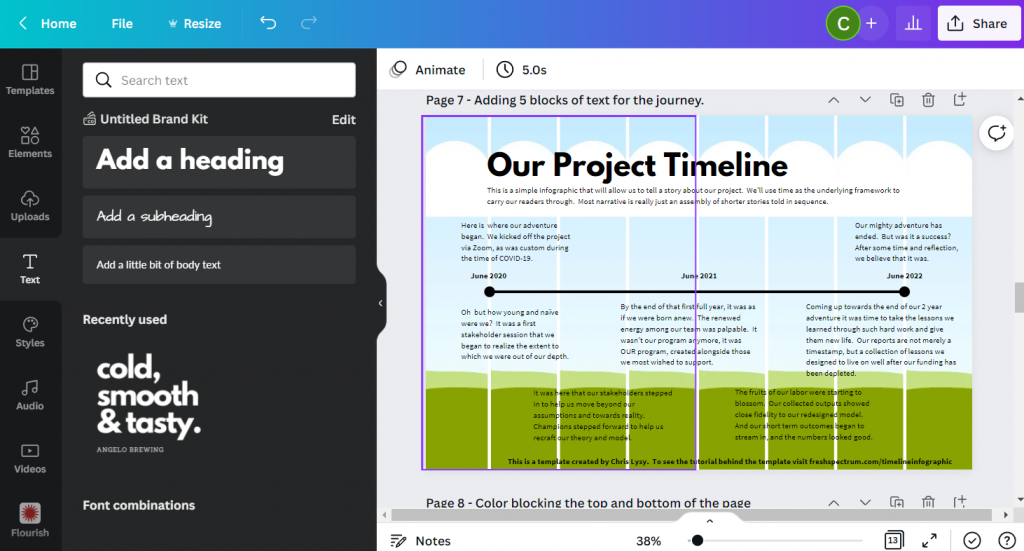
Step 7. Adding content blocks.

You have choices for the content blocks under the line. I kept the font large at 18pt, but if you have more to write you can shrink the size a bit. All sorts of infographics will drop down their text size to 10pt (sometimes less). This all depends on how much content you have to share (and how much you white space you would like to see on the page).

I also added a short by line at the bottom of the page. Most good infographics will send you somewhere at the end of the page where you can find sources or other additional information.

Screenshot of adding additional text boxes in Canva

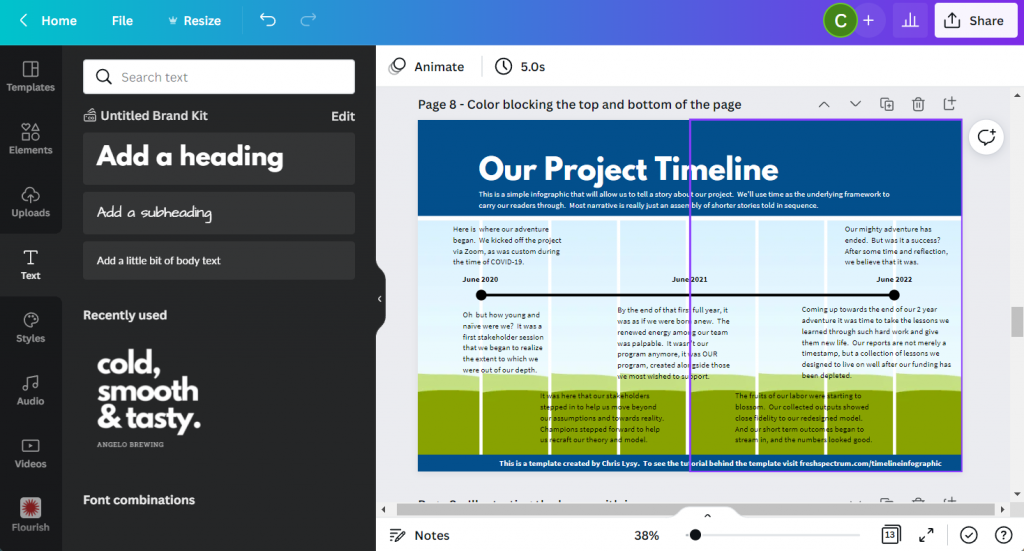
Step 8. Adding color blocks.

I put a couple of rectangles behind the text at the top and bottom of the page. This creates a bit of differentiation between the heading, main timeline content, and the little footer.

Screenshot of a Canva infographic with colored rectangles used to separate sections

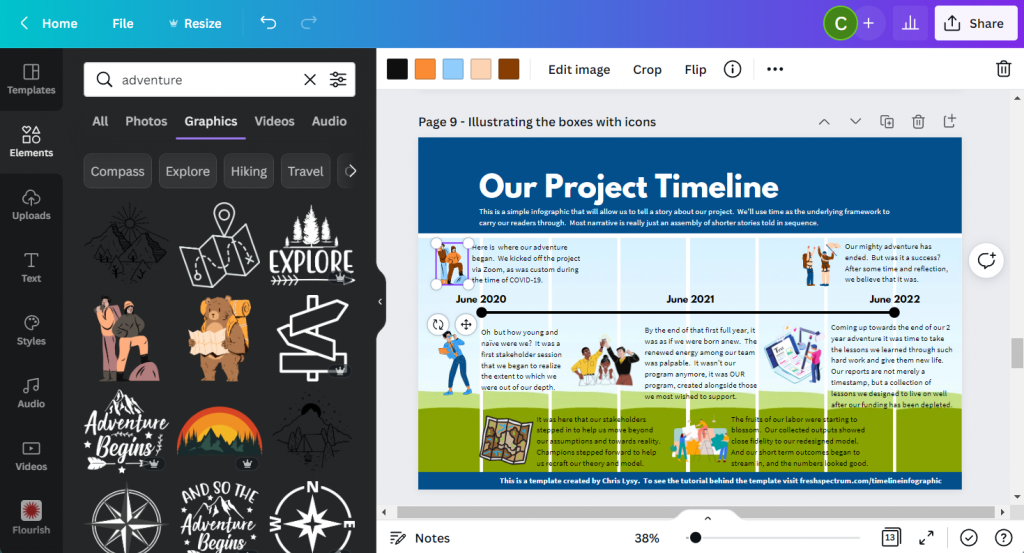
Step 9. Illustrating the text blocks with icons.

Now that we have all the text in the infographic it’s time to illustrate. One of the easiest ways to illustrate is to find icons that pair well with your text blocks. Canva has a ton of icons available through a simple search in the Elements tab (especially if you have Canva Pro).

Screenshot of a timeline infographic with Icons being added

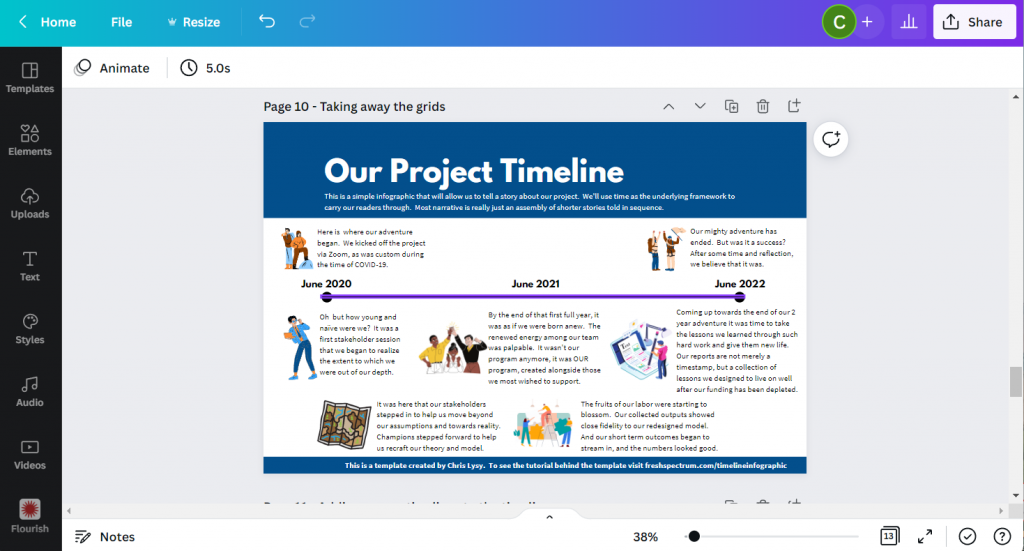
Step 10. Deleting the grids.

Once I have everything on the page, it’s time to drop the background grids, I don’t need them anymore and this lets me see the infographic like it will be seen by the reader.

Screenshot of the timeline after the grids were erased

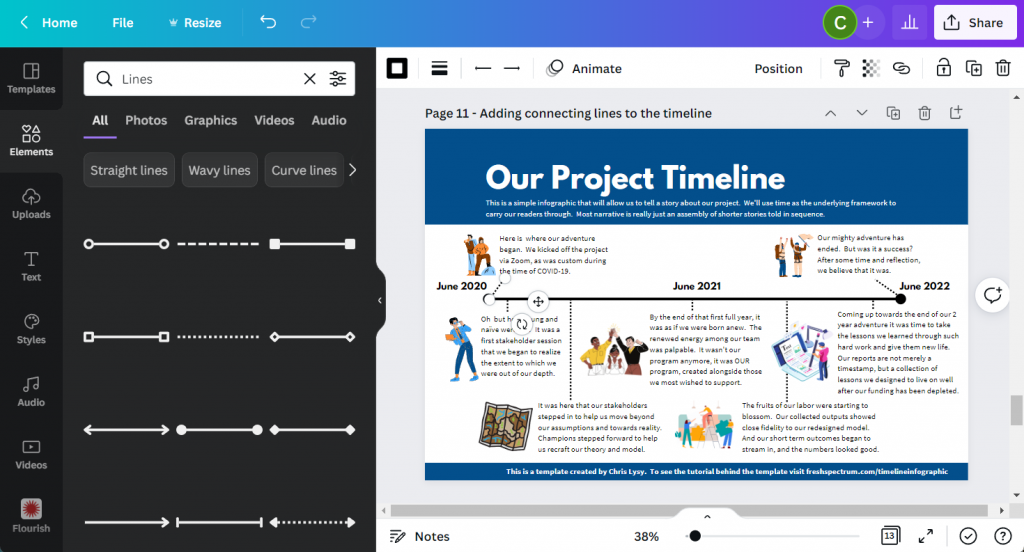
Step 11. Adding connecting lines.

So I’ll want to connect the text boxes to the appropriate times on the infographic using lines. If an icon is in the way, just click on the line and send it to the back.

At this point we really have a completed infographic and could stop.

Screenshot of the project timeline infographic with additional connecting lines

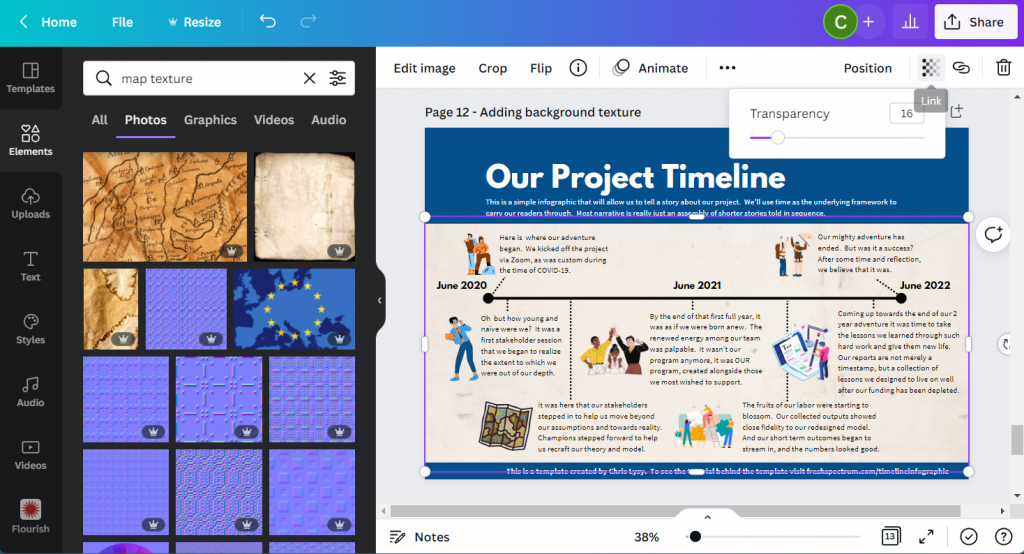
Step 12. Adding background texture.

Black text on a white background can feel pretty stark sometimes. It has really good contrast but can feel a little too bright for your eyes.

Since the random text I wrote for the infographic had a kind of adventure vibe, I put in a map paper texture in the background. It was a little too dark so I lowered the transparency and added a really light color behind the texture.

Screenshot of project timeline template with added texture.

Step 13. Creating space for a logo.

Finally, I shifted the header and subheader over a little to make room for a logo. Since this is just a fake project, I created a fake logo.

And that’s it, we now have a ready to share completed timeline infographic.

Screenshot of final project timeline infographic template

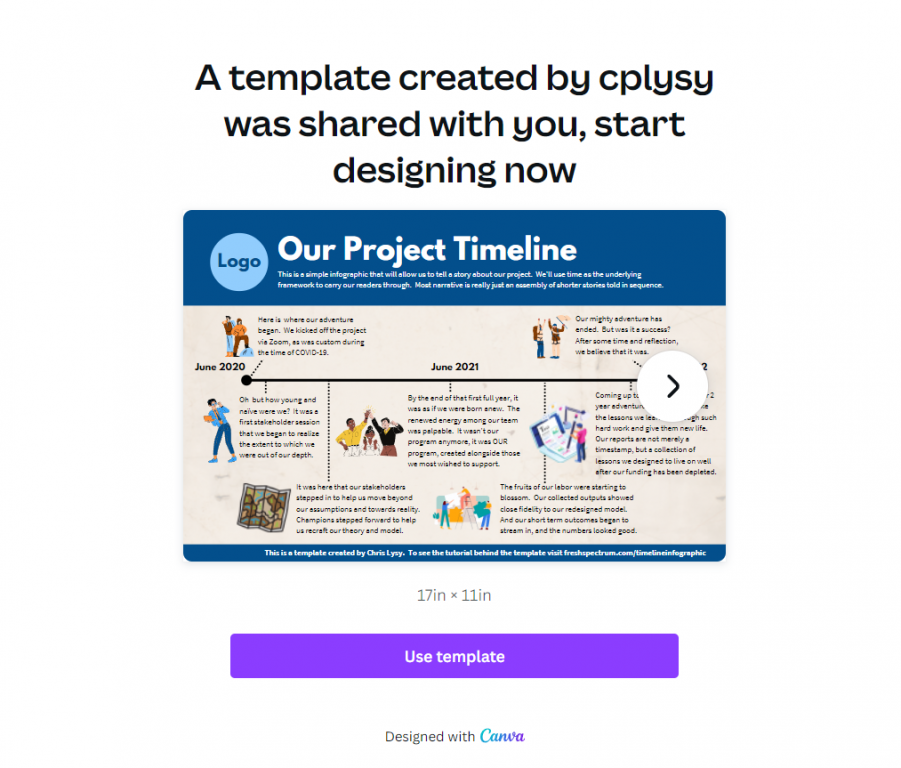
Start where I finished: grab the template.

Link to the Canva template referred to in this blog post.
Use this link to open the Template in Canva.

BONUS: Template Script

When writing an infographic, especially with a team, the actual template can be a bit of a distraction. In these situations a script can be really helpful. You don’t have to create one in Canva like I did (a simple word document is fine).

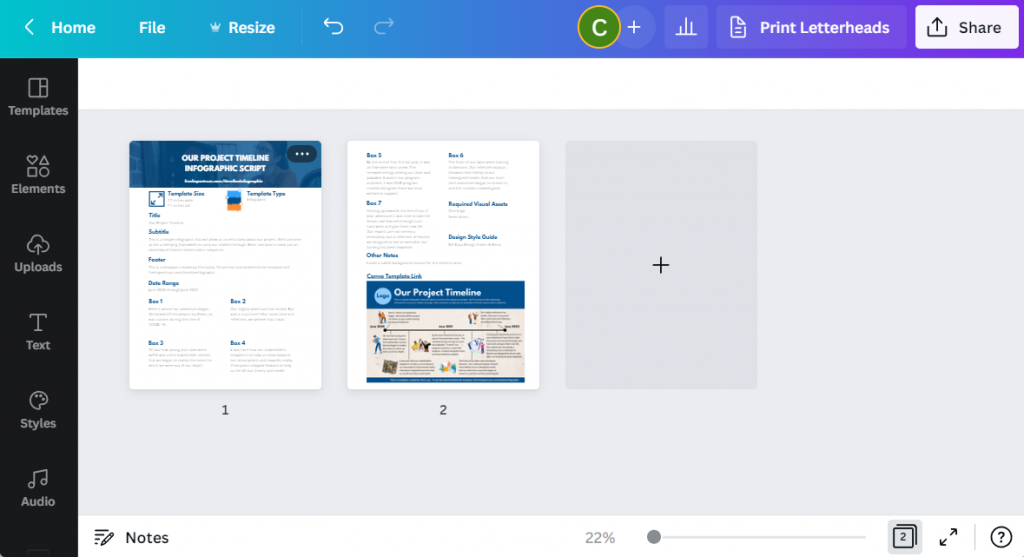
But here is an example, the script has all the words you’ll find on the infographic and some additional details. Save it as a PDF and share it with colleagues for comments and cowriting.

Screenshot of the two pages in the timeline infographic script.

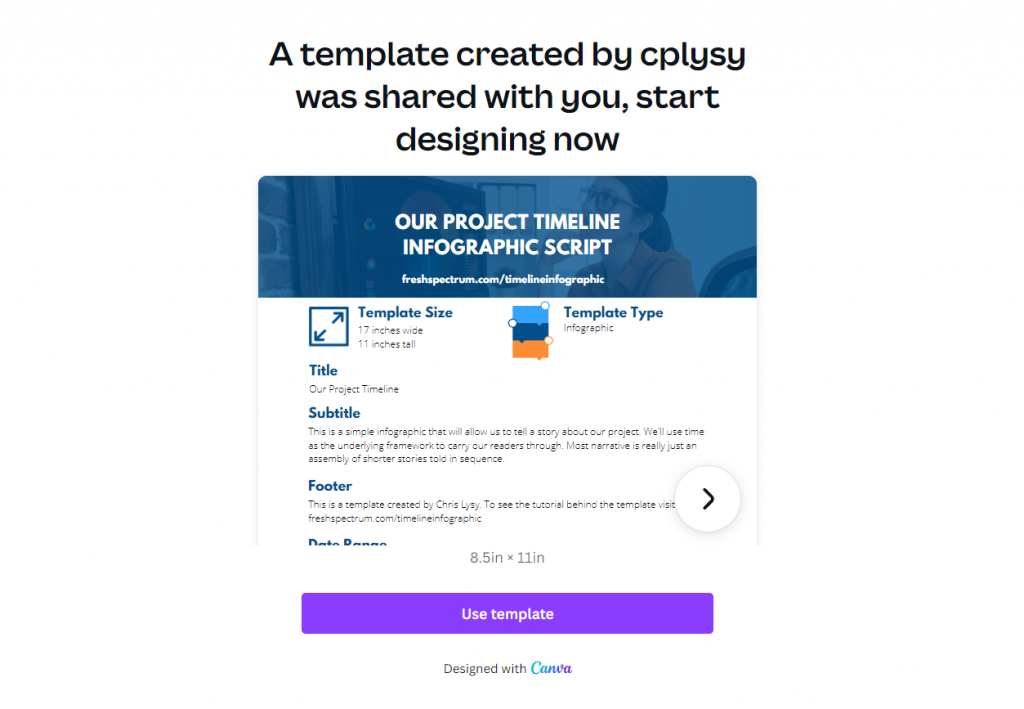
Grab the template script worksheet here.

Screenshot of the infographic script template.  Accessible on Canva if you click on this picture.
Use this link to open the worksheet in Canva.

Create an Infographic in an Hour Webinar

Like this tutorial? Sign up for my upcoming webinar, Thursday, June 9 at 2PM EDT.

I’ll be walking you through another example of a quick to create infographic.

Register on Eventbrite

Written by cplysy · Categorized: freshspectrum

Jun 08 2022

What Gets Measured Doesn’t Always Matter

In one of my earlier evaluation projects, I spoke with a program participant, who received a grant from my client organization to use towards a community-based event focused on community-level breastfeeding education. She felt that their event had not been successful because, in her eyes, the event wasn’t well attended. I believe the attendee goal […]

The post What Gets Measured Doesn’t Always Matter appeared first on Nicole Clark Consulting.

Written by cplysy · Categorized: nicoleclark

Jun 06 2022

Humanity in Data Visualization: Designing a One-Pager for My Grandma’s Caregivers

I registered for the Simple Spreadsheets course because I was a beginner with using Excel and I knew I was utilizing only a fraction of its capabilities. 

I also had the good fortune of attending some of Ann’s in-person presentations about data visualization at a conference for Continuous Quality Improvement hosted by the California Department of Social Services, which had an unquantifiable impact on the personal project I will be sharing with you today. 

Although I signed up for learning from Ann to benefit my professional life, I was also able to apply the learnings in my personal sphere as you will see below! 

Although this example was in the personal realm, I think there are potentially a lot of other applications for visualizing data in this way.

The Challenge

At the beginning of the coronavirus pandemic, my mom and aunt had to fire my grandma’s caregiver due to a personality mismatch and not being on the same page about grandma’s needs.  

This was the second time it happened in a few months and it seemed like part of the challenge was in the matching process and educating the caregivers about grandma’s unique needs, and her personality.

Getting Everyone on the Same Page

I wanted to do something to help, so I created a 11×17 one sheet introduction for the new caregiver with input from my grandma, auntie and mom. 

My grandma’s previous caregivers were not native English speakers, so I wanted to make something that was approachable, and also captured my grandma’s personality. 

I remembered in one of Ann’s presentations that she told us about the icons at The Noun Project website, so I used icons accompanied by brief descriptions. 

It made sense to me to organize the info into two columns, and I made the text as clear and simple as possible.

The Result

Here’s the one-pager that I made for my grandma’s caregivers.

Outcome

Unfortunately, grandma is no longer with us. 

But I’m happy to report that after providing the caregiving agency with the 11×17 sheet, she was matched with a caregiver that she LOVED, and who told us she loved our grandma too. 

The caregiver was with her for a year and a half, until she passed. 

I can’t tell you how comforting it was to know that she was in the hands of someone who was not only competent, but genuinely cared for her. 

The caregiving agency kept a copy of the sheet in grandma’s file and shared it with substitute caregivers when the primary caregiver had time off.  This helped the substitute caregivers provide more consistent care for grandma.

Potential Applications

Since its creation, I’ve shared this sheet with many of my friends who have made similar sheets for their loved ones. 

Some of my friends have all joked that they need something like this for their dating life.  Maybe it has other applications too?  What do you think? 

Sharing with Gratitude

Here is an editable Word copy that you can use for your own purposes! 

Download the One-Pager

Connect with Mieko Yeh

linkedin.com/in/miekoyeh

Written by cplysy · Categorized: depictdatastudio

Jun 02 2022

How to create an infographic in an hour

If you are not used to creating your own infographics, creating a professional infographic quickly might seem like a tall order. But sometimes deadlines call or you just need to create lots of infographics in a short amount of time.

In this post I’ll show you how to create an infographic quickly.

Just a note, I’m assuming you already know some information worth putting into an infographic format (such as a timeline) or you have some other kind of content you want to adapt into an infographic (like a report). If you don’t have information worth sharing, find that first!

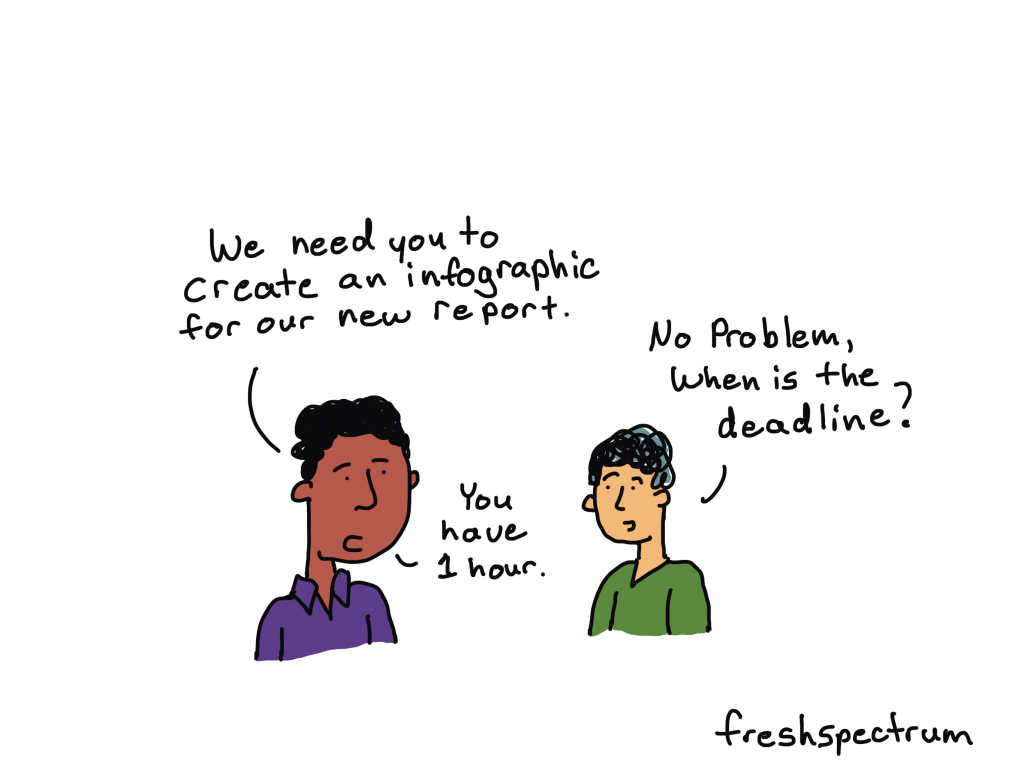
Fresh Spectrum Cartoon "We need you to create an infographic for our new report."

"No Problem, when is the deadline?"

"You have 1 hour."

1. Pick easy-to-infographic information.

A lot of times you’ll be creating an infographic from an existing report. But what inside the report should go into the infographic? There are certain things you’ll find in your report that are easier to infographic than others.

For example, these things are usually pretty easy to infographic:

  • Recommendations
  • Key Insights
  • Chosen Methods
  • Timelines
  • Surprising Results

If a quick infographic is your goal, stay away from anything that requires a lot of explanation or subtlety. Infographics are engagement tools, ultimately you’ll want to send your audience back to the primary report for more detailed information.

2. Choose a simple infographic formula and style.

There are all sorts of infographic formulas and styles.

Start with shape and size. If you plan to print your infographic, make sure to design it in an easy to print format (such as letter size paper, legal paper, tabloid, A3, or A4). If you are sharing it on the web keep in mind where you are sharing the infographic and the platform limitations that might exist.

As for formulas, here are a few that make for easy infographics:

  • Listicle infographics (i.e. 5 lessons learned)
  • Timeline infographics (i.e. Successes over our last 4 years)
  • Side by side comparisons (i.e. A tale of two program sites)

3. Find an infographic template.

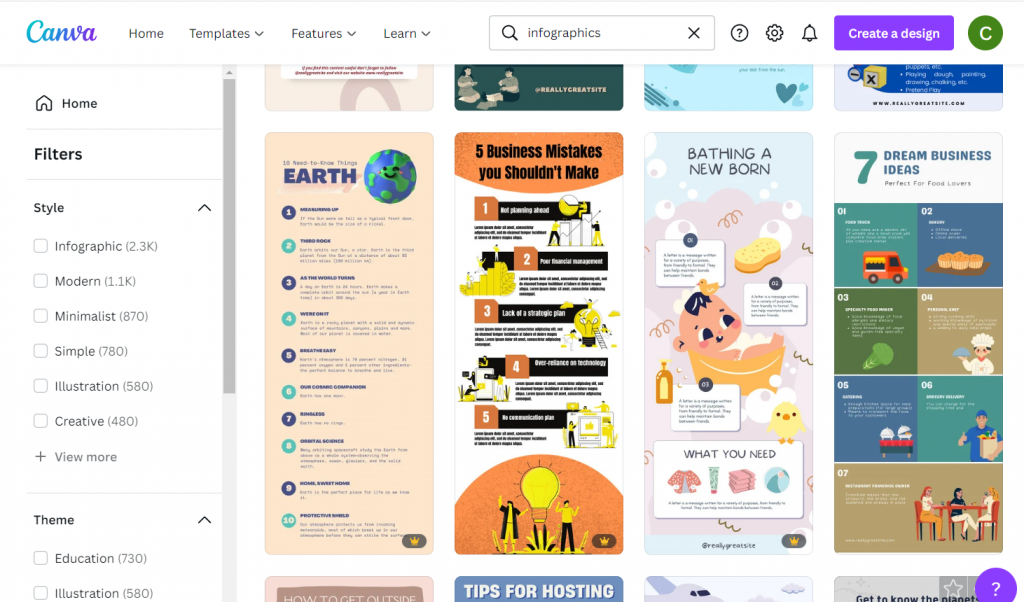
Screenshot of canva infographic templates.
Canva has tons of infographic templates!

Once you have a basic idea of the type of infographic you are going to create, try to find a template before you start writing. There are other infographic template sites out there in the world, but I usually suggest starting with Canva.

There is a tendency to write too much when you are writing content for an infographic. You spend a lot of time making sure the words are just right only to find that they look super busy once you put them on the page. Choose a template that more or less matches the amount of content you want to share.

A template you like is also going to take care of a bunch of design choices around colors and fonts. If you have make the template match your brand it might take you a little more time.

4. Write an infographic script.

I prefer writing my infographic text outside of the infographic. It makes it easier to track change and edit if necessary. Then I just paste the text into the template.

Use the template you chose in step 3 to give yourself target word counts for each block of content. If you go far above or below the word count, it could really distort the look and feel.

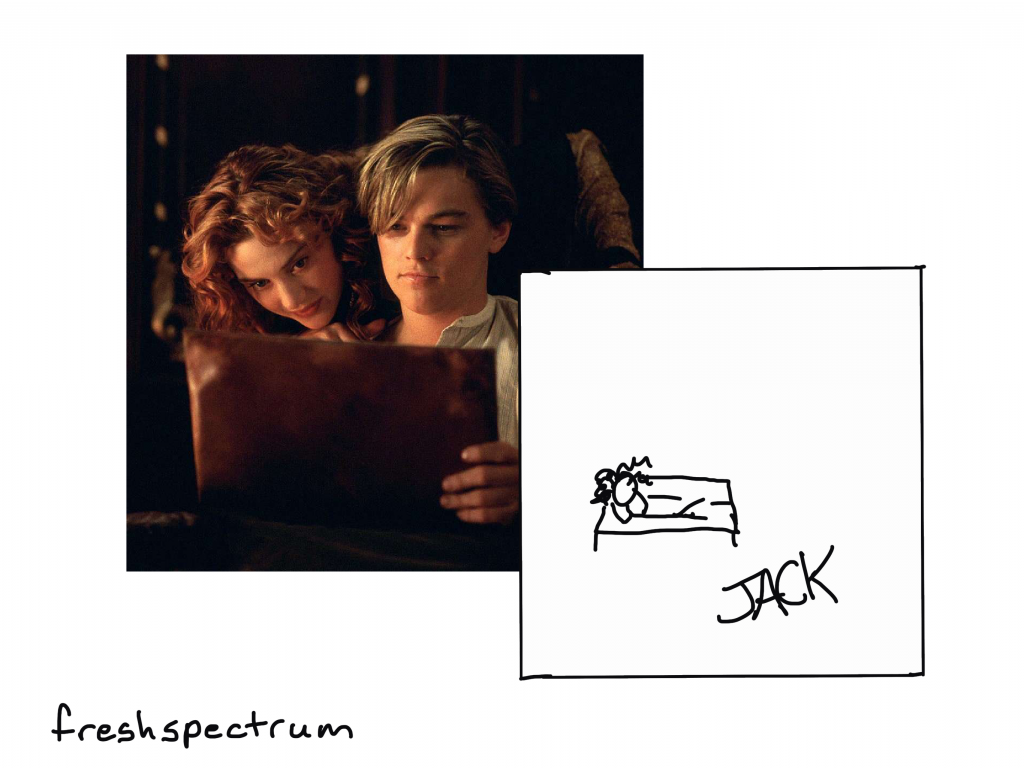
Cartoon showing Jack from Titanic's scribble drawing of stick figure Rose.

5. Illustrate your infographic.

Now that you have the text, it’s time to add the pictures.

I suggest being consistent. Choose between photographs, illustrations, charts, cartoons, and icons as each will give your infographic a different look. Since we are creating this infographic quickly, I would suggest using stock visuals already included as part of Canva.

Another option is to upload your own charts and pictures.

6. Bring it all together, save, and share.

Now that you have your infographic all together and filled with content it’s time to give it the final touches. If you want to print your infographic (or share it as a printable) I would suggest saving it from Canva as a PDF. If you plan on sharing it via social media I would suggest saving it as a PNG.

If you share it on a website or on social media as a PNG, make sure to add alternate text wherever you share (i.e. WordPress, Twitter, etc.).

Want some resources, including a few Canva templates and an infographic script worksheet? Register for my free upcoming webinar.

Next week I’m holding a webinar to go along with the Summer registration kickoff for DiY Data Design. Hope you can attend!

Join us at 2PM on Thursday, June 9, 2022. Register on Eventbrite through this link.

How to Create an Infographic in an Hour - Webinar.

Written by cplysy · Categorized: freshspectrum

  • « Go to Previous Page
  • Go to page 1
  • Interim pages omitted …
  • Go to page 125
  • Go to page 126
  • Go to page 127
  • Go to page 128
  • Go to page 129
  • Interim pages omitted …
  • Go to page 304
  • Go to Next Page »

Footer

Follow our Work

The easiest way to stay connected to our work is to join our newsletter. You’ll get updates on projects, learn about new events, and hear stories from those evaluators whom the field continues to actively exclude and erase.

Get Updates

Want to take further action or join a pod? Click here to learn more.

Copyright © 2026 · The May 13 Group · Log in

en English
af Afrikaanssq Shqipam አማርኛar العربيةhy Հայերենaz Azərbaycan dilieu Euskarabe Беларуская моваbn বাংলাbs Bosanskibg Българскиca Catalàceb Cebuanony Chichewazh-CN 简体中文zh-TW 繁體中文co Corsuhr Hrvatskics Čeština‎da Dansknl Nederlandsen Englisheo Esperantoet Eestitl Filipinofi Suomifr Françaisfy Fryskgl Galegoka ქართულიde Deutschel Ελληνικάgu ગુજરાતીht Kreyol ayisyenha Harshen Hausahaw Ōlelo Hawaiʻiiw עִבְרִיתhi हिन्दीhmn Hmonghu Magyaris Íslenskaig Igboid Bahasa Indonesiaga Gaeilgeit Italianoja 日本語jw Basa Jawakn ಕನ್ನಡkk Қазақ тіліkm ភាសាខ្មែរko 한국어ku كوردی‎ky Кыргызчаlo ພາສາລາວla Latinlv Latviešu valodalt Lietuvių kalbalb Lëtzebuergeschmk Македонски јазикmg Malagasyms Bahasa Melayuml മലയാളംmt Maltesemi Te Reo Māorimr मराठीmn Монголmy ဗမာစာne नेपालीno Norsk bokmålps پښتوfa فارسیpl Polskipt Portuguêspa ਪੰਜਾਬੀro Românăru Русскийsm Samoangd Gàidhligsr Српски језикst Sesothosn Shonasd سنڌيsi සිංහලsk Slovenčinasl Slovenščinaso Afsoomaalies Españolsu Basa Sundasw Kiswahilisv Svenskatg Тоҷикӣta தமிழ்te తెలుగుth ไทยtr Türkçeuk Українськаur اردوuz O‘zbekchavi Tiếng Việtcy Cymraegxh isiXhosayi יידישyo Yorùbázu Zulu