• Skip to main content
  • Skip to footer
  • Home

The May 13 Group

the next day for evaluation

  • Get Involved
  • Our Work
  • About Us
You are here: Home / Archives for cplysy

cplysy

Mar 23 2025

What are Helper Cells?

What are Helper Cells, exactly?

In this video, you’ll see 3 examples of these intermediate cells, which give you full editing control over your graphs, maps, and tables.

What’s Inside

  • 0:00 Intro
  • 1:28 What are Helper Cells? Regular Table — Intermediate Table — Graph
  • 1:57 Population Pyramid Example
  • 5:04 Recoding Example
  • 7:15 Map Example

Related Resources

  • How to Make Population Pyramids in Excel
  • Troubleshooting Excel Maps

Written by cplysy · Categorized: depictdatastudio

Mar 19 2025

Try This: Learning From Program Participants Who Leave

Try this out and let me know how it goes. Learning from program participants who leave? Have you ever considered this? Understanding why participants leave a program can provide valuable insights for improvement. Instead of viewing dropouts as failures, organizations can learn from them to refine program structure, engagement strategies, and outreach. Understanding why someone […]

The post Try This: Learning From Program Participants Who Leave appeared first on Nicole Clark Consulting.

Written by cplysy · Categorized: nicoleclark

Mar 12 2025

Building a Remote Worker Community

Back in 2006 I was in grad school.

At the time I lived and worked full time in the Maryland suburbs outside of DC.  A few times a week, I would take the Metro from the end of the line to downtown DC for evening classes at George Washington University.  It was about an hour commute door to door.

By the time class was over it was late in the evening.  On the train all around me were people who just looked worn out, coming home from their day jobs far too late.  But the thing that struck me the most was what happened when we reached the end of the line.

A few stops before, people started to car hop in order to get to the front of the train (there was always a large group at the doors closest to the exit).  And when the train reached Shady Grove station, the doors would open and people would start running.

Being a curious sociologist, I joined them a few times.  I wanted to know what they were running towards. Was it to catch a bus or get to a car with a waiting partner or friend?  

But for most, it was just a run to the parking garage. This was their first opportunity to take control over their commute.  They didn’t get to decide when the trains would show up or when their workday was over, but they could shave a couple of minutes off their commute by being in the metro car nearest the exit and taking a quick jog.

It was times like that when I decided that I never wanted a long daily work commute.  I didn’t want to add two hours to my workday, everyday.

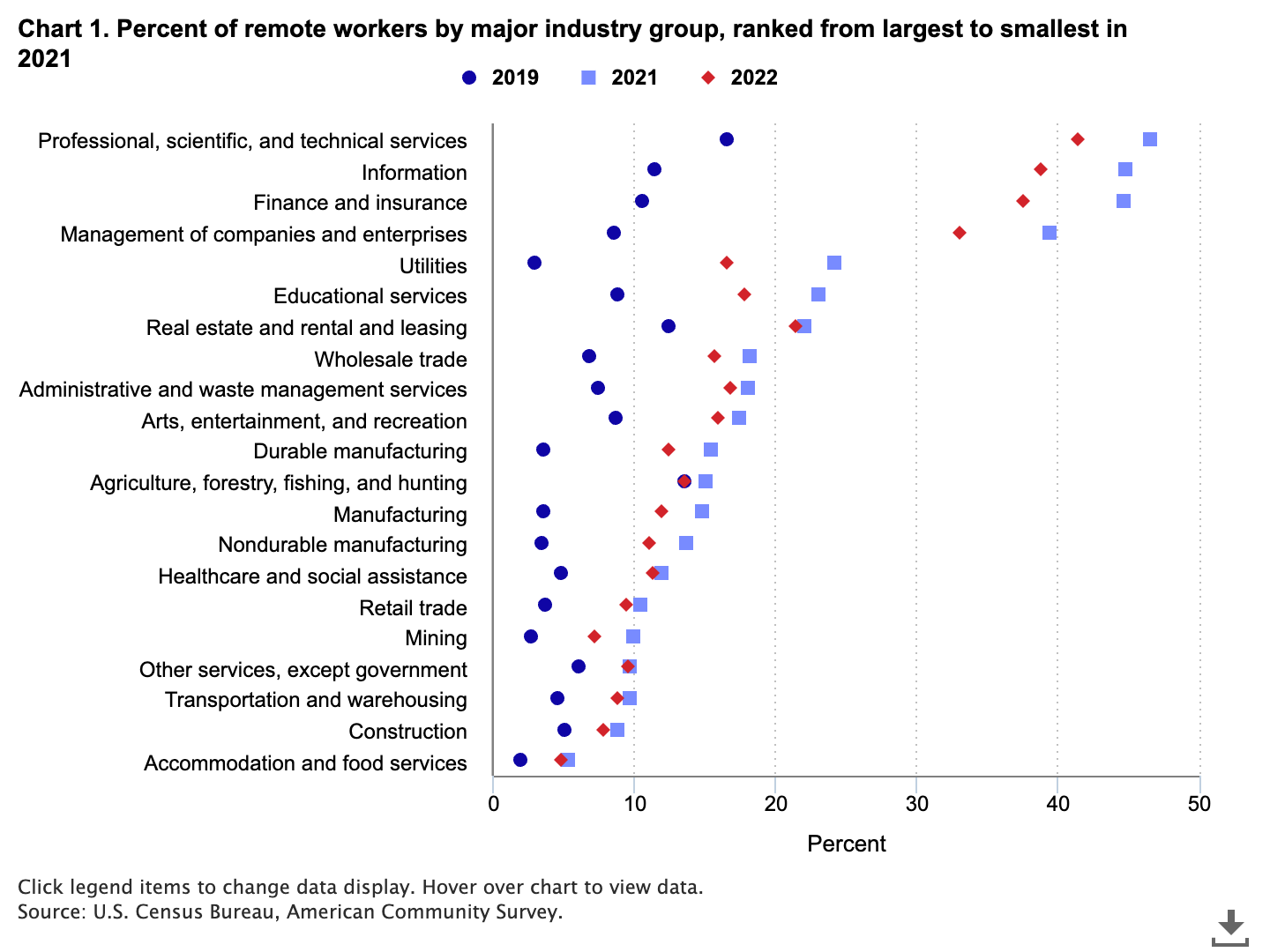
Source: The rise in remote work since the pandemic and its impact on productivity (bls.gov).

The rise of remote work.

For a lot of people, COVID led to a radical change in the structure of their workplace. In some industries the number of people working remotely more than tripled. The professional, scientific, and technical services and information industries experienced the largest shift.

While some organizations have brought their employees back in-office, I doubt we’ll ever get near the pre-COVID numbers.  And as someone who has been remote for most of my career now, I think that’s a good thing.  

Lower commutes are better for the environment, improve work-life balance, save money, and can also improve productivity.  Remote work also increases the potential workforce and can allow people with disabilities opportunities to work in an environment that better suits their physical or mental needs.

But like everything else, with the benefits we also get some disadvantages.  

We find being near coworkers has tradeoffs: proximity increases long-run human capital development at the expense of short-term output.

Source: The Power of Proximity to Coworkers: Training for Tomorrow or Productivity Today?

What really happens when you lose proximity?

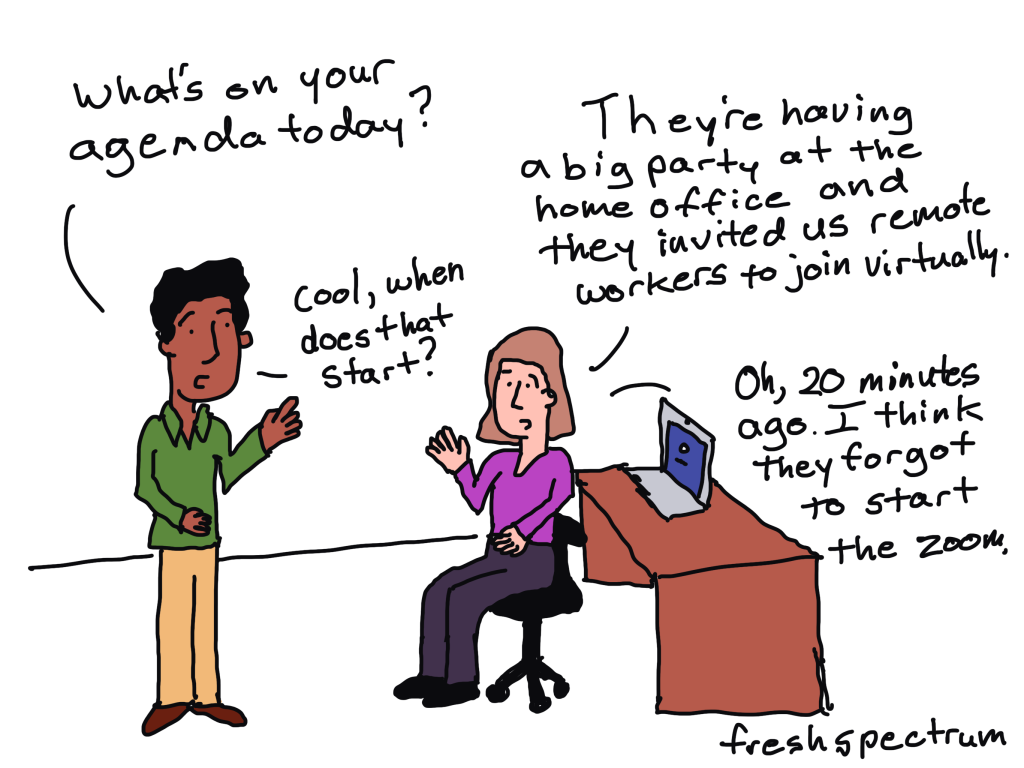
Let’s not fool ourselves, there are some advantages to working in an office.  Proximity to others creates connections that could lead to advancement.  It also creates opportunities for day to day mentorship that don’t generally exist at the same level for remote workers. And according to a recent surgeon general’s report, we are also experiencing a loneliness epidemic.  

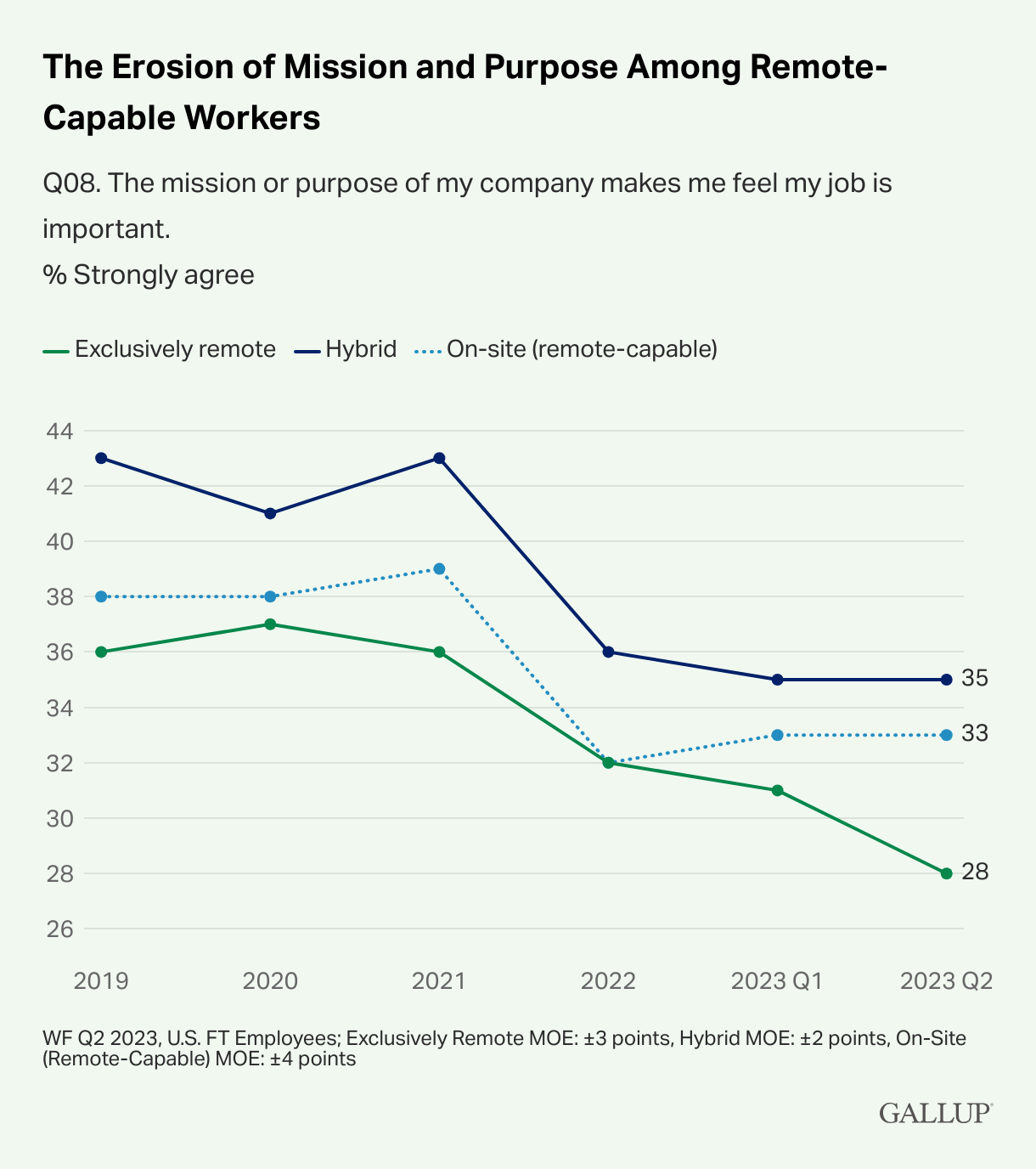
Source: Are Remote Workers and Their Organizations Drifting Apart?

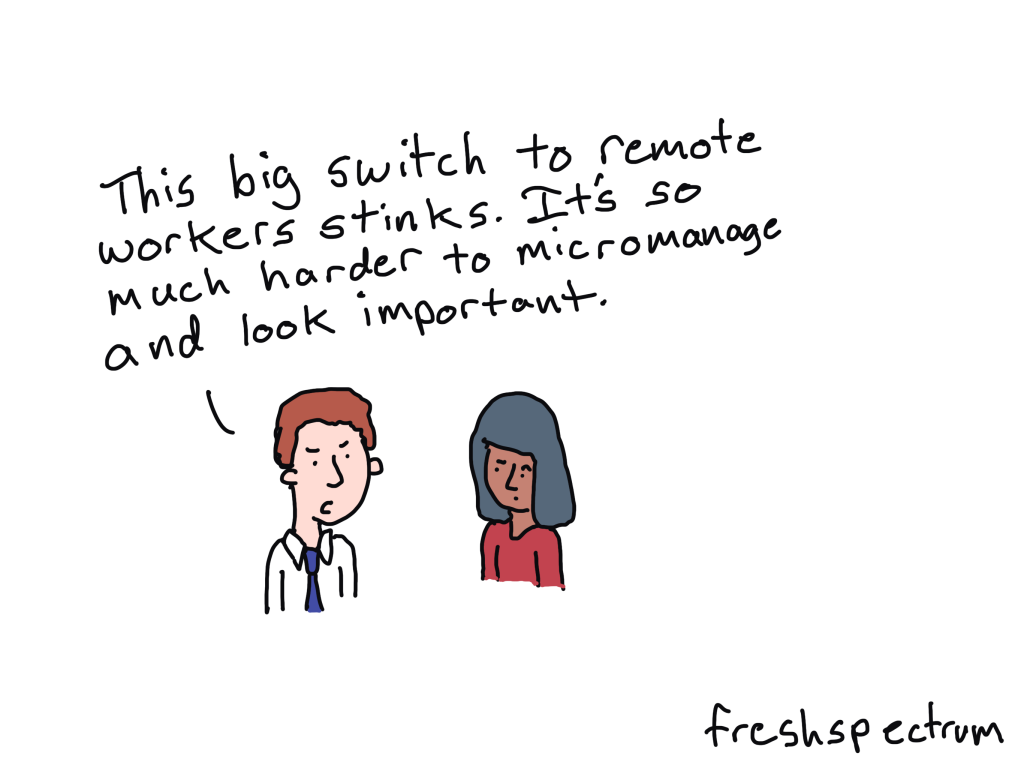
From a company point of view, remote workers tend to be less connected to their mission.  And for middle managers, it’s much harder to micromanage…sorry, I should say “monitor,” their team’s productivity.

This has led to a kind of debate about which is better, remote work or office based. But I think that’s a false dichotomy.  

If the biggest problem of remote work is a loss of proximity, that doesn’t require you to give up on remote work.  You just need to come up with solutions that minimize the negative impact.

And the best way to mitigate a lack of proximity is to build a virtual community. 

Tips for building a workplace community in a virtual world.

I’ve been developing virtual Communities of Practice for over a decade.  Many of the communities I have worked with have been geographically distributed nationally or internationally.  But the same lessons that work for global programs also work for organizations with lots of remote workers.

Here are five of my favorite tips.

1. Start small.

You don’t need a fancy forum, resource library, or sharepoint site to start building community.  In fact, you’re better off without it at first.  My two favorite community building blocks are an email newsletter and a Zoom account (or Teams, or Webex, etc.). 

2. Be consistent.

Communities take time to build.  And if you want to develop and facilitate one, you need to show up.  Regularly.  I suggest meeting at least once a month with video on and sharing a regular newsletter.

3. Leverage your internal expertise.

This is the difference between a lecture series and a CoP.  You don’t want just any subject matter expert delivering presentations. Presenters should, for the most part, be members of your community.  Having people present, camera on, based on their own areas of expertise creates an introduction that feels genuine, and not forced.

4. Facilitate individual connections.

Communities work better when someone takes on the responsibility of connecting individuals.  This can be direct, “hey, you should talk to so and so.”  Or this can be indirect by creating a set of individual Q&As, sharing member directories, or making use of breakout groups.

5. Create an advisory group.

Building an advisory group, made up of community members, can help you plan the right sessions and catch any blind spots.  Advisory group members will also end up being some of your more committed community members.

Want help building your own Community of Practice?

As a consultant I help organizations design, develop, and facilitate modern Communities of Practice.  So if you would like a little support (or a lot of support) the best place to start is with a conversation.  Click here to schedule your free 30 minute consultation.

Written by cplysy · Categorized: freshspectrum

Mar 12 2025

Participant Retention: Rethinking It for Stronger Program Impact

Retention isn’t the whole story. Participant retention is often one of the first metrics that comes to mind when we think of a program or service’s success. A high participant retention rate can signal program success, but is it the best indicator of program impact? What if we looked at retention differently? Instead of focusing […]

The post Participant Retention: Rethinking It for Stronger Program Impact appeared first on Nicole Clark Consulting.

Written by cplysy · Categorized: nicoleclark

Mar 06 2025

Canva Slide Decks and Slide Docs

For the past 5 or so years Canva has been my go to tool for all sorts of everyday designs. This includes the presentations that I used to design in PowerPoint.

Why Canva?  Because I find the workflow easier.  I can quickly adapt my presentations into other formats like videos or infographics.  I also have Pro which gives me access to all sorts of royalty-free content, so I don’t have to scrounge around the web looking for icons or photos.

But every tool has its quirks.  In today’s post I’ll walk you through eight tips on using Canva for slide deck and slide doc design.

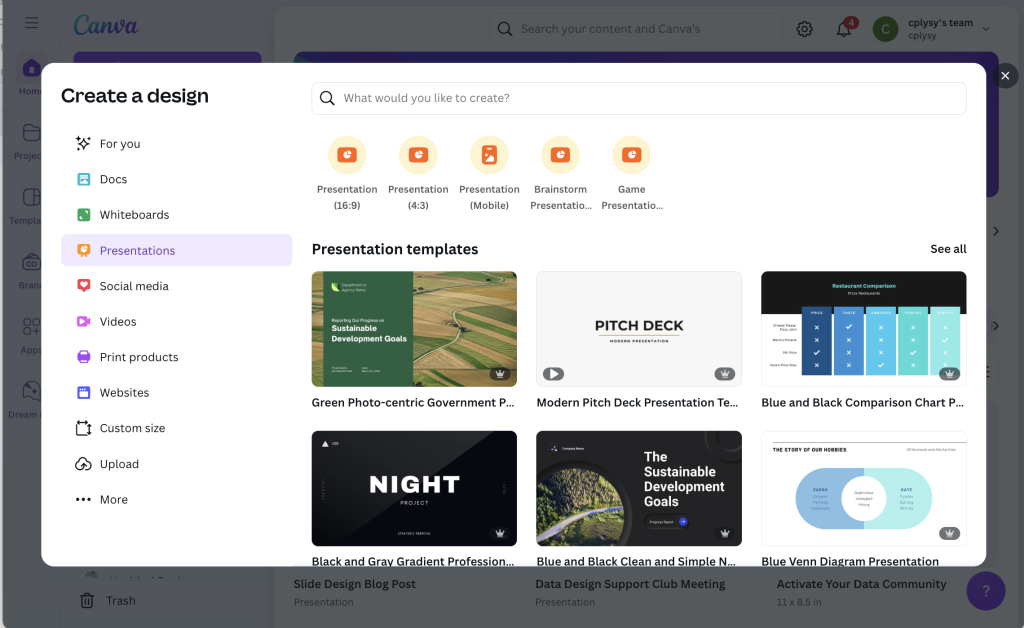
Tip 1: Picking your presentation slide size 16:9 or 4:3.

When deciding to create a presentation, Canva gives you two main options.  You can use the old standard 4:3 slide deck or the new widescreen standard 16:9.  So which should you choose?

It’s not as straightforward as you might think.  Yes, almost all laptops and desktop monitors are widescreen and that’s where many people will view your work.  But, there are also other considerations.

Will it be printed?

This is especially important for slide docs and for in-person presentations where you might hand out print outs of your deck.  The old standard 4:3 is a lot closer to a standard 8.5 by 11 letter size piece of paper (as well as A4) compared to 16:9.  When printed full size, most people will never notice that it was not designed for paper.

Will it be converted to video?

Now if you plan to turn your presentation into a recorded video.  16:9 is actually the identical ratio used in 720p, 1080p, and 4K video.  So if you want to turn it into a standard video, definitely go with the widescreen 16:9.  

Will it be shown on a projector or TV?

If you plan to present live, will it be in a boardroom with an HDTV or a room with a white screen and projector.  If HDTV, then 16:9 will show perfectly.  If a white screen, either will work just fine.

Will you be adapting slides into infographics or featured images?

I like to create multi-purpose slide decks.  This means being able to export individual slides as images for use in illustrating reports, social media, or blog posts.  In these types of situations I prefer a 4:3, as it provides a nice big image similar to the size I use for my comics.  

Will you be using it in a webinar?

Webinars happen on screens, BUT there is often a big right hand column designed to show attendees and a chat window.  And while you might use a two monitor setup to present your slidedeck, chances are most people are not watching it with two monitors.  So a 4:3 presentation creates more room for the side panel.  

So bottom line, which should you choose?

I still have no clue and bounce back and forth often depending on the situation.  In other words, to each their own, there is no one size fits all solution here.

Tip 2: How do I choose a template?

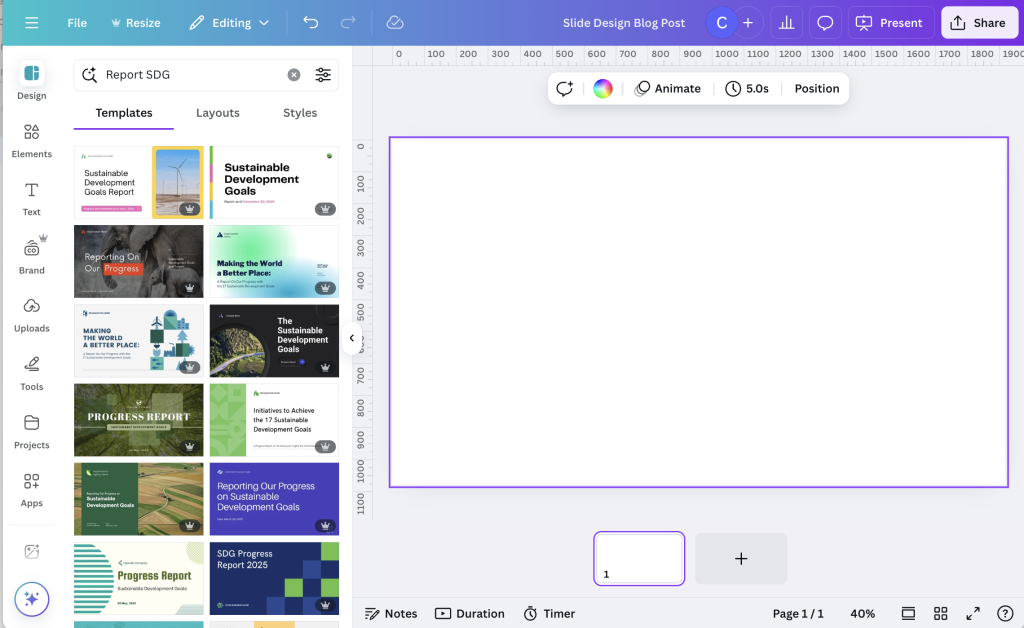
Canva is a template first kind of tool.  Even on the free plan, there are tons of templates to choose from.  Plus, even if you are on a free plan, you can still use a premium Canva template.  You just need to delete or replace the premium elements before downloading your design.

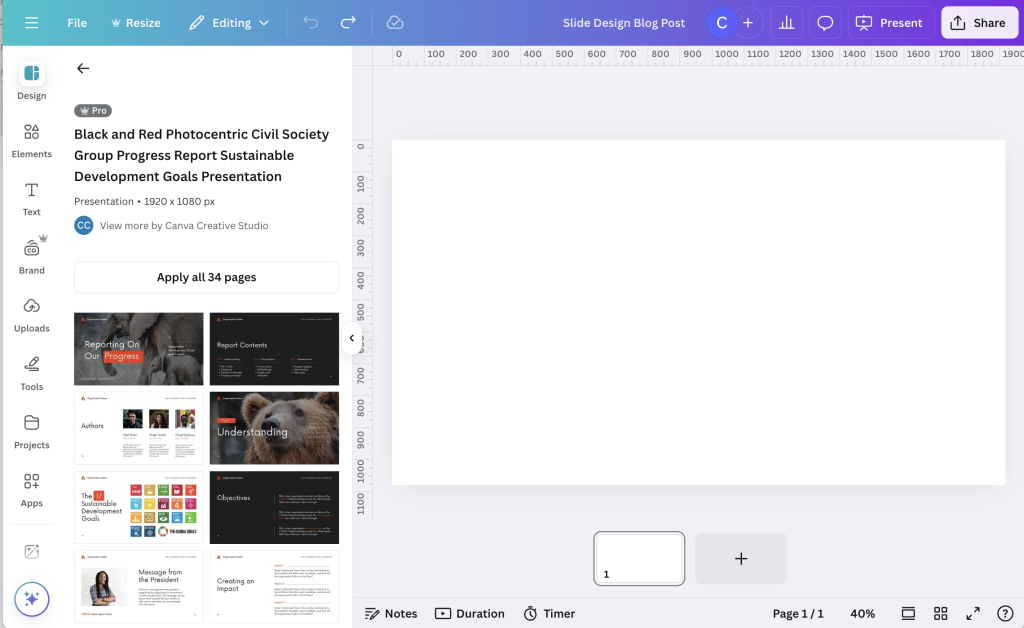
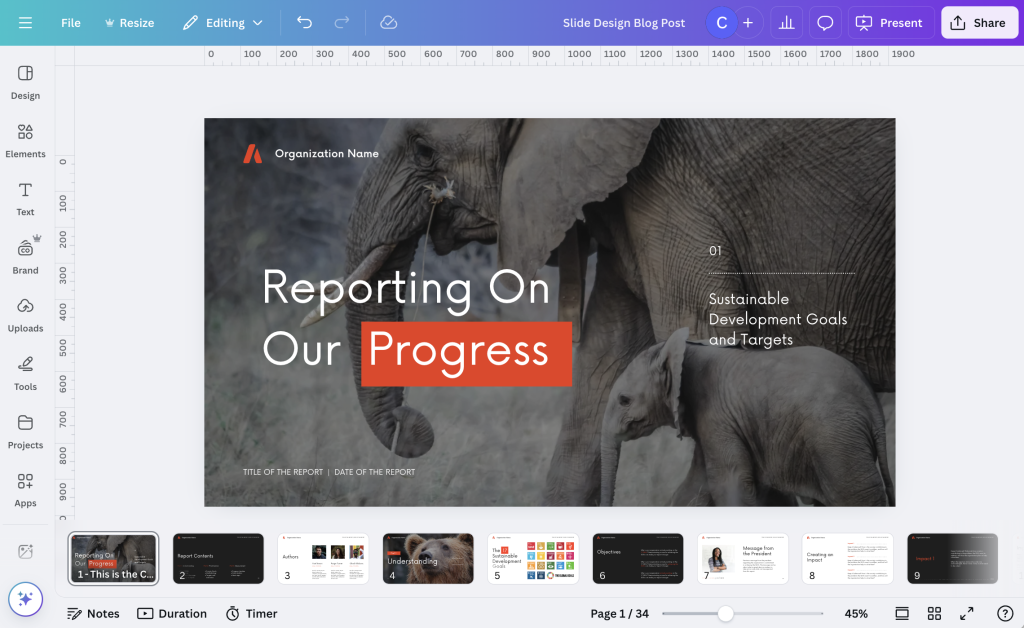
Slide templates in Canva are multi-page.  So when you search, you’ll see the cover first.  But if you hold your cursor over the cover it will start to show all the internal pages.  You also get to see the entire internal spread by clicking on the template.

You have the option to apply ALL the pages, or go through and pick which ones you would like to use.  As a designer I find lots of Canva templates over do it when it comes to color, making it a bit meaningless.  But I think that’s because the template exists to show what’s possible, not to lay out a meaningful report.

My suggestion is to not just apply all pages but figure out the page spreads that best help you present your findings.  Use color meaningfully to indicate when a section is changing or to spotlight important findings.

Because there are so many, finding templates you like can be tricky.  It involves a lot of random searches and a good bit of scrolling.  

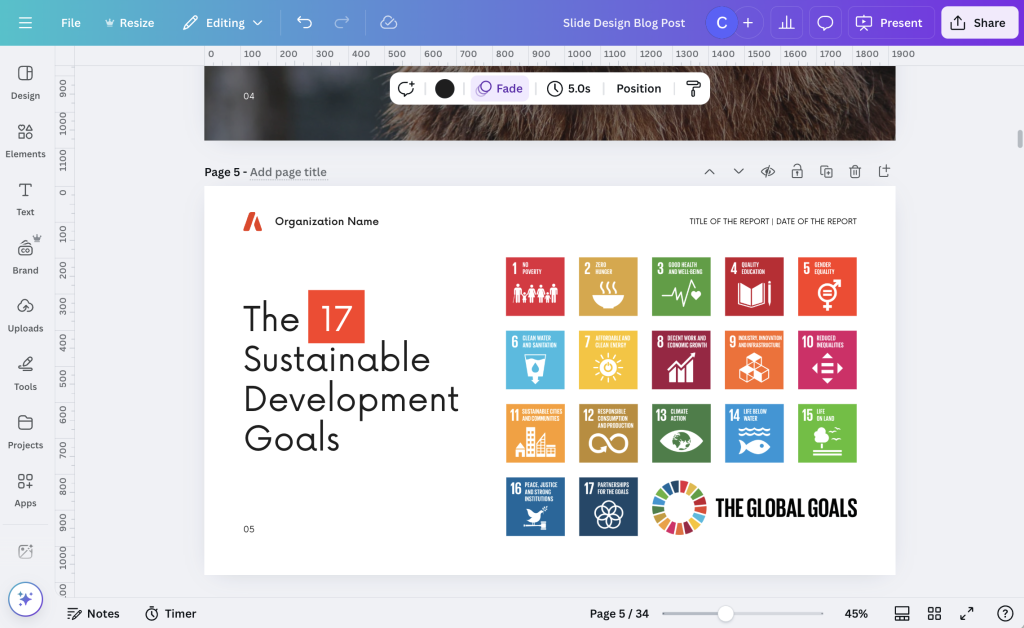
One of my favorite sets of Canva templates for data reports comes up when you search “SDG Report.”

Tip 3: Change the view to get a full sense of the presentation.

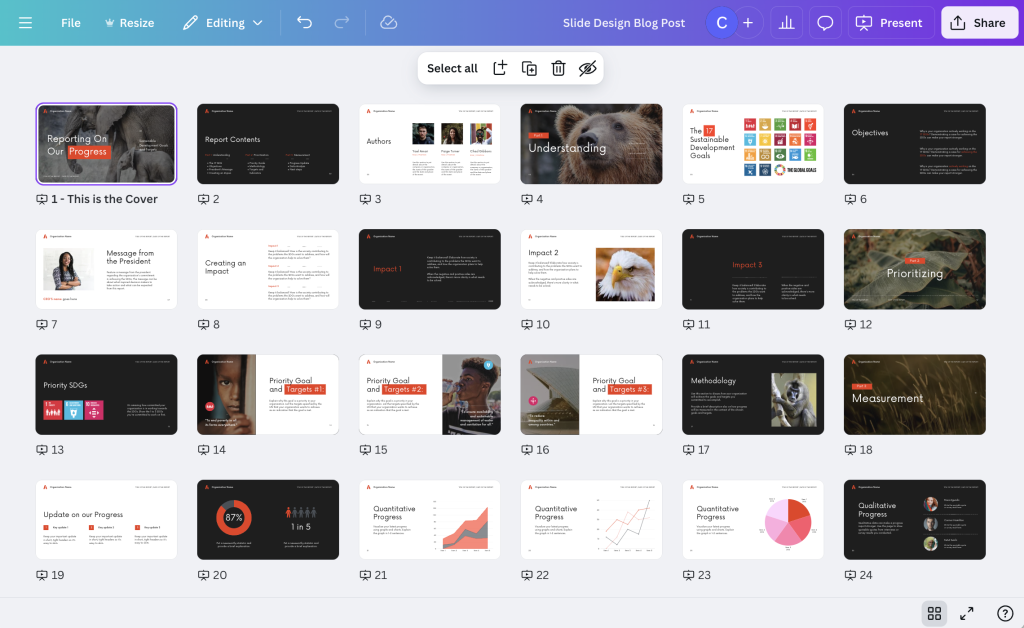
In the bottom right corner you have a couple of view options.  You can choose scroll view, thumbnail view, or grid view.  

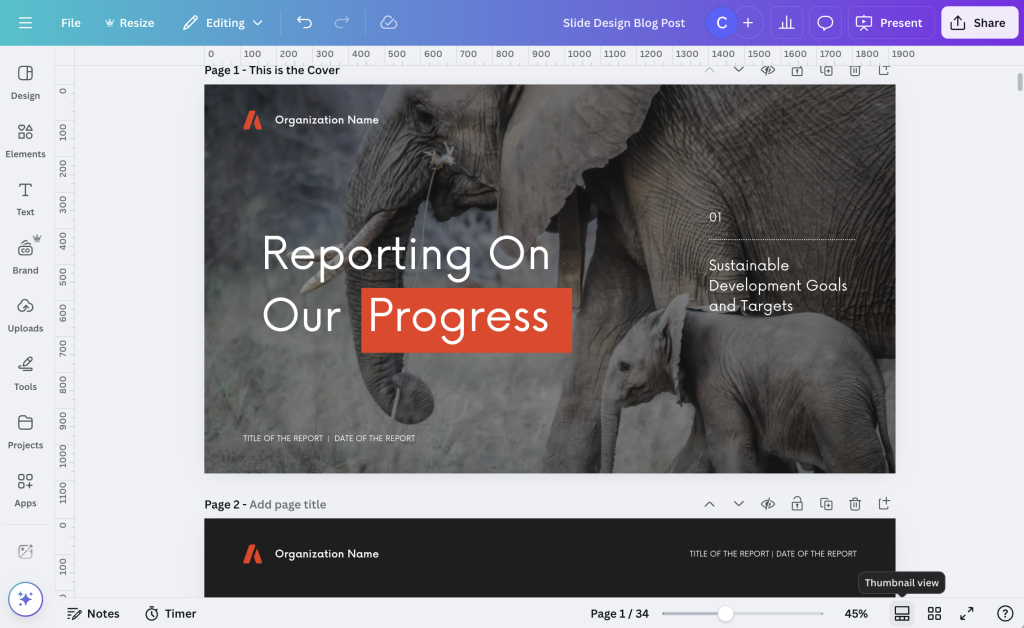
Scroll view gives you all the slides underneath the editable slide.  I find this to be a pretty intuitive way to create full presentations and slide doc reports, since it gives you a bit of context as you design.  You can also skip around pretty easily.

Thumbnail view lets you go through the slides by scrolling up or down.  It does not give you the little mini under the deck menu you get in Scroll view.  I like this view when I’m trying to create a set of small infographics, as it isolates each slide.

Grid view lets you see your entire presentation as a set of smaller icons.  This is the best view to use when changing up the order of your presentation slides or if you just want to get a bird’s eye view of your presentation.

Tip 4: If you plan to turn individual slides into single graphics, name them.

Each slide has a space where you can give it a page title.  This is easiest to see with the thumbnail view.  

The cool thing about these page titles is that it changes the way the individual slide is named on a download.  If you leave the slides un-named, and download a single slide, the file will take the name you put in for the entire slidedeck.  If you download a single named slide the file name will be the name you put in for the slide.

Tip 5: If you plan to use your slides to create a video use the notes for your script.

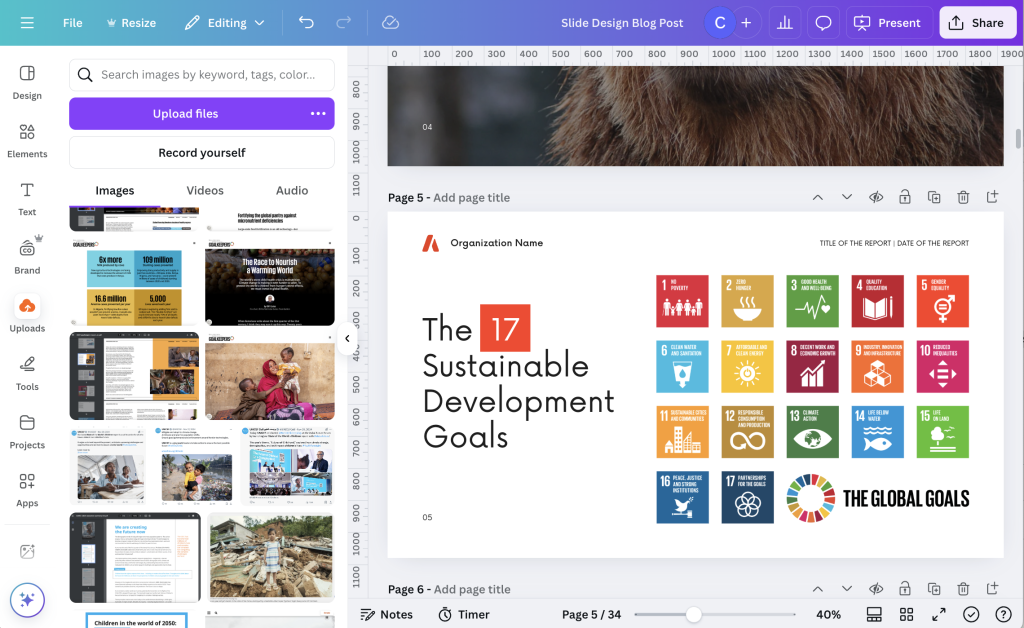
It’s really pretty easy to turn your slidedeck into a video using Canva.  There are a couple ways to do this, but my favorite is just to use the “Record Yourself” feature you will find inside the uploads folder.  

As you record, just move slide to slide.  Each slide will record its own video.  When you are finished with one, just move to the next. If you mess up, you can restart the recording and it will just delete the recording from that slide (not the whole presentation).

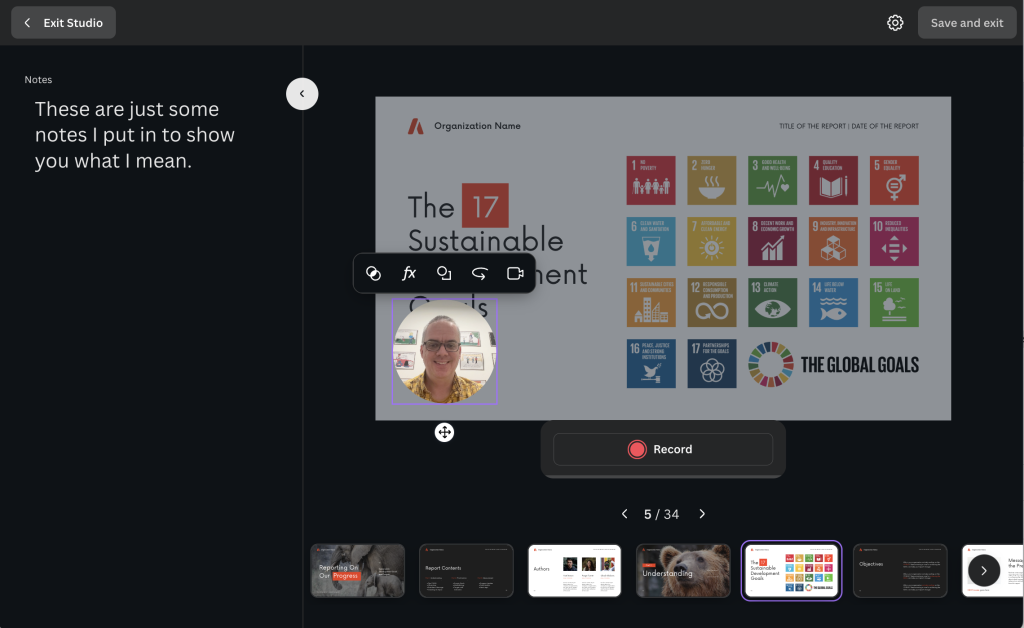
My tip is to use the notes section of your slides to write a script.  These notes will show up on the recording screen for each slide acting as a simple teleprompter. 

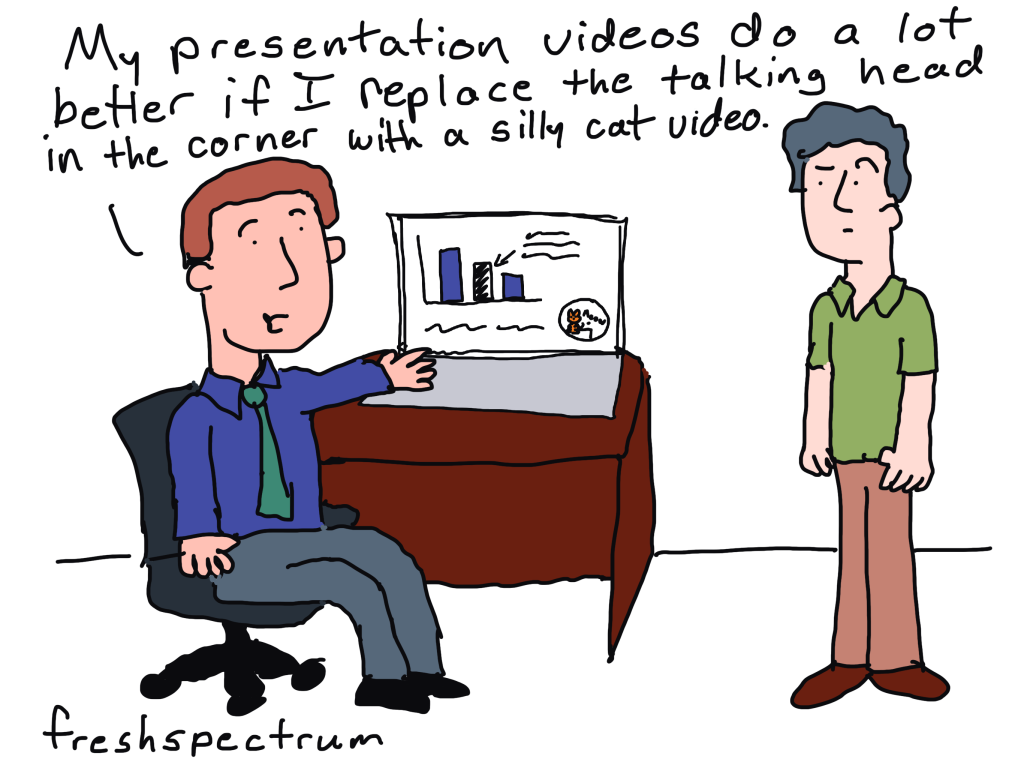
Tip 6: If you plan to create a video, design space for your talking head.

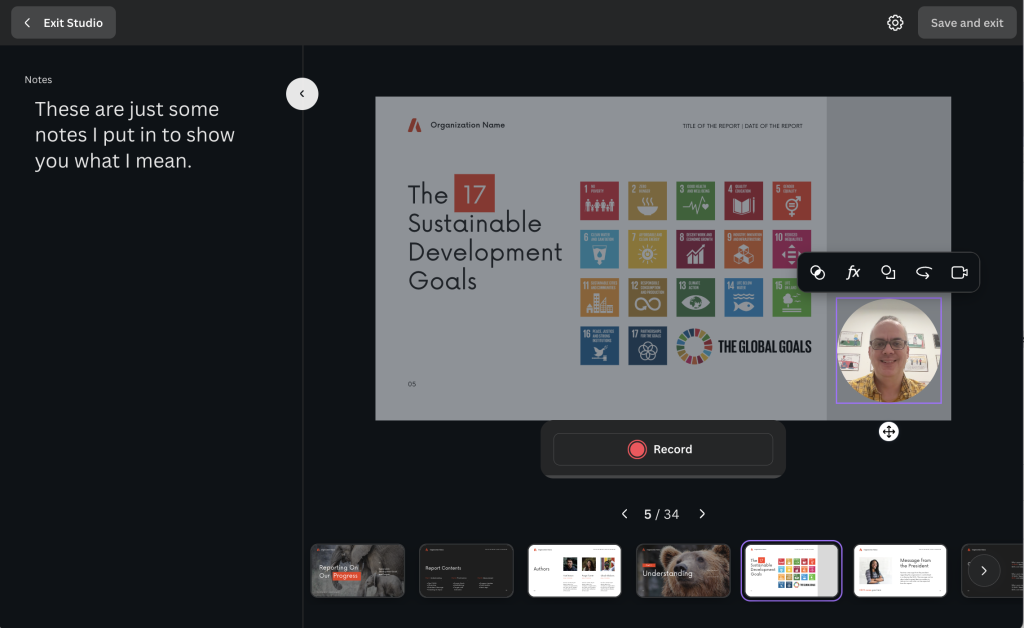
If you know that you will be creating a video and intend to include the video of yourself talking, plan for it in your design.  Instead of having your video cover up the text on individual slides, go ahead and design a space for it ahead of time.  

One simple way to do this is to create a space on the page, maybe using a colored rectangle, that will never include any content.  That way you have a place for your talking head on every slide.

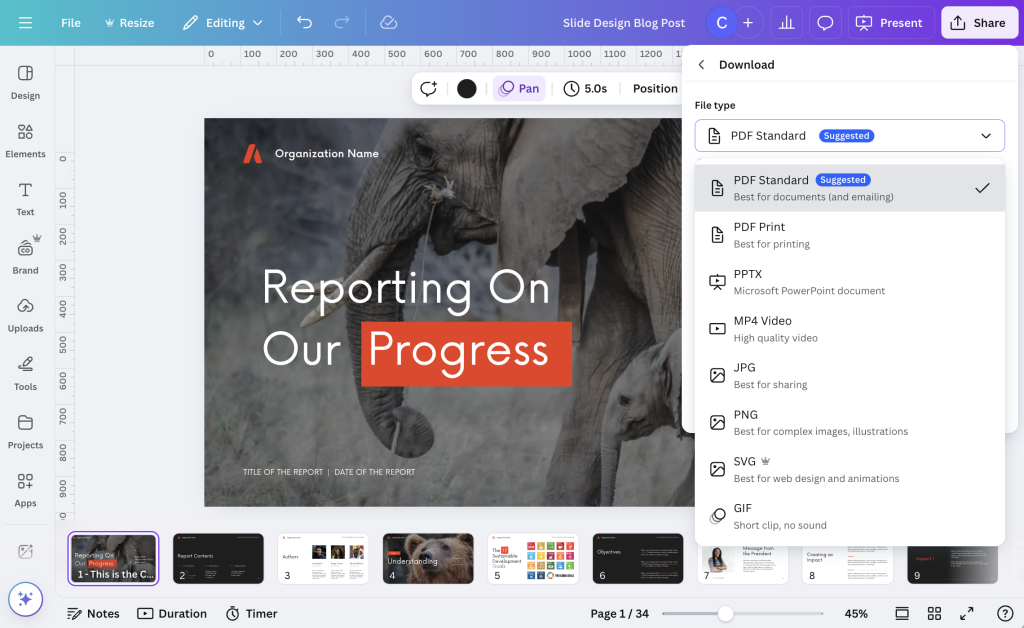
Tip 7: Download your slide decks as standard PDFs, at least most of the time.

Most of the time I present slides these days I am doing so over a Zoom call.  I also don’t tend to use animations, so a standard PDF file works just fine.  I just open up the pdf, take away any toolbars and put the pdf viewer into the “single page view.”  This is the best way to make sure the presentation looks just like it was designed.

Sometimes you might also consider downloading your slide deck straight into PowerPoint.  While this works pretty well most of the time, just know that occasionally things like fonts or certain images will get altered in the process.  So definitely check all your slides over before sharing with others.

Tip 8: Create your slide decks and slide docs together.

A slide doc is essentially a slide deck with more words.  It’s like creating a presentation that doesn’t require a live presenter.  If you want to learn more about slide docs, I wrote a post about it: What is a Slidedoc?

If you plan to create both a slide doc and a slide deck, I suggest starting with the slide doc.  Then adapt that slide doc into the slide deck by simply removing the words and giving your visuals more space.

Written by cplysy · Categorized: freshspectrum

  • « Go to Previous Page
  • Go to page 1
  • Interim pages omitted …
  • Go to page 18
  • Go to page 19
  • Go to page 20
  • Go to page 21
  • Go to page 22
  • Interim pages omitted …
  • Go to page 304
  • Go to Next Page »

Footer

Follow our Work

The easiest way to stay connected to our work is to join our newsletter. You’ll get updates on projects, learn about new events, and hear stories from those evaluators whom the field continues to actively exclude and erase.

Get Updates

Want to take further action or join a pod? Click here to learn more.

Copyright © 2026 · The May 13 Group · Log in

en English
af Afrikaanssq Shqipam አማርኛar العربيةhy Հայերենaz Azərbaycan dilieu Euskarabe Беларуская моваbn বাংলাbs Bosanskibg Българскиca Catalàceb Cebuanony Chichewazh-CN 简体中文zh-TW 繁體中文co Corsuhr Hrvatskics Čeština‎da Dansknl Nederlandsen Englisheo Esperantoet Eestitl Filipinofi Suomifr Françaisfy Fryskgl Galegoka ქართულიde Deutschel Ελληνικάgu ગુજરાતીht Kreyol ayisyenha Harshen Hausahaw Ōlelo Hawaiʻiiw עִבְרִיתhi हिन्दीhmn Hmonghu Magyaris Íslenskaig Igboid Bahasa Indonesiaga Gaeilgeit Italianoja 日本語jw Basa Jawakn ಕನ್ನಡkk Қазақ тіліkm ភាសាខ្មែរko 한국어ku كوردی‎ky Кыргызчаlo ພາສາລາວla Latinlv Latviešu valodalt Lietuvių kalbalb Lëtzebuergeschmk Македонски јазикmg Malagasyms Bahasa Melayuml മലയാളംmt Maltesemi Te Reo Māorimr मराठीmn Монголmy ဗမာစာne नेपालीno Norsk bokmålps پښتوfa فارسیpl Polskipt Portuguêspa ਪੰਜਾਬੀro Românăru Русскийsm Samoangd Gàidhligsr Српски језикst Sesothosn Shonasd سنڌيsi සිංහලsk Slovenčinasl Slovenščinaso Afsoomaalies Españolsu Basa Sundasw Kiswahilisv Svenskatg Тоҷикӣta தமிழ்te తెలుగుth ไทยtr Türkçeuk Українськаur اردوuz O‘zbekchavi Tiếng Việtcy Cymraegxh isiXhosayi יידישyo Yorùbázu Zulu