Want to watch me work?
Here’s a collection of livestreams:
the next day for evaluation
Want to watch me work?
Here’s a collection of livestreams:
Which one’s your favorite?
It’s here: Download
Sure, Excel can handle bar charts and line charts. But it can also make population pyramids, dot plots, and maps!
In this video, you’ll see more than a dozen different charts that are possible inside Microsoft Excel.
I’ve taught data visualization in Excel a dozen different ways over the years.
Nowadays, I teach Excel dataviz based on the degree of behind-the-scenes hacking needed to produce that chart.
We start easy. Then, we work up to harder battles.
Here are the three Levels of Excel Vizardry:
Let’s go through some of the Excel secrets in more detail.
These are the familiar faces:

“Native” charts mean they’re available from our menu with just a few clicks:
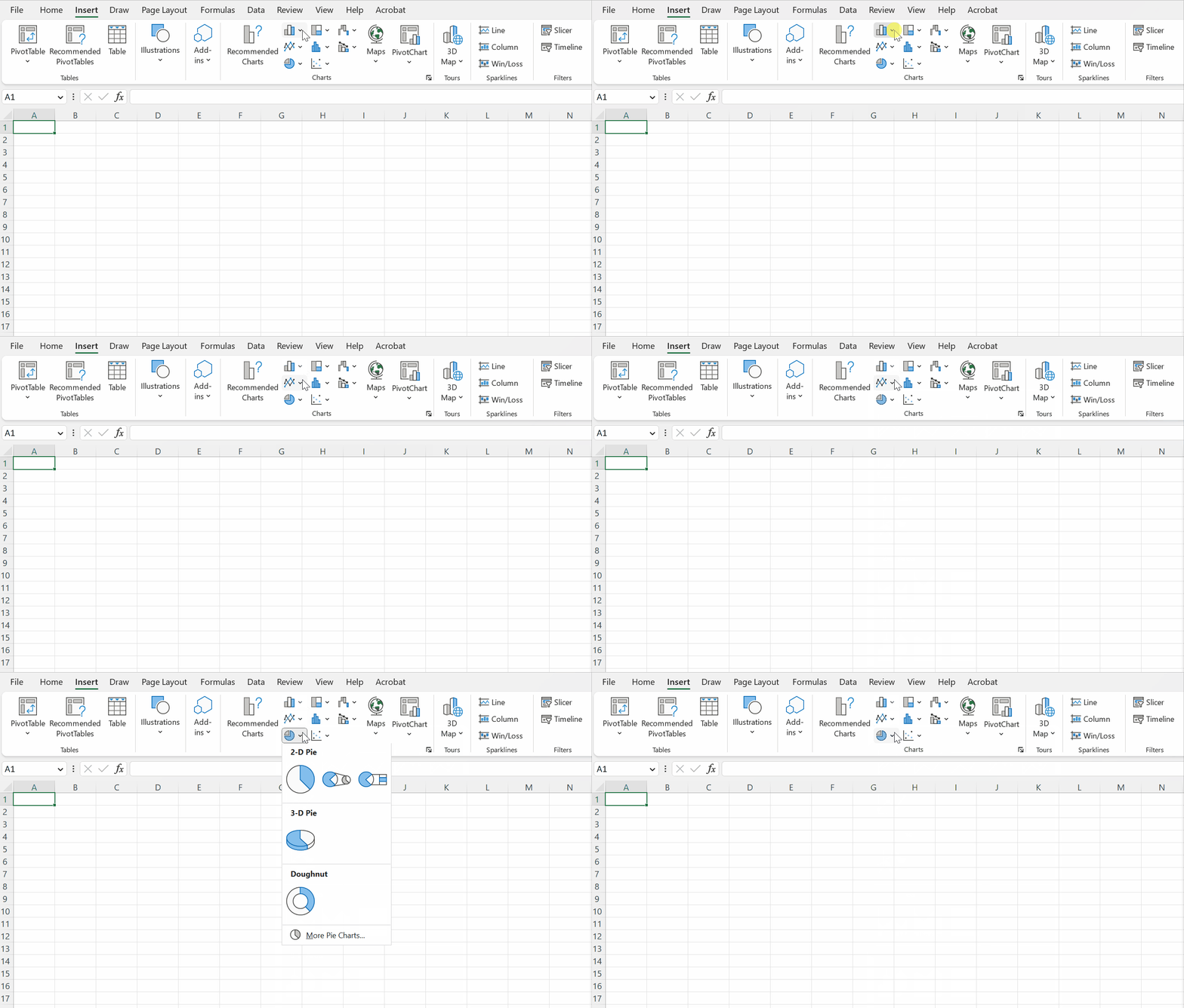
There’s nothing wrong with a bar chart here or there… but any chart gets boring when we show it over and over and over and over and over and over.
There’s also the issue of analytical depth — or lack of depth.. If we’re only using bar charts… then we’re only showing totals and averages. There are dozens more statistical approaches!
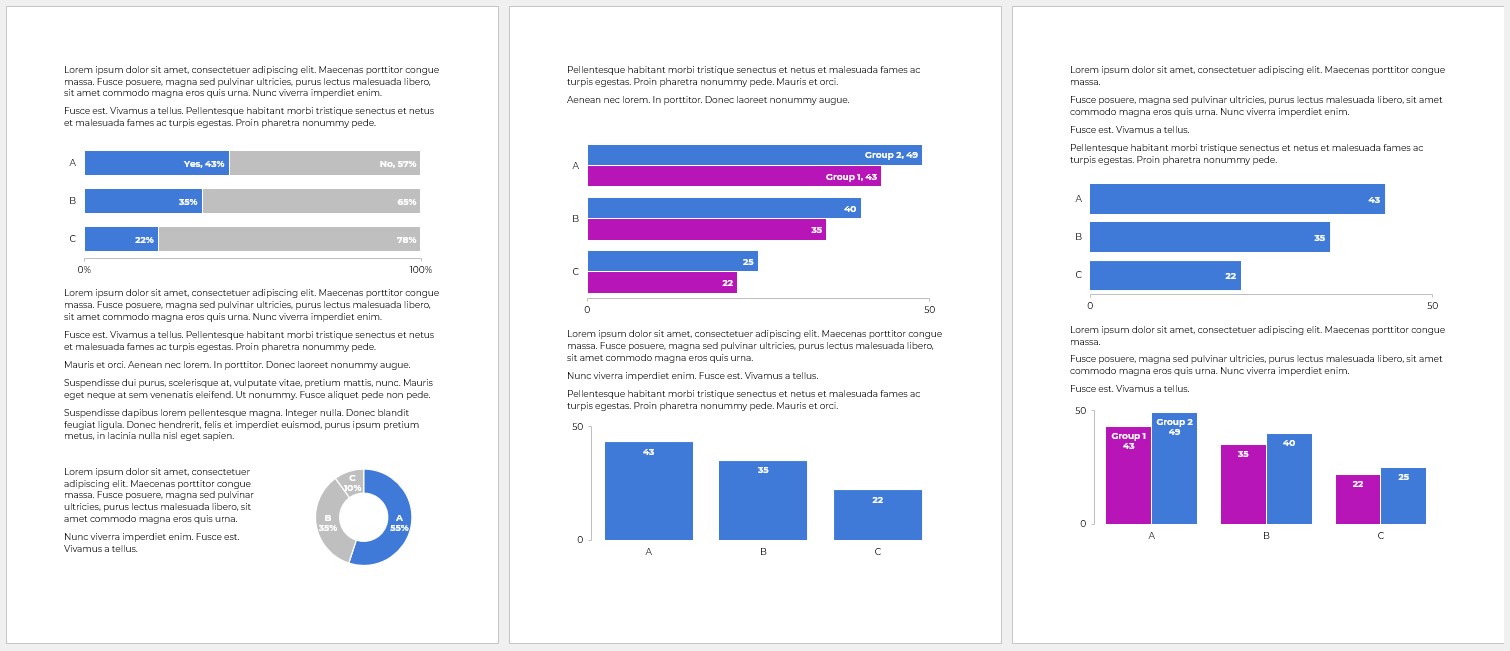
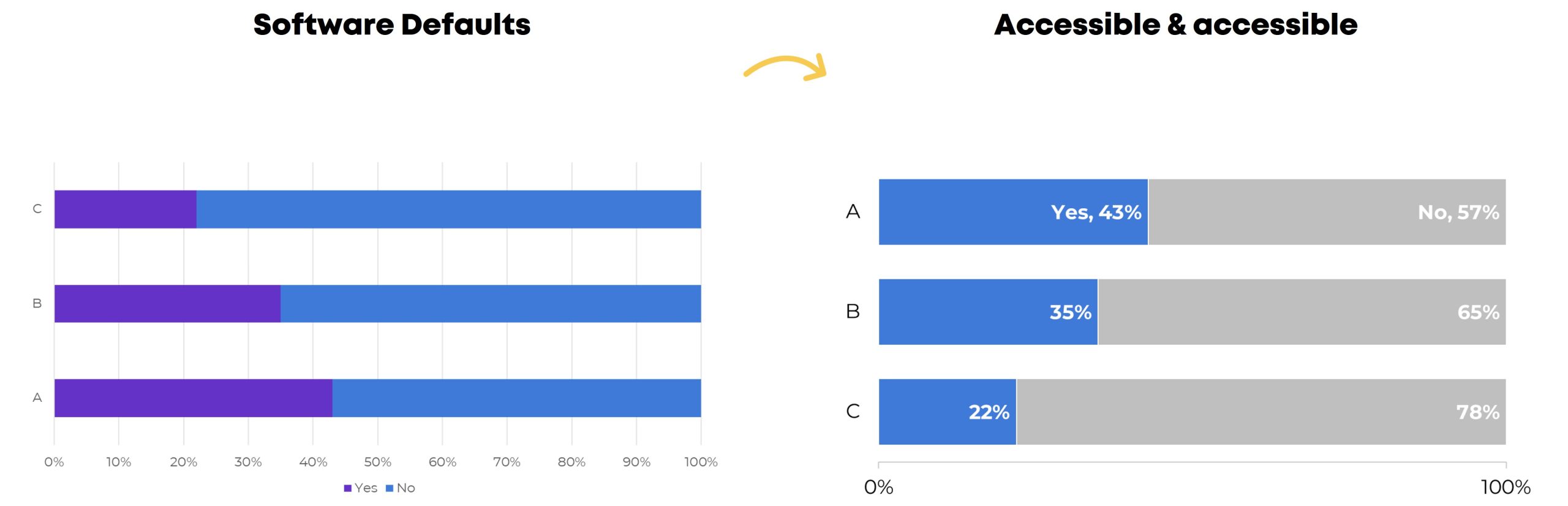
Stacked bar charts, for example.
They’re easy to make.
But we still have to:
This is where it starts getting fun!!
Excel can make:
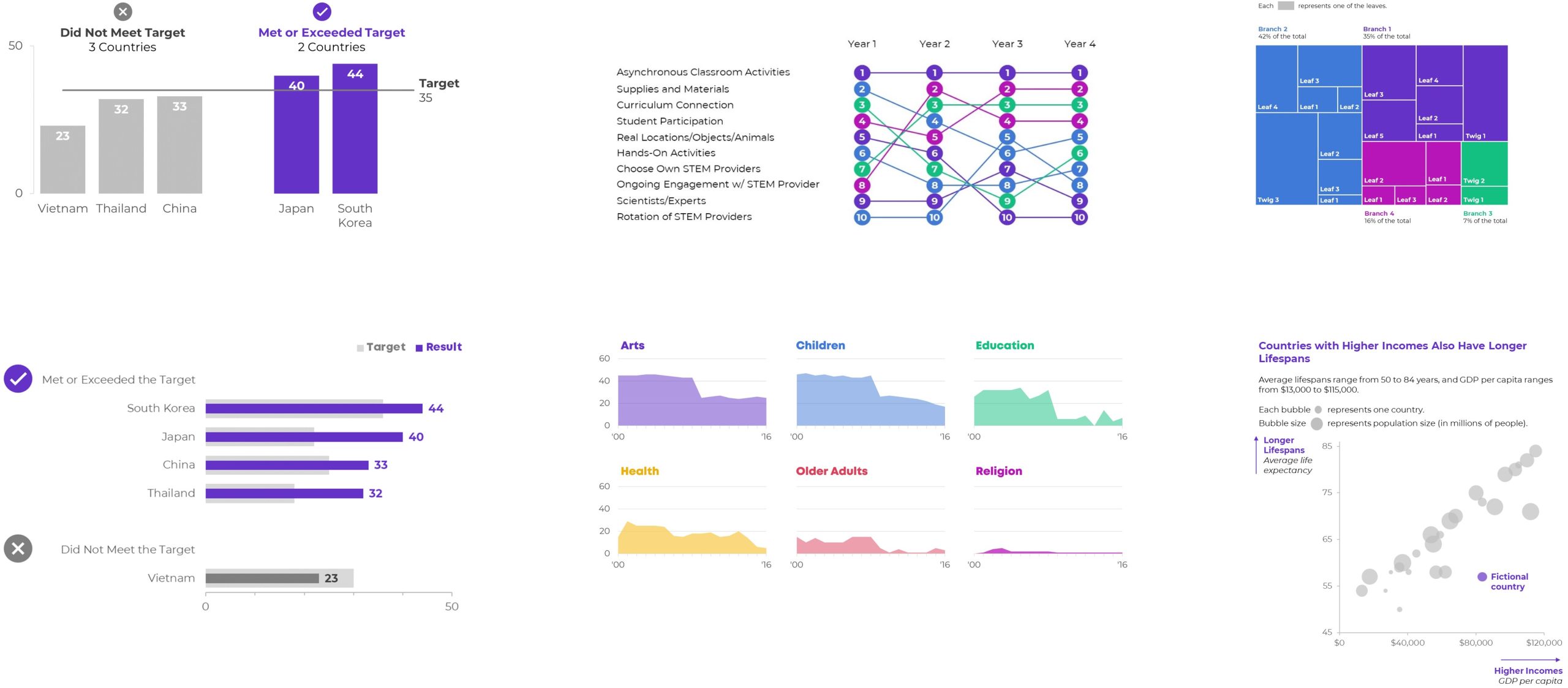

Well… if you’re using the latest version of Excel.
If you’re on outdated software, (most of) these charts are still possible. They just get harder to make, i.e., they’re in Level 4 territory.
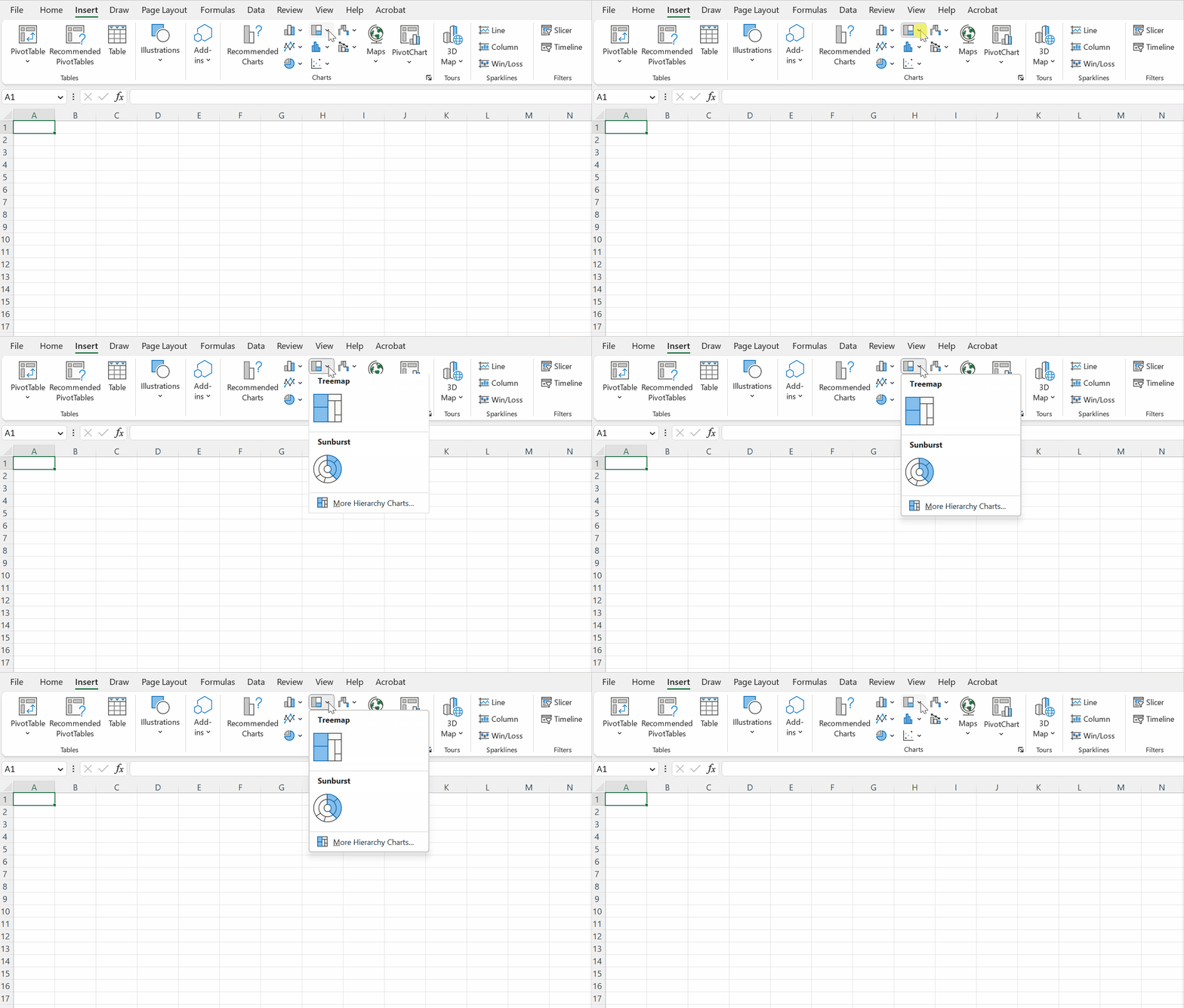
We’re not just adding variety for variety’s sake.
(Although common sense — and hundreds of consulting projects — has shown me that dataviz novelty is one of the best ways to increase engagement.)
Most importantly, we’re adding analytical depth. For example, a regular ol’ bar chart just compares the average or total of several categories. What if we compare them by location, too? Now we’ve got a heat map! We can spot geographical patterns, which would’ve been impossible in a bar chart.
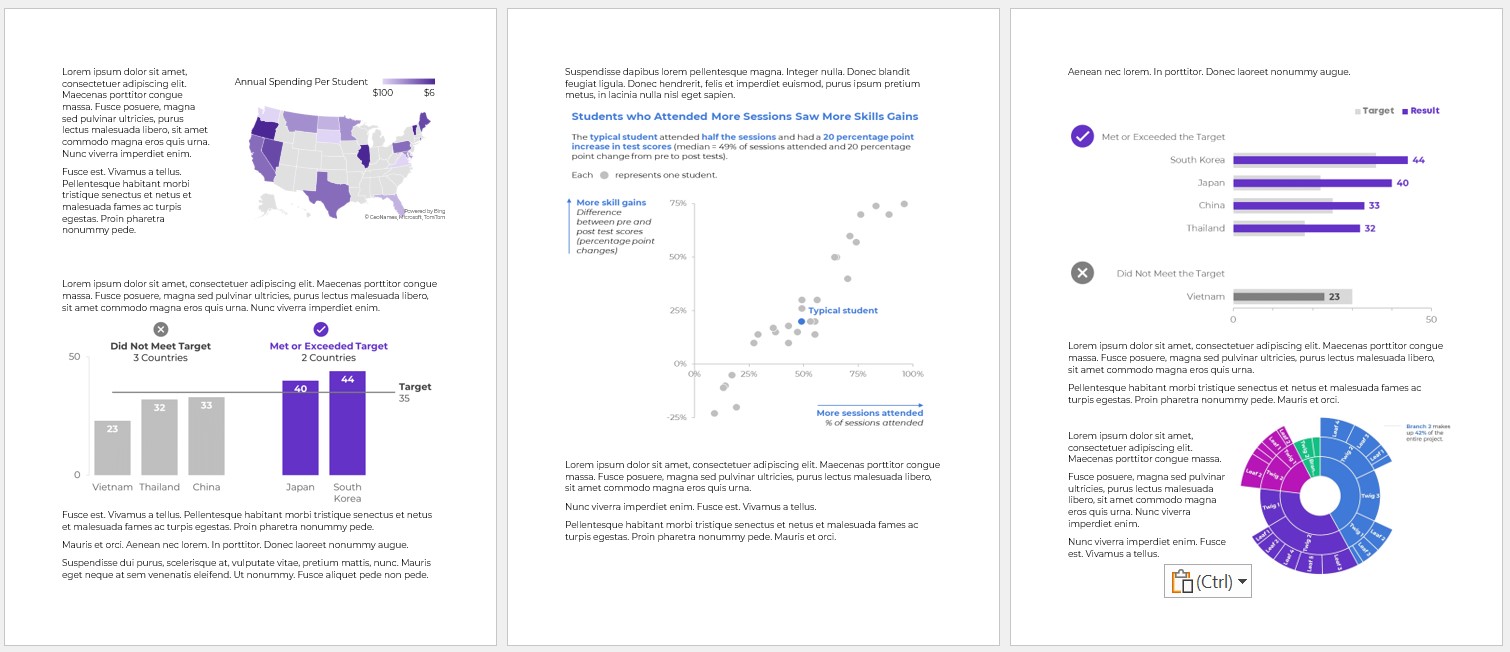
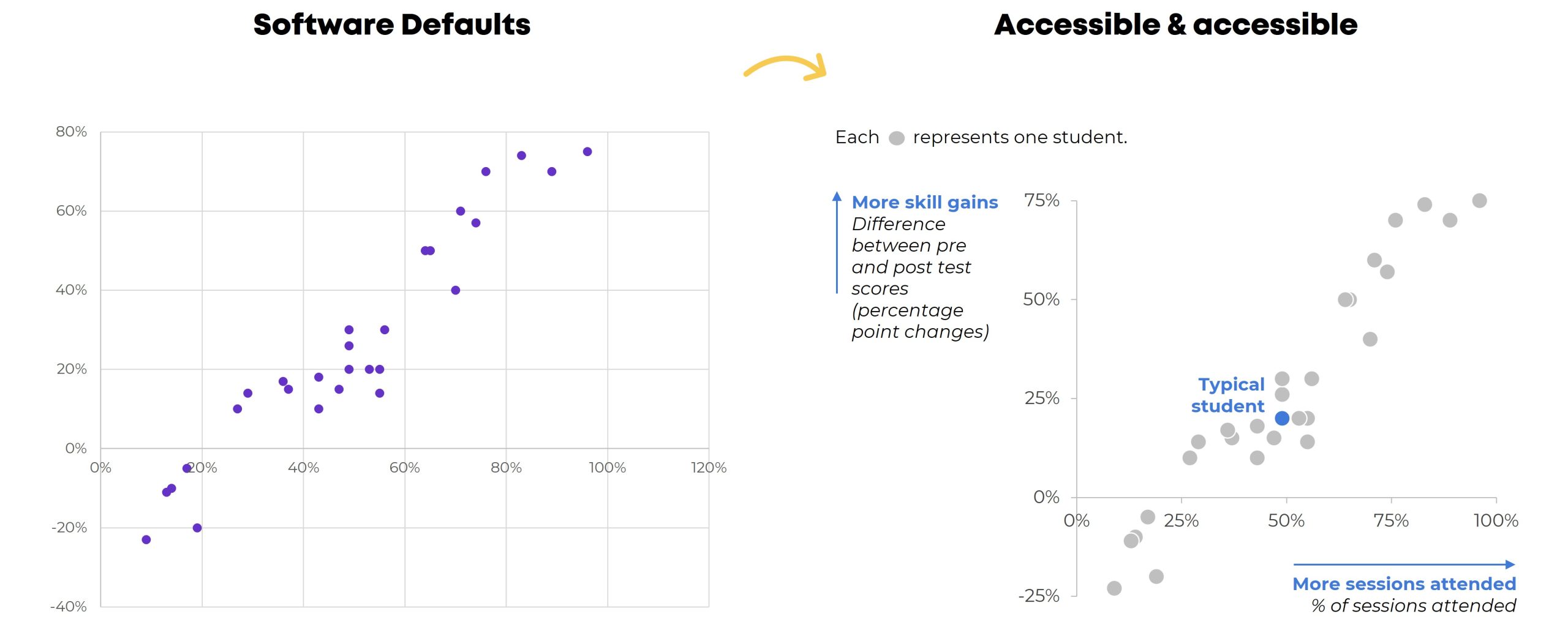
Scatter plots are easy to make.
But we still have to:
Are you already using a variety of charts? Have you actually analyzed your data (beyond averages, and beyond totals)? Can you adjust the gap width, annotate the data, and apply colors strategically in your sleep?
Then you’re ready for Level 3!
With behind-the-scenes elbow grease, you can make:
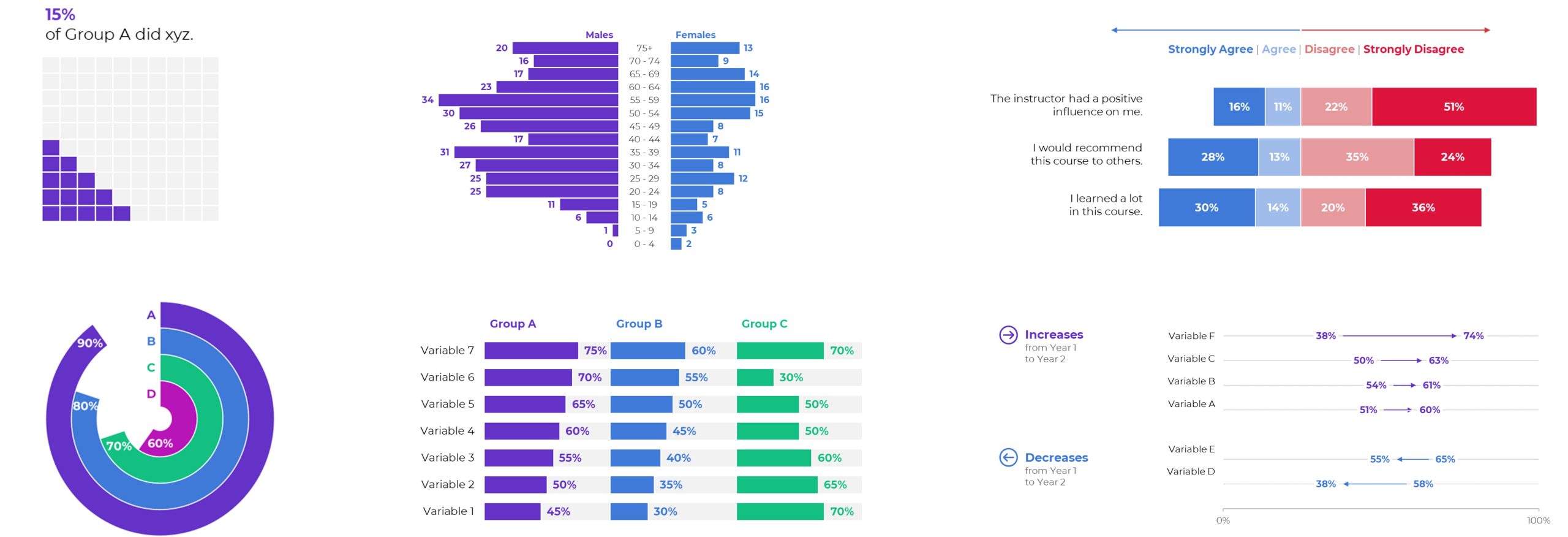
You won’t find any buttons that automatically make these charts.
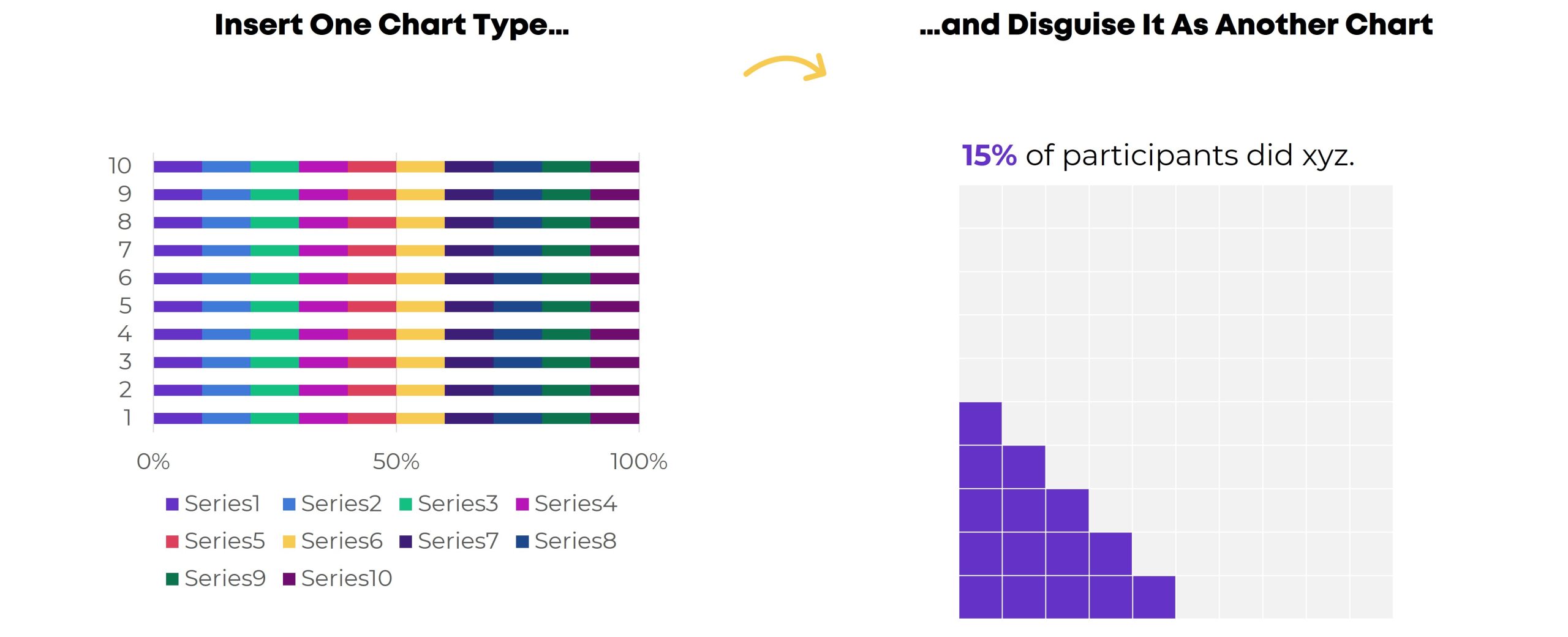
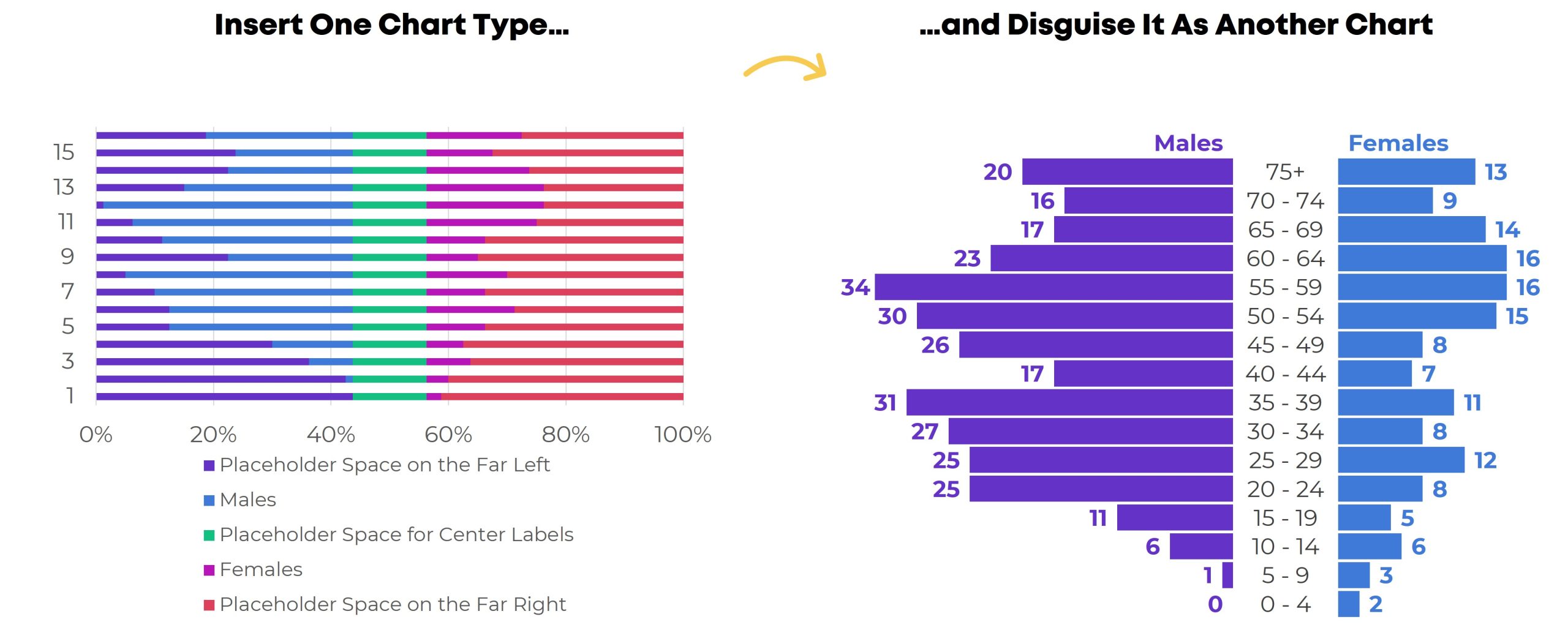
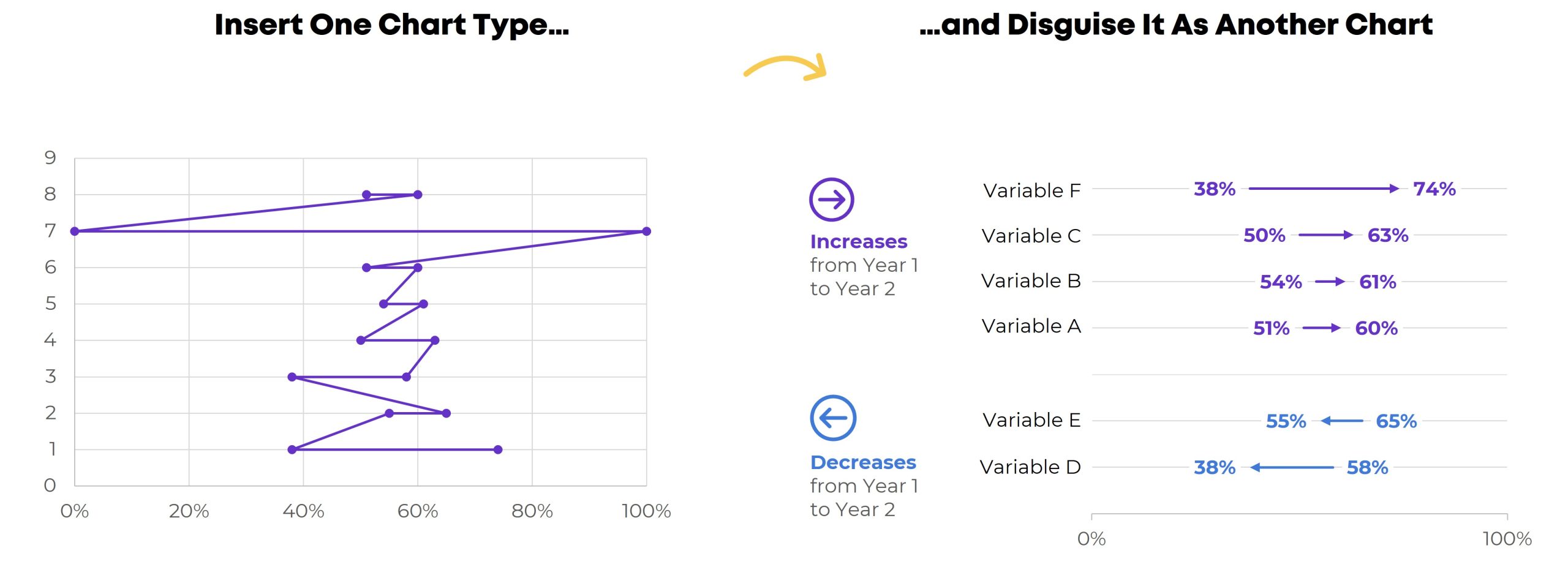
Instead, we have to insert one chart type… and disguise it as something else.
For example, we have to insert a stacked bar chart… and disguise it as a waffle chart. You’ll need a Magic Table behind the scenes, too.
A stacked bar chart gets disguised as a population pyramid. Yes, you’ll need a Magic Table with placeholder values.
A scatter plot gets disguised as a dot plot, and so on. Each value gets assigned a x-y placeholder location inside the Magic Table.
Do these maneuvers turn your brain inside out and upside down? You’re not alone.
If you’re consistently making, editing, and applying graphs from Level 3, you’re already a vizard. Get in touch so I can send work your way!
If you’re in Level 1 or 2, you’ll love Data Storytelling in Excel. You’ll go slow and steady so you don’t feel overwhelmed. You’ll dip your toe in… and then you’ll be swimming in the deep end in no time.
I recently saw two (!) of these tables within the same week:
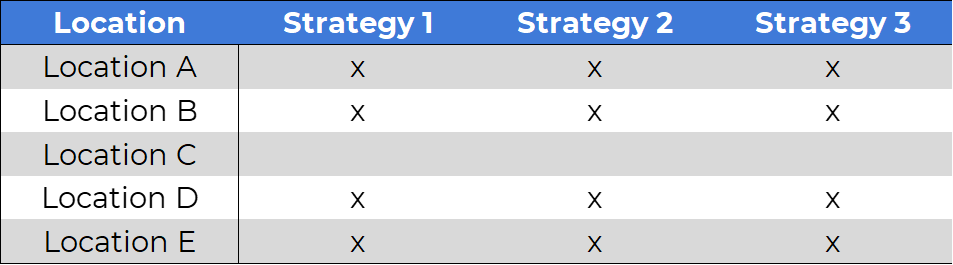
In this tutorial, you’ll see a few ideas for transforming tables with check marks.
These tiny tweaks can be accomplished in everyday software like Excel.
How to Add Checkboxes to Excel
It’s here.
I ignored my inbox and turned a boring table into a 2-pager.
It’s here.
 English
 Afrikaans
 Shqip
Shqip አማርኛ
አማርኛ العربية
 Հայերեն
 Azərbaycan dili
 Euskara
 Беларуская мова
 বাংলা
বাংলা Bosanski
 Български
 Català
 Cebuano
 Chichewa
 简体中文
简体中文 繁體中文
繁體中文 Corsu
Corsu Hrvatski
 Čeština
 Dansk
Dansk Nederlands
 Esperanto
 Eesti
Eesti Filipino
 Suomi
Suomi Français
 Frysk
Frysk Galego
 ქართული
 Deutsch
 Ελληνικά
 ગુજરાતી
 Kreyol ayisyen
 Harshen Hausa
 Ōlelo Hawaiʻi
 עִבְרִית
 हिन्दी
 Hmong
Hmong Magyar
 Íslenska
 Igbo
Igbo Bahasa Indonesia
 Gaeilge
 Italiano
 日本語
日本語 Basa Jawa
 ಕನ್ನಡ
ಕನ್ನಡ Қазақ тілі
 ភាសាខ្មែរ
 한국어
한국어 كوردی
كوردی Кыргызча
 ພາສາລາວ
 Latin
Latin Latviešu valoda
 Lietuvių kalba
 Lëtzebuergesch
 Македонски јазик
 Malagasy
 Bahasa Melayu
 മലയാളം
 Maltese
 Te Reo Māori
 मराठी
मराठी Монгол
 ဗမာစာ
ဗမာစာ नेपाली
 Norsk bokmål
 پښتو
پښتو فارسی
فارسی Polski
 Português
 ਪੰਜਾਬੀ
 Română
 Русский
 Samoan
 Gàidhlig
 Српски језик
 Sesotho
 Shona
Shona سنڌي
سنڌي සිංහල
සිංහල Slovenčina
 Slovenščina
 Afsoomaali
 Español
 Basa Sunda
 Kiswahili
 Svenska
 Тоҷикӣ
 தமிழ்
தமிழ் తెలుగు
 ไทย
ไทย Türkçe
 Українська
 اردو
اردو O‘zbekcha
 Tiếng Việt
 Cymraeg
 isiXhosa
 יידיש
יידיש Yorùbá
 Zulu
Zulu