• Skip to main content
  • Skip to footer
  • Home

The May 13 Group

the next day for evaluation

  • Get Involved
  • Our Work
  • About Us
You are here: Home / Archives for allblogs

allblogs

Nov 19 2024

What is adult learning, and its role in evaluation?

This week’s post was written by Chantal Hoff. Chantal is an epidemiologist by training, who works as an evaluator and Senior Consultant at Data+Soul Research. You can learn more about Chantal on LinkedIn and about Data+Soul Research on their website.

How it started: Enthusiasm for evaluation.

At the end of my first year of my first job working as an evaluator, my supervisor was cleaning out her desk. She found her notes from when she interviewed me – “Chantal is VERY enthusiastic about evaluation.”

It’s true! I am very enthusiastic about evaluation.

You see, after getting my start in academic research spaces, the appeal of evaluation immediately stood out to me. I was frustrated and disenchanted by participating in research projects that were published in journals behind paywalls and never shared back with the communities they were supposed to serve. I was thrilled to find a field that prioritized the questions that communities were asking and generated findings that could immediately be used to improve programs or services, shift ways of thinking, and shine a light on uncomfortable truths.
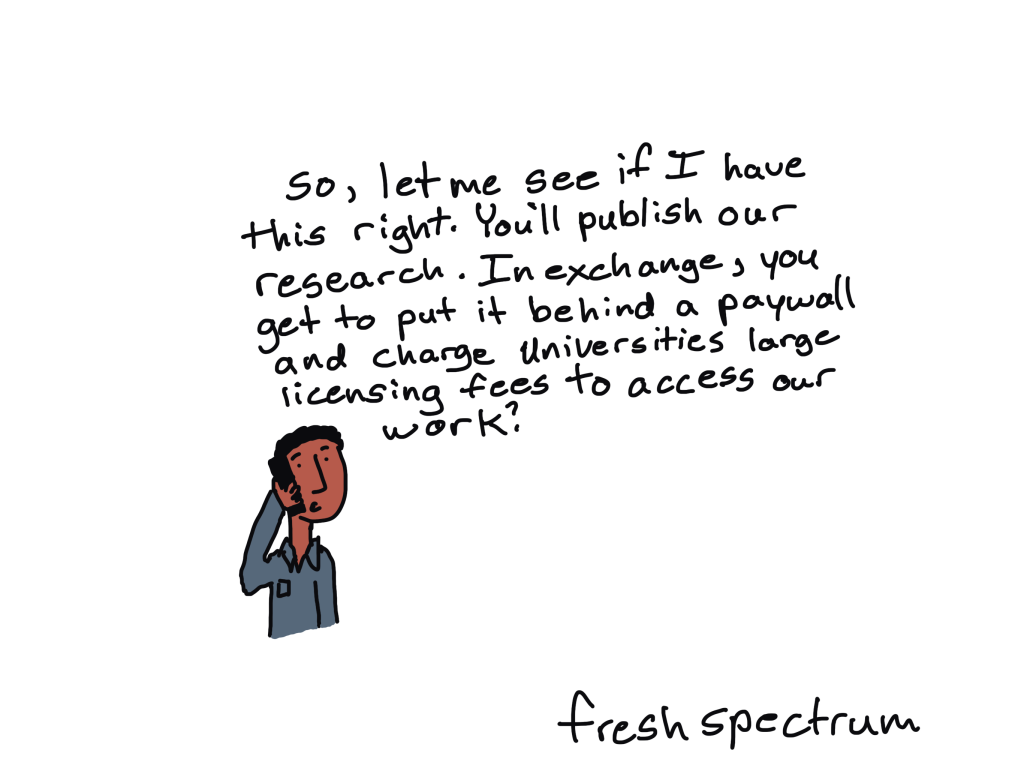
Cartoon guy on phone: So, let me see if I have this right.  You'll publish our research.  In exchange, you get to put it behind a paywall and charge universities large licensing fees to access our work.

But, enthusiasm is not always enough.

To me, the value of evaluation was so clear that I was genuinely surprised when I worked with teams who didn’t seem to see the value of evaluation. Sure, they knew the evaluator could help them write their grant reports. But otherwise, couldn’t I just leave them alone to do their important work?

It wasn’t on them to just go along with what I was saying about the importance of evaluation. It was my responsibility to earn their trust and to make the case for evaluation. I realized pretty quickly that a summative evaluation report shared back months after the program ended wouldn’t cut it; I had to show them how they could use and learn from the data they were gathering every week to improve program design and implementation.

Cartoon person talking to people at a table: Thanks for joining me for this evaluation kickoff meeting.

People at table.
Person One: Is this going to take long? I have a lot of important work to do.
Person Two: Me Too.
Person Three is just looking at their phone.

Enter: Adult Learning.

I took exactly one evaluation class in grad school. So, while I was familiar with approaches like “utilization focused evaluation,” I was largely on my own to figure out how to apply it to my current setting. 

I started experimenting – trusting teammates to articulate evaluation questions using their experiences on the ground, using team meetings to build awareness and knowledge around key evaluation concepts, and recognizing skepticism and pushback as valuable insights rooted in experience. I listened closely to their problems and pain points, recognized the many (many!) insights and experiences they were bringing into the work, and, whenever possible, connected the dots to show how evaluation could be a resource for their work.

Little did I know that many of these ideas and concepts were part of something bigger, something that even had a name! Adult learning.

Person talking to a table of three:
Before we wrap up, does anyone have any questions?
One person at table with their hand up: "I do...Why are we here?"

So, what is Adult Learning?

Adult learning theory, or “andragogy,” is the “art and science of adult learning” (as opposed to child learning, “pedagogy”). While Malcolm Knowles is credited with popularizing the idea in the 1970s, a quick search will reveal many adult learning frameworks with different numbers of principles and origins.

While there’s no one specific source or list that I follow, here are a few adult learning principles that continue to resonate with me:

1. Adults bring their backgrounds, experiences, and prior knowledge into learning spaces.

They are not blank slates. Invite them to share their knowledge and create ways for them to build on existing knowledge.

2. Adults are often motivated to learn because they have problems they want to solve.

Listen closely for problems and pain points; if you don’t know, ask! Tailor learning opportunities to help learners solve problems that are relevant to them.

3. Be clear about the “why.”

Nothing is worse than sitting in a sensemaking session or training and wondering, why am I here? Be clear and direct about the purpose behind activities. If the why isn’t clear to you, consider, “should I still be doing this?”

4. Practice makes permanent.

Adults need to practice skills and apply knowledge in order to internalize and integrate learning.

Cartoon person in front of a white board: There are three types of learning theory.
On the board:
Pedagogy: Kids
Andragogy: Adults
Overwhelmedagogy: Distracted People

Even better, these principles complement many other frameworks and approaches that our team uses in our daily evaluation work, including utilization-focused evaluation, culturally responsive and equitable evaluation, human-centered design, and appreciative inquiry.

How do I apply it to my work?

I’ve now had a few roles at a few different organizations since my first evaluation job. In 2022, I made the transition from internal evaluation roles in non-profit organizations to working as a consultant for a small firm that supports non-profits, grantmaking institutions, community-based organizations, and municipalities. Adult learning is now an official part of my job description. 

Here are a few examples of how it shows up:

1. Evaluation technical assistance and coaching.

I support non-profit clients and grantees to design and implement their own evaluations. In kickoff calls, you’ll hear me ask questions like:

  • What prior experience do you have with evaluation? 
  • What’s already working for you? What data systems and learning practices do you already have in place?
  • What are you stuck on? What’s a question that keeps coming up for you? How can evaluation help?

2. Reporting and sensemaking.

When writing reports, I ground myself in what problem our client is trying to solve and what decisions they need to make about it. I tailor the headings and executive summary to tell a brief, compelling story focused on use, while using links to make it easy to navigate to pages with more detail.

In sensemaking sessions, I open with an invitation to share what hopes and burning questions folks would like to explore together. I connect the report findings and visuals to these hopes and questions, and create ample space for folks to process findings and identify shifts or next steps for their work.

3. Workshops and trainings for fellow evaluators.

I had the privilege of co-facilitating a pre-conference workshop at AEA this year; it’s part of a larger training series for evaluators and researchers that Data+Soul Research is rolling out this year. While sharing content and ideas is great, most aha moments come when folks get to put things into practice – whether through individual reflection, sharing in pairs or groups, or using resources to try new practices out with their own teams. 

How is adult learning showing up in your practice? I’d love to hear in the comments below!
Written by cplysy · Categorized: freshspectrum

Nov 18 2024

4 Types of Maps: Pin Drops, Heat Maps, Tile Grids, and Overlays

During Office Hours, Sue Griffey walked us through the pros and cons of 3 different mapping approaches:

  1. Pin drop maps (made for free with Google)
  2. Heat maps (made with Excel)
  3. Tile grid maps (also made in Excel)
  4. Overlay maps (tile grids, icon stacks, or waffles on top of traditional geographic maps)

In this video, you’ll learn about the challenges of each approach. You’ll also gain some how-to tips. Thanks, Sue!

What’s Inside

  • 0:00 Intro: Mapping course registrants
  • 0:58 Ann’s ideas from previous Office Hours session
  • 1:21 Google’s “pin drop” maps
  • 2:30 Excel’s heat maps
  • 3:27 Excel’s binary maps (filled vs. empty)
  • 3:42 Pros and cons of Excel maps
  • 5:40 Pros and cons of tile grid maps
  • 6:50 The “overlay” of the tile grid map on the geography map
  • 7:33 World map challenges
  • 8:06 Sue’s preference
  • 9:20 How to make Google’s pin drop maps
  • 9:55 Ann’s ideas and commentary
  • 11:20 Sue’s homework assignment: Try icon stacks + an overlay
  • 12:40 Sue’s final thoughts

Related YouTube Lessons about Mapping

  • How to Make Maps in Excel: Heat Maps and Binary Maps
  • Why Isn’t My Map Working?! 10 Excel Troubleshooting Tips

Resources Mentioned in the Video

  • Jon Schwabish’s world tile grid map
  • Google’s “pin drop” map
  • Shelly Cheng’s “overlay” of stacked icons on a geographic map

Transcript

[00:00:00] You’re watching Dataviz On The Go, the series where you learn dataviz time savers inside everyday software like Excel.

In this lesson, you’re going to learn about maps with Sue Griffey.

Several weeks ago, I brought to office hours some mapping I was doing. I have a short course and I wanted to map the number of registrants I’ve had.

Um, and I’ve been doing this over time, since I started the course, and I work globally, so I needed a world map. So I brought a couple examples, including a tile map that a friend of Ann’s and mine developed, Jon Schwabish, and I I was also working on what Ann had taught us about geography, the geography part of charting in Excel.

So I actually have three different things to show you and then I’ll tell you where I landed and why. So I’m going to show you the progression. Not surprisingly, when [00:01:00] I was doing this, Ann said, here are the three things you need to try. So you’ll notice as I switch each topic in the bottom right corner is a check mark of what we’re starting on.

The data set. That is really easy, 79 countries, 652 people. And two years ago for my infographic at the end of 2022, I used something that was in Google. It’s a free, it’s not just a Google map. You go to your own map settings and they give you a world map. You can look at it and I hadn’t used it then for two years until this time.

Both times, it’s only required me to upload a CSV file, which is good. Now, you can see the little white panel at the top, and I’ll show you after it’s in the next slide. I decided to start with this because I know, knew how to use it. Um, they’ve added a few more features. So, When I [00:02:00] added the CSV file, it automatically graded, as you can see in the top right, um, from dark gray where there were 56 or more to light gray.

And, uh, I discovered I could choose to, choose to show data labels, which it couldn’t do a couple years ago. So what it looks like up close, that circled five, it, you can see it, but it’s not that easy to see all the data labels. You can’t do anything more. So that was the map I started with. And then I went back to Excel to try to figure out what Excel would give me for a map, because Ann’s examples have used data labels.

State, U. S. state level maps only, as I recall. And I discovered, oh, there is a way to do a heat map in Excel world charting. I’m going to show you the examples, then I’ll show you the behind the scenes. And I discovered that it did let you put in data labels. Now, obviously, this isn’t all [00:03:00] 79 countries. So, here’s my plus minus.

It was pretty easy, similar to Google Maps, to create this map. You cannot change anything except the color for the gradient. You can’t annotate it. I can’t even change the plot size. And in fact, when I pasted this version, the previous version, in as an ex, as a Microsoft Excel object, I couldn’t even move it around very easily.

But I was also able. With, um, just a slightly revised dataset to get a binary map out of it and so I’ve tried both. And they’re both very nice for an overall look, for sure. And easy. Here’s my comments and thoughts. Things I tried and funny things I found. So Ann talks about creating the geography list, and you can go, um, tag a list of countries or states, hit the geography button, and then you get a list that looks like this one [00:04:00] that has some little symbol before each country name.

But I discovered I accidentally had, because Excel always wants you to put the labels and the data in before it’ll give you a chart, I did. And what I came up with, for some reason Canada and India came up, their counts came up with a ward in Kolkata in India. I don’t know why. So when I took that off and just made it plain data back to what it is on the bottom left, then it was fine.

So I used the plain data, I went to more map charts, that’s where you get the world map view, but you only get that one map. So you can do it with or without the geography designation, meaning if you just have a list, don’t worry about defining it as geography. This is a version I did do with Geography. So, this is one of the two I showed you, and this is the default color scheme.

Here’s the variations. It gives you these three variations only, [00:05:00] and it gives you these three color variations, or these several color variations, but you can’t mix and match. You can’t, you have to choose them, and then it defines the grades automatically. And these are the only choices you have, um, the, the top and bottom are automatically ticked.

When I tick data labels, then I got the data labels, but you can see I got them in very few countries. Not that I expect a U. S. map on PowerPoint to be able to show, I mean a world map, to be able to show everything there is, uh, in 79 countries, especially some that are very small, like in Europe. And then We talked about going back to the tile world map, and Ann wanted, um, had helped me put the numbers in.

She helped me correct the formula. We figured out how to do this. This came from John Schwabisch, who Ann was talking about a few minutes ago. And Ann helped me get the formula for the data labels. So the data [00:06:00] labels come right next to the country name, which was in there. The way John has it set up and something’s locked down because I can’t change a color if I move things.

There’s a whole formula of how, a process of how I had to paste things next door to the one I wanted to put in and then paste it again to get, to, to not get a change in color and to get the right name of the country. For my audience, they won’t be necessarily familiar with a tile map. This is, you know, if someone told you this is the world, you might see it, but without telling you, I think it’s still really awkward, even though it’s appealing to me to have every country name labeled, and for people to be able to pick out their countries easily, which we can’t do on a general world map.

So I did try and, uh, sort of an overlay of a world map, um, and tried to see if that would be better. [00:07:00] It, I couldn’t get it underneath the Excel grid, obviously, so the overlay is making things very light and I couldn’t, the one thing I wanted to do is to try to highlight around each cell where there was a country represented, make that white or somehow make it stand out so you could see in the whole map.

No matter what continent you were in, you could see a certain designation for where the countries are. But even with this, I wouldn’t use this for, uh, really much of any reason. Here are my challenges. I mentioned some of them. You can’t change the tile colors in the dark gray and the dark green. It’s really hard to read, uh, the writing in it.

No matter whether I chose, it was black, I chose white, it’s still hard to read it. There’s a stepped process I had to do to add new country data labels, so I can’t update this automatically. I could, the Excel one, I could do more quickly because it’s just a list of names and the counts that I got from [00:08:00] the pivot table.

But this is the three step process, Ann, I would have had to do. So let me show you my preference. I’m going to go over each one as it’s independent. The tile map, this is the tile map that does have numbers in it, and I was able to bold those numbers where people were represented from their country. But it’s hard to understand.

It’s a world map. It’s hard to make, and it’s hard to update. The Excel map, slightly blurry I know, but the Excel map is easy to understand that it’s a world map. It was pretty easy to make, but there weren’t many adjustments I could make, and it was limited for me. And then the Google map, where the countries are already labeled for me, and most of them will stay in, and people can probably pick themselves out pretty easily, even at the, uh, Map level.

For me, that’s the, [00:09:00] that was the one that had the most adjustments. You could change the marker, uh, color. I like the gray because it helped, um, against the green. And this is where I went. I’m probably just going to go back to this if I do a map in the infographic for the end of this year. And I’m just wanting to show you all.

This is how easy it is. You go to this place, you create a new map, and, um, I will put this link in the chat for anybody who’s interested in it, but I think I’ve exercised in all three mapping options to the extent that I could. And definitely I looked at the return on investment for how much time it would take me to do something or not.

So I’m, I am going to share the recording with Jon cause I want him to see what we’ve done with this with your help. So that’s everything. Thank you so much for sharing behind the scenes of your thought process. You [00:10:00] went through so many different types of maps. Um, this one that this tool I was not aware of, people had told me about this, but I hadn’t actually seen the screenshot of this before.

In map making terms, we call it a pin drop map, like if you’ve ever gone to a restaurant or a national park and you put the physical pin in of where you’re from. This is really nice for city level data, in particular, would be at strongpoint. I think the fact that it can do that Shading to show the amount is really promising too.

Um, I totally agree with you that kind of like the regular map with the gradients because you can’t really label all the countries or I don’t know. It’s just, it’s a lot of detail that maybe you don’t even need. I’m still a fan for you of the binary map. Just showing where people were from or not. But again, I’m an outsider to your data.

So for me, I’m like, wow, look at all these different countries that are [00:11:00] represented that Sue gets to work with all these different people. And for me, that’s, that’s so amazing. But for you, that might be like, yeah, duh. I know that that’s old news and you might need a higher level of detail. Um, the tile grid maps, they’re so promising for, I think, small Smaller geographies, but again, like the world map, like you said, what are people even looking at?

Okay, can I give you a homework assignment in all your spare time to try next? More homework? Absolutely. Um, the overlay, the overlay was so promising. I saw one, I saved it on LinkedIn, I saw this two days ago, I, uh, Shelley C., who I should be connected to, I guess, I’m not following, I don’t know her last name, uh, I guess she made this?

Yeah, at the Associated Press. This is kind of an overlay, right? This is, can you see how this is similar to what you had? It’s Electoral College Units. Not quite tiles, uh, [00:12:00] not an icon array. Stacks? Icon stacks, I think would be the technical name for this. All of us Dataviz people disagree what these are called.

Um, over top of the map. So there might, there might be some type of overlay with yours that could work. I wouldn’t rule that out. So in all your spare time, if you fiddle with the formatting there and get anything promising, let me know. I’d love to see if that could be developed further. Well, this is intriguing because it also gives you the numbers.

You know, it’s kind of like a waffle chart made in the form of the states, um, the states outline. But anyway, so I did all the work for people to know what their choices are so far. This, I will say for me, it’s got to be free. It’s got to be relatively quick. I agree the binary map does when I made it. I was like, oh, wow, that’s great.

But I’m also wanting to share at the end of [00:13:00] this year, I’ll probably write everybody from every course and just say, just want you to be able to see how many people from your country and things like that, just so people Recognize. Because there are some countries where in Africa and Asia that I’ve had a lot of folks, Nigeria and India primarily, but lots of Europeans, lots of, I’m getting many more U.

S. folks now, which I didn’t the first two years. Thank you for all your encouragement.

Written by cplysy · Categorized: depictdatastudio

Nov 12 2024

Adding Text Boxes to Charts in Excel: Slow vs. Fast

You might need text boxes for annotations or labels.

You might spend a few moments adding and editing the text box.

But then, it doesn’t get pasted correctly into Word or PowerPoint, argh!

In this 5-minute video, you’ll see 2 ways to add text boxes to Excel charts:

  1. The sloooow way (adding a text box outside the chart, and then having to do extra editing and grouping)
  2. The speedy way (being proactive and adding a text box inside the chart from the beginning)

https://www.youtube.com/watch?v=tgoPvIHWuJA

What’s Inside

  • 0:00 The problem: Text boxes don’t get copied/pasted into Word or PowerPoint correctly
  • 1:02 Dataviz on the Go
  • 1:12 Example: Text boxes on small multiples histograms
  • 1:55 The long, hard way: Text box is a separate object from the chart
  • 2:59 The fix: “Group” separate objects together
  • 4:18 The better, faster way: Click on the chart first!
  • 5:10 Additional benefits: No grouping; No border; No removing white fill color
  • 5:31 Recap

Transcript

Ann K. Emery: [00:00:00] In this video, I’m going to show you how to add text boxes to your graph. Like this.

You might need to add some labels. You might want to add some call out boxes or annotations.

But then I’m also going to show you the correct way to do this because I want your text boxes to come along for the ride as you copy and paste your graph into Word or PowerPoint.

Here’s the problem, right? You add these beautiful text boxes and then you copy and you go into word and you paste and you’re like, where are they?

And people tell me, “oh, I had to take a screenshot.” No screenshots. That is low resolution. It gets blurry. It looks unprofessional. No screenshots. Okay.

Or they say, “I had to copy and paste all of my text boxes separately.” So they’re doing copy, paste, copy, paste like 10 bajillion times. I don’t want that for you either.

I want you to save time. All right. So in this video, I’m going to show you how to add the text boxes the correct way so that they come along into [00:01:00] Word or PowerPoint with the rest of your graph.

I’m Ann Emery. You’re watching Dataviz on the Go, the series where you learn dataviz time savers inside everyday software like Excel.

And speaking of being on the go, I was teaching dataviz in South Africa a few days ago. Uh, the jet lag is mostly gone by now.

And we were looking at how to make column histograms. We were also making area histograms, and we were also making small multiples histograms.

And when we got to the text box section, I was reminded again, that a lot of people don’t know this trick, so that’s why I wanted to make a video about it to share this with more people like you.

All right, let me show you how to add the text boxes, what not to do. Or how to fix it in case you’re doing it the long, hard way.

And then I’m going to show you what to do. The yes version second. Okay.

What not to do? Let me delete these text boxes and I’m going to read them [00:02:00] in case this is new to you. Oops, oops, oops, too far, too far. Click the undo arrow, delete this little one.

Okay. What not to do? Insert. Find your text box. It lives under shapes. It’s also on the far right of your screen. Very similar to PowerPoint and Word, right? You add your text box and you’re like, wait, I thought you were going to tell us what not to do. Here’s what not to do. You like, you, you add your text box, you draw it where you want it, you add all your words, blah, blah, blah, blah, blah.

It would look something like this over on the side. You would remove the border from it. And then you’re like, great, I’m all done. I’m going to copy. And I’m going to paste and where is it? Where is it? Right? So what happened is your chart and your text box are separate objects. So you’d have to copy paste them individually.

Gross, right? [00:03:00] So if this has happened to you, the fix is just group them. You’ve probably done grouping in PowerPoint where you click on your chart and then you hold down. Is it control or shift? I never look at my keyboard. I just do it by muscle memory. It’s either control or shift. Let’s try control. Yeah, control work.

Did shift also work? Select, hold down shift, select. Okay. It’s both control or shift. I have no idea what the Mac keyboard shortcut is, but if you do comment below the video, share the Mac shortcut for selecting multiple objects with us. So we all know, okay. You’d have both of these selected. You hover your mouse over the border, right?

Not, not so it looks like this shape, but so that it looks like the little arrow shape. You right click and you group and then they are one object. Your two separate objects have turned into one object. They move together, the [00:04:00] location stays there, and then they also can be Copied and pasted together. Okay, now when you paste it, it’s like it’s there.

It’s not formatted, but it’s there. Um, so that works if you accidentally you’re like, where’s the text box? Just group them. Better case scenario that I want you to get in to the gist of doing. I think this saves time in the long run is just proactively trap your text box inside your chart. If you are clicked on some random cell and you insert a text box, your text box is just going to show up like separate.

It’s going to be a separate object, okay? Because you’re just clicked on something else. And then you’re going to have to group them. Just click on your chart first. Click on your chart. It’s activated. Get into the habit of doing that. Go to insert. You add your text box, right? You draw it where you want it.

Right here, for example, and then it’s automatically [00:05:00] inside. So when you copy and paste you don’t have to do group You don’t have to get stressed. It’s just there. It’s there exactly where you need it It also doesn’t add the little border around so I feel like it saves like yet a little more time. It also is Transparent and clear where this one is accidentally covering up the chart in the gridlines.

So Maybe it’s like Three time savers. Not having to group, not having to remove the border, and not having to remove the white fill color. So to recap, click on your chart first, then add your text box. It’s going to be trapped inside. You don’t have to do any extra editing later on.

Written by cplysy · Categorized: depictdatastudio

Nov 07 2024

It’s not enough to know.

Evaluation is a systematic process to determine merit, worth, value or significance…

But then what?

Let’s say you followed a systematic process and came to some conclusions about the value of a program. Your evidence shows that this particular program *doesn’t work so well.

What comes next? It’s pretty unlikely that your work is completed once you come to your determination. Once you know.

Do you just write it up in a complicated precise report that few will ever read and call it a day?

Perhaps.

I think for some evaluators, that’s the job. To make a determination. For these evaluators, deciding what to do with that determination is for somebody else.

But if that’s not you, do you spend additional time breaking down your findings so that the evidence and rationale can be explained to your primary audience of likely decision makers?

Perhaps.

It is usually the likely decision makers who pay your bills. They are your boss or your client. As long as they understand your determination, and are happy with your work, maybe that’s when you call the job done.

But let’s say you don’t stop there, do you spend time adapting your evidence and rationale to meet the specific needs of other audience members? The people who are directly or indirectly connected to the program, the funding stream, or the outcomes.

Perhaps.

As long as we include everyone as an audience for our reporting, and create a string of reporting products to meet a variety of needs. And these reports will be shared by the organization’s communications department. That should be enough, right?

But maybe you want to know if it actually reached all these different audiences, or at least some of the major ones. You also want to know if the audiences actually understand the evaluation findings and their implications. Do you then evaluate your sharing efforts and adapt your reporting strategy based on the findings?

Perhaps.

At this point, you’ve put in a lot of effort to see that your findings reach all your different audiences. Could anyone ask for anything more?

But what if the findings are contrary to popular belief? Your determination means a program that people believe in, one that looks good on paper, doesn’t actually lead to desired positive outcomes. It does not work as it is designed to work.

Do you put in the effort to build a level trust with all of these different audiences, so that they believe you when you share your results? Do you put in the work to convince these different audience members that your determination is right, even if it’s hard to believe at first.

Perhaps.

At some point in this blog post did you start to feel overwhelmed?

Did you say to yourself, “okay, but we just don’t have the budget or time to do all of this…”?

When I see evaluators describing evaluation to others, they often focus on what it means to do an evaluation. The process they follow, the methods they use, and the people they involve. The “then what” piece is always a little bit on the fuzzy side.

So my question for you, when does it end?

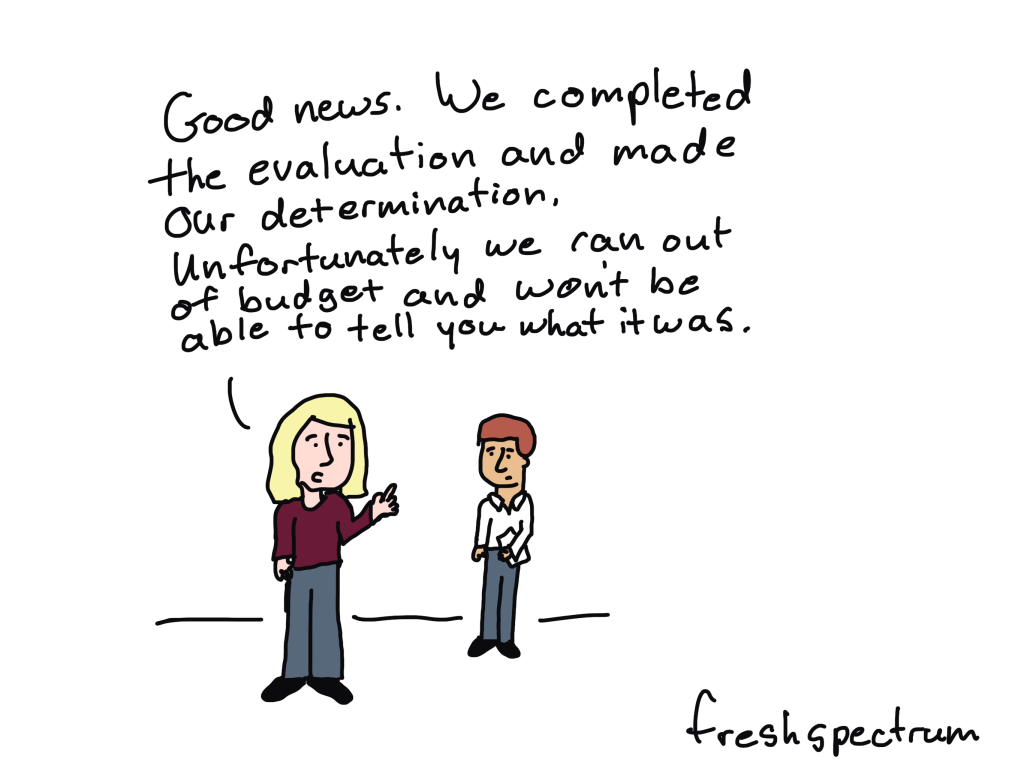
*This is all pretend, of course, because rarely does any program you are called to evaluate show little to no merit. Nor does any program ever seem like it works flawlessly. In other words, most determinations are “complicated.”

Written by cplysy · Categorized: freshspectrum

Nov 01 2024

How We Evaluated: Our Own 4-Day Work Week Pilot

This article is rated as:


At Three Hive Consulting, we recently embarked on an innovative journey to pilot a 4-Day Work Week (4DWW). Because we’re evaluators, we tasked ourselves with assessing the impact of this new work schedule. Here, we share the methods and insights from our evaluation process.


Evaluation Methods

Our team of evaluators employed a mixed-methods approach to evaluate our experience of the 4DWW. This included both quantitative and qualitative data collection techniques to provide a comprehensive understanding of its impact.

Quantitative data was gathered through surveys distributed to all employees twice: just before we started, and about 6 months later. These surveys included Likert scale questions to measure various aspects such as work-life balance, productivity, and overall job satisfaction. The quantitative data provided a broad overview of the general sentiment and measurable outcomes associated with the 4DWW.

To complement the survey data, we discussed the 4DWW at our regular weekly and quarterly team meetings. This less formal qualitative approach allowed us to delve deeper into individual experiences, uncovering detailed feedback on the benefits and challenges of the 4DWW. We have also held informal conversations with our clients about the 4DWW.

The combination of survey data and discussion findings offered a well-rounded perspective on the initiative.


Key Findings

The evaluation revealed several significant benefits of the 4DWW. One of the most notable advantages was the improvement in work-life balance. Employees reported having more time for personal activities, which contributed to better mental and physical health. As one team member noted, “Having Fridays to get stuff done at home has made Mon-Thurs less chaotic”. This additional day off allowed employees to recharge, leading to more focused and productive work during the remaining four days.

In terms of productivity, our team reported that the need to complete tasks within a shorter timeframe encouraged us to focus more on each task. “I have been able to focus in more on each task, as the 4DWW adds a slight pressure and artificial deadline to get more done in less time,” shared another team member. This focused approach not only enhanced productivity but also allowed for more flexibility to enjoy life outside of work.

We also explored the impact on employee retention. While retention has never been a problem at Three Hive, our team members shared that the 4DWW does make Three Hive a more appealing organization to remain with and that moving back to a 5DWW would be unattractive.

Not all results were positive. In our conversations with clients, one reported that our team being unavailable on Fridays was too great a challenge, and contributed to them not renewing their contract when the term ended. Most clients, however, have been supportive and curious.


Challenges and Recommendations

Despite the numerous benefits, the team identified some challenges associated with the 4DWW. One of the main difficulties was adjusting to completing all the work in 80% of the time. This made workdays more intense and required careful planning and time management. “Doing 100% of my work in 80% of the time is a challenge that takes adjusting to and does make the workdays more intense,” shared one team member.

To address these challenges, we implemented strategies such as time blocking and front-loading the week. Scheduling important tasks early in the week ensures that critical work is completed on time. “I have found that scheduling my work and time blocking has worked well for project work,” a team member recommended.

What has proven to be more difficult is understanding the impact on our corporate revenue and profit. Project-based work is highly variable, and many factors influence whether we win new work through competitive award processes, and the extent to which each project yields a profit.


Conclusion

The evaluation of the 4DWW by our team of evaluators provided valuable insights into its benefits and challenges. We’ve learned that the 4DWW offers a promising approach to improving work-life balance and productivity, and requires careful planning and time management. We’re happy to announce that based on our evaluation efforts, we have made the 4DWW permanent at Three Hive Consulting. Our team now work a standard day Monday through Thursday, with no reduction in pay.

We now let clients know early on in the engagement process that we are generally not available on Fridays; we do make some exceptions, in the same way that we must sometimes accommodate data collection or knowledge translation in the early or late hours of weekdays, or on weekends. Our email signatures include a reminder that we are away from our inboxes on Fridays. So far, we have had no negative feedback about our 4DWW from potential clients. There may be times when we are not selected and we aren’t aware that the 4DWW was a factor, but that’s okay!  


See more examples of evaluation in practice with our other “How We Evaluated” articles here and here.

Written by cplysy · Categorized: evalacademy

  • « Go to Previous Page
  • Go to page 1
  • Interim pages omitted …
  • Go to page 29
  • Go to page 30
  • Go to page 31
  • Go to page 32
  • Go to page 33
  • Interim pages omitted …
  • Go to page 310
  • Go to Next Page »

Footer

Follow our Work

The easiest way to stay connected to our work is to join our newsletter. You’ll get updates on projects, learn about new events, and hear stories from those evaluators whom the field continues to actively exclude and erase.

Get Updates

Want to take further action or join a pod? Click here to learn more.

Copyright © 2026 · The May 13 Group · Log in

en English
af Afrikaanssq Shqipam አማርኛar العربيةhy Հայերենaz Azərbaycan dilieu Euskarabe Беларуская моваbn বাংলাbs Bosanskibg Българскиca Catalàceb Cebuanony Chichewazh-CN 简体中文zh-TW 繁體中文co Corsuhr Hrvatskics Čeština‎da Dansknl Nederlandsen Englisheo Esperantoet Eestitl Filipinofi Suomifr Françaisfy Fryskgl Galegoka ქართულიde Deutschel Ελληνικάgu ગુજરાતીht Kreyol ayisyenha Harshen Hausahaw Ōlelo Hawaiʻiiw עִבְרִיתhi हिन्दीhmn Hmonghu Magyaris Íslenskaig Igboid Bahasa Indonesiaga Gaeilgeit Italianoja 日本語jw Basa Jawakn ಕನ್ನಡkk Қазақ тіліkm ភាសាខ្មែរko 한국어ku كوردی‎ky Кыргызчаlo ພາສາລາວla Latinlv Latviešu valodalt Lietuvių kalbalb Lëtzebuergeschmk Македонски јазикmg Malagasyms Bahasa Melayuml മലയാളംmt Maltesemi Te Reo Māorimr मराठीmn Монголmy ဗမာစာne नेपालीno Norsk bokmålps پښتوfa فارسیpl Polskipt Portuguêspa ਪੰਜਾਬੀro Românăru Русскийsm Samoangd Gàidhligsr Српски језикst Sesothosn Shonasd سنڌيsi සිංහලsk Slovenčinasl Slovenščinaso Afsoomaalies Españolsu Basa Sundasw Kiswahilisv Svenskatg Тоҷикӣta தமிழ்te తెలుగుth ไทยtr Türkçeuk Українськаur اردوuz O‘zbekchavi Tiếng Việtcy Cymraegxh isiXhosayi יידישyo Yorùbázu Zulu