• Skip to main content
  • Skip to footer
  • Home

The May 13 Group

the next day for evaluation

  • Get Involved
  • Our Work
  • About Us
You are here: Home / Archives for cplysy

cplysy

Apr 09 2022

Celebrating 1 Year of Solopreneurship

One year ago, I filed my LLC paperwork. Two weeks later, I gave notice at my full time job. Two weeks after that, I said goodbye to my old position. This post describes and celebrates the process of stepping into solopreneurship.

The post Celebrating 1 Year of Solopreneurship appeared first on Elizabeth Grim Consulting, LLC.
Written by cplysy · Categorized: elizabethgrim

Apr 06 2022

How to create bar charts in Canva – 5 ways

Trying to create an infographic in Canva that features a bar chart?

How will you go about creating that chart? Just a hint, there is definitely more than one way.

In today’s post:

How to create bar charts for your Canva visuals using…

  • the Canva Chart Builder;
  • Excel;
  • PowerPoint;
  • Flourish;
  • Pixel Math.

But first, let’s talk about the Data I’ll be using for this tutorial.

Creating Bar Charts in Canva - Featured Image

The Data

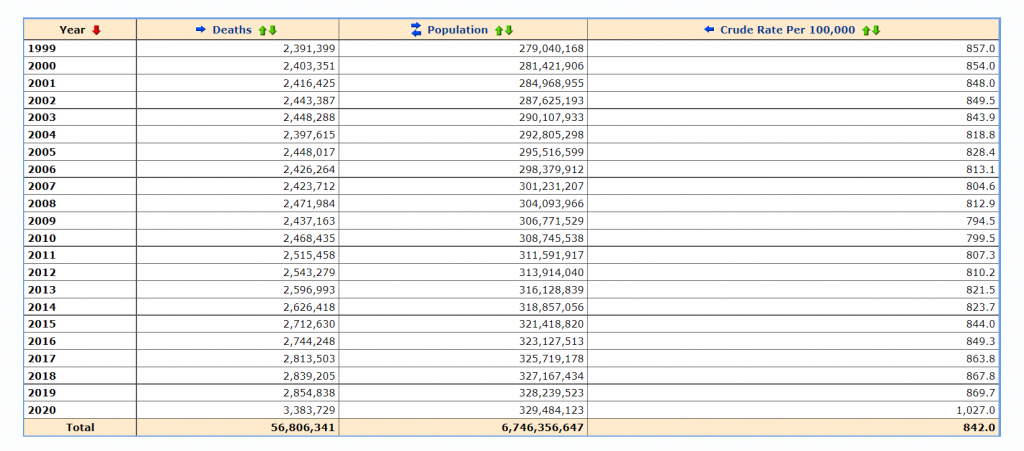
For this set of charts I’m going to use some CDC data on the US death rate per 100,000 for the years 2016 – 2020. I pulled the data from the CDC’s WONDER database.

CDC underlying cause of death data used to create my bar chart tutorials.

Citation: Centers for Disease Control and Prevention, National Center for Health Statistics. Underlying Cause of Death 1999-2020 on CDC WONDER Online Database, released in 2021. Data are from the Multiple Cause of Death Files, 1999-2020, as compiled from data provided by the 57 vital statistics jurisdictions through the Vital Statistics Cooperative Program. Accessed at http://wonder.cdc.gov/ucd-icd10.html on Apr 6, 2022 9:20:01 AM

The Canva Chart Builder

So Canva has a built in chart creator. Let’s just go ahead and start with that. You’ll find it in the Elements tab by searching for Charts.

For this bar chart I went with the basic column chart.

How to find the chart builder in Canva.  [Screenshot]

The chart populates with some fake data. I went ahead and cleared that data, then pasted in my own. You’ll also notice that you can also directly connect to data using Google sheets.

Adjusting bar chart data in Canva. [Screenshot]

Canva’s chart creator is nothing fancy. There are very few things that you can do with the chart itself.

Settings in Canva's chart builder. [Screenshot]

Conclusion. It works in a pinch, but you have far less control over the chart than you would with other tools. One of the things that I found particularly annoying is the inability to isolate a single bar and change it into another color. That’s something I do all the time with bar charts, and I’d have to hack the bar chart a bit with additional elements to make it look the way I want.

Starting with Excel

So I think at this point most evaluators would just fall back to their comfort zone and open up Excel. Even if they were ultimately trying to create an infographic using Canva. So let’s walk through how you might do that.

Simple Copy Paste

Easiest way to move a chart from Excel to Canva is just to Copy the chart in Excel then paste it into Canva.

Copying charts out of Excel. [Screenshot]

And if you like the way your chart looks in Excel, this works just fine.

Pasting charts into Canva. [Screenshot]

One thing to note is that you lose all of your ability to edit pieces of the chart post-Excel. This is because the copy/paste approach uploads the chart as a PNG file, which is a type of pixel based image.

This could be a good thing for you, because you don’t have to worry about any of your elements changing. But that also limits your ability to tweak the chart, and you could ultimately end up with a pixelated image.

Chart pasted into Canva as a PNG.[Screenshot]

Exporting an SVG

Another way to go would be to export your chart from Excel as an SVG. Simply right click on your chart and click “Save as Picture.” Then set the file type to SVG.

Saving Excel charts as SVG pictures. [Screenshot]

When we drop the svg into Canva, we end up with an image that can be stretched or shrunk without a loss in quality. Although the fonts you use might look a little wonky if the same font is not also found in Canva.

You also get very basic color controls (i.e. I can change the blue color to any other color).

Importing an SVG chart into Canva.  [Screenshot]

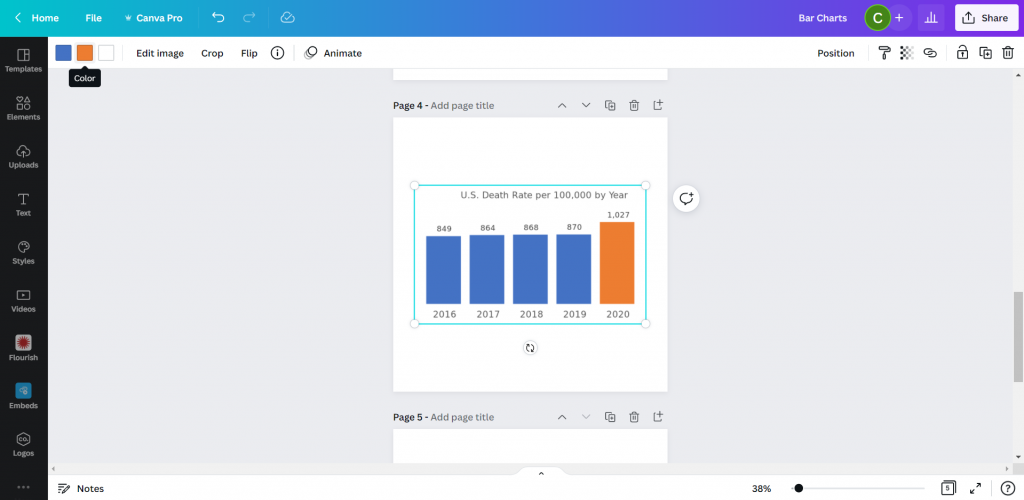
There is another little trick we can do with this. Simply color a bar you want to highlight in Excel with a different color. Then take the same step to save it as an SVG.

Saving an SVG chart with a highlight color in Excel.  [Screenshot]

Now when you drop the SVG into Canva, you’ll be able to change both colors!

Pasting a two color SVG chart into Canva.

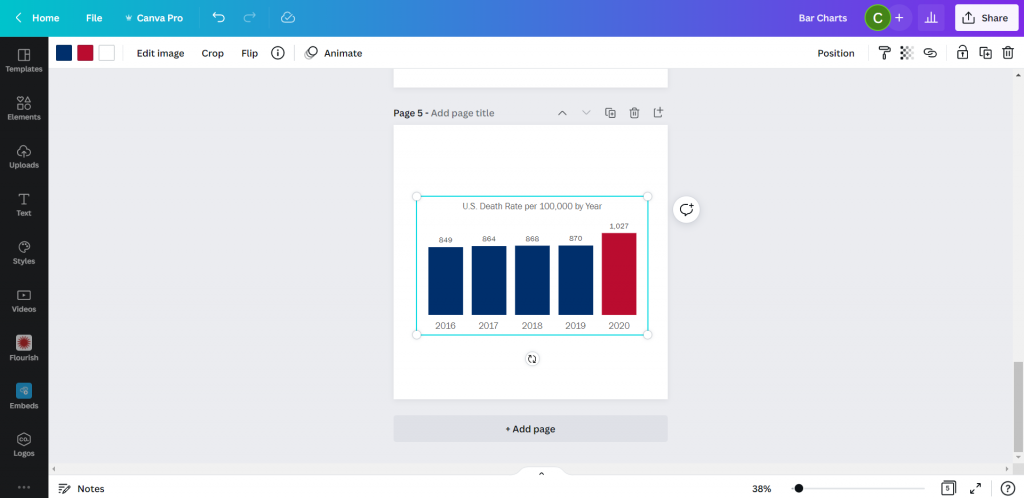
See, here is the same chart but I turned the lighter blue to a darker blue and the orange to a red. Without needing to go back to Excel.

Changing the colors of an SVG chart in Canva.

So if that works, why not just rainbow color your chart?

This might be the only time I ever suggest you try to multi-color your bar charts.

Creating a rainbow color bar chart in Excel.  [Screenshot]

Unfortunately, even though the chart ends up in Canva as an SVG, there must be some color limit. Because instead of being able to change all the bar colors, I now can’t change any of them…

Adjusting a multi-color SVG chart in Canva.  [Screenshot]

Conclusion. Sure, it works. But you’re really still just creating the chart in Excel.

Starting with PowerPoint

Okay, so I know it may seem like PowerPoint and Excel charts would convert the same way into Canva. But that’s not entirely true.

I took my Excel chart and pasted it into a new PowerPoint then saved the file. Then I uploaded the PowerPoint pptx file right into Canva.

Pasting an Excel chart into PowerPoint  [Screenshot]

At first it was buggy, but then I changed the bar color and the chart appeared. Not only did it convert, it converted directly into Canva’s chart creator format. With all the data embedded behind the scenes.

Importing a PowerPoint chart into Canva.  [Screenshot]

So now it works just like Canva’s chart creator.

Changing the color of a powerpoint chart inside Canva.  [Screenshot]

Conclusion. Yes, it works. But it ends up working just like it would with Canva’s built in chart creator. Meaning a reduced ability to change much at all.

Using Flourish

So Canva actually acquired the data visualization chart builder Flourish. You can access the integration down at the bottom of the menu page where it says “More.”

Finding the Flourish app inside Canva.  [Screenshot]

Using Flourish (which is currently Free to use) is more an integration than something you would do directly within Canva. That means you have to register for a free Flourish account and connect it to your Canva account.

Then from there, the easiest way to start is by choosing a template.

Choosing a template inside Flourish  [Screenshot]

I chose a simple column chart.

Even though it’s a simple chart, there are tons of options you have control over. This can be both a benefit and a curse. Because you have to sift through all the options to find the ones you want to change. It can be a bit overwhelming.

Creating a simple column chart using Flourish  [Screenshot]

After you are done creating your chart you can click the “export & publish” button to add your chart to Canva.

Adding a Flourish chart to a Canva presentation.  [Screenshot]

Ultimately though, once you connect your Canva and Flourish accounts, you have access to all of your Flourish visualizations from directly within Canva.

All changes you want to make to your chart, except for size and placement, need to be done inside the Flourish editor.

Finding your connected Flourish charts inside of Canva.  [Screenshot]

Conclusion. Using flourish might seem like overkill, and sometimes it will be overkill. But you can do things with Flourish that you can’t do with a lot of the previously mentioned tools. Flourish can even be used to create interactive visuals, which will then live within your Canva designs. This means you can use Flourish mixed with Canva to build full fledged interactive dashboards.

Pixel Math

Okay, so I don’t know if it’s because I’m a big nerd, but this tends to be the way I create most basic charts. In a nutshell, it’s like a digital version of using a pencil alongside a ruler.

I start with a shape (usually a rectangle).

Using shapes to create a chart in Canva  [Screenshot].

Then I will measure the length of that shape based on the number of Pixels shown when I stretch the image on Canva. The current pixel dimensions of my square canva page are 1080 by 1080. My 5 bars will range in size from 849 to 1027. Each person gets a pixel and I still have a little room at the top and bottom of the page.

Measuring a bar using Pixels in Canva  [Screenshot]

You’ll the see the sizing guide pop up as you stretch a bar. I’ll create the first bar, then copy and paste. Zooming into the page will help you size the bars better as you get closer to your target number of pixels.

Zooming in to help measure a bar using Pixels in canva  [Screenshot].

Then once I’m done, I have a chart that’s way too big (or sometimes too small). But this is easy enough to solve, I just group all the bars together.

After you do your first sets of pixel measurement, you can group your bars and scale them up or down. Just keep in mind that if your numbers are not set (as in you will likely be changing the data in your chart at some point) you are not going to want to change the scale.

The measured pixel math bar chart.  [Screenshot]

Doing my charts this way I have almost complete control over their style. I just need to overlay some text for the labels and title.

Grouping and adjusting the pixel math bar chart in Canva.  [Screenshot]

And then once you have your chart finished, just keep the elements grouped and you can move it all around the page, stretch it, shrink it, change the colors, or change the fonts.

Turning the bar chart into an infographic in Canva.  [Screenshot]

Conclusion. Okay, so this isn’t for everyone. With pixel math you are relying on your own mathematical skills and grasp of geometry. But I find for simple charts, sometimes it’s easier to just measure out some bars than try to bend a chart creation tool to your will.

Parting thoughts

So which chart creation tool is the best?

Probably none of them. I really wish the native Canva chart builder was better. Just being able to isolate the individual bars would make it far more effective.

There are also tons of other chart creation tools out there that can be used alongside Canva. From R to Tableau to Google Sheets.

Just pick the tool that works best for you.

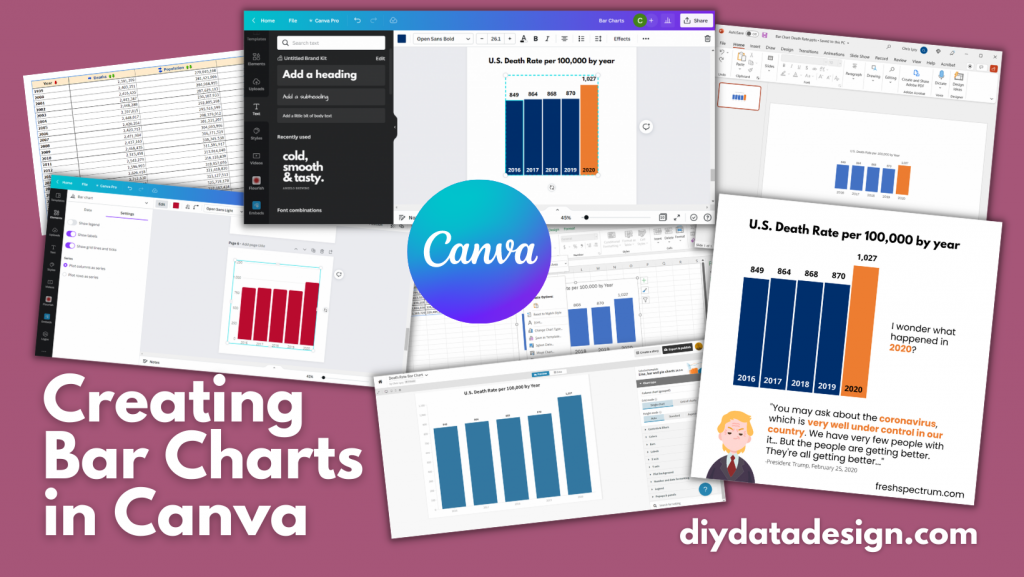
Bar chart showing 5 years of data on the US death rate per 100,000 by year.  In 2016 the rate was 849, then it was 864, 868, and 870.  In 2020 that number jumped to 1,027.

I wonder what happened in 2020?

There is a quote from President Trump at the bottom of the image, "You may ask about the coronavirus, which is very well under control in our country. We have very few people with it...But the people are getting better. They're all getting better..."
President Trump, February 25, 2020.

Written by cplysy · Categorized: freshspectrum

Apr 06 2022

Ask Nicole: Applying Reproductive Justice Beyond Programs & Services

Have a question you’d like to be featured? Let me know. Reproductive Justice presents an added layer to how organizations engage and hold themselves accountable to the communities they work with. While program design, monitoring and evaluation go hand in hand, it can be difficult to envision how this framework looks beyond programs and services. […]

The post Ask Nicole: Applying Reproductive Justice Beyond Programs & Services appeared first on Nicole Clark Consulting.

Written by cplysy · Categorized: nicoleclark

Apr 05 2022

Organizational Energy Priorities (For Humans)

Whether it is strategy or wellbeing programming, we all rely on energy to make them work. There is a tendency in organizational behaviour consulting to focus on the cognitive qualities of decisions, change-making, and action. These qualities are things like our thoughts, ideas, and confidence in doing something. Sometimes they are about emotions. What’s often missing is what converts all of this into action: energy.

Yet, it’s our ability to convert our thoughts and manage our emotions that determine our ultimate success with efforts to change. Without energy, we can’t move from intent to action.

Energy Assessment

When we speak of energy we refer to the capacity to convert thoughts, sensations and emotions into intentions, designs, and actions. This is our ability to sense, dream, hope, plan and take action toward a goal.

This is a simple idea. It’s the application that is complicated. The reason for this is that we need to get in touch with what it is that we think, sense, and feel? We encourage people to think of three things in assessing energy:

Thoughts: What are we thinking about? What is holding our attention? Where does our mind, our attention, and focus wander?

Sensations: What are we feeling, hearing, or experiencing in our body? Where are we feeling it? What is capturing our sensations like touch, feel, sound (even taste)? This is as much about our physical energy as it is our body reacting to the world around it.

Emotions: What are our feelings? Where and how do we feel about things?

These questions shape our energy stores – the amount of energy we have available. Thoughts, feelings, and sensations in their quantity and intensity all require energy to attend to. The more we have and the more intense they are, the more we need to manage this in order to convert energy into action.

They are attractors that draw us toward or away from something. These attractors can also help us to clarify our strategic intent and what we’re really interested in. Our efforts at change, wellbeing, and innovation fail when we misalign our intent and desires with our energy. Pay attention to where you pay attention.

Energy matters because it is what converts our interests into actions. A good sense of what gives and draws energy helps us to determine the attractors that pull or push us to and from things.

Energy Stores and Design

Another important concept in energy assessment is recognizing that sometimes we don’t have much energy. It takes time to ‘top-up’ our energy stores after they’ve been depletion. A highly emotionally charged experience can deplete our energy stores. This is even more salient when we have a prolonged intensive experience (e.g., consider the COVID-19 pandemic, a stressful merger etc., a personal injury).

Design is shaping what is to come with intent. When we follow energy our designs are best when they account for what energy we have and what energy we need to make the design a reality. This approach means that we take energy into account as one of the materials of design.

Launching a strategic change initiative requires that we consider building up energy stores as part of our design process. Leading an exhausted, depleted workforce requires specific strategies. It requires flexibility, modelling, work redesign, and compassion (among others). This is before we even create a specific strategy, plan, or prototype.

We argue for doing check-ins on energy stores — looking at people’s thoughts, feelings, and sensations — regularly throughout the process. This can be done in many ways and doesn’t have to be formal or complicated. Simple check-ins will work. Doing this will allow us to determine if we have the energy to fuel the change we want.

Our human energy is a part of our designs and the limiting factor in making our changes real.

We work with organizations to help them change, grow, and heal. If you want help in creating a culture of innovation and wellbeing in your organization, let’s grab a coffee and talk about your needs.

Image Credit: Matthew Henry on Unsplash

The post Organizational Energy Priorities (For Humans) appeared first on Cense Ltd. .

Written by cplysy · Categorized: cameronnorman

Apr 04 2022

How to Avoid Death by PowerPoint by Differentiating Between Slidedocs and Slidedecks

Do you use PowerPoint? Probably.

What do you use PowerPoint for?

You might use PowerPoint to:

  1. Create slides to accompany a presentation (i.e., you’re getting ready to speak at a conference, meeting, or other in-person or virtual event); and/or
  2. Create documents that someone can read on their own (i.e., when you’ll circulate the slides as an email attachment before or after a meeting).

I talked with Boris Hristov on the World of Presentations podcast about this distinction.

Ann K. Emery and Boris Hristov talking about how to avoid Death by PowerPoint.

Other times, we need to use PowerPoint for standalone docs like email attachments or printed handouts.

Without a clear distinction, we run into Death by PowerPoint — presentation slides that are as dense as reports. Or, reports that are as sparse as presentations.

Boris is the founder of presentation agency 356labs and a PowerPoint MVP. Boris has years of experience as a trainer, mentor, and consultant and has trained and coached not just students, but also people from the IT, sales, marketing and management fields in topics ranging from presentation skills and storytelling through the psychology behind slide design.

You can watch our conversation or read the highlights below.

Watch Our Conversation

Want to learn more about the distinction between slidedocs and slidedecks?

Here’s a recording of the podcast episode:

How to Differentiate Between Slidedocs and Slidedecks

In this episode, you’ll learn how to differentiate between slidedocs and slidedecks when using presentation software like PowerPoint or Google Slides.

Slidedecks are presentation slides that accompany the speaker, and they’ll generally have as little text as possible and plenty of high-quality images.

Slidedocs are standalone documents that just happen to be made in PowerPoint instead of Word. Since they’re meant to be reports, they’ll need more full sentences.

You’ll learn about five specific ways to design better slidedecks and slidedocs:

  1. Titles and Headings
  2. Amount of Text
  3. Font Size
  4. Visuals
  5. Length

Titles and Headings

The first difference we should see between slidedecks and slidedocs is the wording.

In slidedocs, I recommend takeaway titles, which have the “so what?” directly in the headings, subheadings, and graph titles.

In slidedecks, I used to say that topical titles were okay because the presenter would explain the “so what?” with their voice.  But, nowadays, I recommend using takeaway titles for both formats (for presentations and documents). Our audiences are busy, and I can’t risk confusing them.

Amount of Text

In slidedecks, we should aim for as little text as possible. No full paragraphs. No full sentences. Key phrases only. The speaker fills in the information with his or her voice.

In slidedocs, I recommend using full sentences and paragraphs. This is a report, after all. Our readers need to understand the content on their own; there won’t be a presenter explaining the information to them. Our report just happens to be made in PowerPoint.

Font Size

Slidedecks need large font (size 18+ for body text). For in-person presentations, the text needs to be big enough for people in the verrrry back of the room to see it. For virtual presentations, the text needs to be big enough for people to read it from their phone screens.

Slidedocs are essentially just reports, so they need report-size font (~size 11 for body text).

Visuals

I recommend storytelling graphs for both slidedecks and slidedocs.

“The term data storytelling is used different ways,” you’ll hear me say in the podcast. Storytelling graphs have an intentional dark/light contrast, accompanied by takeaway graph titles.

Our brains can’t help but notice dark colors, so choose one key point that you want your audience to focus on, and make that darker.

For slidedecks, I recommend just one graph per slide to focus your audience. That way, the audience members are actually looking at the right graph as you talk about it. If we put too many graphs on the screen at once, we risk losing their attention.

Length

When we’re designing slidedocs, we typically need to stay within page limits. There might be written or unwritten rules about keeping the report to 3, 5, or 10 pages, for example.

When we’re designing slidedecks, we should ignore “rules” about slide limits. Use as many slides as you need! In the podcast, you’ll hear me explain that “You’re clicking through [the slides] at a faster pace, but you’re not slurring your speech or talking really, really fast to get through everything.” You’re showing less per slide, and keeping the pace nice and quick.

Quick Dataviz Wins for Presentations

Finally, in the podcast, Boris asked me for data visualization tips.

I shared several Quick Wins that benefit our busy audiences. “People are very hard working, they’re very highly educated, I think we just don’t have the time,” I explained. “These are some tips to help speed up [the audience’s] comprehension knowing they live in a busy world.”

Quick tips include:

  1. Round decimal places to the nearest whole number;
  2. Avoid ALL CAPS; and
  3. Left-align text instead of centering.

Dataviz Book Recommendations

Boris asked me for book recommendations. Here are the books I mentioned:

  • Storytelling with Data by Cole Nussbaumer
  • How Charts Lie by Alberto Cairo
  • Presentation Zen Design by Garr Reynolds

Connect with Boris Hristov

  • World of Presentations Podcast: https://356labs.com/podcast/
  • Twitter: @brshristov
  • LinkedIn: @brshristov
  • Present to Succeed Conference: https://www.presenttosucceed.com/

Your Turn

Do you use PowerPoint for slidedecks, slidedocs, or both?

Ann K. Emery and Boris Hristov talking about how to avoid Death by PowerPoint.

Written by cplysy · Categorized: depictdatastudio

  • « Go to Previous Page
  • Go to page 1
  • Interim pages omitted …
  • Go to page 132
  • Go to page 133
  • Go to page 134
  • Go to page 135
  • Go to page 136
  • Interim pages omitted …
  • Go to page 304
  • Go to Next Page »

Footer

Follow our Work

The easiest way to stay connected to our work is to join our newsletter. You’ll get updates on projects, learn about new events, and hear stories from those evaluators whom the field continues to actively exclude and erase.

Get Updates

Want to take further action or join a pod? Click here to learn more.

Copyright © 2026 · The May 13 Group · Log in

en English
af Afrikaanssq Shqipam አማርኛar العربيةhy Հայերենaz Azərbaycan dilieu Euskarabe Беларуская моваbn বাংলাbs Bosanskibg Българскиca Catalàceb Cebuanony Chichewazh-CN 简体中文zh-TW 繁體中文co Corsuhr Hrvatskics Čeština‎da Dansknl Nederlandsen Englisheo Esperantoet Eestitl Filipinofi Suomifr Françaisfy Fryskgl Galegoka ქართულიde Deutschel Ελληνικάgu ગુજરાતીht Kreyol ayisyenha Harshen Hausahaw Ōlelo Hawaiʻiiw עִבְרִיתhi हिन्दीhmn Hmonghu Magyaris Íslenskaig Igboid Bahasa Indonesiaga Gaeilgeit Italianoja 日本語jw Basa Jawakn ಕನ್ನಡkk Қазақ тіліkm ភាសាខ្មែរko 한국어ku كوردی‎ky Кыргызчаlo ພາສາລາວla Latinlv Latviešu valodalt Lietuvių kalbalb Lëtzebuergeschmk Македонски јазикmg Malagasyms Bahasa Melayuml മലയാളംmt Maltesemi Te Reo Māorimr मराठीmn Монголmy ဗမာစာne नेपालीno Norsk bokmålps پښتوfa فارسیpl Polskipt Portuguêspa ਪੰਜਾਬੀro Românăru Русскийsm Samoangd Gàidhligsr Српски језикst Sesothosn Shonasd سنڌيsi සිංහලsk Slovenčinasl Slovenščinaso Afsoomaalies Españolsu Basa Sundasw Kiswahilisv Svenskatg Тоҷикӣta தமிழ்te తెలుగుth ไทยtr Türkçeuk Українськаur اردوuz O‘zbekchavi Tiếng Việtcy Cymraegxh isiXhosayi יידישyo Yorùbázu Zulu