• Skip to main content
  • Skip to footer
  • Home

The May 13 Group

the next day for evaluation

  • Get Involved
  • Our Work
  • About Us
You are here: Home / Archives for allblogs

allblogs

Oct 01 2021

Participatory Approach Tips for Nonprofits

Written by cplysy · Categorized: connectingevidence

Sep 28 2021

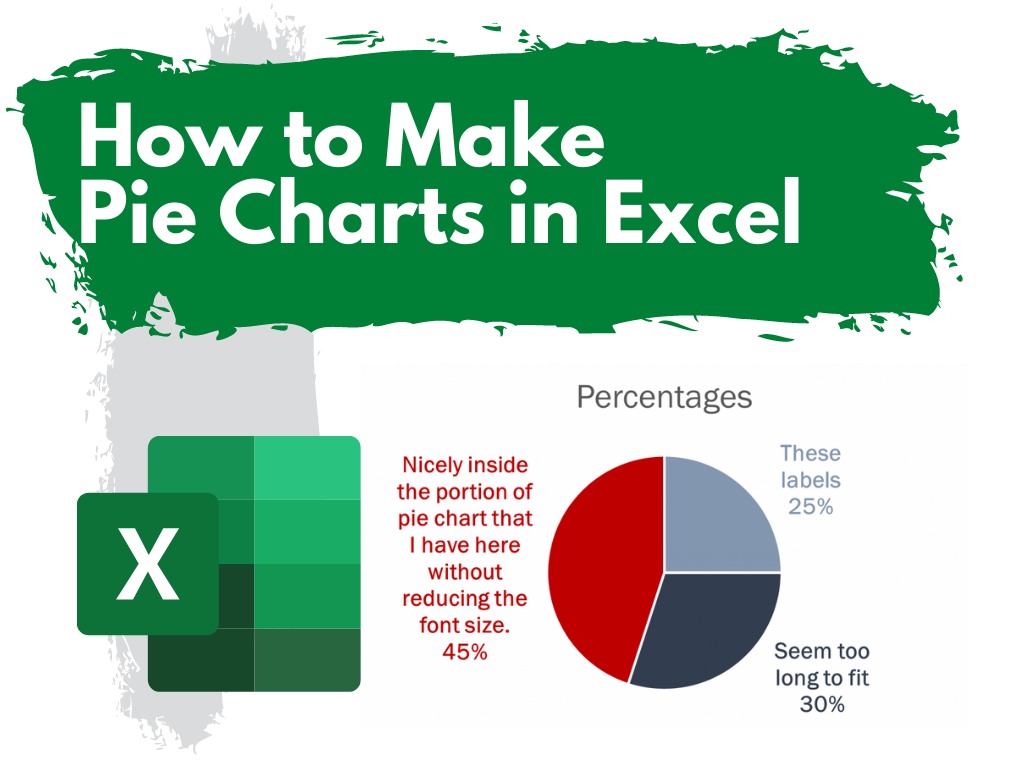
How to make a pie chart in Excel


This is the fourth in a series of posts on chart design in Excel. In each post we will take on a different chart type. Today we’ll go with a chart that is widely used but often maligned by chart experts, the Pie Chart.

What you’ll find in this post:

  • An Oversimplified How To
  • How to create a good looking pie chart.
  • When to use a pie chart (and when not to use a pie chart).
  • Why pie charts don’t actually suck.
  • Some other considerations.
How to Make Pie Charts in Excel

An Oversimplified How To

Creating a pie chart (a.k.a. pie graph) is really simple in Excel. It just takes a column of data and a couple of buttons.
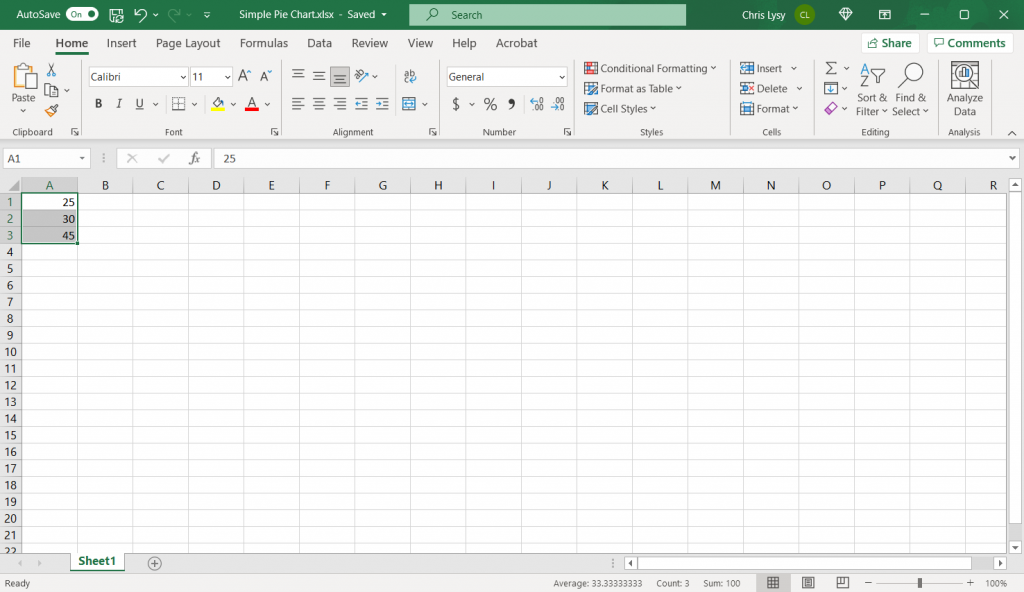
How to make a pie chart in Excel, step 1.

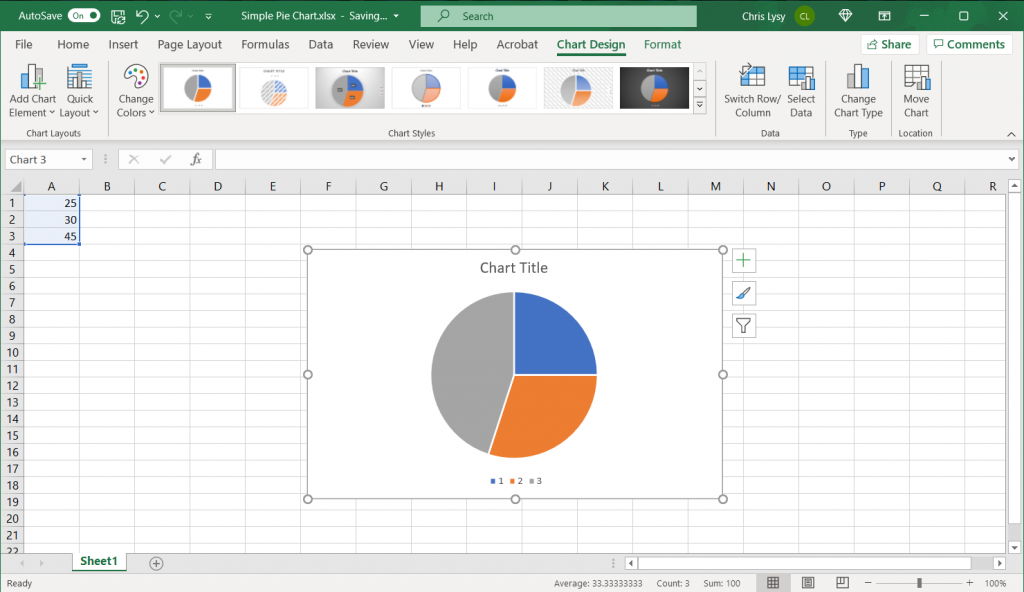
Step 1. Highlight a column of numbers.
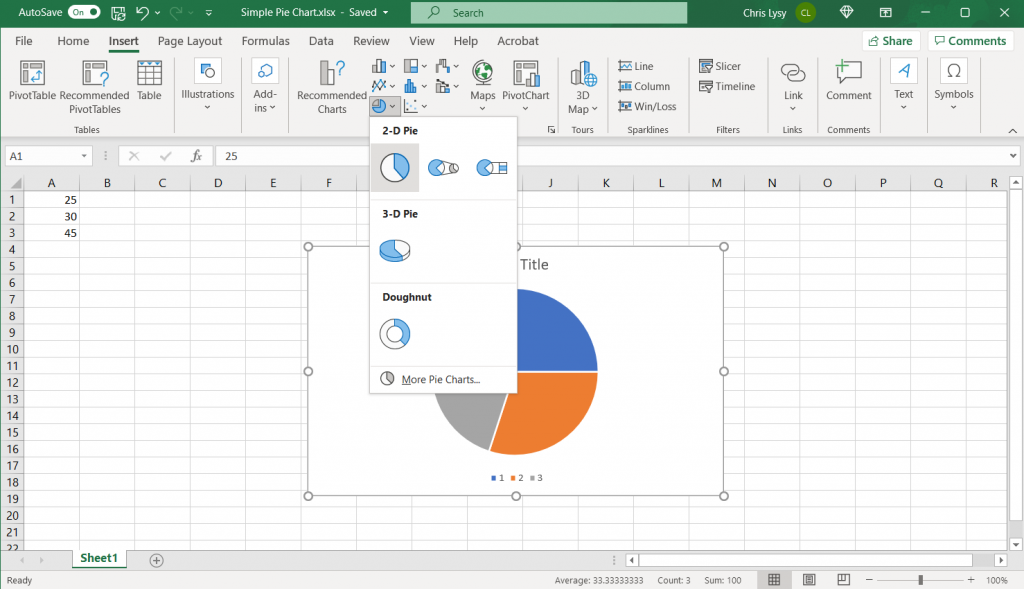
How to make a pie chart in Excel, step 2

Step 2. Click on the insert tab, then the pie chart icon. Then select the first 2-D Pie.

*If you have any instinct to click the 3-D Pie button, resist that instinct. 3-D will distort the data.
How to make a pie chart in Excel, step 3

Step 3. Woohoo, you created a pie chart!

How to create a good looking pie chart.

Okay, so that’s the most basic of basics. Here are some more steps you probably want to take to create something worth sharing.

Labeling your graph.
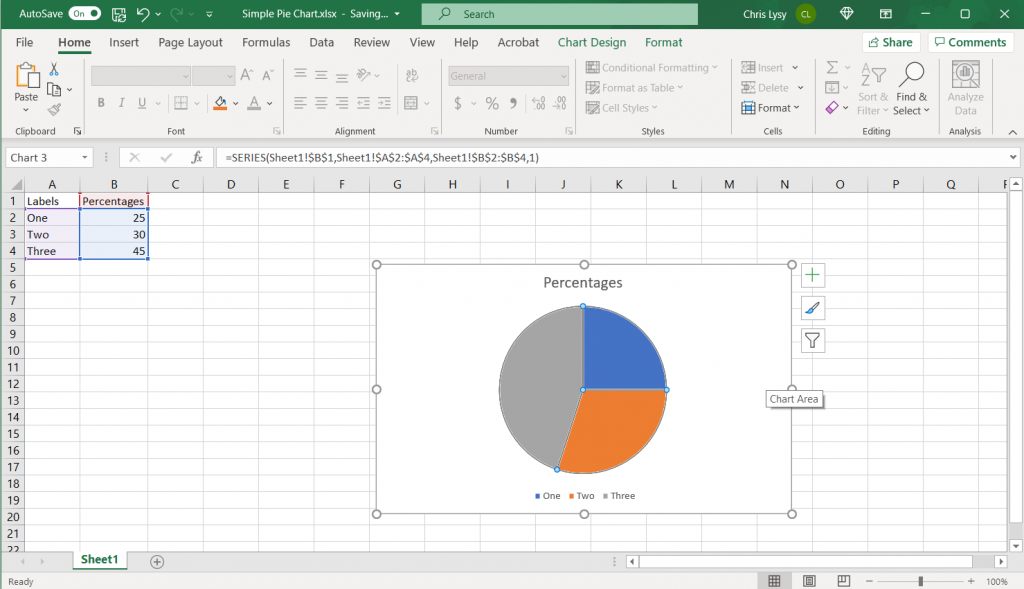
How to make a pie chart in Excel Example Screenshot, Labeling your graph

So in addition to just a column of numbers it’s a good idea to have row labels and column headers. Lots of pie charts are created using percentages that add up to 100. I’ll just pretend my data is real and not fake.

Directly Label the Pie Chart Portions
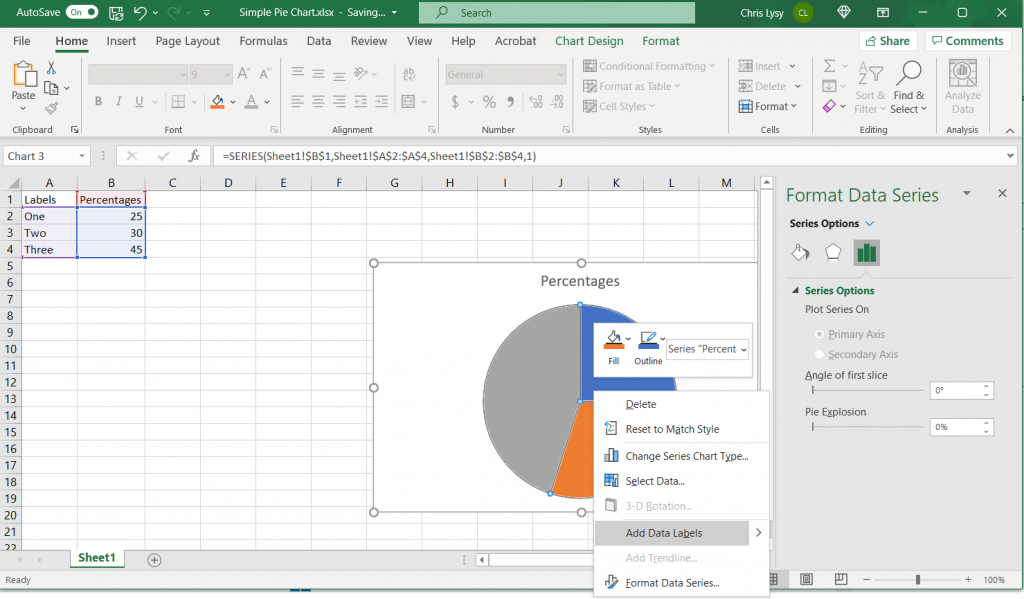
How to make a pie chart in Excel Example Screenshot, Directly label pie chart slices

I don’t like the legend at the bottom. So I’m going to delete that (click on the legend and press the delete button) and then directly label the pie chart portions. You do this by right clicking on the pie chart and selecting “Add Data Labels” from the menu.

Changing the Label Position
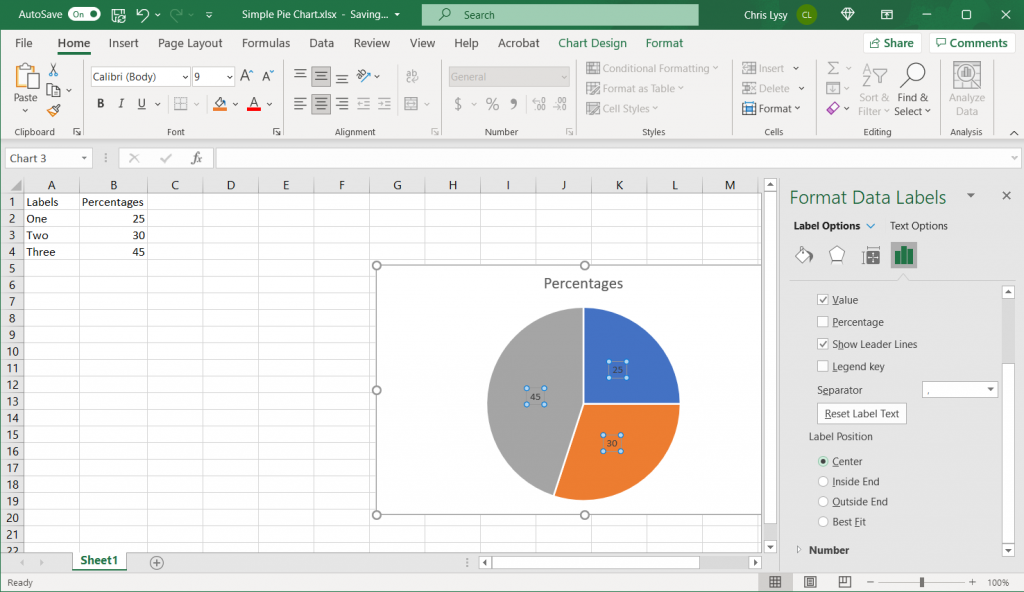
How to make a pie chart in Excel Example Screenshot, Changing the Label Position

The labels need more work. I don’t like Excel’s “Best Fit” so I’m going to change the label position. Just right click on the label and select “Format Data Labels” to bring up the menu.

Adding the Category Name to the Data Label
How to make a pie chart in Excel Example Screenshot, Adding the Category Name to the Data Label

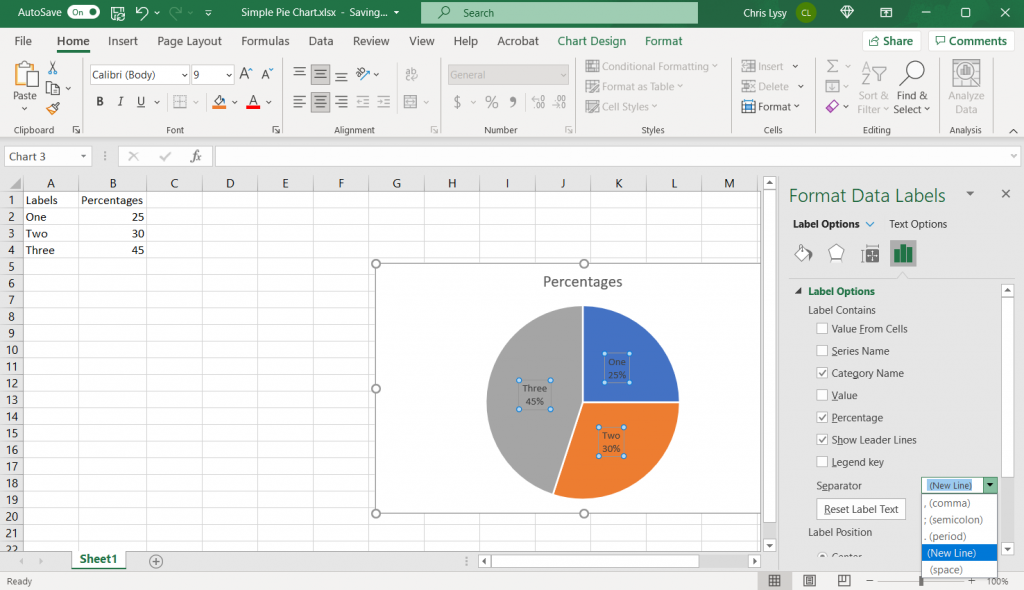
I also want to add the category name to the label. In the same Format Data Labels menu as the previous step, just click on the Category Name box. I’m also going to unclick the “Value” box and click on the “Percentage” box. Then add a “(New Line)” separator.

Format Data Labels Color and Font
How to make a pie chart in Excel Example Screenshot, Format the Color and Font

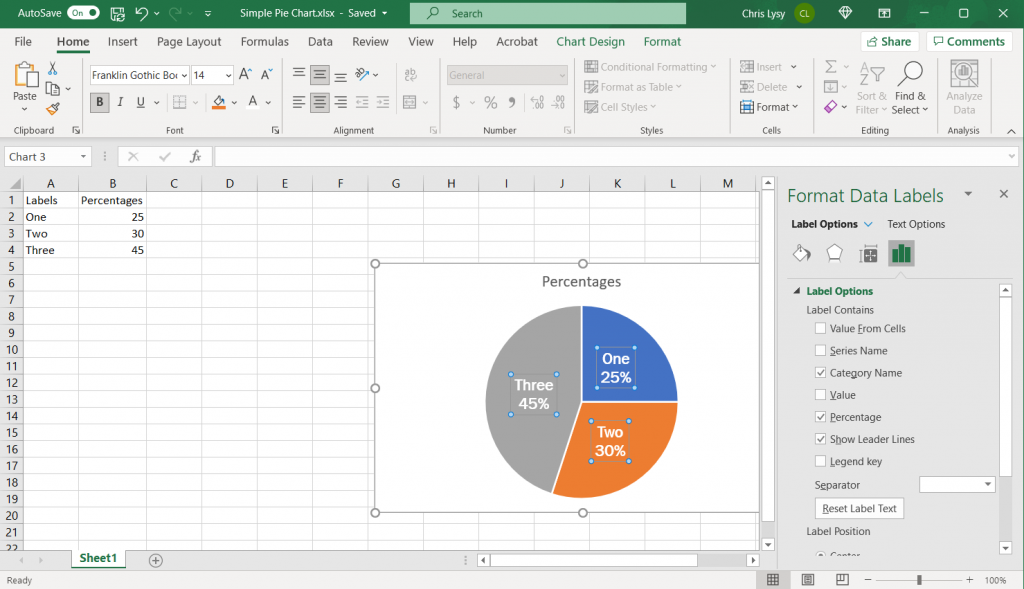
While I have the data labels selected, I’m going to move to the top of the page and change the font, font size, and data label color.

Changing Colors with Intention
How to make a pie chart in Excel Example Screenshot, Changing Colors with Intention

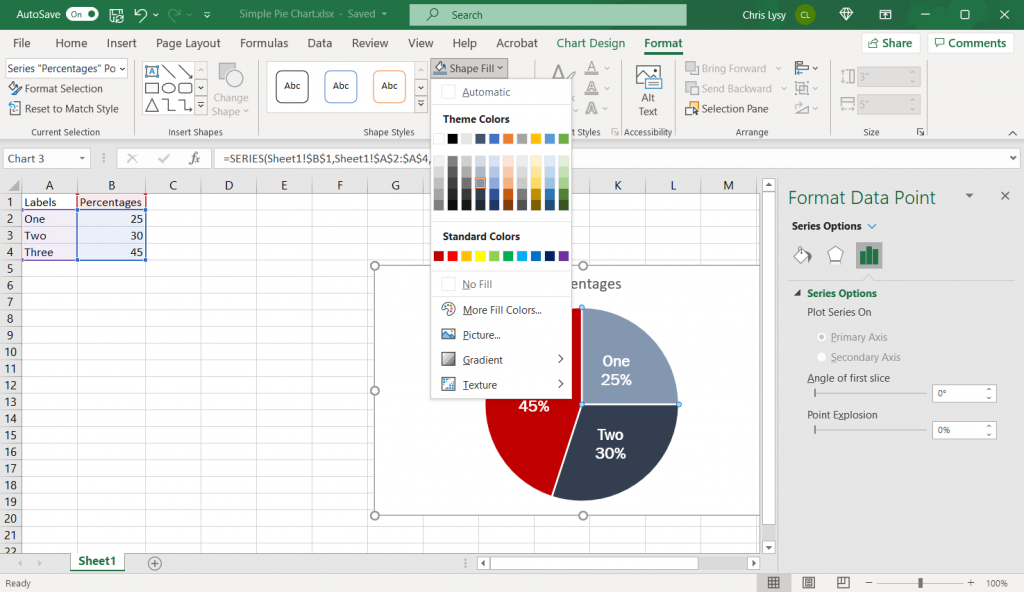
I also want to change the pie chart colors off the default. I like using a highlight color when possible (especially when I am going to discuss the chart in the body of a text). I’ll use a strong color (say red) for the highlight. Then I’ll draw from a gray scale for the other two segments.

If you think this might get printed in black and white, I suggest pulling the 3 colors from different color rows. So in my case, the darkest red, the second darkest gray/blue, and the third darkest gray/blue.

Taking away the outline.
How to make a pie chart in Excel Example Screenshot, taking away the chart outline

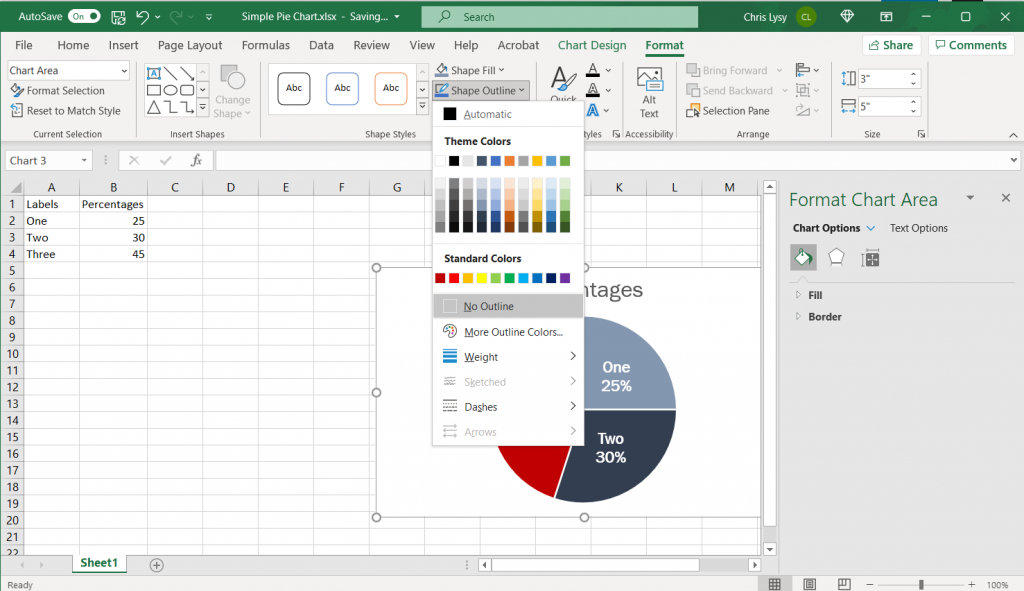
If you plan to copy this chart into another type of document, I suggest taking away the random chart outline Excel puts in by default. Just click on the chart box, and then select “No Outline.”

What if your pie chart category labels are too long?
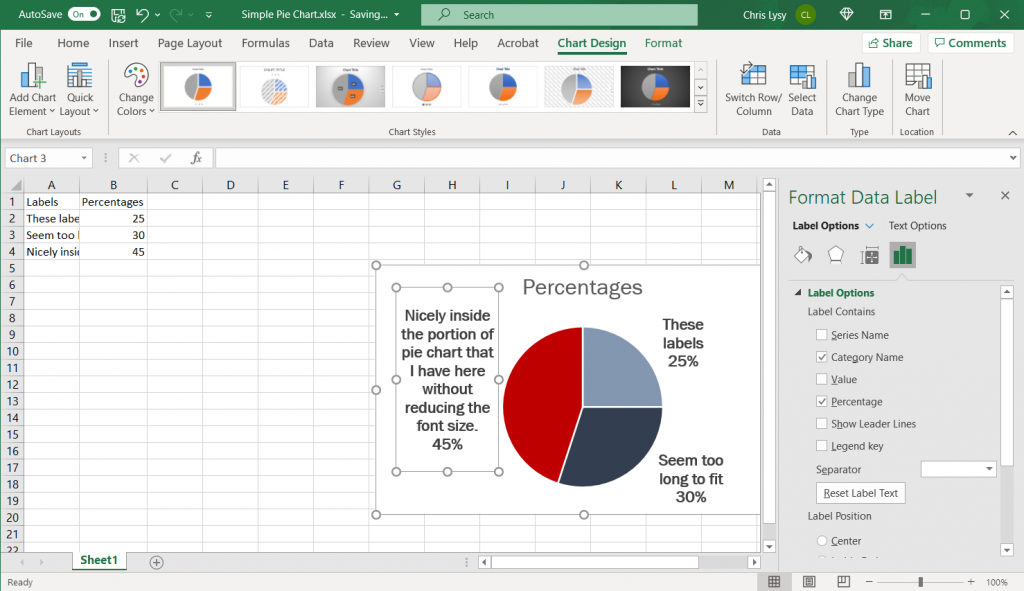
How to make a pie chart in Excel Example Screenshot, what to do with longer category labels

If your category labels are too long to fit inside your pie chart, switch the label position to the outside. You also might need to extend the default textbox to show all the included text, and maybe shift it around the chart.

Color matching your labels to your pie chart segments.
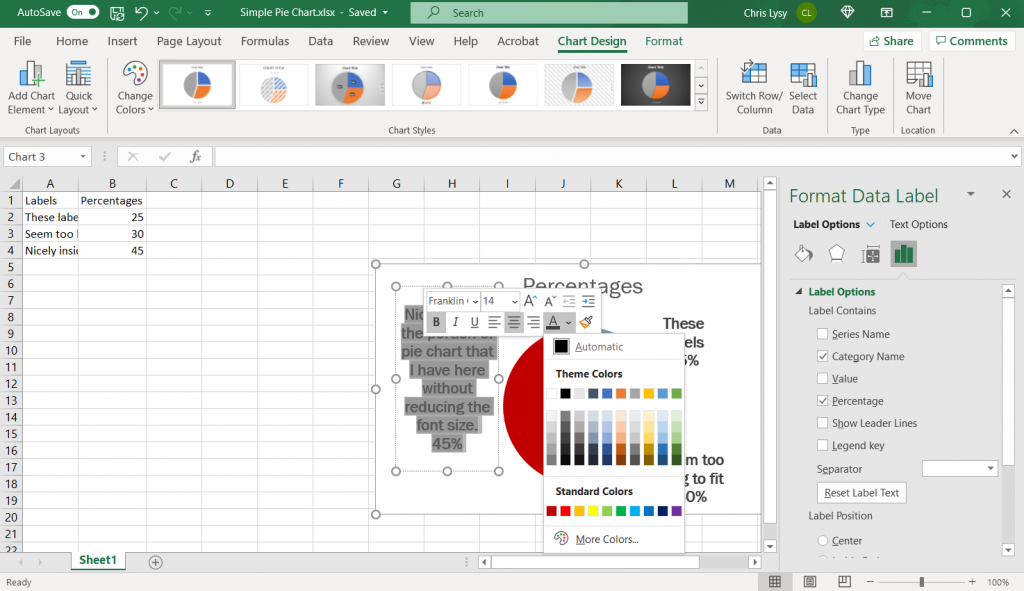
How to make a pie chart in Excel Example Screenshot, color matching labels to pie slices

Depending on the colors you are using for your pie chart (and the number of slices), you might choose to adjust the color of the text to match each slice. This is best when you only have a few slices (which is really best with pie charts in general).

Saving the Image
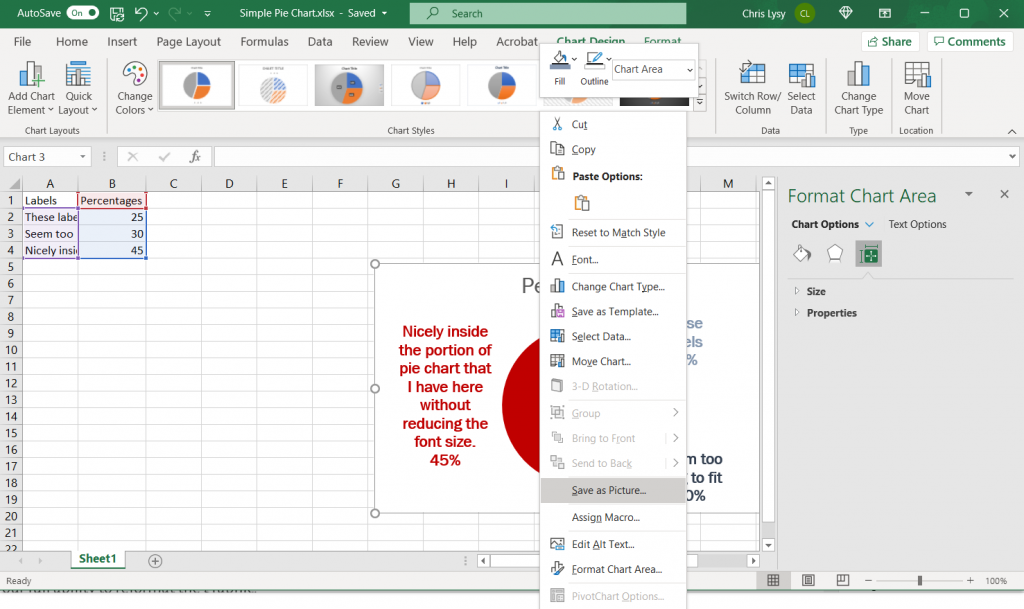
How to make a pie chart in Excel Example Screenshot, saving as picture

Once you have made all the changes you want to the chart you can save it as a picture. Just right click on the chart area and click “Save as Picture.”

Alternatively, you can just copy and paste the chart from Excel into Word or PowerPoint. If you’re staying within the Office suite, this is the ideal way to move the image as it retains your full ability to reformat the graphic.
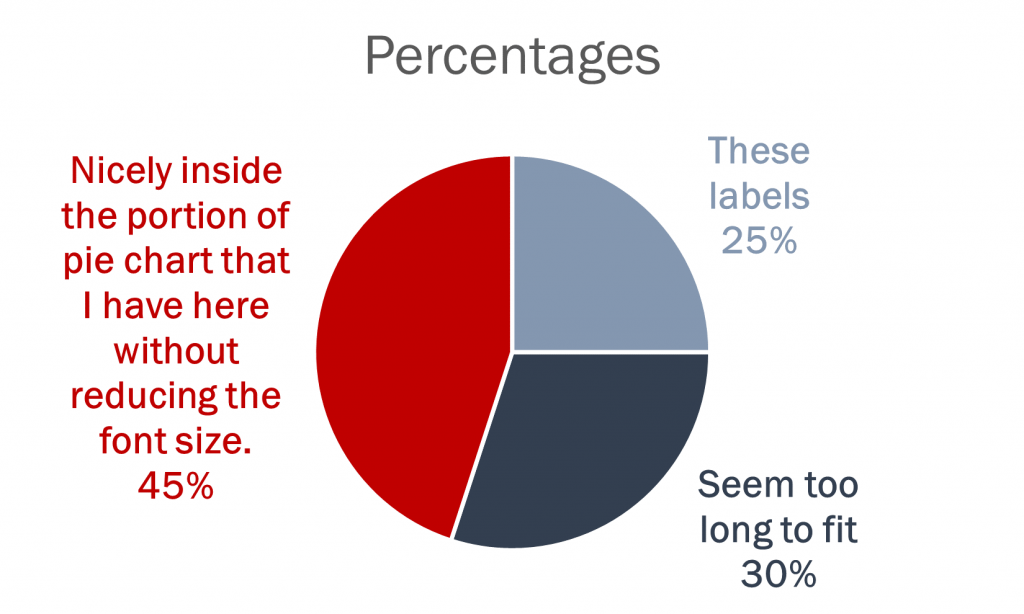
How to make a pie chart in Excel Example Screenshot, finished pie chart example

Beyond the Basics

Generally though I suggest keeping the chart itself simple and minimalist. You can always add flare through annotations/additional graphics. Doing things like making your charts 3D doesn’t help the presentation, it just makes the chart harder to interpret and can also skew the data.

When to use a pie chart (and when not to use a pie chart).
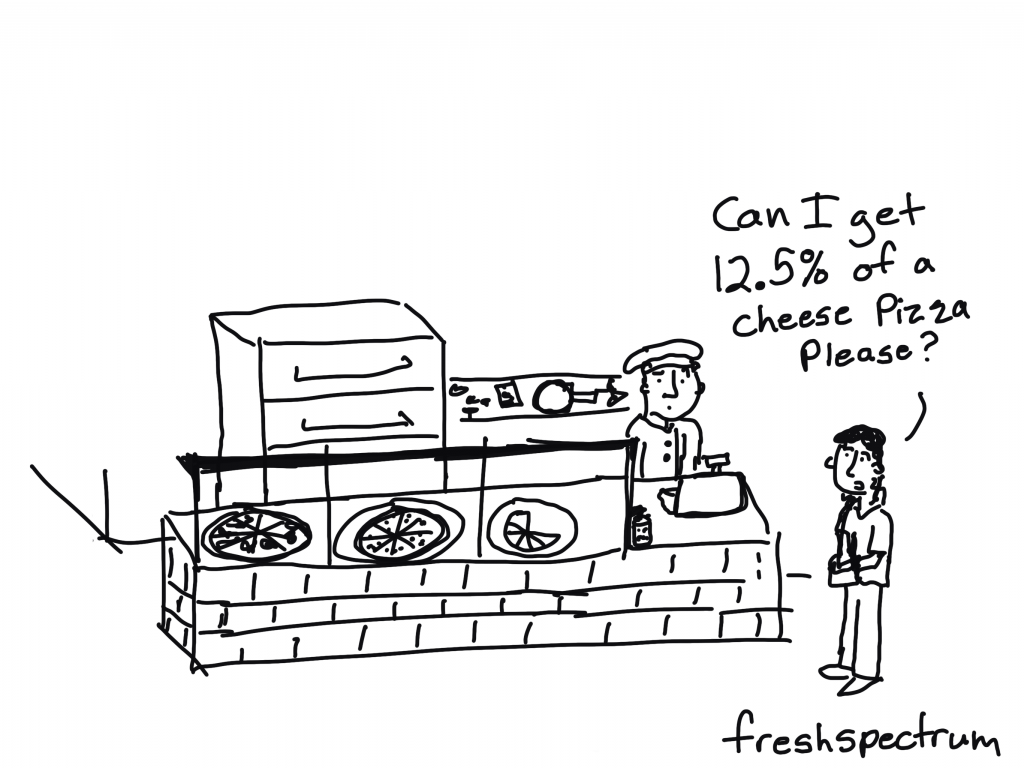
freshspectrum cartoon by Chris Lysy, "Can I get 12.5% of a cheese pizza please?"

Pie charts are used to break down things.

Take for instance, a budget. Let’s say you want to have a visual showing the break down of the budget into 4 different spending categories. You can certainly use a pie chart for that, as long as you don’t need your audience to precisely compare the sections.

In other words, you just kind want to show the gist of how a budget is broken down without getting into the comparison weeds.

Pie charts are probably better than any other visual for expressing a part-to-whole relationship. When you hear “percent of…” or “part of…” that’s one indication a pie chart could meet your needs.

Storytelling with Data – What is a Pie Chart?

So when shouldn’t you use a pie chart?

A lot of the time. If you wanted to have a default chart that you used over and over again, you would be better off with a bar chart. A bar chart is going to make comparing categories easier. It’s just way more precise.

But not every design choice is about visual precision.

Pies and doughnuts fail because:

Quantity is represented by slices; humans aren’t particularly good at estimating quantity from angles, which is the skill needed.

Matching the labels and the slices can be hard work.

Small percentages (which might be important) are tricky to show.

The University of Melbourne Statistical Consulting Centre – Why you shouldn’t use pie charts

Why pie charts don’t actually suck.

I really like this quote by data journalist and artist Mona Chalabi,

On a computer, data looks slick. I draw over it to show that data isn’t always precise. The lines aren’t completely straight to show that there is a margin of error in all data sets.

Fast Company – To tell the real story, data journalist Mona Chalabi draws imperfect lines

Hang out with enough data visualization people and you’ll hear a lot of pie chart hate. That hate inspired the following cartoon a few years back, and it’s still a regular holiday favorite among my cartoon fans.
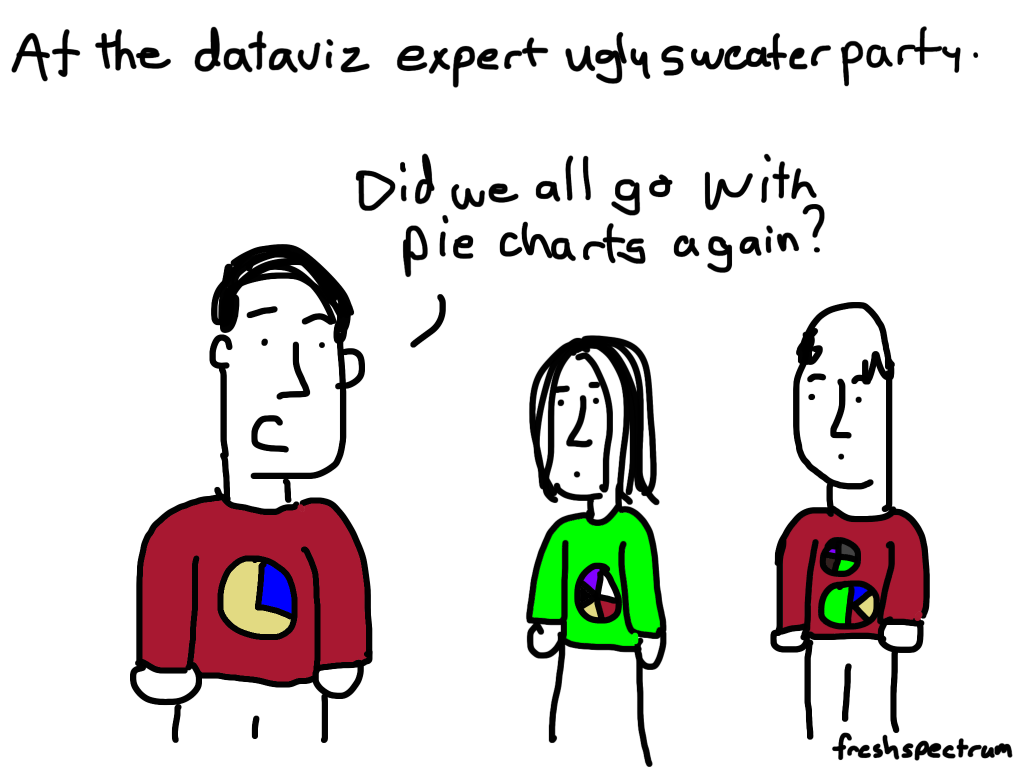
freshspectrum cartoon by Chris Lysy, "At the dataviz expert ugly sweater party. Did we all go with pie charts again?"

But I think the hate is a bit overdone.

I mean check out this pie chart I pulled from Wikipedia’s entry on US Government Spending.
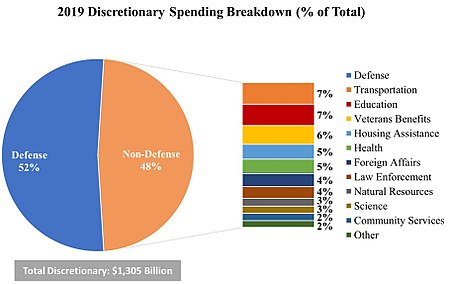
Defense spending pie chart example.
Wikipedia – Government Spending in the United States

We’re not looking at this chart to compare the differences in the amount of discretionary funding between Law Enforcement and Foreign Affairs. The basic gist of the chart is this, the US budgets over half of it’s discretionary funds to defense, more than all those other categories combined.

freshspectrum cartoon by Chris Lysy, "You know, if you used a bar chart, it would be much more precise."
"Of course it would. But given the small sample size, the added precision would be misleading."

One of the dangers of charts is that you can make a dataset look far more precise than it ever should look. And in those cases (such as in surveys with low response rates) maybe stepping back your level of visual precision isn’t such a bad thing.

Other Considerations

How many slices?

I tend not to like charts that use any more than a few. 2 or 3 slices tend to work best. Unless your point is that a single slice makes up most of the chart, and you have a bunch of itty bitty little slices there to prove their unimportance.
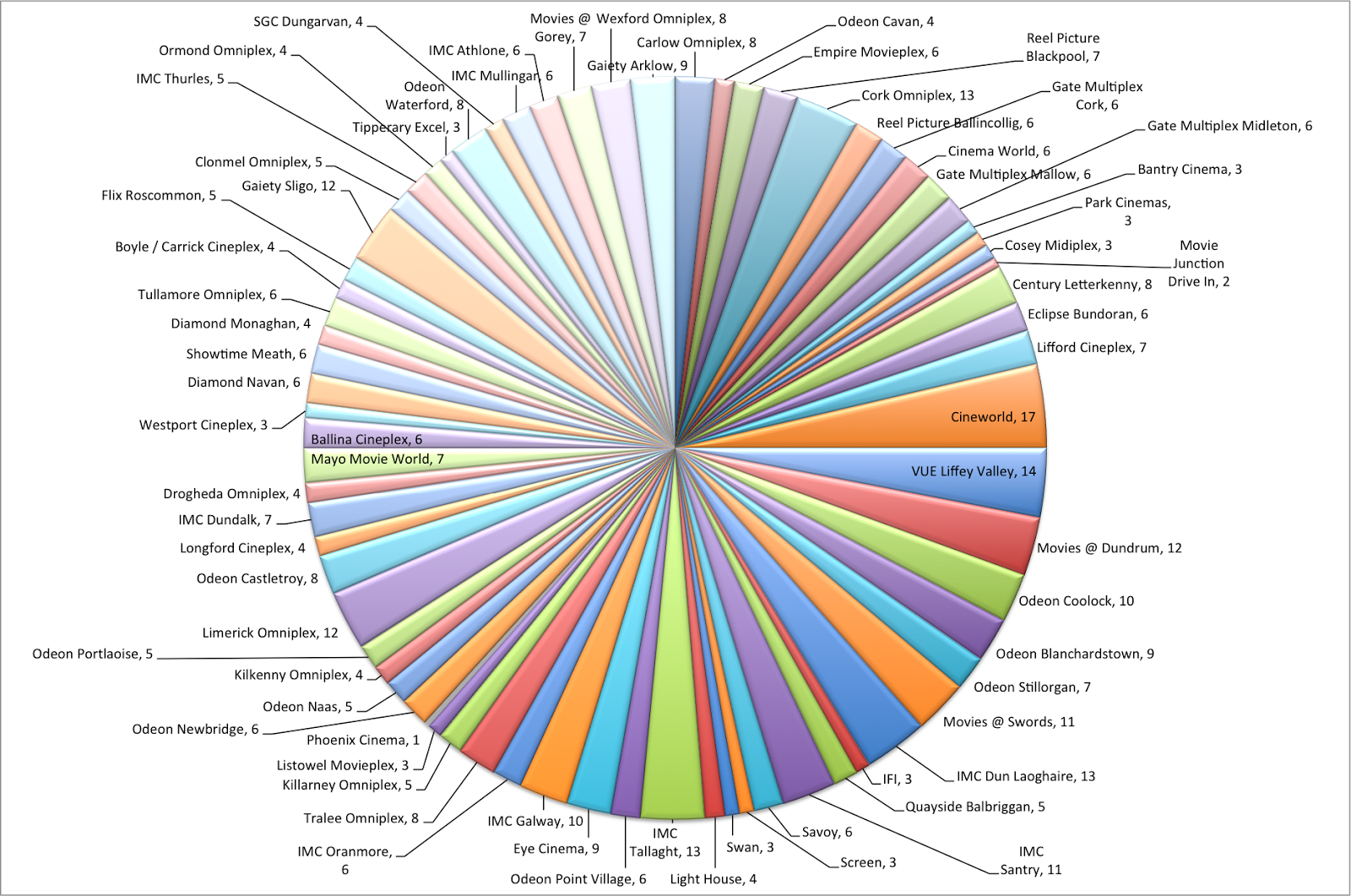
Way too many slices pie chart.
Example from Brian Cort’s Post – In Defence of the Humble Pie Chart

Create Small Multiples

Resist the urge to create big confusing charts. Most of the time, you are far better off creating multiple simple charts.
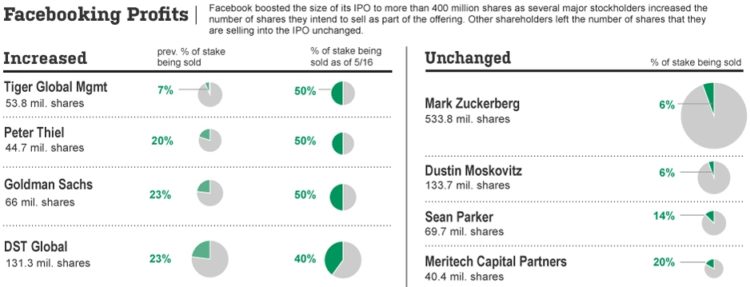
Facebook profits pie charts example.
Example from Flowing Data – Good Use of Pie Charts

Written by cplysy · Categorized: freshspectrum

Sep 28 2021

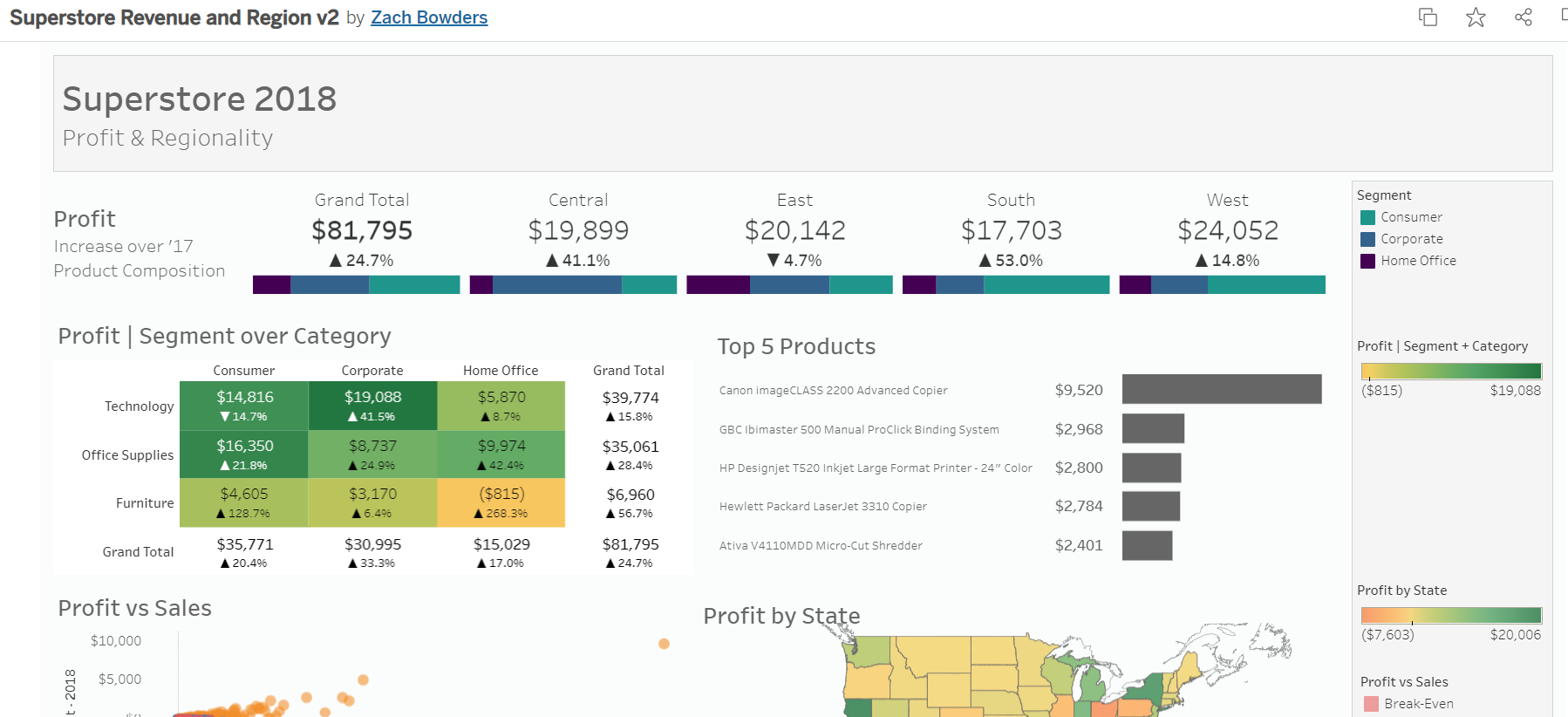
Navigating Tableau’s Resources with Zach Bowders

Zach Bowders was a guest speaker during a Dashboard Design live session, which is an opportunity for Depict Data Studio students to come together to learn from experts, get extra training, and ask questions.  

Zach is a Tableau Zen Master and Tableau Ambassador and shared his expertise with us on all things Tableau.  

Watch the Conversation 

About Zach Bowders 

Zach works at JLL, where he’s an external facing consultant who works with countries around the world. Zach is also the creator of the Data + Love podcast and is a Tableau Zen Master and Tableau Ambassador.  

According to Zach, a Tableau Ambassador is a person handpicked by Tableau who’s a super fan that helps promote the brand along with other people’s work while a Tableau Zen Master is a person who showcases the best of Tableau software. Zach has an extensive Tableau portfolio and is one of only 43 in the world (!).  

In his previous career, Zach worked for 13 years at St. Jude Children’s Research Hospital working on the fundraising/giving side. He started in the IT department but then moved into the analytics department where he got his start with Tableau.  

Zach’s Tips on Using Tableau 

First, we talked about Zach’s tips for using Tableau, like sharing visualizations on Tableau Public, his favorite features, features he thinks should be retired, and features he thinks should be added. He also shared some favorite resources and took audience questions.  

Sharing Visualizations in the Tableau Public Gallery 

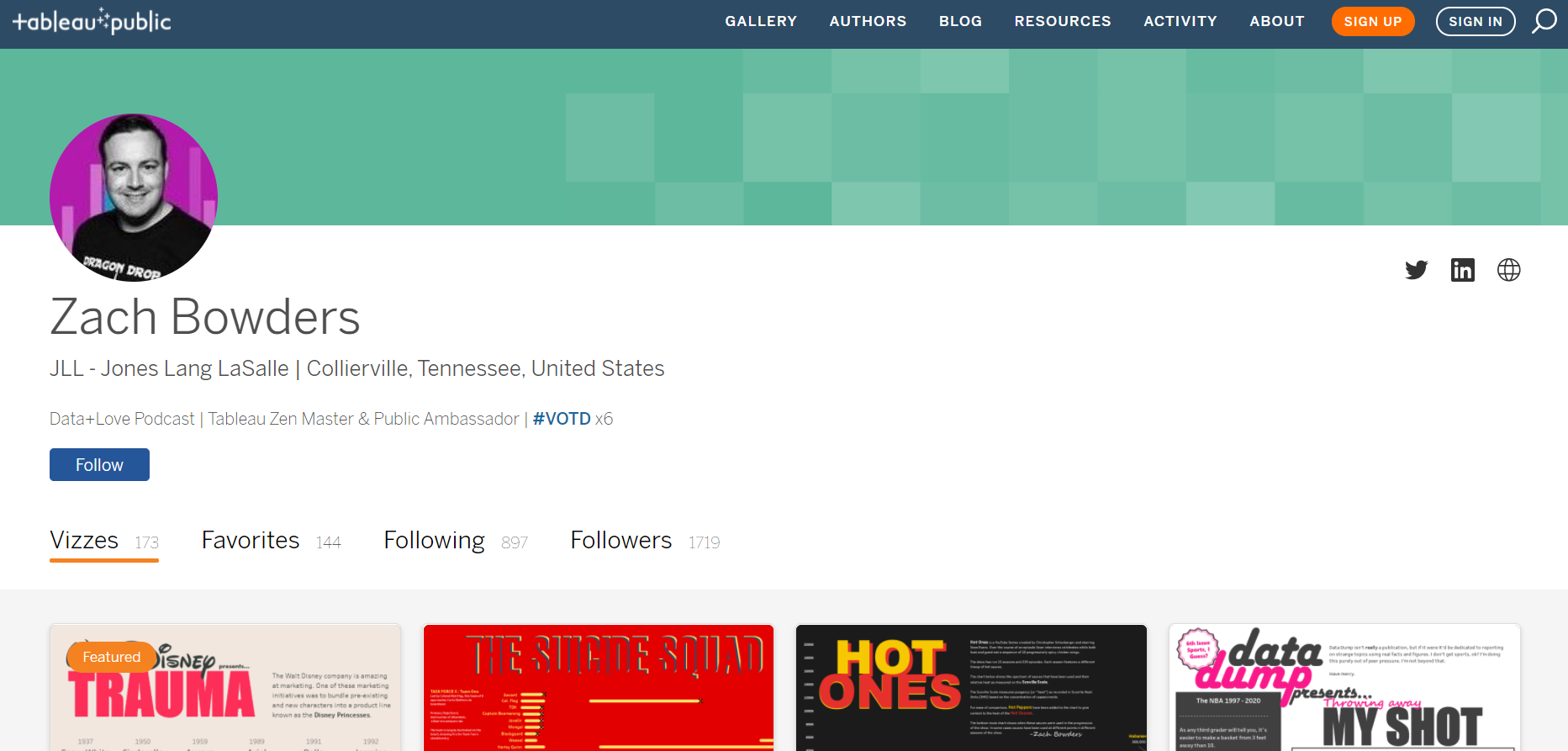
Zach has over 165 visualizations on the Tableau Public Gallery that he’s created in the past three and a half years.  

Zach Bowders has over 165 visualizations on the Tableau Public Gallery that he’s created in the past three and a half years.  

Tableau Public is free and Zach says it’s a fun way to share passion projects as well as to get ideas for other projects (personal or business). He said that since so many share projects and make them downloadable, it’s very easy to figure out how they made it and replicate it for another use.  

Zach’s favorite visualization he’s made is about the movie Inception because it doesn’t look like it came from a data software.  

Zach Bowders' favorite visualization he’s made is about the movie Inception because it doesn’t look like it came from a data software.  

Another favorite is one he created while applying for his job with JLL where he needed to prove how well he knew Tableau. He said, “Having a public portfolio… is very useful for sort of moving ahead in your career.”  

Zach Bowders also created a Tableau visualization while applying for his job with JLL where he needed to prove how well he knew Tableau.

He also noted that none of his visualizations in his public profile were work related, meaning he wasn’t accidentally sharing confidential data or work. He also said that having older stuff in your portfolio that “didn’t age well” shows your growth.  

Favorite Features of Tableau 

Zach said his favorite feature is the drag and drop interface of Tableau. He said that there are a lot of predefined charts that you can quickly create, even if you don’t know all of the rules.  

“I use it as a data exploration tool,” he said. “Sometimes you have a big dataset and you want to know more about it before you make something out of it. It’s very easy to rapidly create exploratory charts to better understand it so then you can make the charts that matter most.” 

Features That Could Be Retired 

Zach said that some of the spacing features in Tableau can take some getting used and that the fields that control where lines and axes can appear on different charts are difficult.  

He said that, “when you’re a newer user, understanding where to find those controls and which ones do what can feel kind of arduous.  So, it’s something you kind of pick up from a little bit of practice or alternatively by popping open someone else’s example and seeing which sort of controls they applied to make things look a certain way.”  

Features That Should Be Added 

“I have lot of things that I’d like,” Zach said. “Copy and paste- it’s not easy to copy and paste a text box or something that you make. If you copy and paste a chart, sometimes if you do it incorrectly, you’ll also apply the same filters from the thing you made. So, the filters now effect both charts instead of each version of it.” 

He also said text options in Tableau are limited to whatever is available on your server, instead of really having all the options that are listed out. He also hopes for some more design features in the future that are more modern.  

Getting Involved with the Tableau Community 

Tableau User Groups (TUGs) 

TUGs are Tableau User Groups and are located throughout the United States. They typically meet monthly or quarterly, have speakers and provide a sense of community to ask questions, learn from others and build a network.  

Zach noted that TUGs are not Tableau run but are rather mostly formed by “impassioned professionals that are trying to help themselves be better or are trying to help other people out.”   

TUGs are Tableau User Groups and are located throughout the United States. They typically meet monthly or quarterly, have speakers and provide a sense of community to ask questions, learn from others and build a network.  

Friendly Competitions, like Makeover Monday, Workout Wednesday, and Sports Viz Sunday 

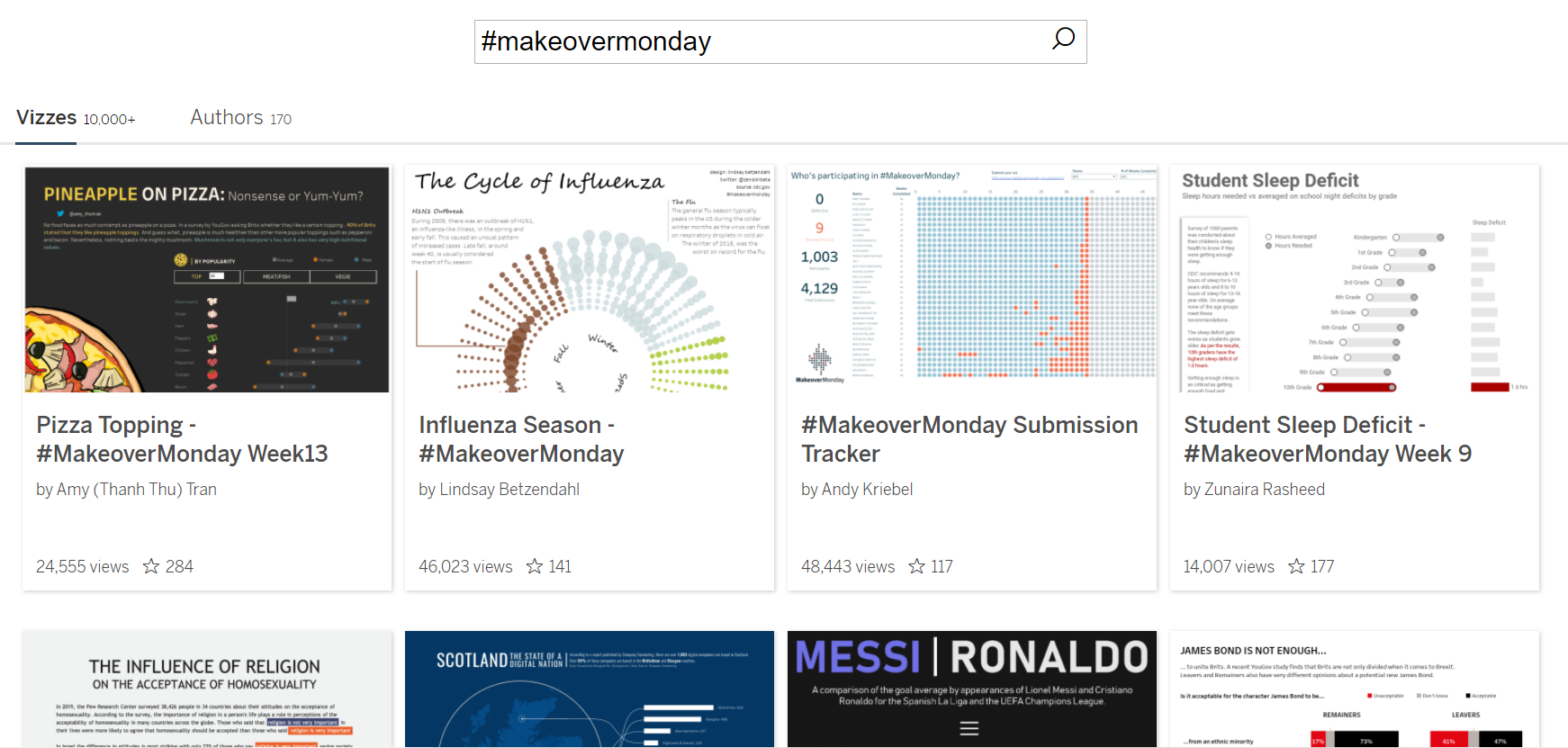
Makeover Monday is a community exercise where Tableau users get the chance to take a dataset that’s already been visualized but maybe not in the best way and make it over. People then put it on Tableau Public and share it to Twitter or LinkedIn.  

Makeover Monday is a community exercise where Tableau users get the chance to take a dataset that’s already been visualized but maybe not in the best way and make it over. People then put it on Tableau Public and share it to Twitter or LinkedIn.  

“It’s a great opportunity to on one hand get some practice and also see what other people would do,” said Zach. “If you have the same tool and, in this case, the same dataset, and you see someone else do something that’s better than yours, which you probably will at first, you’re probably going to see like, ‘Wow! Somebody made that?’ Then that’s definitely something that you can make also.”  

Workout Wednesday is a competition where the dataset has already been used to make something technical out of it and you have to figure out how to make the same thing.  

Zach said this comes in handy in work situations where you’re asked to make something out of a dataset and you think, “I don’t know how to do that…” Zach said Makeover Monday is for speed and agility and helps you produce dashboards more quickly. Workout Wednesday is to help you solve more complex problems better.  

Sports Viz Sunday is more sports related dataset and they make lots of interesting stuff Zach said.  

The Datafam 

Zach said datafam is mostly used as a hashtag to gain more attention for Tableau related things online. “But also, it’s the people,” said Zach. “There are a lot of very passionate people out there and typically if you see people using the #datafam, [they’re] sort of the super users that are out there creating the public visualizations, participating in the exercises and a lot of them end up becoming Ambassadors and Zen Masters eventually.”  

Datafam News is a part of Zach’s podcast channel and is hosted by Mark Bradbourne. It is a news update on upcoming TUG meetings, events, and more but Zach said that Tableau is now moving to promote this more officially themselves.  

Tableau Events, like the Conference and Tableau Live 

“Tableau’s conference is a huge deal,” said Zach. It’s attended by over 20,000 and is usually held in Las Vegas, NV due to its size. Tableau Live is the virtual alternative to their in-person conference and offers training and inspiration.  

Podcasts 

Data + Love: https://datapluslove.buzzsprout.com/  

The Tableau Wannabe Podcast (a.k.a. Tableau World Podcast): https://tableauwannabepodcast.libsyn.com/  

“They are the oldest Tableau specific podcast, I believe,” said Zach.  

YouTube 

Tableau Tim: https://www.youtube.com/channel/UC7HYxRWmaNlJux-X7rNLZyw  

“He might be one of the best I’ve seen in terms of tutorials,” said Zach.  

Tableau Tim is a Youtuber who has a popular Youtube channel that covers all things Tableau.

The Flerlage Twins: https://www.youtube.com/channel/UCDyr5VgVvkmfhHpeMUB8ZDA  

“They are twins and both Tableau Zen Masters,” said Zach. “They’re characters as well as very brilliant in what they do.”  

The Flerlage Twins are Tableau Zen Masters and Youtubers who have a popular Youtube channel that covers all things Tableau.

Books 

The Big Picture: How to Use Data Visualization to Make Better Decisions―Faster by Steve Wexler 

“Chapter four is about 80 pages long and it’s a huge, crazy chapter,” said Zach. “It is really like data visualization in a nutshell.” He also said it’s not just for the data professional who’s creating things, but also for the “consumer of data. Because we all have some times [where] we’re the consumers and some times [where] we’re the creators.”  

Steve Wexler is an author who has two books about data visualization that are highly recommended by Zach Bowders.

The Big Book of Dashboards: Visualizing Your Data Using Real-World Business Scenarios by Steve Wexler 

Zach said this book is “super influential in terms of the industry.”  

Information Lab – Thursday Trainings @ 3:00  

Information Lab offers free two-hour Tableau trainings that are geared toward beginner, intermediate or advanced users with a Q&A session at the end.  

Zach’s #1 Tip for Beginners Who Are Getting Started in Tableau 

“Just start doing stuff,” Zach encouraged us. “Everyone has probably one hour a week that they can dedicate. So, during that time, I would say, find a blog that you like, watch some YouTube videos or realistically pick one of these exercises. Makeover Monday is an excellent starting place.”  

His final piece of advice was to “make something and share it. Because if you make it yourself and you just sort of hold it back, you’re going to miss out on some of the feedback you’re going to get, which is mostly going to be encouraging. People like to see other people succeed.”  

Connect with Zach Bowders 

LinkedIn: https://www.linkedin.com/in/zachbowders/  

Twitter: @ZachBowders 

Tableau Public Profile: https://public.tableau.com/app/profile/zach.bowders  

Written by cplysy · Categorized: depictdatastudio

Sep 28 2021

A New Arrival

A New Arrival

I’ve been a bit off my posting schedule the past few weeks, but I have a good reason, I promise!

Last Monday, my husband and I welcomed a beautiful, healthy baby girl into the world (albeit a few weeks early!). Our hearts are full and our brains are fried, but we are nonetheless very happy to be new parents. 

Told you I had a good reason! 

I had grand plans to get this blog set up for the fall while I am on maternity leave, but baby had other plans. 

So for now, I thought I would make sure you had access to some Engage with Data resources until my next post. 

While I am on leave, here is where you can find some of my content for free: 

BLOG POSTS


  • The Power of a Positive Interaction: Using Asset-Based Engagement Strategies (YEP-DC)

  • Using Free Data and Mapping Resources to Better Understand School Communities (AEA 365 Blog)

  • Don’t Be Scared of Data – How it Can Guide Family Engagement and Attendance Interventions (NAFSCE)

  • Education Evaluation’s Lessons Learned from a Year at Home (AEA 365 Blog)

DOWNLOADS


  • Title 1: The Heart of Engagement White Paper (ClassTag)

  • Engage with Excel: Track Your Engagement Data with 4 Simple Steps

WEBINAR RECORDINGS


  • Measuring Family Engagement: An Introduction (Ohio Families Engage)

  • Effective Practices Webinar: Using Qualitative and Quantitative Data to Evaluate Family Engagement (NAFSCE)

  • ESSA Session 1: What Do ESSA’s Evidence Requirements Mean for My Organization? (MOST Network)

  • ESSA Session 2: How Do I Find Evidence of Similar Programs for My Application?

  • ESSA Session 3: How Do I Create A Logic Model for My Organization?

  • ESSA Session 4: How Do I Plan for Future Evaluations of My Program?

OTHER RESOURCES


  • Evidence for Engagement Email Mini Course

  • IEL Conference Attendees (until 9/30 only): Let’s Get Tracking! Building a Simple Tool to Measure and Amplify Your FCE Efforts

I hope these resources help you while I am out, and I look forward to reconnecting soon. 

Feel free to forward this list to colleagues who might be interested! 

Written by cplysy · Categorized: engagewithdata

Sep 22 2021

Comment on Gen Z are Identity Crafters: What does this mean for Cultural Institutions? by Gen Z are Values-driven: What does this mean for Cultural Institutions? »

[…] the first post of this series, I described how the unique combination of nearly infinite access to information […]

Written by cplysy · Categorized: rka

  • « Go to Previous Page
  • Go to page 1
  • Interim pages omitted …
  • Go to page 161
  • Go to page 162
  • Go to page 163
  • Go to page 164
  • Go to page 165
  • Interim pages omitted …
  • Go to page 310
  • Go to Next Page »

Footer

Follow our Work

The easiest way to stay connected to our work is to join our newsletter. You’ll get updates on projects, learn about new events, and hear stories from those evaluators whom the field continues to actively exclude and erase.

Get Updates

Want to take further action or join a pod? Click here to learn more.

Copyright © 2026 · The May 13 Group · Log in

en English
af Afrikaanssq Shqipam አማርኛar العربيةhy Հայերենaz Azərbaycan dilieu Euskarabe Беларуская моваbn বাংলাbs Bosanskibg Българскиca Catalàceb Cebuanony Chichewazh-CN 简体中文zh-TW 繁體中文co Corsuhr Hrvatskics Čeština‎da Dansknl Nederlandsen Englisheo Esperantoet Eestitl Filipinofi Suomifr Françaisfy Fryskgl Galegoka ქართულიde Deutschel Ελληνικάgu ગુજરાતીht Kreyol ayisyenha Harshen Hausahaw Ōlelo Hawaiʻiiw עִבְרִיתhi हिन्दीhmn Hmonghu Magyaris Íslenskaig Igboid Bahasa Indonesiaga Gaeilgeit Italianoja 日本語jw Basa Jawakn ಕನ್ನಡkk Қазақ тіліkm ភាសាខ្មែរko 한국어ku كوردی‎ky Кыргызчаlo ພາສາລາວla Latinlv Latviešu valodalt Lietuvių kalbalb Lëtzebuergeschmk Македонски јазикmg Malagasyms Bahasa Melayuml മലയാളംmt Maltesemi Te Reo Māorimr मराठीmn Монголmy ဗမာစာne नेपालीno Norsk bokmålps پښتوfa فارسیpl Polskipt Portuguêspa ਪੰਜਾਬੀro Românăru Русскийsm Samoangd Gàidhligsr Српски језикst Sesothosn Shonasd سنڌيsi සිංහලsk Slovenčinasl Slovenščinaso Afsoomaalies Españolsu Basa Sundasw Kiswahilisv Svenskatg Тоҷикӣta தமிழ்te తెలుగుth ไทยtr Türkçeuk Українськаur اردوuz O‘zbekchavi Tiếng Việtcy Cymraegxh isiXhosayi יידישyo Yorùbázu Zulu