• Skip to main content
  • Skip to footer
  • Home

The May 13 Group

the next day for evaluation

  • Get Involved
  • Our Work
  • About Us
You are here: Home / Archives for allblogs

allblogs

Mar 04 2021

Evaluation Roundup – February 2021

Welcome to our monthly roundup of new and noteworthy evaluation news and resources – here is the latest.

Have something you’d like to see here? Tweet us @EvalAcademy!

New and Noteworthy — Reads

A Social Equity Assessment Tool

Khalil Bitar (@KhalilBitar) recently published a paper on ResearchGate titled “A Social Equity Assessment Tool (SEAT) for Evaluation.” The paper discusses how there is a lack of tools for equity assessment in evaluation. Bitar proposes a tool with 13 social equity aspects that evaluators can use to examine equity and social justice issues in various contexts. The SEAT consists of eight demographic aspects and five cross-cutting aspects. This is a comprehensive tool to assess equity more inclusively in your practice – give it a try!

Adapting Evaluation Questions to the COVID-19 Pandemic

The UNFPA Evaluation Office recently released “Adapting Evaluation Questions to the COVID-19 pandemic.” The increasingly complex and dynamic context of the pandemic has meant the UNFPA programmes are being reassessed and redesigned to respond to the emerging needs. Given this, there is a need to adapt evaluation questions to assess the extent to which UNFPA has adapted its interventions. UNFPA developed this document to encourage evaluators to reflect on their existing questions and to formulate meaningful questions that take into account COVID-19 factors. Questions centre around: a) relevance, b) effectiveness, c) efficiency, d) coordination and coherence, e) sustainability.

Reflections – Lessons from Evaluations: Learning from Past Crises for Recovering from COVID-19

The Independent Evaluation Office (IEO) of the United Nations Development Programme (UNDP) has a reflections series, which are lessons learned from past UNDP evaluations. This first volume is a compendium of the various reflection papers. The 61 lessons presented in this first volume can inform how to design and implement responses to the COVID-19 crisis based on what has worked well in previous crises.

Measuring Our Impact: Evaluation Framework for Measuring the Impact of Community Development Work Across Local Government in Western Australia

The Community Development Network of Local Government Professionals of Western Australia worked in partnership with a number of partners to create a Community Development Evaluation Framework and Toolkit. Community practitioners are the intended target audience. The purpose of the resource is to strengthen community practitioners’ understanding of evaluation and to provide them with practical steps to implement evaluation in their practice. The resource is basic evaluation content but is very comprehensive and contains a number of toolkits and templates.

New and Noteworthy — Events

Virtual Workshops

Transformation Narratives: Storytelling in the Service of Evaluation and Organizational Learning Through a Gender Lens 

Organized by: Institute of Social Studies Trust 

Date: March 23, 2021; 6 pm Indian Standard Time 

Facilitator: Hamutal Gouri 

Evaluation for Transformative Change 

Organized by: Tamarack Institute  

Dates: April 20, 22, 27, and 29, 2021 

Facilitators: Michael Quinn Patton and Mark Cabaj 

Webinars

Evaluation Speaker Series 

Organized by: Virginia Tech 

Presenter: Sheila Robinson – Designing Quality Survey Questions 

Dates: March 25, 2021; 1 – 2 pm 

Presenter: Candice Morkel – Decolonizing ‘Development’ Evaluation 

Dates: April 15, 2021; noon – 1 pm 

Courses

Most Significant Change

Instructor: Clear Horizon Academy 

Start Date: April 16, 2021 

Evaluation Systems Change and Place-Based Approaches 

Instructor: Clear Horizon Academy 

Start Date: May 21, 2021 

Written by cplysy · Categorized: evalacademy

Mar 04 2021

24 Conditional Formatting Visuals in Microsoft Excel that Should Be Retired

“You should go work at Microsoft and fix Excel’s terrible formatting.”

I can’t tell you how many times I’ve heard this from workshop participants.

Bill Gates, are you reading this??

Microsoft Excel is lonnnnng overdue for some updates.

Don’t get me wrong—it’s still my favorite program. With 750 million users worldwide, I won’t be switching to anything else. It’s used by every business professional I know for at least part of their workflow.

Earlier this week, I was invited to guest lecture at Baruch College. Thanks to Professor Mahmoud Kamal Ahmadi for inviting me!

I’m normally very zen about data visualization. I expected to bring that peace of mind to Professor Ahmadi’s students.

Here’s my calm before the storm selfie:

Ann K. Emery inside the Depict Data Studio world headquarters, before guest lecturing for Baruch College.
Inside the Depict Data Studio World Headquarters. Next to 5-year-old’s preschool classroom. 🙂

“Sure, some of Excel’s default formatting is hard to decipher. And isn’t accessible for people with disabilities,” I’ve said a million times. “But with some behind-the-scenes editing, we can still make powerful visualizations inside Excel.”

I’m getting tired of making excuses for Microsoft.

Shouldn’t they know better by now??

I started to teach the Baruch College students about exploratory data visualization with conditional formatting. I couldn’t help but rant about the bad formatting as I went. It was 8pm at night. My filter had disappeared; I couldn’t help it. Sorry not sorry, Microsoft.

Wait, What’s Conditional Formatting??

Conditional Formatting is a fancy way of saying “if-then visuals.”

If the number is above 50, then fill the cell with red.

If the number is below average, make the font bold.

On and on.

Conditional Formatting is Ann K. Emery’s favorite button in Excel (along with the pivot tables button). It’s hiding in plain sight on our Home tab.

How to Use Conditional Formatting in Microsoft Excel

Conditional Formatting lets us create near-instant visuals.

These visuals are helpful for both exploratory and explanatory purposes. Exploratory data visualization is for us, the spreadsheet users and graph-makers. These near-instant visuals help us uncover patterns. Explanatory data visualization is typically for others, like our supervisor, Board of Directors, or other stakeholder groups. These near-instant visuals can be shared with others inside of dashboards, scorecards, and one-pagers to explain key findings to our audiences.

Here’s how to use Conditional Formatting in Microsoft Excel:

  1. Highlight or select some of the values in your spreadsheet. You can use Conditional Formatting on numbers, percentages, currency, and even words.
  2. Go to the Home tab.
  3. Click on the Conditional Formatting button.
  4. Choose one of the options, like Highlight Cells Rules, Top/Bottom Rules, or Data Bars.
  5. Enjoy your near-instant visual!
  6. Edit edit edit. With the cells still selected, go back to the Conditional Formatting button. On the very bottom of the list, you’ll see an option for Manage Rules. This is a fancy way of saying edit. You can adjust most aspects of your visual: the colors, the cutoff values, more.

Conditional Formatting in Microsoft Excel that Should Be Retired ASAP

Conditional Formatting is mostly excellent.

I love the speed. I love the instant understanding I get by seeing my numbers come to life.

But I hate hate hate the ableism.

Some of the Conditional Formatting options are terrible for people with color vision deficiencies.

Others are terrible for grayscale printing. (When was the last time you got excited about paying for colored ink cartridges?)

Others are just terribly busy-looking and could easily be improved with Graphic Design 101 skills.

Here are 24 of Excel’s conditional formatting techniques that should be retired ASAP.

These visuals are:

  • too time-consuming to read,
  • not accessible, or
  • look like they’re from 1995.

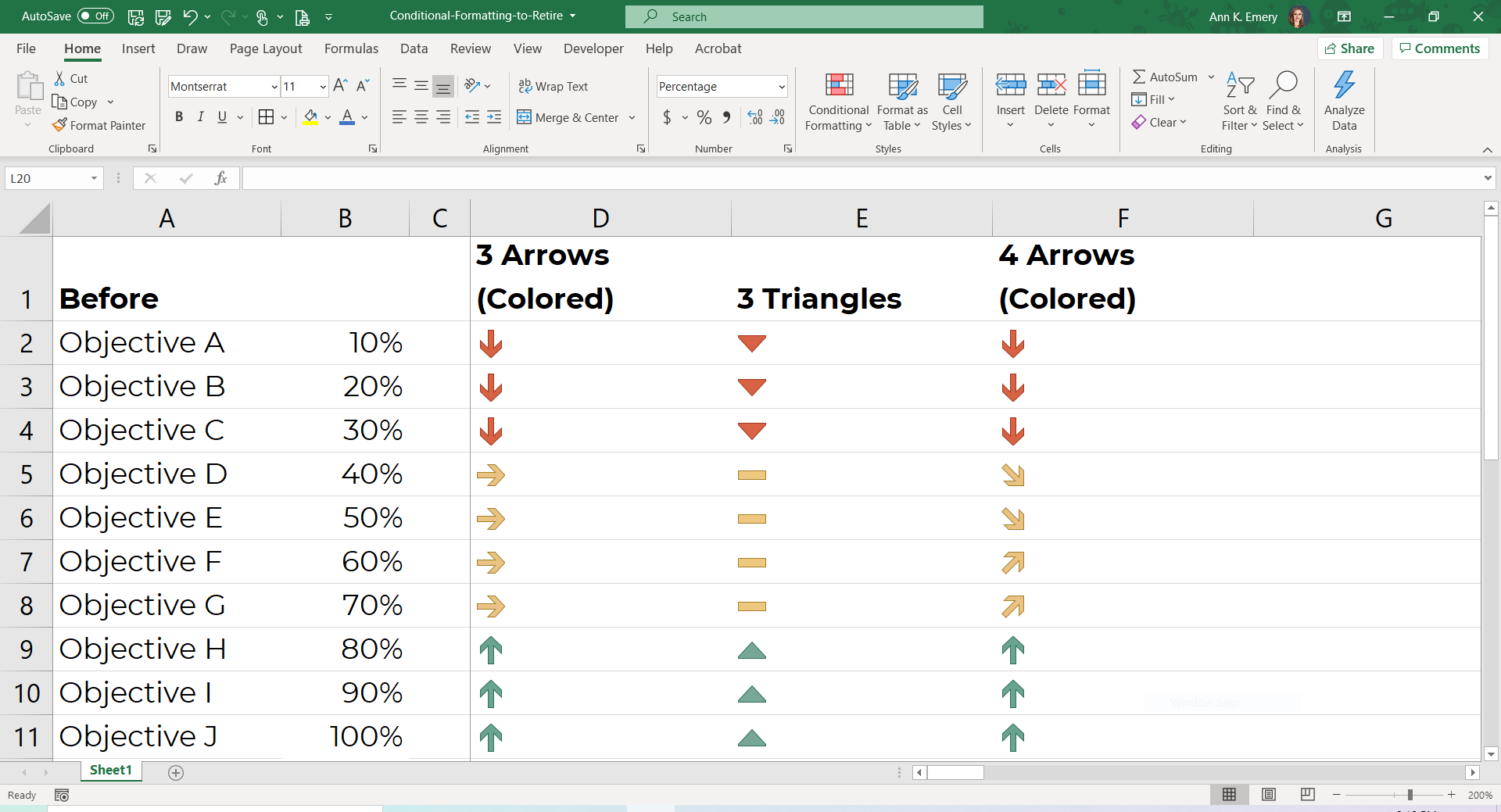
3 Arrows (Colored)

Nice try, but so busy. I’ll show you something better in a moment.

3 Triangles

A bit easier to skim, but we can do better.

4 Arrows (Colored)

Why do the yellow arrows point in two different directions?

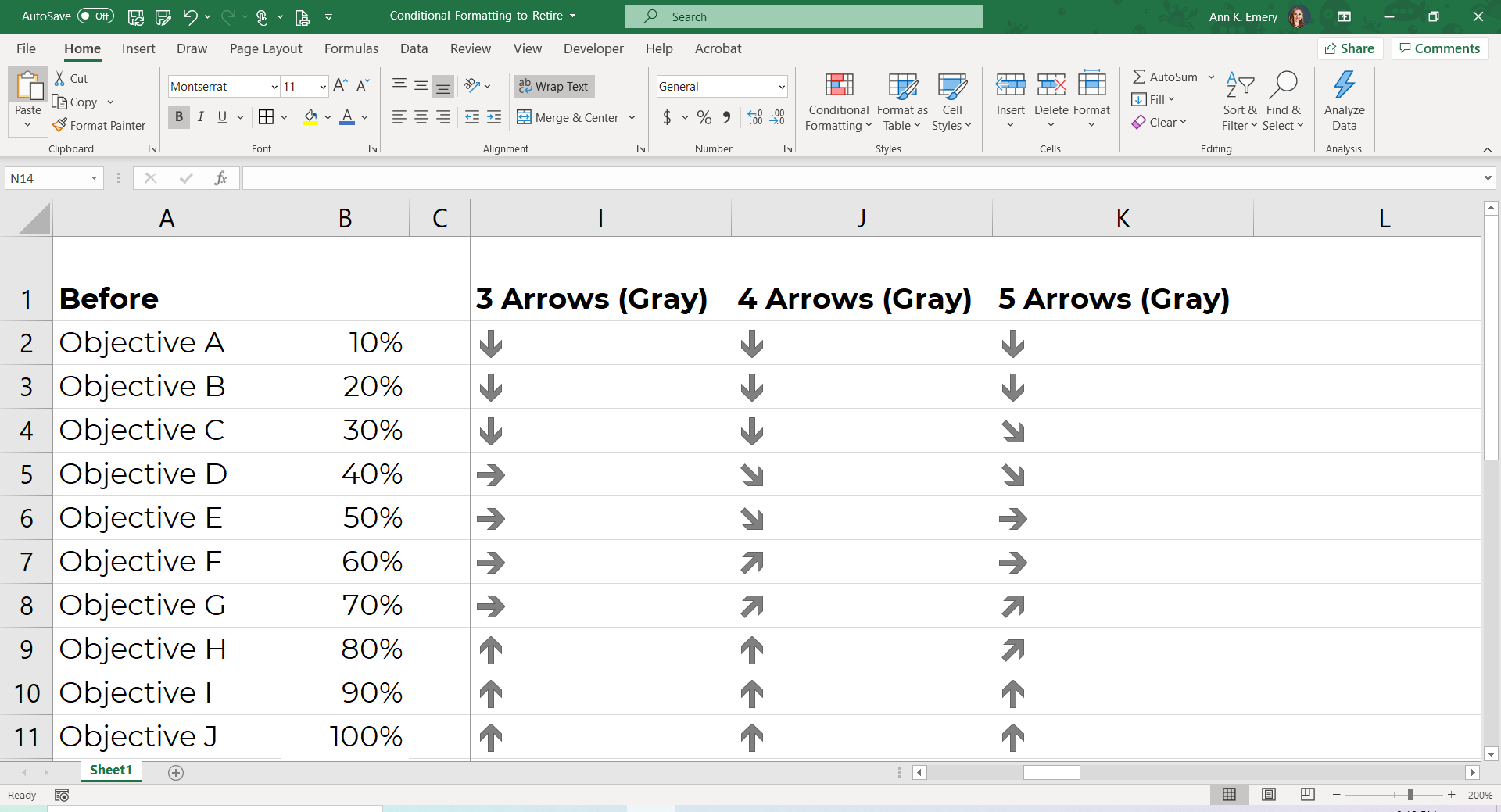
3 Arrows (Gray)

4 Arrows (Gray)

5 Arrows (Gray)

There’s nothing useful here. Don’t make me write three different sentences about why these three options are worthless.

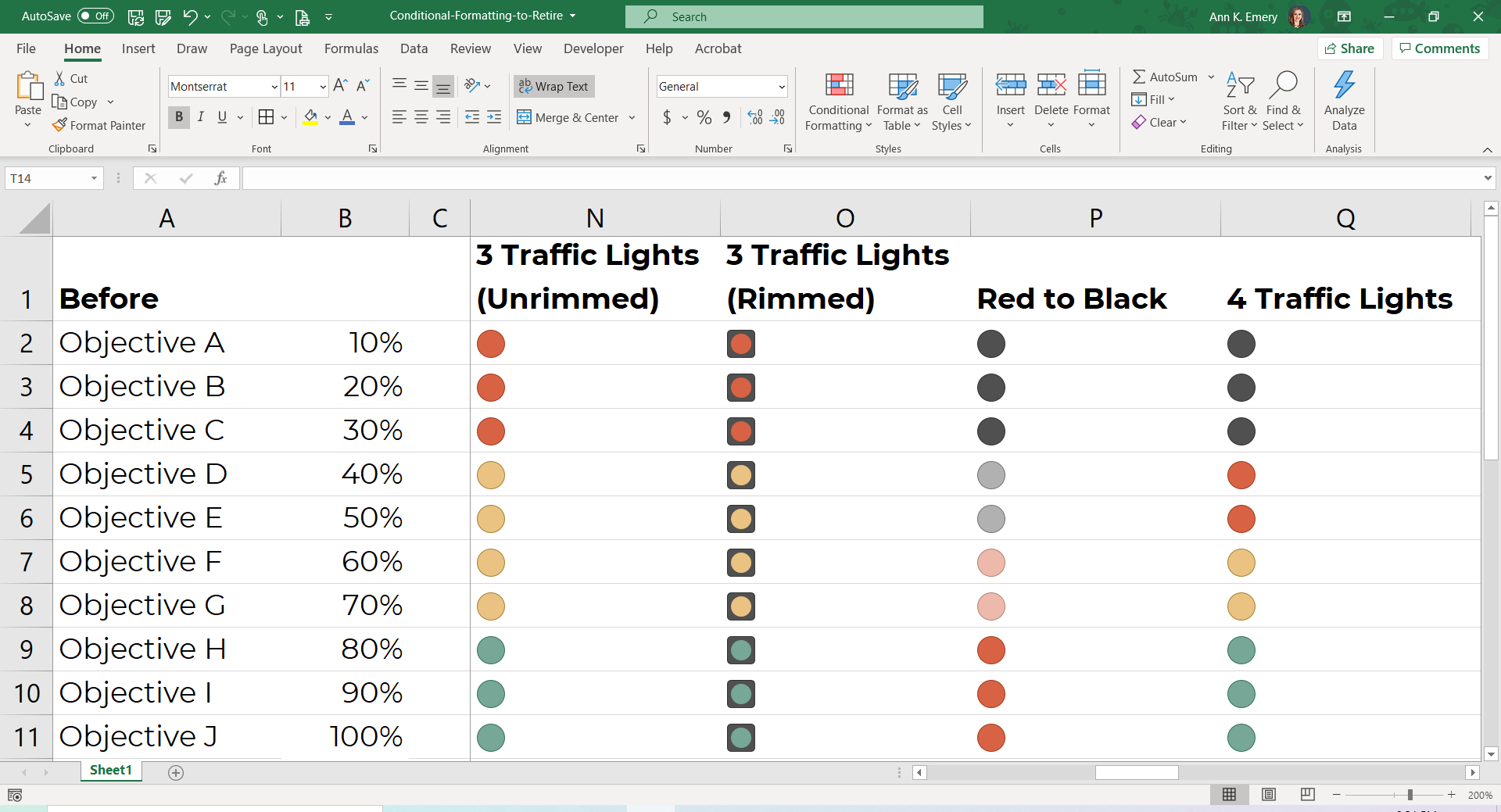
3 Traffic Lights (Unrimmed)

I’m about to become really unpopular with 99% of people who make business dashboards, but….

We should really stop using traffic light color-coding altogether.

Green-red color combos aren’t accessible for people with color vision deficiencies (more on this later).

Sure, red-green combos are intuitive. For those of us who can see them. But they’re useless for everyone else.

3 Traffic Lights (Rimmed)

Let’s make the colors even smaller and harder to see.

Red to Black

These tones are confusing to me. Don’t we associate both red and black as “bad” colors? Why is red = high percentages? And black = low percentages? Sure, Excel lets us flip-flop these colors, but the question remains—aren’t red and black both “bad?”

4 Traffic Lights

Now, Excel is saying that black is even worse than red?? These inconsistencies kill me. And since when do traffic lights have 4 different colors? I’ve never seen a black lightbulb in a traffic light. So more for intuitive traffic light coding.

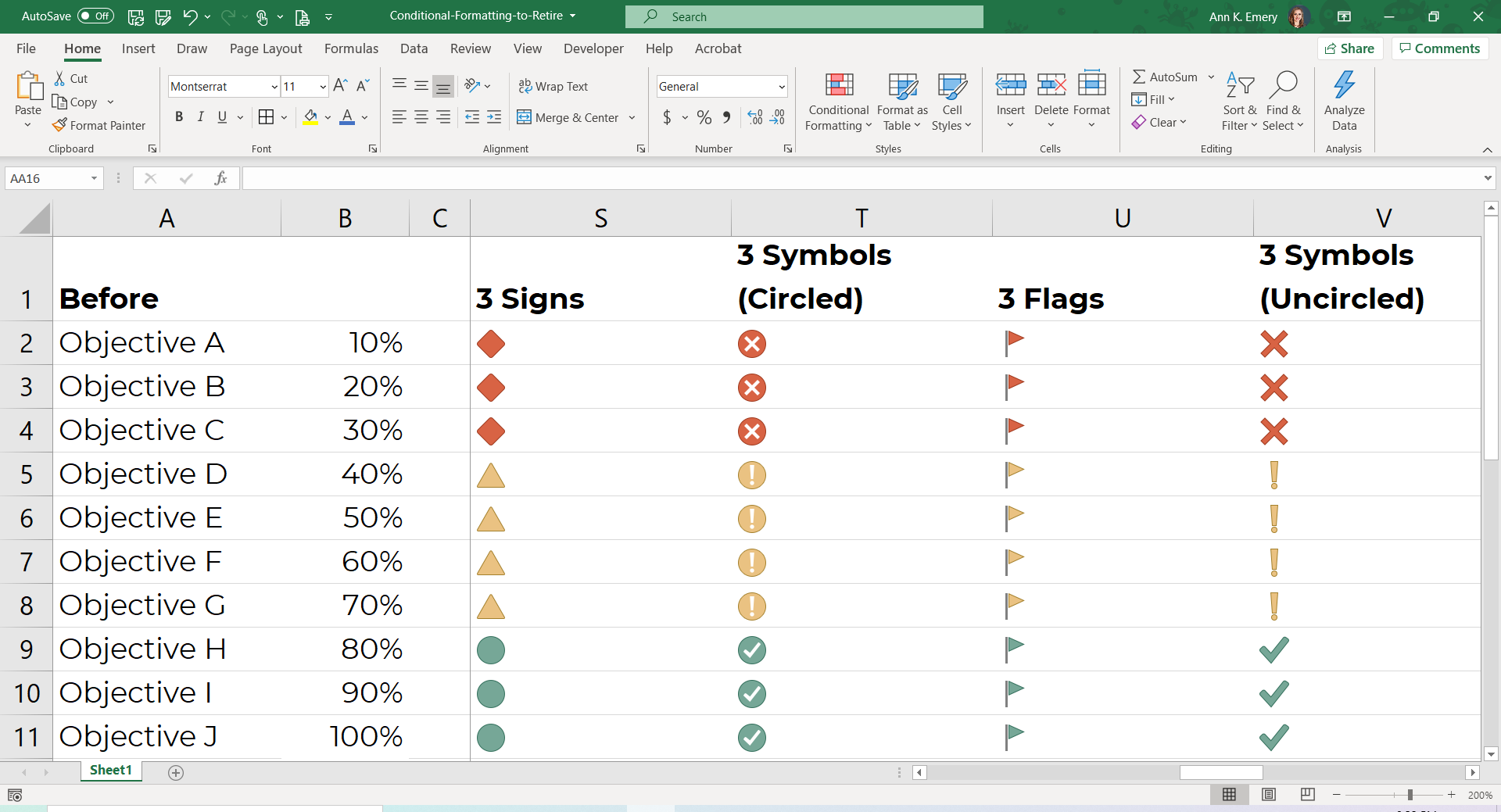
3 Signs

I want to love these. Although the 3 Signs design would technically pass 508 compliance accessibility guidelines (because our viewers aren’t relying on color alone—they can also see the different shapes) it’s still so busy.

There’s also the issue of combining both categorical coding (a diamond vs. triangle vs. circle) with diverging coding (red is worst, yellow is medium, green is best). Forgive the jargon, but as a research methods geek, this bothers me.

3 Symbols (Circled)

These tiny symbols would be impossible to skim at a glance in a tiny spreadsheet.

3 Flags

GAH. Probably the hardest to read from this bunch.

3 Symbols (Uncircled)

Maybe the easiest to skim from this bunch? But still a bit busy.

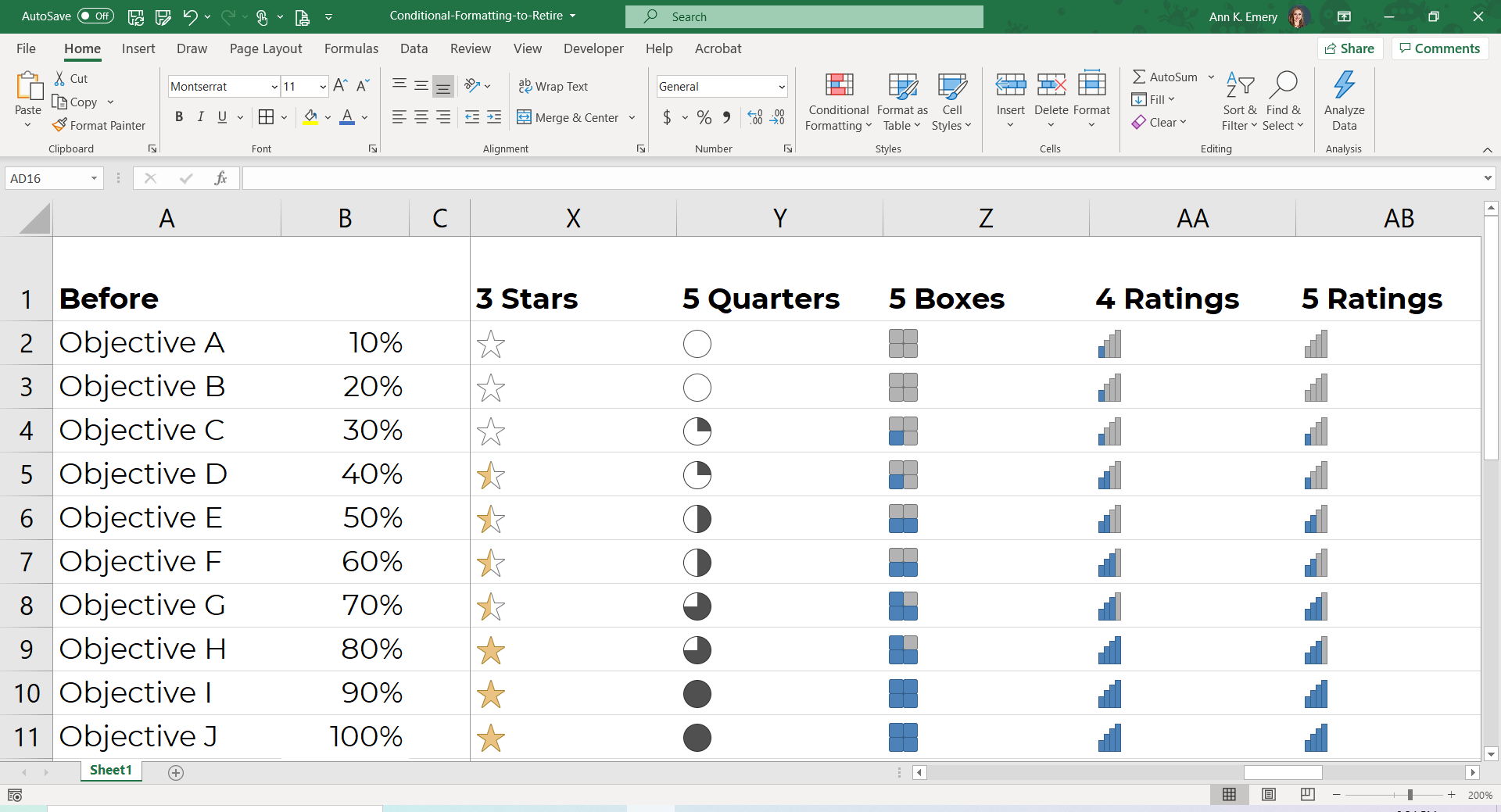
3 Stars

This design gets creativity points.

5 Quarters

These aren’t so bad to skim right now—because I’ve already organized the spreadsheet from lowest to highest. Imagine a mismatched list (e.g., 20%, then 80%, then 10%, then 50%….). It would get messy.

5 Boxes

There could be more contrast between the gray and blue, i.e., it would be easier to read if the gray was a bit lighter, or the blue a bit darker.

4 Ratings

I actually love bar and column charts for at-a-glance findings.

But, these would be easier to read if they were horizontal bar charts, not vertical column charts.

I’ll show you an example with horizontal bars in a moment.

5 Ratings

Same shortcomings here.

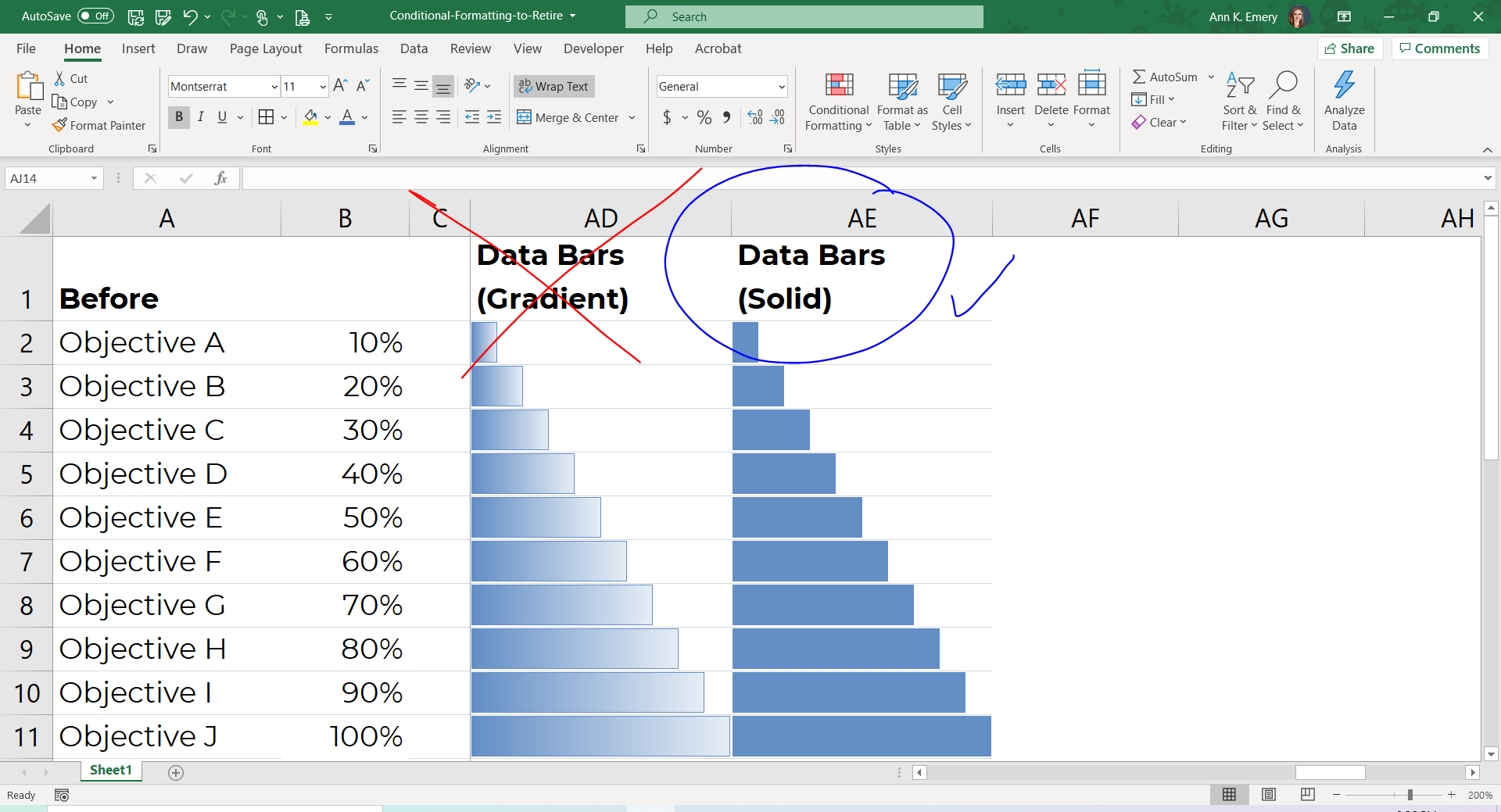
Data Bars (Gradient)

Speaking of bar and column charts… Do you see how much easier it is to compare bars than columns?

BUT, not these gradient bars. We need to retire these. The most important part of the bar chart is the right-most endpoint. So why does Microsoft fade these out to lighter colors… therefore making the most important thing harder to see???

Data Bars (Solid)

Winner winner chicken dinner! More of these, please.

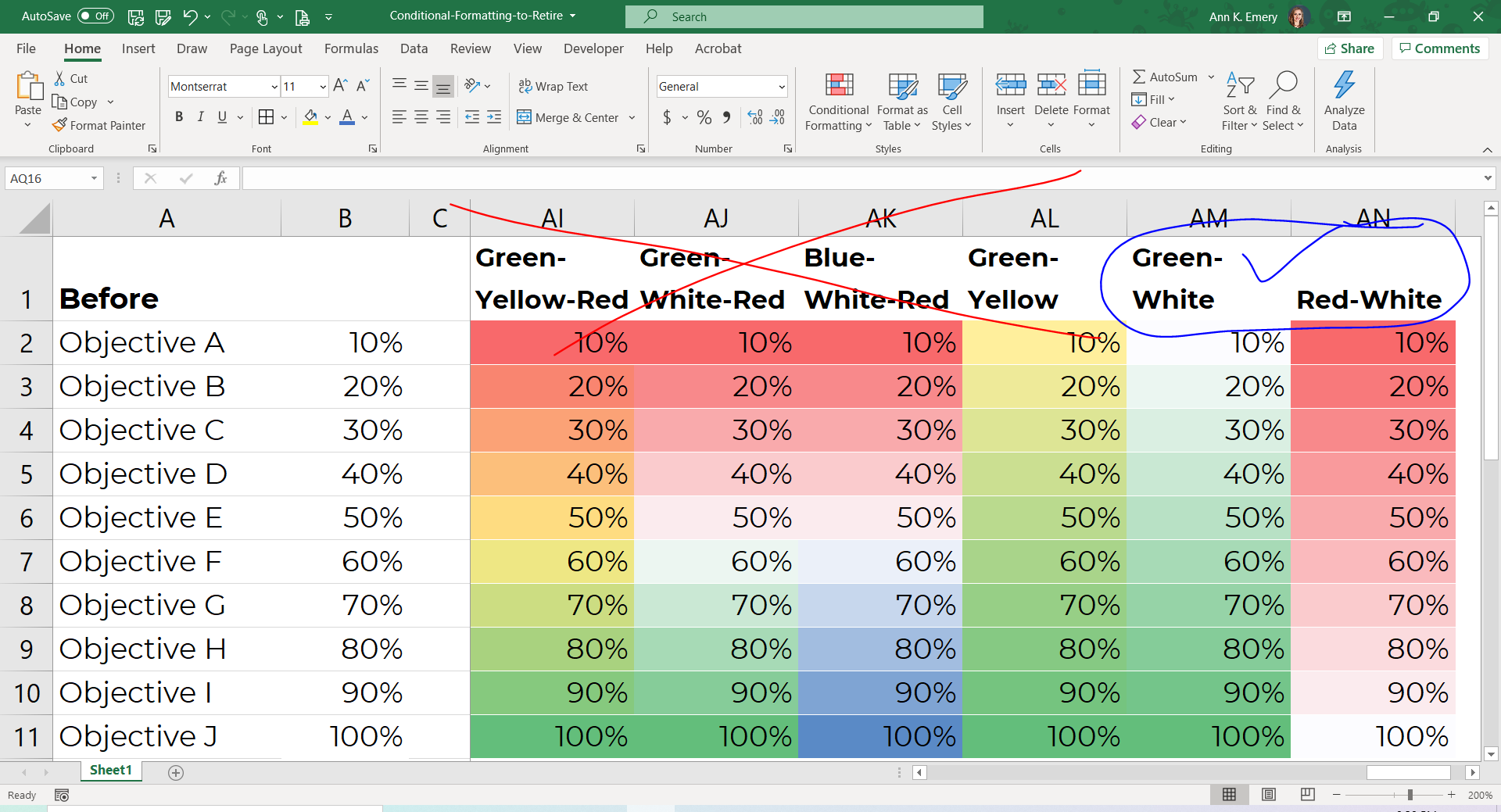
Green-Yellow Red Color Scales

Yes, I know what you’re thinking. This stoplight coding is intuitive.

But only for those of us who can see red and green as distinct colors. For people with color vision deficiencies, this color scheme is worthless.

Let’s retire this ableist color scale from Excel.

Green-White-Red Color Scales

Not accessible. Ableist.

Blue-White-Red Color Scales

Better than the red-green color coding, since at least it’s legible for people with color vision deficiencies.

But, this wouldn’t print well in grayscale. More on this in a moment.

Green-Yellow Color Scale

Not horrible… but not as clear as it could be.

Green-White Color Scale

Winner winner chicken dinner! More of these, please.

Look at the green-yellow and green-white options next to each other.

Do you see how the green-white color scale is easier to read? The white is, well, whiter than the yellow. Therefore, there’s even more contrast when compared to the green.

This scale is colorblind-friendly and grayscale-friendly.

Red-White Color Scale

Winner winner chicken dinner! More of these, please.

This is the opposite tone of the green-white color scale.

In other words, use this color scale to emphasize that low = bad.

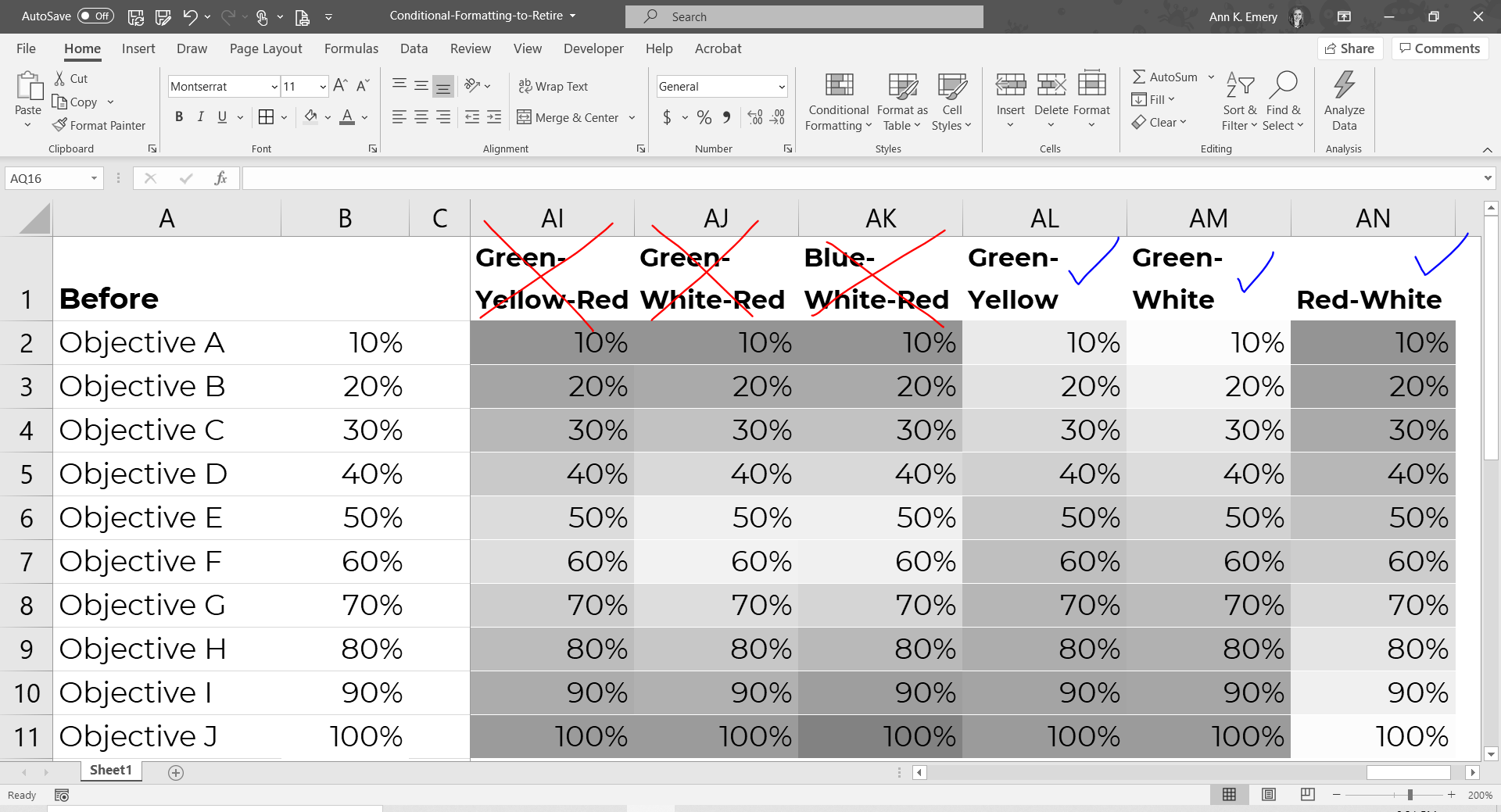
How about Grayscale Printing?

We should always assume that someone will print our visuals. That printing may happen in grayscale, not full color, to save money.

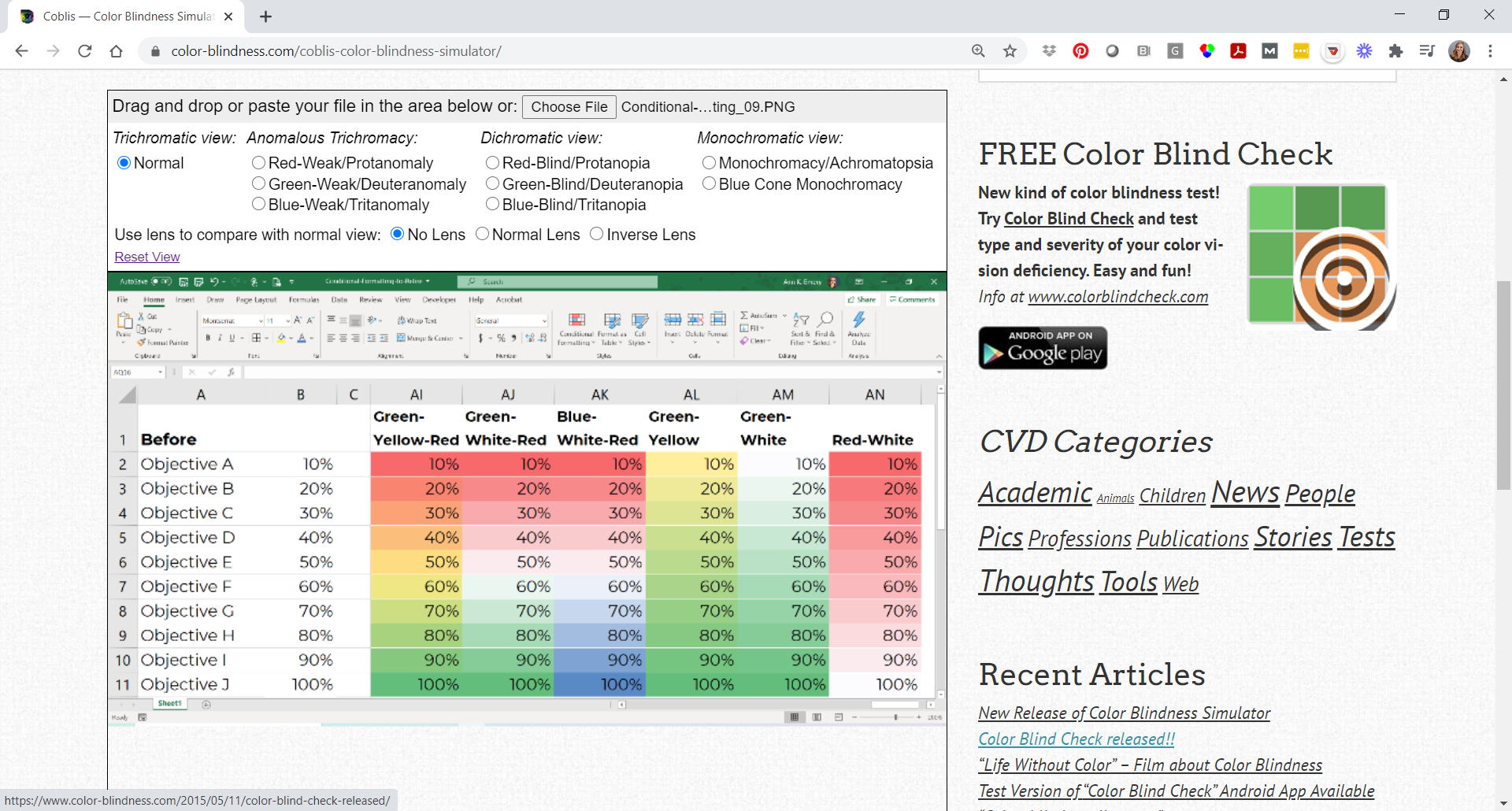
I did a quick grayscale test on these color scales to show you what they’d look like.

Do you see how the first three are worthless? The fourth one, green-yellow, is okay. The last two are the easiest to read.

(In Dataviz Jargon: Transform that diverging scale into a sequential scale. It’s harder to notice differences between two different hues, like red and blue, than to notice differences between gradations, like light green vs. dark green. And it’s impossible to read diverging scales in grayscale.)

How about Color Vision Deficiencies?

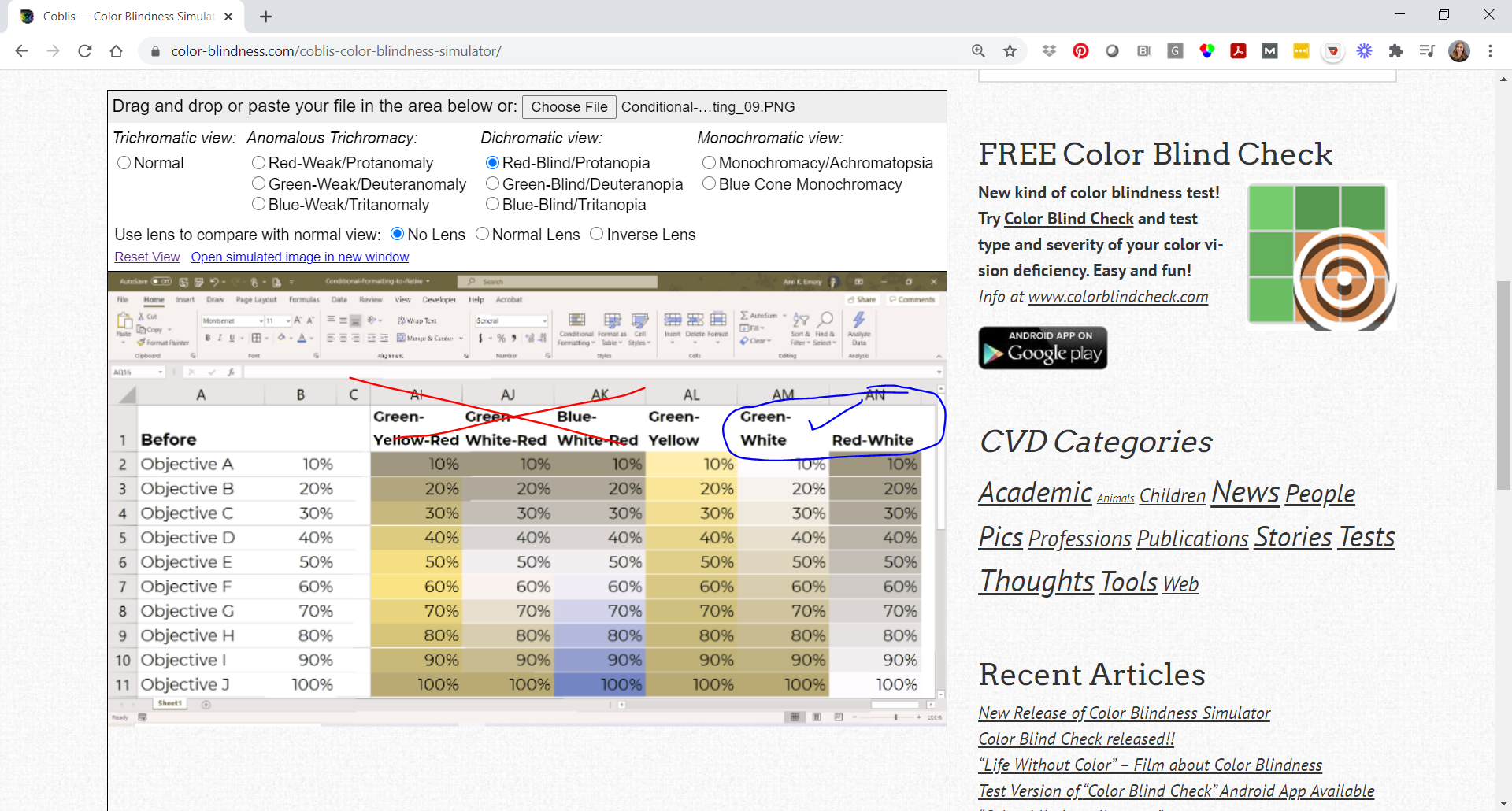
I also did a color-blindness check.

First, I uploaded a screenshot to the Color Vision Deficiency Simulator website.

Next, I investigated what the color scales would look like for someone with protanopia. Eek.

The first four are worthless.

Green-yellow is okay.

Green-white and red-white are best.

Well-Formatted Conditional Formatting in Microsoft Excel Worth Keeping

Keeping score? Here are the conditional formatting visuals we can keep using:

  • Green-White Color Scale
  • Red-White Color Scale
  • Data Bars

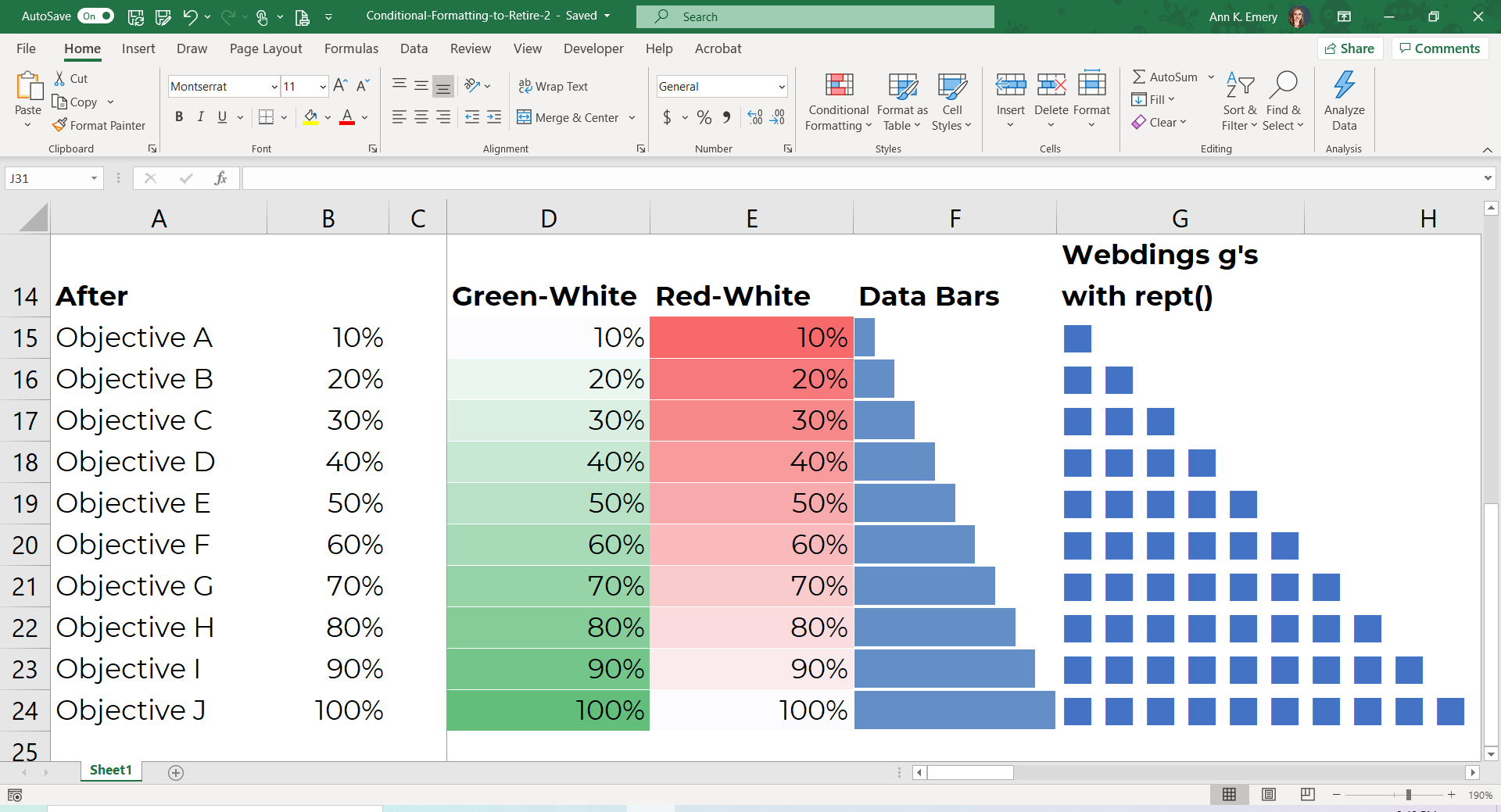
I’ll add another keeper to the list: Squares and circles made with the Webdings symbol font.

For example, we can use Webdings g’s and the rept() function to create an icon array, as shown above.

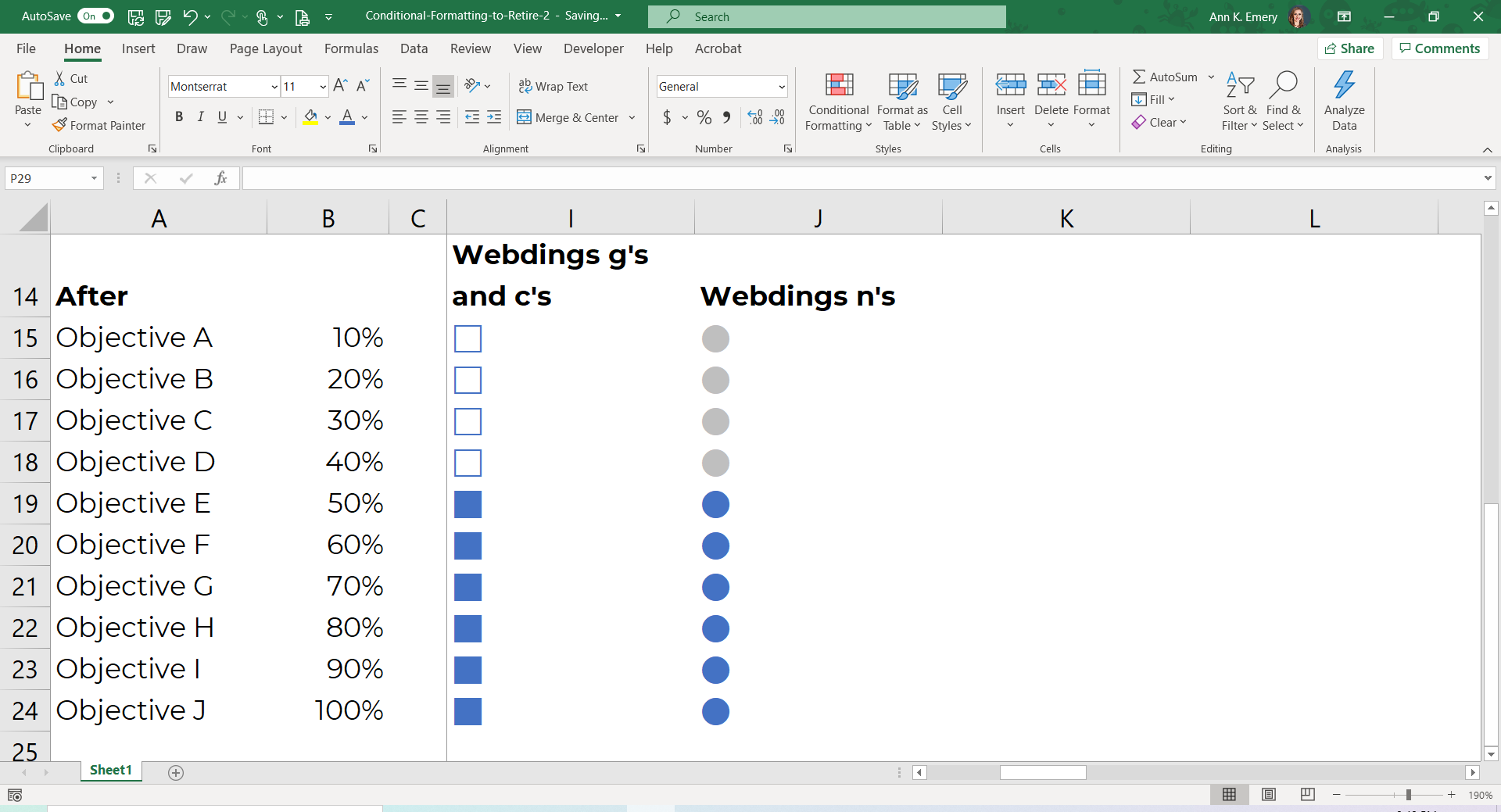
Or, we can use Webdings g’s and c’s to create a series of filled-unfilled squares.

Or, we can use Webdings n’s to create a series of light-dark circles.

It’s faster to skim a list of filled-unfilled squares, or light-dark circles, than to skim the stars, flags, or mini column charts shown earlier.

How to Add Conditional Formatting to Your Microsoft Excel Spreadsheet

Want to create conditional formatting to explore initial patterns in your spreadsheet? Here are links to detailed tutorials:

  • How to Create Data Bars in Microsoft Excel
  • How to Make a Heat Table in Microsoft Excel
  • More examples of easy-to-skim symbols and icons made with symbol fonts (Webdings and Wingdings)
  • Webdings example: Re-envisioning a University’s Monthly Report: Two Reports with Two Different Purposes      
  • Webdings example: Visualizing Your Annual Survey Results: Four Makeovers That Didn’t Work, and the Fifth That Did

Your Turn

What are some additional features of Excel that should be retired? Or added?

Written by cplysy · Categorized: depictdatastudio

Mar 03 2021

How to Create Report Moodboards in Canva

This is the second in a series of posts on data design in Canva. Today I’ll show you how to use Canva to create Moodboards.

How to create report moodboards in Canva (illustration)

Have you ever watched an interior design show?

There is a moment where the designer shows up with a board filled with colors, sketches, and pictures in order to present their design concepts. This is before they start throwing things away and repainting the walls.

Moodboards are used in all sorts of design settings from fashion to magazines to websites. But they can also be really useful for report design.

One of the biggest report design challenges is that a team tends to wait until everything is written before putting together the design. So when it comes time to actually design your report, the person doing it tends to find a quiet room and just create alone.

The problem occurs when they make a design choice or two that somebody with a bit of authority dislikes. Maybe they’ll just decide to stay unhappy or they’ll push for a complete redo of the design.

This is where a moodboard comes in. It’s like an incomplete barebones prototype of a design idea. Here is how to create one in Canva.

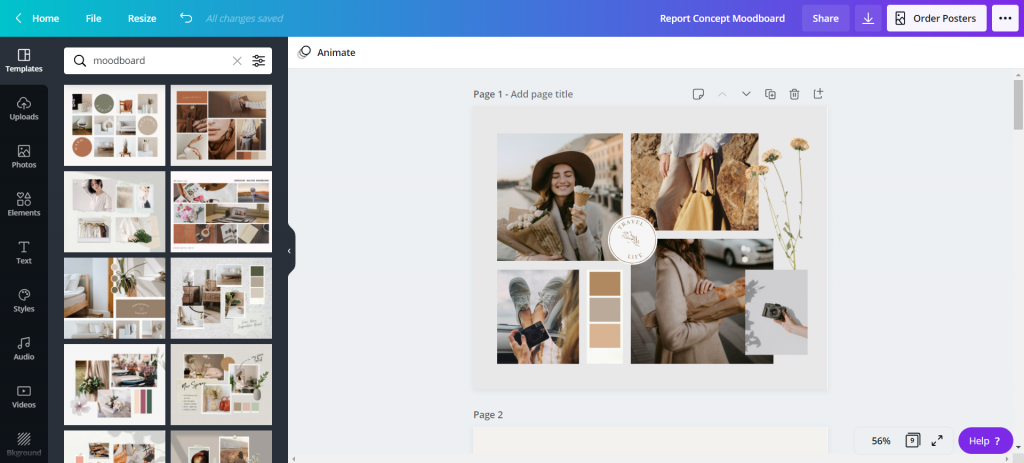
Create a Presentation, then search for “Moodboard” templates.

A lot of the templates you’ll find seem made for interior designers and wedding planners. But that’s okay, we can still use them.

Think about the elements they show. For a report, you’ll often want to show a few different page template concepts, the color scheme, a picture or two, and maybe an example of how you’ll do call-out boxes or quotes.

How to create report moodboards in Canva (illustration) Canva moodboard search

Starting with a Wedding Planner Template

This template is clean and includes a lot of rectangles, which can quickly be replaced by page designs. The next section I’ll show you a transformed version.

How to create report moodboards in Canva (illustration) starting with a template

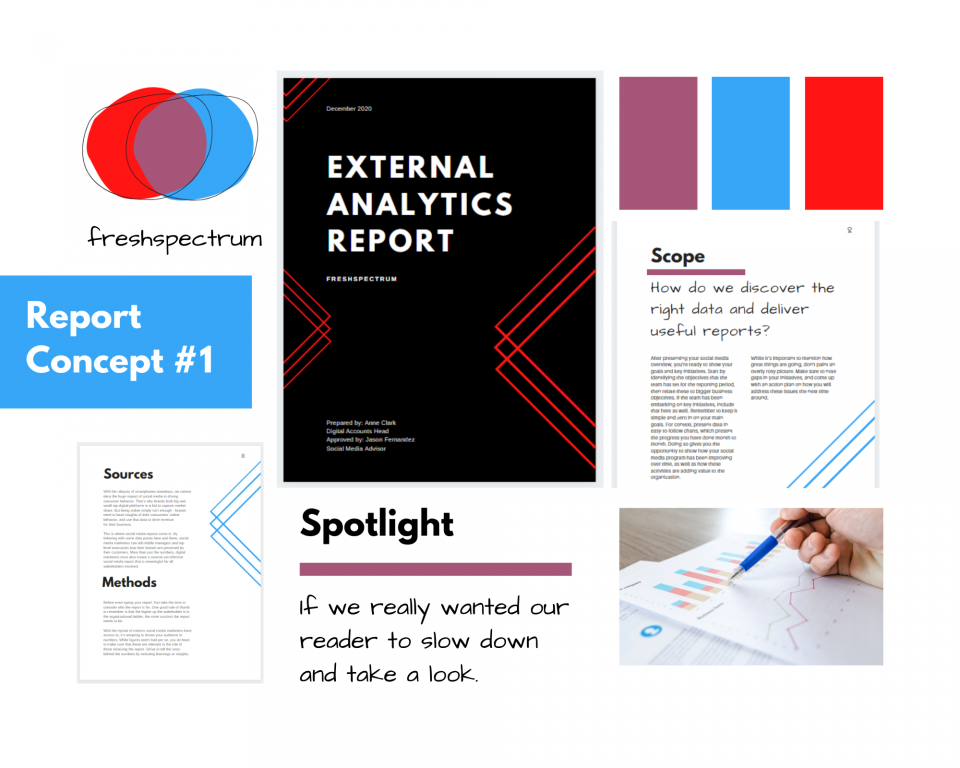
So here is the moodboard redesigned as a report moodboard.

So for this report concept I used my logo to draw out the color scheme.

Since this is just a concept, a single slide will do. I included the logo, a cover page, two inner pages, a picture, the colors, and an idea of how I would spotlight some of the report text.

I changed up the headers, but the words have nothing to do with the report. Depending on how important the concept is, I might go in and turn all the words into descriptive phrases that highlight my design decisions.

Most of the time, early in the process, I’ll create two or three of these to send to the writing team for their feedback. It’s always good to share at least two versions (“this or that” gets better feedback than “thumbs up, thumbs down”).

How to create report moodboards in Canva (illustration) external analytics report concept

Now let’s try a more random moodboard.

The goal of a moodboard isn’t always to give a prototype. Sometimes it’s just about conveying the “feel ” of the report visually. While you might be able to visualize your idea in your head, it’s often harder to convey that visual idea to others.

How to create report moodboards in Canva (illustration) starting with a random template

Visual metaphors and other inspiration.

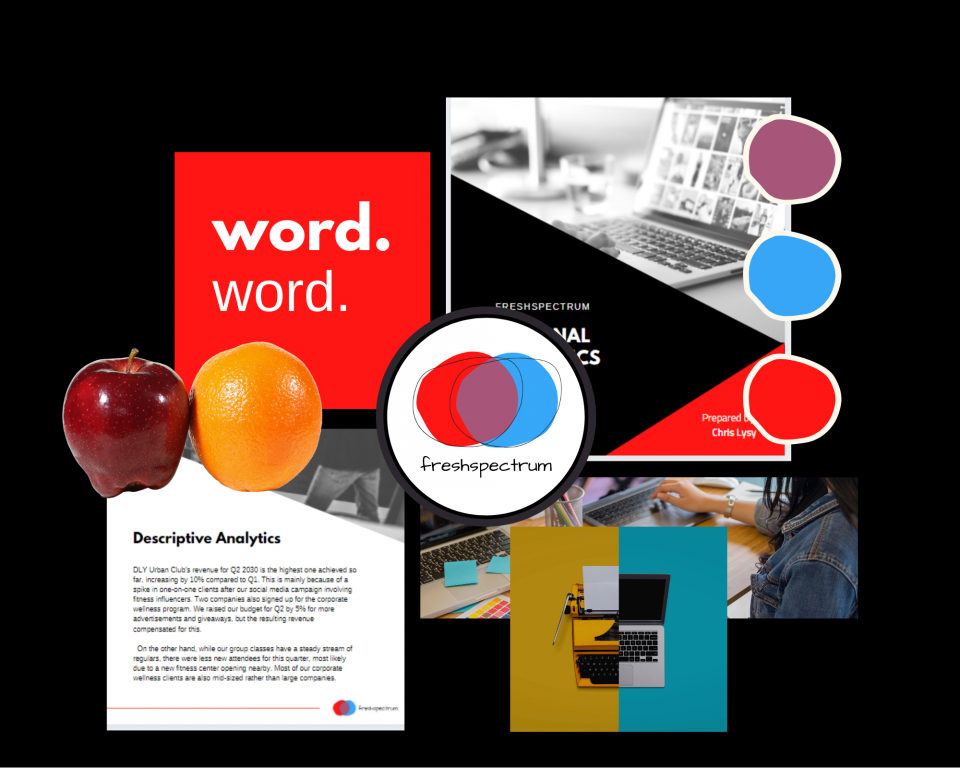
Okay, so here is another concept for the external analytics report.

My approach to analytics is all about thinking through the eyes of the website user. I also ground my approach using comparisons to other websites. So instead of just showing design elements I also put in a few visual metaphors (apples to oranges, person with two side by side computers, typewriter/computer). Then I have a cover page and an internal page, along with the colors and my font choices.

How to create report moodboards in Canva (illustration) moodboarding visual metaphors

No right or wrong way.

Moodboards are part of my design process. I use them for all sorts of things. It gives me a chance to address certain important design choices before the report is even finished. And it greatly reduces the overall amount of back and forth design choice editing.

Most organization style guides (even the really big guides) still provide a lot of room for different design interpretations. So try it, there is no right or wrong way.

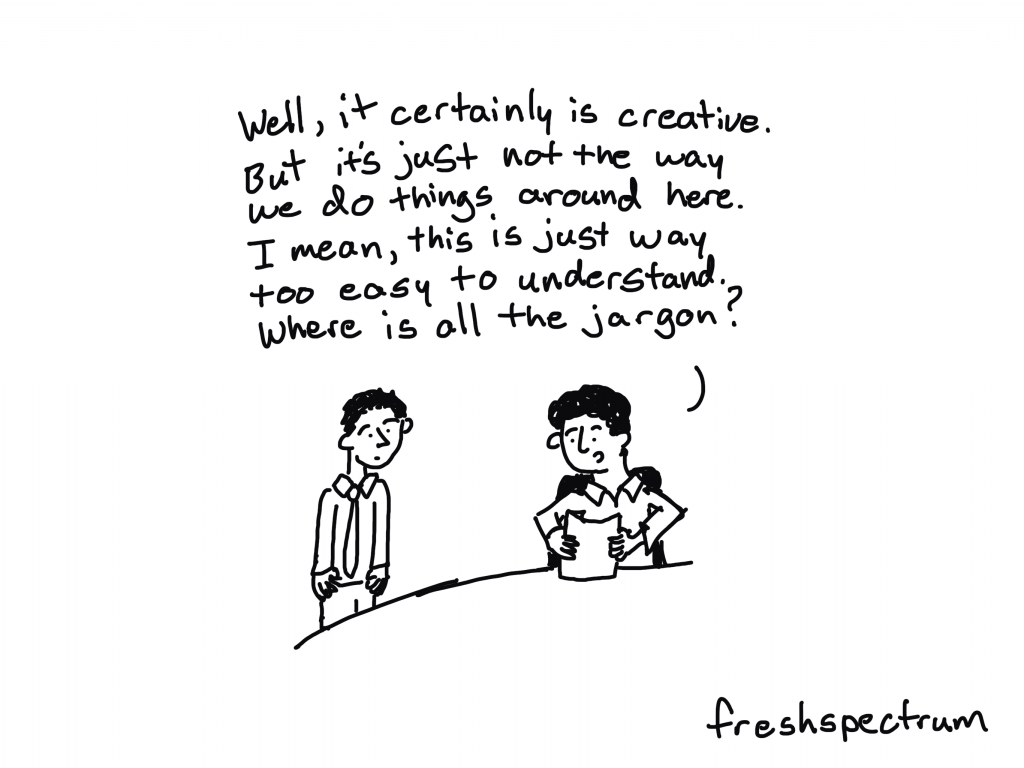
Freshspectrum cartoon by Chris Lysy, "Well, it certainly is creative. But it's just not the way we do things around here. I mean, this is just way too easy to understand. Where is all the jargon?"

Written by cplysy · Categorized: freshspectrum

Mar 02 2021

Seeing Futures: The Long Now Approach

No one can see the future, but we can gain a glimpse of what might come and how what we are doing today might take us there by using this technique or tool called The Long Now.

The Long Now involves taking an idea that might be on the horizon or emerging and envisioning what it might look like when adopted and carried into the future. The approach is inspired by long-term thinking and gets us to frame ideas that might be attractive, threatening or unclear today and builds a future for them over time.

Designing with the Long Now

Identify a trend that is emerging and is likely to affect the near-future (e.g., 6-12 months). This could be anything within a STEEP-V (Social, Technological, Economic, Environmental, Political or Values-based trends) framework or something similar.

Now imagine that phenomenon coming into being. This means that children born today will only know the world with this in their lives. They and everyone else will grow up with, interact with, adapt to, adopt, and work with this ‘thing’ in their lives.

Imagine what kind of barriers, enablers, and circumstances will accompany this new thing.

Then imagine what it will look and feel like in five year increments as it evolves along.

To illustrate, consider those people who first encountered the Internet in the early 1990’s and then what it looked like as the decade moved on to the dot-com boom and bust, the dawn of social media, the rise of the app and mobile handset and so on. That’s a retrospective look. What you are doing with The Long Now is creating a prospective, visionary look.

Sketch out a series of snapshots at 5-year intervals that allow you to highlight and uncover ways in which this idea will interact with the systems — technological, social, cultural, and environmental — around it. (Five Year intervals are chosen because it’s enough time to see change, but close enough to be able to stitch together patterns of plausible development between them)

What this approach can do is help see threats, opportunities, and identify possible pitfalls, benefits, and choices that could affect the design of something moving forward. It also is useful as a means of assessing the plausibility or viability of something that is emerging. Could it be a fad or does it have the means to be adopted into the fabric of everyday life?

Taking The Long Now approach provides a small window into a much larger, unknown world ahead to help strategize, design, and anticipate possible futures.

Written by cplysy · Categorized: cameronnorman

Feb 26 2021

What is UX Design? Cartoon Glossary

This is a series of posts providing quick overviews of important topics in research, evaluation, and design. Each post in this series will include at least 3 cartoons from my archives and at least 3 links to recommended resources. I only give quotes here and recommend that you follow the links below each quote for more detailed information.

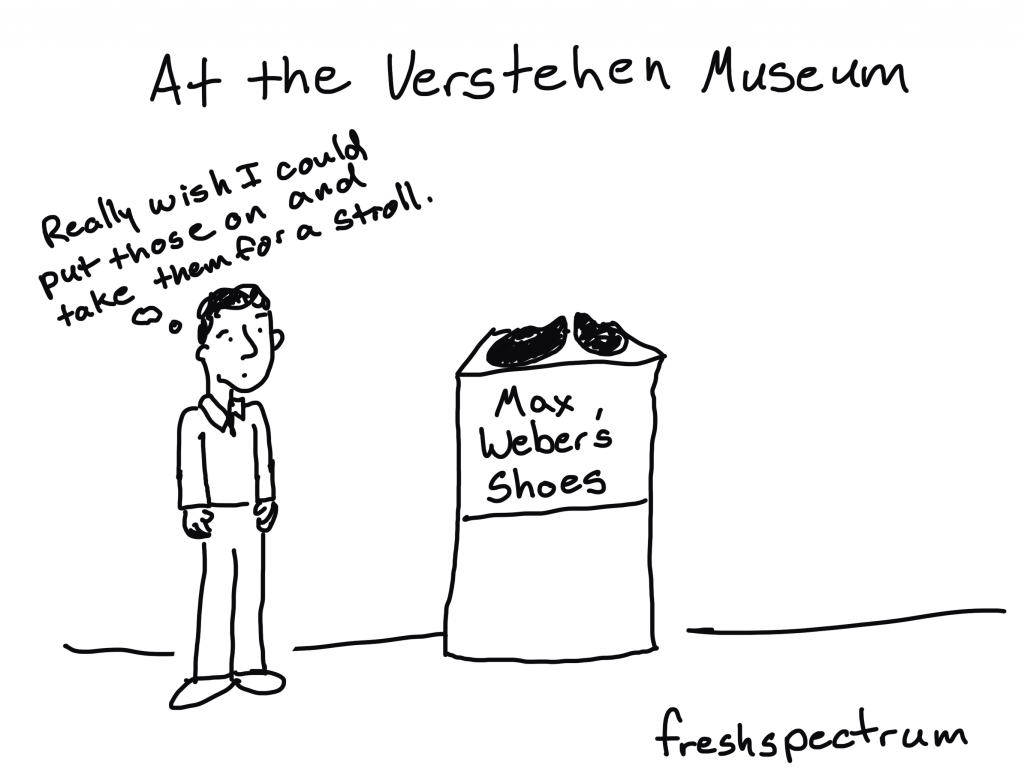
Freshspectrum cartoon by Chris Lysy - At the Verstehen Museum, "Really wish I could put those on and take them for a stroll." Looking at Max Weber's Shoes

The Definition of User Experience (UX)

Summary: “User experience” encompasses all aspects of the end-user’s interaction with the company, its services, and its products.

Don Norman and Jakob Nielsen’s Definition of UX Design

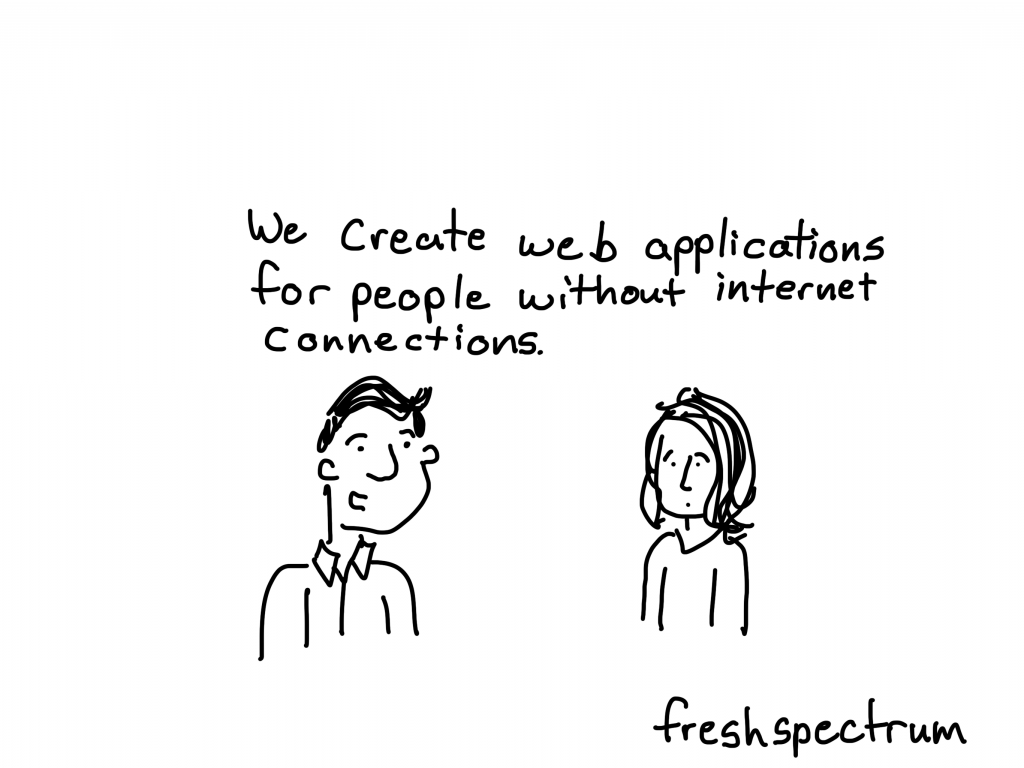
Freshspectrum cartoon by Chris Lysy - "We create web applications for people without internet connections."

What UX Design Is All About

For a long time design has been associated with graphic design (“the look” of a product). As digital technology and our expectations about digital interactions has grown, we’ve begun focusing more and more on “the feel” part of a design, also known as the user experience. If UX is the experience that a user has while interacting with a product, then UX Design is the process by which a designer tried to determine what that experience will be (Note: We can’t really design experiences as a formal entity. However, we can design the conditions of an intended experience).

What Does a UX Designer Actually Do? by Nick Babich on the Adobe Blog

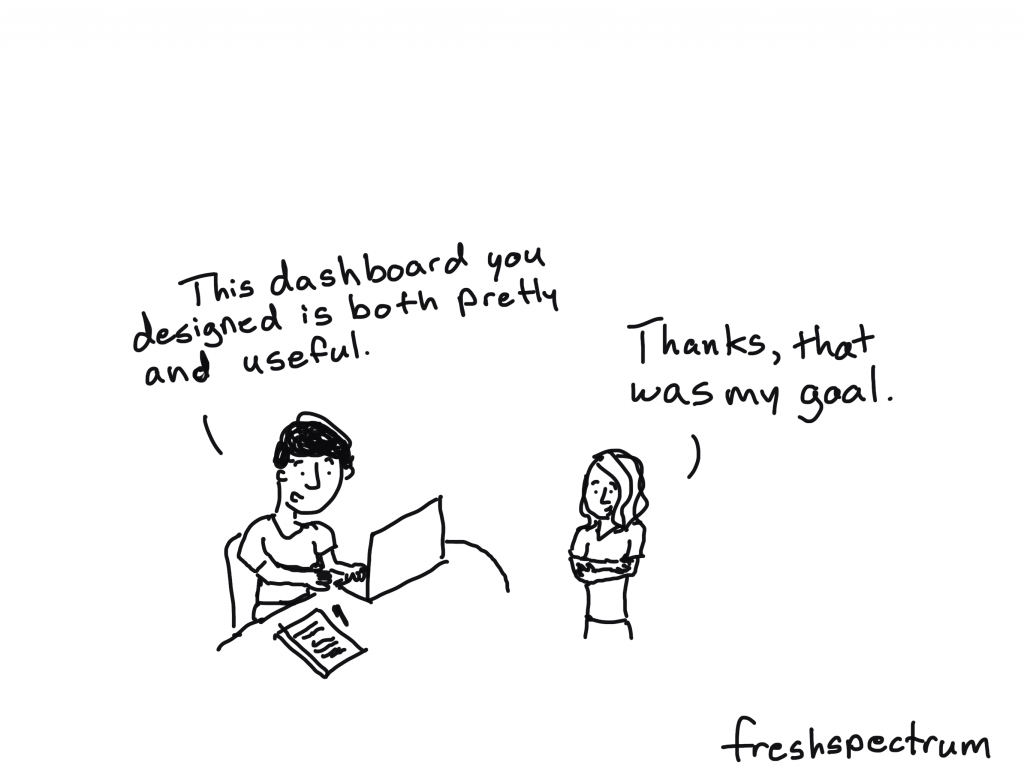
Freshspectrum cartoon by Chris Lysy - "This dashboard you designed is both pretty and useful."  "Thanks, that was my goal."

UI vs. UX: Two Very Different Disciplines that Work in Harmony

UI design and UX design involve very different skill sets, but they are integral to each other’s success. A beautiful design can’t save an interface that’s clunky and confusing to navigate, and a brilliant, perfectly-appropriate user experience can be sunk by bad visual interface design that makes using the app unpleasant. Both UI and UX designs need to be flawlessly executed and perfectly aligned with pre-existing user expectations to create an excellent user interface/experience. And when those stars align the results can be astounding.

What is UI design? What is UX design? UI vs UX: What’s the difference – Found via UX Planet

Written by cplysy · Categorized: freshspectrum

  • « Go to Previous Page
  • Go to page 1
  • Interim pages omitted …
  • Go to page 201
  • Go to page 202
  • Go to page 203
  • Go to page 204
  • Go to page 205
  • Interim pages omitted …
  • Go to page 310
  • Go to Next Page »

Footer

Follow our Work

The easiest way to stay connected to our work is to join our newsletter. You’ll get updates on projects, learn about new events, and hear stories from those evaluators whom the field continues to actively exclude and erase.

Get Updates

Want to take further action or join a pod? Click here to learn more.

Copyright © 2026 · The May 13 Group · Log in

en English
af Afrikaanssq Shqipam አማርኛar العربيةhy Հայերենaz Azərbaycan dilieu Euskarabe Беларуская моваbn বাংলাbs Bosanskibg Българскиca Catalàceb Cebuanony Chichewazh-CN 简体中文zh-TW 繁體中文co Corsuhr Hrvatskics Čeština‎da Dansknl Nederlandsen Englisheo Esperantoet Eestitl Filipinofi Suomifr Françaisfy Fryskgl Galegoka ქართულიde Deutschel Ελληνικάgu ગુજરાતીht Kreyol ayisyenha Harshen Hausahaw Ōlelo Hawaiʻiiw עִבְרִיתhi हिन्दीhmn Hmonghu Magyaris Íslenskaig Igboid Bahasa Indonesiaga Gaeilgeit Italianoja 日本語jw Basa Jawakn ಕನ್ನಡkk Қазақ тіліkm ភាសាខ្មែរko 한국어ku كوردی‎ky Кыргызчаlo ພາສາລາວla Latinlv Latviešu valodalt Lietuvių kalbalb Lëtzebuergeschmk Македонски јазикmg Malagasyms Bahasa Melayuml മലയാളംmt Maltesemi Te Reo Māorimr मराठीmn Монголmy ဗမာစာne नेपालीno Norsk bokmålps پښتوfa فارسیpl Polskipt Portuguêspa ਪੰਜਾਬੀro Românăru Русскийsm Samoangd Gàidhligsr Српски језикst Sesothosn Shonasd سنڌيsi සිංහලsk Slovenčinasl Slovenščinaso Afsoomaalies Españolsu Basa Sundasw Kiswahilisv Svenskatg Тоҷикӣta தமிழ்te తెలుగుth ไทยtr Türkçeuk Українськаur اردوuz O‘zbekchavi Tiếng Việtcy Cymraegxh isiXhosayi יידישyo Yorùbázu Zulu