• Skip to main content
  • Skip to footer
  • Home

The May 13 Group

the next day for evaluation

  • Get Involved
  • Our Work
  • About Us
You are here: Home / Archives for allblogs

allblogs

Jun 27 2024

Evaluation as self-care for your program

This article is rated as:


July 24 is International Self Care Day – who knew that was a day, right? But I think we can all use a reminder to focus on taking care of ourselves, in whatever way is best for us.

The same is true for our work. We’re often so caught up in the day-to-day that we don’t seem to have the time to pause and focus on making our work feel better. My job at Three Hive Consulting is to help people (like program managers and executive directors) to do just that – pause, reflect, and treat their work to a little self-improvement.


If you run programs, or you are an evaluator working with program teams, you can think of evaluation as a way to give those programs some self-care. Just like ourselves, programs might seem to be getting along just fine – but a little reflection and pampering might be in order. Here are a few ways I think evaluation offers your program the opportunity to recharge.

  • Taking stock of strengths and weaknesses: Have you ever tried the Wheel of Life tool, or a similar self-assessment? The Wheel of Life helps people to explore different aspects of their personal life, like career, money, health, and relationships, and decide what they want in the future for each of those domains. People who try these tests often come out of the process with a clearer articulation of existing hunches – for example, they can see that they’re feeling great about friends & family, but perhaps their personal growth could use more attention. Evaluation serves the same function, but for your program or project rather than your life – it helps to identify where the program is doing well, and what areas need some adjustments.

  • Checking in on progress toward goals: Just like you might be aiming for a retirement savings target or eating 30 different plants each week, your program likely has some goals it aims to achieve. Evaluation offers your program a means to measure the extent to which the program is meeting those goals – and remember, what gets measured gets improved.

  • Ongoing improvement is top of mind: When you are regularly evaluating or monitoring your program, you’re more likely to be thinking about improvement as part of ongoing operations. This regular practice of evaluation is similar to establishing strong personal habits – ever find that once you implement a regular physical activity, you also start to think about your eating habits?

  • Knowing where to put your efforts: When thinking about self-care, the options can become overwhelming. Do you go for a run, or visit with a friend for dinner? Should you make time for a massage, or read a book in a sunny spot? We can sometimes get to the point where there are so many options, we’re paralyzed with indecision and end up just scrolling instead. The same can be true for your program – you might be thinking about reallocating staff, changing a registration form, redefining your mission and values, promoting a new offering, and finding budget efficiencies all within the same minute. Evaluation helps you understand where your efforts are most urgently needed, and which actions land in that sweet spot of feasibility and impact.

  • Reducing stress: Stress can often occur when we feel like things are slipping away from us – we don’t have a good enough handle on our finances, that shoulder twinge could probably use some physio, and the kids’ rooms are out of control. Just like implementing planned contributions to your emergency fund, an annual family doctor visit, or a weekly cleaning schedule, implementing ongoing program evaluation helps make sure you can identify risks and weaknesses as you go, rather than letting all those issues pile up and keep you from sleeping. Building an evaluation into a program from the start, rather than force fitting it at the end, means fewer surprises and less stress trying to figure out what went wrong where.

  • Skill-building: Learning something new is a really important part of self-care —it always feels great to learn a new skill, whether it’s a language, a new knitting stitch, or some shortcuts in Excel. Working with an evaluator can help you build skills in evaluation and learning, even when it’s not your job.

  • Future-proofing: Just like self-care helps you build resilience and prepare for whatever your day might throw at you, evaluation helps you think about what your program needs to be sustainable in the future. For example, an evaluation might help you to build in some contingency plans, or supply you with strong evidence to support future grant applications.


So what self-care do you give your program? We’ve got lots of other resources here on Eval Academy to help you scope your evaluation project, write great evaluation questions, choose the right types of survey questions, analyze qualitative data, visualize quantitative data, and turn data into insights. We also offer a course specifically for program managers to learn about evaluation and build their own feasible, relevant, and actionable evaluation plan.

Written by cplysy · Categorized: evalacademy

Jun 27 2024

Data Visualization Applications: Line Charts

This article is rated as:


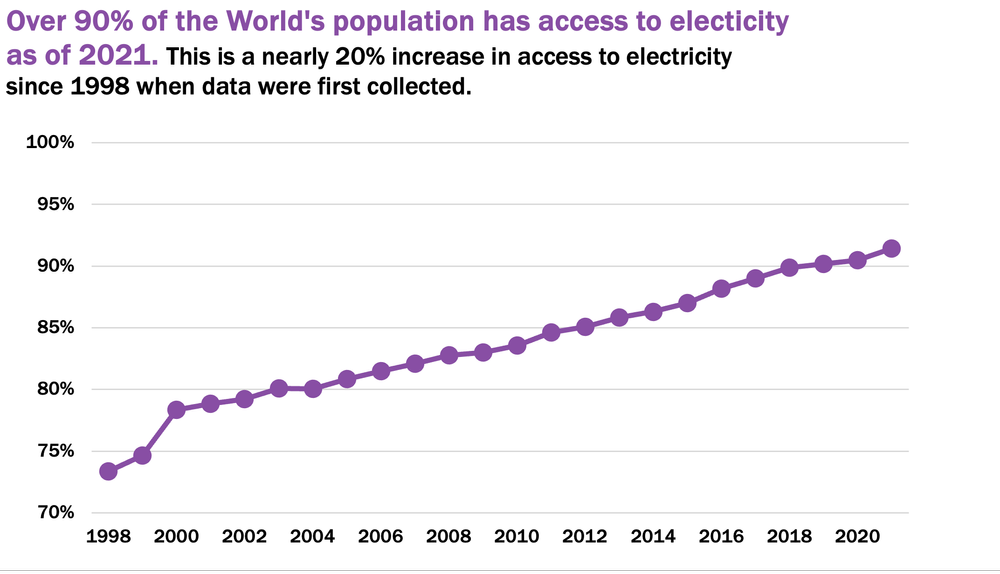
Here we will continue our Data Visualization Applications series with an introduction to line charts. Line charts are a versatile and effective tool for charting time series or continuous data. Here we will outline how to create impactful line charts within Excel 365 to best communicate compelling data stories.

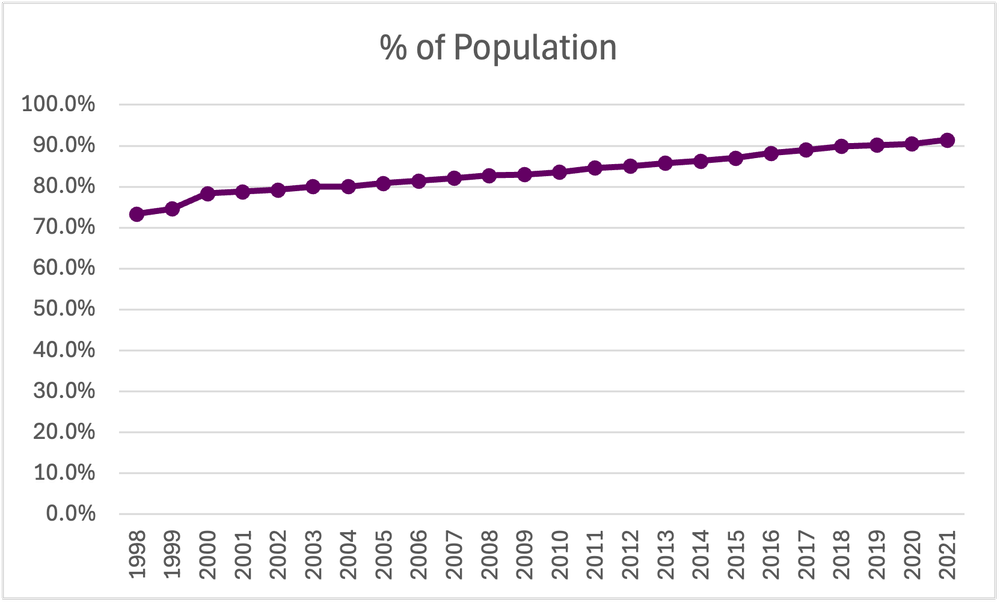
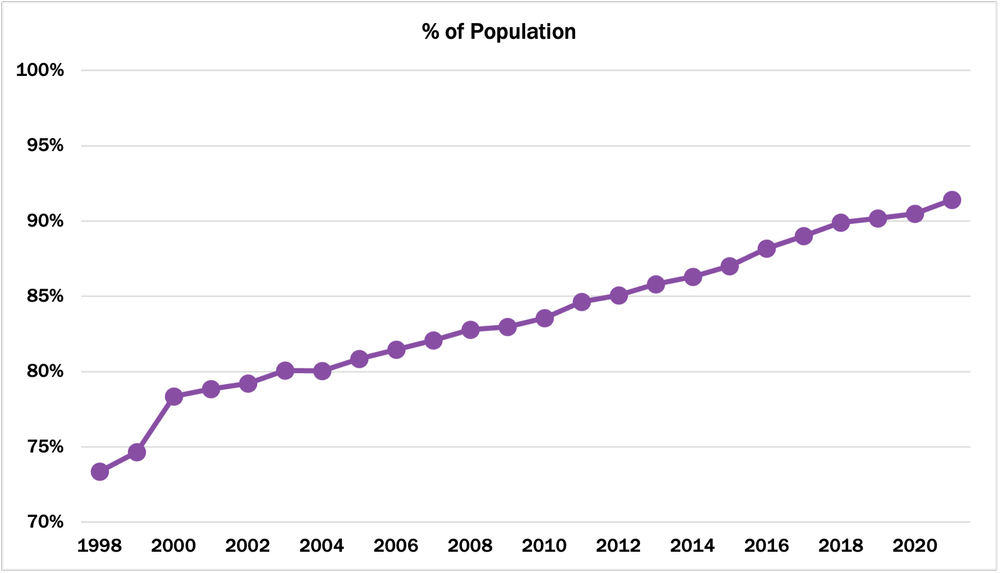
For this tutorial, we will look at the percentage of the World’s population with access to electricity between 1998 and 2021. This data set will provide a clear example of the basics of making effective line charts. The skills learned are applicable to other time series data.

Again, this tutorial assumes data are prepared for charting. However, if your data require cleaning and additional preparation, feel free to review some of our other resources:

  • The Data Cleaning Toolbox

  • Let Excel do the Math: Easy tricks to clean and analyze data in Excel

  • How to combine data from multiple sources for cleaning and analysis

  • A Beginner’s Guide to PivotTables


Initial Chart Selection

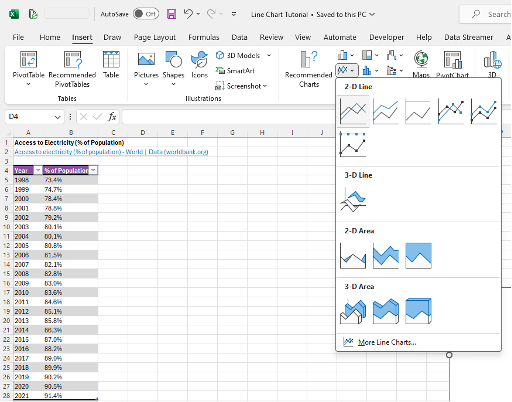
1. Highlight the data to be included in the line chart.

2. Navigate to Insert along the top ribbon of Excel.

3. Within Insert go to Charts > 2-D Line > Line (a basic Excel-formatted chart should appear)


Applying Data Visualization Best Practices

Though you technically now have a line chart, the following sections will outline the process for transforming the default Excel line chart into a compelling, professional-looking line chart by applying data visualization best practices.


First Impressions

It is important to review the initial Excel chart before applying data visualization best practices. When reviewing the initial line chart we should ask:

a) Does the output reflect the raw data? (i.e., Is the correct data range selected? Are there any anomalies in the chart suggesting an error in the data?).

b) Are gridlines cluttering your line chart and need to be removed? Would adding data labels enhance clarity?

c) Are axis ranges indicative of the raw data? (e.g., Percentages capped at 100% should not have an axis exceeding 100%).

d) How can you improve the chart title to accurately describe the main result of the chart?


Simplify

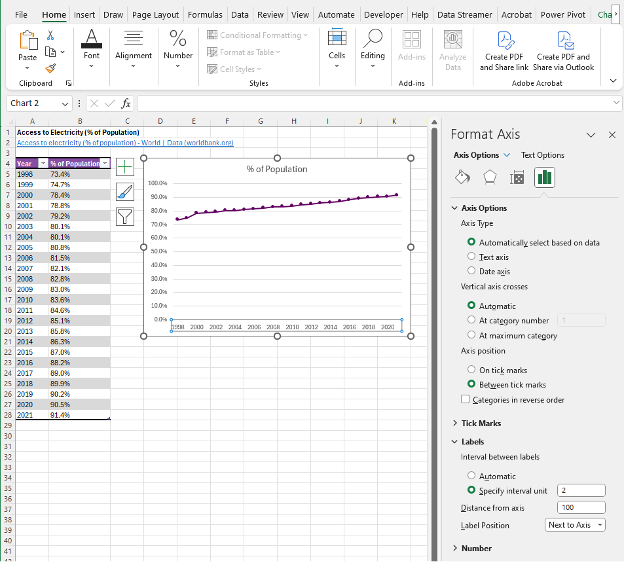
1. Adjust the x-axis to properly display the year values. Horizontal axis labels are easiest to read, enhancing the clarity of the chart.

a) Depending on the number of x-axis labels and the length of the x-axis labels, the chart may need to be resized to fit all the data labels properly.

  • Resize the chart by clicking within the chart and dragging from one of the eight white circles along the edge of the chart. Typically, dragging from the middle right circle or bottom right circle will provide the best results for displaying x-axis values.

  • Or resize the chart by clicking within the chart and navigating to Format > Size where you can manually adjust the Height and Width of the chart.


b) Alternatively, some labels may need to be excluded from the x-axis to better present the x-axis labels (e.g., present even year values only).

  • Right-click on the x-axis labels and select Format Axis.

  • Under Labels you can Specify interval unit (e.g., change to 2 to display every second year).

c) If space is limited and you wish to present all x-axis labels, you may consider using vertical or angled data labels. While more difficult to read than horizontal data labels, these options allow for more labels to be presented in a limited space.

  • Right-click on the x-axis and select Text Options > Text Box.

  • Under Text direction select Rotate all text 270o for vertical labels OR under Custom angle use -45o for angled labels.

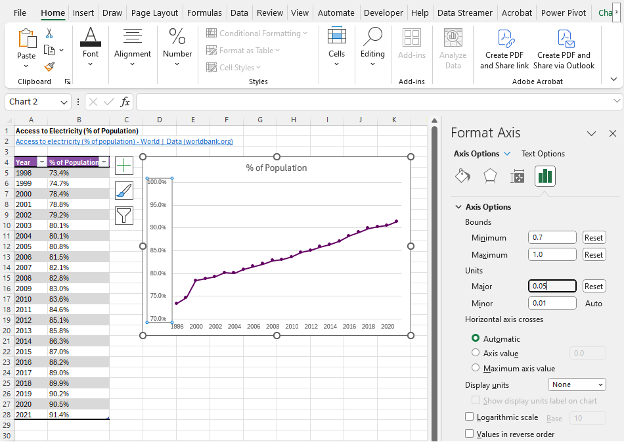
Note: We often recommend using a zero baseline on the y-axis and removing the y-axis labels and horizontal gridlines completely. However, some data require adjustments to these recommendations. As in this example, the data would benefit from a scaled y-axis to better visualize improvements in access to electricity over time. Further, as the data points are numerous, using labels for each data point quickly becomes cluttered. Therefore, keeping the y-axis and horizontal gridlines is beneficial to the overall look of this line chart.


2. Adjust the y-axis labels to better visualize change over time by right clicking on the y-axis and selecting Format Axis and adjust the Bounds of the chart.

  • The Units of the chart may also need to be changed to improve interpretation of the chart.


3. Additional decimal places in the y-axis are unnecessary. To remove the additional decimal values, navigate to Number within the Format Axis menu. Under Format Code change the code from 0.0% to 0% and click Add.


Improve the Appearance

Line Thickness

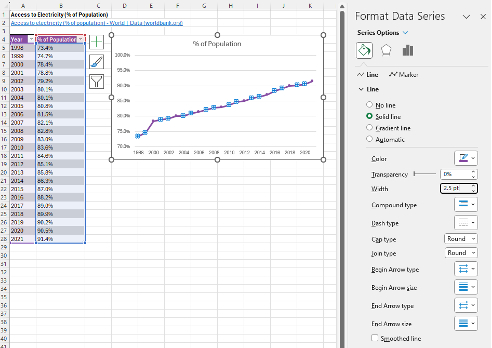
1. Left click anywhere on the line within the line chart.

2. Right click the highlighted line and Format Data Series.

  • This menu can be accessed using the Ctrl + 1 keyboard shortcut.

3. Under Series Options > Line adjust the Width of the line to 2.5 (or your preferred line width – we recommend between 2.5 and 3.0).


Marker Size

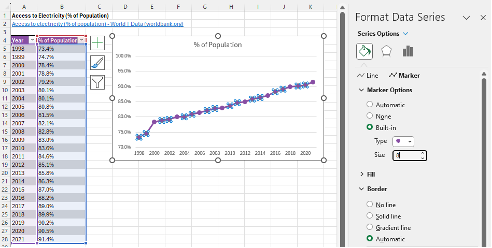
1. Within Format Data Series > Series Options navigate to the Marker options.

2. Under Marker Options > Built-in you can adjust the marker size. We recommend a minimum size of 8. A smaller marker size is better for numerous data points (10+ data points), while a larger marker size is better for fewer data points.

Note: You may wish to change the maker type, although the default filled circle is typically best. However, other marker types may be useful if presenting more than one line in the same chart.


Adjust Colours

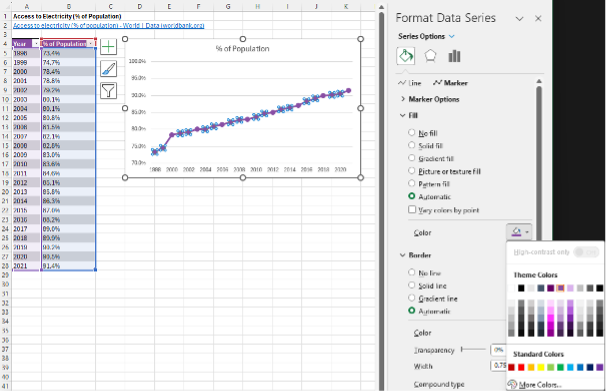
1. Apply your colour palette to the line chart by right clicking on the line and selecting the Fill option.

2. For a line chart with Markers, the colour palette will need to be applied to both the Line and the Marker within Format Data Series.

  • The Marker requires the Fill and Border colours to be adjusted.

  • The line and the markers should be the same colour for best visualization.

When presenting multiple lines within the same chart, you may opt to highlight the main line in a darker colour. This will draw the focus to the primary information within the chart. Other lines can be deemphasized using muted or grey-tone colours.


Adjust Fonts

1. Left click on the chart to highlight the entire line chart.

2. In the Home tab, select your Font of choice.

  • Sans serif fonts work best within charts. Ideally, chart fonts should match the rest of the report/ presentation to ensure consistency. However, if a report uses a serif font, you may opt to use a sans serif font within your charts for better readability.

3. Adjust the Font Size to 9 pt.

  • 9 pt is the minimum font we recommend. Larger fonts may be used depending on the size of the chart and the amount of data presented within the chart.

4. Change the Font Color to Black.

  • The default font colour is a dark grey that does not provide as sharp a contrast as black font. Using black font will improve the readability of the line chart.


Improve the Chart Title

The column heading will automatically default as the line chart title. However, this title is often uninformative. Therefore, update the chart title to be more descriptive and informative.

1. Left click on the Chart Title.

2. Type in your improved title and hit Enter.

  • The chart title may be edited within the function bar at the top of your spreadsheet.

  • You may also opt to right click on the chart title and Edit Text to improve the chart title.

  • You can enter a subtitle by using Alt + Enter to move down a line. 


Final Tweaks

1. Emphasize the chart title by increasing the main point to 14 pt font.

  • A subtitle, if you have one, can be deemphasized using a slightly smaller 12 pt font.

  • When drafting the title within the line chart, you will have to highlight the specific section of text for which you wish to apply changes. Otherwise, all changes to the font will apply to the whole title.

2. Further emphasize the main point by incorporating your primary colour into the text.

3. Remove the border from the chart by right clicking within the chart and navigating to Outline > No Outline within the pop-up menu.


Final Thoughts

Effectively visualizing data requires a few foundational best practices. However, data are complex, and presenting data requires a flexible approach. For example, in this tutorial, we show how to present numerous data points over time, which requires unique chart adjustments to best present the data, such as using a y-axis and gridlines over individual data labels. Therefore, it is important to understand your data and adjust as necessary to best present each unique data piece to best tell your data stories.

Written by cplysy · Categorized: evalacademy

Jun 27 2024

Internal vs External Evaluators: What’s the Difference and Which One is Right for You?

This article is rated as:


Hey Program Managers, I wonder if you’ve ever needed to decide how to evaluate the programs or services you offer; not just the in-the-weeds details about how to write the evaluation plan and measure the outcomes, but who should be helping you conduct that evaluation.

I work for an evaluation consultancy firm, Three Hive, so I should be espousing the benefits of contracted evaluation. But actually, I think there are some key advantages that come with having an internal evaluator. I’ve been fortunate in my career to have experienced a few different work formats:

  • I’ve been a full-time employee evaluator for two different healthcare organizations

  • I have been a solo contractor working for multiple clients

  • I have been a solo contractor, contracted full-time to a single organization for multiple years

  • Now, I work as a consultant for an evaluation firm, as an employee, contracted out to multiple clients.

Let me share some of my insights about the pros and cons of an internal evaluator vs contracted/external evaluation.


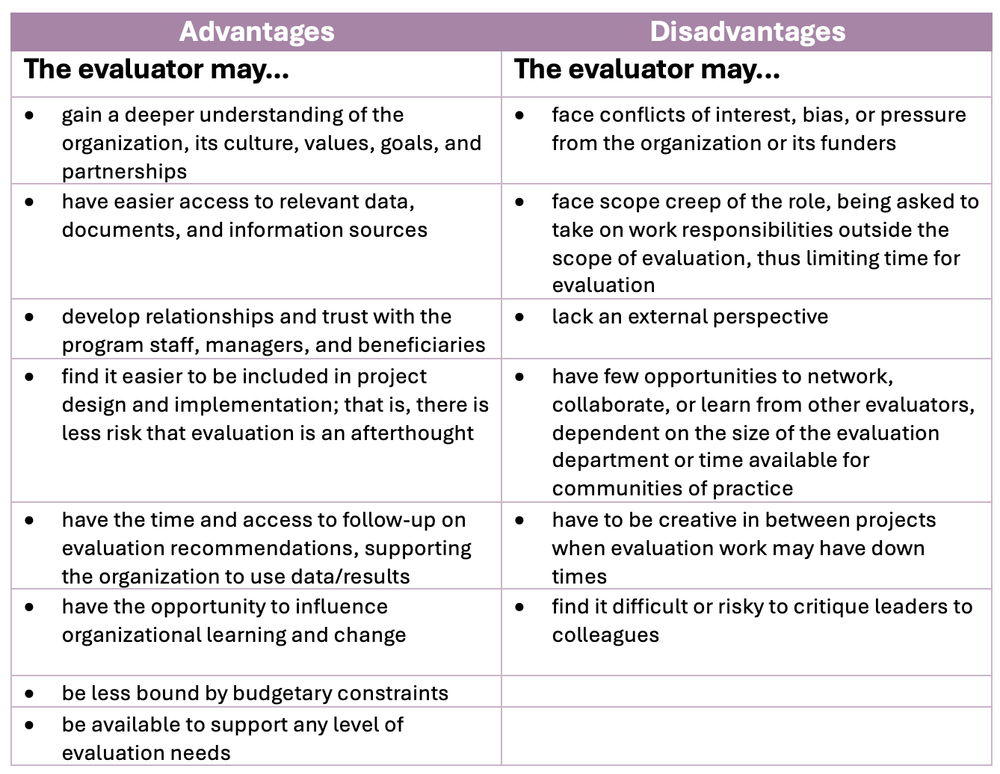
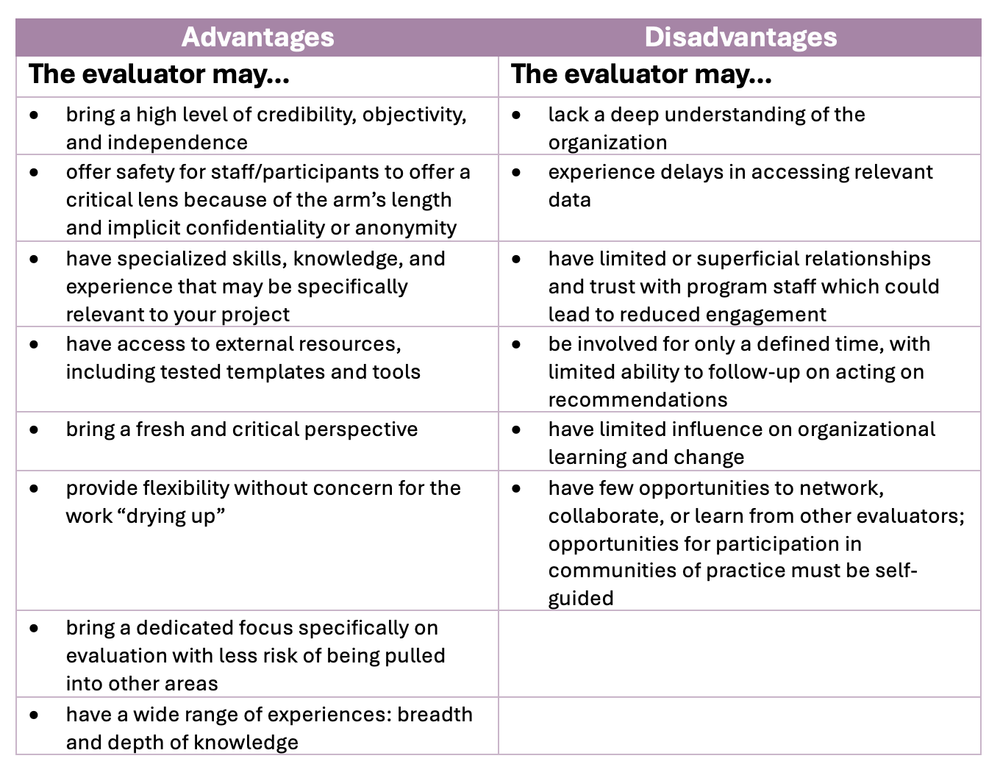
Internal evaluators are those who are part of the organization that is implementing or funding the program being evaluated. Usually, this is as an employee, but I’d count my years as a full-time contracted evaluator for one organization as internal as well. External evaluators are those who are independent from the organization being evaluated. External evaluators are usually hired for a specific project, but less commonly could be retainer-style, available to add evaluation expertise at any time to any project.


Pros and Cons of an Internal Evaluator


In my experience, one of the main benefits of being internal is sitting at the table when a project is being designed. Being included right from the start means that evaluation can be integrated into implementation and can inform your project leads along the way. Being included early as an external evaluator can happen, but it’s a rare treat.

On the other hand, as an internal evaluator, I was constantly being asked to take on non-evaluation projects, including leading full projects as the Program Manager, not the evaluator. I also felt a little lonely as the solo evaluator with the company and struggled to advocate for professional development opportunities related specifically to evaluation.


Pros and Cons of an External Evaluator


In my experience one of the biggest benefits of an external evaluator is finding that perfect match – not only someone who is an expert evaluator, but someone who knows your work area, which could be healthcare, community programming, housing, justice, etc. Chances are there’s an evaluator out there that fits your needs! As a contracted evaluator, I value bringing an outside perspective and asking the silly questions.

On the other hand, one of my pet peeves is that notion of “not knowing what you don’t know”.  It can take some time to get to know an organization and to ask the right questions to get you the data and information you need.


How to Choose the Best Option for Your Evaluation Needs

There is no definitive answer to the question of whether to use an internal or external evaluator. The choice depends on several factors, such as:

  • Your evaluation needs: Do you operate several programs/grants that require evaluation? Or did you just secure a one-time-limited grant with an evaluation requirement?  Think about how valuable an outside perspective might be or the sensitivity around the project. Conversely, think about workload and where an evaluator could help operationally if projects are not numerous.

  • Organizational capacity: Everything from physical space to supervision; how difficult/easy would it be to integrate a new full-time role into your operations?

  • Budget! Of course, it goes without saying that both internal and external evaluators cost money. Think about total costs: internal evaluators may have pensions, benefits, vacation, sick time, equipment and software costs to factor in. Contracted evaluators may charge more per hour, but contracts can put hard limits on the budget available.

  • The skills needed: Maybe you need an evaluator who knows your field well; maybe a Credentialed Evaluator designation is a requirement; or maybe you need someone with the right networks and connections! It may be a matter of finding the right person (or team) and working on the work arrangement after the fact.

  • The “optics” of the project: Often external evaluators are hired when the outcomes of a project may be political or sensitive. That is, when there will be scrutiny on the results, high levels of interest, or when you need to able to ensure reduced bias in your findings and reporting. Consider the ethical and political implications and sensitivities of the evaluation.

Your choice doesn’t necessarily need to be a permanent one. Maybe you start with a contracted evaluator for a specific project but learn over time that you could use evaluation expertise in more areas; you can always look to hire someone or increase the contract with your evaluator.


Internal and external aren’t the only options either. Often, we see someone who has been given the side-of-desk additional responsibility of being the organization’s evaluator. I don’t think this is anyone’s ideal, but we do recognize that sometimes time or budgetary constraints make the less-than-ideal the only option, which is literally why we created our course!  Of course, you can hire part-time, which may mitigate some of the disadvantages of an internal evaluator, or you could look at hybrid models: an internal evaluator supported through external consultants.

If you’re in the market to hire an evaluator, consider your options carefully. A quality evaluator and a quality evaluation can have a significant influence on funding and even operational efficiencies.

Written by cplysy · Categorized: evalacademy

Jun 25 2024

How to Write Dynamic Takeaway Sentences inside Interactive Excel Dashboards

I’m a big fan of takeaway text: for reports, for presentations, and even for interactive dashboards.

Sometimes people think that takeaway text isn’t possible for dynamic dashboards in Excel. They worry that they’ll have to write each sentence by hand. False!

In this video, you’ll learn about two ingredients:

  • Concatenation: You’ll use the ampersand (&) to join the content from a few cells together.
  • Helper Cells: There are pivot tables, helper tables (with lookups), and more concatenation to write out the graph labels.

You can write takeaway sentences about:

  • The most or least (the poles)
  • The averages
  • Anything else you think your audience might be interested in

Your Turn

Download this Excel dashboard and follow along: https://depictdatastudio.gumroad.com/l/Demographics-Dashboard

Written by cplysy · Categorized: depictdatastudio

Jun 24 2024

How to create a simple qualitative spotlight infographic with Canva

In this video I’ll show you step by step how to create a simple spotlight graphic. This can be a really easy way to illustrate interviews in qualitative reports. This particular graphic was created using Canva.

This is part of the DiY Data Design recipes series.

Full Transcript

Hey data designer!

If you ever write reports with qualitative data, you probably end up with this challenge. Qualitative data can be overwhelmingly text heavy.

To make these reports easier to read, you need to do two things. The first is just to follow the rules of good graphic design. The second is to find appropriate ways to add pictures to your reports.

Today’s recipe is on a simple method you can use to spotlight an individual inside of a
team photo. This can be a really easy way to illustrate interviews with individual group members. You
just need a group photo of some type. You just repeat the following steps for each person you want to spotlight.

To start we’re going to open Canva and create a standard blank 16 by 9 presentation. Since this is just a tutorial, I’m going to start with a random team photo inside of Canva’s
stock image library.

One step I usually take when editing photos or creating infographics is to make duplicates
of the page anytime I want back up copy.

When you click on a photo inside of a canva design you get an image effects menu.
For this recipe I’m going to use Canva’s background remover.

Just a note, this is a Canva pro feature, which I have. There are also other photo
background removers on the web that are free, including Adobe Express (just google it).

While it’s never perfect, I’m always pretty impressed by the job of the Canva background
remover. This used to be a bit of an annoying process, now it’s just a button click.

Let’s go away from the background removed image and make another copy of the first
team photo image. This time we’ll click on the photo and use one of the Canva black and white photo filters.

After that, what I do is actually copy and paste the background removed image overtop of
the black and white image. Then I’ll reduce the size of that image so it spotlights a specific individual.

At this point, if you’re not picky, this might be enough for you. But let’s take it a step
further. After you do a background removal, you can click on the button again to pull up a
configuration window.

From here, we can actually manually erase parts of the photo.

So that’s what I did. I manually erased space around the person I want to spotlight.
You don’t have to erase the whole rest of the photo, because you can also crop things out.
You just want to get rid of the elements right around the person you want to spotlight.

There, now I have one person spotlighted.

She didn’t stand out enough for me. So I clicked on the background black and white
picture and turned down the transparency.

This will help the spotlight pop a bit more.

Now that I have a person spotlighted, let’s add a space for a quote.
You can find rectangles in the elements menu by looking for shapes.

Or you can use a shortcut and just click the R button.

Sometimes with a photo background I’ll also add a little transparency to the background
box to pull the image through. This is all just preference.

Next I’ll add some text using the shortcut t in canva, or by clicking in the text menu.

There are a lot of ways to edit text. With the text selected you can find different options in the menu at the top of the page. There are also text effects if you want to test some of those out.

After I put in the text, the background picture was coming through a little too much, so I
brought the transparency back up just a little.

Then it’s all about tweaking until I am pretty happy with the image.

After I’m done, I want to go ahead and download the image. Most of the time, I’ll download
the image as a PNG.

One thing to note, is that because I kept making duplicate copies of the page I was working
on, I ended up with a multi-page document. Instead of deleting all my backups I usually just use the select pages option in the menu to select the current page.

And that’s it. Here is our final visual.

The good thing about this technique, is that if you only have one picture that includes
multiple people, you can use that same picture over and over again. Because each time it will have a different person spotlighted, it won’t feel monotonous and will help your reader stay connected to each person being interviewed.

If you enjoyed this video, please go ahead and like, subscribe, and leave a comment. It
means a lot and I will always read every comment. And if you’re interested in free resources like eBooks and courses, visit my resource library at freshspectrum.com/library

Now… Get out of your head and go create some stuff.

Written by cplysy · Categorized: freshspectrum

  • « Go to Previous Page
  • Go to page 1
  • Interim pages omitted …
  • Go to page 43
  • Go to page 44
  • Go to page 45
  • Go to page 46
  • Go to page 47
  • Interim pages omitted …
  • Go to page 310
  • Go to Next Page »

Footer

Follow our Work

The easiest way to stay connected to our work is to join our newsletter. You’ll get updates on projects, learn about new events, and hear stories from those evaluators whom the field continues to actively exclude and erase.

Get Updates

Want to take further action or join a pod? Click here to learn more.

Copyright © 2026 · The May 13 Group · Log in

en English
af Afrikaanssq Shqipam አማርኛar العربيةhy Հայերենaz Azərbaycan dilieu Euskarabe Беларуская моваbn বাংলাbs Bosanskibg Българскиca Catalàceb Cebuanony Chichewazh-CN 简体中文zh-TW 繁體中文co Corsuhr Hrvatskics Čeština‎da Dansknl Nederlandsen Englisheo Esperantoet Eestitl Filipinofi Suomifr Françaisfy Fryskgl Galegoka ქართულიde Deutschel Ελληνικάgu ગુજરાતીht Kreyol ayisyenha Harshen Hausahaw Ōlelo Hawaiʻiiw עִבְרִיתhi हिन्दीhmn Hmonghu Magyaris Íslenskaig Igboid Bahasa Indonesiaga Gaeilgeit Italianoja 日本語jw Basa Jawakn ಕನ್ನಡkk Қазақ тіліkm ភាសាខ្មែរko 한국어ku كوردی‎ky Кыргызчаlo ພາສາລາວla Latinlv Latviešu valodalt Lietuvių kalbalb Lëtzebuergeschmk Македонски јазикmg Malagasyms Bahasa Melayuml മലയാളംmt Maltesemi Te Reo Māorimr मराठीmn Монголmy ဗမာစာne नेपालीno Norsk bokmålps پښتوfa فارسیpl Polskipt Portuguêspa ਪੰਜਾਬੀro Românăru Русскийsm Samoangd Gàidhligsr Српски језикst Sesothosn Shonasd سنڌيsi සිංහලsk Slovenčinasl Slovenščinaso Afsoomaalies Españolsu Basa Sundasw Kiswahilisv Svenskatg Тоҷикӣta தமிழ்te తెలుగుth ไทยtr Türkçeuk Українськаur اردوuz O‘zbekchavi Tiếng Việtcy Cymraegxh isiXhosayi יידישyo Yorùbázu Zulu