• Skip to main content
  • Skip to footer
  • Home

The May 13 Group

the next day for evaluation

  • Get Involved
  • Our Work
  • About Us
You are here: Home / Archives for allblogs

allblogs

Aug 23 2023

Stop Prioritizing “One Size Fits All” Solutions

A principle in program design is that, if a program is placed in a new location, the program will still perform as expected. From a program evaluation perspective, we understand that a program’s location presents both challenges and opportunities, as the physical location (whether it’s an actual neighborhood or virtual) is often as unique as […]

The post Stop Prioritizing “One Size Fits All” Solutions appeared first on Nicole Clark Consulting.
Written by cplysy · Categorized: nicoleclark

Aug 21 2023

Two Types of Tables: Datasets vs. Tabulations

Last week’s blog post about contiguous vs. non-contiguous datasets was immensely unpopular.

I had the most unsubscribes to my blog and newsletter of all time — in more than a decade of blogging, YouTubing, and newsletter-ing.

One person said something like this:

“I think the issue is you’re a visualization expert and visually the mini sets are easier. From a data prep perspective, one really long table is the correct way to store the underlying data. Dealing with dozens of tables that should just be a single set is a typical rookie mistake.”

Let’s chat more about that distinction: storing underlying data vs. tables that look nice visually.

Two Types of Tables

The term “table” is tricky.

At its core, a table is just a collection of rows and columns.

But you’ll need different types of tables at different phases in the data analysis and visualization process.

Here’s the major distinction you need to understand:

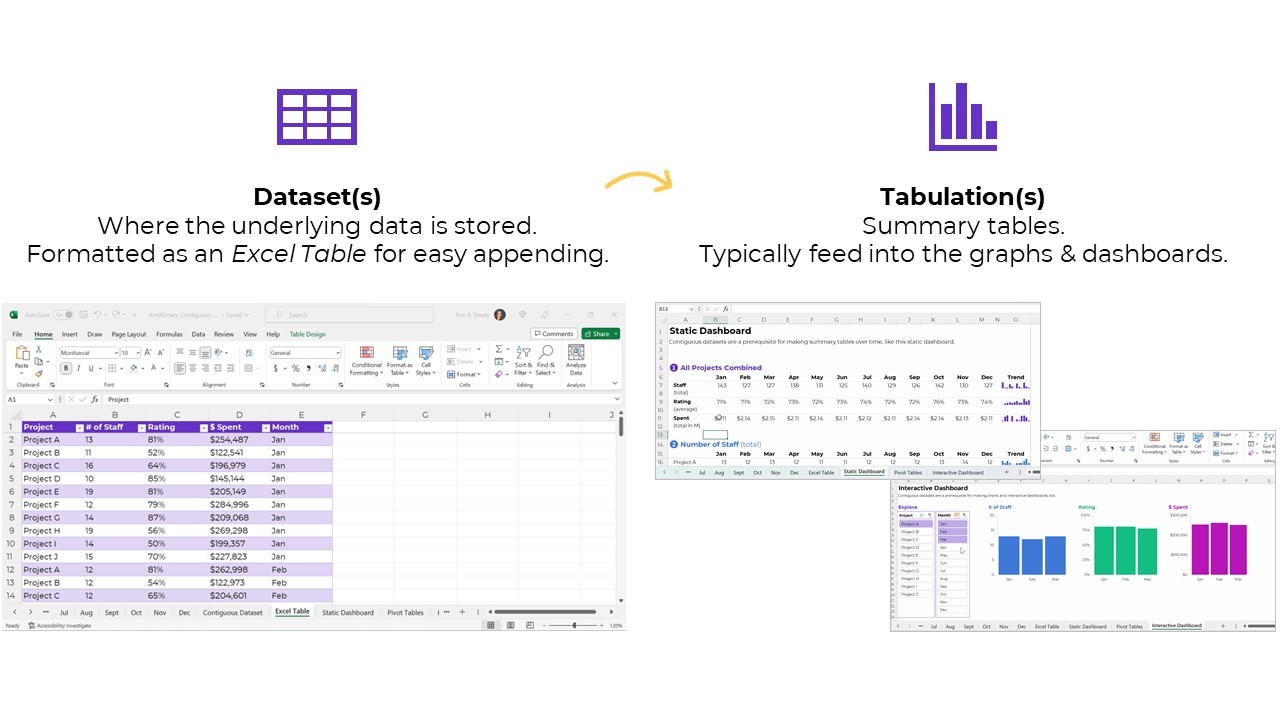
  1. Datasets are tables where your data is stored.
  2. Tabulations are tables where those datasets are summarized.

Let’s look at each type in more detail.

Type 1: Datasets

The first type of table is a dataset, which is where your data is stored.

Sort-of synonyms:

  • Raw data: This is a sort-of synonym. The term raw means the data hasn’t changed since you received it (i.e., a coworker emailed it to you); since you downloaded or exported it (i.e., from a public-facing website, or from your agency’s database); or since you or someone else manually-entered it.
  • Clean data: This is a sort-of synonym. The term clean means the data has changed since you received it. You checked for duplicates and missing data; you checked for and dealt with outliers; and/or you cleaned and recoded variables (e.g., by transforming a MM-DD-YYYY into Q1, Q2, Q3, or Q4, among hundreds of other recodings that are often necessary).
  • Master dataset: This is a direct synonym — and this is the term I learned in undergraduate and graduate statistics courses — but we don’t use slavery terms anymore. I’ve been hunting for a better term for a couple years. If you’re in Simple Spreadsheets then you’ve heard me talk about this a lot. I’ve experimented with the terms central headquarters or hub to replace master dataset, but none of them felt right. The term that currently feels most accurate is contiguous dataset.

Datasets: Contiguous vs. Non-Contiguous

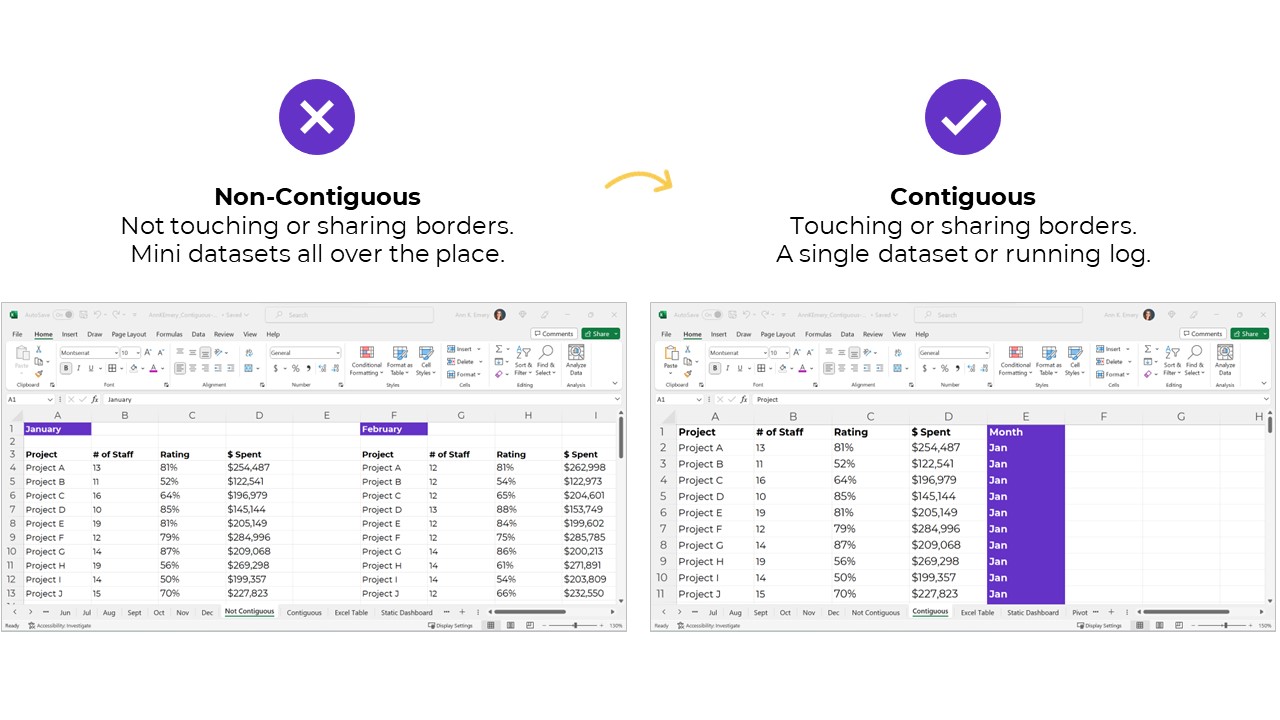
Datasets should be contiguous, i.e., touching or sharing a border.

If you want to be efficient, that is.

Non-contiguous datasets — dozens of mini datasets located across different sheets or Excel files — lead to wasted time, wasted money, and wasted brainpower.

Datasets: Stored as Excel Tables for Easy Appending

Datasets should be stored as Excel Tables when you need to append them later, i.e., if you’ll be adding to them.

You can learn more about contiguous vs. non-contiguous datasets and tables vs. Excel Tables in this blog post. The Simple Spreadsheets course is all about data management and analysis, too.

Type 2: Tabulations

The second type of table is a tabulation. Tabulations are tables where the datasets are summarized.

For example, the dataset might have one entry per project. The tabulation might show the totals and/or averages across all the projects.

Datasets and tabulations have different purposes. They’re used at different points in the analytical process. They look different. They are different.

Synonyms:

  • Summary table
  • Summary statistics
  • Report
  • Key metrics

How to Tabulate the Dataset

You’ve got two options in Excel:

  1. Formulas (sumifs, countifs, averageifs, lookups, etc.) will play nicely with the quick vizzes (below). They require more skill and practice, though.
  2. Pivot tables will play nicely with the interactive dashboard (below). Anyone can learn pivot tables within minutes, so I often recommend them for the beginner/intermediate crowd.

This distinction deserves its own blog post, too. In all my “spare” time, ha! We also talk about the distinctions between formulas and pivot tables in detail inside Simple Spreadsheets.

Tabulations: Can Be the End Product (meh)

The tabulation might be the end product that you share with others.

I suppose you could email the summary table to colleagues. You could post it on a website, or share it on a slide.

Except… meh.

Why not bring those visuals to life?!

Tabulations: Can Feed into Mini-Graphs

Why not add quick vizzes to bring tabulations to life?!

Sparklines, data bars, heat tables, and symbol fonts are my go-to’s.

Visuals make it easier for our brains to spot patterns. It’s obviously faster to look at a viz than to read all the numbers.

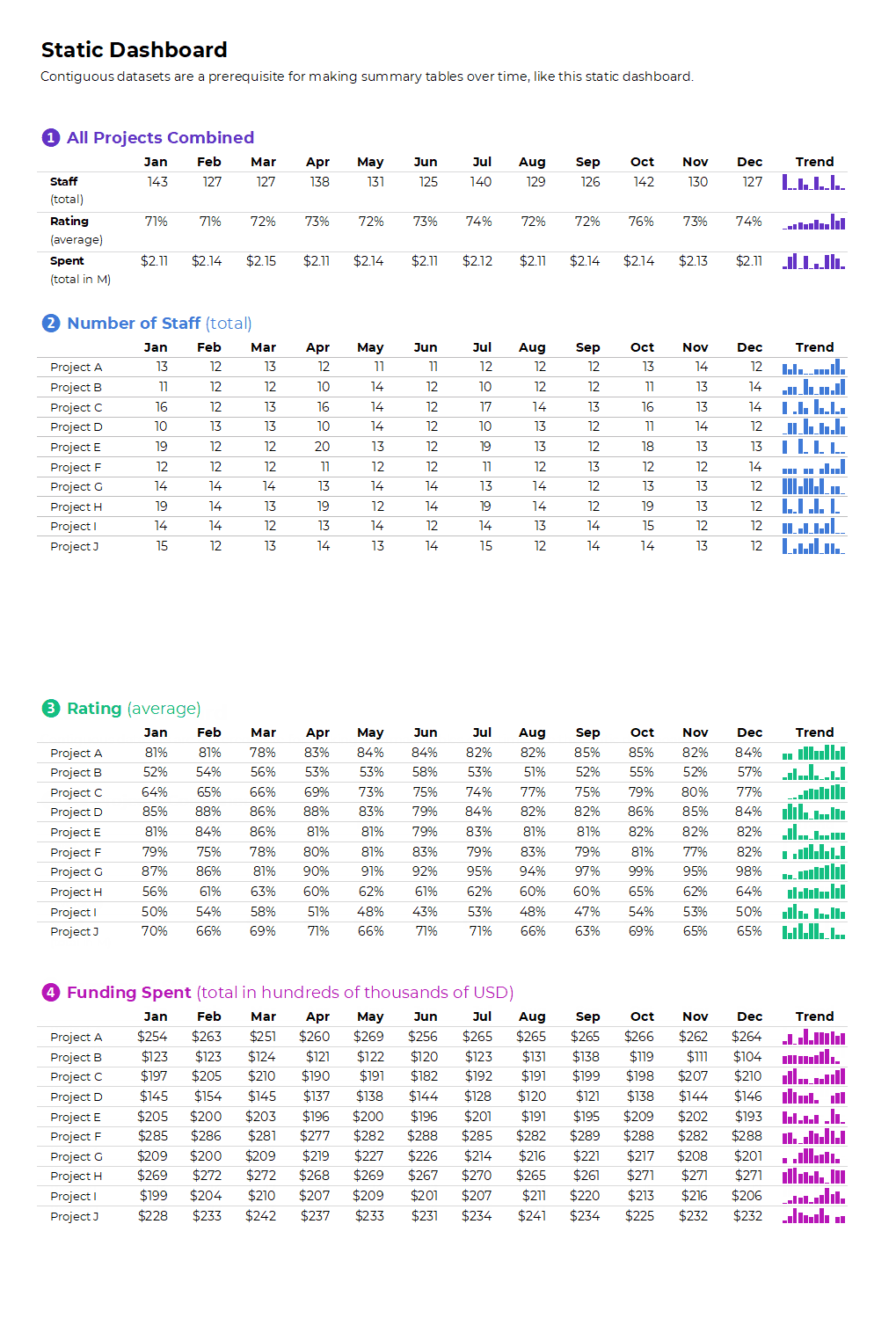
Your quick vizzes might look like this:

If you format the sheet for easy printing and PDF’ing, then voila!, you’ve got a static dashboard.

Static dashboards like these are great for internal audiences that (1) need a quick turnaround time and (2) want lots of details from the actual tabulations.

Tabulations: Can Feed into Big Graphs and Dashboards

Tabulations can also feed into larger graphs (for documents and slides).

Or, tabulations can feed into larger graphs for interactive dashboards.

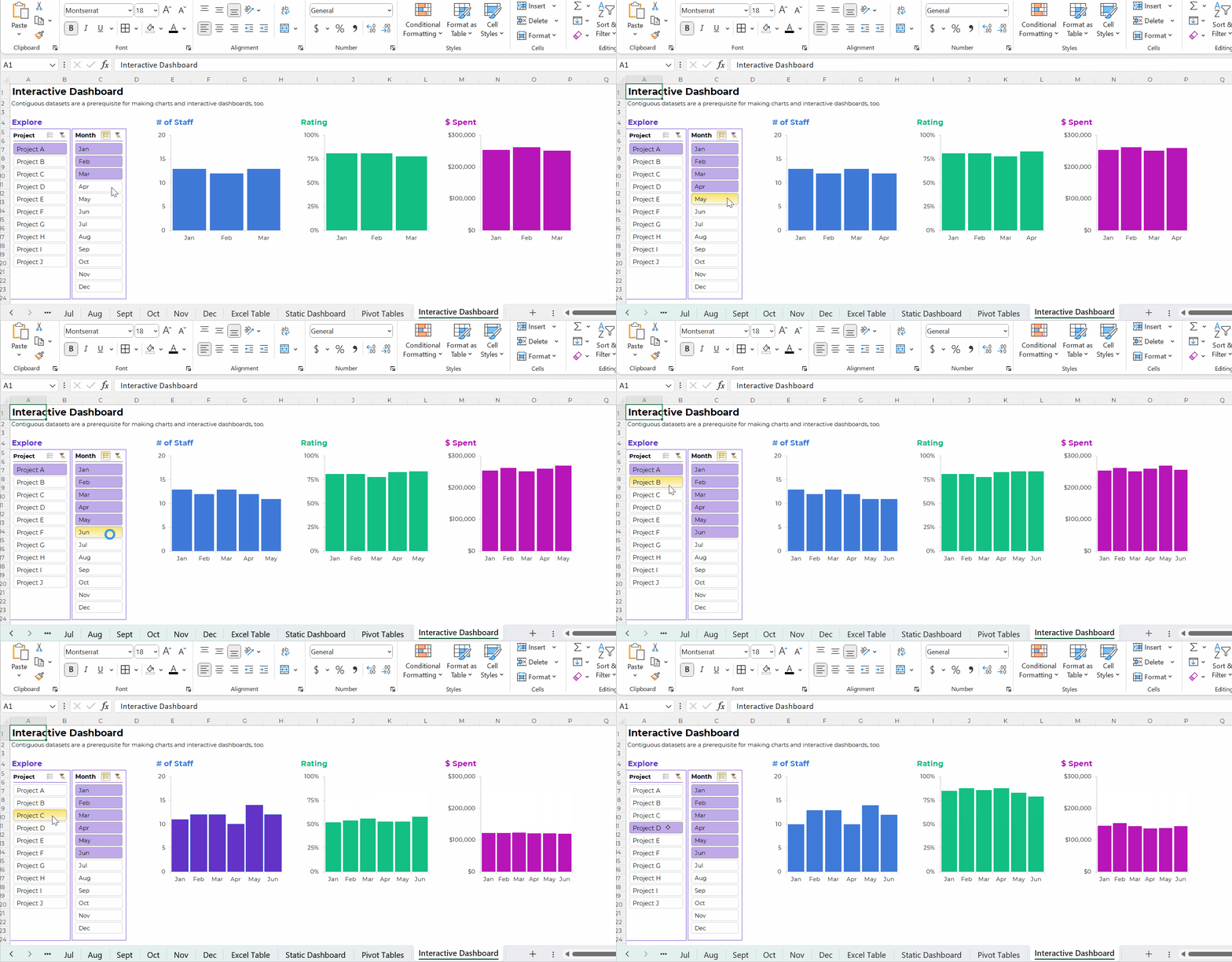
Your interactive dashboard in Excel might look something like this:

The Bottom Line

“Table” is a tricky term. It’s broad and generic. It means different things to different people.

There are two main types of tables:

  1. Datasets are the underlying data source. You might have one entry (one row) per person, or per organization, or per project. Datasets should be contiguous because.
  2. Tabulations are the summary tables. You might tally-up how many people, or how many organizations, or how many projects. Tabulations might be your end product (yawn!). Or, they might feed into graphs and dashboards (yay!).

We need both datasets and tabulations. But these are different types of tables.

Written by cplysy · Categorized: depictdatastudio

Aug 17 2023

Try This: Update Your Logic Model

Try this activity and let me know how it goes for you. When logic models are viewed as a valuable planning and learning tool and used with other programmatic tools, it increases the likelihood that your organization will use them. So, let’s update your program’s logic model! This activity is ideal for: Anyone responsible for […]

The post Try This: Update Your Logic Model appeared first on Nicole Clark Consulting.
Written by cplysy · Categorized: nicoleclark

Aug 16 2023

Annual Report Design – How to create 5 reports with 1 design.

In today’s blog post I’ll show you a contemporary approach to annual report design. Instead of ending up with 1 report, you’ll end up with 5, each designed to meet a separate need.

At the end of this process you will have 5 different styles of report.

  • An Annual Report Slidedoc.
  • A Presentation Deck.
  • A set of 2 pagers.
  • A set of Micrographics.
  • An Interactive Online Report.

But before we jump into design, let’s first talk about the big design challenge and a few rules for reducing reporting frustration.

All I have to do is wave my magic wand and I'll turn 1 report into 5 reports.

How do we write more reports without requiring a lot more time, effort, and expense?

This is our big design challenge. It’s the question I always get after I suggest that should focus as much, if not more, on writing more reports instead of just better reports.

To reach overwhelmed audiences we need to deliver the right amount of information at the right time. Yes, all the information your audiences need might exist inside your big “well-designed” pdf report. But overwhelmed people rarely even attempt to read long pdfs.

If we really want to reach these audiences, we need to offer our reporting through different mediums and communication channels. But to do that effectively, without spending lots more time and money, we need to change how we approach reporting.

That starts by reducing some of the frustration that creates time-sucks.

There is still a place for boring/long word documents.

How to reduce reporting frustration.

First, understand that there is a difference between project documentation and reporting.

Documentation is about systematically describing the work. There are all sorts of reasons why this is an important thing to do, especially for researchers and evaluators whose work might face public scrutiny.

Reporting is about translating your work in a way to communicate it to a specific audience.

If you try to do both things with one document, you are likely going to fail at both challenges. This is what leads to a document that is too long for an audience but too short to act as proper project documentation.

Instead, I suggest treating these as different challenges. Write your project documentation in a Word Doc or Google Doc without a lot of worry about design. Just use simple headers, and don’t worry about being too concise. Unlike your reporting, your documentation might never be seen by an audience. And if it is, that audience will likely be small.

By using filler text like lorem ipsum, you can design before you have the words.

Second, reporting requires multitasking.

Almost any good report will require design, writing, and illustration.

Most amateur report creators try to do these three things simultaneously. They will write, tweak tables, move text around, visualize data, and add illustration as they go. As with most multitasking, this is a bad idea. It takes away the proper attention required for each step and forces you to focus only on the current part you are working on, and not the whole.

I approach these three things as separate tasks.

You can design before you have the content ready. I use filler text (lorem ipsum) and design individual page spreads based on target page counts and the anticipated amount of charts/visuals we plan to use.

You can, and should, let the design influence your report writing. This means sometimes writing with word counts in mind, or to meet structural needs of the report. But you should not adjust the design as you write. In fact, it’s usually better to write outside of the design in a separate document then merge them together later.

The illustration step is my last one. Even when I write these blog posts, I write them first and illustrate later. That way I can use illustrations strategically and really pair each one with the written text.

The 5 in 1 report design approach.

Our goal is to approach report design in a way that minimizes the required effort. Instead of treating each individual report type as a separate design, we look at the design holistically.

We start with the more comprehensive report design, then work our way down through the different adaptations. Personally, through my work with ReportPress, I would start with the interactive online report.

But considering you are likely NOT a web designer like I am, I would suggest starting with the Annual Report Slidedoc. This is the most comprehensive.

Slidedoc Tip: By using color sparingly you make it more meaningful.

Step 1. Annual Report Slidedoc Design

I have written about slidedocs in the past, so if you are interested in the approach you should check out that blog post.

In short, I suggest using Canva or PowerPoint to design your slidedoc. It should be widescreen. Most of your readers will view pdfs on either a laptop or desktop screen, so this format takes advantage of the screen dimensions and limits unnecessary scrolling.

Don’t overload the slides, there is no trophy for having the fewest pages. As with any modern design that is read on a screen, your goal is efficiency in comprehension. It is better to be easy to flip through and read than it is to be short on page count.

I’ll have more guides on creating these styles of reports in the future, along with templates you can use, so if you are not currently following me by email you should join us.

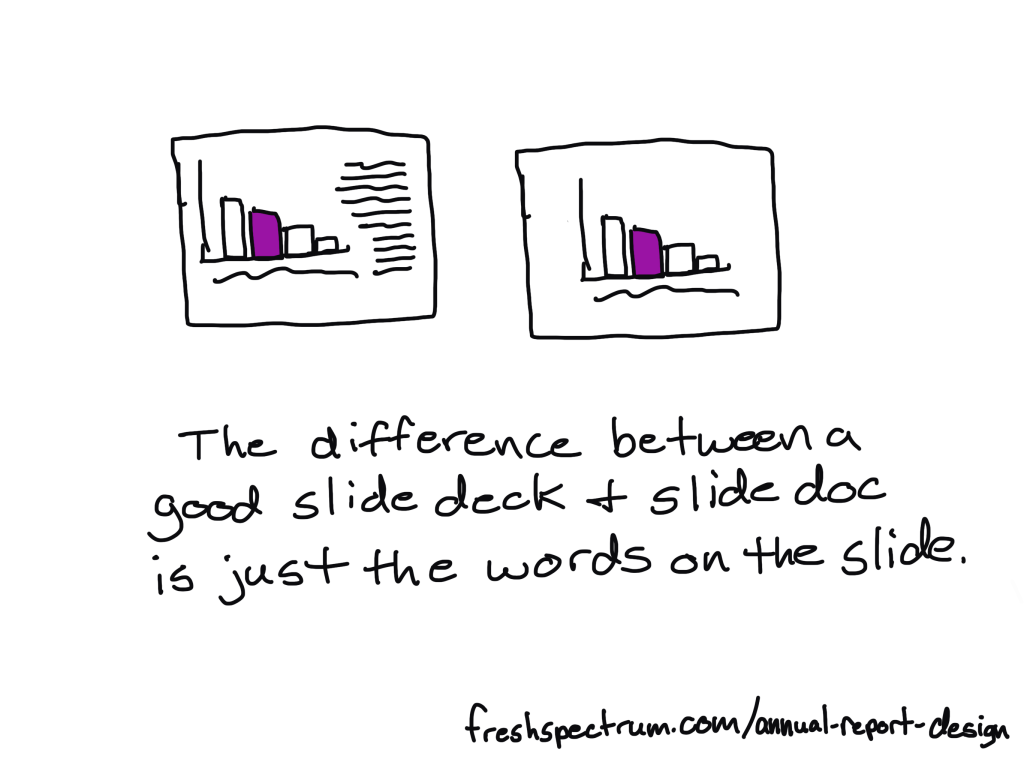
The difference between a good slidedeck and a slidedoc is just the words on the slide.

Step 2. Presentation Deck Adaptation

If you approach your slidedoc reporting like you are creating a presentation without the presenter, this first adaptation is simple.

Just make a copy of the slidedoc and remove most of the text. As a presenter, whether by webinar or live in-person, you are going to deliver all the talking points. The report itself can keep the same pace.

If you need to shorten the presentation, remove slides. If you need to focus the presentation for a specific audience, you will also remove slides.

The goal of this report design approach is that the presentation slidedeck is essentially completed in the process of building out your slidedoc.

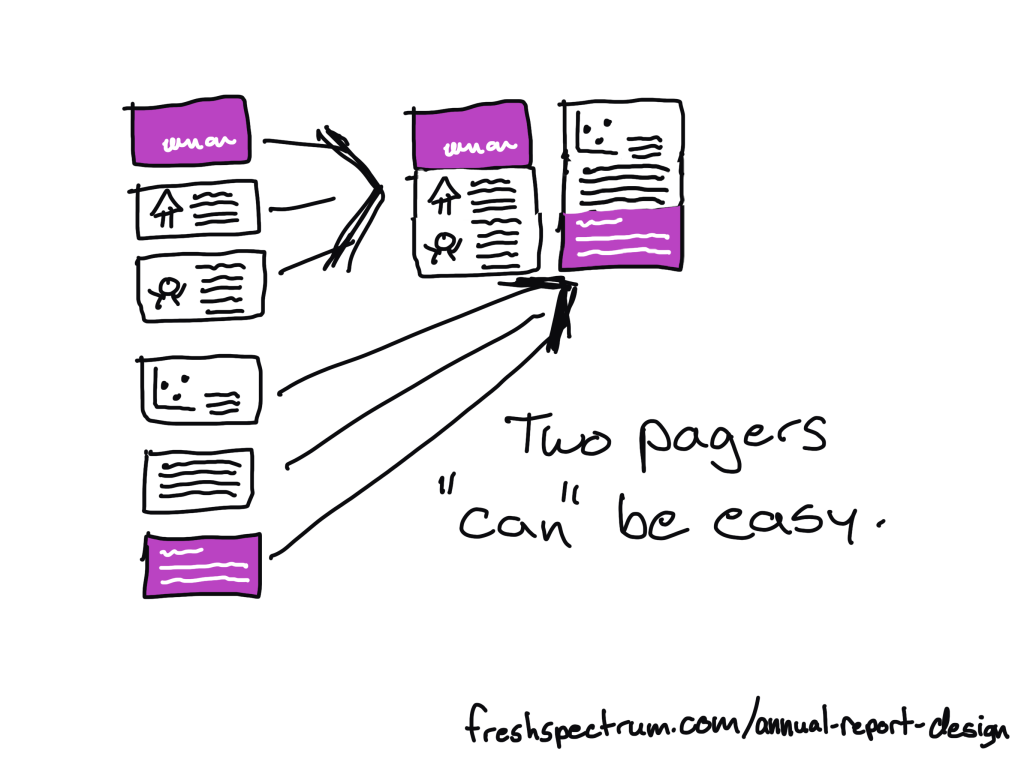
Two pagers "can" be easy.

Step 3. Two Pager Adaptations

There are lots of times in our work where you will want a short download, handout, or attachment in the form of a two-pager (or sometimes one-pager).

Originally when using this approach I would create a long infographic at this step. But the two pager is just far more versatile and delivers essentially the same amount of information.

To make the two pager adaptations, you will take 4 to 6 slides and stack the content across two 8.5 by 11 pages. How many will fit depends on your content and reporting needs. A print-out can have smaller fonts, so you can often get away with 3 slides per pages stacked one on top of the other.

What that also means, is that you can start envisioning your two pagers as you design your original slidedoc. If you create sub-sections in sets of 5 or 6 slides, you set yourself up for an easy adaptation.

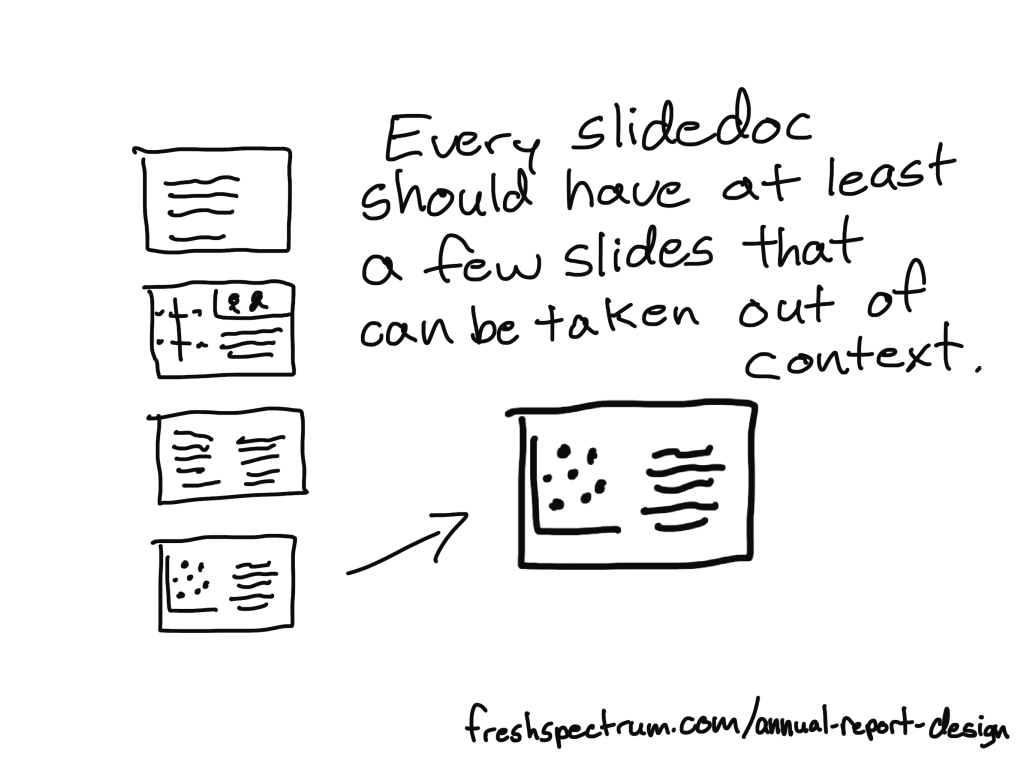
Every slidedoc should have at least a few slides that can be taken out of context.

Step 4. Micrographic Adaptations

Okay, first question you probably have, what are micrographics? Are they the same as infographics?

Short answer, yes. It’s just a term I use for little infographics that are about the same size as a PowerPoint slide.

Micrographics are super useful. They can be shared as social media posts. They can get attached to blog posts as featured images. They can be used to illustrate articles. They can find their way into other people’s presentation decks.

Micrographics help spread evidence and ideas beyond the original report.

And a micrographic adaptation is easy. If you have a really nice slide in your slidedoc, add a link at the bottom of the slide to the source landing page (where the slidedoc lives) and export the slide as a separate image (png or jpg).

Micrographics are slides that can stand alone. Sometimes they are charts. Sometimes they are quotes. Sometimes they are diagrams. Sometimes they are just well written slides. By the time you complete a slidedoc, you should aim to have a handful of slides with stand-alone potential. These are the ones you adapt into Micrographics.

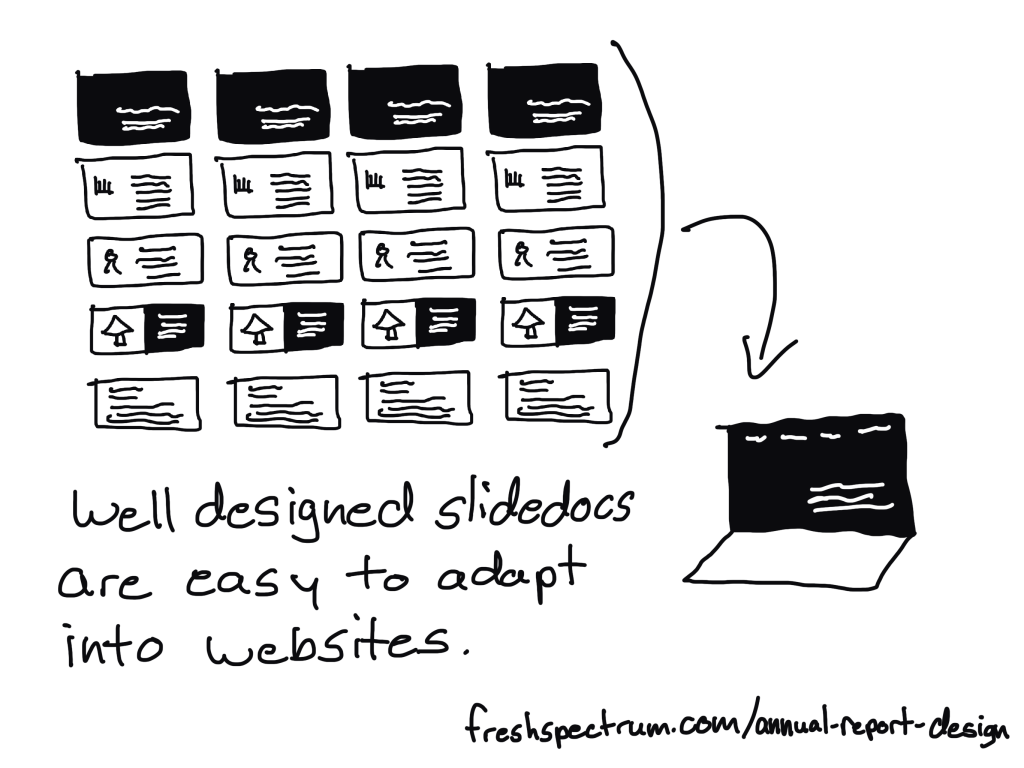
Well designed slidedocs are easy to adapt into websites.

Step 5. Interactive Online Report Adaptation

There are lots of benefits to building an online report instead of just delivering a pdf slidedoc. But it also does not have to be an either/or thing. My recommendation is to do both.

It can be really easy to adapt a well designed slidedoc into an interactive online report. Modern websites are often designed using containers, which align really well to slides in a slidedoc.

A few of the benefits to adapting your slides into a websites.

  • Online reports can have interactive elements. Especially useful for charts that can take advantage of tool tips.
  • Online reports can be built to be mobile-responsive making them much easier to read on a phone.
  • Online reports can be auto-translated using modern web browsers (or a Google Translate plugin).
  • Online reports are much better at being found through SEO (at the end of a Google search).

This is something a web designer can easily do with a CMS like WordPress. If you want help, reach out to me for a free consultation.

TLDR Summary

  • Create a slidedoc report.
  • Duplicate the report and erase most of the text, turning your slidedoc into a presentation.
  • Quickly turn a set of 4 to 6 slides into a two pager.
  • Find slides that can stand alone outside the report and download them as separate micrographics.
  • Adapt your slidedoc into an interactive online report.

Conclusion.

I know creating a bunch of reports can sound overwhelming, but it doesn’t have to be overwhelming. You just need practice. But that’s why I’m here, to help you move forward.

If you have any questions, let me know in the comments.

Written by cplysy · Categorized: freshspectrum

Aug 14 2023

Contiguous Datasets: A Critical Prerequisite for Useful Data Visualization

“Ann, I loved your training, but I’m having trouble applying what I learned. Something’s off with my datasets, and the graphs are taking forever!”

This past year, I’ve spent more time teaching about data management than data visualization.

When I look under the hood of companies’ spreadsheets, I’ve noticed way too many data management issues that could be avoided altogether.

In this article, you’ll learn about a critical prerequisite for useful data visualization: contiguous datasets.

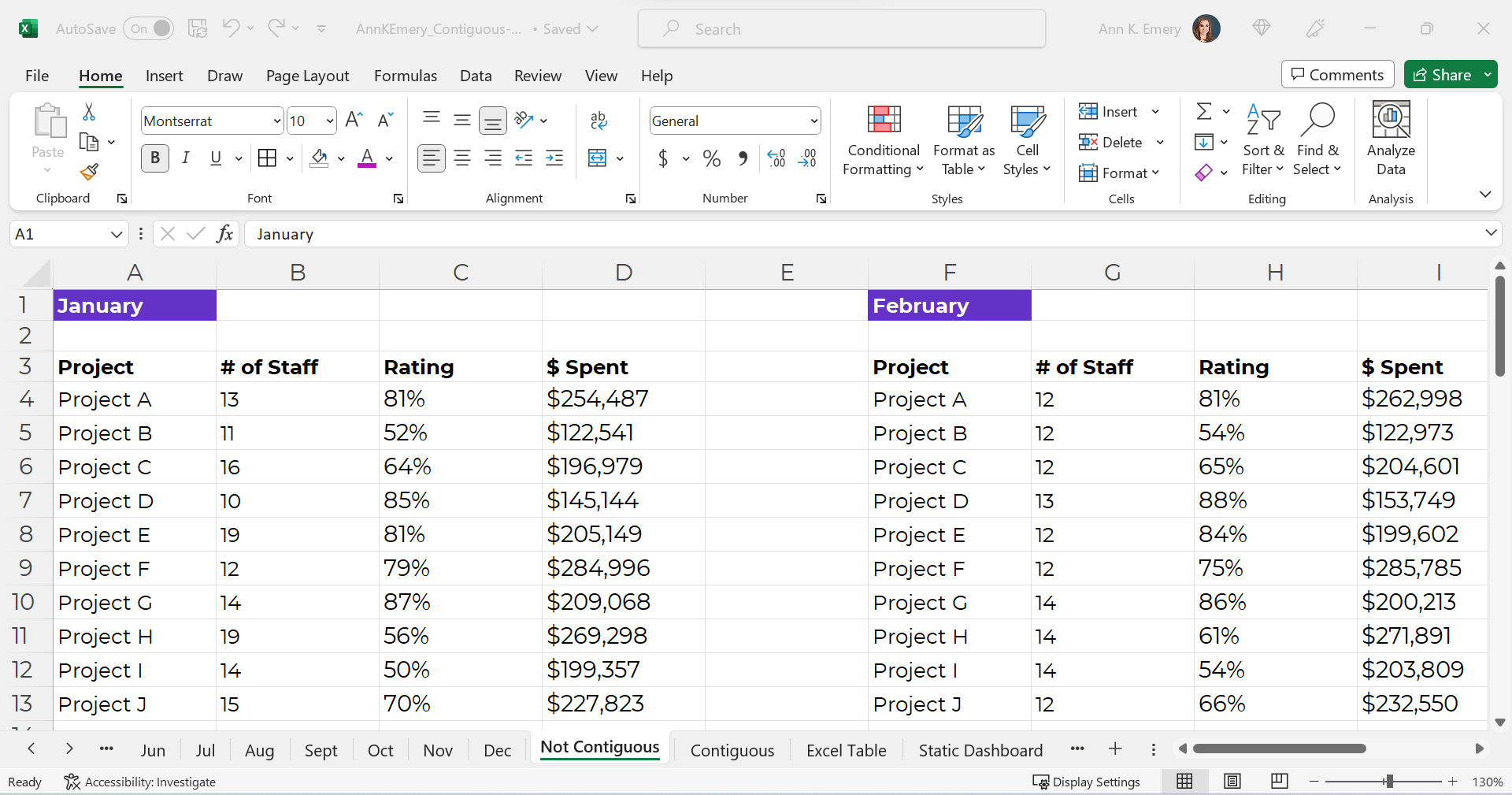
Mini Datasets Spread Across One Sheet – NO!

Here’s what I often see:

Separate datasets for each time period.

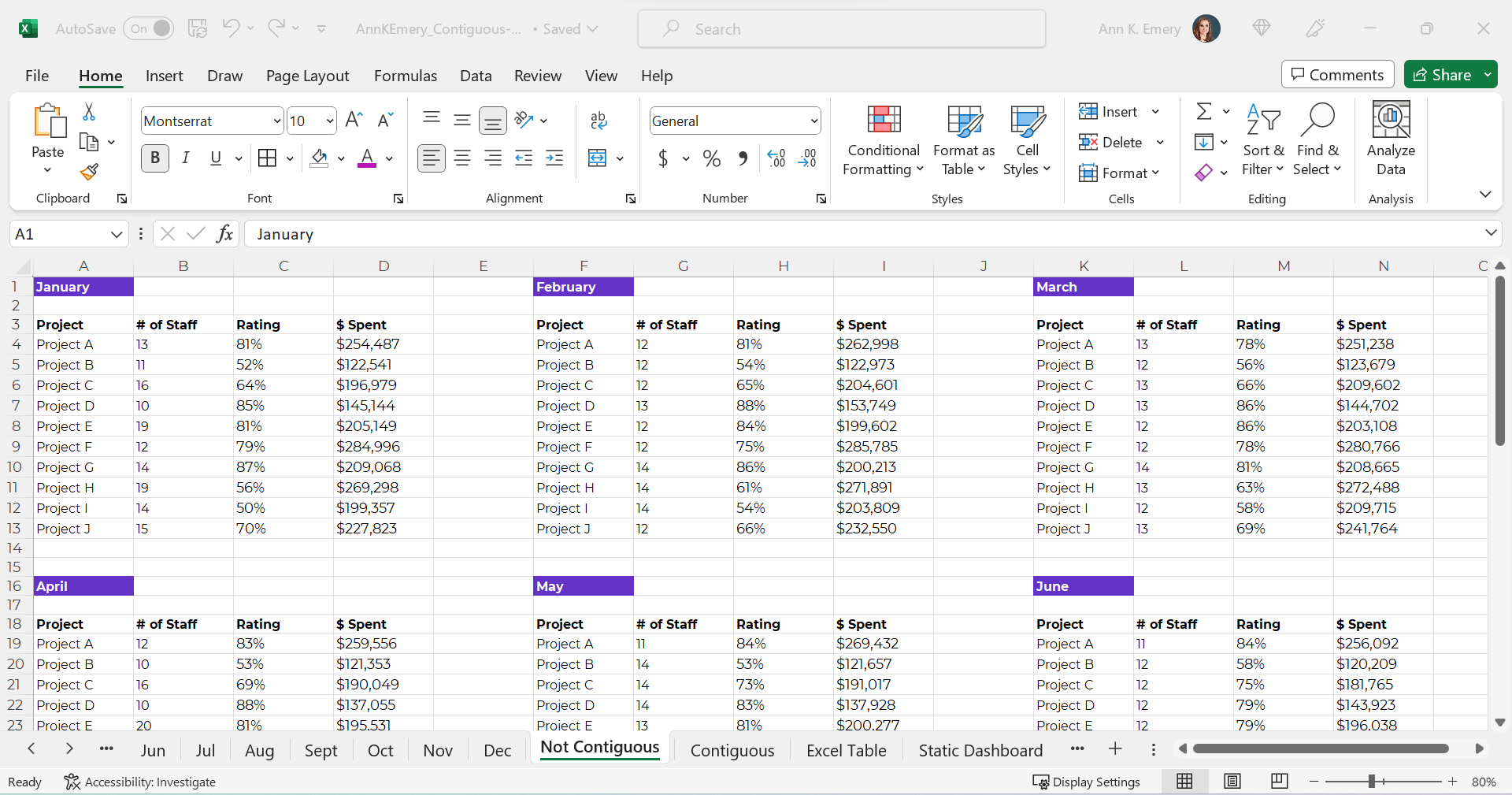
NOOOOOOOOOOOOOOOOO!!!!!!!!!!!!!!!!!!!!!!!!!!!!!!!!

Sometimes there are dozens of mini tables, like this:

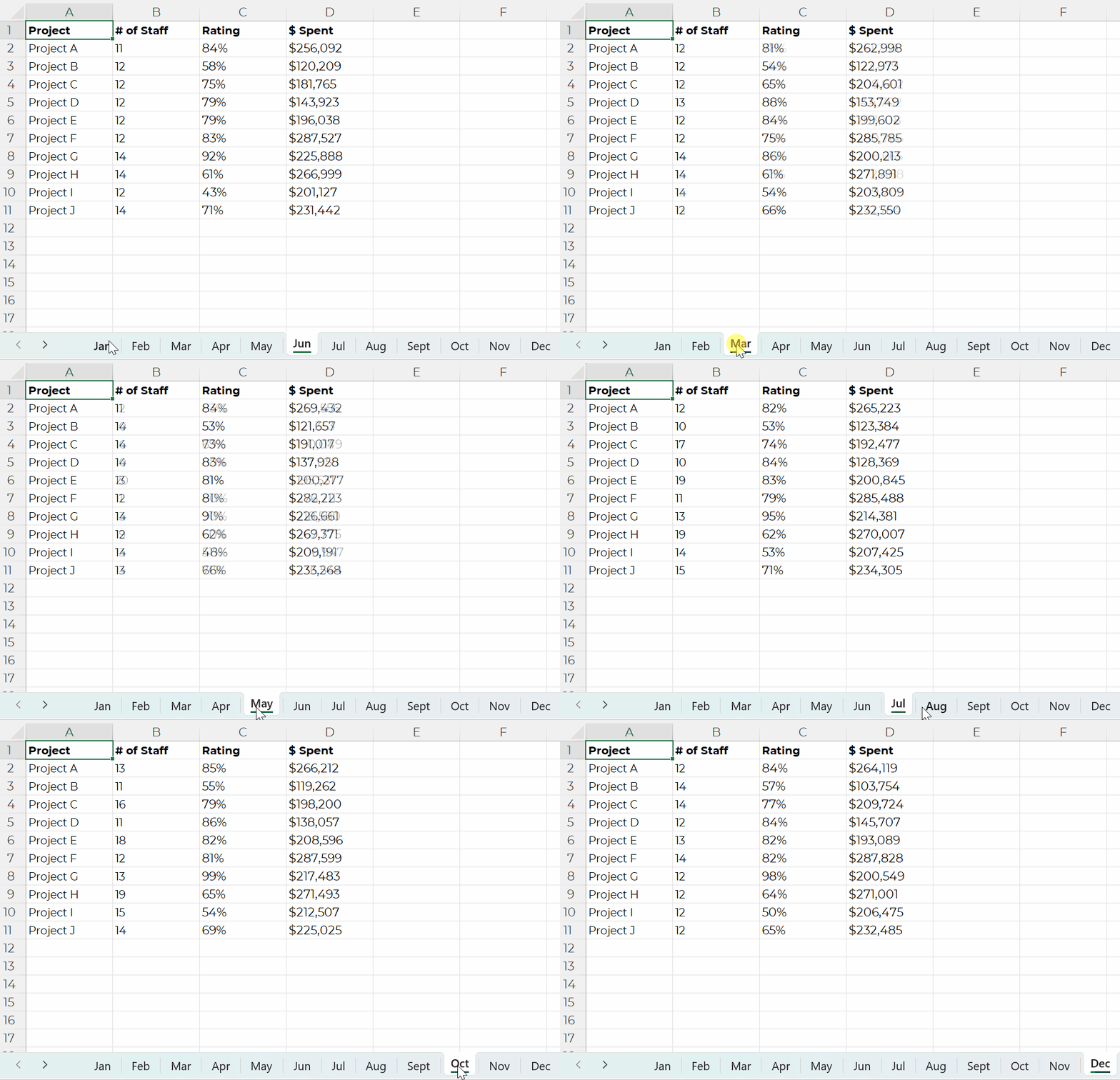
Mini Datasets Spread Over Multiple Sheets – NO!

Or, just as terrible for graphs and dashboards — one mini dataset per sheet, like this.

NOOOOOO!!!!!!!!!!!!!!!!!!!!!!

Or, separate mini datasets spread across different Excel files altogether.

NOOOOOOOOO!!!!!!!!!!!!!!!!!!!!!!!!!!!!!!!!!!!!!!!!!!!!!!!!!!!

Ann, What’s So Bad about Mini Datasets?!

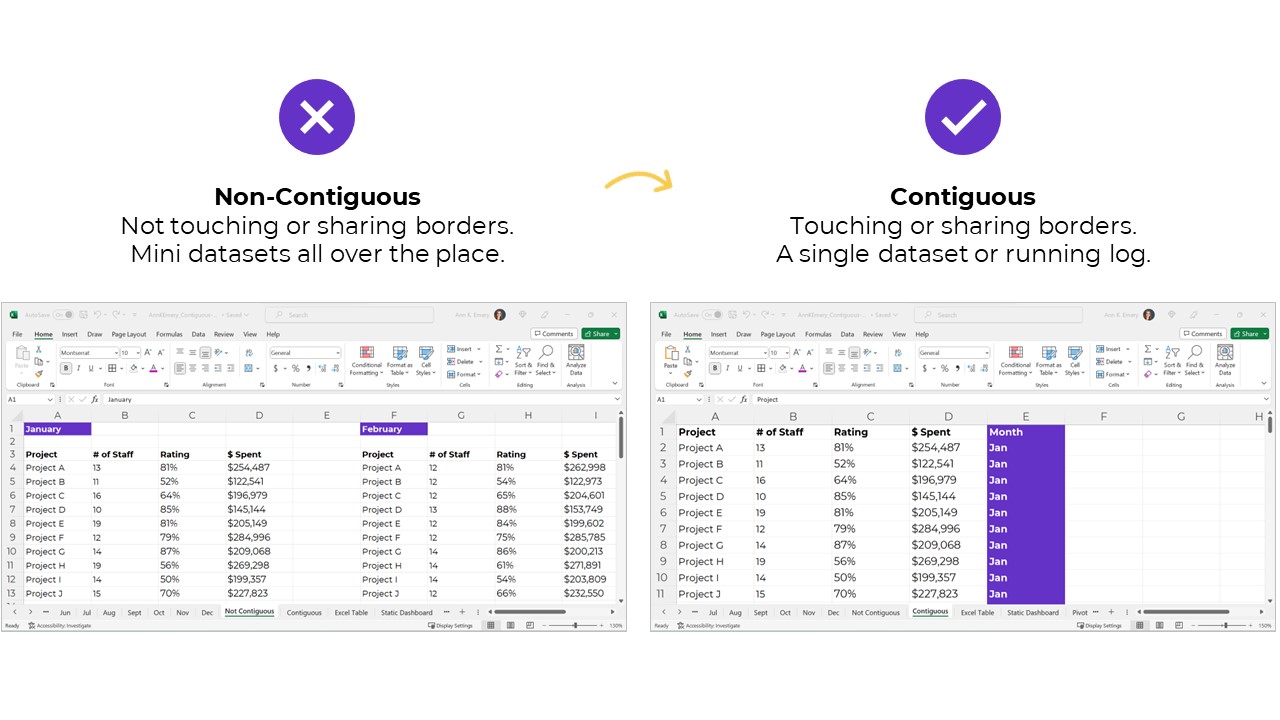
Separate mini datasets (“non-contiguous” or “non-touching” datasets) mean that we can only look at one time period at a time.

We have to make a bunch of mini charts.

It takes forever to make these the first time, and they’re a huge pain to update over time.

It’s also tougher for our viewers to find patterns because the numbers are scattered across too many charts.

NOOOOOO!!!!!!!!!!!!!!!

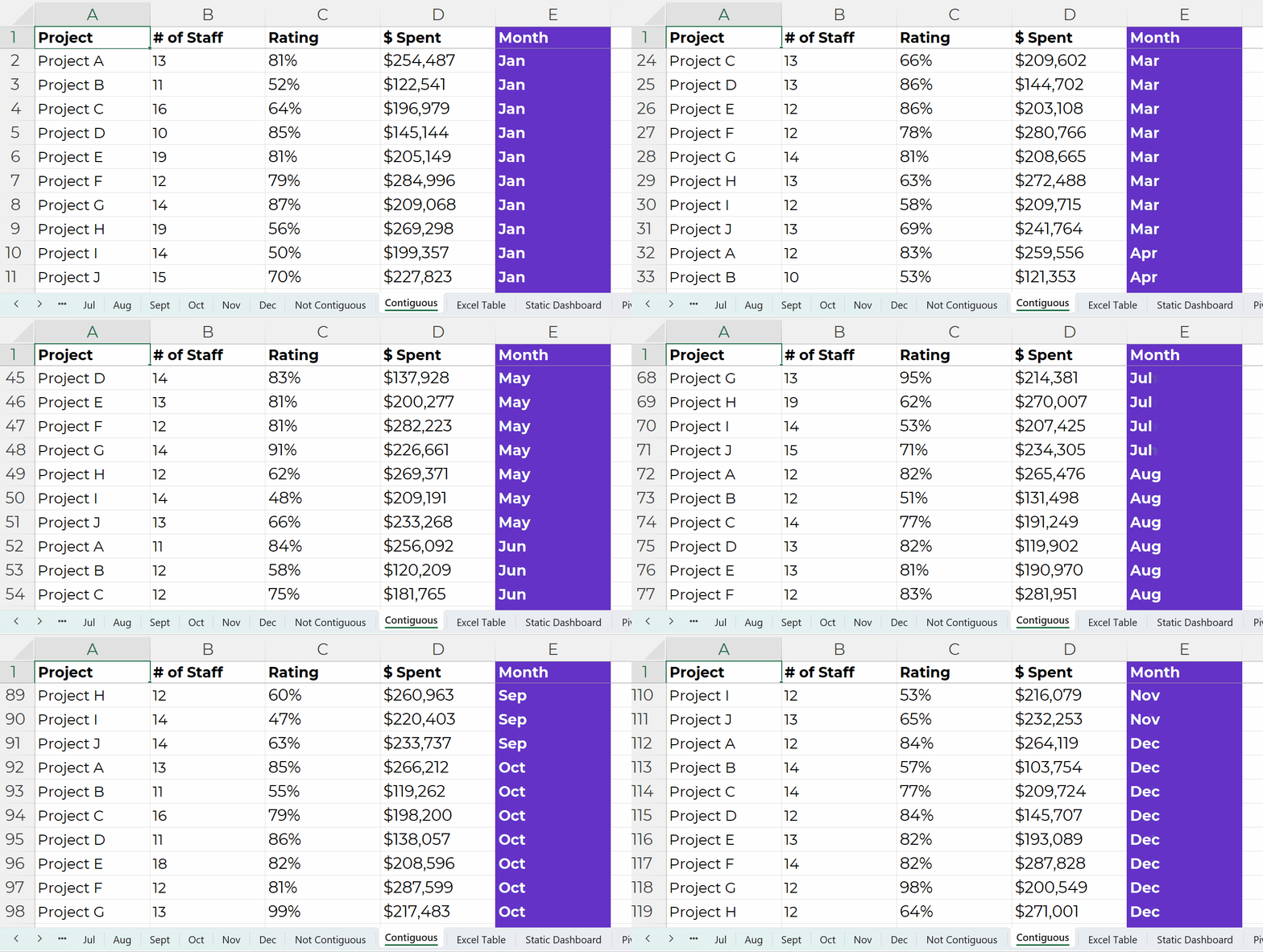
Dataviz Prerequisite: A Single Contiguous Dataset

Instead, the numbers should be stored in a single dataset, with the timeframe as its own column, like this:

This running list of new entries — a log — is going to get very long.

In real-life projects, the logs might have hundreds of thousands of entries.

That’s okay!!!!!!!!!!!!!!!!! That’s preferred!!!!!!!!!!!!!!!!!!!!

It’s counterintuitive, but contiguous logs make dataviz faster, not slower.

Excel can handle millions of entries.

The length of a dataset won’t make your analysis or visualization take any longer. Repeat after me: Contiguous logs make dataviz faster, not slower.

However…

The width — the number of columns — can certainly take a while, because there are so many different variables to consider.

Bonus: Save Your table as an Excel Table for Easier Updating

A table is the generic term for a collection of rows and columns.

An Excel Table is a special feature that makes it faster and easier to update our log.

In other words, Excel Tables make it easier to append our contiguous logs as we get new data.

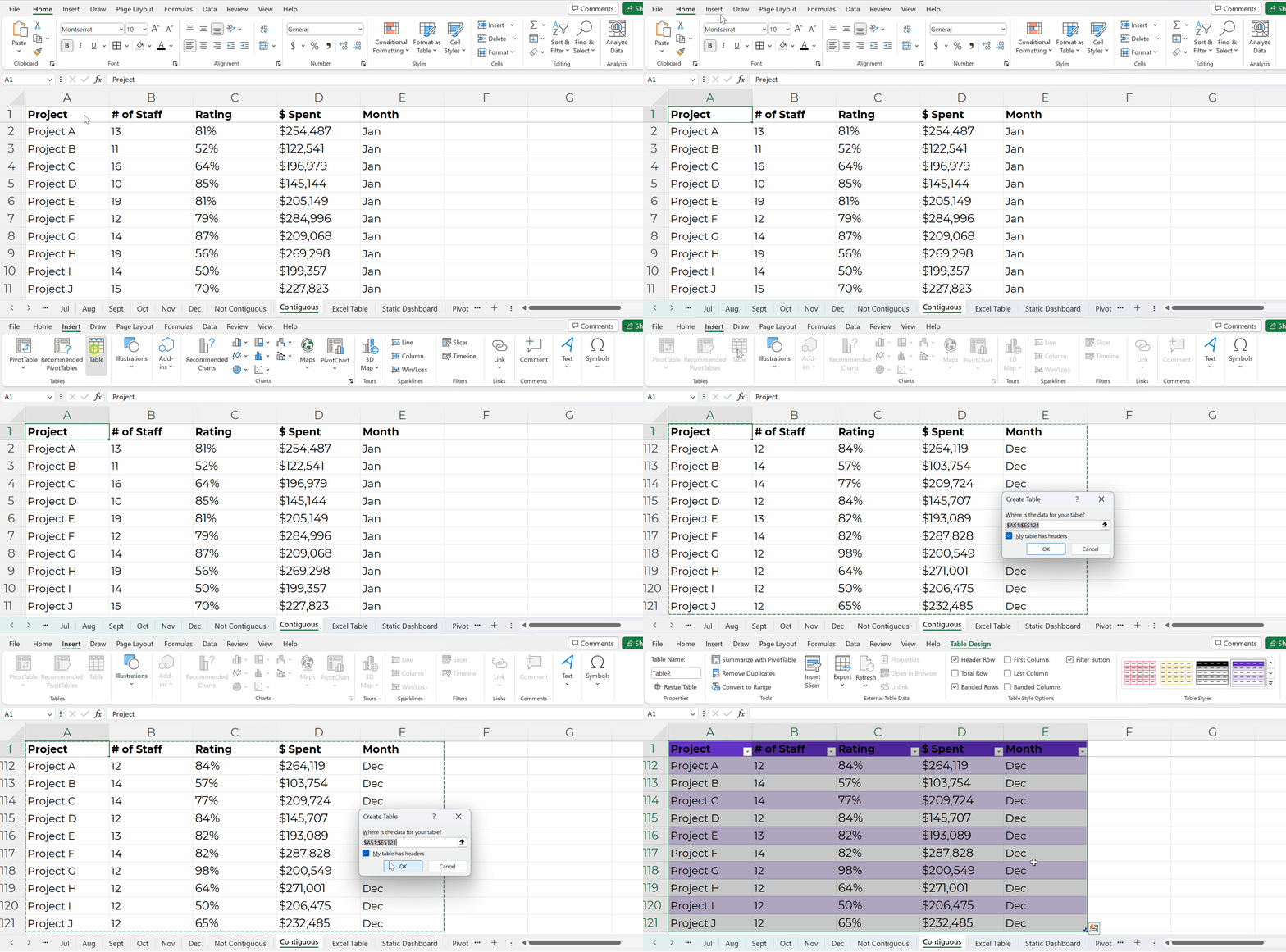
How to Turn tables into Excel Tables

You’ll simply click on your contiguous log — your generic table.

Then, go to the Insert tab.

Choose a Table.

Click OK.

You’ll recognize the banded rows.

Adding New Entries to Excel Tables

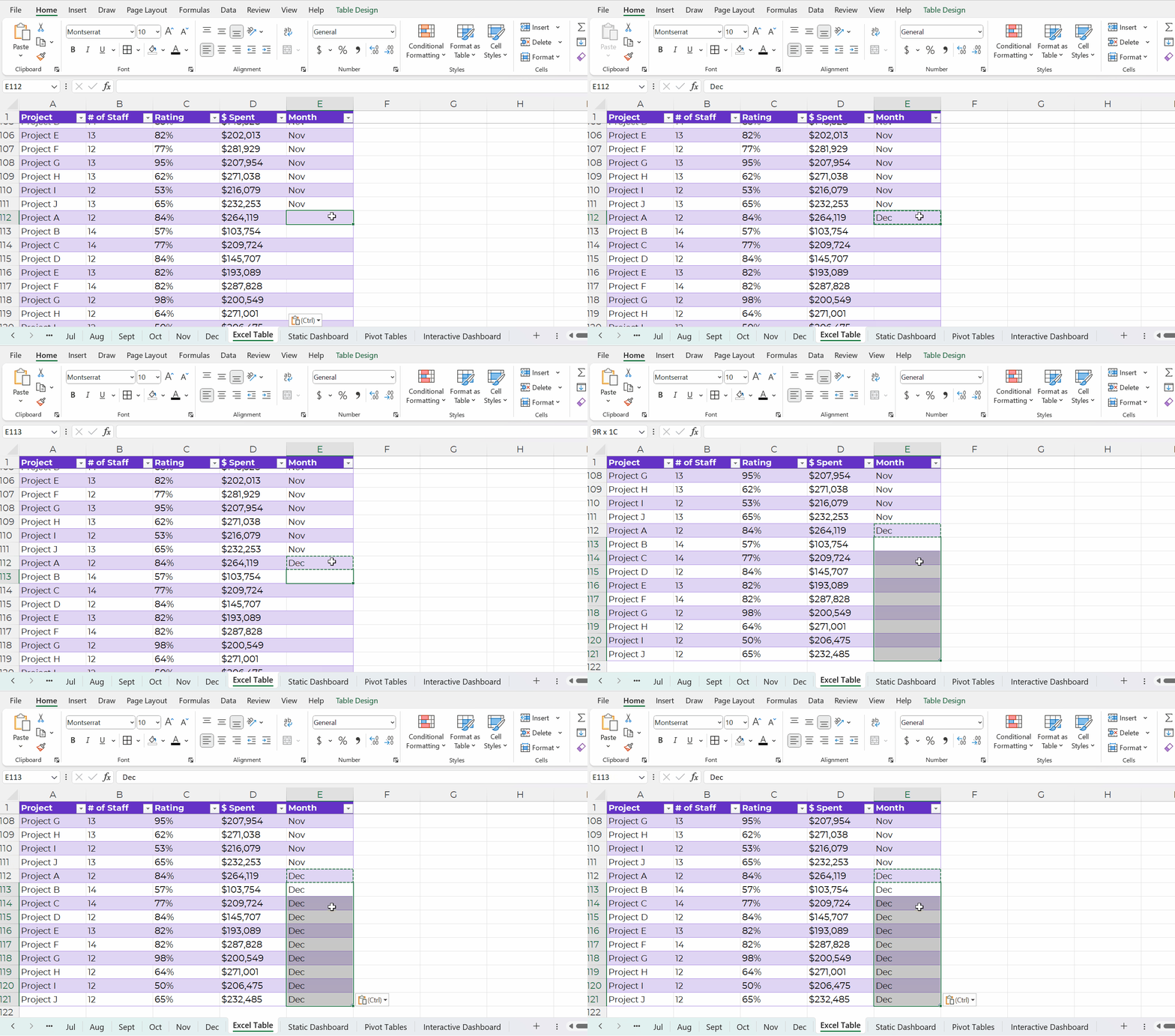
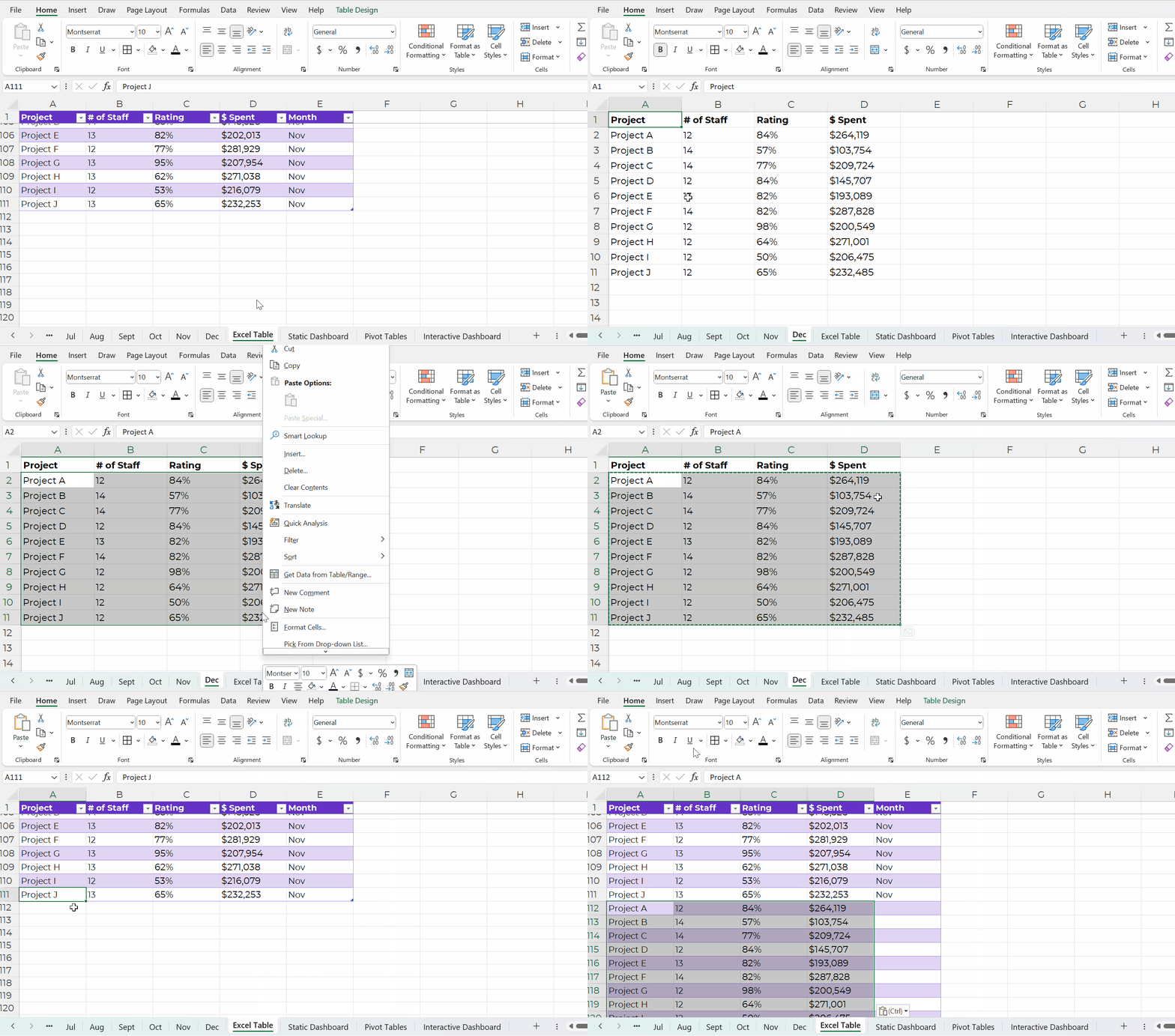
Adding new entries — or appending — is easy.

Let’s pretend you’re downloading data from your organization’s database. You might only be able to download one month at a time into its own sheet. That’s okay!

We’ll simply copy and paste those new entries into our running log.

Then, we’ll add the timeframe to that right-most column, too.

Excel is smart, and it’ll know that your new entries are part of your new dataset. In other words, your new entries will feed into pivot tables and formulas seamlessly.

Contiguous Datasets are Required for Static Dashboards

Want a short handout, PDF, or email attachment to share with others?

Maybe you’d want to see how all the projects combined are doing.

Or, maybe you’d want a breakdown of the different projects.

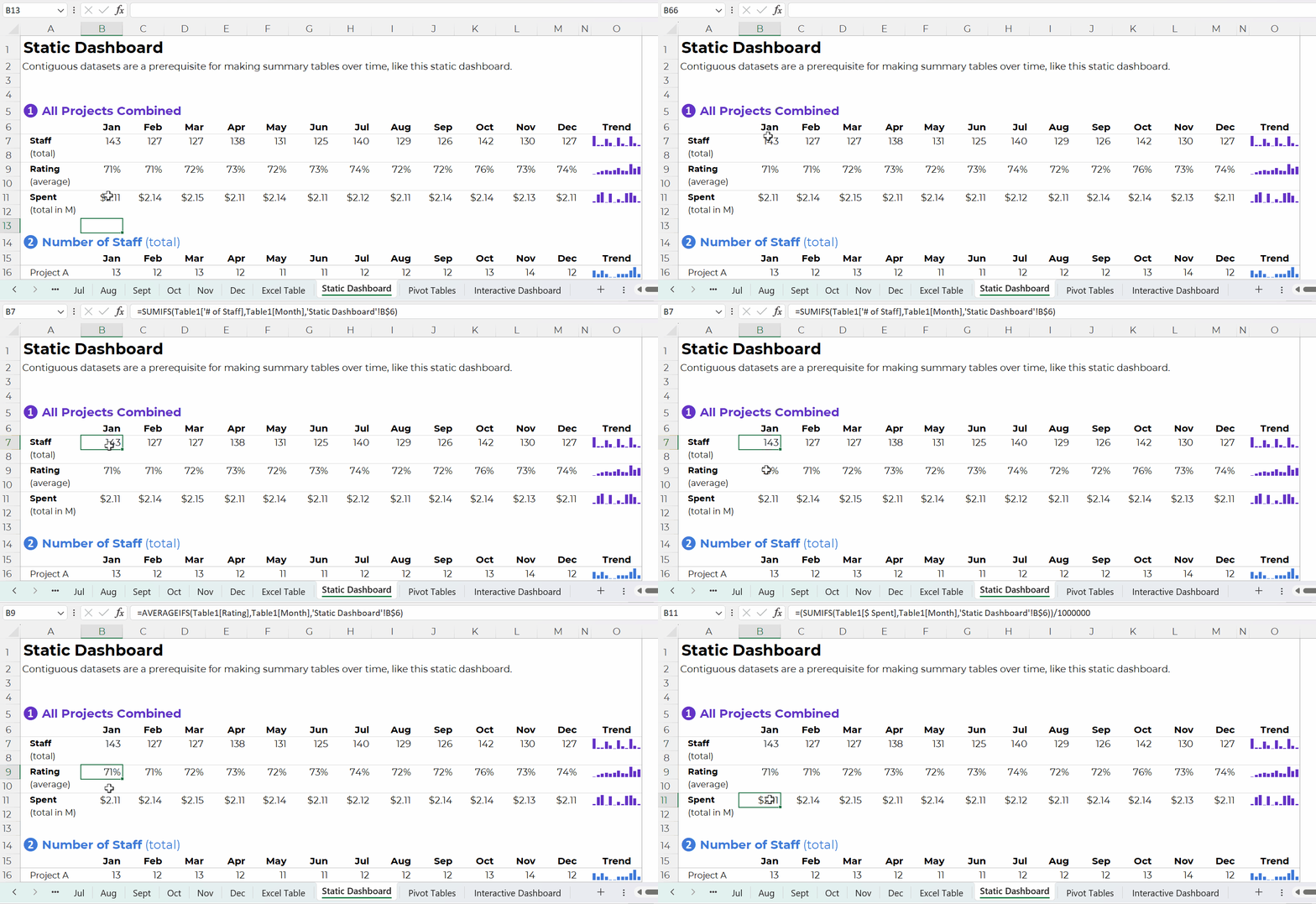
You could even add quick vizzes like sparklines to see trends, like this:

Contiguous datasets are required in order to make static dashboards.

Otherwise the sumifs, countifs, and averageifs behind the scenes will be impossible. Or, the formulas will be painfully slow to set up.

Static dashboards should take less than an hour to design from start to finish.

If it’s taking longer than that, it’s probably because (a) you don’t have a contiguous dataset or (b) you need more practice with formulas.

Contiguous Datasets are Required for Interactive Dashboards

Want to make interactive dashboards in Excel?

Your technical coworkers will love exploring the insights for themselves.

Interactive dashboards involve four pieces:

  1. A single contiguous dataset stored as a regular ol’ table or an Excel Table. You already know I prefer Excel Tables for datasets that are going to be added to or appended in the future.
  2. Pivot tables to tabulate the numbers (and bypass formulas, which can be tricky for novices).
  3. Pivot charts to, you know, visualize the numbers.
  4. Slicers (a fancy name for the filters).

Once again, contiguous datasets are the foundation of data visualization.

Have I sold you on contiguous datasets yet???

Contiguous datasets are required for:

  • Making a single graph to show comparisons over time (not January, February, and March in separate graphs that take three times as long to create and update);
  • Making static dashboards with formulas and trendlines that’ll update (nearly) automatically as you add new entries to your log; and
  • Making interactive dashboards with charts that’ll update (nearly) automatically as you add new entries to your log.

If your data visualization is taking too long… it’s usually a data management problem.

And it can be easily fixed!!!

Start storing your non-contiguous data as contiguous data.

Written by cplysy · Categorized: depictdatastudio

  • « Go to Previous Page
  • Go to page 1
  • Interim pages omitted …
  • Go to page 77
  • Go to page 78
  • Go to page 79
  • Go to page 80
  • Go to page 81
  • Interim pages omitted …
  • Go to page 310
  • Go to Next Page »

Footer

Follow our Work

The easiest way to stay connected to our work is to join our newsletter. You’ll get updates on projects, learn about new events, and hear stories from those evaluators whom the field continues to actively exclude and erase.

Get Updates

Want to take further action or join a pod? Click here to learn more.

Copyright © 2026 · The May 13 Group · Log in

en English
af Afrikaanssq Shqipam አማርኛar العربيةhy Հայերենaz Azərbaycan dilieu Euskarabe Беларуская моваbn বাংলাbs Bosanskibg Българскиca Catalàceb Cebuanony Chichewazh-CN 简体中文zh-TW 繁體中文co Corsuhr Hrvatskics Čeština‎da Dansknl Nederlandsen Englisheo Esperantoet Eestitl Filipinofi Suomifr Françaisfy Fryskgl Galegoka ქართულიde Deutschel Ελληνικάgu ગુજરાતીht Kreyol ayisyenha Harshen Hausahaw Ōlelo Hawaiʻiiw עִבְרִיתhi हिन्दीhmn Hmonghu Magyaris Íslenskaig Igboid Bahasa Indonesiaga Gaeilgeit Italianoja 日本語jw Basa Jawakn ಕನ್ನಡkk Қазақ тіліkm ភាសាខ្មែរko 한국어ku كوردی‎ky Кыргызчаlo ພາສາລາວla Latinlv Latviešu valodalt Lietuvių kalbalb Lëtzebuergeschmk Македонски јазикmg Malagasyms Bahasa Melayuml മലയാളംmt Maltesemi Te Reo Māorimr मराठीmn Монголmy ဗမာစာne नेपालीno Norsk bokmålps پښتوfa فارسیpl Polskipt Portuguêspa ਪੰਜਾਬੀro Românăru Русскийsm Samoangd Gàidhligsr Српски језикst Sesothosn Shonasd سنڌيsi සිංහලsk Slovenčinasl Slovenščinaso Afsoomaalies Españolsu Basa Sundasw Kiswahilisv Svenskatg Тоҷикӣta தமிழ்te తెలుగుth ไทยtr Türkçeuk Українськаur اردوuz O‘zbekchavi Tiếng Việtcy Cymraegxh isiXhosayi יידישyo Yorùbázu Zulu