• Skip to main content
  • Skip to footer
  • Home

The May 13 Group

the next day for evaluation

  • Get Involved
  • Our Work
  • About Us
You are here: Home / Archives for allblogs / depictdatastudio

depictdatastudio

Oct 02 2023

Entrepreneurial Insights for Expecting Mothers on Heather Sager’s “Hint of Hustle” Podcast

We recently added two more members to the Depict Data Studio team!

In this podcast episode, I sat down with Heather Sager to share behind-the-scenes tips on managing parenthood and entrepreneurship.

How to Listen

  • LISTEN to the full  episode on Apple Podcast or Spotify
  • READ the episode transcript

What’s Inside

  • Owning the ‘make it work’ mindset
  • Aligning your work schedule with your energy levels
  • Making tough choices around your time
  • Ann’s surprisingly simple tip to maintain her business boundaries
  • Focusing on financial goals over chasing trends
  • The real deal with passive income
  • Ways to bring more help into your personal life
  • Embracing the long game of entrepreneurship

Episode Quick Guide

  • 0:00 Self-Employed Pregnancy and Maternity Leave
  • 3:58 Navigating Business and Pregnancy
  • 14:18 Transition to Short-Term Projects and Simplify Business Operations
  • 20:32 Travel and Work Independently
  • 24:58 The Challenges of Performing and Recovering
  • 35:31 Balancing Work and Rest in Self-Employment
  • 42:06 Simplifying Business and Avoiding Time-Wasting Activities
  • 48:31 Shift to Digital Courses
  • 58:29 Balancing Personal and Professional Brand
  • 1:04:08 Using Your Voice for Marketing Success
Written by cplysy · Categorized: depictdatastudio

Sep 25 2023

Redesigning a Thesis Chapter

I’m an epidemiologist and public health researcher who studies health policies on infectious disease.

I got the opportunity to work with a public health agency which I was really exited about.

Until I had to present my research to a group of policy makers…

Before: The Dusty Shelf Report

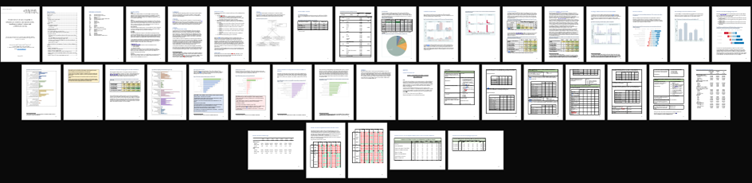
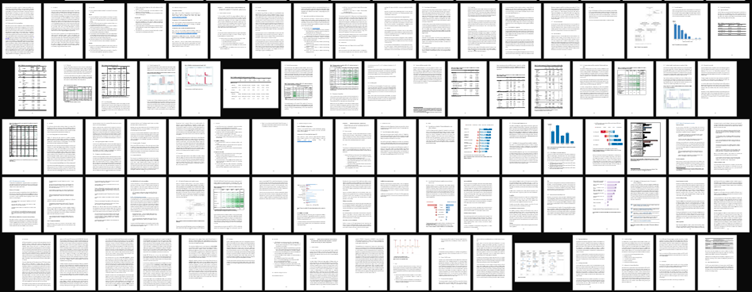
Condensing two full chapters—73 pages of my thesis—into a short report for the policy making group seemed like an impossible task.

That’s when Report Redesign came to the rescue!

As this research was being conducted in an academic setting, I couldn’t entirely do away with all the technical details (or what Ann would call the Dusty Shelf Report 😊).

But I did manage to apply the 30-3-1 principles to summarise the two chapters into:

  1. a shorter 23-page report (with appendices) and
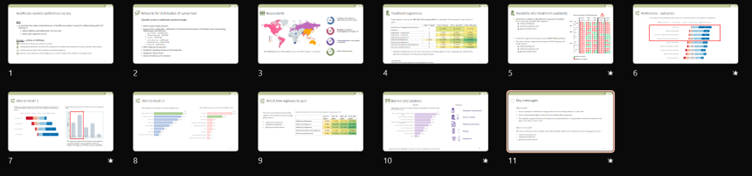
  2. 11 slides for a 10-minute presentation to the policy making group.

Choosing the Final Outputs: A Short Report and a Slideshow

Working with the public health agency, I realised that although they were expecting the technical details on the study methods and results to be included, the overall format expected was different compared to what I had been used to in academia.

They wanted slides which were to be presented to the policy making group and an accompanying report with more details on the study in case some of the members wanted more detailed information.

I thought this would be a good opportunity to apply some of what I had learnt during the Report Redesign course.

Choosing Which Findings to Include

We had a few meetings with the research group to identify the most important findings to include in the presentation and report.

Given the audience was technical, we agreed to include:

  • An overview of the study
  • A sentence on what the goals/aims of the study were
  • Survey respondent characteristics
  • Results section that highlighted responses to main questions in the survey
  • Limitations

Just focusing on these areas, I was able to whittle down the two thesis chapters into 23 pages with some additional information in the appendices.

The Shorter Report

In the original version of the write-up, I did have some tables, but they were too technical (too many decimal places; statistical terms like p-values).

I also had some graphs that used the default settings made within my software program without any editing.

For the report, I aimed to have one or more visuals on every single page (a goal covered in Report Redesign).

This included flow charts, graphs, tables, text boxes, and icon arrays. Whatever was needed to best communicate the takeaway finding from the research.

The agency was going to use their own design team for the final branding and layout, so I didn’t have to bother with that.  

The Presentation Slides

I further had to whittle down the report into 11 slides for the presentation.

I decided to limit the background information and focus on the key results.

Written by cplysy · Categorized: depictdatastudio

Sep 18 2023

How to Make Interactive Dashboards in Excel

Want to make an interactive dashboard in Microsoft Excel?

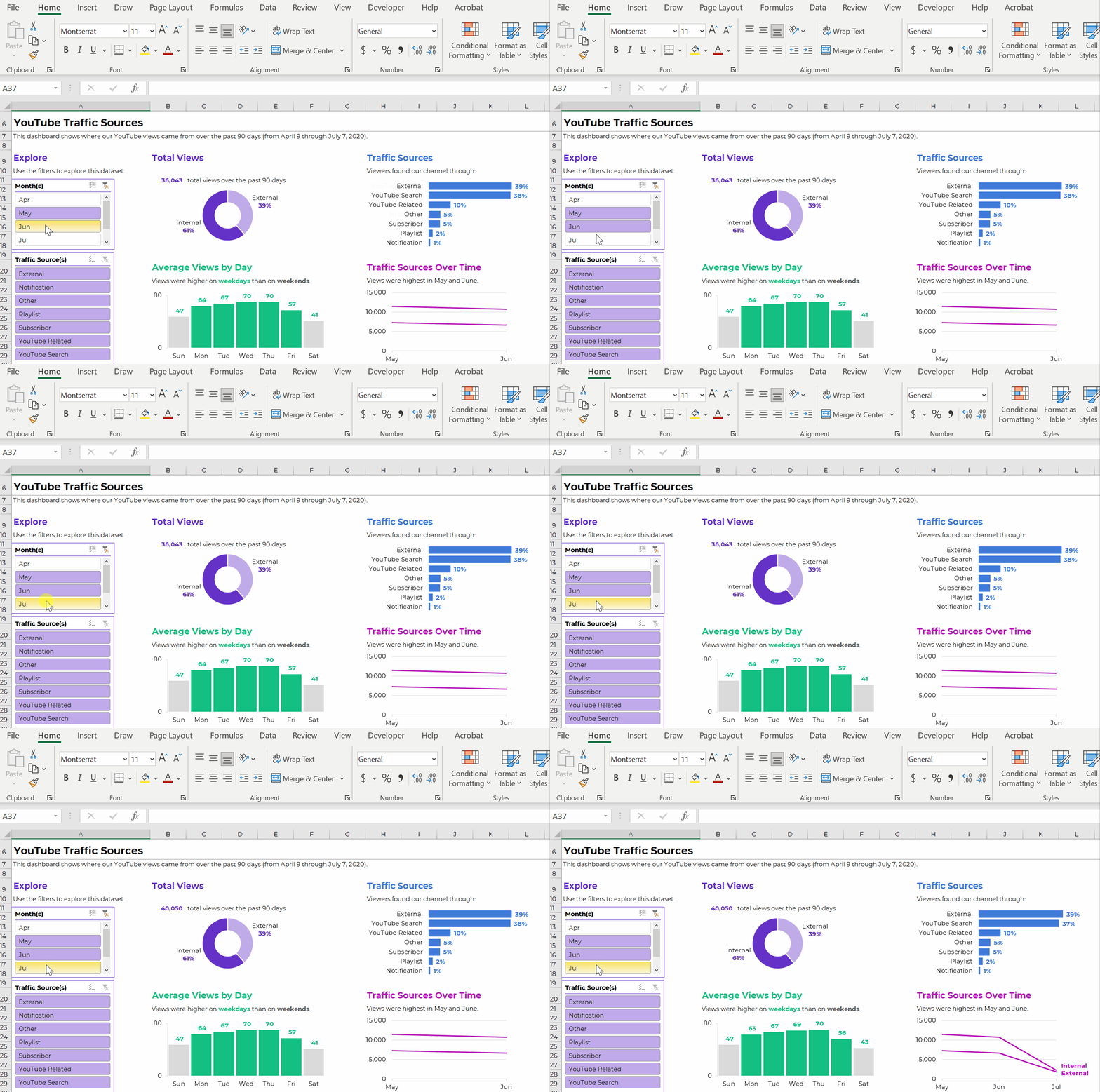
Interactive (a.k.a. dynamic) dashboards are a great option for technical audiences that have the time and interest to explore the data for themselves.

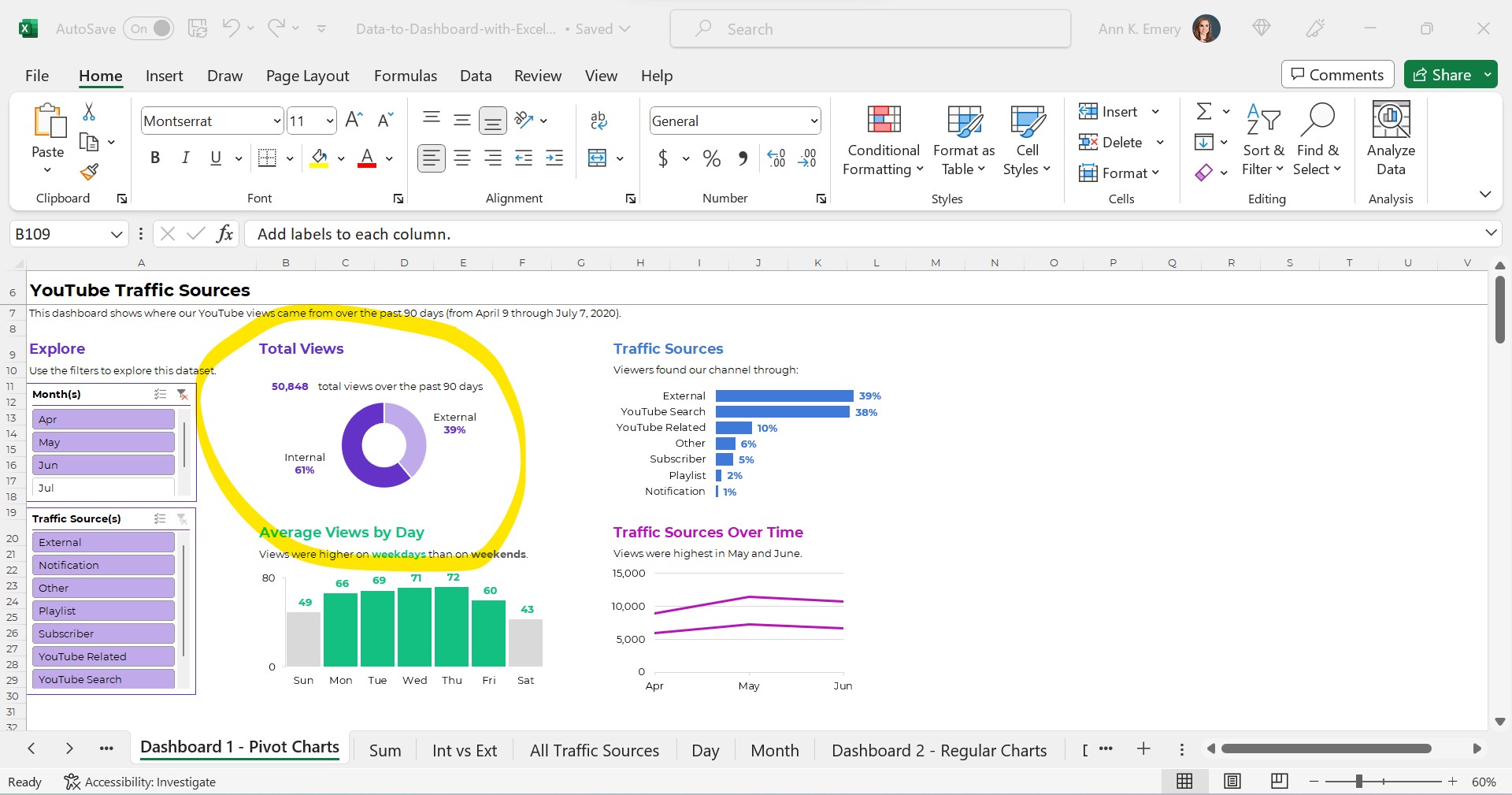
They’ll look something like this:

Interactive dashboards are easy to create — sort of. It depends on your existing skill level.

You’ll need four pieces:

  1. A Clean, Contiguous Dataset (maybe stored as an Excel Table)
  2. Pivot Tables
  3. Pivot Charts
  4. Slicers

Are you already using these four features regularly? Great! Linking them together in a dashboard will be easy for you.

Are you new to Excel Tables, pivot tables, pivot charts, or slicers? Be patient with yourself. You’ll need to be fluent in the building blocks before you can put them together seamlessly.

Let’s walk through each of the four pieces in more detail.

Step 1: Build the Clean, Contiguous Dataset

From previous blog posts, you know that table is a tricky term.

There are several different types of tables, like datasets vs. tabulations. In short, a dataset is the underlying numbers, and the tabulation is the summary table.

The Raw Dataset

To build our interactive dashboard, we’ll start with our raw dataset.

This is semi-fictional data. We’re pretending that we’ve downloaded YouTube stats directly from YouTube.

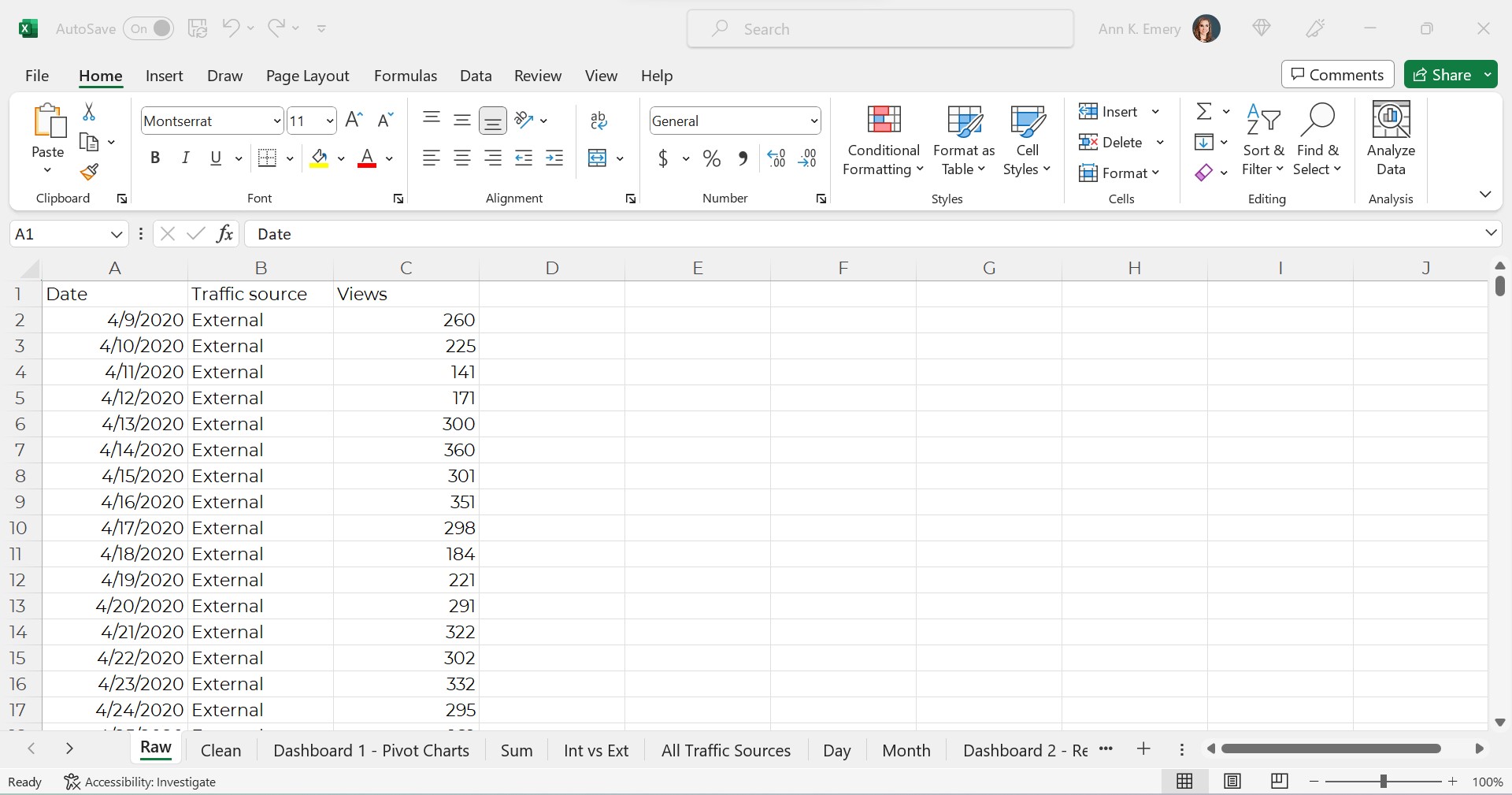
The raw dataset would look something like this, with one entry per date and traffic source.

It’s raw because this is exactly what it looks like when downloaded from YouTube. We haven’t made any changes (yet!).

The Clean Dataset

Next, we’d clean the dataset.

We might check for and deal with duplicates.

We might check for and deal with missing data.

We might add lots of new columns of recoded data. For example, if I want to make a donut chart comparing the internal and external traffic sources, then I’ll need a column (a variable) that categorizes each traffic source as being internal or external.

If I want to make a graph that compares YouTube visits by day of the week (Monday vs. Tuesday views), then I’ll need a column that turns MM/DD/YYYY into weekday. And so on.

(You can learn more about cleaning, recoding, and transforming datasets inside Simple Spreadsheets, my prerequisite course. Again, you’ll need to be 100% fluent in these skills. Otherwise, dashboards will feel daunting.)

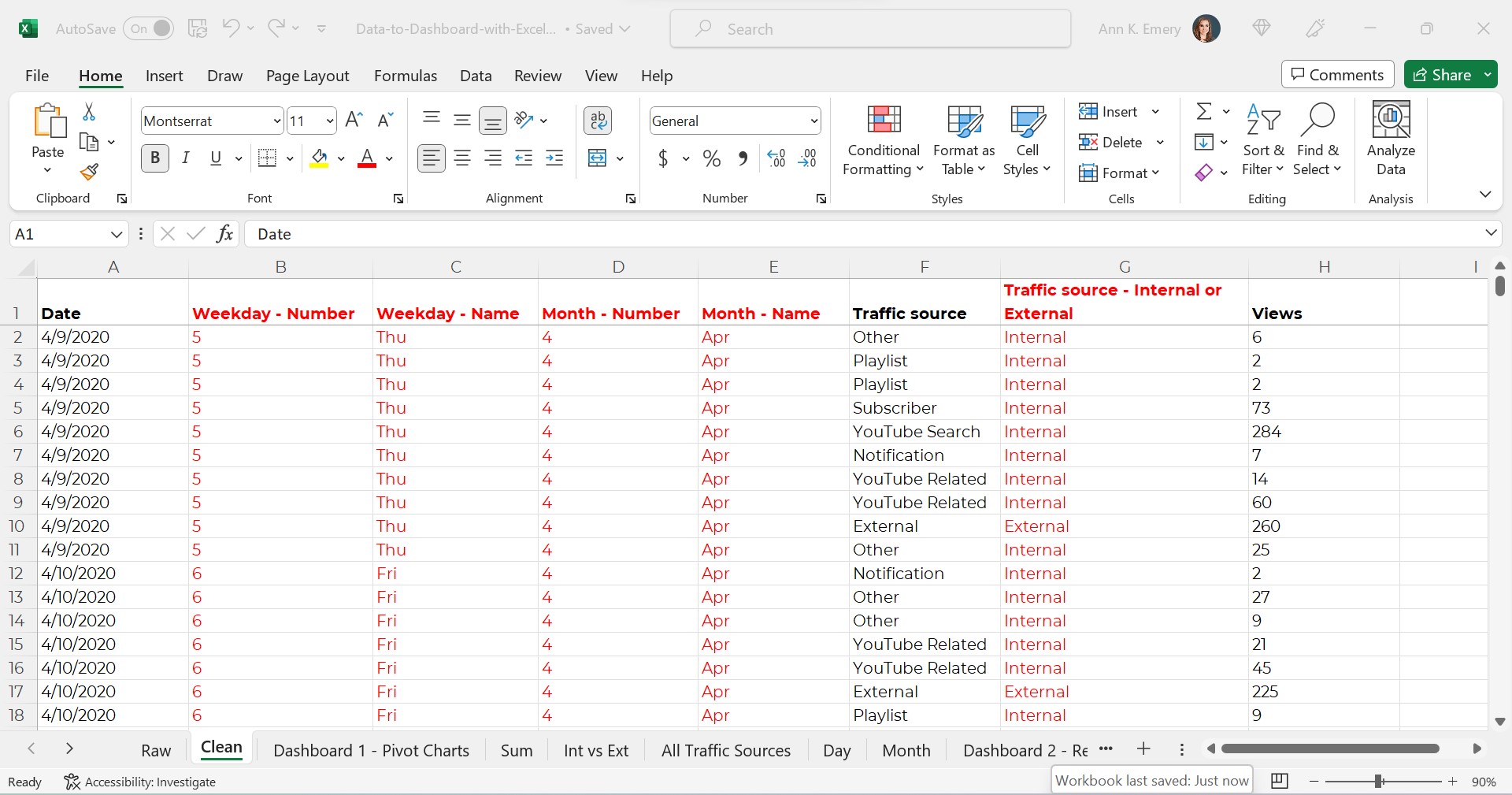
Years ago, a coworker taught me to turn all my new variables red so my Future Self could find them. As you can see, I still follow that advice today.

The clean dataset would look something like this:

Required: A Contiguous Dataset

As usual, my clean dataset is contiguous.

In other words, all the cells are touching or sharing a border.

I don’t have dozens of mini datasets (like one per month, or one per traffic source).

You can learn more about contiguous datasets and why they’re necessary for dataviz in this blog post.

Optional: An Excel Table

Next, we might transform our clean dataset into an Excel Table. This step is optional.

As explained in this blog post, Excel Tables are helpful when we need to append tables (that is, when we’ll be adding more rows over time).

Alright, that’s it for the first piece! We’ve got a single, clean, contiguous dataset as our base. We might store it as a regular ol’ table/dataset. Or, we might turn it into an Excel Table for easy appending.

Step 2: Tabulate the Dataset with Pivot Tables

We can tabulate our dataset with either (1) formulas or (2) pivot tables. You can learn more about the pros and cons of each approach in this blog post.

In short, if we’re aiming to build an interactive dashboards… which has to involve slicers… which have to involve pivot charts… then we simply have to use pivot tables.

Again, interactive dashboards are easy — sort of. You have to understand all the nuances of when to use regular ol’ tables vs. Excel Tables, and when to formulas vs. pivot tables, in order to work both backwards and forwards and put everything together quickly and correctly.

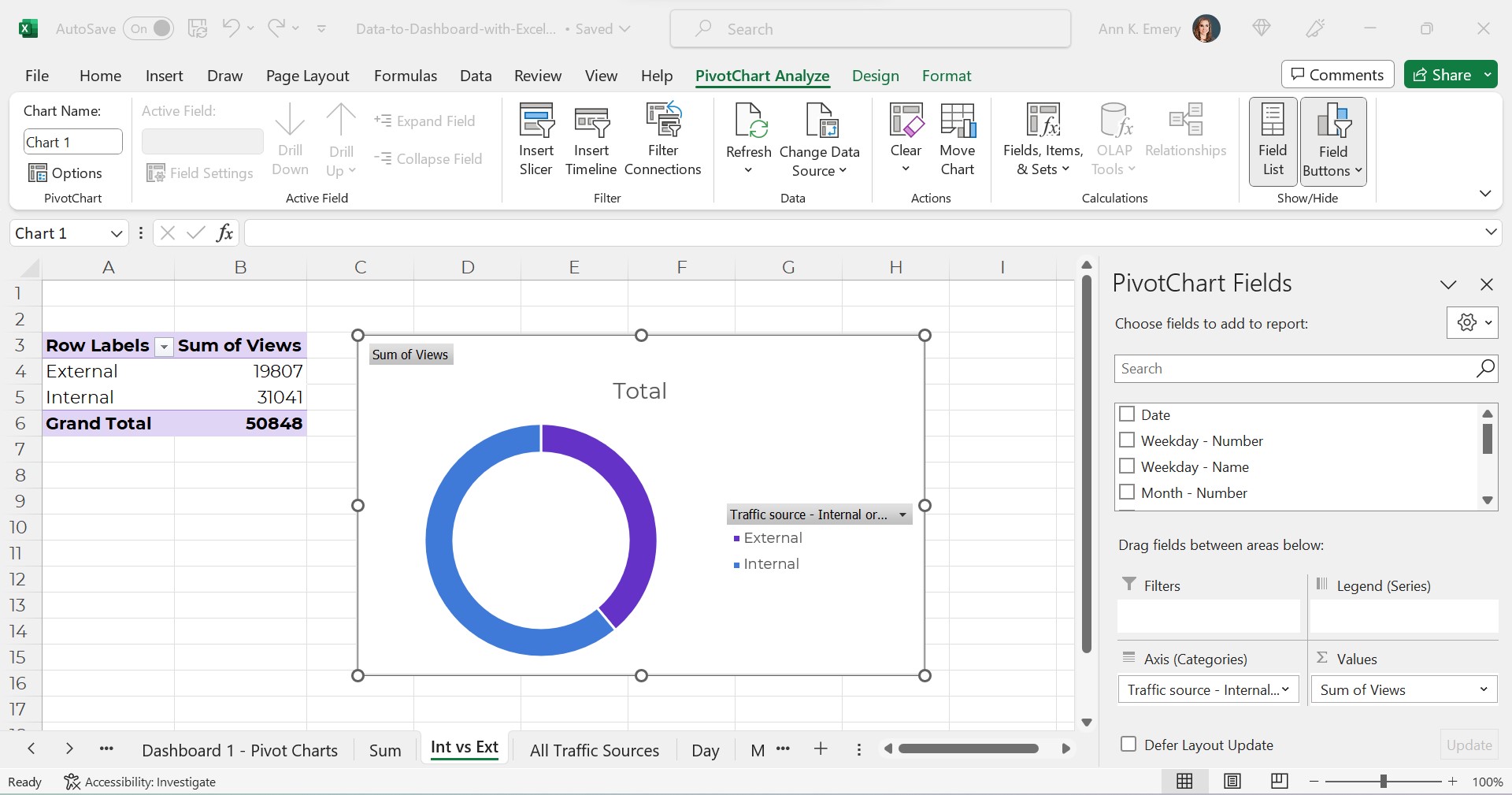
Our pivot tables will look something like this:

Interactive dashboards involve pivot tables — plural.

We’ll need one pivot table for each of our charts.

In the finished example, there were four charts + a sum of the total views. That means there are five separate pivot tables behind the scenes.

If you’re familiar with pivot tables, great! Building a few pivot tables for your dashboard will be easy.

If you’re brand new to pivot tables, no worries! I’ve got plenty of beginner-level blog posts to get you started.

Step 3: Build (and Format) the Pivot Charts

Next, we’ll simply add a pivot chart to each of our pivot tables.

In case you’re brand new to pivot charts, here’s how you add them:

  • Click on the pivot table to activate it.
  • Go to the Insert tab.
  • Choose which chart type you’d like (bar, line, donut, etc.).
  • That’s it!

Please, don’t forget the formatting!!!

Our unformatted chart — which doesn’t pass 508/ADA compliance guidelines — would look like this:

The formatted chart would look like this.

Do you notice the binary color-coding, white outlines around touching shapes, and the direct labels?

Once we’ve built and formatted each of the charts, we’ll simply cut and paste them together into a new sheet. That’s where our soon-to-be-completed dashboard will live.

Step 4. Add a Slicer(s)

Finally, we’ll add a slicer(s) to the first pivot chart.

A slicer is just a fancy name for a filter. They’ve existed in Excel since 2010 (!!!). But, don’t worry if you haven’t seem them or used them before. It takes years for new features to be widely adopted. (Hence the point of blog posts like these — to introduce you to features you might not have discovered before.)

Connect the Slicer to the First Chart

In case you’re brand new to slicers, here’s how you add them:

  • Click on one of the pivot charts to activate it.
  • Go to the Insert tab.
  • Click on the Slicer option.
  • You’ll see a list of all the variables. In this example, our variables from the clean dataset are Date, Weekday – Number, Weekday – Name, Month – Number, Month – Name, Traffic Source, Traffic Source – Internal or External and Views. If I want viewers to be able to slice and dice by month, then I’d select Month – Name to feed into the slicer.
  • That’s it!

Connect the Slicer to the Rest of the Charts

The slicer won’t automatically be connected to all of our charts.

We’ll need one more step:

  • Click on the slicer to activate it.
  • Go to the Slicer tab.
  • Click on the Report Connections button.
  • We’ll see a list of all our pivot tables. Check all the boxes.
  • That’s it! Now, when we filter data with the slicer, all the charts will correctly filter and change, too.

Final Formatting

As usual, we’ll make sure to follow dataviz best practices.

We’ll need to:

  • Add words. We’ll need a title, date, subtitles, and explanatory text. Yes, there’s concatenation behind the scenes that automatically writes the sentences for me.
  • Use brand colors and brand fonts.
  • Color-code by category. (One brand color per category/section/chart.)
  • Leave plenty of white space between the charts. My rule of thumb: A thumb’s width (a half-inch or inch of white space between each chart).

Now it’s time to sit back, relax, and let our colleagues have fun exploring the dashboard for themselves.

Learn More

If this tutorial is easy for you, then congrats!!! You’re all set. Go forth and build magnificent, accessible, interactive dashboards for your technical-minded colleagues.

If this tutorial was jargony for you, don’t worry!!! You can walk through each of the steps in more detail, and download the spreadsheets to follow, and come to live Office Hours inside the Dashboard Design course.

Written by cplysy · Categorized: depictdatastudio

Sep 13 2023

Don’t Start from Scratch! Make One of these Dashboards Instead

Dashboards aren’t supposed to take forever.

They’re not supposed to cost an arm and a leg.

They don’t even need to be outsourced to a consultant.

Dashboards are supposed to be fast and easy. We make ’em quickly. We give the numbers to leaders. They make data-driven decisions. That’s it! Stop overthinking it.

In this article, you’ll see examples of real dashboards that you can use as inspiration for your own workplace. No need to start from scratch. Adapt one of these dashboards instead.

Grant Deliverables

In this blog post, you’ll see how Josephine Engels did need to start from scratch — she was visualizing these metrics for her organization for the first time — and then made several dashboards to track grant deliverables.

Josephine writes, “My colleagues have given very positive feedback, as the dashboards have made it easier to analyze their program data more comprehensively. They especially appreciate one-pagers that can be shared with different stakeholders, including board members and program collaborators.”

Board Packets

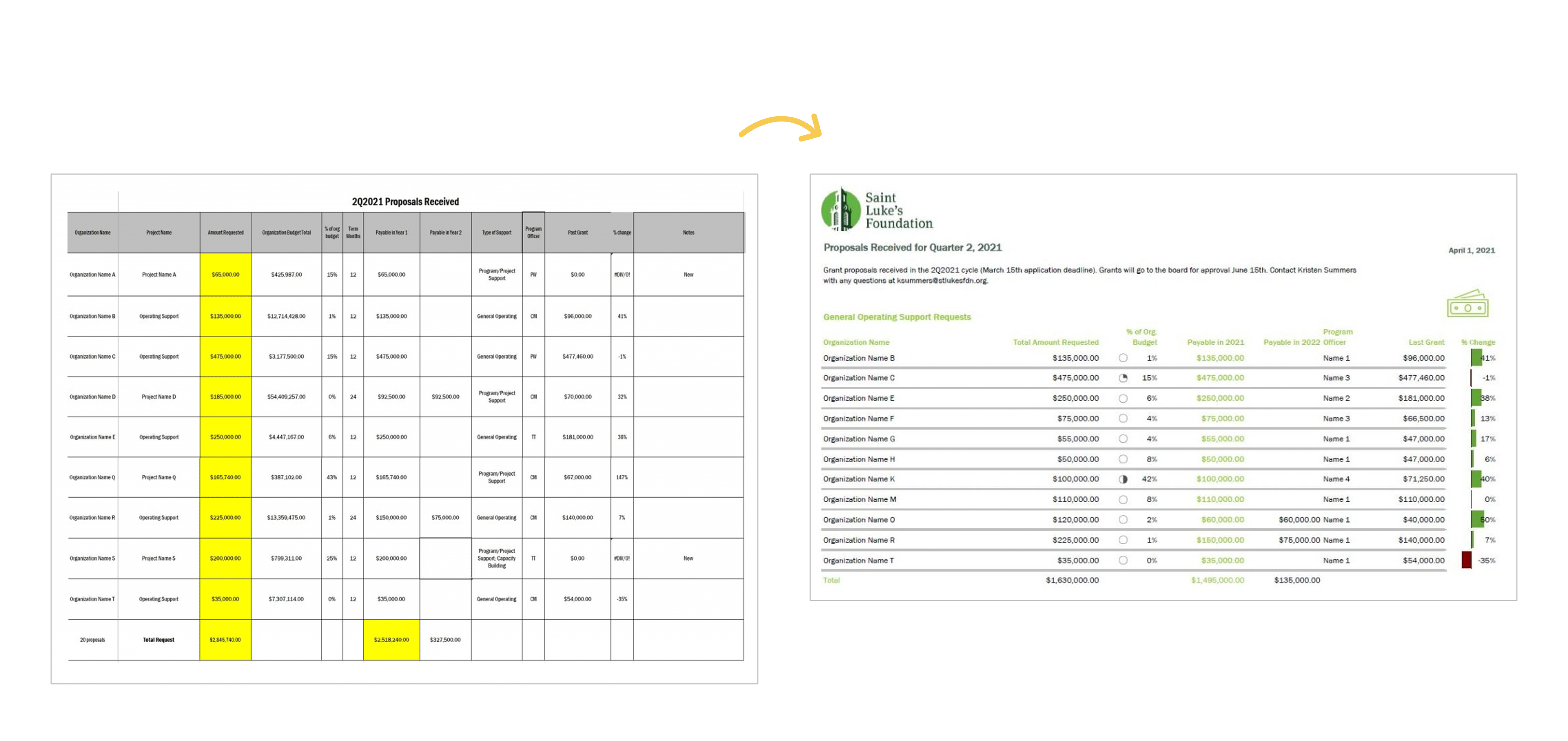
In this blog post, you’ll see how Kristen Summers used “better storytelling with the same data” to transform a couple packets for her board.

Kristen writes, “This resulted in a much more well-received document with lots of compliments from board members! I have begun creating a cohesive aesthetic for all the documents I produce for the board to give them the information they need but in the most streamlined way possible.”

University Monthly Reports

In this blog post, you’ll see how I transformed a university library’s monthly report.

I write, “The before version only looked at one month at a time… I visualized the percentage of the goal that had been achieved so far… In some areas, the library has already exceeded their goal, so the bars spill past the 100% mark—a cause for celebration!”

Quarterly Monitoring

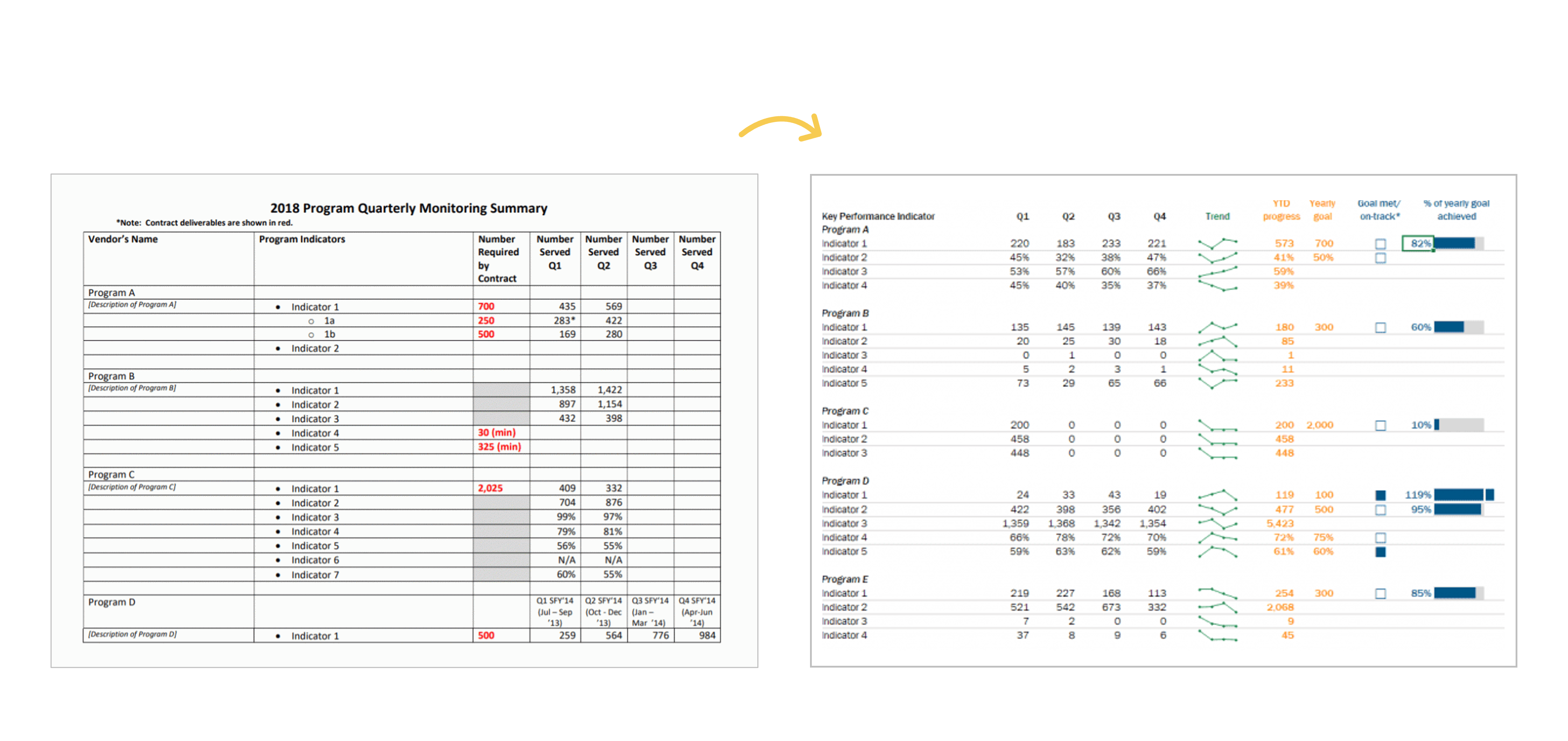
In this blog post, you’ll see how Shawna Rohrman designed “a prettier and more effective dashboard” with Excel.

Shawna writes, “Even with just these few changes (and using a program nearly everyone can access!), our new performance monitoring dashboard has made it so much easier for our team to review quarterly progress in one place and visualize how our system of early childhood programs are working for children and families in the county. The dashboard has become a quarterly staple at our staff meetings, where we review as a group and use the data to generate next steps. It is also easy to share with senior leadership, so they can see at-a-glance the important work our programs are doing.”

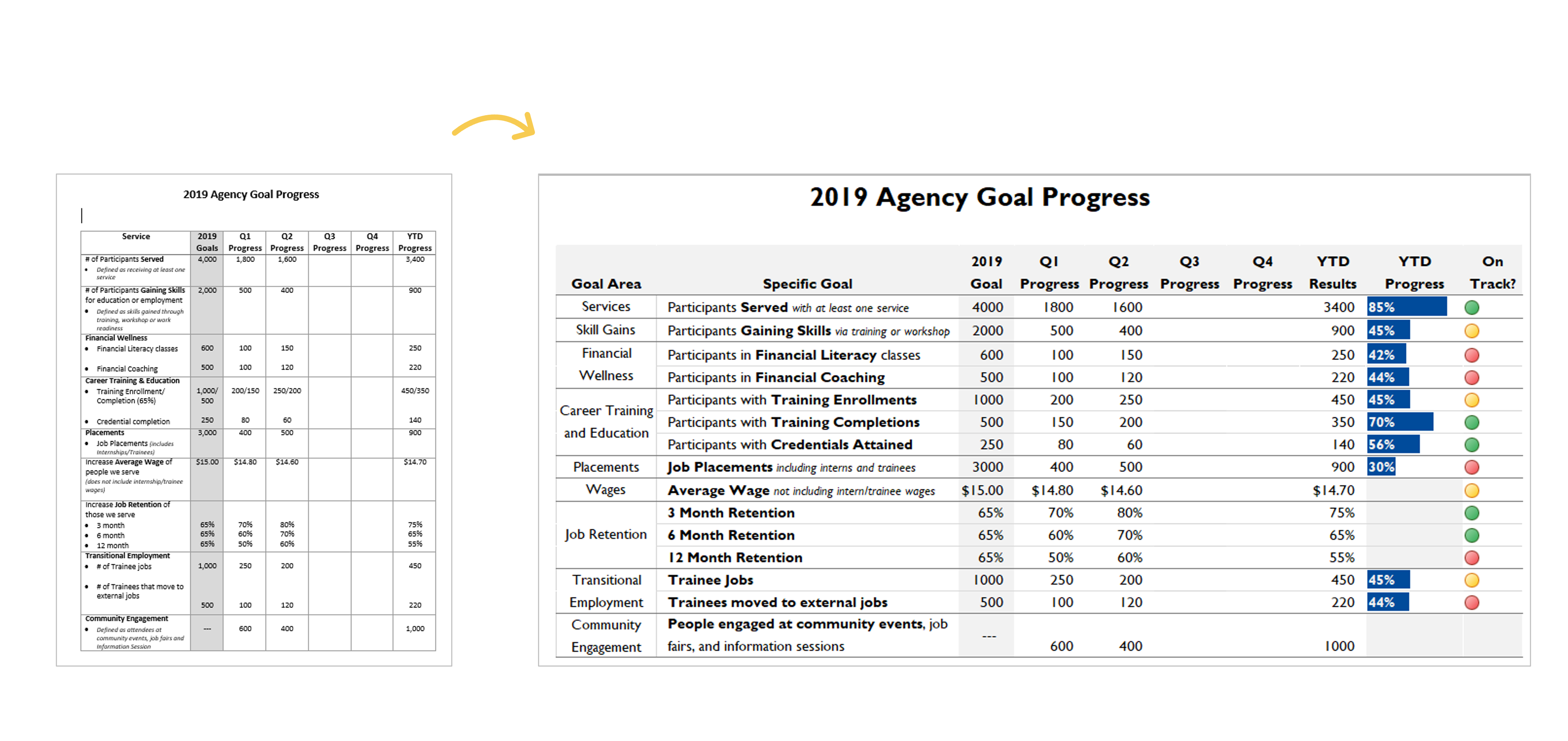
Agency Progress

In this blog post, you’ll see how Danci Greene, Emily Rose Barter, and Britani Baker used “an iterative process to hone the perfect data visualization.”

They write, “[We] recently used an iterative process to turn my agency’s annual goals document into a dynamic visual dashboard… Our iterative process has taken us all the way from a Word document to this dynamic, visual dashboard that uses length and color to bring the numbers to life.”

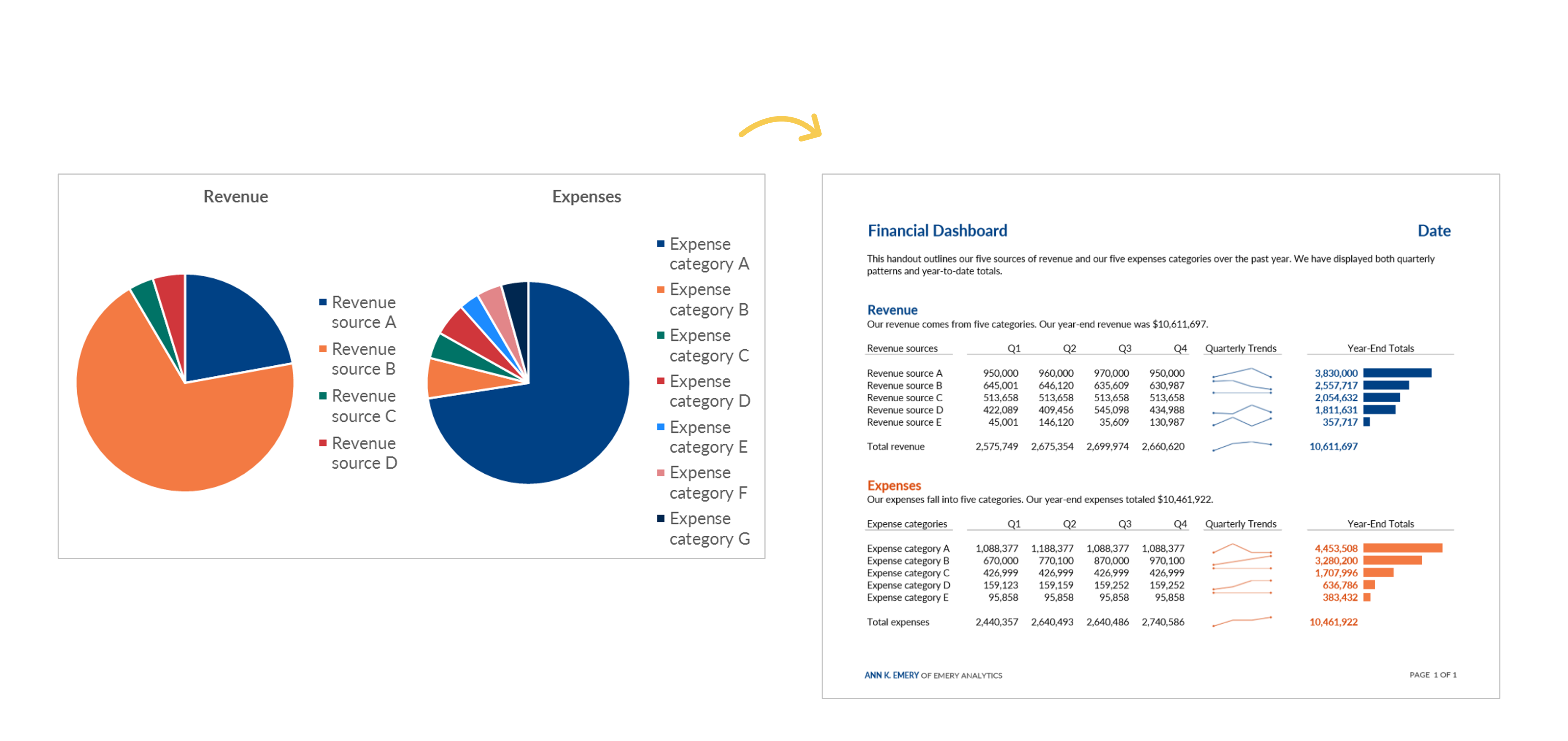
Revenue and Expenses

In this blog post, you’ll see how “transforming your pie charts into a dashboard – built in good ol’ Microsoft Excel – can be more useful for your organization’s leaders.”

I write, “The pie charts and bar charts above were only giving the viewers a single snapshot in time. To manage effectively, leaders need to monitor trends over time… Viewers should never have to lay two pages beside each other or scroll through documents to make comparisons.”

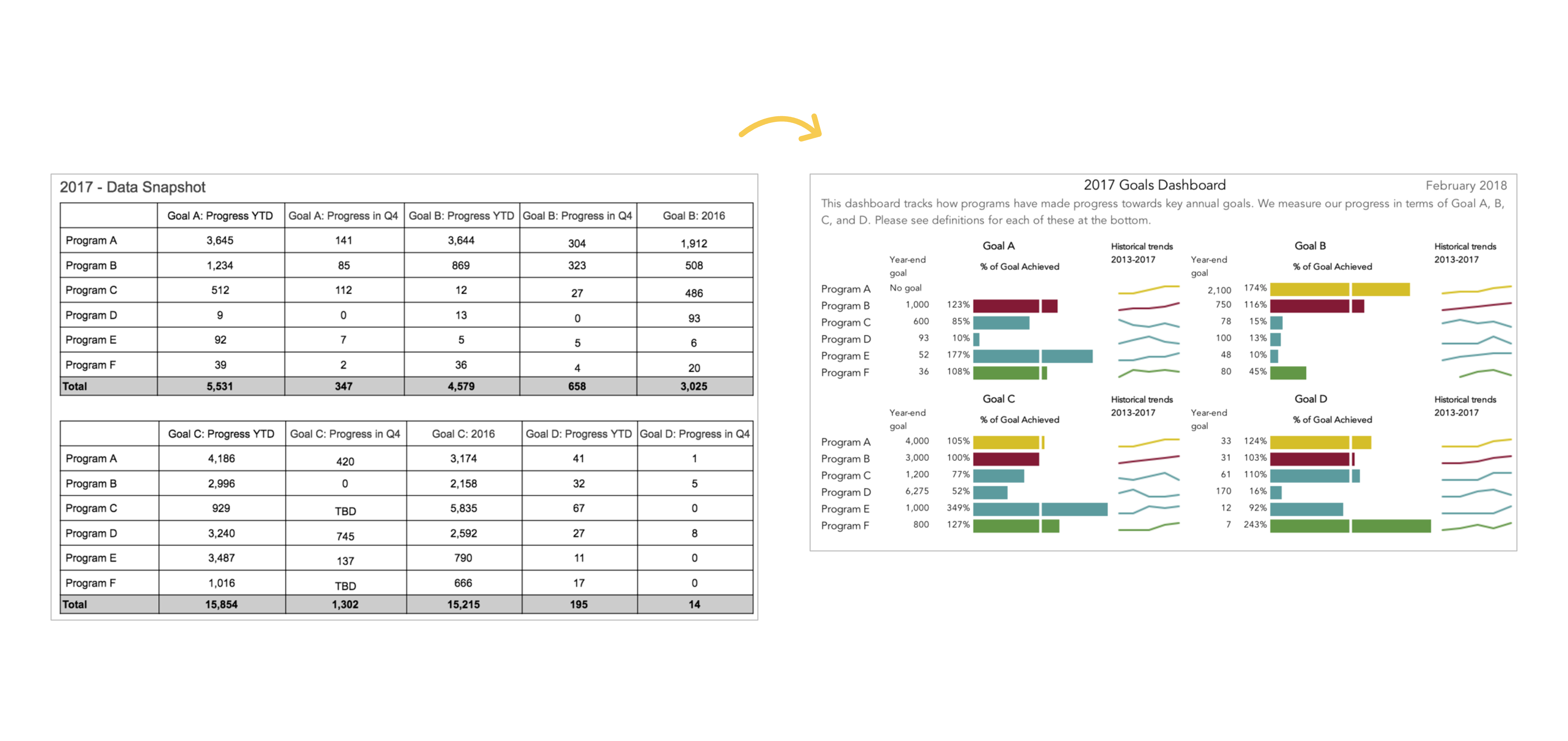
A Tired Data Table

In this blog post, you’ll see how Mia Schmid revamped a “tired data table” that “did a terrible job of communicating what we needed to know.”

Mia writes, “This is a huge improvement to how we have tracked organization-wide goals! The dashboard is so much easier to read compared to the table format and is a much more engaging way to communicate our progress than merely throwing a bunch of numbers into a table and expecting staff to make sense of it. This dashboard also communicates more than just progress towards goals. When I first put this dashboard together I was struck by how many of our programs either exceeded or under-achieved on their goals for 2017. Goal setting is one area we have been working on with each program and this dashboard has also enabled us to communicate to leadership why appropriate goal setting is so important—achieving a goal by 349% signals to me that the target set by the program is questionable.”

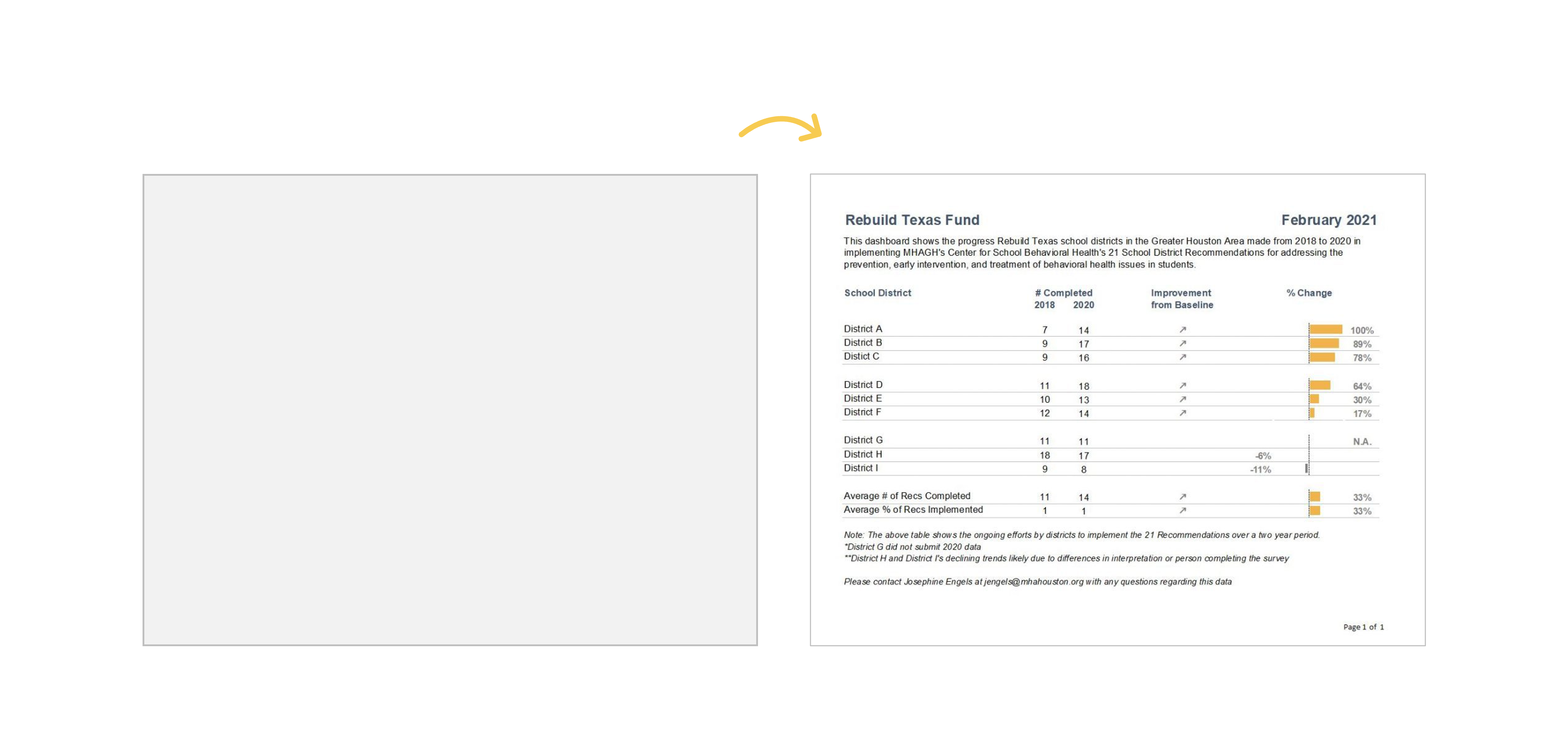
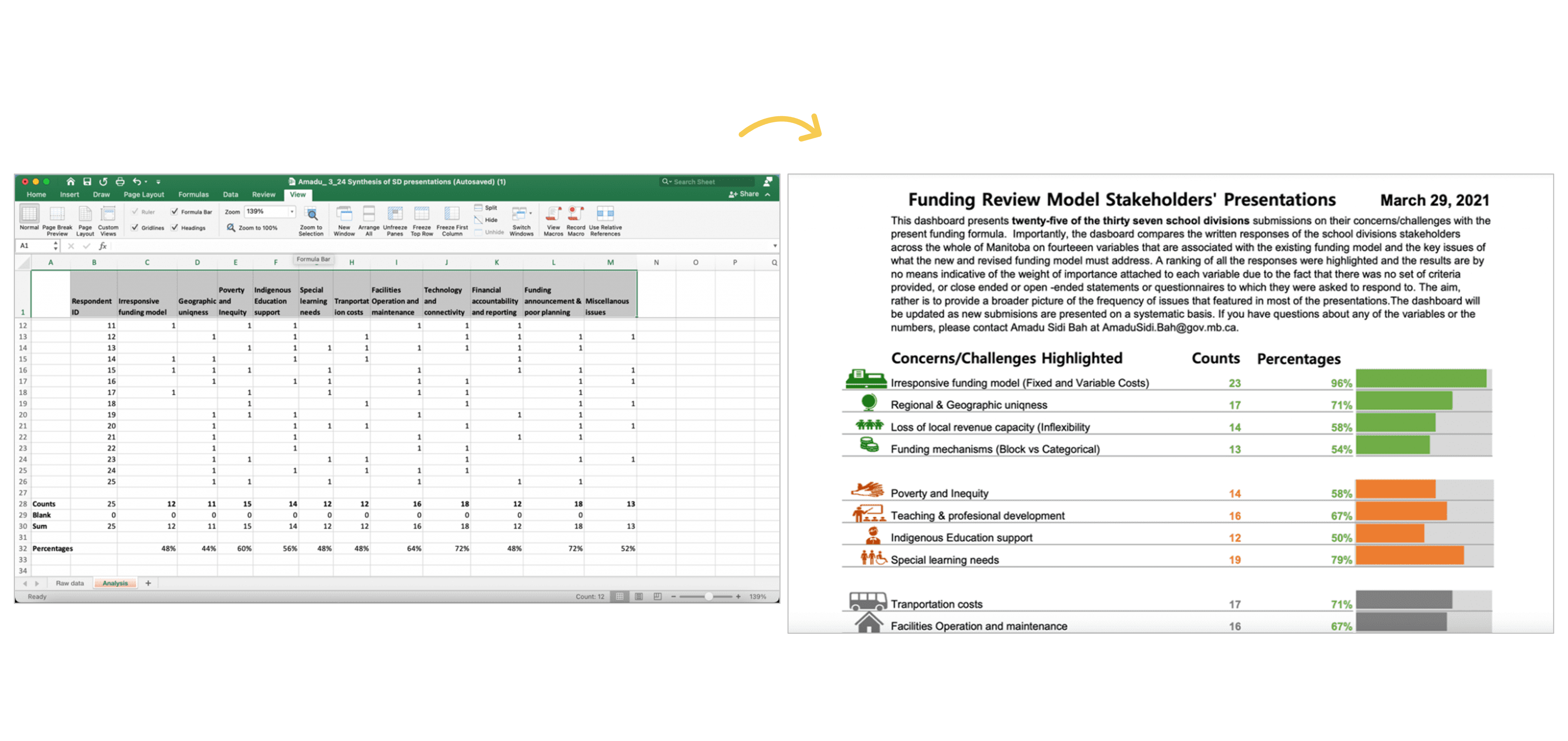
24 School Districts

In this blog post, you’ll see how Amadu Sidi Bah visualized 24 school districts’ submissions with a dashboard in Excel.

Amadu writes, “On sending this final dashboard to the project manager and colleagues, the project manager sent a reply in less than five minutes, and I quote him: ‘…Wow, comprehensive and nice visuals! This should help us prepare for the Review Team meeting and help shape the option paper.’”

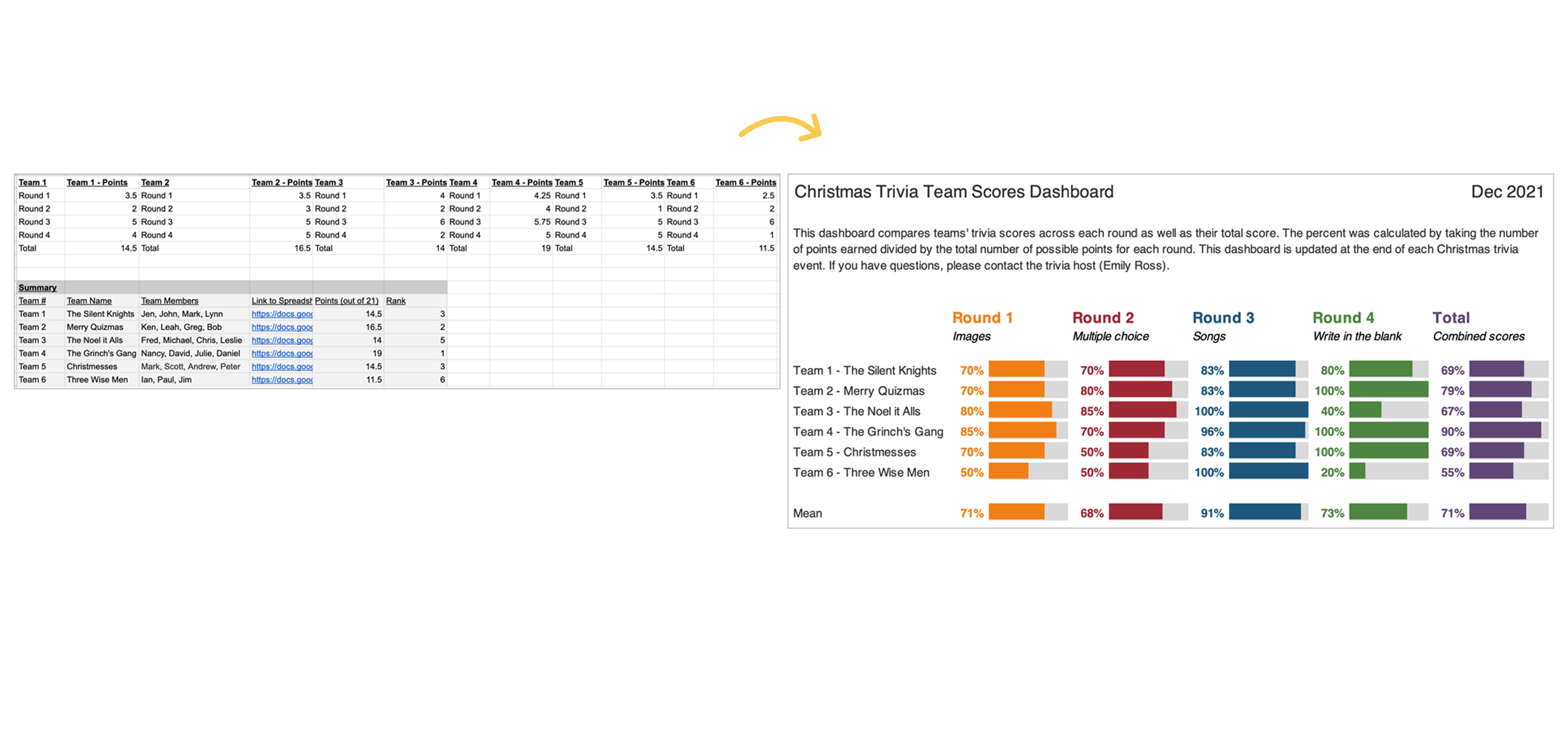
Family Trivia Event

In this blog post, you’ll see how Emily Ross used dashboards “to make a family trivia event even better.”

Emily writes, “I can’t wait to continue to apply the tips and techniques I learned both at work and for fun! Maybe at next year’s trivia I’ll have to test some of the dashboard designs for comparing change over time.”

Learn More

Want to transform your tired tables into effective dashboards? Learn how inside Dashboard Design.

Written by cplysy · Categorized: depictdatastudio

Sep 11 2023

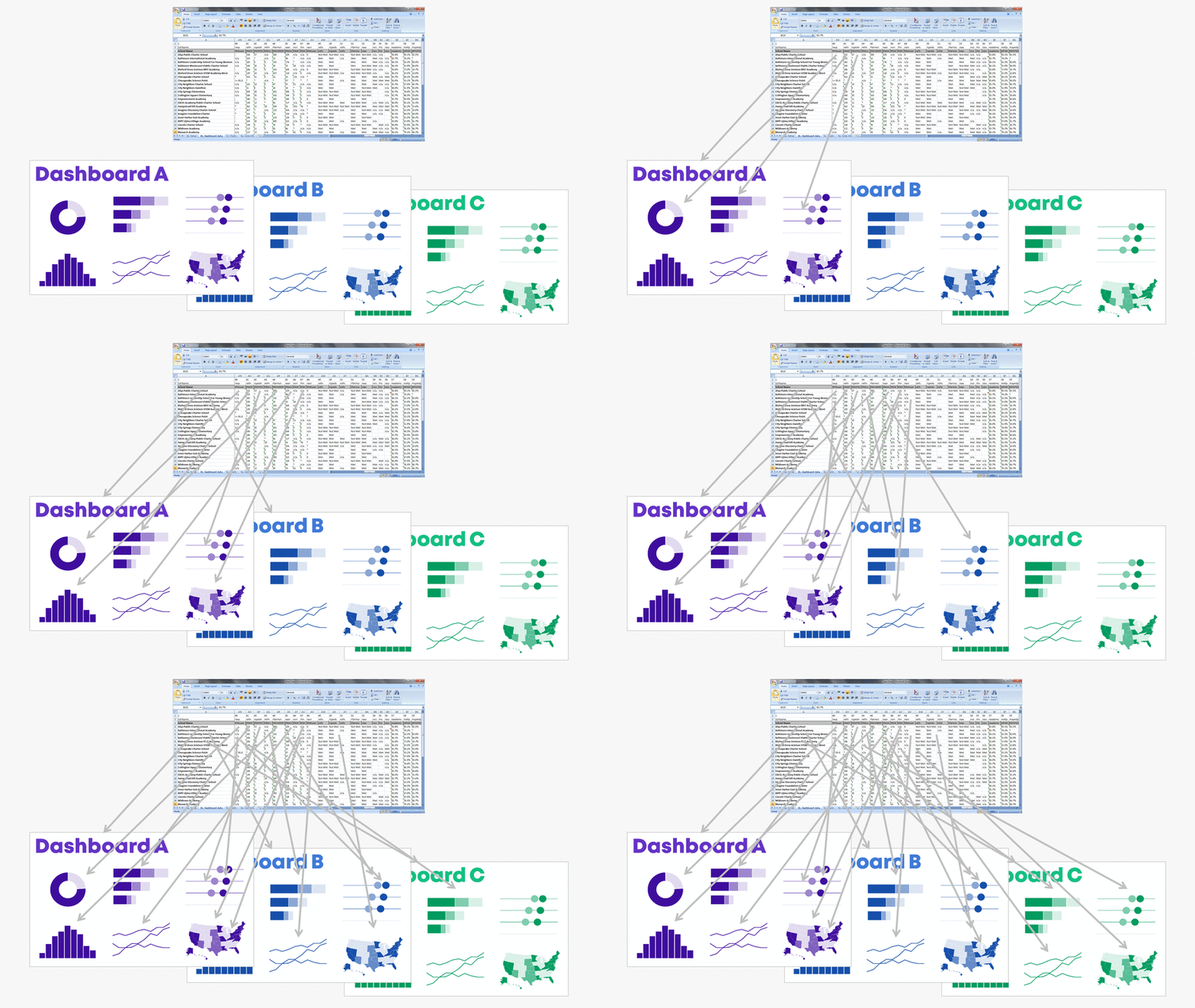
How to Make a Series of Matching Dashboards in Excel

Do you need a series of matching dashboards?

One per program, school, or state?

Copying and pasting is tedious and destined for typos.

Instead, produce a series of matching dashboards through the magic of lookup functions and drop-down menus.

Save time with my automation process.

You’ll create one template and then auto-magically populate it with the rest of the data.

Want to give it a try?! Here’s how.

Step 0: Get Your Dataset into Excel

Let’s pretend we want one dashboard per program.

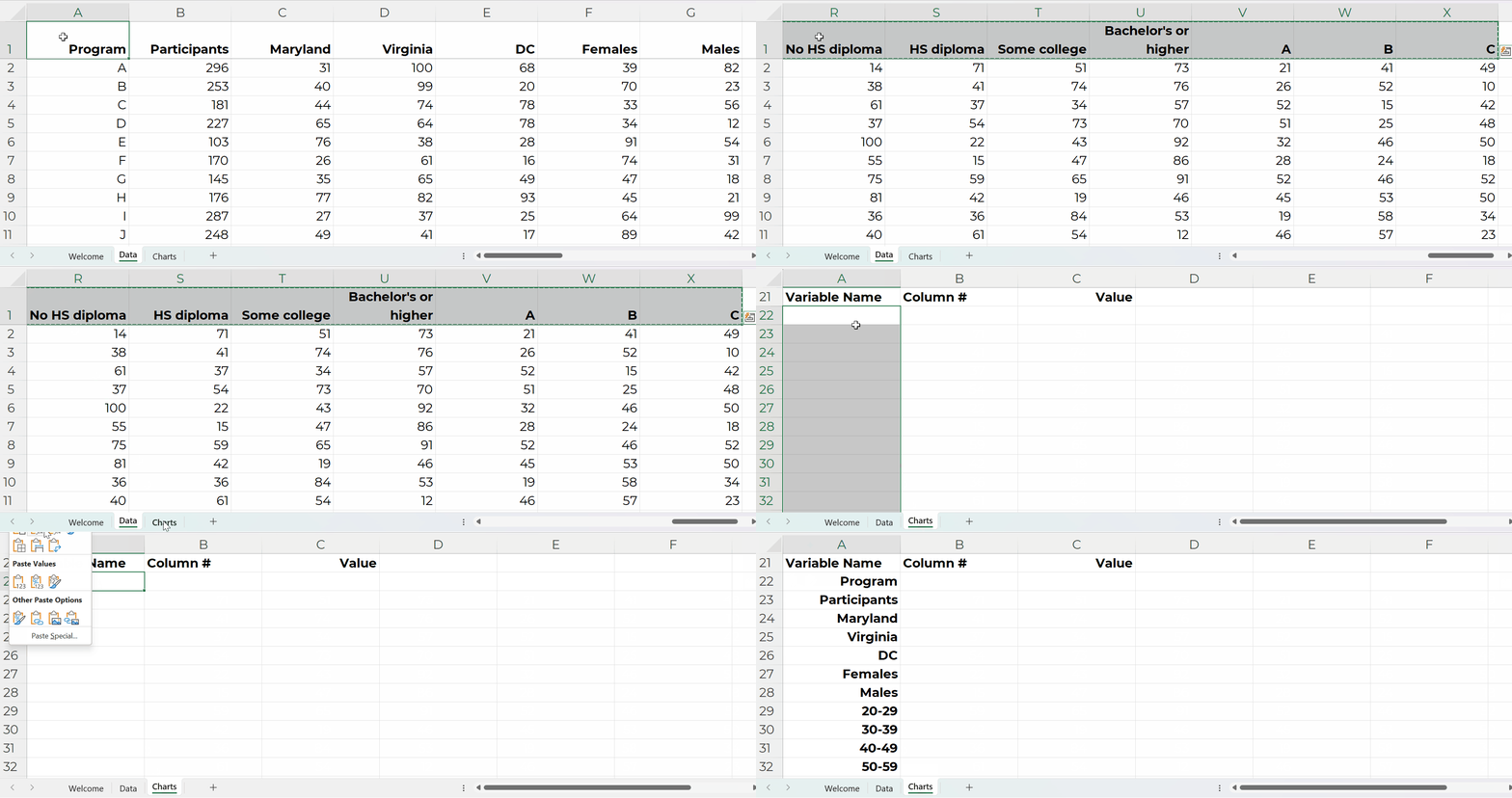
Our dataset might look something like this.

(These are fictional numbers, and they don’t add up to the correct denominators, so don’t look toooo closely, ha!)

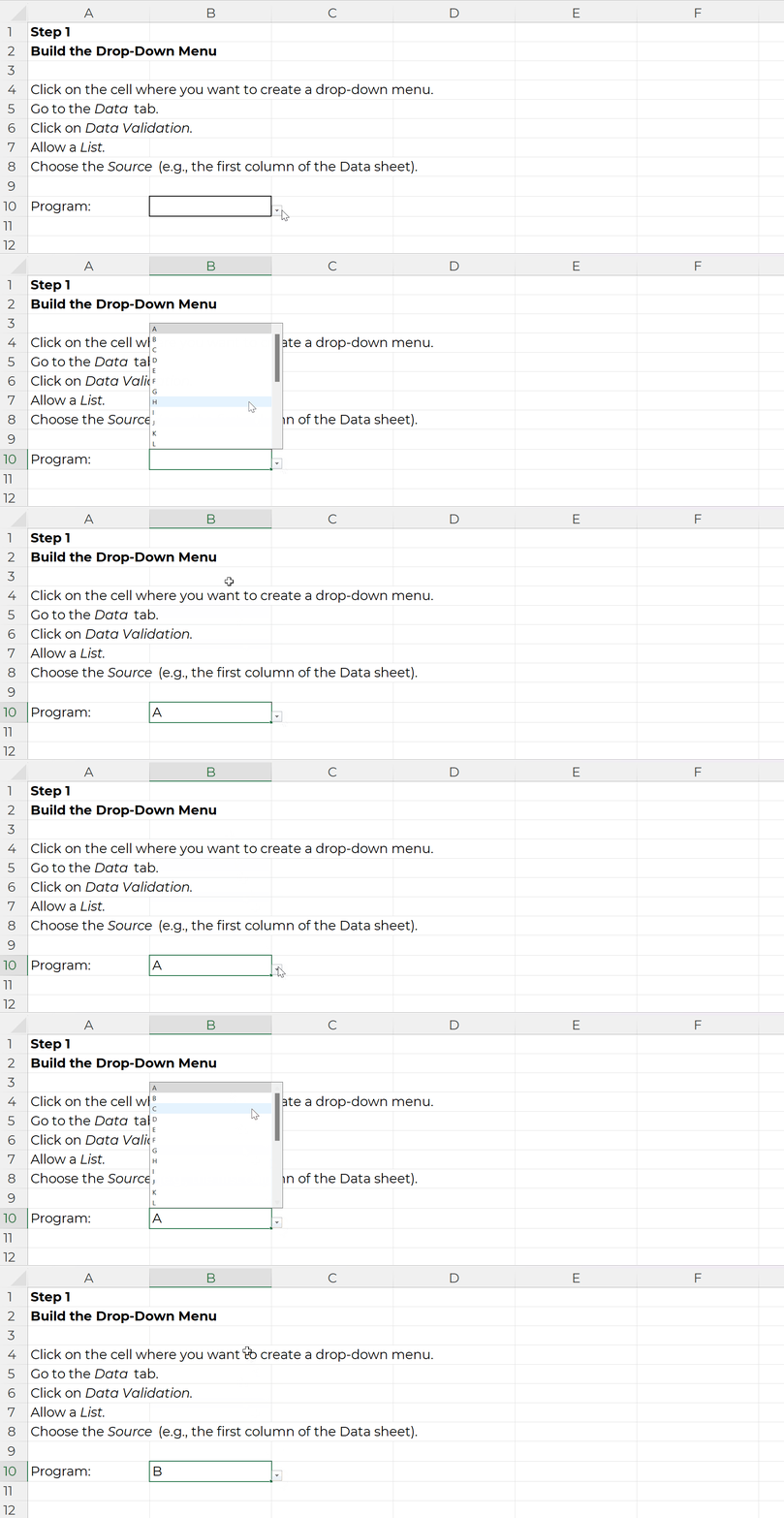
Step 1: Build the Drop-Down Menu

Click on the cell where you want to create a drop-down menu.

Go to the Data tab.

Click on Data Validation.

Allow a List.

Choose the Source (e.g., the first column of the Data sheet).

It’ll look like this:

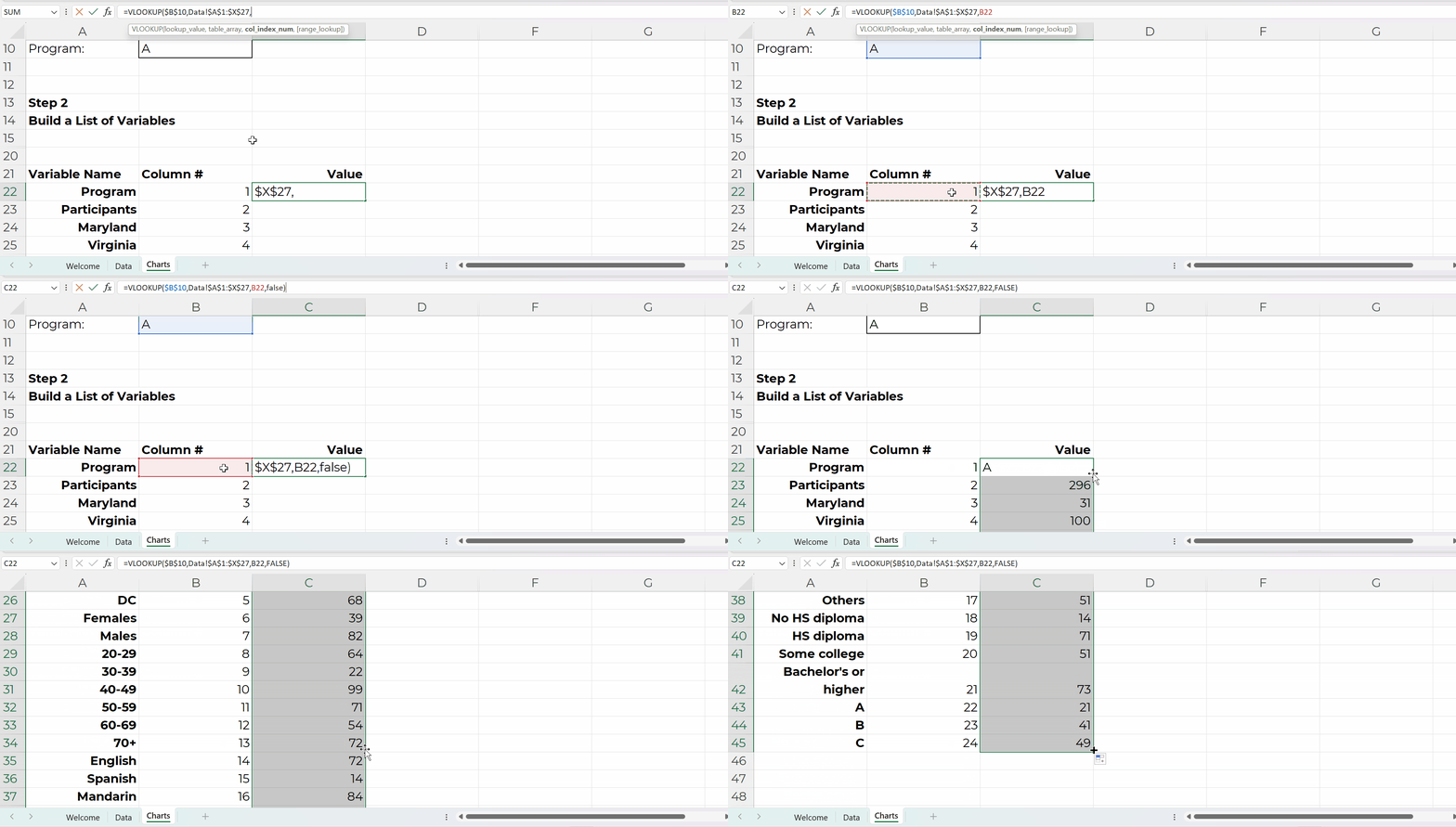
Step 2: Build the List of Variables

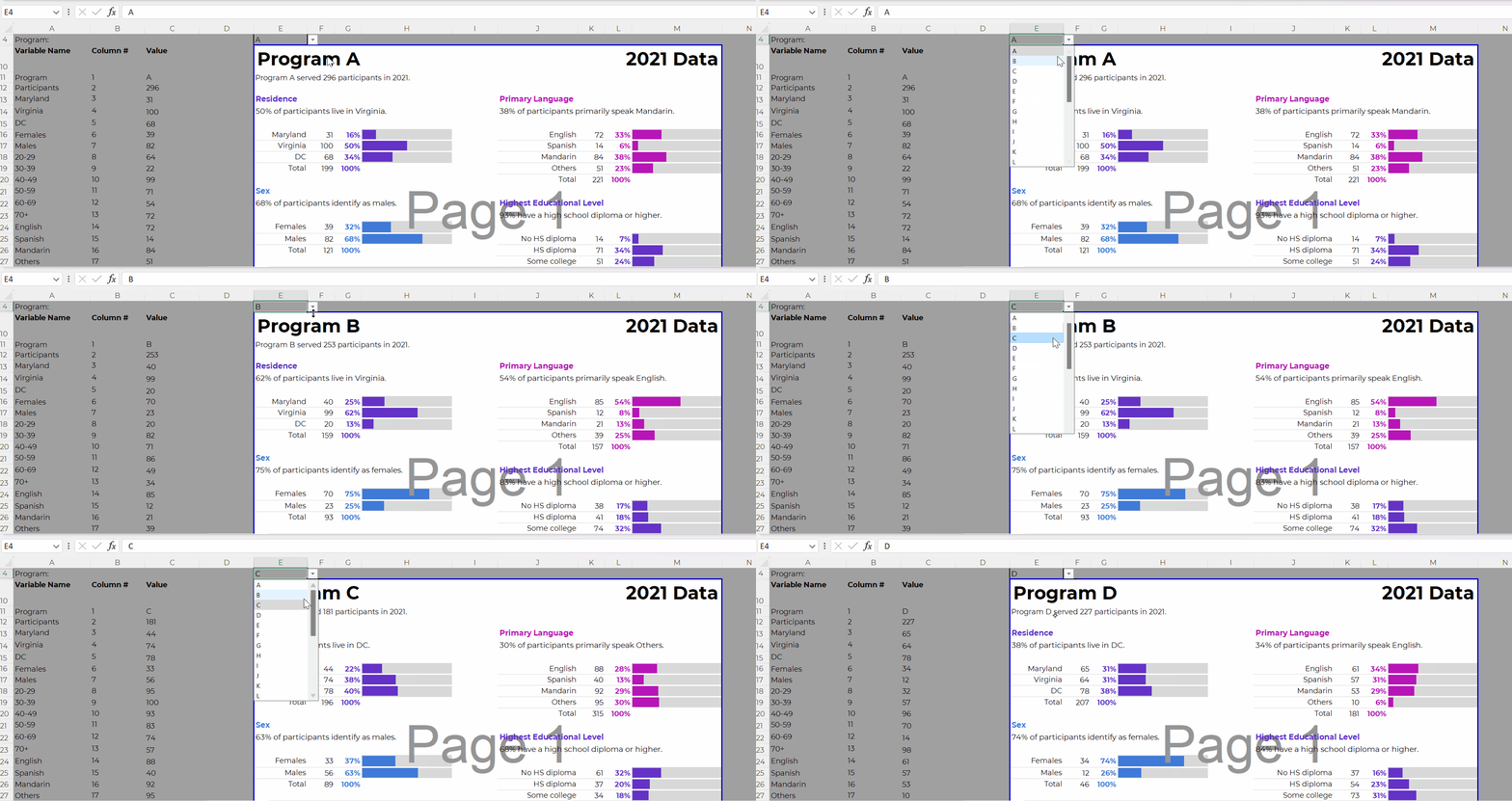
In the Variable Name column, use Paste Special to transpose the headers from the Data sheet into this Charts sheet:

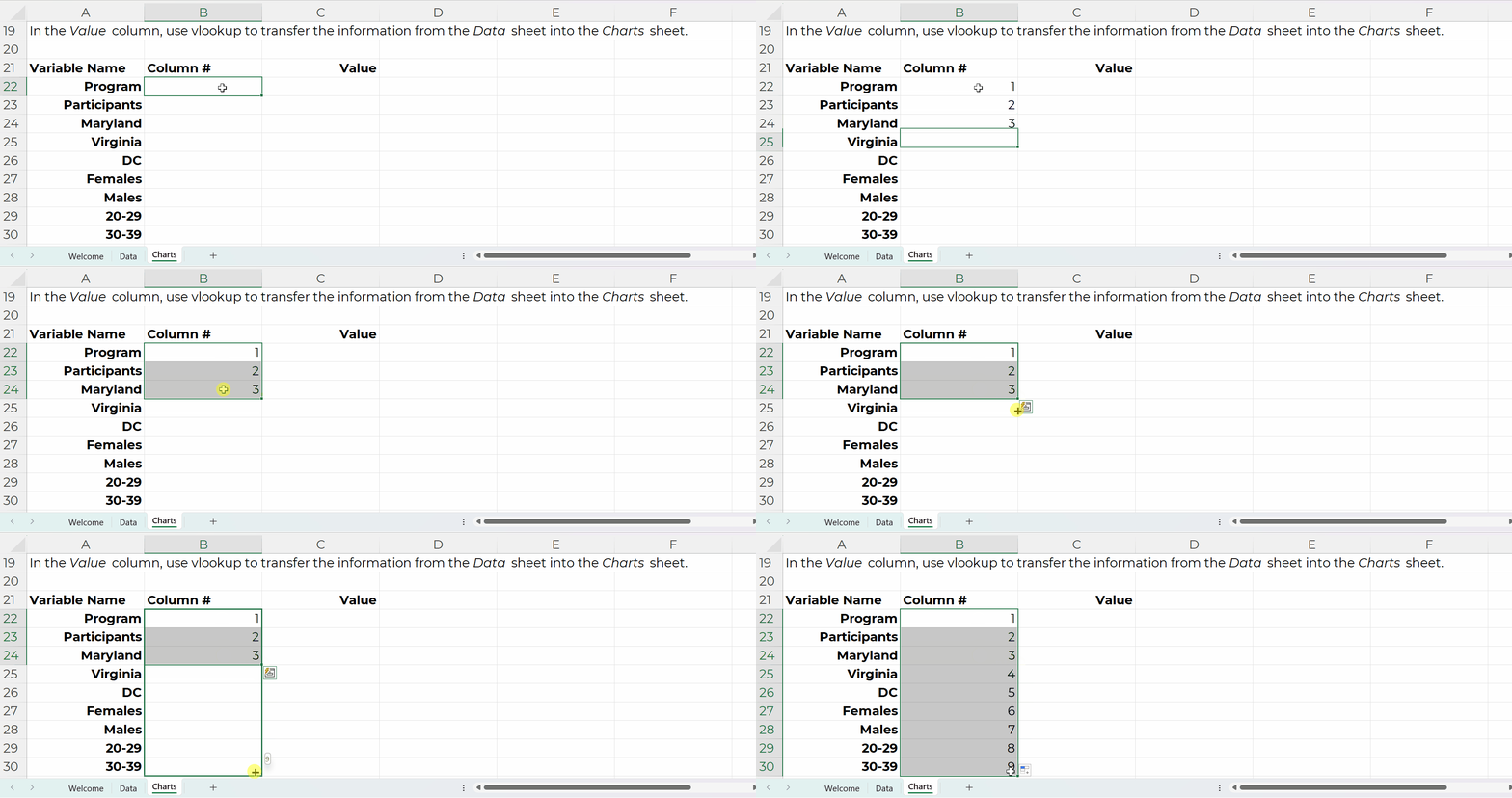
In the Column # column, tell Excel where that variable lives in the Data sheet.

For example, the Program name is in the first column of the Data sheet, so type 1.

In the Value column, use vlookup to transfer the information from the Data sheet into the Charts sheet.

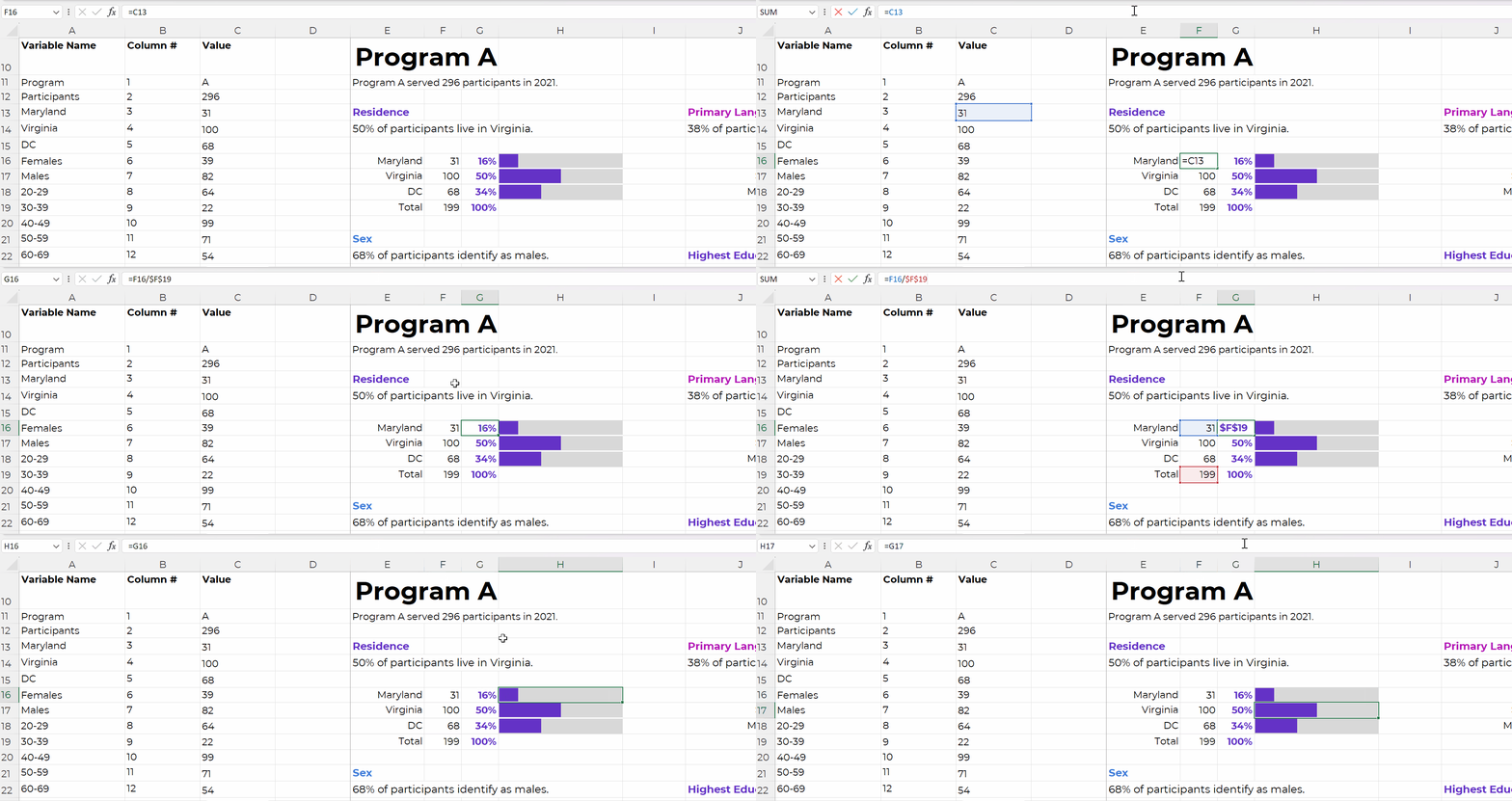
Step 3: Build the Charts

The charts are simply linked to the values off to the left, like this:

We’re obviously not limited to bar charts.

In real-life examples, I’ve used waffles, icon arrays, lines, donuts, lollipops, histograms, and choropleth maps.

I just wanted to keep the charting piece as simple as possible for this example (so your brain could focus on the links between the drop-downs, lookup formulas, and charts).

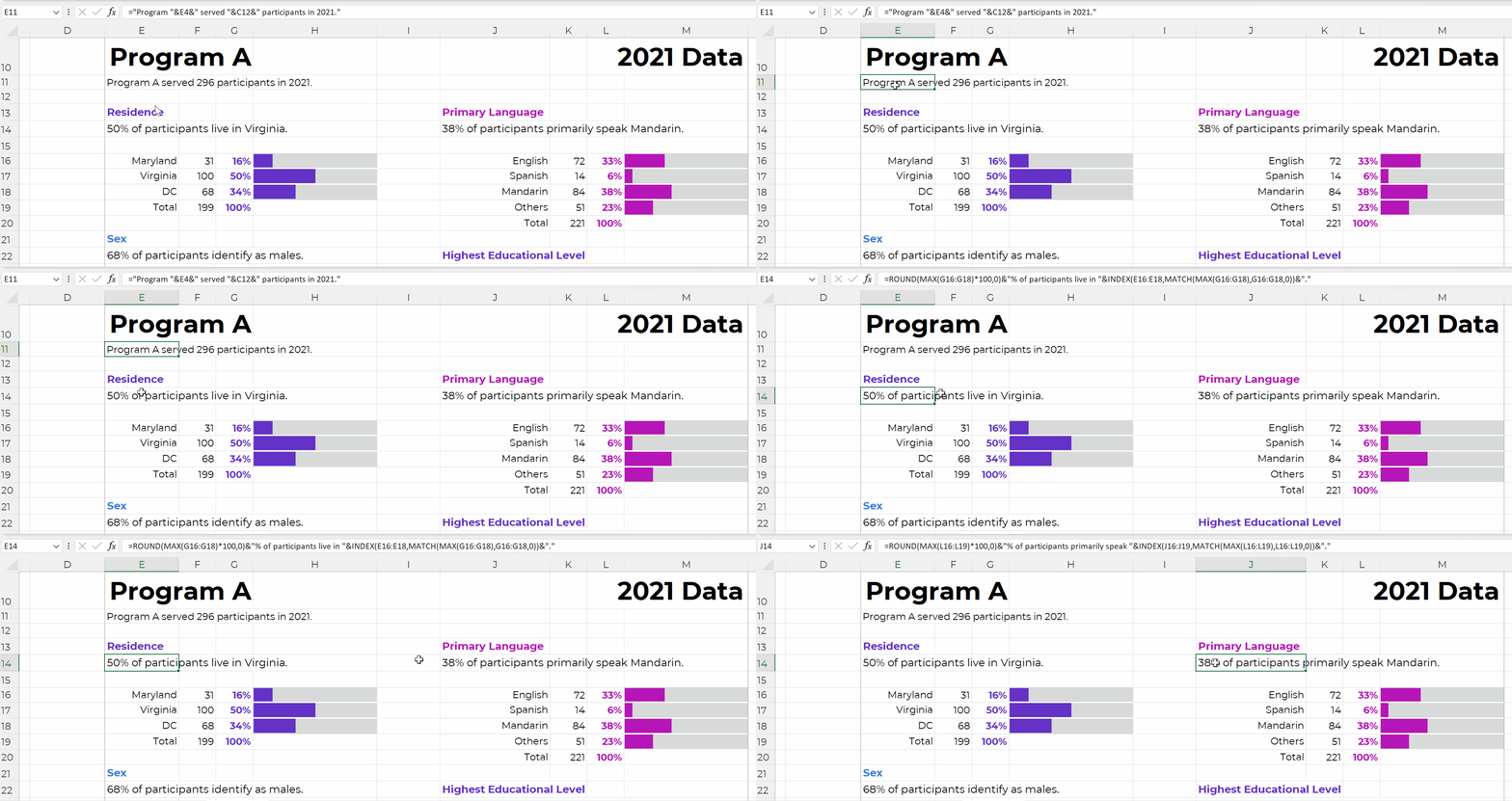
Once the charts are finished, use concatenation to write sentences, like this:

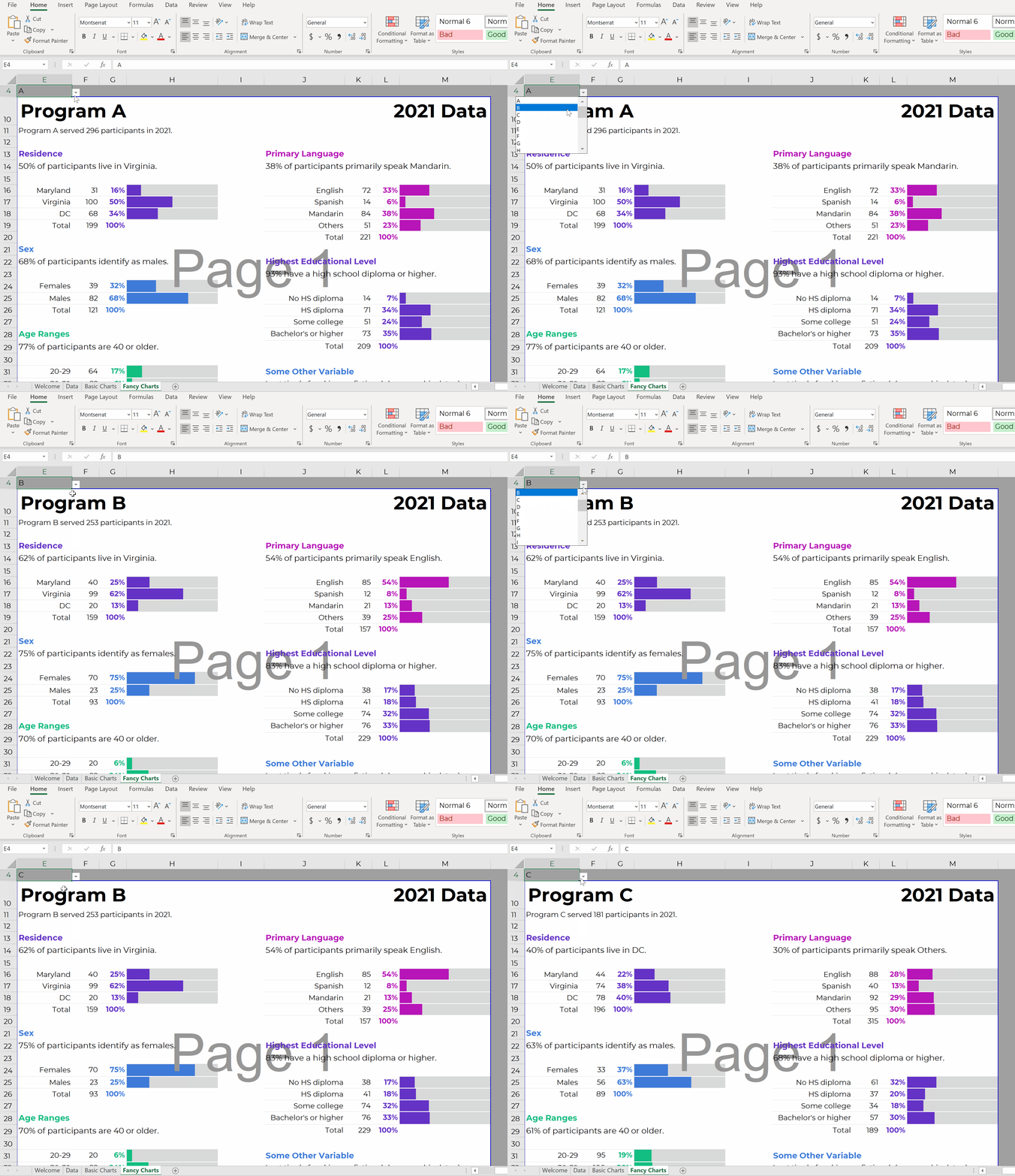
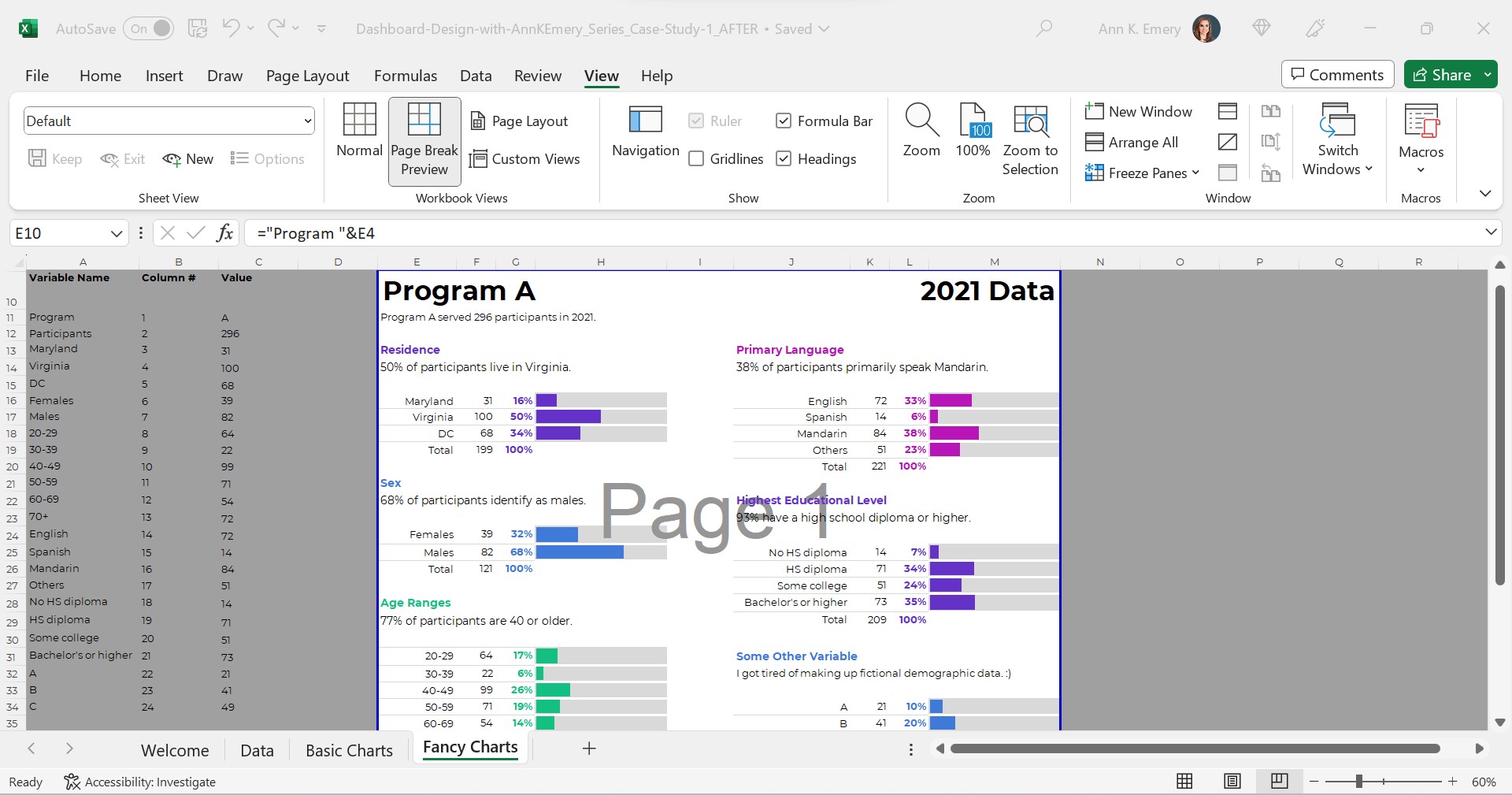
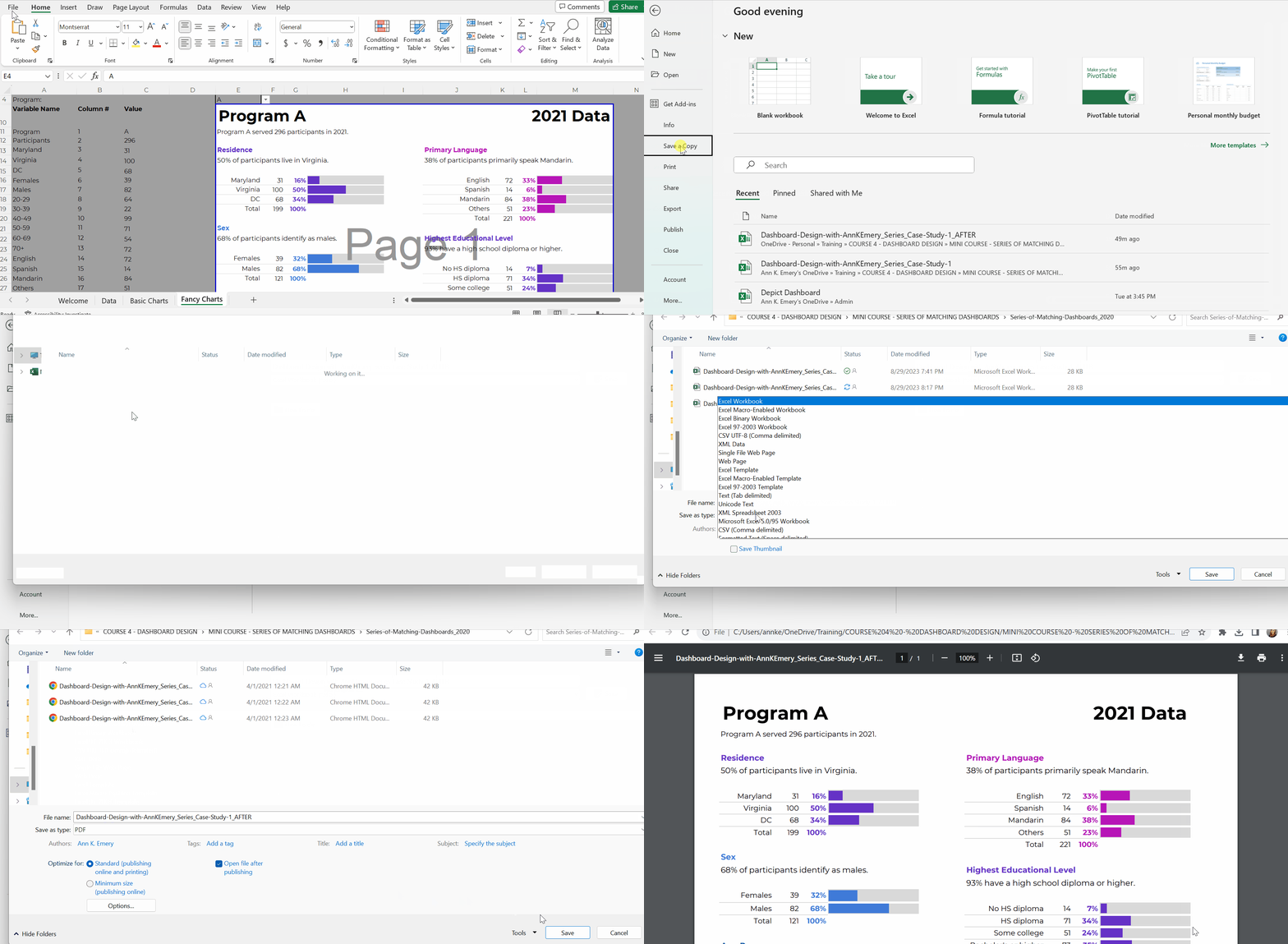
Time for the final touches. You’ll add a title and subtitles; color-code by category; and set everything to be printer-friendly and PDF-friendly, like this:

Everything is linked!

When you select the program name from the drop-down menu…

That program’s data feeds into the Values column (thanks to the lookup formula)…

And that program’s data feeds into the charts.

Don’t worry; the recipients won’t see the formulas behind the scenes. And they won’t see the Page 1 watermark-ish mess.

They’ll see their own PDF, with their own data, like this:

In real-life projects, we sometimes add all these dashboards to the appendices of technical reports (simply by using Acrobat to combine PDFs).

Work Hard Once

With this process, you can create one template and auto-magically populate dozens or hundreds of matching dashboards.

No typos!

No tedious copying-and-pasting from Excel into Word or PowerPoint!!

Work hard once!!!

Create one template, and then let the drop-down menus do the heavy-lifting.

Real-World Case Studies

I’ve used this process in consulting projects to:

  • Design matching 2-pagers for every state, territory, and tribal area that offers home visiting services (State A had its own 2-pager, State B had its own 2-pager, etc.)
  • Design matching 4-pagers for each grantmaking area for a foundation’s board meetings (Focus Area A had its own 4-page dashboard with key metrics, Focus Area B had its own dashboard, etc.)
  • Design matching 10-page survey results tables for every university that responded to a survey (University A saw their own survey results, University B saw their own survey results, etc.)
  • …and a dozen more over the past decade.

Your Turn

What sorts of how-to questions do you have for me?

Comment below and I’ll answer as many as I can.

Written by cplysy · Categorized: depictdatastudio

  • « Go to Previous Page
  • Go to page 1
  • Interim pages omitted …
  • Go to page 12
  • Go to page 13
  • Go to page 14
  • Go to page 15
  • Go to page 16
  • Interim pages omitted …
  • Go to page 37
  • Go to Next Page »

Footer

Follow our Work

The easiest way to stay connected to our work is to join our newsletter. You’ll get updates on projects, learn about new events, and hear stories from those evaluators whom the field continues to actively exclude and erase.

Get Updates

Want to take further action or join a pod? Click here to learn more.

Copyright © 2026 · The May 13 Group · Log in

en English
af Afrikaanssq Shqipam አማርኛar العربيةhy Հայերենaz Azərbaycan dilieu Euskarabe Беларуская моваbn বাংলাbs Bosanskibg Българскиca Catalàceb Cebuanony Chichewazh-CN 简体中文zh-TW 繁體中文co Corsuhr Hrvatskics Čeština‎da Dansknl Nederlandsen Englisheo Esperantoet Eestitl Filipinofi Suomifr Françaisfy Fryskgl Galegoka ქართულიde Deutschel Ελληνικάgu ગુજરાતીht Kreyol ayisyenha Harshen Hausahaw Ōlelo Hawaiʻiiw עִבְרִיתhi हिन्दीhmn Hmonghu Magyaris Íslenskaig Igboid Bahasa Indonesiaga Gaeilgeit Italianoja 日本語jw Basa Jawakn ಕನ್ನಡkk Қазақ тіліkm ភាសាខ្មែរko 한국어ku كوردی‎ky Кыргызчаlo ພາສາລາວla Latinlv Latviešu valodalt Lietuvių kalbalb Lëtzebuergeschmk Македонски јазикmg Malagasyms Bahasa Melayuml മലയാളംmt Maltesemi Te Reo Māorimr मराठीmn Монголmy ဗမာစာne नेपालीno Norsk bokmålps پښتوfa فارسیpl Polskipt Portuguêspa ਪੰਜਾਬੀro Românăru Русскийsm Samoangd Gàidhligsr Српски језикst Sesothosn Shonasd سنڌيsi සිංහලsk Slovenčinasl Slovenščinaso Afsoomaalies Españolsu Basa Sundasw Kiswahilisv Svenskatg Тоҷикӣta தமிழ்te తెలుగుth ไทยtr Türkçeuk Українськаur اردوuz O‘zbekchavi Tiếng Việtcy Cymraegxh isiXhosayi יידישyo Yorùbázu Zulu