• Skip to main content
  • Skip to footer
  • Home

The May 13 Group

the next day for evaluation

  • Get Involved
  • Our Work
  • About Us
You are here: Home / Archives for allblogs / depictdatastudio

depictdatastudio

Jun 06 2022

Humanity in Data Visualization: Designing a One-Pager for My Grandma’s Caregivers

I registered for the Simple Spreadsheets course because I was a beginner with using Excel and I knew I was utilizing only a fraction of its capabilities. 

I also had the good fortune of attending some of Ann’s in-person presentations about data visualization at a conference for Continuous Quality Improvement hosted by the California Department of Social Services, which had an unquantifiable impact on the personal project I will be sharing with you today. 

Although I signed up for learning from Ann to benefit my professional life, I was also able to apply the learnings in my personal sphere as you will see below! 

Although this example was in the personal realm, I think there are potentially a lot of other applications for visualizing data in this way.

The Challenge

At the beginning of the coronavirus pandemic, my mom and aunt had to fire my grandma’s caregiver due to a personality mismatch and not being on the same page about grandma’s needs.  

This was the second time it happened in a few months and it seemed like part of the challenge was in the matching process and educating the caregivers about grandma’s unique needs, and her personality.

Getting Everyone on the Same Page

I wanted to do something to help, so I created a 11×17 one sheet introduction for the new caregiver with input from my grandma, auntie and mom. 

My grandma’s previous caregivers were not native English speakers, so I wanted to make something that was approachable, and also captured my grandma’s personality. 

I remembered in one of Ann’s presentations that she told us about the icons at The Noun Project website, so I used icons accompanied by brief descriptions. 

It made sense to me to organize the info into two columns, and I made the text as clear and simple as possible.

The Result

Here’s the one-pager that I made for my grandma’s caregivers.

Outcome

Unfortunately, grandma is no longer with us. 

But I’m happy to report that after providing the caregiving agency with the 11×17 sheet, she was matched with a caregiver that she LOVED, and who told us she loved our grandma too. 

The caregiver was with her for a year and a half, until she passed. 

I can’t tell you how comforting it was to know that she was in the hands of someone who was not only competent, but genuinely cared for her. 

The caregiving agency kept a copy of the sheet in grandma’s file and shared it with substitute caregivers when the primary caregiver had time off.  This helped the substitute caregivers provide more consistent care for grandma.

Potential Applications

Since its creation, I’ve shared this sheet with many of my friends who have made similar sheets for their loved ones. 

Some of my friends have all joked that they need something like this for their dating life.  Maybe it has other applications too?  What do you think? 

Sharing with Gratitude

Here is an editable Word copy that you can use for your own purposes! 
Download the One-Pager

Connect with Mieko Yeh

linkedin.com/in/miekoyeh

Written by cplysy · Categorized: depictdatastudio

May 16 2022

Change Takes Time: How to Practice Patience in Report Redesign Processes

This guest post comes from Abby Henderson. Abby Henderson, MS, is a Project Manager at Veris Insights. Abby got her Master’s in Program Evaluation and Data Analytics from ASU in 2019, while working at the Center for Applied Behavioral Health Policy within the Watts College of Public Service and Community Solutions. In 2021, Abby joined the team at Veris Insights, where the focus is on bettering the world of work through providing first-class service and research on university recruiting and talent acquisition. In her free time, Abby loves to fall down internet rabbit holes about random topics, build slide decks no one ever sees, and take long walks around Phoenix with her dog. You can connect with her on LinkedIn or by sending an email to ahenderson@verisinsights.com.

We’ve all been on the receiving end of a long, boring, text-heavy report. It can be challenging to sit down and read, rarely translates insights into action, and is (for lack of a better word) boring. Well… I used to be an author of reports like that.

The Everything Report

At the start of my career, I thought the most important thing a report could convey was… well… everything. My thinking went something like this: “All of the background information, data, methods, and recommendations needed to be extensively covered.  The more technical and academic the language, the better. If I can impress people with my language and expertise, they’ll be more likely to follow the recommendations I suggest.” However, that line of thinking functions under the assumption that people will read to the end of the report to get to those recommendations.

What I came to realize early on was that people, in fact, did not want to read through a long and technical report to get to the recommendations buried at the end. On top of that, spending so much time writing extensive reports was taking time away from strategic and creative thinking about what the data means. I had so little time left for that type of thinking that my recommendations were often vague, unhelpful, or lacking in creative thinking.

Introduction to Data Visualization

Cut to a session I attended hosted by the Arizona Evaluation Network and led by Deven Wisner and Nicole Huggett on data visualization. My brain lit up with curiosity and joy at the idea that data could be conveyed simply, succinctly, and visually. That session got me started on a new journey and led to me asking new questions.

Instead of asking, “How much information can I fit in this report? How technical can I make my language?” I was now asking questions like, “What is the purpose of this report? How do I hope these findings are used? How can I communicate that clearly, succinctly, and visually?”

The next thing I knew, I was enrolled in Report Redesign through Depict Data Studio and spending much of my free time thinking about data communication. More broadly, I was (and continue to be) interested in how we bridge the gap between technical expertise and lived experience, and how we communicate across that gap regardless of building a bridge.

Starting a New Conversation

I started to have conversations with my colleagues about how we could change our reporting. I started by suggesting we add more data visualizations and fewer tables.

When I met resistance to this idea, I started to produce two versions of our reports. One version included the tables we were accustomed to, and the second version included more elements of data visualization. Through providing both options, I was able to slowly garner traction and buy-in on including data visualizations.

The next proposal I made was to include infographics, one-pagers, or shorter summaries with our reports for individuals who may only be interested in the data from a high level. Again, I took on responsibility to demonstrate what I was envisioning and how I thought it could work. This meant taking on extra workload to create the products our leadership was accustomed to, as well as products I wanted us to explore. I brought up data visualization in meetings, attended webinars, and tried to increase the data literacy on my own team.

I was hopeful but hesitant during this timeframe. After all, change takes time, and change takes even more time when you’re suddenly grappling with a pandemic and an upending of our work lives as we previously knew them to be. In this new normal, I was suddenly surrounded by data visualization. The conversation shifted in the world around us, and therefore the conversation shifted in our office as well. There was no longer a question about the utility of data visualization in reports, as we were seeing firsthand how impactful a good visualization can be to convey a message.

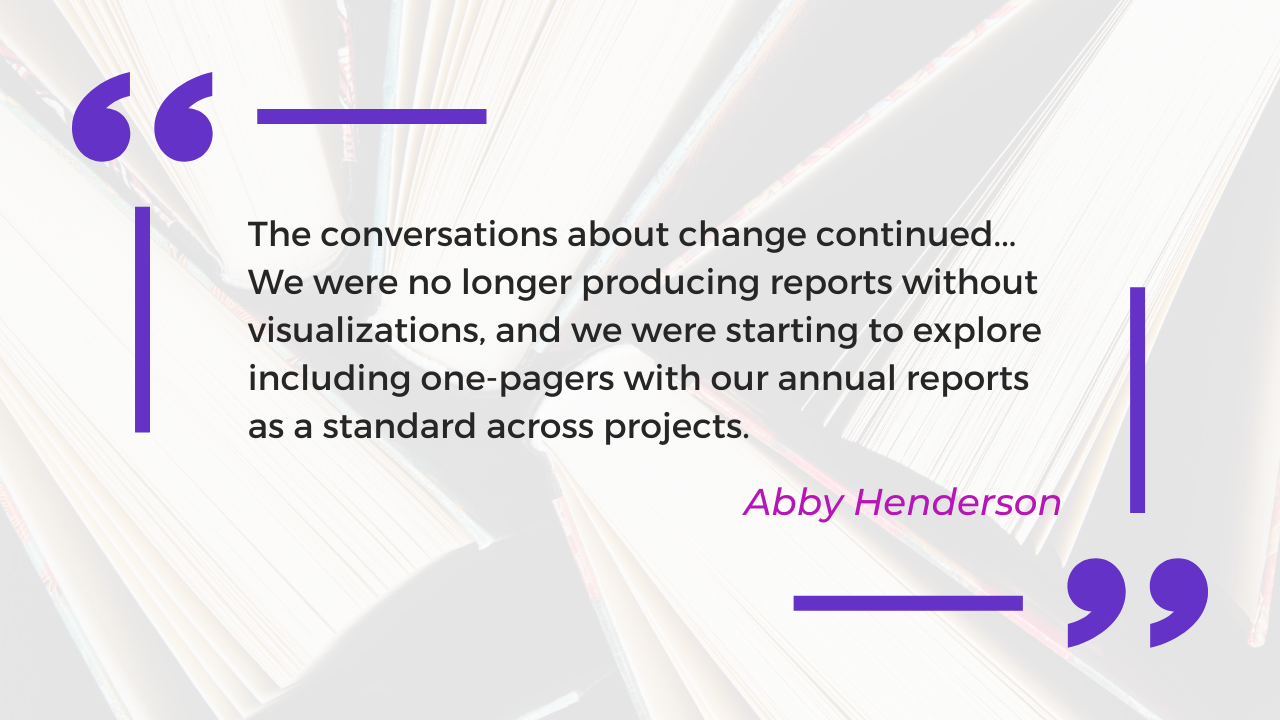
The conversations about change continued, as I slowly began to notice how things were shifting in our offices. Suddenly, others on my team were hoping to collaborate on infographics. I was being asked to take on more projects, but each new project was a step in the right direction. We were no longer producing reports without visualizations, and we were starting to explore including one-pagers with our annual reports as a standard across projects.

Around this time, I ended up in a new position at a new company that uses data visualization as a bedrock of our work and didn’t get to see firsthand how the process in my previous office continued to change. However, I found out from colleagues that they now include an infographic or one-pager as a standard with all annual reports, are exploring ways to add more visual elements to quarterly reports, and are continuing to increase the internal skill around data visualization.

Lessons Learned

Here are three.

Patience

The most important lesson I learned in this process was one of patience. From the moment I made my first data viz, I wanted to change everything immediately. That was neither realistic nor feasible, and looking back I wish I had aimed for a slow burn to change our processes.

Self-Reliance

By deciding this was the hill I wanted to climb, I also had to be prepared to climb alone. Sometimes this included late nights in the office making two versions of the same report. Sometimes (often) this included frustration with my own lack of knowledge about data viz best practices. I had to trust that this process was worth the extra work. However, looking back, I wish I had had better boundaries around taking on extra workload to accomplish this change. Finding other champions on my team earlier on may have helped with that as well, as data visualizations are nearly always improved by collaborative brainstorming.

Mistakes

Here’s the thing: anytime you learn something new, you’ll make mistakes. I made plenty, both in my actual visualizations and in my attempts to create internal change in my organization. The goal is not to make zero mistakes, but to use your mistakes as a jumping off point for new learnings. Accepting that mistakes are part of any change process can provide grace from the start about the challenges you’ll encounter.

Written by cplysy · Categorized: depictdatastudio

May 09 2022

Using Dashboards to Make a Family Trivia Event Even Better

Emily Ross recently finished her PhD in health services research and is now as a junior evaluation consultant at Ference & Company Consulting. She enrolled in our Dashboard Design course and is sharing how she used her new skills in her personal life. Thanks for sharing, Emily! –Ann

—

When COVID-19 pushed many events online, I decided to host a virtual Christmas trivia event for my family.

Participants answered questions over four different rounds in teams of three to six people. The rounds each had five questions and all questions were Christmas- or New Year-themed.

Before: Compiling the Data in a Spreadsheet

To support scorekeeping, teams had an individual score sheet where they wrote and marked their own answers.

I had a master score sheet that would automatically pull their scores together so all teams scores were combined into one page.

I’d then show this master score sheet via screen share at half-time and at the end of the event.

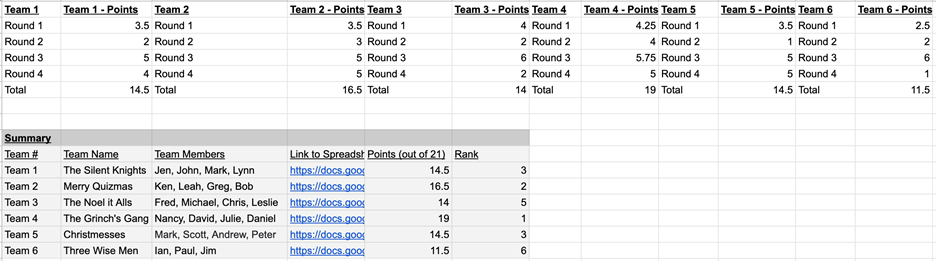
The master score sheet looked like this:

I had a master score sheet that would automatically pull their scores together so all teams scores were combined into one page. This is what it looked like.

While it brought all the scores into one place, it wasn’t very easy for my participants to quickly pull out the key information (i.e., how well their team was doing).

I decided to apply some of the lessons I learned in the Dashboard Design course to make the sheet more accessible.

After: My Trivia Night Dashboard

First, I had to decide what type of dashboard I wanted to make.

In the course, Ann provided a handy Dashboard Cheat Sheet that helped me see different options.

I decided because I had one time point and wanted to compare categories (i.e., teams) that bars would likely be best.

I also decided to convert the numerical scores into percentages because not all rounds had the same number of possible points. Percentages would be a more consistent indicator.

Now it was time to make the dashboard.

It was easy to follow along step by step with Ann’s stacked bar dashboard video tutorial.

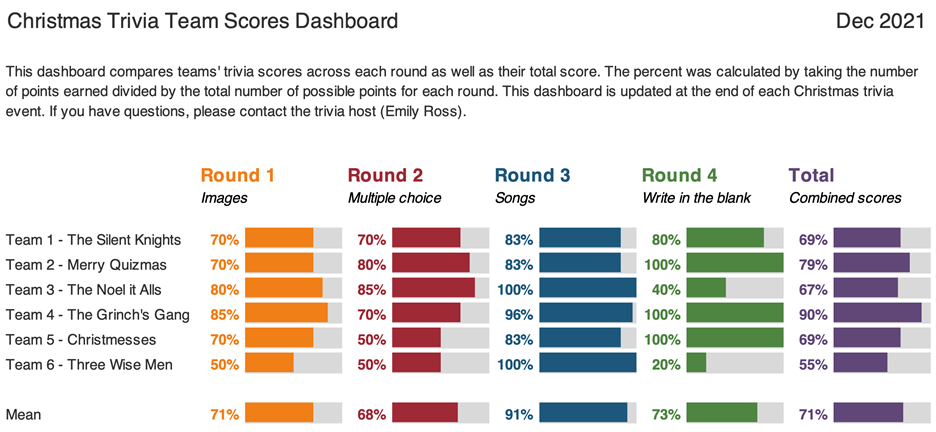
I made the following dashboard using the Data Bars feature in Microsoft Excel:

This dashboard compares teams' trivia scores across each round as well as their total score.

What I Learned about Dashboards and Excel

Not only were the steps easy to follow, but I also learned about better dashboard and Excel practices.

These tips help make your life easier and your dashboards more editable and readable.

Some of my lessons learned include:

  • Always put a title, subtitle, and date on the dashboards.
  • If your text is in a colour, make it bold so it is easier to read.
  • Add a white border around cells to add white space.
  • Use cell styles and Theme Colours to make formatting more consistent and easier to edit (I somehow did not know about this in Excel even though I use it regularly in Word).
  • Give yourself a bit of time to do the final editing to make it sure fits on a page

With this dashboard, I found it much easier to see:

  • How well teams did in each round (e.g., team 6 struggled with Round 4, but excelled in Round 3).
  • How teams compared to each other.
  • How hard each round was (e.g., Round 2 was on average harder than Round 3).

Designing a Second Dashboard

Encouraged by my dashboard attempts, I decided to try one more dashboard.

I wanted to know within each round, which questions did teams get right and wrong.

This would help me identify which questions were too easy and which were too hard. It’s a fine balance to get when hosting trivia!

I thought about including it in the same dashboard above, but I then I watched one of Ann’s videos about the four types of dashboards.

This reminded me that it’s okay (and even better) to make different dashboards for different audiences.

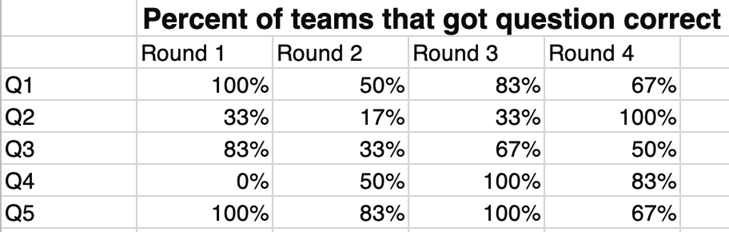
I had to do a bit of data cleaning first. I ended up with a table that showed for each question in each round the percent of teams that got that question fully correct:

I made this dashboard to show the percent of teams that got a question correct, but I found it hard to identify any patterns or the take home message.

While it had the information that I needed, I found it hard to identify any patterns or the take home message.

I remembered that in the Dashboard Design course Ann had a video on how to compare categories using heatmaps. (Here’s a blog post tutorial you can read.)

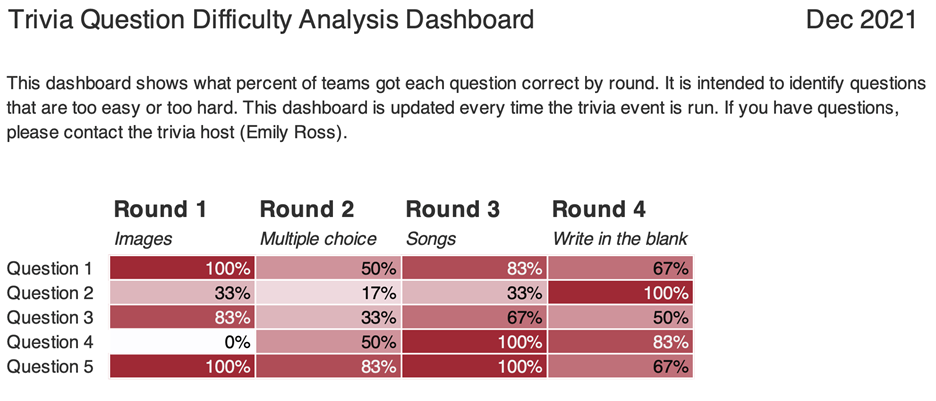
I used the steps to create this:

This dashboard shows what percent of teams got each question correct by round.

What I Learned from My Second Dashboard

As with the first dashboard, there were some great tricks.

Essentially, if you’re doing something manually (like changing the text colour to white on the darker cells or individually colouring cells) there is almost always a better way! You can use Excel’s conditional formatting to automatically color-code background fills and/or font colors.

I found it much easier to identify patterns both within round and across rounds.

For example, teams generally had a harder time with questions in Round 2 than they did with Round 3 (there are more lighter cells).

Using this dashboard, I could easily pick out questions which were too hard and too easy.

Questions That Were Too Hard

Round 1 – Question 4: What is the name of this dish and where is it eaten on January 6? (Answer: Rosca de Reyes; Mexico)

Image of food dish Rosca de Reyes, traditionally eaten in Mexico.
Image source: Elizabethcasasola, CC BY-SA 4.0, via Wikimedia Commons

Round 2 – Question 2: What is the highest grossing Christmas movie (according to Wikipedia)?

Options: a. The Grinch b. Krampus c. The Polar Express d. Elf

(Answer: The Grinch)

Questions That Were Too Easy

Round 4 – Question 2: What fruit is a traditional stocking stuffer?

(Answer: Citrus fruit like an orange, mandarin, clementine)

Round 3 – Question 4: What performance is this song played in? (Bonus: Who is the composer?)

(Answer: The Nutcracker; Tchaikovsky)

(Sound clip source: Dance of the Sugar Plum Fairy Kevin MacLeod (incompetech.com)

Licensed under Creative Commons: By Attribution 3.0 License, via Wikimedia Commons)

I really enjoyed how approachable and practical the videos in this course were.

I can’t wait to continue to apply the tips and techniques I learned both at work and for fun!

Maybe at next year’s trivia I’ll have to test some of the dashboard designs for comparing change over time.

Connect with Emily

LinkedIn: https://www.linkedin.com/in/emilysross/

Written by cplysy · Categorized: depictdatastudio

Apr 18 2022

10 Subtle Signs of “Death by PowerPoint”

Death by PowerPoint makes our audience scroll through their phone or lose interest. Important information sits on the slide, gathering dust.

We’re all familiar with the obvious signs of Death by PowerPoint:

  • Text-wall slides with bullet points for daaaays.
  • Using filler words (um, like, so).
  • Multiple graphs smushed on one slide with tiny text.
  • Tiny, grainy images with cheesy stock photography models.

But are you familiar with the subtle signs of Death by PowerPoint?

10 Subtle Signs of Death by PowerPoint

Here are 10 subtle signs that our presentations might need some TLC:

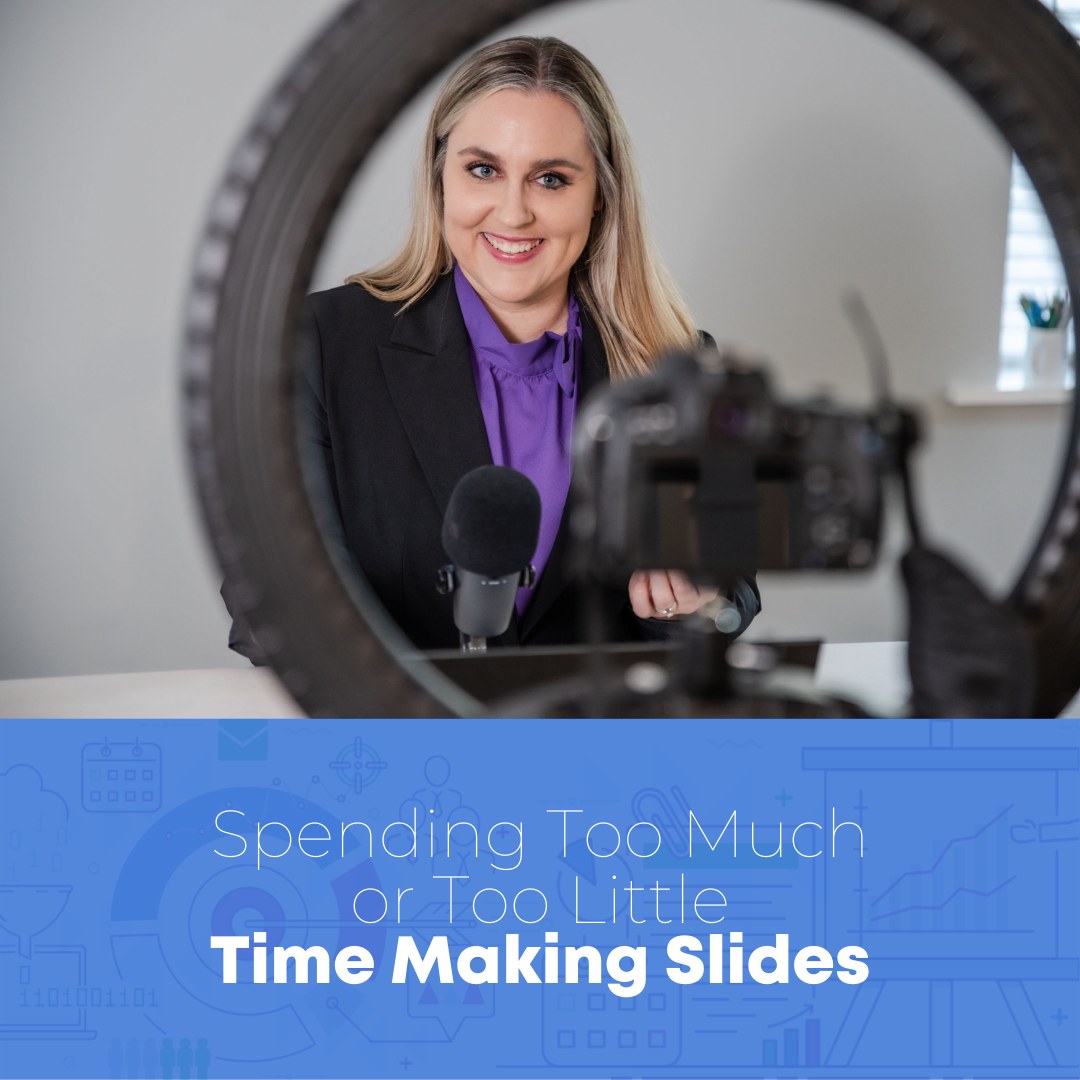
Spending Too Much or Too Little Time Making Slides

Are you making the slides the night before? That’s not enough time.

I’m guilty. I used to make slides on the plane on the way to the conference.

Or, maybe you’re running into the opposite challenge: Are you spending too much time making slides?

Again, I’m guilty. Sometimes I’d waste an entire weekend making slides for a big talk.

If your time management falls on either extreme—you’re spending too little time or too much time making the slides—then that’s a subtle sign of Death by PowerPoint.

Poor time management à poor presentation quality à adverse effects on our audience.

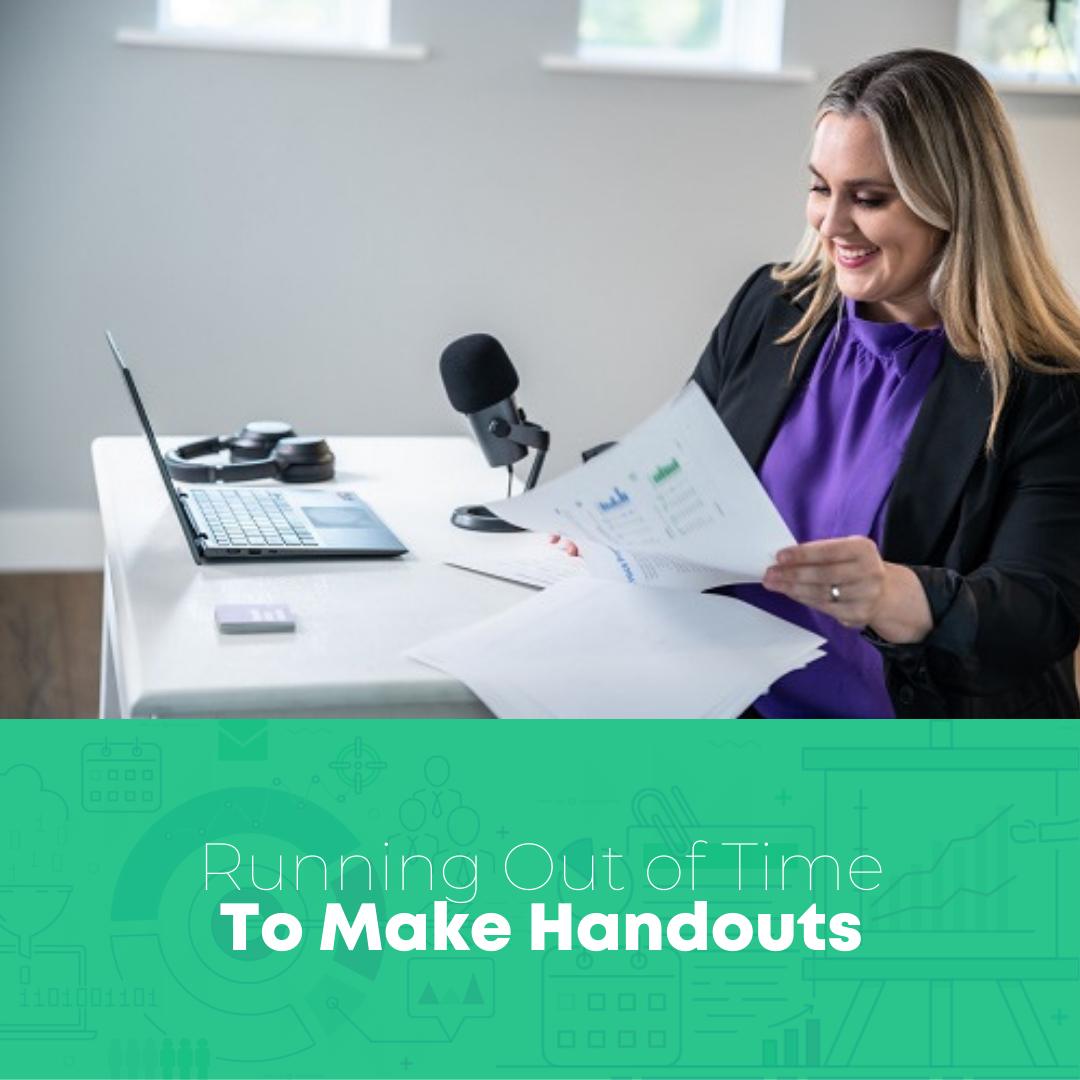
Running Out of Time to Make Handouts

In a perfect world, every presentation would be accompanied by a separate handout, one-pager, or even technical report.

In reality, I used to just share a PDF’d copy of my slides. I wasn’t sure what to include in the handout, how to format it, or whether it was really necessary (it is!!!).

As a result, my slides were in this weird limbo: I’d strive for great-looking presentation slides with lots of images and very little text. But sometimes I’d get nervous and add too much text so that the slides could do double-duty as a handout.

When our PowerPoint has to serve two purposes, as the presentation slides and as the handout, the presentation suffers.

Losing Time on Colors and Fonts

Have you ever used one of PowerPoint’s ugly and overused templates?

I have. A dozen times.

Have you lost time searching through folders and subfolders for your organization’s templates?

Have you lost time making your own templates?

Have you lost time thinking about colors?

Fonts?

Photos?

Sure, it takes time to create an initial corporate template with Theme Colors and Theme Fonts.

But these Word Hard Once techniques save a ton of time in the long run.

Losing time before each presentation on colors and fonts is a sure sign of Death by PowerPoint. When our minds are distracted by the minutiae of slide design, our audience feels the effects.

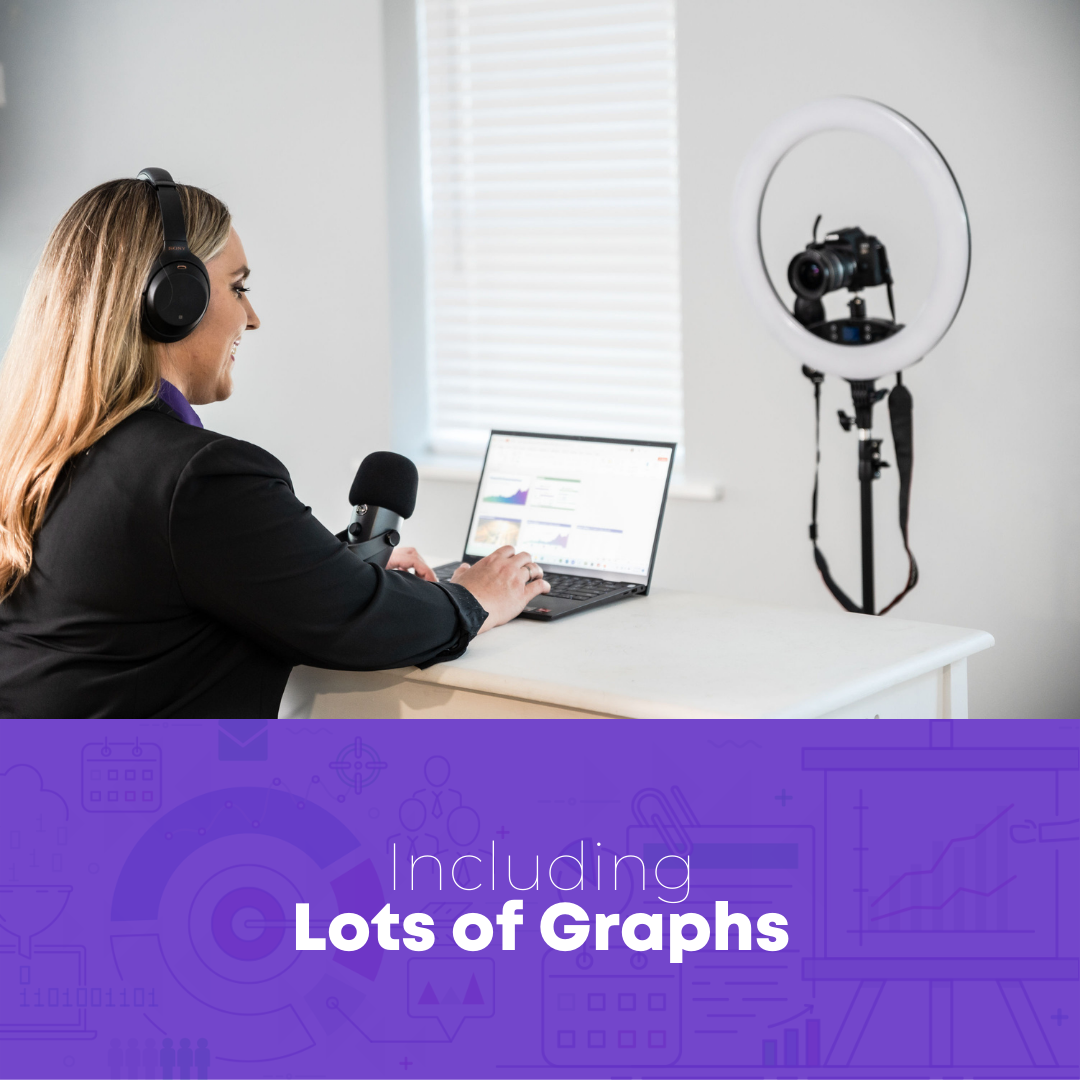
Including Lots of Graphs

I bet you’re already trying to avoid text-heavy slides.

But are you actively trying to avoid graph-heavy slides?

It sounds counterintuitive, I know. I teach dataviz for a living, after all. 😊

Our audience needs a variety of visuals. Not just graphs. They need graphs, tables, diagrams, photos, maps, logos, quotes, stories, and more.

Graph-heavy presentations are a subtle sign of Death by PowerPoint.

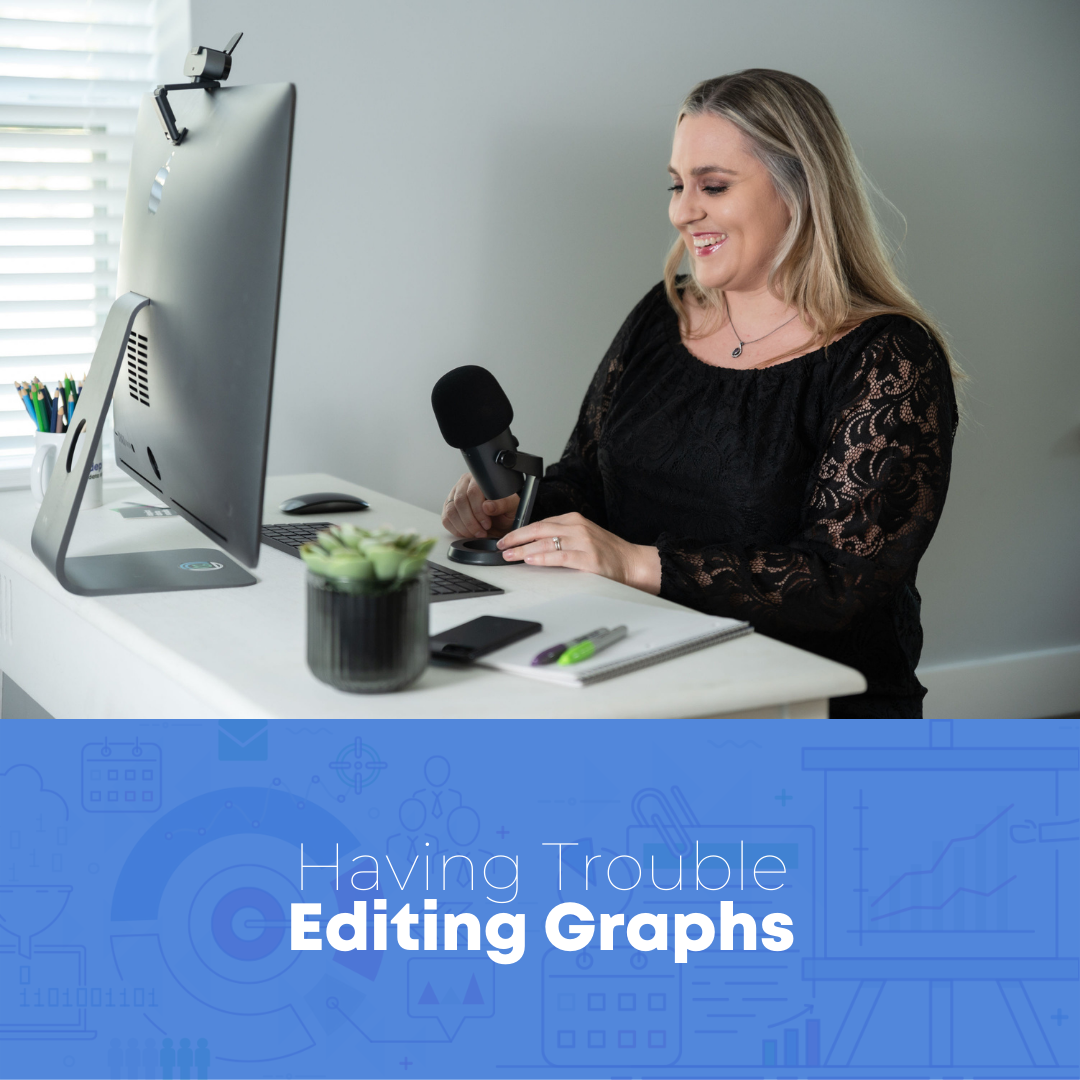
Having Trouble Editing Graphs

Is it tricky to update your graphs, tables, and diagrams once they’re inside PowerPoint?

Maybe you need to:

  • Link your Excel spreadsheet to your PowerPoint slide (so that changes in Excel are reflected in PowerPoint);
  • Make your fonts bigger or smaller in PowerPoint; or
  • Adjust the graph colors;
  • Change the chart type (e.g., from a vertical column chart to a horizontal bar chart); etc.

There are plenty of behind-the-scenes techniques to make editing easier.

Editing the long, hard way is a sign of Death by PowerPoint.

Word-Vomiting Our Presentation’s “So What?”

Can you step back and write a “takeaway tweet” for your presentation?

It doesn’t matter if you’re prepping for a 5-minute update in your staff meeting, or a multi-day workshop, or a keynote speech.

You know the quote: “If you can’t explain it simply, you don’t understand it well enough.”

If it takes us sentences and sentences and sentences to get to the point, then our presentation is probably causing Death by PowerPoint.

Feeling Weird on the Webcam

Pre-pandemic, were you comfortable speaking in-person?

Nowadays, in the world of daily Zooms, do you feel awkward on the webcam?

Maybe you’re:

  • hesitating to turn on your webcam at all?
  • wondering if you look okay?
  • staring at your own face when you speak?

A lot of us feel weird on the webcam. It’s so different from being in-person.

But it doesn’t have to stay awkward.

There are plenty of rules of thumb: where to look, and for how long; which tech to use to give you a boost; and how to overcome your own self-consciousness about your appearance.

Including Lots of Details–Just in Case

Just in case someone wants to review the slides ahead of time.

Just in case someone asks a tough question.

Adding “just in case” information dilutes the power of our presentation, which is a sign of Death by PowerPoint.

Have you deleted your “just in case” graphs, tables, and diagrams?

If not, it’s Death by PowerPoint.

Guessing How to Use Our Hands

Years ago, when I first started studying public speaking, I read that I was supposed to “use my hands.”

The statistics were promising: We’re rated as being more trustworthy when the audience can see our hands.

Think of the biological roots from cavepeople days. When others can see our hands, they know we’re not holding a weapon. We’re approachable. We’re safe. We’re trustworthy.

At first, I wasn’t sure what to do:

  • Hands placed firmly on the podium (for big conference talks)?
  • Hands in front pockets (for smaller meetings)?
  • Hands holding a notebook or tablet with notes?
  • Hands holding a laser pointer?

I lost so much time guessing.

Can you explicitly name 5+ ways your hand motions can help your audience understand patterns in the data?

If not, it’s Death by PowerPoint.

Not Prioritizing Accessibility

“Little a” accessibility is making sure our graphs are easy for others to understand.

“Big A” Accessibility is making sure our graphs follow specific Federal government standards so that the can be read, viewed, and understood by people with disabilities.

Both types should be priorities in every presentation.

Can you name 5+ specific edits you’ve made to increase your presentation’s accessibility and Accessibility?

If not, it’s Death by PowerPoint.

Your Turn

How many subtle signs are you guilty of? 1, 2, 5, 10?

What about the staff members that you supervise?

Written by cplysy · Categorized: depictdatastudio

Apr 11 2022

How to Present Dense Data Visualizations (Without Losing Your Audience)

Ten years ago, I had terrible insomnia.

I was working full-time and finishing graduate school at night.

My stress came out as insomnia.

I’d get tired of laying in bed… and go make YouTube videos. 😊

For me, being up in the middle of the night + making YouTube videos = intertwined.

I was up in the middle of the night again to speak at the Present to Succeed Conference (it’s mostly a European conference – different time zones).

I woke up at 3, presented at 4, and decided to make a YouTube video for you at 5.

Ann K. Emery from Depict Data Studio is smiling at her desk in her home office.
The wee hours of the morning at the Present to Succeed Conference

I was up anyway, and I wanted to share some highlights from the conference session with you. Enjoy!

Watch a 16-Minute Segment

In the conference session, we learned about avoiding Death by PowerPoint by storyboarding.

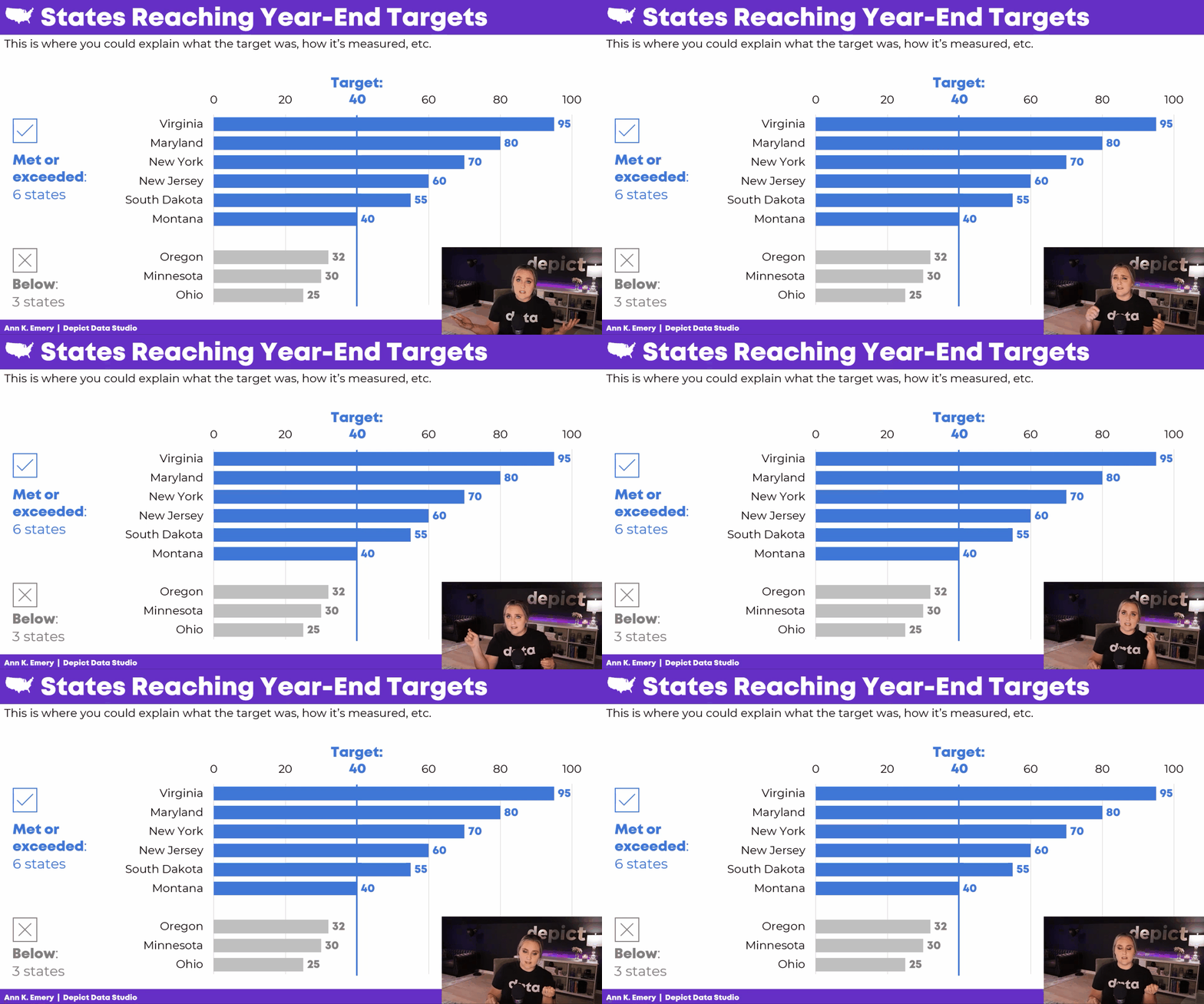
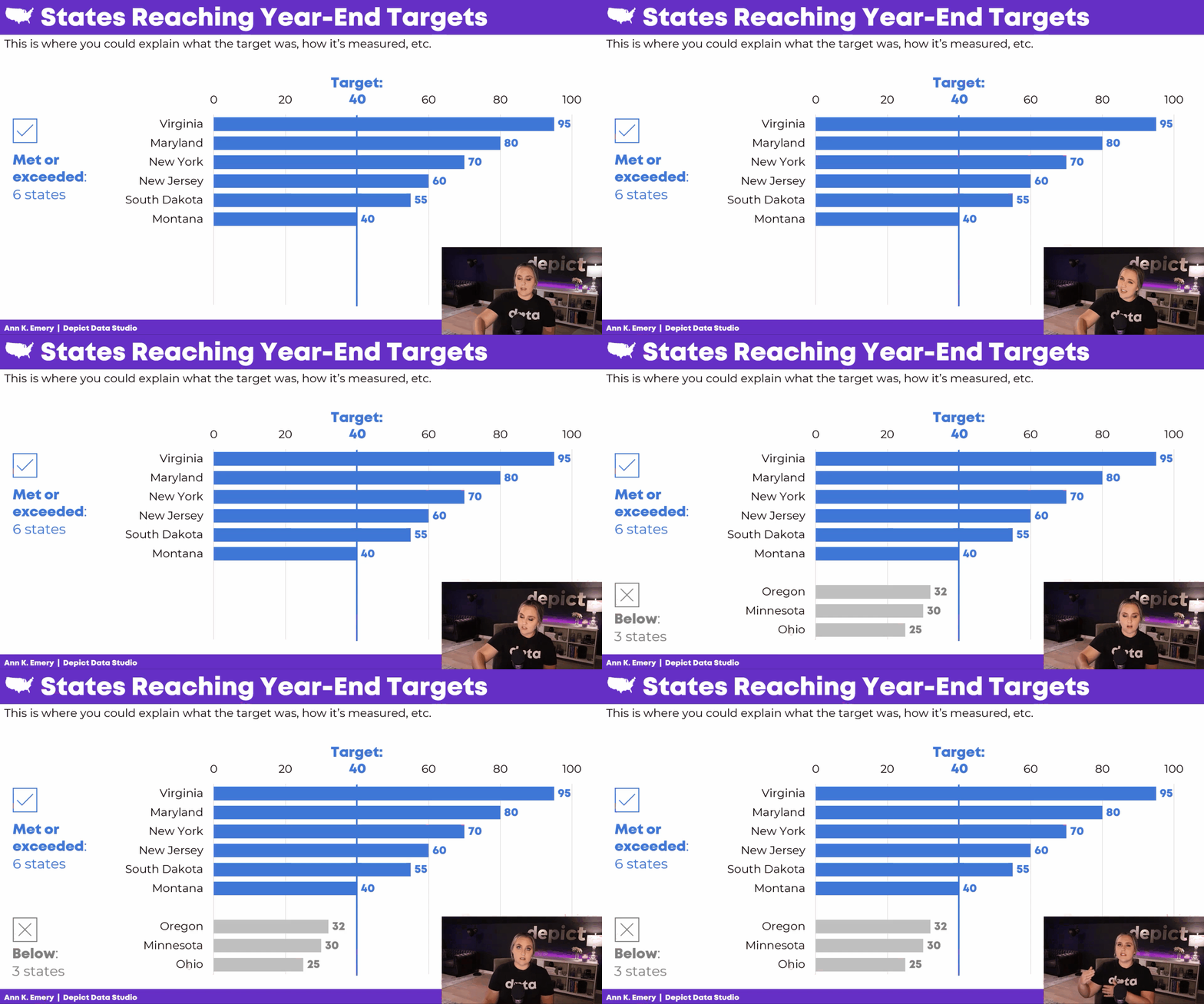
Instead of presenting a single graph all at once, we’d explain the graph one piece at a time.

Here’s what’s inside.

How to Edit the Existing Graph

In the video, you’ll learn about:

  • adding target lines (if/when that applies to your project);
  • grouping data with space (top vs. bottom categories);
  • grouping data with color (blue vs. gray categories);
  • adding words to explain our categories; and
  • adding icons to increase memorability.

How to Storyboard the Graph

In the video, you’ll see me turn on my presentation voice and give a mini presentation.

I talk through the graph one piece at a time.

Behind the Scenes in My PowerPoint

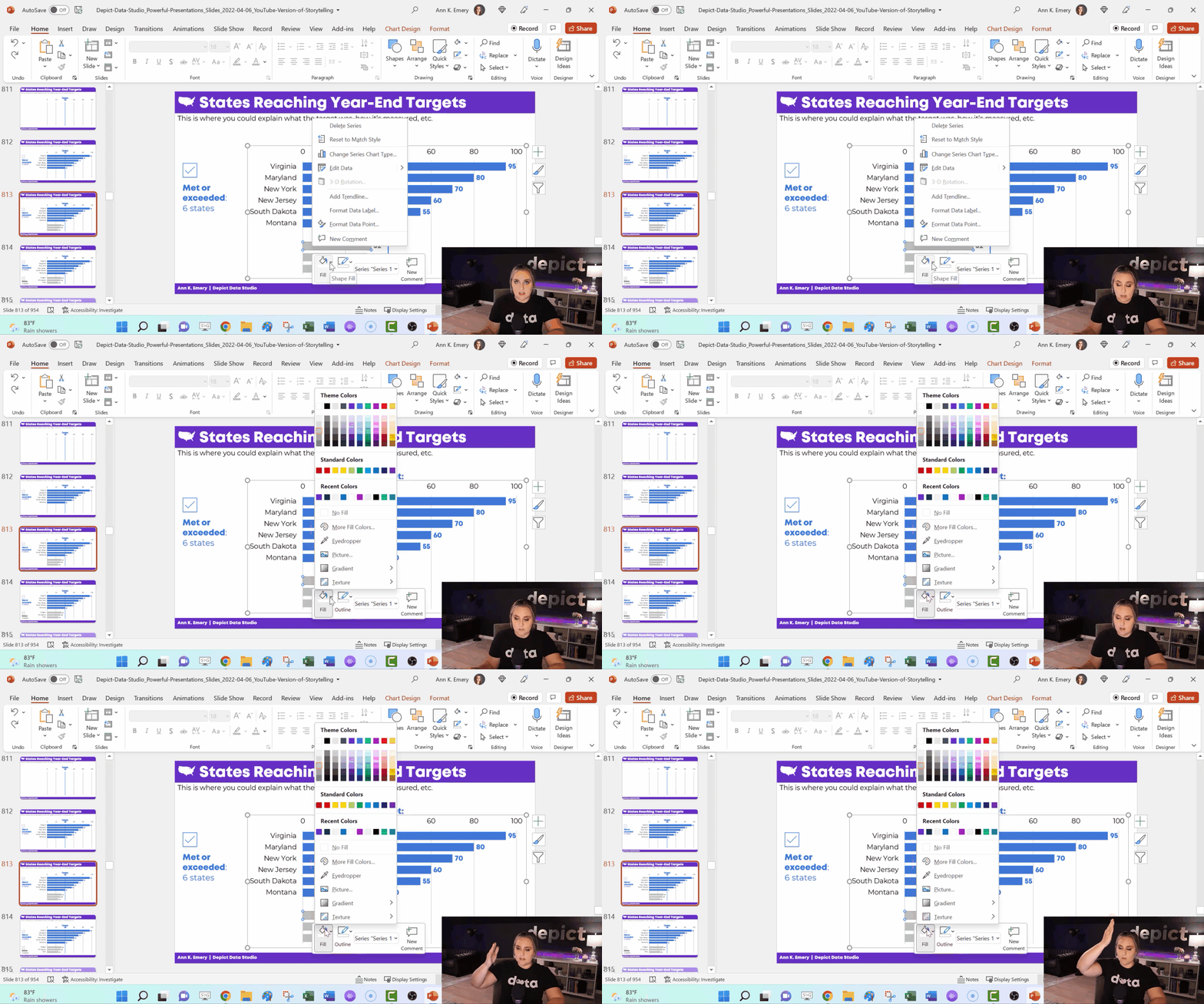
In the video, you’ll see how I:

  • make the finished graph;
  • copy and paste that slide; and
  • delete or hide one thing.

I’ve got all sorts of not-so-magical magic tricks: deleting icons and text boxes; adding white rectangles to cover words; changing the color of some bars to make them transparent; and deleting some of the numeric labels.

When It’s Worth Storyboarding Your Dense Graph

You don’t have to break up every graph across multiple slides.

I use storyboarding:

  1. at the beginning of a presentation (to start with a bang), and
  2. to explain dense, complex visualizations one piece at a time.

Bonus

Download my PowerPoint slides and explore them on your own.

Your Turn

If or when you apply this technique, get in touch! I’m cheering for you.

Written by cplysy · Categorized: depictdatastudio

  • « Go to Previous Page
  • Go to page 1
  • Interim pages omitted …
  • Go to page 20
  • Go to page 21
  • Go to page 22
  • Go to page 23
  • Go to page 24
  • Interim pages omitted …
  • Go to page 37
  • Go to Next Page »

Footer

Follow our Work

The easiest way to stay connected to our work is to join our newsletter. You’ll get updates on projects, learn about new events, and hear stories from those evaluators whom the field continues to actively exclude and erase.

Get Updates

Want to take further action or join a pod? Click here to learn more.

Copyright © 2026 · The May 13 Group · Log in

en English
af Afrikaanssq Shqipam አማርኛar العربيةhy Հայերենaz Azərbaycan dilieu Euskarabe Беларуская моваbn বাংলাbs Bosanskibg Българскиca Catalàceb Cebuanony Chichewazh-CN 简体中文zh-TW 繁體中文co Corsuhr Hrvatskics Čeština‎da Dansknl Nederlandsen Englisheo Esperantoet Eestitl Filipinofi Suomifr Françaisfy Fryskgl Galegoka ქართულიde Deutschel Ελληνικάgu ગુજરાતીht Kreyol ayisyenha Harshen Hausahaw Ōlelo Hawaiʻiiw עִבְרִיתhi हिन्दीhmn Hmonghu Magyaris Íslenskaig Igboid Bahasa Indonesiaga Gaeilgeit Italianoja 日本語jw Basa Jawakn ಕನ್ನಡkk Қазақ тіліkm ភាសាខ្មែរko 한국어ku كوردی‎ky Кыргызчаlo ພາສາລາວla Latinlv Latviešu valodalt Lietuvių kalbalb Lëtzebuergeschmk Македонски јазикmg Malagasyms Bahasa Melayuml മലയാളംmt Maltesemi Te Reo Māorimr मराठीmn Монголmy ဗမာစာne नेपालीno Norsk bokmålps پښتوfa فارسیpl Polskipt Portuguêspa ਪੰਜਾਬੀro Românăru Русскийsm Samoangd Gàidhligsr Српски језикst Sesothosn Shonasd سنڌيsi සිංහලsk Slovenčinasl Slovenščinaso Afsoomaalies Españolsu Basa Sundasw Kiswahilisv Svenskatg Тоҷикӣta தமிழ்te తెలుగుth ไทยtr Türkçeuk Українськаur اردوuz O‘zbekchavi Tiếng Việtcy Cymraegxh isiXhosayi יידישyo Yorùbázu Zulu