• Skip to main content
  • Skip to footer
  • Home

The May 13 Group

the next day for evaluation

  • Get Involved
  • Our Work
  • About Us
You are here: Home / Archives for allblogs / depictdatastudio

depictdatastudio

Nov 02 2021

Speeding Up Your Data Viz (& Preventing Future Injuries) Using Custom Commands in Dragon

Andrew Forsman is a Depict Data Studio student and self-described “data viz nerd” who has over 10 years of experience helping organizations plan for, execute, and learn from research and evaluations.

They’re here this week sharing time-saving tips on using a voice command and dictation software called Dragon to help with data viz. Thanks for sharing Andrew!

—–

Hey everyone!  Andrew Forsman here from the Research & Evaluation Division (RED) of the University of Arkansas for Medical Sciences. Our group focuses on translating research into practice in fields like early childhood education, child nutrition, abuse prevention, and HIV education.

With that comes the need to communicate our work to both expert and layperson audiences, and with that comes… a lot of data viz.

Don’t get me wrong, I love doing this kind of work and I readily describe myself as a data viz nerd.

Even as a novice, however, it quickly became apparent that Microsoft Office wasn’t designed with data viz in mind.

 There are so many things we need to access that are buried three or four clicks deep (think the align objects sub-menu) and just so happen to be the kinds of actions that need to be repeated over and over and over again.

And yet, for many readers of this blog (whether due to budgets, clientele, or our type of projects/deliverables) working in Office is our only option. Luckily, a voice command and dictation software called Dragon can help overcome some of Office’s limitations.

When I originally thought of Dragon as a potential solution, it seemed like it would help with writing emails or even transcribing interviews, but that the data viz process would be too complex for it to be very useful.

Oh, was I wrong!

Dragon does have some limitations that need to be worked around to handle data viz work, but once I put in the upfront time to find those workarounds and set them up, it has really increased my productivity.

In today’s blog post, I’m going to walk you through how to set up your Microsoft Office programs and Dragon custom commands to use this program to your advantage.

As a bonus, I’m also going to give you the custom commands file exported from my Dragon profile and my Office Quick Access Toolbar files so the setup process is much faster for you than it was for me!

Purchasing the Right Version of Dragon

First, it’s important to note that not all versions of Dragon are compatible with data viz work. There are currently 5 different categories: home, premium, professional, legal, and medical.

At minimum, you’ll need to purchase the professional version because it’s compatible with Excel, PowerPoint, and Publisher, and it gives you the ability to create and use custom commands.

A single license of Dragon Professional Individual version 15 will cost you $500. If you’re upgrading from a previous version of Dragon, it should be about $250.

Technically, Dragon is supposed to work better if you use a Dragon-approved headset for voice recognition, but I’ve actually found that a $40 external mic from Amazon works better than the cheaper of the two Dragon-approved headsets I saw.

How to Create/Edit a Custom Command in Dragon

To create new commands from scratch, go to Tools –> Manage Custom Commands –> New –> Advanced.

Make sure your Command Type is set to “Step-by-Step” and your New Step is set to “Keystrokes”.

Then use the Insert button to add the keyboard combos you want to assign to each verbal command.

Finally, hit the Train button to train the software how to recognize that command with your voice.
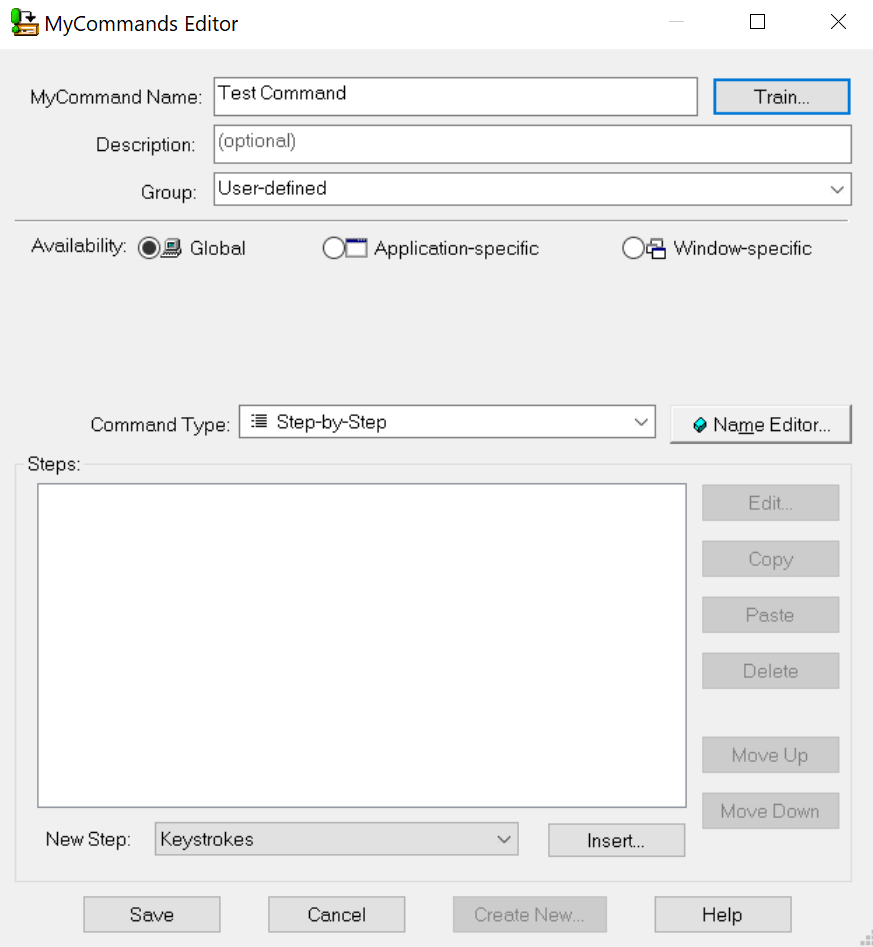
Screenshot of how to create or edit a custom command in Dragon software.

The (Strange) Limitations of Custom Commands

If you press Alt in any Office program, a list of Alt + combinations appear for most clickable options, giving you the commands to enter. Because there are so many clickable options, many of those have multiple characters, such as “Alt + AA”.

Should be simple to enter right? Not so much.

Dragon can only recognize one character after your Alt when programing the Keystrokes custom command, making it all but useless for data viz, as all the relevant functions you’ll need have multiple characters after Alt.

Dragon also has a Record Macro option in the command type. That should be the easiest and most flexible option because it records your clicks and keystrokes as you do them and repeats those actions exactly. You can even watch your mouse cursor move just as you did when recording it.

This seemed like a great option because no matter how long you take to record a macro in Excel, the macro finishes the whole process almost instantly once activated.

For whatever reason though, when you create a Dragon command based on a macro, it executes incredibly slowly. In my testing, I recorded a macro that took less than a second to perform, yet I watched my mouse take roughly 5 seconds to follow the same path. Ideally, it would just execute it near-instantly, like macros in Excel.

It seemed like I was at a dead end.

The Alt + function through Keystrokes wasn’t flexible enough and the Record Macro function was too slow to be practical.

But after a little more research, I found a workaround.

The Workaround

Every Office program has an area that’s called the Quick Access Toolbar. It may not be enabled by default, but you can turn it on and set a variety of shortcuts for you to easily get to.

In our case, the big advantage of using the Quick Access Toolbar is that the first nine icons are always coded as Alt + 1 to Alt + 9, no matter what you set to appear in the toolbar.

Jackpot!

(Sort of…but more on that later)
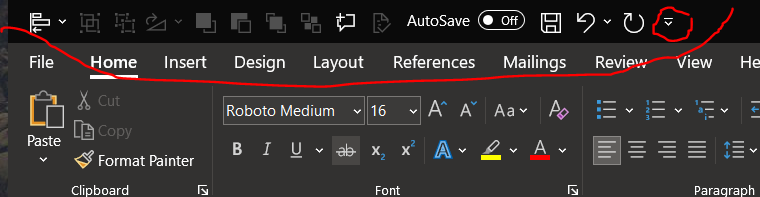
The Quick Access Toolbar in Office software can be turned on and set to a variety of shortcuts.

Rather than take forever to set your Quick Access Toolbar icons to be the exact same items in the exact same order across Publisher, Excel, Word, and PowerPoint, I’m going to give you the shortcut.

All you have to do is click the drop-down menu on the Import/Export button and import the matching Quick Access Toolbar files I’ve created for each of these programs (download at the bottom of the page).

This will replace your current Quick Access Toolbar setup with the one that I use and that matches my custom Dragon commands (download also below).

You can customize your toolbar in Dragon software to match the same shortcuts in your Office programs toolbar.

Other than save yourself time, there’s an important reason why you want to replace your current Quick Access Toolbar setup with the one that I use.

Most Office programs have multiple options you can place in your toolbar for essentially the same command (like Align Objects as a single option or Align Objects as a drop-down menu), BUT not all Office programs have all the same options for shortcuts.

For example, some only have Align Object as a drop-down instead of both the single object and drop-down menu symbols.

Importing my setup will make sure you have the shortcuts that are compatible across all four programs.
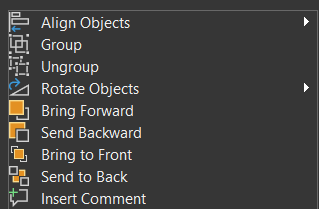
Andrew Forsman has developed a set of custom toolbar shortcuts that can be read across multiple software programs.

Uploading my Dragon Commands & Retraining for Your Voice

Now that you have my Quick Access Toolbar setup files uploaded for PowerPoint, Publisher, Excel, and Word, I’ve got another shortcut for you—my Dragon custom commands backup file.

All you need to do is import this file and retrain the individual commands for your voice and you’ll be ready to go!

From the Dragon Bar, hit Tools –> Command Browser –> MyCommands –> Import and select the import file.

Once those are uploaded go to Tools –> Manage Custom Commands –> Click a command –> Edit –> Train –> Train (again) to replace my voice with yours.

Why My Custom Commands Say Things Like “Level Left” Instead of “Align Left”

There are a set of viz-related commands that are natively programmed into Dragon but only work in PowerPoint; this includes the Align Object commands.

When Dragon hears you start a custom command that sounds like one it has natively, it gets confused and won’t execute either command.

That’s why I’ve set many of my commands to be slightly different verbally than how they actually read, such as “level left” instead of “align left”.

Final Thoughts

I’m sure many of you almost closed this browser window as soon as you read the price of a Dragon license. For most of us, $500 is no joke, and for others, it’s completely out of the question. I’m fortunate to work for an organization large enough to afford occasional purchases like this when there’s a clear efficiency or effectiveness advantage.

There are some things that Dragon can’t help with very well, like customizing individual charts in Excel (those menus go way too deep). For nearly everything else, however, it allows me to do data viz work at 2x – 4x the speed, with only a fraction of the keystrokes and clicks.

As the years go on, data viz is becoming more and more in-demand and both the volume and complexity of our work are increasing. While $500 seems like a lot up-front, you could easily make it up based on the efficiency gains alone, especially now that you have my shortcut files to make setup really simple.

Even if your organization isn’t convinced, there’s another good reason you should try to find a way to pay for it yourself: Human hands aren’t built to sustain the extraordinary volume of keystrokes and clicks we subject them to year after year. Ask practically any health care worker you know, and they’ll say the same.

Consider this a down payment in preventing (or at least delaying) injuries like carpal tunnel, which affects many knowledge workers, and in severe cases, could hamper both your career and quality of life down the line.

Download Files

As a bonus, I’m giving you the custom commands file exported from my Dragon profile and my Office Quick Access Toolbar files so the setup process is much faster for you than it was for me!

Depict-Data-Studio_Forsman-Custom-Commands Download

Connect with Andrew

LinkedIn: @aforsman3

Written by cplysy · Categorized: depictdatastudio

Oct 26 2021

A Trick, a Tip and a Thing to Try in Your Next Presentation

Depict Data Studio full courses always end with a graduation ceremony where participants share the progress they’ve made in the course. I’m always amazed by the transformations that take place and I can’t help but want to share their wonderful work!

In this blog post, you’ll learn from Elizabeth Dove. Elizabeth is a professor at the University of Montana who teaches art and design. She also co-directs the Innovation Factory (IF). Thanks for sharing, Elizabeth! –Ann

—–

I teach art and design at the University of Montana, and completed Ann’s Powerful Presentations course during Spring 2021.

I registered for the course because although I have advanced graphic design skills, I still thought I could make more effective presentations by working through the course’s sequential lessons of message, design and delivery.

The course was great, and I’d like to share some of what I learned! So here is one trick, one tip, and one thing to try.

Presentations Trick: Adding Perfect Shapes

Sooner rather than later you’ll need to insert a shape into your slide, and often you’ll want that shape to be a perfect circle or square.

You might have figured out how to enter height and width dimensions to get a perfect square for instance in PowerPoint:

  • Insert
  • Shape
  • Draw a squareish shape
  • Shape Format
  • Enter 2.00” for height and 2.00” for width to make a perfect 2” square

But a faster way is to:

  • Hold down the SHIFT key as you drag out a shape, and it makes it symmetrical in height and width, so you’ll get a perfect circle, square, or triangle, or star every time.

Hold down the shift key whenever you resize as it will keep whatever proportions intact for every shape, just identically scaling it larger or smaller.

I first learned this trick using Adobe software and was pleased it works in the Office suite too, so try it in whatever design software you use frequently if you haven’t already!

GIF showing the steps to make a perfect circle using the shift key.

Presentations Tip: Monochromatic Tints of Brand Colors

In the Powerful Presentations course, we learned how to set-up brand colors, brand fonts, and save them as a custom theme.

This is a time-saver and adds a sense of visual cohesion to any presentation.

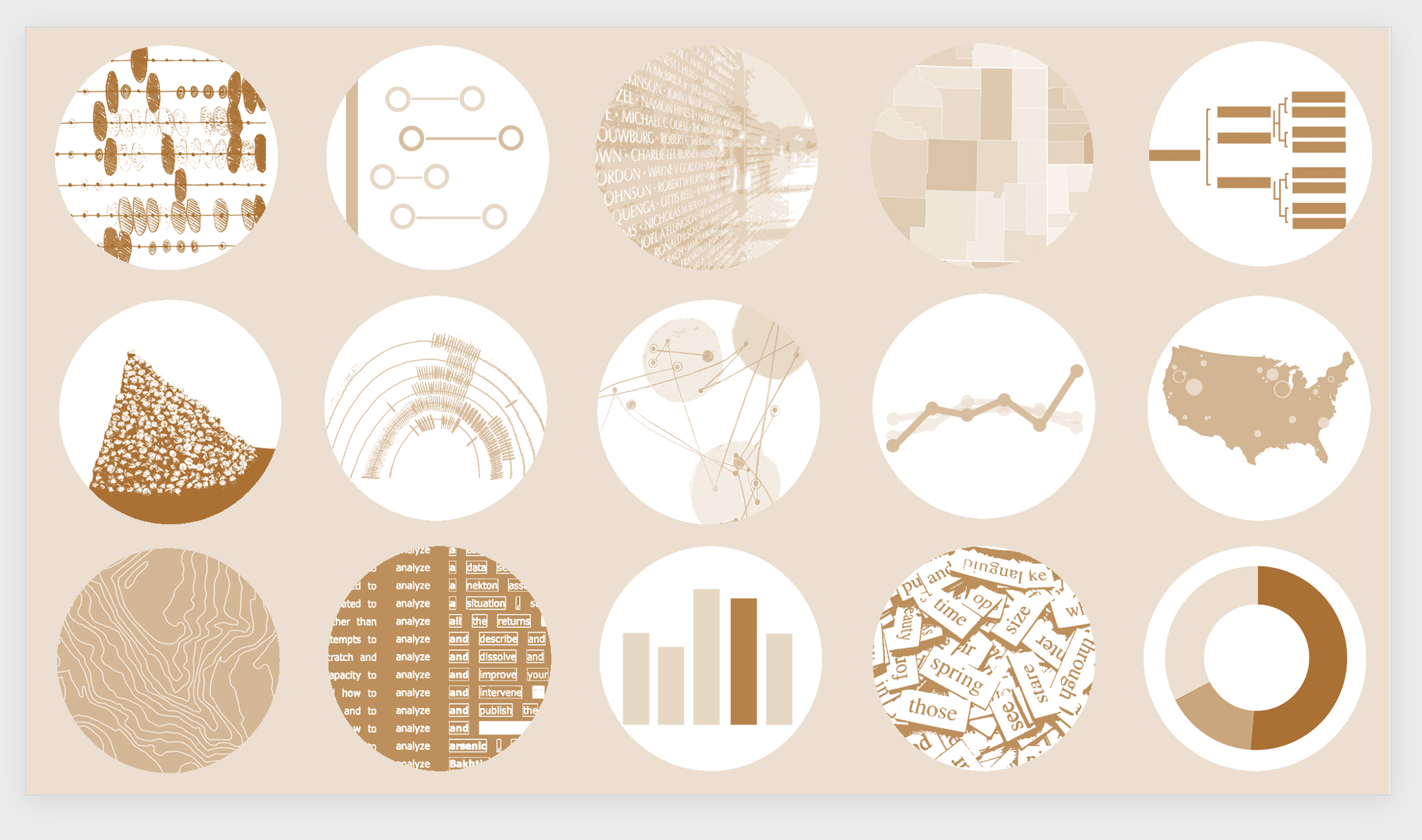
Using PowerPoint, I further figured out an easy approach to making title slides where you can quickly switch between colors to tint a photograph, illustration or graphic to match your branded palette. It’s a snap.

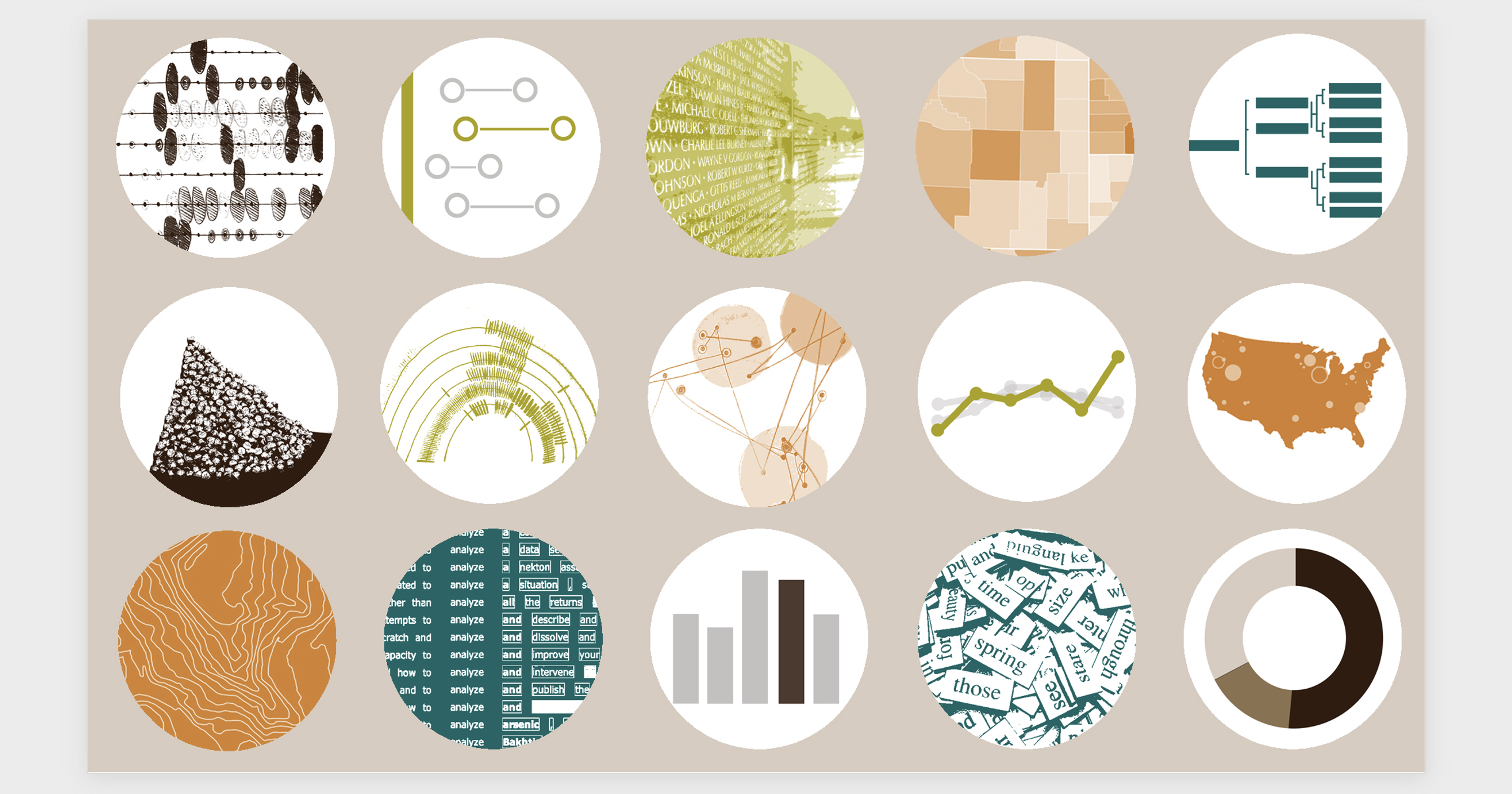
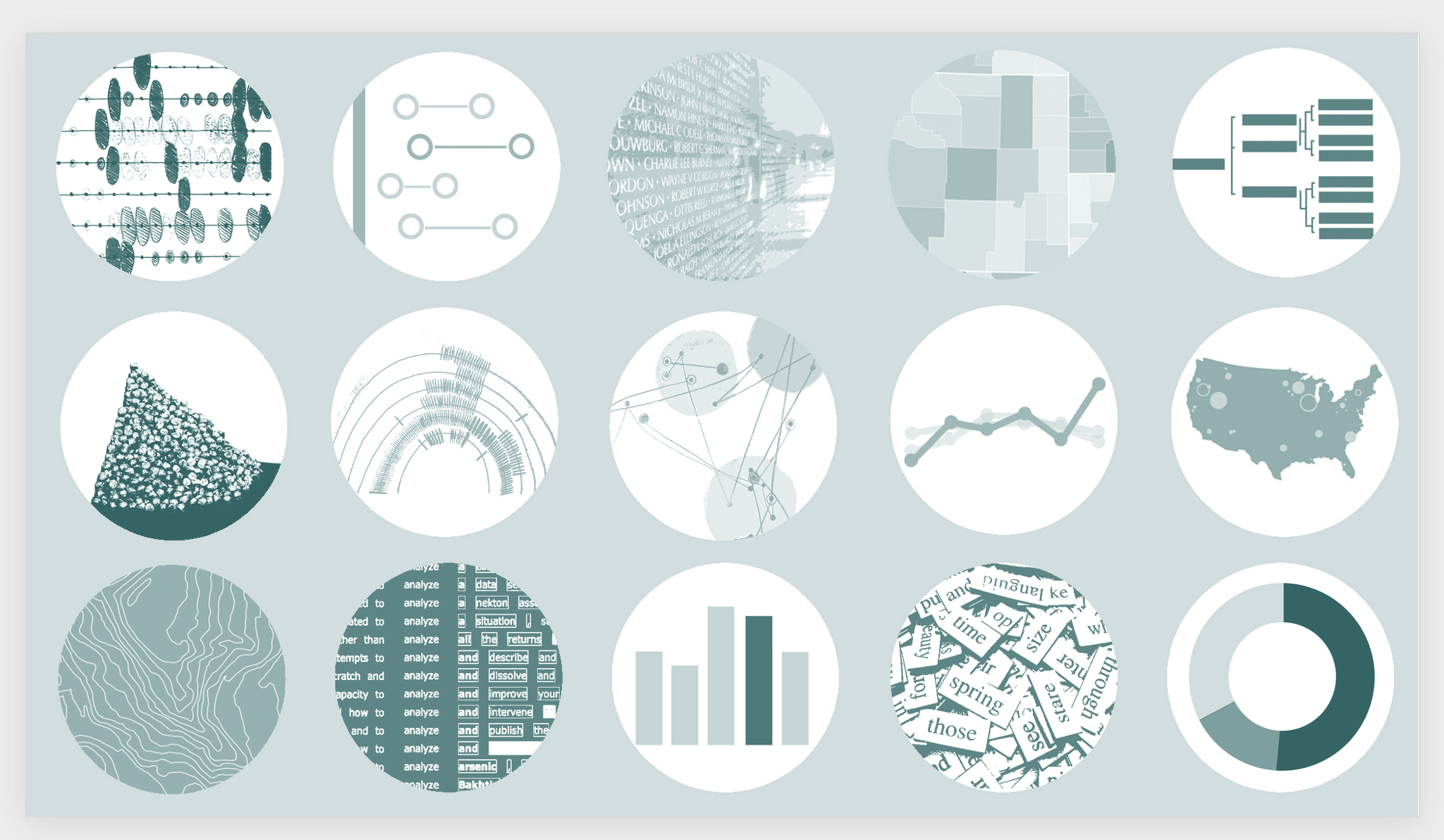
A slide with a grid of 12 circles, each with a different image

I started with this design, a grid of 12 circles, each with a different image. My design uses four colors from the brand palette of my university, which are I already setup in PowerPoint as custom colors.

I am developing a new course called “Data Arts,” which introduces basic data visualization techniques as well as the work of contemporary data artists. While I like this design for the course’s promotional material, I found it’s a little too busy and colorful to use as a background for my presentation’s title slides.

But check out this easy alternative:

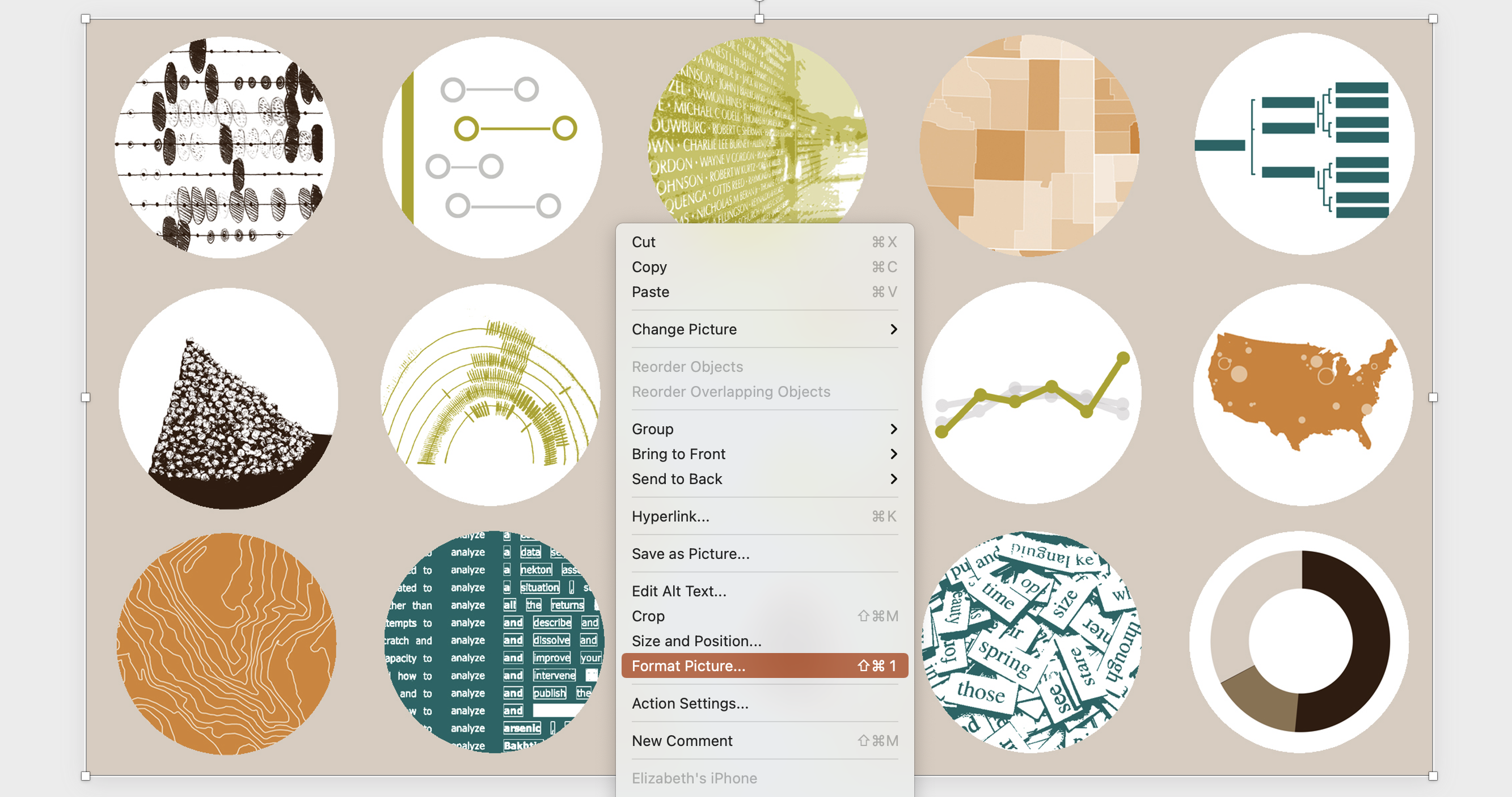
You can format a slide by right click and selecting "Format Picture".

Double Click or Right Click>Format Picture to bring up the Format Picture menu.

A slide can be formatting using the "Format Picture" menu which allows you to adjust the picture, color and transparency.

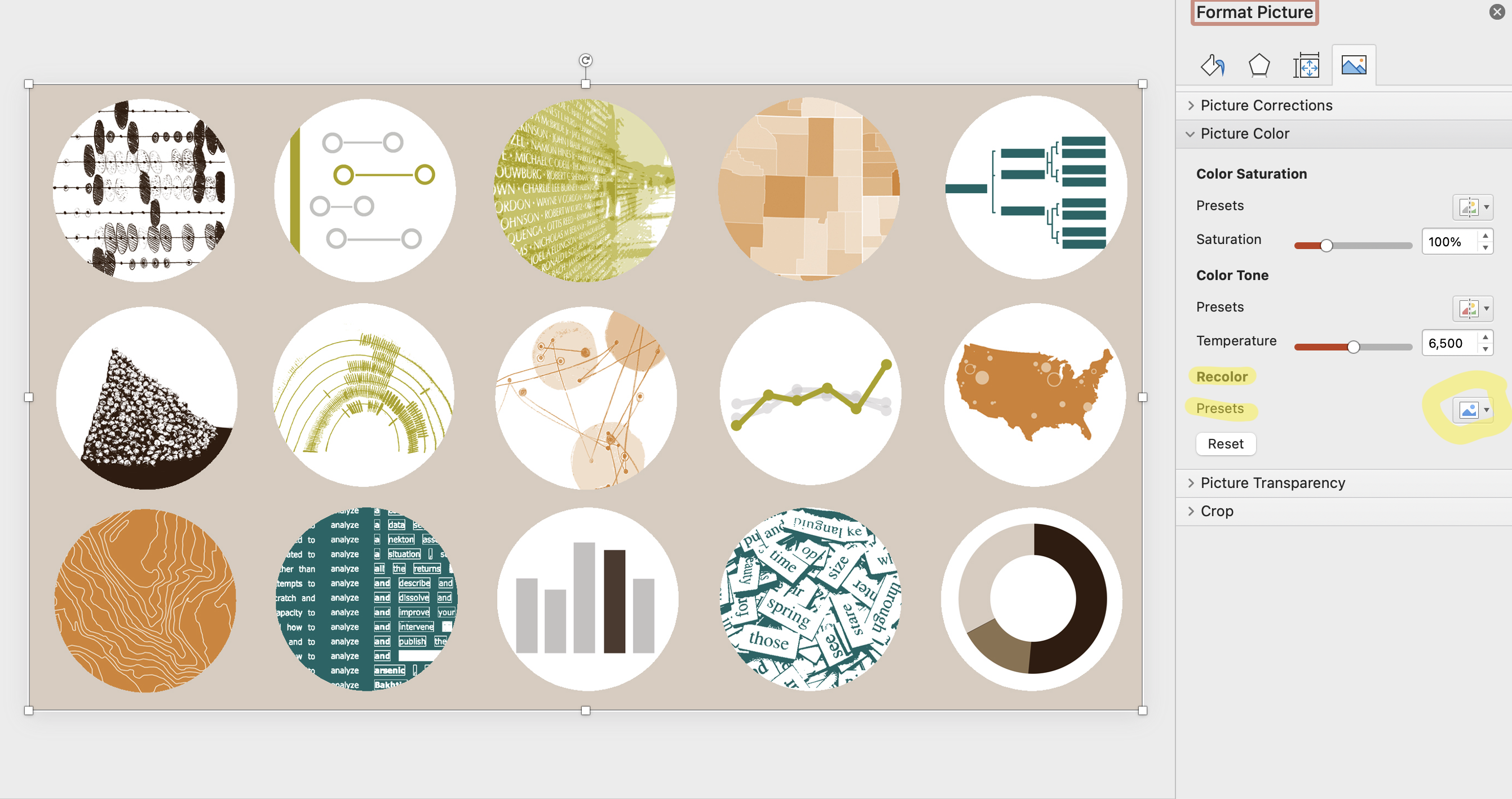
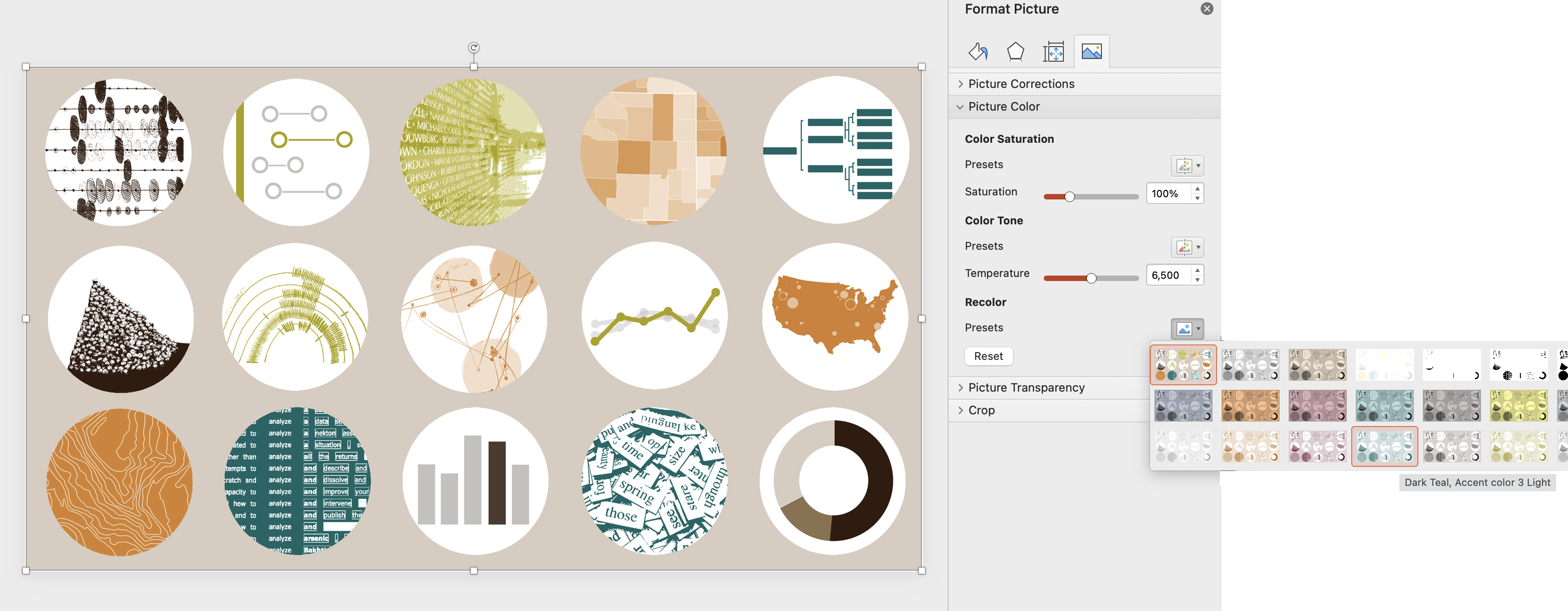
Select the Landscape Picture icon>Picture Color>Presets.

By using the preset options in the "Format Picture" menu, you can change the color of your slide.

Pick from options using your brand colors. I prefer the bottom row of options, which adds a monochromatic tint of color over the image while maintaining contrast and brightness.

A slide that has been adjusted using the "Picture Format" menu and is now a shade of green.

With one click, change to try another color.

A slide that has been adjusted using the "Picture Format" menu and is now a shade of orange.

Save and close your file as normal.

Good news – when you return to work on it days later all these choices remain, including just reverting back to your original. This is referred to as “non-destructive” editing in the digital imaging world, and it is such a great feature for experimentation and creativity, because you risk nothing!

Creating Cohesive Title Slides

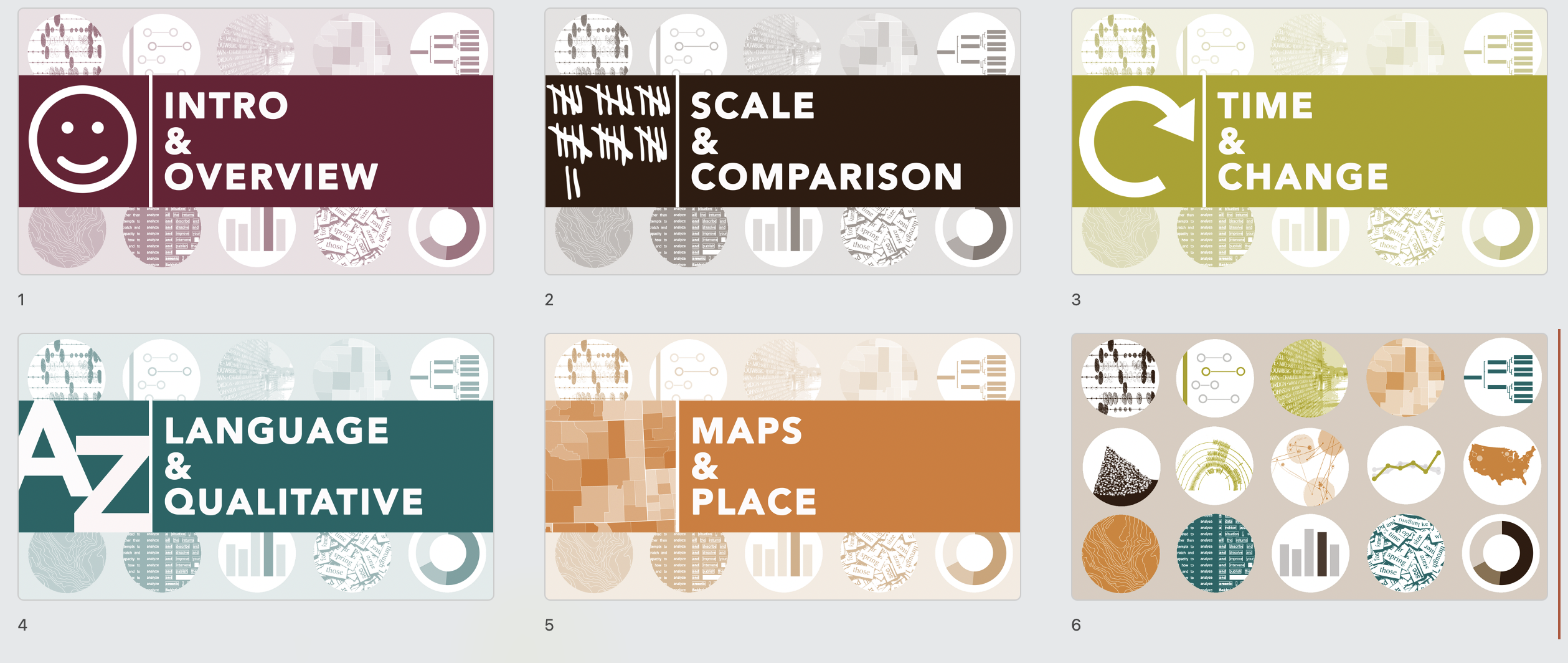
I quickly created a title slide for use on all my course presentations with the same image as a background, as I think this communicates cohesion and familiarity to my students.

But each time we switch to a new section of the course, the title slides also switch to a new brand color that corresponds to that section, as follows:

Title slides that change colors to signify a different section.

This color tinting technique can be applied to apply to many image types, including screenshots and photographs, giving you a quick win for design cohesion and unity.

For additional control over the intensity of the image, try adjusting Picture Transparency in the same PowerPoint Picture Format menu.

A comparison of a picture of a table and a laptop where one picture is in full color and the other picture has had its transparency adjusted.

Thing to Try

Early in the Powerful Presentations course we had a lesson on Creating a Visual Framework.

In short, the visual framework is a design element – like an icon – that is symbolic of the organizational approach taken within the presentation.

For example, a simple Venn diagram with two parts could be your visual framework, and it would be communicating that two things are being discussed as well as their critical overlapping region.

Using this icon early in your presentation and returning to it throughout the talk or the project helps your audience know where they are in the process, and lets them absorb a lot of information without feeling overwhelmed.

It helps you – the presenter – organize and clarify your thoughts since they fit this visual model.

Simple enough, right?

Well….. kind of.

It’s simple and apparent once you pick your visual framework. But that selection is critical, and I don’t think it’s easy, but I still recommend wrestling with this task.

It is important because it’s making us think visually, so that we can then effectively communicate visually. We have to tap into the most creative part of our brains and pick a visual metaphor.

This metaphor, or framework, is an iconic shape or diagram that will resonate with your audience: maybe a pyramid, a cycle, or a ladder.

Although it is a simple shape it operates symbolically to represent the strategy and approach you are taking with the presentation as a whole. It is making the abstract concrete, its art and its design, and that is tough!

Ann coached us to dive into this territory, while acknowledging its tough. We thought broadly about our topic and what we wanted to communicate and achieve in our presentation. Are we discussing a project that is likely to cycle through sequential steps, looping to renew and begin again? Then maybe something like this circular diagram.

Are you working on a project where disparate entities are operating in tandem, but directly not partnering or collaborating while working towards a shared goal? Then maybe something like these parallel arrows each making progress left to right.

Two examples of icons that can be used: a circular diagram or parallel arrows, both in orange hues.

Does your presentation start with a shared premise and set of conditions, but is expected to branch out in unexpected or experimental ways, somewhat unevenly? Then maybe this is network icon could be the visual framework.

Does your project start with a set of broad foundational skills, that act as a layer to support successive steps, which each get more important and also more refined as you go? Then maybe a pyramid is the right visual metaphor.

Two examples of icons that can be used: a network icon or a pyramid, both in orange hues.

Hopefully you get the idea!

Simple iconic shapes like interlocking puzzle pieces, nested concentric circles, segmented donut shapes or hive-like hexagonal structures are all possible solutions – but each of these visual metaphors communicates a very different approach, strategy or experience to a viewer.

To get started, check out the free resources and download designs to get preliminary ideas from: https://diagrammer.duarte.com/.

How to Use a Visual Framework

Once you do the hard work to pick your visual framework, how do you use it?

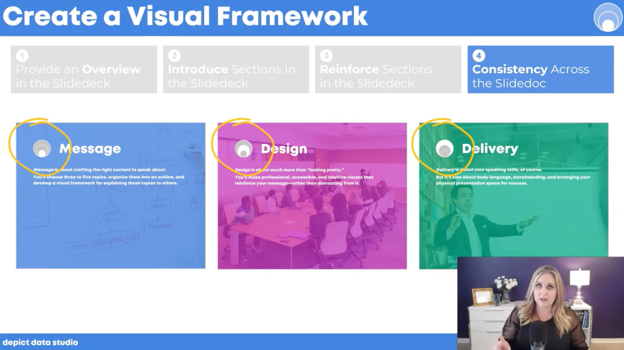
Ann suggested four main opportunities, as follows:

  1. Providing an Overview in the Slidedeck
  2. Introducing Sections in the Slidedeck
  3. Reinforcing Sections in the Slidedeck (helps the audience oriented to where they are in the presentation)
  4. Consistency Across the Slidedoc (for branding and polish)
Ann K. Emery explains how to use a visual framework in the Powerful Presentations course.

I applied my visual framework in each of those four categories, and appreciated the icon’s value in helping me organize and improve the visual cohesion of my presentations.

But I see the significance of designing a visual framework as so much more. The effort to pick the right visual metaphor transformed the way I understood my own content and how I should be teaching it.

By thinking through the symbolism of hierarchies, nested shapes, steps or cycles I found myself inspecting the content of my course in important, deep, and insightful ways.

By asking myself to design a visual analogy – this simple icon/diagram – I had to address the themes and intentions of my projects and my approach to communication early in my process.

Vital work! Try it!

Connect with Elizabeth

LinkedIn: @elizabeth-dove-406

Website: www.elizabethdove.com

Written by cplysy · Categorized: depictdatastudio

Oct 19 2021

Creating a Powerful Presentation: 3 Easy Changes to Revamp your PowerPoint

Depict Data Studio full courses always end with a graduation ceremony where students share the progress they’ve made in the course. I’m always amazed by the transformations that take place and I can’t help but want to share their wonderful work!

Today you’ll learn from Kelsey Watterson, an evaluator at the Centerstone Research Institute. Thanks for sharing Kelsey! –Ann

—–

For the last three and a half years, I have worked for a major behavioral health provider evaluating multiple grant funded projects. I currently manage the data for two childhood trauma projects in Illinois and Indiana.

Written into nearly every one of our grant projects is an objective to disseminate the project findings: This means presentations!

I first came across Ann’s work when our company signed a few of us up for a dashboard webinar. And WOW did she have some great design tips and tricks!

So, with the impending conference season, I signed up for her Powerful Presentations course.

Let’s take a look at one of my old slidedecks and a new slidedeck incorporating three fantastic tips that can really improve your presentations.

The Before Times

Over the past few years, I have given a number of presentations across the country. I’ve learned the importance of presenting a creative topic in increase attendance rather than just “Hey, here’s my program. Let me throw some stats at you.”

But, it wasn’t until I took this course that I realized, my slides needed some quick but major changes.

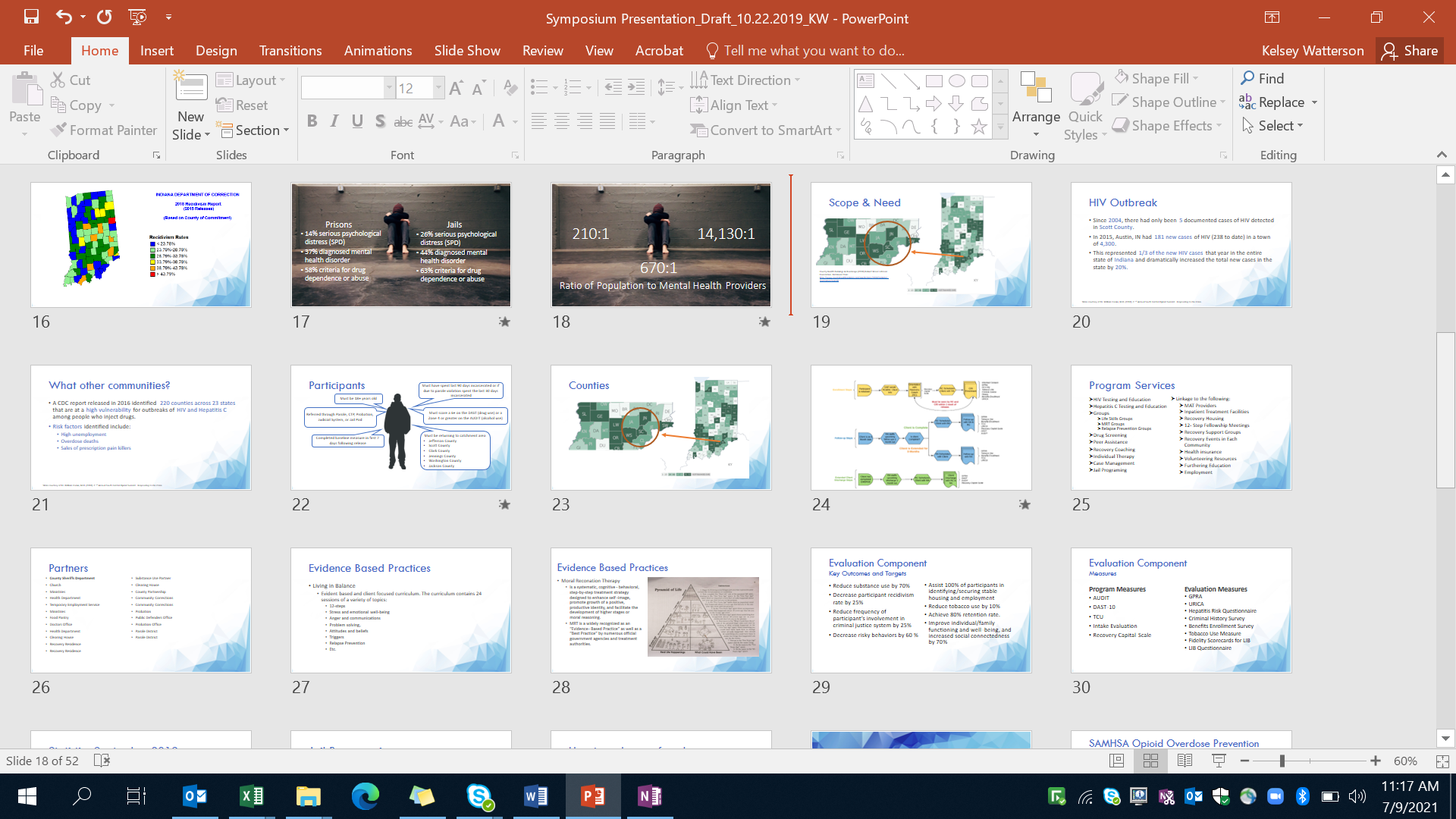
Let’s look at a presentation I did at the Indiana 10th Annual Drug Symposium in 2019 over an offender reentry grant I was evaluating.

Here's a presentation I did at the Indiana 10th Annual Drug Symposium in 2019 over an offender reentry grant I was evaluating.

Look at all of that text!

I remember being so excited about switching up the way I did PowerPoints for this one. I was trying to incorporate more graphics and be more varied in what I presented, but it just wasn’t there quite yet.

The same white and blue slide over and over, small images, bullet point after bullet point. There just was so little to keep it visually interesting.

It wasn’t horrible, but it wasn’t great either. More so the awkward middle “meh.”

Additionally, when I reported the stats for this project, I had them all on one slide with some grainy photos off the internet. Not good.

In my defense, I did use animations so that each of these stats popped up one at a time. Yet, this was still a very unappealing slide.

After a Wake-Up Call

Let’s zoom to today.

I’ve just finished the Powerful Presentations full length course, and not only have my presentation skills and setup improved, but so have my slides.

There are so many great tips and tricks I could highlight, but I will keep it to my three favorites: color coding, increasing readability, and storyboarding.

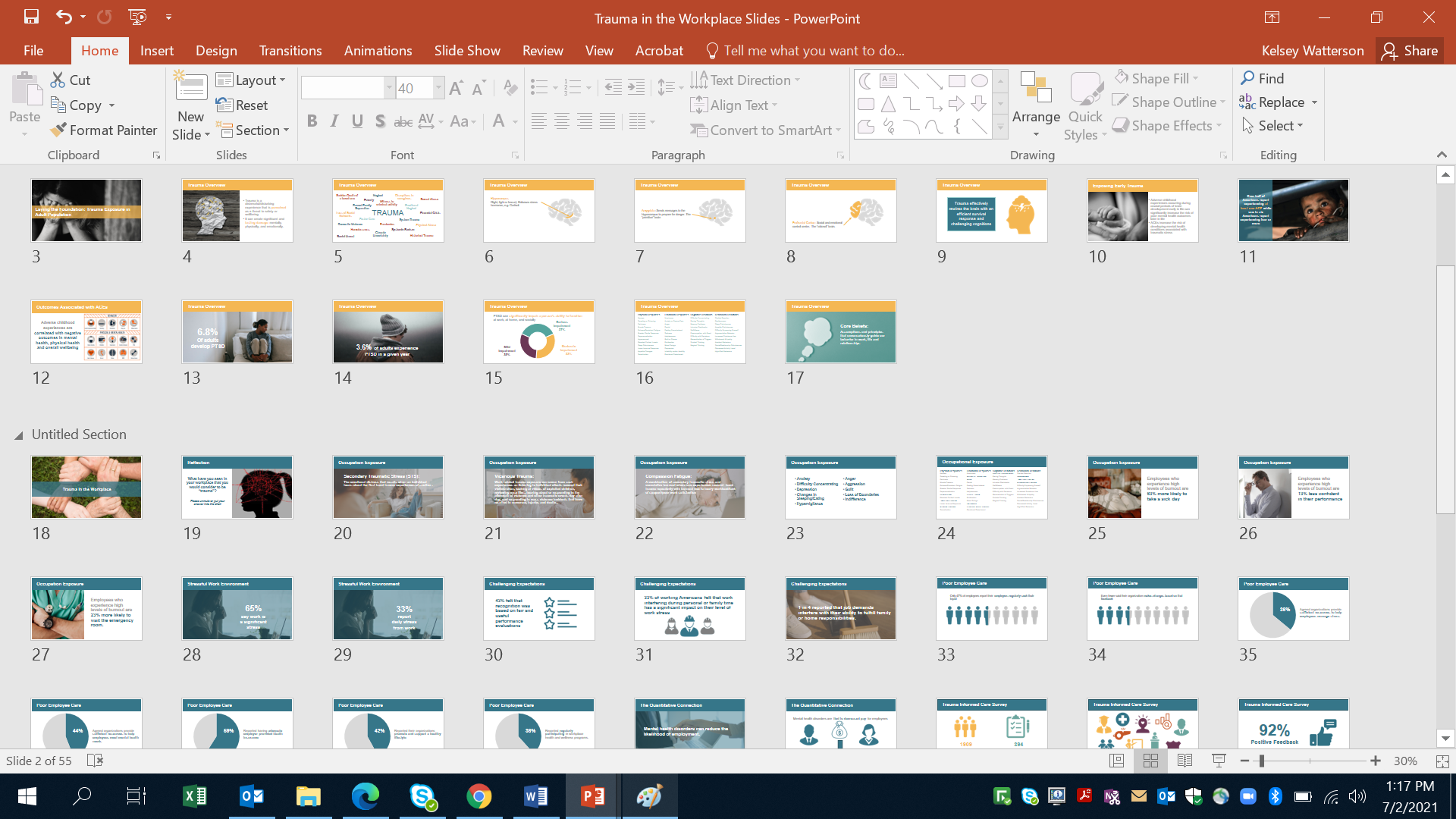
Here is a screenshot of a presentation a coworker and I put together a few weeks ago for a training:

I’ve just finished the Powerful Presentations full length course, and not only have my presentation skills and setup improved, but so have my slides.

Color Coding

First big thing…color coordination!

Each topic for the presentation is a different color. The presentation starts off with the yellow introductory section, then the blue section, and then there is a purple, and a final red section.

The text, the graphs, and most icons all use the same color as the section. These colors are intentionally our company brand colors found in a style guide put out by our marketing department. 

Color coding helps our audience to know when our topic is changing and help them to better follow along. Additionally, it’s just visually appealing: The colors are preselected to match!

Readability

The second big change is the readability of text. Slides now only have one statistic for what would previously been one of many bullet points.

I don’t know why before I felt I had to keep my presentations to a certain number of slides. Maybe something I had engrained in me back in high school when we had prompts that required a 20-slide presentation.

Now, one point per slide, maybe two MAX.

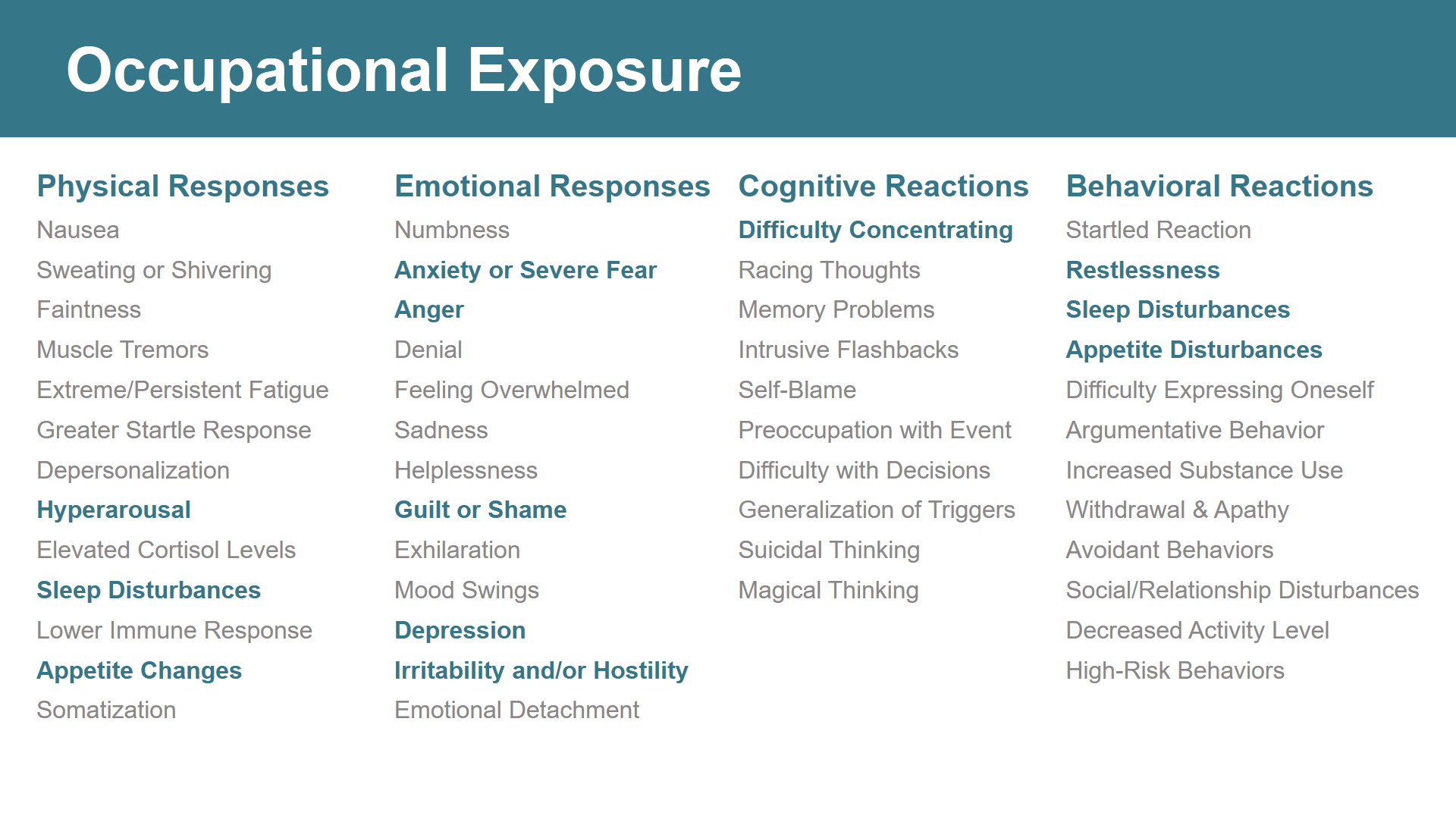
If they have more, only the important things are brought to focus. Slides 16 and 24 are repeats of each other and look to have the most text.

Here is slide 24 zoomed in:

Although there is a lot of text on this slide, it is broken into columns which helps to declutter and organize the information.

Although there is a lot of text on this slide, it is broken into columns which helps to declutter and organize the information.

Secondly, only the trauma responses important to the point of the slide are highlighted. These symptoms are bold and in color.

All of the other ones are greyed out. This helps the information I really want to get across to come to the front and POP!

Storyboarding

The third and final thing I want to highlight is storyboarding. This made such a difference in these slides.

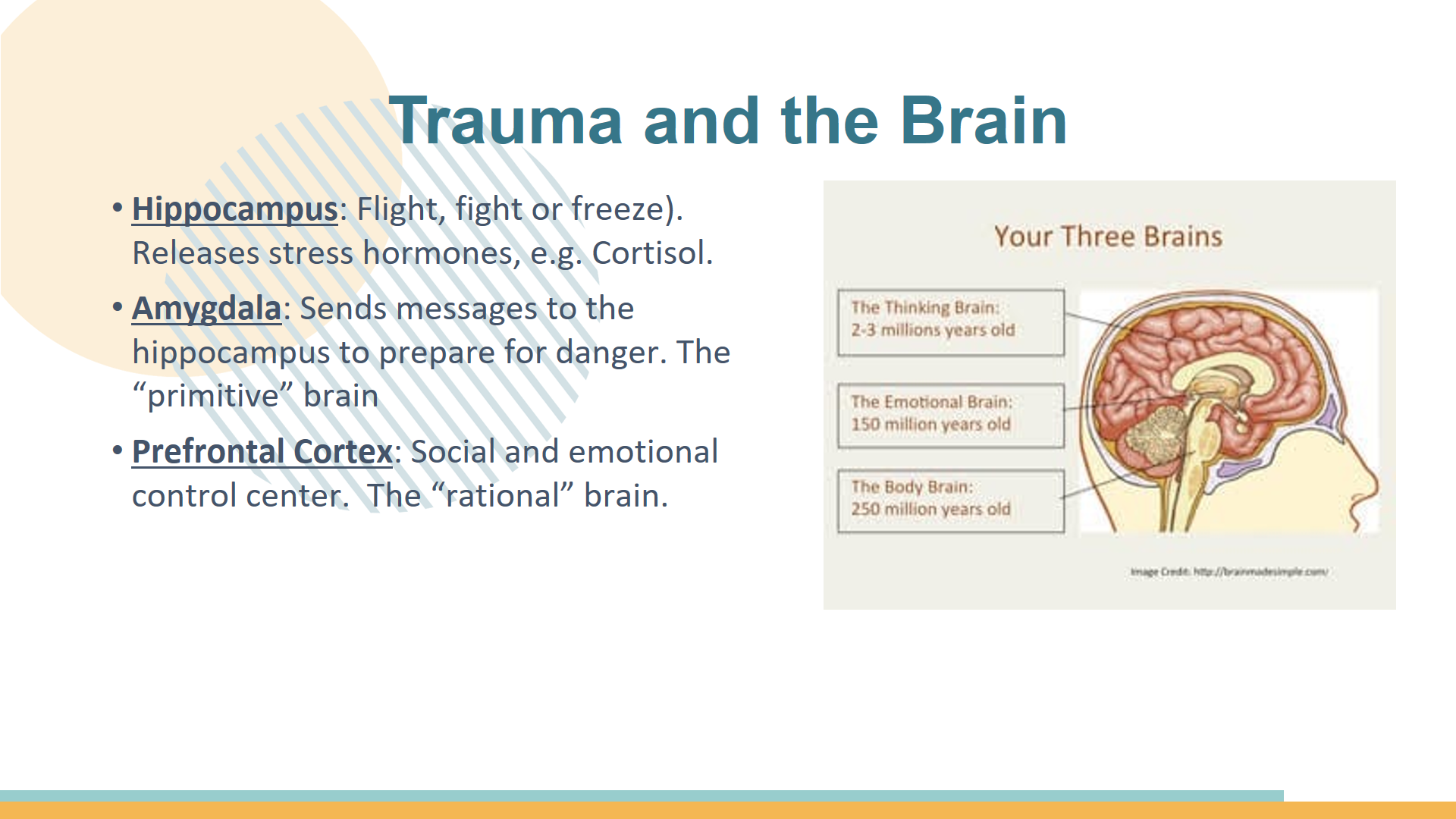
Here is a slide that I borrowed from a previous presentation and revamped for this one.

Here is a slide that I borrowed from a previous presentation and have since revamped.

I was able to really improve this slide with about 20 minutes of time and 5 simple changes.

  1. I put it on a plain white background and color coded it to be part of the yellow section of the presentation.
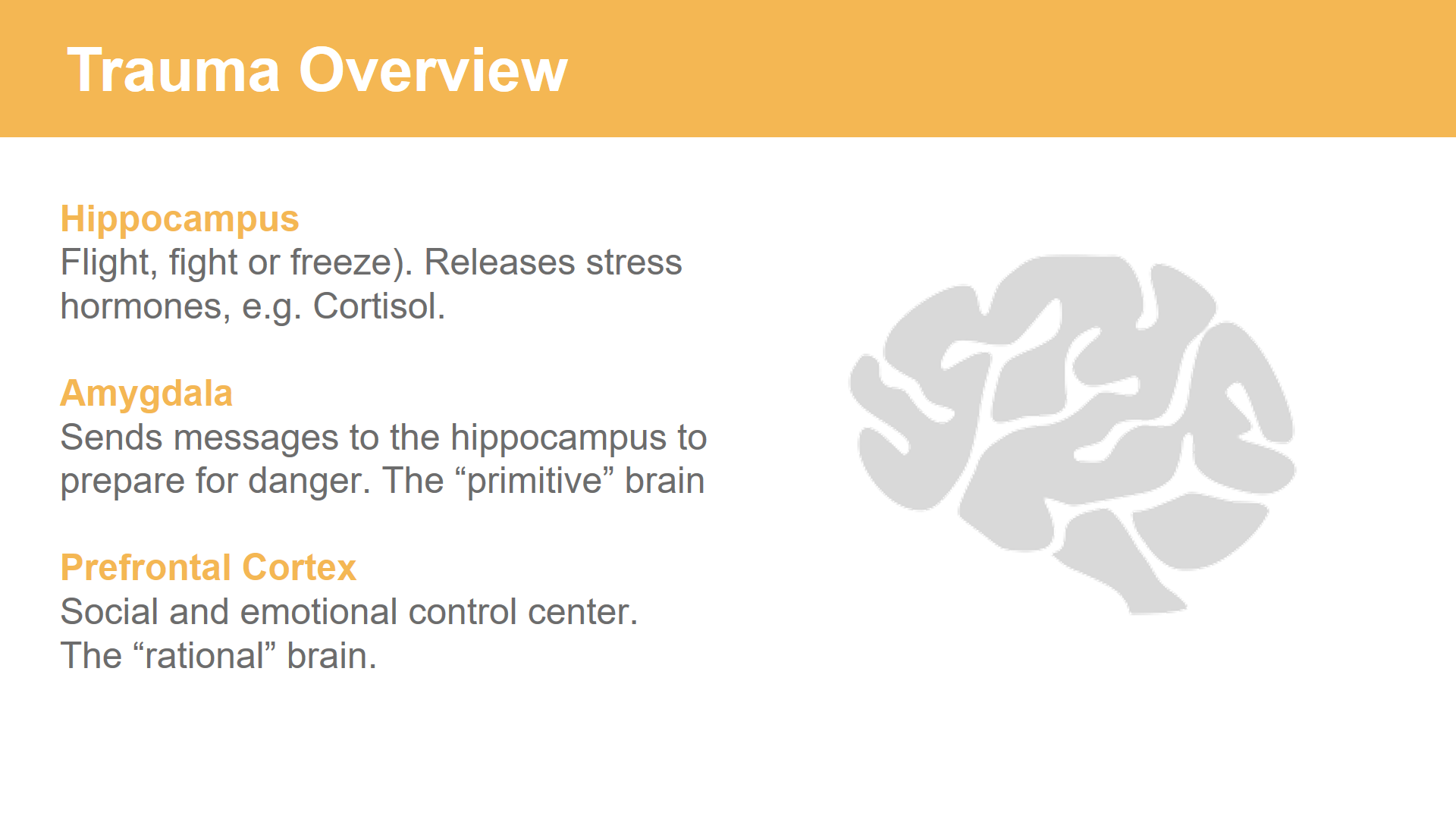
  2. I revamped that grainy image and changed it to a grey brain icon from The Noun Project (highly recommend!).
  3. The bullet points were removed, as was the underlining.
  4. I made the definitions a dark grey and the main word bold and colored yellow.
  5. Additionally, I made the definitions on the line below each item.

Here is the slide with these changes before storyboarding. BIG DIFFERENCE!

Here is the slide with changes made. BIG DIFFERENCE!

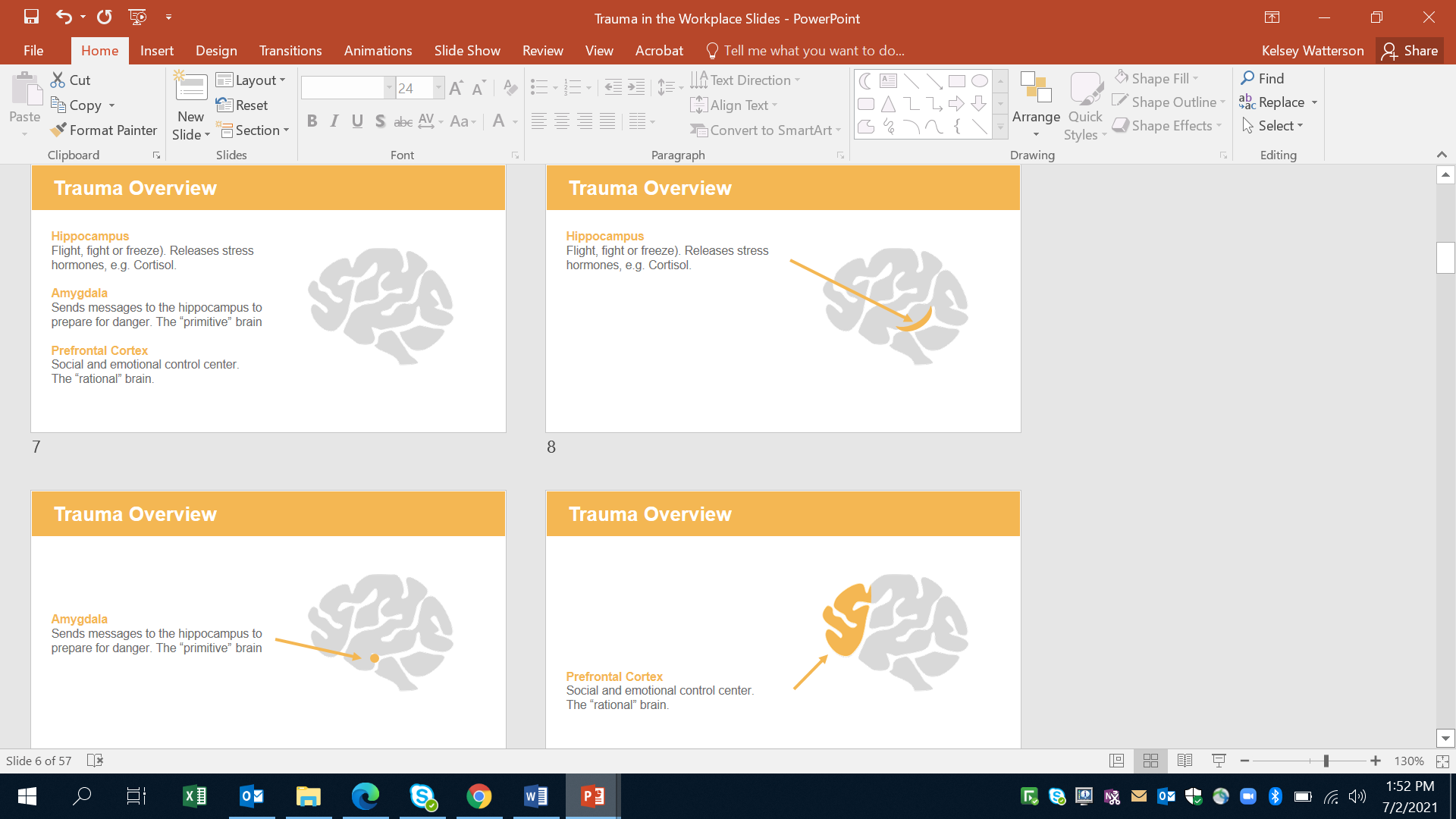
To storyboard this slide, I duplicated it two times to create a total of 3 slides.

Then, I simply changed the text to white for the definitions I wasn’t talking about on that specific slide. By doing this, nothing moved on the side, and only the point I wanted to talk about was visible.

To really vamp it up, I used yellow arrows (still color coding) to point to the location of each part of the brain. I then used shapes or a cropped version of the same brain icon to draw in that portion in yellow to highlight the location.

Here is the final story boarded version with the original slide left in for reference:

To storyboard this slide, I duplicated it two times to create a total of 3 slides.

There are more slides now, but they are organized, visually appealing, succinct, and most importantly your audience can easily follow along!

Now when these slides are presented, you have your first definition. Click.

There is your second definition. Click. There is your third definition.

Rather than having everything on one slide, you are now guiding your audience through your presentation!

Although there are so many great tips and tricks I could share, these three are probably the ones that truly transformed my presentations. The best part is, they don’t take that much extra time!

These are simple changes that take your slidedecks to a new level and allow you to really impress your audience.

Try these out and let us know how they worked for you! Happy Presenting!

Connect with Kelsey

LinkedIn: https://www.linkedin.com/in/kelsey-watterson-a79469160/

Written by cplysy · Categorized: depictdatastudio

Oct 12 2021

Dashboards for 10-Year-Olds: Connecting Data to Students’ Lived Experience

Bob Coulter is the director of the Litzsinger Road Ecology Center, a 38-acre field site in suburban St. Louis. He’s also a Depict Data Studio student and when he shared his work in our graduation ceremony, I knew it needed to be showcased. Keep up the great work Bob! – Ann

__________________________

For the past few months, I’ve been developing dashboards to support students’ understanding of local ecology and equip them to use that local understanding as a baseline to explore the rest of the world.

Imagine, for example, being a 10-year-old in St. Louis.

Your neighborhood has plenty of trees since you’re at the western edge of the forests typical of the eastern US. This can only happen because the temperature is warm enough and there is enough precipitation to support tree growth.

Heading west from here the ecology shifts pretty quickly to grasslands, with the grass getting shorter as you approach the Rocky Mountains. A quick look at the data shows decreasing levels of precipitation as you head west.

For a more extreme contrast, Yuma, Arizona is much hotter, but the area gets about 10% of the precipitation St. Louis does. How is this heat and lack of precipitation reflected in the plants and animals in southern Arizona?

All of this learning is wrapped under the heading “What’s It Like Where You Live?” – a program I used as a 4th grade teacher 25 years ago, developed by the Missouri Botanical Garden and now undergoing a major reworking.

As we flesh out the curriculum, we’ll be supporting kids’ local field work with dashboards synthesizing climate data and images of plants and animals typically found in different ecoregions.

First Forays

At a basic level, students can compare temperature and precipitation data for their local community with data for other cities around the world. Is it warmer or cooler, wetter or drier?

A simple table or a scatter plot serves the purpose quite well. The limit in this approach is the image students often develop when data from one city represents “the desert” or “the rainforest.”

At a basic level, students can compare temperature and precipitation data for their local community with data for other cities around the world.

Resolving this conundrum has opened the door to some exploratory work crafting dashboards which encompass both similarities and variation within an ecoregion. (Mostly I’ve just been geeking out with the data, but “exploratory research and development” sounds so much better!)

Refinements

Taking the data visualizations further has pushed me to walk a fine line between interesting visualizations and the developmental capacities pre-teen students bring to the task.

Most kids have limited experience with data tables and graphs, and what work they have done is pretty specific (such as graphing pizza preferences among class members).

Graphs showing means (or even means of means) risks becoming too abstract without the right supports.

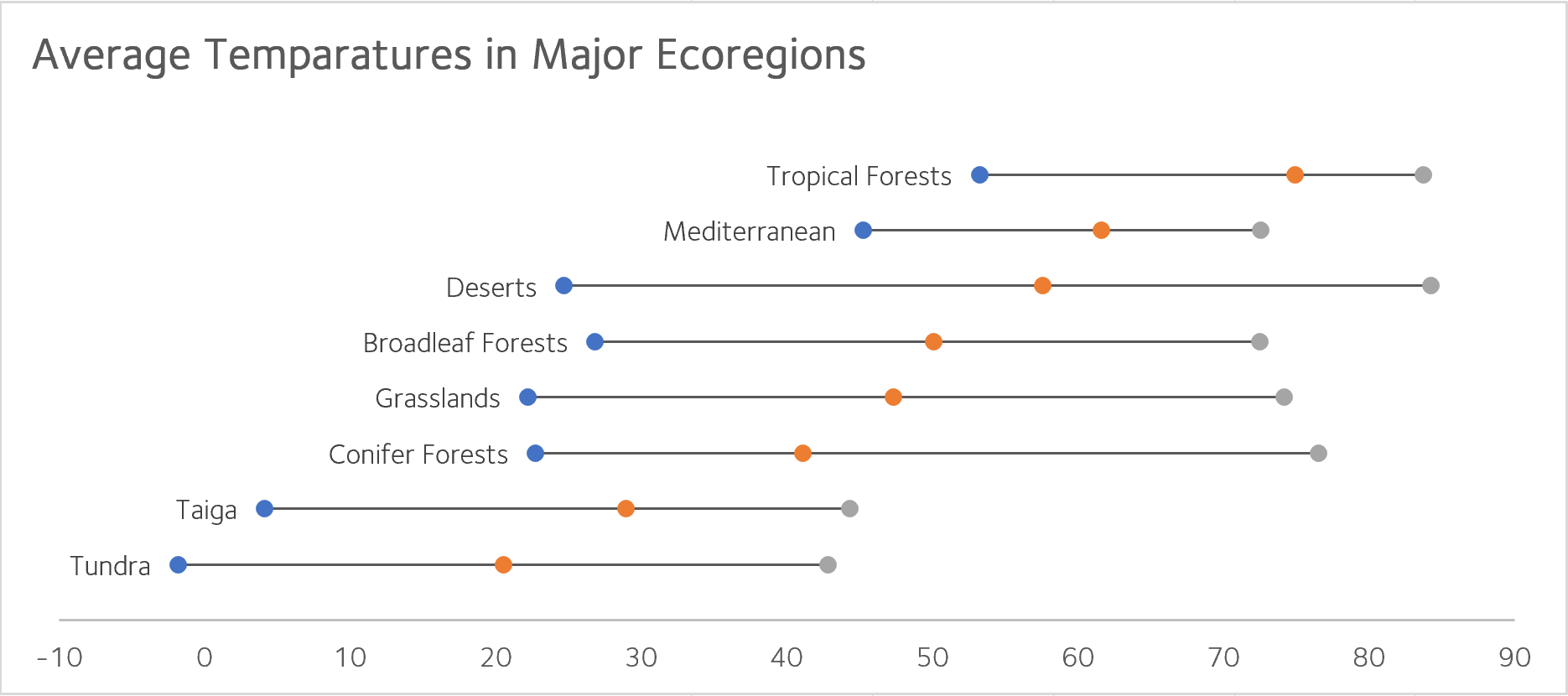
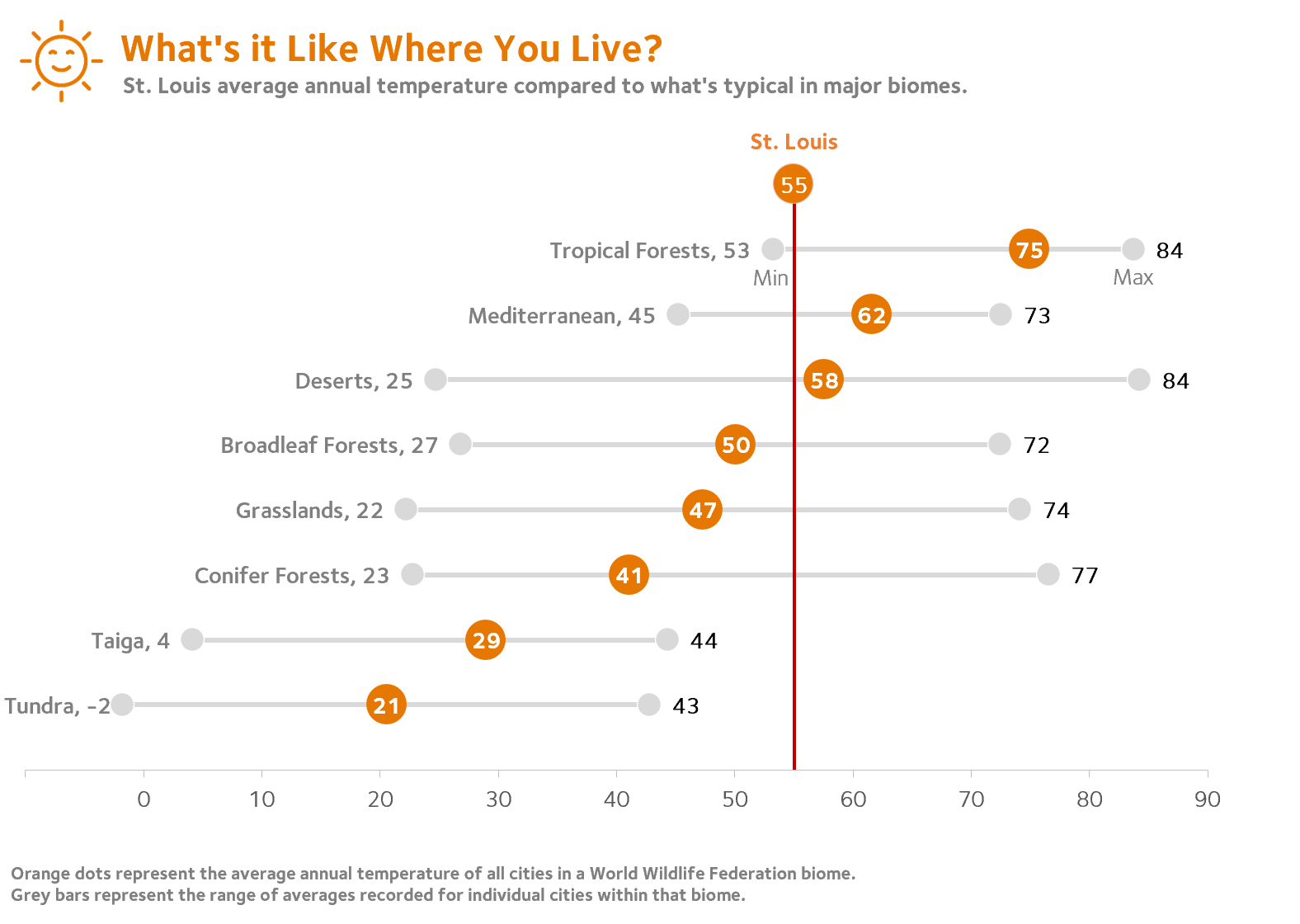
After exploring a few options, I settled on a representation which captured both the spread of data typical of cities in a given ecoregion and the mean value of these cities.

After exploring a few options, I settled on a representation which captured both the spread of data typical of cities in a given ecoregion and the mean value of these cities.

Major thanks are due here to Ann Emery for streamlining the look and feel of this version. Her focused, uncluttered design aesthetic is a perfect match for this work.

Major thanks are due here to Ann Emery for streamlining the look and feel of this version. Her focused, uncluttered design aesthetic is a perfect match for this work.

I’ve tested this out with a few kids with good results, but COVID restrictions have kept me from seeing how a broader pool of students make sense of this display. I’m hopeful that restrictions will be lifted in the new school year so we can move forward with some pilot testing.

Going Further

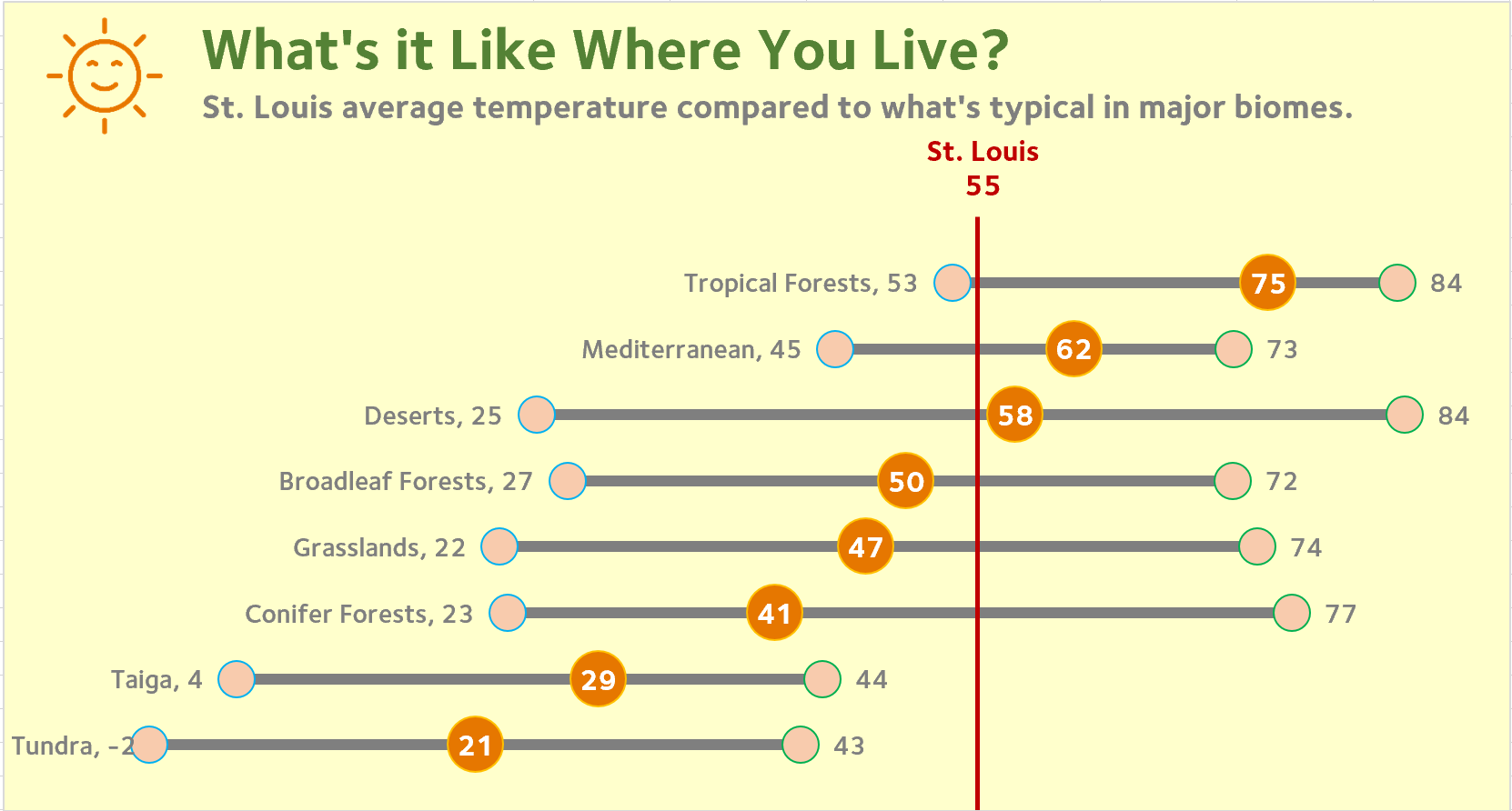
To be sure students remain connected to their local base, I needed an anchor which is ideally movable so that students in other areas can use the materials.  For this, I’m indebted to Jon Schwabish of the Urban Institute and PolicyViz.

While participating in a workshop he led, a couple of techniques we were using came together. By combining a single point scatter plot and error bars, a reference line can be inserted to mark local conditions.

If this strategy proves useful in our pilot testing, I expect that we will be able to support localization so that students anywhere could enter their own data and have VLOOKUP or a similar procedure to change my St. Louis reference line to one appropriate for any student’s home city.

The work so far has been an enjoyable way to explore data and apply the many things I’ve learned in Ann’s workshops and elsewhere. I’m looking forward to seeing how students use the data when we begin pilot testing. 

Written by cplysy · Categorized: depictdatastudio

Oct 05 2021

Communicating with Your Audience More Effectively

Depict Data Studio full courses always end with a graduation ceremony where students share the progress they’ve made. I’m always amazed by the transformations that take place and I can’t help but want to share their wonderful work!

Today you’ll learn from JC De Jesus, Vice-President of Service Delivery for an internet-provider based in Canada. Thanks for sharing, JC! –Ann

—–

“The world rewards people who are best at communicating ideas, not the people with the best ideas”

@david_perell

The ability to communicate effectively is a key skill in any venture, business or personal. Depending on your specific situation, effective communication skills can vary, and cover a wide range of topics. 

A student presenting in class with a set agenda topic and visual aids will communicate very differently from, say, a company CEO or a manager leading a team through a complex project over several weeks or months.

Communicating via Salesforce Chatter

In our company, Salesforce Chatter is one tool for effective communication. 

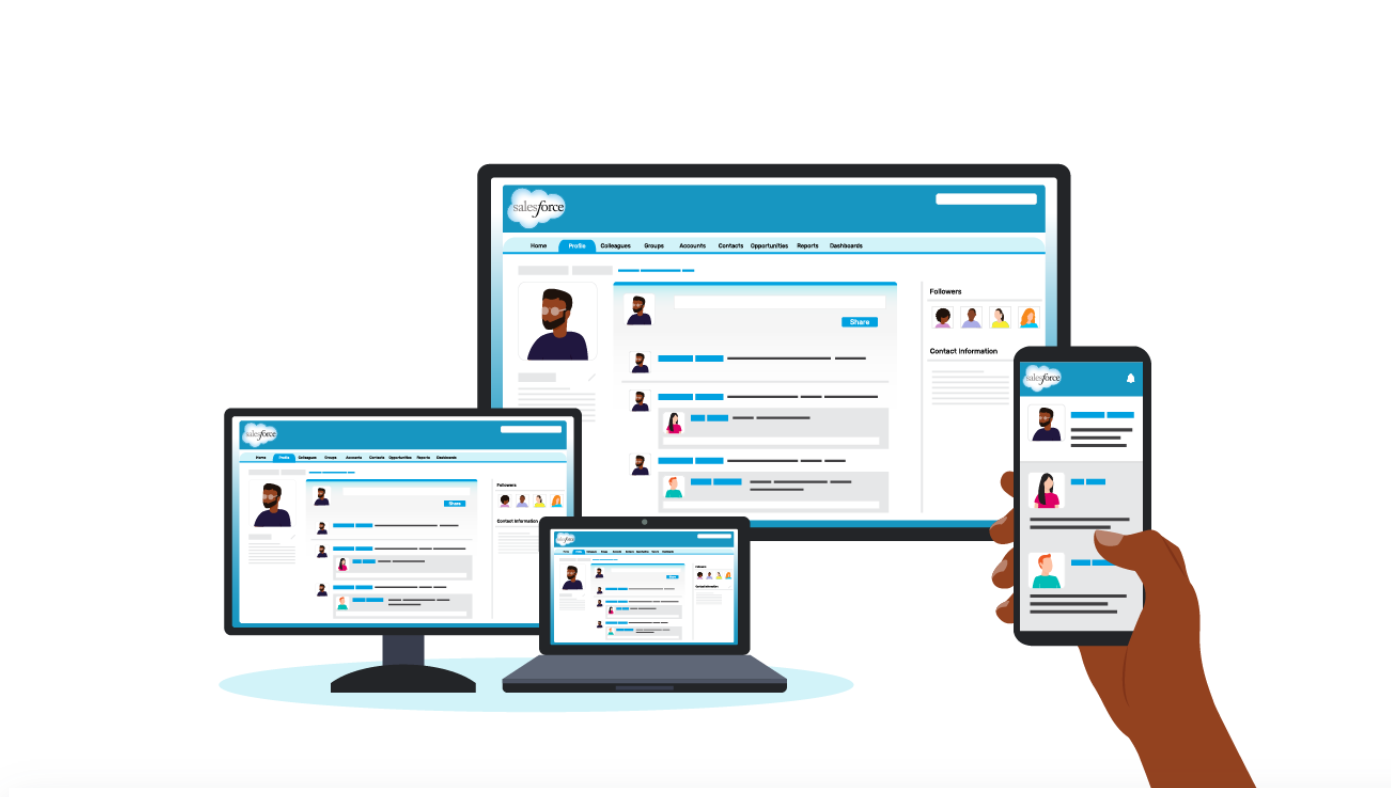
In our company, Salesforce Chatter is one tool for effective communication. 

Chatter is like a social-media platform but for business.  You follow co-workers to see their posts (like Twitter or LinkedIn), you can join groups and see group updates (like Facebook).  It also has a top-notch mobile app.  

And as you can imagine, just like any social-media app, your newsfeed can get really, really busy!

For a leader sharing an update to the team or the entire company, it’s important for your update to be as concise and engaging as possible for it to be effective.

Using a 1-Pager to Effectively Communicate Internally

I run a large team and share updates in Chatter. One of the things I find to be effective is using 1-pagers. 

Instead of dense and text-heavy presentations, I minimize the text to include only the main points and actions I need from my team. This way, the 1-pager can be read in 2 minutes or less.

Here’s a 1-pager I’ve posted recently. This is for an ongoing project with many stakeholders. 

Instead of dense and text-heavy presentations, I minimize the text to include only the main points and actions I need from my team. This way, the 1-pager can be read in 2 minutes or less.

Notice some of the key elements:

  • Headers. The header “We Deliver Better” is in large, bolded font.
  • Page Layout. The layout is a 2-column format, which makes the sentences appear shorter and easier to read.
  • Outline. Notice the five-topic outline with icons. Those 5 topics stand out because of the larger font size and font color (blue) that’s different from the rest of the text.
  • Visual Framework. The icons emphasize each of the 5 topics. These are also used in slidedeck presentations for consistency.
  • Branding. It uses our corporate brand colours and logo.
  • Divider Lines. There are no divider lines between rows and columns. Those are not needed if we give the page a lot of white space, which I’ve attempted to do here by cutting down on text.  Cutting down on text while getting the full message is the hardest part in putting this together!
  • Skimmability. Key phrases are in bold to make it more scannable.
  • Hashtag. And, of course, the hashtag #DeliveryExperience on the top right.

My goal was to write something that can be read in 2 minutes or less by a wide audience (100+ people), and the 1-pager format helps me achieve exactly that.

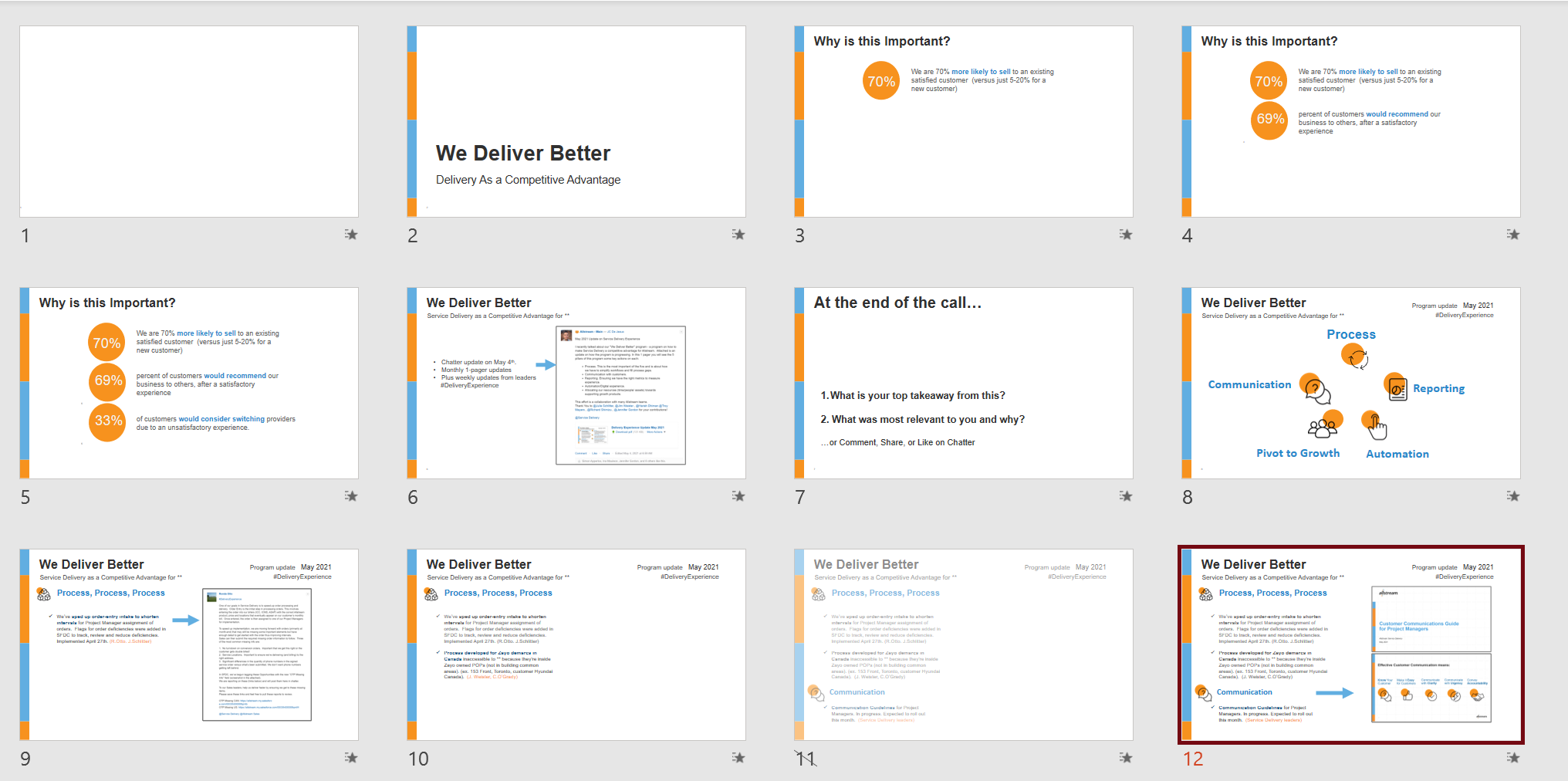
And for anyone who wants to get into more detail, we also have a 30-minute slidedeck. It uses many of the same elements as the 1-pager.

And for anyone who wants to get into more detail, we also have a 30-minute slidedeck. It uses many of the same elements as the 1-pager.

By having a variety of approaches in communicating, I’m able to appeal to and share information with my audiences much more effectively.

Connect with JC

LinkedIn: http://www.linkedin.com/in/jc-dejesusus

Twitter:  @technophone

Written by cplysy · Categorized: depictdatastudio

  • « Go to Previous Page
  • Go to page 1
  • Interim pages omitted …
  • Go to page 24
  • Go to page 25
  • Go to page 26
  • Go to page 27
  • Go to page 28
  • Interim pages omitted …
  • Go to page 37
  • Go to Next Page »

Footer

Follow our Work

The easiest way to stay connected to our work is to join our newsletter. You’ll get updates on projects, learn about new events, and hear stories from those evaluators whom the field continues to actively exclude and erase.

Get Updates

Want to take further action or join a pod? Click here to learn more.

Copyright © 2026 · The May 13 Group · Log in

en English
af Afrikaanssq Shqipam አማርኛar العربيةhy Հայերենaz Azərbaycan dilieu Euskarabe Беларуская моваbn বাংলাbs Bosanskibg Българскиca Catalàceb Cebuanony Chichewazh-CN 简体中文zh-TW 繁體中文co Corsuhr Hrvatskics Čeština‎da Dansknl Nederlandsen Englisheo Esperantoet Eestitl Filipinofi Suomifr Françaisfy Fryskgl Galegoka ქართულიde Deutschel Ελληνικάgu ગુજરાતીht Kreyol ayisyenha Harshen Hausahaw Ōlelo Hawaiʻiiw עִבְרִיתhi हिन्दीhmn Hmonghu Magyaris Íslenskaig Igboid Bahasa Indonesiaga Gaeilgeit Italianoja 日本語jw Basa Jawakn ಕನ್ನಡkk Қазақ тіліkm ភាសាខ្មែរko 한국어ku كوردی‎ky Кыргызчаlo ພາສາລາວla Latinlv Latviešu valodalt Lietuvių kalbalb Lëtzebuergeschmk Македонски јазикmg Malagasyms Bahasa Melayuml മലയാളംmt Maltesemi Te Reo Māorimr मराठीmn Монголmy ဗမာစာne नेपालीno Norsk bokmålps پښتوfa فارسیpl Polskipt Portuguêspa ਪੰਜਾਬੀro Românăru Русскийsm Samoangd Gàidhligsr Српски језикst Sesothosn Shonasd سنڌيsi සිංහලsk Slovenčinasl Slovenščinaso Afsoomaalies Españolsu Basa Sundasw Kiswahilisv Svenskatg Тоҷикӣta தமிழ்te తెలుగుth ไทยtr Türkçeuk Українськаur اردوuz O‘zbekchavi Tiếng Việtcy Cymraegxh isiXhosayi יידישyo Yorùbázu Zulu