• Skip to main content
  • Skip to footer
  • Home

The May 13 Group

the next day for evaluation

  • Get Involved
  • Our Work
  • About Us
You are here: Home / Archives for allblogs / depictdatastudio

depictdatastudio

Dec 14 2021

Accessibility Quick Wins: Lower the Numeracy Level

How do we make our graphs more accessible? 

There’s a misconception that accessibility takes all day, that’s it’s costly, or that it’s complicated. Those are all false.
It's a myth that dataviz accessibility is complicated.

Accessibility is woven into all my trainings, but since this is a topic I get asked about a lot, I decided to make a new talk that’s focused just on accessibility for dataviz. 

In Spring 2021 I gave a talk at the Good Tech Fest conference about dataviz accessibility quick wins. 

The talk was a “Choose Your Own Adventure” style where the audience chose what we discussed from a list of options. They chose: 

  • direct labels, 
  • lower the reading level, and 
  • lower the numeracy level. 

You can watch the recording or read the highlights. Enjoy! 

—– 

Watch the Conversation 

You’ll learn about lowering the numeracy level. Then, you’ll see a case study that combines several accessibility quick wins. 

How to Lower the Numeracy Level 

We’ve discussed how to lower the reading level, but how do we lower the numeracy level?  

Lowering the numeracy level just means making sure the numbers are easy to understand.  

There are a couple of stages to this, so even if you only move one step, that’s a win.  
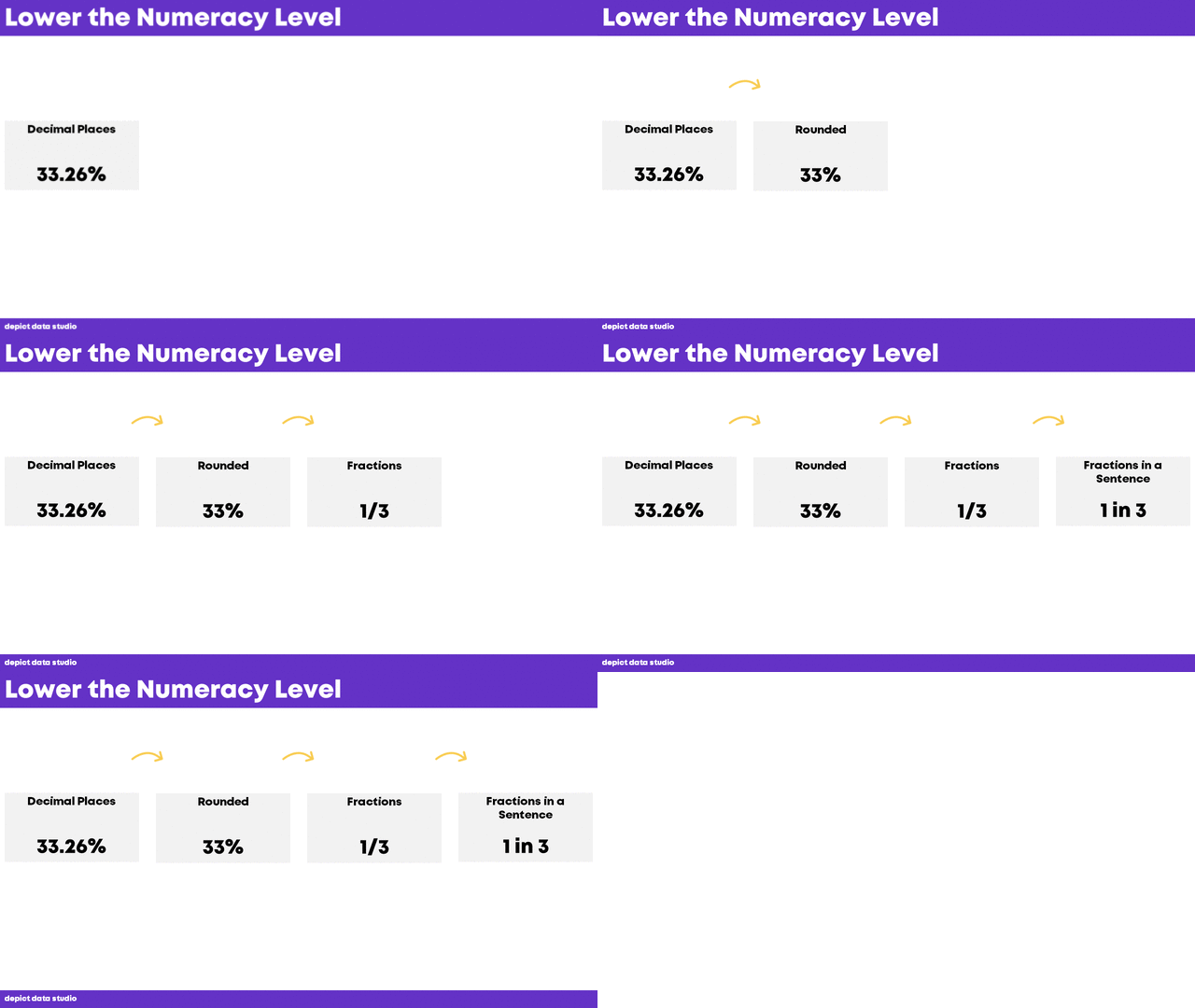
Lowering the numeracy level just means making sure the numbers are easy to understand. There are a couple of stages to this, so even if you only move one step, that’s a win.  

For example, let’s say you’re starting with 33.26%.

To lower the numeracy level, the first stage would be to round it to 33%. That’s a win!

The next stage would be to go from rounded percentages to fractions. So, we could turn that 33% into 1/3. Another win!

The final stage would be taking that 1/3 fraction and changing it to 1 in 3 in a sentence.

This is a general goal to aim for. It won’t work every single time for every single project. In other words, you can’t move from 33.26% to 1 in 3 for every project. Just try to move one step in every project.

Before: Percentages with Two Decimal Places

Let’s practice lowering the numeracy level.

Donut chart showing that 33.26% of participants agreed that the program was a good use of time.

Let’s talk about what’s already going well:

  • It’s a donut chart with only two slices – check.
  • It’s got dark-light contrast – check.
  • And the sentence, “33.26% of participants agreed that the program was a good use of time” is readable. (It scored a 5.8 on the Flesch-Kincaid scale.)

After: Round to the Nearest Whole Number

Let’s make it even better!

I know you understand percentages. Of course you do. You’re reading a data blog. 😊

But percentages are tricky for people who don’t work in data careers.

Percentages.

Percent changes.

Percentage point changes.

Percentiles.

Those are similar-sounding terms with completely different math and meanings.

No wonder others get confused by percentages.

Let’s be proactive and stop confusion at the source—by avoiding percentages whenever possible.

One improvement would be to round the decimal places to the nearest whole number.
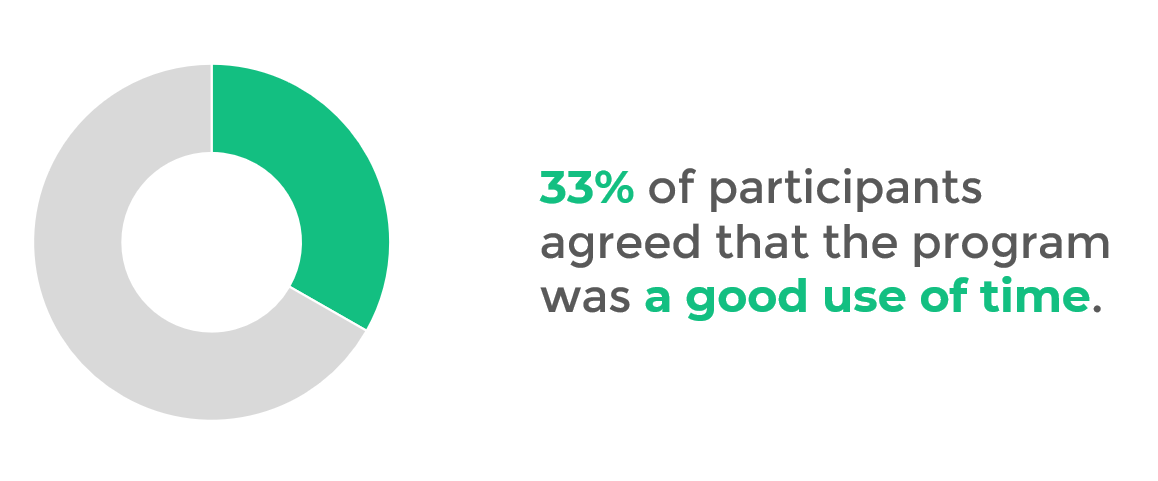
Donut chart stating that 33% of participants agreed that the program was a good use of time.

After: Use Fractions Instead of Percentages

Another quick win would be to turn the 33% into a fraction (1/3).
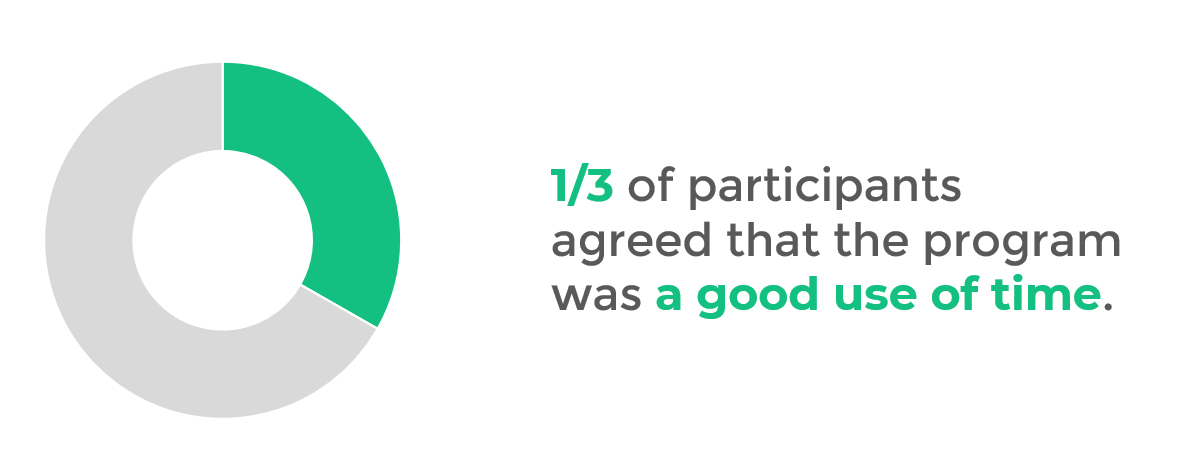
Donut chart stating that 1/3 of participants agreed that the program was a good use of time.

After: Put the Fraction into a Sentence

And the best practice would be to turn the 1/3 into one in three.

You could also adjust the chart, transforming the donut chart into an icon array.

That way, there’s cohesion between the chart and the text (i.e., they both talk about one in three).

I don’t recommend using gingerbread people.

  • Men don’t have to wear pants and women don’t have to wear dresses.
  • Some people don’t identify as men or women.
  • You may not know if the data collected represents men or women.
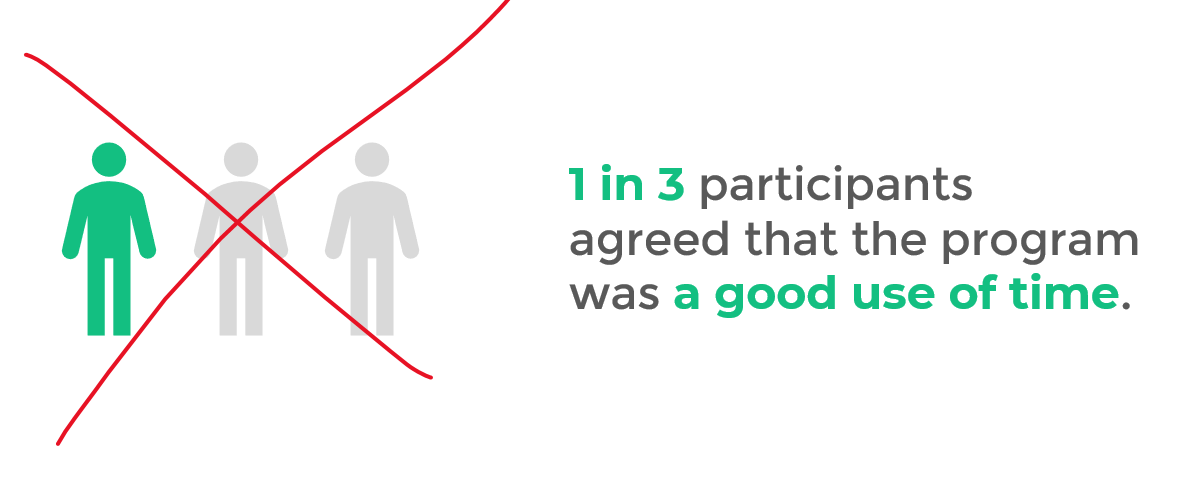
I don’t recommend using gingerbread people that are gendered (men in pants and women in dresses).

So, what to do instead?

Use icons of real people.

This example is about people, so let’s show the people.

This is symbol font called WeePeople. You can download this for free and use it to visualize people as the real human beings they are.
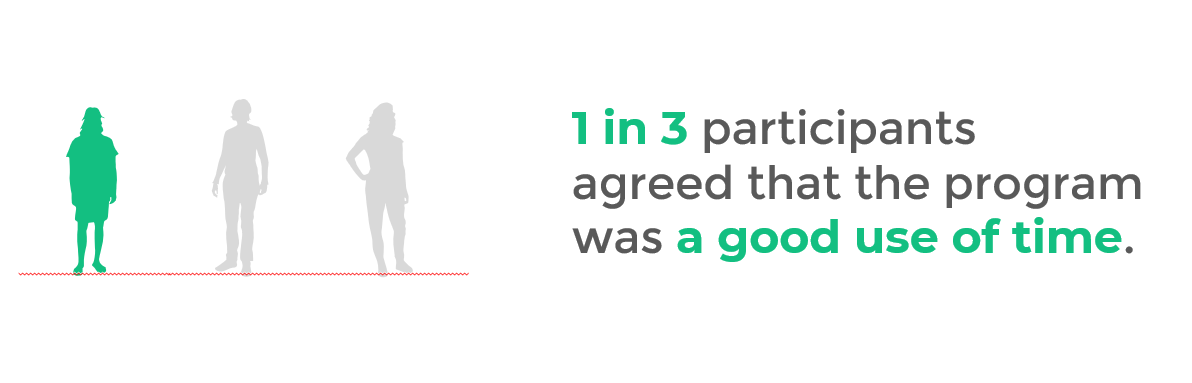
I recommend using a symbol font called WeePeople to visualize people as the real human beings they are.

Accessibility Case Study

By now, you’ve learned about direct labeling, lowering the reading level, and lowering the numeracy level.

Let’s look at a case study and put it all together.

Here’s a before graph based on a real-life project. This organization was running a workforce development program.
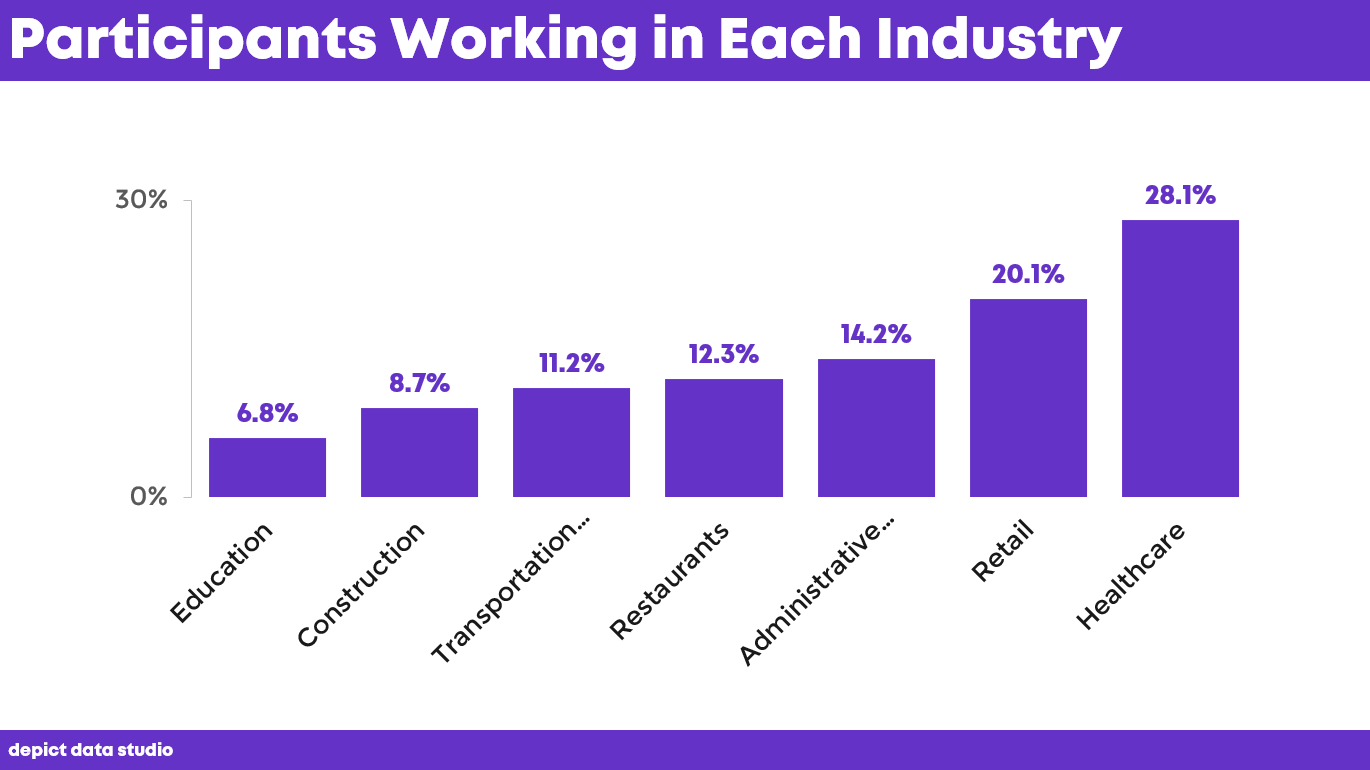
Here’s a before graph based on a real-life project. This organization was running a workforce development program.

In the Good Tech Fest session, I asked the audience to describe what they saw going wrong.

Here’s what they came up with:

  • Diagonal text
  • Decimals
  • Change from a column chart into a bar chart
  • Add a takeaway title
  • Reverse the order
  • Color coding

Within three minutes, we made quick edits that made a big difference.

Rotate the Chart

The first thing we did was rotate it from a column chart to a bar chart.

(We wanted all the text to be horizontal.)
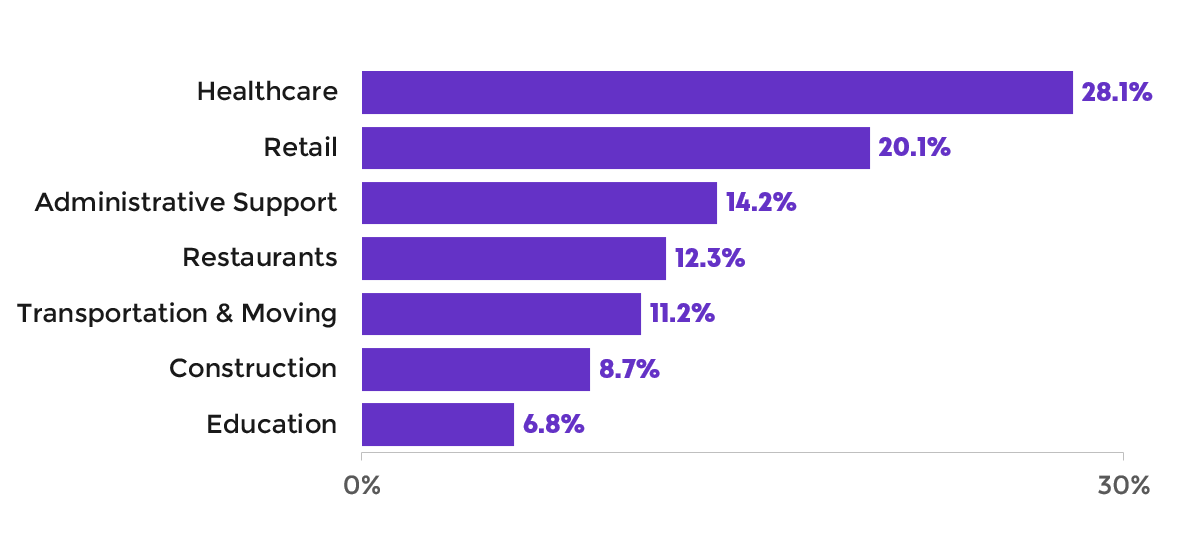
The first thing we did was rotate it from a column chart to a bar chart. (We wanted all the text to be horizontal.)

Round Decimals to Whole Numbers

Our next edit was to round the decimals to the nearest whole numbers.
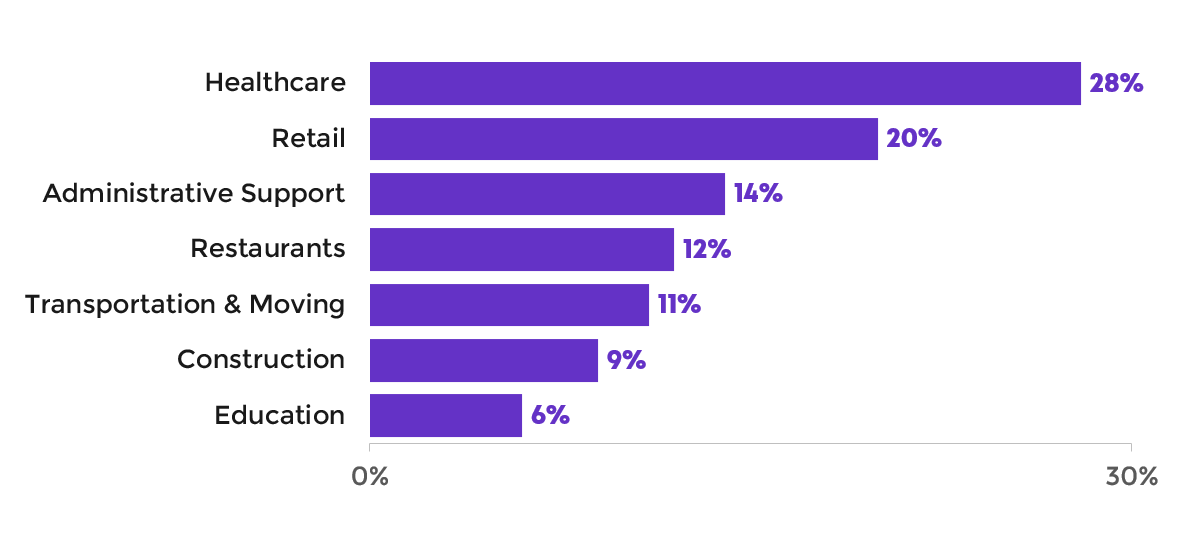
Our next edit was to round the decimals to the nearest whole numbers.

Add a Takeaway Title and Dark-Light Contrast

Next, we added a takeaway title.

Instead of “Participants Working in Each Industry,” we now have “20% of Participants Worked in Retail.”

Then, we highlighted the retail data. We changed that bar to a darker color and grayed out everything else. Dark-light contrast is an easy and effective data storytelling technique.
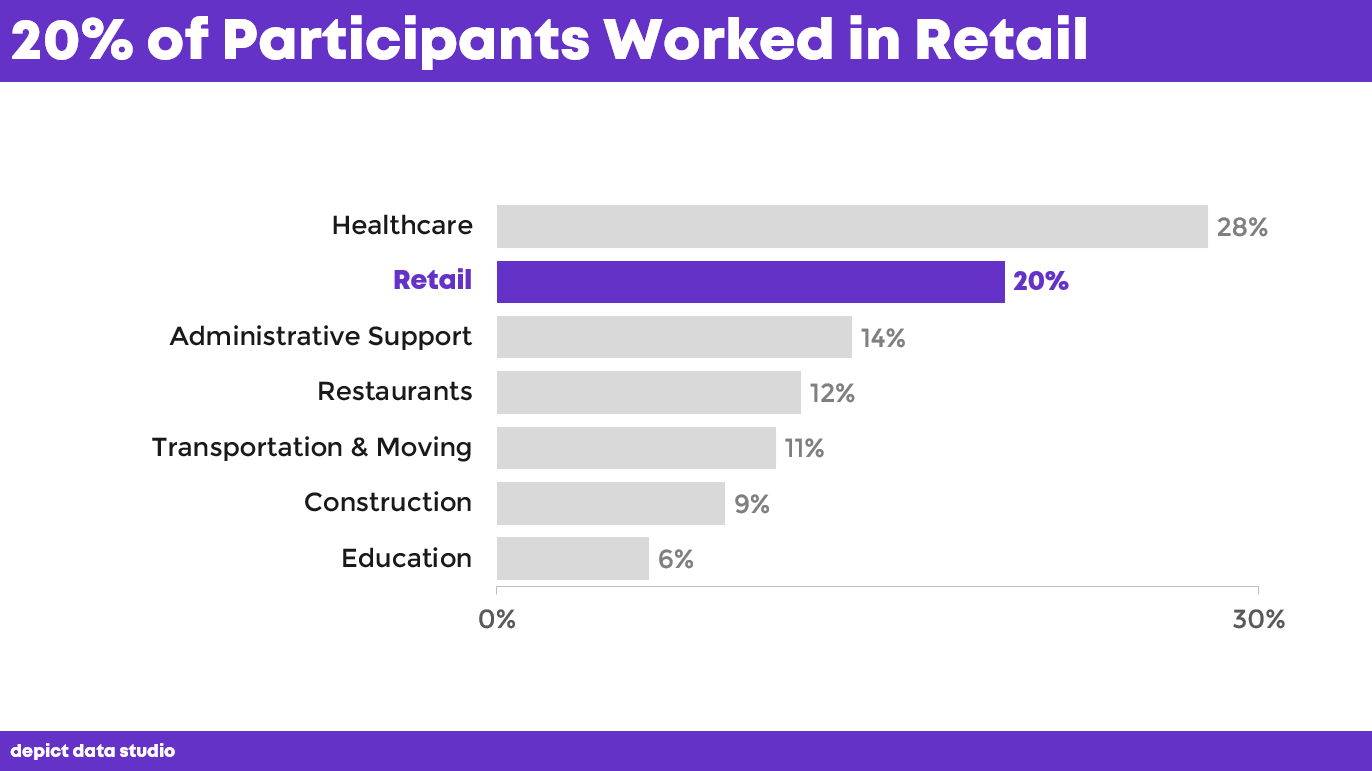
Next, we added a takeaway title. Then we highlighted the retail data.

Add Fractions within a Sentence and Icons

We changed the percentage to a fraction in a sentence.

Then, we added icons, which makes our data more memorable.
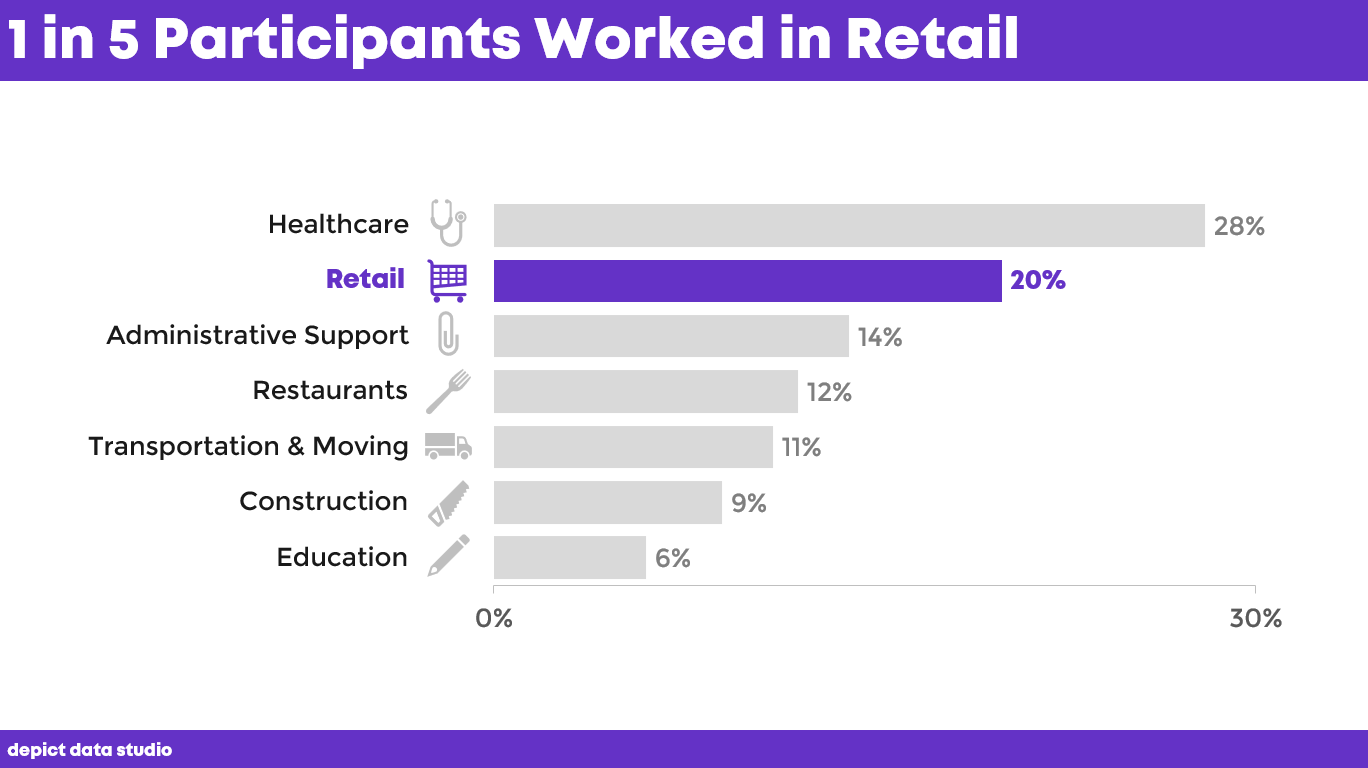
We changed the percentage to a fraction in a sentence. Then, we added icons, which makes our data more memorable.

Accessibility doesn’t have to take all day.

Accessibility doesn’t have to cost anything.

Accessibility doesn’t have to be complicated.

With a few quick edits, we’ve made this chart faster to read; we lowered the numeracy; we lowered the reading levels; and we made it more memorable.
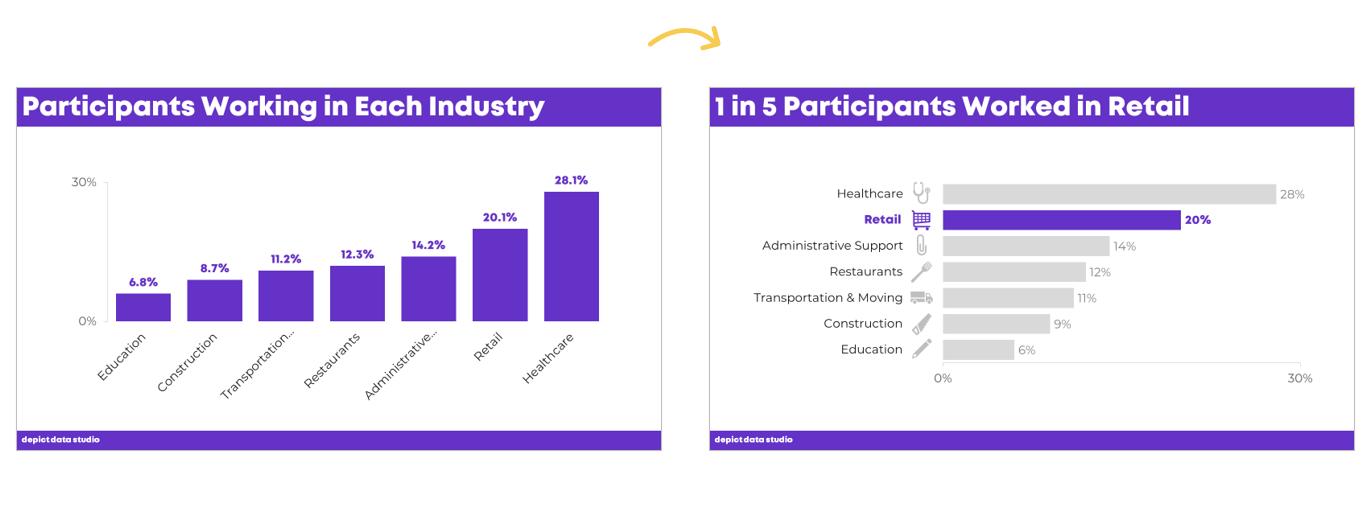
With a few quick edits, we’ve made this chart faster to read; we lowered the numeracy; we lowered the reading levels; and we made it more memorable.

Download the eBook

Want to learn more about accessible data visualization?

In this ebook, you’ll learn 10 quick wins for designing accessible data visualizations. These small edits can have a big impact for our coworkers, board members, and funders who have color vision deficiencies, hearing loss, or learning disabilities–and for all of us who are pressed for time.

Download the Ebook

For your complimentary copy, use code: goodtechfest
Written by cplysy · Categorized: depictdatastudio

Dec 07 2021

Accessibility Quick Wins: Lower the Reading Level

How do we make our graphs more accessible?

There’s a misconception that accessibility takes all day, that’s it’s costly, or that it’s complicated. Those are all false.

There's a myth that dataviz accessibility is costly-- that's false.

Accessibility is woven into all my trainings, but since this is a topic I get asked about a lot, I decided to make a new talk that’s focused just on accessibility for dataviz.

In Spring 2021 I gave a talk at the Good Tech Fest conference about dataviz accessibility quick wins.

The talk was “Choose Your Own Adventure” style where the audience chose what we discussed from a list of options. They chose:

  • direct labels,
  • lower the reading level, and
  • lower the numeracy level.

You can watch the recording or read the highlights. Enjoy!

—–

Watch the Conversation

Why Bother Lowering the Reading Level?!

We’re writing for busy people. The ones who see tons of graphs coming into their inbox every day.

We need to lower the reading level.

Not because our readers dumb, but because they’re busy.

They need to be able to understand what you wrote the first time—not the second, third, or fourth read-through.

Before: A Dense Slide Title

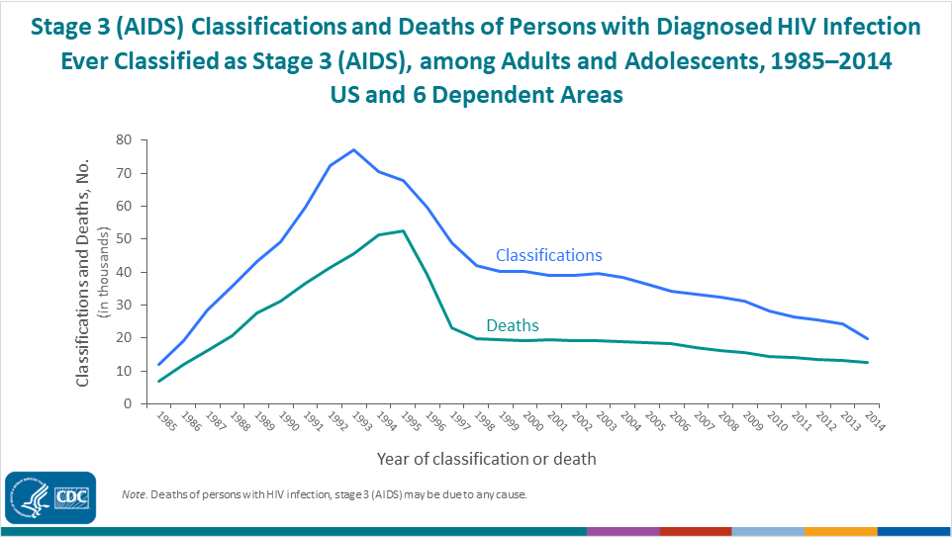
Here is a real-life graph from a public health agency.

I had to read this slide title at least five times to figure out what it was talking about.

Here is a real-life graph from a public health agency. I had to read this slide title at least five times to figure out what it was talking about.

After: A Skimmable Slide Title

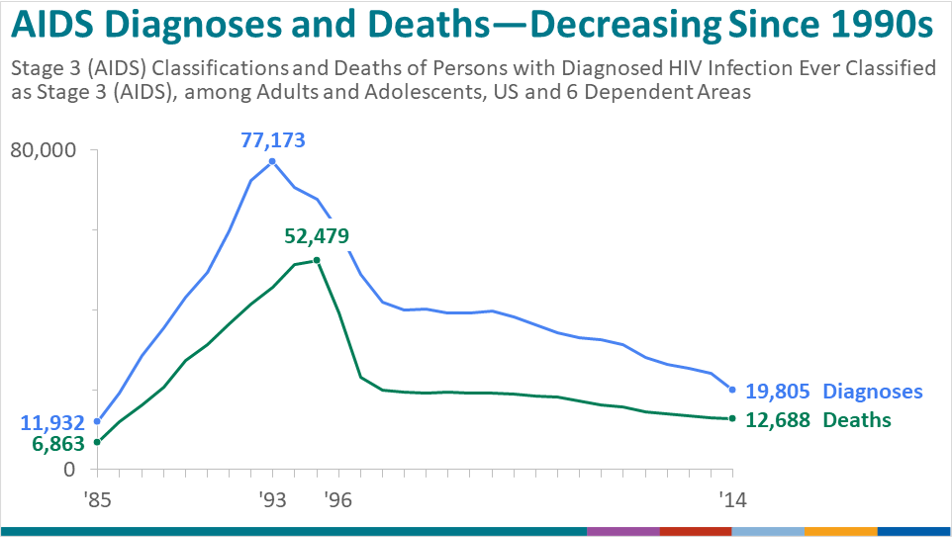
I talked with the epidemiologist who made that slide, and here’s what we came up with:

I talked with the epidemiologist who made the slide and together we made some edits.

Here’s what we did:

  • We put the main takeaway point in the title.
  • We used a text hierarchy so that your eye is drawn to the largest, darkest, boldest text first. 
  • We kept her original title so that the technical people had all of the information they would need, but made it the subtitle instead.
  • We rotated the diagonal text and used horizontal text instead (for speed-reading).

Objectively Testing the Reading Level

We tested both titles with an official readability website.

In the past, I’ve used https://readable.com/.

They used to be free, but now have a fee.

(Comment below if you have a great, free readability website you use. You can also use Word or Google for this.)

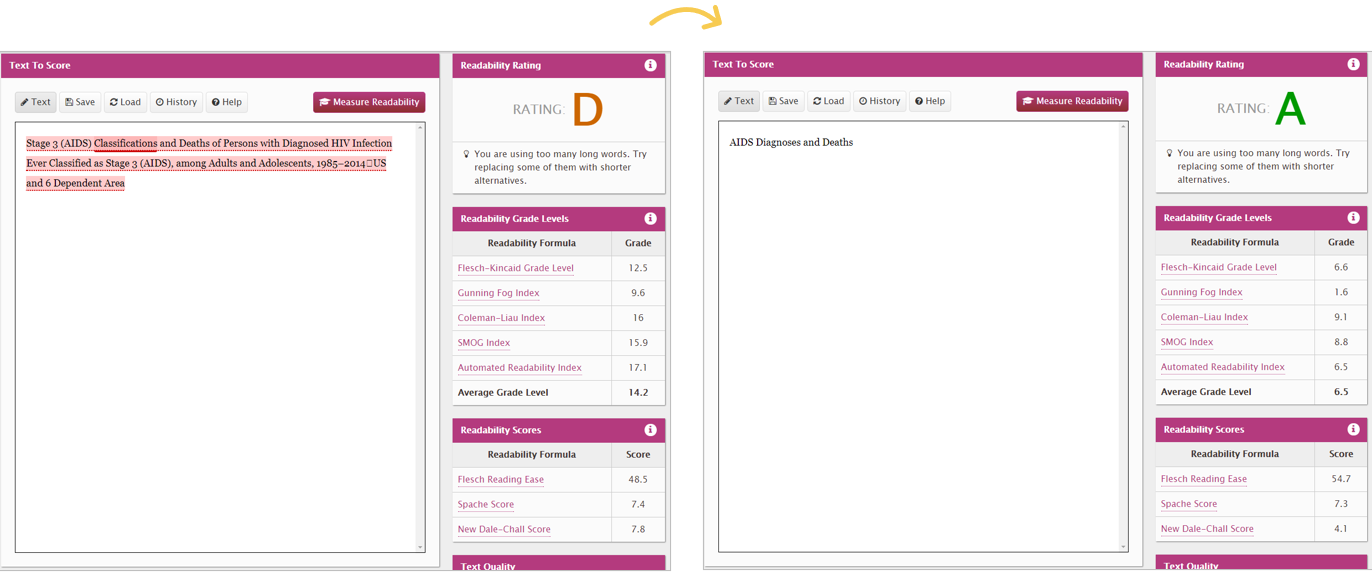
The before graph title was a 14.2, which in the U.S. would mean you’ve graduated high school.

The after version was a 6, woohoo!

We tested both titles with an official readability website.

The Average American Reading Level

Speaking of grade 6 being a great spot to be at.. What do you think is the average reading level?

Hint: it’s lower than you think.

The average American reading level is a 6 – 8.

While a lot of people have gone on to higher education levels than that, it’s not a one-to-one comparison.

For example, it’s not, “I finished 12th grade, therefore I read at a grade 12 level.” A lot of us read a little bit below our formal education years.

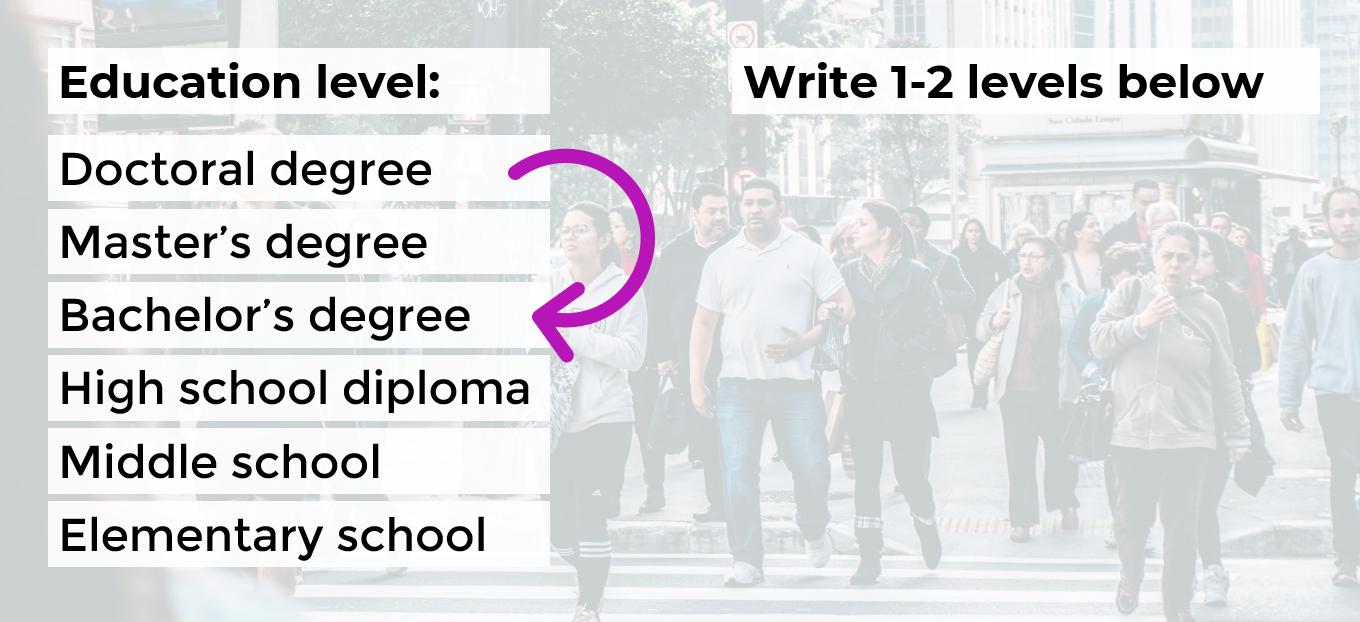
Rule of Thumb: Write 1-2 Levels Below

Sure, you might not be writing for “the general public.”

You might be writing for grant makers, policy makers, trustees, etc.—folks who likely read much higher than a grade 6-8.

A good rule of thumb is to aim for 1-2 levels below your audience’s education level.

For example, if I’m working on a board packet, and I know all the board members have an undergraduate degree, then I write two levels below that—at a middle school level.

If I’m working on a technical report for a government agency, and I know that all the recipients have Master’s degrees or higher, then I write two levels below that—at a high school level.

If I’m working on a technical report for a government agency, and I know that all the recipients have Doctoral degrees, then I write two levels below that—at a Bachelor's degree level.

How to Lower the Reading Level

Here are some quick wins:

  • Active voice (instead of passive voice)
  • Shorter words, sentences and paragraphs
  • Replace jargon with synonyms

After drafting your sentence or paragraph (they’ll probably be really long—mine usually are!), you’re going to go back and edit your writing.

Anytime you see a comma, replace it with a period.

Or, if your paragraph is six sentences long, break it into two shorter paragraphs.

Please make sure to objectively test your own writing (with Readable, Word, etc.). I don’t care what tool you use.

Let’s Practice

During the Good Tech Fest conference session, we practiced lowering the reading level for a few common data sentences.

How would you lower the reading level for these examples?

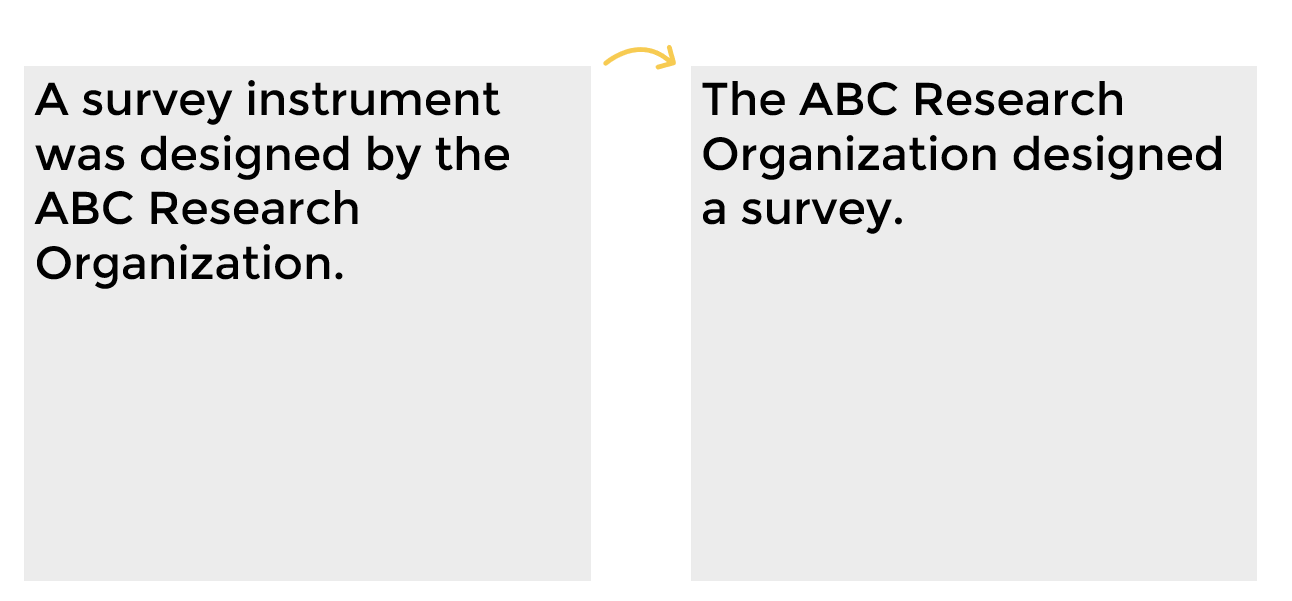
Example A: A survey instrument was designed by the ABC Research Organization.

The quickest wins would be:

  • shorter words, sentences and paragraphs; and
  • replacing jargon with synonyms.

Here’s the after:

Example A: A survey instrument was designed by the ABC Research Organization. Reworked this would be: The ABC Research Organization designed a survey.

What if you’re trying to explain the number of participants in a survey?

How would you lower the reading level here?

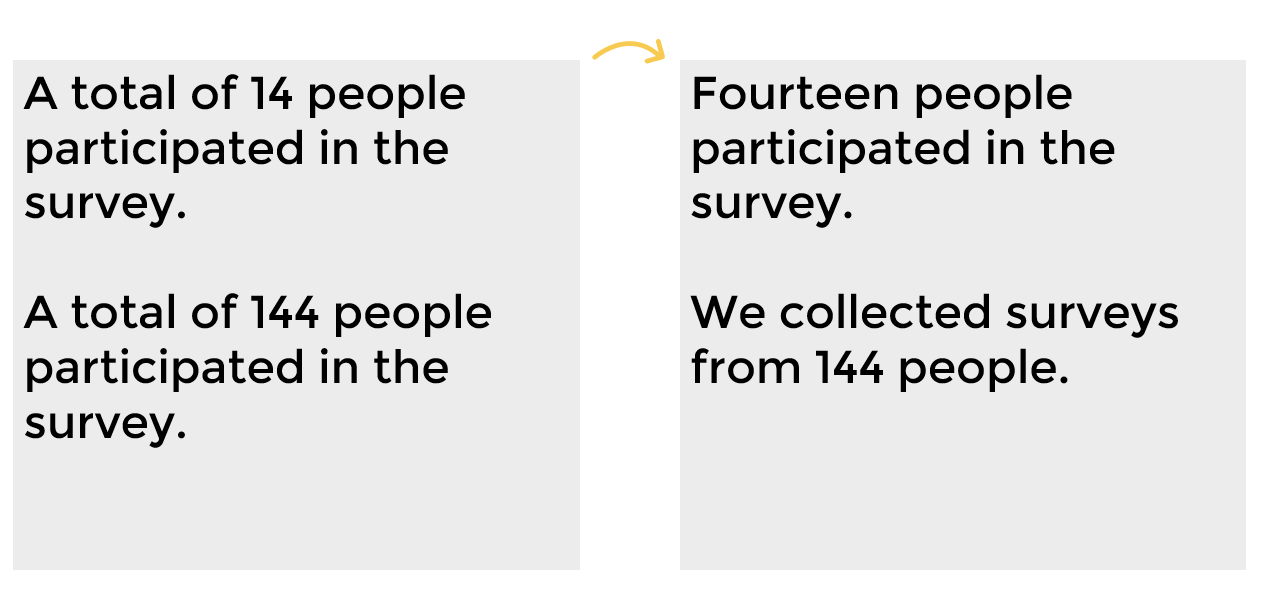
Example B: A total of 14 people participated in the survey.

Example C: A total of 144 people participated in the survey.

Here’s the after versions:

Before and after versions of examples where you're trying to explain the number of participants in a survey.

One last example with some jargon.

Example D: Undergraduate students comprise 65% of total responses.

How would you replace the jargon with synonyms to lower the reading level?

Here’s the after:

Example D: Undergraduate students comprise 65% of total responses. Reworked this becomes: Two out of three responses (65%) were from undergraduate students.

Your Turn

How’s the reading level in your writing? Comment and let me how your writing scored.

This blog post has a Flesch-Kincaid Grade Level of 6.3.

Download the eBook

Want to learn more about accessible data visualization?

In this ebook, you’ll learn 10 quick wins for designing accessible data visualizations. These small edits can have a big impact for our coworkers, board members, and funders who have color vision deficiencies, hearing loss, or learning disabilities–and for all of us who are pressed for time.

Download the Ebook

For your complimentary copy, use code: goodtechfest
Written by cplysy · Categorized: depictdatastudio

Nov 30 2021

Accessibility Quick Wins: Remove Legends and Directly Label

How do we make our graphs more accessible?

There’s a misconception that accessibility takes all day, that’s it’s costly, or that it’s complicated. Those are all false.

Accessibility is woven into all my trainings, but since this is a topic I get asked about a lot, I decided to make a new talk that’s focused just on accessibility for dataviz.

In Spring 2021 I gave a talk at the Good Tech Fest conference about dataviz accessibility quick wins.

The talk was a “Choose Your Own Adventure” style where the audience chose what we discussed from a list of options. They chose:

  • direct labels,
  • lower the reading level, and
  • lower the numeracy level.

You can watch the recording or read the highlights. Enjoy!

—–

Watch the Conversation

Here’s the main takeaway message: remove legends and directly label instead.

You probably know what a legend is, but direct labeling? What is that?

Let’s look at an example of a regular (inaccessible) graph.

Why Traditional Legends Don’t Work

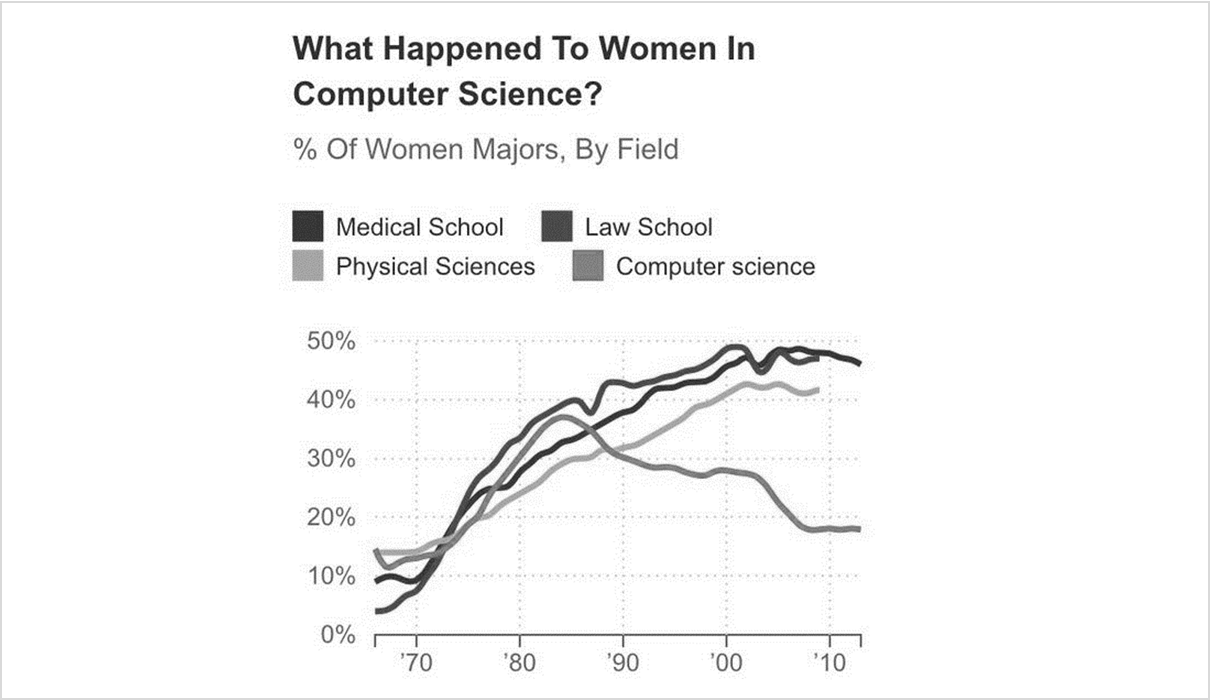
When I saw this graph a few years ago, I actually liked most aspects of it.

I really liked parts of this chart, especially the the title, “What happened to women in computer science?”

I really liked the title in particular, and how it was phrased as a question, which gets the audience to engage. Two thumbs up to the title, “What happened to women in computer science?”

Legends Take Too Long to Read

But then I kept reading a little bit and I was like, “Wait a second… Time out.”

In full color I could mostly tell which section of the legend corresponded with which line. The turquoise lines were tricky because it’s hard figure out which is dark, which is medium, and which is lightest. Your eyes zig–zag back and forth trying to differentiate between the three. It’s really time-consuming.

Legends Don’t Work for Grayscale Printing

So it works in color, kind of, but what about grayscale printing?

Some people will view our graphs on-screen. Others will print them.

And if they’re printing the graphs, we should plan for grayscale printing. Colored ink is so expensive.

Some people will view our graphs on-screen. Others will print them. The grayscale version of this chart doesn't work at all.

It doesn’t work at all.

Legends Don’t Work for People with Color Vision Deficiencies

What about color blindness?

If somebody has a color vision deficiency and can’t differentiate between red and green, the lines would all look yellow.

Traditional legends don’t work; they’re a thing of the past.

So what to do instead?

Directly Label the Graphs

We’re going to directly label our graphs.

What does that mean?

Direct labeling means you put the labels as close as physically possible to the data.

In this line chart, you’d just add the labels off to the side of the line.

Direct labels are:

  • Faster for everyone to read (less eye zig-zagging)
  • Grayscale-friendly
  • Colorblind-friendly

A win-win-win!

Bonus points if you color-code the text to match the line it is labeling. (Red text for a red line, turquoise text for a turquoise line, and so on.)

The before and after versions. The after version is faster to read, grayscale friendly and colorblind-friendly. Win-win-win!

How to Label Pie Charts

We’ve looked at line charts.

So, how do we label a pie chart?

Friendly reminder: Pie charts aren’t evil. They can be used as long as you follow the rule of two: you’re only allowed two slices in your pie. Maaaaybe three. The dark slice will be what you want the viewers to really look at, versus everything else in gray. Simple, right?

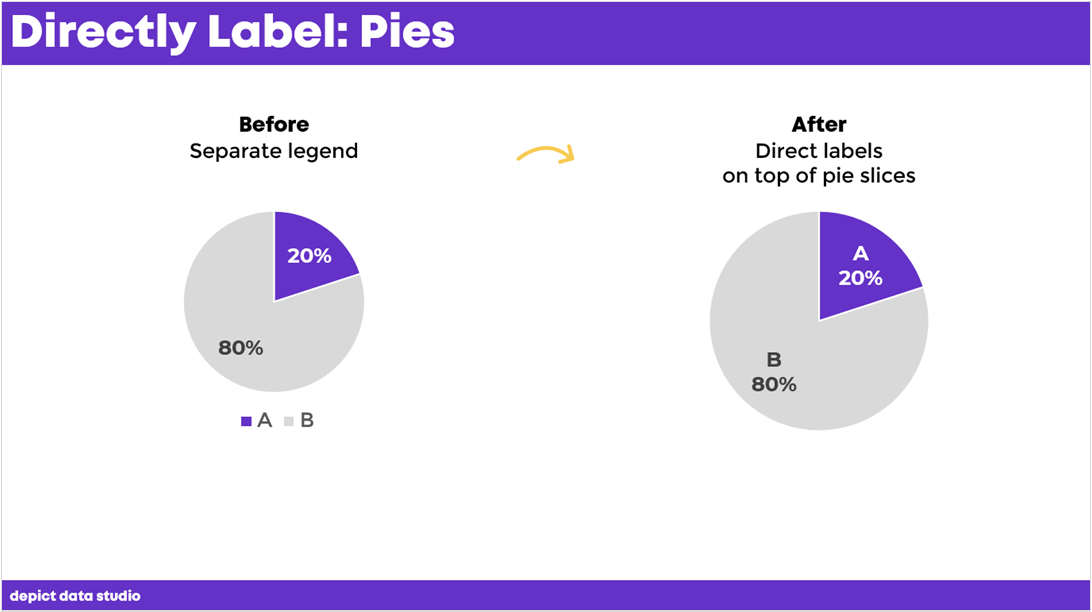
But we still need to directly label them, and it’s as easy as putting the labels as close as physically possible to their slices.

For example, if you have short labels, you can place the labels on top of the pie slices.

How do you directly label a pie chart? By putting the labels as close as physically possible to their slices.

Now it’s speedier for people to read, it’s legible in grayscale, and it’s even legible for people with color vision deficiencies.

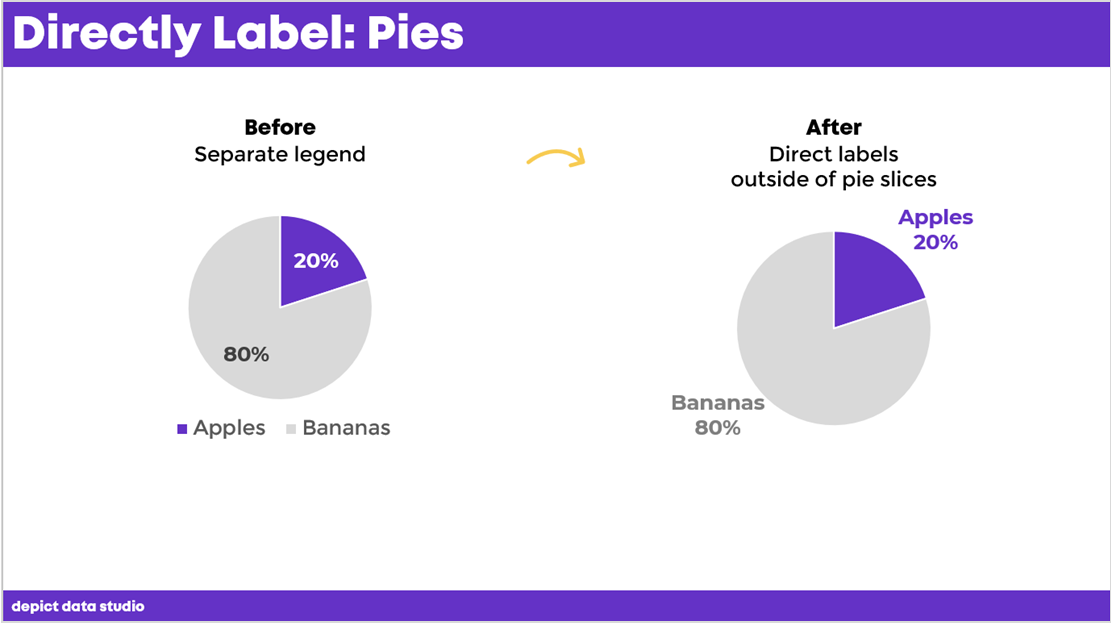
A question I get a lot is, “But if I have really long labels?” I know most of us aren’t comparing A to B.

If you have long labels, you can put your labels outside of the pie charts.

Bonus points again if you color-code the labels to the corresponding slices.

A question I get a lot is, “But if I have really long labels?” If you have long labels, you can put your labels outside of the pie charts.

How to Label Donut Charts

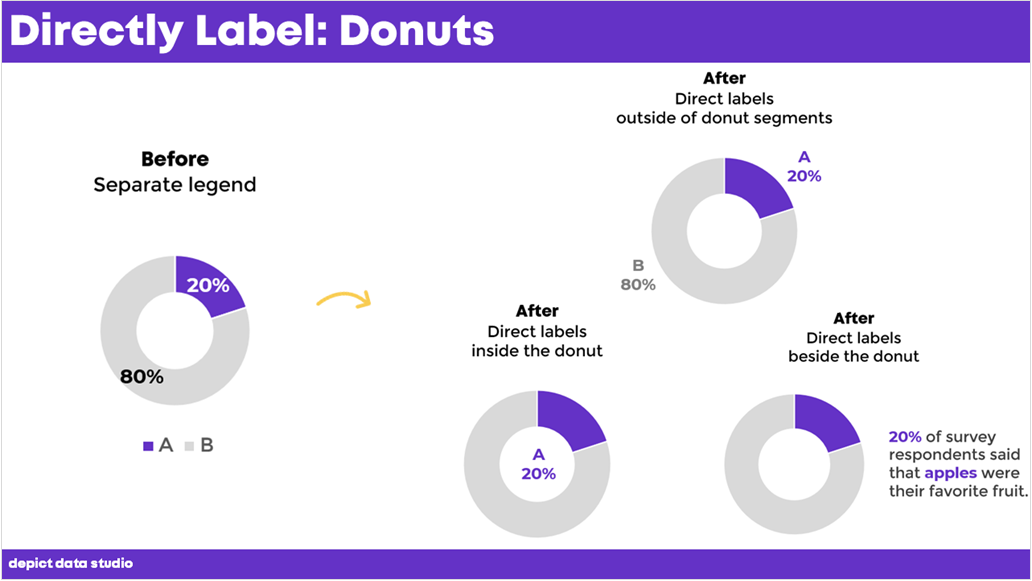
Here’s another scenario for you with donuts. You’ve seen these, right? They’re just a pie chart with a hole punched in the middle.

They have the same rules as pie charts: two slices (max), with one dark slice versus everything else.

But, it’s really hard to fit any labels on top of donut segments. So how do you label these?

You have three options:

  1. Outside of the donut segments
  2. Inside the donut itself
  3. Beside the donut
It’s really hard to fit any labels on top of donut segments. So how do you label these? 1) Outside of the donut segments 2) inside the donut itself or 3) Beside the donut.

How to Label Bar Charts

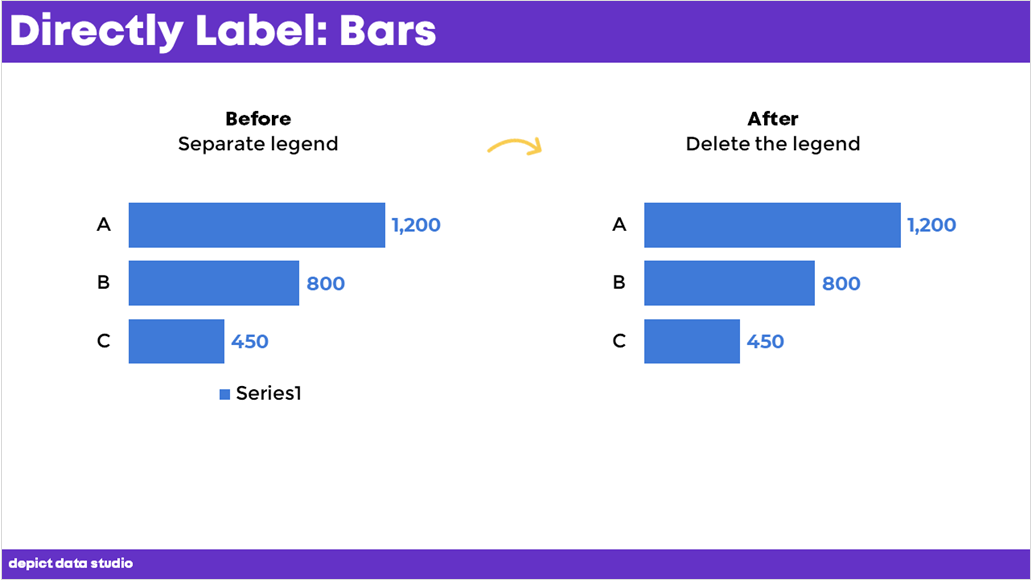
Have you ever seen this, where Excel gives a legend that reads something like ‘Series1’?

This is confusing for viewers. To fix it, all you need to do is delete the legend.

Have you ever seen this, where Excel gives a legend that reads something like ‘Series1’? This is confusing for viewers. To fix it, all you need to do is delete the legend.

How to Label Clustered Bar Charts

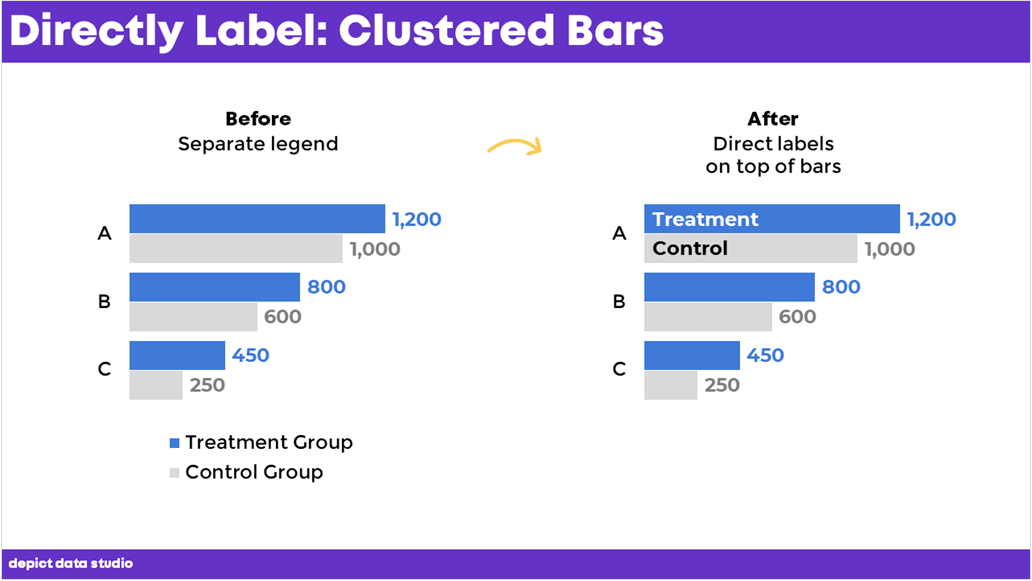
If your bars are long enough, you can place the labels on top of the bars, like this.

No need to label every single bar. Teach the viewers how to read the chart by labeling the top bars. Then, let them read the rest on their own.

If your bars are long enough, you can place the labels on top of the bars, like this.

During the Good Test Fest talk, an audience member asked how I added those labels.

You can:

  • Add text boxes on top of the bars (beware: clunky and time-consuming)
  • Use fancier automation techniques (e.g., concatenating the words and numbers together, a technique from this course)

How to Label Clustered Column Charts

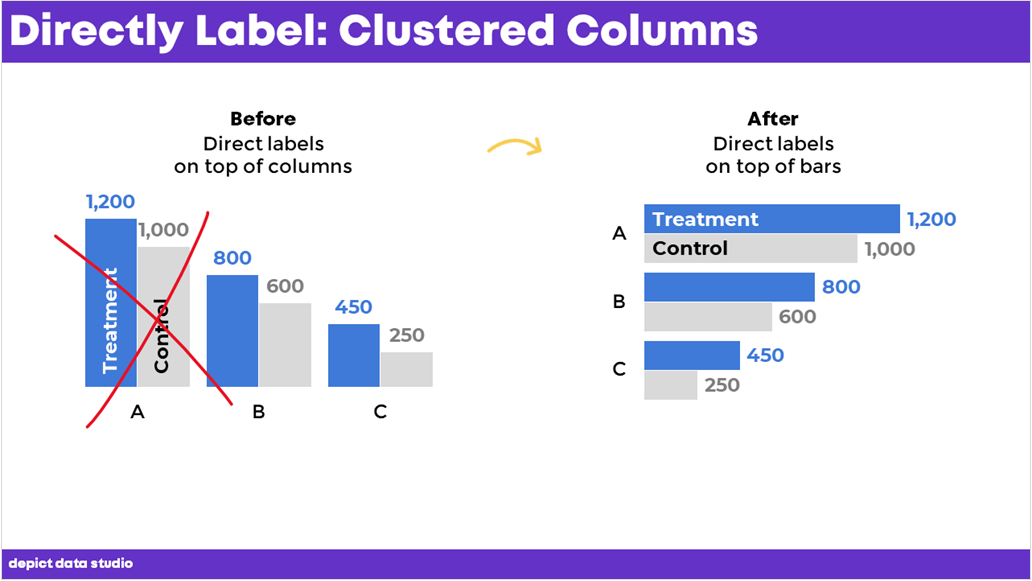
I’m not a fan of putting the labels on the columns. The labels would need to be rotated vertically, which takes longer to read than horizontal labels.  

I typically use horizontal clustered bar charts to allow for horizontal labels, which are the fastest to read.

I typically use horizontal clustered bar charts to allow for horizontal labels, which are the fastest to read.

Download the eBook

Want to learn more about accessible data visualization?

In this ebook, you’ll learn 10 quick wins for designing accessible data visualizations. These small edits can have a big impact for our coworkers, board members, and funders who have color vision deficiencies, hearing loss, or learning disabilities–and for all of us who are pressed for time.

Download the Ebook

For your complimentary copy, use code: goodtechfest
Written by cplysy · Categorized: depictdatastudio

Nov 16 2021

10 Tips for Redesigning Reports

2011 called.

It wants its 100-page reports back.

My wish: Limit yourself to just 30 pages (or less!).

It wants its portrait reports back.

Are people printing your doc… or reading it from their (landscape) computer?

It wants its text-heavy reports back.

We need visuals on every single page.

Ready to revamp your technical reports?

10 Tips for Redesigning Reports

Here are 10 quick wins to improve your next text-heavy document.

You don’t need to apply all 10.

Even one of these techniques will make dense reports more readable for our non-technical and busy audiences.

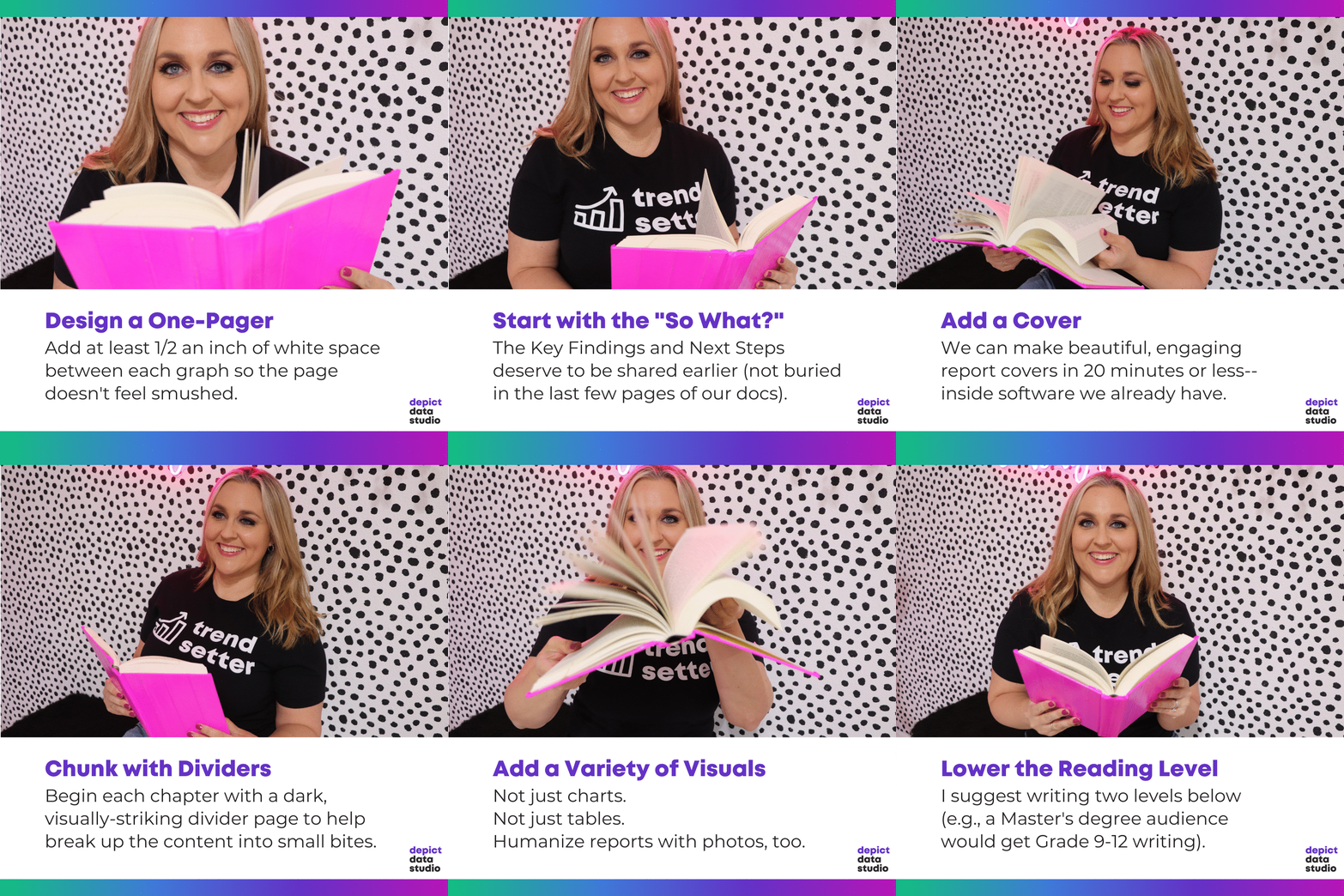
Design a One-Pager 

The 30-3-1 Approach is the bare minimum for designing reports that actually inform decisions. You can read more about 30-3-1 here.

When you’re creating one-pagers, don’t forget to add at least ½ inch of white space between each graph so the page doesn’t feel smushed.

It’s tempting to try and fit everything into a one-pager. A one-pager is just the highlights; the full report can go into more detail.

Use Brand Colors and Fonts 

Never, ever, ever use your software program’s defaults. 

I’m looking at you, Calibri.  

If you’re using Microsoft Office programs, like Excel, Word, or PowerPoint, then Theme Colors and Theme Fonts can save you hours of time.

Start with the “So What?” 

The Key Findings and Next Steps deserve to be shared earlier (not buried in the last few pages of our docs).  

Use Landscape Orientation 

Will you pay to print your reports and mail them to your recipients? 

If not, they’ll probably read in on their (landscape) computer screen.  

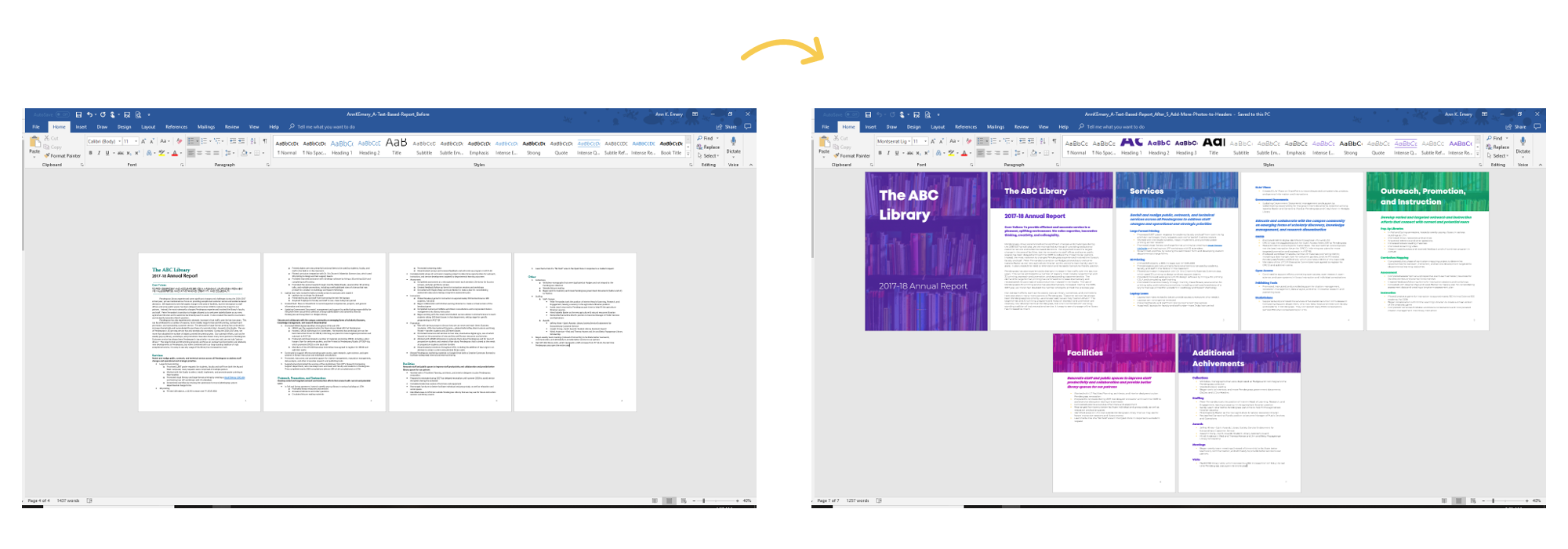
Add a Cover 

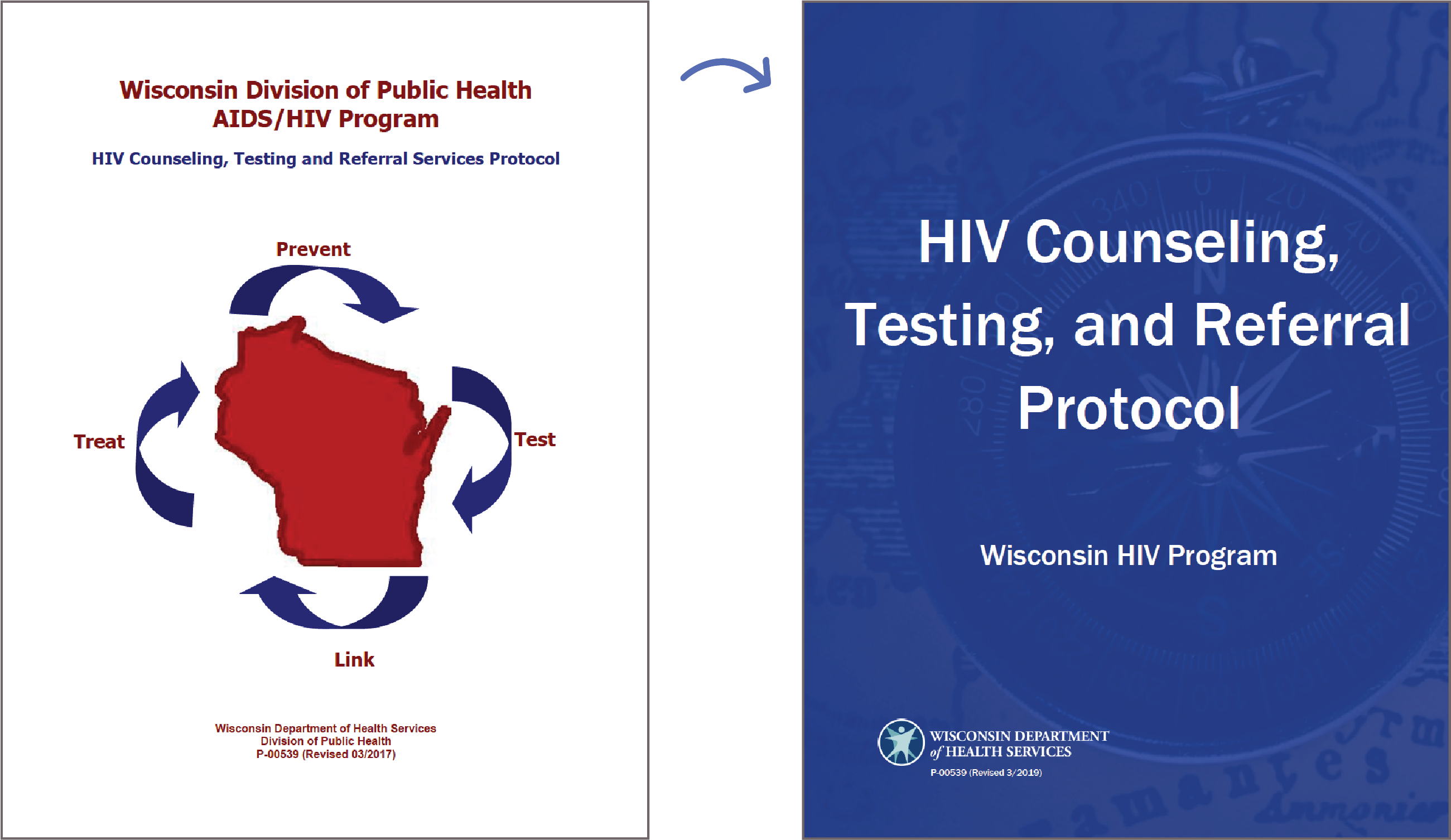
We can make beautiful, engaging report covers in 20 minutes or less— inside software we already have.  

Here’s one of my favorite before/after transformations from Sara DeLong:

An example of an eye-catching cover that only took 20 minutes to create.

Chunk with Dividers 

Begin each chapter with a dark, visually-striking divider page to help break up the content into small bites.  

Size your fonts according to their importance. A text hierarchy tells your viewers which information is most important (headings) and which information is least important (the regular ol' paragraphs).

Add 1+ Visual Per Page 

Think of a recent report: how many pages had visuals? 

The Text Wall takes too long to read.  

Add a Variety of Visuals 

Not just charts.

Not just tables. 

Humanize reports with photos, too.  

You can grab my Checklist of 15 Types of Visuals from this podcast with Alli Torban.

Go Beyond the Bar Chart 

My old reports: bars, clustered bars, stacked bars and columns charts.  

Zzzzzzzzzzzzz… 

Let’s escape the bar chart.  

Lower the Reading Level 

I suggest writing two levels below (e.g., a Master’s degree audience would get Grade 9-12 writing).  

Your Turn 

Which tip will you apply to your next technical report? Comment anytime and let me know.

Written by cplysy · Categorized: depictdatastudio

Nov 09 2021

Designing a Prettier and More Effective Dashboard with Excel

Shawna Rohrman, Ph.D., is the Evaluation Manager for the Cuyahoga County Office of Early Childhood and its public-private partnership, Invest in Children. She enrolled in our Dashboard Design course and is sharing how she uses her new skills in real life. Thanks for sharing, Shawna! –Ann

—–

Using a dashboard has been central to my work as a program evaluator.

My office funds several early childhood programs that all differ in their program content, performance indicators, and outcomes.

As the person who reviews each program’s quarterly report showing progress on each of their performance indicators, I am also often asked to report overall performance for our office—for example, total number of families served or number of home visits made.

This can be unwieldy when looking across many reports, and it’s useful to have a document that allows us to assess progress across all the programs at once.

When I enrolled in Ann’s Dashboard Design course, my goal was to build on an existing document, making it easier to read and identify successes and areas for improvement.

From a Basic Many-Paged Table in Word…

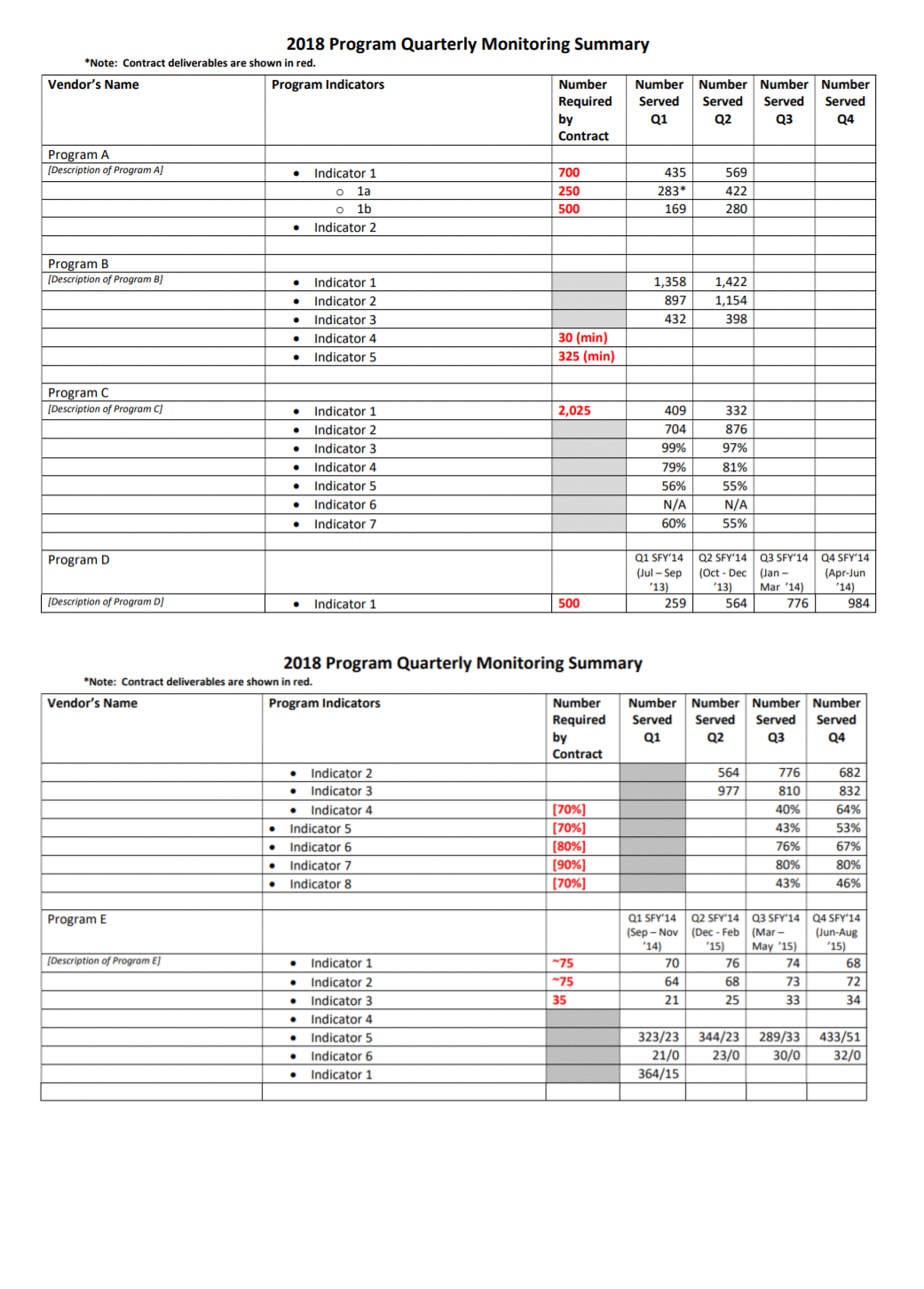
Initially, our office used a table in a Word document to track quarterly performance across programs.

It served the basic function of being able to see, in one file, how each program was doing each quarter. But it was lacking in a few areas.

One was that, although the annual targets for indicators were clearly marked in red and there were quarterly totals, there was no annual or year-to-date total to compare to the target.

Additionally, although it was very helpful to have all the performance data in one place, it wasn’t especially easy to see trends from quarter to quarter and the table split across two pages.

Initially, our office used a table in a Word document to track quarterly performance across programs. It served the basic function of being able to see, in one file, how each program was doing each quarter. But it was lacking in a few areas.

…To a One-Page Visual Overview of Key Performance Metrics

The first thing I did to make data tracking easier was move to Excel.

Even before taking Ann’s Dashboard Design course, I knew Excel was the smarter choice just for the ability to use formulas.

I also worked with my colleagues—the main audience of this internal performance-monitoring dashboard—to determine what features would be most useful. We came up with a few that make the dashboard much more user-friendly.

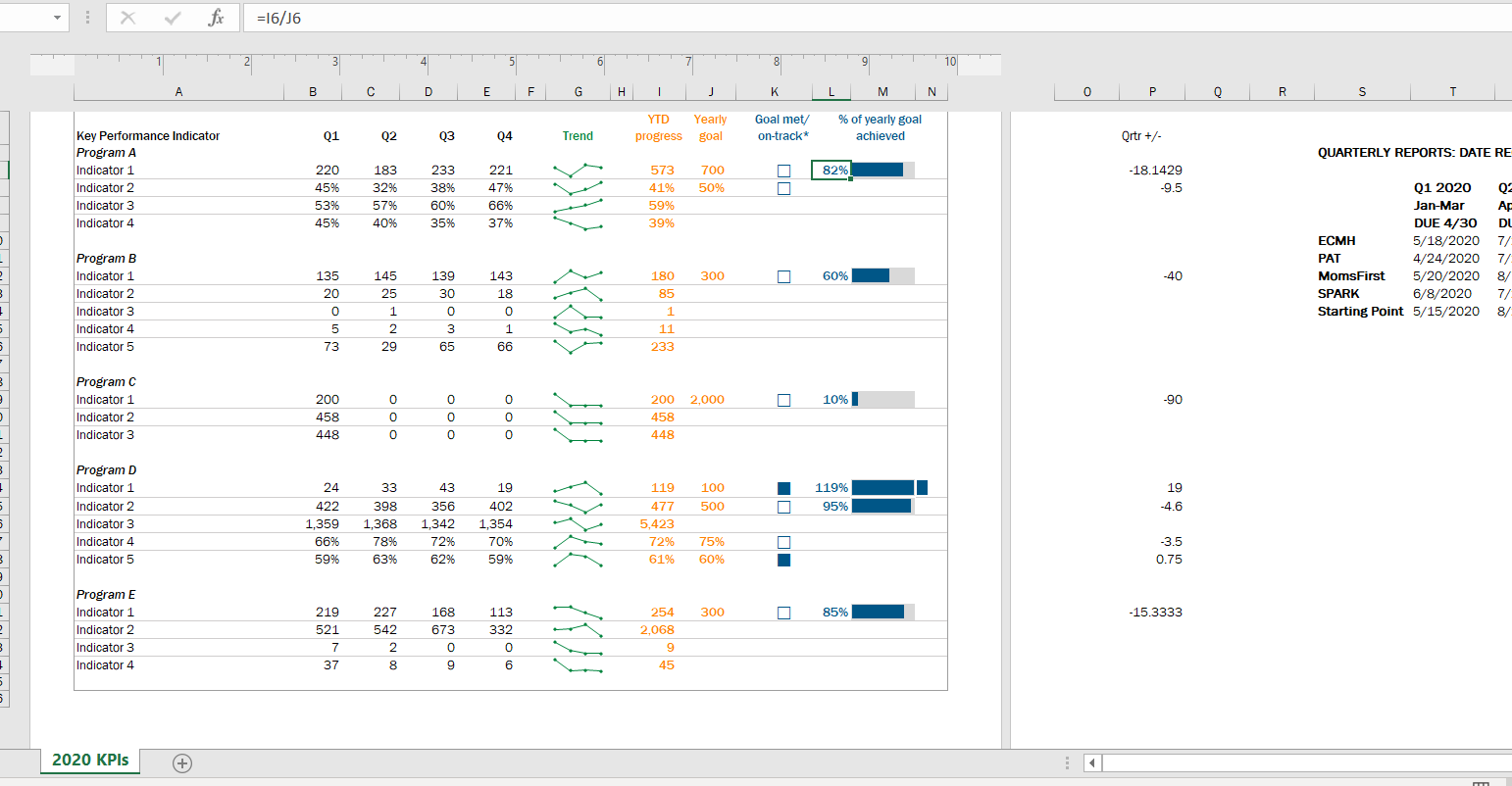
First, we chose a few key indicators to include on a cover page (pictured below). This allowed us to see the most critical data for each program all on one page, rather than having to scroll or flip through several pages.

In this Excel workbook the cover page is followed by separate worksheets, each showing one program’s data on their full list of performance indicators, which is helpful when we are taking a deeper dive into one program’s work.

In this Excel workbook the cover page is followed by separate worksheets, each showing one program’s data on their full list of performance indicators, which is helpful when we are taking a deeper dive into one program’s work.

Second, we all agreed the dashboard needed year-to-date totals to compare with the yearly targets.

This is especially helpful for some indicators, like number of individuals served, where many people continue to participate in a program from quarter to quarter.

Adding up the quarterly number served would count longer-term participants more than once; the unduplicated total is essential for understanding whether the program is meeting its contract target.

I took what I learned in Ann’s Dashboard Design course and added a third feature to visualize progress toward the yearly target: checkboxes and progress bars.

The checkboxes allowed us to see whether, at the end of each quarter, the program was on track to meet the yearly target. So, for example, a program would have to exceed 50% of the performance target at the end of Q2 (halfway through the year) in order to be “on track.”

The progress bar shows exactly what percent of the yearly goal has been achieved year-to-date. I used helper cells outside the print area to determine whether the checkboxes would be filled or empty.

Finally, we found it helpful to use sparklines (another tool learned in Ann’s class!) to succinctly show how performance changed from quarter to quarter.

In 2020, the second quarter was an especially unusual time as programs adjusted to the start of the pandemic. Seeing dips and spikes during that time helped us get a quick sense of what was working and what was not, and we were able to use that information to drill down with program staff.

The Outcome: More Effective Use of Data in Decision-Making

Even with just these few changes (and using a program nearly everyone can access!), our new performance monitoring dashboard has made it so much easier for our team to review quarterly progress in one place and visualize how our system of early childhood programs are working for children and families in the county.

The dashboard has become a quarterly staple at our staff meetings, where we review as a group and use the data to generate next steps.

It is also easy to share with senior leadership, so they can see at-a-glance the important work our programs are doing.

Written by cplysy · Categorized: depictdatastudio

  • « Go to Previous Page
  • Go to page 1
  • Interim pages omitted …
  • Go to page 23
  • Go to page 24
  • Go to page 25
  • Go to page 26
  • Go to page 27
  • Interim pages omitted …
  • Go to page 37
  • Go to Next Page »

Footer

Follow our Work

The easiest way to stay connected to our work is to join our newsletter. You’ll get updates on projects, learn about new events, and hear stories from those evaluators whom the field continues to actively exclude and erase.

Get Updates

Want to take further action or join a pod? Click here to learn more.

Copyright © 2026 · The May 13 Group · Log in

en English
af Afrikaanssq Shqipam አማርኛar العربيةhy Հայերենaz Azərbaycan dilieu Euskarabe Беларуская моваbn বাংলাbs Bosanskibg Българскиca Catalàceb Cebuanony Chichewazh-CN 简体中文zh-TW 繁體中文co Corsuhr Hrvatskics Čeština‎da Dansknl Nederlandsen Englisheo Esperantoet Eestitl Filipinofi Suomifr Françaisfy Fryskgl Galegoka ქართულიde Deutschel Ελληνικάgu ગુજરાતીht Kreyol ayisyenha Harshen Hausahaw Ōlelo Hawaiʻiiw עִבְרִיתhi हिन्दीhmn Hmonghu Magyaris Íslenskaig Igboid Bahasa Indonesiaga Gaeilgeit Italianoja 日本語jw Basa Jawakn ಕನ್ನಡkk Қазақ тіліkm ភាសាខ្មែរko 한국어ku كوردی‎ky Кыргызчаlo ພາສາລາວla Latinlv Latviešu valodalt Lietuvių kalbalb Lëtzebuergeschmk Македонски јазикmg Malagasyms Bahasa Melayuml മലയാളംmt Maltesemi Te Reo Māorimr मराठीmn Монголmy ဗမာစာne नेपालीno Norsk bokmålps پښتوfa فارسیpl Polskipt Portuguêspa ਪੰਜਾਬੀro Românăru Русскийsm Samoangd Gàidhligsr Српски језикst Sesothosn Shonasd سنڌيsi සිංහලsk Slovenčinasl Slovenščinaso Afsoomaalies Españolsu Basa Sundasw Kiswahilisv Svenskatg Тоҷикӣta தமிழ்te తెలుగుth ไทยtr Türkçeuk Українськаur اردوuz O‘zbekchavi Tiếng Việtcy Cymraegxh isiXhosayi יידישyo Yorùbázu Zulu