• Skip to main content
  • Skip to footer
  • Home

The May 13 Group

the next day for evaluation

  • Get Involved
  • Our Work
  • About Us
You are here: Home / Archives for allblogs / depictdatastudio

depictdatastudio

Jun 08 2021

Escaping the Bar Chart

Bar charts aren’t evil. But they’re overused.

Ready to escape the bar chart? I talked about Designs to Start Using Instead at the DataScienceGO conference in April 2021.

Watch the Conference Session

Choose Your Own Adventure

This was a Choose Your Own Adventure presentation, where I gave the conference attendees a chance to vote for the chart families they wanted to learn about.

These non-linear presentations aren’t for everyone. You need to be extremely comfortable with the topic area and with presenting. You can learn more about Choose Your Own Adventure presentations here.

Exploratory Data Visualization

First, we talked about my three favorite techniques for exploratory data visualization:

  1. Spark lines
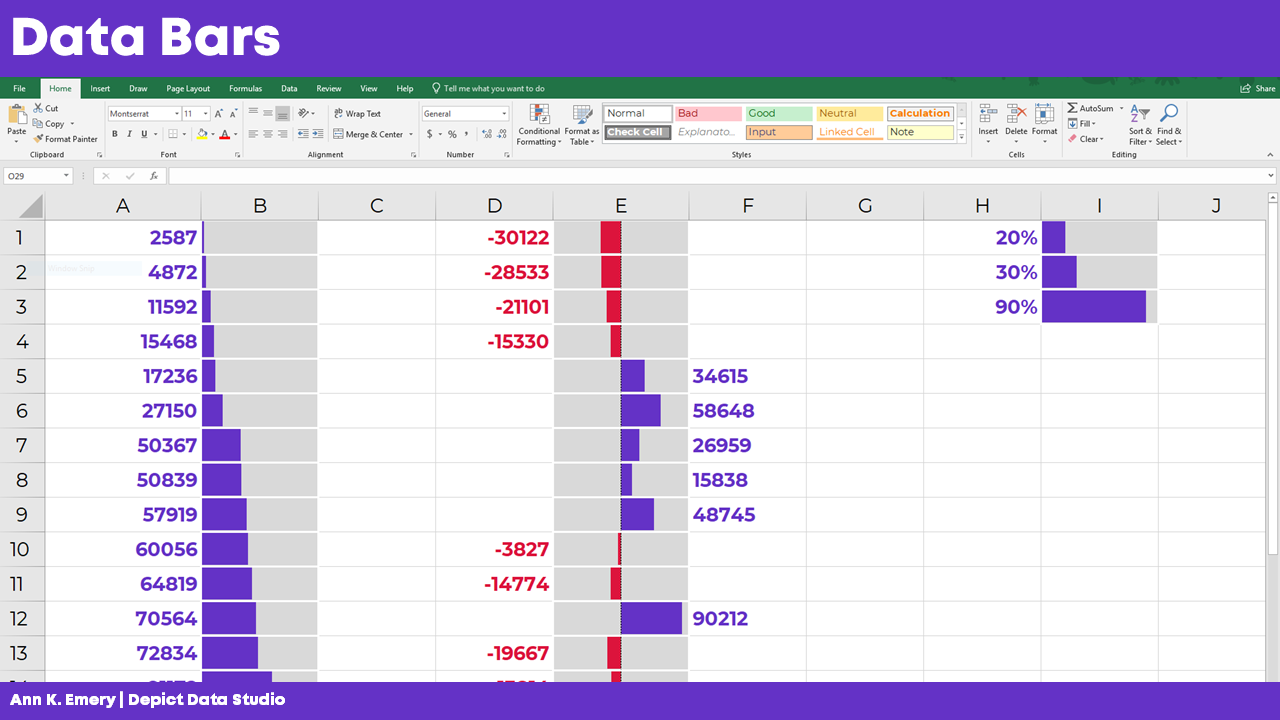
  2. Data Bars
  3. Heat Tables

Spark Lines

Want to add miniature trend lines to your spreadsheet? Here’s how:

  • Highlight the top row of your dataset (the numbers that you want to visualize).
  • Go to the Insert tab.
  • Click on the Sparklines button.
  • Follow the instructions: Choose where you want the sparklines to be placed. I usually position them off to the right side of my dataset.
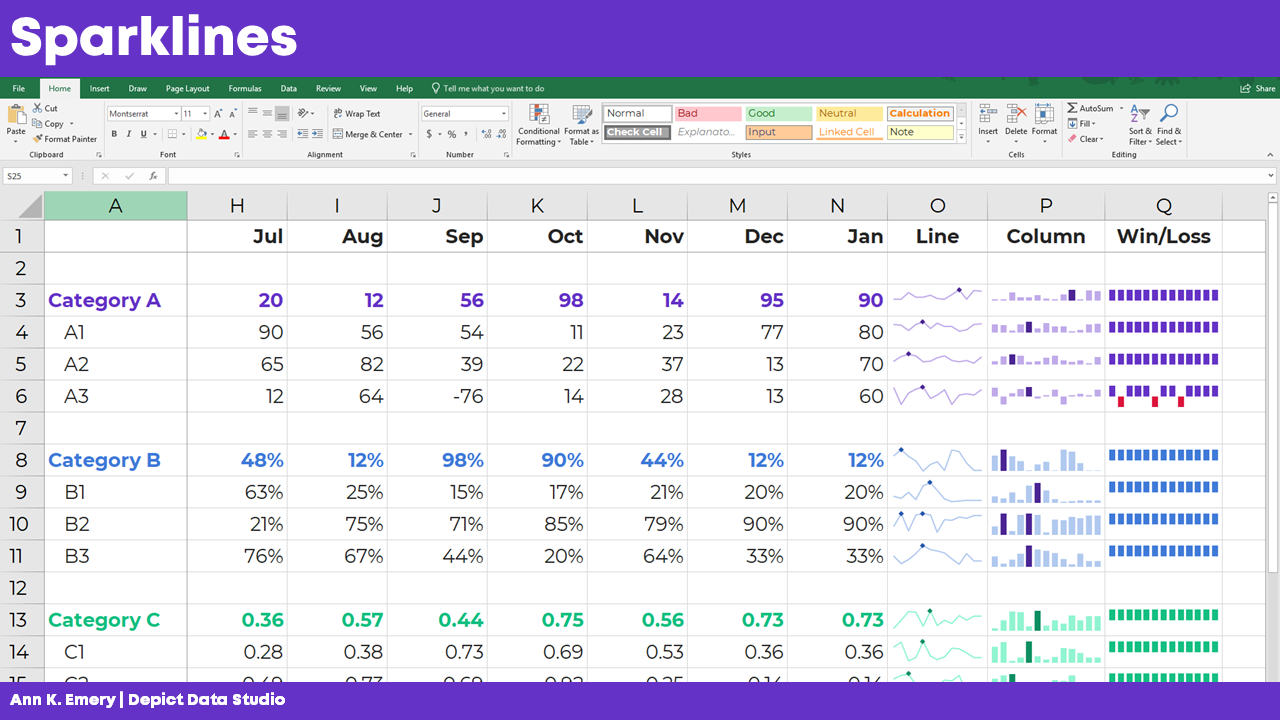
One option besides a bar chart is to use miniature trend lines or spark lines.

Data Bars

Want to explore your dataset with miniature horizontal bars? Here’s how:

  • Highlight the data you want to visualize.
  • Stay on the Home tab.
  • Click on the Conditional Formatting button.
  • Choose a solid-filled Data Bar.
One option besides a bar chart is to use miniature horizontal bars or data bars.

Heat Tables

We can also explore our dataset with instant color-coding. Here’s how to add a heat map or heat table to your spreadsheet:

  • Highlight the data you want to visualize.
  • Stay on the Home tab.
  • Click on the Conditional Formatting button.
  • Choose a Color Scale.

PLEASE avoid the inaccessible options—anything with red and green. Most of the Conditional Formatting options are absolute garbage, to be honest. Here’s a blog post that lists which Conditional Formatting options to avoid altogether—and what to use instead.
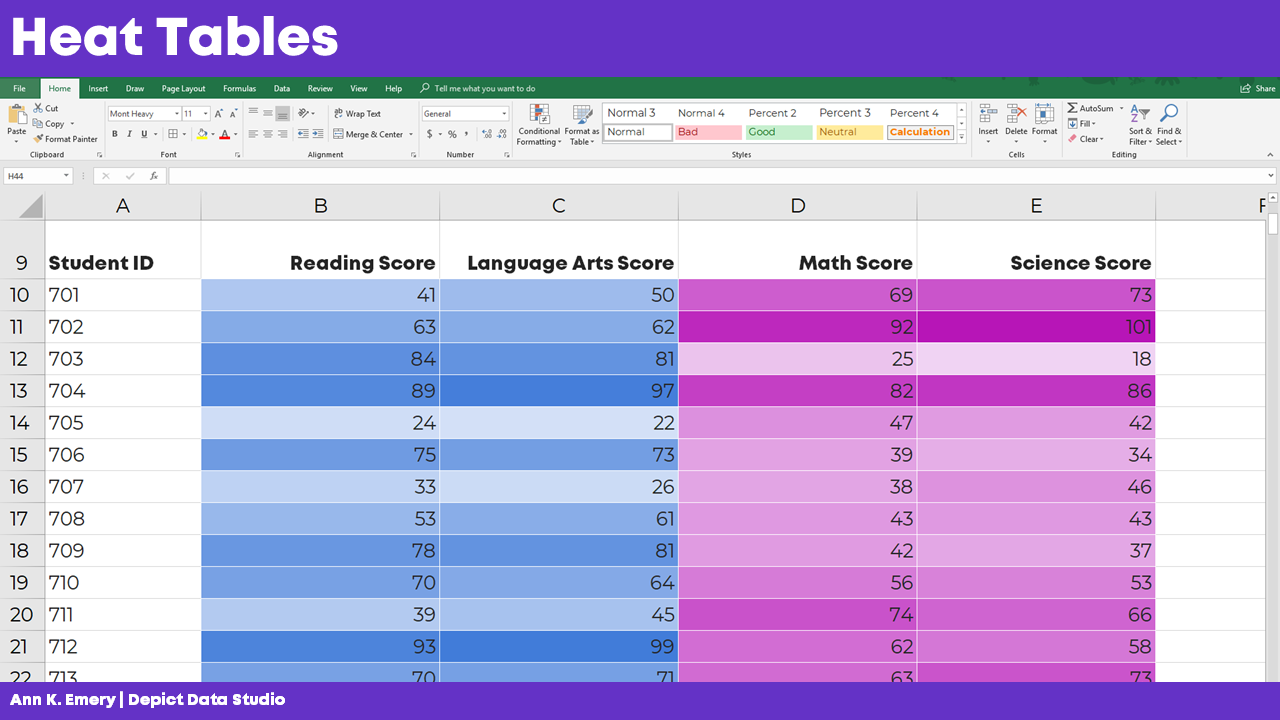
You can also add add a heat map or heat table to your spreadsheet.

Want more info? In the video, you’ll see me open Excel and provide how-to tutorials.

Maps

Next, we discussed a few options for maps.

Choropleth Maps

You’ve seen this one: The regular ol’ color-coded map, or choropleth. Big numbers are dark. These maps are familiar and intuitive.

But, there’s a problem with regular maps: The large places can dwarf the small places. No matter how dark we color-in tiny Delaware, for example, the larger places like Texas and Alaska will always steal the show.

Cartographers have a name for this misleading issue with regular maps. It’s called The Alaska Effect.
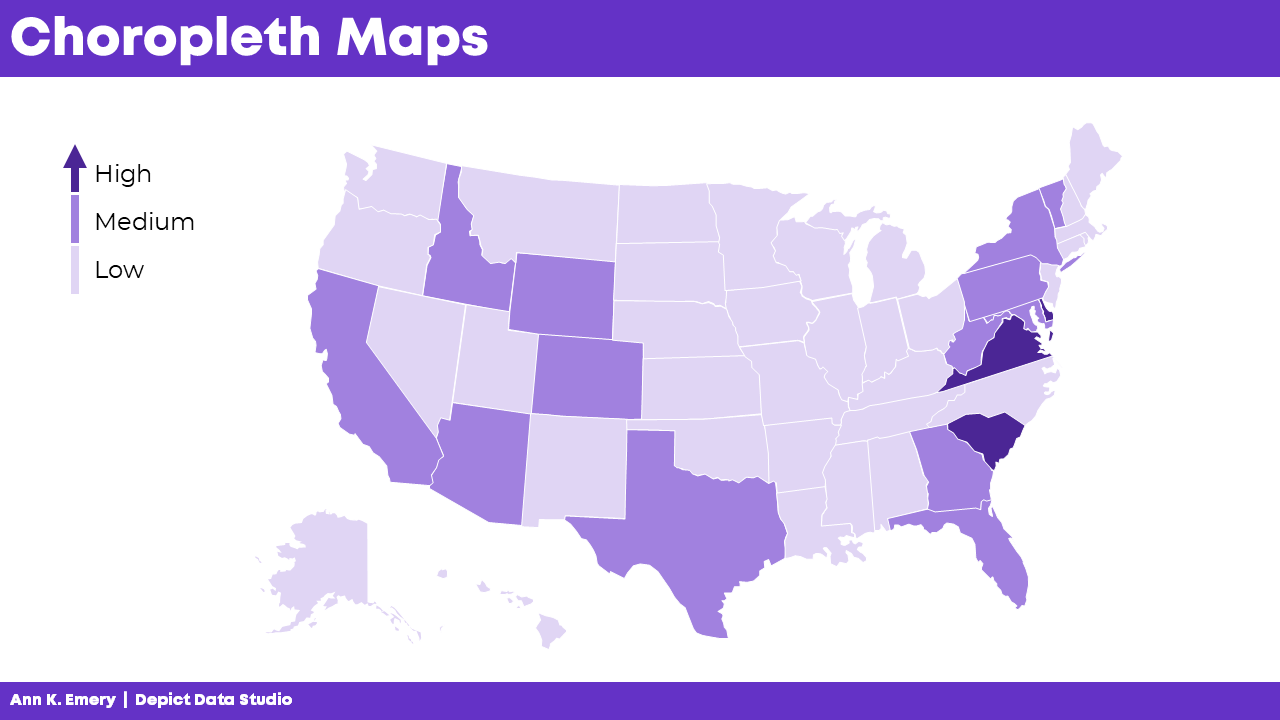
You’ve seen this one: The regular ol’ color-coded map, or choropleth. Big numbers are dark. These maps are familiar and intuitive.

Tile Grid Maps

Don’t worry, we’re not doomed by The Alaska Effect! There are a couple alternatives worth mentioning.

Square tile grid maps can help us overcome The Alaska Effect. Every location is the same shape and size, so now our audience only has to look at color. In other words, since Delaware and Texas are the same shape and size, we’re free to focus entirely on color.

BUT.

There’s a learning curve with tile grid maps. They’re almost too novel. Sometimes we spend more time focusing on why our home state isn’t in the right spot than on actually finding patterns in the data.

Tile grid maps have become more and more common over the years. In the video, I show you some real-life examples from the Urban Institute, the Washington Post, Child Trends, CNN, and National Geographic.
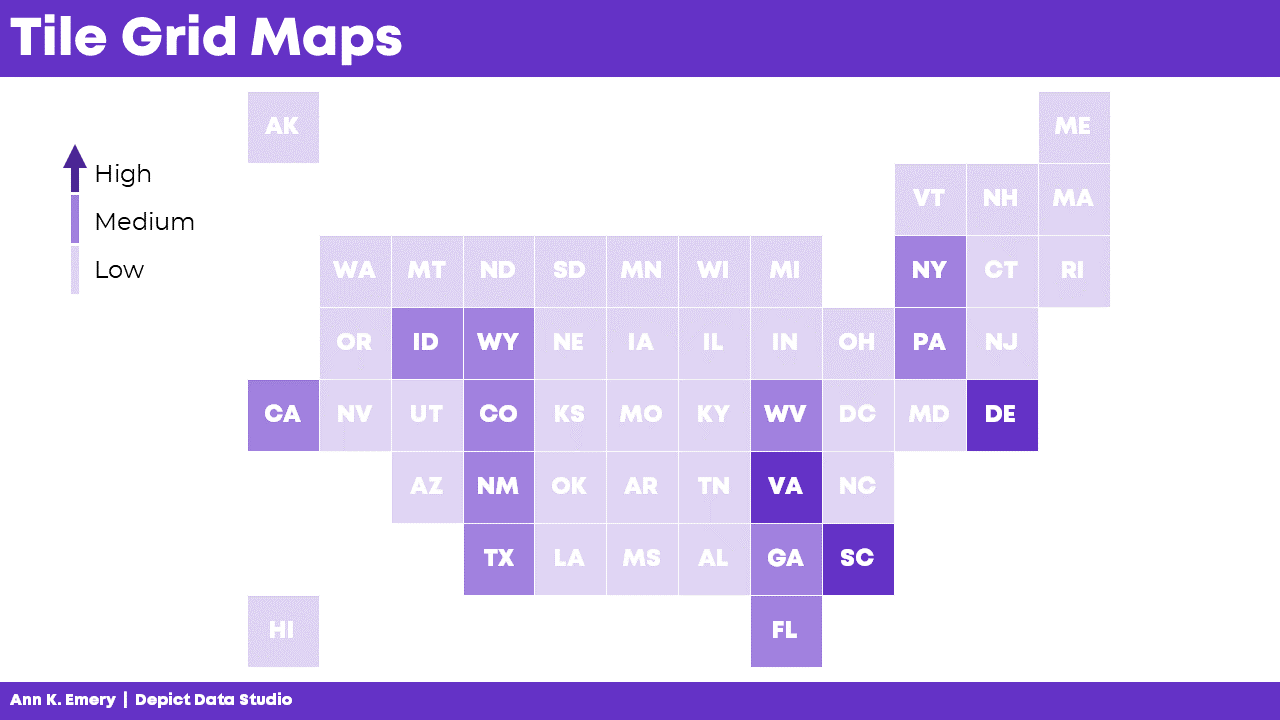
Square tile grid maps can help us overcome The Alaska Effect. Every location is the same shape and size, so now our audience only has to look at color.

Hex Maps

Rather than using squares…. What if we try hexagons?

With six edges, hex maps give us more flexibility in arranging the shapes. That way, the maps can look closer to real-life maps.

In the video, I discuss some additional advantage of hex maps:

  • Hex maps combat the Alaska Effect.
  • Hex maps include more of the correct neighboring states compared to square maps.
  • Hex maps include the correct southern tips.
  • Hex maps include more notches for the Great Lakes.
  • Hex maps visualize the correct four corners of the U.S.

And of course, hex maps aren’t just for the United States. You can create maps for zip codes, Census tracts, states, provinces, countries, etc. In the video, I show you a waffle map of African countries.
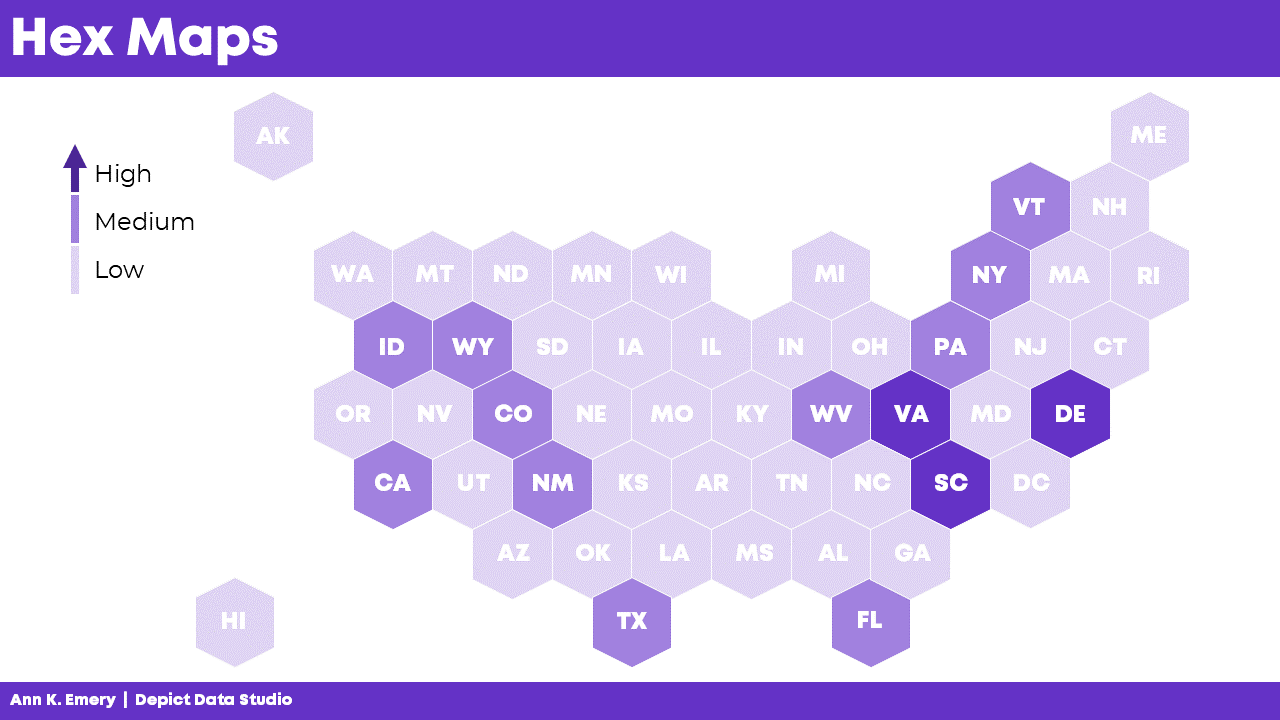
With six edges, hex maps give us more flexibility in arranging the shapes. That way, the maps can look closer to real-life maps.

Learn More

You can download the 2-page Chart Chooser at https://depictdatastudio.com/chartchooser/. Use code DataScienceGO for a complimentary download.
Written by cplysy · Categorized: depictdatastudio

Jun 01 2021

Why “Know Your Audience” is Terrible Dataviz Advice—and What to Do Instead

Every time I scroll through social media, someone’s post is telling me:

“Want to know the secret to great dataviz?! Know your audience!”

“Want to make a great dashboard?! Know your audience!!”

I mean… duh.

“Knowing your audience” is terrible data visualization advice.

What does that even mean?! It’s too broad. It’s too generic. It’s too beginner-level.

What’s the alternative? Not know my audience?  Ignore their preferences altogether? Of course not.

In this article, let’s dive deeper. Let’s look at specific, nuanced, advanced ways of “knowing our audience.”

8 Questions to Understand Our Audiences’ Dataviz Preferences

Here are 8 discussion-starter questions that help us better understand the people who’ll be receiving our finished data visualizations.

Who’s Our Audience?

First, sit down with your colleagues and list all the audiences for your upcoming project. Who are you trying to reach with your report, slideshow, dashboard, or infographic? List the audiences inside a document, on a whiteboard, etc.

This sounds obvious. It is. Common sense isn’t common practice.

If you have more than 3 audiences, then prioritize them. Put a star next to the 3 highest-priority audiences.

This sounds obvious. It is. Common sense isn’t common practice.

You might have a particular audience in mind… and realize that your coworker has an entirely different audience in mind.

You might assume that Audience A is the top priority. Your coworker might assume that Audience B is the top priority. And so on.

A decade ago, when I was a data analyst inside a large nonprofit organization, my audiences included:

  1. Board of Directors*
  2. Executive Director*
  3. Mid-level managers
  4. Frontline staff
  5. Program participants
  6. Current donors
  7. Prospective donors*
  8. Local policymakers
  9. Grant writers
  10. My direct supervisor
  11. Peers at data conferences

Internal or External?

Second, list whether each audience is internal or external (to the organization, project, program, or policy).

For example, our Executive Director was obviously an internal audience. She worked within my same organization. Our Board members didn’t work within our organization, but they were still internal, because they were insiders to our terminology and topic areas. Donors, however, were external.

Figuring out whether audiences are internal or external should be obvious.

It’s the implications that take time to think through: How will you display data differently for internal vs. external audiences?

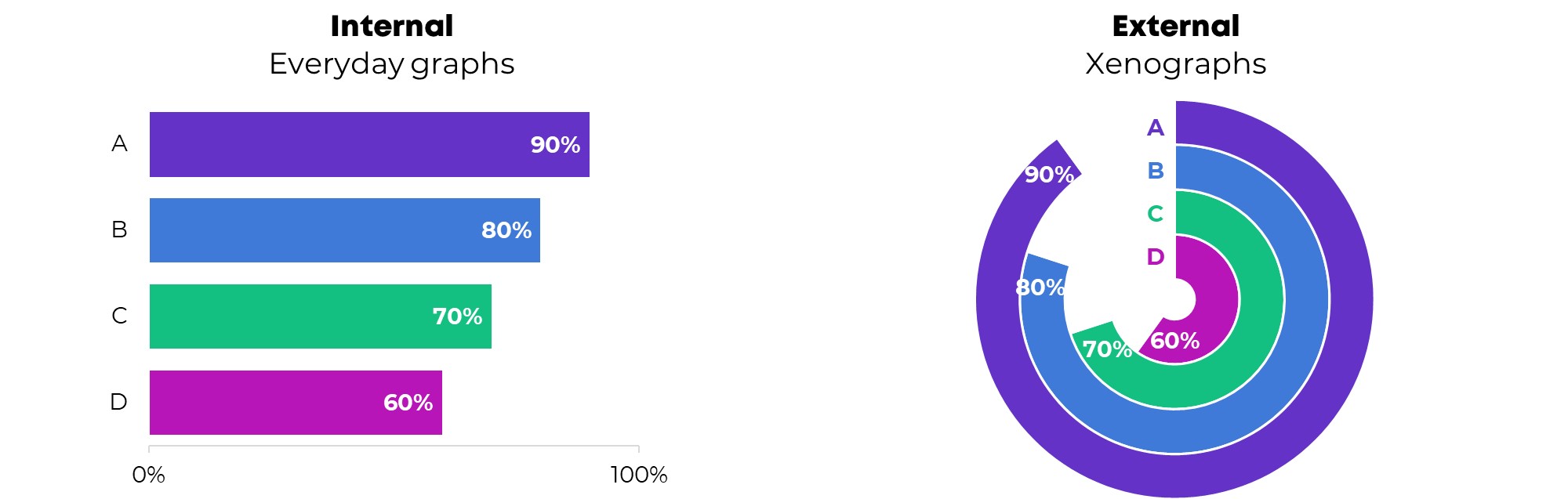
Here’s one implication: Internal audiences might prefer everyday charts, like bar charts. They’re already bought-into the topic area—they literally work on your same topic area 40+ hours a week alongside you—so they might not care about interesting chart types. External audiences, on the other hand, might prefer xenographs. We can draw them in with interesting chart types, like b’arc charts.

What Actions Should Be Taken?

Third, plan out what types of actions you want your audiences to take based on the dataviz you’re going to share with them.

“I want my audiences to be informed.” Of course. But are they supposed to do based on that information??

At a recent conference presentation, I asked attendees how their data projects had been used to inform decisions. Here are some examples from those conference attendees:

  • A committee was formed to address the recommendations – Karla
  • We created a “lessons learned” report about System of Care development in our state; to this day, our report is referenced and shared with new staff – Kaela
  • Saved funding for a program due to promising findings! – Juliana
  • Changed approach to how students asked to participate in services – Christy
  • We have had elements incorporated into the statewide health plan – Sharon
  • Our evaluation of our state’s response to dementia led to a new dementia program in the Division of Public Health! – Sasha
  • “Lessons learned” report invoked lots of thinking, and management changed shelter construction designs that were not working for beneficiaries – Dennis

Planning these actions in advance will help you collect and visualize the data needed to inform those decisions. It keeps our eye on the prize.

Technical or Non-Technical?

Fourth, list whether each audience is technical or non-technical. Technical audiences love spreadsheets. Non-technical audiences would rather be doing something else: managing the people, running the program, or leading the policy initiative.

Recognizing whether each audience is technical or non-technical is the easy part.

The fun part is thinking about the implications. How will you display data differently??

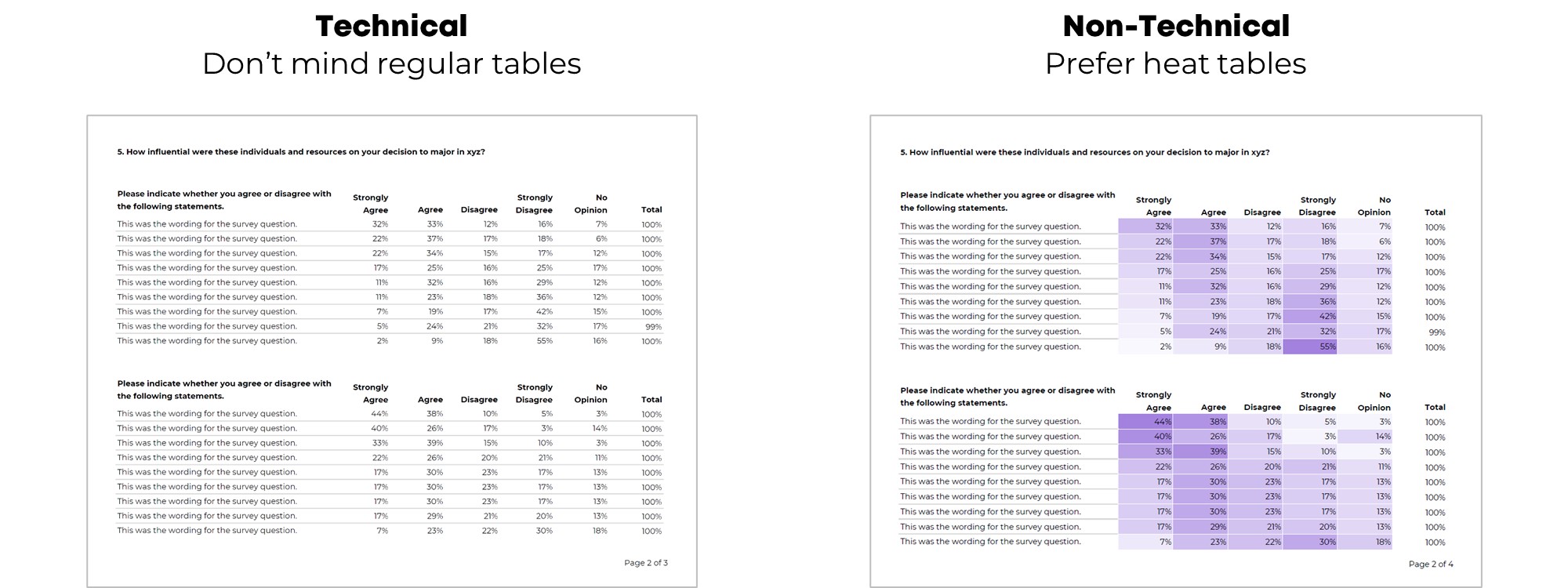
Here’s one example: Technical audiences don’t mind regular tables, while non-technical audiences prefer heat tables.

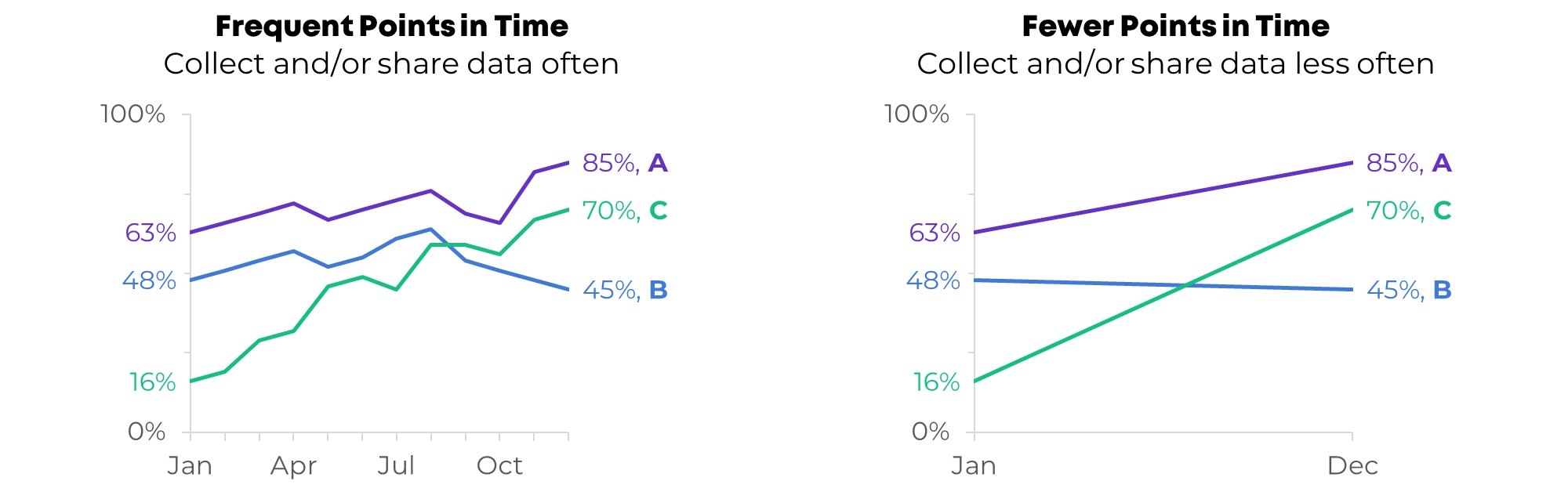
How Many Points in Time?

Fifth, decide how often you’ll collect and share data with each audience: Daily, weekly, monthly, quarterly, or annually.

Audiences at the top of org charts need strategic information: The big-picture data needed to guide to long-term vision of the work. They don’t need daily updates; they’d get lost in the weeds. For example, a Board of Directors might value seeing data at annual intervals. They need to plan for where the organization is headed over the next 5-10 years, so I often show them the past 5-10 years of data, at annual increments, to help them see the big-picture of what’s taking place.

Audiences who are on the front line, running the day-in and day-out work, need operational information. They need to see data more frequently. They need to come into their office on Monday morning and figure out their priorities for the upcoming week or month. Waiting until the end of the year to give them annual data would be useless.

What Types of Comparisons?

Sixth, discuss what types of comparisons our audiences need to make.

Whoa, beware, I have a lot to say about this one. It probably warrants its own article.

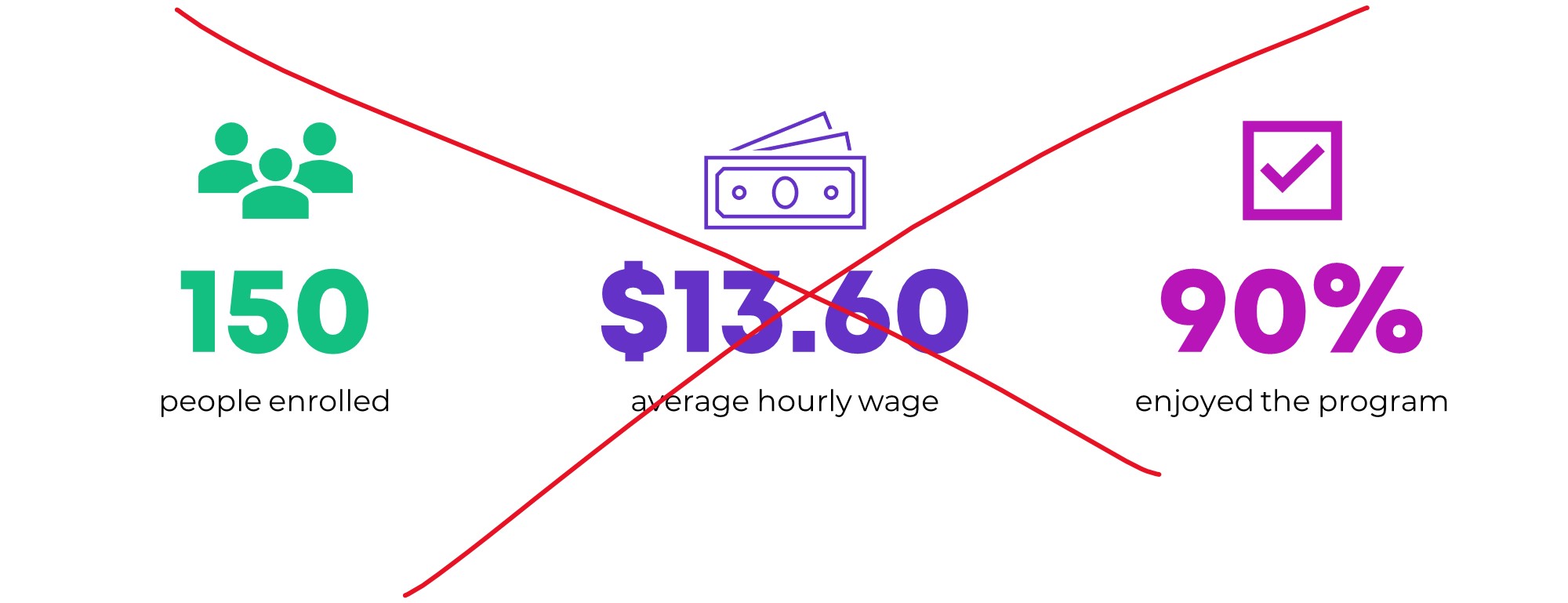
There’s nothing more useless than a big number.

This isn’t data “viz.”

Are these numbers big or small? Compared to what? It’s impossible to know, because no comparisons are provided.

Instead of the useless big numbers approach, compare by:

  1. Time (How have the numbers changed over time?)
  2. Subgroup (How are the numbers different for different demographic groups?)
  3. Location (If your data comes from multiple locations, how do the numbers vary from place to place?)
  4. Goal (If you’ve got a goal, target, or outcome in mind, did you reach it? Why or why not?
  5. Spread (What’s the distribution of the numbers? What are some of the individual values?)

Are Viewers Expecting a Story?

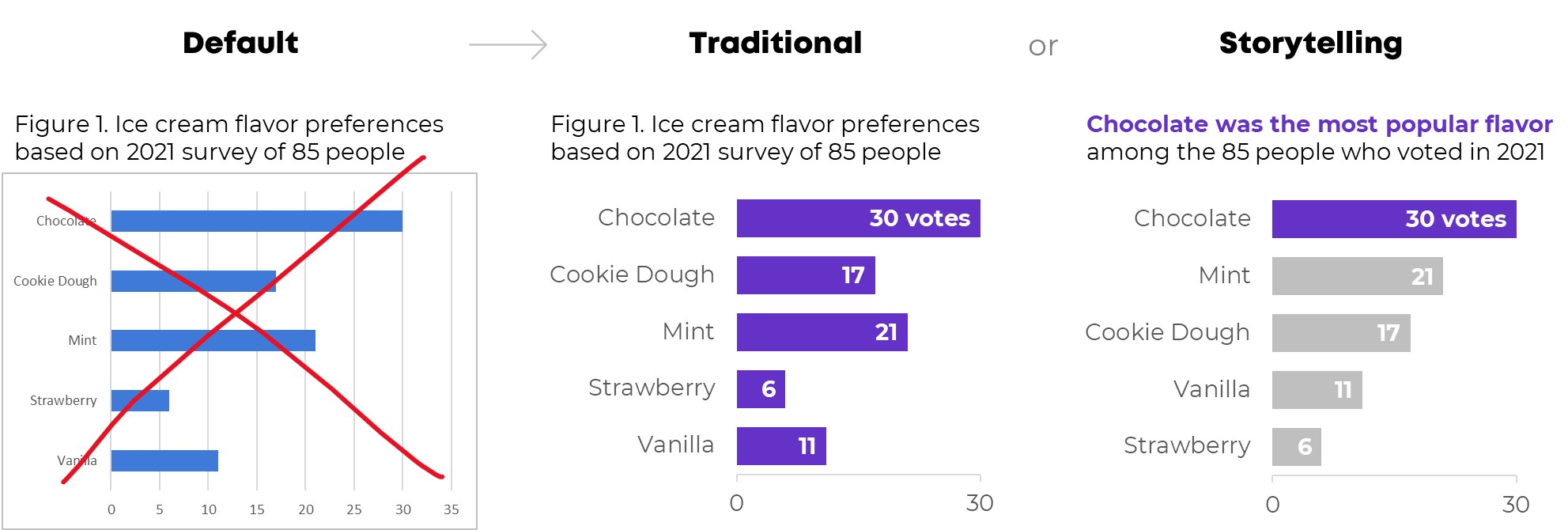
Seventh, think about which audiences prefer traditional graphs or storytelling graphs.

We always have to adjust the software program’s default settings (decluttering, applying brand colors and fonts, adding or removing labels, etc.).

You can transform the default settings into a traditional graph or a storytelling graph.

Traditional graphs have topical titles, and none of the colors stand out.

Storytelling graphs have takeaway titles and dark-light contrast. You might even sort the bars to make it easier to spot patterns.

Which Formats Are Best for Each Audience?

Finally, think about which format(s) each of the different audiences needs to receive.

The old way: Shoving allllll the data into a single Dusty Shelf Report. Crossing our fingers. Hoping all our different audiences can find what they’re looking for.

Nowadays: Producing different formats for different audiences. A 15-minute in-person meeting for one group. A one-page PDF for another group. A technical report with appendices for another group.

I’m not anti-report. Some of us will still need reports (I’m thinking of my colleagues who work with government agencies, foundations, universities, and large nonprofits).

At a bare minimum, we should follow the 30-3-1 Approach to Reporting. I’ve written about this approach before, and I’ve got more resources on this approach coming up soon, so I won’t go into detail now. The basic gist is:

  1. We start with our massive report.
  2. We limit the report’s body to just 30 pages (or less!).
  3. We don’t have to delete the rest of the pages. They just get moved to the back of the report and form the appendices.
  4. We transform those tables into visual appendices.
  5. We design a separate 3-page summary.
  6. We design a separate 1-page summary.

Your Turn

Beware: These take time. This isn’t a 15-minute activity from start to finish. You might need to spend 15 minutes on every single question, alongside your colleagues, to talk through each of these items.

The good news: You don’t have to finish all 8. Not doing any of these activities? No worries! Choose one or two. Already doing a handful of these? Great! Try one more.

After you’ve tried an activity or two, post your reflections here. I’d love to learn how you’re customizing your visualizations for each of your different audiences.

Written by cplysy · Categorized: depictdatastudio

May 25 2021

Dashboard Design and “The Big Picture” in Dataviz: A Conversation with Steve Wexler

I recently had the chance to talk with Steve Wexler, founder of Data Revelations, author of The Big Picture: How to Use Data Visualization to Make Better Decisions- Faster and co-author of The Big Book of Dashboards: Visualizing Your Data Using Real-World Business Scenarios.  

Steve joined as a special guest for the Dashboard Design Full Course where participants get hands-on training and access to special guest speakers in real time.  

Watch Our Conversation 

You can watch Steve’s session here:

What’s Inside  

Here are some of the topics we talked about.  

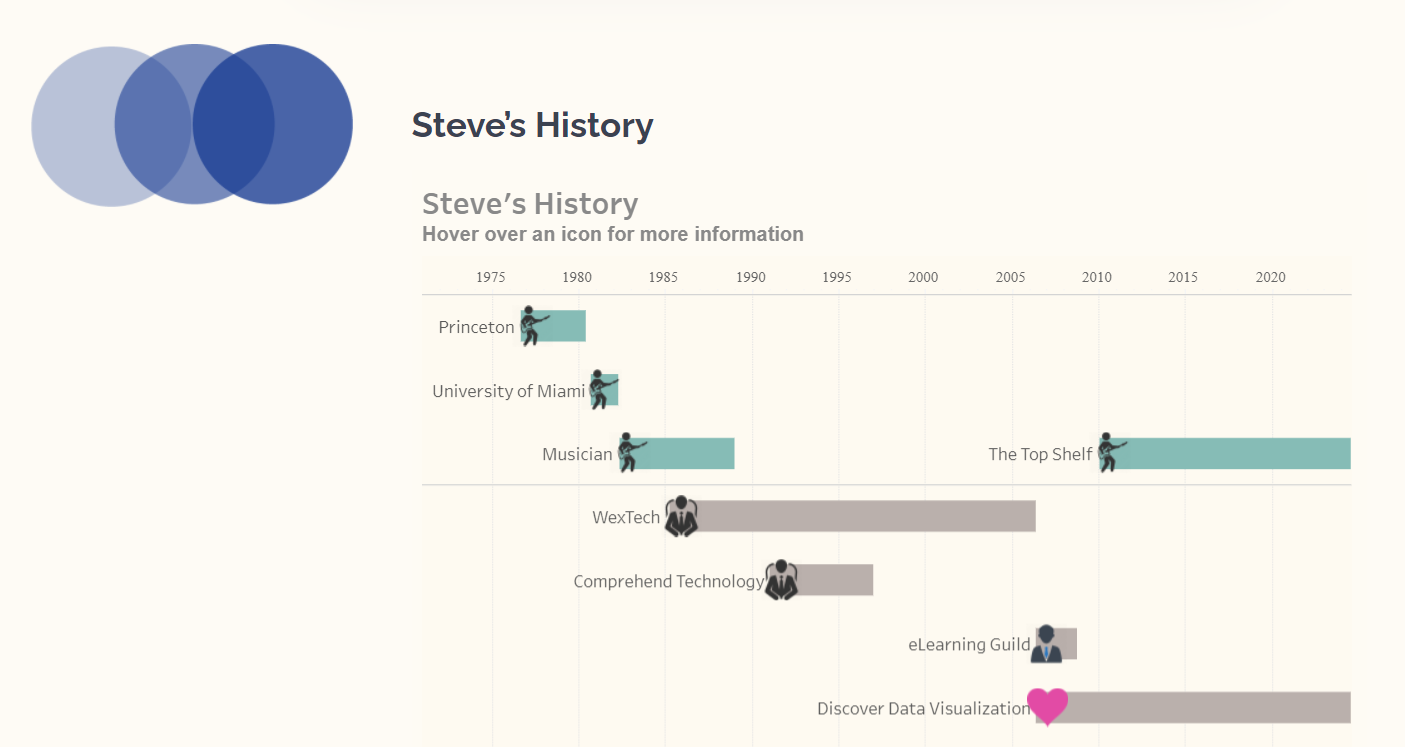
  • Steve’s career prior to data viz and book writing. Steve shared that his background was as a musician but, “after plying my trade for a while, I needed to supplement my income and go into personal computers. Ended up doing a lot of consulting on Excel and Word. And did a lot of work with and for Microsoft and then ran my own software company.” About 10 years ago he started his own company as data visualization consultant with a specialty in visualizing survey data. You can visit his website to see an interactive timeline of his career: https://www.datarevelations.com/about-us/.  
Visual depiction of Steve Wexler's career path.
  • How he found Tableau. While working with the Learning Guild, Steve suggested they use interactive dashboards using Spotfire software. They were on board but asked him to research other software which led him to Tableau. “The ace in the hole that Tableau had was undo,” he said.  
  • The Big Book of Dashboards: Visualizing Your Data Using Real-World Business Scenarios. Steve explained that the book has 28 different business scenarios with ideas of how to present data. It includes examples of what other companies are doing, gives an overview of data visualization as well as includes how to navigate tricky situation (i.e. your client only wants pie charts, only uses red and green). He cautioned though that, “You’re going to fail a lot in trying to get people to adopt [new ways] and don’t feel bad. Think of yourself being like a major league ball player, if you succeed 30% of the time, you’re an all-star.”  
  • Ann’s favorite part of The Big Book of Dashboards. Ann loved that the book is highly visual, with just 30 pages of best practices, and that the rest is case studies. She often uses the case studies as a resource with clients when they ask for examples. 
  • The goal of data visualization. Steve said that if you’re in data visualization, your goal should be to “provide the greatest degree of understanding with the least amount of effort for your audience.” 
  • Why he loves collaboration. Steve coauthored a book with two others and said he often gets asked how three people could write a book together. He shared that they were all aligned on their goal and that he liked having people who challenged him. He invited the idea that his collaborators were coming from a different backgrounds and expertise and, “that this could be someone who’s not looking at it identically to me and that could be great.”  
  • The Big Picture: How to Use Data Visualization to Make Better Decisions – Faster. Steve shared that book is “for organizations that have not yet embraced how transformative good data visualization can be.” This book came out from workshops from his first book where he realized that a lot of people had no idea what data visualization was or how to interpret it.   
  • Ann’s favorite part of The Big Picture: How to Use Data Visualization to Make Better Decisions – Faster. Ann’s favorite part is the scaredy-cat icon, which represents caution/what not to do and clearly distinguishes that for the reader.  
  • Steve’s next book. While Steve hopes to write more books, he’s hoping the next one is text-only, like a novel. “The amount of extra work that needs to go into producing something that is high quality and the angst that’s associated with it… It’s worth it, it’s wonderful, but it’s a fair amount of extra work,” he said.  
  • Steve’s favorite part of the The Big Picture: How to Use Data Visualization to Make Better Decisions – Faster. Steve’s favorite chapter is the 8th chapter, which covers why knowing your audience is so important. He said he wants to get people thinking about, “how do I best serve my audience?” 
  • Audience Q&A. At the 45:00 mark, Steve also answered some audience questions about Tableau, offered to help track down a classic data visualization, and shared how he views the connection between data visualization and storytelling.  

Connect with Steve Wexler 

Download the Introduction to The Big Picture: www.bigpic.me  

Twitter: https://twitter.com/DataRevelations 

LinkedIn: @swexler 

Website:  https://www.datarevelations.com/ 

Written by cplysy · Categorized: depictdatastudio

May 11 2021

How to Engage Your Audience with “Choose Your Own Adventure” Presentations

Ready for an advanced presentation technique?

Want to make sure your audience is engaged?

No, those 10-minute Q&As at the end of a presentation don’t count as adequate engagement. Let’s notch up our engagement!

In this blog post, you’ll learn about the “Choose Your Own Adventure” method for engaging our audiences during presentations.

In March 2021, I was speaking at the Nonprofit Technology Network’s conference, 21NTC, and I used this technique.

I started to write a blog post with screenshots, but I really want to show you how this works.

In this video, you’ll see:

  1. A brief demo of the Choose Your Own Adventure method
  2. A behind-the-scenes tour of my slides
  3. A discussion of the caveats so you can decide when to use this method

Watch the Video

The Choose Your Own Adventure Method

As you saw in the video, the Choose Your Own Adventure technique puts our audience in the driver’s seat.

Here’s what the presentation looks and feels like for our audience members.

Step 1: Show the Table of Contents Slide

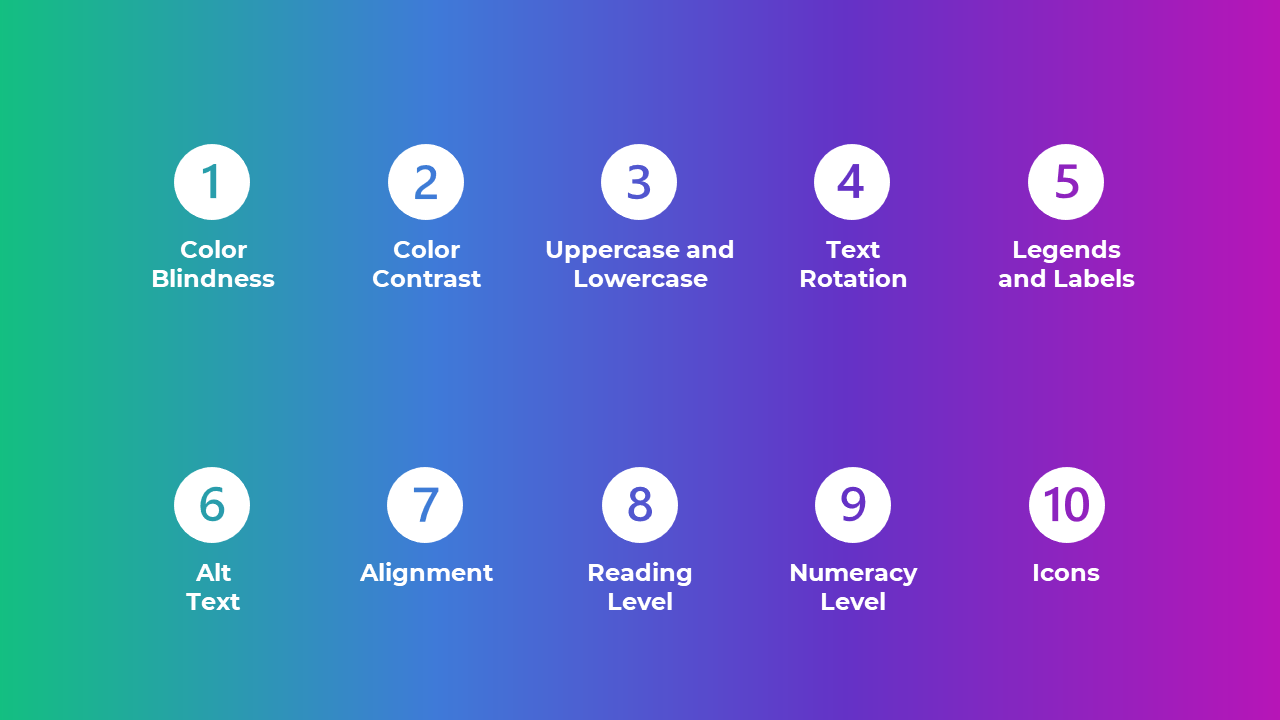
First, we show them a Table of Contents slide, which has an overview of all the topics we might cover.

First, we show them a Table of Contents slide, which has an overview of all the topics we might cover in our presentation.

I tell the audience that there’s tons to learn about this topic, but we’ll only have time to cover a few techniques during our short time together.

My 21NTC presentation was 60 minutes long, so we had time for 3 techniques.

Step 2: Ask Attendees to Vote for their Preferred Topics

Then, the audience members vote and help us prioritize which topic(s) we’ll cover.

For example, in my 21NTC presentation in March, I simply asked the attendees to type their votes into the chat window.

You’ll need to make some small talk while audience members are typing in their votes.

Sometimes, there might be a 15- to 30-second delay between us and the audience members. I’ve given virtual talks on a bunch of different conference platforms (Whova, etc.), and most of them have a slight delay. We’ll need to factor that in, too. More small talk.

In the video, you’ll see what I did for my 21NTC presentation. While the audience members were voting, I simply let them know that they could download an ebook to learn all 10 techniques.

Step 3: Click on their Preferred Topics on the Table of Contents Slide

Finally, the links propel us to the correct place in the presentation.

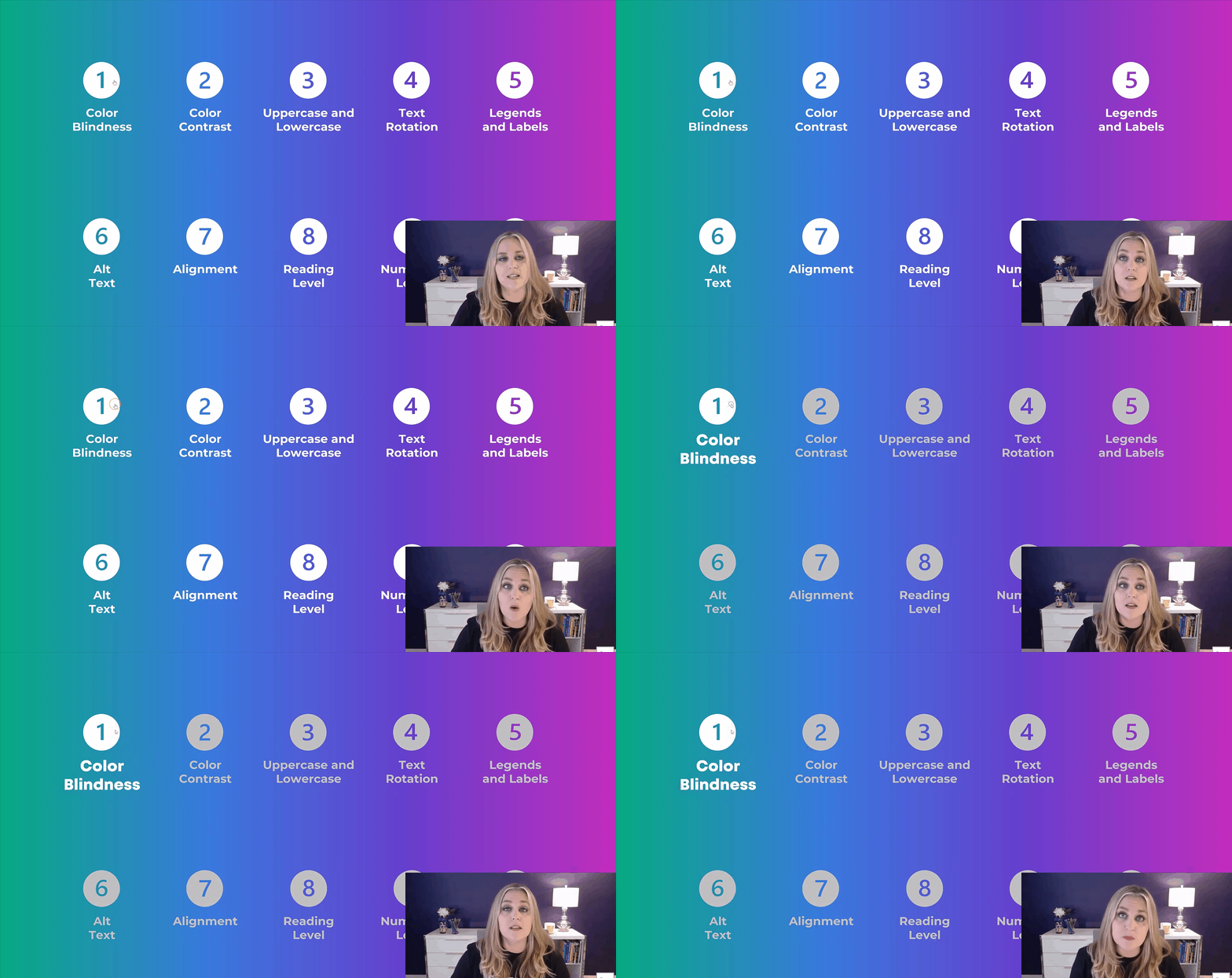
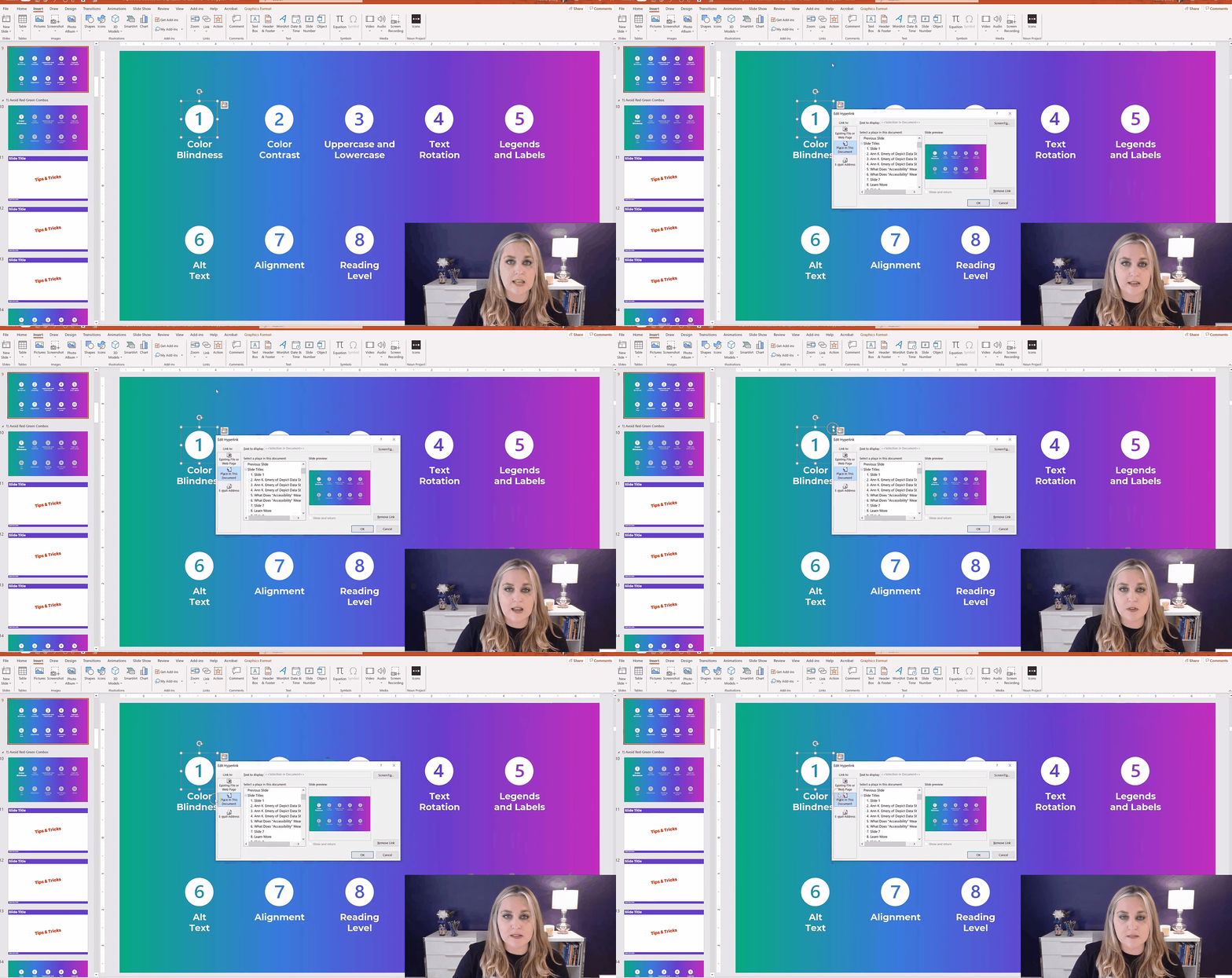
If attendees want to learn about Color Blindness, for instance, then I would click on the Color Blindness section of this slide. The links fast-forward us to that segment of slides.

For example, our Table of Contents slide might be on slide 5, and we can use the links to fast-forward to slide 50.

If attendees want to learn about Color Blindness, for instance, then I would click on the Color Blindness section of this slide. The links fast-forward us to that segment of slides.

Step 4: Discuss that Topic & Show the Table of Contents Slide Again

At the end of the Color Blindness section, we see the Table of Contents slide again.

The presenter clicks on the second topic that the audience members wanted to talk about, and the links propel us to that segment of the presentation.

And on and on.

At the end of the Color Blindness section, we see the Table of Contents slide again. The presenter clicks on the second topic that the audience members wanted to talk about, and the links propel us to that segment of the presentation.

I often conclude with a case study. We’ll discuss the case studies and their links in a moment.

A Behind-the-Scenes Tour of My PowerPoint Slides

In the video, you’ll see exactly which buttons to click on to create a Choose Your Own Adventure presentation.

Links on the Table of Contents Slide

Here’s how you can add links to your PowerPoint slides:

  1. Click on the icon or text box where you want to create a link.
  2. Go to the Insert tab at the top of the screen.
  3. Go to the Link button.
  4. Click the down-arrow.
  5. Insert a link.
  6. In the pop-up window, choose Place in this Document.
  7. You can scroll through your list of numbered slides and choose one.
  8. Click ok.

That’s it!

When you click the icon or text box during your live presentation, the links will take you and your audience to the appropriate segment of your presentation.

You can add links to your PowerPoint slides so that when you click the icon or text box during your live presentation, the links will take you and your audience to the appropriate segment of your presentation.

Invisible Links to the Case Studies

Sometimes I end my presentations with case studies. These case studies give the attendees a chance to put their new knowledge into use.

For example, at the 21NTC conference, I prepared three case studies in advance. I had a beginner, intermediate, and advanced case study. I knew we’d only have time to cover one of the case studies.

As shown in the video, I simply added links to the case studies to the Table of Contents slide.

There are invisible rectangles on my Table of Contents slide. The top rectangle is a link to the beginner case study, the middle rectangle is a link to the intermediate case study, and the bottom rectangle is a link to the advanced case study.

Caveats

Wondering whether this technique is right for you?

Should you continue giving a “regular” linear presentation? Or should you try a “Choose Your Own Adventure” non-linear presentation??

Here are two factors to consider:

  • This is an advanced technique. You need to be an expert in your topic area and have tons of presentation experience. You have to be nimble enough to speak about any of your topics in any order, and to adjust the time spent on each topic on the fly.
  • This technique only works when the topics can be presented in any order . In my accessibility presentation, I could discuss topic 1, 2, and 3. Or, I could discuss 1, 3, and 2. The techniques aren’t sequential; they can truly be taught in any order. Make sure your topics can be delivered in any order, too.

Your Turn

After you try this, get in touch! Share tips of your own so we can learn from each other.

Written by cplysy · Categorized: depictdatastudio

Apr 27 2021

How to Organize Your PowerPoint Slides by Adding Sections

Want to organize your PowerPoint slides a little better? There’s a behind-the-scenes trick that I love using in my own presentations: Sections!

In March 2021, I was speaking with GEDIs about dataviz tricks for presentations. (The GEDI program is the Graduate Education Diversity Internship within the American Evaluation Association.)

In March 2021, Ann Emery spoke to participants in the Graduate Education Diversity Internship program within the American Evaluation Association.

I was scrolling through my slides, and someone asked how I created these “sections” to organize my content.

Adding sections to PowerPoint has been a gamechanger for me personally. They help me stay organized behind the scenes, which helps my audience, too. An organized presenter = an organized presentation = a happy audience that can learn from us headache-free.

Watch the 7-Minute Tutorial on Sections

I started to write a blog post with screenshots about sections… but that felt impossible. I wanted to show you how sections work, so I recorded you a tutorial.

What’s inside:

  1. A demo of what sections are
  2. How to add them
  3. How I use them to hide topics
  4. How I use them to re-order topics

What Are PowerPoint Sections?

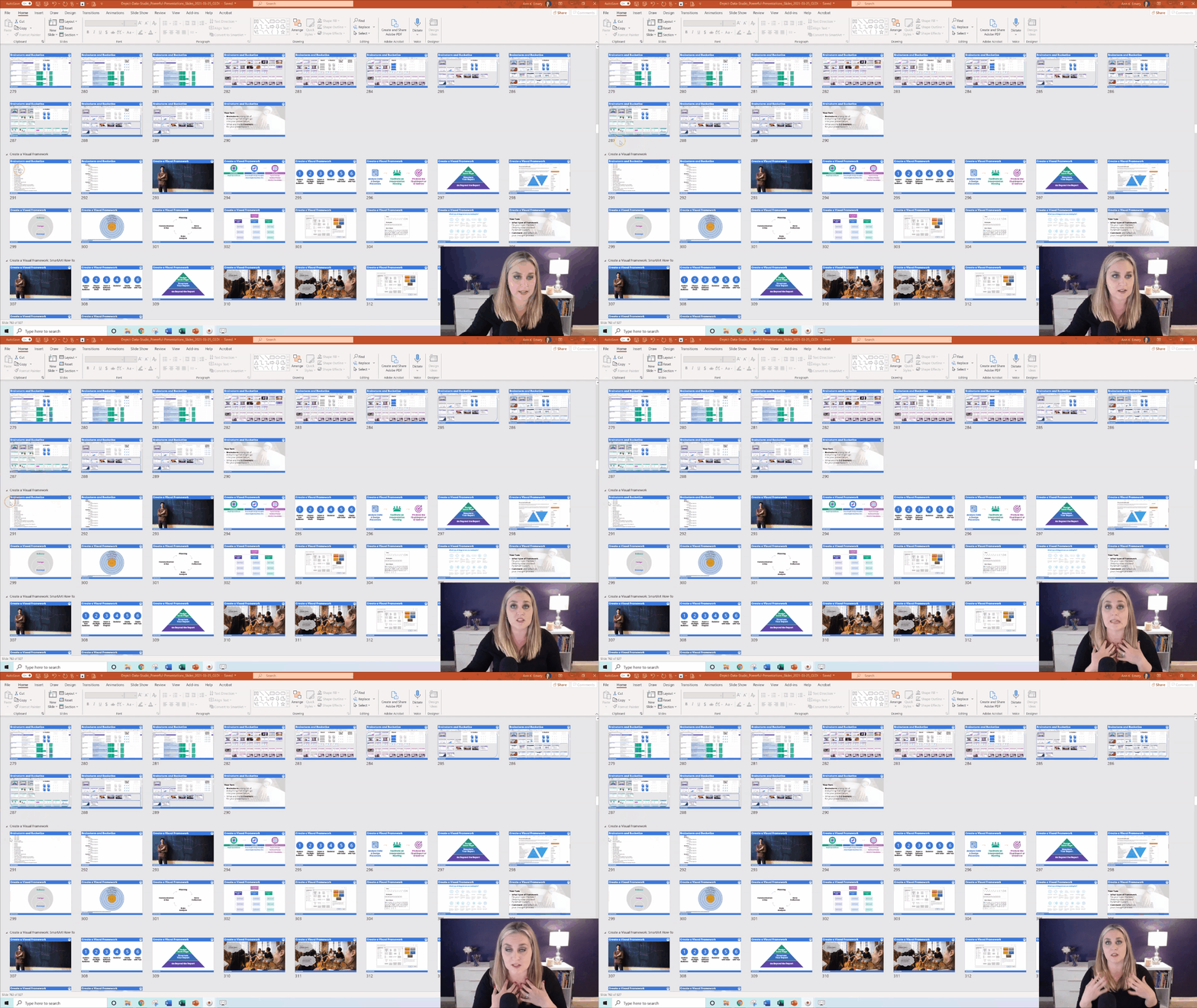
Sections help us organize our slides into meaningful groups, categories, chunks, buckets, or chapters of a presentation.

In the video, you’ll see what they look like.

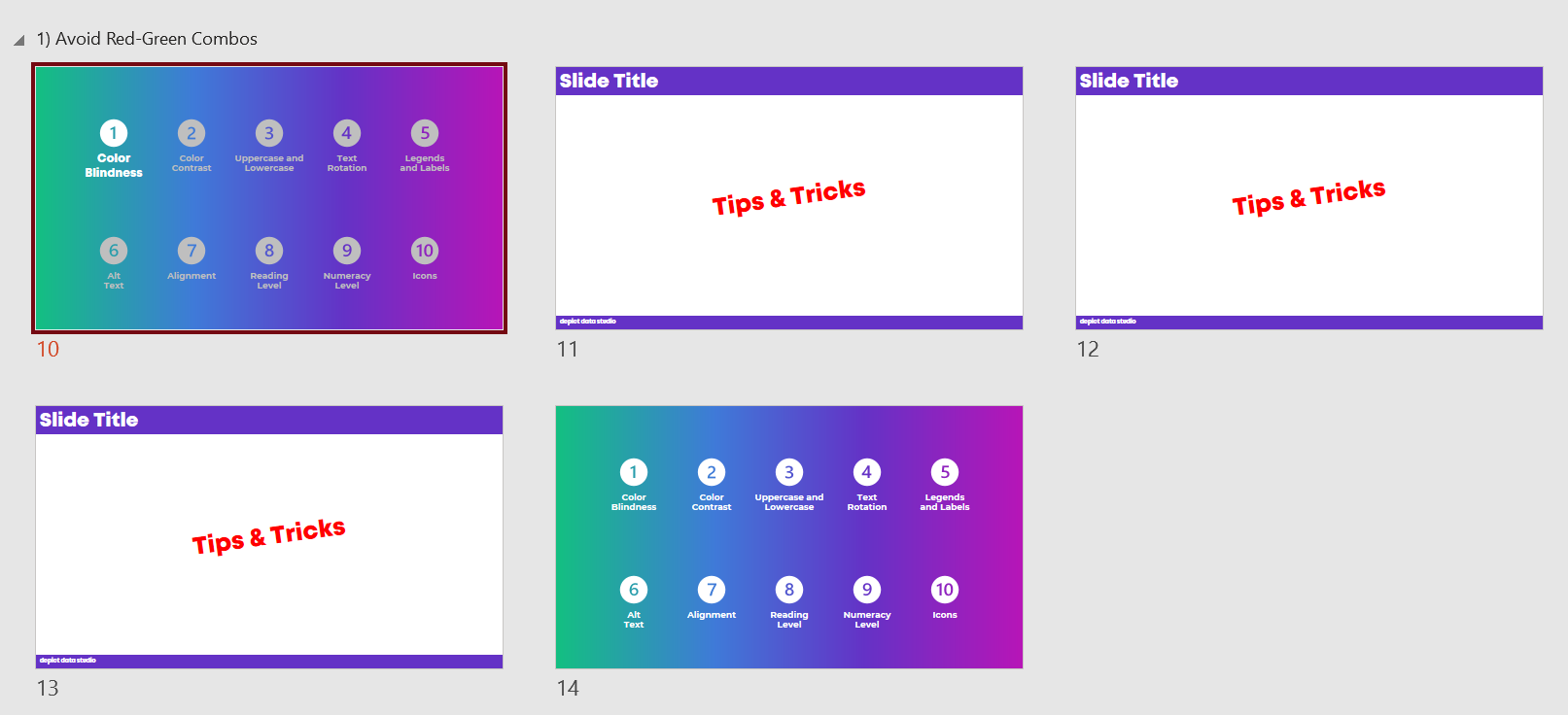
Can you spot the words above some of the slides?

Sections help us organize our slides into meaningful groups, categories, chunks, buckets, or chapters of a presentation. The audience won't see them, they're just for us presenters.

Our audience won’t see the sections. They’re for us, the presenters.

How to Add Sections

It’s easy to add new sections to a presentation.

Here’s how:

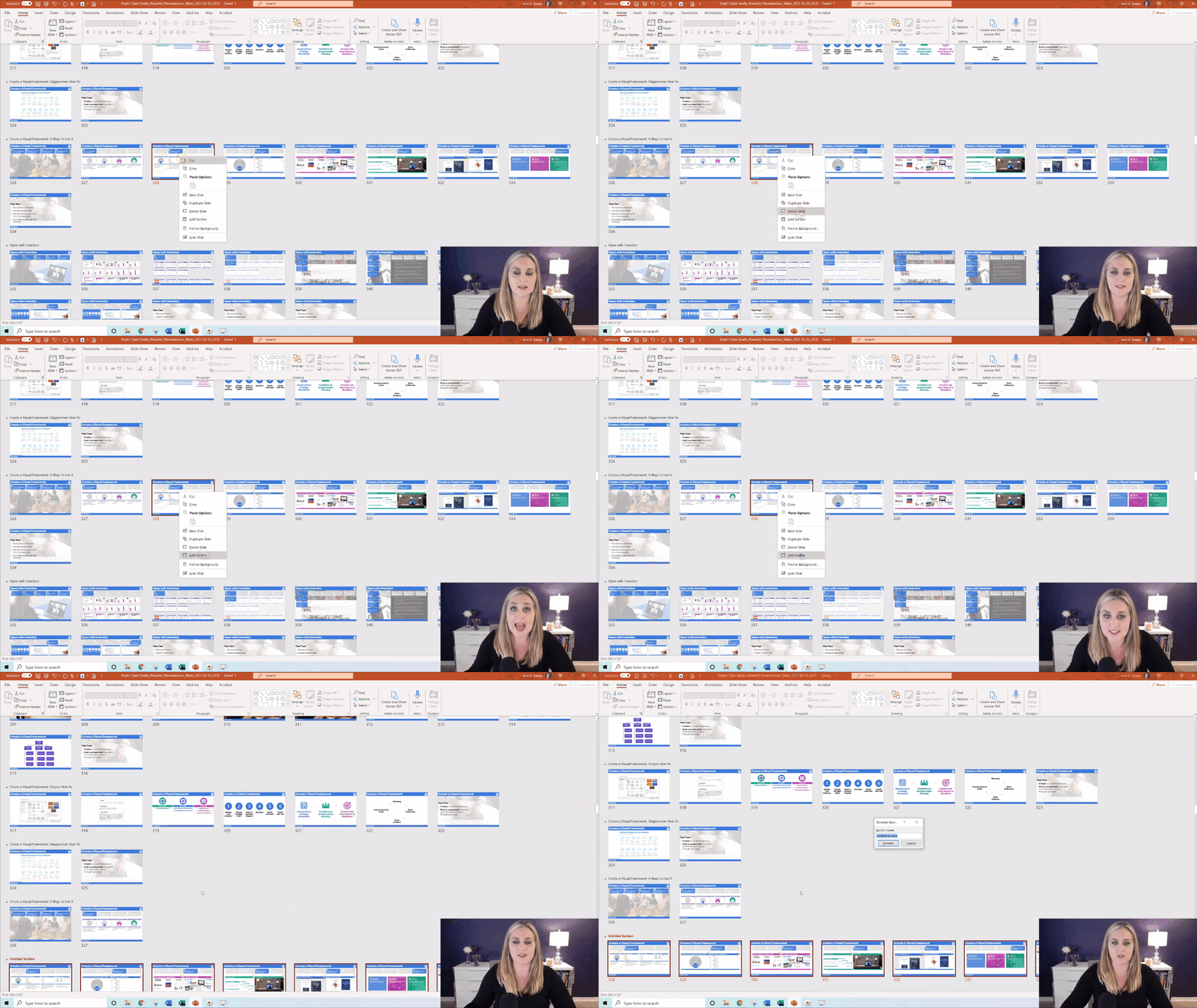
  • I like to be in Slide Sorter view first. (The birds-eye-view of the presentation where you can view all the miniature slides.)
  • Decide which slide is going to start the new section. Click on that slide to activate it.
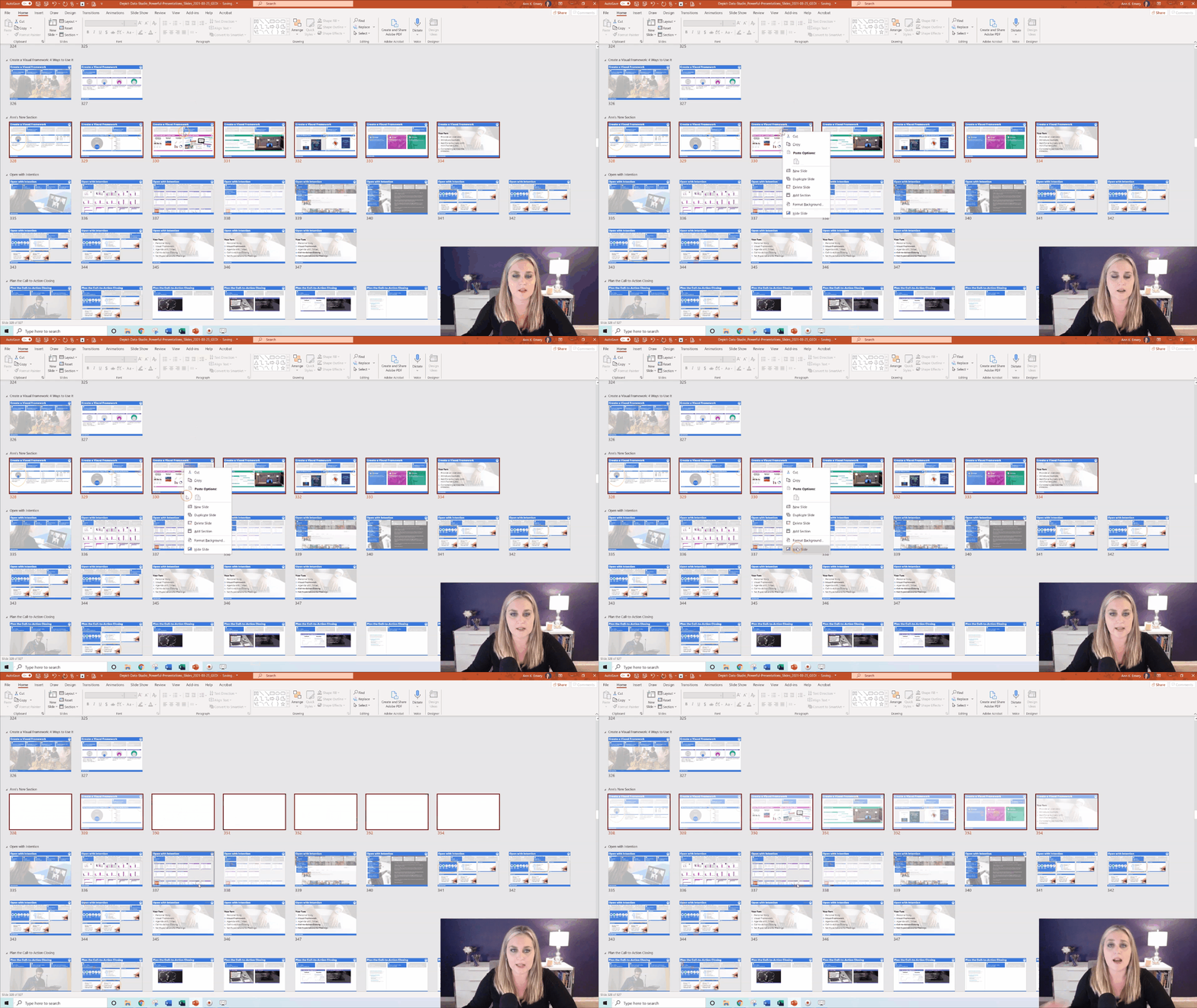
  • Right-click and Add Section.
  • In the pop-up window, give your section a name. I use names like Introduction, Case Study, Conclusion, etc.

That’s it!!!

Adding sections is easy. Decide which slide is going to start the new section, click on that slide, right-click and Add Section.

How to Use Sections to Hide Topics

I like to keep all my slides for a given workshop within a single file.

While prepping for upcoming talks, I go through the full file – all 900+ slides! – and choose which sections I’ll talk about.

I might cover Sections A, B, and C for one group.

I might cover Sections A, D, and E for another group.

I might add Sections F, G, and H as brand new topics for another group.

(For private trainings, I review the group’s materials ahead of time and hold some planning calls to figure out which sections are going to be the best use of our time together.)

As I’m deciding which sections to include, I simply hide and unhide the slides. In the video, you’ll learn how to hide and unhide slides.

While prepping for upcoming talks, I go through the full file – all 900+ slides! – and choose which sections I’ll talk about by simply hiding and unhiding sections.

(Yes, you can hide and unhide slides without having any sections. I personally like using sections so I can think about an entire category of slides that should be shown or hidden.)

How to Use Sections to Re-Order Topics

I definitely recommend outlining your presentation in a document or spreadsheet before making all your slides.

Our outlines don’t need to be 100% finished before we make our slides. I almost always make changes along the way.

One common change is re-ordering topics. I might envision covering topics A, B, and C, in that order. But later, as I’m designing the slides, I might decide to cover topics A, C, and B.

In the video, you’ll learn how to drag and drop entire sections to re-order them.

I definitely recommend outlining your presentation in a document or spreadsheet before making all your slides. You can then drag and drop them to re-order.

Your Turn

Let me know how you’ve used sections to keep your content organized!

Written by cplysy · Categorized: depictdatastudio

  • « Go to Previous Page
  • Go to page 1
  • Interim pages omitted …
  • Go to page 27
  • Go to page 28
  • Go to page 29
  • Go to page 30
  • Go to page 31
  • Interim pages omitted …
  • Go to page 37
  • Go to Next Page »

Footer

Follow our Work

The easiest way to stay connected to our work is to join our newsletter. You’ll get updates on projects, learn about new events, and hear stories from those evaluators whom the field continues to actively exclude and erase.

Get Updates

Want to take further action or join a pod? Click here to learn more.

Copyright © 2026 · The May 13 Group · Log in

en English
af Afrikaanssq Shqipam አማርኛar العربيةhy Հայերենaz Azərbaycan dilieu Euskarabe Беларуская моваbn বাংলাbs Bosanskibg Българскиca Catalàceb Cebuanony Chichewazh-CN 简体中文zh-TW 繁體中文co Corsuhr Hrvatskics Čeština‎da Dansknl Nederlandsen Englisheo Esperantoet Eestitl Filipinofi Suomifr Françaisfy Fryskgl Galegoka ქართულიde Deutschel Ελληνικάgu ગુજરાતીht Kreyol ayisyenha Harshen Hausahaw Ōlelo Hawaiʻiiw עִבְרִיתhi हिन्दीhmn Hmonghu Magyaris Íslenskaig Igboid Bahasa Indonesiaga Gaeilgeit Italianoja 日本語jw Basa Jawakn ಕನ್ನಡkk Қазақ тіліkm ភាសាខ្មែរko 한국어ku كوردی‎ky Кыргызчаlo ພາສາລາວla Latinlv Latviešu valodalt Lietuvių kalbalb Lëtzebuergeschmk Македонски јазикmg Malagasyms Bahasa Melayuml മലയാളംmt Maltesemi Te Reo Māorimr मराठीmn Монголmy ဗမာစာne नेपालीno Norsk bokmålps پښتوfa فارسیpl Polskipt Portuguêspa ਪੰਜਾਬੀro Românăru Русскийsm Samoangd Gàidhligsr Српски језикst Sesothosn Shonasd سنڌيsi සිංහලsk Slovenčinasl Slovenščinaso Afsoomaalies Españolsu Basa Sundasw Kiswahilisv Svenskatg Тоҷикӣta தமிழ்te తెలుగుth ไทยtr Türkçeuk Українськаur اردوuz O‘zbekchavi Tiếng Việtcy Cymraegxh isiXhosayi יידישyo Yorùbázu Zulu