• Skip to main content
  • Skip to footer
  • Home

The May 13 Group

the next day for evaluation

  • Get Involved
  • Our Work
  • About Us
You are here: Home / Archives for allblogs / evalacademy

evalacademy

Dec 19 2023

How to Link Surveys in Qualtrics with a Participant ID

This article is rated as:


This is a step-by-step guide for linking your surveys in Qualtrics with a participant ID to assess change over time. There are ways to set up these surveys to automate the process to a greater degree than what will be covered in this article. Qualtrics has a support article that has more details for how to do those things such as automating Qualtrics to randomly generate participant IDs or setting up a way to automate the survey distribution to an email list.

The steps below outline ways to for link your surveys with a participant ID that is manually entered by participants, rather than automatically generated, and assigned. Please note that you can only link surveys using a paid version of Qualtrics.

What does it mean to link your surveys?

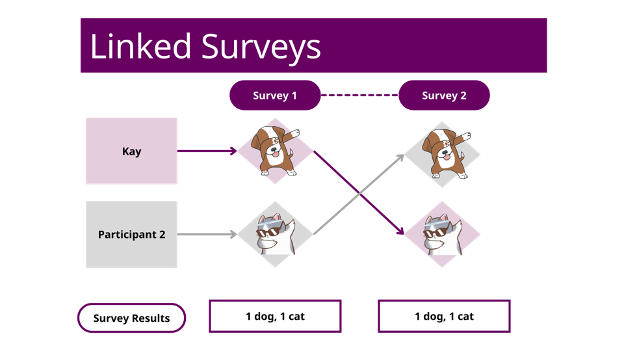
Linking surveys together means that you’re connecting the data from all your surveys in a way that lets you track an individual respondent. For example, if Kay fills out survey 1 about how they like dogs more than cats, and then changes their mind 6 months later when they take survey 2, you’ll be able to see that pattern in the data on an individual level if the surveys are linked.

Why would I want to link my surveys?

If you want to know how individuals are influenced and change their behaviours or views over time, linking surveys can help you see that in the data at a greater detail than if your data was only in an aggregated form. Linking surveys is a useful method for collecting longitudinal data.

For example, let’s say you were trying to measure the influence of an ad campaign that is trying to get people to like cats more than dogs. You can do a regular survey BEFORE the ad campaign runs and find the total percentage of people who like cats more than dogs. And then you can do another regular survey AFTER the ad campaign to see if that percentage has increased. However, your results won’t tell you if most of the people who changed their opinions were between the ages of 30-40. It also wouldn’t tell you if some people who liked cats more than dogs changed their minds too. Linking surveys can allow you to see more details in the pattern of your results.

Does linking surveys reveal a participant’s identity?

Linking surveys lets you track individual data confidentially. You can set up linked surveys so that any personally identifying information is not linked directly to an individual’s response. This means that when you are looking at the survey data, you’ll see the answers given by participant 1, but you won’t know their specific name or contact information. A confidential survey is different from an anonymous one. Linked surveys cannot be anonymous because they generate a list of everyone who has taken the survey. If you are using this method, it is important to help your participants understand that while their responses are confidential, they are not anonymous.

To learn more about the difference between confidentiality and anonymity in evaluation, check out, “Your information will be kept confidential: Confidentiality and Anonymity in Evaluation.”

Before we get to the details, I want to remind you that it is best practice to test the survey functionality and pilot it prior to sending it to participants.

How to manually link surveys in Qualtrics

Setting Up Survey #1

1.     Create your first survey in Qualtrics as if you are setting up a regular survey.

2.     Create a survey question that will determine the participant ID. This is the ID that a participant will need to remember and enter to access the second survey.

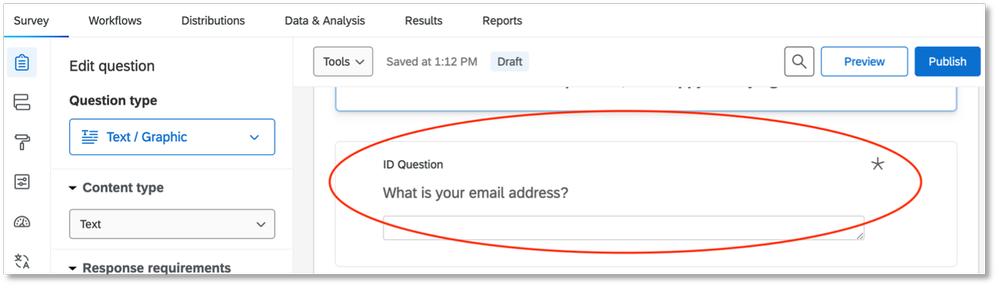
For this guide, we will use the participant’s email address as the ID. We chose to create a text entry question with an email address validation that asks, “What is your email address?”. You can choose a different identifier like a phone number or a name – something that the participant will remember easily. Make sure you make this question mandatory. It is recommended that you put this question near the beginning of your survey so that participants will fill it out even if they exit the survey early.

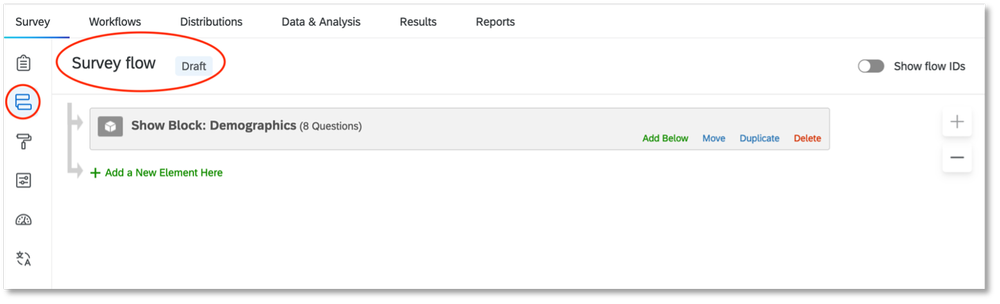
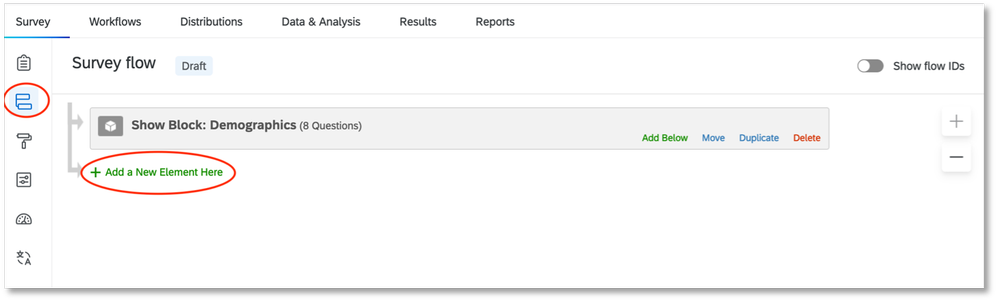
3.     Go to the “Survey flow” tab.

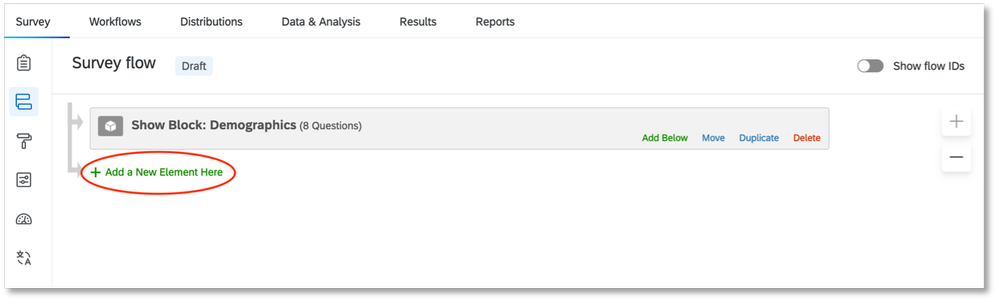
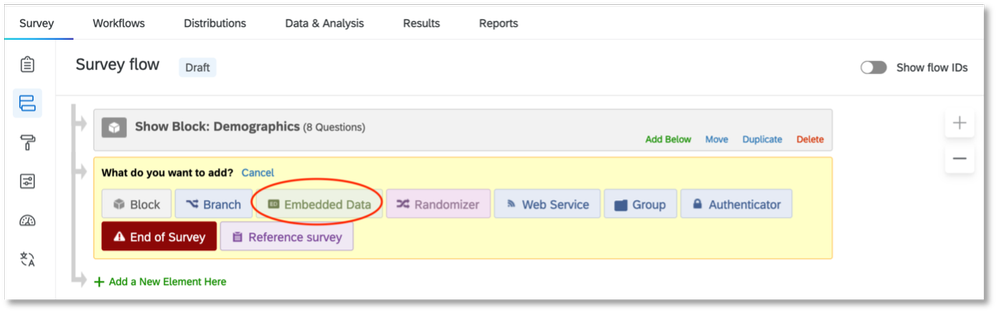
4.     Select “Add a New Element Here.”

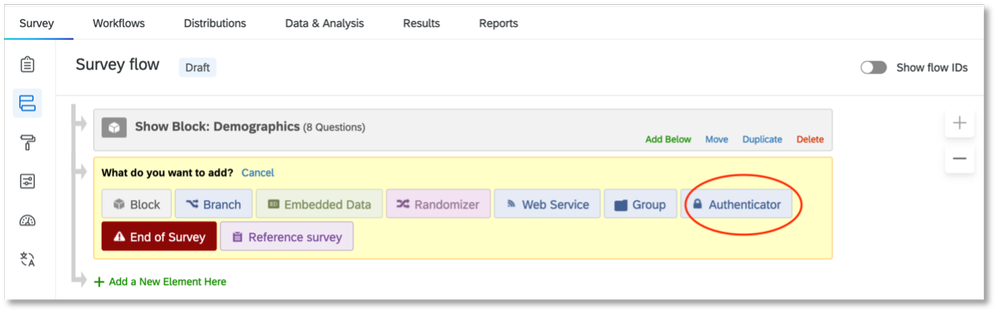
5.     Select “Embedded Data.”

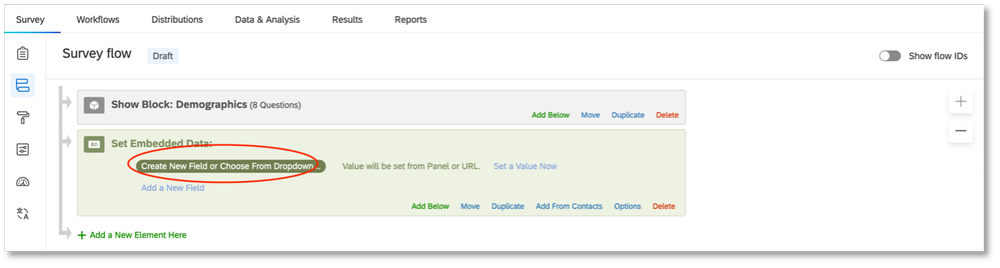
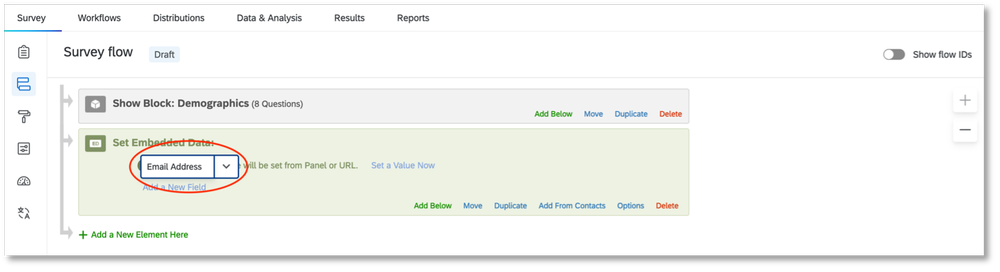
6.     Type in a label for your participant ID. Since we’re using email addresses, we just wrote, “Email Address.” Do NOT select an option from the drop-down list.

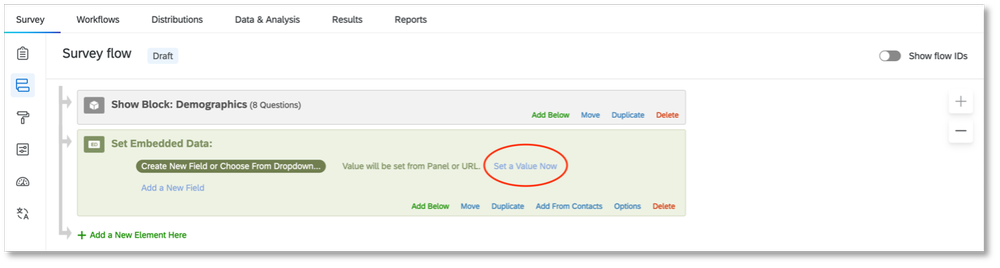
7.     Next, click on “Set a Value Now.”

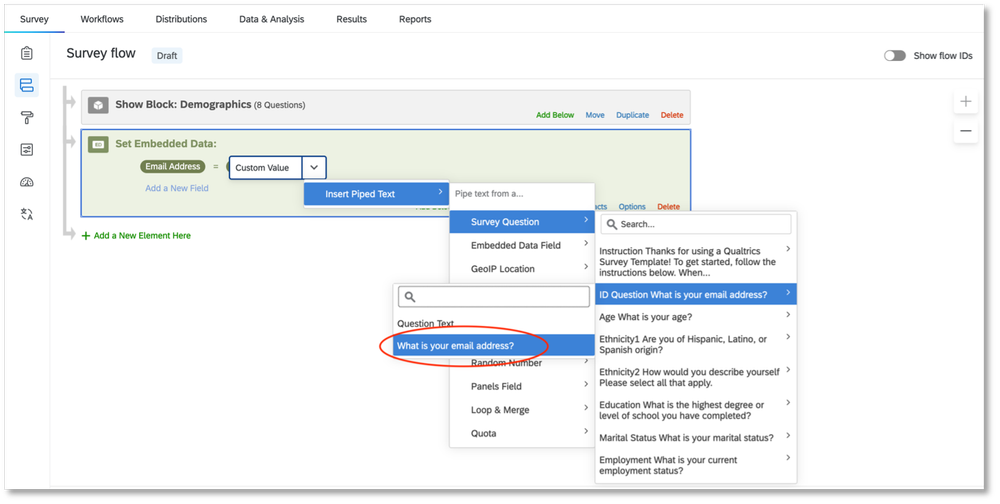
8.     For “Set a Value Now,” you will need to choose the survey question that you had created for your participant ID. In the drop-down list, select “Insert Piped Text,” then “Survey Question.” Find the question you created for the participant ID. There will be one more panel that appears with options. Select the box that has the actual question. For us, it is “What is your email address?” Do NOT select “Question Text.”

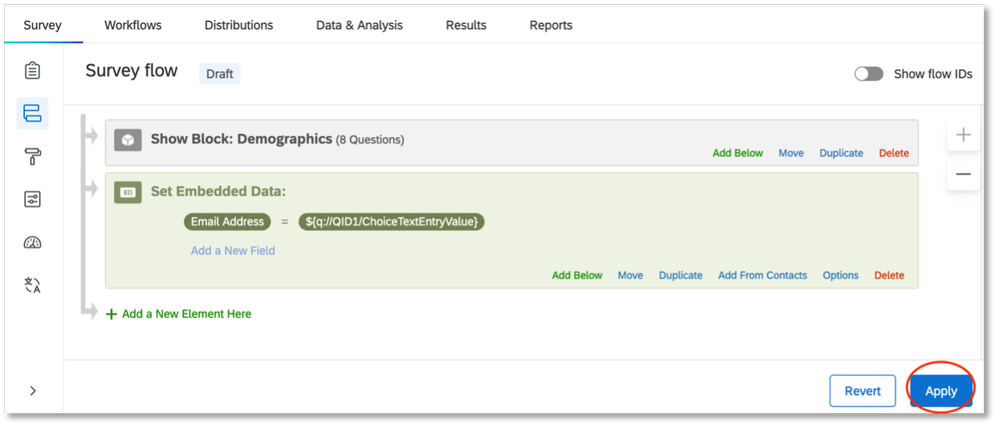
9.     Select “Apply.”

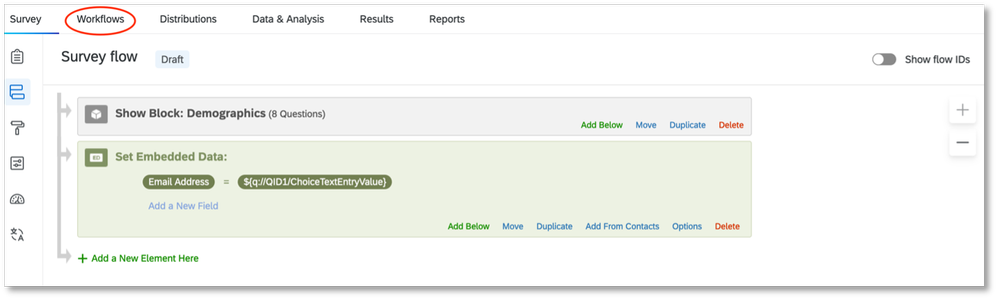
10.     Next, go to the “Workflows” section.

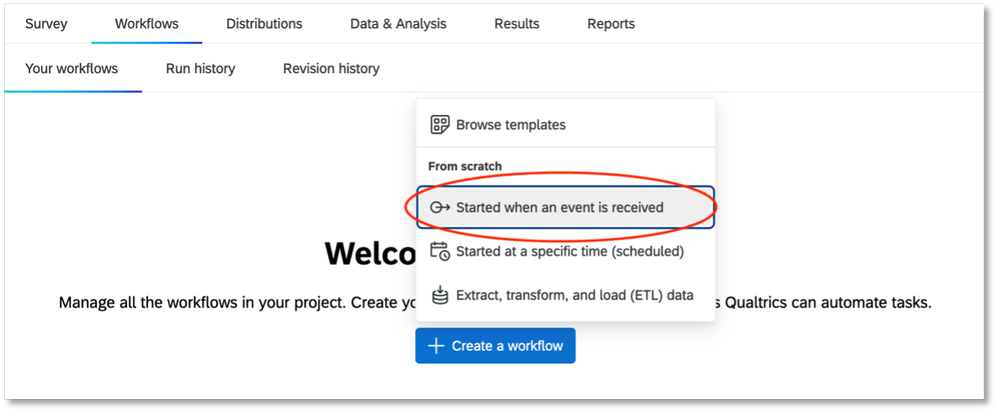
11.     Select “Create a workflow” and choose the option “Started when an event is received.” Another page will pop up that will list different types of extensions.

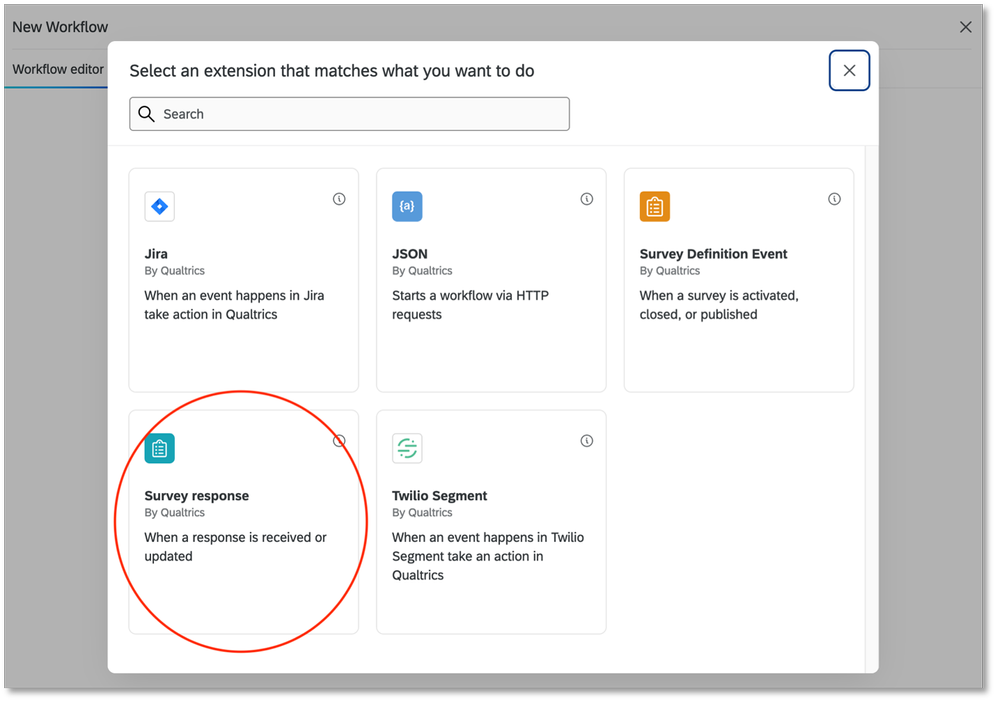
12.     Choose the extension “Survey response” by Qualtrics. This means that you are now creating a workflow within Qualtrics that will be triggered when someone responds to your survey.

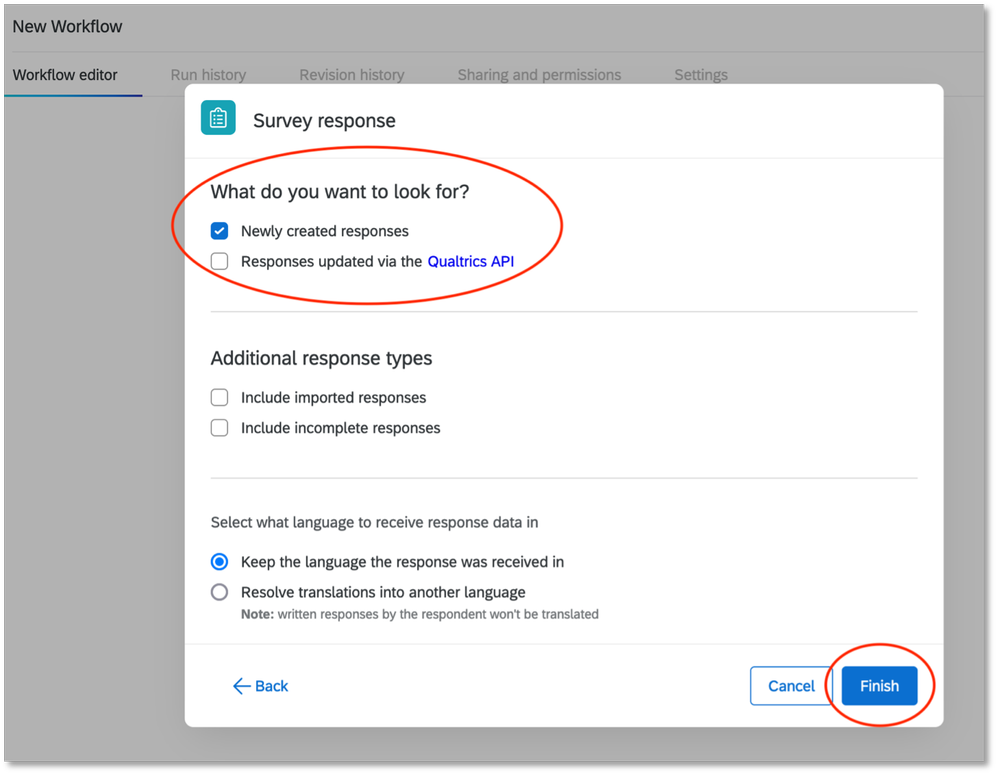
13.     In the next set of options that appear, make sure that “Newly created responses” is checked. You can make selections under “Additional response types” as you prefer. Select “Finish” when you are done.

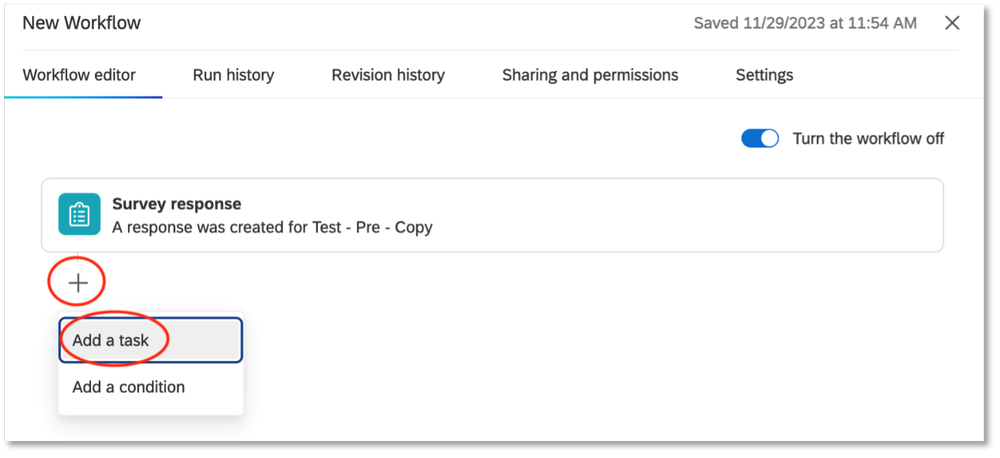
14.     Next, select the plus sign (+) and then select “Add a task.” Another panel with an extension will appear.

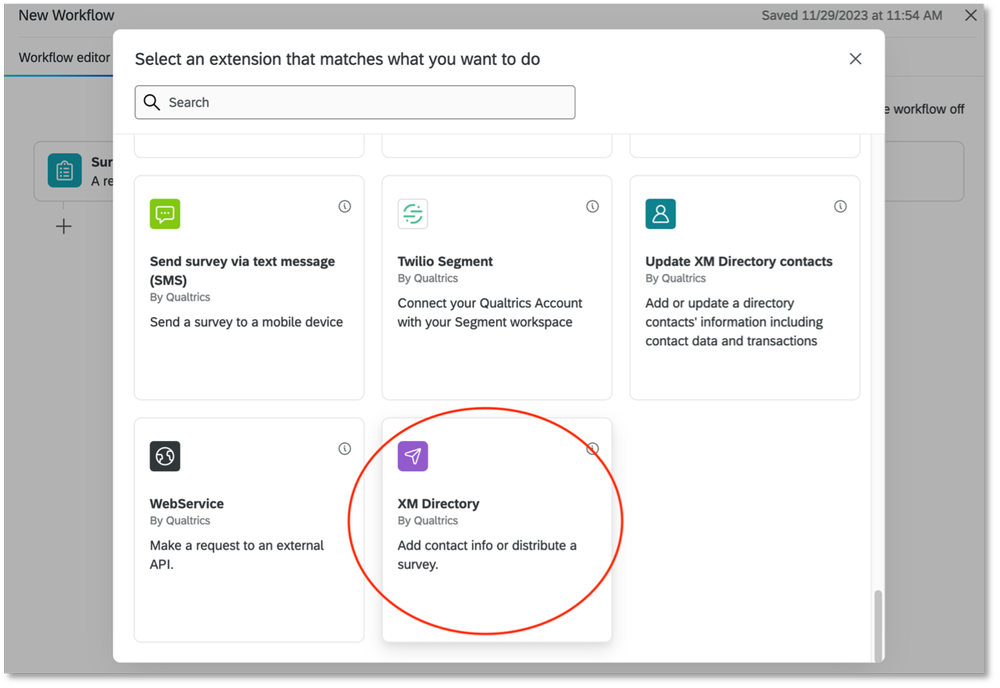
15.     Select the extension “XM Directory” by Qualtrics.  

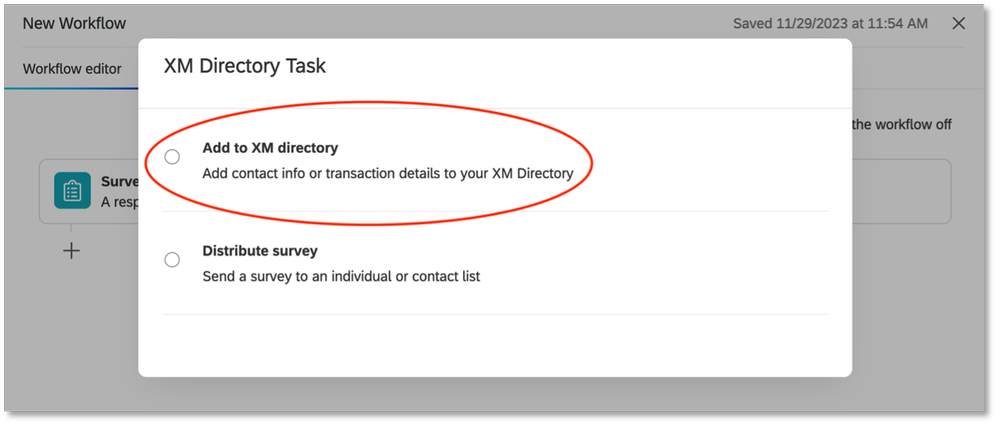
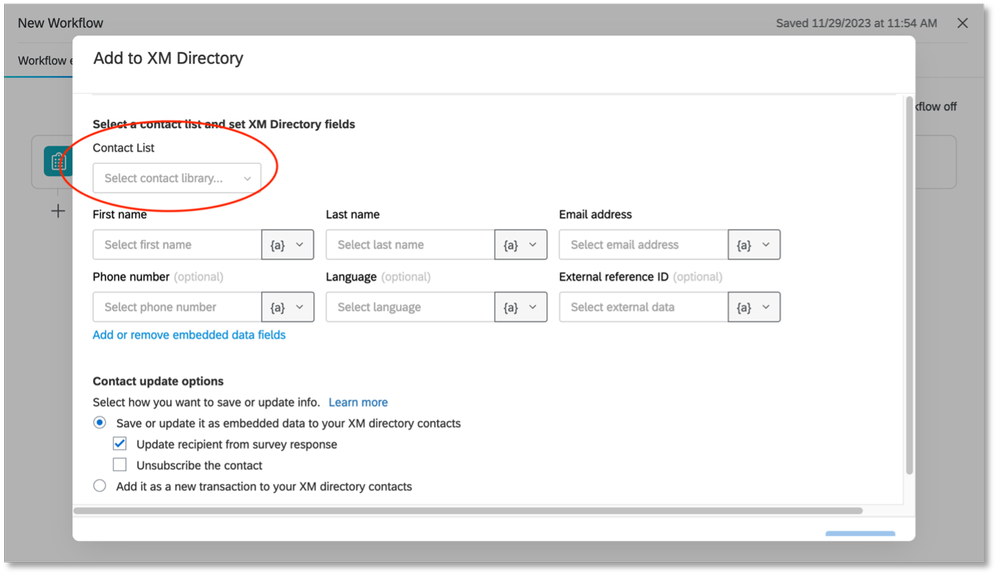
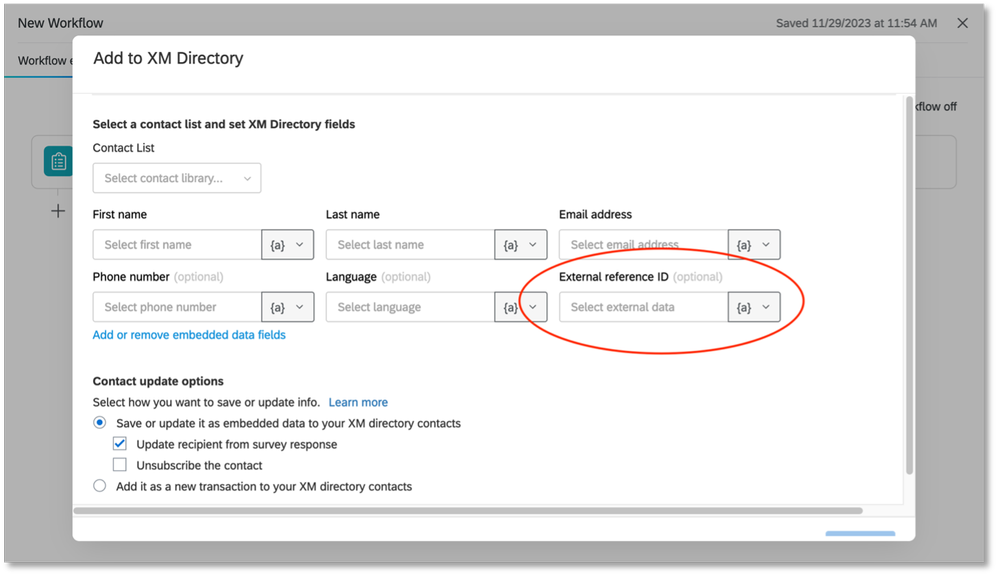
16.     Select “Add to XM directory.” A new panel with fields will appear. What you will be doing at this point is creating a contact list for participants that will be stored on Qualtrics. This contact list is how Qualtrics will recognise the participant IDs when they are entered to access the second survey.

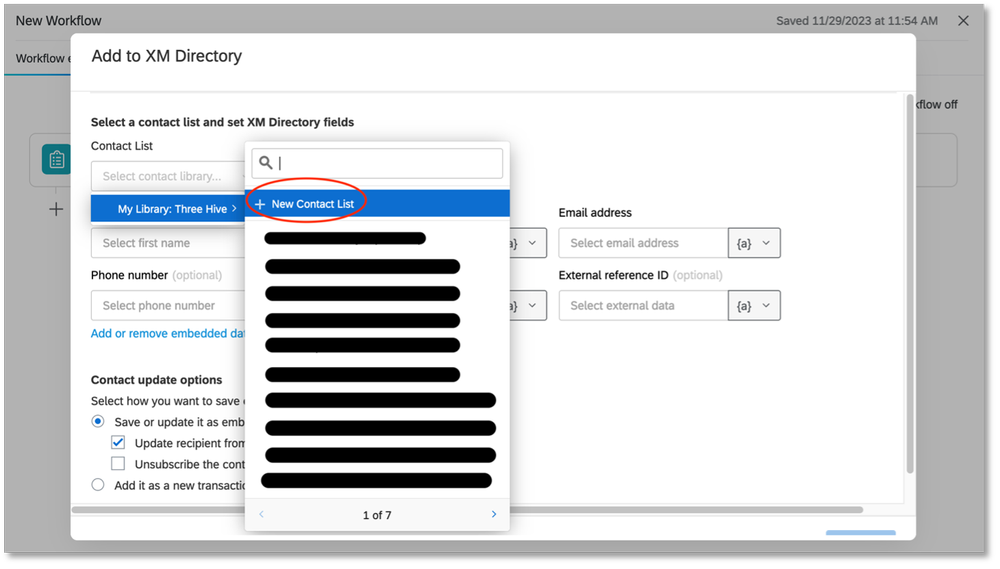
17.     Select the drop-down box for “Contact List.” From there, you will select “My Library,” and then “New Contact List.”

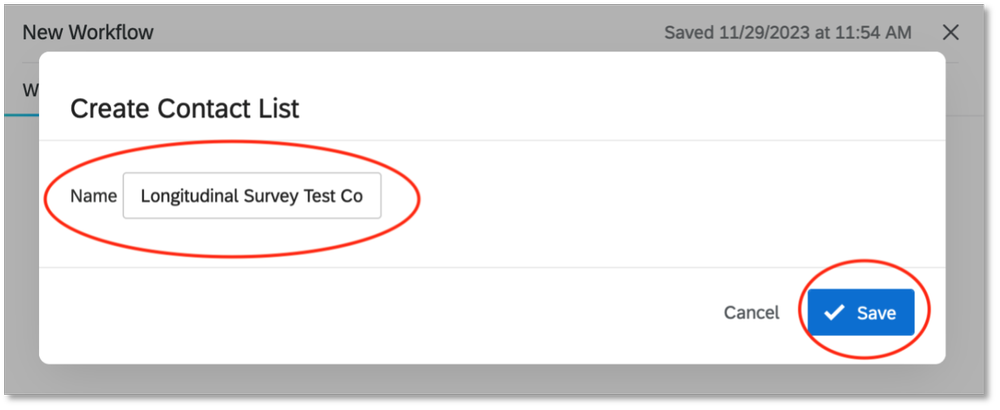
18.     Create a name for your participant contact list. Then select “Save” to exit the window.

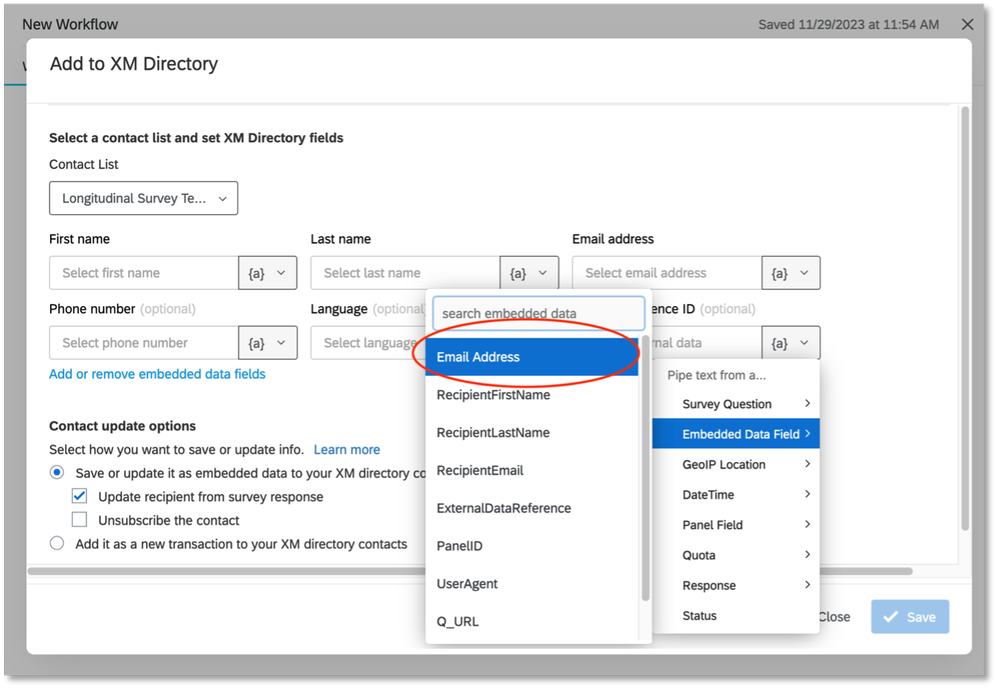
 19.     Next, select the drop-down box for “External reference ID.” From the list, select “Embedded Data Field” and then select the name of the label you created for your participant ID in step 6. For us, the name we chose was “Email Address.”

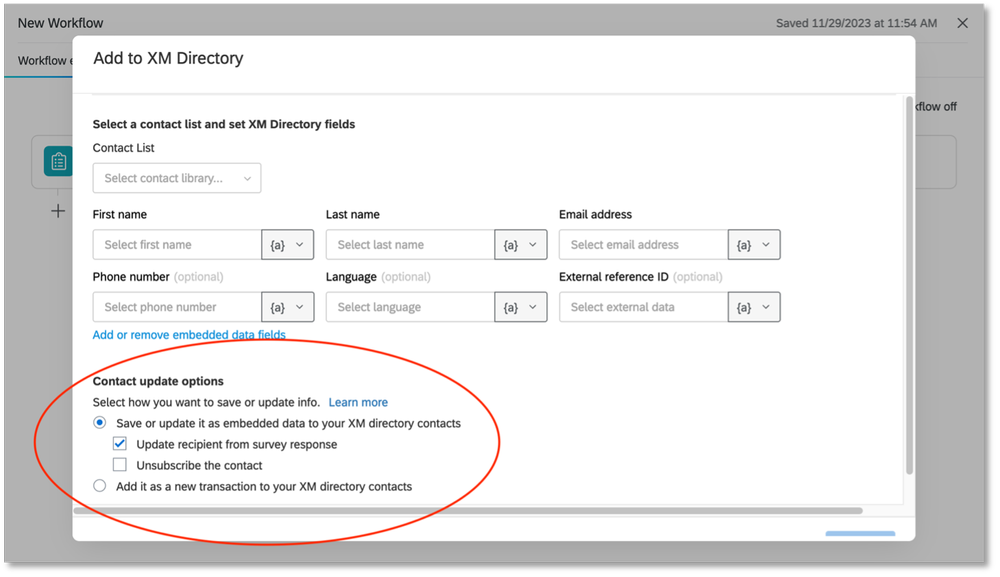
20.     Leave the other settings under “Contact update options” as the default settings. This means that “Save or update it as embedded data to your XM directory contacts” is selected and “Update recipient from survey response” is checked. Save to exit the window.

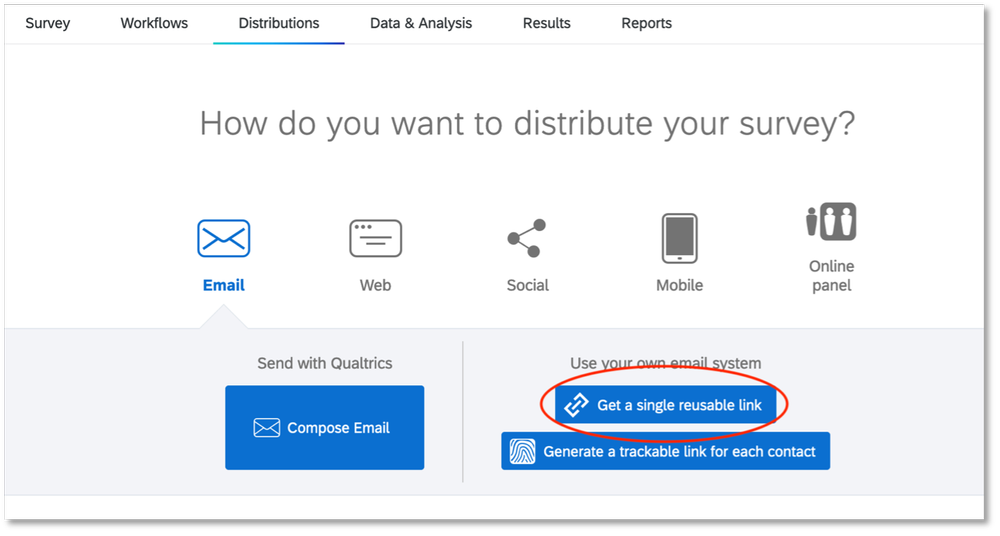
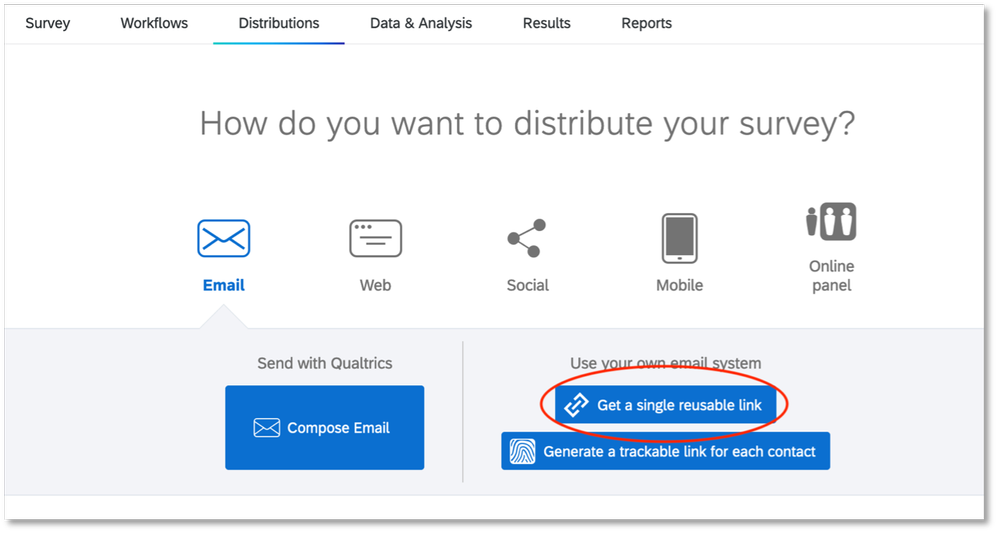
21.     Your first survey is now ready to be distributed. After publishing your survey, make sure you use the “Get a single reusable link” option from the “Distributions” tab. That will give you a single anonymous link that can be sent to all the participants. This survey shows as a regular survey. When the respondent submits their response, their information will get added to the contact list associated with your survey.

Congratulations! You have just set up your first survey! Try testing it out and if you encounter any problems, contact Qualtrics Support and someone will help you troubleshoot your issues.

In my experience, it takes Qualtrics a few minutes to update your survey with the changes you’ve made. If you don’t see your changes right away, wait and try again before contacting  Qualtrics Support.

Setting Up Survey #2

22.     Create your second survey like you would for a regular survey. This one doesn’t need a specific question for the participant ID. If you are asking the same questions as survey #1, I would recommend copying that survey and editing it to make sure your questions are worded in the same way.

23.     Go to the “Survey flow” tab and select “Add a New Element Here.”

24.     Select “Authenticator.”

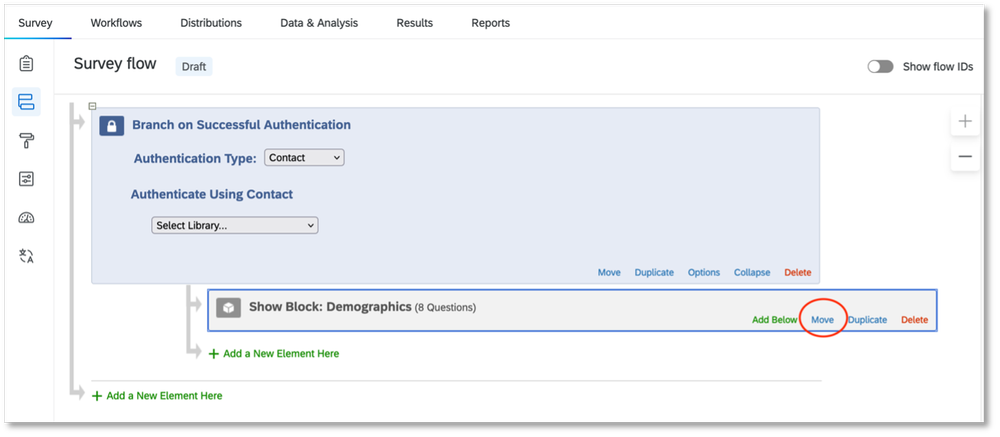
25.     Select “Move” on any question blocks you have and move them underneath the Authenticator element. If you have multiple question blocks, be sure to move and arrange them in the correct order for your survey.

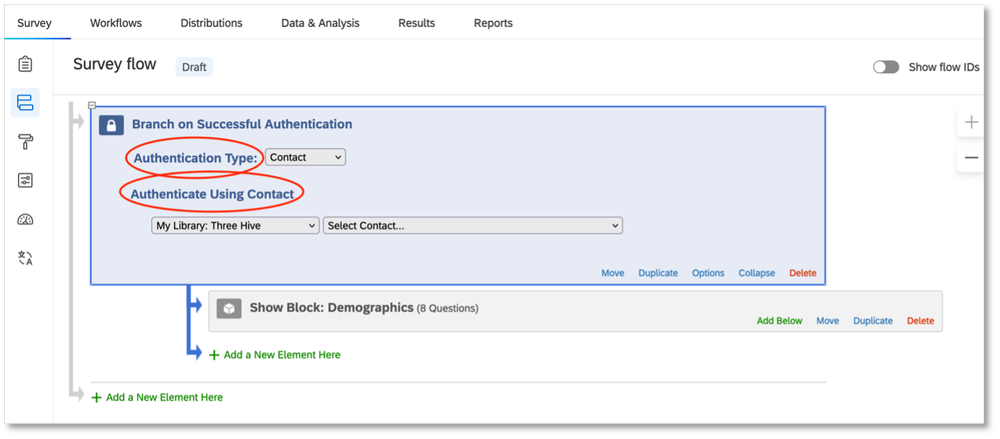
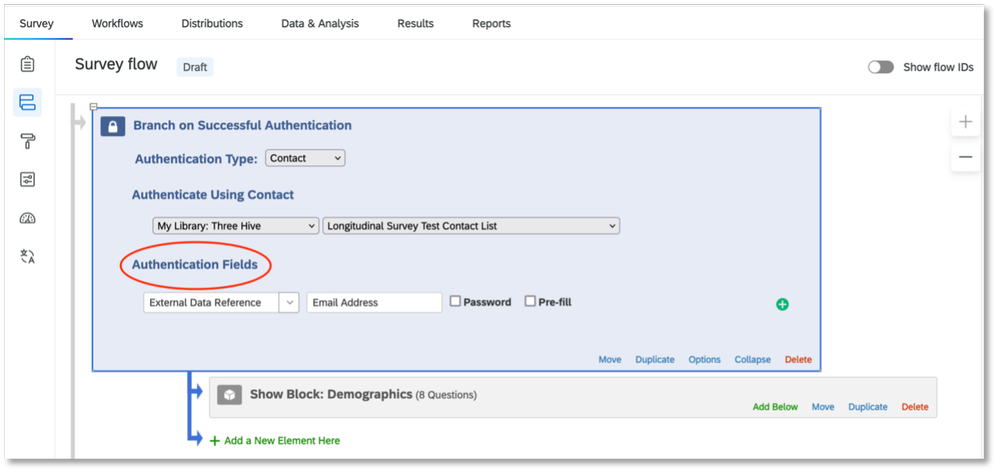
26.     “Authentication Type,” should be set to “Contact.” And under “Authenticate Using Contact,” select the same library you used in step 17 of survey #1. When you select the library, another drop-down list will appear for contact lists. Select the contact list you created in in step 17 of survey #1.

27.     After selecting your contact list, another section called “Authentication Fields” will appear. Under this section, select “External Data Reference” in the drop-down box, then type in the label you chose for the participant ID you selected in step 6 of survey #1. For us, we had chosen “Email Address” so that is what we wrote in this box. Leave the “Password” and “Pre-fill” boxes UNCHECKED. Apply your changes.

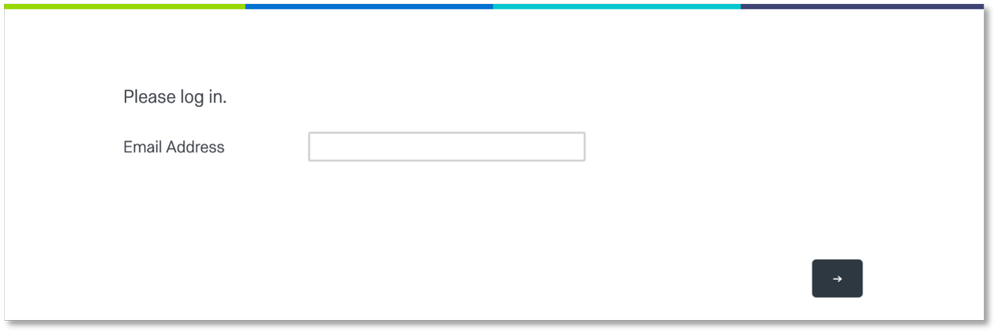
28.     After publishing your survey, it is now ready to be distributed. When you are sending it out, make sure you use the “Get a single reusable link” option from the “Distributions” tab. That will give you a single anonymous link that can be sent to all the participants. After receiving the link, they will be taken to a page where they will have to enter their participant ID before accessing survey #2. Requiring participants to enter their participant ID ensures that their survey #2 responses are linked to their survey #1 results.

Anyone who has not taken survey #1 will NOT be able to access survey #2, unless you add their contact info manually to the corresponding contact list in Qualtrics. This is the contact list you created in step 17 of survey #1.

And that’s it! You have just linked your second survey to your first! If you don’t get the result you want after testing it out, contact Qualtrics Support and someone will help you troubleshoot your issues. Sometimes it takes a few minutes for Qualtrics to update your changes. So, if you don’t see your changes right away, wait a few minutes to test again before contacting  Qualtrics Support.

Written by cplysy · Categorized: evalacademy

Nov 28 2023

Eval Academy’s Top 10 Posts and Resources of 2023

To celebrate the end of the year, we’ve highlighted Eval Academy’s top ten posts and resources from 2023.

What posts or resources would you like to see in 2024? Comment below, tweet us @EvalAcademy or connect with us on LinkedIn!

Top posts of 2023

 10. What you need to know about member checking

While member checking is commonly used in qualitative research, it’s less commonly used in evaluation and we think that should change! In this article, we review what member checking is and why, when, and how you should use it.


9. But really, how do I use the RE-AIM Framework?

In this article, Bonnie shares her account of how to use the RE-AIM framework in your evaluation planning, implementation, and reporting.


8. Everything you need to know about Likert scales

The Likert scale is one of the more commonly used rating scales in surveys. As evaluators, we should know a thing or two about it, and how to navigate some of the decisions involved in using a Likert scale. This article introduces Likert scales and how to use them.


7. Differences between Theory of Change, Log Frames, Results Frameworks and Logic Models – what are they and when to use them

You might have noticed how there seem to be quite a few evaluation tools doing very similar things. It’s no surprise that these tools can sometimes be confused, and the lines can be blurred around when and how to use them. To help you on your way to deciding which tool is best suited to our evaluation, this article compare and contrasts few of our favourites.


6. Evaluation question examples by type of evaluation

This article takes a look at how using different evaluation strategies or frameworks can help you to craft perfect evaluation questions.

5. Evaluation question examples

A blank page can intimidate any writer. The same goes for evaluators – that “evaluation questions” column in your evaluation plan may be daunting. This article takes a look at examples of real-world evaluation questions that might just inspire your own.


4. How to write good evaluation questions

The article outlines essential considerations for writing effective evaluation questions, emphasizing the need for questions to align with the evaluation’s purpose and involve stakeholder collaboration. The article provides guidance on the optimal number of questions, suggests the use of thematic clusters, and underscores the importance of language precision in crafting questions, concluding with indicators of well-crafted questions and next steps in the evaluation process.


3. How to complete an environmental scan: avoiding the rabbit holes

This article is aimed at those who are new to environmental scanning and are looking for new ways to support program planning and improvement.


2. Finding the right sample size (the hard way)

For those interested in calculating sample sizes by hand, or getting a better understanding of the math behind many sample size calculators, this article outlines the formulae used to calculate sample sizes.


1. Interpreting themes from qualitative data: thematic analysis

This article supports evaluators who are new to qualitative data analysis. We start by defining thematic analysis, then give you a 5-step process to complete your own analysis. We end the article by highlighting some common challenges with thematic analysis.


Top resources of 2023

 10. Focus group moderation guide template

You have important questions to ask in your next focus group. Use this template to make sure you don’t miss a thing including logistical details, housekeeping, consent verification, and closing comments. This fully editable template will download as a Word document.


9. Interview tracking log – Excel template

An Interview Tracking Log is a tool to use when collecting qualitative data through interviews to keep track of participant recruitment. This customizable Tracking Log in Excel can be used by anyone completing interviews and should be modified to capture project-specific information such as relevant participant demographics.


8. Interview guide template – standard interview

Evaluators often use interviews to collect data. Strong interview data relies on a consistent interview process—that’s where this interview guide comes in. You’ll find yourself using this template over and over to structure your questions and provide prompts for interviewers to get deeper into interviewees’ perspectives. This template downloads as a fully editable Word document.


7. Evaluation kick-off meeting agenda template

This customizable resource provides an agenda template for an “Evaluation Kick-off Meeting” for a program or project. The meeting aims to initiate the evaluation process and includes various activities such as introductions, identification of team members and their roles, clarification of program goals, evaluation planning, and communication strategies. The template downloads as a Word document.


6. Developing a Logic Model (template)

This customizable template serves as a guide for creating a Logic Model for a program. The document includes sections explaining the purpose of a Logic Model, and the facilitating questions cover topics like needed resources, program activities and outputs, the intended reach of these outputs, short-term, medium-term, and long-term outcomes, impact, and external influences and assumptions. The template provides a structured format for users to input their answers to these questions, creating a comprehensive Logic Model that can be presented as a flowchart. This template downloads as a Word document.


5. Program evaluation scoping guide

This guide is intended for anyone conducting an evaluation of a program to understand the scope of the evaluation. The guide outlines questions evaluators can ask program managers or other stakeholders to better understand the scope of the program and its evaluation. The questions in the guide are intended to help evaluators begin formulating a quote and/or an evaluation plan; however, it can also be used identify disagreements or gaps in what is known about the program and/or the boundaries of the evaluation. This resource downloads as a Word document.


4. Theory of change template

This customizable template provides a structured framework for developing a Theory of Change for a program. The document guides the user through the process of defining the program’s purpose, its intended impact, and the activities required to achieve that impact. The goal is to create a comprehensive understanding of the program’s logic and context, aiding in the development of measurement and evaluation approaches. Downloads as a Word document.


3. Evaluation question checklist

This checklist acts as a tool to score your evaluation questions. This resource downloads as a Word document.


2. Evaluation plan template

This template includes all the sections needed in an evaluation plan including background, assumptions, evaluation purpose and scope, data collection methods, and reporting products, with prompts to help jump start your thought process. This file will download in fully editable Word format.


1. Canva design templates for creating your own Logic Model

Create your own logic model using our FREE pre-made Canva templates. This fully customizable template is available online on Canva through our download link.

Written by cplysy · Categorized: evalacademy

Nov 28 2023

Survey Question Types

We love a survey at Eval Academy! It’s one of the most commonly used data collection tools in an evaluator’s toolbox. There are lots of benefits to using a survey: you can collect lots of responses for a low cost, you can collect over time and space, you can be sure participants are asked the same question in the same way for comparisons, and more!

Have you ever stopped to think about how many question-type choices you have in creating your survey? I think most of us turn to the good ol’ Likert questions but there are so many more. Here’s a quick rundown of some options:

1. Multiple choice (or drop-down menus if online)

“Multiple choice” questions can be used when you have discrete option choices and when you want to limit write-in answers that are more resource-intensive to analyze. “Multiple choice” is also a great option when you want to force a choice, like understanding preferences.

In a “multiple choice” question, the key is that respondents choose one answer, not multiple (despite the name!). In creating a survey, if you think your choice list may not be exhaustive, you can always add an “other” category. Most online survey platforms have built-in features for this, and you can ask respondents to type in their “other” response.

In an academic world, “multiple choice” questions might be called “nominal” and probably include dichotomous questions, that is, questions that only include two answer options like “yes/no”.

Examples:

  • [forced choice] Which of the following activities is most important to achieving your program outcomes?

    • Offering the drop-in program

    • Operating 24/7

    • Doing community outreach

    • Partnering with schools


  • [other category] In which country do you reside?

    • Canada

    • Australia

    • United States

    • Other, please write in: ___________

  •  How many times did you access this program in the last 6 months?

    • 1 – 3 times

    • 4 – 6 times

    • 7+ times

    • I have not accessed the program in the last 6 months


2. Check all that apply

“Check all that apply” is similar to “multiple choice”. It has the same format, but respondents can select more than one answer. This is used when the answer options are not mutually exclusive.

It is important to be clear on your surveys which questions allow for multiple selections, often by adding “select all that apply” after your question.

Both “check all that apply” and “multiple choice” questions should still have response options that reflect all possibilities, which may include things like “None”, not “Not applicable”. The example below includes an exclusive answer option of indicating that services have not been used.

Example:

  • [with exclusive answer option] Which services have you used in the last months? (select all that apply)

    • Drop-in program

    • Lunch program

    • After school tutoring

    • I have not used any services in the last 12 months (exclusive)


3. Likert Scales

We’ve written about Likert scales before. Likert scales are used when you want to capture a spectrum of responses to assess how strongly a respondent feels about what you are measuring, like satisfaction, acceptability, etc. Likert scales can also be used to assess how frequently something happens.

The Likert scale may be viewed as an alternative to Yes/No questions by changing a dichotomous response into a spectrum, often with a middle or neutral point.

Examples:

  • [frequency] How often do you access the program?

    • Never

    • Rarely

    • Sometimes

    • Often

    • Always


  • [satisfaction] How satisfied are you with this program?

    • Very Satisfied

    • Somewhat Satisfied

    • Neither Satisfied nor Dissatisfied

    • Somewhat Dissatisfied

    • Very Dissatisfied


4. Rating scales

Ratings scales can be used in similar situations as a Likert scale, but often have more answer options (e.g., on a scale of 1 – 10 or even 0 – 100). Rating scales don’t have labels clearly attached to each marker. Without these labels it is impossible to say what the difference between a rating of 6/10 and a rating of 7/10 means but a rating scale (usually) creates more specificity and sensitivity than Likert scales because they offer more option choices. However, the interpretations of those differences are tricky. A rating scale also offers the respondent more freedom in responding without being tied to the anchors of a Likert scale.

When using a rating scale, make sure you are clear which end of the scale is positive! Respondents could circle a response, as in the first example below, or write in their rating, as in the second example.

In an academic world, this question type might be called an “ordinal” question.

Examples

  • [circle an option] On a scale of 1 to 10, indicate to what extent do you agree that the keynote speaker was engaging.


  • [write in your rating] On a scale of 0 to 100, how would you rate your health, where 0 is very ill and 100 is the best health?_______


5. Visual Analogue Scale (VAS)

Another way to get a distribution of responses is to use a VAS. In this question type you ask respondents to make a mark on a line (horizontal or vertical) that indicates how closely they feel to each end of the line, which is labelled by you. A VAS is similar to ranking, but removes the numeric labels (e.g., 1 – 10 or even 0 – 100). In this way, respondents aren’t limited to number options. The major limitation with a VAS is that it is difficult to analyze. In the past, I’ve had to find a ruler to literally measure from the end of the line to the mark, however some online platforms can do this for you. On online platforms this might be called a sliding scale, where the respondent slides the mark along a line.

A VAS is probably most frequently used in health care to measure mood, pain, health, or quality of life. They are highly sensitive to change, which means they’re great to use over multiple time points. They can be used in some populations that may have literacy difficulties, or when you are looking to minimize respondent burden because the respondent only needs to make one mark.

Again, be sure to label the ends clearly. Because a VAS is less common, many respondents won’t have encountered it before.  It might be smart to include a completed example at the top of the page.

Example

  • Place an X on the line about how likely you are to attend this program again:


6. Ranking

 Ranking questions can also be used to prioritize lists and help you to understand what has highest importance to your audience.


While potentially very informative for evaluation, I have had feedback from respondents that these are difficult questions. Ranking forces a respondent to really think about what matters most, and in some cases that can be a hard or even impossible ask. Be careful when using ranking questions that you aren’t forcing a choice that will make your respondents uncomfortable. It’s also best to keep the list as short as possible, a rule of thumb is six or fewer items. Imagine being ask to rank order 20 items!


Online platforms are fairly useful for ranking questions. Paper formats are trickier – you could ask respondents to assign a number value to each item (first example), or to draw a line between the item and a pre-ordered list (second example). If you are using this latter format, a completed example might be helpful.


Ranking is another example of an ordinal question type.

Examples

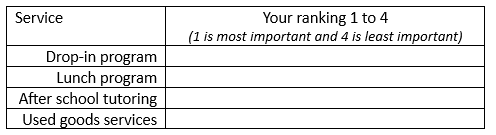
  • Please rank these services from most important to least important by assigning a number, where 1 is most important and 4 is least important:


  • Please rank these services from most important to least important, by connecting them to the list, where 1 is the most important and 4 is you’re the least important.


7. Allocation

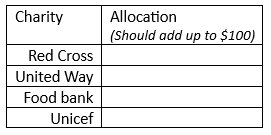
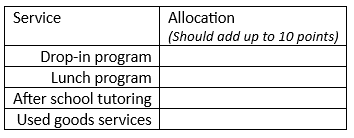
Allocation questions are another way that you can evaluate preference or priority of items. In your question you tell your respondent that they have a resource (most commonly this would be points or virtual dollars) and you ask them to distribute, or allocate, that resource among the answer options. This mitigates the problem of the ranking question where respondents may have trouble assigning something the lowest rank if they still find it valuable or important. Using allocation, the respondent can allow for ties between items.

On online platforms you can ensure that totals add up to the allocated amount.

Examples

  • Imagine you have $100 distribute. How much you distribute it amongst the following charities:


  • You have 10 points. Distribute those points to the following school services to indicate how valuable they are to you:


8. Image choice

Image choice is when your response options aren’t words or numbers, but images. Image choice is a great option to give respondents a refreshing way to answer, or if there are literacy or cognition concerns. Images may also be good for youth and children (faces icons can also be used as part of a Likert scale). However, images can be more difficult to analyze and interpret. One way to mitigate this difficulty is by adding words with the images, but this of course negates the benefit of being word-free.

Example

  • [wordless] Select the image that best represents how you felt about the session today:


  •  [with labels] Select the image that best represents where you would like to live:


9. Open ended (long or short answer)

Open ended questions are when the respondent writes in their answer. Generally, these are described as “short answer”, which is just that: the respondent may answer in just one word or maybe one sentence.  “Long answer” is when you are asking for more information, perhaps an explanation of something or detailing an experience.

Technically, when you include an option in a “multiple choice” question that says “Other, please specify” that is a short answer question type. Short answer question types are good options when you don’t know how to create a list that is exhaustive, or when your exhaustive list might be too long.

Example (Short answer)

  • What other programs have you participated in in the last 12 months?  ____________________________________________________________________________________________________________________________________________________________


Long answers, as described above, ask for detail. I often use these when I want to probe deeper into a survey question. I’ll use branching in online survey platforms so that, depending on what option a respondent chose for a previous question, a long-answer question will appear asking “Why did you select “Strongly agree” to the previous question?”.

Survey respondents get tired of long answer questions quickly. They add considerable time to completing a survey and to analyzing it. It’s best to limit these to areas that you really want to probe, where an interview or focus group isn’t an option. I usually make long answer questions on my online surveys optional.

Example (Long answer)

  • Please describe your main takeaway from the session today.

______________________________________________________________________________________________________________________________________________________________________________________________________________________________________________________________________________________________________________________________________________________________________________________________________


10. Matrix questions

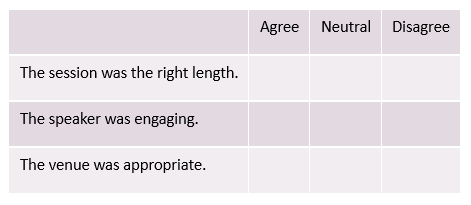
Ok, so matrix questions aren’t actually a distinct question type. Most often, they are a series of Likert questions with a distinct format. When you have a series of questions that all use the same response option you can format them into a table (see example below).

Matrix question tables definitely save room on your paper or digital page, and they indicate to the respondent that the next set of questions are all similar, thus reducing some cognitive load in responding. However, Matrix formatting can also be overwhelming if your question list is long. It’s a general rule of thumb to limit the number of matrix questions on a survey.

One of my pet peeves is when I see a matrix question on a survey but the survey creator hasn’t offered any instruction. Just because it may seem intuitive or easy to respond, it’s still important to offer your respondents some guidance.

Example

  • Please place a check or X next to each statement to indicate your level of agreement.


11. Form fields

Technically form fields probably aren’t used on surveys, but on forms. However, it is possible that if you need to collect identifying information from respondents that form fields will be used. I’m not sure these are their own question type per se, as they are more likely short answer questions, but the formatting of the field provides some guidance – things like First Name, Last Name, Address etc. Most online platforms offer assistance with form fields.


12. Others!

There are other options out there that I haven’t explored, particularly around the use of mapping. Sometimes it’s fun and informative to play around with online tools to see what options they give and consider how you can use them in your survey.


Some final considerations:

  • Survey question type choice should be based firstly on what format best suits the information you are seeking to gain. Where several options are available to you, consider selecting the one that makes your survey shorter and/or easier to complete. Aim for simplicity.

  • As I’ve mentioned a few times, it is important in any question type in your survey to offer clear instructions, and clear labels.

  • Question type is just one decision to make in creating your survey. The wording of your questions is also important! Take a look at this infographic for more help.

  • I’ve presented 10+ question types here, but that doesn’t mean you should use them all in one survey. Switching question types frequently can be stressful for the respondent. Try to limit yourself to three or fewer different question types.

Written by cplysy · Categorized: evalacademy

Nov 28 2023

The Power of Self-Reflection in Evaluation

This article is rated as:
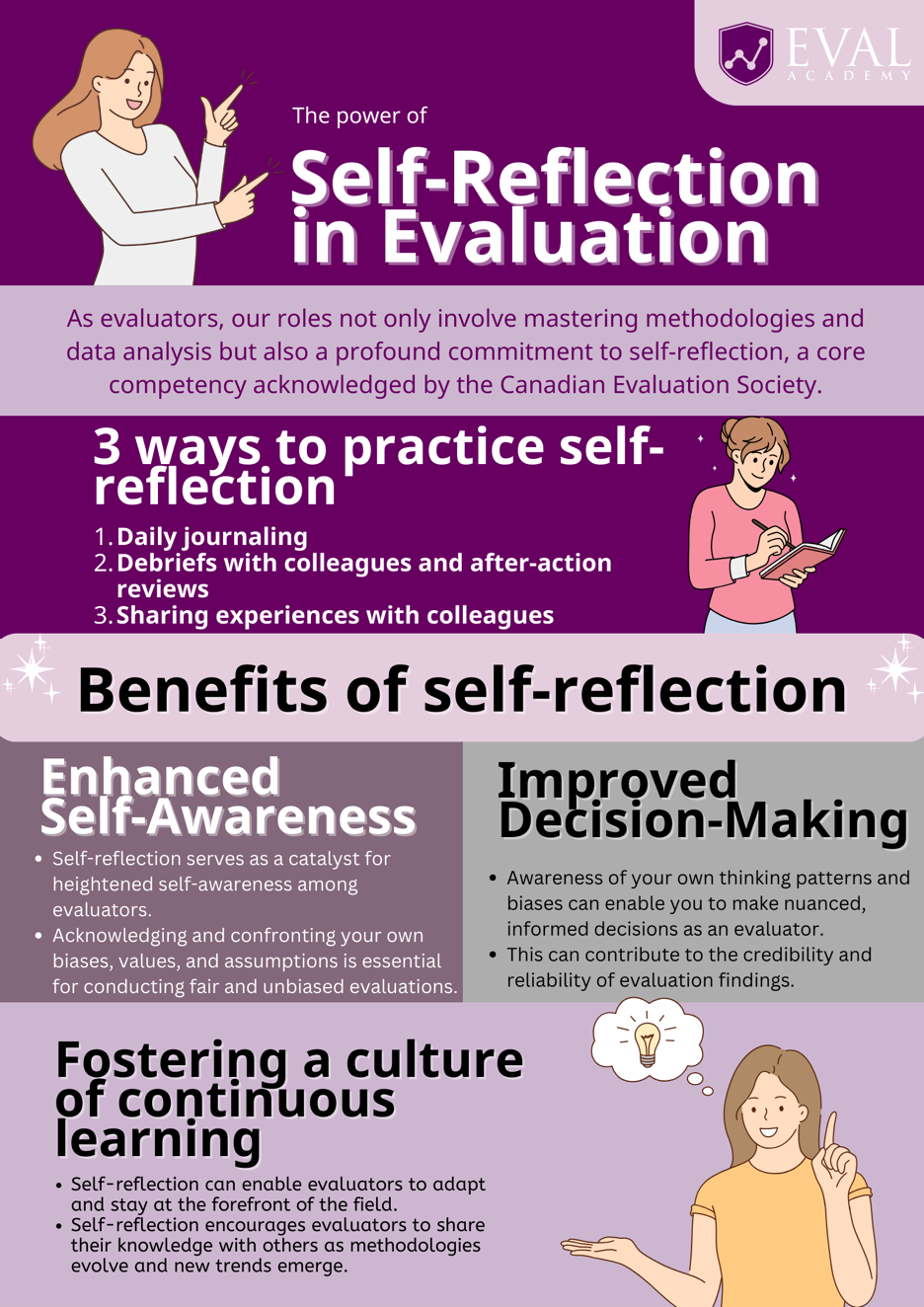
As we approach the end of 2023, it’s more than likely that you’ll find yourself reflecting on the past year. As evaluators, our roles not only involve mastering methodologies and data analysis, but also a profound commitment to self-reflection, a core competency acknowledged by the Canadian Evaluation Society. In my recent presentation at the Canadian Evaluation Society, British Columbia Chapter (CESBC) annual conference, the transformative power of self-reflecting as an evaluator took center stage as I reflected on my journey of moving from an emerging evaluator to a more seasoned one.

This article explores the insights I shared during the CESBC presentation, emphasizing the pivotal role of reflection in the evaluation process.

Understanding Self-Reflection in Evaluation:

As evaluators, our main goal is to evaluate programs and projects, to uncover insights and evidence essential for informed decision-making. Yet, the transition from theoretical understanding (knowing what should be done) to practical implementation (actually doing it) in the field of evaluation frequently includes challenges. My personal experience aligns with this struggle, having embarked on my first-ever evaluation project 6 years ago without the benefit of formal education or training, or even knowing what evaluation is! In this journey (of which I know I’m not alone!) self-reflection emerges as a powerful tool, bridging the gap between theoretical knowledge and effective execution.

For me, I’ve found that self-reflection can occur in multiple forms in my role as an evaluator. Here are some of the ways that I’ve practiced reflection:


  • Daily journaling to write down what went well for the day, challenges, and ideas to improve my practice. This can provide a tangible record of growth, serving as a valuable resource for future projects.

  • Debriefs with colleagues and practicing after-action review processes at the end of an evaluation.

  • Contributing to Eval Academy by writing articles and creating content focused on lessons learnt from my own practice.

  • Reading the experiences of my colleagues through their contributions to Eval Academy.


Below, I’ve included some of the benefits I’ve witnessed by integrating self-reflection into my practice as an evaluator:

 1. Enhanced Self-Awareness: 

Self-reflection serves as a catalyst for heightened self-awareness among evaluators. Acknowledging and confronting your own biases, values, and assumptions becomes essential for conducting fair and unbiased evaluations. This foundational step lays the groundwork for excellence in evaluation.

 2. Improved Decision-Making:

I’ve found that making time for self-reflection has allowed me to be better equipped to make decisions. Evaluations can be complex processes with multiple partners and competing priorities. Awareness of my own thinking patterns and biases enables me as an evaluator to make nuanced, informed decisions. This, in turn, can contribute to the credibility and reliability of evaluation findings.

 3. Fostering a Culture of Continuous Learning:

As evaluation methodologies evolve and new trends emerge, self-reflection positions evaluators to adapt and stay at the forefront of the field and share their knowledge with others to foster a culture of continuous learning in the field.


My CESBC presentation on the power of self-reflecting as an evaluator is a call to action for evaluators at all career stages. By embracing self-reflection, evaluators can enhance self-awareness, improve decision-making, and contribute to a culture of continuous learning. The journey from theory to action becomes more seamless, ensuring that evaluations not only assess external programs but also turn the evaluative lens inward for a comprehensive and impactful professional journey.


As the field of evaluation continues to evolve, the lessons from my CESBC presentation and platforms like Eval Academy encourage evaluators to embrace self-reflection as an integral part of their professional toolkit, fostering a community that thrives on continuous learning and collective wisdom.

Written by cplysy · Categorized: evalacademy

Nov 27 2023

Qualtrics Automated Reporting – A How-To Guide

This article is rated as:


Regular in-depth analyses are important to provide accurate and meaningful insights and recommendations. However, it can also be useful for clients to be able to view summaries of their data between regular reporting intervals. I recently learned about Qualtrics’ automated reporting feature, and it has been a game changer! With some simple set-up, we’ve been able to create custom reports that automatically update with new responses for our clients to access at the click of a button.

My favourite features:

1. Real time updates: Although it’s always best to collect as many responses as possible to provide insights and recommendations from surveys, it can be useful to have a glimpse into the responses as they come in. Using custom reports in Qualtrics, we can provide clients with a visual summary of the data as it comes in, whether or not they are Qualtrics users themselves!

2. Easy-to-use customizations: The ability to customize reports for your clients is hugely important. Not only does this allow you to personalize the report to match their organization’s brand identity (which can go a long way in how that report is used and shared), it gives you the flexibility to tailor the report to the needs of the client. For example, we may collect data on the date the survey was completed so we can provide insights on how participant satisfaction changed over time in our final report, but this information isn’t relevant to the client who just wants to see the overall satisfaction at any given time. Using this tool, we can pick and choose which data is summarized in charts and tables to give our clients only the information they want, without burdening them with an entire data set.

3. Scheduled sharing: This feature is super useful for clients who want to see updated reports on a regular basis but prefer to receive them via email than by using the link to view the report online. Using Qualtrics, we can set up automated emails containing a report of the most recent survey responses to send to the client’s inbox at regularly scheduled intervals (weekly or monthly). This alleviates the burden of scheduling in time to check results from the client and saves you the trouble of manually emailing updates each week.


How to use Automated Reports:

1. Generating Test Data (recommended)

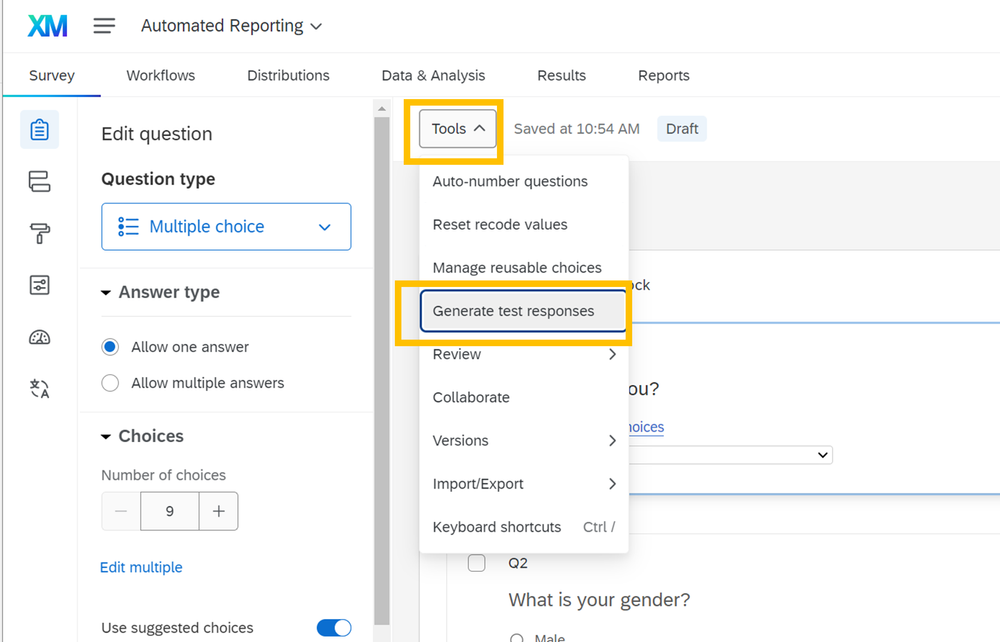
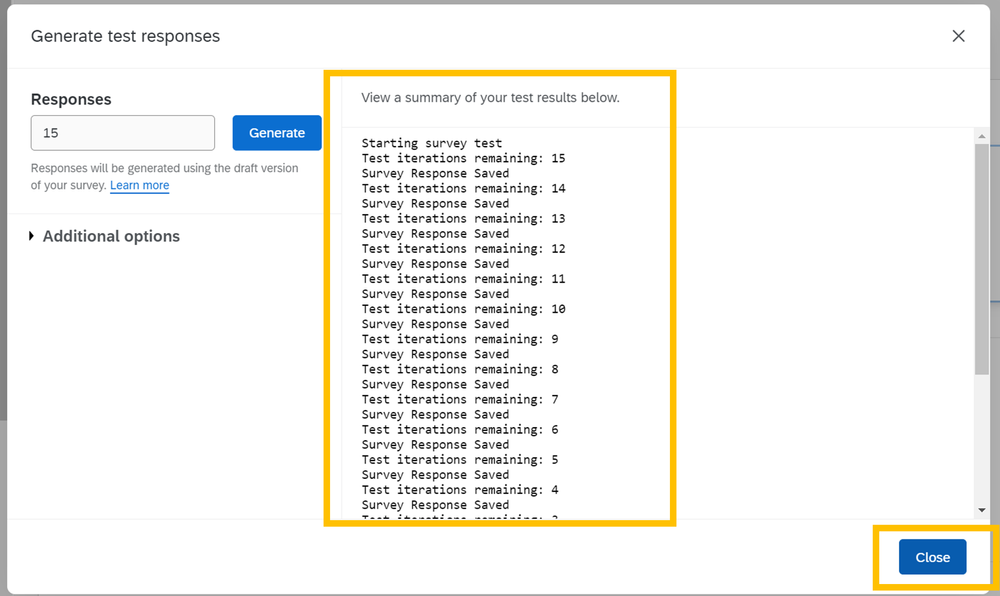
Once you have your survey developed (even before you’ve started to collect responses!), you can set up the layout and look of your report. While you can make the report without any data, I like to first generate dummy (fake) test responses using Qualtrics’ built in feature so that I can preview what the charts and tables will look like with real responses. To do this, click on the Tools drop-down menu in your survey view, and select ‘Generate Test Responses’:
 

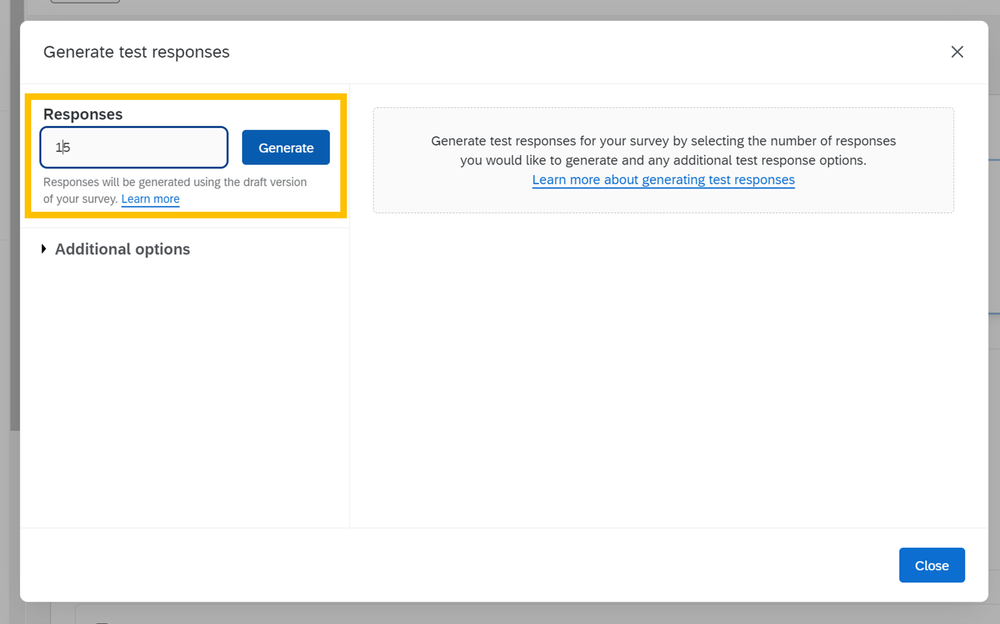
In the new window, specify how many test responses you want to generate (here I went with 15) then click generate.


After a few seconds, Qualtrics will successfully generate test responses – if your summary looks something like the one below, you know this worked properly. Click ‘Close’.


Important! Don’t forget to delete your dummy data before launching the survey so that the test responses aren’t included in your report.
 

2. Building the Report

Once you have some test data to work with, navigate over to the ‘Reports’ tab at the top of your survey view.


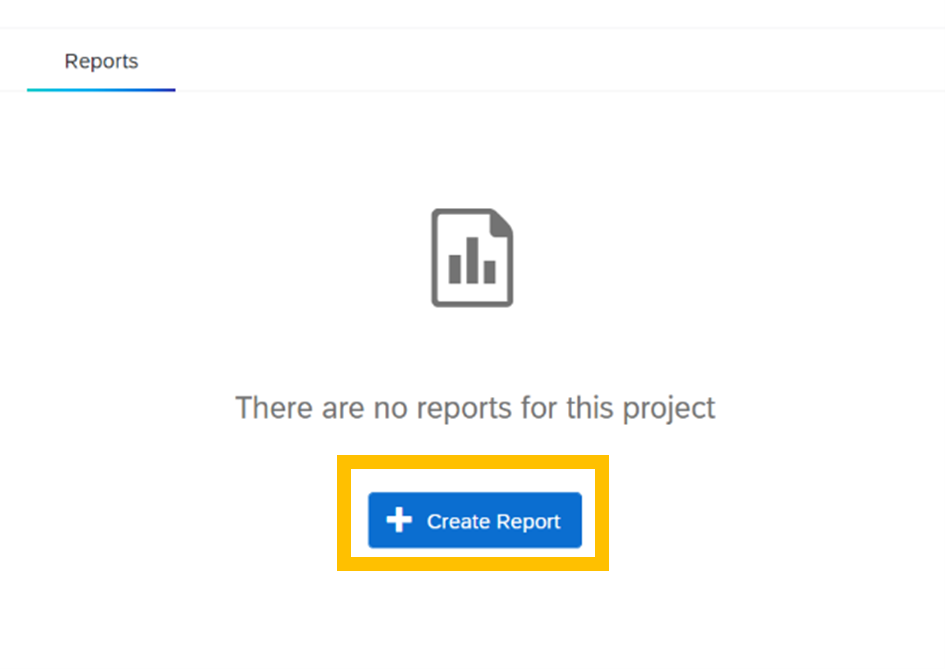
If you haven’t used the reports tab before for the project you are working in, you will see the following screen – click ‘Create Report’ to start preparing your first report.
 

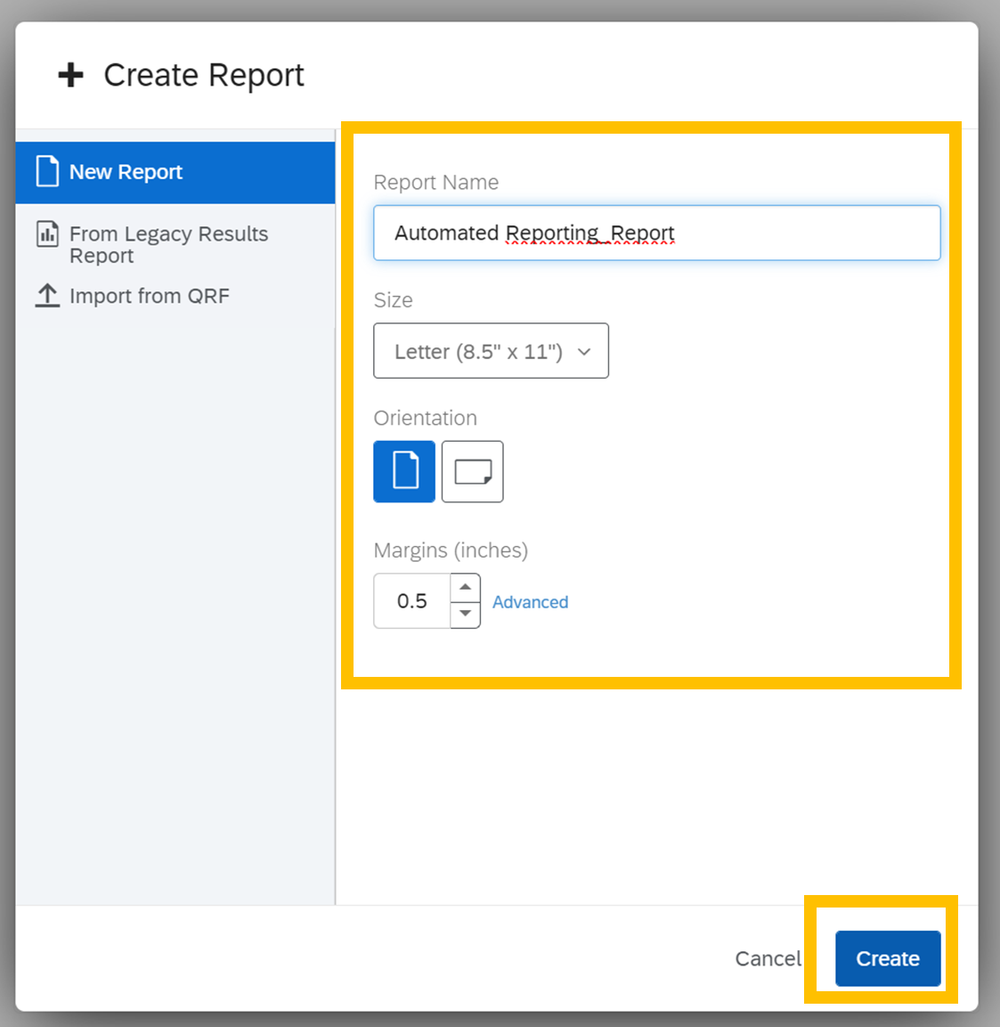
Give your report a name (you can always change this later!), choose the page size and orientation to your preferences, and click ‘Create’.


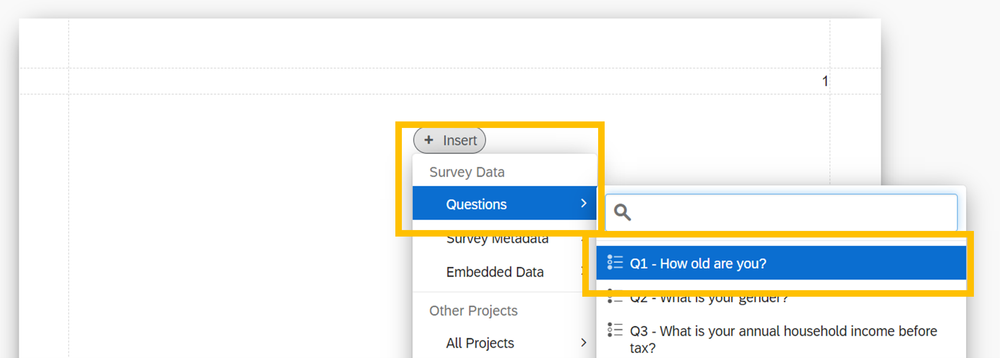
You will now have a blank report draft that is fully empty, with a button to insert a new section. Click ‘Insert’ to choose what you’d like to insert into your report. You’ll have some options to insert survey data, data from other projects, or design aspects like images and page dividers. In this article I will show you the basics of adding in data visualizations, but feel free to play around with these options as needed for your own report.  
 

3. Adding Visualizations for Survey Data to your Report

There are two ways to add visualizations to your report.

a. Click ‘Insert’, then ‘Questions’, and choose the question that you want to display data from. Qualtrics will automatically choose a graph style for your data, but you can change this to best fit your data type.


OR

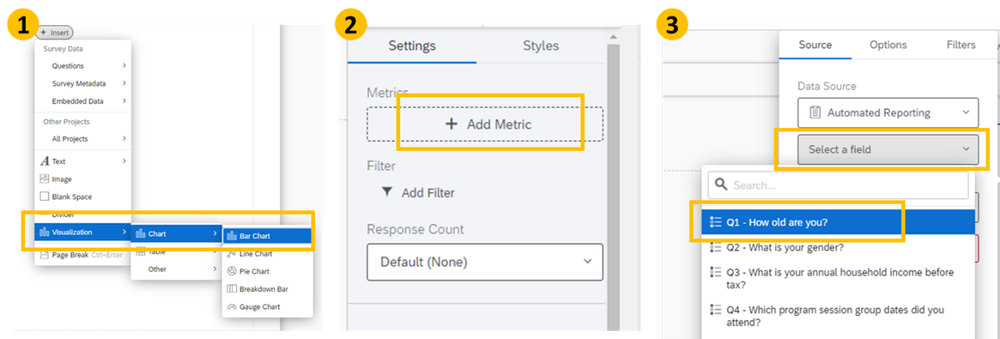
b. Click ‘Insert’, then ‘Visualizations’, and choose the type of graph or table that you’d like to display in your report. In the pane that opens to the right, select the question that you want to pull data from by clicking ‘Add Metric’, then clicking ‘Select a field’ and choosing the question from the drop-down menu.  


Tip: check out our Data Visualization Decision Tree here if you’re not sure how to best display your data!

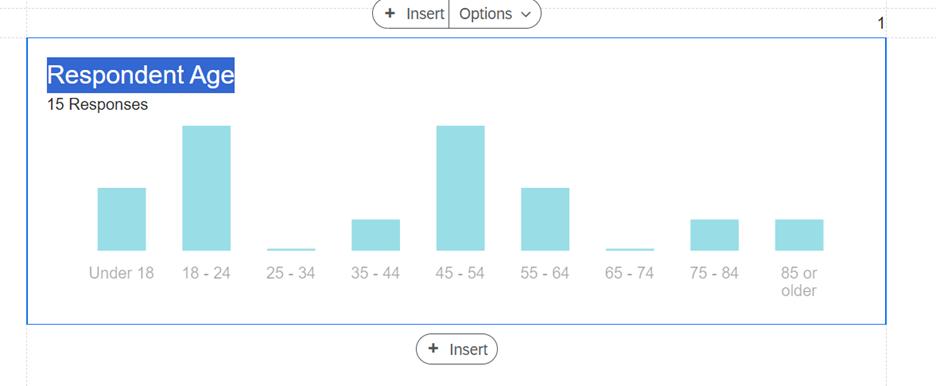
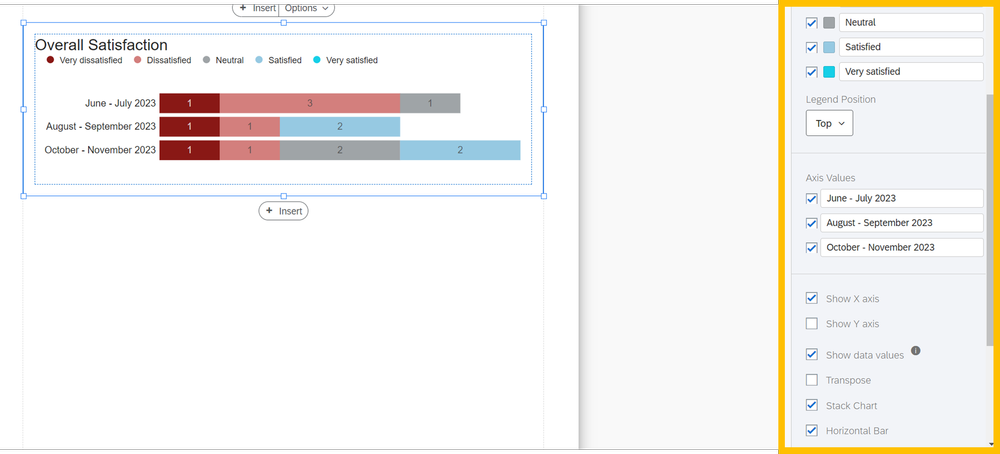
If the settings pane is not already open, click on the graph to open it up.  This pane contains options for your data viz, allowing you to change the metric you’d like to display, add filters, and change how the graph is displayed to suit your preferences.

You can also double-click into the chart title to rename it.


4. Breaking Out Responses (optional)

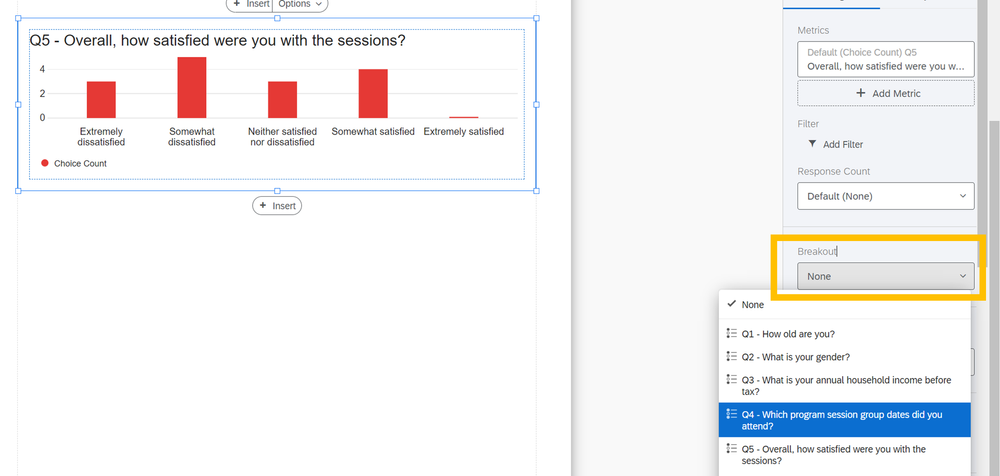
The last customization we’ll touch on in this article is the Breakout option: this allows you to split out the report data by some variable within your survey. In this case, I will split out satisfaction data by the program sessions respondents attended.

Click ‘Insert’ to insert another report aspect and follow the instructions in Step 3 to insert a graph. To breakout the bar chart based on participants’ responses to another survey question (in this case, which group of sessions they attended), click the drop-down menu under Breakout, and choose the question containing the data you want to group by.


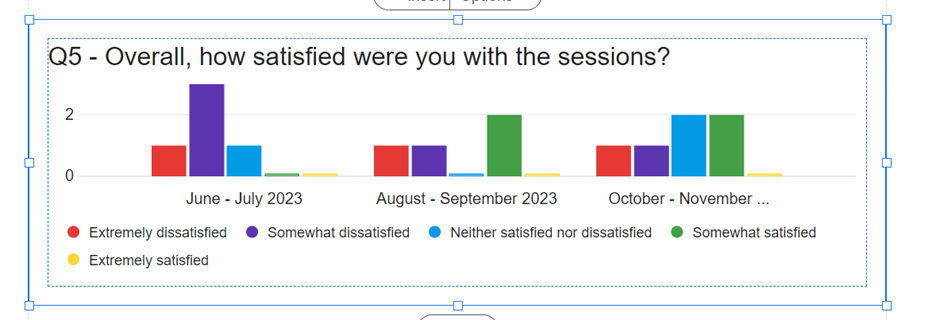
This will visually separate out the responses in your graph.


Adjust the Settings and Style options in the right panel until your graph fits your preferences.


5. Customizing the Report using Images, Page Dividers, and Sections

To add visual interest and improve the flow of your report, you may choose to add images, text boxes, dividers, or page breaks by clicking ‘Insert’ and following the appropriate steps below.

a. Images

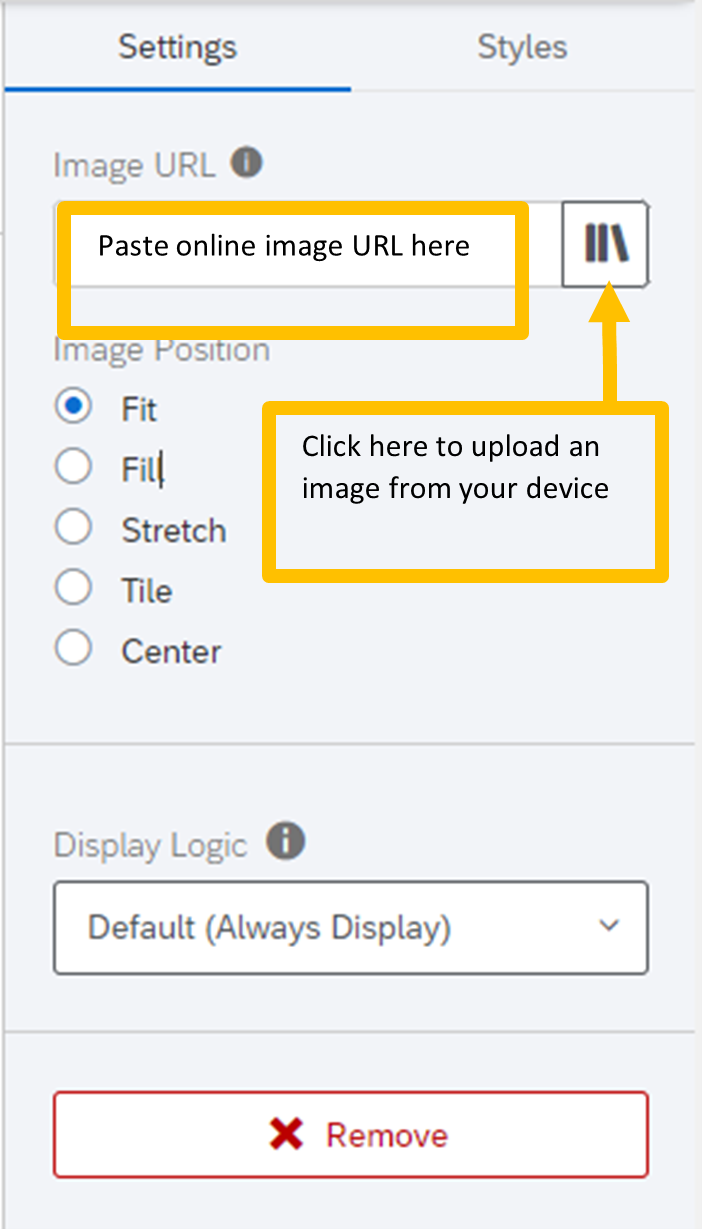
Select ‘Image’ from the ‘Insert’ menu. If you are using an image from the web, simply copy and paste the image URL into the ‘Image URL’ field in the settings pane. To add an image saved to your device, click the button just beside the Image URL field to open up your Qualtrics Graphics Libraries browser. In the Graphic Libraries browser, click ‘Upload Image’ and select the image from your files to upload it to Qualtrics.

You can then drag the corners of the blue box around your image to resize it or move the image to a different place in your report by clicking on the image itself and dragging it to where you’d like it.


b. Text Boxes

Choose ‘Text’, then ‘Text Area’ from the ‘Insert’ drop-down menu. Double click into the text box to change the contents, and to format the text to your preferences using the Text Formatting options at the top of your screen.


c. Dividers

Choose ‘Divider’ from the ‘Insert’ menu to insert a horizontal bar that helps to visually separate sections of your report. You can customize the colour, orientation, and width of the bar in the Settings pane to the right to match your needs and preferences.

d. Page Breaks

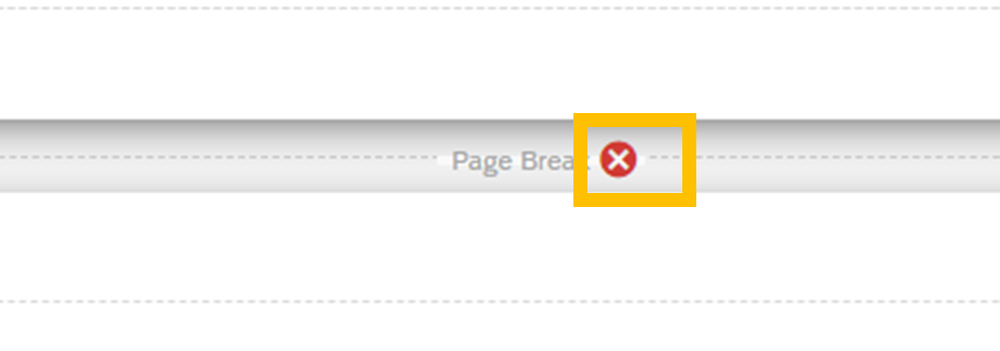
Choose ‘Page Break’ from the ‘Insert’ drop-down menu to jump to the next page of your report. This option will tell Qualtrics to place any new visualizations or report aspects onto a new page, which can be helpful in improving the flow of multi-page reports. To remove a page break, simply hover your mouse over the ‘Page Break’ indicator and click the ‘x’ that appears next to it.


Insert as many visualizations and customized aspects as you need for your report! If you’re having trouble getting started, check out our Qualtrics Report Template available for download as a .qrf file!

Preview the report template here, or download the template here.


6. Sharing Your Report

There are a few ways you can share your report with colleagues, clients, and the public.

a. PDF

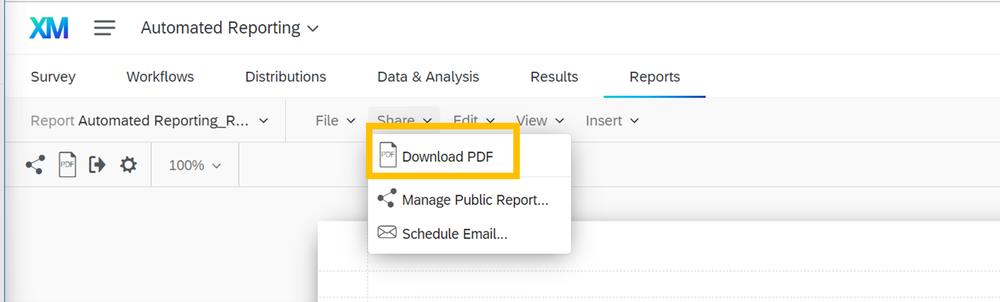
To download and share your report as a static PDF (i.e., this PDF will not change as new data is received), in your report view select ‘Share’ and choose ‘Download PDF’ from the dropdown menu. Save this file to a location on your device, and share the PDF as you would any other file type (e.g., by email).


b. Live Link

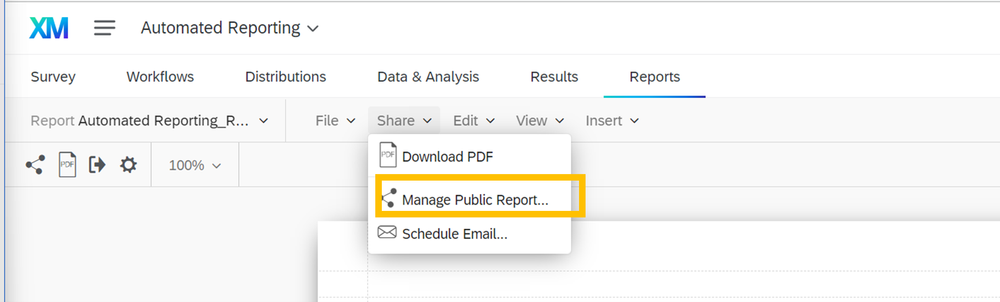
Alternatively, you can share a live version of your report (meaning that this report will change to reflect newly received data), select ‘Share’ when viewing your report, then select ‘Manage Public Report…’.


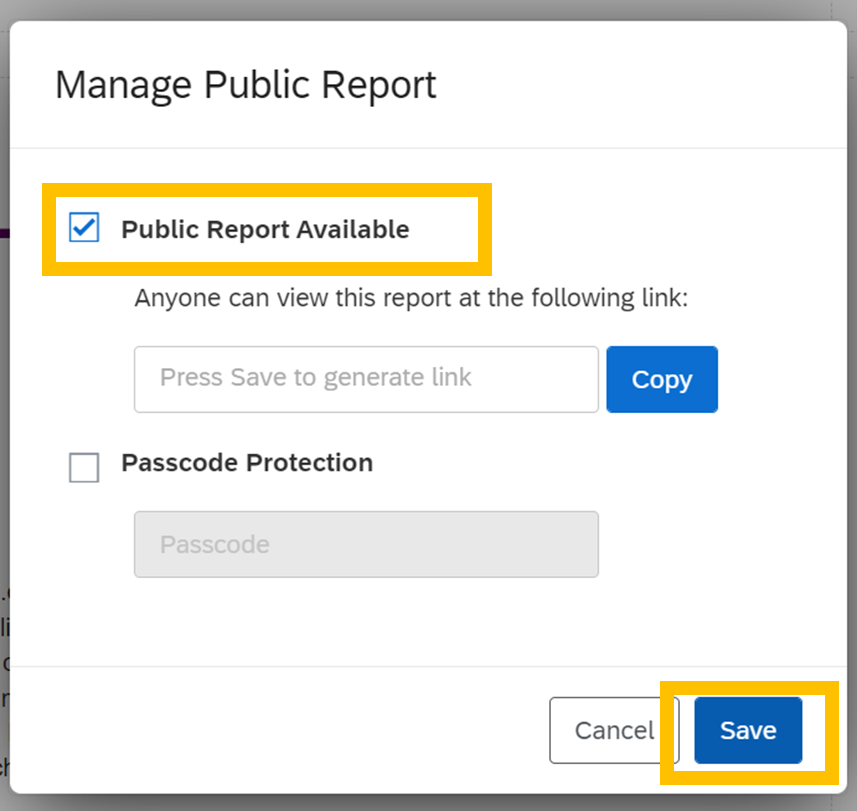
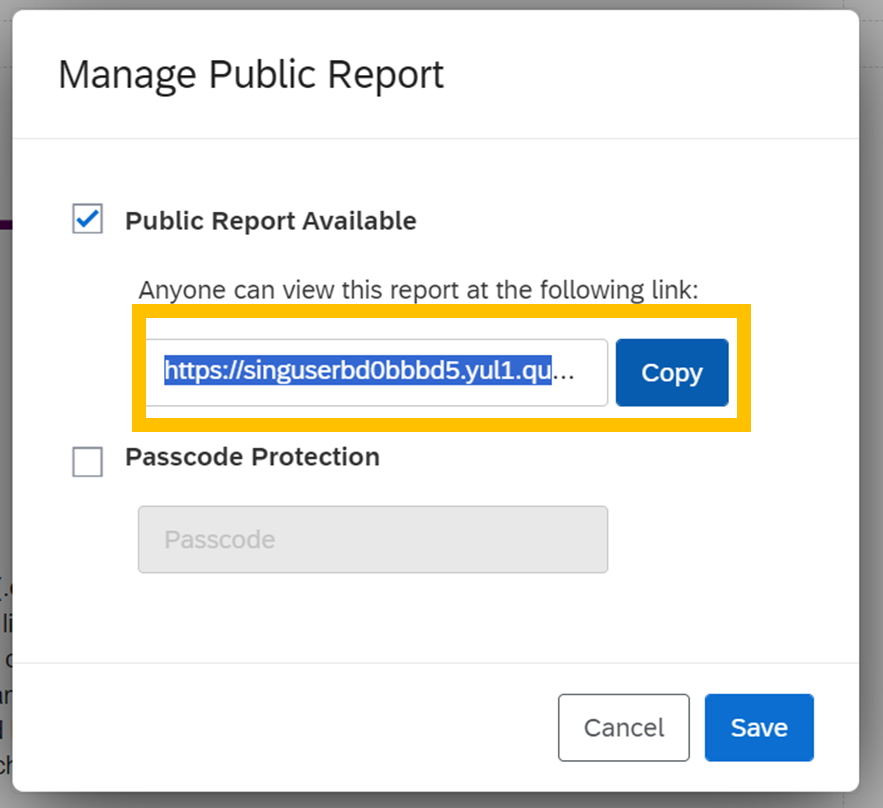
Click the checkbox so that ‘Public Report Available’ is enabled, then click ‘Save’ to generate a unique link to your report. Next, click ‘Copy’ beside the field where the link appeared. You can now paste this link into your URL bar, or paste it in an accessible location for your audience (e.g., in an email to your colleagues and/or clients, on your website for the public, etc[BL4] .). I like to tell clients to save this link as a bookmark or in an easy-to-access document so they can view the report at any time.


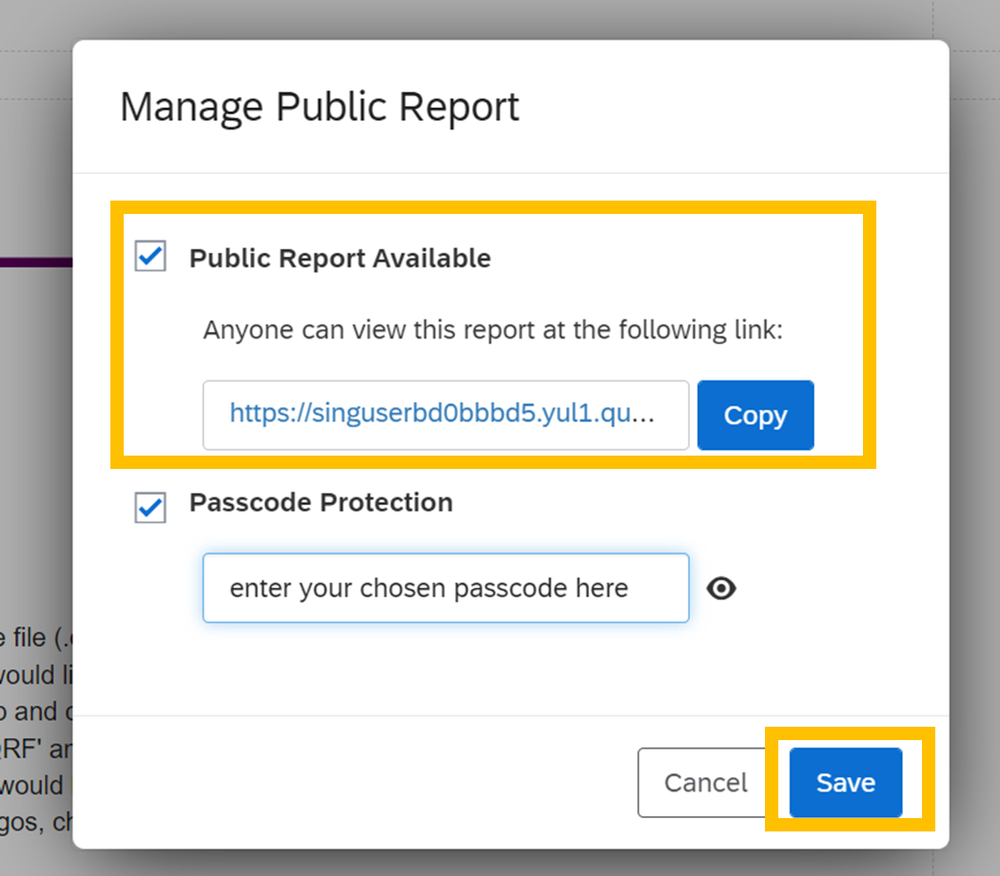
Require a password to view the live link (optional): You may choose to password protect your live link by checking the box next to ‘Passcode Protection’ and choosing a passcode to share with your target audience members. Click ‘Save’ to enable changes.


c. By Email

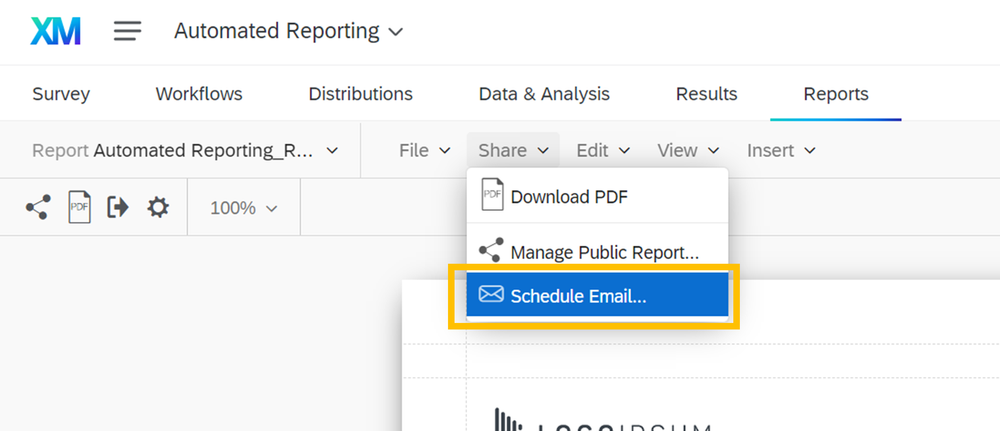
To set up one-time or regularly occurring emails containing updated report versions as a PDF, select ‘Schedule Email…’ from the drop-down ‘Share’ menu when viewing your report.


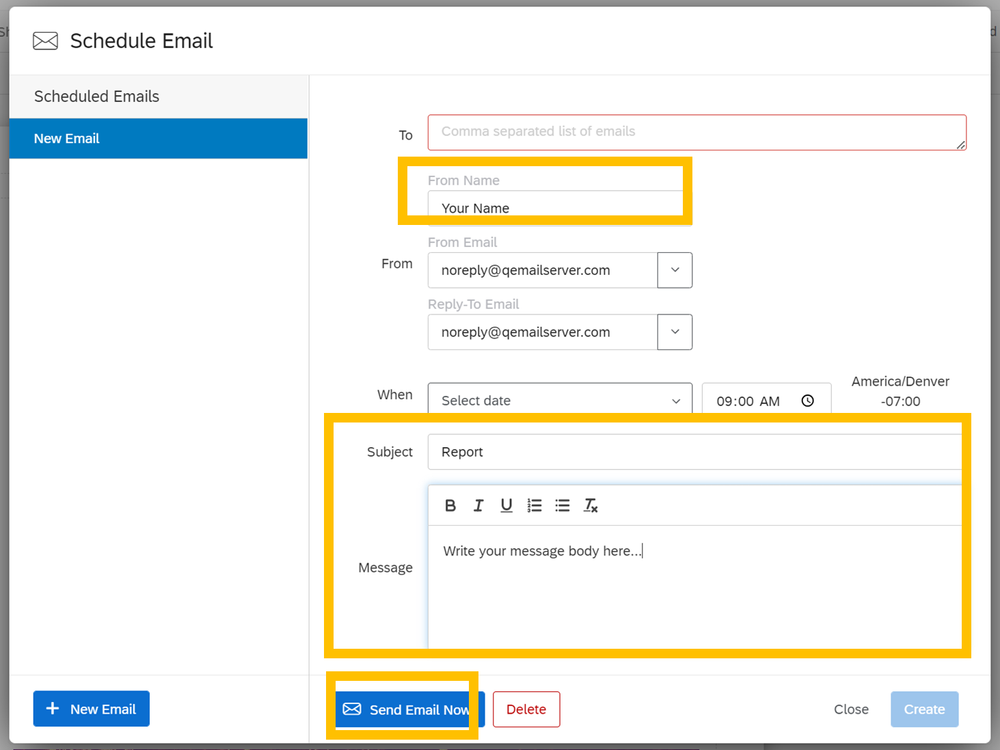
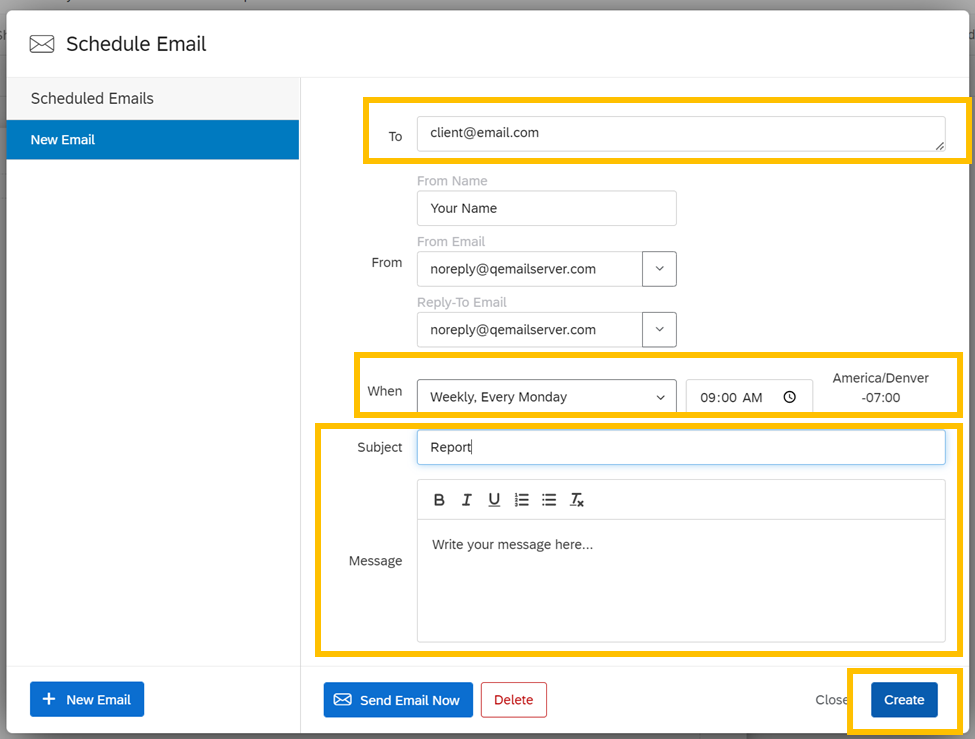
Create a new email by clicking ‘New Email’. Fill out the ‘Your Name’, ‘Subject’, and ‘Message’ to send as a one-time email, or to schedule recurring emails with updated reports.

To send a one-time email: After filling out the fields noted in the previous step, click ‘Send Email Now’.


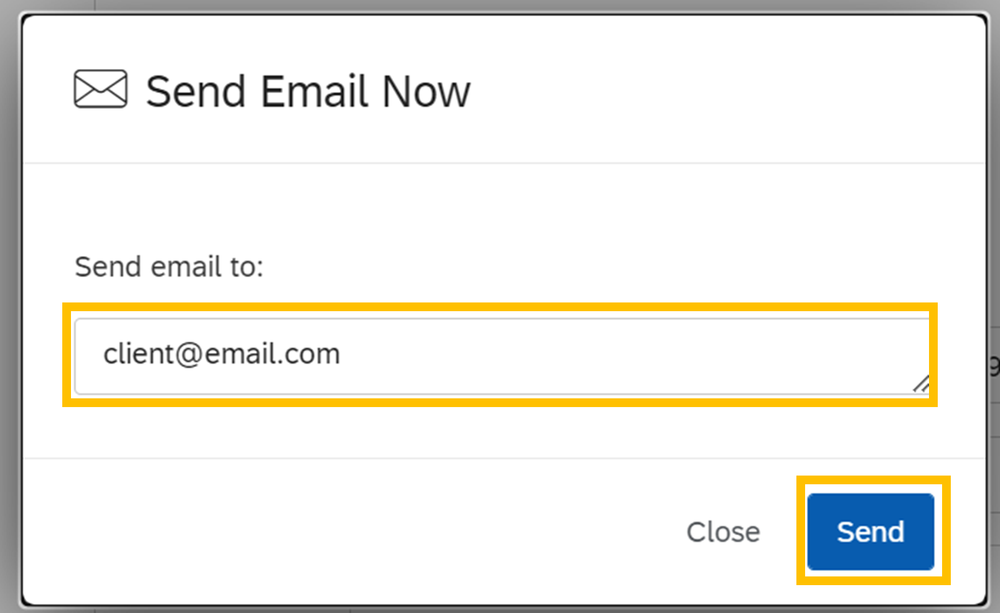
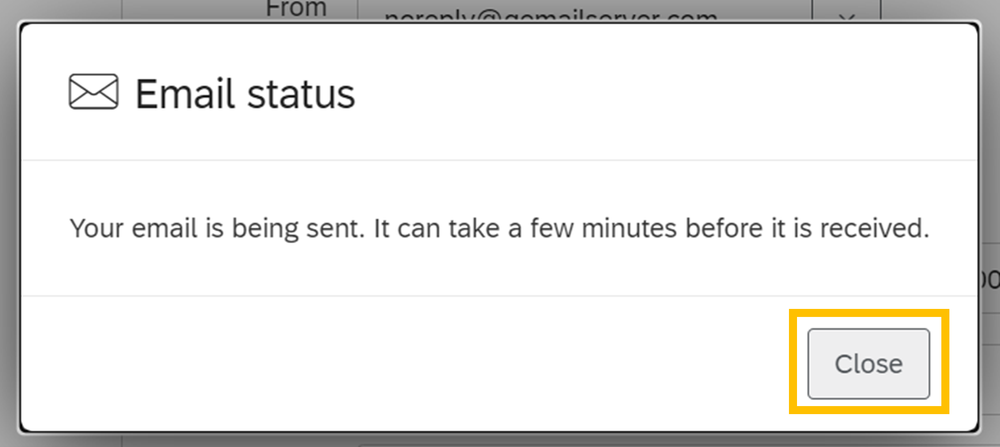
Enter the email address(es) of your intended recipient(s) into the field in the pop-up window, then click ‘Send’. You will receive a pop-up message letting you know that your email is being sent and should be received within a few minutes. Click ‘Close’ on the pop-up window, and ‘Close’ in the ‘Schedule Email’ window.


To schedule a recurring email: Specify your recipients’ email addresses in the ‘To’ field. Then use the drop-down ‘When’ menu to specify how frequently and on what date and time the emails should be sent, then click ‘Create’.


This will save your scheduled email draft and automatically send it to the recipient list specified in the ‘To’ field on the date and time specified in the ‘When’ fields. Click ‘Update’ to ensure your changes have saved, and then ‘Close’.


REMEMBER! Don’t forget to delete your dummy data before launching the survey so that the test responses aren’t included in your report.


There you have it! A report generated within Qualtrics that can automatically update based on newly received data that can be sent to clients, colleagues, or the public automatically from within the Qualtrics platform.

Written by cplysy · Categorized: evalacademy

  • « Go to Previous Page
  • Go to page 1
  • Interim pages omitted …
  • Go to page 8
  • Go to page 9
  • Go to page 10
  • Go to page 11
  • Go to page 12
  • Interim pages omitted …
  • Go to page 43
  • Go to Next Page »

Footer

Follow our Work

The easiest way to stay connected to our work is to join our newsletter. You’ll get updates on projects, learn about new events, and hear stories from those evaluators whom the field continues to actively exclude and erase.

Get Updates

Want to take further action or join a pod? Click here to learn more.

Copyright © 2026 · The May 13 Group · Log in

en English
af Afrikaanssq Shqipam አማርኛar العربيةhy Հայերենaz Azərbaycan dilieu Euskarabe Беларуская моваbn বাংলাbs Bosanskibg Българскиca Catalàceb Cebuanony Chichewazh-CN 简体中文zh-TW 繁體中文co Corsuhr Hrvatskics Čeština‎da Dansknl Nederlandsen Englisheo Esperantoet Eestitl Filipinofi Suomifr Françaisfy Fryskgl Galegoka ქართულიde Deutschel Ελληνικάgu ગુજરાતીht Kreyol ayisyenha Harshen Hausahaw Ōlelo Hawaiʻiiw עִבְרִיתhi हिन्दीhmn Hmonghu Magyaris Íslenskaig Igboid Bahasa Indonesiaga Gaeilgeit Italianoja 日本語jw Basa Jawakn ಕನ್ನಡkk Қазақ тіліkm ភាសាខ្មែរko 한국어ku كوردی‎ky Кыргызчаlo ພາສາລາວla Latinlv Latviešu valodalt Lietuvių kalbalb Lëtzebuergeschmk Македонски јазикmg Malagasyms Bahasa Melayuml മലയാളംmt Maltesemi Te Reo Māorimr मराठीmn Монголmy ဗမာစာne नेपालीno Norsk bokmålps پښتوfa فارسیpl Polskipt Portuguêspa ਪੰਜਾਬੀro Românăru Русскийsm Samoangd Gàidhligsr Српски језикst Sesothosn Shonasd سنڌيsi සිංහලsk Slovenčinasl Slovenščinaso Afsoomaalies Españolsu Basa Sundasw Kiswahilisv Svenskatg Тоҷикӣta தமிழ்te తెలుగుth ไทยtr Türkçeuk Українськаur اردوuz O‘zbekchavi Tiếng Việtcy Cymraegxh isiXhosayi יידישyo Yorùbázu Zulu