• Skip to main content
  • Skip to footer
  • Home

The May 13 Group

the next day for evaluation

  • Get Involved
  • Our Work
  • About Us
You are here: Home / Archives for allblogs / evalacademy

evalacademy

Sep 27 2024

How to Support Evaluation Success: Tips for Program Managers

This article is rated as:


If you’re a program manager, you may be required, or better yet, want to evaluate your program. One of the first steps is identifying if you have internal evaluation capacity or require an external evaluator (Internal vs External Evaluators: What’s the Difference and Which One is Right for You?). In either case, evaluation can be an overwhelming prospect.

And that’s fair! Evaluation can be new, and you may not fully understand the process. Evaluations can be complex, with lots of moving pieces. It can be a challenge to navigate timelines and schedules, stay on top of various steps and phases, and make sure that everyone knows what they need to know.

Luckily, there are a few actions you can take to help yourself and your team prepare! These certainly aren’t mandatory, but you might find that these tips can help an evaluation stay on track and go a little smoother!


Involve us early

Evaluation often comes up when a grant is wrapping up or a budget cycle is ending, but it can be harder to evaluate a program that is done or nearing completion. In fact, evaluators love when people have thought about evaluation early into a project, even right from the planning stages!

Being included early makes our jobs as evaluators easier, but it can also help you plan your program or initiative effectively and set yourself up for a successful evaluation. Starting early means you can adjust your program in response to feedback, collect baseline information, and implement procedures to gather other useful data. It also gives you a great opportunity to conduct other types of evaluation than summative, like formative evaluation, process evaluation, developmental evaluation, or participatory evaluation.

Even if your program is already underway, it’s not too late! You can start planning to evaluate as soon as you think of it. Evaluation can still help you gather feedback, make changes, and demonstrate the effectiveness of your program (if you want to apply for a grant, for example).


Consider your goals

Reflect on what you hope to learn by evaluating your program. The clearer you are about your goals, the more you’ll be able to act on the findings. Check out this infographic for 10 reasons why you might want to evaluate.

You might also want to consider what you plan to do with the results. What will you share with leadership, staff, and the public? Are you hoping to adjust your processes, or tell a story about the impact of your program? Knowing what you want to do with the results will help your evaluator collect the right data and craft reports or other products that meet your needs!


Help us understand

To be effective in our roles, evaluators need to have certain information about the program or initiative being evaluated. Having an understanding of the program, key partners, and goals of the evaluation will help at every stage of the process. For internal evaluators, this may be a simple process, as they likely have some familiarity already. Sharing information is even more relevant if the evaluator is external. When the evaluator has a good understanding of the program and its context, they can help ensure that the evaluation turns out useful and presents valuable insights for you.

We’ve written about this on Eval Academy before, so definitely check out this article to read more about what information you should be prepared to share with an evaluator.

How you share this information can be flexible. If you don’t have existing documents that perfectly summarize everything, just be prepared to share it verbally during a meeting!


Engage staff and other partners

In our work at Three Hive Consulting, we typically involve various partners in the evaluation process; we ask for representatives from various departments or roles. While it does depend on what you’re hoping to gain from the evaluation, we often like to speak with staff, clients/patients, and organizational partners. We can capture valuable insights by gathering thoughts and feedback from people that are involved in the program or initiative in different ways.

Making sure that these partners are aware the evaluation is occurring and that they might have an opportunity to be involved can make data collection easier. Even if specific dates haven’t been established yet, letting people know ahead of time that they’ll be invited to participate in surveys, interviews, or focus groups can give people time to get used to the idea and ensures that the invitation won’t be a confusing surprise! We often ask representatives to be the champions of the evaluation, encouraging others to participate in data collection.

Continuing to engage with staff and other partners throughout the entire process can also encourage interest in the evaluation and its results, and support the adoption of changes afterwards.


Think about data

Evaluators also often make use of existing data that has already been collected. These can look like intake forms, participant data, meeting minutes, facilitator notes, annual reports, and previous evaluations. You can begin to take stock of available data even before the evaluation kicks off. You might even start identifying potential difficulties in accessing data, like privacy procedures or the format and location of files.


Think about obstacles early

Because the data collection phase often involves several different groups of people, the logistics can be tricky; this sometimes causes delays in the evaluation. Planning for these challenges can support more efficient and timely data collection. You can start to discuss potential barriers with your evaluator early on—like team capacity, conflicting schedules, and missing contact information—and then collaborate on a plan to address them!


Communicate often

Last, but certainly not least! Regular communication should occur at every stage of an evaluation, and all parties, including evaluators, program managers, and evaluation committee members, play a role in making this happen!  Be prepared for meetings or regular touchpoints with your evaluator. They will require your time to explain processes or feasibility, to review and approve plans or data collection tools, and to offer your insights. If capacity is an issue, one strategy is to identify other decision makers who can represent your program.

Effective communication can help avoid misunderstandings, circumvent obstacles, and keep an evaluation on track. Proactively identifying and communicating an issue gives everyone time to strategize or shift approaches. It also gives you and your team a chance to provide context on emerging findings or give feedback on deliverables. For Three Hive’s projects, we tend to set up biweekly or monthly meetings to establish an opportunity for everyone to share updates and exchange feedback.  


Keep learning about evaluation

Evaluation-focused content is often directed at evaluators, but that doesn’t mean that non-evaluators don’t have an important role to play in supporting the success of evaluations! We hope these actionable tips help you feel more confident and prepared for the next time you’re involved in an evaluation!

For more in-depth training in evaluation, our Program Evaluation for Program Managers course has been developed for program managers like you.


If you’re new to evaluation, check out these other articles and resources:
Infographic: A Beginner’s Guide to Evaluation: A summary of introductory resources for new evaluators — Eval Academy

Common Evaluation FAQs — Eval Academy

Evaluation as self-care for your program — Eval Academy

Written by cplysy · Categorized: evalacademy

Aug 30 2024

Using AI to do an Environmental Scan

This article is rated as:

As we all know by now, using AI (artificial intelligence) tools can greatly enhance your productivity. However, the gains from using AI can only be realized if you can fit it into your workflows. But how do you do that?

This article is going to give you some tips on how to integrate AI tools (specifically ChatGPT, Google Gemini, or Claude 3.5) into the steps you would take to complete an environmental scan. To keep things simple, we’re going to modify the steps for completing an environmental scan from another Eval Academy article – How to complete an environmental scan: avoiding the rabbit holes. That article has detailed instructions for completing an environmental scan the conventional way.

Note: In this authors opinion, it is always good to know the slow(er) way of doing things before trying to take any shortcuts. The tips in this guide are suggestions for enhancing your existing workflows.

But first, what is an environmental scan?

“An environmental scan (a.k.a. e-scan) is a tool for collecting information about factors that could affect the future of an organization. It is used to learn about current conditions (social, economic, technological, and political) and plan accordingly for the future.”

– Eval Academy Dictionary, Environmental scan

Why would I want to use AI to do my environmental scan?

In my opinion, environmental scans can be very tedious. They involve time-consuming searching, reading, and systematic cataloguing. Using AI can shorten the amount of time it takes to do all the tedious work involved in an environmental scan! Furthermore, AI tools like  ChatGPT, Google Gemini, or Claude 3.5 are based on large language models (LLMs). LLMs are known to be very useful when you are trying to brainstorm and explore ideas. And I don’t know about you, but for me, using AI makes the whole experience of doing an environmental scan a little bit more interesting.

Quick Guide to Using AI in an Environmental Scan

Don’t forget to follow along with our step-by-step guide on How to complete an environmental scan: avoiding the rabbit holes. This article expands on how to integrate AI into those existing steps.

Step one: identify the topics of interest and the purpose of the environmental scan

If you know that you need to do an environmental scan, you probably have a topic in mind. However, you can also use AI to brainstorm and refine your topic ideas. Like I mentioned earlier in this article, AI tools are based on LLMs. They’re known to be great at brainstorming and can help you explore ideas you haven’t even considered.

An example prompt to brainstorm a topic could be: I need to conduct an environmental scan for a project about [idea]. What are some possible topic ideas?

Step two: identify the research question(s)

Sometimes, it isn’t easy to come up with a clear research question. You could call a friend… or you can ask an AI. If you tell the AI tool your topic and ask it to generate some research questions, it can give you a starting point.

An example prompt could be: I am doing an environmental scan on the topic of [topic]. What are some research questions I should be asking?

I asked ChatGPT, “I am doing an environmental scan on the topic of how collective impact initiatives set up measurement systems. What are some research questions I should be asking?” It generated 9 categories of questions. The first two questions were:

  • What are the common frameworks or models used for measurement in collective impact initiatives?

  • How do collective impact initiatives define and agree upon shared outcomes and indicators?

Not bad, right? I wouldn’t use all the questions ChatGPT generated for me. But now I can filter through the ones it suggested and refine my research questions for the environmental scan.

Step three: identify what environmental scan activities you will complete and where you will look for the information

AND

Step four: for online searches, you’ll need to create a list of keywords and search terms that you will use

During steps three and four of the environmental scan, we’re going to level up our usage of the AI. In these stages, you can ask the AI to generate a search strategy. In your prompt to generate a search strategy, you can include as many details as you’d like. Anything that you would like the AI to help you generate can be added such as keywords and search terms using Boolean operators,  potential activities, and sources where you could find relevant information.

The search strategy that the AI generates will be more useful if it has more background information on your environmental scan. You can feed this information to the AI manually by giving a prompt that says to generate a search strategy based on X information. If you have been using the AI to brainstorm for your environmental scan up until now and ask it to generate a search strategy using the same conversation thread, that information will also be taken into account. The more information and details you can give the AI in your prompt and thread history, the more likely it is that you’ll be able to generate something usable. Just make sure that you do not feed any sensitive information to the AI, such as personal identifying information or health information.

An example prompt to generate a search strategy could be: Generate a search strategy for an environmental scan on [topic]. The environmental scan should answer the following research question(s): [research questions].

Include potential sources such as Academic databases, websites, publicly available reports, and other similar sources. Also include a list of keywords and search terms using Boolean operators.

[OPTIONAL] Use the information pasted below as background information for generating the search strategy: [additional context information].

I tried using Google Gemini for this prompt, just to try something different: “Generate a search strategy…. on how collective impact initiatives set up measurement systems. The environmental scan… research question(s): a) What are the common frameworks or models used for measurement in collective impact initiatives? and b) How do collective impact initiatives define and agree upon shared outcomes and indicators?” I also attached an image of a chart with sample outcomes and indicators for measuring collective impact as additional context information.

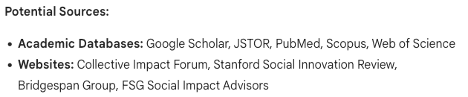
I won’t share the whole search strategy that Google Gemini generated, but I’ll highlight some key parts that I found to be useful. For example, under the heading of “Potential Sources,” it suggested specific websites I could search – and all the suggested sites are known to be thought leaders on the topic of collective impact.


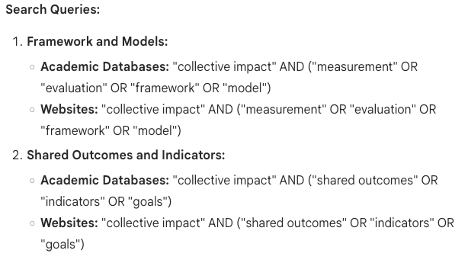
Google Gemini also suggested some potential keywords and search queries using Boolean operators, as I had requested.


You may not get the perfect search strategy on the first try, but the nice thing about these AI tools is that you can continue to refine your searches by giving it additional editing prompts.

Step five: catalogue the information systematically

Once you found your sources, you need to catalogue your information systematically. I would recommend using a table like this Environmental Scan Template in Excel to record your information. You should be able to come up with the categories yourself because they will be determined by what you need to know from the environmental scan. But if you really do get stuck you can always use the AI.

This step is where you will probably see the most amount of time saved by using an AI. Simply upload all your sources into the AI and ask it to catalogue the information according to your categories, preferably in a table format. I like using Claude 3.5 for this step because it can read PDF files and process many sources. However, other AI tools may have similar capabilities depending on the version that is available to you. Again, please do not upload any files that have sensitive information. If your source is not already in an upload file format (e.g., website text), you can just copy and paste the information that you need into an empty Word document and upload that instead.

An example prompt to catalogue the information systematically could look like:
Scan the attached documents and sort the contents into the following categories using a table format that also lists the corresponding source document: [list categories].

[OPTIONAL] Use the following definitions for each of the categories.

[category 1]: [definition]
[category 2]: [definition]

For my own environmental scan on collective impact, I used the following prompt on Claude 3.5: “Scan the… source document: Framework and Models, Shared Outcomes and Indicators, Challenges.

Use the following definitions for each of the categories.
Framework and Models: Theoretical or practical approaches used for measurement in collective impact initiatives.
Shared Outcomes and Indicators: Processes for defining, agreeing upon, and measuring shared goals and outcomes in collective impact initiatives.
Challenges: Common challenges faced in measurement and evaluation of collective impact initiatives.”

I also attached a couple articles on the topic of collective impact and measurement for this example. Depending on the type of AI tool you’re using, whether it’s a free version or a paid version, and the current volume of usage by other people, you may not be able to attach all the articles you want in one prompt. You’ll have to batch them and build on the information in the generated table.

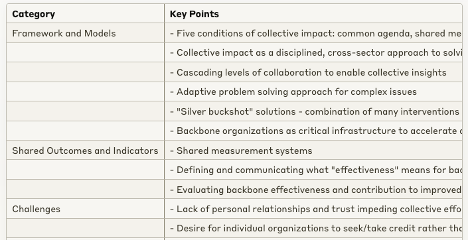
The resulting analysis was a simple, scrollable table with some key points from each article.


After the AI has sorted all the information for you, you should still verify it. This could look like reading all the sources yourself to make sure that it has been categorized properly. This would still take less time than systematically cataloguing the information yourself. Once you verify the information, you can copy paste the AI generated information into an offline Excel table or text document, so that you’ll be able to edit the content as needed.

You can also conduct further analysis with the AI. This could look like asking about any themes that it sees in the information that it has catalogued. You could likewise ask specific questions that you might have about the information. This type of AI analysis would only work if you continued to use the same conversation thread because the AI would already have all the context it needs.

An example prompt to conduct further analysis could look like:
Highlight any key themes found across all documents that would answer the research question(s): [research question(s)].

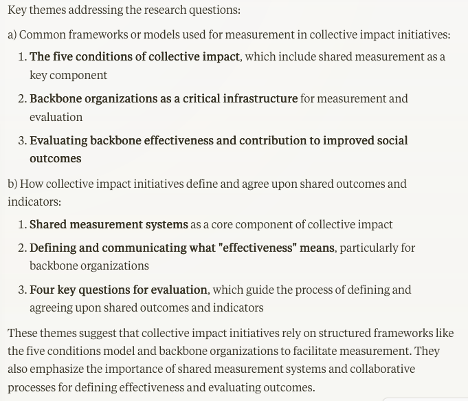
Using the same conversation thread in Claude 3.5 where I generated my environmental scan table, I entered another prompt about highlighting key themes using the research questions I generated earlier. I said, “Highlight… research question(s): a) What are the common frameworks or models used for measurement in collective impact initiatives? and b) How do collective impact initiatives define and agree upon shared outcomes and indicators?”

The resulting analysis was interesting and relevant, even though it was based on only a couple articles. I would be able to use this to sift through the environmental scan table and delve deeper into my own conclusions.


If you chose to categorize your information manually, you could try copy pasting some of your findings into an AI tool as context if you want to use it to do further analysis. However, you’ll need to enter the findings as text only. As of this writing, the AI tools mentioned in this article struggle with reading Excel files. I am optimistic that this will change in the future with how fast things are developing.

Step six: present the information in a way that is useful to your organization

If you can continue to use the same thread that you used to analyze the information, you can ask the AI to generate a report outline based on that context. Even if you were not using the same thread, you can still ask the AI to generate a report outline for your environmental scan and upload any findings that would give it enough context to generate the outline.

An example prompt could look like: Generate a report outline for an environmental scan based on the previously generated table and key themes. The outline should have no more than [number] headings and is targeted towards [audience]. The main focus of the report should be [main focus].

[OPTIONAL] I want the report to highlight the following findings: [list of key findings].

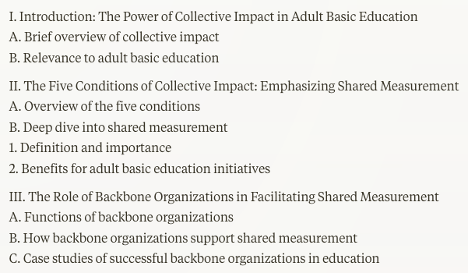
I continued to use the same conversation thread in Claude 3.5 so that I wouldn’t have to give any additional background information in my prompt. I said, “Generate… The outline should have no more than 5 headings and is targeted towards leaders in the non-profit sector who are part of a collective impact for adult basic education. The main focus… should be making a case for developing a shared measurement strategy for their collective impact.”

I won’t share the entire outline, but I included a screenshot of the first few that were generated. It’s not perfect, but it’s decent for 2 seconds of work.


Other Notes to Consider

If you are conducting a literature review, you can use the same strategies in this article to integrate AI into your workflow. For both a literature review and an environmental scan, make sure you credit the use of the AI tools that you used. You can include it in the method section of your report.

Example credit: This report was analysed with the assistance of OpenAI’s ChatGPT. ChatGPT is a large language model that was used to generate the initial search strategy, initial themes, and an outline for this report.

If you found this information useful, please leave us a comment to let us know!

Written by cplysy · Categorized: evalacademy

Aug 30 2024

New Template: Analyst Quality Assurance Notes, Checklist and Style Guide Template

This article is rated as:


Eval Academy just released a new infographic, “Analyst Quality Assurance Notes, Checklist and Style Guide Template”!


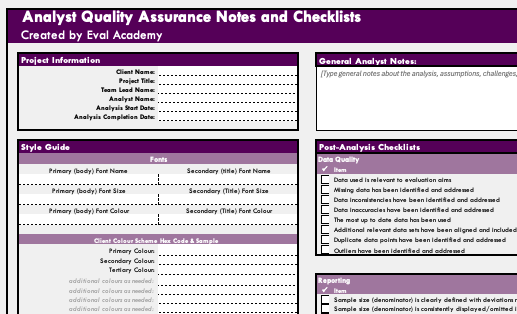
When working with data, it is important to keep track of data-related assumptions, decisions, and analytic steps. This is particularly helpful when preparing analyses for a client where you are not the primary contact person as it allows your team members to easily understand the steps you took to arrive at your conclusions. Organizing these notes consistently across analysts within your team can make this process even smoother – your colleagues will always know exactly where to look for what information, regardless of who analyzed the data, making communication about the analysis with clients a breeze! 

While there are many ways to track your analytic steps, I find it easiest to stick with one file whenever possible, which is why we developed the Analyst Quality Assurance Notes, Checklist, and Style guide template. This template has a section to input client and project information, details about the data visualization styles used, and checklists to ensure that reporting is consistent and accurate throughout the report.

After downloading the template, you can adjust it to your needs by adding rows, copy and pasting formatting, and updating checklist and project information list items.

Analyst Quality Assurance Notes - Checklist and Style Guide Template

Quick View

Analyst Quality Assurance Notes – Checklist and Style Guide Template

CA$0.00

Add To Cart

Who’s it for?

Anyone who analyzes evaluation data in Microsoft Excel or Google Sheets who is looking for a concise but comprehensive way to communication analytic decisions and steps will benefit from this template! This resource provides you with prompts on ensuring consistency in data visualization and checklists to make sure the values you are reporting are accurate and consistent.


What’s the purpose?

To streamline the process of communicating data analysis, visualization, and reporting steps with team members and clients to ensure transparent, consistent, and accurate reporting of evaluation findings.


What’s included?

A fully-customizable template in Excel with key considerations used by analysts at Three Hive Consulting for ensuring high-quality data, visualizations and reporting.


Related articles and links:

You can learn more about high-quality data preparation and analysis tips through these links:

  • Power Query for Data Preparation in Excel: An Introduction and Walk-Through for Beginners

  • How to Combine Data from Multiple Sources for Cleaning and Analysis

  • The Data Cleaning Toolbox

  • Let Excel do the Math: Easy tricks to clean and analyze data in Excel

  • A Beginner’s Guide to PivotTables


Some helpful Eval Academy articles and resources for top-notch data visualization include:

  • Data Visualization Best Practices: A Practical Guide for Getting the Most out of your Data Viz

  • 7 Tips for Better Data Visualizations

  • Infographic: Data Viz Decision Tree

  • Data Visualization Applications: Line Charts

  • Data Visualization Applications: Lollipop Charts – An Alternative to Bar Charts

  • Data Visualization Applications: Bar Charts

  • Video: How to Create a Visually Impactful Column Chart

  • Optimizing Excel Charts by Right Justifying Y-Axis Labels

  • Chart Templates: The Time Saver You Should Be Using

Written by cplysy · Categorized: evalacademy

Aug 26 2024

Data Visualization Applications: Slope Charts

This article is rated as:

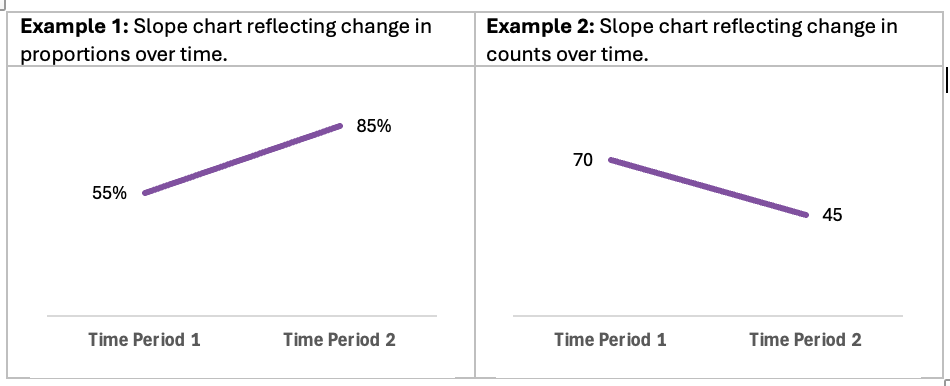
Slope charts are an extension of line charts ideal for presenting changes over time. While line charts are effective at illustrating change over multiple time periods, slope charts excel at illustrating changes between two distinct time periods.

The benefits of opting for slope charts include:

  •  Clarity in comparisons: Slope charts allow for easy comparisons between two points in time.

  • Simplicity: By focusing on fewer data points (i.e., two time periods), slope charts simplify complex data. This makes slope charts more accessible to colleagues and clients.

  • Identification of trends: Their simplicity allows for easy identification of trends and patterns, effectively illustrating increases, decreases, or stability between time periods.

  • Enhanced storytelling: Slope charts clearly provide a visual narrative of change over time, making it easier to communicate key insights from the data.


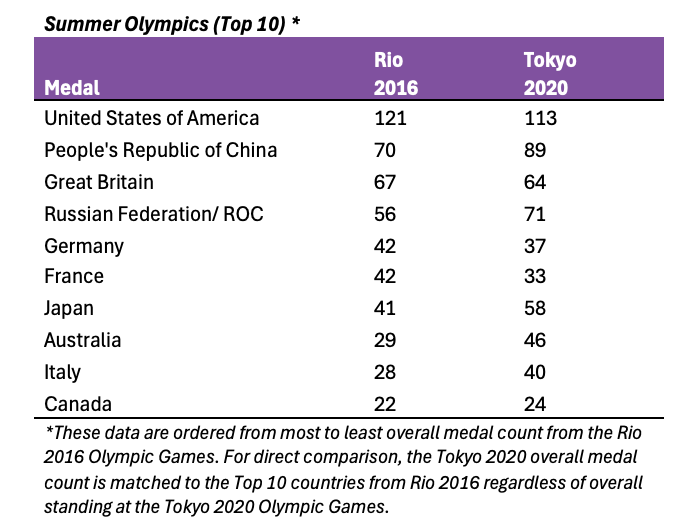
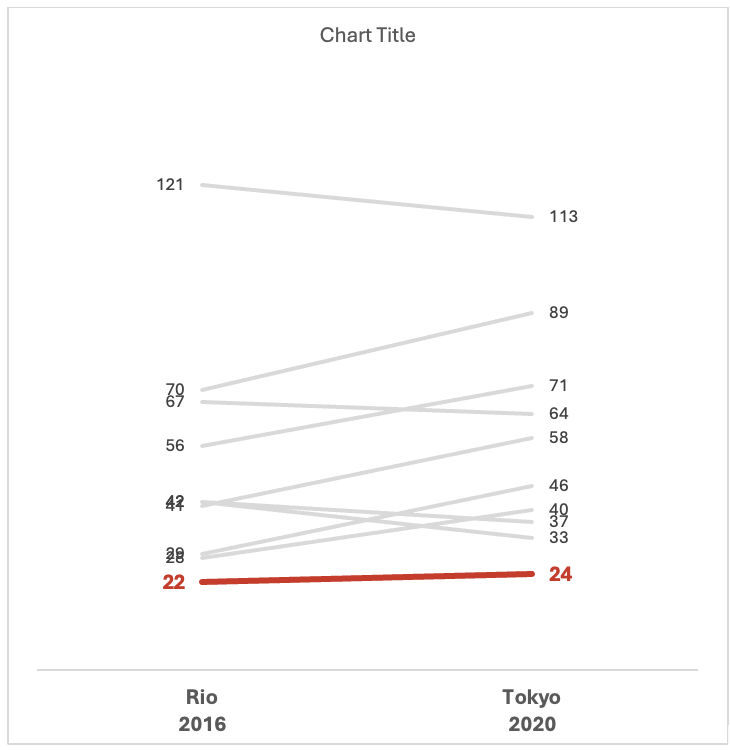
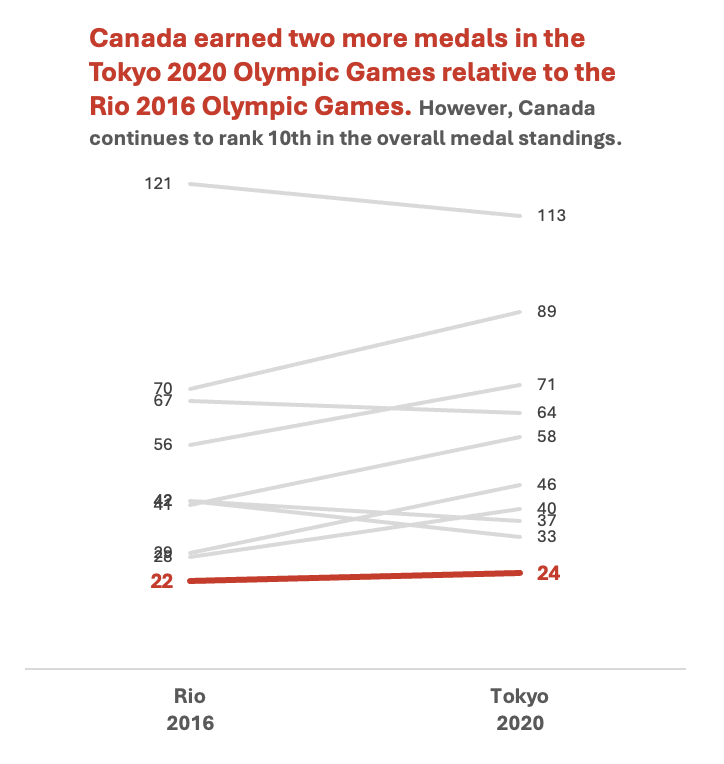
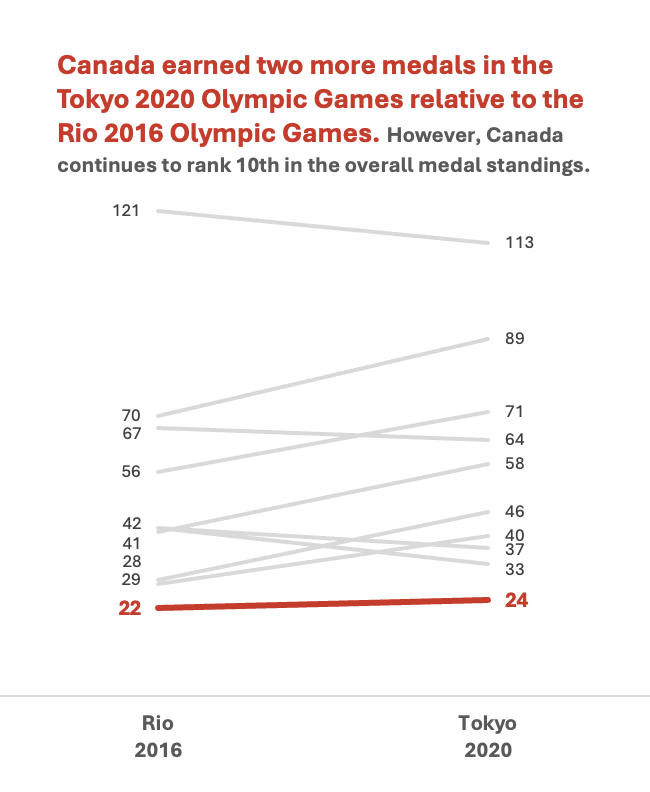
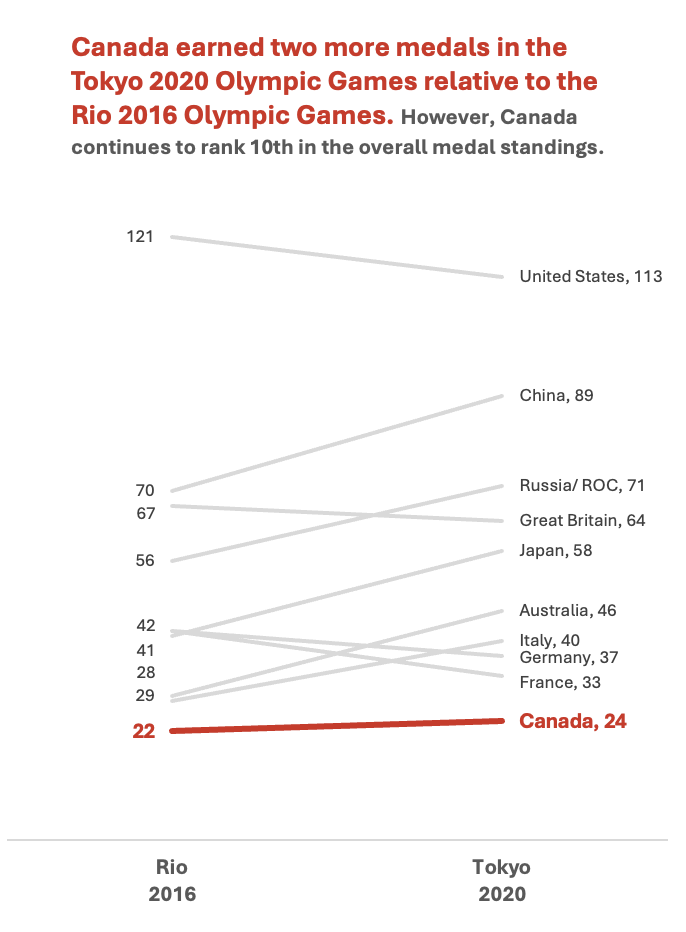
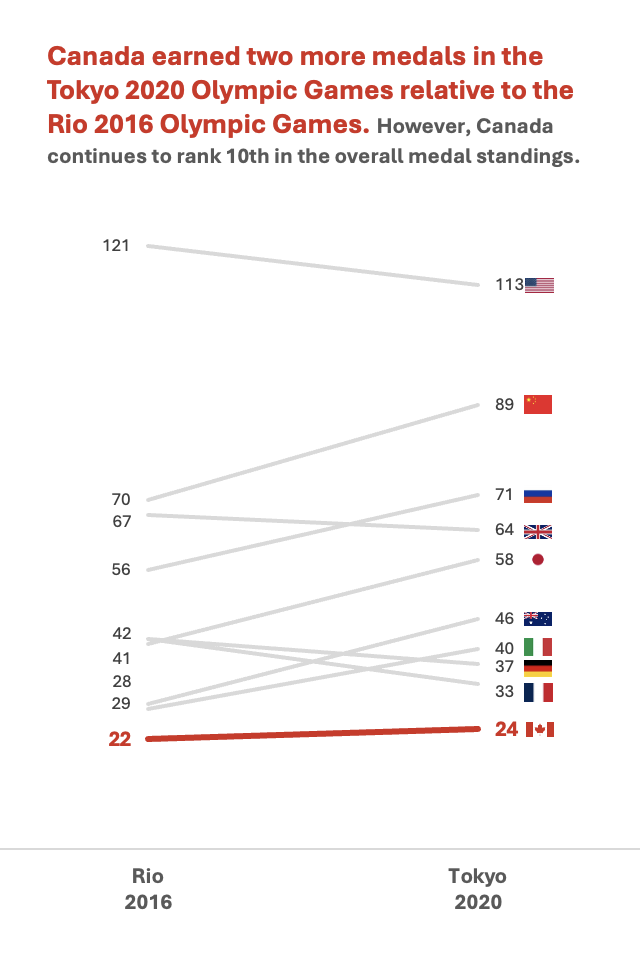
The Paris 2024 Olympic Games inspired us to reflect on the overall medal counts for the Top 10 countries from the previous two summer Olympic Games. We will use a slope chart to highlight changes between the Rio 2016 and Tokyo 2020 Olympic Games, with an emphasis on Canada (a perfect example of selection bias – see our articles on sampling bias and bias versus confounding to help avoid bias in your own analyses).

Check out the following Eval Academy resources to assist in preparing data for effective data visualization:

  • The Data Cleaning Toolbox

  • Let Excel do the Math: Easy tricks to clean and analyze data in Excel

  • How to combine data from multiple sources for cleaning and analysis

  • A Beginner’s Guide to PivotTables

Data Preparation

This article assumes that data are already prepared. That said, data should be structured in a clean and organized table like the example below.

Note: This table has prepared the Rio 2016 and Tokyo 2020 data labels such that the year number will be presented below the hosting city. This can be accomplished by using Alt+Enter at the end of the city name to move to the next line within the same cell.

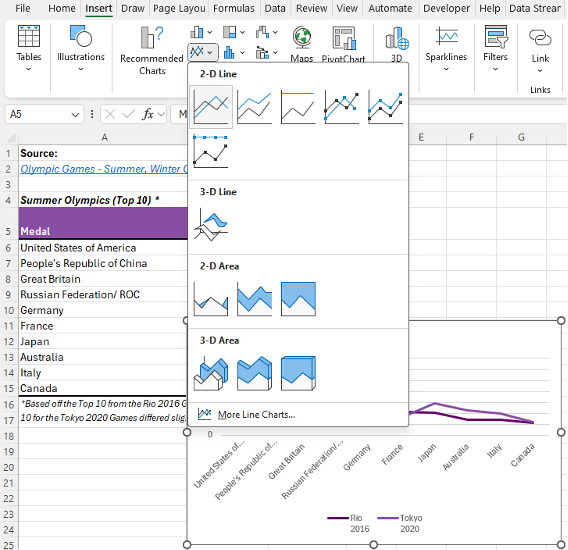
Initial Chart Selection

  1. Highlight the data to be included in the line chart.

  2. Navigate to Insert along the top ribbon of Excel.

  3. Within Insert go to Charts > 2-D Line > Line (a basic Excel-formatted chart should appear).

Applying Data Visualization Best Practices

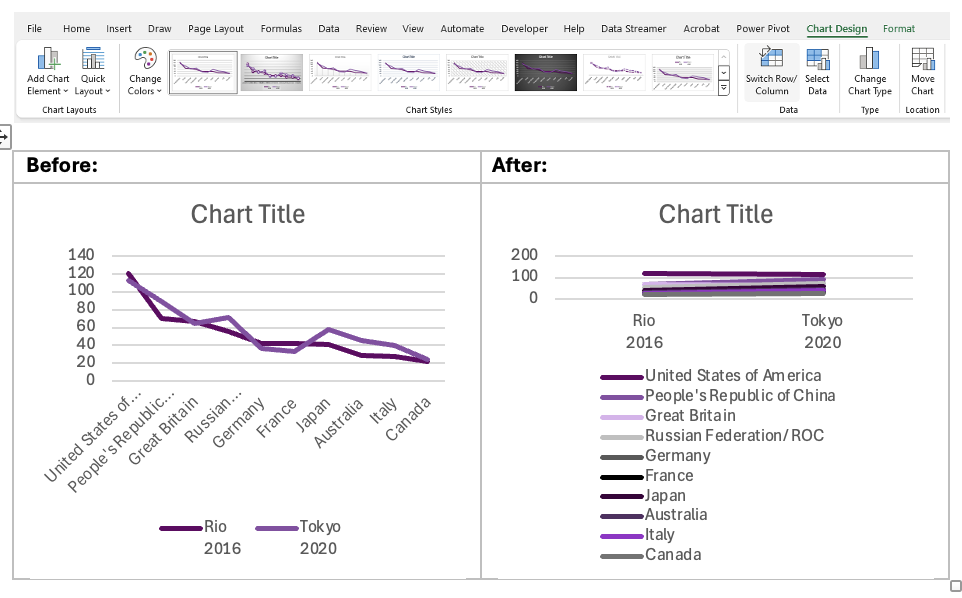
Following this single step will have produced a line chart. This initial line chart needs to be converted to a slope chart, and improved by following data visualization best practices. This will transform the default Excel chart into an engaging visual.

Flipping Row/ Column Data

This example illustrates a common occurrence within Excel. Excel charts will often attempt to plot column headings along the x-axis of the chart (i.e., the horizontal axis) and row headings along the y-axis (i.e., the vertical axis). However, there is no need to transpose the data table to accommodate Excel’s plotting conventions. Instead, we can use the following steps to flip row/ column data within the chart.

  1. Left-click within the slope chart.

  2. Navigate to the Chart Design tab along the top ribbon of Excel.

  3. Click Switch Row/ Column.

*Alternatively, you can right-click on the chart and go through Select Data… > Switch Row/ Column > OK. This menu also provides additional options for editing the data.

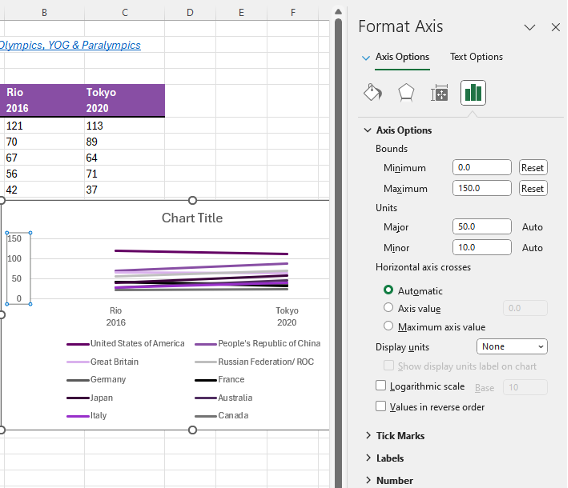
Lock Y-Axis Bounds

  1. Right-click on the y-axis (i.e., the vertical axis).

  2. Select Format Axis…

  3. Under Axis Options > Bounds lock the Minimum to 0 and the Maximum to 150*

*This is not mandatory, but it can prove beneficial to lock the Bounds of a given axis. The Auto bounds will adjust with new data. However, sometimes the Bounds will become skewed as Excel tries to fit the data. That is, the Minimum Bound may exceed zero and potentially interfere with the accurate interpretation of the data.

Improve the Appearance

Remove the Legend

  1. Left-click on the legend below the slope chart.

  2. Hit Delete to remove the legend (we will improve upon this later). 

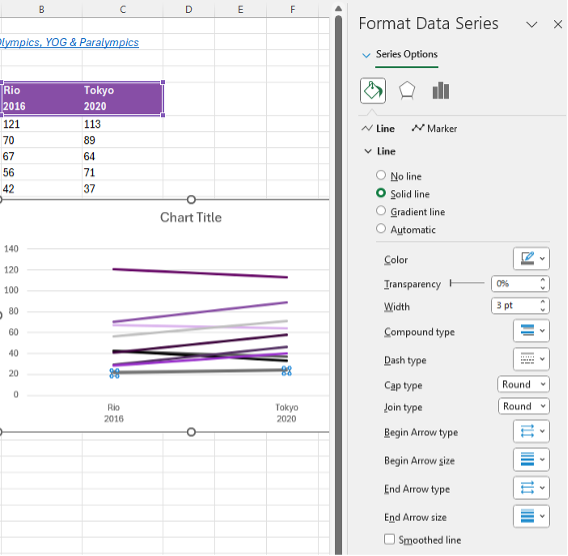
Line Thickness

  1. Left-click on the Canada line within the slope chart (Canada is ranked 10th so this will be the bottom line).

  2. Right-click the highlighted line and Format Data Series.

    • This menu can also be accessed using the Ctrl + 1 keyboard shortcut.

  3. Under Series Options > Line adjust the Width of the line to 3 pt.

  4. Complete the same process for the remaining nine (9) lines. However, we are going to mute these lines relative to the Canada line. Thus, we may opt for a slightly smaller line thickness (e.g., 2 pt).

Remove Clutter

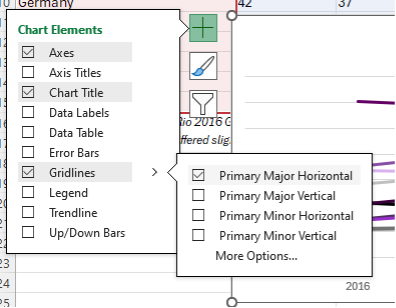
  1. Delete the y-axis labels by left-clicking on the y-axis and hitting Delete.

  2. Delete the horizontal gridlines by left-clicking on the gridlines and hitting Delete.

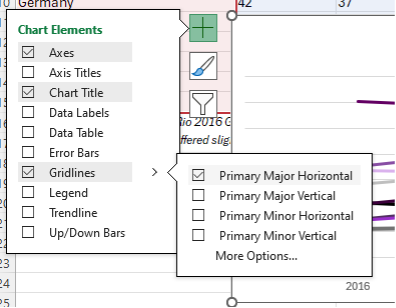
    • Alternatively, you can navigate through the Chart Elements menu (the + like option when hovering over the chart) and toggle off Primary Major Horizontal gridlines.

Highlight Key Data Points (& Mute Other Data Points)

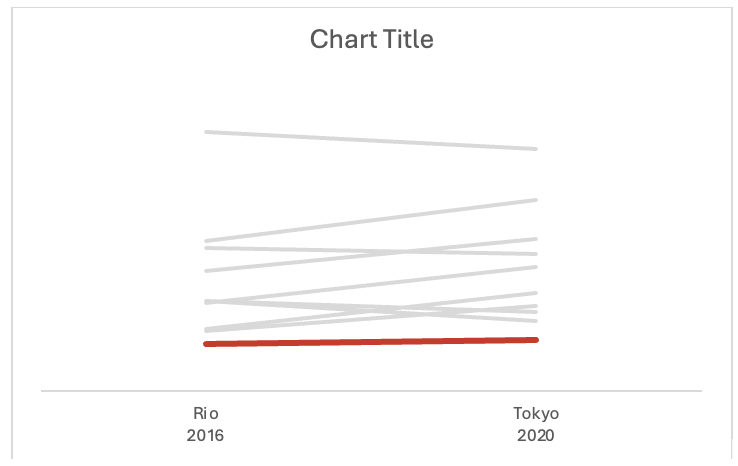
In this example, we want to highlight Canada relative to the other Top 10 countries. Therefore, we want to make the Canadian data pop relative to the other countries. Line thickness helps (completed above), but colour will further highlight the Canadian data.

  1. Right-click on the Canada line and change the Outline colour to red.

  2. Repeat this process for each line, but change the remaining country colours to grey.

Insert Data Labels

  1. Navigate to Chart Elements and toggle on Data Labels.

  2. Right-click on a data label and select Format Data Labels…

  3. For the Rio 2016 data labels, select the Left label position.

  4. For the Tokyo 2020 data labels, select the Right label position.

  5. Repeat this process for each data label.

Resize the Chart

The overlap in medal counts can clutter the chart. To help distinguish between different countries, the chart can be resized to better differentiate between each country’s respective line.

  1. Left-click on the chart and navigate to the Format tab at the top of the spreadsheet.

  2. Resize the Shape Height to add some separation between lines.

Adjust Fonts

We want to further distinguish Canada from the other Top 10 countries. This can be accomplished with font size and colour.

  1. Left-click on the chart to highlight the entire slope chart.

  2. In the Home tab, select your Font of choice.

    • Sans serif fonts are best for charts. Ideally, chart fonts will match the rest of a report/ presentation to ensure consistency. However, if a report uses a serif font, you may opt to use a sans serif font within your charts for improved readability.

  3. Adjust the Font Size to 9 pt.

    • 9 pt is our recommended minimum font size for charts.

  4. Left-click on the Canada data labels and change the Font Size to 11 pt and Bold the font.

  5. Also adjust the x-axis labels to 11 pt and Bold the font.

  6. Change all Font Color to Black.

  7. Left-click on the Canada data labels and change the Font Color to red.

Improve the Chart Title

The column heading will automatically default as the chart title. This will inevitably be uninformative. Therefore, update the chart title with something that is both descriptive and informative. 

  1. Left-click on the Chart Title.

  2. Type in your improved title and hit Enter.

    • The chart title may be edited within the function bar at the top of your spreadsheet.

    • You may also opt to right-click on the chart title and Edit Text to improve the chart title.

    • You can enter a subtitle by using Alt + Enter to move down a line.

  3. Emphasize the chart title by increasing the main title to 14 pt font.

    • A subtitle, if you have one, can be de-emphasized using a slightly smaller 12 pt font.

    • When drafting the title within the line chart, you will have to highlight the specific section of text for which you wish to apply changes. Otherwise, all changes to the font will apply to the whole title.

  4. Use your primary colour to further emphasize the main point within the chart title.

Manually Adjust Data Labels

Occasionally data labels will overlap partially or completely. This makes reading the chart difficult, but this can be improved with some manual tweaks to the chart.

  1. Left-click on the overlapping labels and drag the higher value up or lower value down to provide some spacing.

    • This may take some patience to best align the data labels.

Adding in Descriptive Labels

Currently, the chart highlights Canada, which can only be identified via the chart title. However, all other lines are indistinguishable. We can improve this by adding in the country labels for each line.

  1. Right-click on each of the right-most data labels individually.

  2. Select Format Data Labels…

  3. Under Label Options toggle on the Series Name

*Sometimes these additional labels will be too long and clutter the chart excessively. In this instance, United States of America, People’s Republic of China, and Russian Federation/ ROC were shortened to United States, China, and Russia/ ROC, respectively.

An Alternative to Descriptive Labels

To add some additional flare to your visuals, you may consider using images or icons to differentiate between data points. These data reflect medal counts by country, so the use of flags could be used to differentiate between lines within the chart. However, this approach should be used sparingly as not all charts lend well to the addition of images and some images may detract from the overall interpretation of the chart.

Final Thoughts

Slope charts are effective charts for illustrating change over time, making it easy to compare different data points. Their ability to simplify complex data and highlight trends enhances data storytelling, which will make reporting more digestible and engaging.

Written by cplysy · Categorized: evalacademy

Aug 26 2024

New Infographic: Considerations for Indigenous Evaluation

This article is rated as:


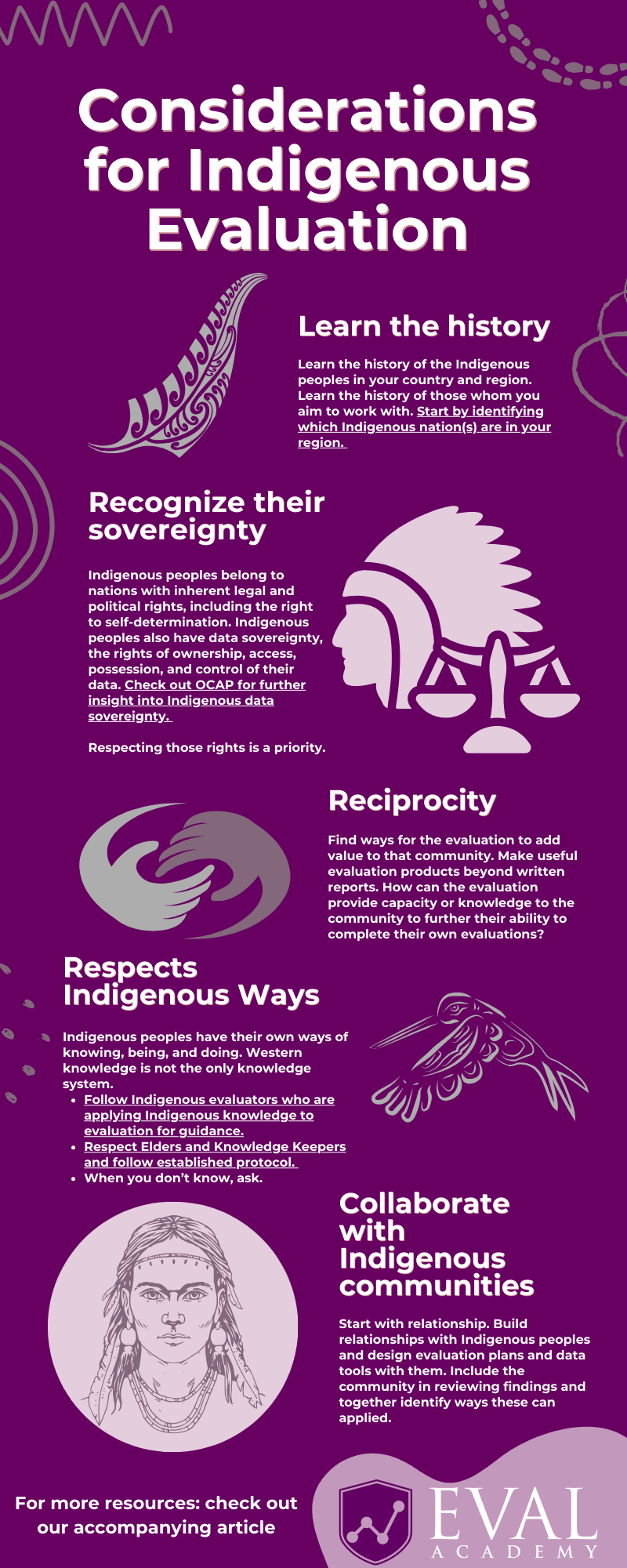
Eval Academy just released a new infographic, “Considerations for Indigenous Evaluation”!


Truth and Reconciliation Day / Orange Shirt Day is on September 30. This may inspire questions around ways evaluators can support Indigenous evaluation. This infographic provides some aspects to consider when planning an evaluation with Indigenous peoples.

Who’s it for?

This infographic is for anyone looking to learn more about Indigenous evaluation.


Stratified Sampling Tool (Single Strata)

Stratified Sampling Tool (Single Strata)

CA$0.00

What’s the purpose?

This infographic provides some aspects to consider when designing a program evaluation with Indigenous people. Indigenous evaluation uses methodologies grounded in Indigenous knowledge, values, and cultural practices. Many Indigenous methodologies employ a ‘Two-Eyed Seeing’ approach, as discussed by Elder Albert Marshall, that applies both Western and Indigenous knowledge. At Eval Academy, we have an expanded definition of Indigenous evaluation in our dictionary.


What’s included?

A one-page, downloadable infographic as a PDF file.


Learn more: related articles and links

History:

  • Truth and Reconciliation Commission’s What We Have Learned: Principles of Truth and Reconciliation (2015).

  • University of Alberta’s Indigenous Canada course available on Coursera.

  • Indigenous people’s map available on the Native Land Digital website.

  • North American Residential/Indian Day School map available on the National Centre for Truth and Reconciliation’s website.

Ethics and data ownership:

  • The First Nations Information Governance Centre’s Ownership, Control, Access and Possession (OCAP™)

  • National Aboriginal History Organization (NAHO)’s Principles of Ethical Métis Research (2011).

Indigenous Protocols:

  • Protocols for Engaging with Indigenous Peoples and Communities is available on the Downie & Wenjack Fund website to help guide schools and non-profits in work with Indigenous communities.

Indigenous research and evaluation methodologies and examples:

  • Indigenous Insights: An Evaluation Podcast is hosted by Dr. Gladys Rowe and is available on her website.

  • Dr. Janice Cindy Gaudet wrote about her research and Indigenous knowledge she used in keeoukaywin: The Visiting Way – Fostering an Indigenous Research Methodology (2019).

  • Robline Davey explored a few Indigenous research methodologies in Searching for Métis Research Methodologies: natoonikew poor ayshitotamun michif (2023).

  • Dr. Tiffany Dionne Prete wrote about her research and using Indigenous cultural teachings in Beadworking as an Indigenous Research Paradigm (2019).

Written by cplysy · Categorized: evalacademy

  • « Go to Previous Page
  • Go to page 1
  • Go to page 2
  • Go to page 3
  • Go to page 4
  • Go to page 5
  • Interim pages omitted …
  • Go to page 43
  • Go to Next Page »

Footer

Follow our Work

The easiest way to stay connected to our work is to join our newsletter. You’ll get updates on projects, learn about new events, and hear stories from those evaluators whom the field continues to actively exclude and erase.

Get Updates

Want to take further action or join a pod? Click here to learn more.

Copyright © 2026 · The May 13 Group · Log in

en English
af Afrikaanssq Shqipam አማርኛar العربيةhy Հայերենaz Azərbaycan dilieu Euskarabe Беларуская моваbn বাংলাbs Bosanskibg Българскиca Catalàceb Cebuanony Chichewazh-CN 简体中文zh-TW 繁體中文co Corsuhr Hrvatskics Čeština‎da Dansknl Nederlandsen Englisheo Esperantoet Eestitl Filipinofi Suomifr Françaisfy Fryskgl Galegoka ქართულიde Deutschel Ελληνικάgu ગુજરાતીht Kreyol ayisyenha Harshen Hausahaw Ōlelo Hawaiʻiiw עִבְרִיתhi हिन्दीhmn Hmonghu Magyaris Íslenskaig Igboid Bahasa Indonesiaga Gaeilgeit Italianoja 日本語jw Basa Jawakn ಕನ್ನಡkk Қазақ тіліkm ភាសាខ្មែរko 한국어ku كوردی‎ky Кыргызчаlo ພາສາລາວla Latinlv Latviešu valodalt Lietuvių kalbalb Lëtzebuergeschmk Македонски јазикmg Malagasyms Bahasa Melayuml മലയാളംmt Maltesemi Te Reo Māorimr मराठीmn Монголmy ဗမာစာne नेपालीno Norsk bokmålps پښتوfa فارسیpl Polskipt Portuguêspa ਪੰਜਾਬੀro Românăru Русскийsm Samoangd Gàidhligsr Српски језикst Sesothosn Shonasd سنڌيsi සිංහලsk Slovenčinasl Slovenščinaso Afsoomaalies Españolsu Basa Sundasw Kiswahilisv Svenskatg Тоҷикӣta தமிழ்te తెలుగుth ไทยtr Türkçeuk Українськаur اردوuz O‘zbekchavi Tiếng Việtcy Cymraegxh isiXhosayi יידישyo Yorùbázu Zulu