• Skip to main content
  • Skip to footer
  • Home

The May 13 Group

the next day for evaluation

  • Get Involved
  • Our Work
  • About Us
You are here: Home / Archives for allblogs / freshspectrum

freshspectrum

Dec 30 2020

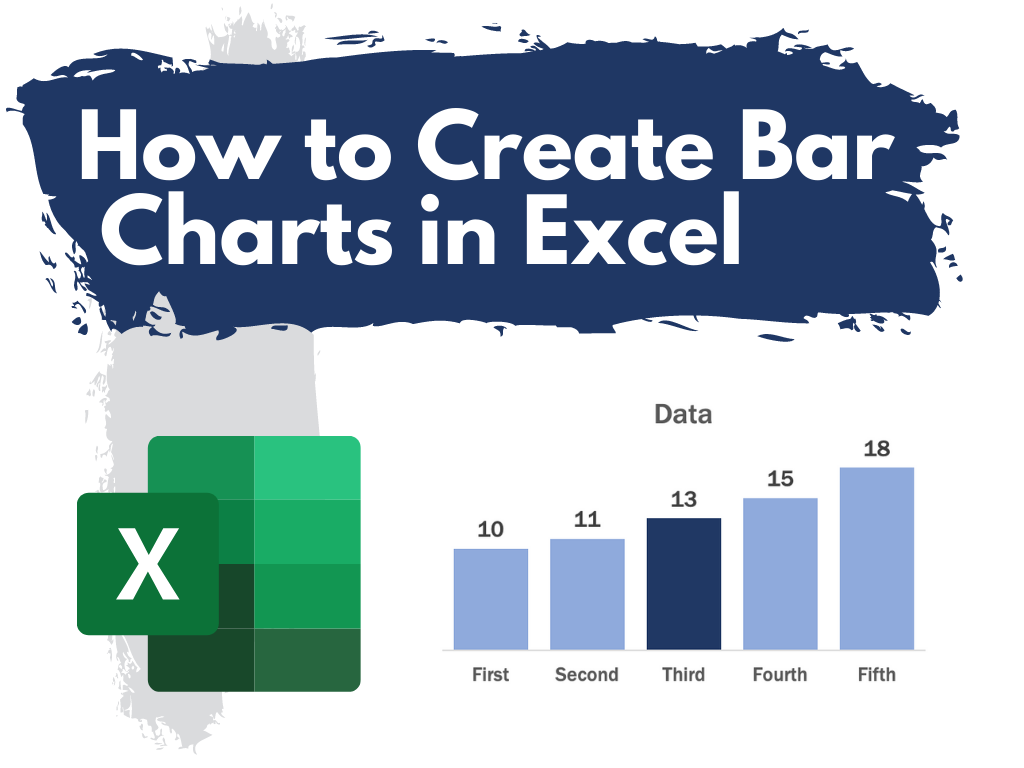
How to Create Bar Charts in Excel

This is the first in a series of posts on chart design in Excel. In each post we will take on a different chart type. Today we start with one of the most ubiquitous and useful charts, the Bar Chart.

What you’ll find in this post:

  • An Oversimplified How To
  • How to create a good looking bar chart.
  • A little bit of inspiration.
  • Some other considerations.
How to Create Bar Charts in Excel

An Oversimplified How To

Creating a bar chart (or column chart) is really simple in Excel. It just takes a column of data and a couple of buttons.
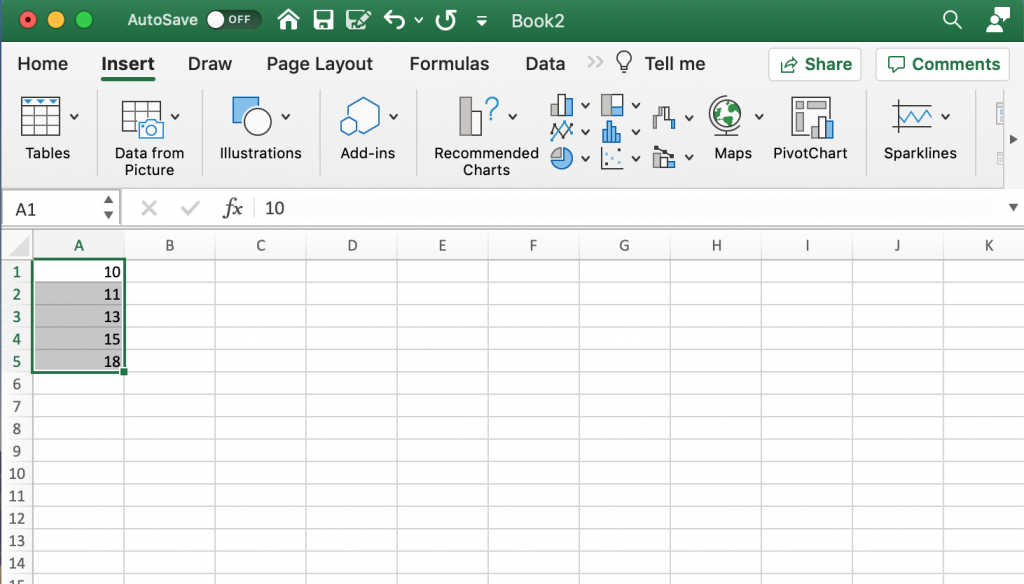
Step 1 in creating a Bar Chart in Excel.

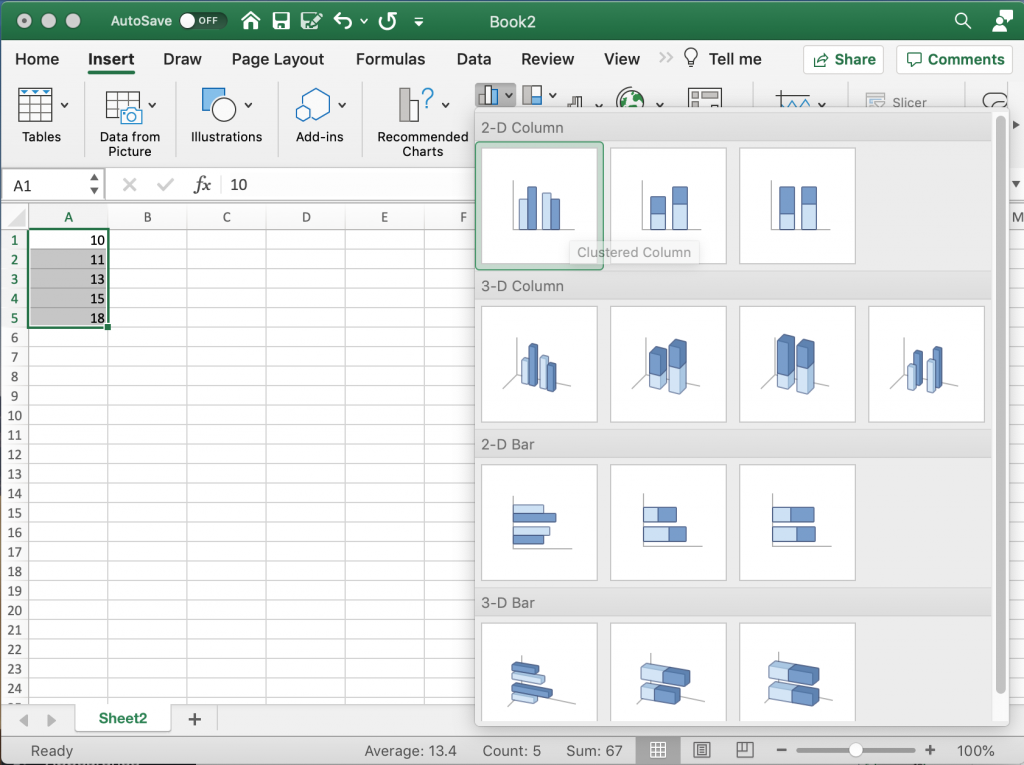
Step 1. Highlight a column of numbers.
Step 2 in creating a Bar Chart in Excel.

Step 2. Click on the insert tab, then the bar chart icon. Then select the kind of bar chart you would like.

*Note: Avoid the 3-D charts!!!!
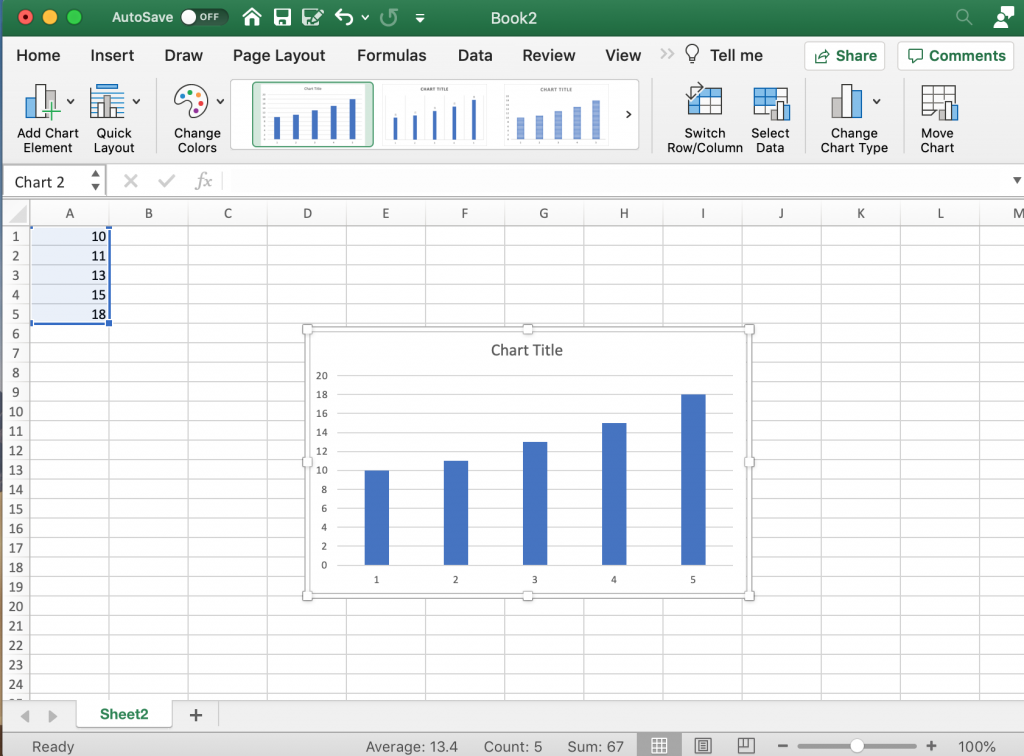
Creating a Bar Chart in Excel.

Step 3. Yay, you did it!

How to create a good looking bar chart.

Okay, so maybe you don’t just want to create a chart, but create a chart that actually looks nice. Here are some more steps you probably want to take.
Labeling your bars in Excel.

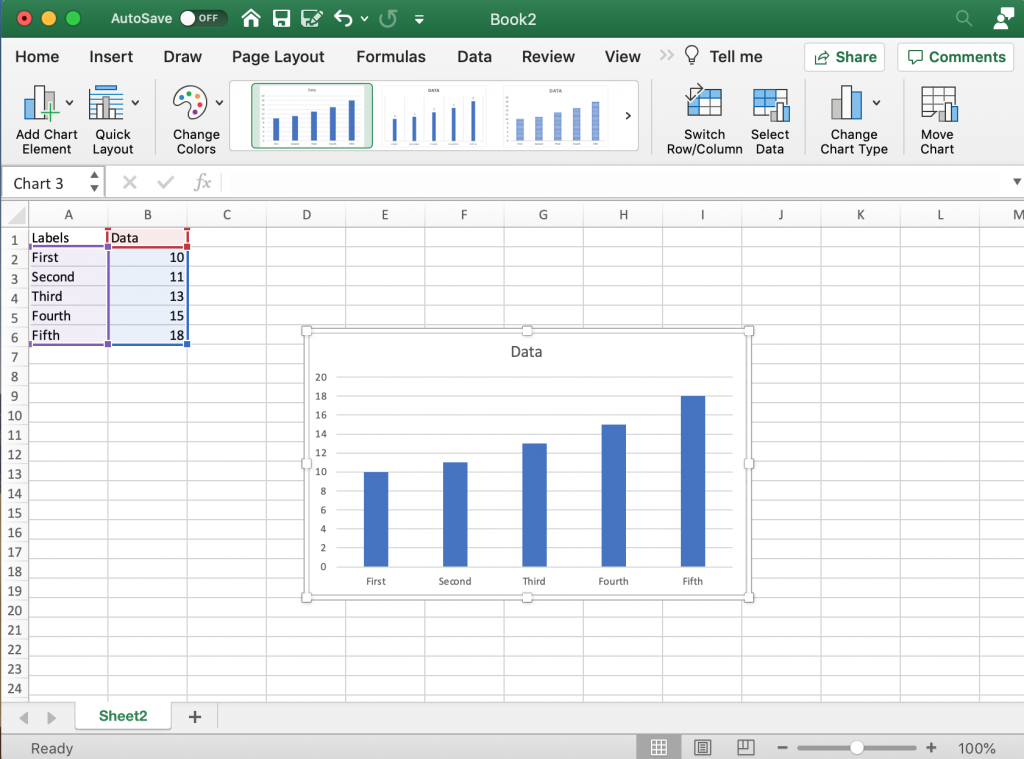
Labeling your bars.

So in addition to just a column of numbers it’s a good idea to have row labels and column headers. When you go to create your chart, highlight these as well. This way Excel will actually label your bars and your chart.
Formatting Menus Bar Chart Excel

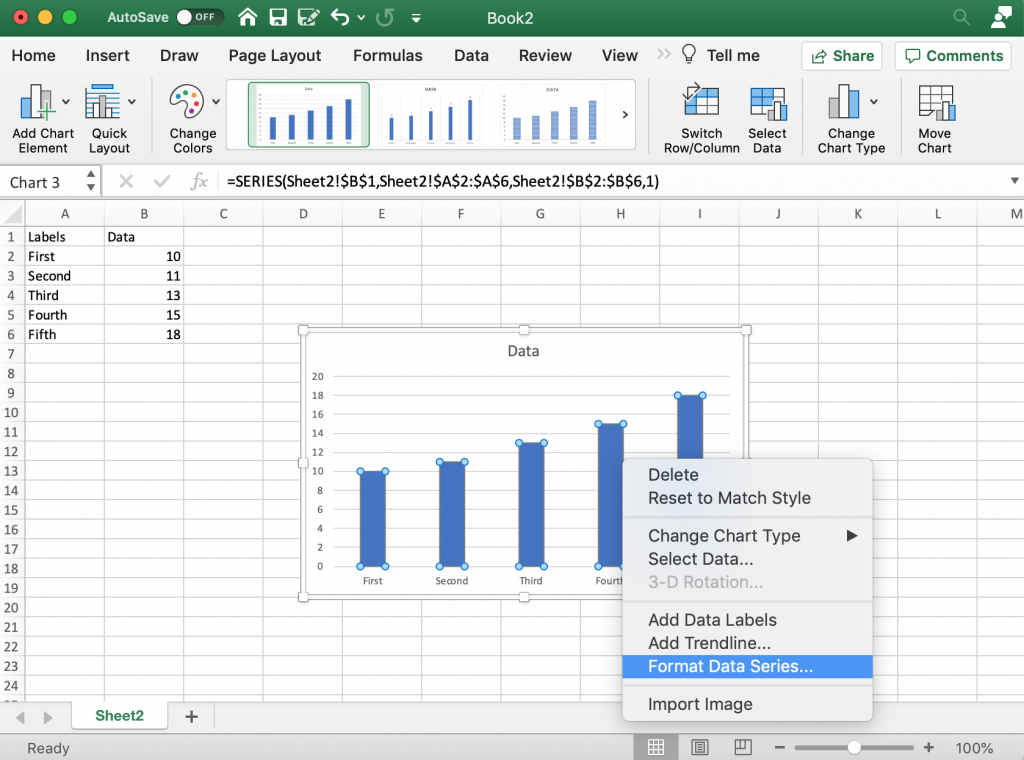
The Formatting Menus

There are a few ways to reach formatting menus in Excel. I find the easiest is usually just selecting elements within the chart itself, then right clicking and selecting the format button.
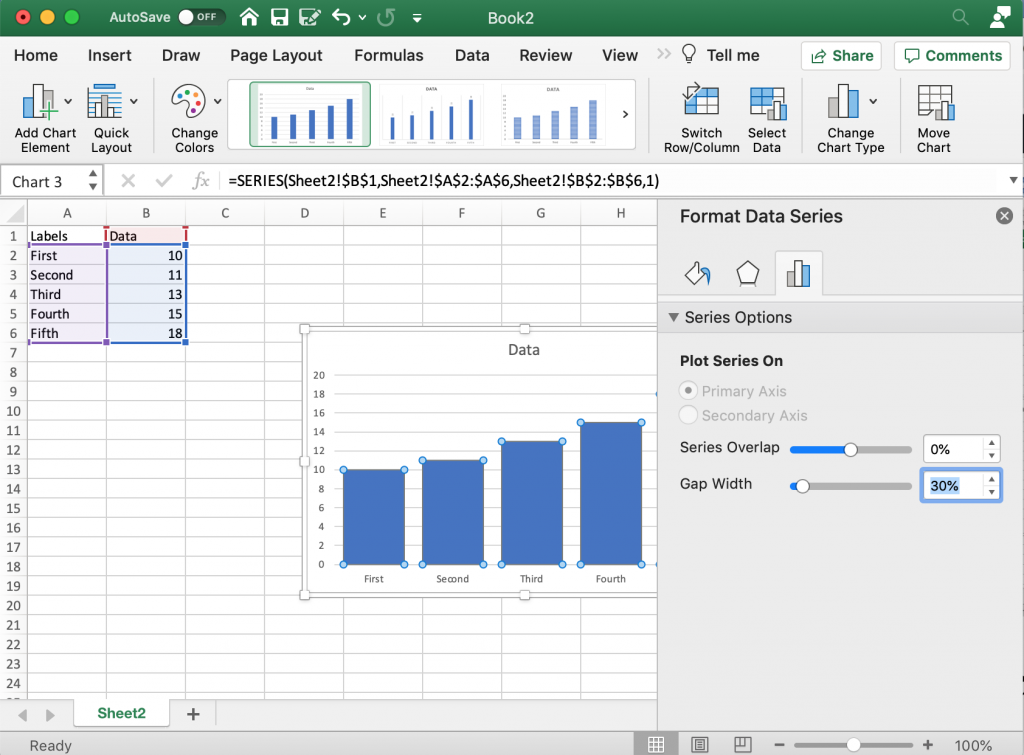
Making the Bars Bigger in Microsoft Excel

Making the Bars “Bigger”

One of the things I always end up doing is reducing the gap between bars. The default makes the bars tiny with a lot of useless empty space in between. Reducing the Gap Width will make your bars bigger.
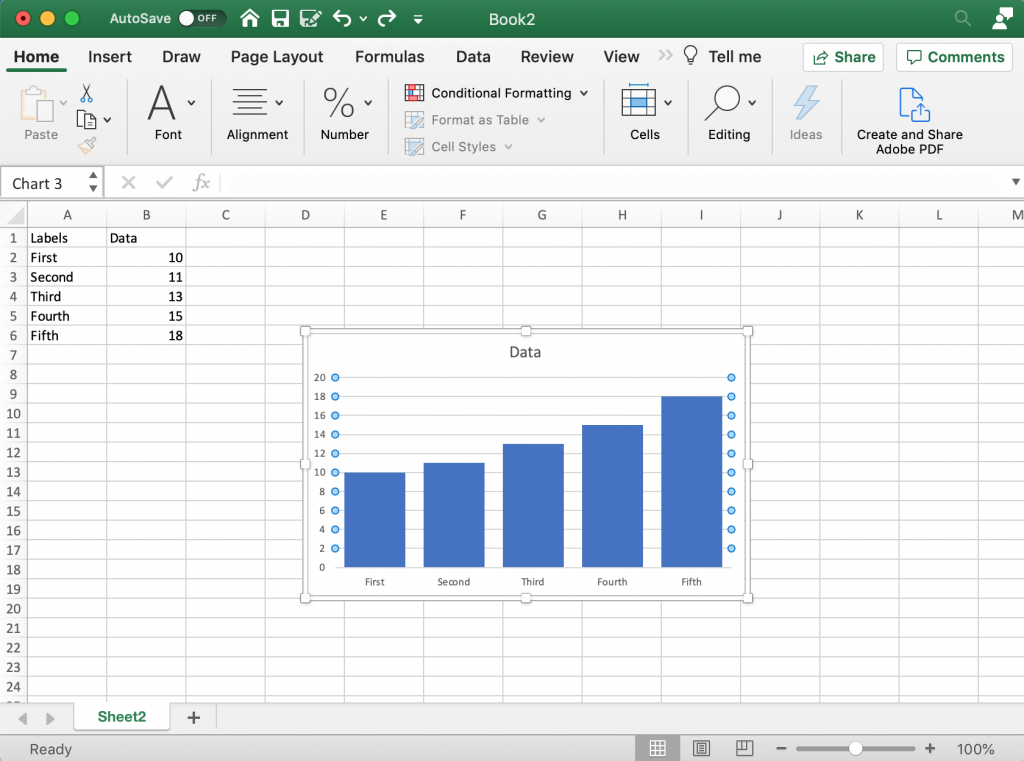
Creating a Clean Chart in Excel

Creating a Clean Chart

I like a clean bar chart, so often I’ll get rid of the gridlines (which I’ll replace with bar labels). To do this you really just click on the lines and delete them. Since I’ll use bar labels I can also get rid of the y axis labels by selecting them and hitting the delete button.
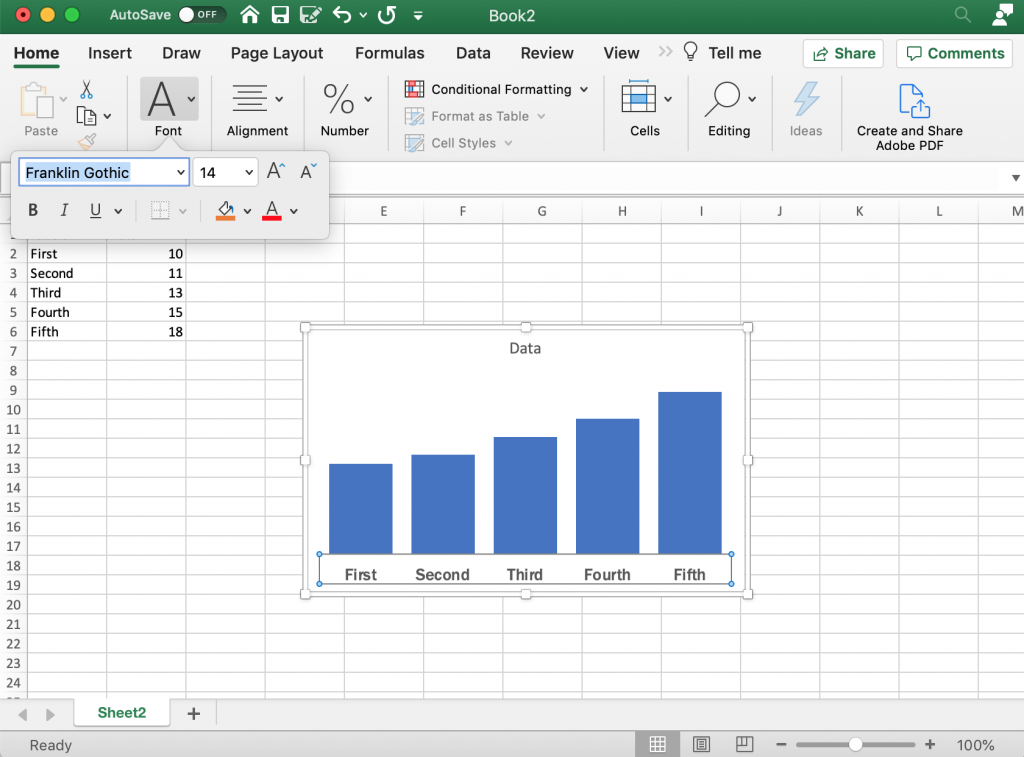
Increasing the Label Sizes in Excel Bar Charts

Increasing the Label Sizes

Usually after stripping down the chart a bit I’ll then bump up the label size. Also not a big fan of the default font so I’ll change that up as well.
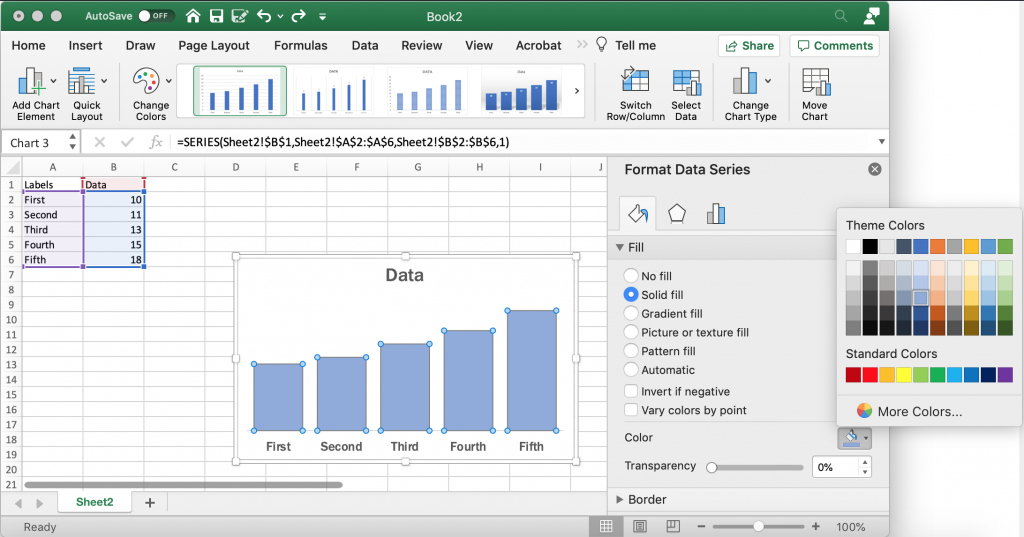
Changing Bar Colors in Excel Bar Charts

Changing Bar Colors

Good data design practice means using color sparingly but deliberately. Long gone are the rainbow color palettes of the past, which didn’t offer any real value. Instead we use single color unless we would like to high something. Once thing I tend to do is bump the shade down a bit. You can find the color options in the Format Data Series menu after selecting the bars.
Setting a Highlight Color in Excel Bar Charts

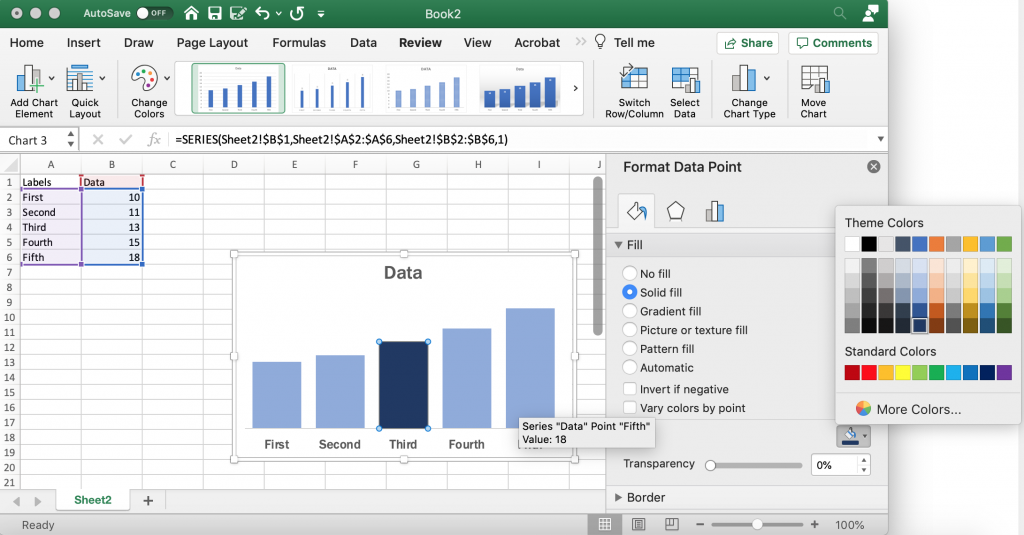
Highlight Color

If there is a specific bar you would like to highlight, you can decide to change only that bar’s color. Just click on the individual bar until it’s the only one selected, then change the color. I tend to go with darker shade whether it is the same color or a different color, this helps if the chart is ever printed in black/white.
Adding and Formatting Data Labels in Excel

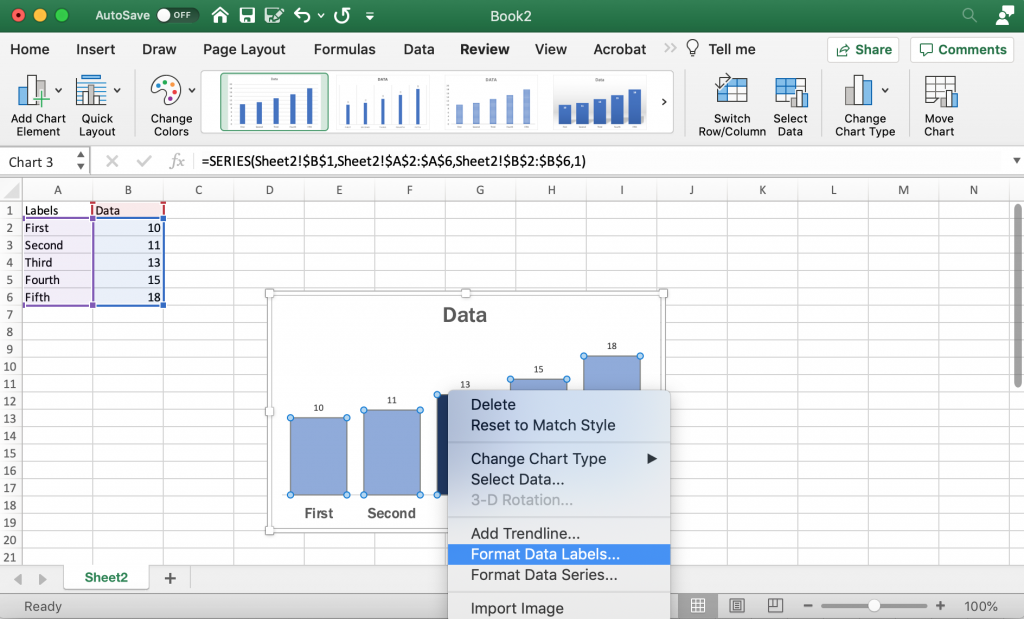
Add and Format Data Labels

I like using data labels instead of an axis/grid lines for most bar charts. You can add labels with a right click on the bars (selecting add data labels). Then I go ahead and format the data labels so that they are bigger and match the font I’m using.
Saving a Bar Chart as a Picture in Excel

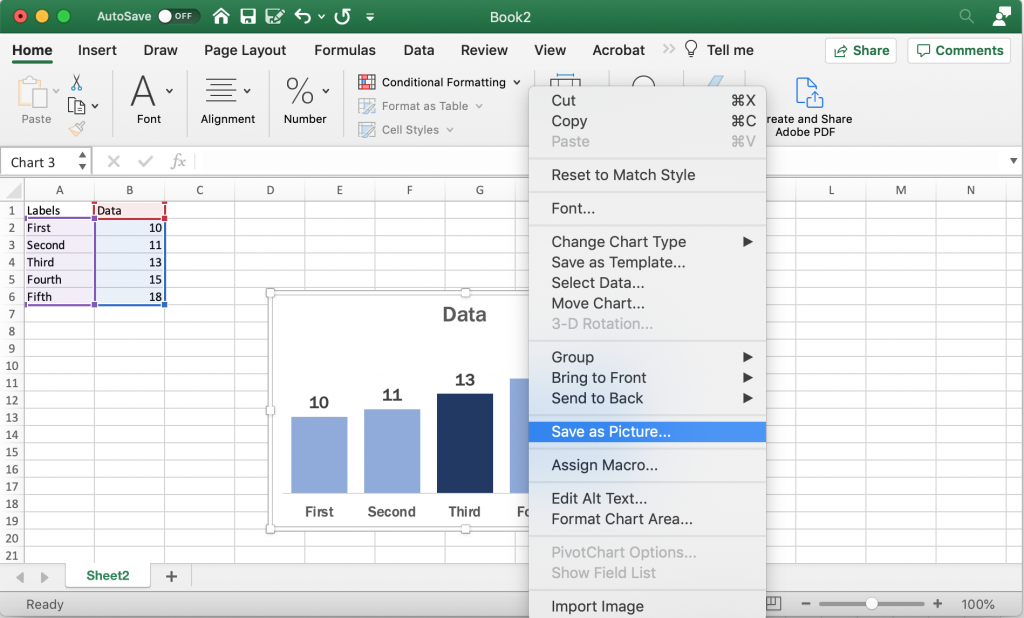
Saving the Image

Once you have made all the changes you want to the chart you can save it as a picture. Just right click on the chart area and click “Save as Picture.”

Alternatively, you can just copy and paste the chart from Excel into Word or PowerPoint. If you’re staying within the Office suite, this is the ideal way to move the image as it retains your full ability to reformat the graphic.
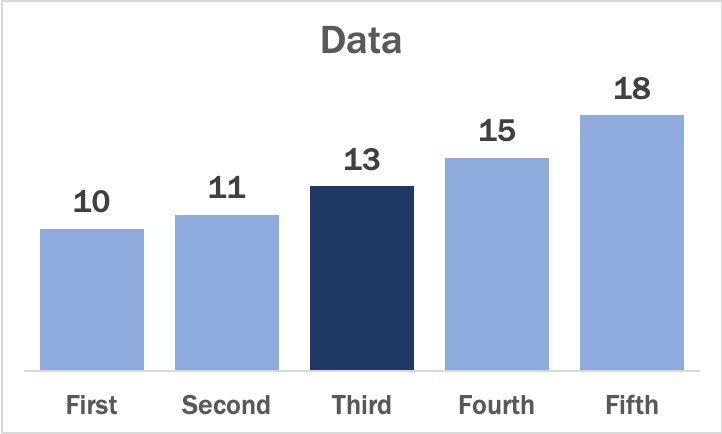
Final Example Bar Chart Created in Excel

Beyond the Basics

This is just the basics. There are all sorts of things you can do with Bar Charts.

Generally though I suggest keeping the chart itself simple and minimalist. You can always add flare through annotations/additional graphics. Doing things like making your charts 3D doesn’t help the presentation, it just makes the chart harder to interpret and can also skew the data.

A little bit of inspiration.

Bar charts go wayyyyy back.

The first bar chart is often credited to William Playfair from all the way back in the early 1800s.
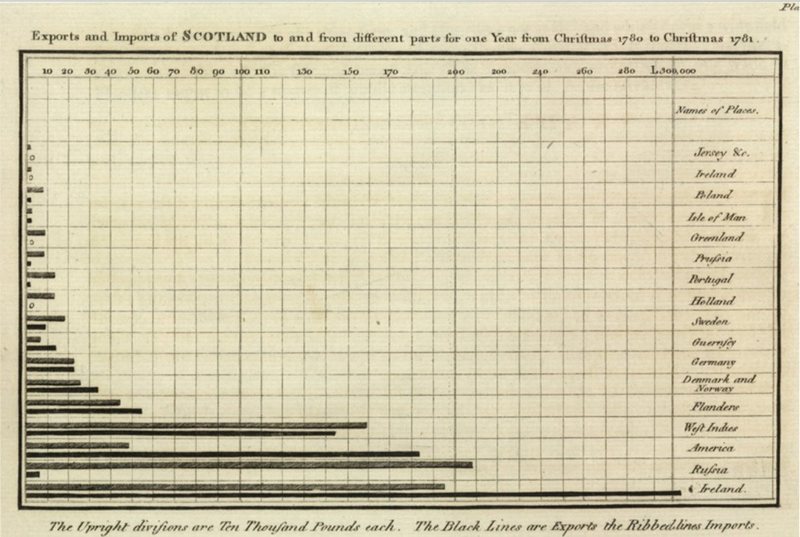
The world's first bar chart, from The Commercial and Political Atlas, shows the relative importance of Scotland's trading partners.
The World’s First Bar Chart created by William Playfair – Read more about William Playfair > Atlas Obscura – The Scottish Scoundrel Who Changed How We See Data

But really we find bar charts (horizontal and vertical) just about everywhere.
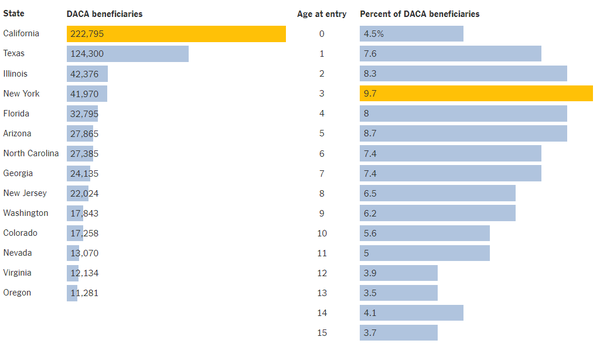
Bar Chart example from the NY Times Learning Network.
From the NY Times: Learning Network – What’s Going On in This Graph? | Dec. 5, 2018

Newspaper sites and modern news blogs provide some of the best examples of clean charts you’ll find on the web. Bar charts are like button up shirts, they might come in all sorts of different colors and sizes but it’s pretty doubtful that they’ll ever fall of style completely.
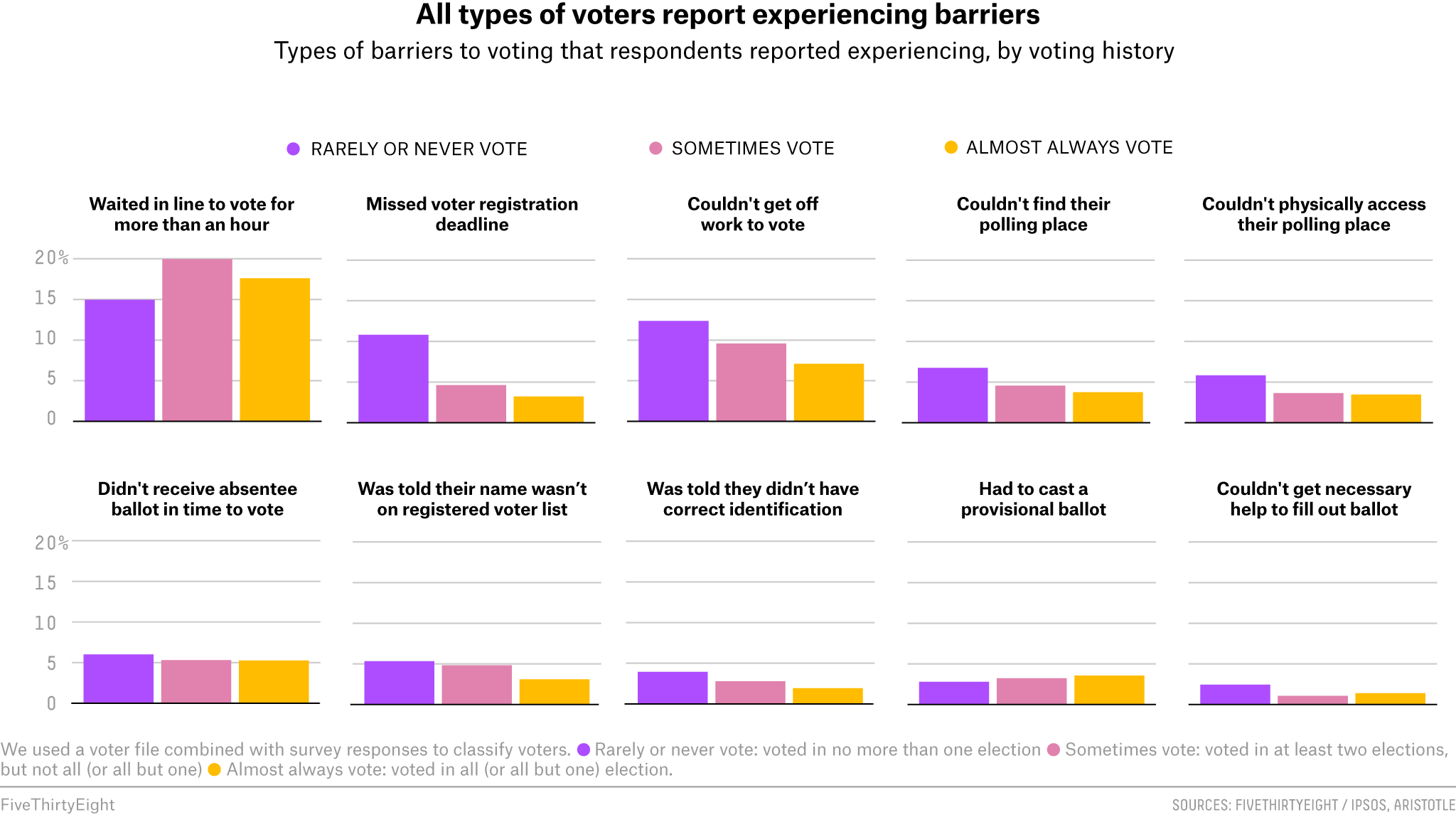
Bar Chart Example from the Five Thirty Eight Blog.
The 40 Weirdest (And Best) Charts We Made In This Long, Strange Year

Some other considerations.

Should you go horizontal or vertical?

I often choose horizontal bar charts because they’re easier to label. But vertical bar charts definitely have their place as well. Try not to overthink it, if you’re in doubt just create two versions and decide which one tells your story better.

Ann K Emery offers a good post on choosing between the two styles on her Depict Studio Blog.
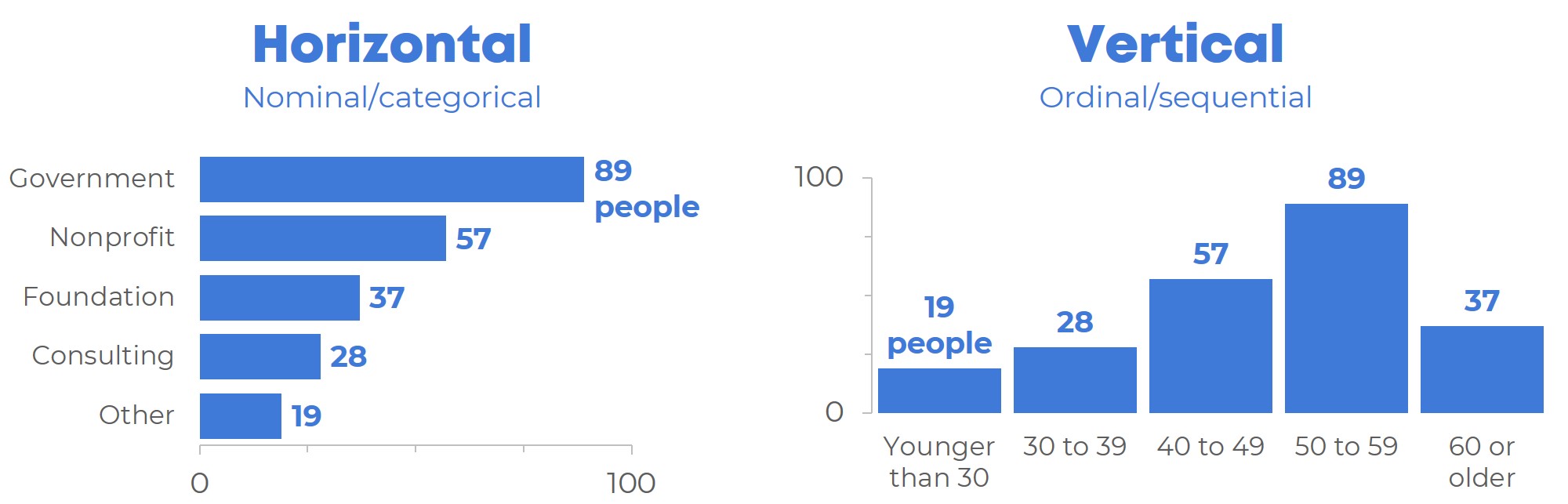
A horizontal bar chart and a vertical column chart.
When to Use Horizontal Bar Charts vs. Vertical Column Charts

What about clusters and stacked bars?

I’ll get into variations on the common bar chart in the future. But for a brief description of the different bar chart variants, this post by Alex Velez on Storytelling with Data does a nice job.
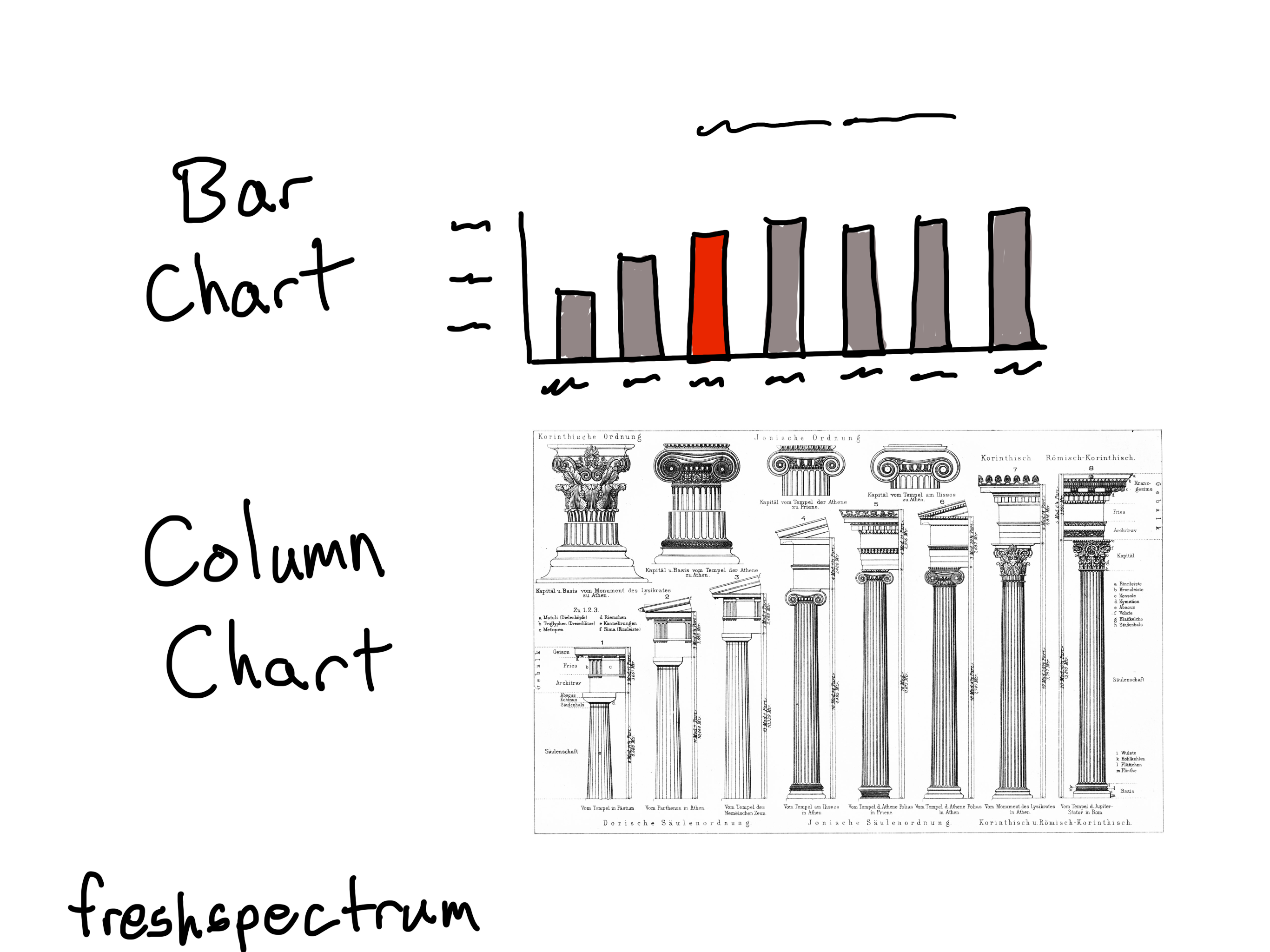
Cartoon showing a bar chart and a chart with columns.

Written by cplysy · Categorized: freshspectrum

Dec 10 2020

How to Create a Hex Tile Grid in Canva

In this series of data design posts, we draw inspiration from charts in the news and other spaces featuring data visualizations. Then we recreate the charts using easy freemium tools.

In this post I am going to walk you through the process of creating your own hex tile grid using Canva.

This is an example hex grid tile map.

The Inspiration

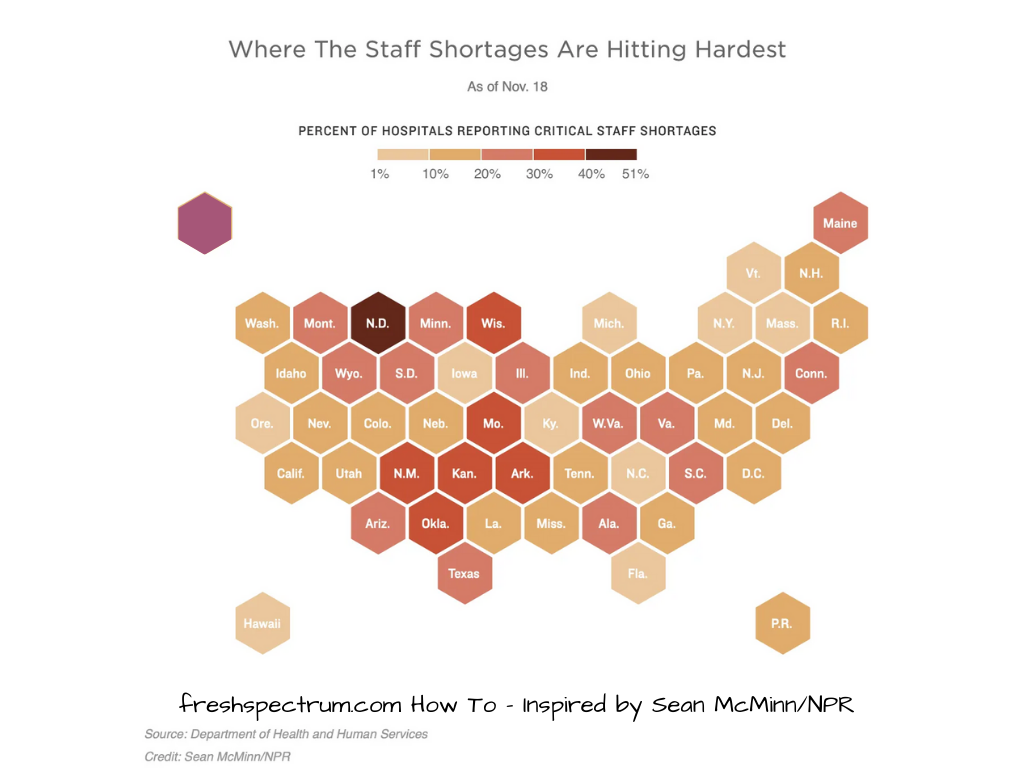
So over the last few years there has been an uptick of tile-grid maps. The idea behind these kinds of maps is pretty simple, coloring maps based on geographic borders gives larger western states more visual prominence. More people live in DC than Wyoming, but in those maps, DC would all but disappear.

Tile grids are pretty simple. It’s just a collection of icons tiled together in a way that approximates the geography you are representing.

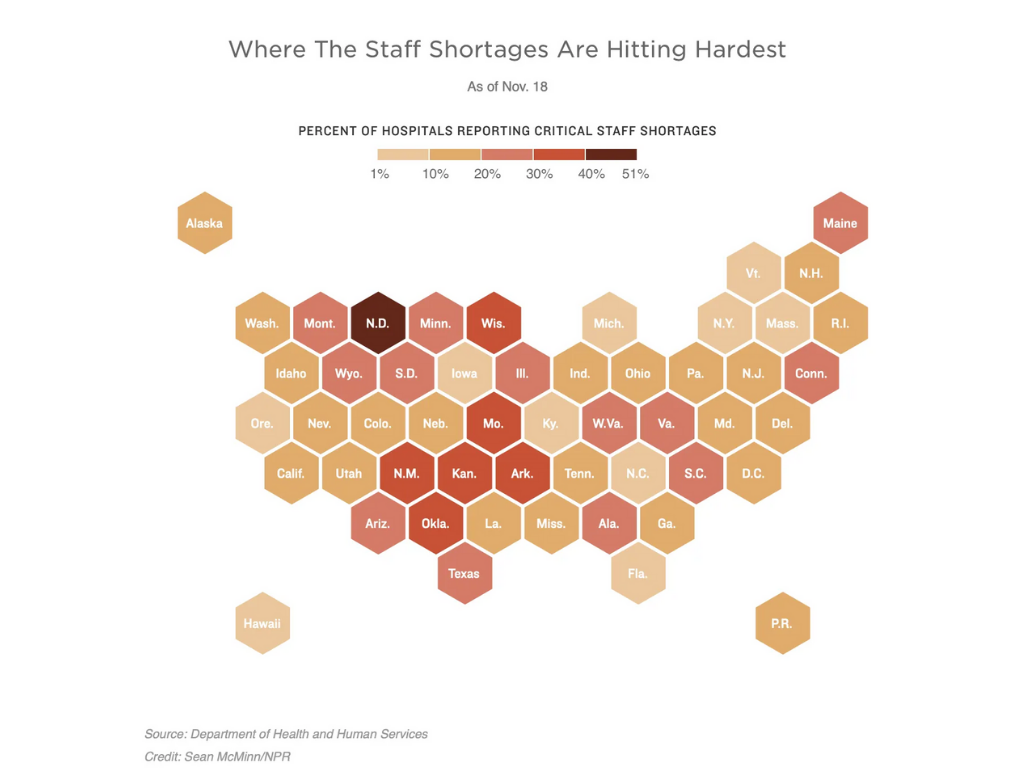
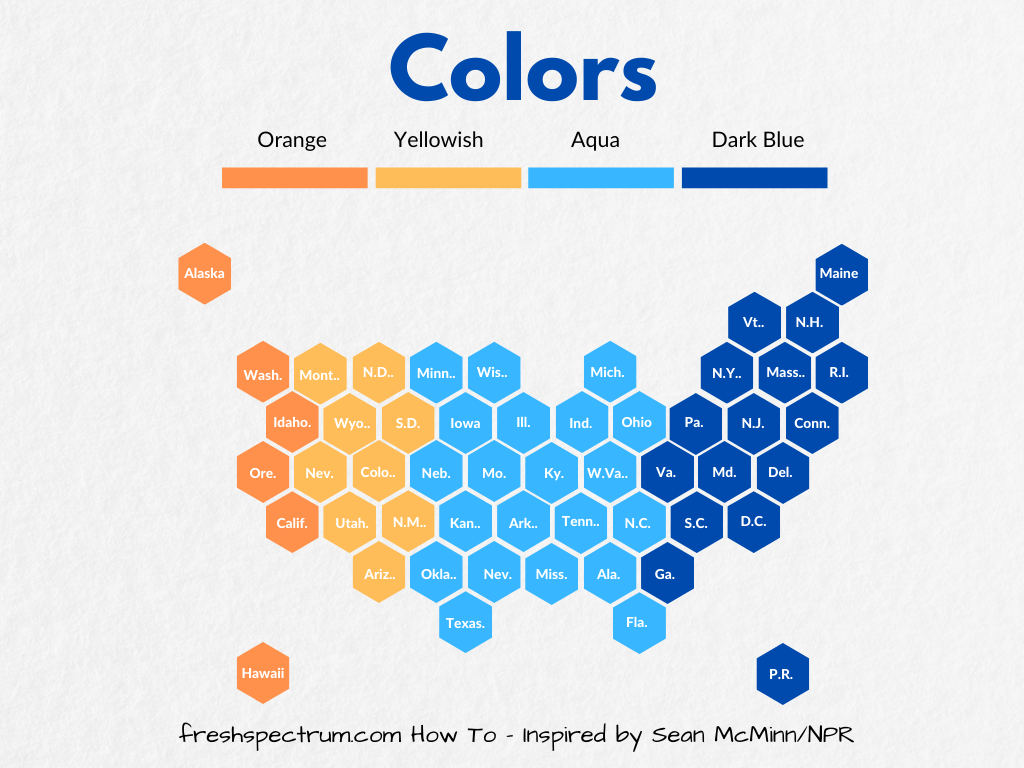
This tile grid map created for an NPR article by Sean McMinn uses a hexagon icon as its base tile. Let’s go ahead and try to recreate the style using Canva.

This is a hex grid tile map created by Sean McMinn for NPR.

Getting Started in Canva

I’ll start by creating a blank “Presentation (4:3).”  In Canva, no matter the sizing, you can create multiple pages. I just find the 4:3 dimensions to be pretty easy to use across the web and via print.

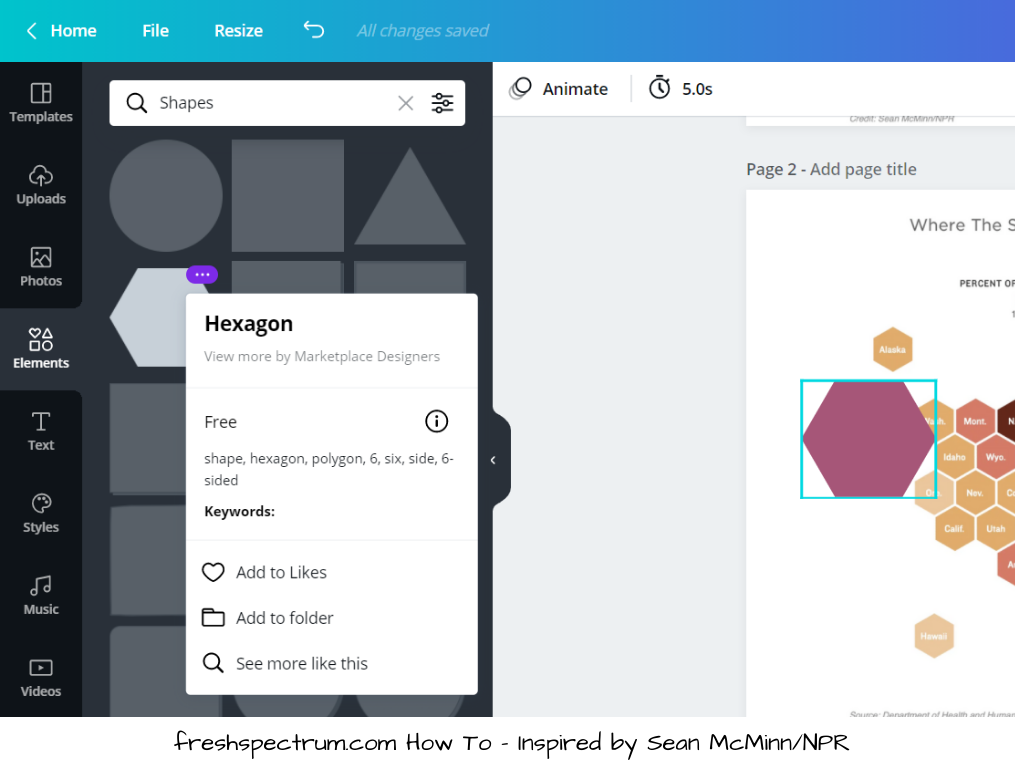
The first thing we’ll want to do is paste in our inspiration image. Then we will want to go into the elements page and select a Hexagon.

This is an image showing how to choose a hexagon element in Canva.

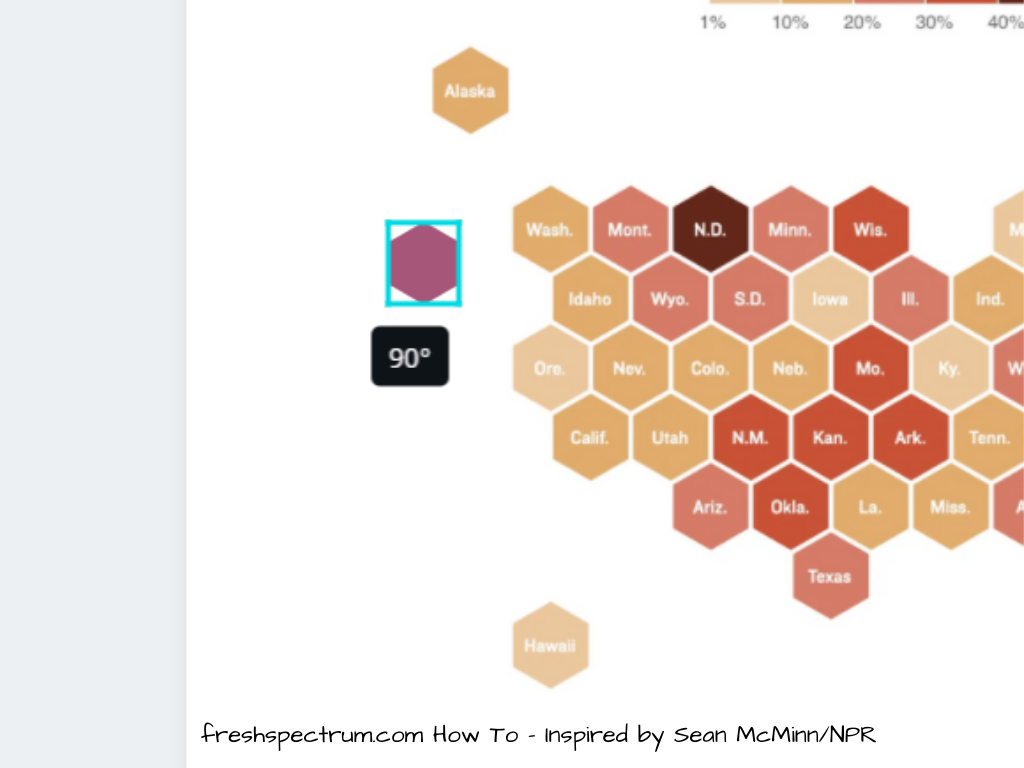
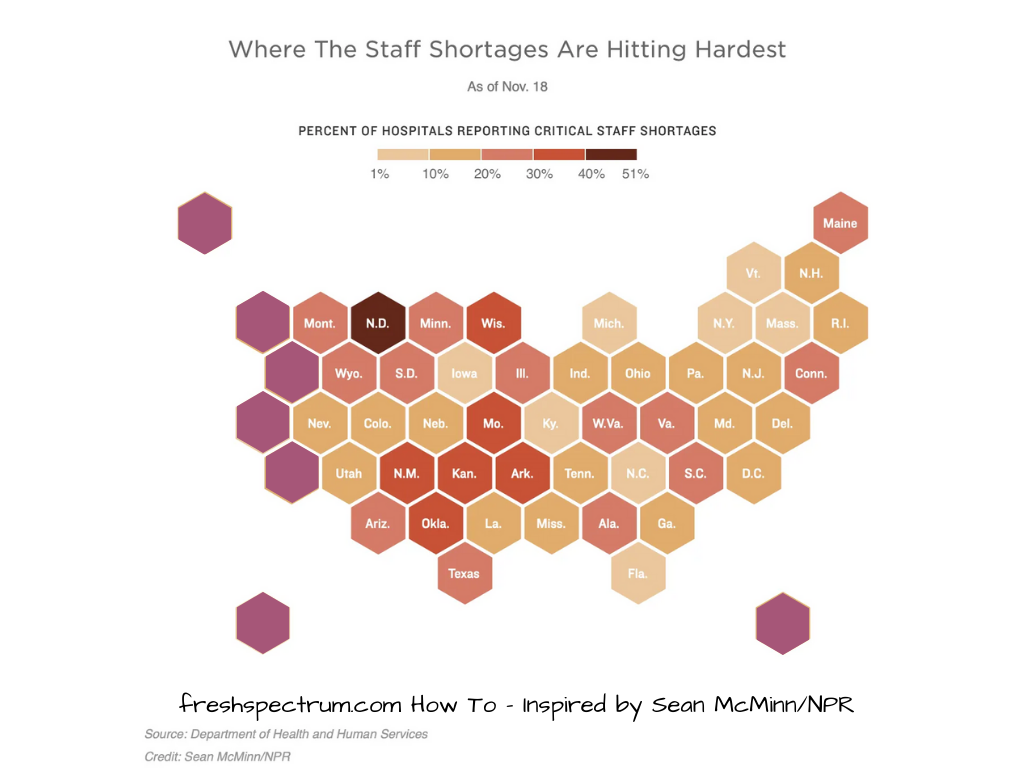
After we add the hexagon, you’ll want to select it, then resize down to match the hexagons from our inspiration page. Just put over top of one of the state tiles. You might also have to spin the shape around.

This is an image showing a hexagon moved 90 degrees in Canva.

So ultimately our starting point will look something like this.

This is another illustrative example of a hex tile map being created in Canva.

Building out the Hex Grid

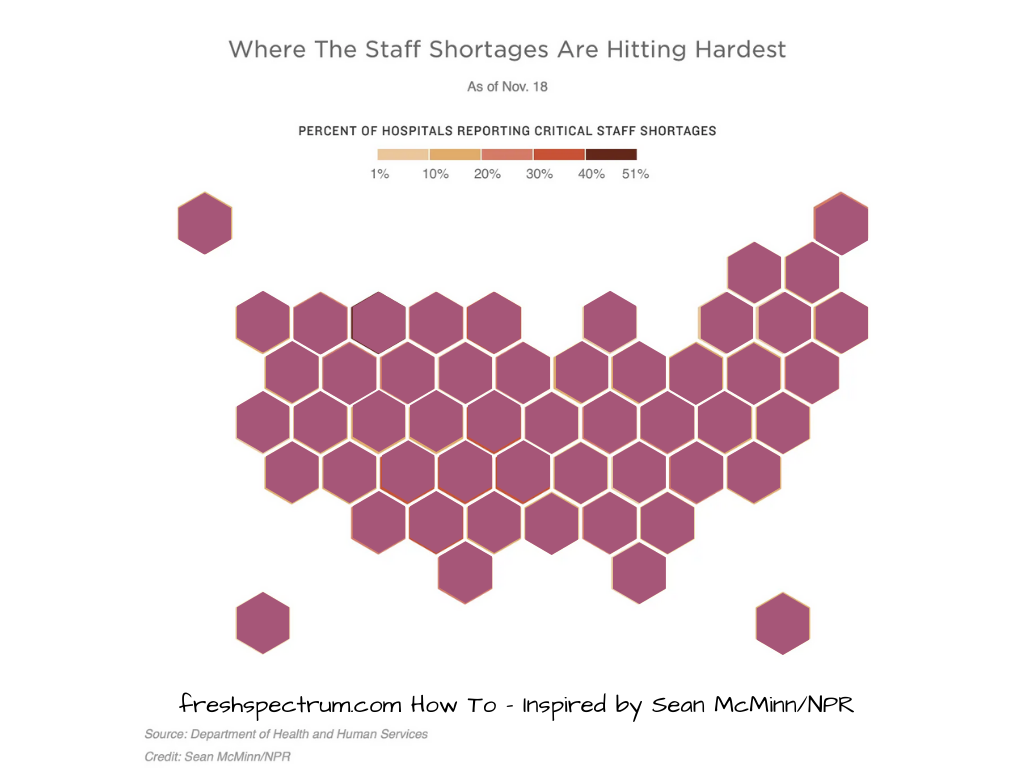
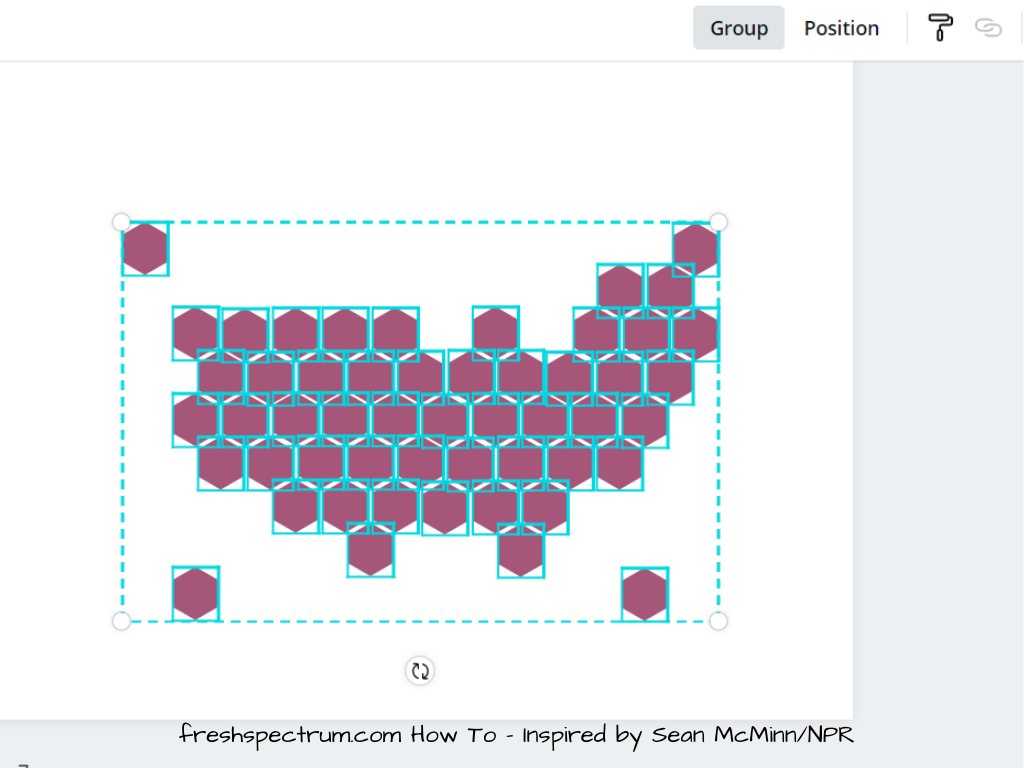
After we have the shape sized properly, basically we just copy and paste the shapes, covering each tile. You can also select multiple at once then paste them across working like it’s a puzzle.

This is another illustrative example of a hex tile map being created in Canva.

Keep going until you have the entire map covered.

This is another illustrative example of a hex tile map being created in Canva.

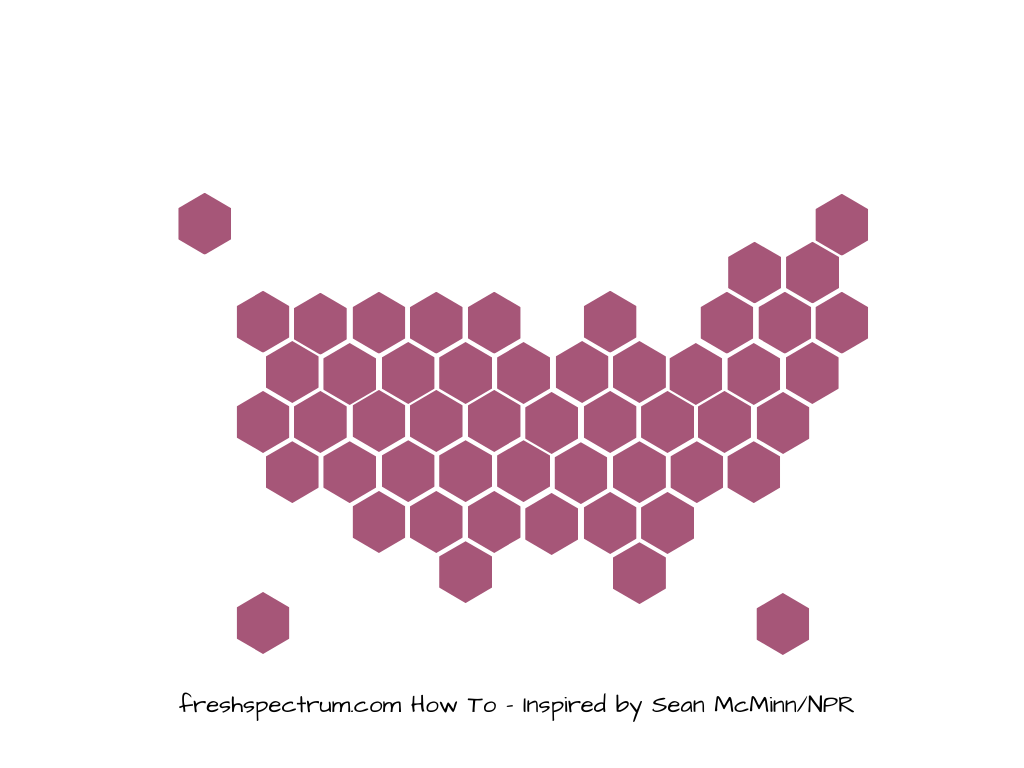
Once you do this, you can go ahead and delete the background inspiration image. You’ll be left with just your own tile grid.

This is another illustrative example of a hex tile map being created in Canva.

After you finish created the grid, I suggest you select all the tiles and click on the “Group” button. This will keep them all locked together. If you are a stickler for pixel perfect positioning, you can also use the group function to check.

As you can see from my wobbly lines, I am not a stickler most of the time.

This is another illustrative example of a hex tile map being created in Canva.

Adding the Labels

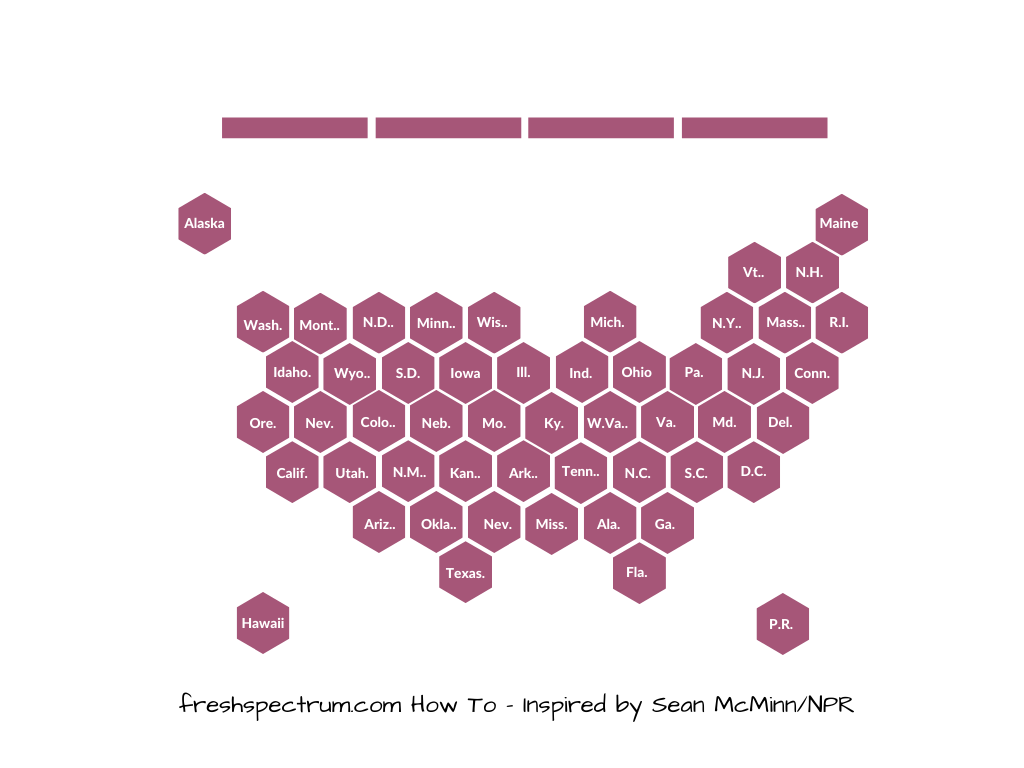
After we have our base grid, we can go ahead and add all of our labels. I just use text entry and write them out. Yes, it takes a few minutes, but ultimately these kinds of things can be re-used over and over.

I’ll also add a few rectangle block elements at the top to act as a color key.

This is another illustrative example of a hex tile map being created in Canva.

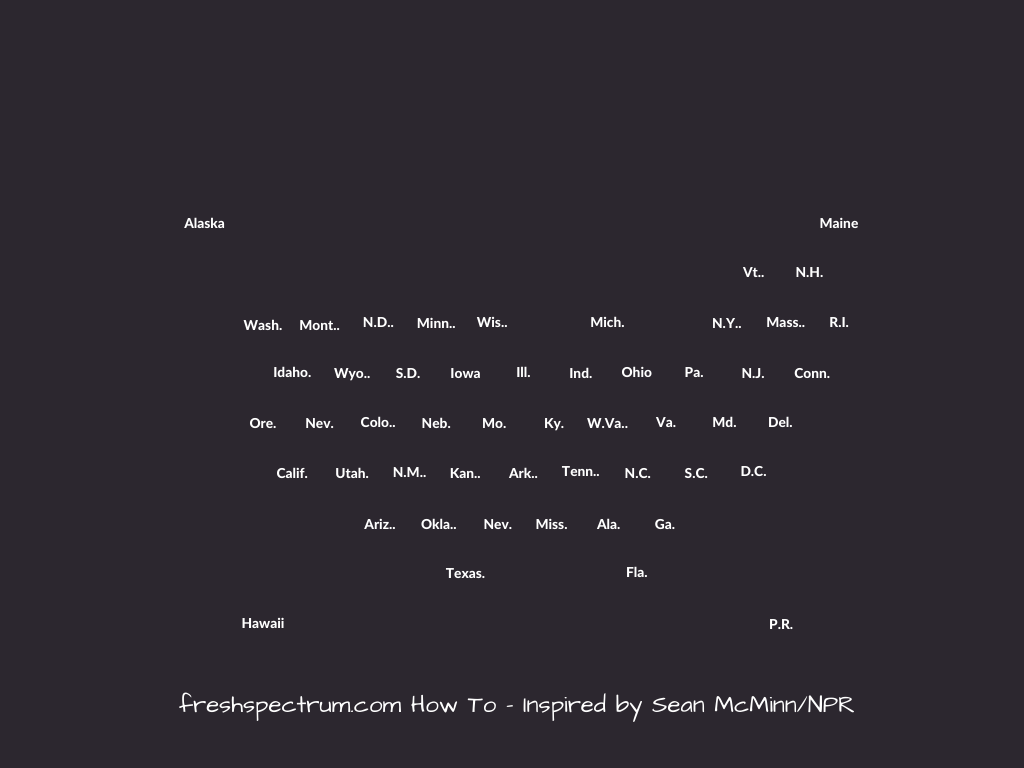
Just like with the regular grid, I like to put all the labels together in their own group. In Canva I will just duplicate the page, then delete out the background hex grid on the duplicate page. If the labels are white I’ll change the background color to something dark. Then I’ll just select all the labels and click Group.

This is another illustrative example of a hex tile map being created in Canva.

At this point, we have two groups. One with all the hexes in a tile grid. The other with all the labels. I duplicate pages when I want to try new things and color schemes. And I can always copy and paste the labels or hexes as needed.

Changing the Colors

So I don’t bother with the colors until after I have all the basic stuff setup. But once I do, the colors are pretty easy.

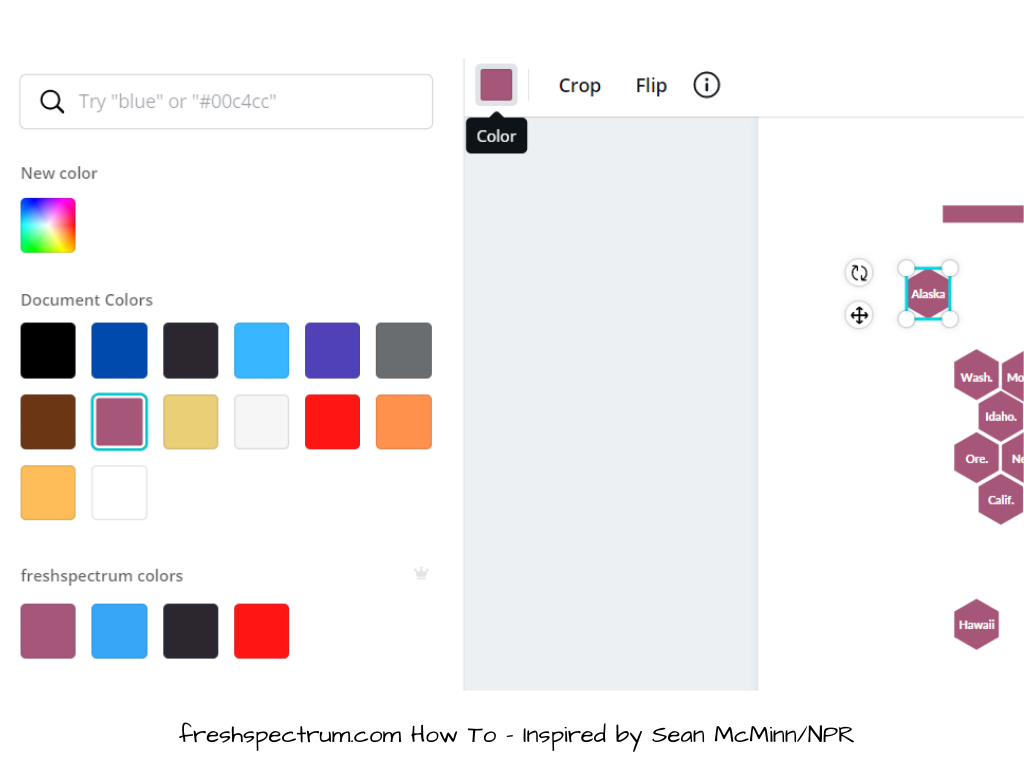
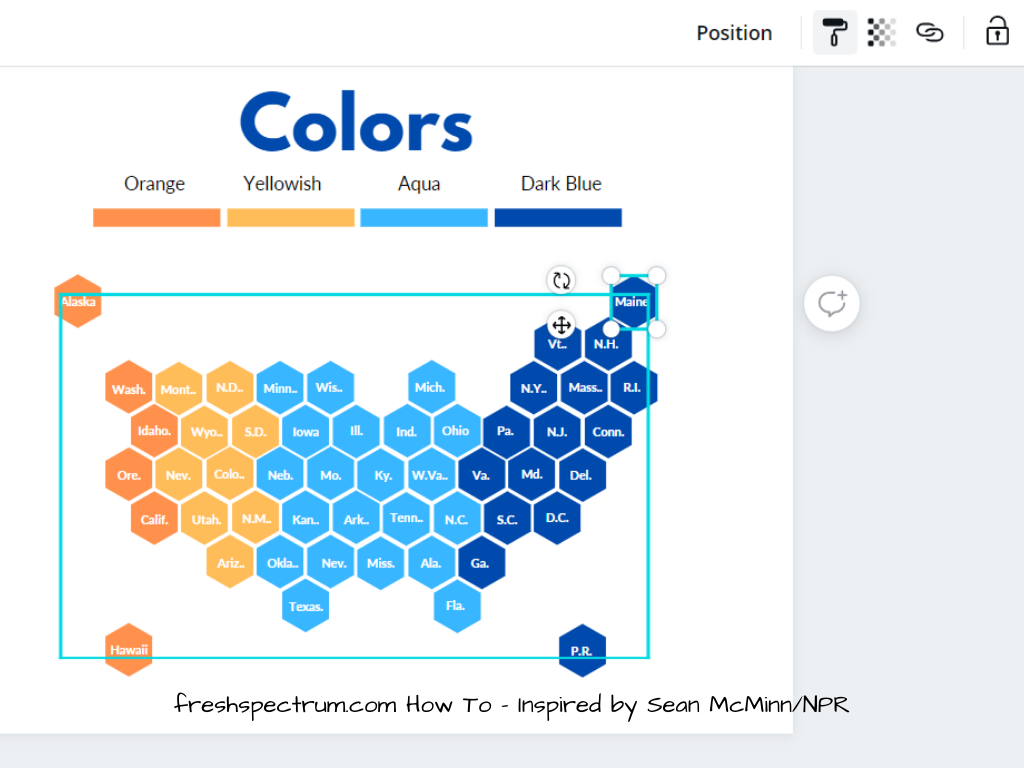
Just click on one of your elements then click on the color block at the top. This will give you color options. Select whatever color you would like.

This is another illustrative example of a hex tile map being created in Canva.

You don’t have to click on each individual hex to change the colors. You can click on one single tile then use the format painter up top (looks like a little paint roller) to copy the colors to other hexes. You might find it easier to lose the labels while working with the colors, then just paste the labels on top again.

This is another illustrative example of a hex tile map being created in Canva.

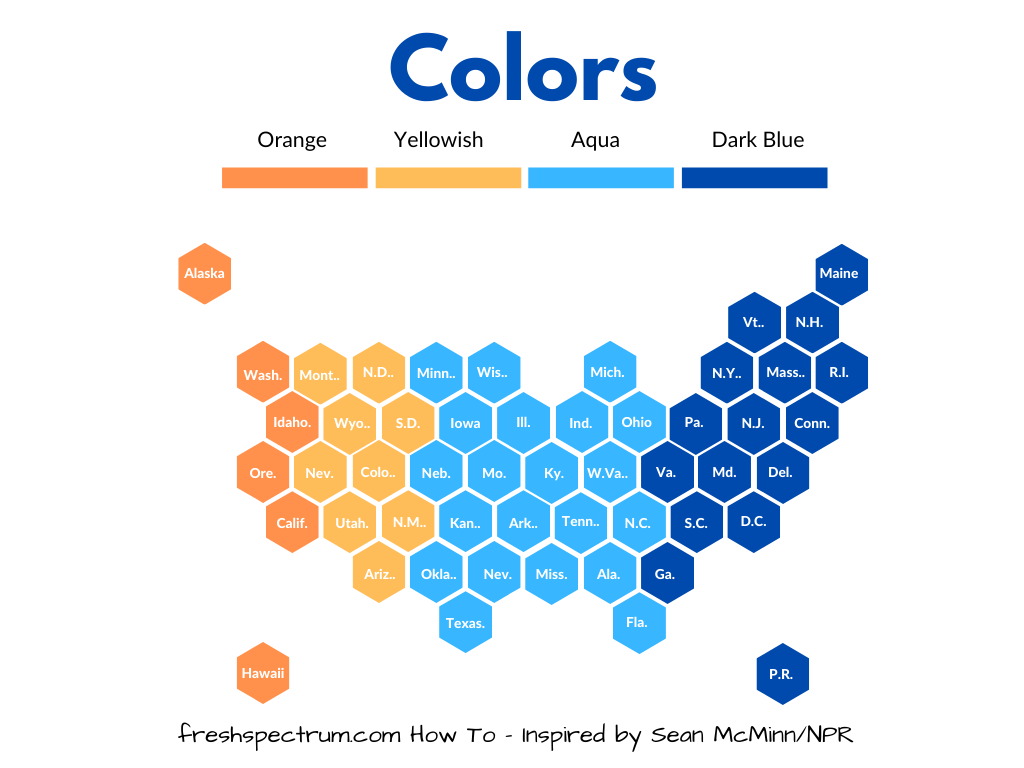
And there you go, a hex tile grid just like grid created by Sean McMinn.

This is another illustrative example of a hex tile map being created in Canva.

Making Alternative Styles

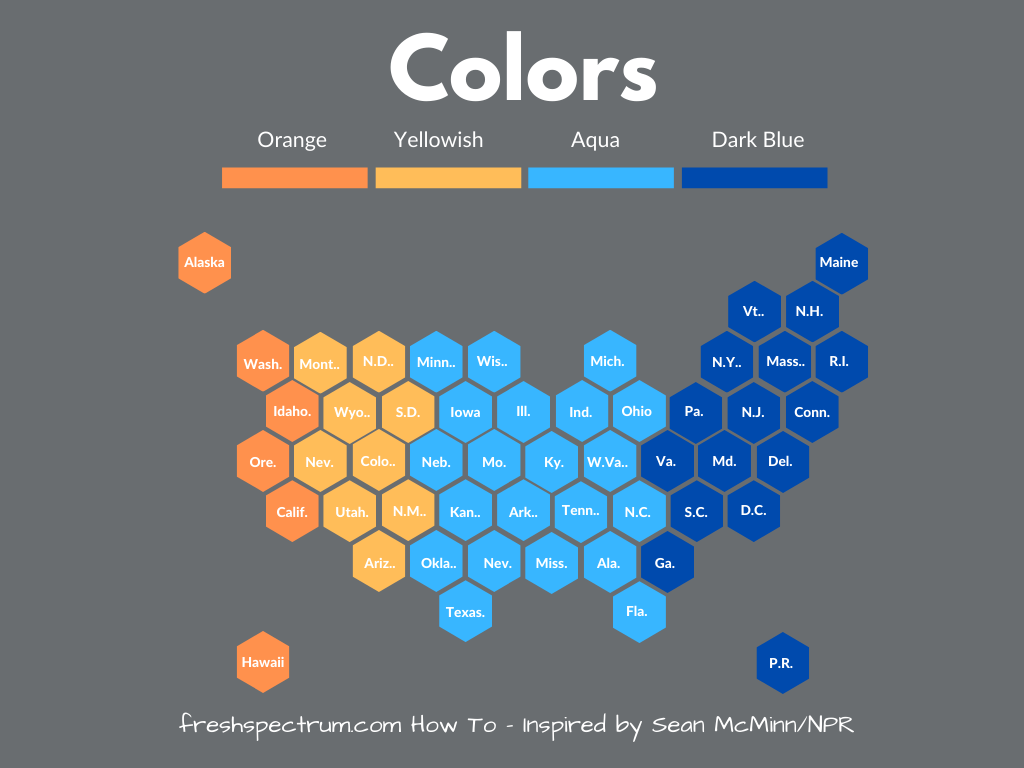
Once you have the basic pattern down you can do a bunch to the formatting. Like perhaps changing the background color.

This is another illustrative example of a hex tile map being created in Canva.

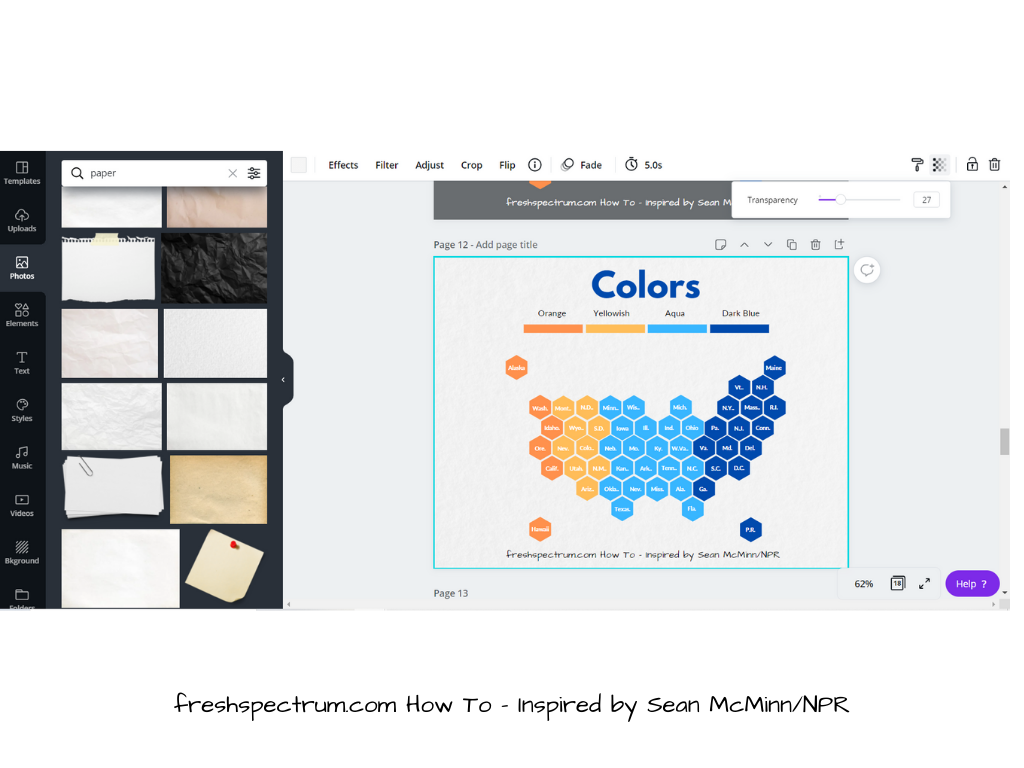
Or you might want to give it a little textured paper feel.

This is another illustrative example of a hex tile map being created in Canva.

To do this, just search the photos for a texture you would like to use. Insert the picture and send to back. Then turn down the transparency, this will let the background color shine through. So if you want it dark, just put a dark color in the background. You can also use this approach to match brand colors. It’s fun, but it’s usually best not to get too carried away with textures.

This is another illustrative example of a hex tile map being created in Canva.

The Q*bert Hex Map

Playing with this visualization type I couldn’t help but think about the Atari game Q*bert.

Q*bert screen shot taken by Retro Game Guy

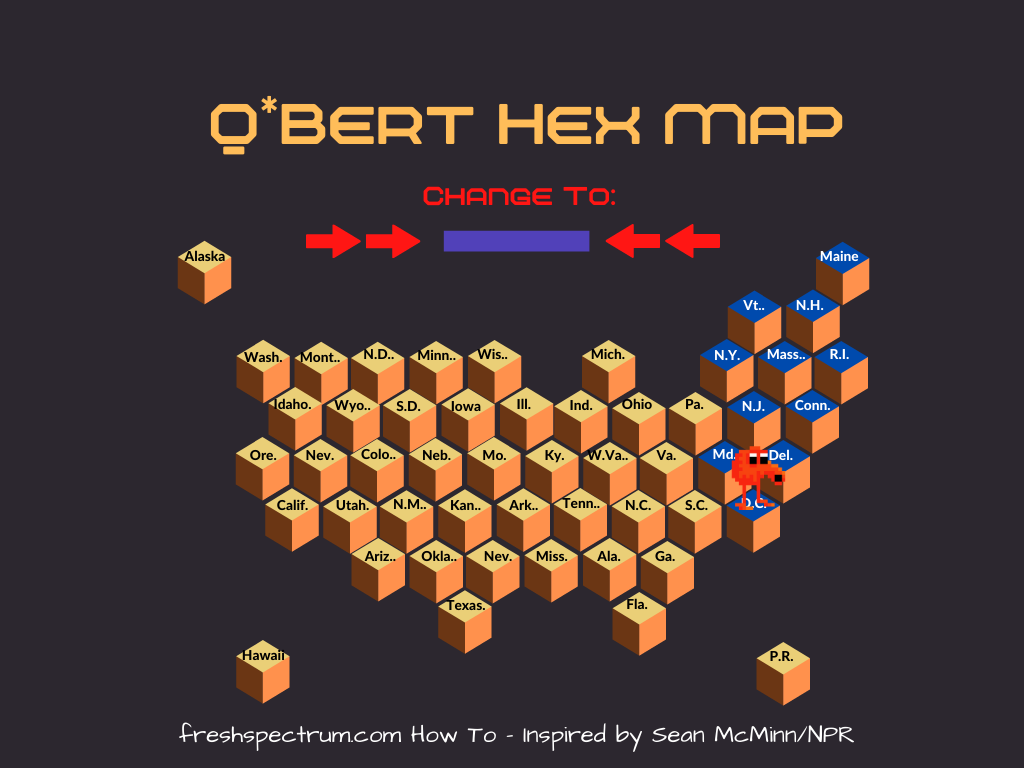
So I decided to make a little variation on the Hex map. What do you think?

This is a Q*bert hex tile map of the United States created by Chris Lysy of freshspectrum and inspired by Sean McMinn.

Written by cplysy · Categorized: freshspectrum

Dec 09 2020

How to Evaluate a Website.

Is your website really accomplishing anything? Or does it just look the part?

In this guide I am going to walk you through a few methods you can use to evaluate a website. The specific method(s) you choose will depend a lot on your evaluation goals. And ultimately, you will probably want to mix these methods.

But website evaluation doesn’t need to be overly complex. Our goal here is to use the web to actually accomplish something. An evaluation is going to help us see if we are on the right track, and specifically, how we might be able to improve our website or digital strategy.

These methods will work whether your goals are for-profit, not-for-profit, or a mix of the two. But my goal in writing this post was to lay out a practical strategy for organizations with websites that are not designed to pull in dollars but to serve other purposes.

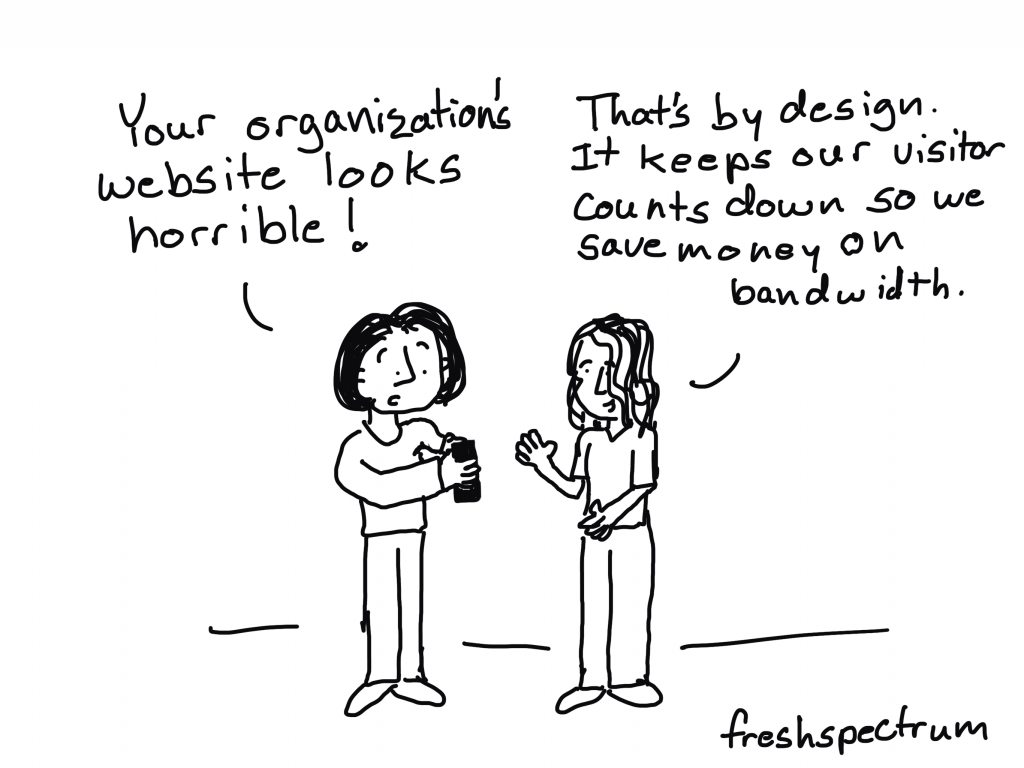
Freshspectrum Cartoon by Chris Lysy Person 1: Your organization's website looks horrible!  Person 2: That's by design. It keeps our visitor counts down so we save money on bandwidth.

How this guide is structured.

  • Before you evaluate, understanding your website’s purpose.
  • Choosing your evaluation method.
  • Method 1: External Analytics
  • Method 2: User Experience Evaluation
  • Method 3: Conversion Evaluation

Before you evaluate, understanding your website’s purpose.

So before you move forward with any evaluation method you should be able to answer a couple of basic questions about the website’s purpose.

  1. What are you trying to accomplish?
  2. Who are you trying to serve?

What are you trying to accomplish?

Most of the time a website is only one piece in a larger puzzle.

Maybe you run a small consultancy and work for clients. Your goal is to find new clients and keep your current clients happy. Your website is not your business, it’s just the way potential clients get to know you and your services. It also might be the way potential clients learn that you exist.

Perhaps you support a non-profit that works with families in need of after school care. The purpose of the website is to provide information on how families can access your services.

Maybe you sell a software product, offer photography services, or fundraise for a regional non-profit. The website in each scenario is going to support your mission in different ways.

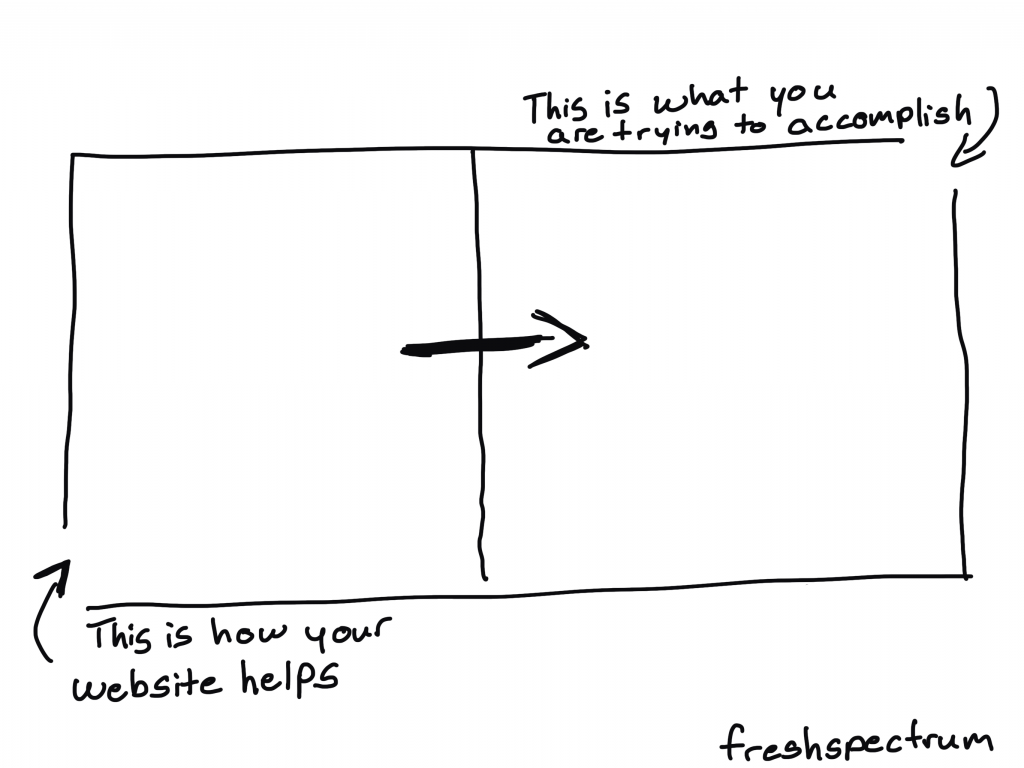
So before you evaluate, start by being clear on your outcomes. What would make your website successful?

A simple image showing two blocks.  One is labeled "this is how your website helps" and that leads to a box labeled "this is what you are trying to accomplish"

Who are you trying to serve?

The who question is also important. And there are a lot of different facets.

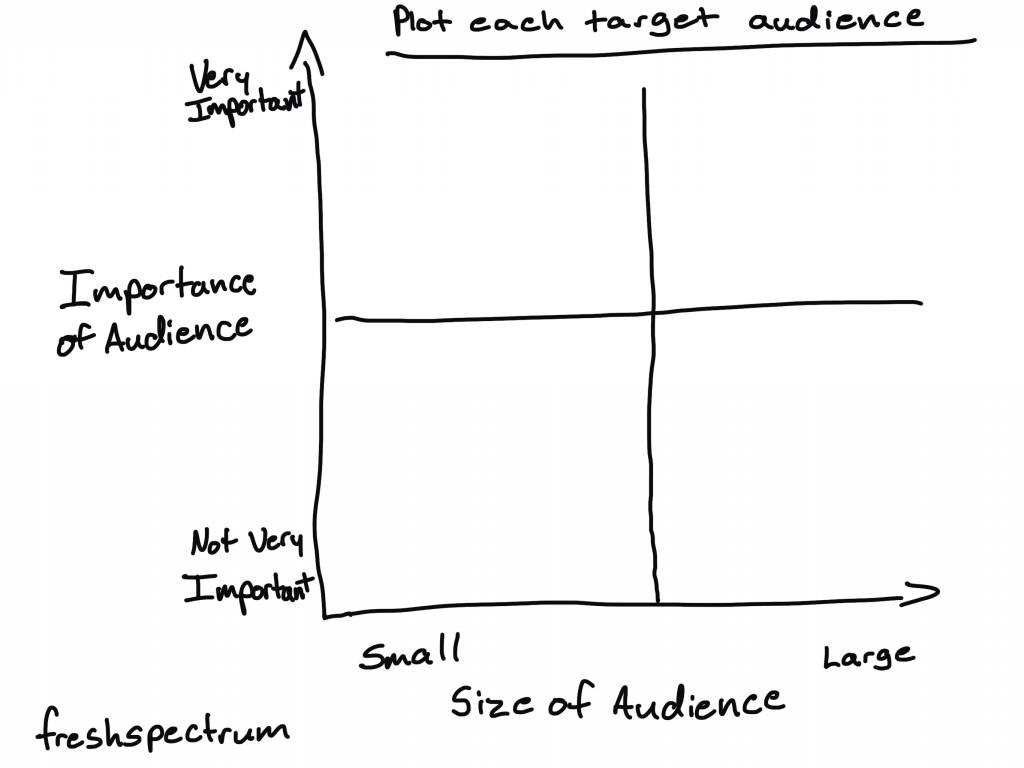
Chances are, you are trying to reach more than just one type of person. Some people are clearly going to be more important than others. What type of person is in your primary audience? What type of person is in your secondary audience?

Next, what size audience are you trying to serve with your website? Are you trying to reach millions or just a handful of people? If your primary audience is small (say under 500 people) and known (you already have their emails), then you don’t need to worry all that much about showing up on Google. You already have a captive audience.

A two by two plot with importance of audience on the y axis and size of audience on the x axis.

Choosing your evaluation method.

So I’m going to take you through three different methods. Each one has its place and ultimately you might want to mix together two (or potentially all three).

So what are they, and what are the main differences?

  • Method 1: External Analytics
  • Method 2: User Experience Evaluation (UX Evaluation)
  • Method 3: Conversion Evaluation

The first method is something I call external analytics.

This method utilizes datasets and indicators often used for search engine optimization. The biggest benefits to using this approach is that data can be accessed without the support of the webhost. Because of that we can leverage data from comparison sites in a way that a Google Analytics based approach cannot. By looking outside of your own site you greatly expand the learning potential.

The second method is something I call user experience evaluation.

As the name implies, this method leverages evaluation approaches commonly used during a user experience design process. While these methods are most often used during the website design process, they are also incredibly useful in providing ongoing formative feedback. This approach is especially useful when your website’s target audience is small, your audience members are well-known, or your website’s purpose is narrowly defined.

The third method is something I call conversion evaluation.

This is a version of the methods most often employed by marketing agencies. It utilizes social media stats, newsletter stats, and google analytics data. It tends to be good when you already have defined content strategy likely based on a standard marketing funnel. This is also where you might experiment with A:B testing. This approach is most associated with sales-focused product websites, but it has broader applications.

*Caution – Google, YouTube, Facebook, Twitter, and LinkedIn all Want Your Money!*

Don’t forget, search engines and social media companies are businesses. They give you lots of data, “for free”. This data can be useful, but the way it is presented is not always in your best interest.

Their goal is to sell ads. And giving you data helps them do that. This has implications for everything from their interfaces to their training guides. So, yes, when you have access, use the data. But just remember what’s in it for them.

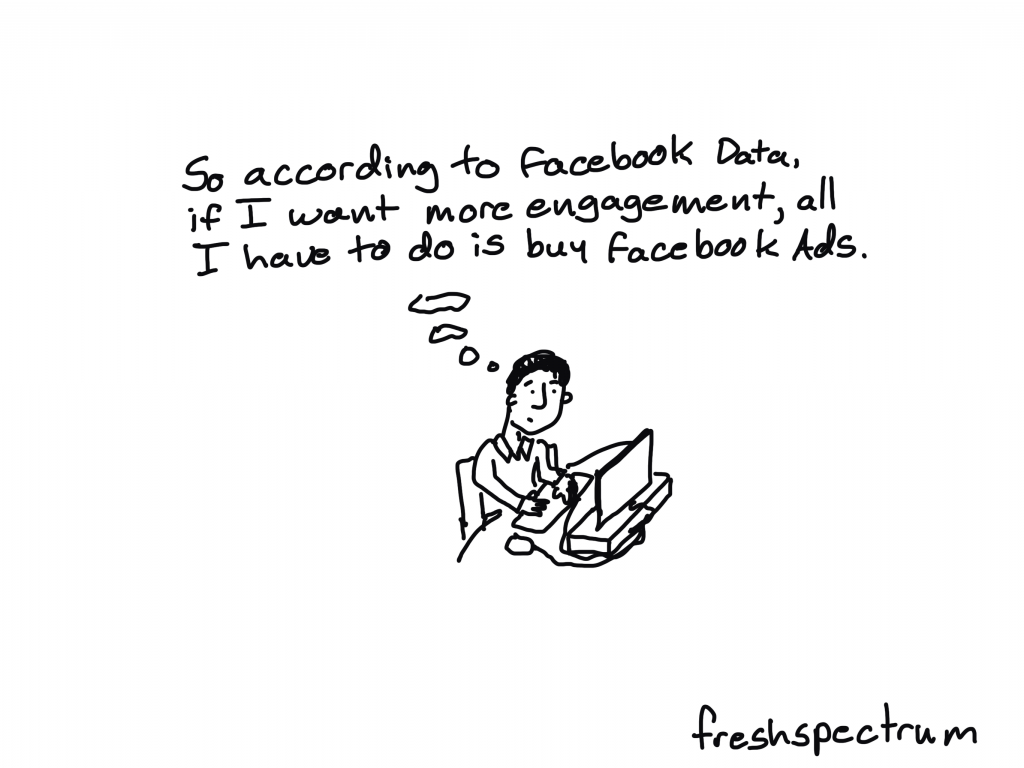
Freshspectrum Cartoon by Chris Lysy. Person thinking "So according to Facebook data, if I want more engagement, all I have to do is buy Facebook Ads.

Method 1: External Analytics

This is my absolute favorite method for evaluating websites. Not only does it provide a ton of insight, it also puts your website into perspective. And because procuring data does not require going through lots of back and forth with an organization’s IT department, or planting code on the site, this type of evaluation can be completed quickly.

There are a few drawbacks. Small audience sites or newly launched websites will likely have little to no search presence. And most of the SEO tools needed for data collection have a monthly price tag, although some let you do a few searches for free.

How this section is structured:

  • Comparison Sites
  • SEO Tools for Data Collection
  • Metrics: Page Counts
  • Metrics: Ranked Keywords
  • Metrics: Monthly Traffic
  • Metrics: Domain Authority
  • Metrics: Backlinks
  • Analysis and Reporting

Comparison Sites

What we are trying to do with this evaluation approach is to compare the performance of your focus website with similar websites. So the first step is to decide on a set of comparison sites.

Look for websites that would serve similar audiences. I try to identify anywhere from 3 to 7 comparison sites. Also look for websites that you would expect have similar budgets/strategies. It’s also okay to put in one or two aspirational (already super successful) comparison websites to use for inspiration).

If you are having trouble identifying these websites, I suggest just going to Google and searching for things that you cover on your own website. Who else comes up? You’ll also be able to use SEO tools to look for potential comparison sites.

SEO Tools for Data Collection

There are a good number of tools you can use to pull search engine data. Some of the top SEO tools include ahrefs, moz, and semrush. But my favorite tool is Neil Patel’s Uber Suggest, it is a super user friendly tool that also happens to be the cheapest.

A screenshot from Neil Patel's Uber Suggest platform.

Metrics: Page Counts

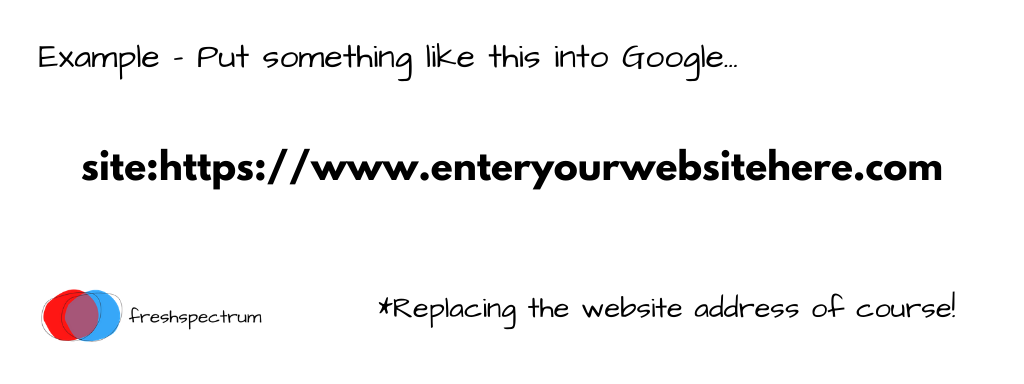
Before I jump into the metrics you’ll use from the SEO sites I think it’s a good idea to do a simple Google search. What we want to find is the number of pages Google has in its index for a specific website domain.

Basically, just type “site:” before the specific website address. Then look at the number of results that come up. Do this for every website, and put the number of results for each in a spreadsheet.

I go into a bit more detail in this blog post: Is your site suffering from a content deficiency?

An example of the code you should put when doing a site search on Google.

Metrics: Ranked Keywords

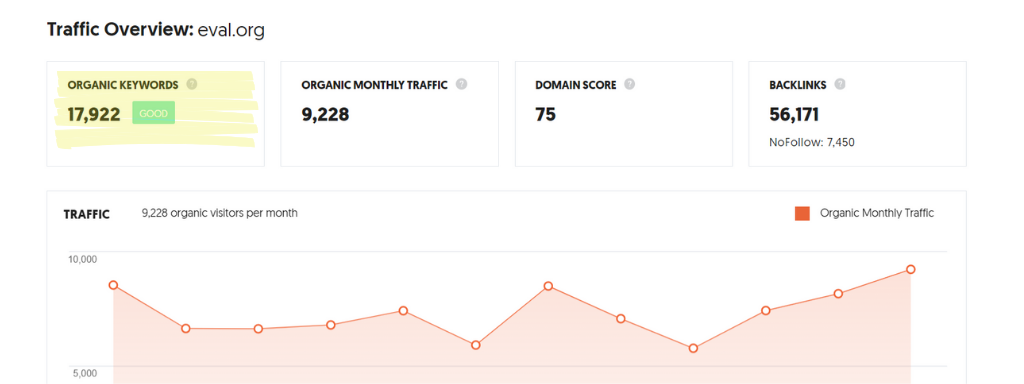
Keywords are words and phrases that when entered into Google, bring up your website. A ranking shows where in the search your website would appear. The number of ranked keywords just gives a sense of how many specific searches might bring up your website.

This and the following metrics will all be found using one of the SEO search tools. Make sure to search for your own site and for each of the comparison sites, then add that data to your spreadsheet.

A snapshot of "organic keywords" data pulled from Neil Patel's Ubersuggest.

Metrics: Monthly Traffic

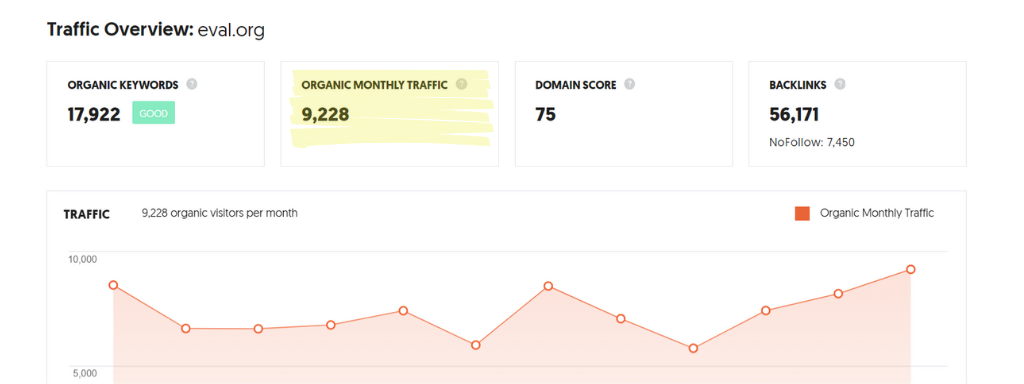
Monthly traffic numbers are estimates based on keywords, keyword rankings, and the expected monthly search volume for the given keyword. Remember that it’s an estimate, but it will give you a sense of how much search engine traffic a website is getting and what keywords are driving that traffic.

A snapshot of "organic monthly traffic" data pulled from Neil Patel's Ubersuggest.

Metrics: Domain Authority

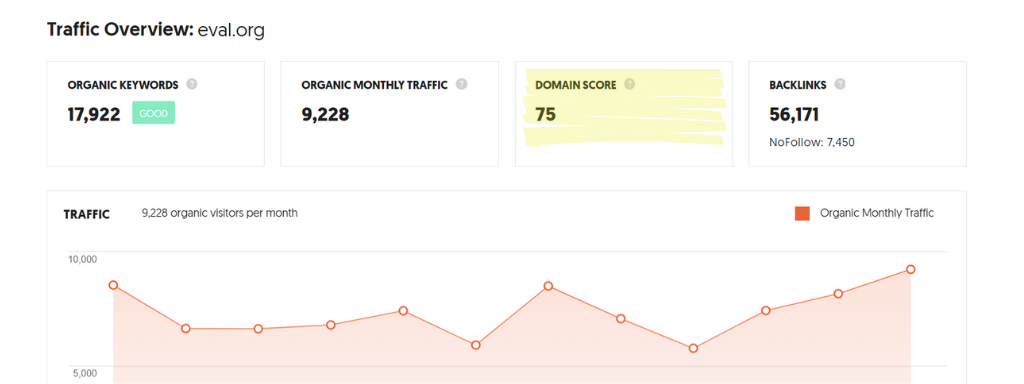
Domain authority is another composite metric that will vary depending on your chosen tool. This metric attempts to predict how much authority a specific web domain will have in a Google search. Higher authority domains are more likely to show up first in a search.

Even the simplest Wikipedia pages are very likely going to outrank an amateur blogger’s post much of the time. Lots of university domains and large non-profits have high domain authority that is often under leveraged.

A snapshot of "domain score" data pulled from Neil Patel's Ubersuggest.

Metrics: Backlinks

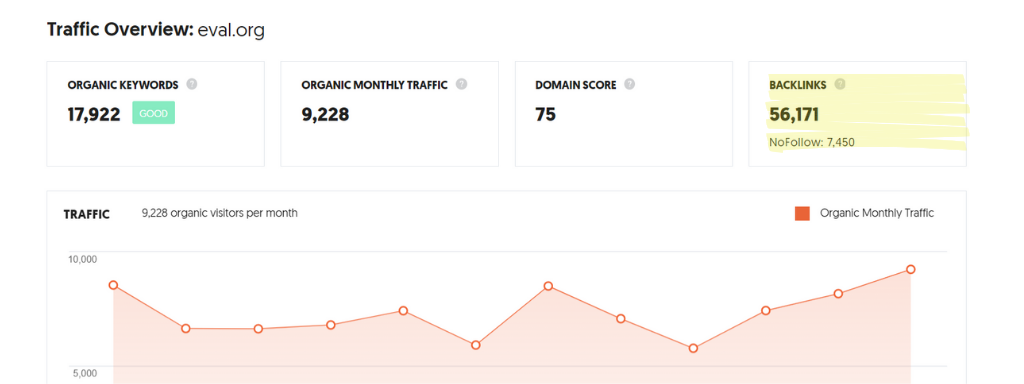
Backlinks show the websites that have a hyperlink on their site that point back to your website. If a lot of other websites point back to your website, this makes you look good in Google’s eyes. Essentially it bumps up your authority. It’s also why bloggers get a lot of spam emails from marketers hoping you will “share their amazing content” on your website.

A snapshot of "backlinks" data pulled from Neil Patel's Ubersuggest.

Analysis and Reporting

The best way I have found to look at this data is to collect the metrics above from your site and the comparison sites you have chosen and put it into a spreadsheet. Chances are the numbers will be a bit all over the place. But our goal is to gain insight that can help us grow our own organic reach.

A few questions to ask and answer with this data:

  • What specific keywords are driving the most traffic to your website or the comparison websites?
  • Does your website have enough content to really show up well on the web?
  • Which website pages are the most popular for search?
  • Do you have any high profile backlinks? Bigger sites that send a lot of traffic to your website.

Use the spreadsheet for the basic comparison. But then dig in places where a specific website stands out. Here are a few things you will likely discover:

  • For most websites that get search traffic, there are often just a few articles that outperform all their other articles.
  • Organizations that create new domains every time they launch a new initiative will likely see lower domain authority on those domains, giving them less of a search presence.
  • The look of the website is like the cover of a book. Just because it looks the part does not mean it is creating content and sharing it in a way that it reaches their ideal audience on the web.
Report Structure

  • Website Purpose and Audience
  • Comparison Websites – Overview
  • Page Counts (for all sites included and focus site highlighted/bolded)
  • Keywords (for all sites included and focus site highlighted/bolded)
  • Traffic (for all sites included and focus site highlighted/bolded)
  • Authority (for all sites included and focus site highlighted/bolded)
  • Backlinks (for all sites included and focus site highlighted/bolded)
  • Summary Analysis
  • Recommendations

Method 2: User Experience Evaluation

There are a lot of websites that exist to serve, and not necessarily grow. For these sites the experience of users is paramount, what shows up in Google is only secondary (if it even matters at all). The important part of the website is that it works.

User Experience Evaluation is an approach you can use to figure out if your website works, and for whom does it work. It can also give you a lot of insight into how to structure the site to meet the needs of your primary and secondary audiences. It is drawn from User Experience Design methodologies that are often deployed for software development, but the methods have much wider applicability.

This approach does not require sophisticated tools, you can do pretty much everything with just a pencil and some paper. There are tools that can help, but we’ll touch upon them at the end of the section, not the beginning.

How this section is structured:

  • Audience Avatars
  • Journey Maps
  • Roleplay
  • User Testing
  • UX Design Tools for Prototype Evaluation
  • Analysis and Reporting

Audience Avatars

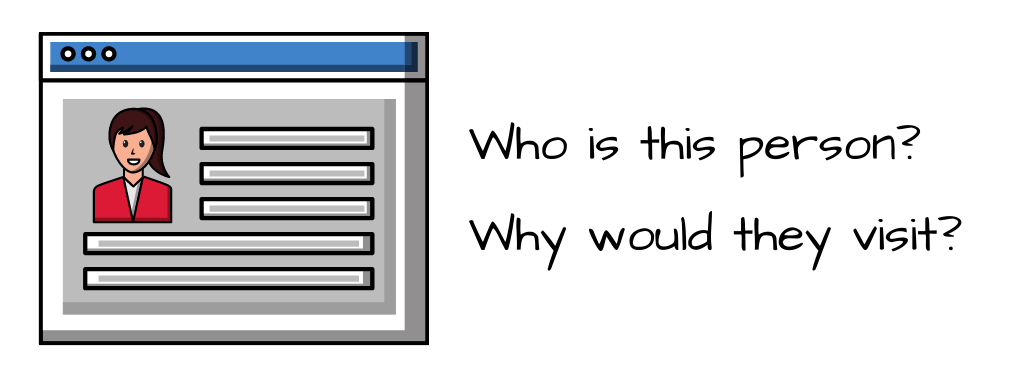
Audience always matters, but in user experience evaluation your audience is central to the entire approach. An audience avatar is really a profile of an audience member. The person in the profile might be fictitious or it could be a real person. Most often audience avatars are composite sketches of a certain type of user.

I suggest thinking about this like it’s a social media profile. Create a handful of avatars representing primary and secondary audiences. Ask some basic questions of your avatars that could help you when evaluating your websites. Are they tech savvy? Are they active on social media? Which social media channels? Do they check their email? How important is it to them that your website is easy to use?

An example picture of an avatar with two questions.  Who is this person? and Why would they visit?

Journey Maps

Now that we have our avatars, let’s think through how they might use your website. Why would they be visiting your site? What would they be hoping to find? What path would they go through to get to that destination? Would they find what they hope to find?

Think about use of your site as a little journey. Create a little annotated map of the experience.

For example, let’s say you run an after school program. A parent receives information in the mail that your program exists (point one in the journey). Then they visit your website homepage to find information on the program (point two). Maybe next they want to look into the basics about what your program does/does not do and the schedule (point three). Finally they decide to register, what would that process look like to them (point four+).

An example journey map line with 4 points.  Start here, next click, next click, and final click.

Roleplay

Once you have the avatars and journeys, set up a little roleplay for internal partners. Give them particular avatars and ask them to play the role of that person. Then give them a scenario to walk through. Have them speak aloud as they travel through the website.

User Testing

User testing with real life website users is the ideal evaluation method. Just like the roleplay, give the website user a scenario (or set of scenarios). Ask them to walk through the website and speak their actions out loud. Ideally use a web meeting tool that gives the user the ability to share their screen (and for you to record the session).

An image of a confused person starting at a computer screen.

UX Design Tools for Prototype Evaluation

There are some user experience design tools that could be helpful when evaluating websites. Especially before the website is live during the development process. By using a tool like InVision you can create an interactive replica of the website using mockup sketches. In this way you can user test designs before they need to be coded, saving both time and money.

An image of an invision prototype with a hand drawn section.

Analysis and Reporting

User Experience Evaluation is incredibly useful for the formative evaluation of website designs. Through the process you can learn a lot about how real life visitors approach your website. You can also use it to settle internal disagreements about the design of the website (which pages should/should not exist on the front page or on the menu bar).

User Experience Evaluation is a highly visual method. Avatars, Journey Maps, and Screen Captures (annotated with comments) can quickly fill a short report. When writing reports I like to talk about the specific avatar, share the journey map, set up the individual scenario, and share comments or places where the user had particular difficulties finding what they were hoping to find.

Method 3: Conversion Evaluation

So if you were to hire a digital communications or web design company to evaluate your website, this is likely how they would approach the evaluation. They would also probably just call it website analytics or web optimization.

There is an entire cottage industry built around web analytics, and it can also include partnership programs with top marketing software firms, social media companies, and Google. Remember the warning above, businesses exist to make money, and ad revenue drives website analytics.

All that said, there is value in a conversion evaluation approach. Especially if your website and content strategy are relatively well developed. Or if your goal is to generate revenue through small dollar sales or fundraising.

How this section is structured:

  • Modeling a Funnel
  • Social Media Stats
  • Google Analytics
  • Newsletter Stats
  • A:B Testing
  • Analysis and Reporting

Modeling a Funnel

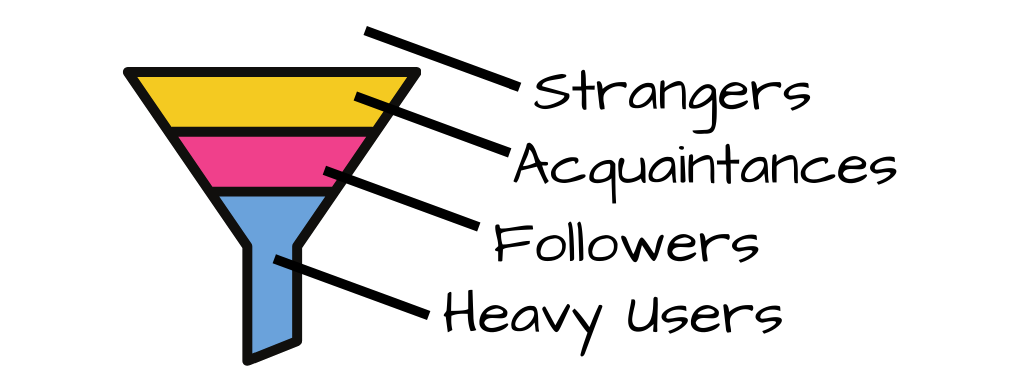
Before we get into the data it is a good idea to start with the concept of a sales funnel. The idea is pretty simple.

The top of the funnel (the widest part) is where people first learn that you exist. Often this happens on social media or through search. The people here are not fans or followers yet, more like acquaintances. This is the part of your strategy where you are doing outreach to find new potential members.

In the middle of the funnel is where people go from being acquaintances to followers. Perhaps they sign up to join your email newsletter. Or maybe they decide to attend your webinar series or download some free resources you put out into the world.

At the bottom of the funnel is where you would find your clients (if you are a business), top prospects, or heavy users. The goal is to get people to this spot, acknowledging that it is clearly going to be a smaller group compared to what you would find in the middle or top of the funnel.

An example of a simple marketing funnel.  Moves through from strangers to acquaintances to followers to heavy users.

Questions to ask yourself when drafting your funnel:

  • How do people learn we exist?
  • When they do learn we exist, how do they start following us?
  • How do the people who follow us become customers, supporters, or highly engaged followers?

Social Media Stats

Social media strategies usually sit at the top of a funnel. Most social media tools have a subsite where you can find data about your social media feeds (Facebook Insights, Twitter Analytics, LinkedIn Analytics). With all of these you need to be granted access by the account holder to see your data.

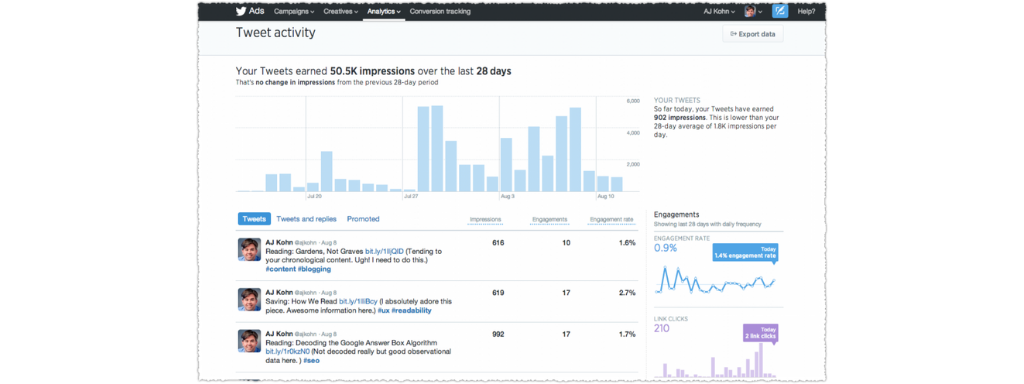
When looking at social media I find two numbers are particularly useful. Reach/Impressions (the number of times your posts have actually been seen by other people) is the first. The second is engagement (things like clicks, detail expands, likes, retweets, etc.).

Question to ask yourself, what percentage of people who have seen my content have engaged with my content?

An example image from Twitter Analytics.

Google Analytics

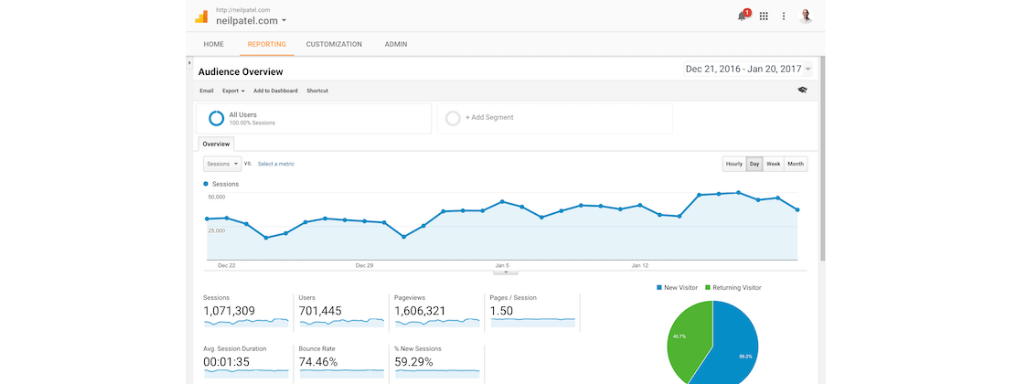
Google analytics is free but requires a little piece of code be put onto your website. It’s usually really easy to setup if you have never done it before, and Google will help you do that. This will give you lots of information about the people interacting with your website, what pages they visited, how long they visited, and what they clicked on when they visited.

With most content strategies, web pages have goals (things they expect people to do). So if the goal of a specific web page is to get people to sign up for an email newsletter, a conversion would be the person that actually signs up. The conversation rate would be the number of people who sign up over the number of people who visit.

An example image from Google Analytics.

Newsletter Stats

Newsletter stats are yet another data source. With most tools you can track things like opens, unsubscribes, and clicks. The open rate is the number of opens over the number of people who were sent the email. The click rate is the number of clicks based on the number of people who were sent the email.

A/B Testing

A/B testing is a way to test variations. It’s a basic experiment where some website visitors are randomly delivered one page version and others a different version. It can be used to test things like colors, structure, and styling to see what tweaks would deliver different page-specific performance.

Big budget companies and advertising agencies can put a lot of attention into these types of analyses. For most small budget companies, projects, or not for profit organizations A/B testing can be overkill except for the most critical pages.

A simple icon representing A:B testing.

Analysis and Reporting

For a conversion evaluation your goal is show how strangers are converted into acquaintances, how acquaintances are converted into followers, how followers are engaged, and (if it applies) how your followers turn into customers.

By mixing analytics from social media, your website, and your email newsletter you can make your analytics data a bit more tangible.

For your report, map your data onto the funnel model you created. Then dive deeper into each source moving from the top of the funnel to the bottom of the funnel.

Freshspectrum Cartoon by Chris Lysy. Person thinking: "Our new website looks amazing!  Too bad I'm the only one who knows that it exists."

Written by cplysy · Categorized: freshspectrum

Dec 05 2020

Comment on How to develop a data visualization color palette. by Nick Visscher

In reply to Jen.

Wow! This is absolutely fantastic! So useful and easy to follow! Thank you for this walk-through Chris!!

Written by cplysy · Categorized: freshspectrum

Dec 04 2020

Comment on How to develop a data visualization color palette. by Sue Sing Lim

I suggest also using this website to make sure the colors met accessibility check. I make sure that the colors have enough contrasts so people can differentiate them. https://webaim.org/resources/contrastchecker/

Written by cplysy · Categorized: freshspectrum

  • « Go to Previous Page
  • Go to page 1
  • Interim pages omitted …
  • Go to page 43
  • Go to page 44
  • Go to page 45
  • Go to page 46
  • Go to page 47
  • Interim pages omitted …
  • Go to page 54
  • Go to Next Page »

Footer

Follow our Work

The easiest way to stay connected to our work is to join our newsletter. You’ll get updates on projects, learn about new events, and hear stories from those evaluators whom the field continues to actively exclude and erase.

Get Updates

Want to take further action or join a pod? Click here to learn more.

Copyright © 2026 · The May 13 Group · Log in

en English
af Afrikaanssq Shqipam አማርኛar العربيةhy Հայերենaz Azərbaycan dilieu Euskarabe Беларуская моваbn বাংলাbs Bosanskibg Българскиca Catalàceb Cebuanony Chichewazh-CN 简体中文zh-TW 繁體中文co Corsuhr Hrvatskics Čeština‎da Dansknl Nederlandsen Englisheo Esperantoet Eestitl Filipinofi Suomifr Françaisfy Fryskgl Galegoka ქართულიde Deutschel Ελληνικάgu ગુજરાતીht Kreyol ayisyenha Harshen Hausahaw Ōlelo Hawaiʻiiw עִבְרִיתhi हिन्दीhmn Hmonghu Magyaris Íslenskaig Igboid Bahasa Indonesiaga Gaeilgeit Italianoja 日本語jw Basa Jawakn ಕನ್ನಡkk Қазақ тіліkm ភាសាខ្មែរko 한국어ku كوردی‎ky Кыргызчаlo ພາສາລາວla Latinlv Latviešu valodalt Lietuvių kalbalb Lëtzebuergeschmk Македонски јазикmg Malagasyms Bahasa Melayuml മലയാളംmt Maltesemi Te Reo Māorimr मराठीmn Монголmy ဗမာစာne नेपालीno Norsk bokmålps پښتوfa فارسیpl Polskipt Portuguêspa ਪੰਜਾਬੀro Românăru Русскийsm Samoangd Gàidhligsr Српски језикst Sesothosn Shonasd سنڌيsi සිංහලsk Slovenčinasl Slovenščinaso Afsoomaalies Españolsu Basa Sundasw Kiswahilisv Svenskatg Тоҷикӣta தமிழ்te తెలుగుth ไทยtr Türkçeuk Українськаur اردوuz O‘zbekchavi Tiếng Việtcy Cymraegxh isiXhosayi יידישyo Yorùbázu Zulu