• Skip to main content
  • Skip to footer
  • Home

The May 13 Group

the next day for evaluation

  • Get Involved
  • Our Work
  • About Us
You are here: Home / Archives for allblogs / freshspectrum

freshspectrum

Jan 15 2021

What is a Needs Assessment? Cartoon Glossary

This is a series of posts providing quick of overviews of important topics in research and evaluation. Each post in this series will include at least 3 cartoons from my archives and at least 3 links to recommended resources.

What is a Need?
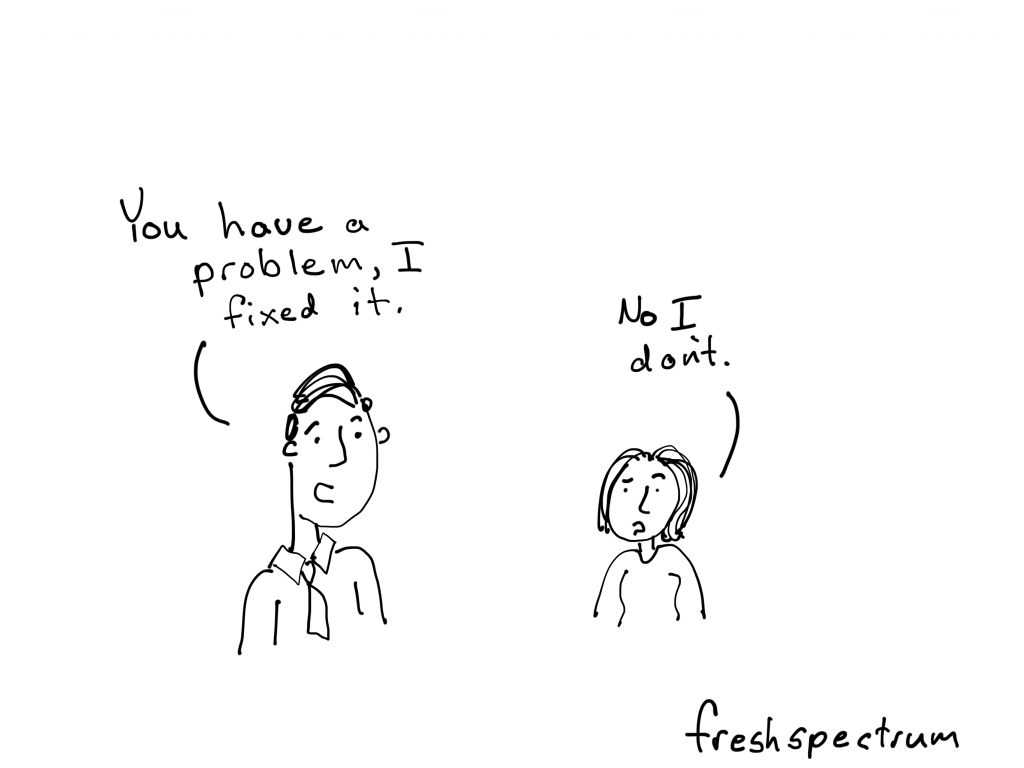
Needs Assessment Cartoon by Chris Lysy for freshspectrum.

"You have a problem, I fixed it.

No I don't."

In most needs assessment surveys, a need means something that specifically relates to a particular group or community. It’s not usually a universal need, such as the need for food or affection. But it’s more than an individual need, as in I need a new couch for the living room, or I really need a vacation. Those may truly be needs, but they are not generally the types of needs that are assessed in needs assessment surveys.

The Community Toolbox – Conducting Needs Assessment Surveys

What is your scope?

Needs Assessment Cartoon by Chris Lysy for freshspectrum.

"Hello, I'm doing a community needs assessment, could you spare five minutes to answer a few questions? No pressure, we are currently not funded beyond this survey and nobody is likely to even read my report."

It is important to limit the scope of a needs assessment to what can be reasonably addressed. For example, there would be little point examining health data or asking community members about health if there is no scope to address health needs. At the scoping stage, it is also helpful to record any other pre-existing priorities or limitations (e.g. funding limitations, geographic boundaries).

Australian Institute of Family Studies – How to do a Needs Assessment

Considering your Audience.

Needs Assessment Cartoon by Chris Lysy for freshspectrum.

"Hello, you don't know or trust me, but can I ask you a bunch of deep probing questions about your work?"

Given your objectives and resources, consider the target audiences and data sources that will help you assess your needs. Is it most effective to administer a survey to a wide range of community members, to hold several focus groups with hospital administrators, examine existing reports, or directly observe project participants? Sometimes you’ll need to conduct several, complementary needs assessment activities to collect data for a range of stakeholders.
National Institute for Children’s Health Quality – Seven Steps for Conducting a Successful Needs Assessment

Written by cplysy · Categorized: freshspectrum

Jan 13 2021

How to Create Scatter Plots in Excel

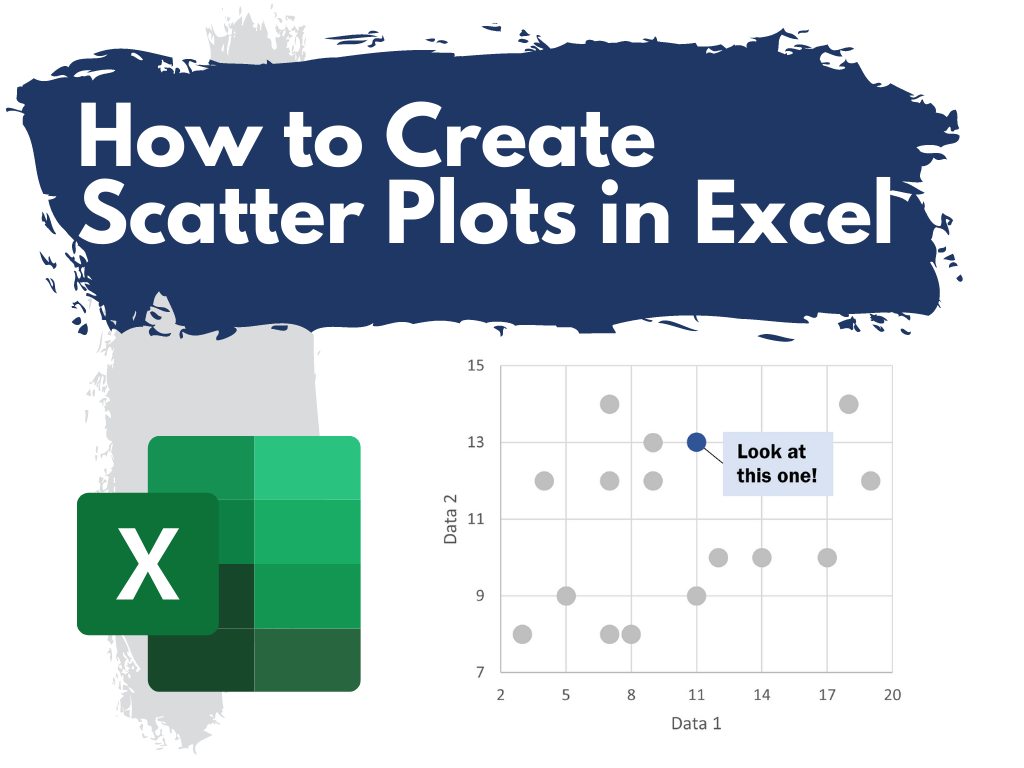
This is the third in a series of posts on chart design in Excel. In each post we will take on a different chart type. Today we’ll go with the chart that brings correlations to life, the Scatter Plot.

What you’ll find in this post:

  • An Oversimplified How To
  • How to create a good looking scatter plot.
  • A little bit of inspiration.
  • Some other considerations.
How to Create Scatter Plots in Excel

An Oversimplified How To

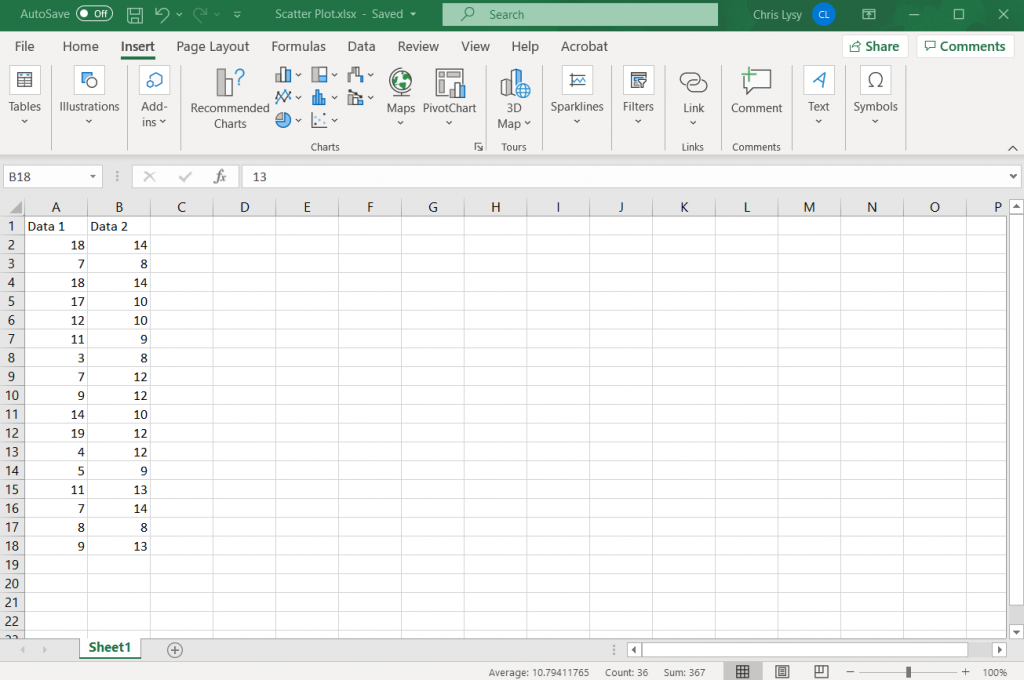
Creating a scatter plot is really simple in Excel. It just takes two columns of data and a couple of buttons.

How to Create Scatter Plots in Excel - Simplified How To Step 1 Illustration

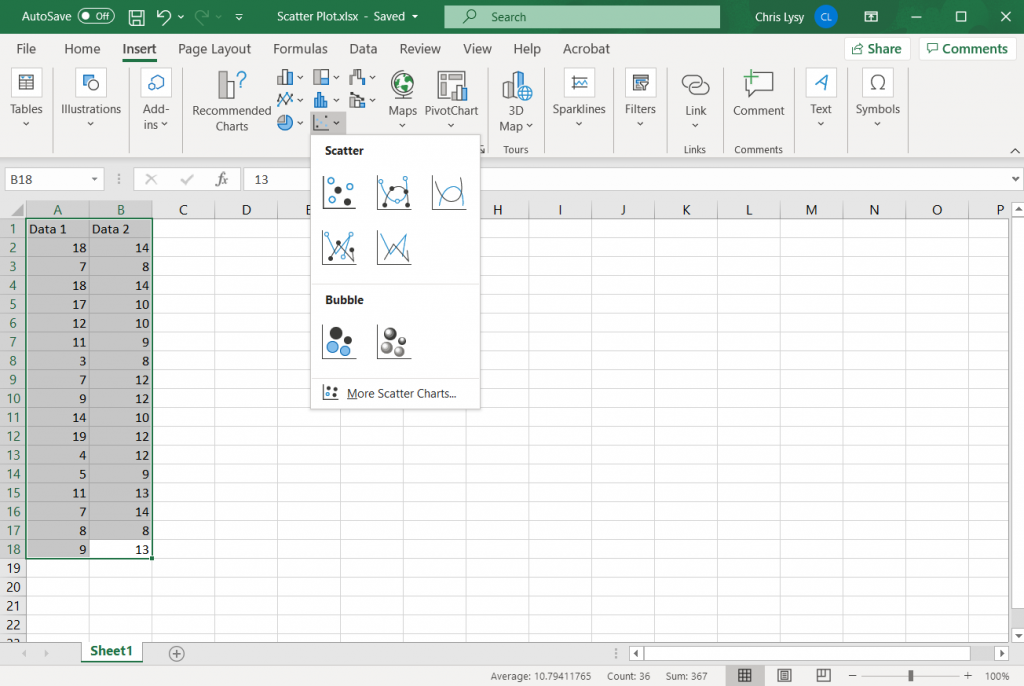
Step 1. Highlight two columns of numbers.

How to Create Scatter Plots in Excel - Simplified How To Step 2 Illustration

Step 2. Click on the insert tab, then the scatter plot icon. Then select the first option.

How to Create Scatter Plots in Excel - Simplified How To Step 3 Illustration

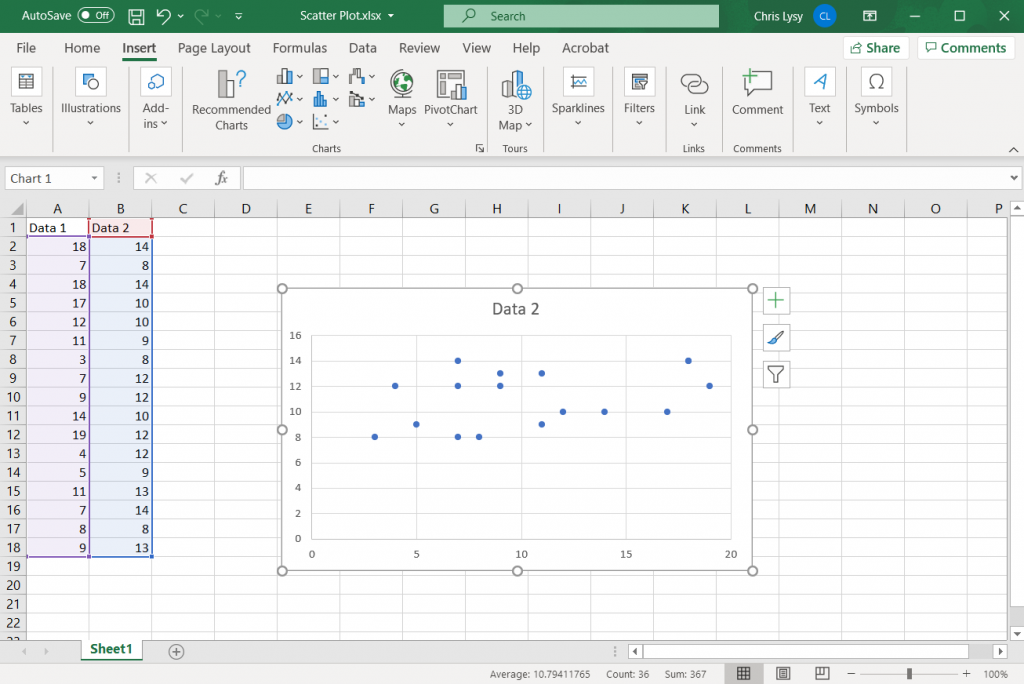
Step 3. Woohoo, you created a scatter plot!

How to create a good looking scatter plot.

Okay, so that’s the most basic of basics. Here are some more steps you probably want to take to create something worth sharing.

How to Create Scatter Plots in Excel - Setting up your Axes Illustration

Setting up your Axes

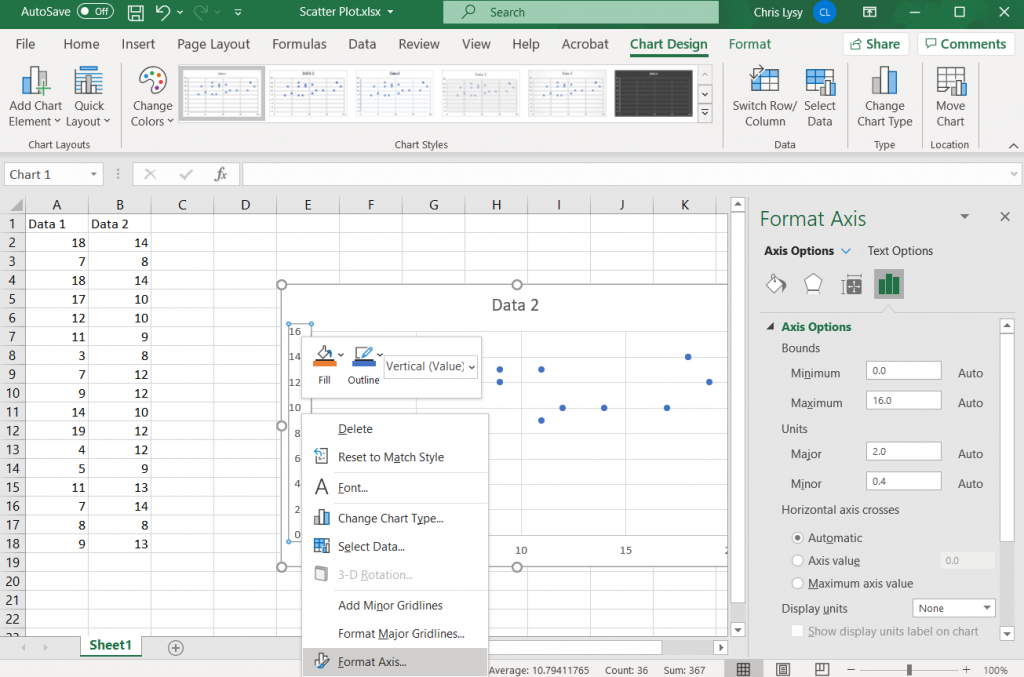
With any scatter plot, the range you choose for each axis is going to heavily impact the look of the chart. You don’t have to start your axis at 0, unless it makes logical sense. Your X and Y axis also do not need to share ranges (especially if the data is fundamentally different).

For my random data set I’ll just use the value ranges for each data column to set the minimum and maximum values.

How to Create Scatter Plots in Excel - Setting Major Units Illustration

Setting Major Units

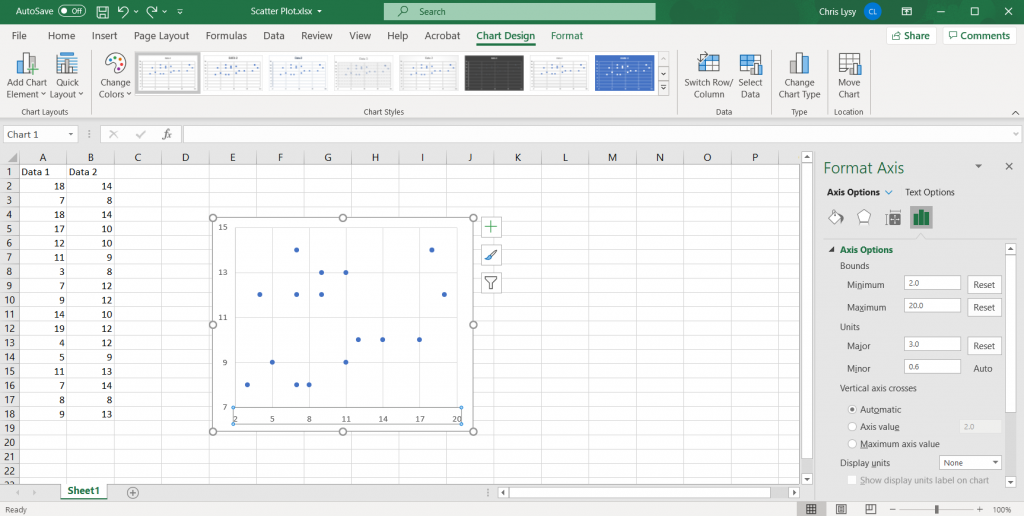
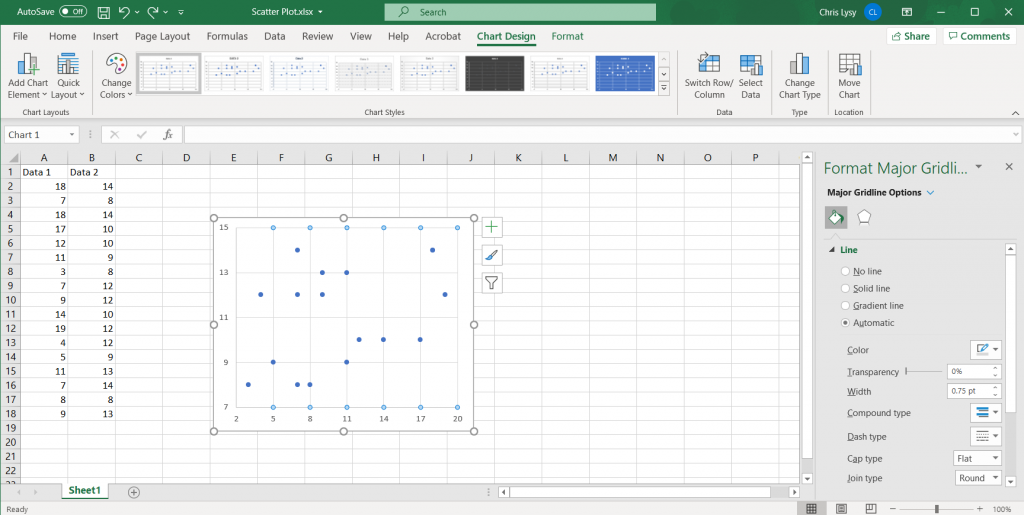
While setting up the Axis bounds, also setup your major grid units. This will control what numbers are shown on each axis. If you choose to use grid lines, this will also set where there the gridlines appear.

How to Create Scatter Plots in Excel - Setting Gridlines Illustration

Setting Gridlines

Often with scatter plots you have far more data than you really want to label individually. So setting up grid lines is important. I try to space my gridlines so it feels a lot like a map’s latitude and longitude. The default lines are a light gray, I usually just stick with those lines.

How to Create Scatter Plots in Excel - Labeling each Axis Illustration

Labeling each Axis

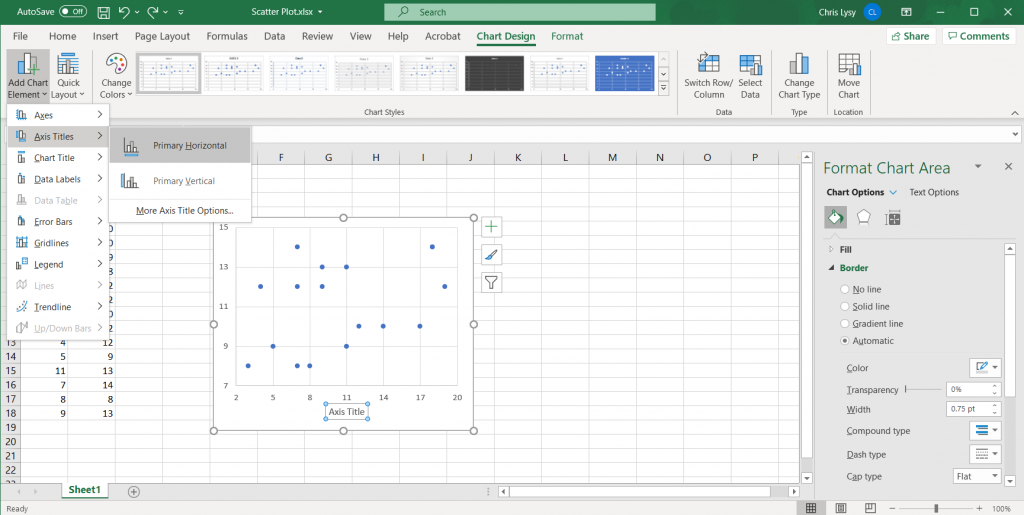
Since we are dealing with two different variables, labeling each axis is important. We can add axis labels quickly in the Chart Design tab, by clicking on Add Chart Element > Axis Title and then Primary Horizontal and Primary Vertical.

How to Create Scatter Plots in Excel - Tweaking the Marker Size Illustration

Tweaking the Marker Size

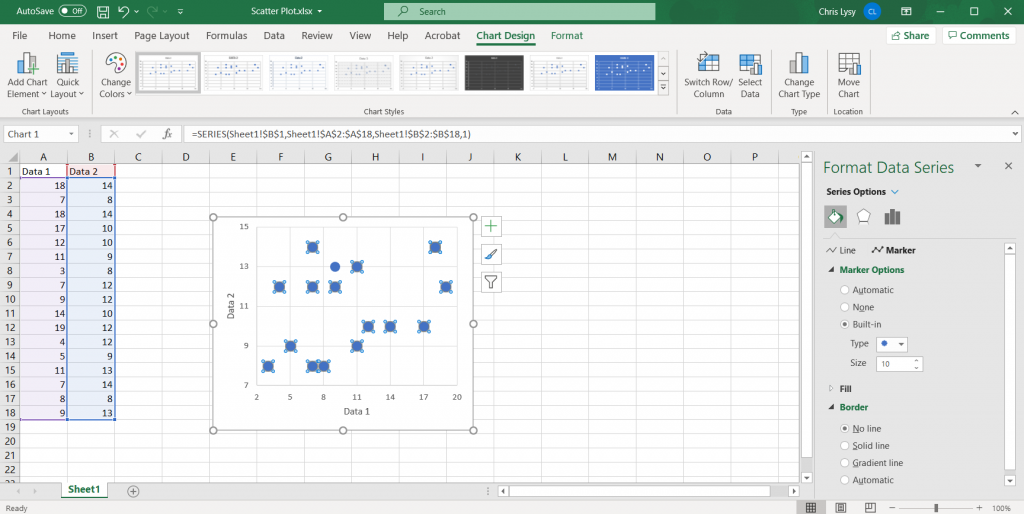
Depending on how many data points you have in your data set, you might want to increase or decrease the marker size. You can do so by clicking on the individual markers and going to the format tab. Here you can also change the marker type and size.

Since I only have so many markers, and there isn’t any overlap, I’ll go ahead and increase the marker size.

How to Create Scatter Plots in Excel - Highlighting an Individual Marker Illustration

Highlighting an Individual Marker.

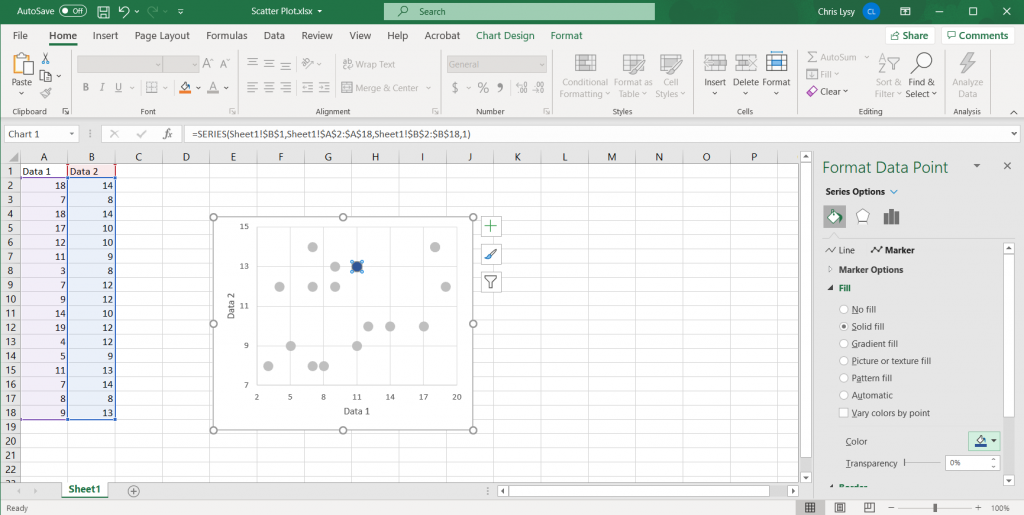
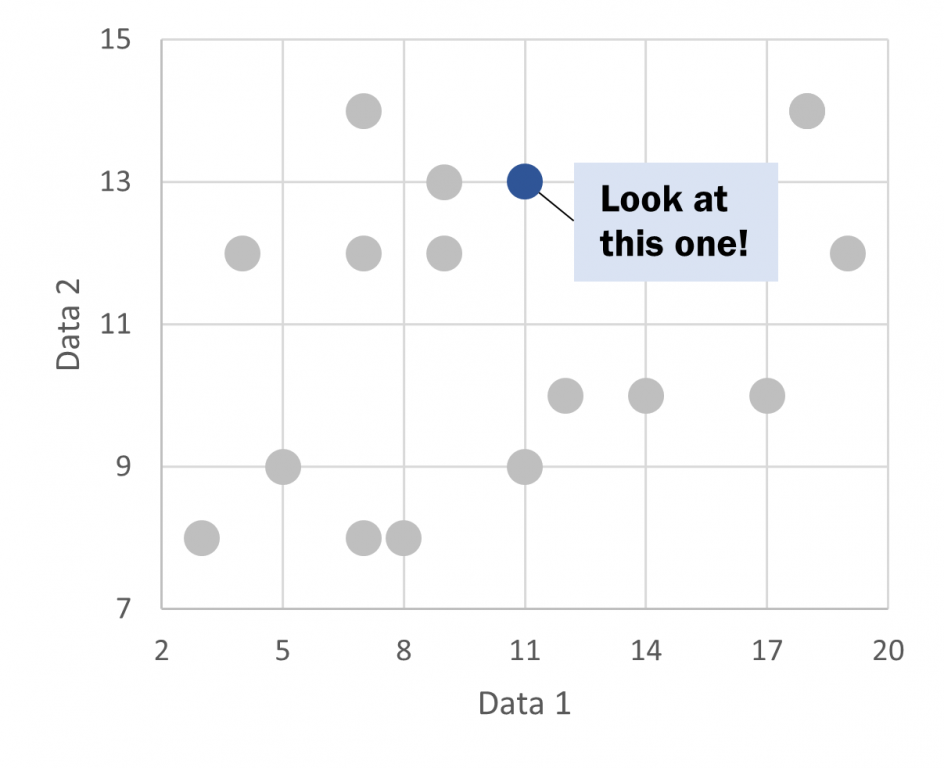
Highlighting individual data points can be useful in scatter plots. Especially if you are attempting to localize a larger dataset. The easiest way to call attention is to lighten the color of all data points (and possibly turn to gray). Then use a darker color to spotlight the specific data points you would like to highlight.

How to Create Scatter Plots in Excel - Adding Annotations Illustration

Adding Annotations

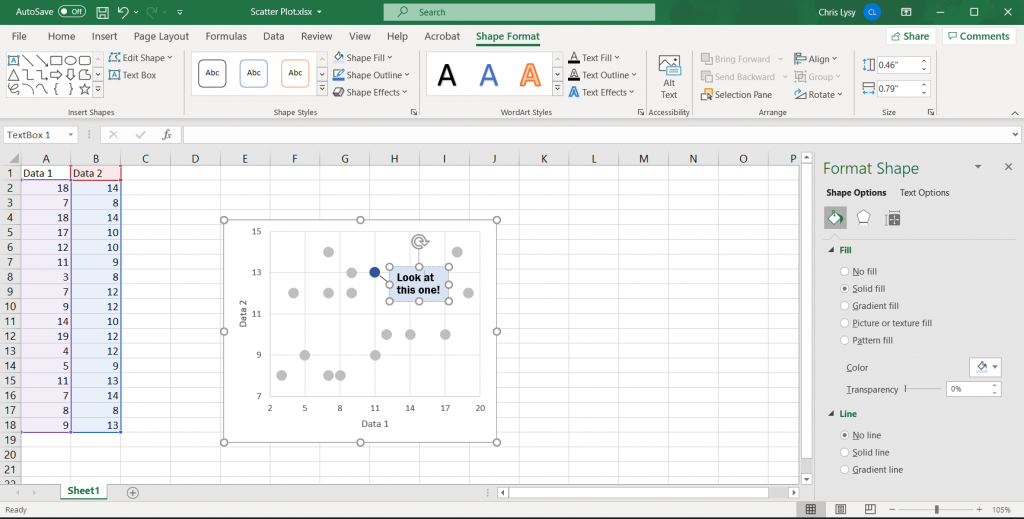
Simple annotations can give scatter plots added value, especially if you chose to highlight certain data points. Just select the chart, then go to the insert tab. And then insert a text box.

To draw a connection to a specific point on the line, insert a shape (line).

How to Create Scatter Plots in Excel - Saving the Image Illustration

Saving the Image

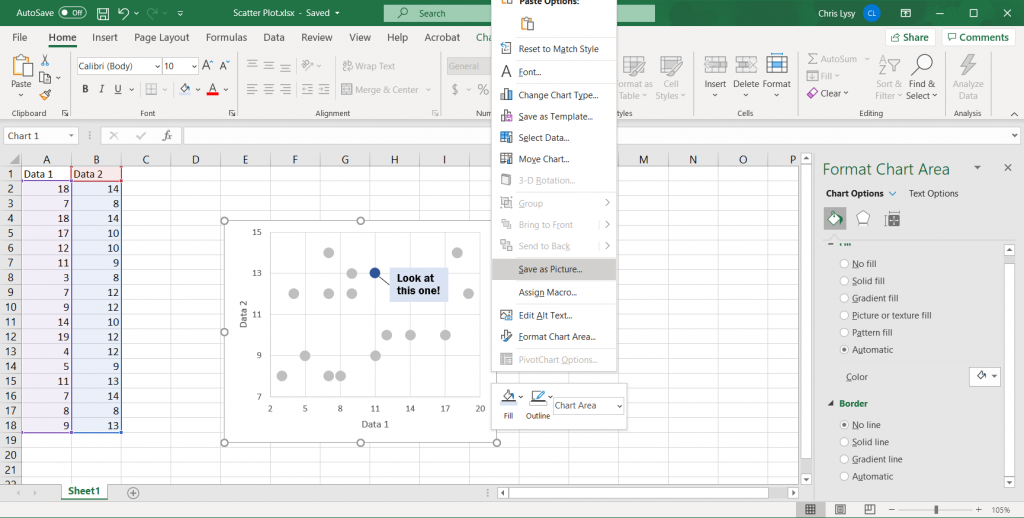
Once you have made all the changes you want to the chart you can save it as a picture. Just right click on the chart area and click “Save as Picture.”

Alternatively, you can just copy and paste the chart from Excel into Word or PowerPoint. If you’re staying within the Office suite, this is the ideal way to move the image as it retains your full ability to reformat the graphic.

Also, just a note, if you notice your text box or inserted shape is missing this is why. When you insert a shape you need to have the chart selected. If not, it will live in the spreadsheet but not the actual chart image!

How to Create Scatter Plots in Excel - Scatter Plot Illustration

Beyond the Basics

This is just the basics. There are all sorts of things you can do with scatter plots.

A little bit of inspiration.

I love scatter plots.

They are one of the best ways to pack a ton of data into a single chart.

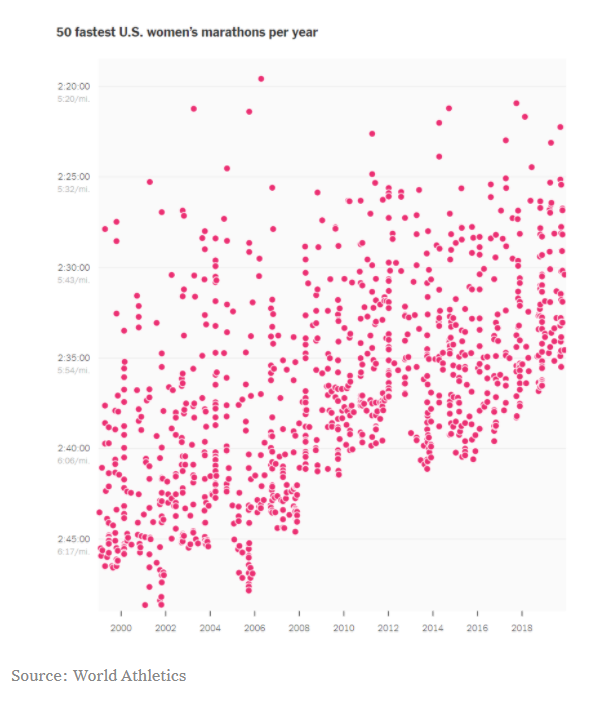
Take a look at the following chart. It shows the fastest women’s marathons each year. Ultimately, it tells the story of marathon runners getting faster.

They could have instead, taken the average of the top 50 times for each year and drawn a line chart. The line chart would have told the same story, but seeing the underlying data lets us see that it’s not just a few outliers bringing up the average.

NY Times Scatter Plot Example
NY Times – Learning Network – What’s Going On in This Graph? | Women Marathoners’ Running Times

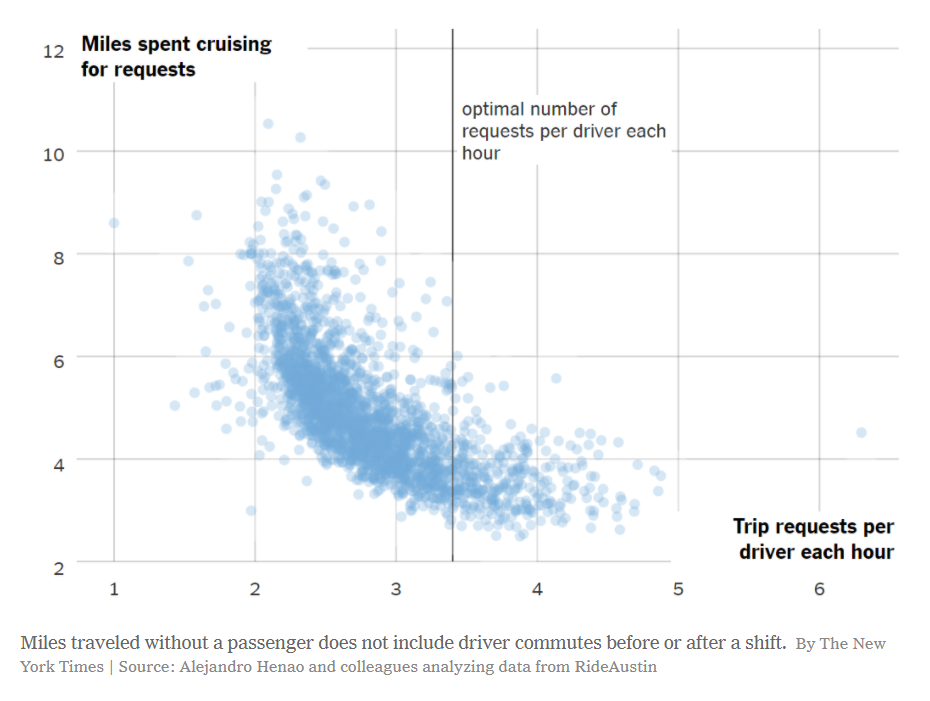
The following scatter plot tells a story of how much cruising time is spent by rideshare drivers compared to trip requests. It’s not a simple linear relationship, and the distribution of data points shows that.

The creator of the chart also added a single reference line, communicating what they see in the chart to the user. Annotations and reference lines are incredibly useful in scatter plots.

NY Times Scatter Plot Example
NY Times – Learning Network – What’s Going On in This Graph? | Nov. 6, 2019

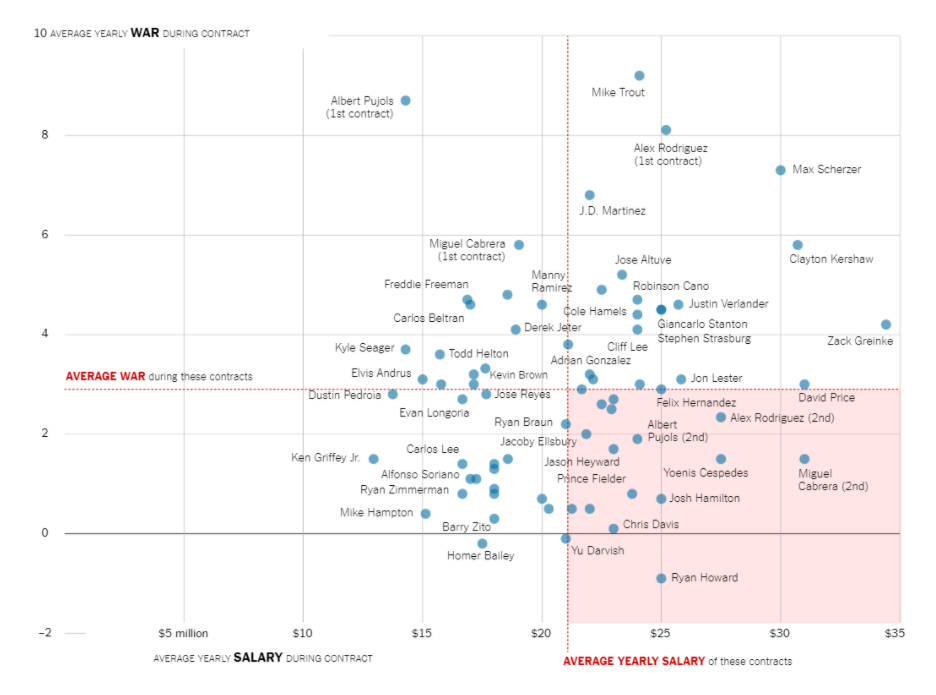
The following chart shows a baseball stat (wins above average) against a players salary. It includes two reference lines showing average (one for the x axis and the other for the y axis) which splits the chart into 4 quadrants.

Basically the chart suggests that the players in the upper left quadrant are paid less than average but contribute more than average to their team’s success. The players in the lower right contribute less but are paid more. With these reference lines you get to take a bunch of random points and tell a cohesive story that is easy for the reader to grasp.

One other thing to note, is that instead of the focus being on the overall distribution (as it was for the previous two examples) the focus is now on individual baseball players. Which is why each point (well most points, including every point on the outer edges) is labeled with the players name. In this way, it’s still a scatter plot but it’s used to illustrate more of an individual-focused story.

NY Times Scatter Plot Example
NY Times – Learning Network – What’s Going On in This Graph? | April 17, 2019

Other Considerations

Correlation is not causation.

With scatter plots we are showing the relationship between two variables. But just because we can see a relationship does not make it meaningful. One of the most commonly used examples is ice cream sales and murder rates.

Visualization can be powerful, and even if you are not lying with the data, understanding that spurious correlations exist should influence your data design choices.

Outliers Pop

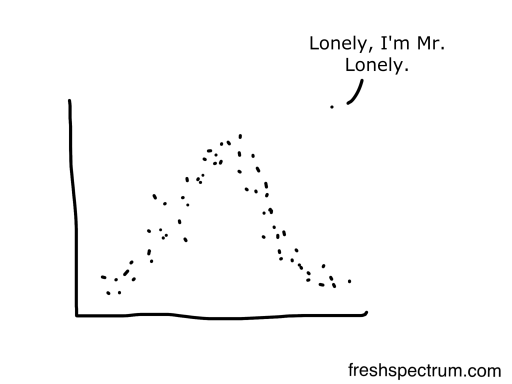
Any outliers in a scatter plot will become visually prominent. The white space and separation will naturally draw the eyes of your reader.

If this outlier is important, fantastic, that’s what you want. If the outlier is un-important (easily explained away by some known quirk in the data) you should use an annotation (perhaps below the chart with an asterisk in the chart) to explain it. We can’t help but focus on the outliers.

Freshspectrum Outlier Cartoon by Chris Lysy

Written by cplysy · Categorized: freshspectrum

Jan 08 2021

What is Summative Evaluation? Cartoon Glossary

This is a series of posts providing quick of overviews of important topics in research and evaluation. Each post in this series will include 3 cartoons from my archives along with 3 links to recommended resources.

Summative Evaluation can be the Scary One for Program People

What is Summative Evaluation Cartoon by Chris Lysy.

So is summative evaluation the one where we dash the program's hopes and dreams?

BOTTOM LINE – Summative evaluation requires rigorous evidence because the stakes are high. The evaluation data must be high quality and credible to external stakeholders interested in the model.

Evaluation Flash Cards [PDF] – by Michael Quinn Patton for Otto Bremer Trust

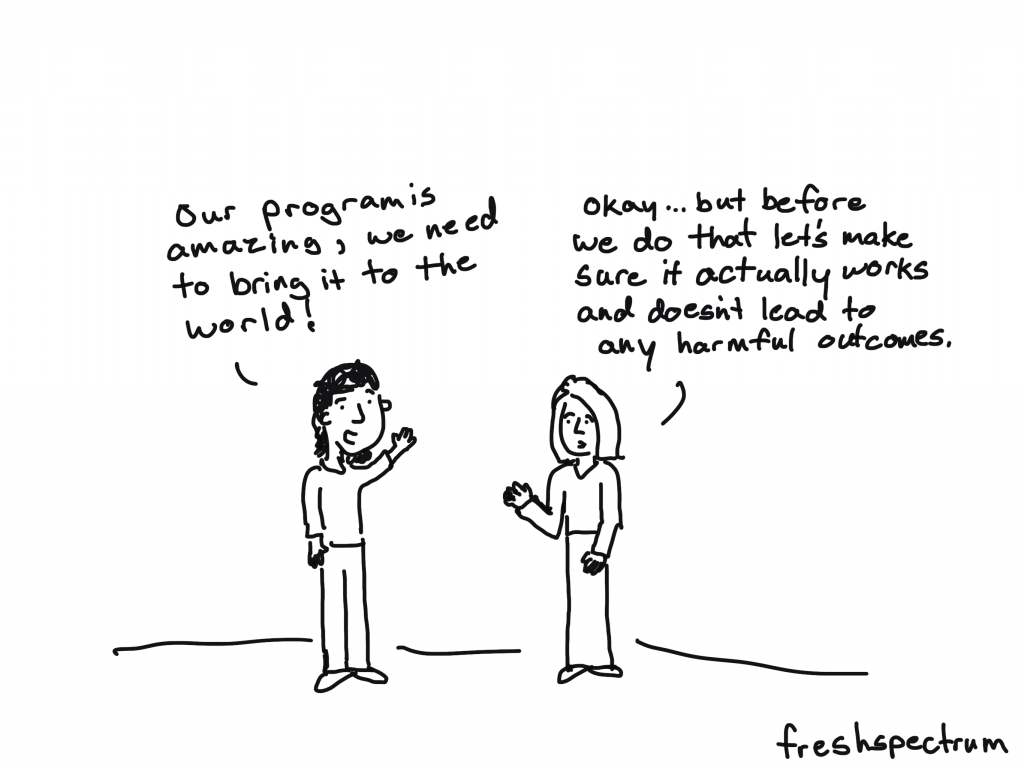
Making Sure that a Program Works

What is Summative Evaluation Cartoon by Chris Lysy.

Our program is amazing, we need to bring it to the world!
Okay...but before we do that let's make sure it actually works and doesn't lead to any harmful outcomes.

An evaluation is a systematic and purposeful collection and analysis of data used to document the effectiveness of programs or interventions. Rigorous evaluation can determine if programs or interventions should be maintained, improved, or eliminated. The term summative evaluation (sometimes referred to as ex-post evaluation or outcome evaluation) was first introduced in the mid-1960s by Lee Cronbach and Michael Scriven and refers to a process of evaluating a program’s or intervention’s impact or efficacy through careful examination of program design and management. It is often used to assess the accountability of a program or intervention.

Summative Evaluation – from The SAGE Encyclopedia of Educational Research, Measurement, and Evaluation

Summative, Formative, Developmental Evaluation

What is Summative Evaluation Cartoon by Chris Lysy.

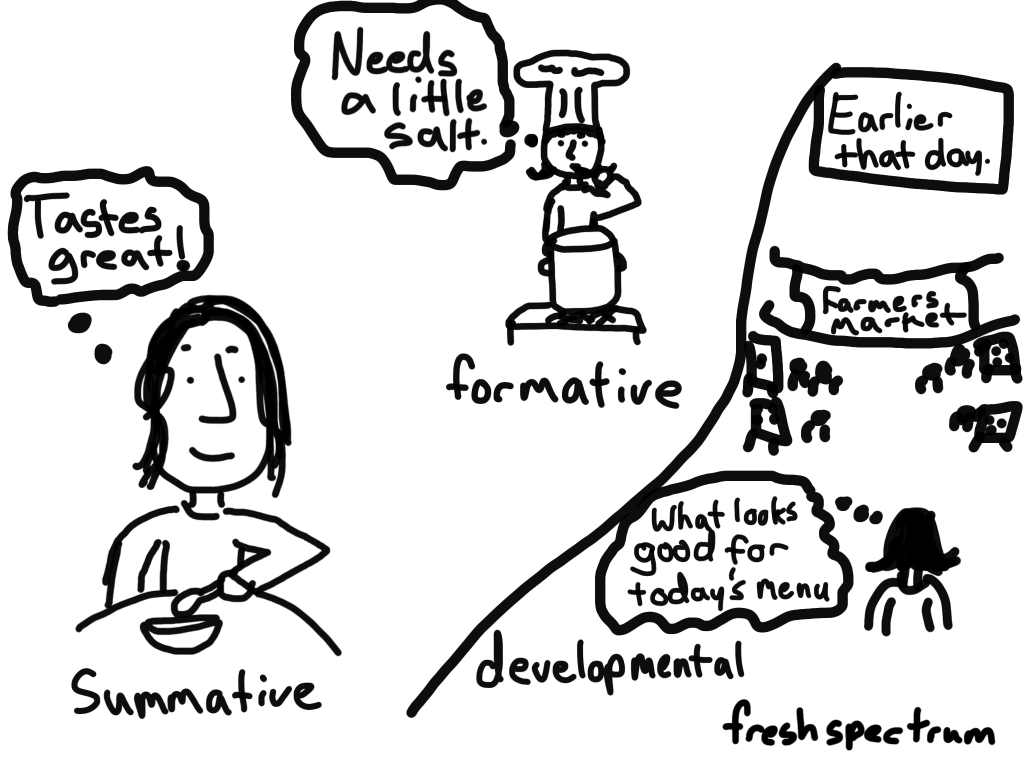
Summative is the customer eating the soup, formative is the chef tasting the soup, developmental evaluation is visiting the farmer's market.

Distinguished evaluation theorist and practitioner Bob Stake has explained, “When the cook tastes the soup, that’s formative; when the guests taste the soup, that’s summative” (quoted in Scriven, 1991, p. 169). More generally, anything done to the soup during preparation in the kitchen is improvement oriented; when the soup is served, summative judgment is rendered by the guests who consume the soup. And what of developmental evaluation in this metaphor?

Developmental evaluation begins when, before cooking, the chef goes to the market to see what vegetables are the freshest, what fish has just arrived, and meanders through the market considering possibilities, thinking about who the guests will be, what they were served last time, what the weather is like, and considers how adventurous and innovative to be with the meal.

Michael Quinn Patton from his book on Developmental Evaluation

Written by cplysy · Categorized: freshspectrum

Jan 06 2021

How to Create Line Graphs in Excel

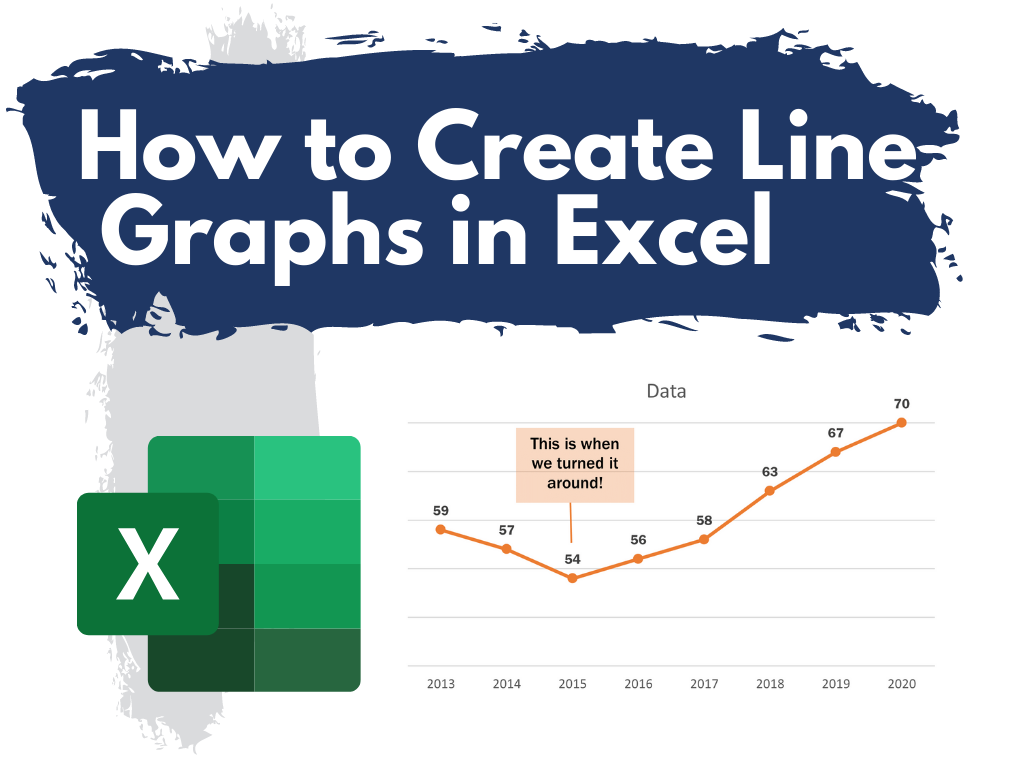
This is the second in a series of posts on chart design in Excel. In each post we will take on a different chart type. Today we’ll go with a chart that almost always tells a story, the line graph.

What you’ll find in this post:

  • An Oversimplified How To
  • How to create a good looking line graph.
  • A little bit of inspiration.
  • Some other considerations.
How to create line graphs in Excel.

An Oversimplified How To

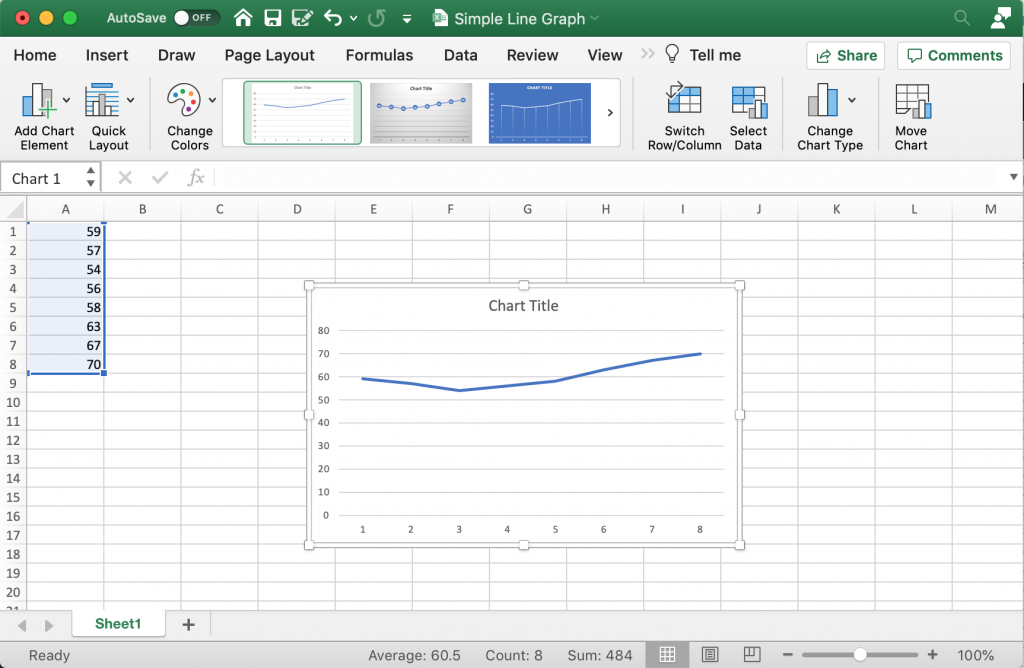
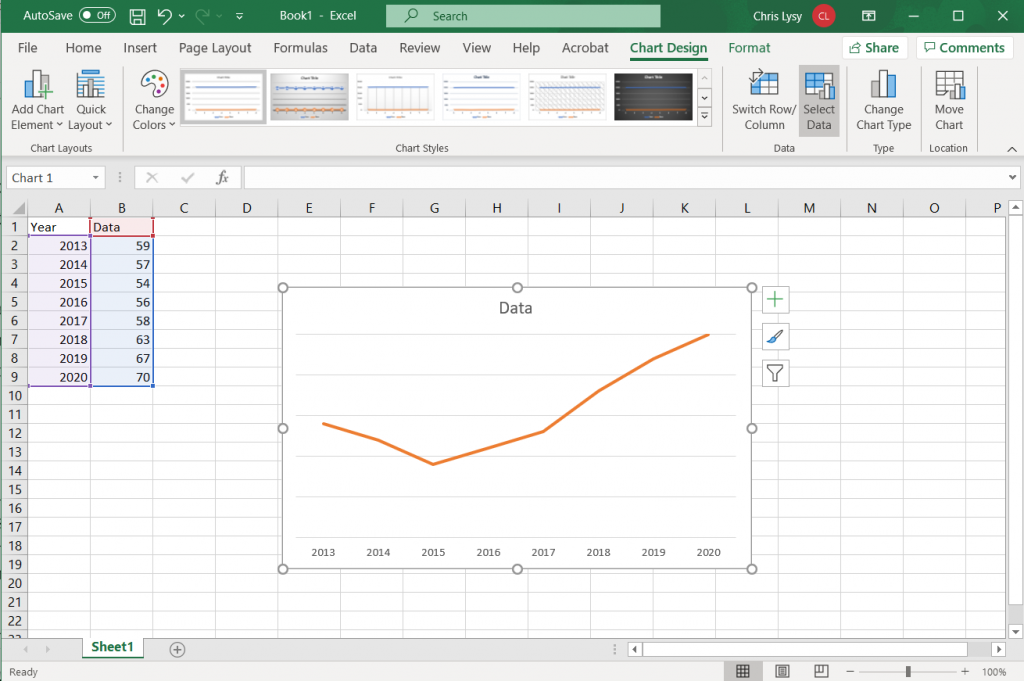
Creating a line chart (a.k.a. line chart) is really simple in Excel. It just takes a column of data and a couple of buttons.

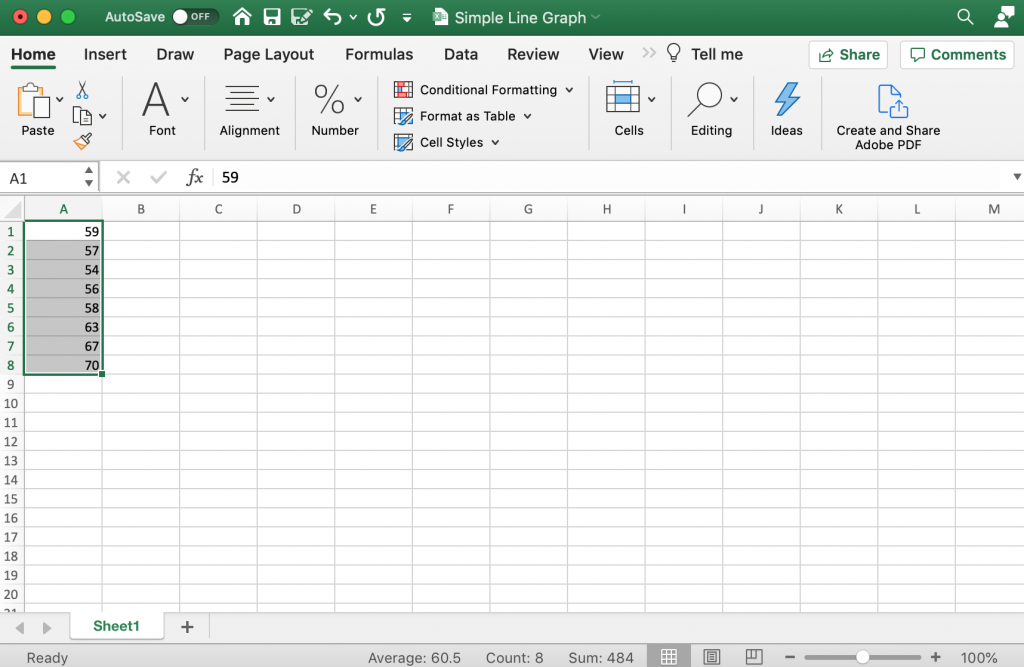
How to create a line graph in Excel - Step 1

Step 1. Highlight a column of numbers.

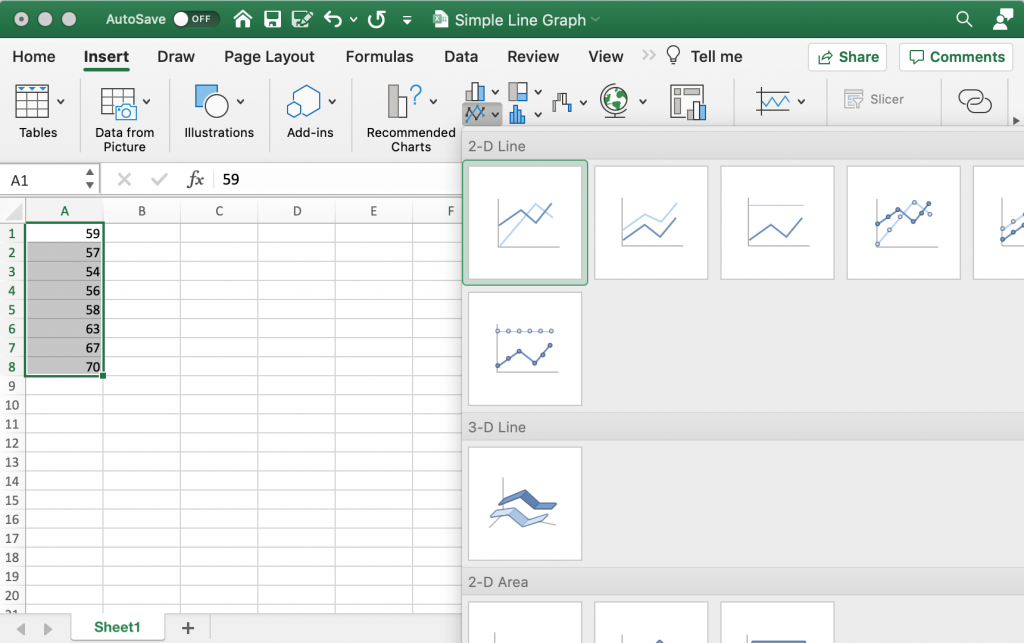
How to create a line graph in Excel - Step 2

Step 2. Click on the insert tab, then the line chart icon. Then select the first 2-D line.

*Thought: Why oh why would anyone seriously choose a 3-D Line!!!!

How to create a line graph in Excel - Step 3

Step 3. Woohoo, you created a line graph!

How to create a good looking line graph.

Okay, so that’s the most basic of basics. Here are some more steps you probably want to take to create something worth sharing.

How to create a line graph in Excel - Labeling your graph

Labeling your graph.

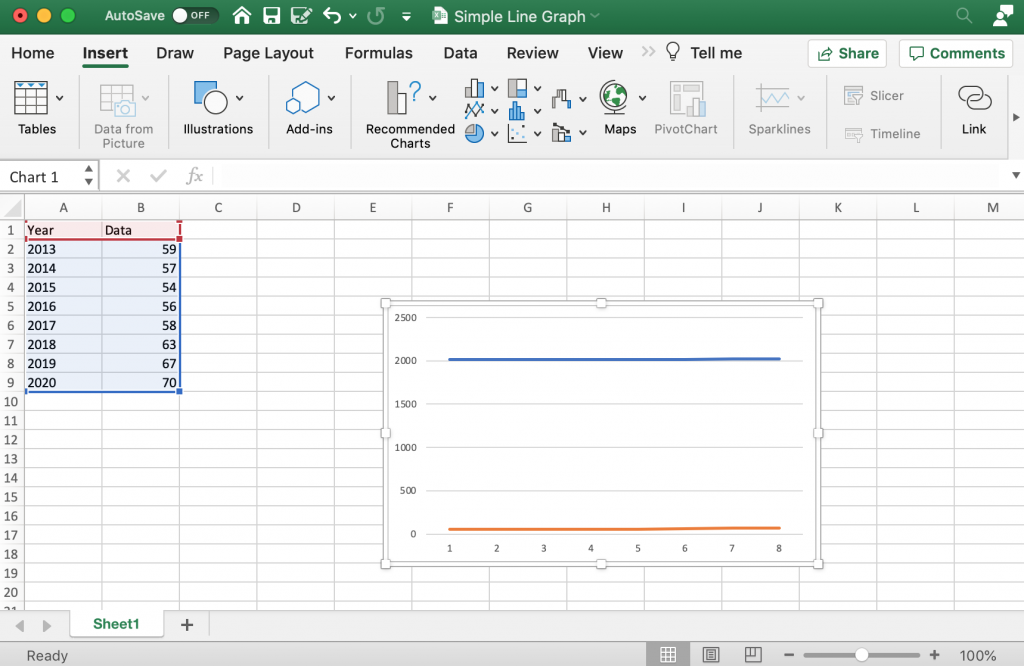
So in addition to just a column of numbers it’s a good idea to have row labels and column headers. For line graphs you are going to be dealing with some kind of time element (day, week, month, quarter, year, etc.). I’ll use years for my example, but because this creates a second column of numbers, instead of just showing up as labels Excel will create a second line (not what we want).
How to create a line graph in Excel -  Select Data Source

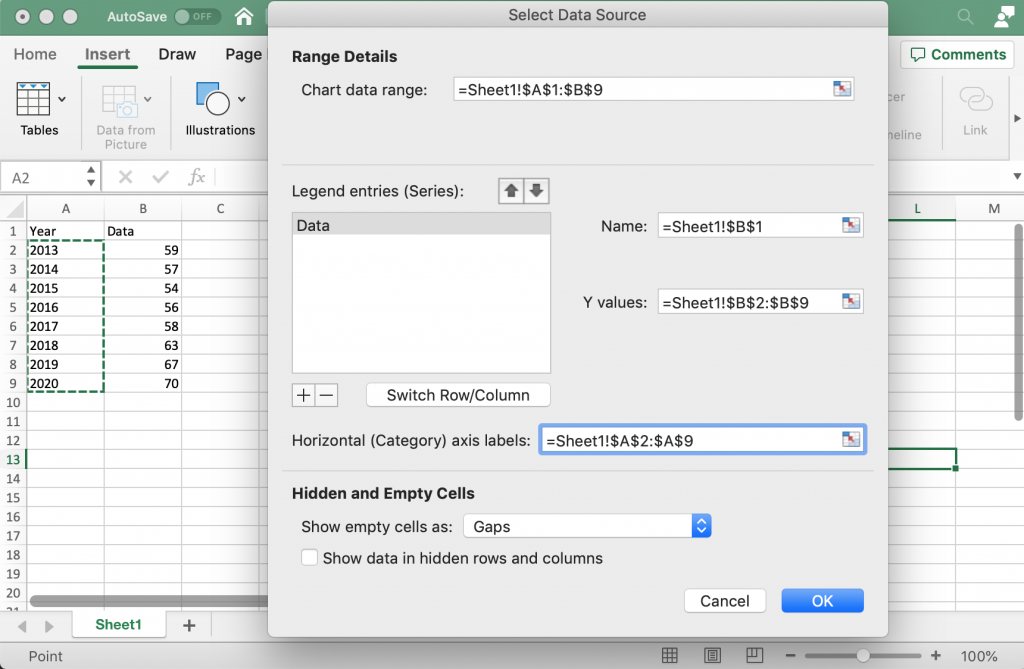
Select Data Source

I will go ahead and right click on the chart so I can open up the Select Data Source menu. I only want to see one data series in there, but I’ll use the Horizontal (Category) axis labels space to set the years as a label.

How to create a line graph in Excel - Shrink the Axis

Shrinking the Axis

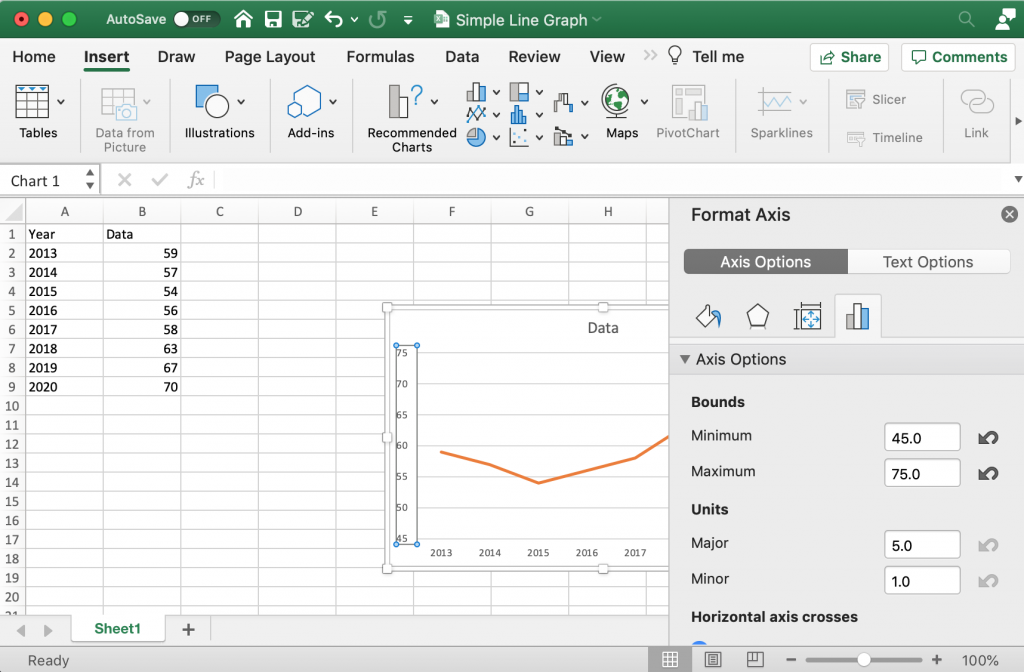
Depending on your data, you don’t always have to start your axis at 0 with line graphs (like you always have to do with bar charts). This fake data I’m using is all within the range of 54-70, so I’ll go with a chart range of 45 to 70. You can get the format axis menu by just right clicking on the chart.

Note: if you have multiple line graphs, be consistent on your axes. And if it makes logical sense to start at zero, then start at zero.

How to create a line graph in Excel - Clean up the Graph

Creating a Clean Graph

I like labeling individual points on the line chart, so the grid lines and y axis are not necessarily required. But given the chart, I kind of like the way the grid lines look with 5 as the major unit.

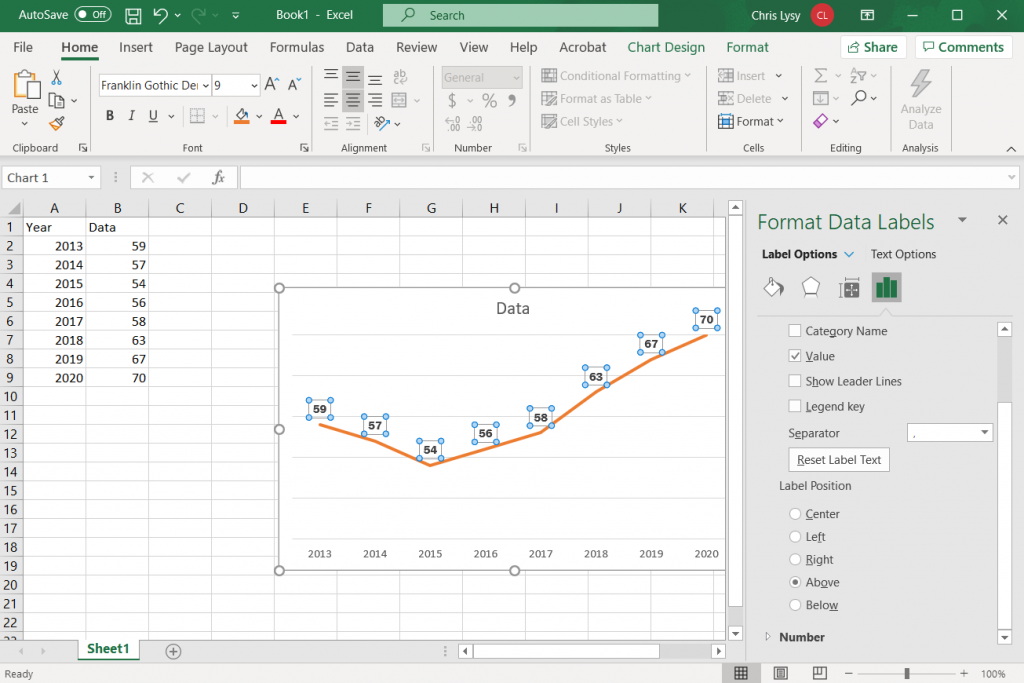
How to create a line graph in Excel - Add and Format Data Labels

Add and Format Data Labels

If I only have a simple line graph (with on line) I usually add data labels. Usually I just stick the labels above the chart, but this is just one of the many little design choices you make on the fly. Overall you just want to be consistent.

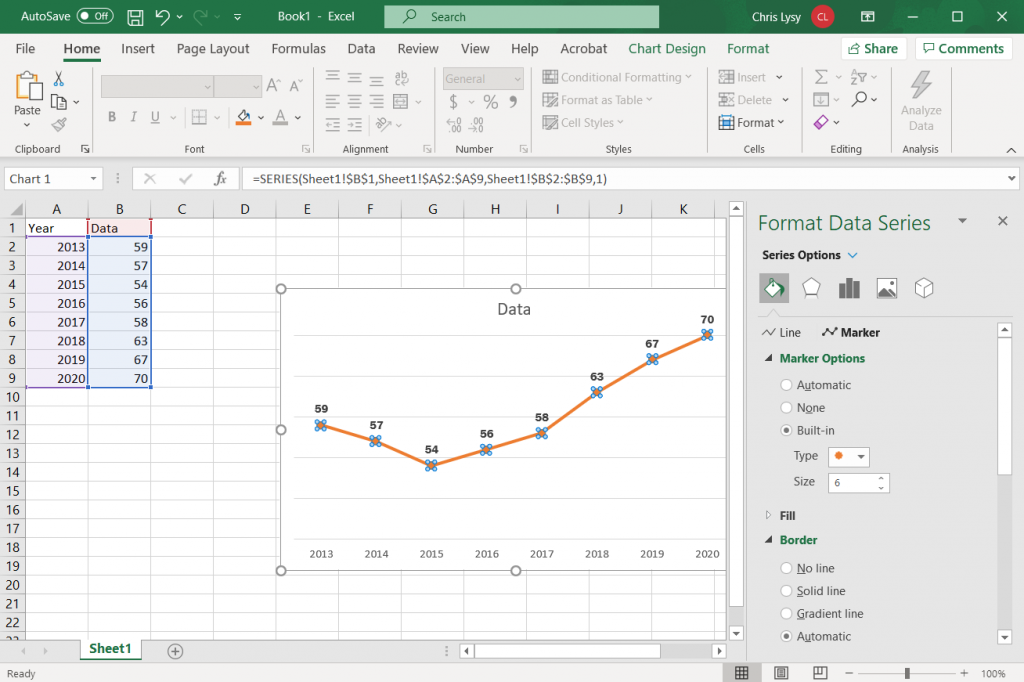
How to create a line graph in Excel - Add Line Markers

Adding Line Markers

I like using line markers with line graphs. Usually I go with a subtle circle just a little larger than the line. They do have a purpose, showing the markers lets the reader see exactly how many data points the line represents.

If you have multiple lines, I suggest using a highlight color on the one you want your reader to focus on. Then use a gray scale for the rest. This makes for a nice graph that really pops.

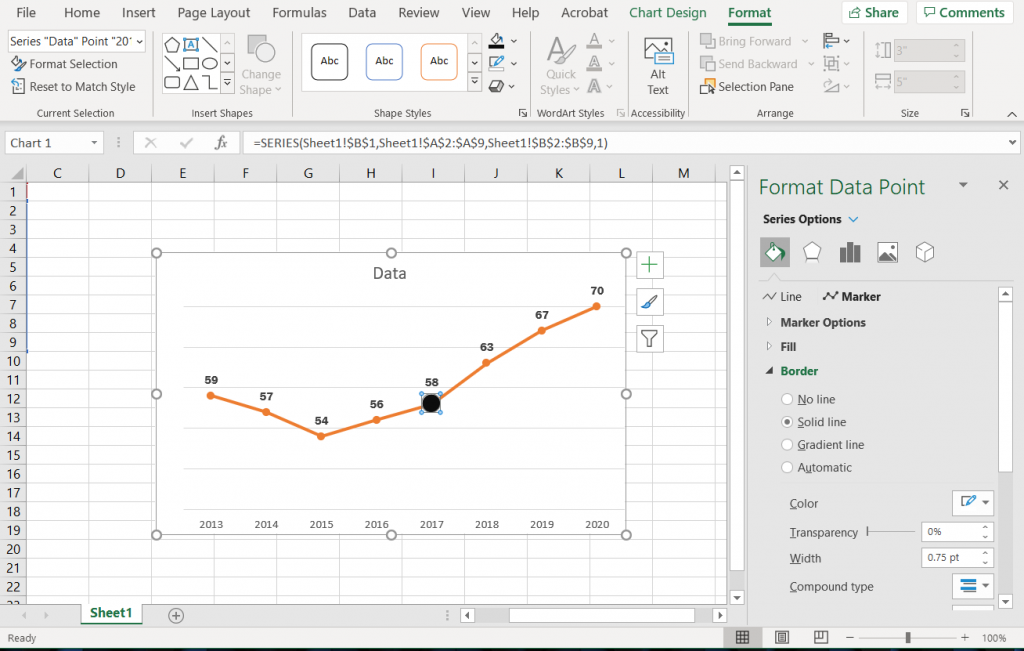
How to create a line graph in Excel - Highlighting an Individual Marker

Highlighting an Individual Marker.

It is possible to change colors/sizes of individual markers. Why might you do that? Perhaps the data was collected differently for that data point, or maybe you just want to add a bit of context and need a way to draw attention to a specific point in the chart.
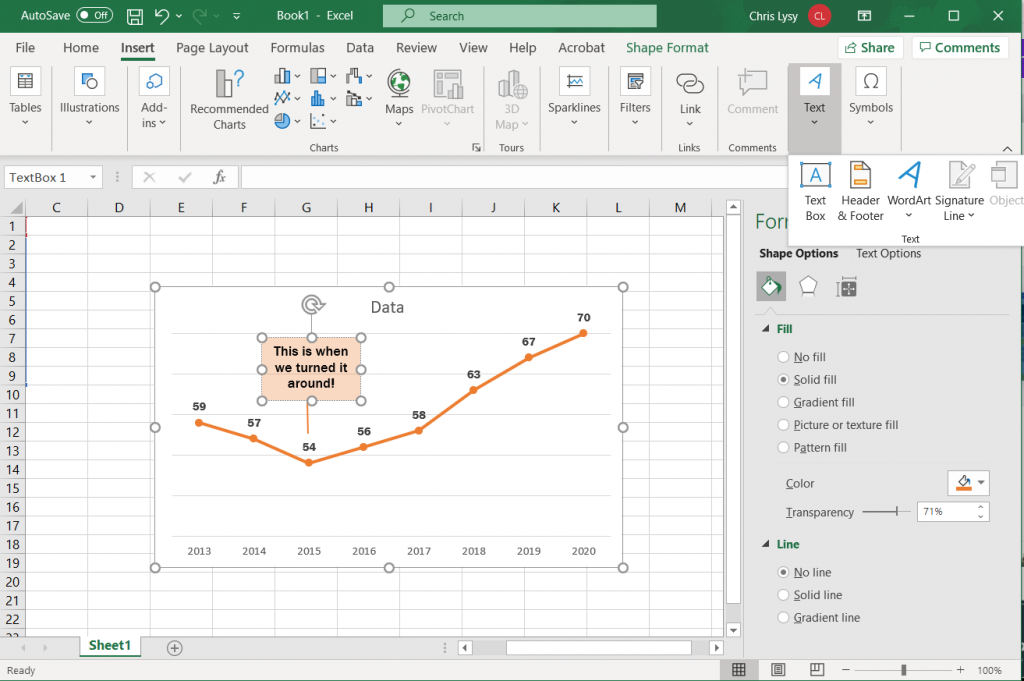
How to create a line graph in Excel - Adding Annotations

Adding Annotations

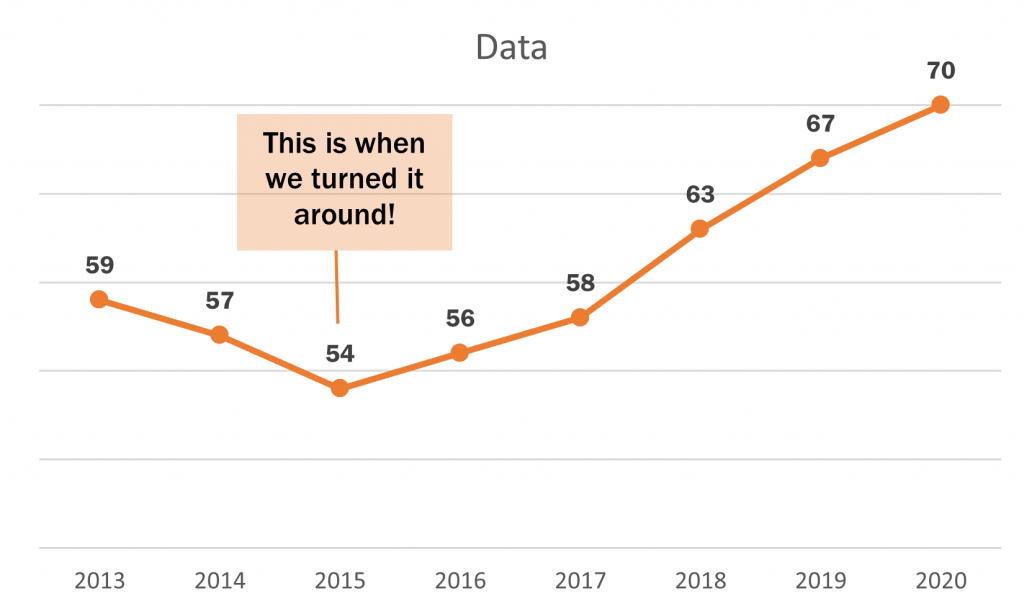
The best way to add a little focus to a line graph is usually through a simple annotation. Just select the chart, then go to the insert tab. And then insert a text box.

To draw a connection to a specific point on the line, insert a shape (line).

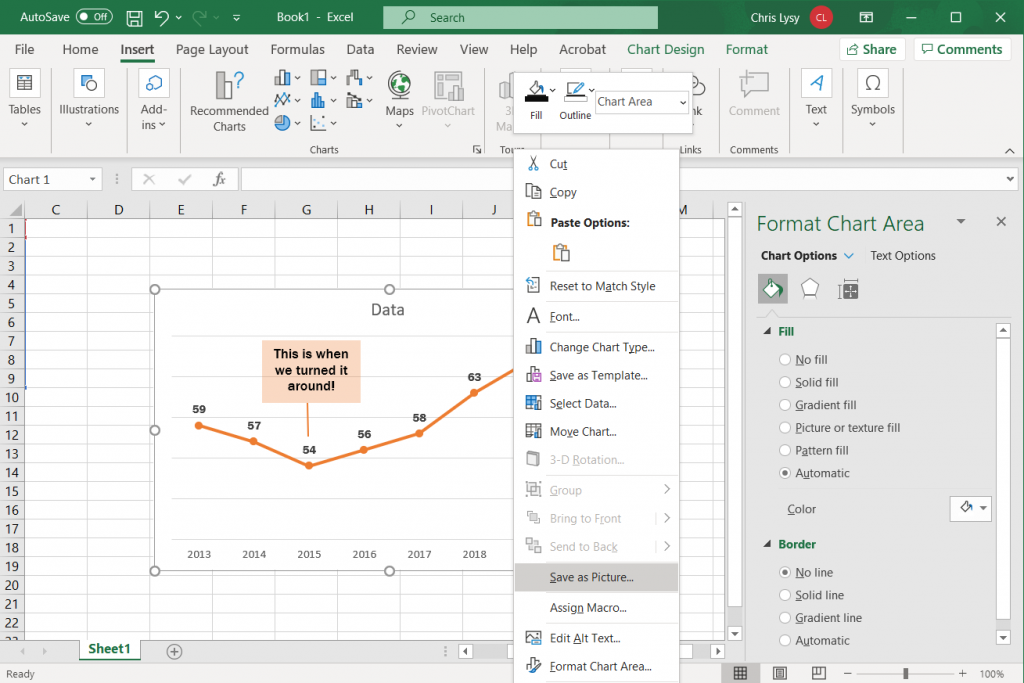
How to create a line graph in Excel - Saving the Image

Saving the Image

Once you have made all the changes you want to the chart you can save it as a picture. Just right click on the chart area and click “Save as Picture.”

Alternatively, you can just copy and paste the chart from Excel into Word or PowerPoint. If you’re staying within the Office suite, this is the ideal way to move the image as it retains your full ability to reformat the graphic.

Also, just a note, if you notice your text box or inserted shape is missing this is why. When you insert a shape you need to have the chart selected. If not, it will live in the spreadsheet but not the actual chart image!

How to create a line graph in Excel - Beyond the Basics

Beyond the Basics

This is just the basics. There are all sorts of things you can do with line graphs.

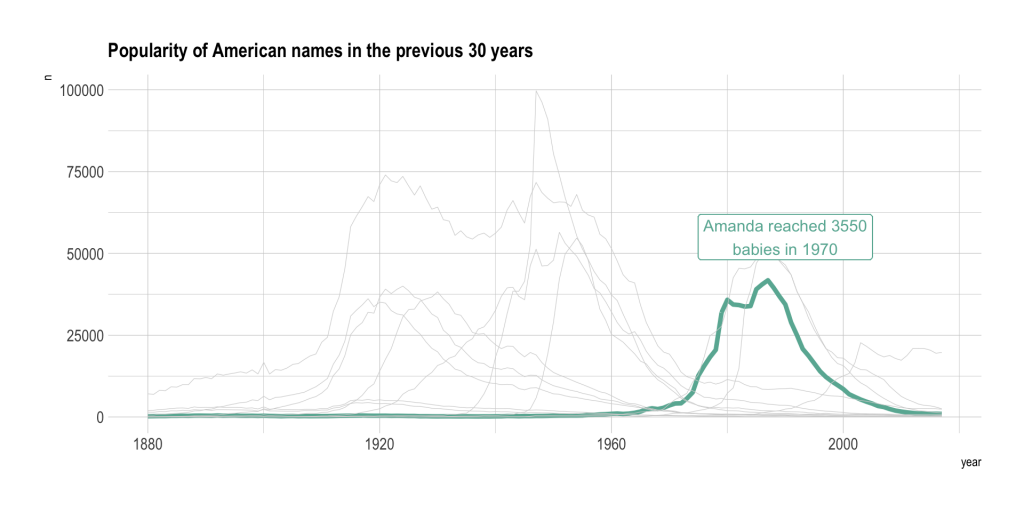
Generally though I suggest keeping the chart itself simple and minimalist. You can always add flare through annotations/additional graphics. Doing things like making your charts 3D doesn’t help the presentation, it just makes the chart harder to interpret and can also skew the data.

A little bit of inspiration.

Line graphs are another one of those ubiquitous chart types that you find everywhere.

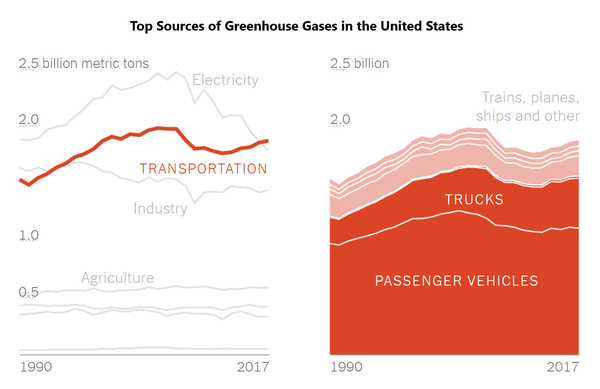
I like this example from the NY Times learning network. It’s a two part line graph. The first gives an overall line for all of transportation greenhouse gas (with other sources in gray for context). The second graph is the same line graph, but broken down as an area chart so you can see the pieces that make up the first.

Top Sources of Greenhouse Gases in the United States
NY Times – Learning Network – What’s Going On in This Graph? | Nov. 20, 2019

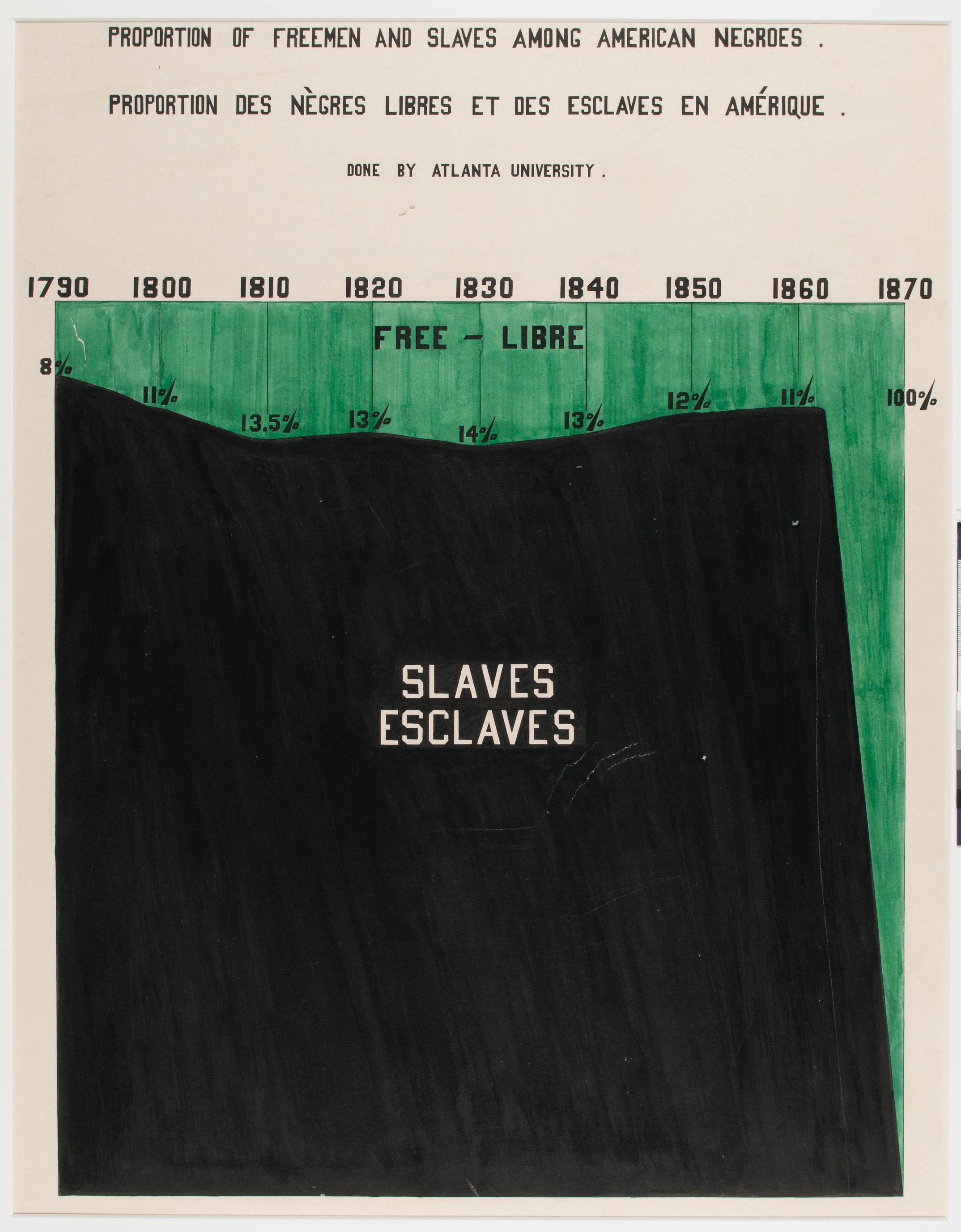
Here is a chart created by a group of students at Atlanta University in the early 1900s under the leadership of W.E.B. DuBois. At it’s core, it’s just a line graph (an upside down one) but the two colors tell the story.

Proportion of Freemen and Slaves Among American Negroes - Done by Atlanta University - W.E.B. DuBois
“Proportion of Freemen and Slaves among American Negroes”, 1900, via Library of Congress Prints and Photographs Division. Read more about these charts > W. E. B. Du Bois’ staggering Data Visualizations are as powerful today as they were in 1900

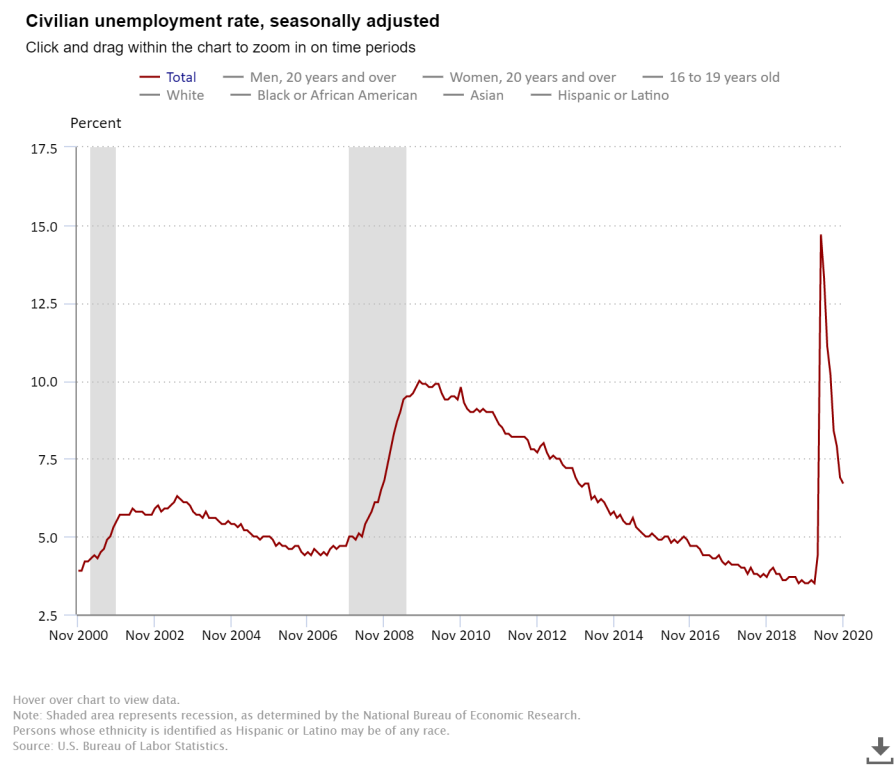
This chart here is just a line graph showing the US unemployment rate over time. Seems like something happened in the year 2020…

Civilian Unemployment Rate Chart U.S. Bureau of Labor Statistics
Civilian Unemployment Rate Chart U.S. Bureau of Labor Statistics – Accessed 12/31/2020

Other Considerations

How do you lie with line graphs?

As with any other chart or graph, you can certainly lie with line graphs. There are a bunch of different ways to do that. One common way is by messing with the axis, illogically flattening or spreading the line. Another way is to cut down the data shown. You might see politicians doing this, where they pick only the stretches of line charts they want to show.

Following Cairo’s “recommendation” for an 8% increase results in a 12:1 aspect ratio that diminishes change.
How to Lie with Charts – Hands On Dataviz

How many lines is too many lines?

You should try to avoid putting too many lines in a single graph, at least if your goal is for every line to be read. But using gray or semi-transparent lines can add some really nice context.

Using a highlight color in a line graph/.
The Spaghetti Plot – from Data to Viz
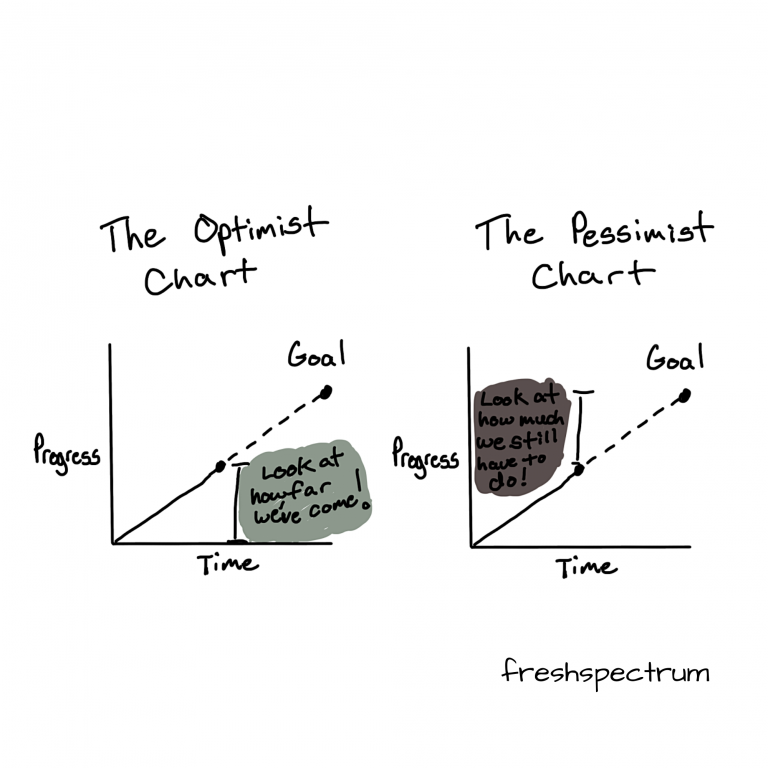
The optimist chart versus the pessimist chart - line graph cartoon  by Chris Lysy

Written by cplysy · Categorized: freshspectrum

Dec 31 2020

What is a Theory of Change? Cartoon Glossary

This is a series of posts providing quick of overviews of important topics in research and evaluation. Each post in this series will include 3 cartoons from my archives along with 3 links to recommended resources.

Telling the story of a program.

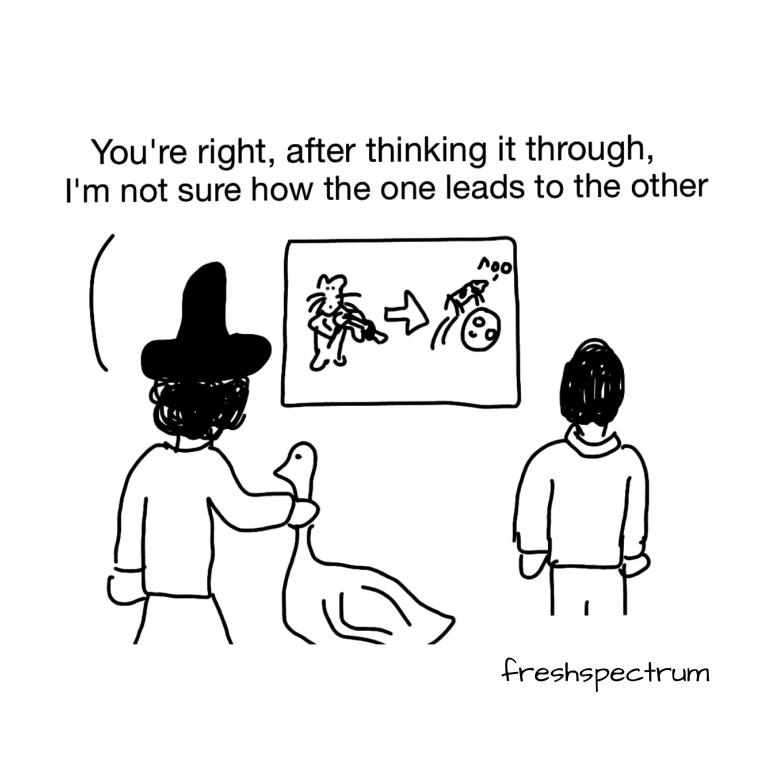
Chris Lysy Cartoon showing Mother Goose looking at a picture of a cat with a fiddle and a cow jumping over the moon.  She says, "You're right, after thinking it through, I'm not sure how the one leads to the other."

A theory of change is a description of why a particular way of working will be effective, showing how change happens in the short, medium and long term to achieve the intended impact. It can be represented in a visual diagram, as a narrative, or both.

NCVO KnowHow – How to build a Theory of Change.

Connecting the Pieces

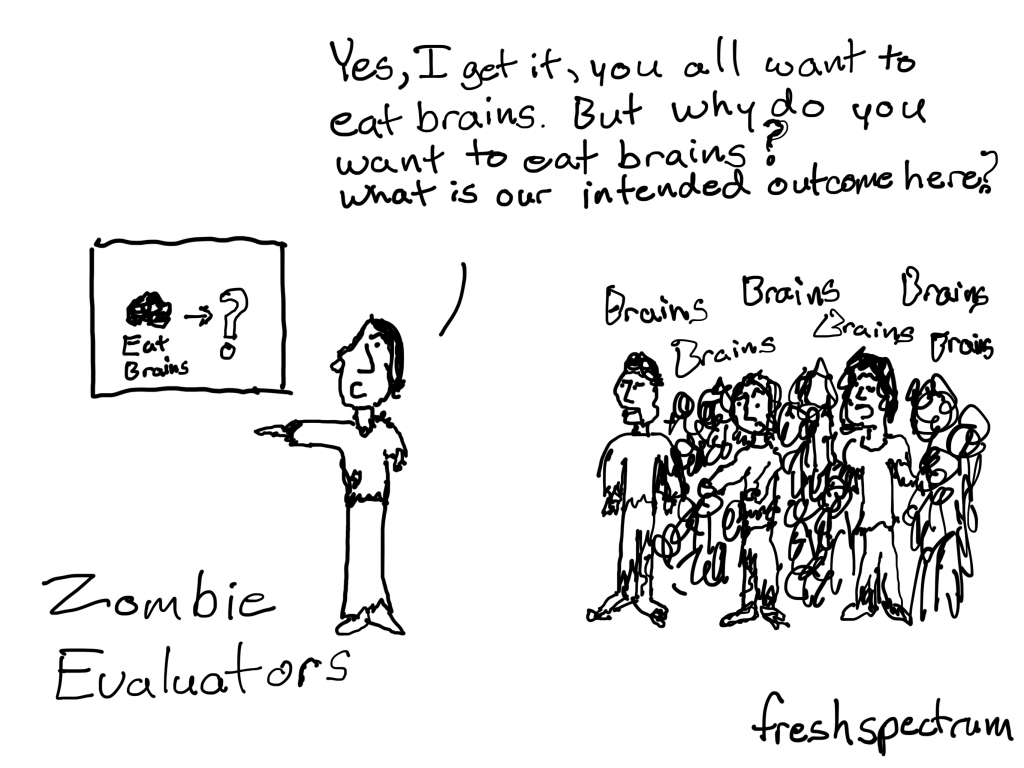
Chris Lysy Cartoon showing a Zombie talking to a group of Zombies.  She says, "Yes, I get it, you all want to eat brains. But why do you want to eat brains? What is our intended outcome here?

Not only does the ToC show the outcomes/preconditions, it also outlines the causal linkages in an intervention between the shorter-term, intermediate, and longer-term outcomes. The identified changes are mapped—as the “outcomes pathway”—showing each outcome in logical relationship to all the others, as well as chronological flow. 

Ideally, every outcome/precondition should be accompanied by at least one indicator to measure success. 

What is this thing called ‘Theory of Change’? by Ann-Murray Brown for the USAID Learning Lab

Too much at stake not to have a clearly defined process.

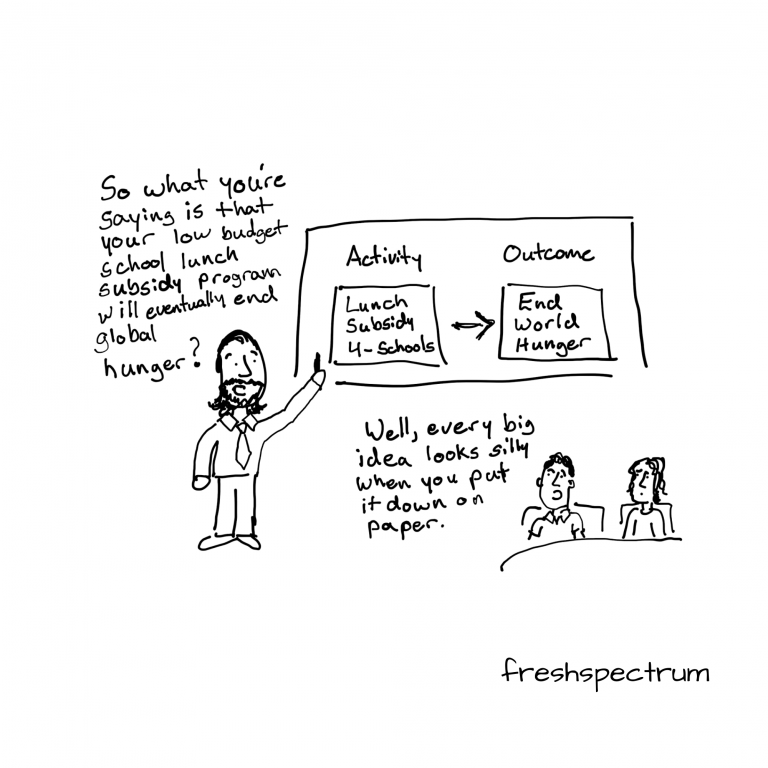
Man giving presentation saying "So what you're saying is that your low budget school lunch subsidy program will eventually end global hunger?" Person responds, "Well, every big idea looks silly when you put it down on paper."

Thinking through a theory of change shows how the work progresses. It doesn’t stop the work.

Some stakeholders may react in frustration to the theory of change development process because they view it as “taking time to think” which takes time away from “doing the work.” However, the thinking involved in developing a theory of change does not in any way preclude doing the work …  it is almost impossible to determine whether progress has occurred in a community change initiative if you have not explicitly identified the steps to progress. Communities have too much at stake to engage in work without a clearly defined purpose.

Theory of Change – A Practical Tool for Action, Results and Learning. The Annie E. Casey Foundation.

Like the cartoons? I create new cartoons regularly for my Patrons > https://www.patreon.com/freshspectrum. Patrons also get access to my private dropbox folder where I store all my cartoons.

Written by cplysy · Categorized: freshspectrum

  • « Go to Previous Page
  • Go to page 1
  • Interim pages omitted …
  • Go to page 42
  • Go to page 43
  • Go to page 44
  • Go to page 45
  • Go to page 46
  • Interim pages omitted …
  • Go to page 54
  • Go to Next Page »

Footer

Follow our Work

The easiest way to stay connected to our work is to join our newsletter. You’ll get updates on projects, learn about new events, and hear stories from those evaluators whom the field continues to actively exclude and erase.

Get Updates

Want to take further action or join a pod? Click here to learn more.

Copyright © 2026 · The May 13 Group · Log in

en English
af Afrikaanssq Shqipam አማርኛar العربيةhy Հայերենaz Azərbaycan dilieu Euskarabe Беларуская моваbn বাংলাbs Bosanskibg Българскиca Catalàceb Cebuanony Chichewazh-CN 简体中文zh-TW 繁體中文co Corsuhr Hrvatskics Čeština‎da Dansknl Nederlandsen Englisheo Esperantoet Eestitl Filipinofi Suomifr Françaisfy Fryskgl Galegoka ქართულიde Deutschel Ελληνικάgu ગુજરાતીht Kreyol ayisyenha Harshen Hausahaw Ōlelo Hawaiʻiiw עִבְרִיתhi हिन्दीhmn Hmonghu Magyaris Íslenskaig Igboid Bahasa Indonesiaga Gaeilgeit Italianoja 日本語jw Basa Jawakn ಕನ್ನಡkk Қазақ тіліkm ភាសាខ្មែរko 한국어ku كوردی‎ky Кыргызчаlo ພາສາລາວla Latinlv Latviešu valodalt Lietuvių kalbalb Lëtzebuergeschmk Македонски јазикmg Malagasyms Bahasa Melayuml മലയാളംmt Maltesemi Te Reo Māorimr मराठीmn Монголmy ဗမာစာne नेपालीno Norsk bokmålps پښتوfa فارسیpl Polskipt Portuguêspa ਪੰਜਾਬੀro Românăru Русскийsm Samoangd Gàidhligsr Српски језикst Sesothosn Shonasd سنڌيsi සිංහලsk Slovenčinasl Slovenščinaso Afsoomaalies Españolsu Basa Sundasw Kiswahilisv Svenskatg Тоҷикӣta தமிழ்te తెలుగుth ไทยtr Türkçeuk Українськаur اردوuz O‘zbekchavi Tiếng Việtcy Cymraegxh isiXhosayi יידישyo Yorùbázu Zulu