• Skip to main content
  • Skip to footer
  • Home

The May 13 Group

the next day for evaluation

  • Get Involved
  • Our Work
  • About Us
You are here: Home / Archives for allblogs

allblogs

Mar 25 2021

Designing for Awful

One of the most profound, fun, and engaging techniques for creating an attractive service or product design is oddly focused on the exact opposite: Designing for Awful.

How to use this

This strategy is as simple as it is effective. When workshopping ideas allot some time to have participants develop ideas and designs for the worst possible version of the thing they are designing.

This is a flip of a traditional ideation session where people try to develop suggestions for what to focus on, whom, and what the best use of resources might be. In Designing for Awful, we do the opposite. It is used usually in tandem with ideation sessions that are focused on surfacing ideas in general.

This can be used to frame a service, product or describe the experience of doing something like a survey or participating in an event. It’s a simple, fun, and sometimes counter-intuitive way to surface assumptions, biases, and qualities in what we want, need and don’t want in our design.

Like any ideation-focused exercise, it must be managed appropriately. Individuals need to feel safe in surfacing ideas, free to discuss them, and preferably, offer an opportunity to share at least some of them anonymously. People generally have a lot of fun with this simple exercise.

Benefits

The benefits of this are many.

Firstly, it focuses on the things we tend to avoid — unpleasant feelings, experiences, or sensation — and thus, might be missed in consideration of our design.

It also overcomes an optimism bias. Design is largely a positive-oriented practice where we look to solve problems, not make them. Designing for Awful helps us to move around this bias by looking at what is not addressed.

This approach is also excellent for helping surface values in practice and in specific terms. To illustrate, it’s one thing to speak in a positive or affirmative tone such as a statement like “we value inclusivity.” Designing for Awful could lead us to be specific “Our service is inaccessible to someone with a mobility disability” or “it is sexist” or “our product can only be used by people who are right-handed.” By surfacing what makes something not work we are better able to see what will.

This approach is also excellent in helping, paradoxically, surface what we want by framing things in terms we don’t want. How often have you met someone who first tells you what they don’t want in something before they get to describing what they want?

This allows people to have a little fun and we find that some people are more bold and assertive with their creativity in the negative, than the positive and this technique lets that come out.

Lastly, the exercise can be a useful way to surface who needs to be at the table moving forward. We find that the need for having the voices of certain individuals, groups, roles, or departments in the discussion is better clarified when we consider how bad things would be without them.

Try this out at your next design session or team meeting as part of a check-in and you might find some laughs and some deep insight along with it.

If you want to inspire new thinking and better design in your organization for engagement and impact, reach out and contact us. This is what we do.

Written by cplysy · Categorized: cameronnorman

Mar 25 2021

Funding is Coming: Get Your Evidence Ready!

Here’s a sentence we don’t often get to say in education: the motherlode of funding is coming our way!

The recently-passed American Rescue Plan Act has set aside … brace yourself … over $2 BILLION for out-of-school time (OST) — after-school and summer — programs!
​
Not to mention, there is funding for community schools and all the wraparound services that so rarely get enough attention or funding but are absolutely critical for bolstering families in underserved communities. 

This is a game changer for kids, families, schools, and OST/community school providers. 

But we can’t rest on our laurels and wait for the money to rain down on us. (Wouldn’t that be nice?) It’s time to be proactive! 

I’ve had a lot of conversations with OST folks recently about the Every Student Succeeds Act (ESSA)’s evidence requirements. 

Basically, if a school or district is going to purchase a program or services with federal funds (ie. Title I), they need to make sure that there is some evidence to show that what they’re purchasing is effective. 

Makes sense, right?

Unfortunately, that’s not as easy or straightforward as it sounds.

Many small, community-based, minority-owned organizations don’t have the capacity or funds to hire an evaluator. For me, this is a serious equity issue. 

But for no money, there is a way to get your foot in the door.

To be deemed evidence-based, a program needs to meet one of the following levels:


Level 1: Strong Evidence
  • Experimental study (randomized control trial)
  • Minimum of 350 participants

This means that you have two comparable groups of kids and randomly assign which group gets the program or intervention.

​Then you compare the two and see if there are statistically significant differences that you can attribute to the program.

This is super difficult and expensive to accomplish in education! Not a lot of programs are at Level 1, especially in the family engagement world.

Vertical Divider
Level 2: Moderate Evidence
  • Quasi- experimental study
  • Minimum of 350 participants

You still have two comparable groups, and one group is getting the program or intervention, but there was no random assignment, so there may be bias.

​You still compare see if there are significant differences between them, but you can’t say that the program or intervention​ caused those differences. 

This is a little easier to accomplish but still requires a lot of resources! 


Level 3: Promising Evidence
  • Correlational study
  • No minimum number of participants

​ 
Here you are compare the outcomes of two groups of kids with some fancy statistical measures to try to account for any possible bias. 

You are still looking for significant differences, but at Level 3, we can only say that there is a relationship between the intervention and those outcomes. 

This is where a lot of our family engagement and OST programs will eventually land. While not as rigorous as the first two levels, this is a much more feasible study design.

Vertical Divider
Level 4: Demonstrates a Rationale
  • Logic model of your program
  • Citations of studies of similar programs that have had an impact
  • Plan for evaluating your program

For level 4, you present a collection of supporting evidence that shows that it’s likely that your program has an impact on the kids and families you serve and also that you’re planning to study it. 

This is where we can get our foot in the door! Level 4 says that you have reason to believe your program makes an impact and gives you time to study it, while opening you up for most federal funding opportunities.


For most programs, Level 4 is a natural place to start. With a little bit of guidance and planning, you can be on your way to accessing Title funds!

Now, the American Rescue Plan Act does not seem to specify that spending is limited to evidence-based programs … but why hurt your chances of getting access to this lifeline?

Now is the time to position your program for maximum benefit from this upcoming funding opportunity. 

If you want to get more information about Level 4 and becoming evidence-based, sign up for the FREE mini-course that Tamara Hamai and I developed. Each week you’ll get emails with videos and graphic organizers to help you get ready to become an evidence-based organization!

Written by cplysy · Categorized: engagewithdata

Mar 24 2021

El pensamiento evaluativo en el diseño y seguimiento de intervenciones

Fuente

El pensamiento evaluativo puede reforzar el ciclo de gestión y planificación, mejorando la calidad del diseño y del sistema de seguimiento de las intervenciones:

1.Desarrollo y diseño de la intervención

  • Cómo incorporar aprendizajes y hallazgos de evaluaciones previas en el diseño de intervenciones.
  • Seguimiento sistemáticamente y regularmente: (1) el contexto para identificar brechas, redundancias y tendencias, (2) estructura y capacidad organizacional
  • Participación: Involucrar a múltiples grupos de partes interesadas (beneficiarios, personal, gestores, expertos, etc.) en el diseño y la planificación del programa.
  • Desarrollar y documentar teorías del cambio y modelos de intervención para guiar la implementación.
  • Mejorar la evaluabilidad y desarrollar estrategias/sistemas de seguimiento y evaluación desde el diseño
  • Integrar procesos de reflexión, aprendizaje y mejora en los ciclos regulares de gestión del programa.

2.Seguimiento (Gestión de la intervención)

  • Seguimiento y reflexionar regularmente sobre los datos e informes que describen el proceso de implementación y la calidad del programa.
  • Tiempo y espacio para (a) reflexionar regularmente: lo que funciona y lo que no funciona, (b) oportunidades de mejora, (c) Incorporar los datos recopilados para adaptaciones y correcciones de rumbo en tiempo real


Written by cplysy · Categorized: TripleAD

Mar 23 2021

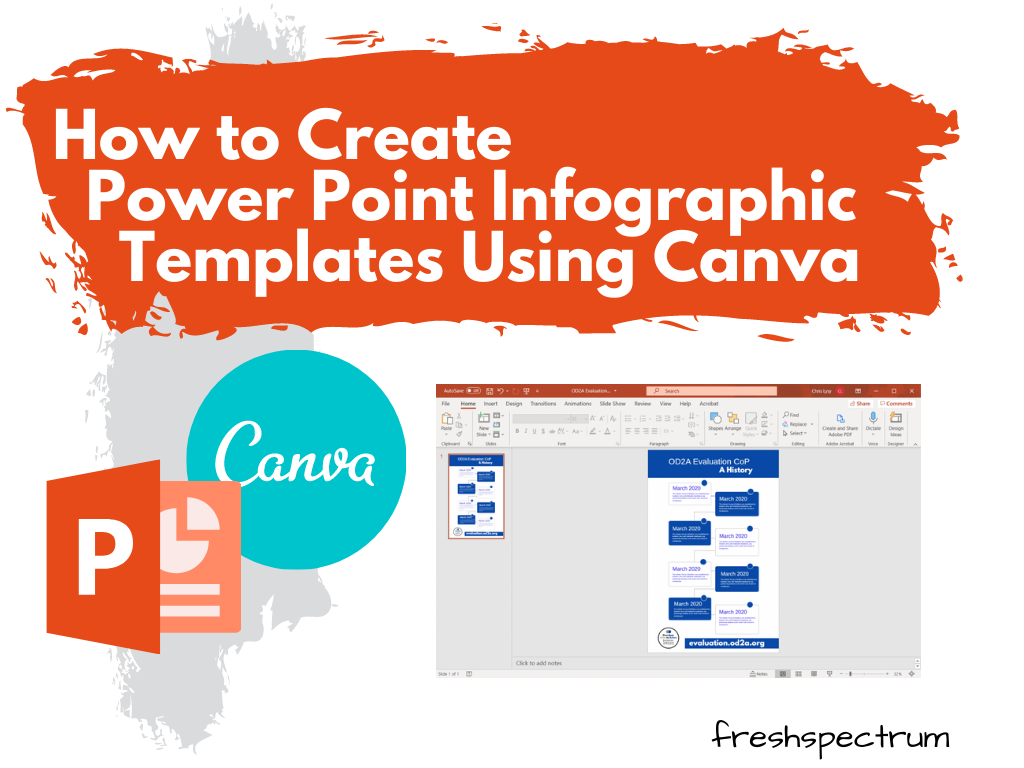
How to Create Power Point Infographic Templates Using Canva

In the research and evaluation worlds where I tend to do most of my work, Microsoft Office reigns supreme.

I have nothing against Word, PowerPoint, or Excel. But I just find some other tools are just easier to use for certain tasks (such as creating infographics). And while that’s fine when working independent, so much of my design work is built around collaboration with a broader team.

This usually gives me two options. I can try to teach that team a new tool while we collaborate (not always as easy as it sounds). Or we stick with what they know and create in Office. Luckily with Canva I can get the best of both worlds.

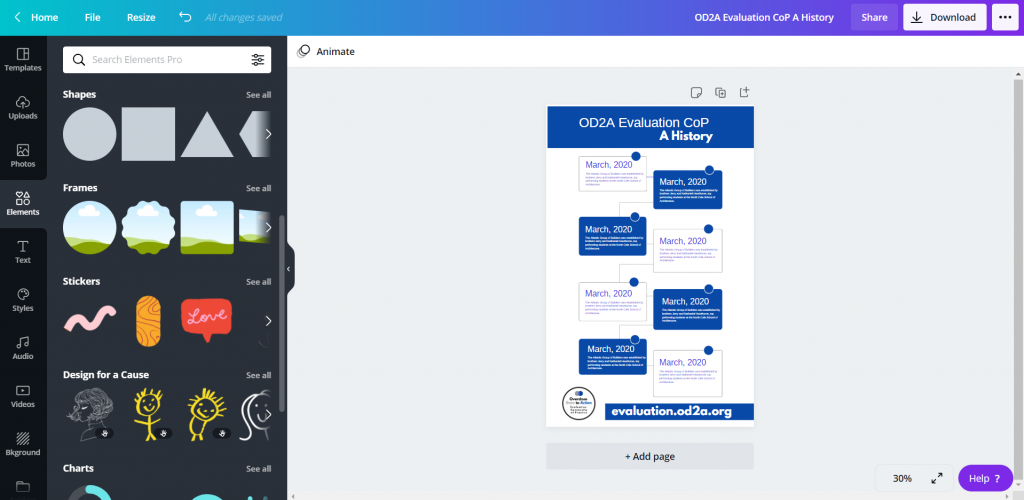
Here is how I would go about creating an infographic template in canva to use in PowerPoint.

How to Create Power Point Infographic Templates Using Canva - Illustration

Before you comment, yes, you can create infographics directly in PowerPoint from scratch.

But I just find it easier to work off of Canva templates, even if my ultimate destination will be PowerPoint. The workflow is smoother in Canva, the templates are easier to search, and shape elements are easier to add.

Freshspectrum cartoon by Chris Lysy.
"I like to make my infographics at a scale of 2:32. Then, when I'm done presenting, I can use it as a belt."

Pick an Infographic Size

How to Create Power Point Infographic Templates Using Canva - Illustration - Pick an Infographic Size

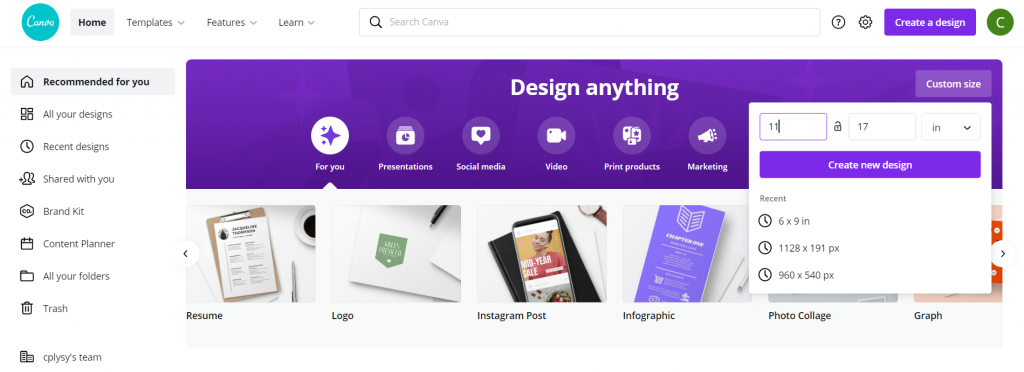
Infographics can be any size. But if you start with an “infographic” template in Canva it starts you with a long thin canvas. So I prefer to start with the size of infographic I want. I’ll still be able to search through all the Canva templates later.

If you are designing something for both print and web, I suggest going with something you can print using your office printer. Lots of U.S. organizations have printers that can print 11 x 17. Added benefit, if you fold it in half the dimensions are 8.5 by 11 (the perfect size to fit into a standard folder with other handouts).

Find a Canva Template

How to Create Power Point Infographic Templates Using Canva - Illustration - Find a Canva Template

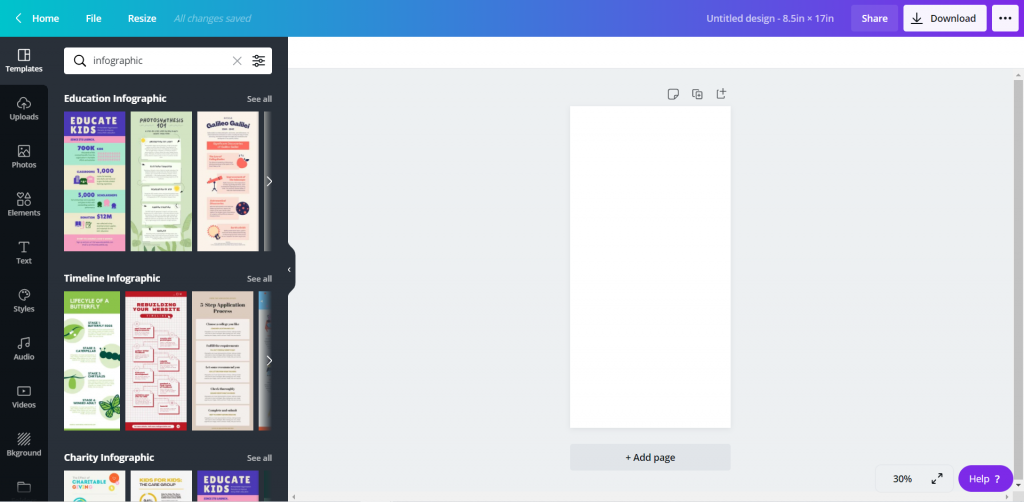
Whatever size you choose to start with, search “infographic” using the Templates menu. You’ll be given a whole bunch of options to choose from.

Adapt the Canva Template

How to Create Power Point Infographic Templates Using Canva - Illustration - Adapt the Template

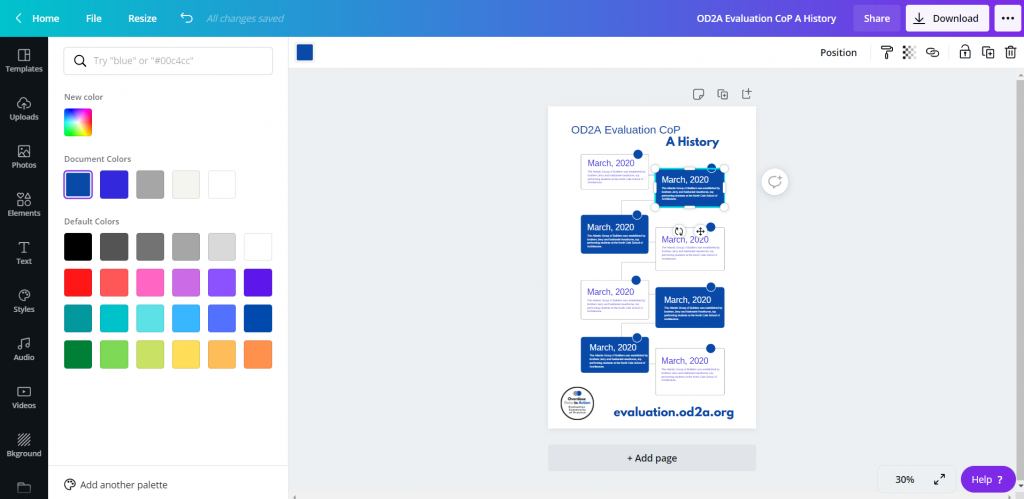
Once you choose a template, you can start adapting the template to meet your brand colors/fonts. You can also get rid of anything you don’t want to be a part of the base template.

If I were designing solely in Canva, I would enter in all my text and icon illustrate. But since I plan to rewrite in PowerPoint, I’ll just leave the template defaults.

Add Additional Pictures or Graphics

How to Create Power Point Infographic Templates Using Canva - Illustration -  Add Additional Pictures or Graphics

Just because you start with a template doesn’t mean you can’t add a little bit of your own style to infographic. You’ll find lots of options in elements and photos.

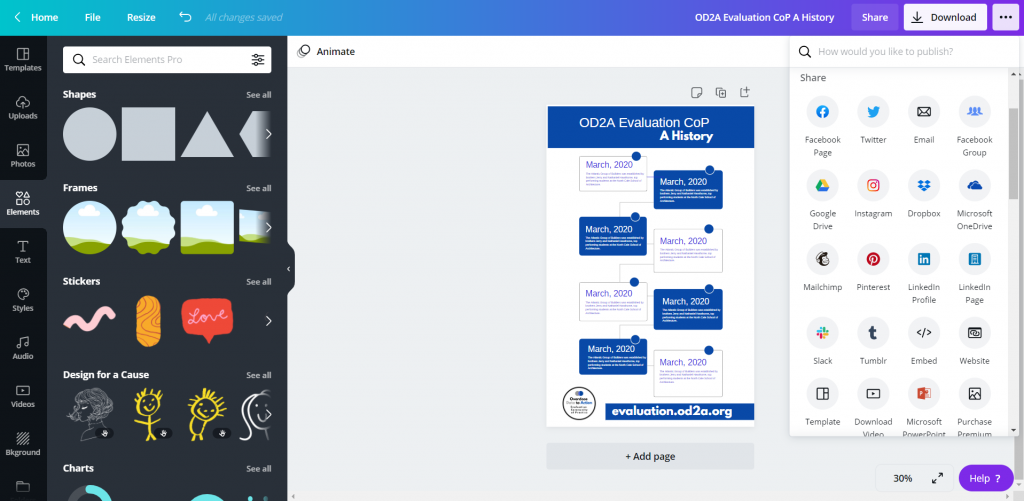
Download as Microsoft Power Point

How to Create Power Point Infographic Templates Using Canva - Illustration - Download as Microsoft PowerPoint

Once you’re done pulling together your base template, download it into PowerPoint. Use the little menu button in the upper right hand side of the page (you won’t find the option in the Download menu). The download to PowerPoint will be in the “Share” portion of the menu, although you might have to click a “See All” button to find it.

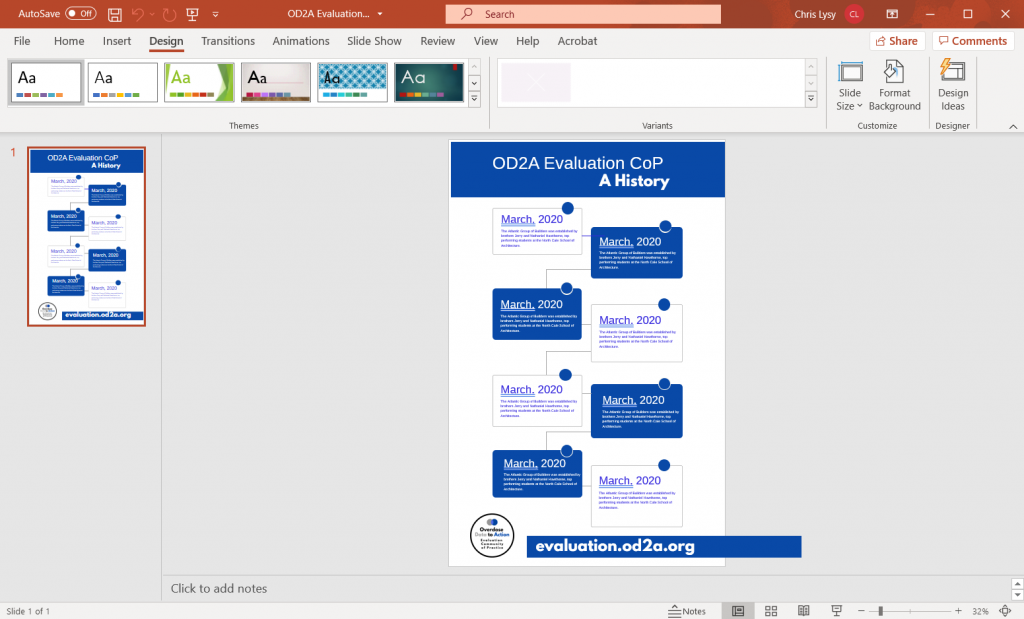
Open and Tweak in Power Point

How to Create Power Point Infographic Templates Using Canva - Illustration - Open and Tweak in PowerPoint

After you download it into PowerPoint, and before you share it with your team, I would suggest cleaning it up a bit. The save as PowerPoint works pretty well in Canva, but some of the shapes/elements might get wonky or fall out of the page boundaries. I like to quickly fix them and send out a clean template.

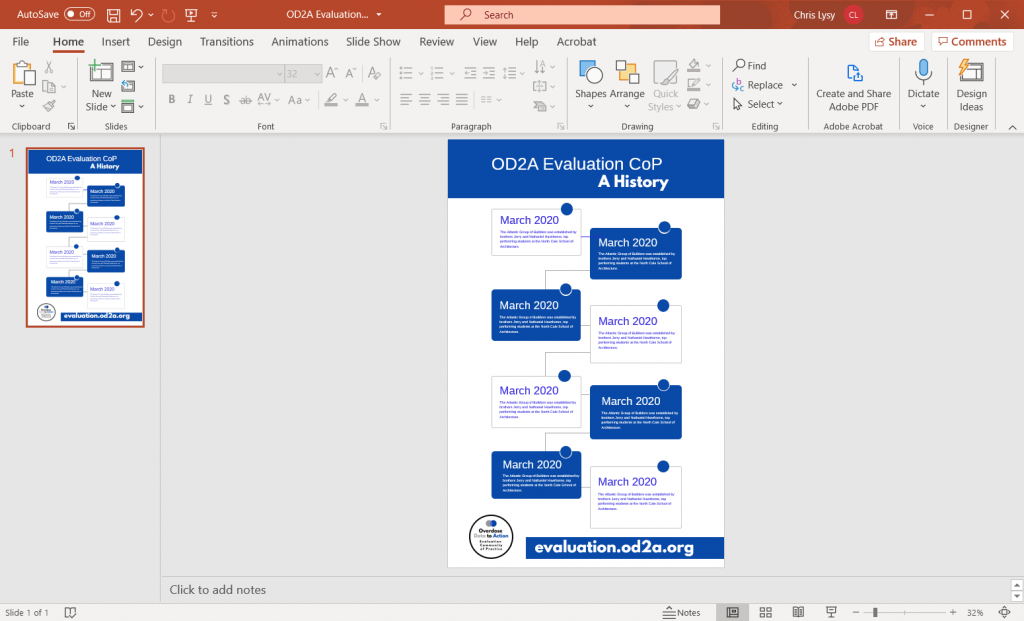
Share with Your Team for Editing

How to Create Power Point Infographic Templates Using Canva - Illustration - Share with your team for editing.

Alright, now you’re ready to share your PowerPoint with the other members of the team. Since so many people know how to use PowerPoint, they don’t have to come to you every time to edit and revise their work.

Icon Illustrating in PowerPoint

How to Create Power Point Infographic Templates Using Canva - Illustration - Icon illustrating in PowerPoint

You might have noticed that I cleared out all the icons before downloading to PowerPoint. Icons are tricky to have in templates because they might be too specific for all the times the template might be used.

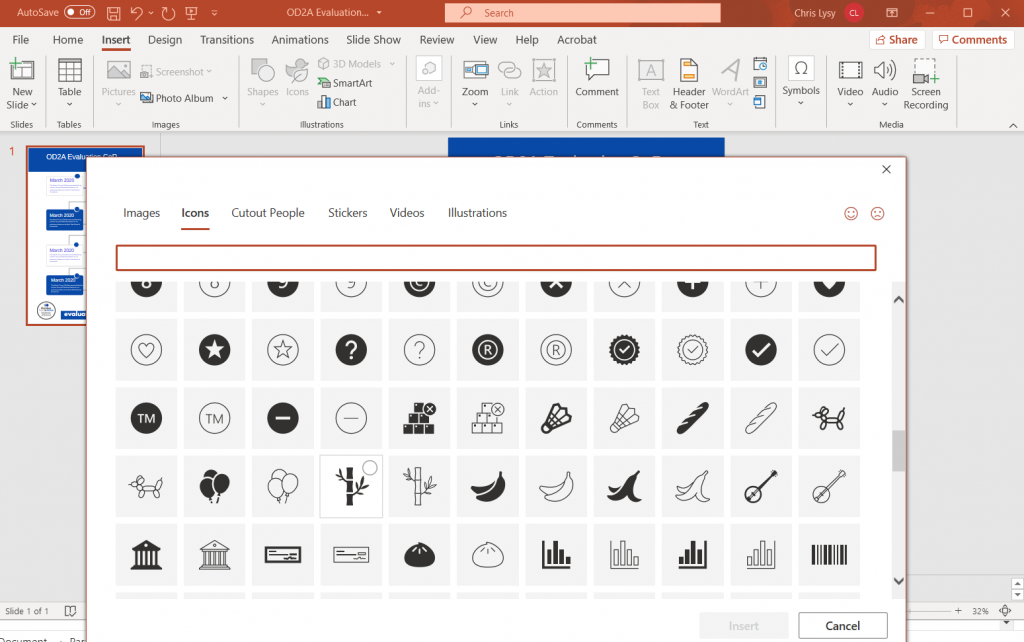
Luckily PowerPoint has it’s own icon library. After the text goes in I often do an icon illustration pass, illustrating the different blocks with icons based on the text.

Save as your desired format.

How to Create Power Point Infographic Templates Using Canva - Illustration - Save as your desired format.

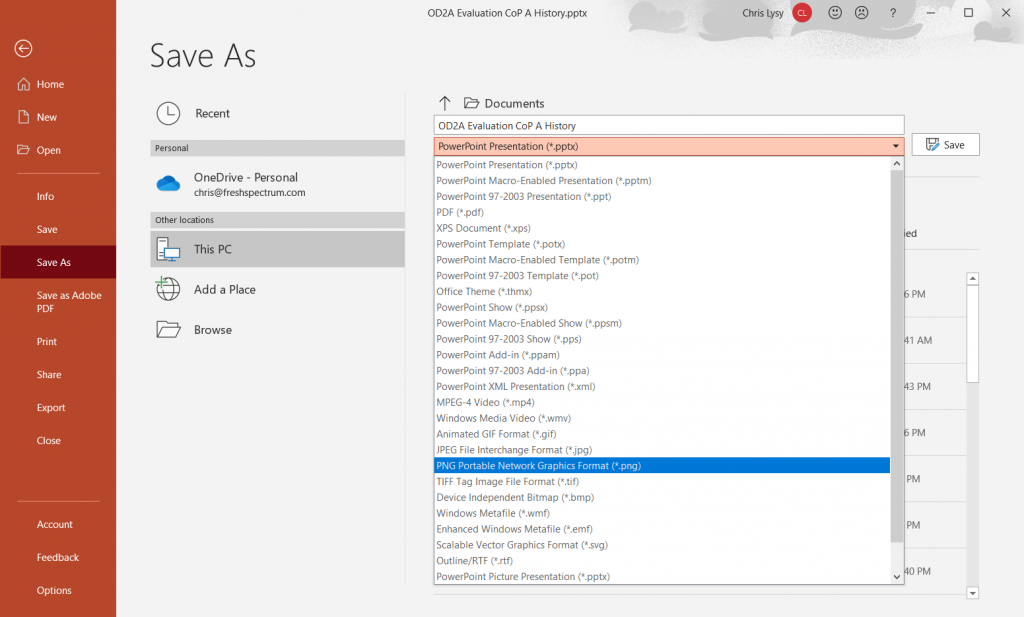
Finally, just because it’s in PowerPoint, doesn’t mean it has to stay in PowerPoint. Depending on your uses, you can always save it as an image file (like a png or jpg) or a PDF.

Written by cplysy · Categorized: freshspectrum

Mar 23 2021

10 Must-Have Analytical Skills

That beautiful chart is one of the last steps in the analytical process.

For most projects, it goes something like this:

  1. Planning. Figure out what data you need. You might get data requests from your boss. You might hold a months-long strategic planning process. You might participate in a program evaluation where the evaluator helps you brainstorm what your questions are and how to collect data to answer those questions.
  2. Collect the data. Design and administer surveys. Organize focus groups. Review public data sources (e.g., Census data).
  3. Analyze the data. Take raw, messy data from tons of different data sources and get it neat and tidy so it can feed into charts.
  4. Visualize the data and share the reports, one-pagers, dashboards, and slideshows with stakeholders.

Data analysis and data cleaning alone can take hours. Days. Weeks.

We’ve all got horror stories about data cleaning that took forever and ever and ever and ever. I often spend 10x more time cleaning data than creating charts.

Data analysis still takes time, but it doesn’t have to take forever.

Data analysis might not be your favorite part of the process. But it doesn’t have to be a headache, either.

In this blog post, we’ll cover 10 skills that can make your next data project easier, faster, and error-free.

10 Must-Have Analytical Skills

No matter the topic area. No matter the software program. Here are 10 must-have skills for cleaning and analyzing data.

Which skills are you already strong in? Which ones need to be developed? You can follow the links to additional tutorials.

Outliers

I recommend (1) checking every dataset for outliers, and then (2) deciding how you’re going to deal with them.

Humor me: Comment and let me know how you define the term “outlier.”

To some people, it generally means a really small or really large value.

To other people, it has a specific numeric meaning.

A million years ago, I worked on a longitudinal study in a university research lab. Here’s how the principal investigator of that study defined “outlier:”

An outlier is any value that falls more than three standard deviations outside the mean.

He taught us to calculate each variable’s mean and standard deviation. Then, we’d see which values were smaller than three standard deviations below the mean, and which values were larger than three standard deviations above the mean. Those were the outliers.

Next, we had to deal with outliers.

I’ve heard novices suggest that you should just delete outliers. NOOOOOOO. Deleting outliers will skew and affect the distribution of our dataset.

Here’s what the principal investigator taught us:

We should trim outliers—setting their value to be exactly three standard deviations above or below the mean.

For example, if three standard deviations above the mean is 150, and you’ve got an outlier of 160, you treat that 160 as 150 rather than deleting it.

This is a little jargony for a blog post, so if you’d like to learn more, let me know. I’ve got video resources in everyday language inside our Simple Spreadsheets course.

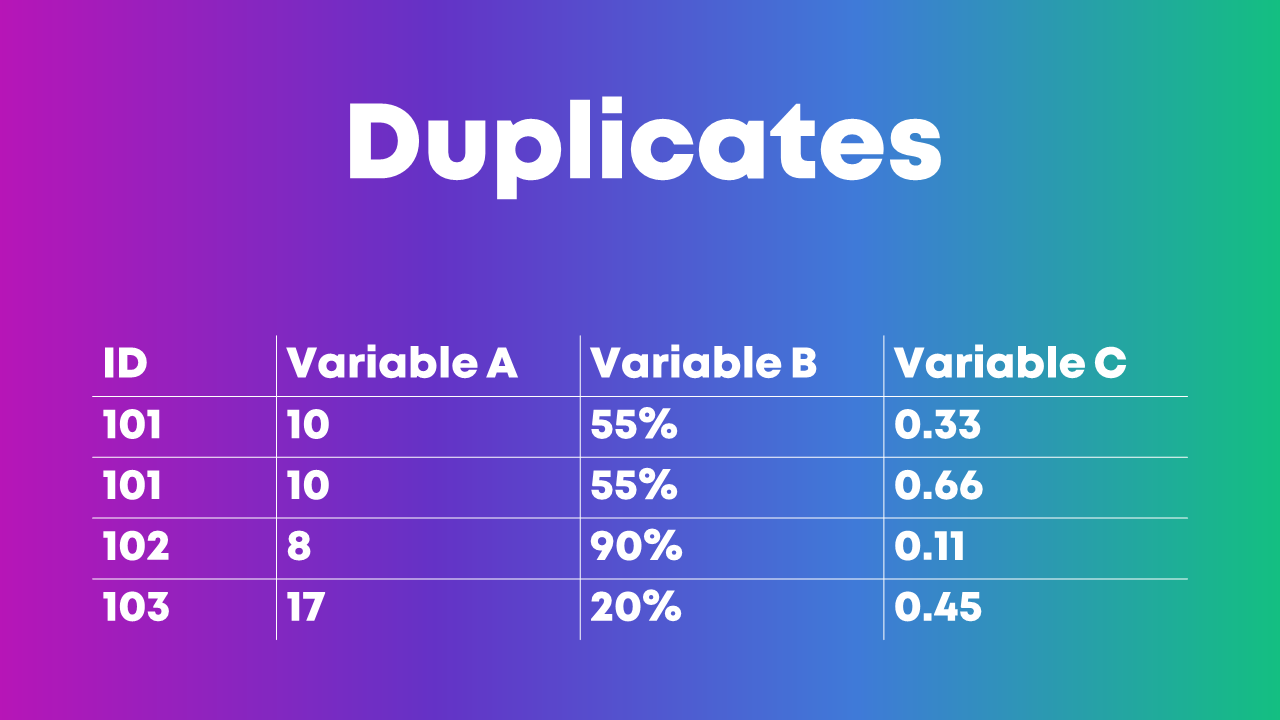
Duplicates

I’ve seen people identify duplicate ID numbers by scrolling through their dataset, squinting at the ID column, and hoping to spot the same ID number in there twice.

Eye-balling is fine with tiny datasets. But it’s impossible to scroll through hundreds, thousands, or tens of thousands of entries. It would take ALL DAY. And, we’d miss something.

Here’s how I like to identify duplicates:

  1. I use Microsoft Excel’s Conditional Formatting to make duplicate ID numbers pop out in bright red.
  2. Then, I re-sort my dataset so that the bright red numbers appear at the top. I go through the duplicate entries one at a time and try to figure out why those entries have appeared multiple times.

Or, I use the Remove Duplicates feature in Excel.

Or, you can even use pivot tables for data cleaning, like identifying duplicates. This blog post by Oz Du Soleil will get you started.

Missing Data

We need to check our dataset for missing data every single time.

This isn’t a once-in-a-while luxury.

This isn’t a if-I-remember-it optional step.

Checking for missing data is mandatory.

You might find patterns in your dataset: An entire row is empty. An entire column is empty. Find out why.

Let’s pretend you collected electronic surveys. You might see a mostly-empty column if your survey had a skip pattern, for example. Or, you might see a mostly-empty row if someone started the survey but didn’t finish answering all the questions. These patterns are normal and expected. The most important part is to understand all the nuances of why you might see missing data before you move on to any tabulations.

Or, you might not see a pattern in the dataset (like the image above).

This Swiss cheese pattern might mean that people skipped survey questions here and there, for example. That’s probably normal in your project. Again, the goal is to spot missing data and understand why it’s missing as early as possible in the project.

Measurement Scales

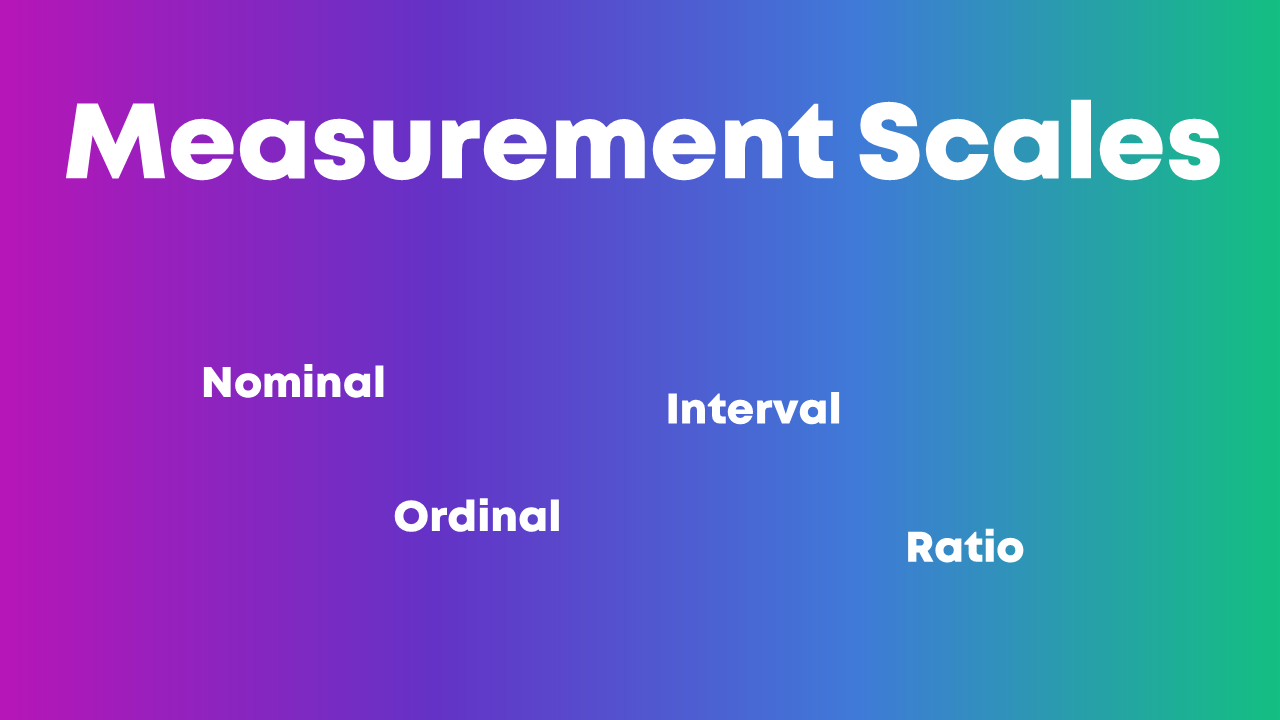
Nominal, ordinal, interval, and ratio. These are called measurement scales.

We need to understand whether each variable in our project is nominal, ordinal, interval, or ratio because that affects how we summarize that variable.

Let’s pretend you’re organizing a virtual conference, and you give attendees a survey when the event is over.

You might have a check-all-that-apply question where you ask people which part(s) of the conference they liked: the breakout sessions, and/or the keynote speaker, and/or the networking events. These categories are nominal data, which means we should be paying attention to frequencies—how many people checked the box for the breakout sessions, the keynote speaker, and the networking events.

This blog post gets you started with beginner-level formulas for numbers,like calculating the mean, median, mode, and standard deviation.

This blog post gets you started with pivot tables, which I find most helpful for categories.

Distributions

Being able to describe a dataset as left-skewed, right-skewed, or symmetrical is a must-have analytical skill.

We also need to understand how those distributions affect real-world decision making.

If academic test scores are left-skewed—now what?

If mental health assessments are right-skewed—now what?

Distributions also affect chart-choosing. For example:

  • We can use a traditional histogram to show the distribution.
  • We can use a unit chart or wheat plot to emphasize individual dots in the histogram.
  • We can use a population pyramid to compare two groups’ distributions, side by side.
  • We can use a swarm plot when the dots are overlapping and need to be jittered.

Recategorizing/Recoding Variables

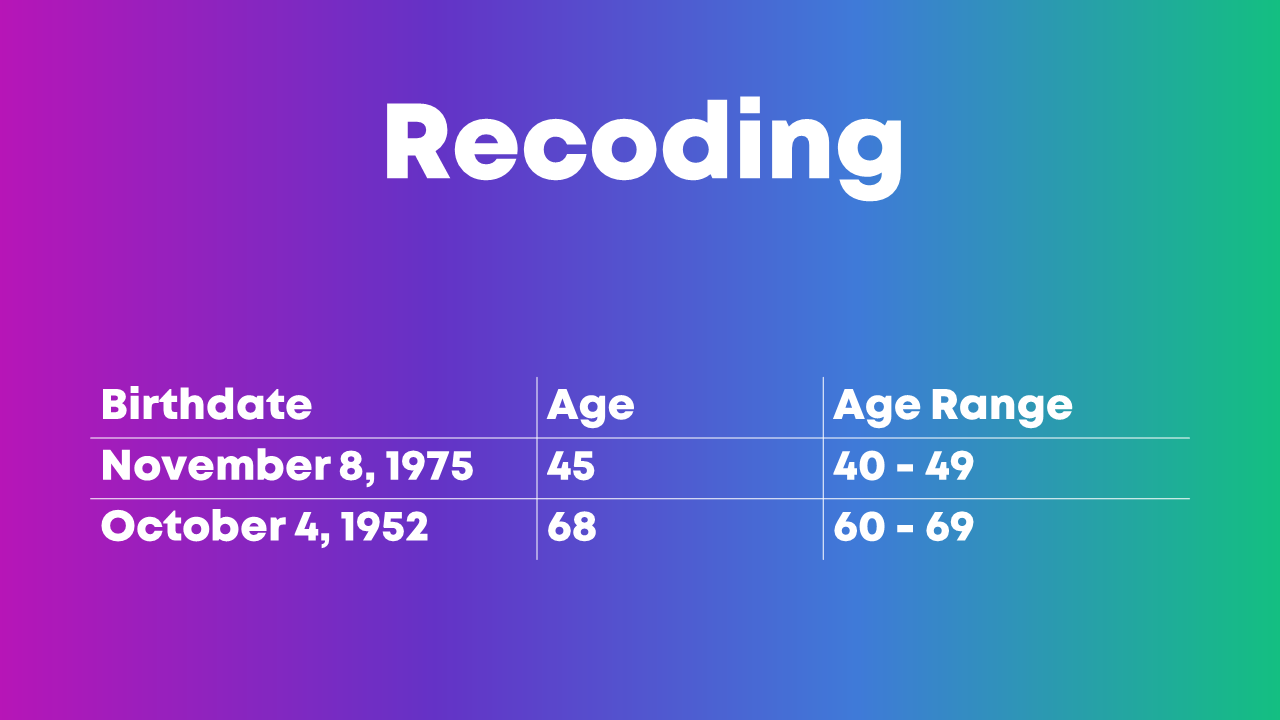
You might need to recategorize or recode values if:

  • You have a list of zip codes but you really just care about the states.
  • You have a list of states but you really just care about the regions where those states are located.
  • You have a list of countries but you really just care about regions of the world.
  • You have a list of ages (0, 1, 2, 3, 4, 5, etc.) but you really just care about age ranges (0-9, 10-19, 20-29, etc.).
  • You have a list of schools but you really just care about which district the school is located within.
  • You have a list of test scores (40%, 55%, 70%) but you really just want to focus on students who passed or didn’t pass the exam.
  • You have a list of body mass indices (19, 24, 29, 32, etc.) but you want to categorize the raw numbers into underweight, normal weight, overweight, and obese.
  • You have a list of languages spoken but you really want to divide people into those who speak Mandarin and those who don’t.
  • You have a list of countries where people were born but you really just want to divide people into born in U.S. and not born in U.S.
  • … and so on.

This blog post gets you started with beginner-level categorizing using =if() and =vlookup().

Merging Datasets Together

Is your student demographic data living in one spreadsheet?

And your test scores are living in another spreadsheet?

But you want to see how demographic characteristics might be related to test scores? For example, do students living in one zip code score higher than students in another zip code?

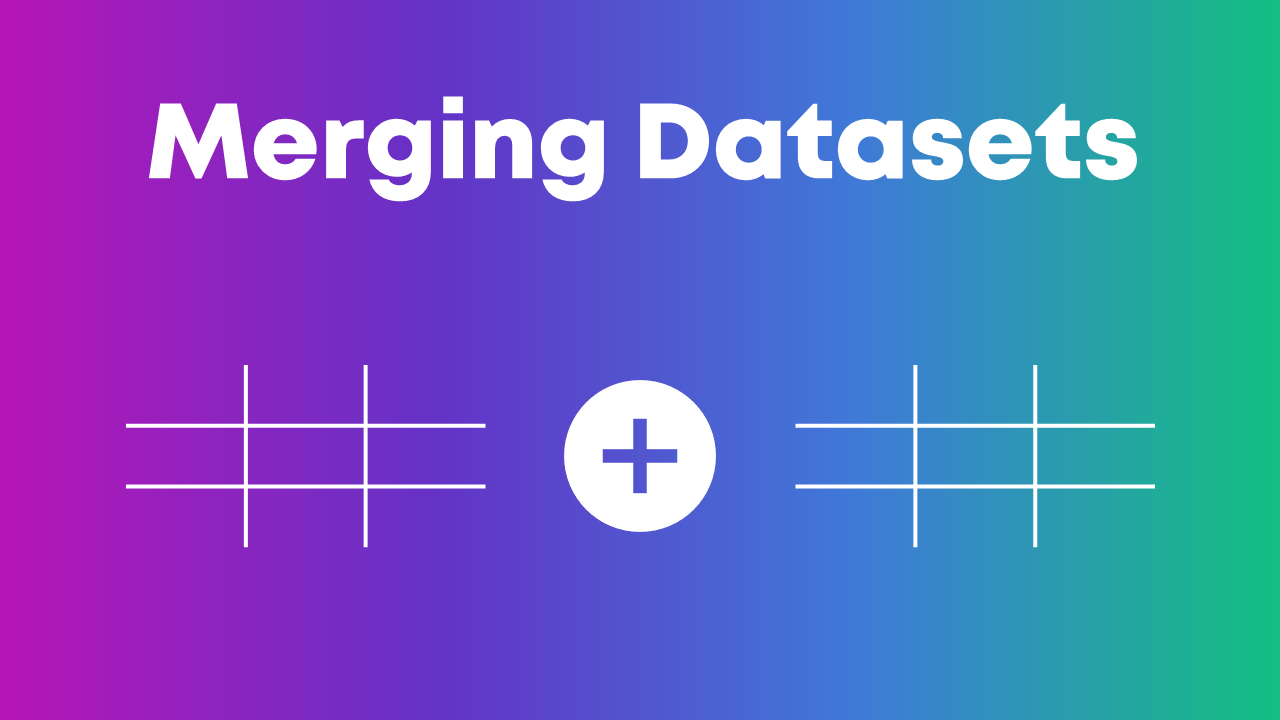
We’ll need to combine those two spreadsheets together.

In Excel, you’ll need fluency in vlookup, hlookup, index-match, and xlookup.

This blog post gets you started with =vlookup().

Merging Variables Together

Sometimes, we need to merge entire datasets, tables, or spreadsheets together.

Other times, we need to merge individual variables together.

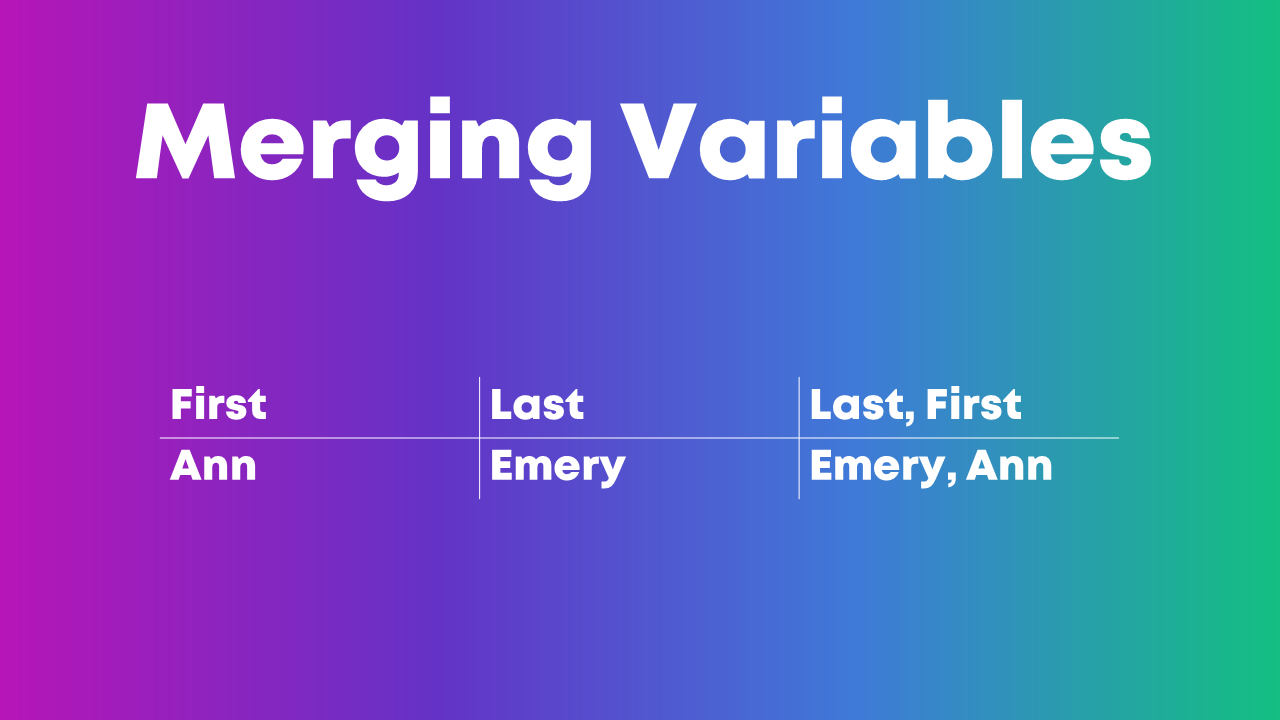
For example, if you have first names in one column, last names in another column, but you really want to see everything displayed in Last, First format.

Manual merging is a pain, and it’s destined for typos.

Instead, we can use use Excel’s =concatenate() formula or the & operator to merge variables.

Pulling Variables Apart

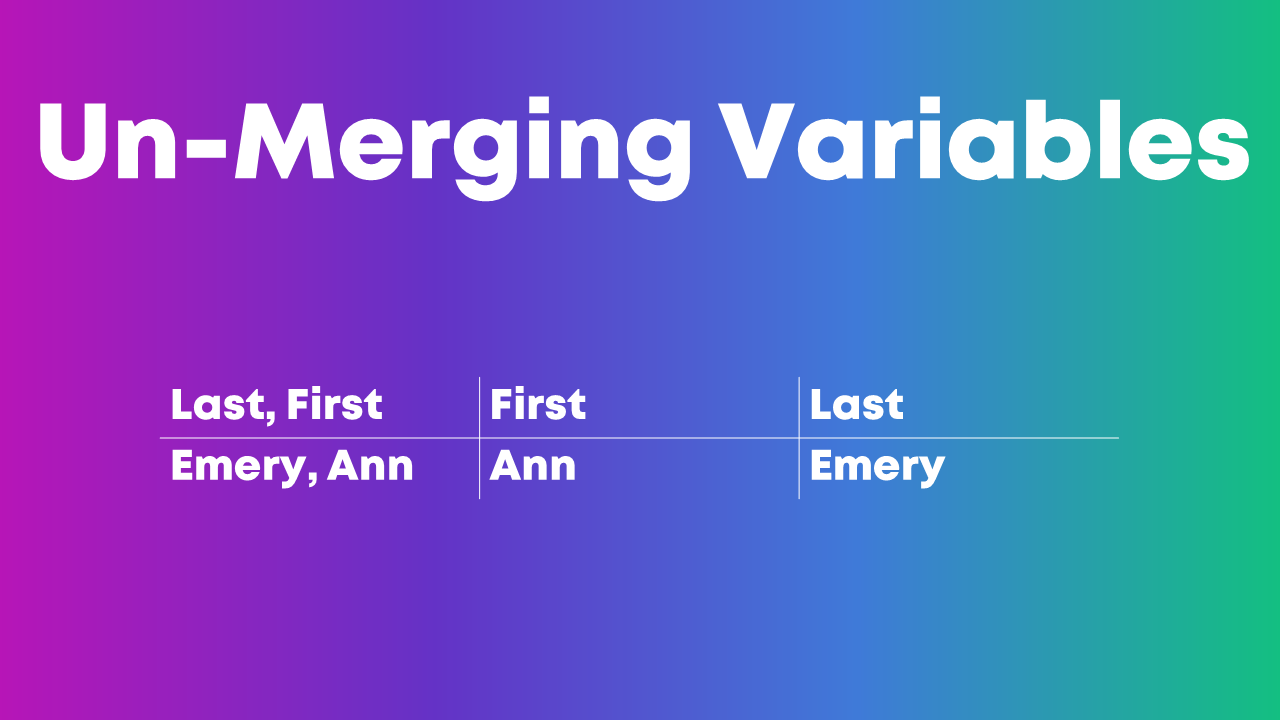
Sometimes we also need to pull variables apart, like when you’ve got Last, First but you really just want First. Or just Last.

In Excel, we can use formulas like left, right, or mid.

Excel’s text-to-columns is another game-changer.

This blog post gets you started with one of those techniques, =()left.

Exploratory Visualization

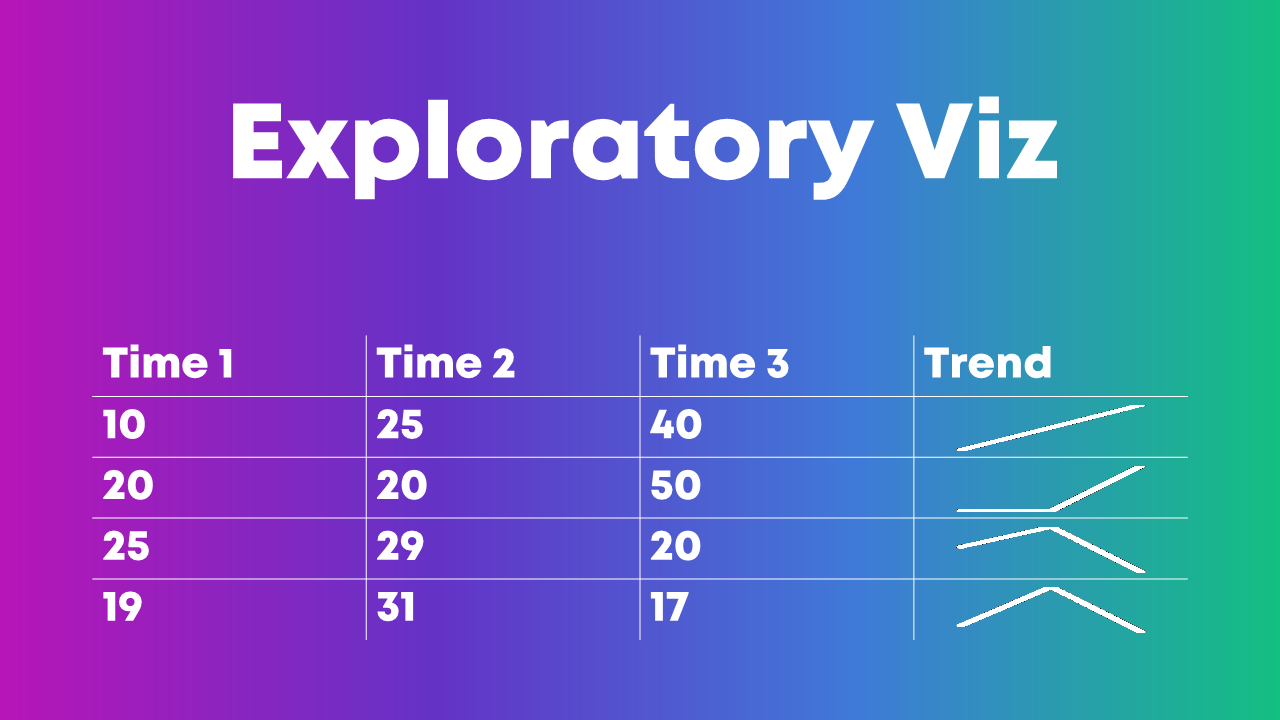
Why wait until we’re hours, days, or weeks into the analytical process before we see any charts??

Quick visuals help us scan the dataset for patterns early and often.

My favorite exploratory visualization techniques in Excel are:

  1. heat tables,
  2. data bars, and
  3. spark lines.

(NOT most of the Conditional Formatting options, ha! Here’s what not to do when it comes to exploratory visualization.)

Which Software Program Should I Use??

We can apply these analytical skills in any software program.

In college, I learned to use SPSS in my statistics and research methods courses.

After college, I worked in a university research lab, and we all used SAS.

After that, I worked in a consulting firm, and we all used Excel. I’ve linked to some Excel-specific resources throughout this blog post in case that’s your organization’s tool of choice, too.

Your Turn

Which must-have analytical skills would you add to this list? What types of techniques for transforming raw data into clean, tabulated data have been crucial in your own job?

I’ve linked to a few blog posts with how-to tips. Do you have additional how-to resources to share, like books, blog posts, or YouTube videos?

Written by cplysy · Categorized: depictdatastudio

  • « Go to Previous Page
  • Go to page 1
  • Interim pages omitted …
  • Go to page 196
  • Go to page 197
  • Go to page 198
  • Go to page 199
  • Go to page 200
  • Interim pages omitted …
  • Go to page 310
  • Go to Next Page »

Footer

Follow our Work

The easiest way to stay connected to our work is to join our newsletter. You’ll get updates on projects, learn about new events, and hear stories from those evaluators whom the field continues to actively exclude and erase.

Get Updates

Want to take further action or join a pod? Click here to learn more.

Copyright © 2026 · The May 13 Group · Log in

en English
af Afrikaanssq Shqipam አማርኛar العربيةhy Հայերենaz Azərbaycan dilieu Euskarabe Беларуская моваbn বাংলাbs Bosanskibg Българскиca Catalàceb Cebuanony Chichewazh-CN 简体中文zh-TW 繁體中文co Corsuhr Hrvatskics Čeština‎da Dansknl Nederlandsen Englisheo Esperantoet Eestitl Filipinofi Suomifr Françaisfy Fryskgl Galegoka ქართულიde Deutschel Ελληνικάgu ગુજરાતીht Kreyol ayisyenha Harshen Hausahaw Ōlelo Hawaiʻiiw עִבְרִיתhi हिन्दीhmn Hmonghu Magyaris Íslenskaig Igboid Bahasa Indonesiaga Gaeilgeit Italianoja 日本語jw Basa Jawakn ಕನ್ನಡkk Қазақ тіліkm ភាសាខ្មែរko 한국어ku كوردی‎ky Кыргызчаlo ພາສາລາວla Latinlv Latviešu valodalt Lietuvių kalbalb Lëtzebuergeschmk Македонски јазикmg Malagasyms Bahasa Melayuml മലയാളംmt Maltesemi Te Reo Māorimr मराठीmn Монголmy ဗမာစာne नेपालीno Norsk bokmålps پښتوfa فارسیpl Polskipt Portuguêspa ਪੰਜਾਬੀro Românăru Русскийsm Samoangd Gàidhligsr Српски језикst Sesothosn Shonasd سنڌيsi සිංහලsk Slovenčinasl Slovenščinaso Afsoomaalies Españolsu Basa Sundasw Kiswahilisv Svenskatg Тоҷикӣta தமிழ்te తెలుగుth ไทยtr Türkçeuk Українськаur اردوuz O‘zbekchavi Tiếng Việtcy Cymraegxh isiXhosayi יידישyo Yorùbázu Zulu