• Skip to main content
  • Skip to footer
  • Home

The May 13 Group

the next day for evaluation

  • Get Involved
  • Our Work
  • About Us
You are here: Home / Archives for allblogs

allblogs

Oct 01 2024

How to Make Dumbbell Dot Plots in Excel

Ready for a brain-bending tutorial?

It’s *not* easy to make dot plots in Excel.

These are non-native charts — meaning we’ll have to reconfigure our table, and use a scatter plot(!) — to trick Excel into making our dot plot.

The learning curve is worth it, promise.

Download the Excel File

It’s here: https://depictdatastudio.ck.page/dumb…

What’s Inside

  • 0:00 How to Make Dumbbell Dot Plots in Excel
  • 0:25 Dataviz On The Go
  • 0:33 Dot Plots are Non-Native Charts
  • 1:03 It’s a Scatterplot (?!?!)
  • 1:50 Pep Talk for the Perfectionists
  • 3:23 Live Drawing Demo
  • 6:59 Color-Code Your Table
  • 7:08 Stack Your Table
  • 7:43 Add “Y” Values
  • 8:28 Sort and Put the “Y’s” Next to Each Other
  • 9:09 Insert a Scatterplot with Straight Lines and Markers
  • 9:45 Ack!
  • 9:52 Remove the Lightning Bolt
  • 11:02 Format Format Format
  • 11:46 Your Turn: Questions? Comments?
  • 12:05 A Personal Note

Transcript

[00:00:00] In this tutorial, I’m going to try to teach you how to make dumbbell dot plots in Excel.

I say “try” because, usually, in workshops, this takes about 30 minutes to teach, and everybody’s got laptops, and I demo a skill, and they practice, and I demo, and they practice, and it’s a captive audience.

On YouTube, everybody wants things really, really quickly, and I don’t know if I can cram this into five minutes.

… … , we might need 10, though.

You’re watching Dataviz on the Go with me, Ann Emery. Because you’re busy, I’m busy, let’s get to it with some jet speed tutorials.

Now, the first thing you’re going to notice about dumbbell dot plots is, when you highlight your table and you go up to insert, just like you normally would to add a new chart, you can look all day long…

You are not going to find a dumbbell dot plot up there. It is not here. It is not here. It’s not there.

It is not a built in chart. It is not a native chart. It’s a non native chart.

That doesn’t mean we can’t make it, but we have to do some behind the [00:01:00] scenes magic tricks to make it happen.

So we’re going to choose a similar chart, similar ish, kind, kind of, kind of not, right?

The scatterplot, the scatterplot especially with the straight connecting lines. We’re going to use a scatterplot as the foundation. And we’re going to disguise it and make it look like a dot plot.

This is a very advanced, very sophisticated, very brain bending way of thinking about Excel. It’s a scatterplot that looks like a dot plot.

So what that’s going to mean is we have to assign each of these dots X, Y coordinates, which means our table, like this, It’s going to have to be totally reconfigured and that’s going to be a little bit tricky to figure out, but that’s why I’m here to walk you through it.

So if you’re a perfectionist, please go easy on yourself. Just give yourself a break. There is a learning curve here. This is not an easy chart type at all, but it’s worth it. I [00:02:00] just, please keep going. Please, please, please.

And if you’re tired, like I clearly am just scroll down below the video, because I’m going to give you this spreadsheet with the template that I’m using so you can just download it and just punch in your numbers and not have to start from scratch. So you don’t have to fight with Excel so much.

All right, let’s keep going. Let’s transform our original table into a magic reconfigured table.

The first thing we’ve got to do though, especially the first few times you’re doing this is You’ve got to sketch it, please, please don’t skip this step. You need to draw out your dot plot and figure out where each dot’s going to go so that later as you’re making it, you can compare and say, “wait, is this in the right spot?””

No, I need to sort my table different.” “Wait, I think this is going wrong.” And you can kind of diagnose your own errors that are going on as you’re learning.

So I’m going to use my draw feature on my computer, but you might just use a good old paper and pencil when you draw your dot plots.

Okay, so let’s draw this out and I’m going to show you how it’s [00:03:00] a scatter plot with XY coordinates, that is ultimately gonna look like a dot plot.

Okay? That’s the most important thing for you to remember. It’s a scatter plot that looks like a dot plot. And then the other thing is just draw it. Please. Please,

Alright, let’s draw it. So first we’re gonna draw our xy. Okay, this looks like eighth grade math class, doesn’t it?

Here’s our x, y, x, y coordinates. That’s what a scatterplot has going on behind the scenes. Then you’re going to draw your scale.

This fictional scale goes from, uh, zero to ten. Yours in real life might go from zero to ten million. It might have percentages. It might have currency. This works with all the units. It doesn’t have to be zero to 10. It can be whatever your real life units are.

And then the height, uh, these are gonna be our categories that we’re comparing. We’re going to have category [00:04:00] A, B, C, D. I’m going to draw some grid lines in here. That’s why I’m using gray. And then let’s figure out where our dots go.

And remember, um, we’re just, I’m just drawing this. Okay. I’ve already made the finished version to show you where we’re heading, but in real life, you’d be like, what, where, what is this going to look like with my numbers and my percentages?

Okay. And let’s be consistent. Um, I think, what do I have group one in green? Yeah. Let’s always do group one in green. Let’s always do group two in purple. We’re going to use Mardi Gras colors. Why not? Why not? Consistent color coding absolutely is going to help your brain to figure this out. So please do this as you’re sketching on your own paper.

Uh, group one, let’s do those in green. Group two, we’ll do in purple.

Let’s draw out our dots and then we’re going to assign them X, Y coordinates. So that first 8. 1, where is that going to [00:05:00] go? It’s going to go over on the X, 8. And then it’s, it’s the A, so it’s going to go right here. Okay. That’s that dot and let’s assign it an XY coordinate. So that is eight.

What is it? 8. 1. That’s my X comma, the Y. is, it goes up, one, two, three, four. Let me write that out for you just to make it really easy to follow. One, two, three, four. It’s very hard to write with a mouse. 8. 1 comma four. Okay, the next one 5. 6 that goes over on the X about this far, but that’s about where the 5.

6 would be. And then it goes, that’s 5. 6. It goes up on our, [00:06:00] like, Y, Y in air quotes, right? Our fictional Y, our placeholder Y, it goes up three. Let’s do maybe one or two more. Uh, the 4. 5. Okay. So it goes over 4. 5. That’s approximately here. XY coordinates, 4. 5 comma 2. Yep. You’re right. And the next one is 8. 6.

That’s around here. 8. 6 up 1. You do the same thing for your purples. Uh, that’s a 5 around here. That is five comma four. This one is What is it? Oh, 2. 3. That’s around here. 1. 3, 4. 4. You get the gist of it? Okay. Draw it out so you can envision, like, where’s everything going? Did I get it right?

It takes about this long.

Next up, let’s take our original table and [00:07:00] we’re going to color code it. You’re just going to add some fill behind it, okay, to keep yourself all organized.

Then, we have to re orient, you’re just going to do a copy paste, you’re going to stack it. Instead of group 1, group 2, beside each other, you’re going to stack them.

You’re just going to say group 1, group 1, group 1, group 2, group 2, group 2, and, oops, this isn’t group, this is, this is your value, okay, which is also known as your X. Your X in quotes, cause it’s not a real X. It’s like the X value that we have to type into Excel to make this all, you know, work and be figured out behind the scenes.

All right. The next thing we’re going to do is we’re going to add some Y values. And again, this is supposed to be X. This is Y. Okay, so we’ve got the groups repeated, we’ve got the X’s, and then we’ve got the Y’s. Remember, we already figured out what the Y’s would be. Uh, here is another tip to make sure you’re doing it right.

[00:08:00] Figure out how many dots you’re going to have. It’s one, two, three, four, five, six, seven, eight. 1, 2, 3, 4, 5, 6, 7, 8. Okay. Eight dots means eight entries on your table. 1, 2, 3, 4, 5, 6, 7, 8. Eight dots, eight entries, eight sets of X and Y coordinates. All right, let’s keep going. The next thing you’re going to do is you’re going to sort it and you’re going to put your Y’s next to each other.

So your fours are going to go together. Your threes are going to go together, your twos and your ones. Don’t overthink sorting. Okay. It just means you take your table with your X’s and your Y’s and you go to data and you go to sort and you say, I’m going to sort by my Y. And it doesn’t matter if you do smallest to largest or largest to smallest.

Okay. It doesn’t matter. It just means they have to be next to each other. Like here, the ones are next to each other. Okay. [00:09:00] Here, the fours are next to each other. Do you see how the color coding changed? It’s green, purple, green, purple now, right? The next thing we’re going to do is we’re going to highlight just the inside of the table, just the interior that I’ve made darker for you.

And I outlined it in black to make sure you can see it. You’re going to go to insert and you’re going to insert our. Scatterplot. If you want it to look like a dumbbell dot plot with a connecting line in there, you’re going to pick this one, the scatter with straight lines and markers. If you just want the dots by themselves, you can pick this one.

Okay. I wouldn’t pick wavy. That would be super weird. I wouldn’t pick this one. That scribble, scrabble. Okay, I’m going to do this one for us. And then you get the Harry Potter lightning bolt and you’re like, and, uh, that’s not what I wanted. That’s okay. We can remove the lightning bolt. It’s going to look more like this.

Can you start to see it? Can you see your dot plot to remove that connecting lightning bolt? Okay. So like, here’s the [00:10:00] connecting line I want to remove. It depends how your table is sorted of which dot you click on. It’s going to be either this dot or this dot. Okay. So you’re just going to try one. And if the wrong line is removed, you’re just going to click undo and you’re going to try again.

So let’s try this one. Okay. I’m going to click on this dot cause I’m going to guess that it controls this line. So if you click on this dot the first time, All of the points are selected. You click on it a second time so that just that dot’s there. You’re going to hold your mouse over that spot. You’re going to do a right click, go to outline and say, no outline.

No, thank you. Okay. Part of the lightning bolt’s gone. Let’s do it again. This dot controls this connecting line. Click on it once, twice, right click. Outline no outline. Okay, you’re gonna get in the rhythm of it. It’s just gonna take this long. Don’t don’t worry It’s really really quick. Okay, there’s your dot plot kind of right you have to [00:11:00] Format format format that takes a little bit more time Things to keep on your radar would be you can control the color of the dot You can add the, uh, labels right here.

I just added the group names in text boxes, but the labels are built in. Uh, you can do this fancy ways to add whatever your category labels are. Honestly, I usually just do text boxes because I find it’s actually, uh, faster in the long run. I should say I don’t do text boxes, plural. I do see one text box that I very carefully format so that it’s lined up with its grid line.

You’re going to adjust the min and the max as you need to. You might make the connecting line thicker. All the normal things. All the normal formatting things that I cover in all my other videos and blog posts. All right, it is your turn. Comment below the video. Let me know. Are you totally lost? Are you kind of following?

How are you feeling about this scatterplot into dotplot thing? Do you want the spreadsheet? It’s there. All right. Good luck. Good luck with [00:12:00] your dotplots. Please sketch. And have fun. Bye.

Finished the video. Made a quick dinner. Now we’re outside doing turkey trot training. I’m gonna try to run with the twins and the big guy.

Hi, big guy. Well, the girls, where are they? Running with daddy.

Written by cplysy · Categorized: depictdatastudio

Oct 01 2024

How to Apply Your Brand Colors in Dataviz

Colors can make or break a chart.

Colors direct our eye movements, and therefore our brains and attention.

It’s up to you: will you help or hinder your reader’s understanding?

Step 1: Start with Your Brand Colors

Otherwise, your graphs, slides, and dashboards will be Frankensteined.

I’ve written about brand colors and brand presents in other posts.

Some of those resources include:

  • Examples of organizations’ brand colors used in graphs
  • How to read color codes in style guides
  • How to enter your custom color codes in Excel

Step 2: Do Your Accessibility Testing

I’ve written about colorblindness, color contrast, grayscale printing in other posts.

Some of those resources include:

  • An official color contrast test
  • An official colorblindness and grayscale printing test

Then, your accessibility testing “results” should go inside your organization’s Dataviz Style Guide.

Step 3: Apply Those Brand Colors According to the Data & Variables

Now, it’s time to apply those branding colors to ensure that your graph is intuitive.

Look at your graph: Is your variable binary, sequential, diverging, or categorical?

Or, do you want to tell a story with a dark-light contrast?

Binary Variables Get Binary Color Schemes

Binary variables include yes/no data, such as:

  • yes/no survey questions
  • people who speak Portuguese as their primary language vs. people who don’t
  • people who own a home vs. people who don’t
  • people who graduated from program on time vs. people who didn’t
  • people diagnosed with an illness vs. people who don’t have it

For binary variables, choose one brand color. The “presence” of the attribute gets the darker color, and the “absence” of the attribute gets the lighter color.

Here’s an example:

Sequential Variables Get Sequential Color Schemes

a.k.a. ordinal

Sequential variables have a natural order.

Examples include:

  • age ranges (5-9 year olds, 10-14 year olds, and 15-19 year olds)
  • income levels
  • highest educational level completed (some high school, high school diploma, some college, etc.)
  • years (Year 1, Year 2, and Year 3 of a project)
  • semesters (fall, spring, fall, spring…)
  • cohorts (first cohort of participants, second cohort, etc.)

For sequential variables, choose one brand color, and use a light-dark gradation of that color.

Here’s an example:

Categorical Variables Get Categorical Color Schemes

a.k.a. nominal

Categorical variables include:

  • race/ethnicity (African American, Asian, Hispanic/Latin@, White, etc.)
  • gender (male, female, nonbinary, genderfluid, etc.)
  • chapters of a report
  • sections of a presentation
  • categories of a dashboard

For categorical variables, use a different brand color for each category.

Here’s an example:

Diverging Variables Get Diverging Color Schemes

Diverging variables are opposites.

Examples include:

  • agree/disagree scales on surveys
  • changes over time (e.g., “50 percent decrease” or “70 percent increase”)

For diverging variables, choose two brand colors, and place the darkest shades on the poles.

Here’s an example:

Combining these Techniques

In most real-life projects, we need to combine these color techniques.

In this map makeover, for example, we needed to:

  • use brand colors, not software defaults;
  • use two brand colors, one for each category; and
  • apply a dark-light gradation to each map, because these are ordinal variables.

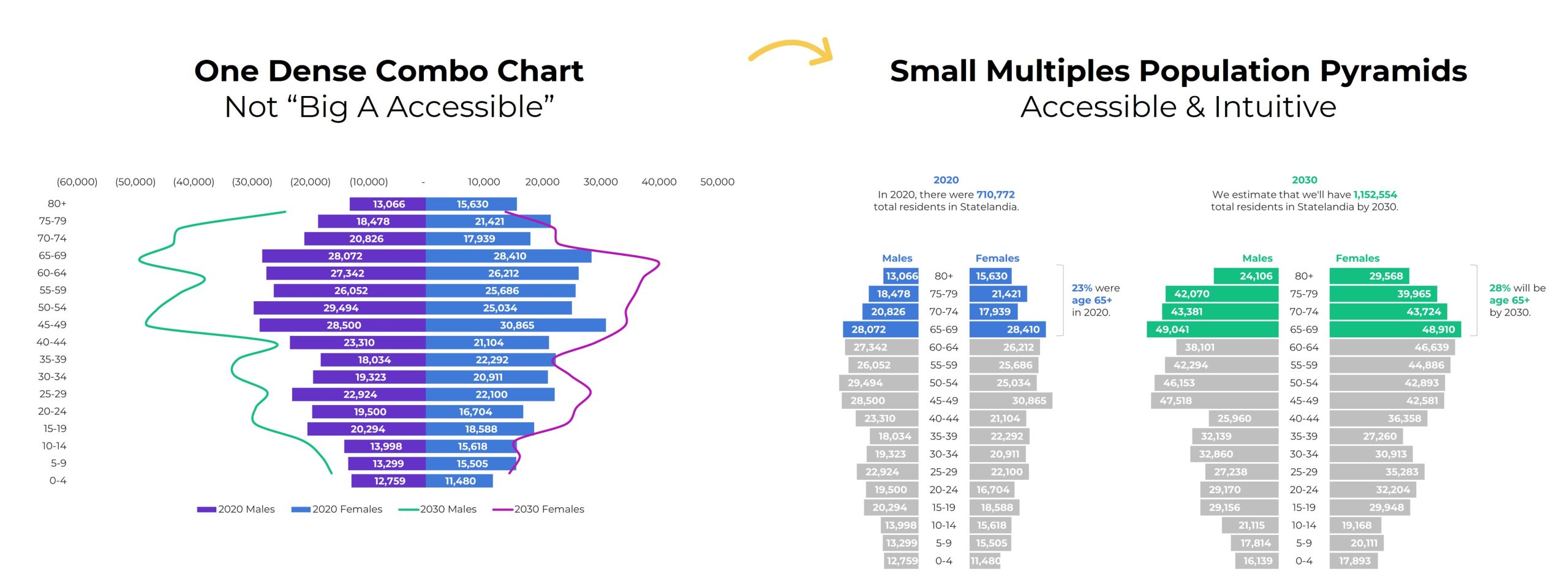
In this population pyramid makeover, we needed to:

  • use two brand colors, one for each timeframe, and
  • apply a dark-light storytelling emphasis to each pyramid.

Your Turn

What types of color questions do you have? Comment below..

Written by cplysy · Categorized: depictdatastudio

Oct 01 2024

Renegotiating Your Yes in Evaluation

The post Renegotiating Your Yes in Evaluation appeared first on Elizabeth Grim Consulting, LLC.

Written by cplysy · Categorized: elizabethgrim

Sep 27 2024

Data Visualization Applications: Pie Charts

This article is rated as:


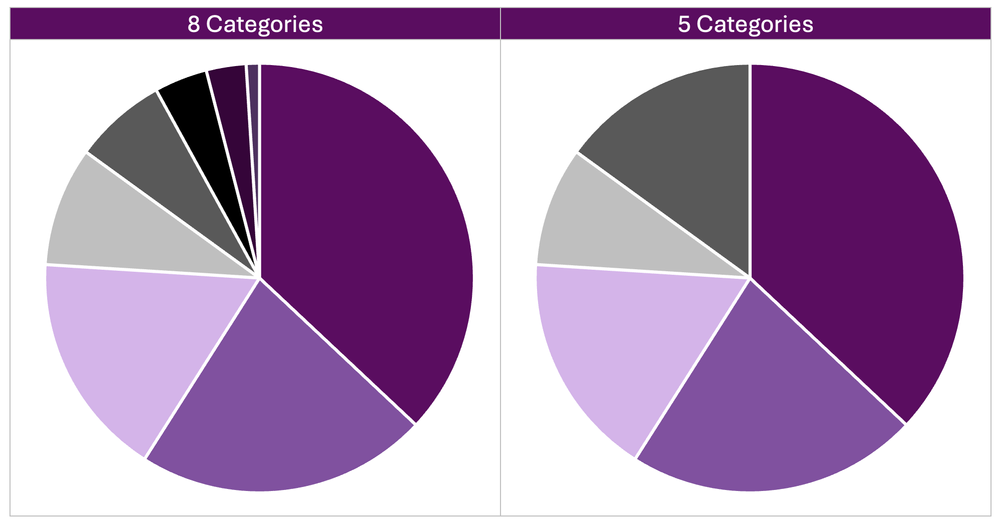
Pie charts are useful for visualizing proportions of a whole, making it easy to compare the relative sizes of categories. However, pie charts have a somewhat bad reputation because of their potential to misrepresent data, especially when there are too many categories or when differences between slices are subtle. This leads to visual clutter that is difficult to interpret. That said, pie charts can still be effective when applied properly. They work best with few, distinct categories, where differences between slices are visually apparent. When used sparingly and appropriately, pie charts can be an effective means of visualizing categorical data. 


When used appropriately, pie charts offer several benefits:

  • Simplicity: They present data in a straightforward, familiar format that can be quickly understood.

  • Visual Appeal: Pie charts are often visually engaging, making data presentation more appealing.

  • Quick Insights: They provide immediate insights into data composition, highlighting categories with the largest proportions.

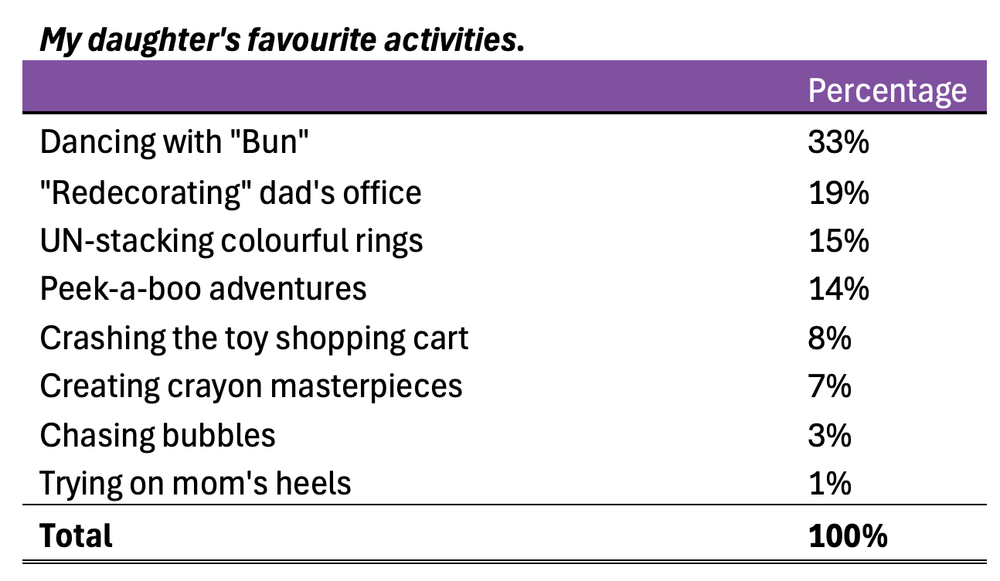
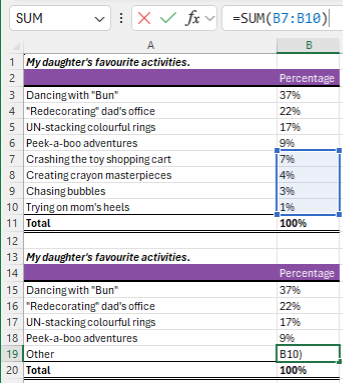
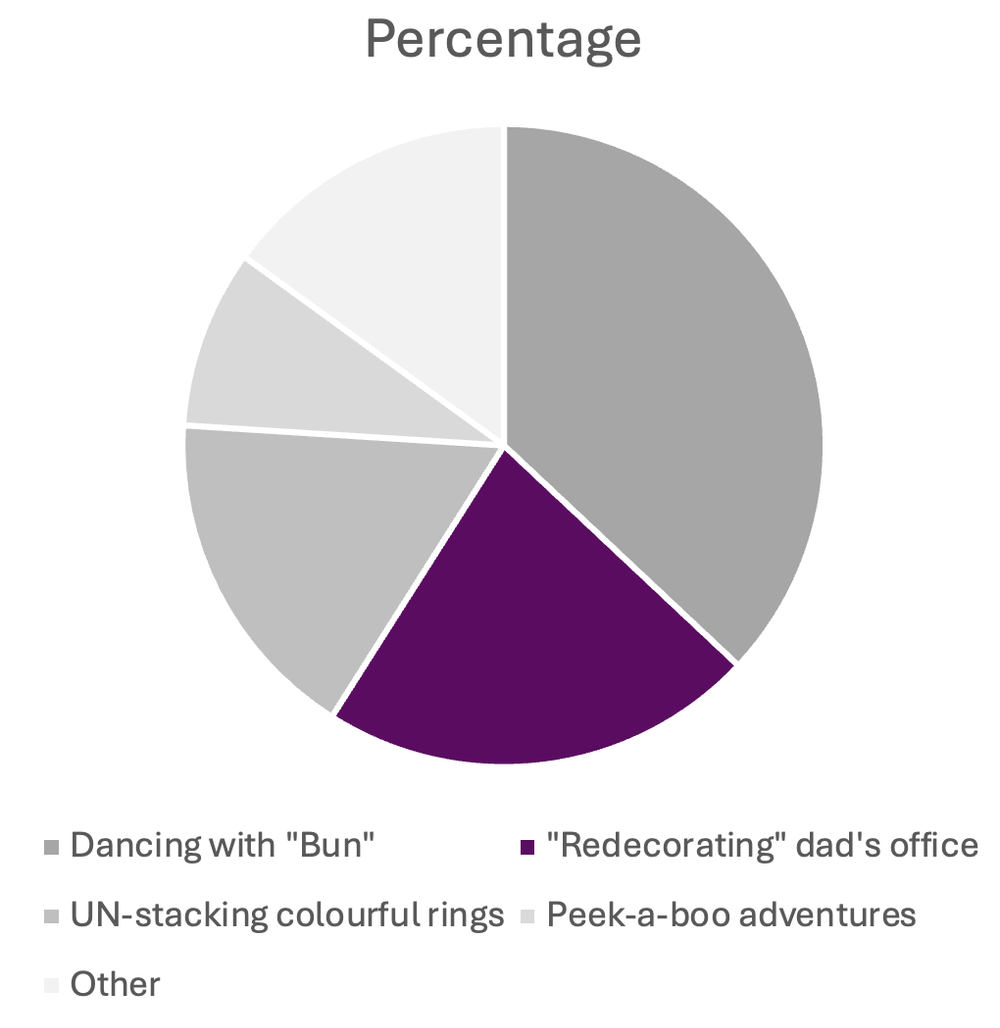
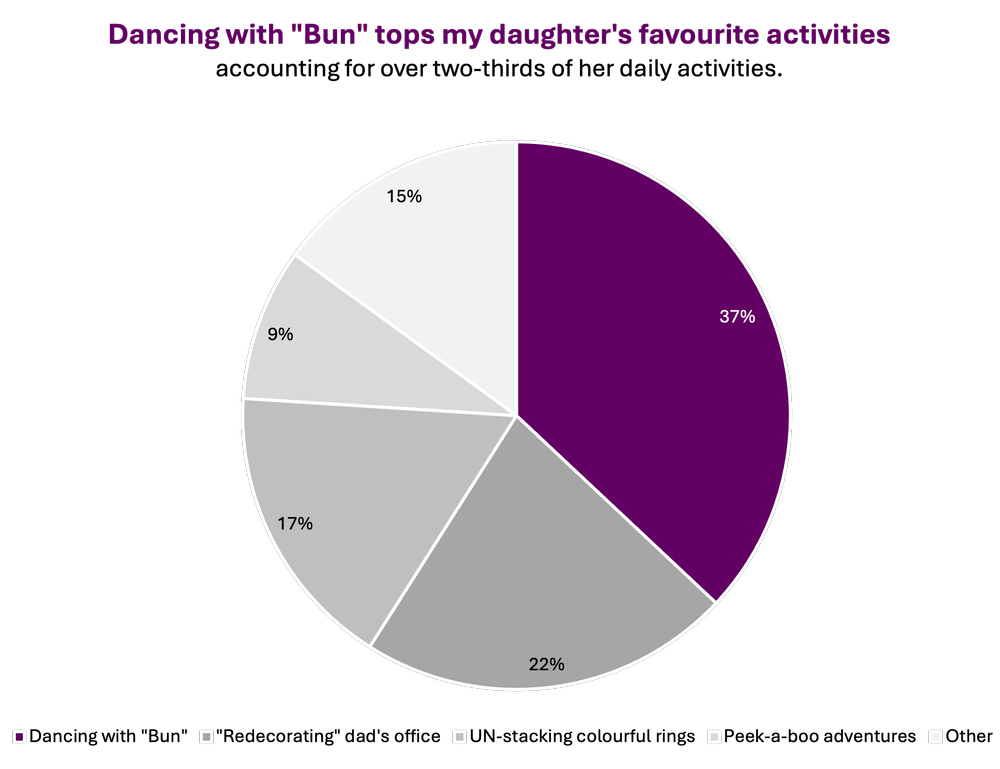
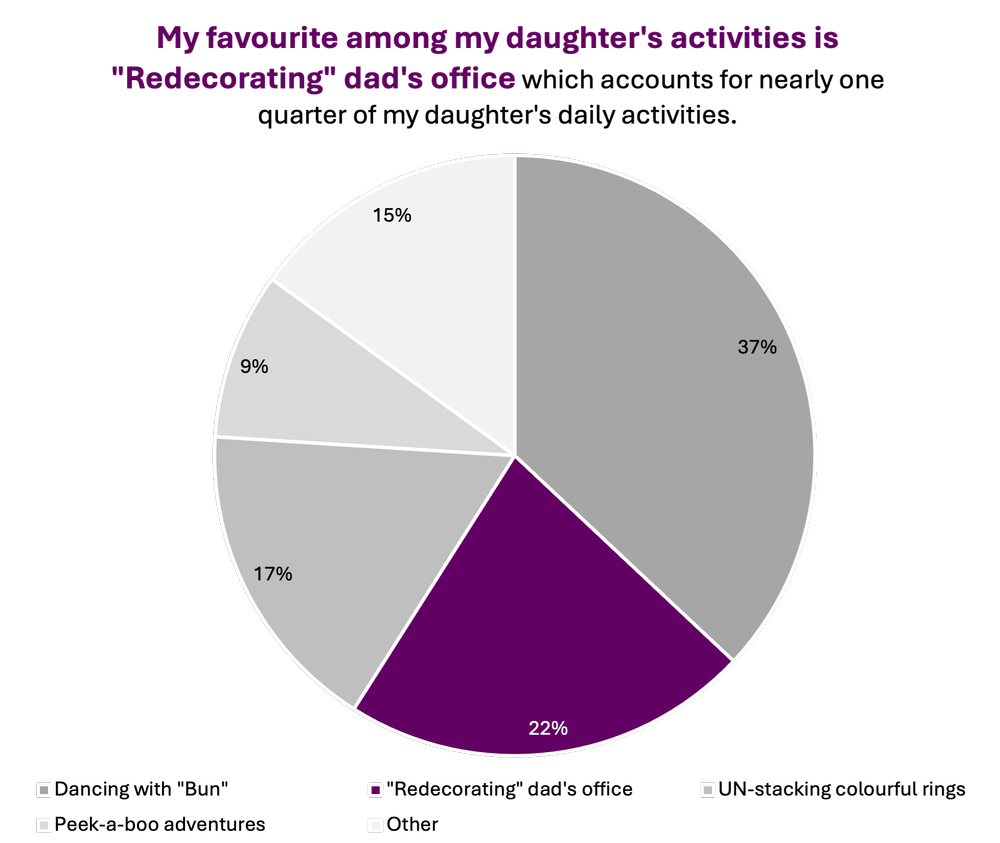
Here we’ll show you how to use pie charts effectively to improve your data storytelling and avoid common but inappropriate uses. For this article, I have compiled some real-world data inspired by the current state of my office. I have created a list of my daughter’s favourite activities, including – “Redecorating” dad’s office – as he attempts to write this article.


For reference, we have several additional resources, including a “Data Viz Decision Tree Infographic”, on Eval Academy to assist in selecting the appropriate data visualization and preparing data for effective data visualization:

  • The Data Cleaning Toolbox

  • Let Excel do the Math: Easy tricks to clean and analyze data in Excel

  • How to combine data from multiple sources for cleaning and analysis

  • A Beginner’s Guide to PivotTables


Data Preparation

This article assumes that data are already prepared in a clean and organized format (see below). It is important that the sum of all categories equal 100%. Pie charts are ineffective at visualizing data exceeding 100%, as they are designed to present data as a proportion of a whole.


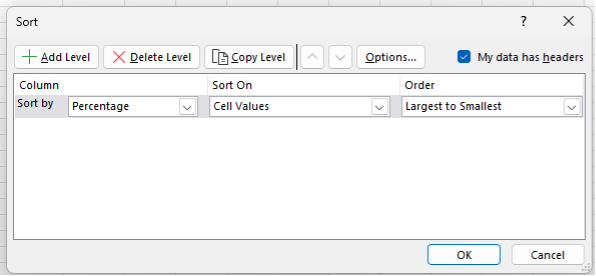
To get the most out of your pie chart, sort your data from largest to smallest proportion. This will improve the look of the pie chart (even before we clean and improve the default Excel output).

  1. Highlight the data table.

  2. Navigate to Data > Sort.

  3. Sort by > Percentage from largest to smallest.


Initial Chart Selection

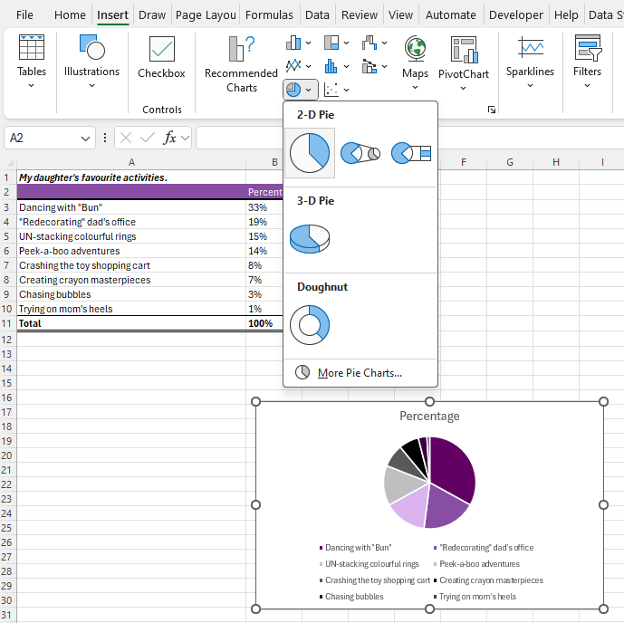
  1. Highlight the data to be included in the pie chart.

  2. Navigate to Insert along the top ribbon of Excel.

  3. Within Insert go to Charts > 2-D Pie > Pie (a basic Excel-formatted chart should appear).

IMPORTANT: Never use the 3-D Pie chart option. 3-D charts are rarely a good idea, and 3-D Pie charts, particularly, hinder interpretation as relative proportions are more difficult to distinguish.


Applying Data Visualization Best Practices

We now have a pie chart. However, this initial pie chart can be significantly improved using data visualization best practices.

Improve the Appearance

Aggregate Categories

You’ll immediately notice that this example has too many slices. Pie charts are much better at visualizing data with fewer slices. This can be accomplished by aggregating categories into broader, overarching categories (i.e., aggregating like categories together) or combining smaller percentages into an “Other” category to improve visualization (e.g., the smallest proportions to bring categories to five or fewer). For this example, we’ll use the latter approach to aggregate some of the smaller categories into an “Other” category.

  1.  Create a new table keeping the top four categories as is.

  2. Type in Other as the fifth category.

  3. Use the SUM function to sum up the bottom four categories.

Note: You do not need to have five categories. However, more than five categories usually detract from the message being delivered in a pie chart. It is better to have fewer slices and to highlight a few categories.

 4. Repeat the steps from Initial Chart Selection

Highlight Key Data Points (& Mute Other Data Points)

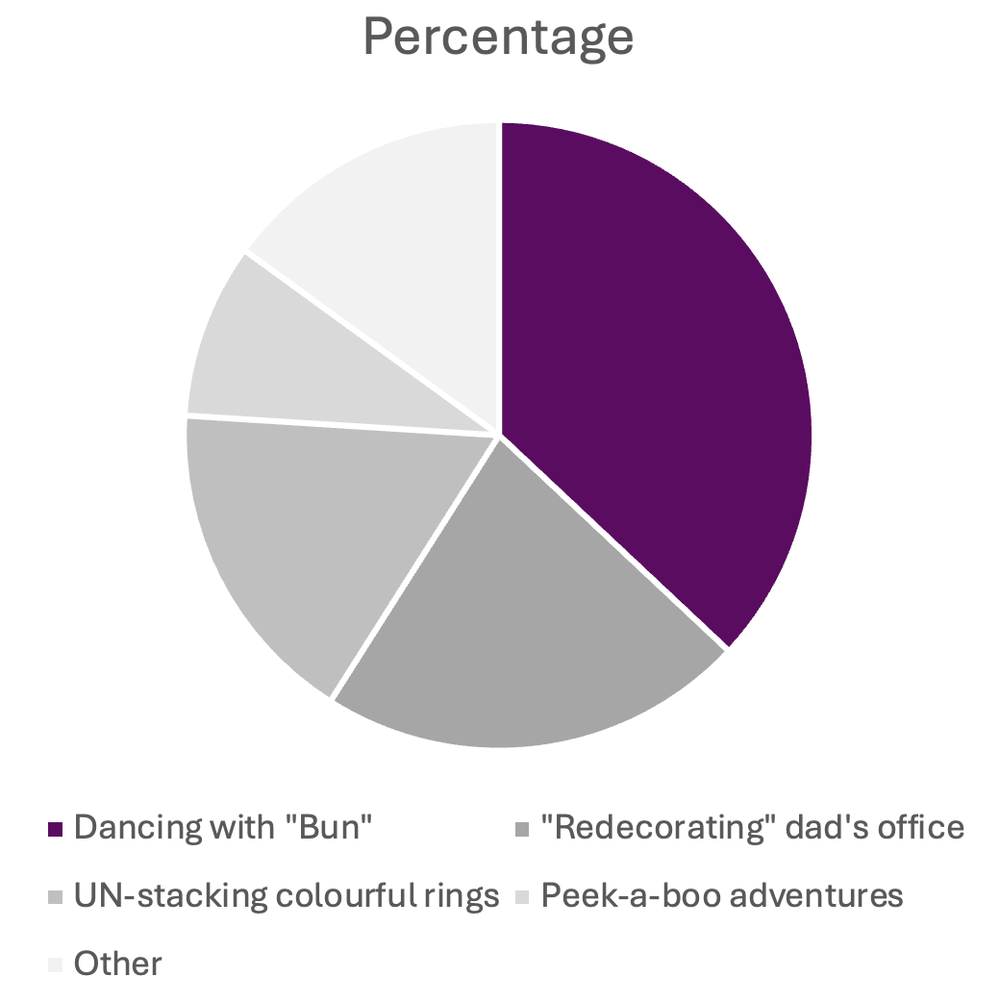
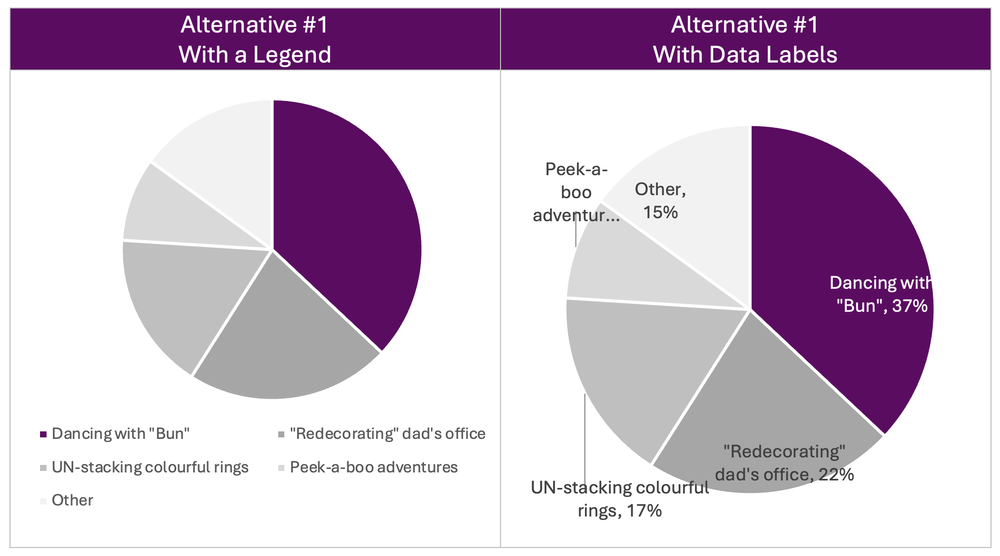
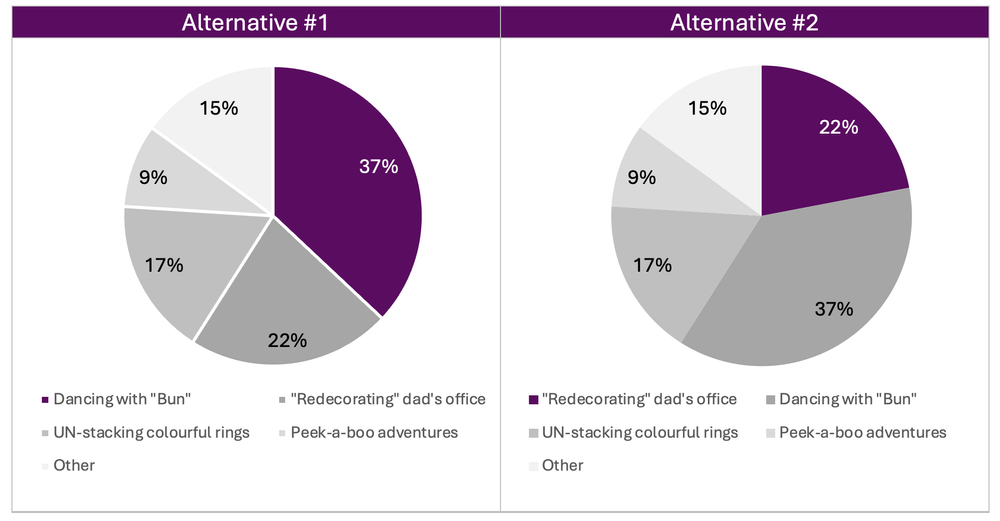
With categories reduced, I will provide an additional two alternatives for presenting the data: (1) highlight my daughter’s favourite activity and (2) highlight dad’s “favourite” activity. The largest proportion is often most important, but not always. Sometimes smaller proportions, or specific categories, are of most interest.


Alternative #1: Daughter’s Favourite Activity

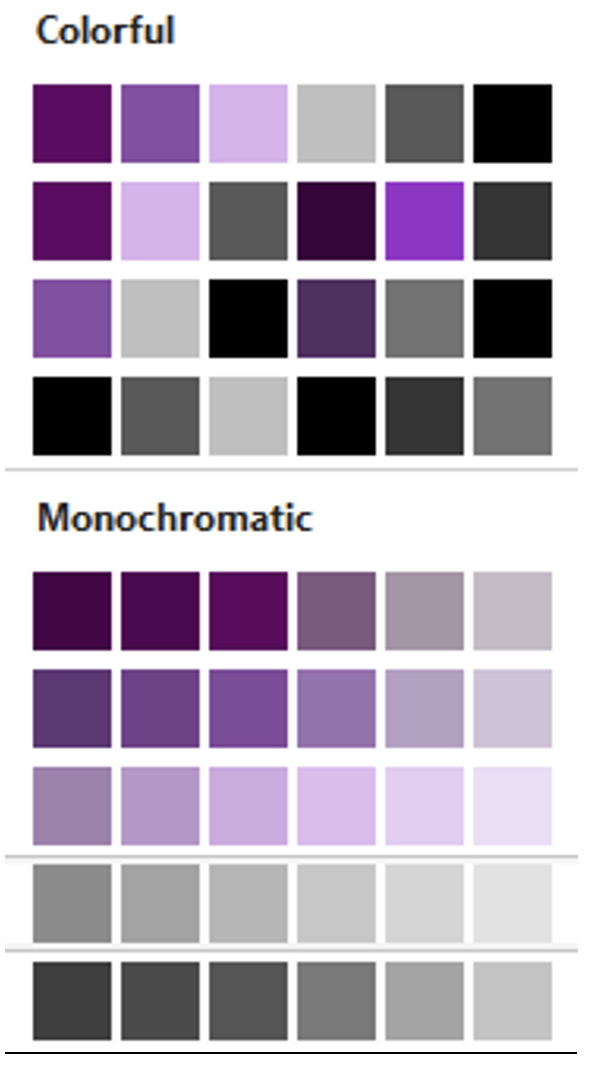
  1. Click on the pie chart and navigate to Chart Design > Change Colors.

  2. Select a monochromatic greyscale palette.


Note: This is a quick approach to quickly mute all slices. However, you may want more contrast in the muted cells. For this, you may select each slice individually and select a specific shade of grey or another muted (i.e., low saturation) colour of choice.

3. Now right-click on the largest slice and change the colour to your primary colour of choice.


Alternative #2: Dad’s “Favourite” Activity

  1. The same as Alternative #1, click on the pie chart and navigate to Chart Design > Change Colors.

  2. Select a monochromatic greyscale palette.

  3. Right-click on the largest slice and change the colour to your primary colour of choice.


Improve the Legend

For many charts, I would typically recommend deleting the Legend and labelling directly onto the chart or creating a custom legend. This includes pie charts when labels are short and categories few (e.g., a survey with Yes, No, and Unsure response categories). However, pie charts are one of the few charts that benefit from a legend when data labels are long or slices many to avoid overcrowding the slices with labels.

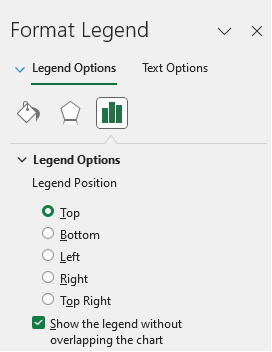
  1. You may wish to move the legend depending on the space available. To accomplish this, right-click on the legend below the pie chart.

  2. Go to Format Legend… and select the Legend Position that works best for your chart.


Insert Data Labels

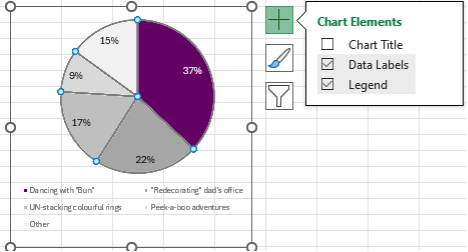
One of the pitfalls of a pie chart is that it is difficult to distinguish the relative difference in size between slices. Therefore, it is beneficial to label all slices with their relative sizes (i.e., count or proportion).

  1.  Navigate to Chart Elements and toggle on Data Labels.


Resize the Chart

  1.  Left-click on the chart and navigate to the Format tab at the top of the spreadsheet.

  2. Resize the Shape Height and Width to improve the look of the chart.


Adjust Fonts

1. Left-click on the chart to highlight the pie chart.

2. In the Home tab, select your Font of choice.

  • Sans serif fonts are best for charts. Ideally, chart fonts will match the rest of a report/ presentation to ensure consistency.

3. Adjust the Font Size to at least 9 pt.

  • 9 pt is our recommended minimum font size for charts.


Improve the Chart Title

The column heading (in this example, “Percentage”) will automatically default as the chart title. Update the chart title with something that is both descriptive and informative.

 1. Left-click on the Chart Title.

2. Type in your improved title and hit Enter.

  • The chart title may be edited within the function bar at the top of your spreadsheet.

  • You may also opt to right-click on the chart title and Edit Text to improve the chart title.

  • You can enter a subtitle by using Alt + Enter to move down a line.

3. Emphasize the chart title by increasing the main title to 14 pt font.

  • A subtitle, if you have one, can be deemphasized using a slightly smaller 12 pt font.

  • When drafting the title within the line chart, you will have to highlight the specific section of text for which you wish to apply changes. Otherwise, all changes to the font will apply to the whole title.

4. Use your primary colour to further emphasize the main point within the chart title.


Alternative #1


Alternative #2


Final Thoughts

Pie charts are a useful tool for visualizing proportions when used appropriately. They excel when dealing with data that has a limited number of categories, less than five is best. They offer simplicity, visual appeal, and the ability to provide quick insights into data composition. However, they should be used sparingly and with intention to gain the most impact, and never ever in 3D!

Written by cplysy · Categorized: evalacademy

Sep 27 2024

Is Good Program Design Essential for a Quality Evaluation?

This article is rates as:


I have asked myself this very question. Can I design and deliver a quality evaluation on a program or project that isn’t well designed or implemented or maybe isn’t managed appropriately? There are lots of reasons these may be true, and I’m not trying to throw project managers under the bus, but I have found myself in the situation of trying to evaluate projects that aren’t going well.

Of course, formative, process, implementation, or even developmental evaluation may all be very helpful to get an errant program back on track, but let’s think about outcome evaluation. Can an evaluator comment on whether or not a program has achieved its intended outcomes if it wasn’t implemented as intended?

I will say that good program design, which I also encounter often, lays the foundation for a quality evaluation. With good program design and implementation, the learnings presented in the evaluation are usually confidently accurate and actionable. If good program design and implementation makes good evaluation so easy, what impact does the opposite have?


Program Design and Impact on Evaluation

A good design serves as a blueprint that guides the implementation process and aligns the efforts of all partners. Here are some key elements that constitute a good program design (and implementation), and how they impact your evaluation:

Elements of Good Program Design Impact on Evaluation
Clear, Attainable Objectives: Programs must know what they are trying to achieve and have agreement on that understanding. These objectives (or goals or targets or aims or outcomes) provide direction against which progress can be measured. I worked on a project where one partner group thought the primary goal of the project was to test a new implementation approach so that it could be used for future innovations, while another thought the goal of the project was to assess the effectiveness of this particular innovation in a specific setting. These are different objectives. After learning mid-project about this divergence in understanding, my evaluation scrambled and tried to do both but ultimately fell short of some partner expectations. The divergence in understanding also led to different priorities amongst the project team, leading to a less-than-cohesive implementation strategy. Without clear, agreed upon objectives evaluators may struggle to determine what constitutes success, leading to ambiguous or inconsistent evaluations. Similarly, programs with vague, overly broad, or clearly unattainable objectives make it difficult to measure success and may lead to subjective or inconclusive findings.
Logical Framework: No, I don’t mean a logic model or theory of change, although those would check this box, but at the very least, good program design should be able to link the activities to the objectives: knowing that if they engage in X activities that Y is a reasonable outcome. Doing 100 jumping jacks is unlikely to improve your math skills, but sometimes it feels like that’s what evaluators are asked to measure. By clearly linking inputs, activities, and outcomes, evaluators can better determine the cause-and-effect relationships. This is crucial for understanding what aspects of the program are effective and why. Without this logical framework evaluators may find it hard to determine whether observed changes are due to the program or other external factors.
Leadership: Good projects need good project leaders. There are a couple of important points here: 1) that a project leader exists at all ensures that the project has the attention it needs to stay on track, and 2) an experienced project lead is likely skilled at identifying and mitigating risks, proactively planning for anticipated challenges and having clear answers for roles, responsibilities, or other project questions. A dedicated project lead can work with an evaluator to provide guidance that the evaluation is meeting their needs, to provide feedback about feasibility, and to champion the evaluation with staff or team members. A good project lead enables data collection by making connections, opening opportunities, and knowing who to go to for what. Poor or non-existent leadership can be difficult to overcome for evaluators. Evaluators require a dedicated point-person or liaison, someone who is tasked with being the decision-maker. Poor leadership may leave evaluators to make decisions that are unfeasible or take the evaluation in the wrong direction. Inexperienced leads may also introduce ethical risk as well, which may come into play around data sharing or putting participants at risk.
Engagement: Good program designs include engagement: who and when. Good program designs will have communication plans or even a RACI matrix (or something similar) so that everyone knows what they need to know, when (or before!) they need to know it. Very little can be done without engagement. I once evaluated a project in healthcare. When it came time to ask the frontline staff what they thought of this novel program, most of them had never heard of it. I couldn’t believe it. How could an entire program be implemented in their day-to-day setting without their knowledge? Poor engagement was the answer. The project team hadn’t focused on communication and engagement. As you can imagine, it’s hard to get the perspective of a key population group when they have no idea what you’re asking about. From a program perspective, poor engagement likely means poor implementation. These projects will likely lack people who buy-in and are willing to follow protocols or do the extra step. From an evaluation perspective, poor engagement can make it difficult to gather key perspectives, to access the right people, and even to access the right data.
Proper Resource Allocation: Adequate and appropriate allocation of resources, including time, money, and personnel, is essential. Sure, the budget for evaluation may be smaller than we’d like but we know, and often agree to that going in. One of the challenges around budgets is when clients start asking, or expecting!, more than the original agreement. We all know that things change, and plans are rarely followed exactly. It can be difficult for an evaluator to manage a budget when implementation plans go too far off track. Sometimes it all comes down to capacity. Human capacity to manage evaluations can be a hugely limiting factor. Availability can make or break a quality evaluation. Without that leadership discussed earlier, the evaluation will flounder. Without feedback from those doing the work, the evaluation is at risk of missing the mark or going off track. And time. I’d guess maybe 80% of my projects underestimate the time it takes to get things done. Share data? No problem, we’ll send that over … until three months pass and you’re trying to put together privacy impact assessments and still no data. Poor resource allocation leads to incomplete evaluations. The planned data capture activity is cancelled because we ran out of time. Or the document reviews don’t happen because no one took time to share them with you.
Plans to Use the Evaluation: Ok, I may be getting a little too evaluation focused here, but I do believe that good program design has an actual plan for the evaluation they’ve commissioned. That is, evaluation is not a box-checking exercise because it was mandatory in the grant agreement. I can usually tell when a project team actually cares about an evaluation because they have good answers to questions, and solid rationales. They’re quick to tell me things like “No, that’s not something I need” and also “How are you going to get this particular piece of information that I will need?” These are the groups that are on board with data parties or sense-making sessions. These are the groups that know, when you’re creating your evaluation plan, what deliverables they want. A well-designed program ensures that the evaluation addresses relevant questions and lead to actionable insights. It aligns the evaluation with the goals and needs of partners, making the findings more likely to be used for decision-making and improvement. On the other hand, when a group isn’t familiar with evaluation or doesn’t have a clear plan, you’ll find them saying yes to anything you propose, risking your evaluation timeline and budget. You’ll find these are the groups that spring asks on you unexpectedly, “Hey, uh, can you do a presentation to the board next week?” or “I just had the thought that maybe we should do a public survey!” Without a plan for the evaluation, your evaluation gets blown around in the wind, trying to accommodate whims.

So, what do you do if you think the project you have been tasked with evaluating is poorly designed, implemented or managed?

Of course, the obvious answer is that we report these things. We can always report that no, outcomes were not achieved, or that there was no implementation fidelity.

“But to me, the question is actually about the role of the evaluator: is it within the scope of our role to raise these issues? ”

My background is heavy in quality improvement, with light touches in implementation science so it’s second nature to me to want to marry these lenses with my evaluation lens.

My answer to these questions is often then same: it depends. It may depend on whether or not there is a person you could even raise it to. Without a clear person in charge, your concerns may have nowhere to land. It may depend on your relationship with that person. It may depend on what stage of program design and implementation the evaluation was brought in; being at the design table, it makes far more sense to share concerns than if you’re brought in right at the end!

I think one strategy is to play the fool. As Shelby writes, it is our job to ask questions. It’s likely that you can raise your concerns in the form of a question, “Can you share your communication strategy with me? I want to make sure the survey I send to frontline staff covers all the ways you engaged them.” This may be a subtle(?) way to highlight that there is no communication or engagement strategy for frontline staff.

Another strategy is to use your evaluation tools to highlight any of these risks or gaps. Engaging the team in developing a logic model or theory of change will help commitment to obtainable objectives and ensure a logical framework. Developing a stakeholder matrix may help to ensure adequate oversight and engagement with partners.

Good program design isn’t essential for a good evaluation, but it does provide the necessary foundation for clear, consistent, and relevant evaluations that produce actionable insights. A well-designed program knows what it wants to achieve, has a clear workplan supported with leadership and resources, engages and communicates with all partners, and has a mind toward ‘what next?’. Evaluations can support this type of program with evidence to support decision-making, continuous improvement, and greater impact.


Do you have a story of evaluating a poorly designed or poorly implemented program? Share it with us!

Written by cplysy · Categorized: evalacademy

  • « Go to Previous Page
  • Go to page 1
  • Interim pages omitted …
  • Go to page 32
  • Go to page 33
  • Go to page 34
  • Go to page 35
  • Go to page 36
  • Interim pages omitted …
  • Go to page 310
  • Go to Next Page »

Footer

Follow our Work

The easiest way to stay connected to our work is to join our newsletter. You’ll get updates on projects, learn about new events, and hear stories from those evaluators whom the field continues to actively exclude and erase.

Get Updates

Want to take further action or join a pod? Click here to learn more.

Copyright © 2026 · The May 13 Group · Log in

en English
af Afrikaanssq Shqipam አማርኛar العربيةhy Հայերենaz Azərbaycan dilieu Euskarabe Беларуская моваbn বাংলাbs Bosanskibg Българскиca Catalàceb Cebuanony Chichewazh-CN 简体中文zh-TW 繁體中文co Corsuhr Hrvatskics Čeština‎da Dansknl Nederlandsen Englisheo Esperantoet Eestitl Filipinofi Suomifr Françaisfy Fryskgl Galegoka ქართულიde Deutschel Ελληνικάgu ગુજરાતીht Kreyol ayisyenha Harshen Hausahaw Ōlelo Hawaiʻiiw עִבְרִיתhi हिन्दीhmn Hmonghu Magyaris Íslenskaig Igboid Bahasa Indonesiaga Gaeilgeit Italianoja 日本語jw Basa Jawakn ಕನ್ನಡkk Қазақ тіліkm ភាសាខ្មែរko 한국어ku كوردی‎ky Кыргызчаlo ພາສາລາວla Latinlv Latviešu valodalt Lietuvių kalbalb Lëtzebuergeschmk Македонски јазикmg Malagasyms Bahasa Melayuml മലയാളംmt Maltesemi Te Reo Māorimr मराठीmn Монголmy ဗမာစာne नेपालीno Norsk bokmålps پښتوfa فارسیpl Polskipt Portuguêspa ਪੰਜਾਬੀro Românăru Русскийsm Samoangd Gàidhligsr Српски језикst Sesothosn Shonasd سنڌيsi සිංහලsk Slovenčinasl Slovenščinaso Afsoomaalies Españolsu Basa Sundasw Kiswahilisv Svenskatg Тоҷикӣta தமிழ்te తెలుగుth ไทยtr Türkçeuk Українськаur اردوuz O‘zbekchavi Tiếng Việtcy Cymraegxh isiXhosayi יידישyo Yorùbázu Zulu