• Skip to main content
  • Skip to footer
  • Home

The May 13 Group

the next day for evaluation

  • Get Involved
  • Our Work
  • About Us
You are here: Home / Archives for allblogs

allblogs

Sep 12 2023

Consejos para la facilitación de grupos

Dentro de nuestra serie sobre «Facilitación«,  completamos el post del gran facilitador y persona Ewen Le Borgne «10 mandamientos de la facilitación grupal«

Como él mismo indica y queda claro en su forma de facilitar, a Ewen no le gustan las reglas. No le gustan las limitaciones. Sin embargo, en contra de sus principios, y por suerte para nosotr@s, simples mortales sin tantos principios y necesitados de guía(s), Ewen nos ofrece sus  «mandamientos» de facilitación.

Aquí están sus mandamientos o consejos:

1. «Mantengámonos alejados del contenido, gestionemos el proceso»

El papel de un facilitador es reflejar el mantra “ayudar a todos a pensar lo mejor posible”.

2. Seamos la única persona que trabaje ABSOLUTAMENTE en el interés de TOD@S

Al centrarnos en el proceso y no adoptar ningún sesgo en ninguna conversación involucrada, el facilitador puede liberarse para prestar atención a cómo lo están haciendo todos y proteger el espacio seguro y el tiempo de todos para expresarse.

3. A lo largo del camino, desarrollemos para todos la «alfabetización del proceso«

Como facilitador@s poseemos una sólida visión, mucho conocimiento y o habilidades críticas del proceso.

4. Siempre que podamos, involucremos y co-facilitemos con otr@s, preferiblemente personas que sean miembros del grupo con el que estamos trabajando. De esta manera, no solo estamos compartiendo un poco de alfabetización del proceso con tod@s, sino que desarrollamos, fundamentalmente a través de la experiencia conjunta con ell@s, gran parte de ese proceso de alfabetización con personas que desempeñarán directamente un papel co-facilitador en el proceso.

5. No nos enamoremos de nuestros propios intereses, deseos, aficiones, no se trata de nosotros sino de ELL@S

Cuando trabajemos seriamente con un grupo,  respetemos nuestro compromiso con ellos y sigamos pensando continuamente en lo que hay para ell@s.

6. Recuerda tu yoda interior: abraza tu yo ético

Cuando estemos en la sala, facilitando, no tenemos espacio para colorear nuestras declaraciones política o éticamente. Pero antes, al diseñar el proceso, tenemos derecho, y quizás deber, de seguir nuestro propio código ético: pensando particularmente en cómo ve la dinámica de inclusión, diversidad, representación, toma de decisiones transparente. Seamos muy conscientes de cómo se contribuye a un entorno y una dinámica saludables (o no tan saludables) en los grupos con los que trabajamos al no hacer algunas preguntas críticas por adelantado.

7. Seamos conscientes de quién somos: el «yo como instrumento»

Conócete a ti mism@ y trabaja contigo mism@ en la sala. Sepamos qué es lo que desencadena tanto positiva como negativamente. Lo que es probable que nos haga más entusiastas y menos avers@s a los riesgos, y lo que lo desconcertará. Cuanto más nos conozcamos a nosotr@s mism@s, con todas nuestras debilidades y fortalezas, más podremos servir a los demás de manera plena e incondicional.

8. Seamos la facilitación que se quiere ver en todo lo que hacemos.

No limitemos nuestra práctica de facilitación a los eventos y las iniciativas de colaboración en las que trabajamos. Apliquémoslo a nuestra vida, a nuestro trabajo y siempre que sea deseable a nuestras relaciones personales. Brindemos apoyo, seamos útiles, escuchemos activamente, seamos conscientes de los resultados, seamos colaborativos.

9. Autorreflexión y superación personal

“Aprendemos fallando hacia adelante”. El pensamiento de crecimiento impulsa a l@s mejores facilitador@s. Y además, es posible que necesitemos la retroalimentación de otros para ayudarnos a cubrir nuestros puntos débiles y ayudarnos a crecer, lo que allana el camino para el último, pero ciertamente no el menor de estos mandamientos …

10. ¡Trabajemos con (muchos) otros y seamos agradecidos!

Facilitar es inherentemente colectivo. Ya sea que ayuden a diseñar, co-facilitar, documentar, administrar el tiempo, administrar las plataformas técnicas, revisar los trabajos, cuanto más involucre a los demás, más activa se vuelve toda la multitud y es más probable que inviertan más de sí mismos en el tiempo que pasan juntos. y en la construcción de relaciones de calidad entre ellos.

Sigamos soñando con trabajar en grupos y con facilitar la colaboración

Written by cplysy · Categorized: TripleAD

Sep 11 2023

How to Make a Series of Matching Dashboards in Excel

Do you need a series of matching dashboards?

One per program, school, or state?

Copying and pasting is tedious and destined for typos.

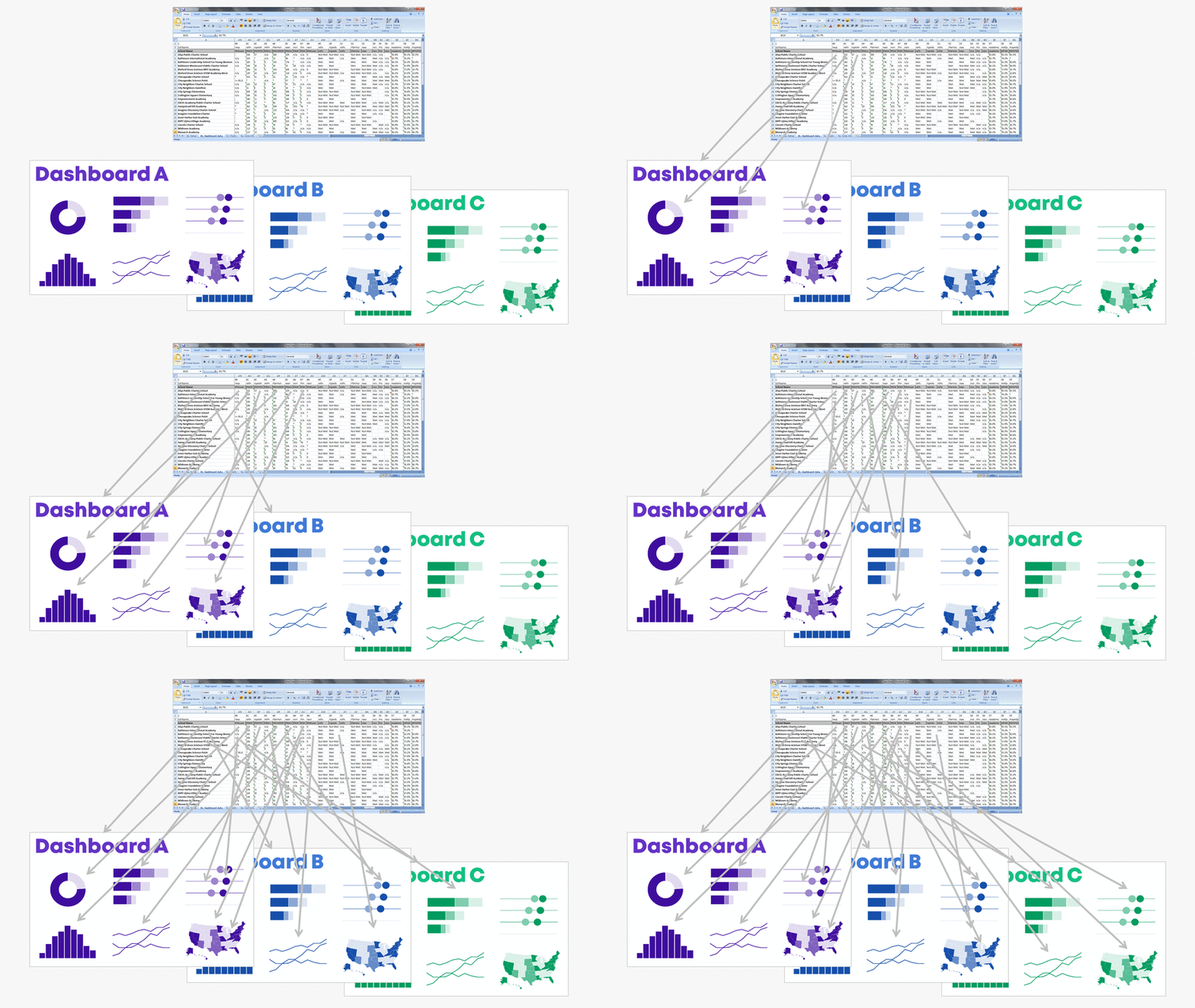
Instead, produce a series of matching dashboards through the magic of lookup functions and drop-down menus.

Save time with my automation process.

You’ll create one template and then auto-magically populate it with the rest of the data.

Want to give it a try?! Here’s how.

Step 0: Get Your Dataset into Excel

Let’s pretend we want one dashboard per program.

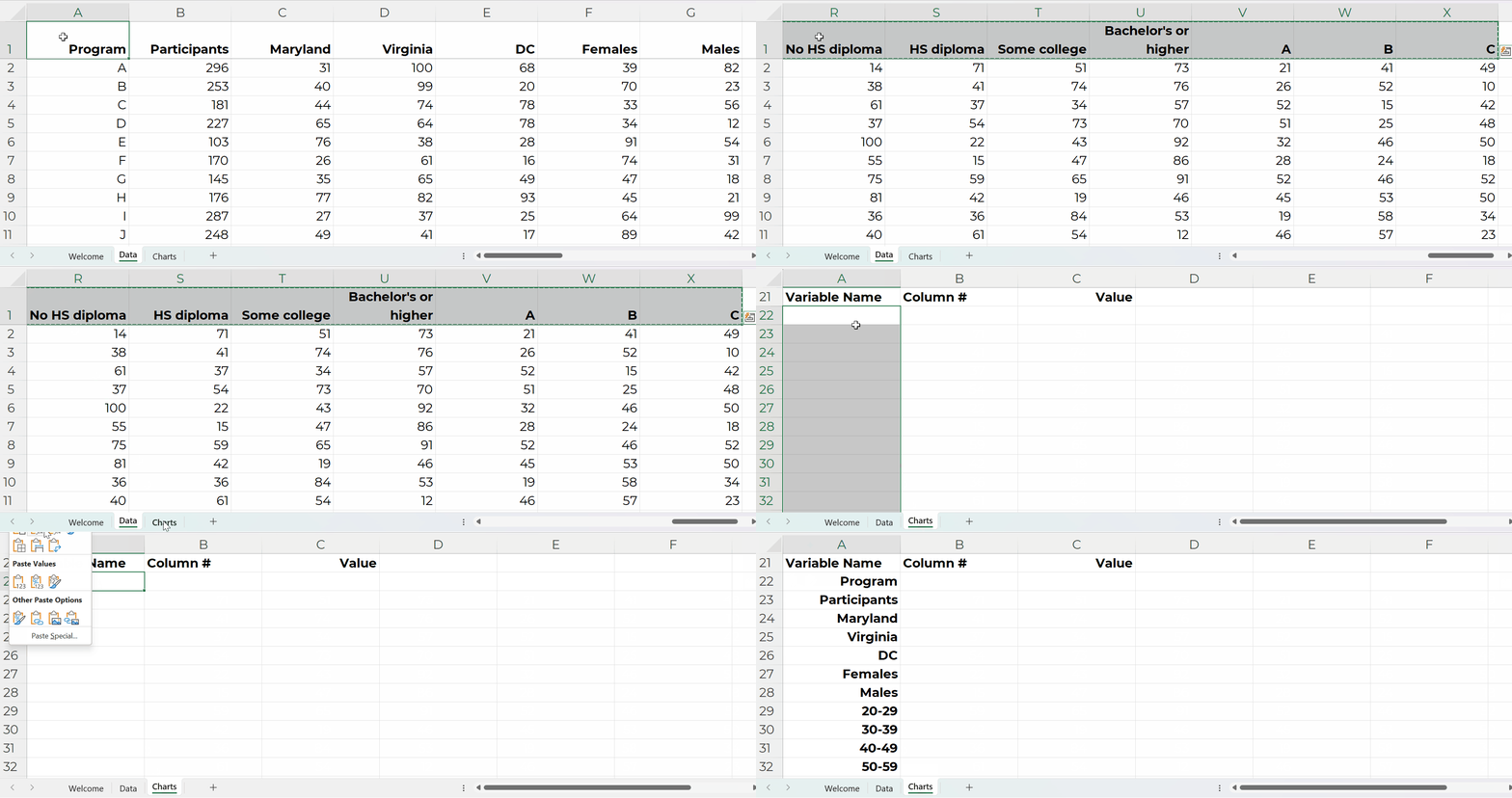
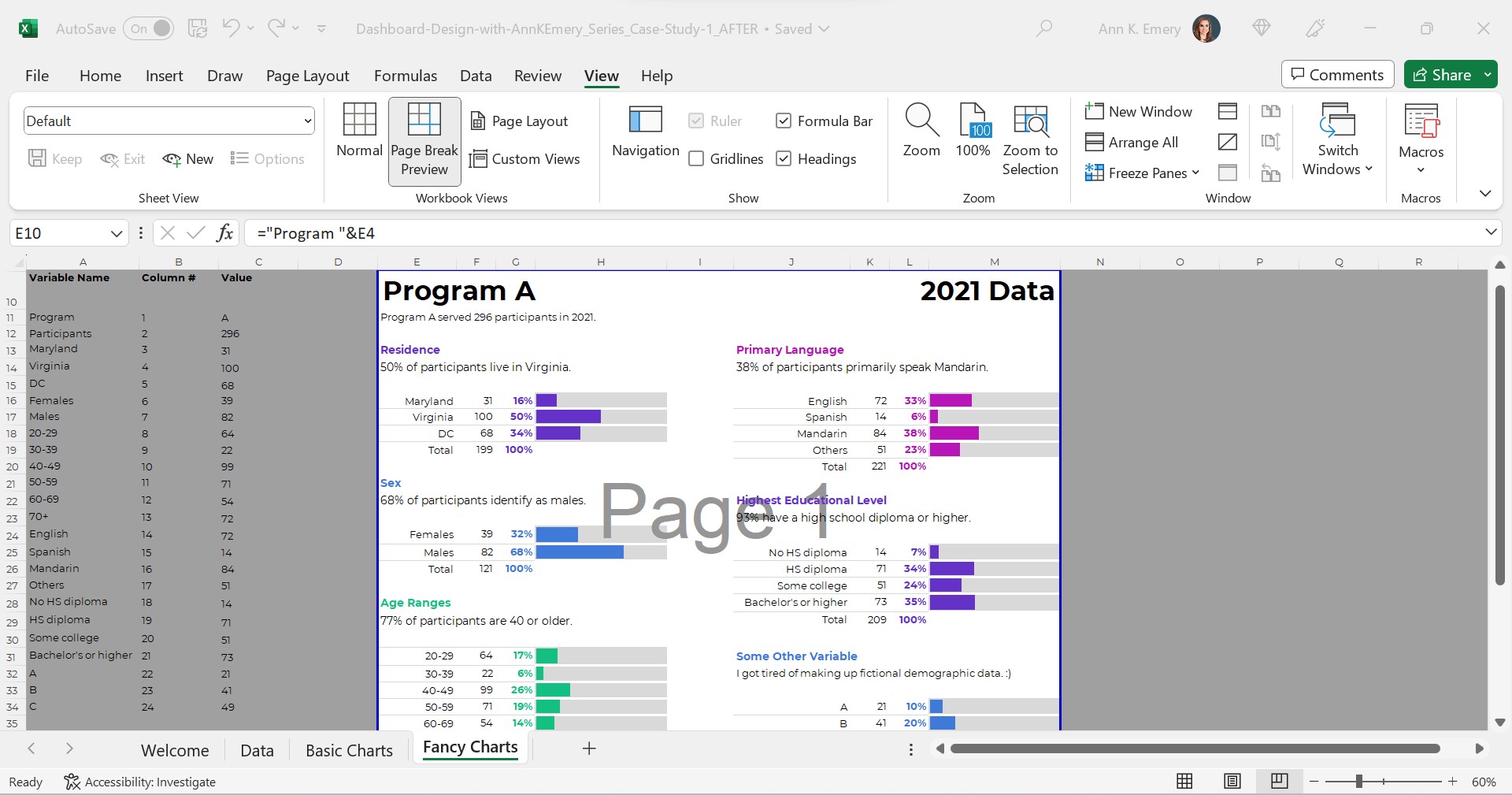
Our dataset might look something like this.

(These are fictional numbers, and they don’t add up to the correct denominators, so don’t look toooo closely, ha!)

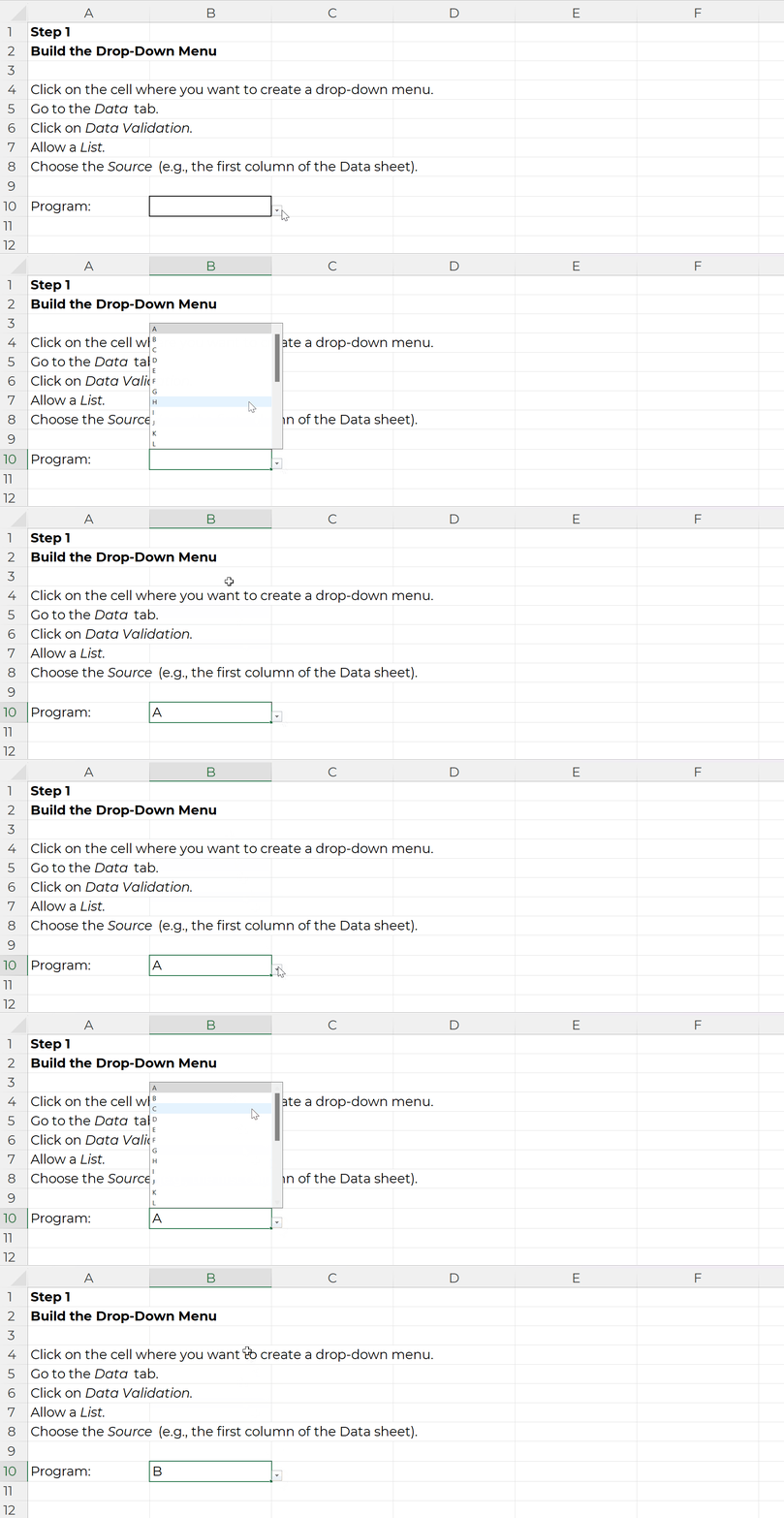
Step 1: Build the Drop-Down Menu

Click on the cell where you want to create a drop-down menu.

Go to the Data tab.

Click on Data Validation.

Allow a List.

Choose the Source (e.g., the first column of the Data sheet).

It’ll look like this:

Step 2: Build the List of Variables

In the Variable Name column, use Paste Special to transpose the headers from the Data sheet into this Charts sheet:

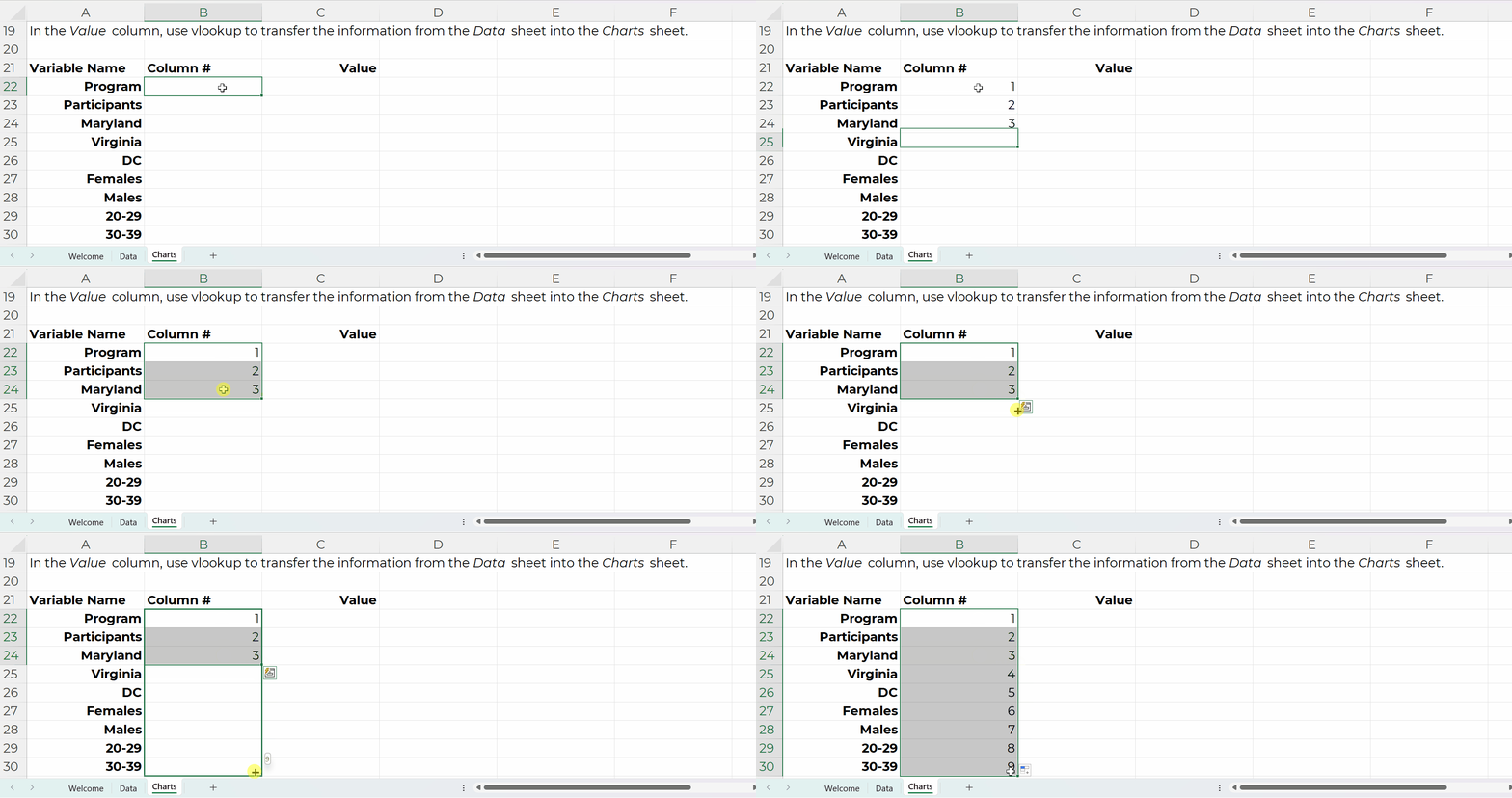
In the Column # column, tell Excel where that variable lives in the Data sheet.

For example, the Program name is in the first column of the Data sheet, so type 1.

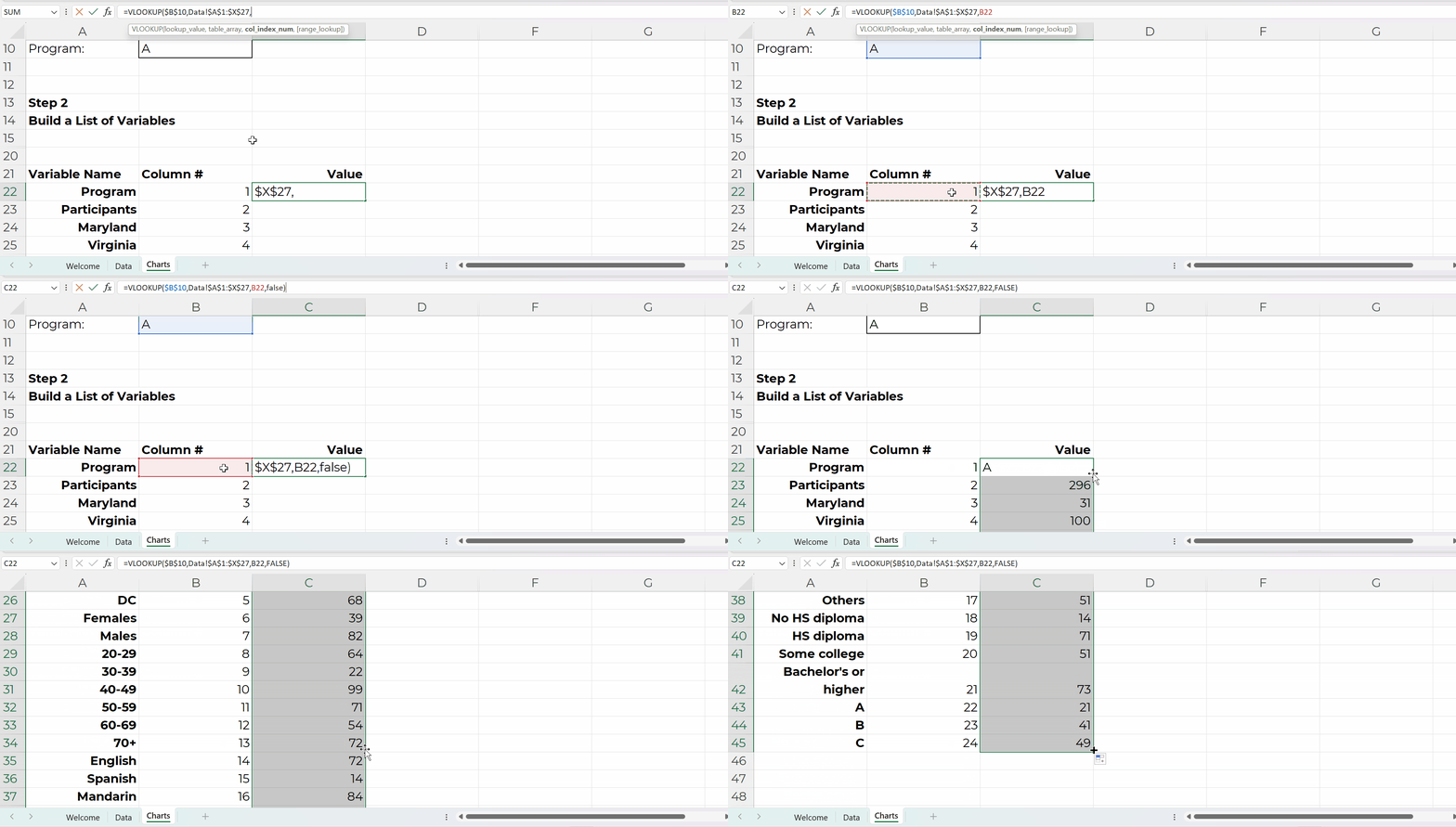
In the Value column, use vlookup to transfer the information from the Data sheet into the Charts sheet.

Step 3: Build the Charts

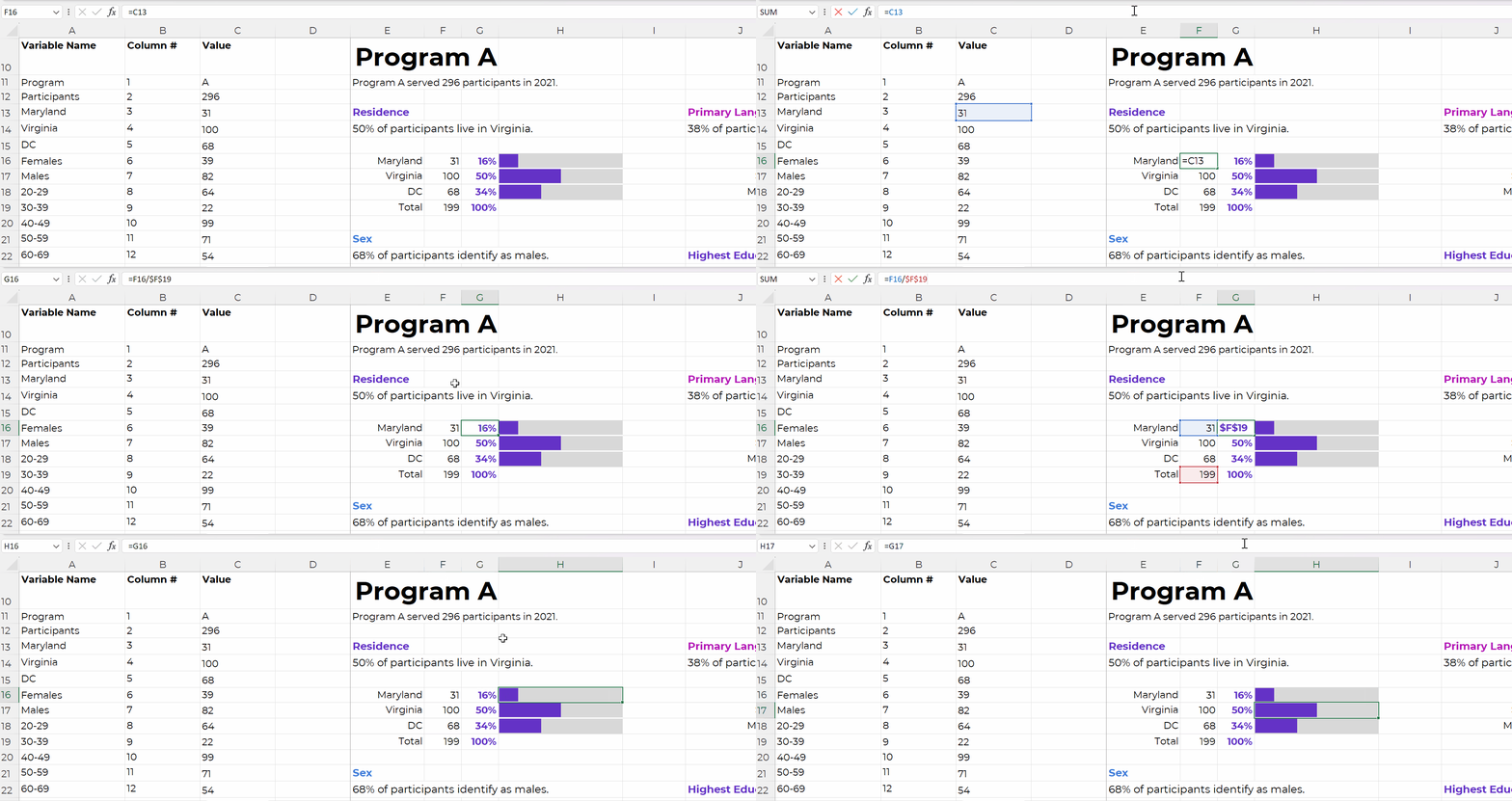
The charts are simply linked to the values off to the left, like this:

We’re obviously not limited to bar charts.

In real-life examples, I’ve used waffles, icon arrays, lines, donuts, lollipops, histograms, and choropleth maps.

I just wanted to keep the charting piece as simple as possible for this example (so your brain could focus on the links between the drop-downs, lookup formulas, and charts).

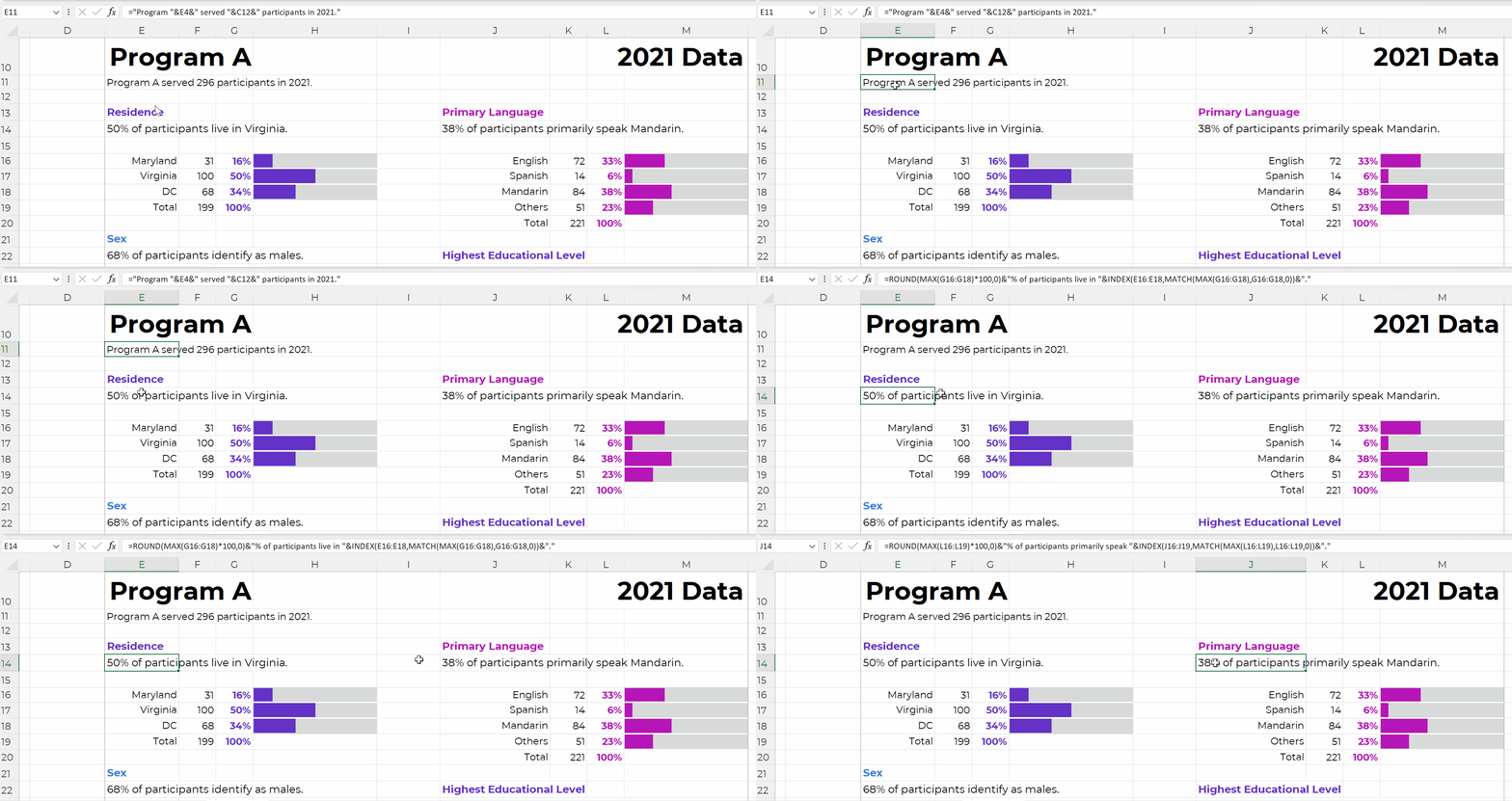
Once the charts are finished, use concatenation to write sentences, like this:

Time for the final touches. You’ll add a title and subtitles; color-code by category; and set everything to be printer-friendly and PDF-friendly, like this:

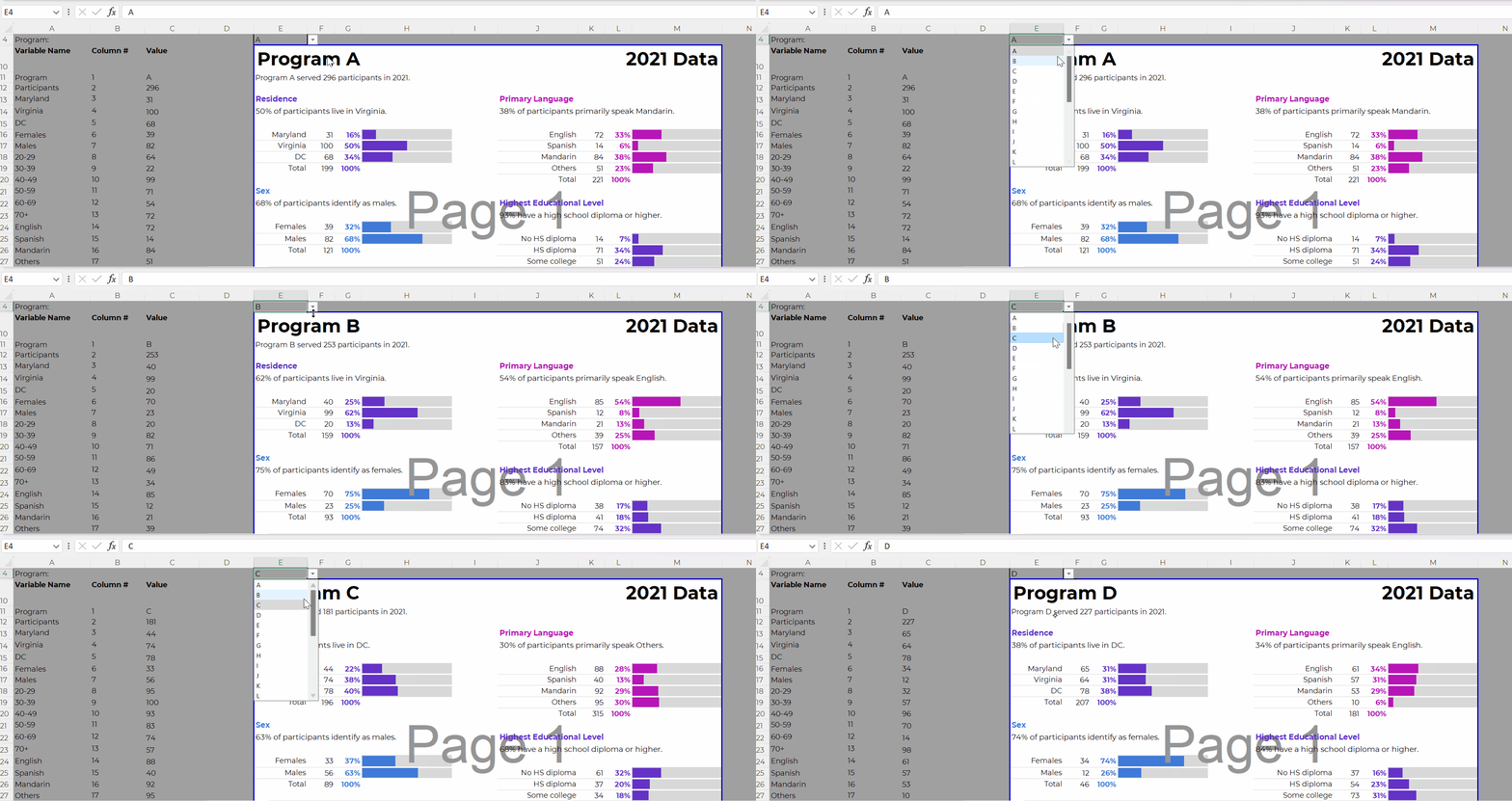
Everything is linked!

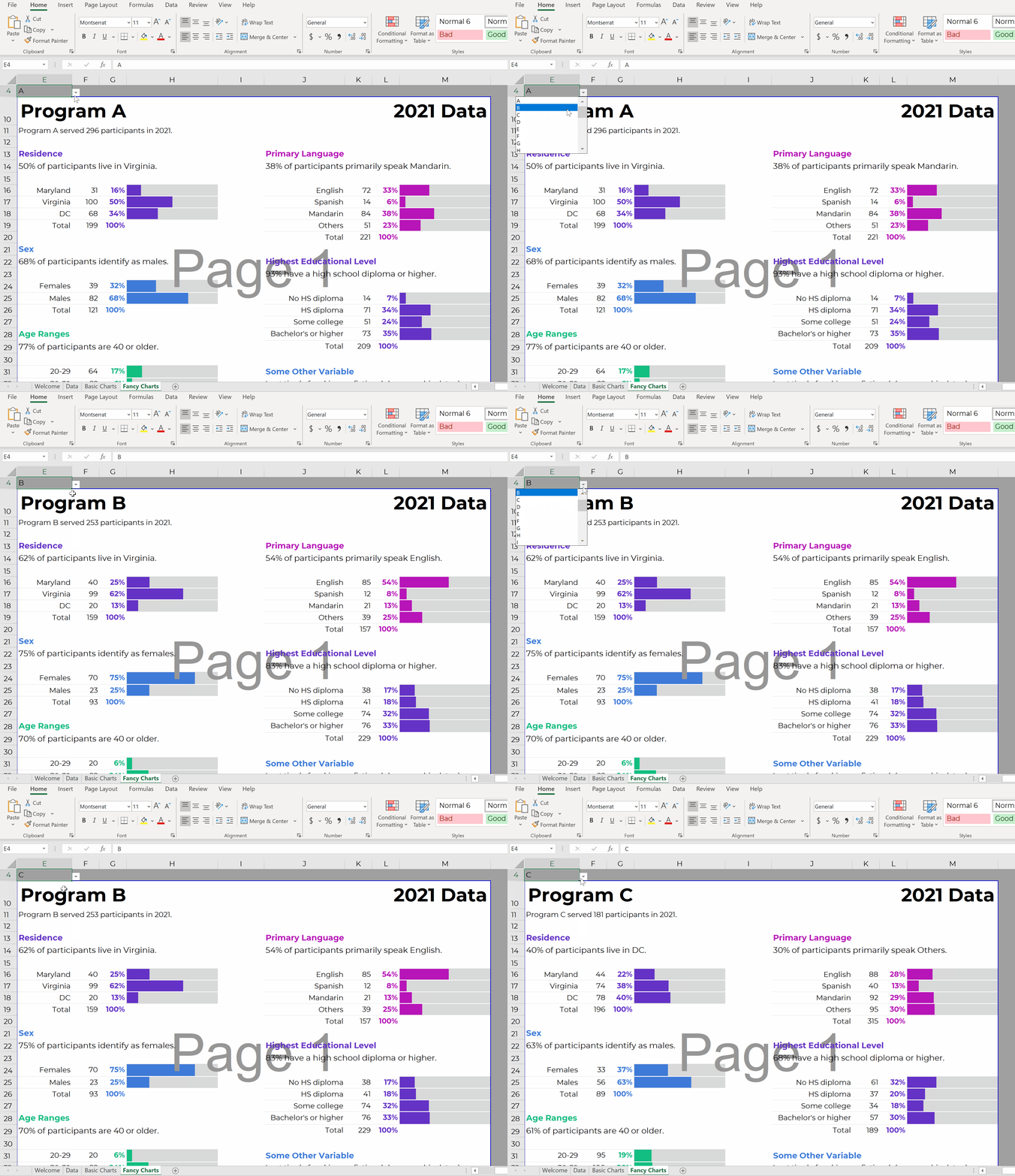
When you select the program name from the drop-down menu…

That program’s data feeds into the Values column (thanks to the lookup formula)…

And that program’s data feeds into the charts.

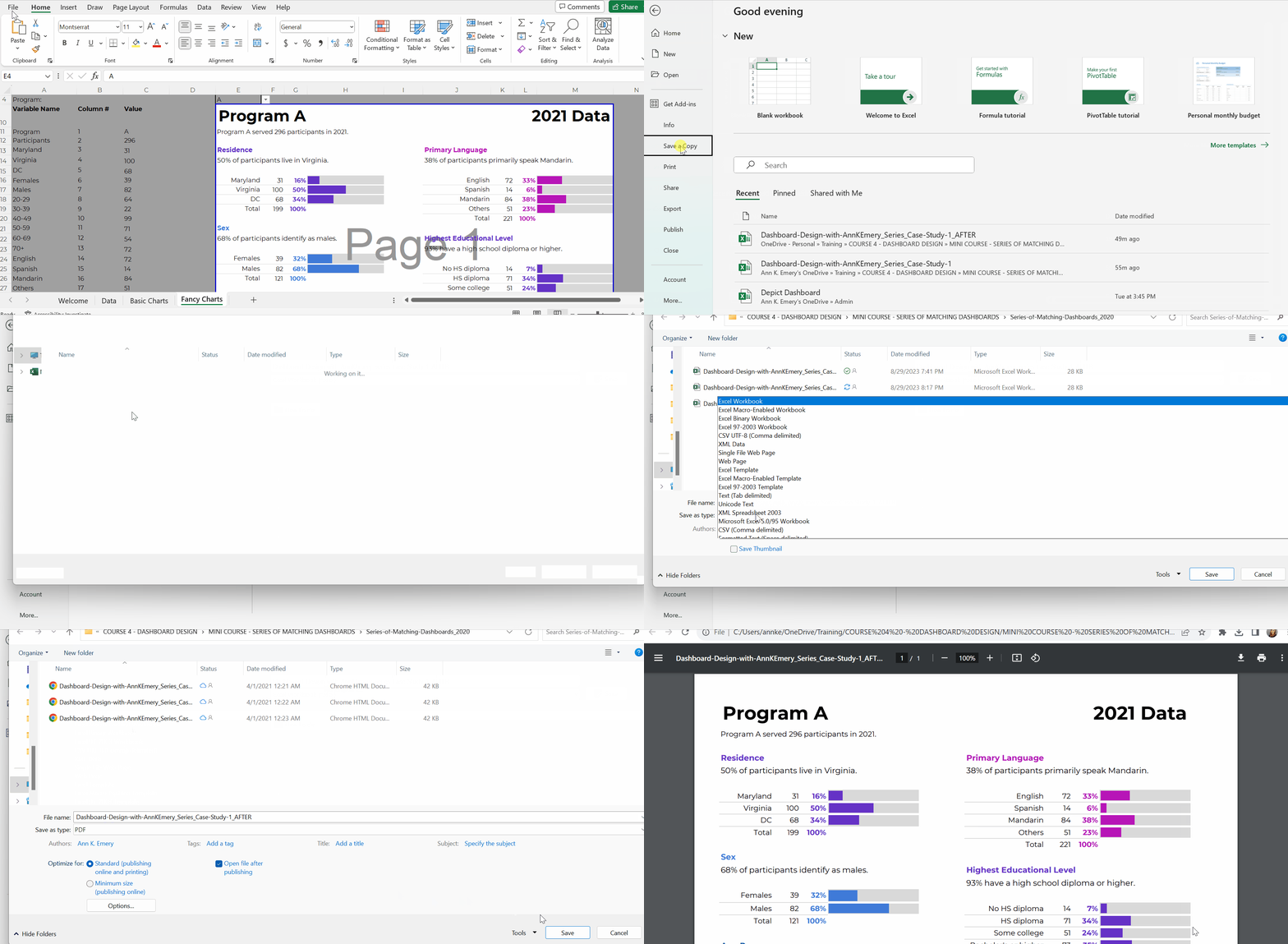
Don’t worry; the recipients won’t see the formulas behind the scenes. And they won’t see the Page 1 watermark-ish mess.

They’ll see their own PDF, with their own data, like this:

In real-life projects, we sometimes add all these dashboards to the appendices of technical reports (simply by using Acrobat to combine PDFs).

Work Hard Once

With this process, you can create one template and auto-magically populate dozens or hundreds of matching dashboards.

No typos!

No tedious copying-and-pasting from Excel into Word or PowerPoint!!

Work hard once!!!

Create one template, and then let the drop-down menus do the heavy-lifting.

Real-World Case Studies

I’ve used this process in consulting projects to:

  • Design matching 2-pagers for every state, territory, and tribal area that offers home visiting services (State A had its own 2-pager, State B had its own 2-pager, etc.)
  • Design matching 4-pagers for each grantmaking area for a foundation’s board meetings (Focus Area A had its own 4-page dashboard with key metrics, Focus Area B had its own dashboard, etc.)
  • Design matching 10-page survey results tables for every university that responded to a survey (University A saw their own survey results, University B saw their own survey results, etc.)
  • …and a dozen more over the past decade.

Your Turn

What sorts of how-to questions do you have for me?

Comment below and I’ll answer as many as I can.

Written by cplysy · Categorized: depictdatastudio

Sep 07 2023

How to create simple infographics.

Stop overthinking infographics. Not every infographic needs to be a fully illustrated well-developed story. It can be enough to just share a simple factoid or quote and give it some pretty colors.

In my workshops I tend to call simple infographics, micrographics. But you also might see them mentioned as featured images, small infographics, or social graphics.

But let’s just look at an example. Take the following shared on UNICEF’s twitter account.

Children are more vulnerable to air pollution because they breathe faster and take in more pollutants.

The recently published General Comment 26 affirms that children have a right to a clean and healthy environment.

Let’s work together to make this a reality. #WorldCleanAirDay pic.twitter.com/LVtnb8CgU5

— UNICEF (@UNICEF) September 7, 2023

Clearly, there is not much to soak in here. There is a factoid, “99% of the world’s population breathes polluted air” with simple colors and basic illustration of a lung. It also shows a few social media hashtags and names the source program.

There is NOTHING deep about this micrographic.

But it serves a purpose as a transition tool. One goal of this image is to share a fact, but the bigger goal is to engage the reader into digging deeper.

Creating Simple Infographics in Canva.

Canva is by far my favorite tool for creating micrographics. It’s just so darn simple.

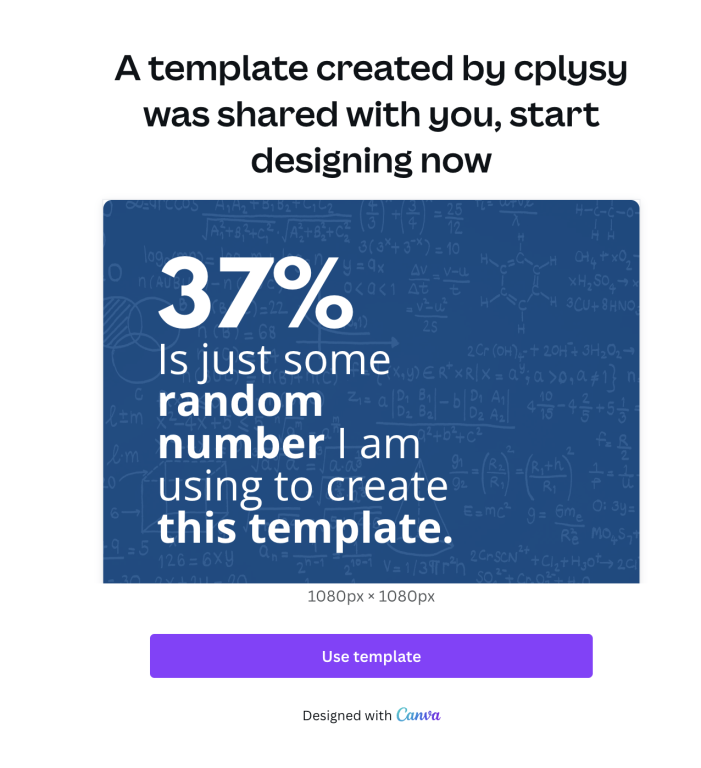
I created a sample set of templates as examples for the tips in this blog post. Just to note, I did use Canva pro when making these templates. So there may be a few elements you would need to swap out if you wanted to use any of these in the free version.

But the techniques are so simple, it’s probably easier to just create your own.

7 Tips for Creating Simple Infographics

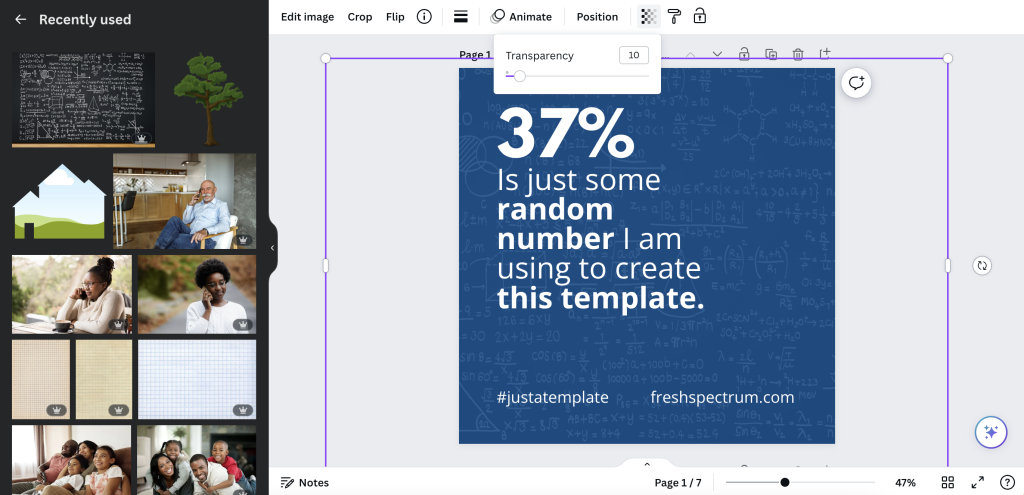
Tip 1. Add a photo in the background but make it transparent.

One of the easiest ways to use a photo, but stay on brand colors, is to start with the background in a color of your choosing. Then add a photo on top, turning down the transparency. This will let the color shine through.

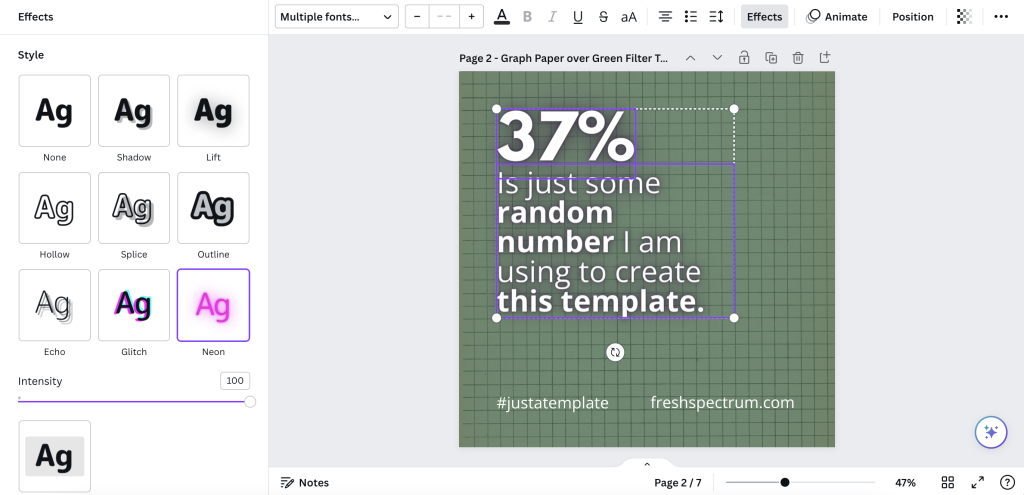
Tip 2. Add some text effects.

Sometimes the text just doesn’t pop, or the backdrop isn’t interesting enough to draw attention. Using a text effect might help a little. I like using “Lift” or “Neon” effects in Canva to help text stand out a little, especially when the background isn’t light or dark enough to provide good contrast.

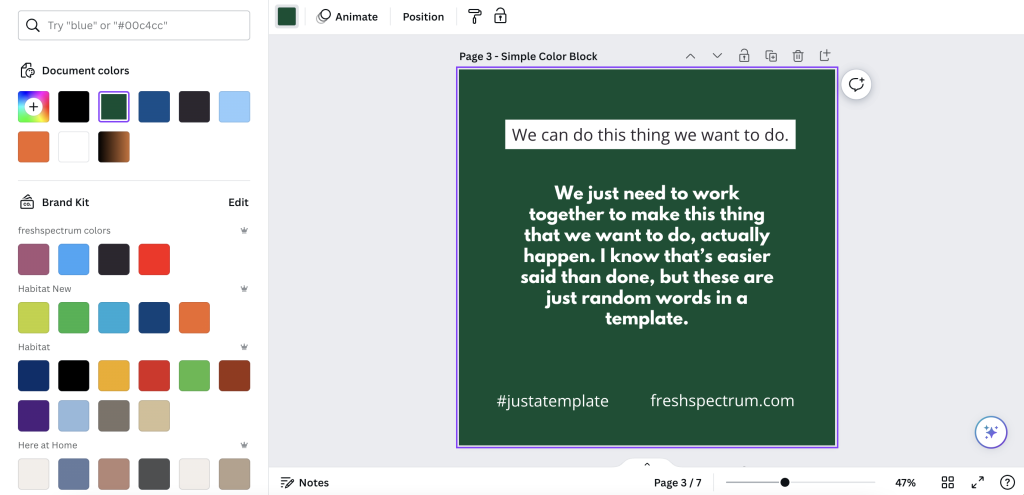
Tip 3. Sometimes a block of color is enough.

Not everything has to be fancy. A solid block of color in the background might be enough to have your micrographic stand out in a social media feed. And the lack of extra flair can help your audience retain focus on the text.

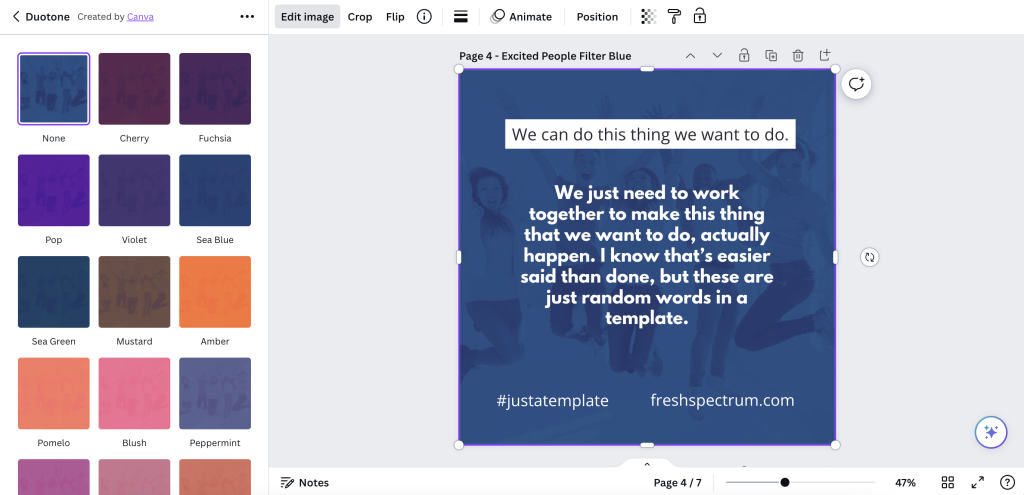
Tip 4. Photo effects can be used as well.

With a micrographic you really want there to be enough contrast between the text and background. So using photos can be complicated. I showed one way to filter up top, but the simple way is just to use one of Canva’s photo filters.

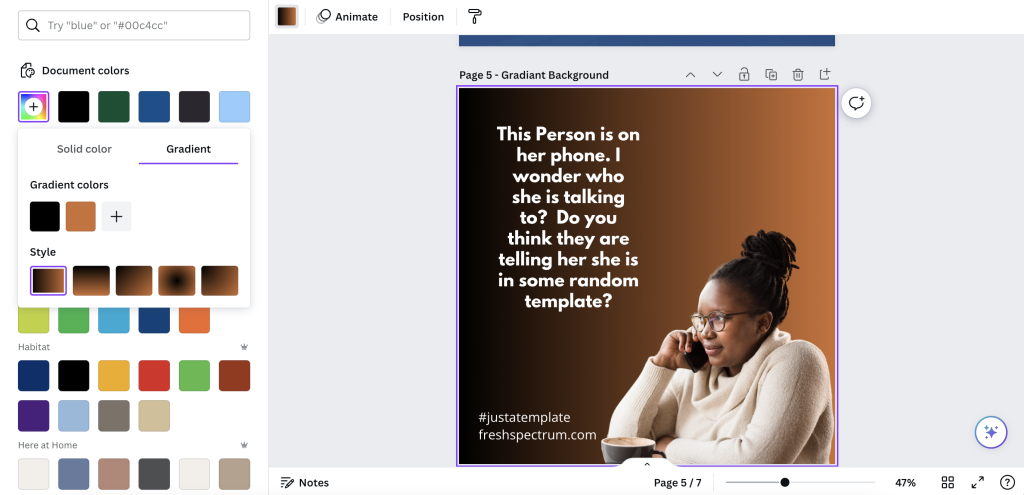
Tip 5. Use gradients

A gradient will just merge two different colors in your background. You just choose the colors and style in Canva’s color menu.

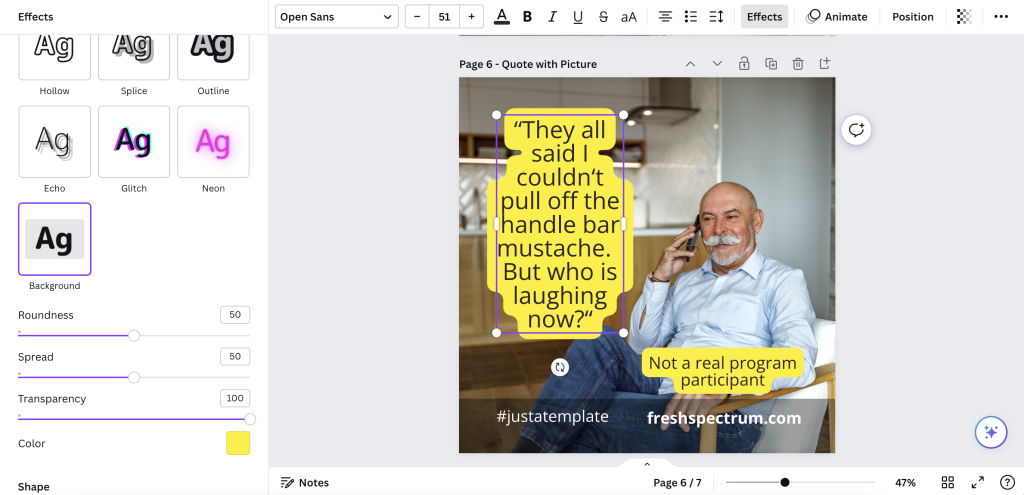
Tip 6. Simple quote with a solid background.

When using images that don’t give sufficient contrast, one simple way to adapt is to just give the text some background. You can do this manually with shapes or use the Canva Background text effect.

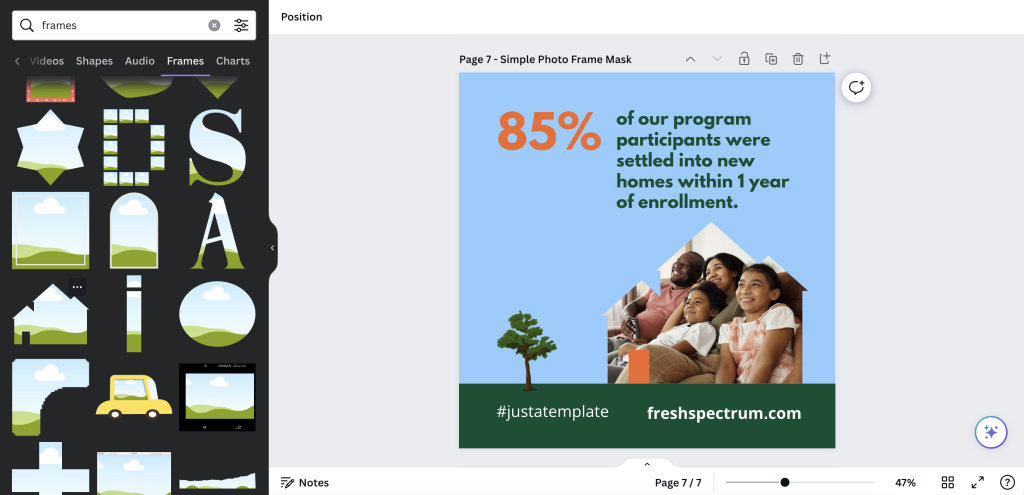
Tip 7. Simple photo masks using Canva frames

One of Canva’s basic tools is a type of photo mask they call Frames. A simple frame let’s you use photos without taking over the space needed for the text.

Just have fun with it.

Evaluators and researchers are notorious for overthinking creative work. Whether it’s from a lack of practice or just an underdeveloped creative confidence, it’s something I see all the time.

Over and over again I hear stories where an evaluator spend weeks working on a long infographic, data dashboard, or report only to get crickets in response.

But then they end up working on some other kind of passion project or side work and just spend a little time creating something fun. And it’s the fun thing, that took very little time, that people love.

It’s okay to have fun when designing.

And if anyone complains, you can tell them I said it was okay.

Written by cplysy · Categorized: freshspectrum

Sep 06 2023

Ask Nicole: We’ve Hired Too Many Consultants

Have a question you’d like to be featured? Let me know. It’s been a while since I’ve touched on a consulting-specific topic, and this month’s Ask Nicole touches on something I’ve been noticing over the past year. Why do nonprofits hire consultants? Specifically, why do nonprofits hire multiple consultants at the same time? From a […]

The post Ask Nicole: We’ve Hired Too Many Consultants appeared first on Nicole Clark Consulting.

Written by cplysy · Categorized: nicoleclark

Sep 04 2023

How to Make Your First Tableau Dashboard

Want to get started with Tableau?

Here’s a step-by-step guide to making your very first Tableau dashboard.

In less than an hour, you’ll be able to install the free version of Tableau, add your dataset, create a few charts, and then combine then into a dashboard. You’ll still have time left for formatting, too.

Step 1: Figure Out Which Version of Tableau You Need

There are a few options:

  • Public: Free BUT your datasets and graphs will be publicly available.
  • Desktop: Paid; about USD $1,000/year per user.
  • Server: Paid.

This article compares the versions in more detail.

Step 2: Download Tableau Public

If this is your very first dashboard, I’d recommend starting with the free version, Tableau Public.

Here’s how you’ll install it:

  • Visit https://public.tableau.com/en-us/s/download
  • Enter your email address and click Download the App.
  • The download begins automatically.
  • It takes about 5 minutes.

Step 3: Import or Connect Your Dataset

Now, you’ll need to connect your dataset to Tableau.

You can add datasets from Excel, Sheets, QuickBooks, etc.

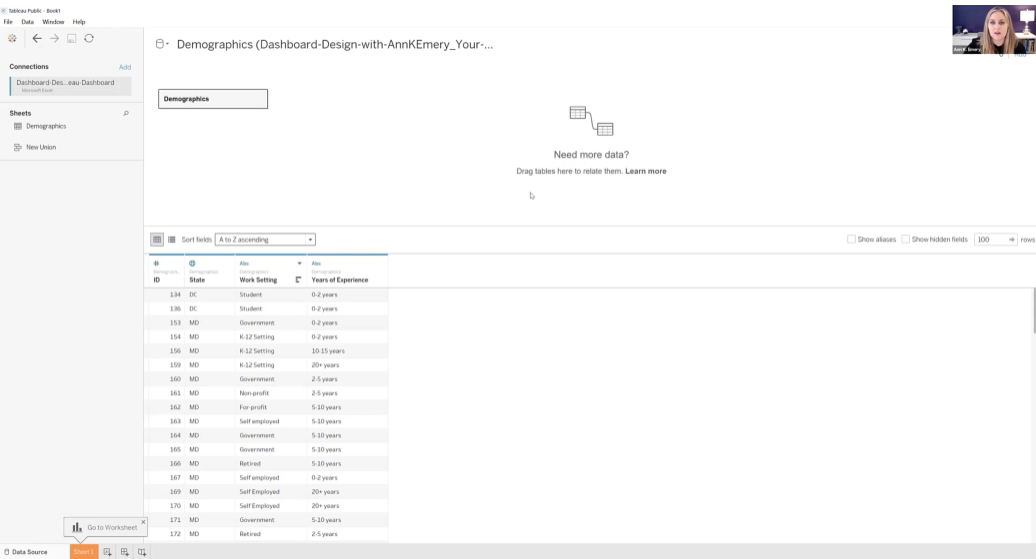
In this example, let’s pretend we’re visualizing demographic data from an Excel spreadsheet, like this:

Here’s how you’ll add your dataset to Tableau:

  • Open Tableau Public.
  • Connect to a File: Microsoft Excel. Open your file.
  • You’ll see the names of the Excel Sheets on the left.
  • Drag in the sheet(s) you want to use for your Tableau dashboard.
  • Pre-filter if needed.
  • Connect multiple tables if needed. Joins combine the columns of two datasets, and unions combine the rows of two datasets. Joins are most similar to lookup functions in Excel. Unions are most often used when more data is coming in, and you need to add more rows to the bottom of the dataset.

The preview of your spreadsheet will look like this inside Tableau:

Step 4: Drag and Drop Variables to Create One Visual at a Time

We’ll build one chart at a time. Then, in a moment, we’ll combine them into a dashboard.

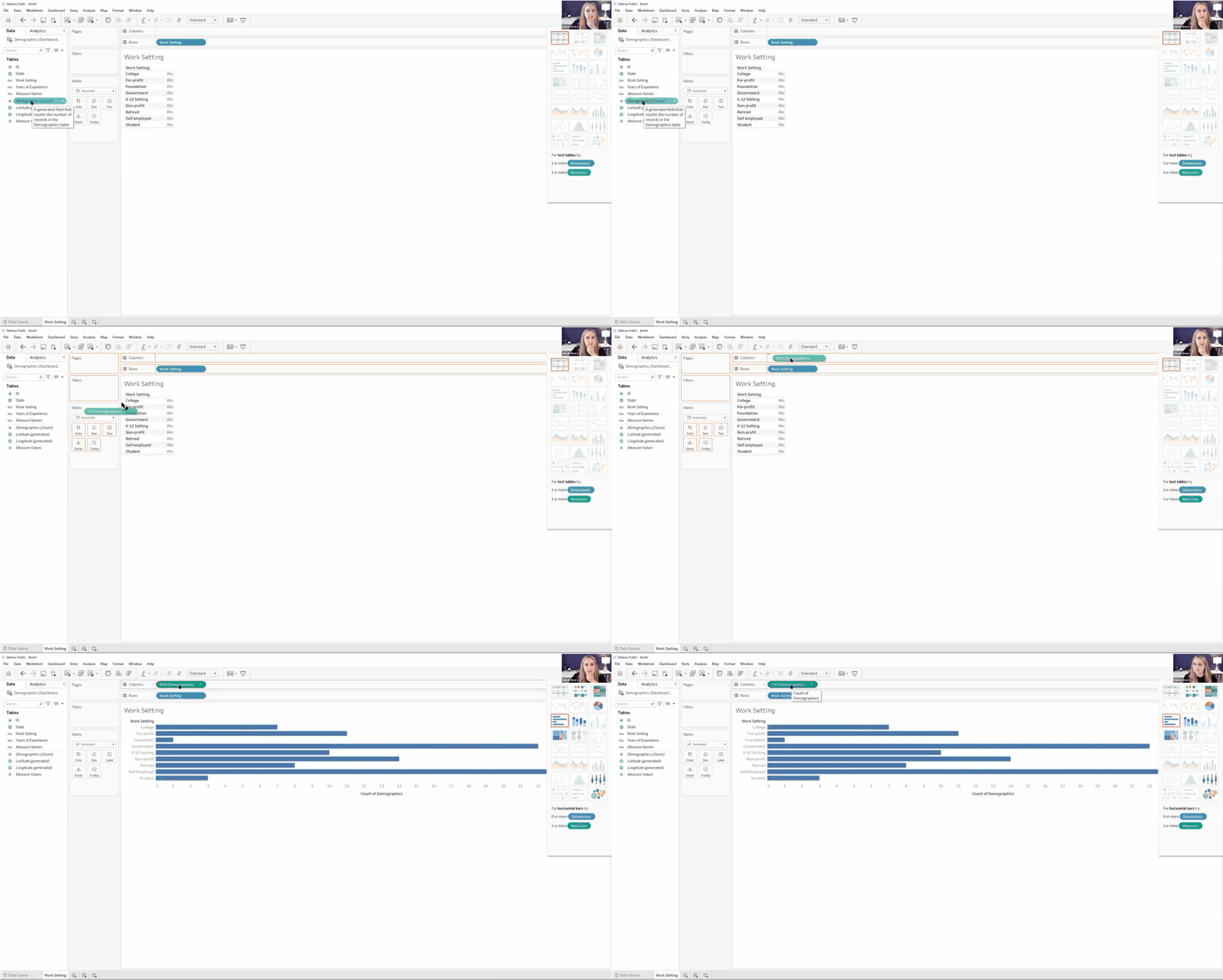
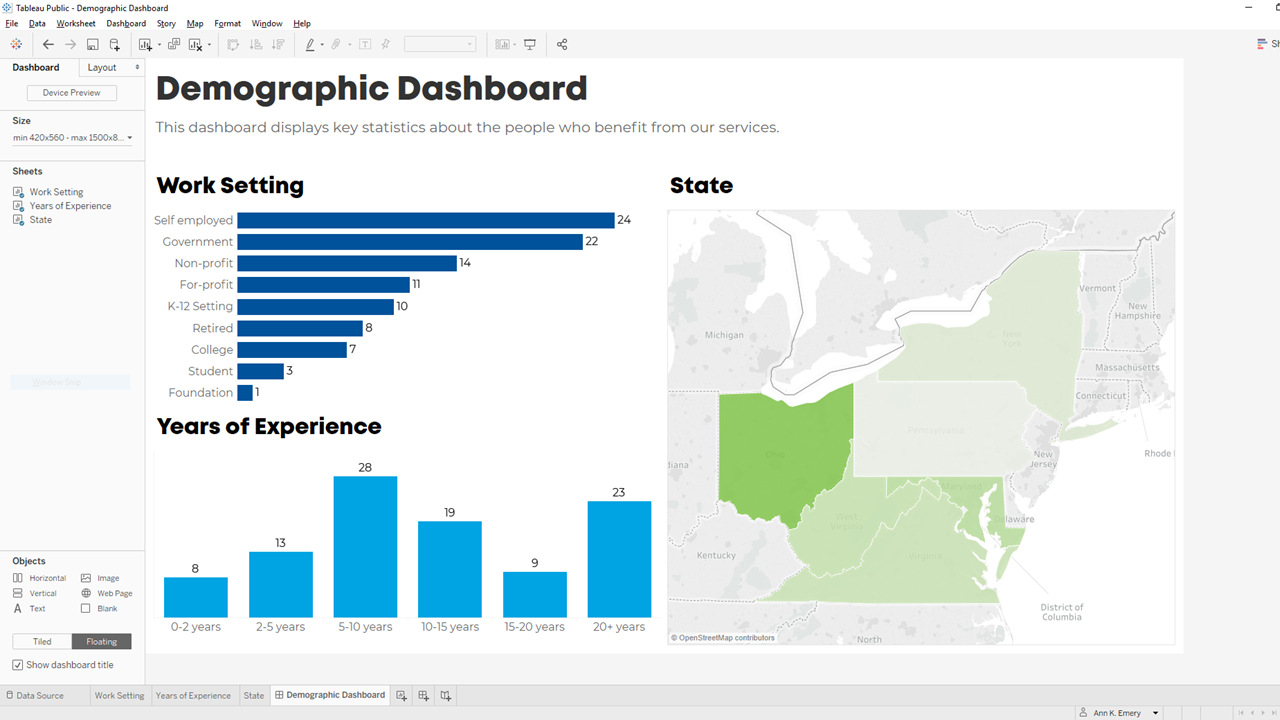
First, let’s visualize the Work Setting data in Sheet 1. We would drag Work Setting into Rows and Demographics (Count) into Columns. Congrats! You’ve got your first bar chart.

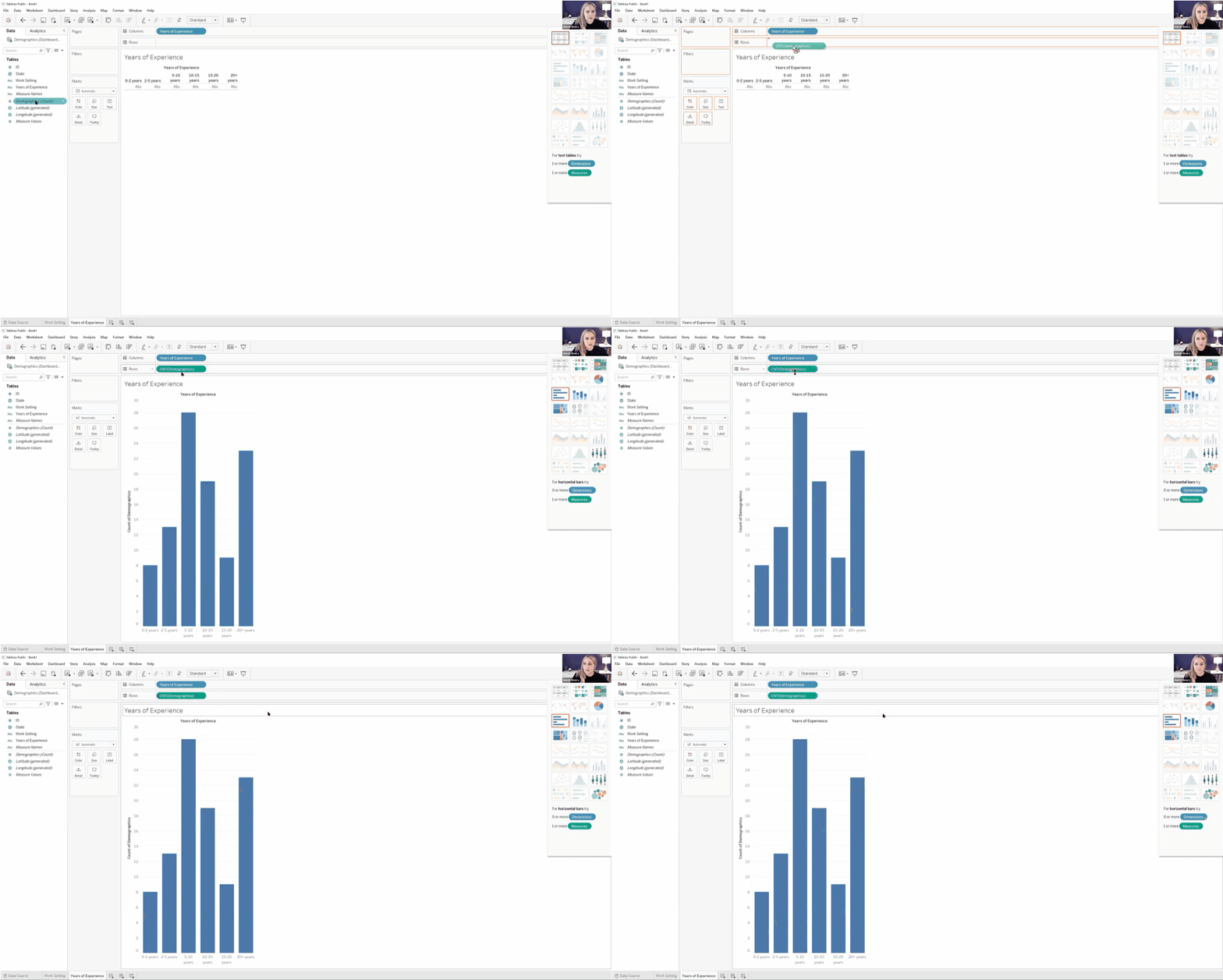
Next, we’ll drag and drop variables to create a Years of Experience histogram.

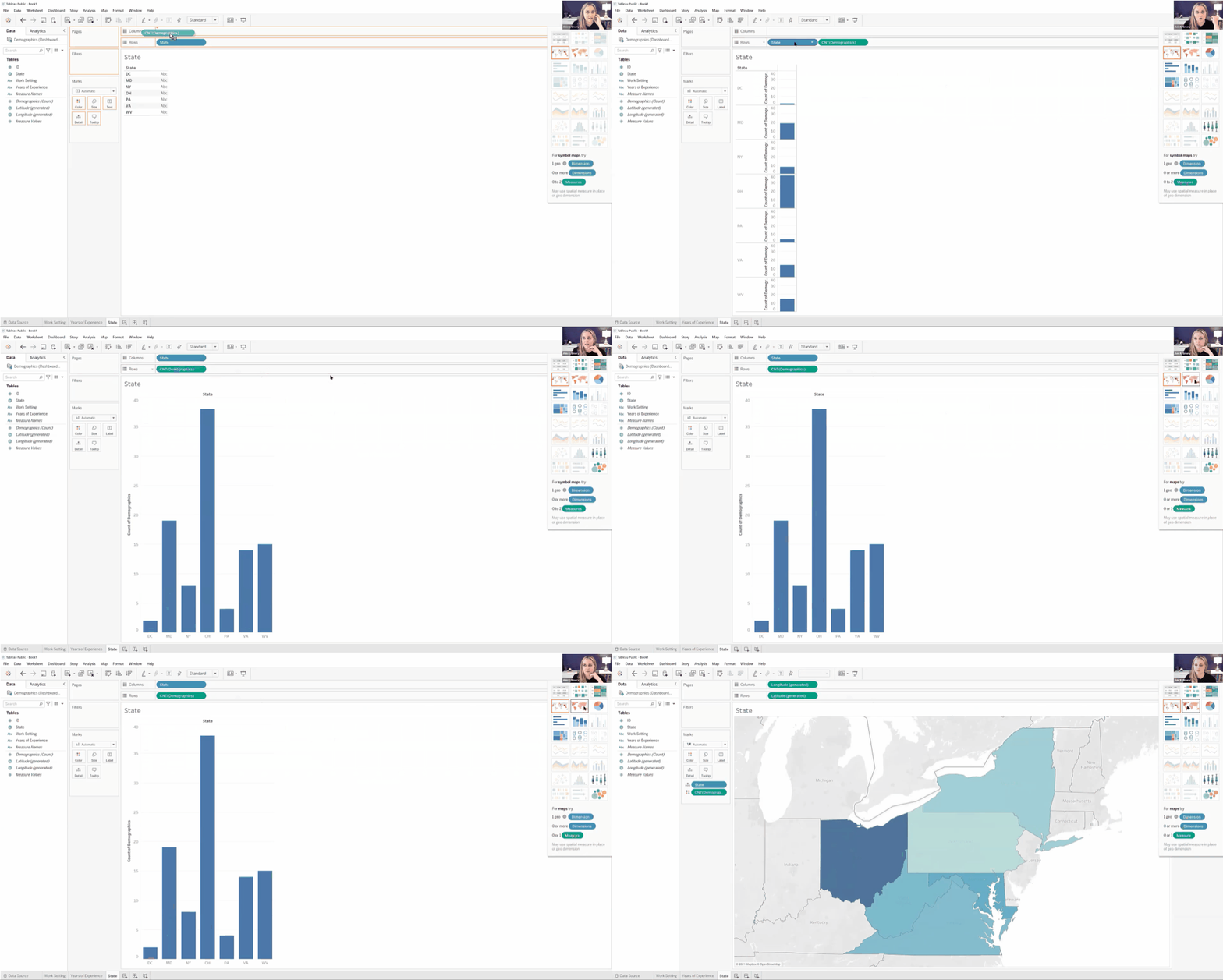
Finally, we’ll create a color-coded (“choropleth”) map by State.

We’ll create a bar or column chart first, and then simply change it into a map with the Show Me menu.

Step 5: Combine the Sheets into a Dashboard

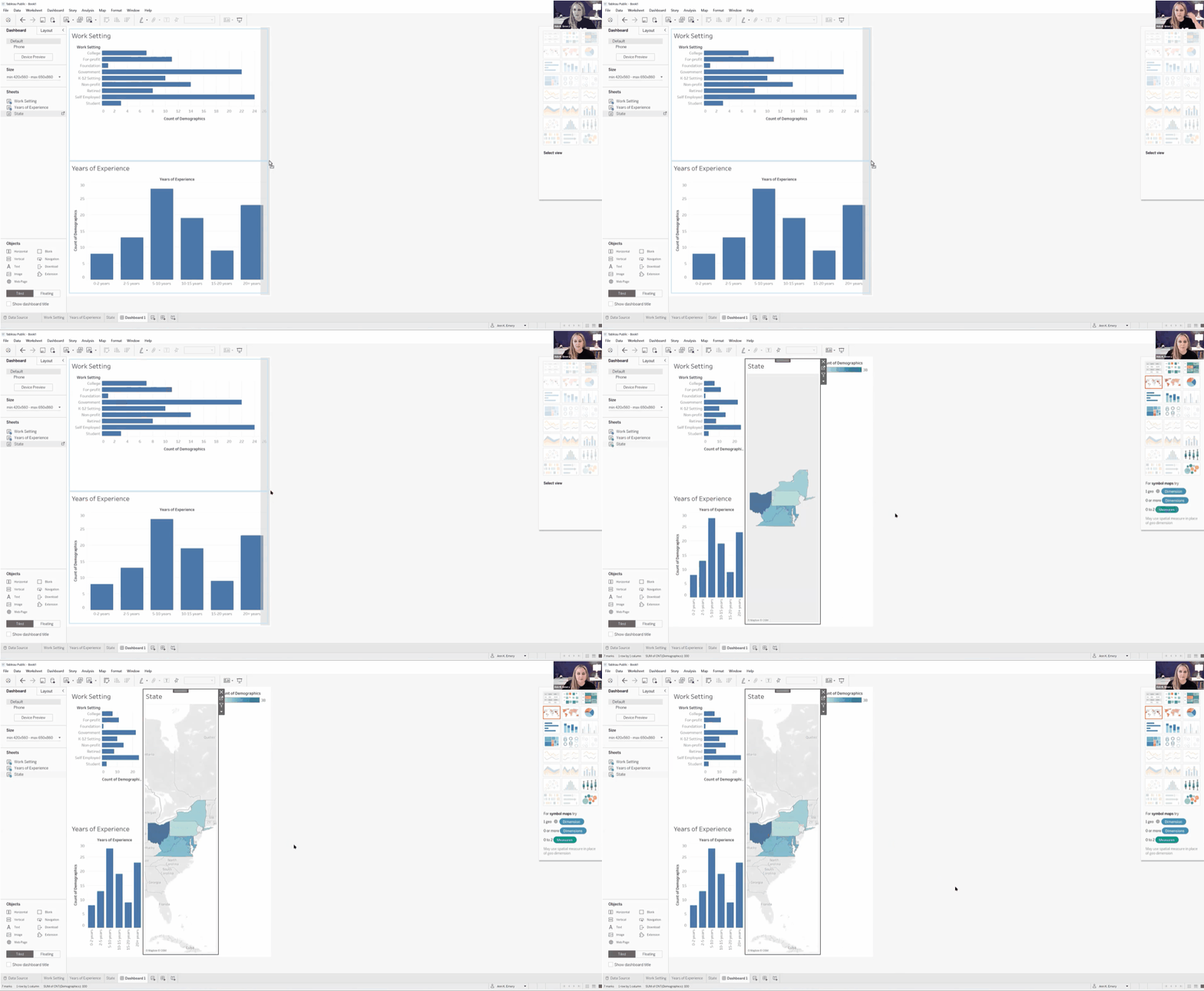
Now, let’s combine our three individual graphs into a single dashboard.

Here’s how:

  • Along the bottom, click on the icon to create a New Dashboard.
  • Then, in the Dashboard tab on the left:
    • Choose the device (Desktop, Tablet, phone, etc.).
    • Adjust the size as needed.
    • Drag the Sheets into the main dashboard area.
    • Add Objects as needed (e.g., Blank to add some white space between visuals).
    • The individual graphs can be tiled or floating. I prefer tiled.
    • Check the box to Show dashboard title.

Step 6: Format, Format, Format!

It’s easy to create graphs in Tableau.

Like many software programs, it’s not so easy to format them to be Accessible (508/ADA compliant) and accessible (intuitive).

Here are some bare-minimum edits to get you started.

Apply brand fonts. Go to Format –> Workbook to change all the fonts in your file at the same time (rather than changing one visual at a time). Here’s an article with more info.

Apply brand colors. I personally just go to Marks –> Colors –> More Colors and enter the RGB or HEX codes. Or, here’s an article with a coding option.

I love color-coding by category (i.e., one brand color per graph). This is an easy way to make a dense dashboard feel not-so-dense.

Apply a text hierarchy. Make sure the dashboard title is largest, boldest, and darkest. You’ll also need Heading 1s, and you might need Heading 2s.

As usual, left-aligned text is faster to read then centered or justified text.

As usual, horizontal text is faster to read than diagonal or vertical text.

Don’t forget to turn bulleted tooltips into complete sentences for an extra boost of accessibility.

Your formatted dashboard might look something like this:

Step 7: Share the Dashboard

That’s it! Let’s share it with colleagues.

In the upper left corner, click on File. Choose Save to Tableau Public. Log in. Or, create a username.

Once the dashboard is saved to Tableau Public, you can save the dashboard as an image file, a PDF, a PowerPoint slide, etc.

Learn More

If you’d like to learn more about getting started with Tableau, check out Dashboard Design. This 4-course bundle includes a half-day course on Tableau.

Written by cplysy · Categorized: depictdatastudio

  • « Go to Previous Page
  • Go to page 1
  • Interim pages omitted …
  • Go to page 74
  • Go to page 75
  • Go to page 76
  • Go to page 77
  • Go to page 78
  • Interim pages omitted …
  • Go to page 310
  • Go to Next Page »

Footer

Follow our Work

The easiest way to stay connected to our work is to join our newsletter. You’ll get updates on projects, learn about new events, and hear stories from those evaluators whom the field continues to actively exclude and erase.

Get Updates

Want to take further action or join a pod? Click here to learn more.

Copyright © 2026 · The May 13 Group · Log in

en English
af Afrikaanssq Shqipam አማርኛar العربيةhy Հայերենaz Azərbaycan dilieu Euskarabe Беларуская моваbn বাংলাbs Bosanskibg Българскиca Catalàceb Cebuanony Chichewazh-CN 简体中文zh-TW 繁體中文co Corsuhr Hrvatskics Čeština‎da Dansknl Nederlandsen Englisheo Esperantoet Eestitl Filipinofi Suomifr Françaisfy Fryskgl Galegoka ქართულიde Deutschel Ελληνικάgu ગુજરાતીht Kreyol ayisyenha Harshen Hausahaw Ōlelo Hawaiʻiiw עִבְרִיתhi हिन्दीhmn Hmonghu Magyaris Íslenskaig Igboid Bahasa Indonesiaga Gaeilgeit Italianoja 日本語jw Basa Jawakn ಕನ್ನಡkk Қазақ тіліkm ភាសាខ្មែរko 한국어ku كوردی‎ky Кыргызчаlo ພາສາລາວla Latinlv Latviešu valodalt Lietuvių kalbalb Lëtzebuergeschmk Македонски јазикmg Malagasyms Bahasa Melayuml മലയാളംmt Maltesemi Te Reo Māorimr मराठीmn Монголmy ဗမာစာne नेपालीno Norsk bokmålps پښتوfa فارسیpl Polskipt Portuguêspa ਪੰਜਾਬੀro Românăru Русскийsm Samoangd Gàidhligsr Српски језикst Sesothosn Shonasd سنڌيsi සිංහලsk Slovenčinasl Slovenščinaso Afsoomaalies Españolsu Basa Sundasw Kiswahilisv Svenskatg Тоҷикӣta தமிழ்te తెలుగుth ไทยtr Türkçeuk Українськаur اردوuz O‘zbekchavi Tiếng Việtcy Cymraegxh isiXhosayi יידישyo Yorùbázu Zulu