• Skip to main content
  • Skip to footer
  • Home

The May 13 Group

the next day for evaluation

  • Get Involved
  • Our Work
  • About Us
You are here: Home / Archives for allblogs / freshspectrum

freshspectrum

Jun 24 2024

How to create a simple qualitative spotlight infographic with Canva

In this video I’ll show you step by step how to create a simple spotlight graphic. This can be a really easy way to illustrate interviews in qualitative reports. This particular graphic was created using Canva.

This is part of the DiY Data Design recipes series.

Full Transcript

Hey data designer!

If you ever write reports with qualitative data, you probably end up with this challenge. Qualitative data can be overwhelmingly text heavy.

To make these reports easier to read, you need to do two things. The first is just to follow the rules of good graphic design. The second is to find appropriate ways to add pictures to your reports.

Today’s recipe is on a simple method you can use to spotlight an individual inside of a
team photo. This can be a really easy way to illustrate interviews with individual group members. You
just need a group photo of some type. You just repeat the following steps for each person you want to spotlight.

To start we’re going to open Canva and create a standard blank 16 by 9 presentation. Since this is just a tutorial, I’m going to start with a random team photo inside of Canva’s
stock image library.

One step I usually take when editing photos or creating infographics is to make duplicates
of the page anytime I want back up copy.

When you click on a photo inside of a canva design you get an image effects menu.
For this recipe I’m going to use Canva’s background remover.

Just a note, this is a Canva pro feature, which I have. There are also other photo
background removers on the web that are free, including Adobe Express (just google it).

While it’s never perfect, I’m always pretty impressed by the job of the Canva background
remover. This used to be a bit of an annoying process, now it’s just a button click.

Let’s go away from the background removed image and make another copy of the first
team photo image. This time we’ll click on the photo and use one of the Canva black and white photo filters.

After that, what I do is actually copy and paste the background removed image overtop of
the black and white image. Then I’ll reduce the size of that image so it spotlights a specific individual.

At this point, if you’re not picky, this might be enough for you. But let’s take it a step
further. After you do a background removal, you can click on the button again to pull up a
configuration window.

From here, we can actually manually erase parts of the photo.

So that’s what I did. I manually erased space around the person I want to spotlight.
You don’t have to erase the whole rest of the photo, because you can also crop things out.
You just want to get rid of the elements right around the person you want to spotlight.

There, now I have one person spotlighted.

She didn’t stand out enough for me. So I clicked on the background black and white
picture and turned down the transparency.

This will help the spotlight pop a bit more.

Now that I have a person spotlighted, let’s add a space for a quote.
You can find rectangles in the elements menu by looking for shapes.

Or you can use a shortcut and just click the R button.

Sometimes with a photo background I’ll also add a little transparency to the background
box to pull the image through. This is all just preference.

Next I’ll add some text using the shortcut t in canva, or by clicking in the text menu.

There are a lot of ways to edit text. With the text selected you can find different options in the menu at the top of the page. There are also text effects if you want to test some of those out.

After I put in the text, the background picture was coming through a little too much, so I
brought the transparency back up just a little.

Then it’s all about tweaking until I am pretty happy with the image.

After I’m done, I want to go ahead and download the image. Most of the time, I’ll download
the image as a PNG.

One thing to note, is that because I kept making duplicate copies of the page I was working
on, I ended up with a multi-page document. Instead of deleting all my backups I usually just use the select pages option in the menu to select the current page.

And that’s it. Here is our final visual.

The good thing about this technique, is that if you only have one picture that includes
multiple people, you can use that same picture over and over again. Because each time it will have a different person spotlighted, it won’t feel monotonous and will help your reader stay connected to each person being interviewed.

If you enjoyed this video, please go ahead and like, subscribe, and leave a comment. It
means a lot and I will always read every comment. And if you’re interested in free resources like eBooks and courses, visit my resource library at freshspectrum.com/library

Now… Get out of your head and go create some stuff.
Written by cplysy · Categorized: freshspectrum

Jun 21 2024

How to create an annotated column chart with Excel and Canva

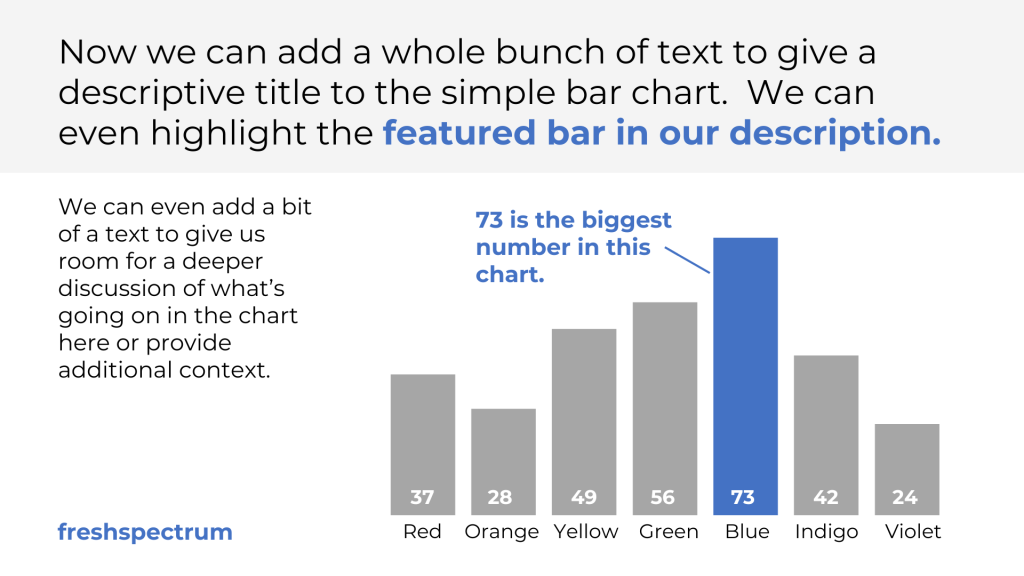
In this video I’ll show you step by step how to create a simple infographic. We start with a column chart in Excel (a.k.a. bar graph or bar chart) and then bring it into Canva for annotations.

Video Transcript

Hey data designer! Welcome to my new recipe series.

The goal with this series is to inspire researchers and evaluators to get out of their heads and start creating stuff.

Before we get started, I’m trying to get to one thousand subscribers on YouTube. So if you could hit the subscribe button, like this video, or leave a comment, it would be much appreciated.

Have you ever used the back of a screwdriver to hammer a nail into a wall? I certainly have.

Would it have been easier to use a hammer, yes. But that would require going out to the garage and finding one. The screwdriver works in a pinch.

What’s the point?

The first rule of just creating stuff is to use the tools you have at hand. Or the tools that you are most comfortable using.

And for many of you, the chart building tool that you have at hand and are probably most comfortable using, is Excel.

Today I’m going to walk through the steps of creating a simple annotated column chart.

We’re going to start to create the column chart. Then we’ll move over to Canva for the annotation.

To start I made up a little data table in Excel. I then highlighted the data table and inserted a 2-D column chart.

Just in case you are wondering, it doesn’t really matter if you choose clustered column or stacked column. Since I only have one column of data, it will look the same.

Now that we have the chart, let’s start cleaning it up. This is a preference, but my goal is to strip the chart down to its essence.

This means deleting the grid lines. I also get rid of the y axis values.

Then I get rid of the title. After that I right click and go to format data series.

This is where I can drop down the gap width. Also known as the space between the bars. My preference is usually 25%.

After that I get rid of the random box around the chart by clicking on the full chart and taking away the outline.

And if you prefer not to have an X axis line, this is also removable by choosing the X axis and clicking no outline.

Finally, for any bar that I plan to color in the final infographic. I change the color.

Right now it doesn’t need to be the final color, it just needs to be different than the other bars. You’ll see why in a minute.

After I’ve cleaned everything up to the essentials. I right click and hit save as picture.

Then I want to save it as an SVG. This will give us the most flexibility and best resolution when we work on the image in Canva.

Now I’ll open up canva and create a blank presentation.

I use the standard 16:9 presentation format for a lot of charts and small infographics. It’s just easy. It works well on social media, inside of visual reports and slide docs. And of course, this way it also works well inside of presentations.

Once I have a blank document, I just drag and drop the svg chart I just created in excel.

Okay, now that the chart is in Canva, let’s make a little annotated infographic.

If you click on the chart image inside of Canva, you’ll notice that it came in with 3 colors. The blue (for the bars) the orange (for my highlighted bar), and white (for the background). This lets us switch the colors around as much as possible.

I brought over the x axis category names, but I want to recreate them inside Canva with a different font.

I could go back and redo this in Excel, but since it’s just at the bottom I can also just crop it away inside Canva with a double click on the image.

To add new category names I just use text boxes. There is a keyboard short cut for text in Canva, just hit the T button.

I ended up changing the bar colors to gray with a blue highlight. Boring I know, but a lot of professional stuff ends up on the boring gray blue scale.

Now for placement I like to use a little bit of measurement. And the easiest way to measure is to use grids inside of canva.

I use this three column grid all the time, just so I can get a sense of space.

For this one I’ll keep a margin around the page and just use the two right hand columns for my chart, aligned to the bottom of the page.

Once I have a sense I’ll delete the grid. I can always get it back, but it’s a start.

The first thing to do is create a nice little intro paragraph at the top of the page.

This is your takeaway. You can even bold and match the color of your highlighted bar inside the text.

Next I’ll add a bit of text to use as a kind of sub-heading or for further detail and context.

Then I’ll add a simple annotation box the color of the highlighted bar. Putting in a little line collecting the annotation to the bar.

Since I didn’t include data labels in my original Excel chart, I’ll go ahead and add those now using text boxes.

And really, that’s the trade off between doing this kind of thing in Canva versus Excel. It requires a little more manual work, but you get a lot more control over the design.

Everything looked a little too plain, so I added a rectangle behind the text at the top to separate a bit.

The final touches are really just tweaking things until I like how everything looks. Then making sure I sign it with my name or website.

Then we’ll go ahead and export it as an image. At this point, unless I plan to bring it into another design program, I’ll usually export as a PNG. And that’s it. Here is our final visual.

Infographics don’t have to be complicated. A nice clean chart annotated with takeaways can provide a lot of value.

If you enjoyed this video, please go ahead and like, subscribe, and leave a comment. It means a lot and I will always read every comment.

And if you’re interested in free resources like eBooks and courses, visit my resource library at freshspectrum.com/library

Now…

Get out of your head and go create some stuff.
Written by cplysy · Categorized: freshspectrum

Jun 17 2024

Schools kill creativity, graduate schools bury it.

Every now and again I rewatch one of my favorite TED talks, and one of the most popular TED talks of all time.

And like every favorite thing that you watch over and over again, the talk keeps changing as I age. A new little thing that I might have missed before, or simply forgotten, sticks out as super relevant.

In today’s rewatch, this stuck out:

“I say this out of affection for them: there’s something curious about professors. In my experience — not all of them, but typically — they live in their heads. They live up there and slightly to one side. They’re disembodied, you know, in a kind of literal way. They look upon their body as a form of transport for their heads.”

A quote from Ken Robinson’s super popular TED talk, “Do schools kill creativity?”

So many of you, who follow this blog, have graduate degrees.

I do too. A masters in sociology. This was my ticket into a social science research and program evaluation career.

My selfish reason for loving Ken Robinson’s talk is not a fear for my daughter’s education. It’s that it feels so true to my own evolution as a professional.

I was a kid who loved to draw. I went everywhere with a pad of paper and pencils. I wasn’t that good, never creating the kind of work that makes people say, “that kid is talented.” As art classes continued through middle school into high school, they become more and more about technique and analysis. I did not excel in these courses.

But I was good at math. I was in the gifted classes and told by teachers with the best of intentions, that one day I would become an engineer.

So the math part was encouraged, and the drawing part…not so much. I went to college as an engineering major.

And during my freshman year, I almost failed out.

A switch to social science kept me going forward. It wasn’t about creativity, but it was about critical thinking. And that was enough to keep me interested and moving forward.

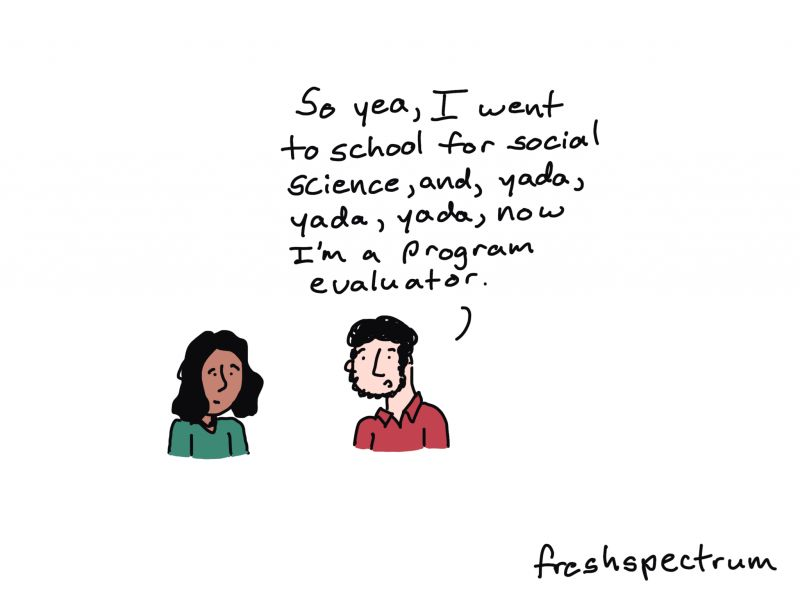
Comic - one person talking to another person, "So yea, I went to school for social science, and, yada, yada, yada, now I'm a program evaluator."

Educated out of creativity.

With only a couple of exceptions, I was educated out of creativity.

High school gave me barely any creative training, my BA degree next to nothing, and my MA degree even less.

My master’s thesis and the one and only published paper I have written, are probably a couple of the least creative things I have ever produced.

Luckily, I was able to eventually revive my creativity.

My comics have made a bigger impact on my chosen field of program evaluation than I anything I could have published in a journal. My personal blog and newsletter have made a bigger impact on the professional lives of researchers and evaluators than the work I contributed to as part of my professional research career.

Comic with two people talking.
Person 1, "I wish I could be as creative as you."
Person 2, "

The way we teach design is flawed.

The biggest barrier keeping program evaluators, researchers, and academics from truly meeting the rising creative expectations isn’t technical.

If you have a lot of education, you were likely educated out of your creativity like I was. (I’m sure there are plenty of exceptions, but if my story resonates with you I would love to hear about it in the comments).

And the ONLY WAY to get it back, is to actually create stuff. Not read more blog posts. Not watch more tutorial videos. Not learn new software tools.

You need to just CREATE STUFF.

Before you can move forward, you need to stop living in your head.

This is why I believe the way we tend to teach design is flawed. We talk a lot about design process, thinking about your audience, and picking the right methods, charts, or software.

Almost every design process starts with a whole lot of in your head stuff.

But the real way forward is to get out of your head and just CREATE STUFF.

Want an eBook that uses 50 pages to tell you the same thing I just told you in two words.

Here it is, I wrote it last week. There are lots of pictures, an official looking colorful model, an alliterative 5 word method, and 20 example data designs for you to try to recreate.

Let me know what you think!

Written by cplysy · Categorized: freshspectrum

Jun 12 2024

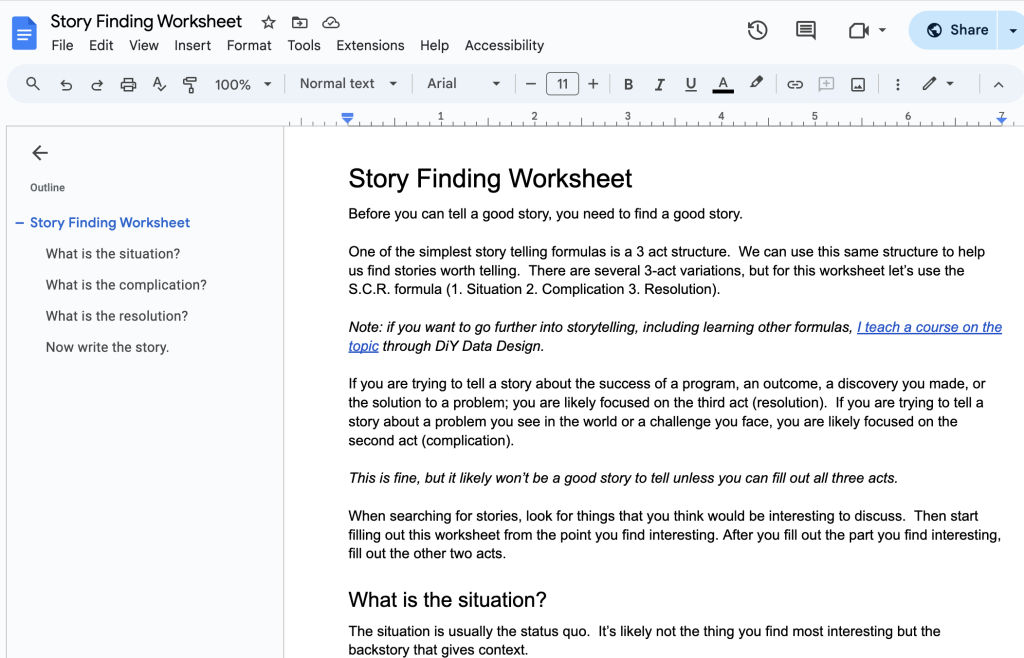
Story Finding Worksheet

So this question came up from a participant during my data storytelling workshop.

The question was something like, “How do you train others on your team to find, and then tell, stories?“

During the prior session, we had gone through a series of storytelling frameworks. We practiced developing and telling stories using each one. One of the cool things about that is that most people can pretty quickly take to a formula, so we ended up with some nice little stories that made great examples.

Another bonus is that we can also take that formula and turn into a creative process that can be shared with others on our team. And the easiest way to do that is to turn the formula into a kind of story rubric, or for simplicity sake, we’ll just call it a story finding worksheet.

Comic in three panels, two people talking. 
Person 1 "So, after 3 months of writing the report, I had this thought."
Person 1 "If I were our audience, would I read this? And the answer was no."
Person 2 holding up a report "So you scrapped it and wrote this?"
Person 1 "What? And waste 3 months work? That's the original."

The S.C.R. formula.

One of my favorite storytelling formulas is the SCR, which you often find on the web attributed to McKinsey. It’s a simple three act structure that replaces the beginning, the middle, and the end with three words, Situation, Complication, and Resolution.

The structure is really simple and you can use it to develop stories for anything from case studies and little infographics to keynote presentations and YouTube videos.

A common reporting problem for a lot of researchers and evaluators, and one of the biggest reasons to use a formula, is that they tend to skip right to situation. By the end of most data projects we are pretty hyper focused on either outcomes (resolution) or continued challenges (complication). If this were a joke it would be like delivering the punchline without the setup.

You need all three acts to tell a good story. And by creating a worksheet that makes you think through each act separately, we’re more likely to not skip a step.

My Story Finding Worksheet.

I went ahead and turned the S.C.R. formula into a story finding worksheet. The worksheet itself is in Google Docs and just two pages.

If you’re interested, you can get the worksheet link here.

Written by cplysy · Categorized: freshspectrum

Jun 06 2024

Creative Self-Assessment

If I could go back in time to my university days, I would certainly take some different electives.

Like so many of you, I spent my time in college learning how to be a social scientist. Which included absolutely zero practical creative or design courses. My professional evolution would probably have been easier if I had taken just a few credit hours on graphic design, user experience design, and creative storytelling.

But alas, that’s not how things work. The good thing is, with countless blogs, books, and YouTube, there has never been a better time to teach yourself new stuff. Even if you can’t commit a semester to a single course.

Comic.  Person one, "Did you bedazzle all of your charts?"
Person two, "Fancy, right?"

Starting with a creative self-assessment.

If you’re here, I’m going to assume you’re likely a data person of some sort. This blog is read by a lot of program evaluators, social science researchers, and all sorts of other data folk.

I think it’s a good idea, every once and awhile, to take stock of your creative ability. Because even though we never learned this stuff in grad school, creative expectations are on a continuous rise.

And since many of those rising expectations are self-imposed, the best way to take stock is with a simple creative self-assessment. So pull out some paper and follow along with me.

Rate yourself twice.

For each of the following questions I want you to rate yourself twice.

  • The scale for both is 1 to 5, with 1 being “very uncomfortable with your ability to do this task” and 5 being “very comfortable with your ability to do this task.”
  • The first rating is your current comfort level with the specific creative skill.
  • The second rating is an aspirational comfort level (where do you want to be in terms of the particular creative skill).
  • You don’t need to be an expert at everything!

Here is a set of skills based on my discussions of practical creative challenges data people face on a regular basis. Rate yourself twice for each one.

Creative Skills for Data People

This is a self-assessment just for you, so be honest with your ratings.

1 (= Very Uncomfortable) to 5 (= Very Comfortable)

Here are 30 skills.

  • Create a good presentation slide deck.
  • Deliver an interesting presentation.
  • Create basic charts and graphs.
  • Create advanced charts and graphs.
  • Find effective data stories.
  • Tell effective data stories.
  • Create a short visual report.
  • Create a little infographic for social media.
  • Create an easy to understand visual slidedoc.
  • Write a blog post.
  • Write a series of social media posts.
  • Write an effective email newsletter.
  • Evaluate digital dissemination efforts.
  • Get a creative project approved by a non-creative boss or client.
  • Share creative responsibilities with a team.
  • Create a mood board.
  • Develop a user persona.
  • Adapt a long report into a slide doc.
  • User test a report.
  • Increase the readability of a long report.
  • Develop a high quality data dashboard.
  • Develop a simple interactive report.
  • Develop a comprehensive web report.
  • Produce a video.
  • Develop a storyboard.
  • Illustrate a qualitative report.
  • Adapt a long report into a series of infographics.
  • Annotate a chart or graph.
  • Settle creative disagreements.
  • Find creative inspiration.

Okay, that’s it for now. I might add more over time, but that should give you a good starter assessment.

Now, how to improve.

Going from a 1 to a 2.

This is just about learning the basics. You can a learn a lot by just spending an afternoon hopping around the internet, watching videos and going down rabbit holes.

Going from a 2 to a 3.

This is where you go from simply knowing to doing. If you were learning to cook, this is where you start following recipes. Here you can spend more time on YouTube and blogs following tutorials, maybe take a basic course.

Going from a 3 to a 4.

This is where your skills improve. At this stage you need ongoing practice to develop your techniques. Try for gradual but constant improvement. Take courses from people with first hand experience. Finding a mentor can help speed up the process.

At a comfort level of 4, you already have more skill than most of your data colleagues. You might even be asked to train others, or get requests to lead bigger creative projects.

Going from a 4 to a 5.

You are no longer just a leader in your office, you a leader in the field. At a 5 you feel comfortable offering workshops of your own or even building a business around your creative skills.

Going from 4 to 5 requires a lot of repetition (practice, practice, practice). At this stage you are starting to develop your own person style and process. Mentorship can help you discover the little things that you can do to get better.

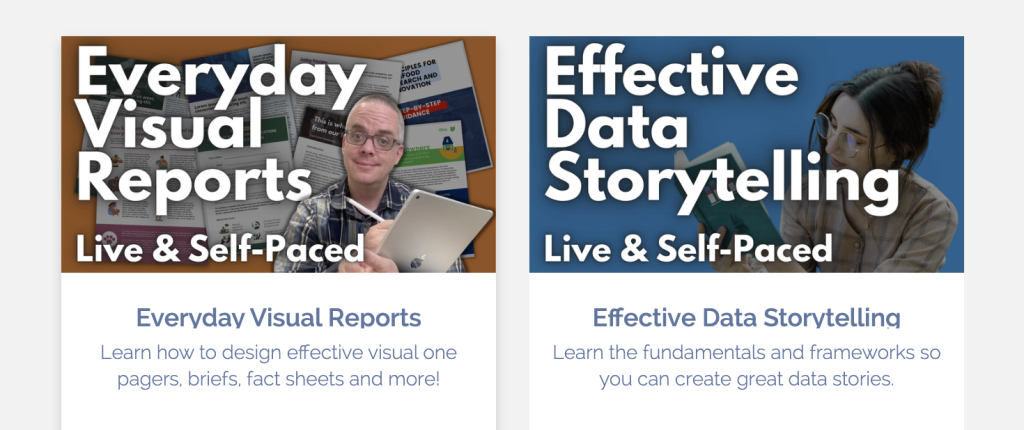
About my blog and DiY Data Design Courses

The goal of the blog (and my YouTube channel) is to get you from a 1 or 2 to a 2 or 3. A lot of that is just about knowing what exists and learning some basic recipes.

The goal of my courses is to get you from a 2 or 3 to a 3 or 4. You can do this through self study, but my courses are designed to make it happen faster. And the tailored support and mentoring I provide through office hours can help you grow into that 4 or 5 range.

Courses available right now (fully self-paced with office hours and future live sessions included).

  • Everyday Visual Reports
  • Effective Data Storytelling

Written by cplysy · Categorized: freshspectrum

  • « Go to Previous Page
  • Go to page 1
  • Interim pages omitted …
  • Go to page 7
  • Go to page 8
  • Go to page 9
  • Go to page 10
  • Go to page 11
  • Interim pages omitted …
  • Go to page 54
  • Go to Next Page »

Footer

Follow our Work

The easiest way to stay connected to our work is to join our newsletter. You’ll get updates on projects, learn about new events, and hear stories from those evaluators whom the field continues to actively exclude and erase.

Get Updates

Want to take further action or join a pod? Click here to learn more.

Copyright © 2026 · The May 13 Group · Log in

en English
af Afrikaanssq Shqipam አማርኛar العربيةhy Հայերենaz Azərbaycan dilieu Euskarabe Беларуская моваbn বাংলাbs Bosanskibg Българскиca Catalàceb Cebuanony Chichewazh-CN 简体中文zh-TW 繁體中文co Corsuhr Hrvatskics Čeština‎da Dansknl Nederlandsen Englisheo Esperantoet Eestitl Filipinofi Suomifr Françaisfy Fryskgl Galegoka ქართულიde Deutschel Ελληνικάgu ગુજરાતીht Kreyol ayisyenha Harshen Hausahaw Ōlelo Hawaiʻiiw עִבְרִיתhi हिन्दीhmn Hmonghu Magyaris Íslenskaig Igboid Bahasa Indonesiaga Gaeilgeit Italianoja 日本語jw Basa Jawakn ಕನ್ನಡkk Қазақ тіліkm ភាសាខ្មែរko 한국어ku كوردی‎ky Кыргызчаlo ພາສາລາວla Latinlv Latviešu valodalt Lietuvių kalbalb Lëtzebuergeschmk Македонски јазикmg Malagasyms Bahasa Melayuml മലയാളംmt Maltesemi Te Reo Māorimr मराठीmn Монголmy ဗမာစာne नेपालीno Norsk bokmålps پښتوfa فارسیpl Polskipt Portuguêspa ਪੰਜਾਬੀro Românăru Русскийsm Samoangd Gàidhligsr Српски језикst Sesothosn Shonasd سنڌيsi සිංහලsk Slovenčinasl Slovenščinaso Afsoomaalies Españolsu Basa Sundasw Kiswahilisv Svenskatg Тоҷикӣta தமிழ்te తెలుగుth ไทยtr Türkçeuk Українськаur اردوuz O‘zbekchavi Tiếng Việtcy Cymraegxh isiXhosayi יידישyo Yorùbázu Zulu